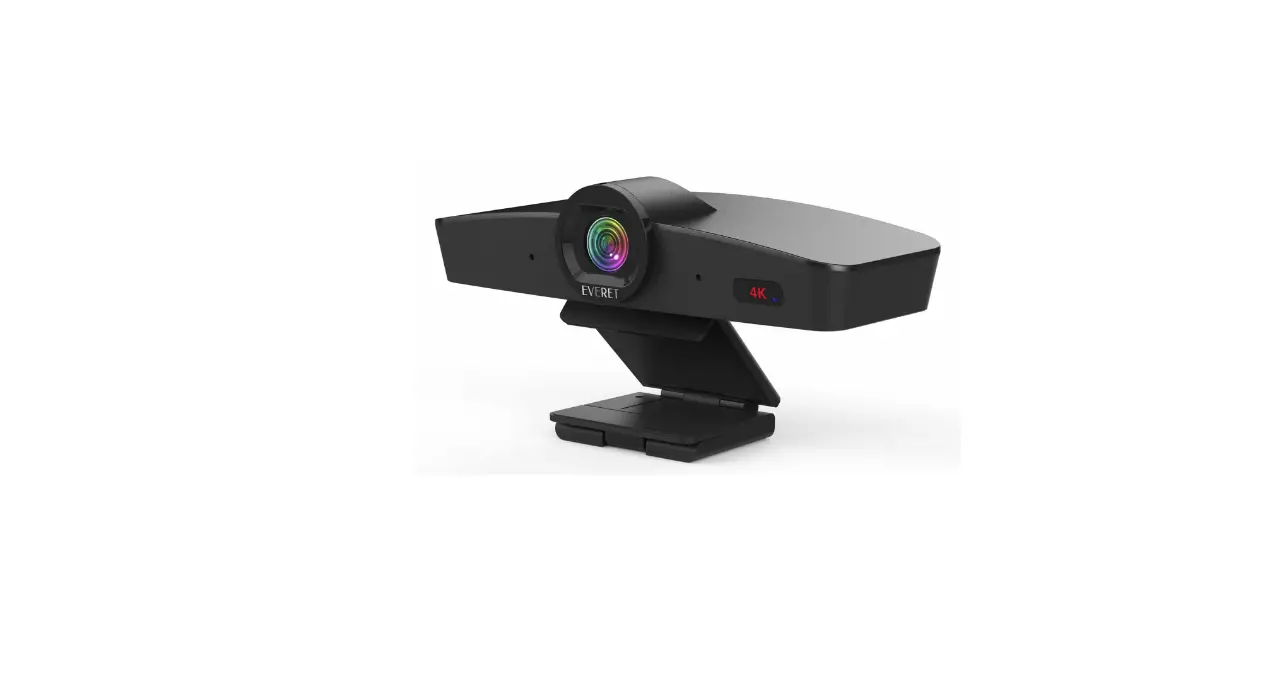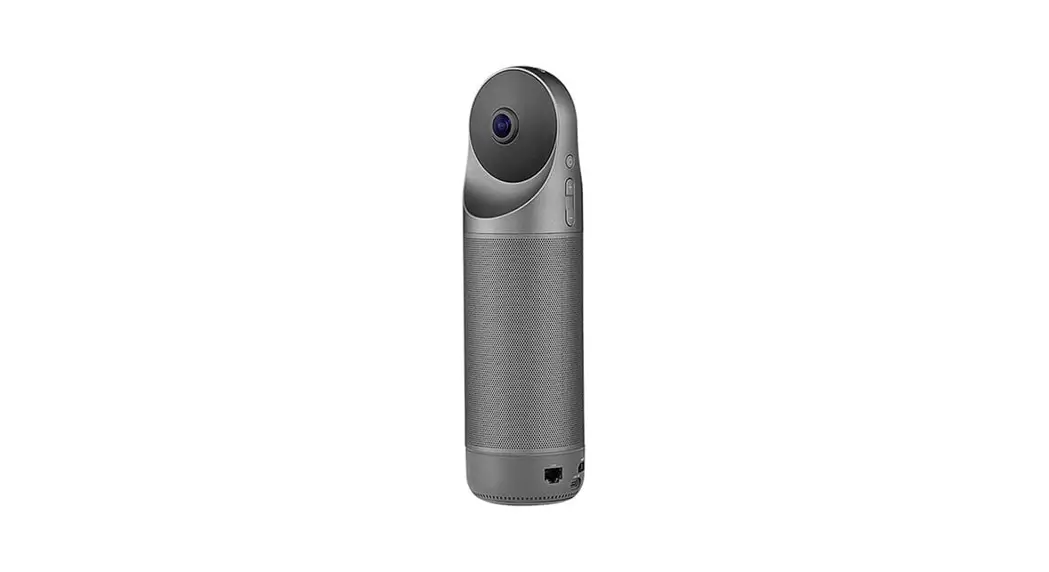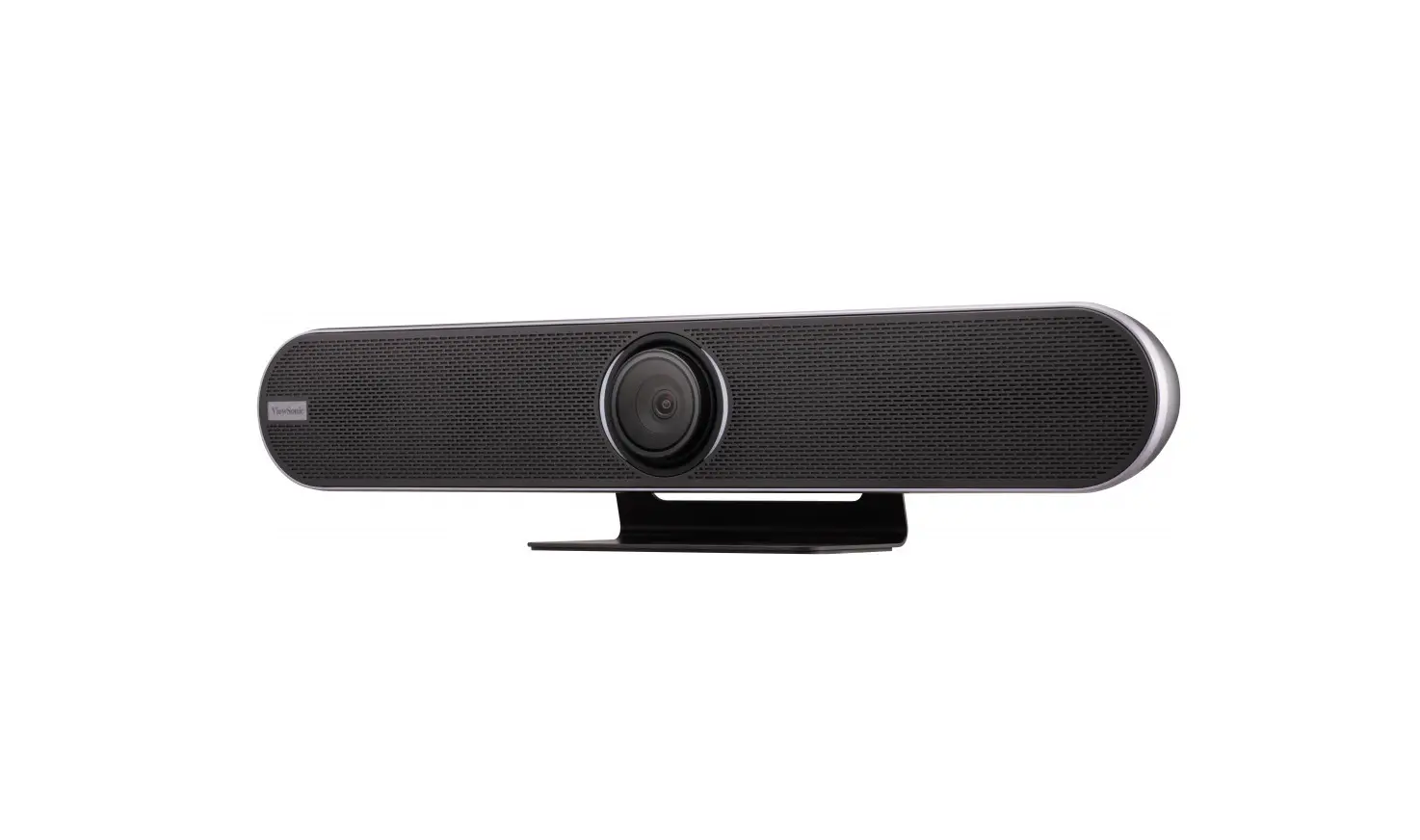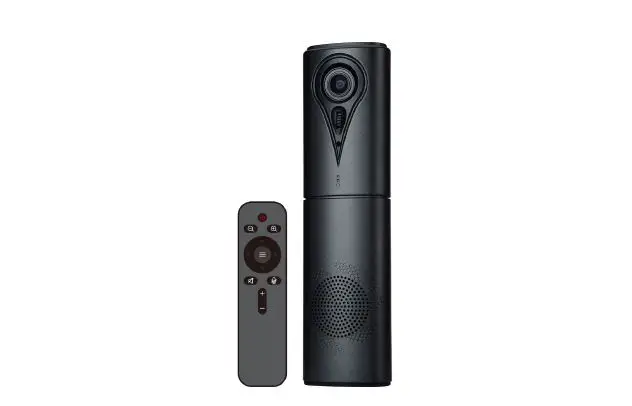

CLEYVER ODHCAM60USB Portable All-in-one Video Conference Cam
Please read this Manual before setting up camera, and stick to its requirement strictly. Suggest you keep this manual for further reference.
PRODUCT FUNCTION CHARACTERISTICS
The device integrates a HD Camera, microphone and speaker ideally suited to Web Video Conferencing Collaboration. Single USB Cable connection for HD Video with audio transition simultaneously and It’s working plug and play. Compatible with most UC and web Conferencing applications like Skype, Zoom, WebEx, TrueConf, Starleaf, etc.
ACCESSORIES LIST
- Camera x 1unit
- USB type-C cable x 1pc
- User’s Manual x 1pc
FUNCTIONAL DESCRIPTION
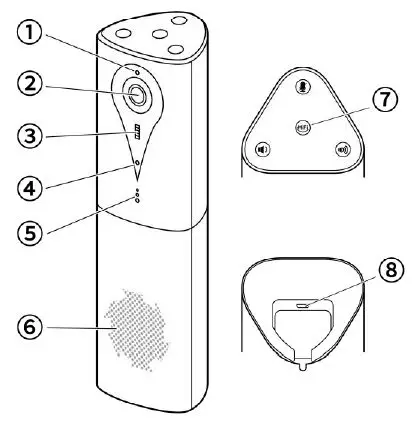
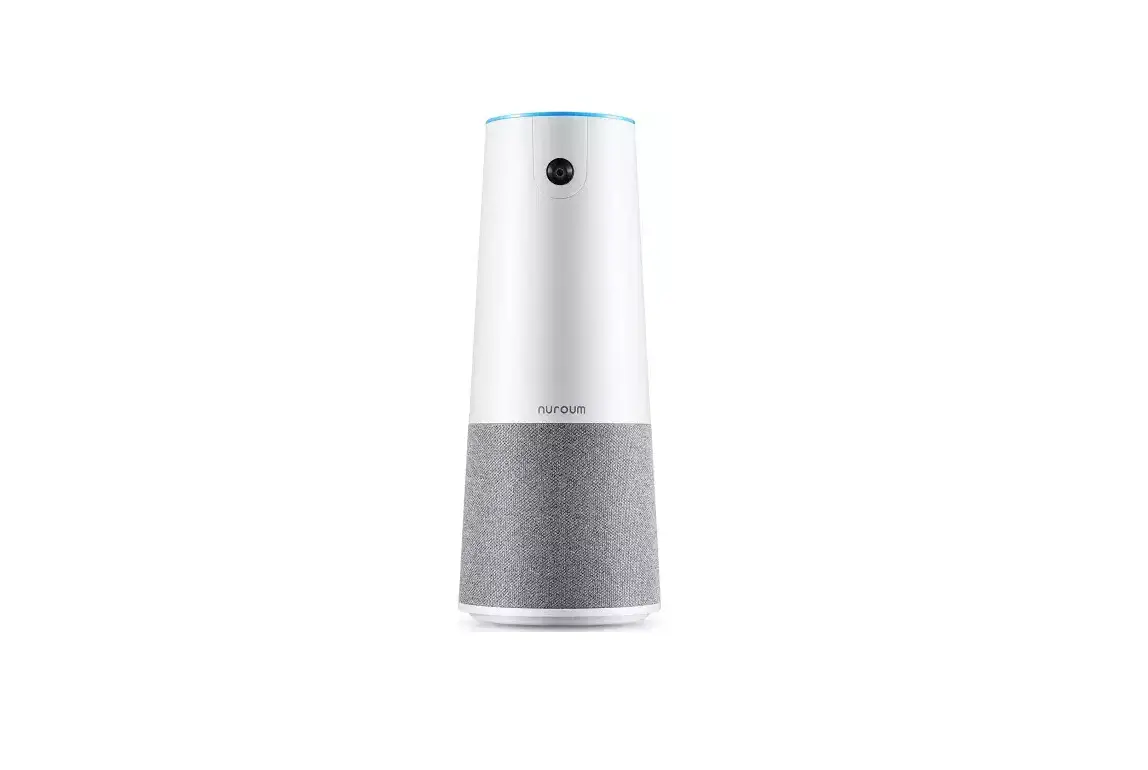
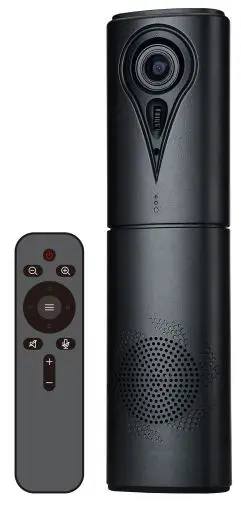
- Blue LED indicator for video ON/OFF
- HD wide view angle lens
- Tilt movement wheel
- Omni-directional microphone
- Work status LEDs Indicator
- Speaker
- HiFi Mode
- USB type-C interface
| Touch buttons | LED indicator color | ||
 | Microphone Mute | Blue | Microphone working |
| Red | Mute Microphone | ||
 | HiFi Mode | Blue | Conference Interaction |
| Green | HiFi mode for music playing | ||
 | Volume Down | LED Indicator blinking while Volume down | |
 | Volume Up | LED indicator blinking while Volume UP | |
FUNCTION OPERATION INSTRUCTION
Web Conferencing Collaboration function operation
Working with WebRTC Application with USB Cable Connection, Plug and Play simply connect a laptop and start a meeting.
Video Display
To check video preview Option in the VC Software, and chose 1080p@25fps max. or 720p resolution according to the Bandwidth locally.
Speaker Volume UP/DOWN adjustment
During a Meeting if you need to adjust Volume UP or Down, just press the Button on top of unit or use the remote control.
Microphone Volume adjustment
During a meeting if you need to adjust Microphone Volume, first to adjust remote-end speaker output, and adjust the Mic Volume up/down in your VC Software.
Microphone Mute
Press “Mute” on top of device or on remote control during a meeting, and the LED indicator blinking Red color, then you can hear meeting at remote-end only, to press again the Mute button to recover conversation, and the LED indicator is Blue color during meeting.
HiFi Mode for Music high-fidelity playing
Press HiFi button to playing music with high-fidelity quality, and the LED lights turn Green Color, and the Microphone function is disabled at HiFi Mode. If you need to start meeting Collaboration, just press HiFi button to switch to Meeting mode and microphone is available.
Tips:
When the device is connected to PC and playing music, please take off the music player before remove cables.
REMOTE CONTROL FUNCTIONS
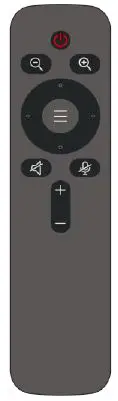
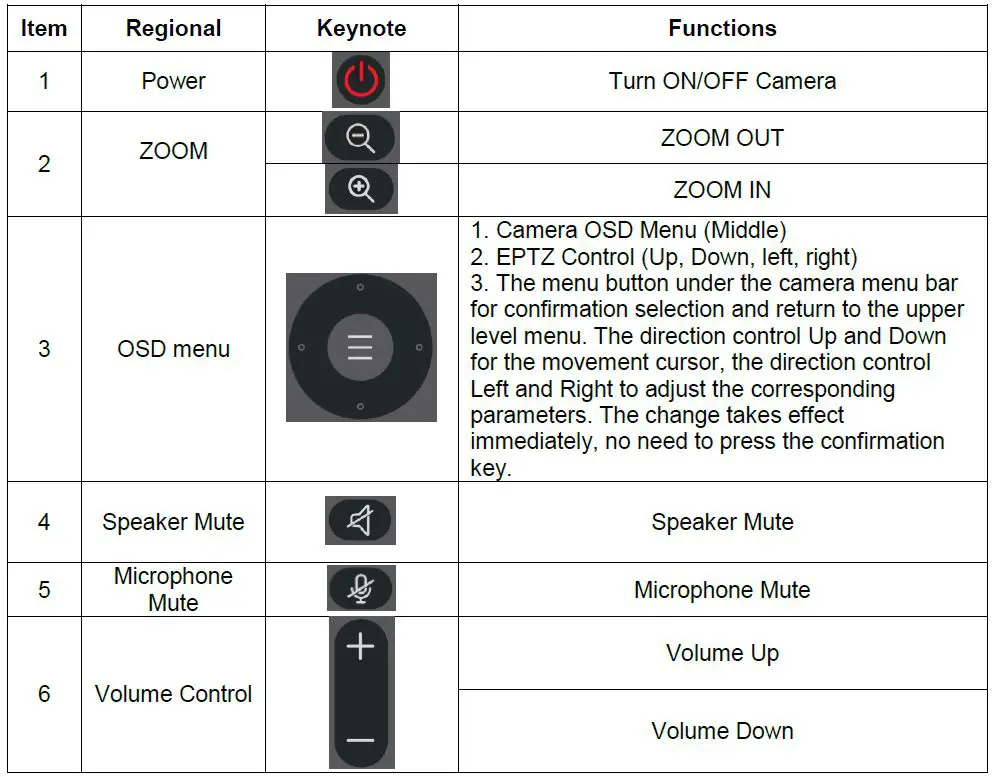
Note: If the remote control doesn’t work, it may be because the battery run out, please replace it with a new one (AAA*2pcs).
Press the OSD menu button(Middle) on the remote control to log in Image Setup as follow. Press again same button to log-off OSD Menu.

Image Setup
- Exposure
Brightness: Adjust image brightness Backlight: Adjust the backlight
AE: Adjust the exposure settings Shutter: Shutter speed
Flicker: Anti-flicker adjustment
Back: Back to previous menu
Adjustable Value: 0-255; Default: 64
Optional: Off / On; Default: Off
Optional: Auto/ Shutter; Default: Auto
Optional: 1/10000-1/25; Default: 1/25
Optional: 50/60; Default: 50
- Color
Hue: Adjust image hue
Saturation: Adjust image saturation Sharpness: Adjust image sharpness
WB: Select white balance mode Optional: Color Temp: Adjust color temperature Back: Back to previous menu
Optional: 0-100; Default: 50
Optional: 0-100; Default: 50
Optional: 0-127; Default: 50
Auto/Manual; Default: Auto
Optional: 1500-15000; Default: 5000
- Image
Image Flip: Mirror and rotate image Frame: Select image frame
Image Mode: Select image style
Optional: Off/All/Flip/Mirror; Default: Off Optional 30/25; Default: 30
Optional: Normal/Clear/Bright/Beauty; Default: Normal
Optional: Off/On; Default: Off
PIP: Picture in picture function
When zoom in close-up image, still can see full-view image through overlay small picture.
Back: Back to previous menu
- Information
Version: Firmware version info
Model: Camera model info
Date: Firmware version date - Language
OSD menu language - OSD Mirror
Mirror the On Screen Display menu. - Restore Defaults
Restore camera parameters to default values.
Notes:
- No Pan/Tilt movement function while OSD Menu on screen.
- Shutter can only be adjusted if it is selected as Shutter in the AE menu.
TECHNICAL PARAMETERS
| Model | ODHCAM60USB Portable Conference Camera | ||
|
Video |
Image Sensor | Sensor | 1/2.8″ HD color CMOS |
| Effective pixel | 2.1 Megapixel | ||
| Min. illumination | 0.5 Lux at F2.0 | ||
| White balance | Auto | ||
| Lens | Focus | 2.3mm | |
| lris | Fixed | ||
| HOV | 105° | ||
| Video output format | MJPEG: 1080P,720P,800*600, 640*360 YUV: 720P,360P H.264: 1080P,720P,800x600P,360P | ||
| OSD | Support | ||
| PIP | Overlay small window to display full-view image | ||
| EPTZ | Support EPTZ, 3x Digital Zoom | ||
| Vertical rotation | Roller rotation -10°~ 10° | ||
|
Audio | Type | Full Duplex OMNI Directional Microphone | |
| Sensitivity | -26dBFS | ||
| S/N ratio | 61dB | ||
| Frequency range | 20Hz-15KHz | ||
| Speaker | Built in powerful speaker,AGC provided excellent audio quality | ||
| Echo cancellation | Advanced echo cancellation up to 256ms | ||
| Noise suppression | >15dB | ||
| Sampling rate | 16KHz/48KHz | ||
| Pickup range | Suggest to work in 3 meters distance | ||
|
Other | Button functions | Mic mute, HiFi mode, Volume+, Volume- | |
| Status display | Three-color LED indicator lights | ||
| Remote Control | Equipped with infrared remote control, control audio and video various functions | ||
| UVC Protocol | Support | ||
| Output interface | USB type-C, Plug and Play | ||
| Work Temperature | 0-50°C | ||
| Humidity | 0-95% RH | ||
| L x W x H | 74mm x 72mm x 272mm | ||
| Weight | 560g | ||
TROUBLESHOOTING
May you check below common trouble shooting issue before contact local dealers for repair, and it takes few steps to recognize your problem. If your problem or enquiries are not resolved please contact the local dealers for professional advice accordingly.
| Problem | Possible Reason | Solution |
| Camera no | The USB Cable is loose while device connected to PC | Plug again the USB Cable to PC and double check |
| power while | ||
| connect to
PC | USB Cable is too long which reduce power supply to device | Must use the USB Cable along with device in package |
| Microphone | Not chose the device as Microphone in the application settings | To set this device as Microphone input in your application software |
| is not | ||
| recognized by | Microphone is Mute | Press Mute button to resume meeting |
| PC | ||
| No Sound output | Not chose the device as Speaker output in the management settings | Set this device as Speaker output device in the application software |