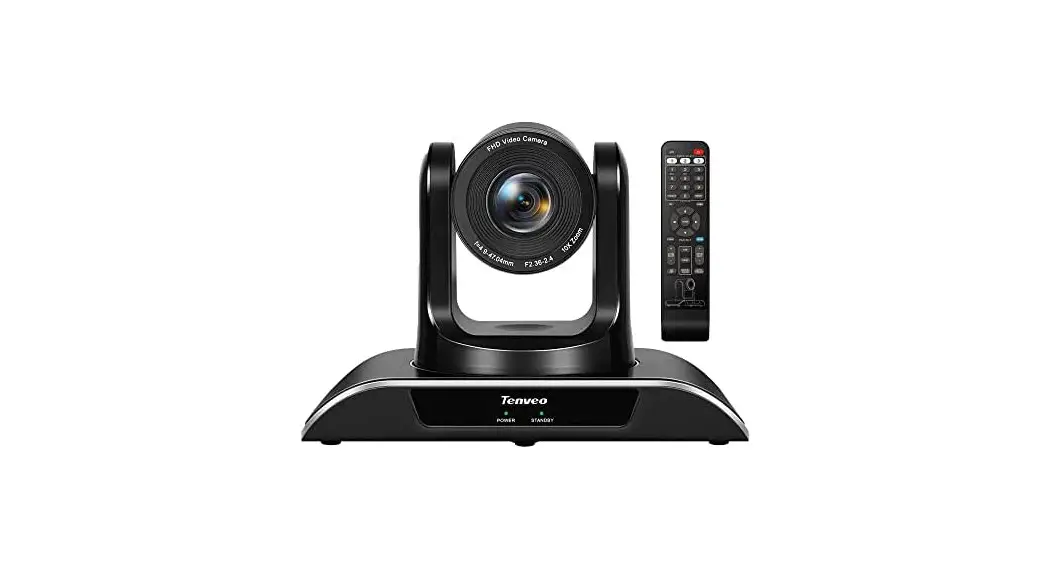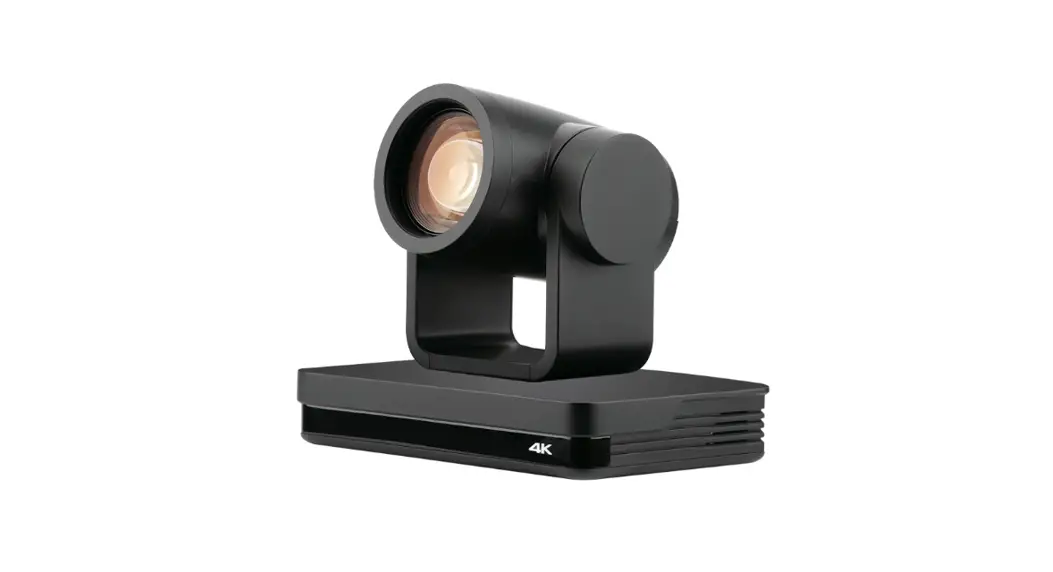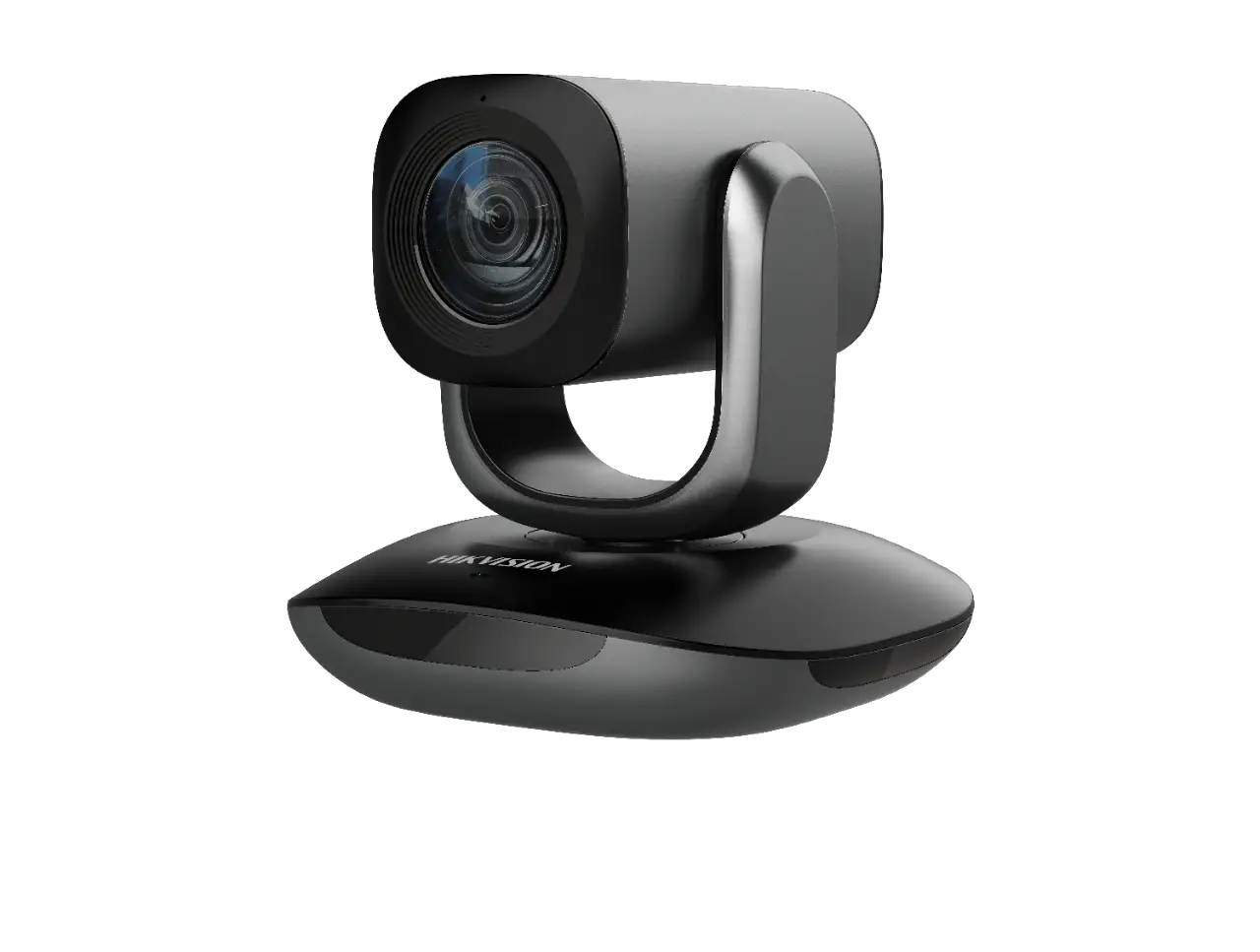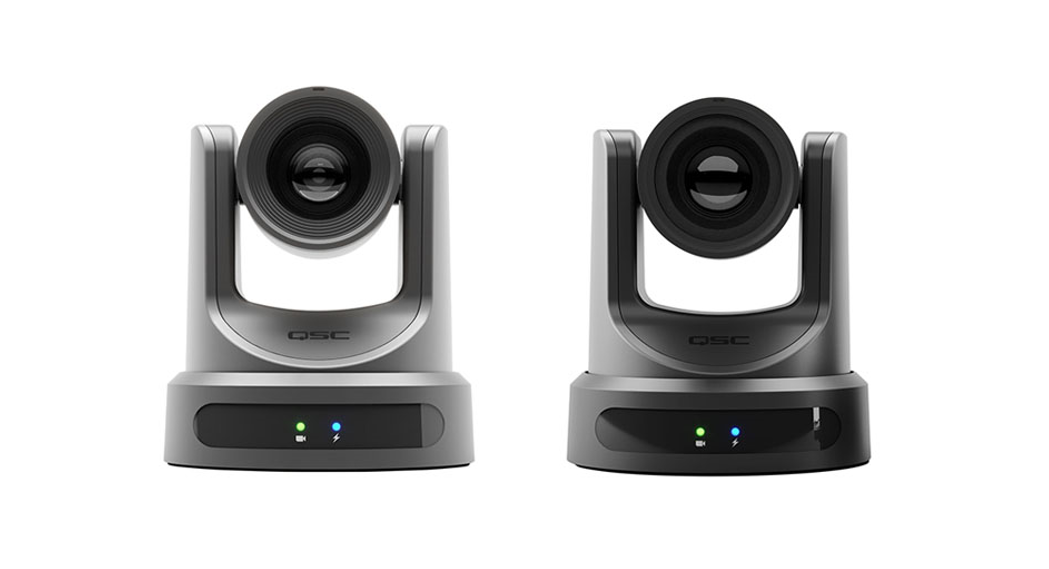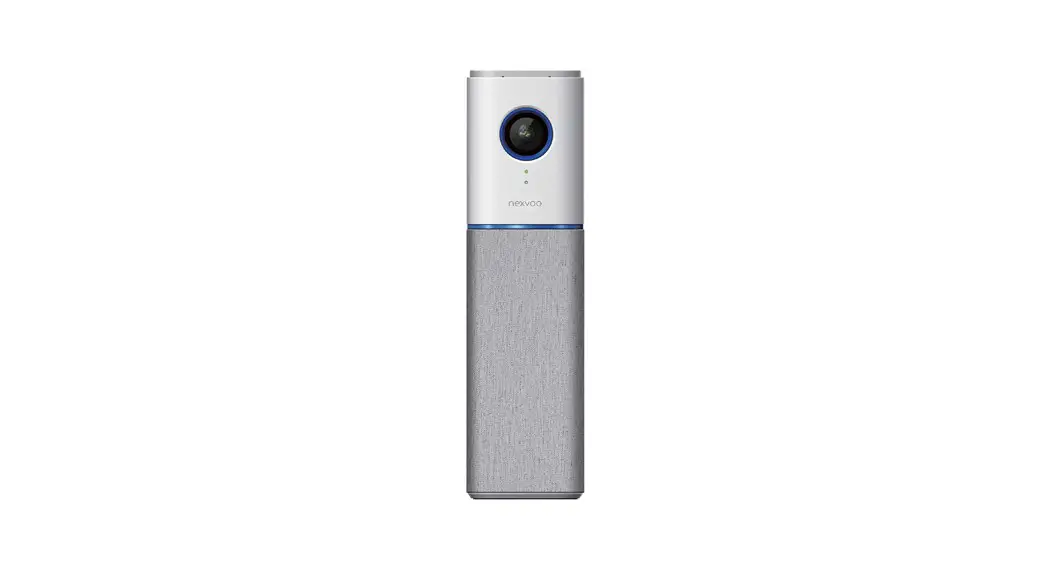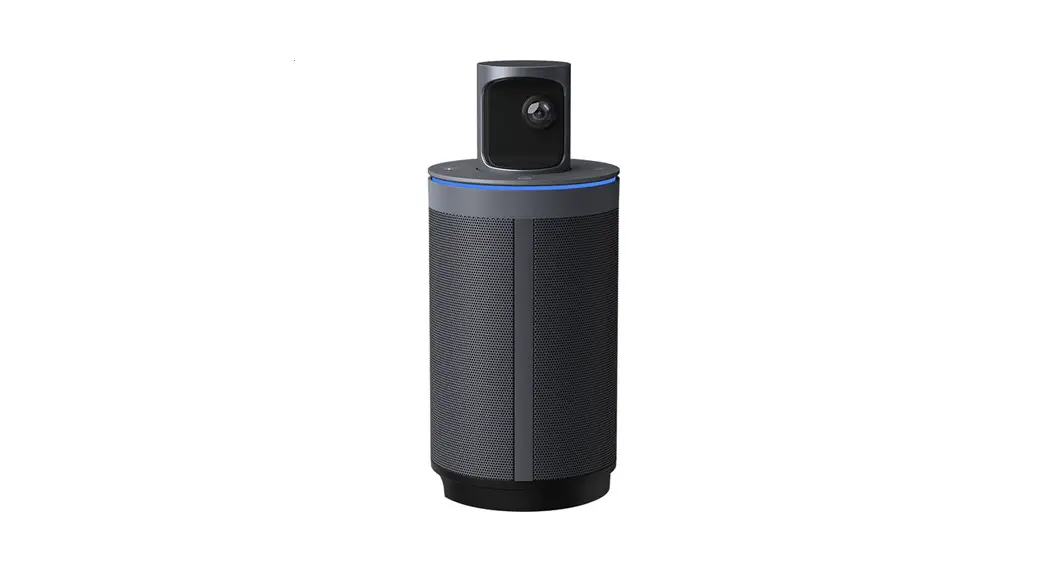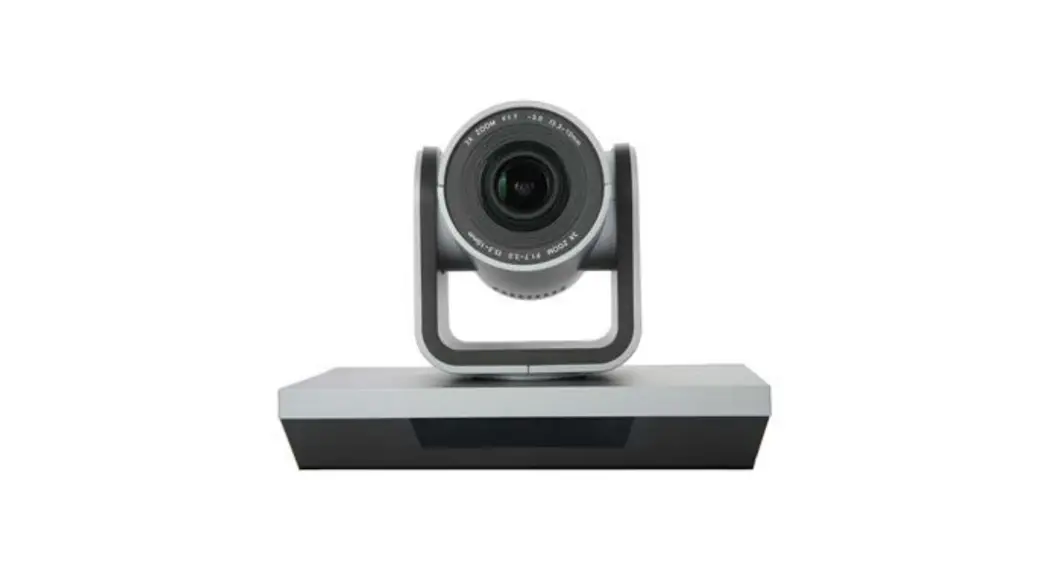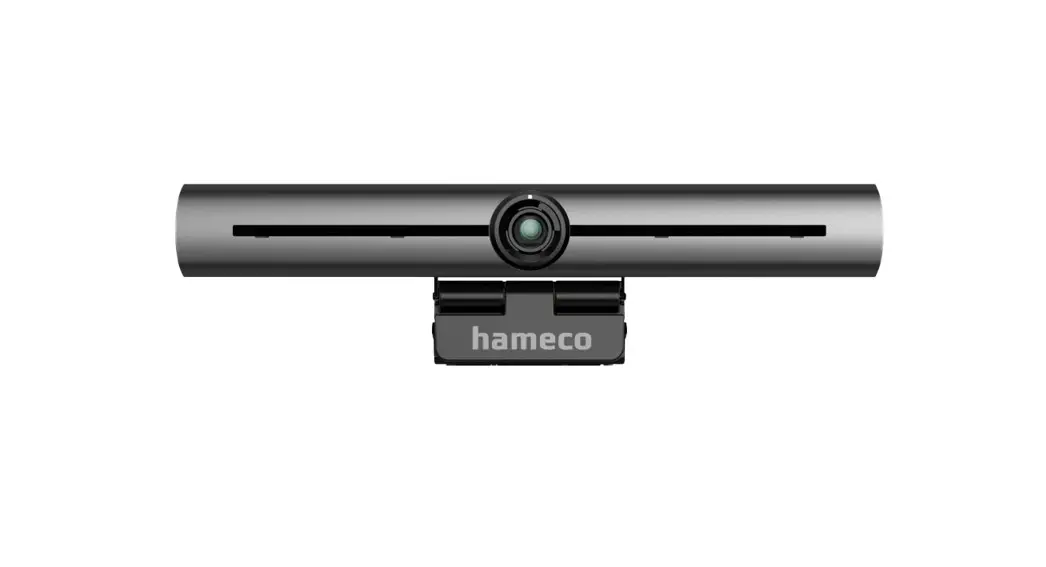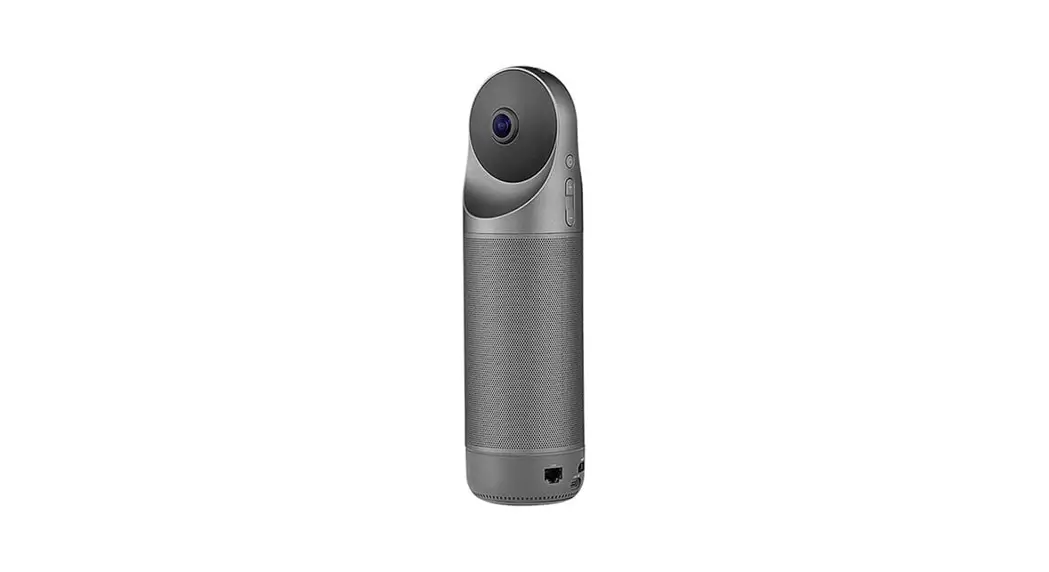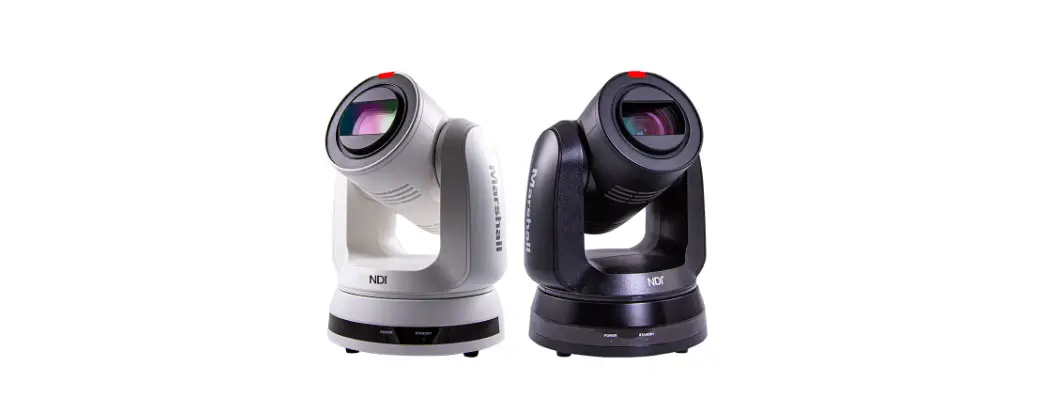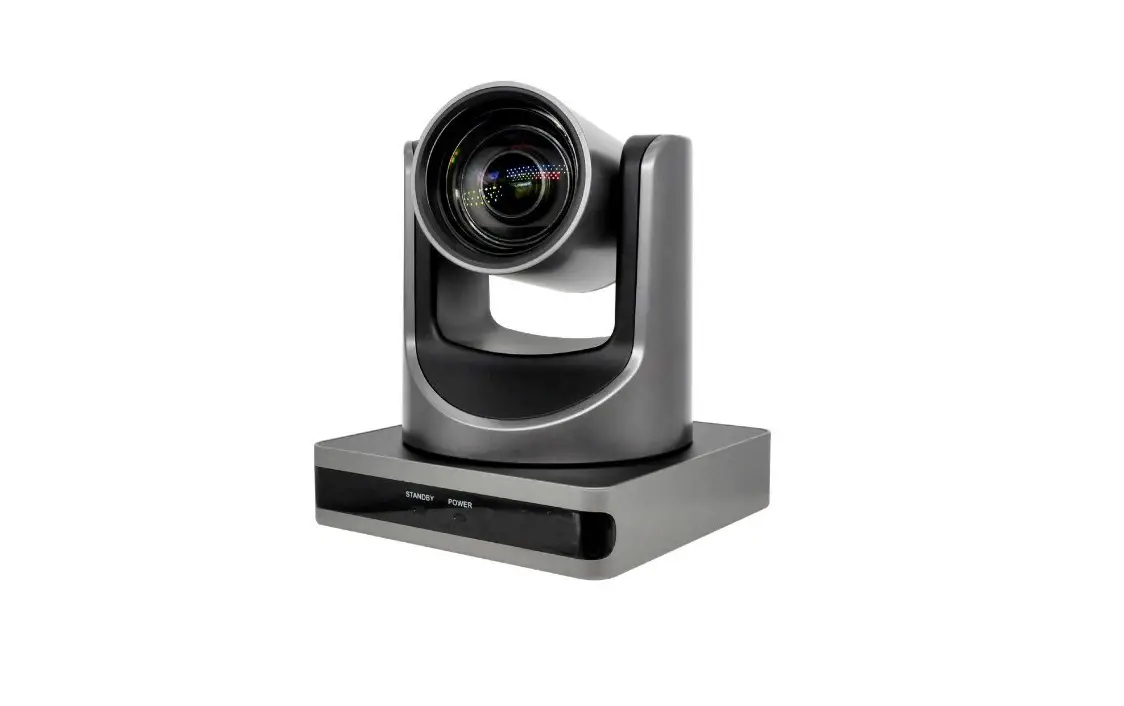

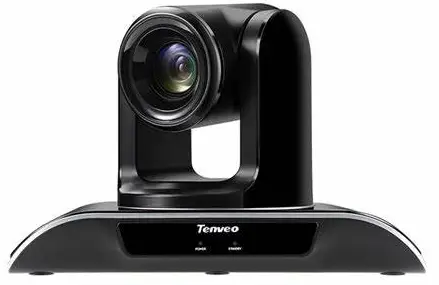
Tenveo VHD Series HD Conference Camera
Attention
Foreword
Thanks for choosing our VHD series conference cameras. Please read this manual carefully before using the product.
Notice
- To avoid damage from stress, violent vibration, soaking during tra-nsportation, storage and installation.
- Take care of each components of camera during installation, and install camera at where is affordable enough, to avoid drop or scra-tches of camera case.
- Handle the camera parts gently, do not squeeze the camera units hard. Please do not touch the camera lens by hand directly to avo-id the lens scratched and image quality affected.
- Do not apply excessive voltage. (Use only the specified voltage) Otherwise, you may get an electric shock or a fire may occur.
- Do not aim the camera at the sun or the other high luminous obje-cts, otherwise it may cause image blurring or lens flare, even cause permanent damage to the camera.
- Do not clean camera with active chemical or corrosive detergents, and remove dust or dirt on the surface of the lens with a blower (C-ommercially available)
- Do not disassemble any camera components, in case of abnormal operation; contact your authorized dealer or the store where you p-urchased the product.
Supplied Accessories
- HD conference camera
- DC12V-2A power supply
- Ceiling mount
- Mounting screws
- Manual
- Remote control
- USB cable
Performance Characteristics
- Camera technical parameters
Electric Communication Input Voltage DC12V Rate 9600/38400bps Power 12W Protocol VISCA/PELCO-D/PELCO-P Decoder internal Address Set 1~255 Operation Surroundings Horizontal Rotation ±170° Operating Environment
0°~+50° Vertical Rotation 120° Operating Temp 0~95% Rotation Speed 100°/s non-condensing Physics Installation Method Preset Point
Preset Point: 9 for remote control, 255 for PELCO, 64 for VISCA.
Support desktop,wall mount,ceiling mount and tripod installation
Net-Weight 1.46kg - Camera Parameters
Spec Lens Fixed focus 3x optical zoom 10x optical zoom 20x optical zoom Image Sensor 1/2.1” HD color CMOS 1/2.7” HD color CMOS 1/2.9” SONY HD CMOS 1/3” Exmor HD CMOS Effective Pixel 2.1 Mega Pixel 2.1 Mega Pixel 2.1 Mega Pixel 2.1 Mega Pixel FOV 138° 128°~37° 51.3°~4.64° 55.5°~3.0° Focal Length 2.1mm lens F=3.0-10.0mm F=5.0-50.0mm F=4.7-94mm HD Format 1080P(1920*1080) 720P(1280*720) HD Interface USB Resolution 1080P/720P Signal System NTSC/PAL Control parameters Preset Preset Point: 9 for remote control, 255 for PELCO, 64 for VISCA. Translation/ Pitching Angle -170°~170° -30°~90° Translation/ Pitching Speed 100°/s 80°/s Control Protocol VISCA,PELCO-D,PELCO-P(RS-232, RS485) Common Parameters Size Product:260*175*180mm Packaging:296*225*218mm Color black
Quick Start
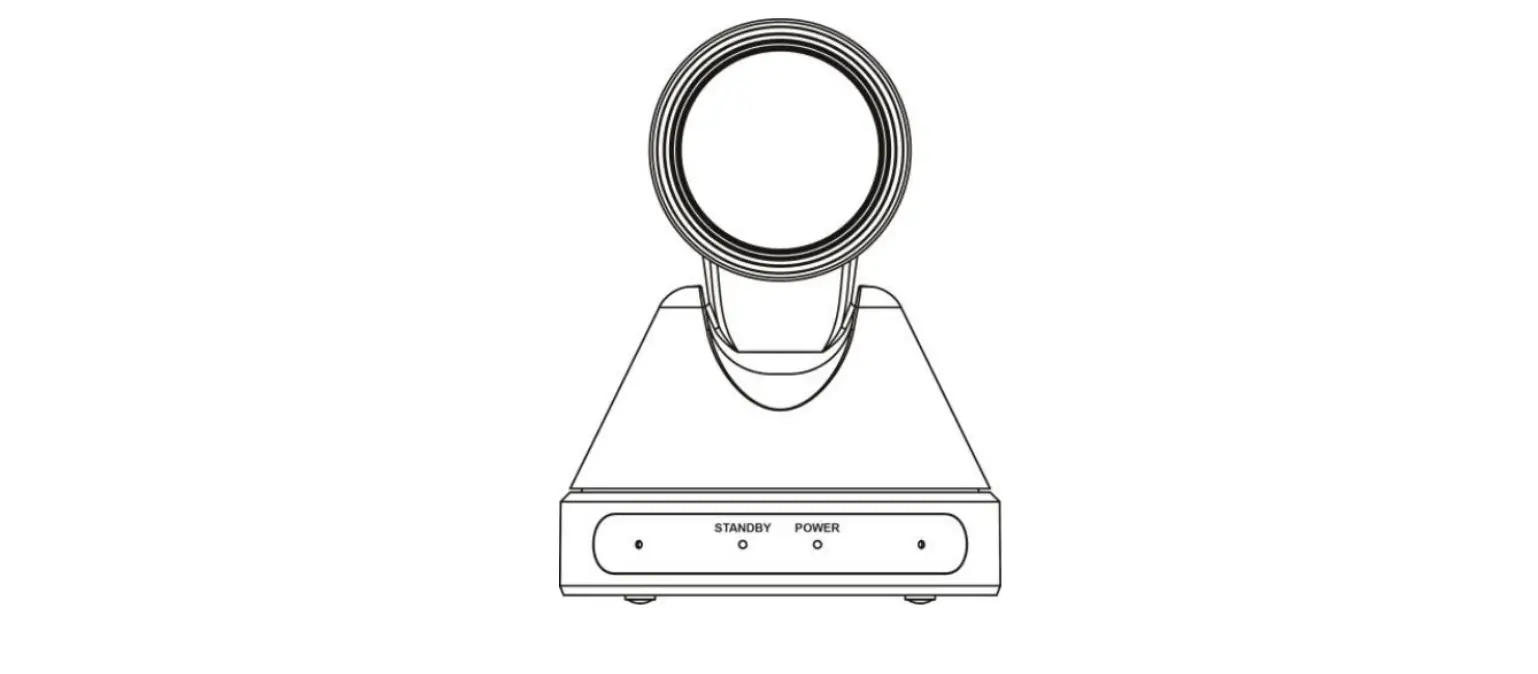
Interface definition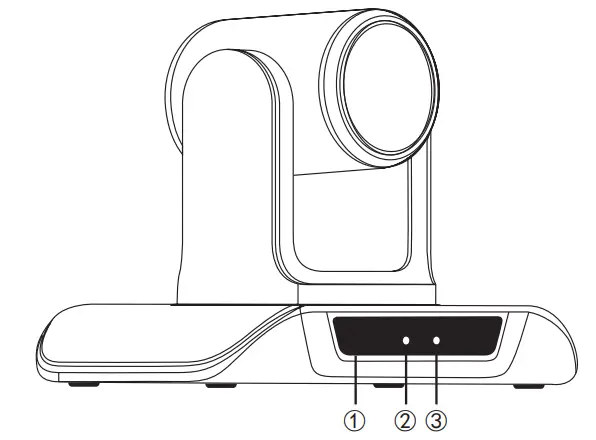
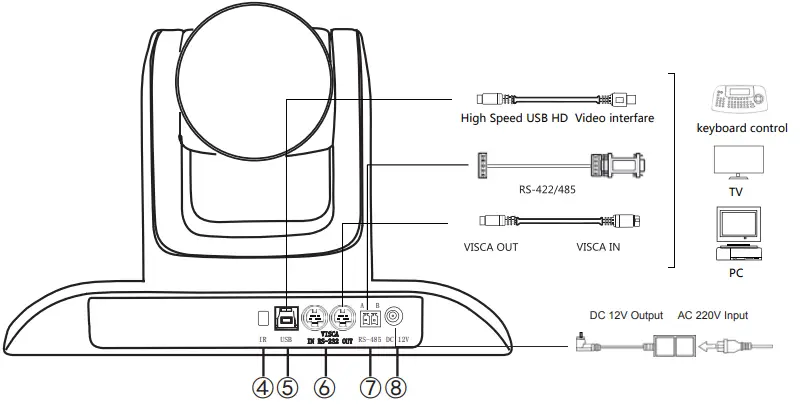
- IR Receiver
- Power indicator
- Standby indicator
- R Receiver
- USB
- RS-232
- RS-485
- DC12V
Installation instructions
Surface Installation
Put the camera on the desk flat, and make sure the camera in level. If want to put the camera on oblique surface, please m-ake sure the angle of inclination less than 15 degree for ensu-re camera pan and tilt working in normal operation.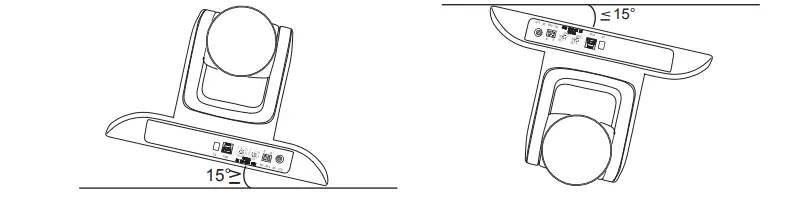 Tripod Mount Installation
Twist the tripod’s screw on the camera tripod hole, then the tripod could be installed on the bottom of camera. The tripod screw must fit below.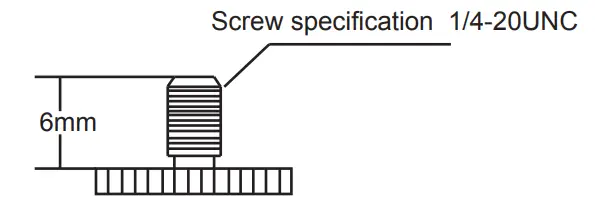
Ceiling Mount Installation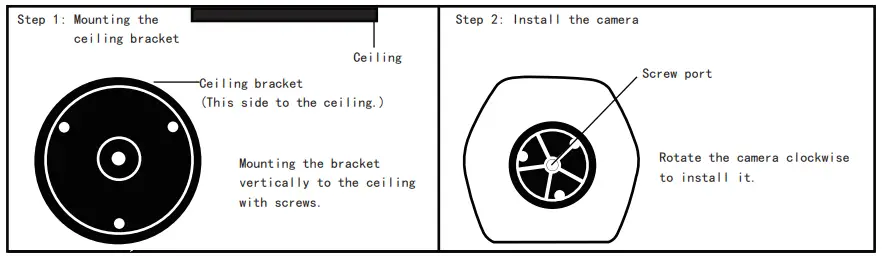
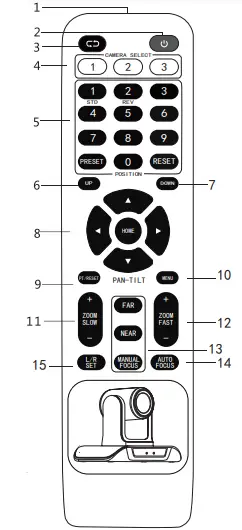
- Remote control launch window
- 【POWER】Standby button, pressing it, camera goes into standby mode; pressing again, camera go-es power on.
- 【P/T Reset 】Camera pan/tilt reset function sa-me with⑧ (P/T RESET)
- 【CAMERA SELECT】Choose the camera number that needed to control, to correspond the dial-up code on the back of camera;
- 【POSITION】Preset position setup keys, include 【PRESET】and 【RESET】.
- 【UP】:Camera rotating horizontally in regular installed direction
- 【DOWN】:Camera rotating horizontally in reversed installed direction
- 【PAN-TILT】【PAT-TILT】Camera rotation control key: press this button and move by the arrow direction, press
Press【HOME】 to back to the center of vertical and horizontal position. - 【Camera Pan/Tilt Reset 】:Camera Pan/Tilt reset ;
- MENU. not applicable for this model.
- Slow zoom key
【Zoom SLOW+】T:Zoom in at low speed
【ZOOM SLOW-】W:Zoom out at low speed - Fast zoom key
【ZOOM FAST +】:Zoom in at fast speed
【ZOOM FAST -】:Zoom out at fast speed - Manual focus mode
【MANUAL FOCUS】:Start manual focus function
【FAR】:Manually far focus button, clearer for the distant objects, loose finger to stop.
【NEAR】:Manually near focus button, clearer for the nearby objects, loose finger to stop. - 【AUTO FOCUS】:Auto focusing button
- 【L/R DIRECTION/SET】:Not applicable for this model.
Common Operations Introductions
Camera Select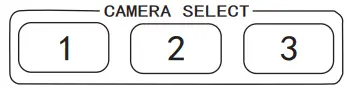 Refer to the dial-up at the back of camera and choose camera address number that you want to control(1-3)。
Camera Direction Control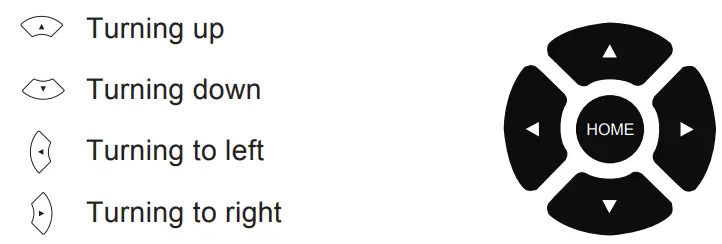 *Note: Press direction key to move the camera.Press the direction key when you need to change the angle. If you want to move the camera slowly, just click the direction key.If you want to move the camera fast at a large scale, just long-press the button.
Camera Focusing Mode Control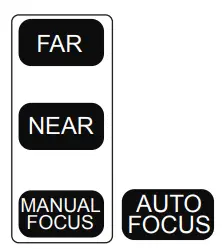
- 【AUTO】Switch the focus mode to AUTO
- 【MANUAL】Switch the focus mode to MANUAL 【FAR】Far focus manually
- 【NEAR】Near focus manually
Camera Zoom Control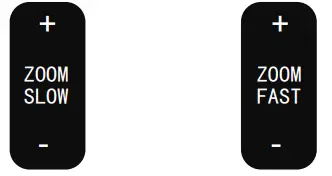 Press any one of the 4 【ZOOM】 to make the zoom functioning. These 4 keys are not applicable for fixed focus camera.
Preset Setup,Call,Cancel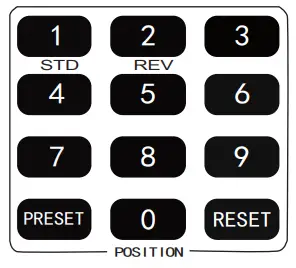
- Reserve Preset: Press 【PRESET】 then press one of the number (1-9) to reserve a preset that correspond to the NUMBER.
*Note: you can setup 9 presets at most by the remote control - Call Preset: Press the NUMBER (1-9)directly to call the-reserved preset.
*Note: It won’ t work if there’ s no preset reserved in the cor-responded number. - Remove Preset: Press 【RESET】, then press one of the-number (1-9) to remove a preset that correspond to the NU-MBER.
Attentions for Remote Control
- If remote control doesn’t work, please replace batteries.
- If there is an object between remote control and specialized remote control sensor, the camera will not work. Please make sure the remote control is aimed at the sensor which in front of the camera when controlling it.
- L/R SET and Menu keys are not applicable for this model.
- Fast zoom key, slow zoom key, manual and auto focus keys not applicable for fixed focus model.
Camera Address set
| PTZ Add. | SW1 DIP-1 | SW1 DIP-2 | SW1 DIP-3 | SW1 DIP-4 | SW1 DIP-5 | SW1 DIP-6 | SW1 DIP-7 | SW1 DIP-8 |
| 1 | ON | OFF | OFF | OFF | OFF | OFF | OFF | OFF |
| 2 | OFF | ON | OFF | OFF | OFF | OFF | OFF | OFF |
| …. | ||||||||
| 255 | ON | ON | ON | ON | ON | ON | ON | ON |

PS: RS-422/485 and RS232 Pins distribution
Control Interface
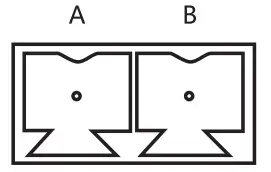
- RS485 Interface Distribution

PIN NUM FUNCTION A DTR IN+(connect to RS-485) B DSR IN+(connect to RS-485) - RS-232 Interface Distribution

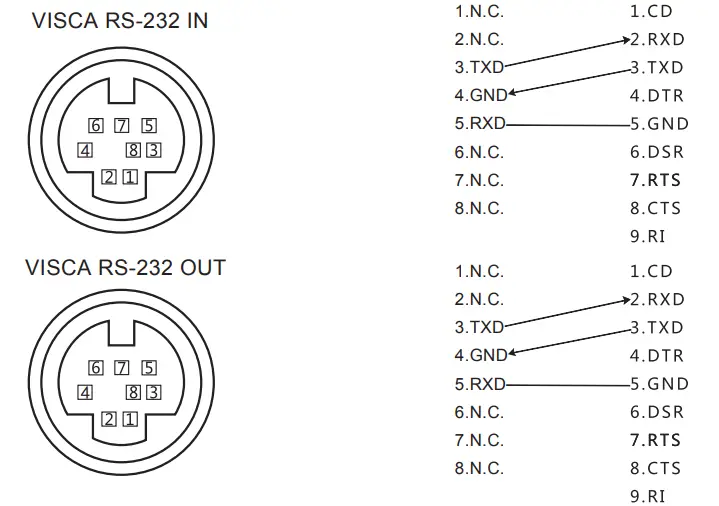
Troubleshooting
Before request service to serviceman, it can according to below methods to remove failures, if- still can’ t be solved, please contact us for help.
- Q:The video of camera cannot be displayed on the screen.
A:Please check the connection between power cable,video cable, camera and monitor, fix the c-onnector on each end. - Q: It’ s unable to Pan, Tilt and zoom camera.
A:Because menu was displayed on monitor. Please re-operate after exit menu. - Q: Why the camera rotates for about 10 seconds after power on.
A:This is the normal self-test of the camera. - Q: Poor Image quality while using in church or other low-light conditions.
A:1 Press 【BACK LIGHT】on remote control or menu (ON/OFF) to adjust backlight effect. 2 Arr-ange the church lighting properly - Q:Remote control is not working or insensitive
A: 1 Not work, please replace batteries.
2: Not sensitive: 1Choose the correct “IR select” number to meets camera. 2 Control the camera within 15m 3 Remove the obstacles 4 Aim at the sensor which is in front of the camera when co-ntrolling it. - Q: USB interface is not identifiable.
A: Please check USB cable and extension cable are well connected or not. If yes, change to an-other USB interface and try to connect again. - Q No image after HDMI interface connects.
A: 1 check the HDMI cable and connected device are normal.
2 check the video format that is supported by the connected device or not. If not, adjust the vide-o format according to the connected device.
3 Recommended cable is no longer than 30m. - Q:It was not been controlled via RS232/RS485 when camera connect to PC.
A:Make sure it is a correct connection between camera and PC. (Reference to RS-422/485 and RS232 Pins distribution in page 16.) - Q:Why no wall mount brackets?
A: Camera comes with ceiling mount, wall mount or tripod brackets needs to buy separately. Q: Does this camera has built-in mic?
A: No, our cameras comes with no built-in mic. - Q:Can we control the camera only by the remote control?
A: We can control the camera by remote control. Keyboard controller (joystick), and software.
Maintenance Services
All products purchased from our company are guaranteed to keep in good repair for 18 month-s. If there are any quality problems during the guarantee period, we will maintain for free. Under any of the following warranty, elated maintenance costs will be collected:
- Product was not normal used.
- Fire, electric shock, outside object collapse or other natural disasters causes make the equi-pment damage.
- Unauthorized repair, misuse, abuse and change.
Tenveo Warranty Card
Thank you very much for choosing our products.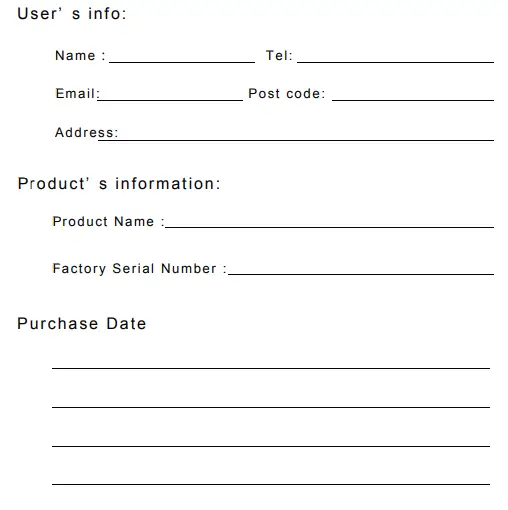 Attention:
- This card is considered as the Protection to fix warranty, so please reserve them carefully.Please fill in truthfully.
- Please indicate the model number, Factory Serial Number and the detailed description of the fault information.



Make any meeting better and easier