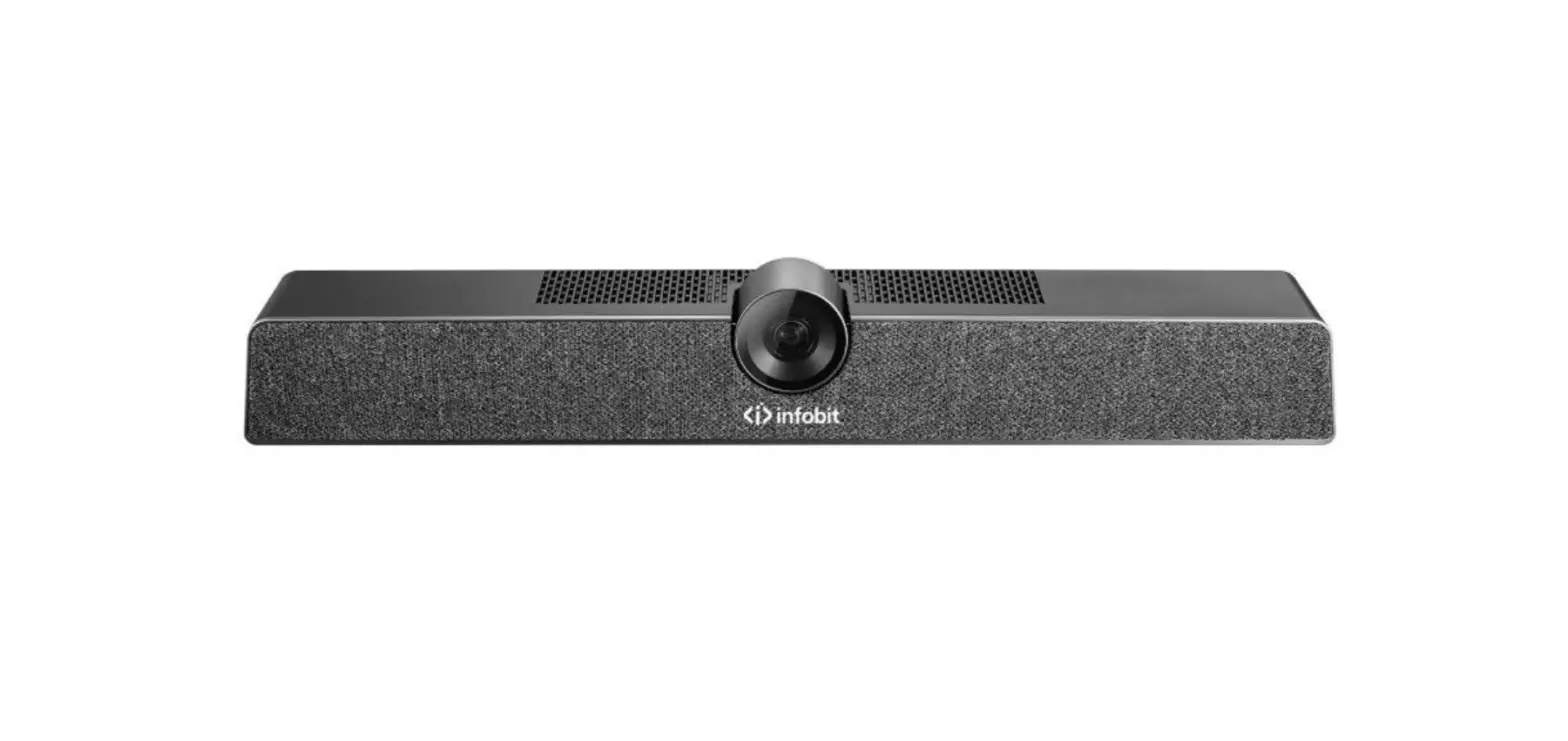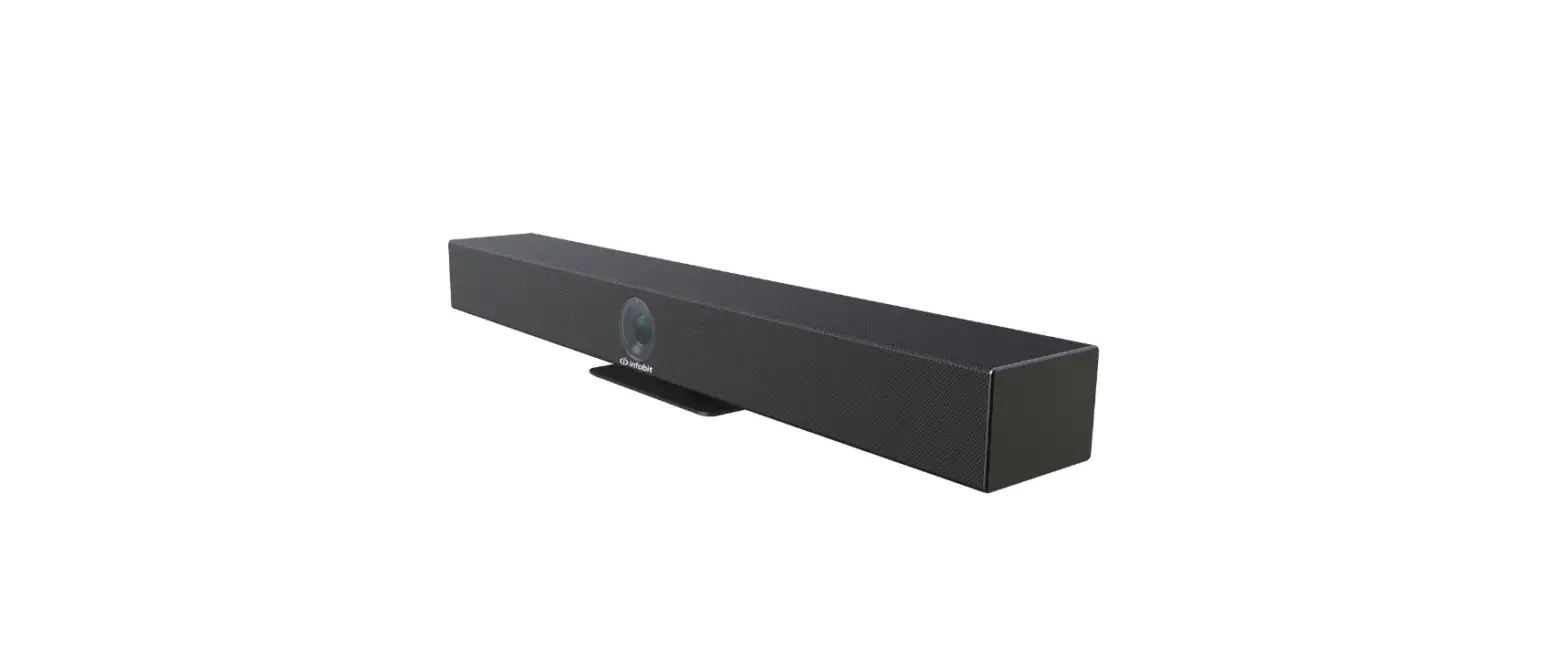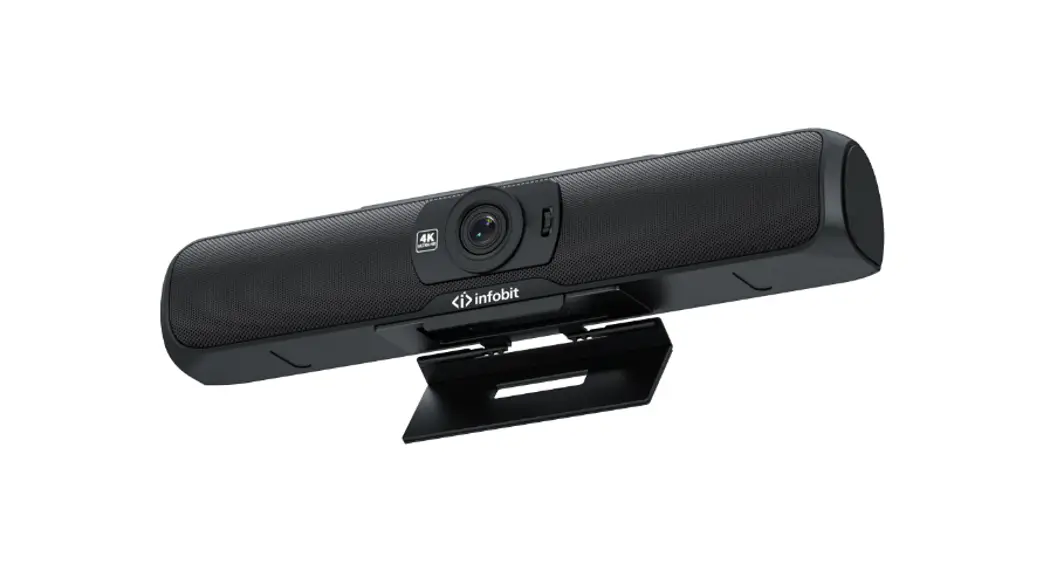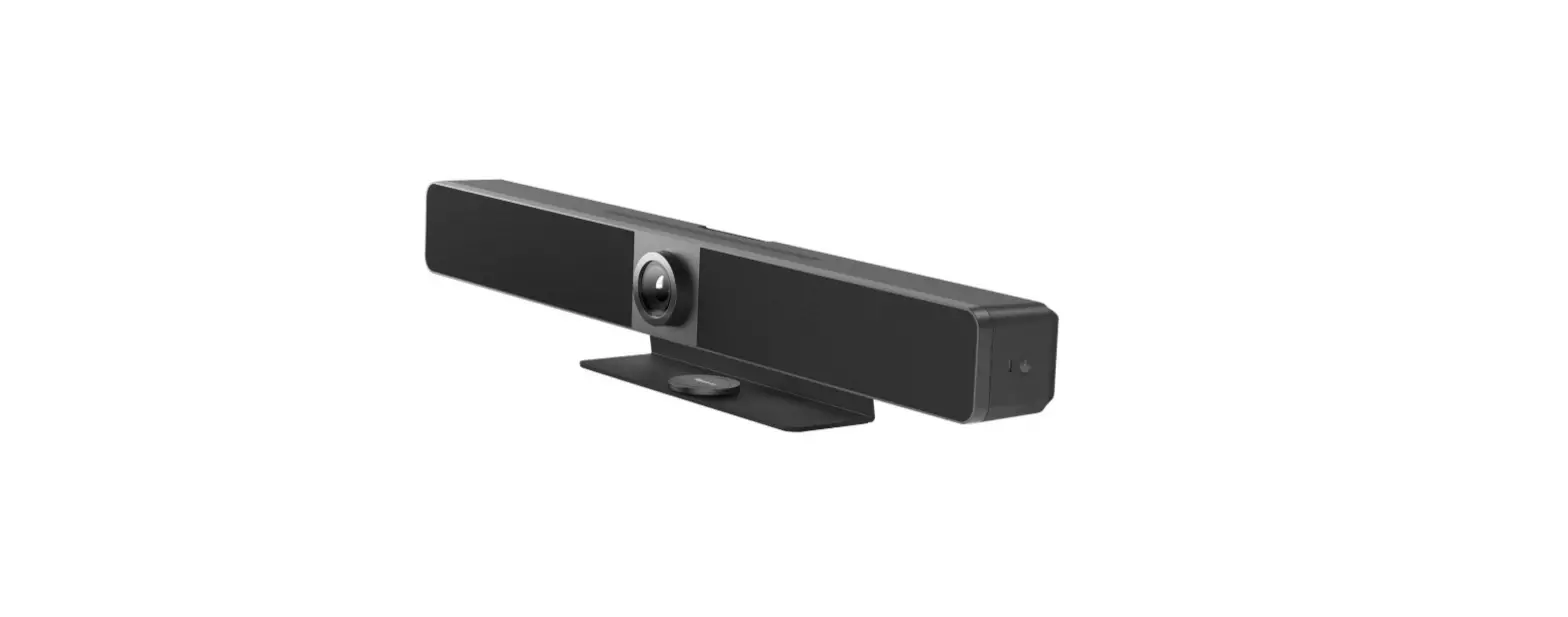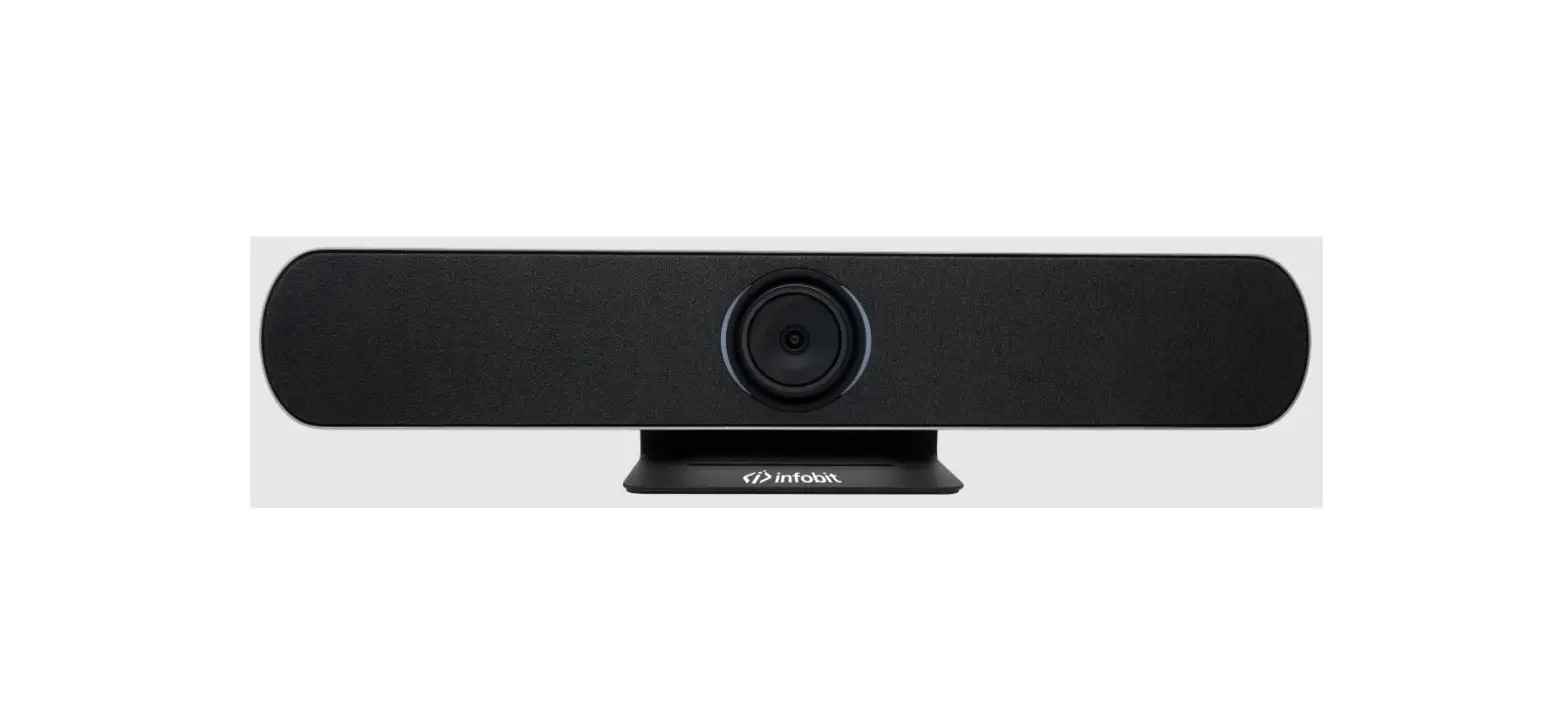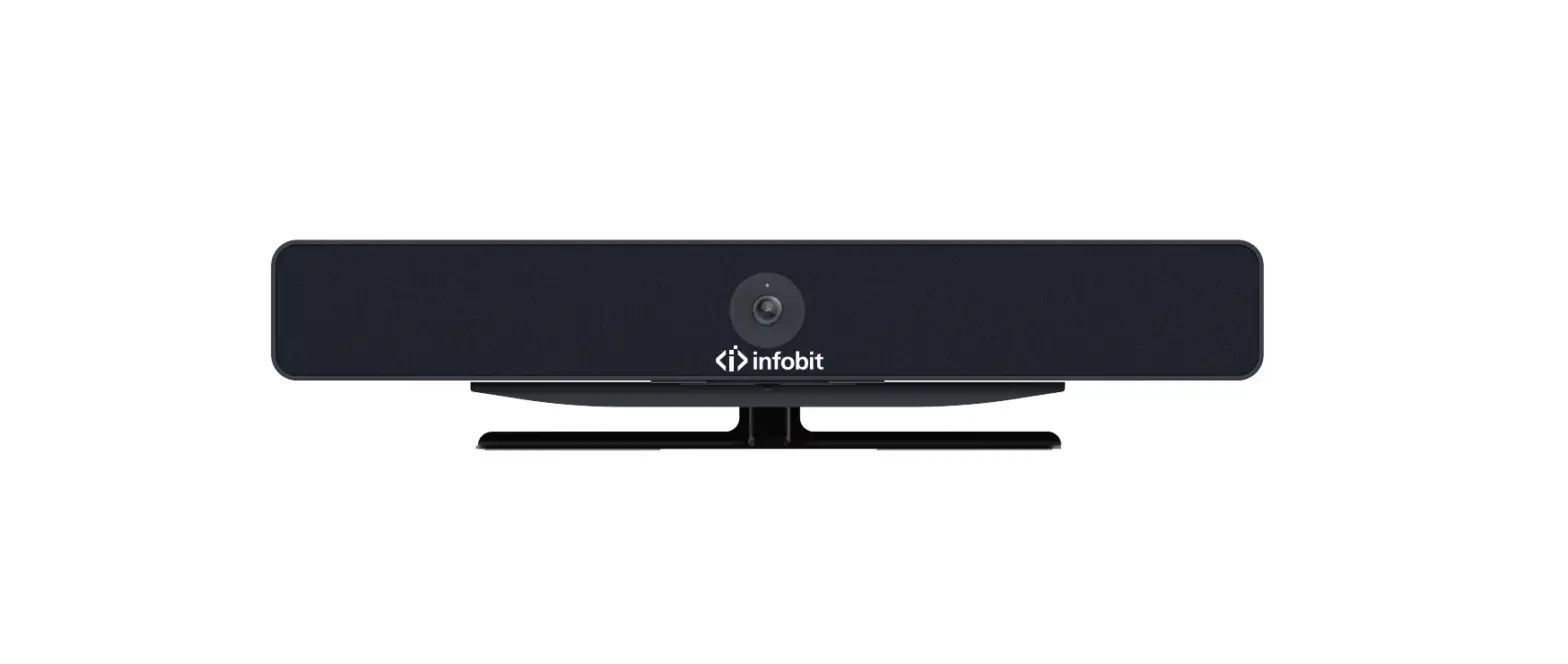
infobit Icam VB60 All in one Video Conference Bar User Guide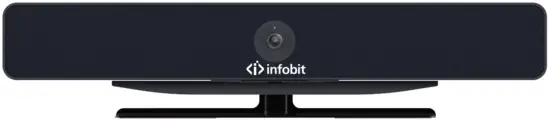
Package Contents
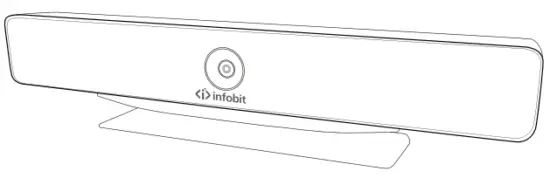
- iCam VB60

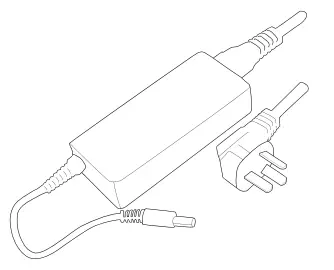
- Power Adapter

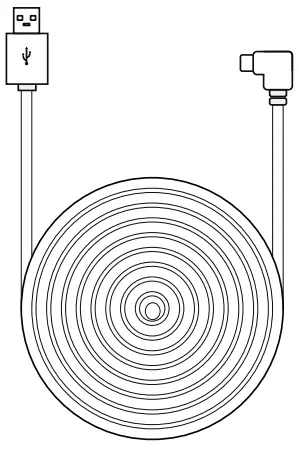
- USB-C to USB-A Cable (5m/16.4ft)

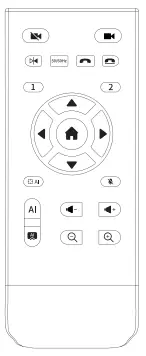
- Remote control

- User Guide

Optional Accessories
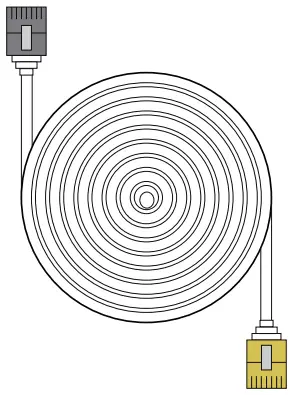
- Ethernet Cable(8m/26.2ft)

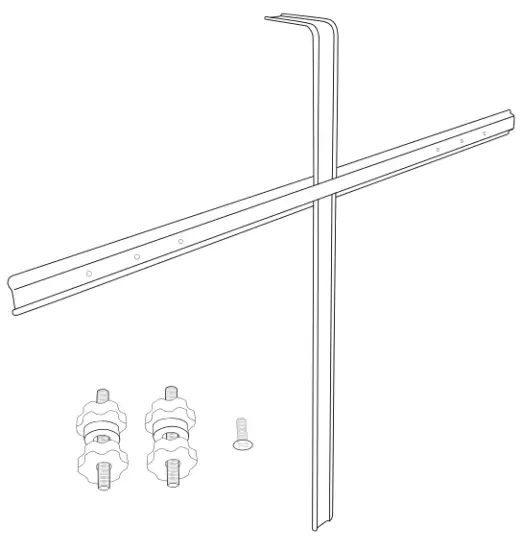
- Screen Mount

- Wall Mount

- Torx Key

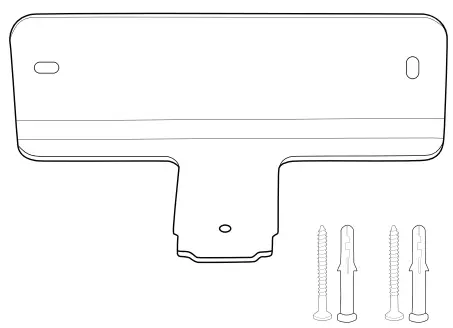
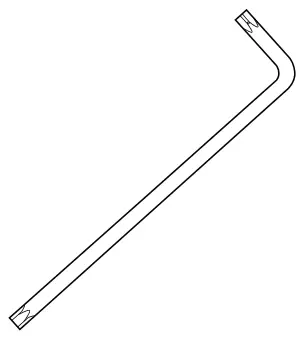
*Optional accessories are not included in this package, they are sold separately.
Functions
 118 ° diagonal field of view, so that any participants can be clearly visible
- 4K@30fps UHD video call
 Speaker tracking and closeup group
- High acoustic clarity, thanks to our generous 5-element omnidirectional microphone
- Outstanding speaker quality tuned for both phone calls and music
- Effective pickup distance up to 5 meters, full duplex technology brings clear and uninterrupted calls
- Absolutely echo-free and fine-tuned for various acoustic environments
- Daisy chain iSpeaker M500 Speaker Mic to adapt to all kinds of conference rooms
- Plug & Play, connect to PC via USB
 118 ° diagonal field of view, so that any participants can be clearly visible
 4K@30fps UHD video call
 Speaker tracking and closeup group
 High acoustic clarity, thanks to our generous 5-element omnidirectional microphone
 Outstanding speaker quality tuned for both phone calls and music
 Effective pickup distance up to 5 meters, full duplex technology brings clear and uninterrupted calls
 Absolutely echo-free and fine-tuned for various acoustic environments
 Daisy chain iSpeaker M500 Speaker Mic to adapt to all kinds of conference rooms
 Plug & Play, connect to PC via USB
Product Overview
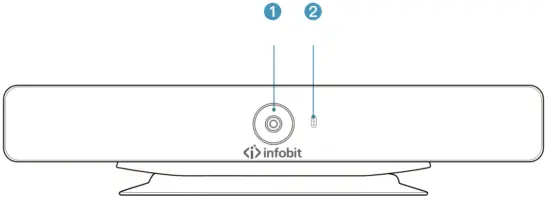
- Camera LED
- Status LED

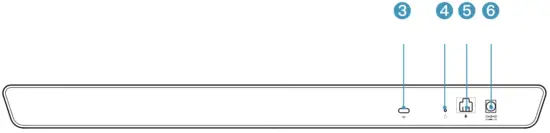
- USB Type-C Port
- Factory Reset Pinhole
- Ethernet Port For Daisy Chain
- DC Power Input Jack
RC Guide
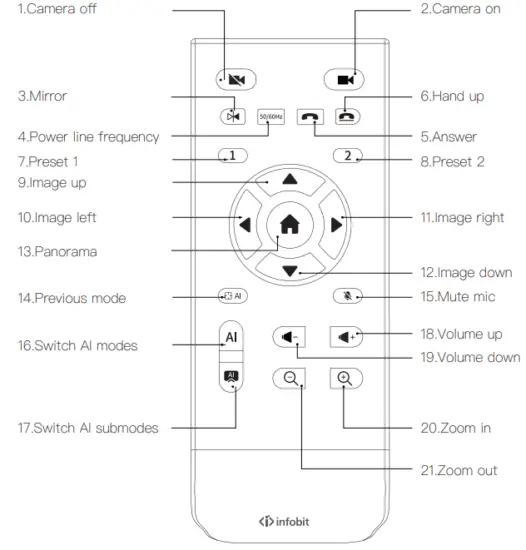
NO. | Button | Description |
| 1 | Camera off | Turn off the camera |
| 2 | Camera on | Turn on the camera |
| 3 | Mirror | Activate or deactivate mirror function |
| 4 | Power line frequency | Switch between 50Hz and 60 Hz |
| 5 | Answer | Compatible with UC software |
| 6 | Hand up | Compatible with UC software |
| 7 | Preset 1 | Short press to preset 1, long press to current position |
| 8 | Preset 2 | Short press to preset 2, long press to current position |
| 9 | Image up | Image up |
| 10 | Image left | Image left |
| 11 | Image right | Image right |
| 12 | Image down | Image down |
| 13 | Panorama | Switch to panoramic view |
| 14 | Previous mode | Back to previous saved AI mode |
| 15 | Mute mic | Mute or unmute microphone |
| 16 | Switch AI modes | Auto framing, speaker tracking, closeup group mode switch, Panoramic view switch |
| 17 | Switch AI submodes |
|
| 18 | Volume up | Voice + |
| 19 | Volume down | Voice – |
| 20 | Zoom in | Image + |
| 21 | Zoom out | Image – |
Installations
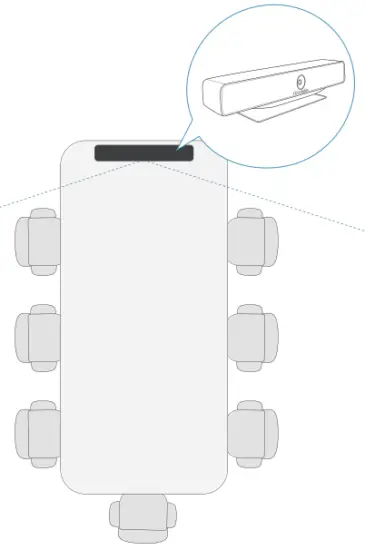
- Put on a Flat Surface

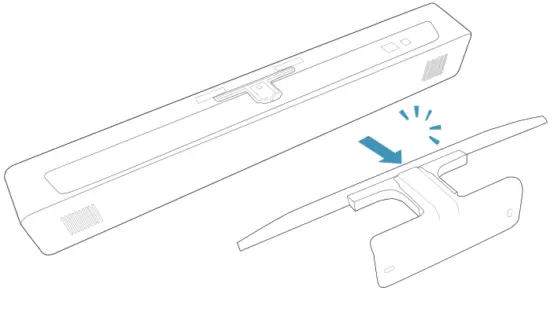
- Mount on a Screen

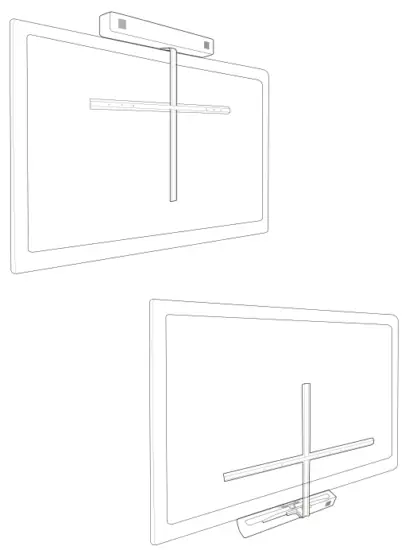
*Using the screen mount may change central gravity of the screen. Check the stability after mounting the iCam VB60
If not stable, the screen should be wall mounted.
- Attach the horizontal part to your screen and tighten the bolts.

- Release the iCam VB60


- Attach top part to vertical part. Finger tighten the screw so that you can adjust the mounting position.

- Place the vertical part on the screen and adjust the position.

- Fasten the screen mount.

- Tighten the screw on the top.

- Place the iCam VB60

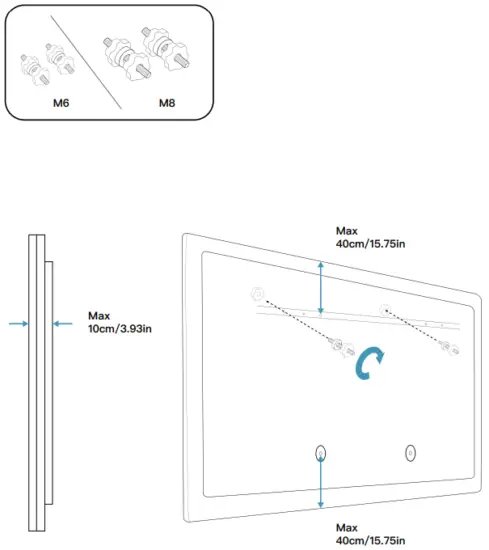
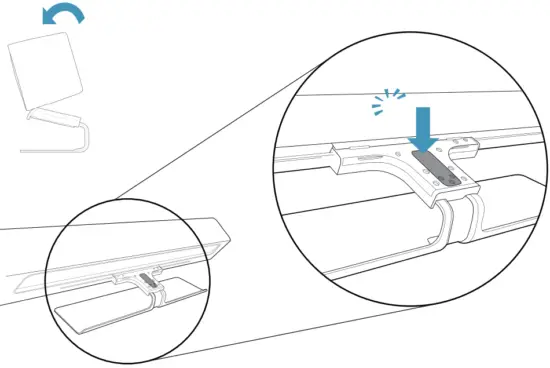
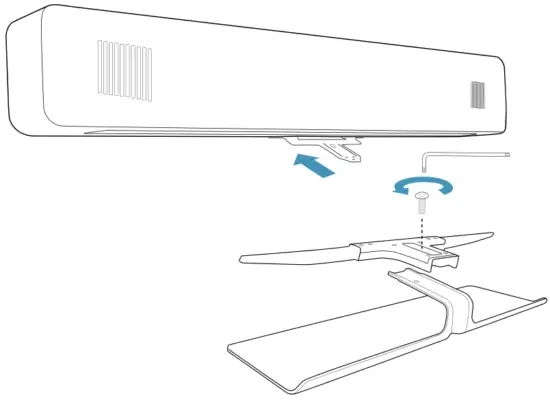
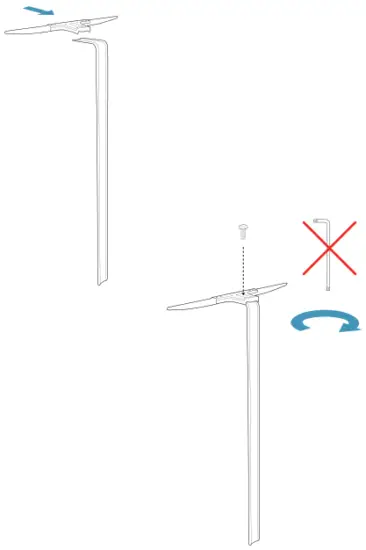
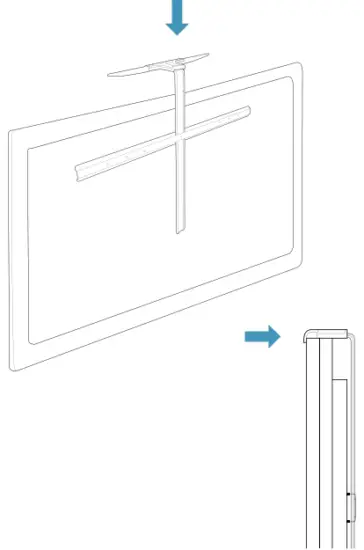
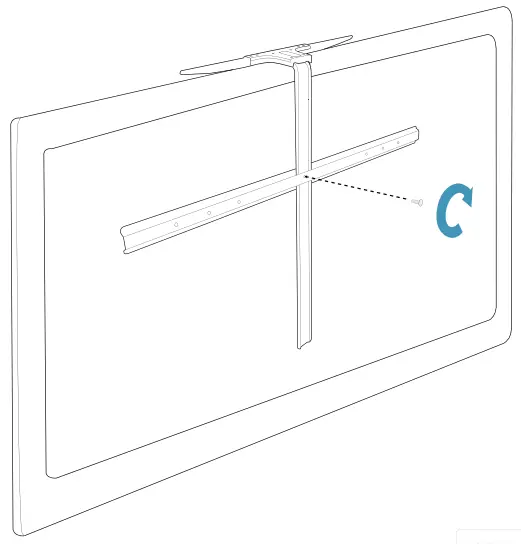
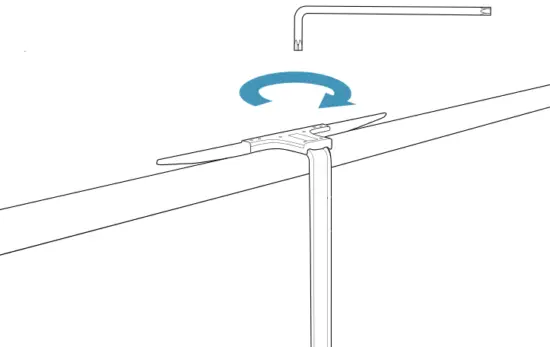
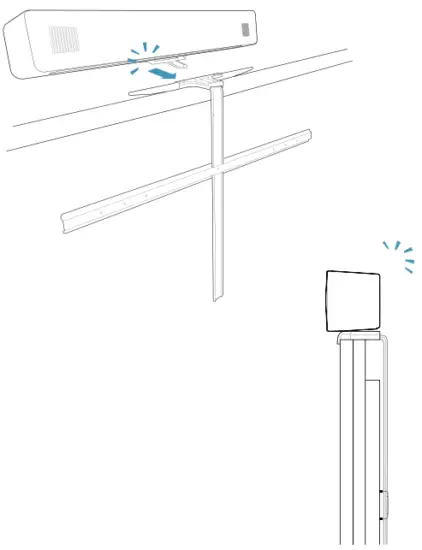
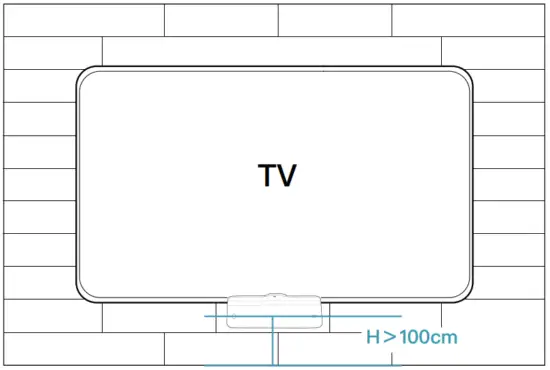
*Flip to place below the screen.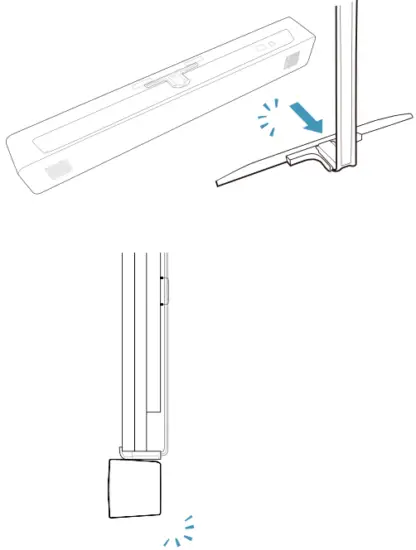
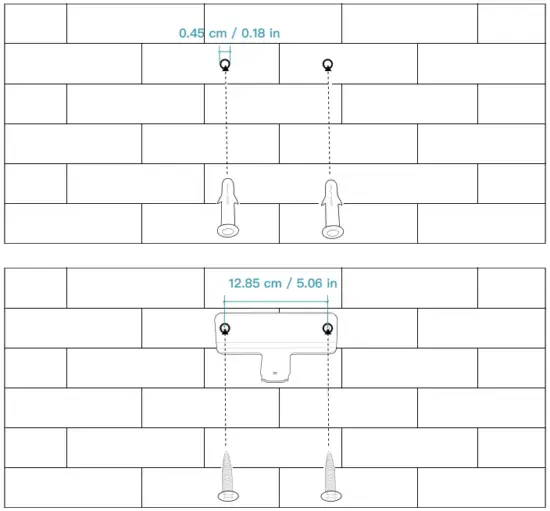
Mount on a Wall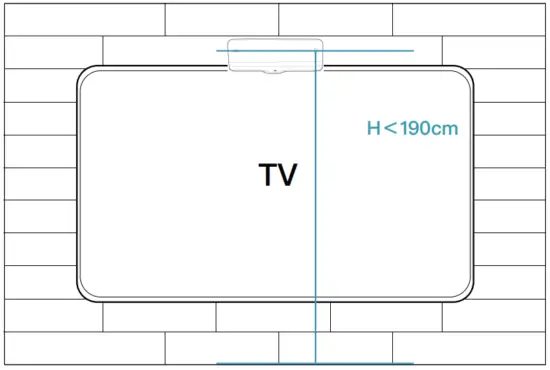
*Due to the size and mass of this product, it is important that the wall-mounted system is safely installed according to these installation instructions.
- The wall and mounting hardware must be able to safely support the product.
- The wall-mounted system must be installed by qualified personnel, in accordance with state and local building regulations.
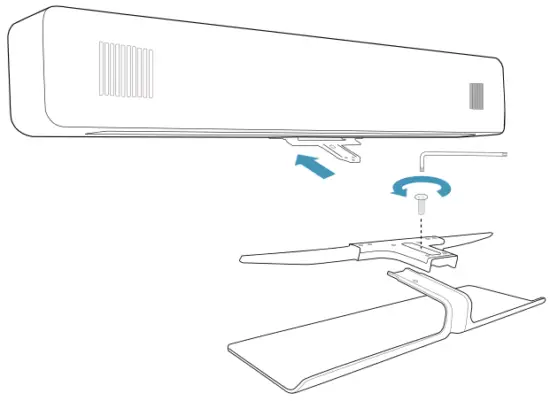
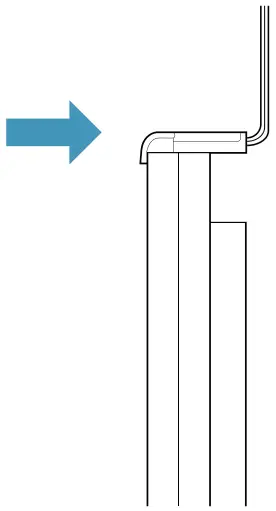
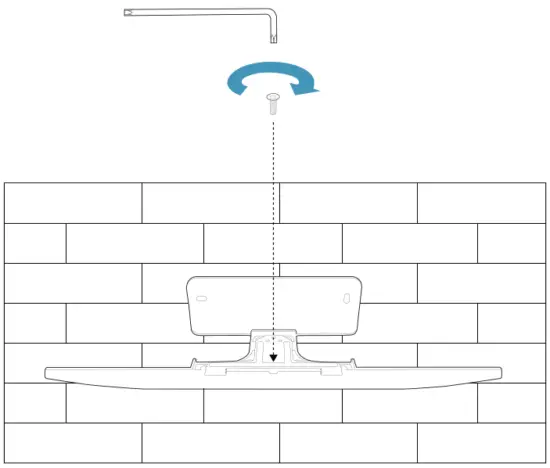
- Fasten the wall mount.

- Release the iCam VB60

- Adjust the position and tighten the screw on the


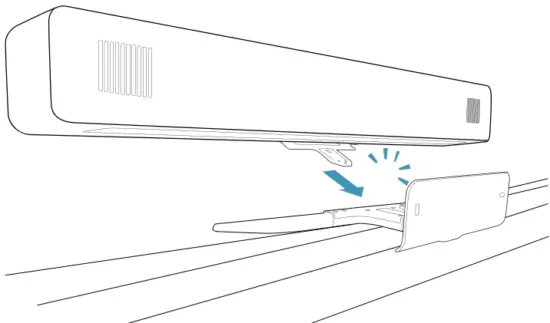
- Place the iCam VB60

*Flip to place below the screen.
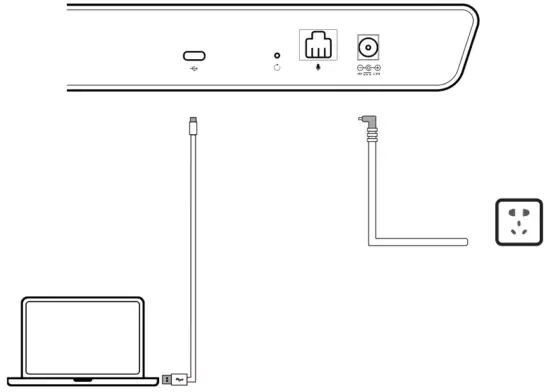
Connecting
- Connection of iCam VB60
- Plug the power cord into the corresponding port of iCam VB60 and connect the external power supply;
- The Status LED light will show yellow when iCam VB60 is powered on;

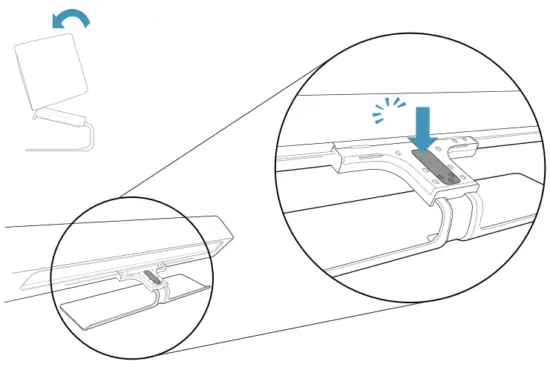
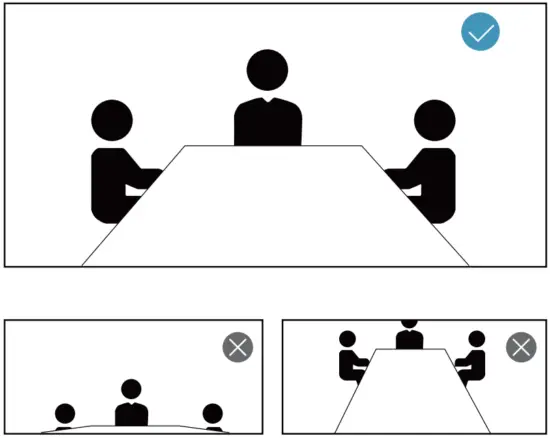
Adjusting the Camera Tilt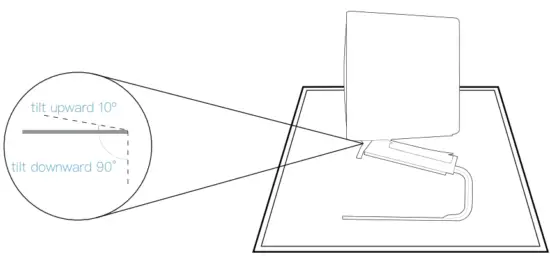
LED Indicators
- Camera LED
 When the camera is not turned on, the Camera LED light is off. When the camera is working, the Camera LED light shows white.
 - Status LED
- To be connected When the adapter is powered on, the Status LED light shows yellow. When the USB connection is established, the Status LED light turns white.
- Mute Mode When the microphone is muted, the Status LED light turns red.
- Update Mode When a firmware update is in progress, the Status LED light flashes blue.
- To be connected
 When the camera is not turned on, the Camera LED light is off.
 When the camera is working, the Camera LED light shows white.
 When the adapter is powered on, the Status LED light shows yellow.
 When the USB connection is established, the Status LED light turns white.
 When the microphone is muted, the Status LED light turns red.
 When a firmware update is in progress, the Status LED light flashes blue.
Notes & Warnings
Please read and follow all the safety instructions carefully.
- Use the provided cable to charge the device.
- Unauthorized dismantlement and strong impact may damage the device.
- Keep the device away from high-temperature environments, heat sources, strong magnetic, or electric fields.
- Do not immerse the device in water or any other liquid. Store it in a dry and cool place.
- Constant high volume sounds can harm human hearing.
- Dispose of the packaging materials, device, battery, and other electronic components properly.
- Do not dismantle, crush, or throw the battery into fire.
- The packaging and the device contain small components that can be dangerous to children. Please keep them out of children’s reach.
- The device can be an interference source for other electronic devices and medical equipment.
Product Information
Size
- 570mm * 81mm * 77mm
Camera Spec
- F/1.8 aperture
- 4K Video Output
- Diagonal FOV 118°
- Horizontal FOV 107°
- Vertical FOV 70°
- Automatic White Balance and Exposure
- 2.26mm Fixed Focus
Video Spec
- 4K@30fps
- 16:9 Aspect Ratio
- Digital PTZ
Speaker Spec
- Rated Power: 5W
- Speaker Frequency Response: 130Hz ~20kHz
- Speaker Volume: 96±3dB SPL @0dB 1kHz at 0.1m
Audio Specs
- 5-element Omnidirectional Microphone Array
- Voice Pickup Range≥5m
Connection Mode
- USB Type-C
USB Version
- USB 2.0
Input
- 48V
 1.35A
1.35A
 1.35A
1.35A*The above specifications are subject to change without notice.
www.infobitav.com
[email protected]
 infobit AV- 4K Matrix Switchers, Wireless Presentation, Active Optical Cable and Conference Camera- Meeting Room Solutions