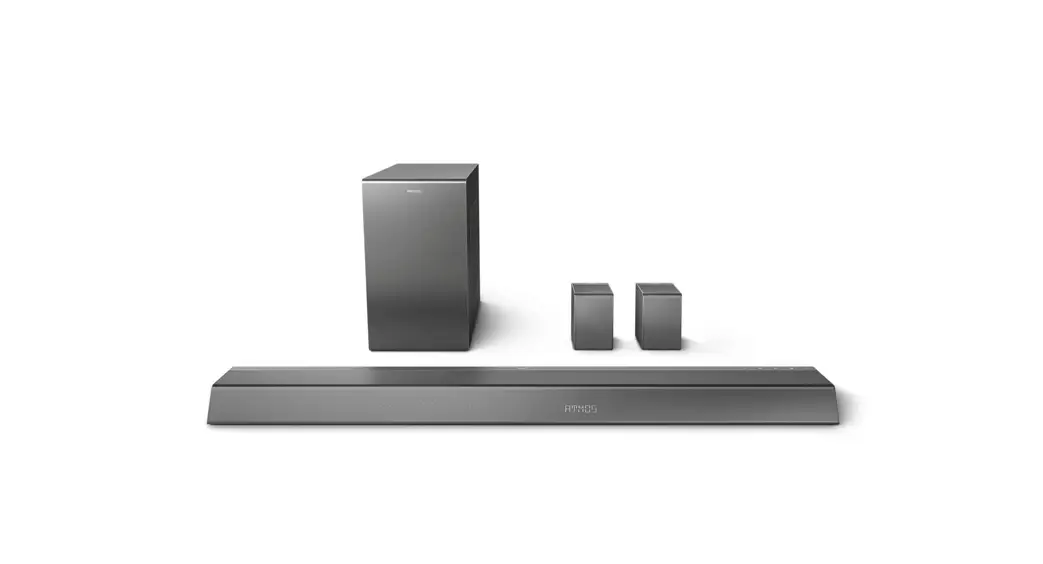
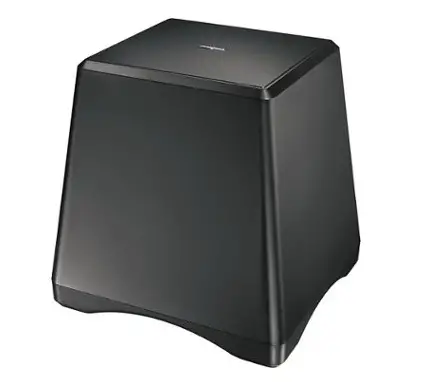
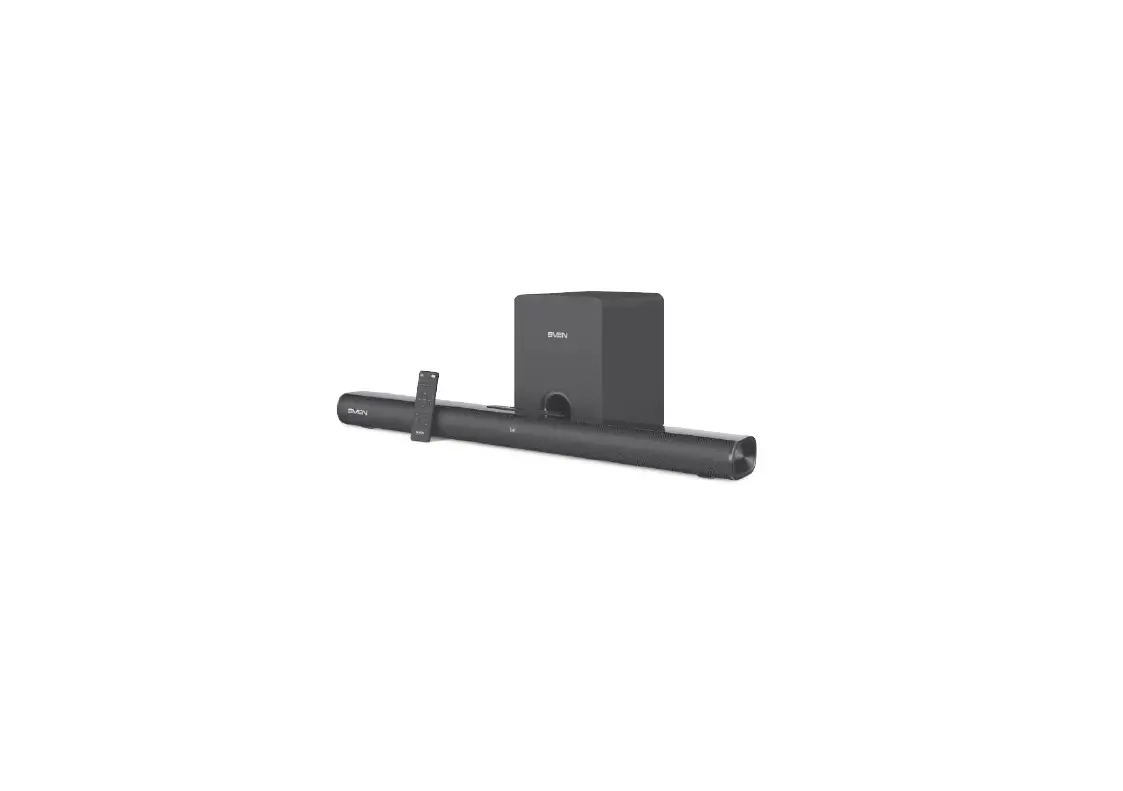
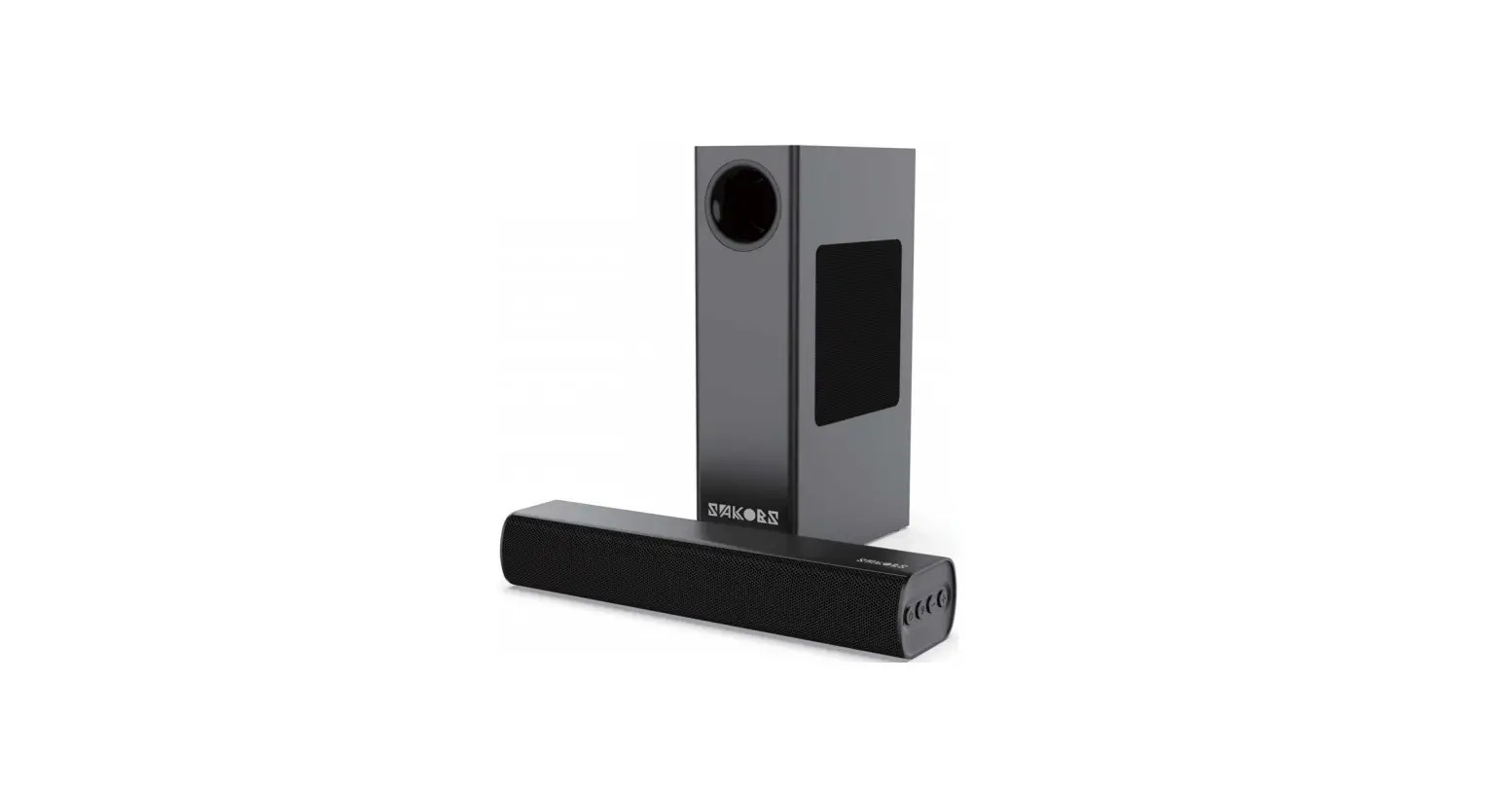
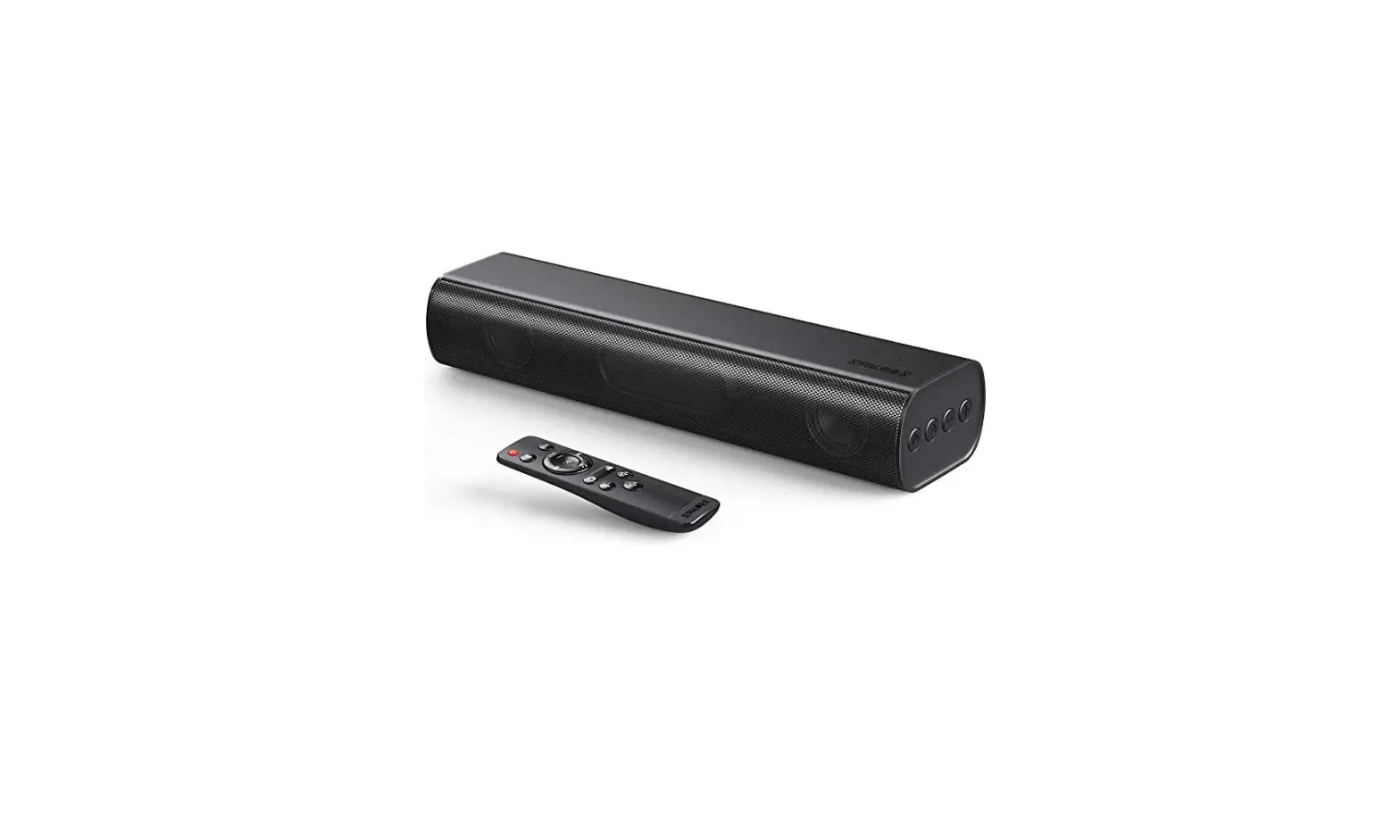
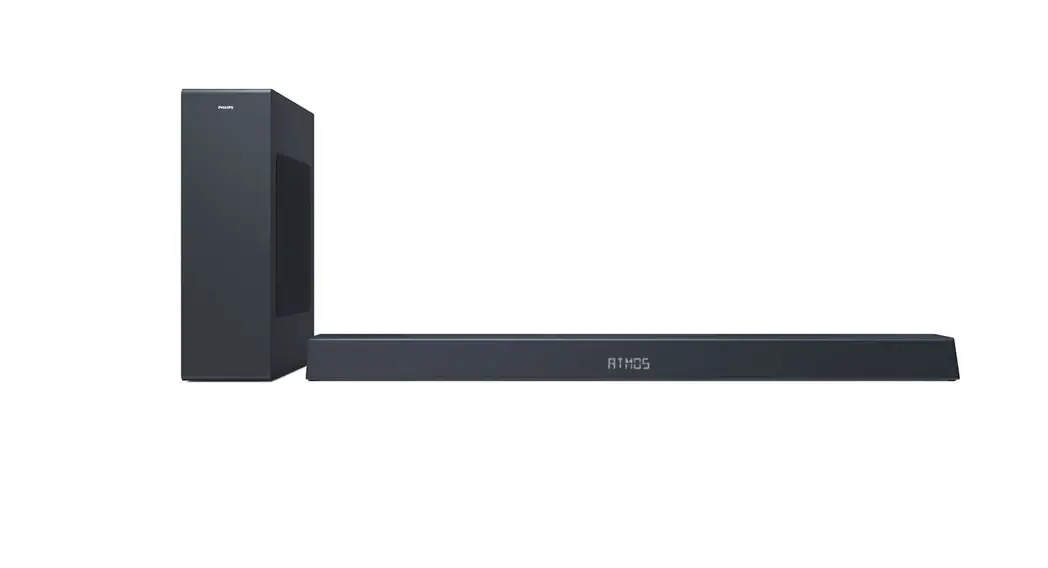
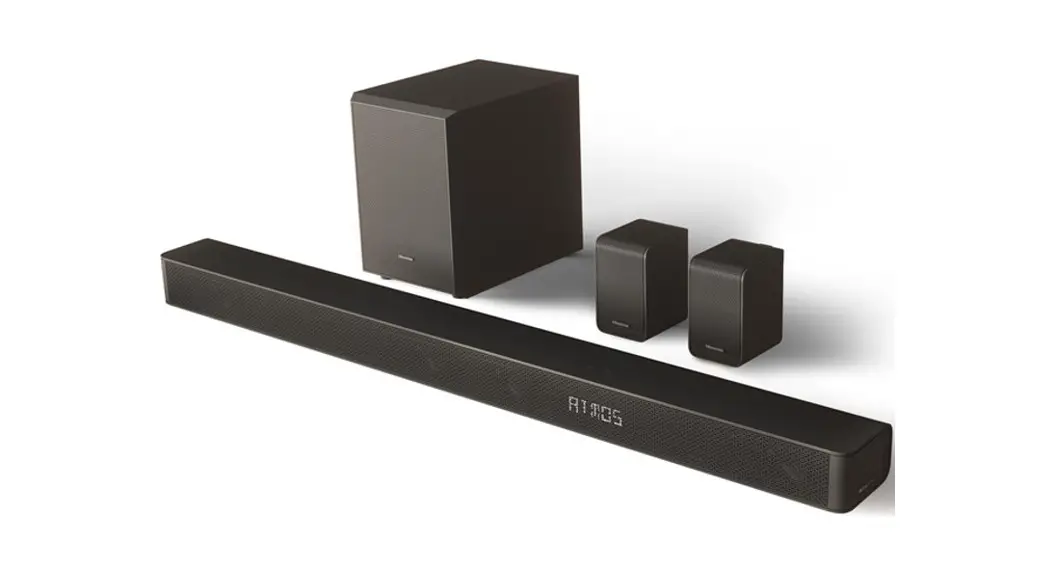
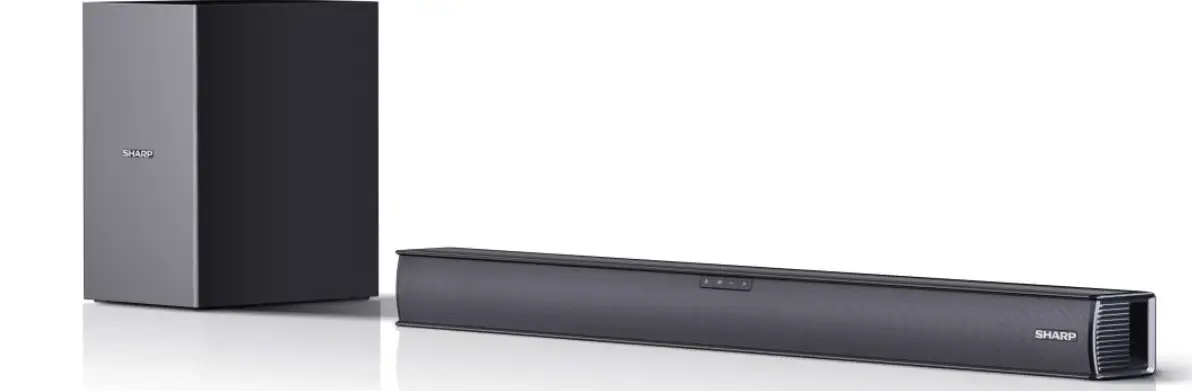
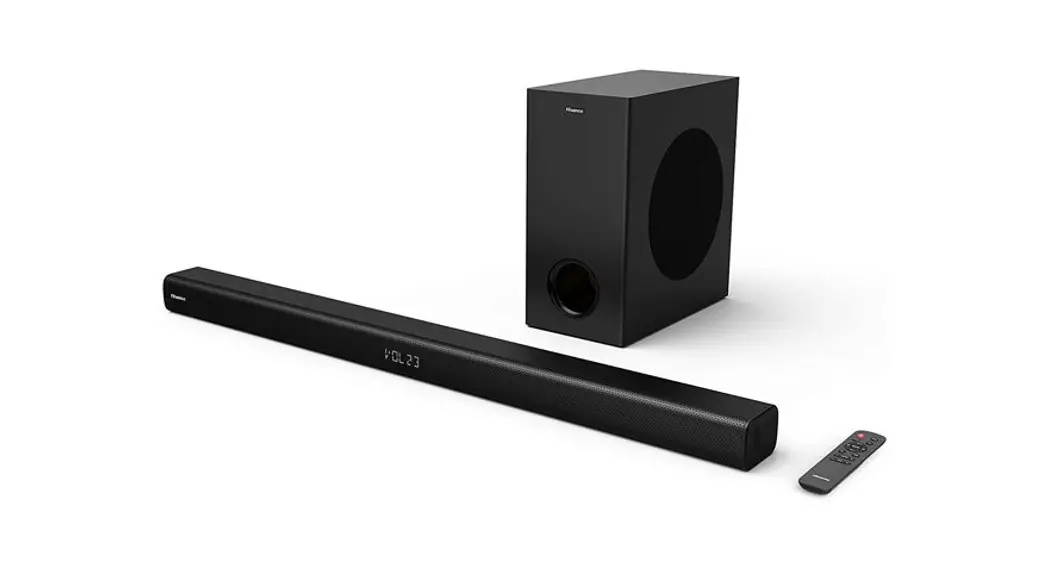
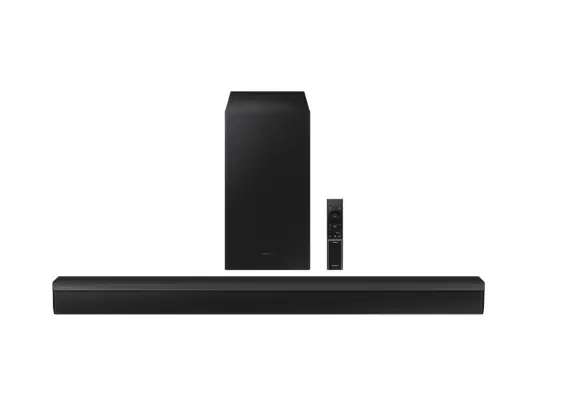
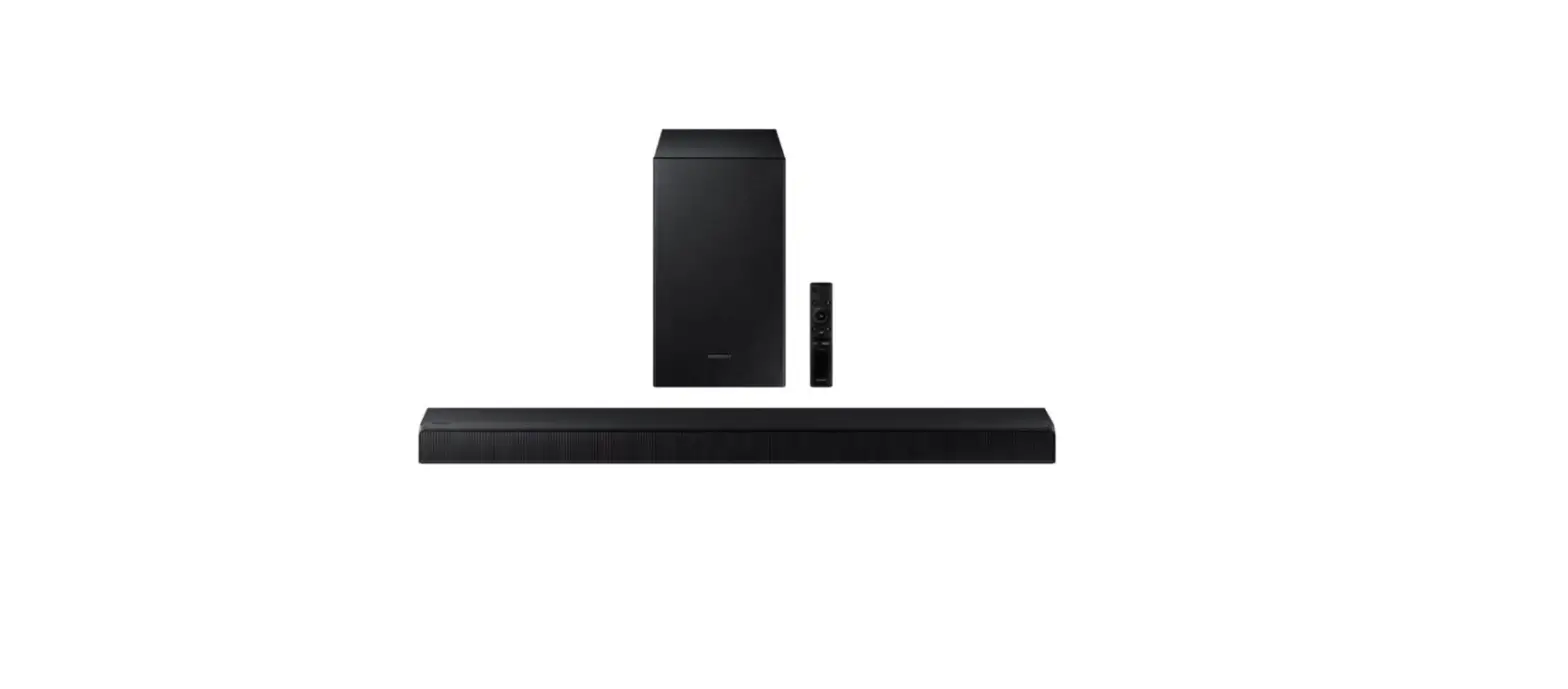
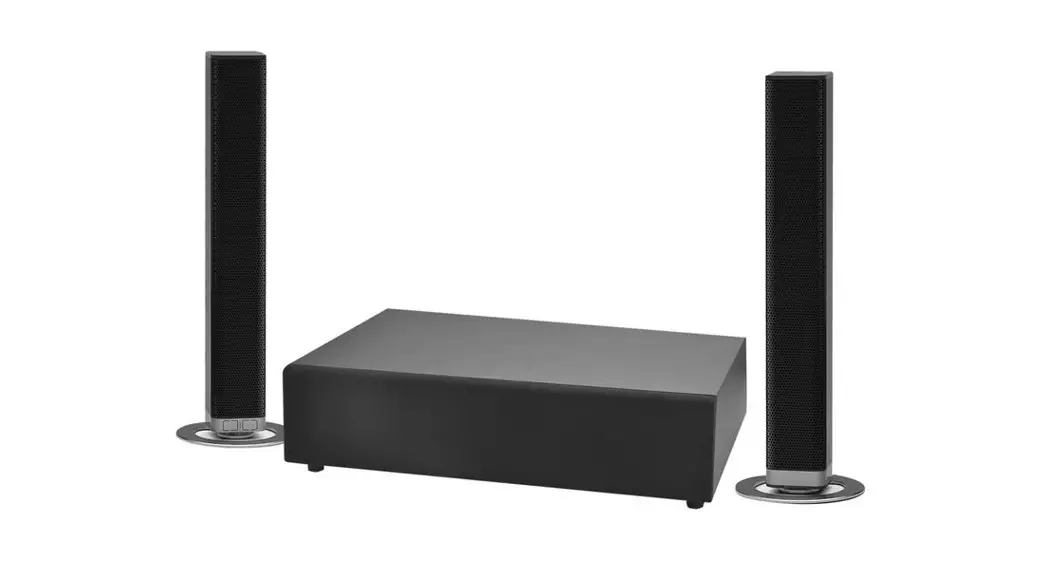
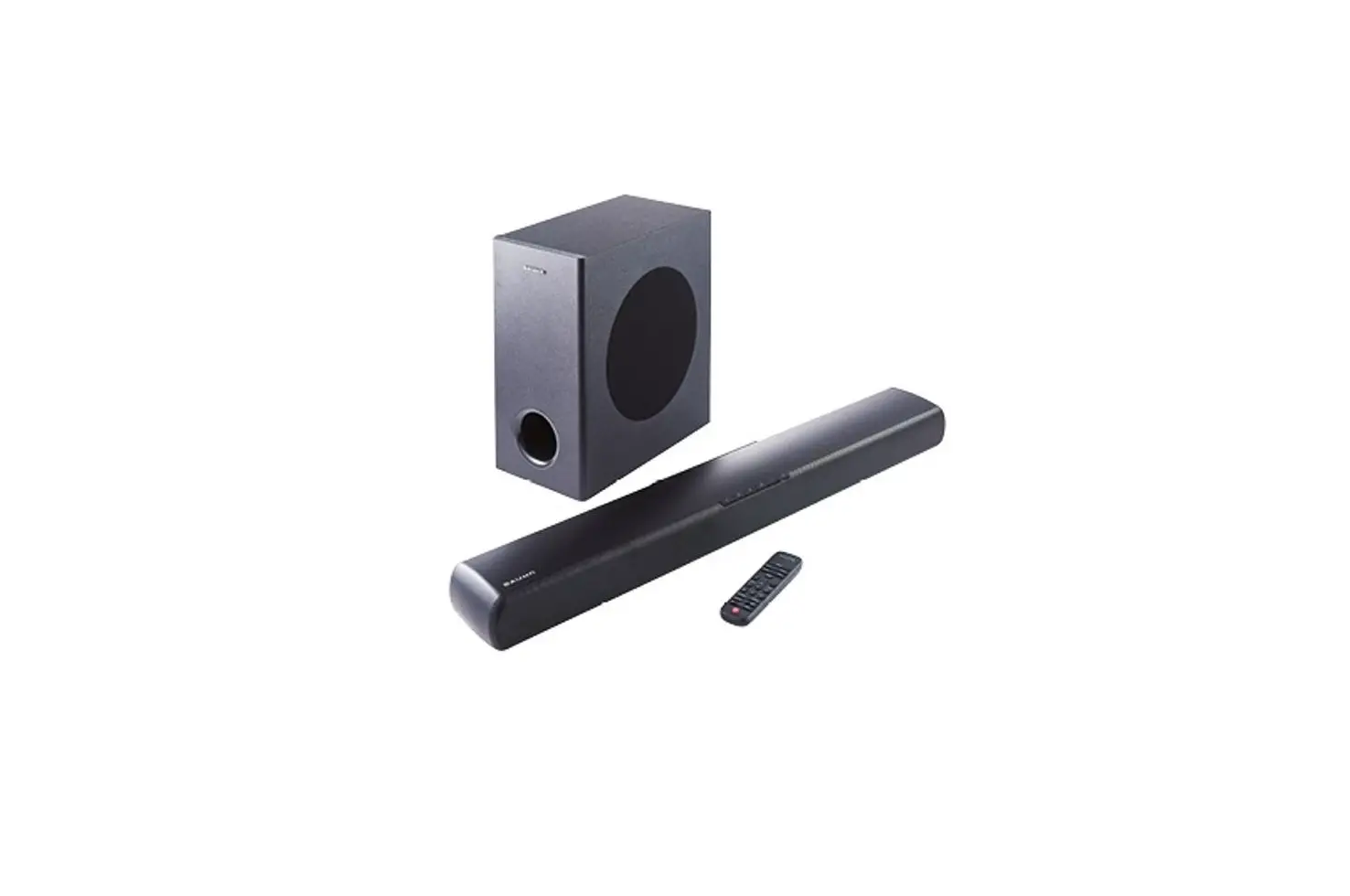
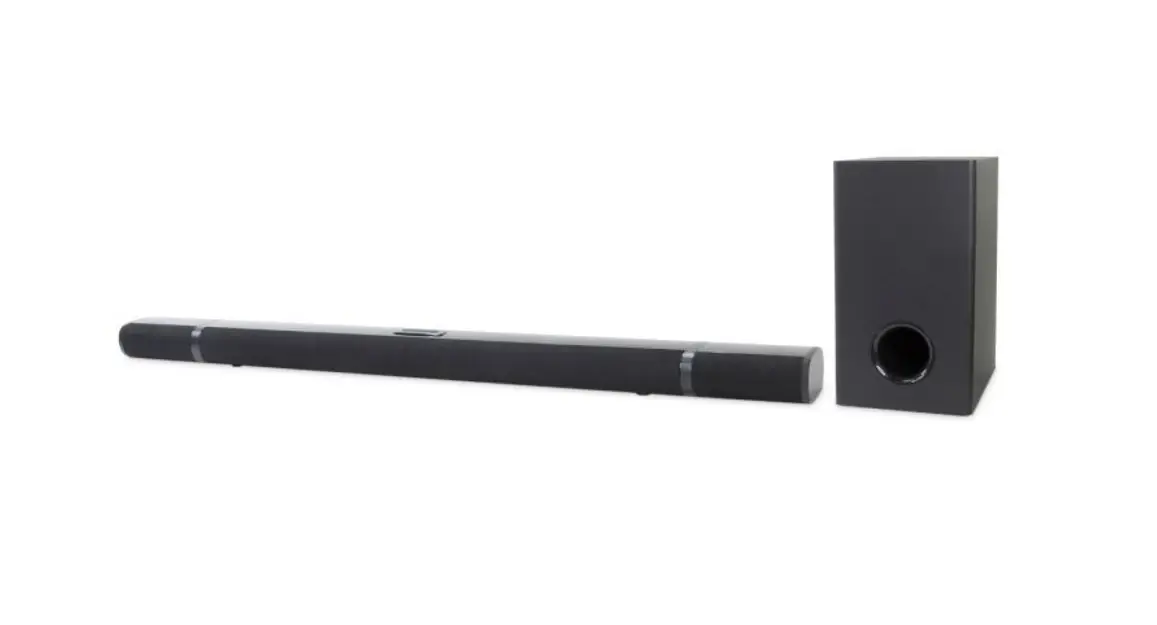
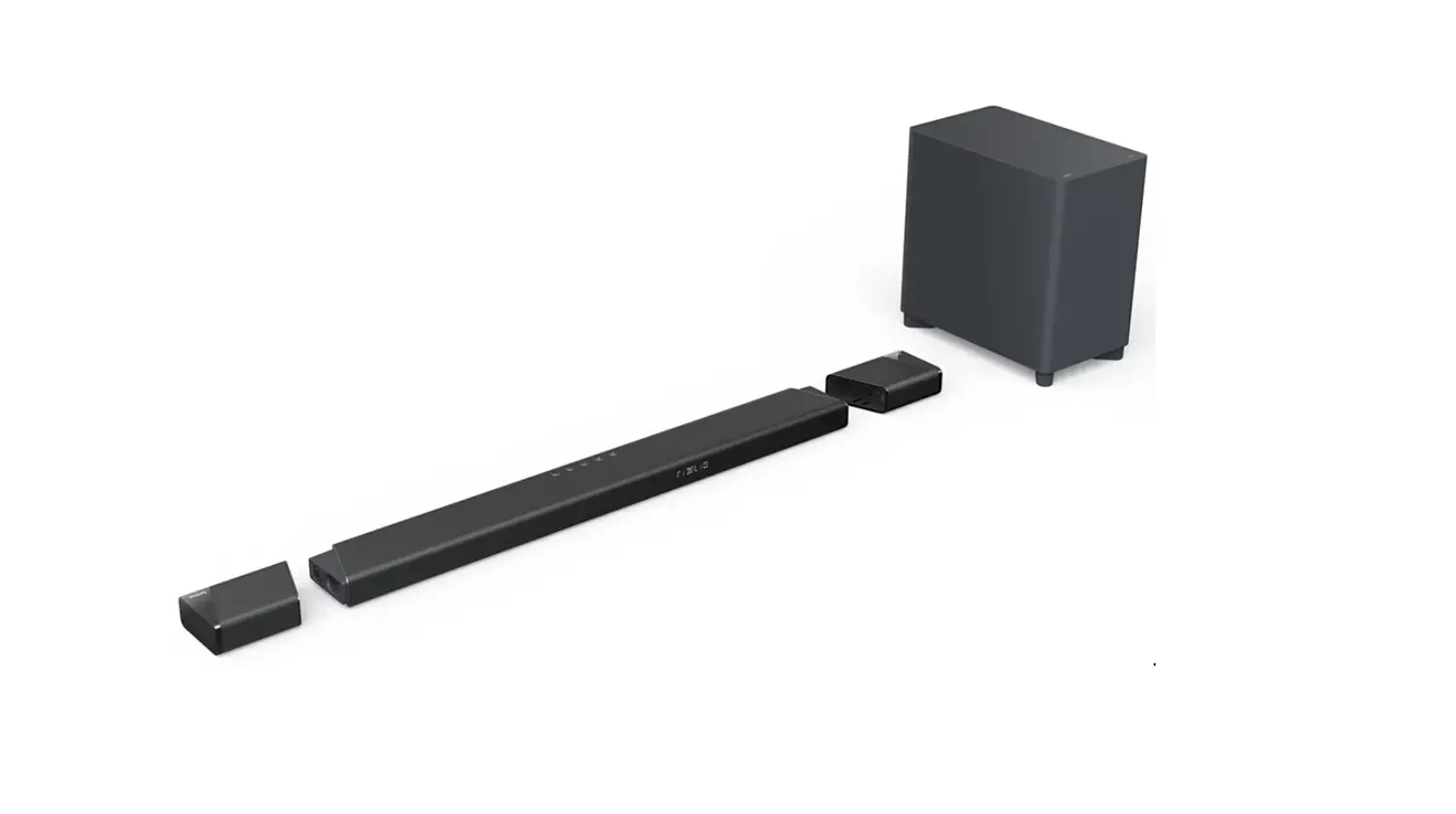
NS-SB515 Soundbar with Wireless Subwoofer
Insignia 2.1 Channel Soundbar with Wireless Subwoofer
Congratulations on your purchase of an Insignia 2.1 Channel
Soundbar with Wireless Subwoofer. This product includes the
following:
- Soundbar
- Wireless subwoofer
- Remote control and battery
- RCA audio cable
- RCA to 3.5 mm adapter
- User Guide
- AC adapter
- Quick Setup Guide
- Wall mounting template
Features
The soundbar has the following features:
- LED indicator: Indicates when settings are changed on the
soundbar. - Hanging brackets: Use to hang the soundbar on a wall.
- Pairing button: Use to pair the soundbar to the subwoofer if
not automatically connected when turned on. - DC IN jack: Connect the AC adapter to this jack to power the
soundbar. - SOURCE 1: OPTICAL jack: Connect a digital optical cable to this
jack if your TV or other audio source device has an Optical Out
jack. - SOURCE 2: RCA (R and L) jacks: Connect the RCA cables to these
jacks if your TV or other audio source device has RCA Out
jacks. - (source) button: Press repeatedly to cycle through the
available sound sources. - (power) button: Press to turn on the soundbar. Press again to
put the soundbar into standby mode. - LED indicator: Indicates when settings are changed on the
soundbar. - SOURCE – OPTICAL button: Press to select the digital optical
sound source for your soundbar. - SOURCE – RCA button: Press to select the RCA sound source for
your soundbar. - SOURCE (Bluetooth) button: Press to select the Bluetooth sound
source for your soundbar. - SUB / SUB button: Press to adjust the volume of the wireless
subwoofer. - (Mute) button: Press to mute the sound from the soundbar. Press
again to restore the sound. - DSP buttons: Press Standard to select Standard Digital Signal
Processor (DSP) sound mode, Theater to select the Theater DSP sound
mode, or News to select the News DSP sound mode. - VOL+ / VOL- buttons: Press to adjust the volume of your
soundbar.
Product Usage Instructions
Connect the Soundbar
Follow these steps to connect your soundbar to your audio source
device:
- Look at the back of your source device, such as a TV,
DVD/Blu-ray player, or cable box, to identify your audio OUT
ports. - Choose one connection option below that fits your audio source.
You can connect several devices and switch the sound source as
needed.
Digital Optical Connection (BEST)
- Connect one end of the digital optical cable (not included) to
your soundbar. - Connect the other end into the Digital Optical Output port on
your audio source device. - Change the device’s audio output to ‘PCM’ format (typically
found in audio settings). Refer to the documentation that came with
your audio source device for more information. - Proceed to step 2, Connect the AC Adapter.
RCA Audio Connection
- Connect one end of the RCA audio cable (included) to your
soundbar. - Connect the other end to the RCA Out jacks on your audio source
device. - Proceed to step 2, Connect the AC Adapter.
Audio Quality
For the best audio quality, use a digital optical cable
connection. If you do not have a digital optical cable, you can use
a 3.5 mm audio cable with the included adapter or an RCA audio
cable.
Note: If you are mounting the soundbar on a
wall, you must use the included right-angle cable connectors for
the RCA cable connections.
Before using your new product, please read the user manual for
further instructions and precautions to prevent any damage.
Congratulations on your purchase of an Insignia 2.1 Channel Soundbar with Wireless Subwoofer.
PACKAGE CONTENTS
Soundbar
Wireless subwoofer
FEATURES
Front view
Back view
Remote control and battery
RCA audio cable
RCA to 3.5 mm adapter
User Guide
Side view
Remote control
AC adapter
Quick Setup Guide
Wall mounting template
Before using your new product, please read these instructions to prevent any damage.
# ITEM
DESCRIPTION
1 LED indicator
Indicates when settings are changed on the soundbar.
2 Hanging brackets
Use to hang the soundbar on a wall.
3 Pairing button
Use to pair the soundbar to subwoofer if not automatically connected when turned on.
4 DC IN jack
Connect the AC adapter to this jack to power the soundbar.
5 SOURCE 1: OPTICAL jack If the TV, or other audio source device, has an Optical Out jack, connect a digital optical cable to the source device and this jack.
6 SOURCE 2: RCA (R and L) If the TV, or other audio source device, has RCA Out jacks,
jacks
connect the RCA cables to the source device and these
jacks.
7 +/
Press to increase or decrease the volume.
8
(source) button
Press repeatedly to cycle through the available sound
sources:
· Source 1 – Optical
· Source 2 – RCA
· Bluetooth
9
(power) button
Press to turn on the soundbar. Press again to put the
soundbar into standby mode.
# ITEM
10
(power) button
11 SOURCE – OPTICAL
12 SOURCE – RCA 13 SOURCE (Bluetooth)
14 SUB / SUB
15
(Mute)
16 DSP buttons
17 VOL /
DESCRIPTION
Press to turn on the soundbar. Press again to put the soundbar into standby mode.
Press to select the digital optical sound source for your soundbar.
Press to select the RCA sound source for your soundbar.
Press to select the Bluetooth sound source for your soundbar.
Press to adjust the volume of the wireless subwoofer.
Press to mute the sound from the soundbar. Press again to restore the sound.
Press Standard to select Standard Digital Signal Processor (DSP) sound mode. Press Theater to select the Theater Digital Signal Processor (DSP) sound mode. Press News to select the News Digital Signal Processor (DSP) sound mode.
Press to adjust the volume of your soundbar.
CONNECT THE SOUNDBAR
Look at the back of your source device, such as a TV, DVD/Blu-ray player, or cable box, to identify your audio OUT ports. Choose one connection option below that fits your audio source. You can connect several devices and switch the sound source as needed.
CAUTION: Turn off or unplug all devices while making connections.
NOTE: If you are mounting the soundbar on a wall, you must use the included right-angle cable connectors for the RCA cable connections.
AUDIO QUALITY
BEST GOOD
JACK TYPE (on source device)
CABLE
Digital optical cable (not included) 3.5 mm audio cable (adapter included)
GOOD
RCA audio cable (included)
– PICK ONE –
Digital Optical connection (BEST) 1 Connect one end of the digital optical cable (not included)
to your soundbar. Connect the other end into the Digital Optical Output port on your audio source device. 2 Change the device’s audio output to `PCM’ format (typically found in audio settings). Refer to the documentation that came with your audio source device for more information. 3 Go to step 2, Connect the AC Adapter.
Back of the soundbar
TV, Blu-ray, or cable box
OUTPUT DIGITAL OPTICAL
Digital optical cable (not included)
– OR –
3.5 mm connection (GOOD)
1 Connect the right-angled connectors of the RCA audio cable to your soundbar.
2 Connect the other ends of the cables to the RCA to 3.5 mm adapter, then connect the other end to the headphone or AUX Output on your audio source device.
3 Go to step 2, Connect the AC Adapter. NOTE: Make sure that the cable ends match the color of the ports.
Back of the soundbar
– OR –
RCA audio cable (included)
RCA connection (GOOD)
1 Connect the right-angled connectors of the RCA audio cable to your soundbar.
2 Connect the other end of the RCA audio cable into the Audio Output ports on your audio source device.
3 Go to step 2, Connect the AC Adapter. NOTE: Make sure that the cable ends match the color of the ports.
Back of the soundbar
TV, Blu-ray, cable box, or smartphone/tablet
RCA to 3.5 mm adapter (included)
OUTPUT AUDIO
TV, Blu-ray, or cable box
RCA audio cable (included)
Quick Setup Guide | NS-SB515 Soundbar with Wireless Subwoofer
CONNECT THE AC ADAPTER
CAUTIONS: · Make sure that the electrical outlet matches the AC
adapter’s input requirements of 100-240 V, 50/60 Hz before connecting. · Use only the AC adapter provided. · Plug in the AC adapter only after all other connections have been made.
1 Connect the AC adapter to the DC IN jack on the back of the soundbar.
2 Plug the other end of the AC adapter into a power outlet or surge protector.
Back of the soundbar
CONNECT THE SUBWOOFER
To connect the subwoofer, plug in the power cord. The subwoofer receives a wireless audio signal from the soundbar.
Note: If your subwoofer does not connect automatically, see “Troubleshooting”.
4 CONNECTING YOUR SOUNDBAR USING BLUETOOTH OPTIONAL) Pairing your devices 1 Turn on your soundbar. 2 Place your Bluetooth device within 30 ft. (10 m) of your soundbar. 3 Select Bluetooth as the input source by pressing the (Bluetooth) button on the remote control or the (source) button on the soundbar. The blue Bluetooth indicator on the soundbar blinks slowly. 4 Navigate to your device’s Bluetooth settings, turn on Bluetooth, then search for available devices. For additional information on pairing your device, refer to your devices’ documentation. 5 On your Bluetooth device, select “NS-SB515” from the device list. Repeat step 2 if “NS-SB515” is not displayed. 6 If a PIN code is requested, enter “0000.” 7 When pairing is completed the Bluetooth indicator on the top of your soundbar lights solid blue. NOTES: · Some devices, such as an iPhone, connect immediately after pairing, other devices, such as notebook computers, may ask you if you wish to connect. In this instance, the Bluetooth indicator continues to blink until a connection is established. · When you turn on your soundbar, it automatically connects to the last connected device if that device is in range. To connect to a different paired device, you have to turn off Bluetooth or unpair from the currently paired device and manually connect to the other paired device. · When a call is received while playing music through a phone, the music stops automatically. · When the call ends, depending on the setting of your phone, the current track may resume playback.
Disconnecting your devices · Turn off the Bluetooth function on your device.
NOTE: For more information about using Bluetooth, see the User Guide.
OVER
5 POSITIONING THE SOUNDBAR AND SUBWOOFER
The soundbar can be mounted on a wall.
The soundbar can be set on a flat surface.
For instructions on mounting your soundbar,
(go to Step 5)
see page 18 of the User Guide.
– OR –
*Because the low frequency sound is non-directional, the subwoofer can be placed anywhere in the room.
6 USING YOUR SOUNDBAR Using the remote control
1 Remove the plastic tab from the battery compartment before using the remote control for the first time.
2 Point the remote control directly at the IR sensor on the front of the soundbar. You must be within
approximately 23 ft. (7 m) of the soundbar.
IR sensor
Listening to your soundbar 1 Press the (Power) button to turn on your soundbar. The power indicator turns blue (Bluetooth
source) or green (RCA/Optical source). 2 Turn on the audio source device connected to your soundbar and begin playback. 3 Press the button on the soundbar repeatedly to select the audio source or press the selected
source button on the remote control.
NOTE: If you use the OPTICAL connection, you must change your device’s audio output setting to “PCM” format. Refer to the manual you received with the output device for additional information.
4 Adjust the volume on your soundbar or the audio device to a comfortable level.
WARNING: Continuous use of high volume sound may permanently damage your hearing.
5 Press the (Power) button again to turn off your soundbar. The standby indicator lights red.
LED COLOR Red
ACTION Solid Flashes
Green
Lights for 10 seconds Lights for three seconds Flashes on then off
Blue Lights for 10 seconds Lights for three seconds Flashes on then off
Purple
Blinking Flashes on then off
DESCRIPTION
· Standby/power off (remains on in standby mode) · Mute (not source dependent)
RCA OR OPTICAL SOURCE SELECTED · Power on · Maximum or minimum volume level is reached · RCA/Optical connected · Soundbar volume up/down · Subwoofer volume up/down
BLUETOOTH SOURCE SELECTED · Power on · Maximum or minimum volume level is reached · Bluetooth connected · Soundbar volume up/down · Subwoofer volume up/down
· Bluetooth in pairing mode
· Standard, Theater, or News DSP mode selected (not source dependent)
TROUBLESHOOTING
Check this list for a possible troubleshooting solution before calling for service: 1-877-467-4289 (U.S. and Canada) or 01-800-926-3000 (Mexico) Also, check the online FAQs at www.insigniaproducts.com.
PROBLEM
POSSIBLE SOLUTIONS
The power does not come on. · Make sure that the AC adapter is securely plugged into the power outlet and the soundbar.
The remote control does not work.
· Remove any obstacles between the remote control and the IR sensor on the soundbar. · The remote control battery may be exhausted, replace it. · Move closer to the soundbar. The remote control is effective to approximately 23 ft. (7 m).
No sound or very low-level sound is heard from the soundbar.
· Make sure that you are connected to an audio OUT jack on your sound source. The port will not send audio out if it is an INPUT. · Make sure that the volume level of the soundbar is set to an adequate level. · If you are using Bluetooth, turn up the volume on your Bluetooth device. · Make sure that the volume level is not muted. Press the (mute) button on the remote control to restore the sound output. · Make sure that the correct audio source is selected. Press the button repeatedly to switch to the correct audio source. · Make sure that that the power is on and all connections are secure. · If you are using an AUX 3.5 mm cable connection, make sure that the volume is turned up on your sound source. · If you are using the OPTICAL connection, make sure that the source device’s audio source is set to “PCM” format. Refer to the documentation you received with the
audio source device (such as a TV or DVD/Blu-ray player) for additional information. · Make sure that the audio cable you are using is not damaged or broken. Try using another one.
Your soundbar is not working properly.
· Unplug the AC adapter from the wall outlet and then try plugging it in again after 30 seconds. · If you are using the OPTICAL connection, make sure that the source device’s audio source is set to “PCM” format. Refer to the documentation you received with the
audio source device (such as a TV or DVD/Blu-ray player) for additional information. · Make sure that the audio cable you are using is not damaged or broken. Try using another one.
The sound is breaking up or buzzing.
· Make sure that you are connected to an audio OUT jack on your sound source. The port will not send audio out if it is an INPUT. · Make sure that all connections are secure and cables are not broken or damaged. · If you are using the OPTICAL connection, make sure that the source device’s audio source is set to “PCM” format. Refer to the documentation you received with the
audio source device (such as a TV or DVD/Blu-ray player, etc.) for additional information. · Connect to a different source device (such as a TV or DVD/Blu-ray player) to see if the buzzing still occurs. If it does not, this may indicate an issue with the original
source device. · Use a different connection method (for example, try Optical instead of AUX) between the soundbar and the source device to make sure that the jacks on both
devices are still working. · Make sure that the audio cable you are using is not damaged or broken. Try using another one.
I can hear sound from my TV · Turn off or mute the internal speakers of your TV. Refer to the TV’s manual for instructions. and my soundbar.
My TV remote does not control · In most cases, your TV remote will not control your soundbar. the volume of my soundbar.
No sound or low volume in Bluetooth mode.
· Make sure that your Bluetooth device is turned on, Bluetooth is turned on, and “NS-SB515” is selected. · Turn up the volume on your soundbar. · Turn up the volume on your Bluetooth device. · Make sure that your Bluetooth device is not muted. · Make sure that you are playing music from your Bluetooth device. · Make sure that you have selected the Bluetooth source on your soundbar. · Make sure that your soundbar is not paired to another Bluetooth device. · Make sure that your Bluetooth device is not paired to a different Bluetooth speaker.
Cannot establish Bluetooth connection.
· Shorten the distance between your soundbar and your Bluetooth device. · Turn your devices off, then on. Re-pair your soundbar and your Bluetooth device. · Make sure that your soundbar is not paired to another Bluetooth device. · Make sure that your soundbar and Bluetooth device are both in pairing mode. · Make sure that your Bluetooth device is not connected to any other device. · Make sure that you have selected “NS-SB515” on your Bluetooth device.
My Bluetooth device keeps unpairing.
· Shorten the distance between your soundbar and your Bluetooth device. · If the battery on your Bluetooth device is low, recharge the battery.
“NS-SB515” does not appear on my Bluetooth device.
· Shorten the distance between your soundbar and your Bluetooth device. · Put your soundbar into pairing mode, then refresh your list of Bluetooth devices. For more information, see the documentation that came with your Bluetooth
device. · Make sure that your Bluetooth device is visible to other devices. For more information, see the documentation that came with your Bluetooth device.
Wireless subwoofer is not connected.
· The wireless subwoofer is set at the factory so that the soundbar and subwoofer should link automatically when the soundbar is turned on. However, if the link indicator does not light when the soundbar and subwoofer are both powered on or if your soundbar has been serviced recently, then you need to follow the procedure to set the ID and link. 1. Clear any obstacles between the soundbar and the subwoofer. 2. Using a small pointed object (paper clip) press the PAIR button on subwoofer until the LINK LED light blinks blue. 3. Using a small pointed object (paper clip) press the PAIR button on the soundbar until the LINK LED lights solid blue. The wireless subwoofer is connected to soundbar.
SPECIFICATIONS
Designs and specifications are subject to change without notice.
Dimensions (approx.)
Weight
Power output Frequency response
Soundbar: 37.1 × 3.5 W × 2.5 in. (94.3 × 9.0 × 6.5 cm) Subwoofer: 11.9 H × 12.4 W × 8.1 in. (30.2 × 31.6 × 20.5 cm)
Soundbar: 4.0 lbs. (1.8 kg) Subwoofer: 7.7 lbs. (3.5 kg)
60 W total: left and right channel 15 W, subwoofer 30 W, 1% THD
150 Hz ~ 15 kHz
ONE-YEAR LIMITED WARRANTY
Visit www.insigniaproducts.com for details.
CONTACT INSIGNIA:
For customer service, call 1-877-467-4289 (U.S. and Canada) or 01-800-926-3000 (Mexico) www.insigniaproducts.com
INSIGNIA is a trademark of Best Buy and its affiliated companies. Distributed by Best Buy Purchasing, LLC ©2015 Best Buy. All rights reserved. Made in China
V2 ENGLISH 15-0528
 Insignia Consumer Electronic Products