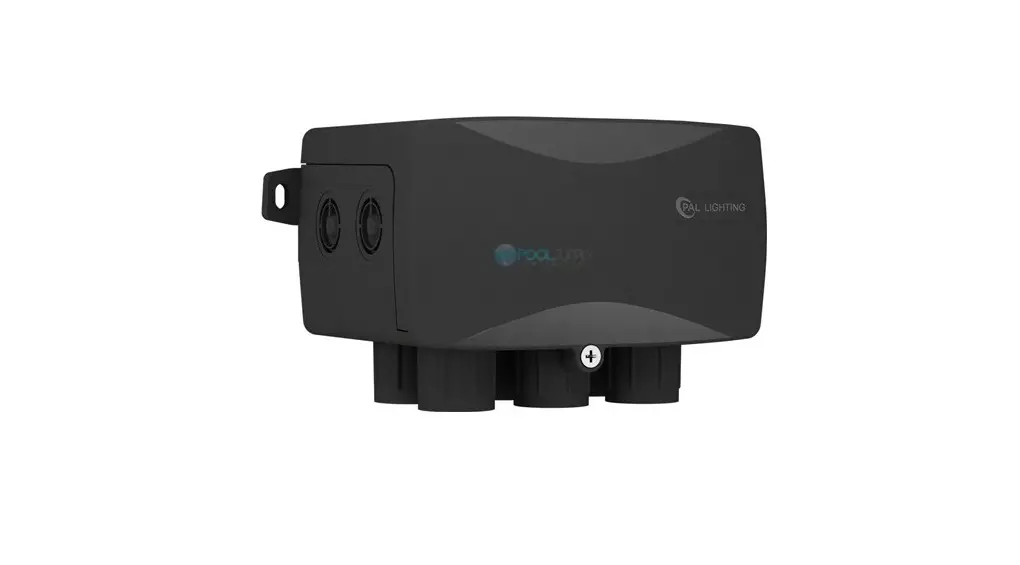
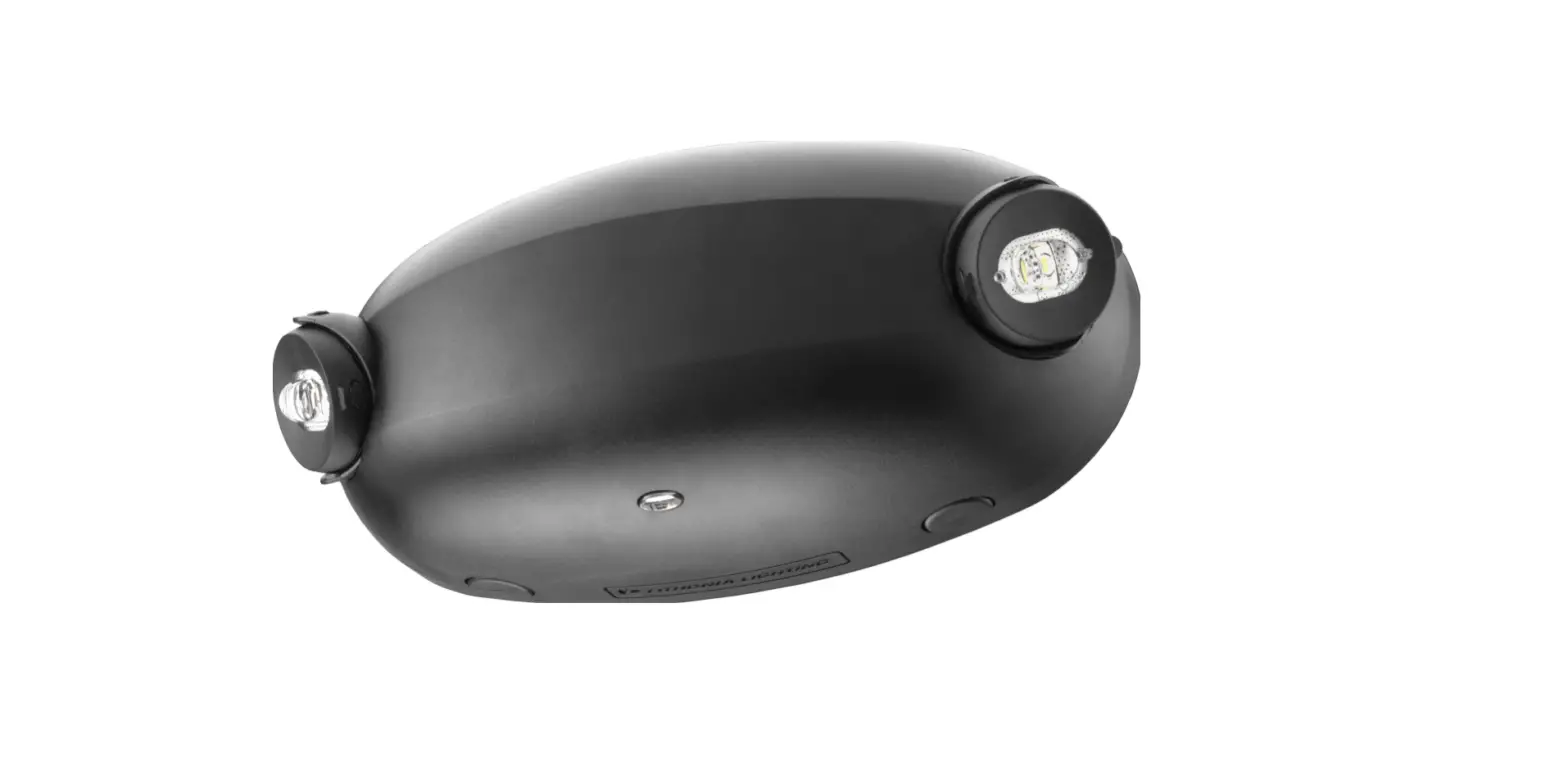
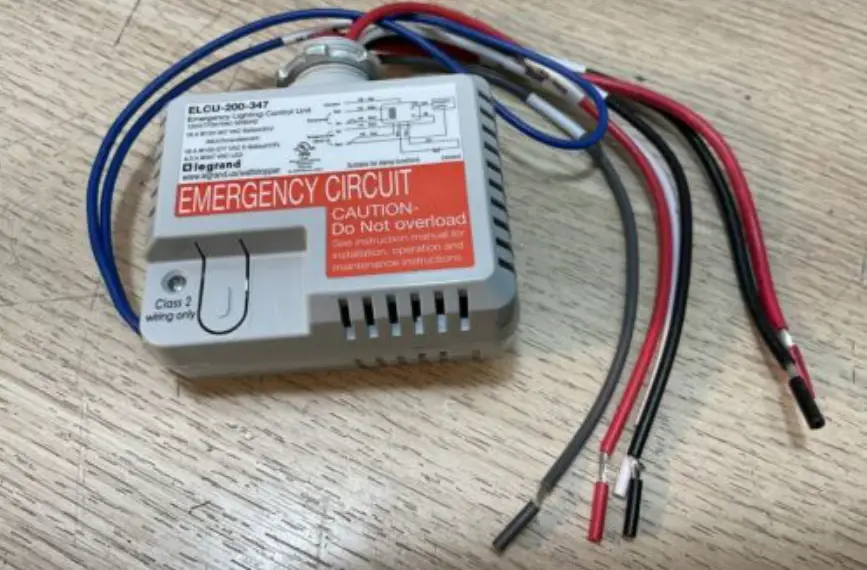
NLCEMUL924 NLC Emergency Lighting Controller
Product Information:
| Product Name | NLCEMUL924 |
|---|---|
| Product Description | Emergency Lighting Control Device |
| Compliance | UL924 |
| Compatibility | NICOR smart lighting controllers and supporting products |
Product Usage Instructions:
- Installation and Commission:
- Properly install NLCEMUL924 and power it on.
- Add NLCEMUL924 to the mesh network using the NICOR NLC APP.
Refer to the APP instructions for detailed steps.
- After adding NLCEMUL924 to the network, check its status on the
device page of the APP. - Long press the icon to access the parameter configuration
page. - Configure the following parameters:
- Device name (click to update)
- Select an action when normal power is disrupted
- Set the group and appropriate light level
- Click to select a scene
- Set the repeat time
- Action when normal power is restored (none for default)
- Click Save to save the settings
- Do not connect the test button connector to any load or input
voltage to avoid accidents.
- Emergency and normal power supply are separate.
- All luminaires are controlled by NICOR smart lighting
controllers. - Emergency luminaires are installed at critical positions and
powered by emergency power supply. They only provide lighting under
emergency conditions. - Other luminaires are powered by normal power supply and only
provide lighting under normal conditions.
- Create a group called “Emergency lights” and add E1/E2 as the
group members. - When normal power is disrupted:
- Set the action to group and set the “Emergency lights” group to
50% light level (or desired level). - Repeat the action every 5 seconds.
- Set the action to group and set the “Emergency lights” group to
NLCEMUL924 Instruction
NICORLIGHTING.COM
Product introduction
NLCEMUL924
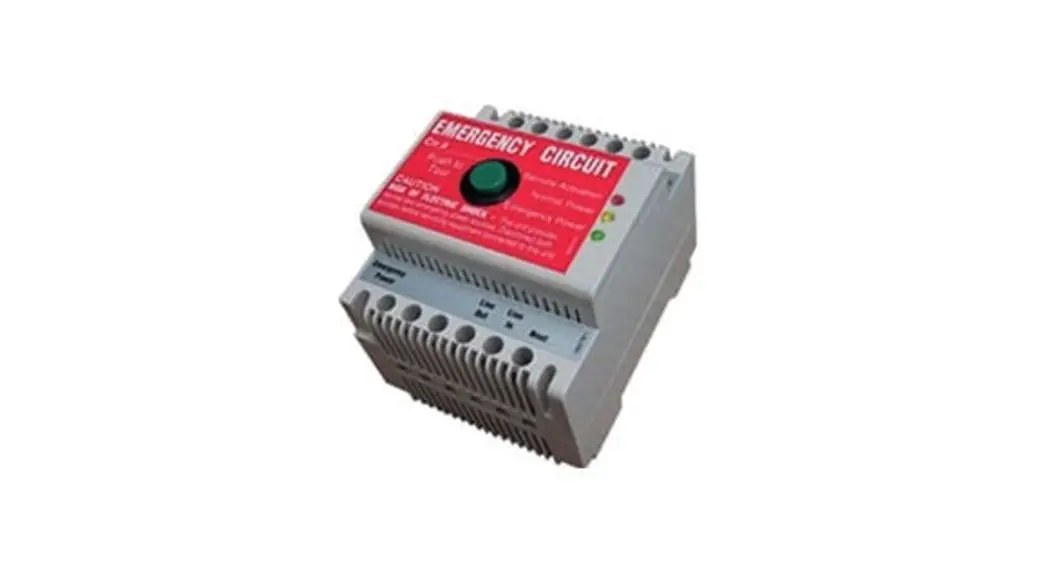
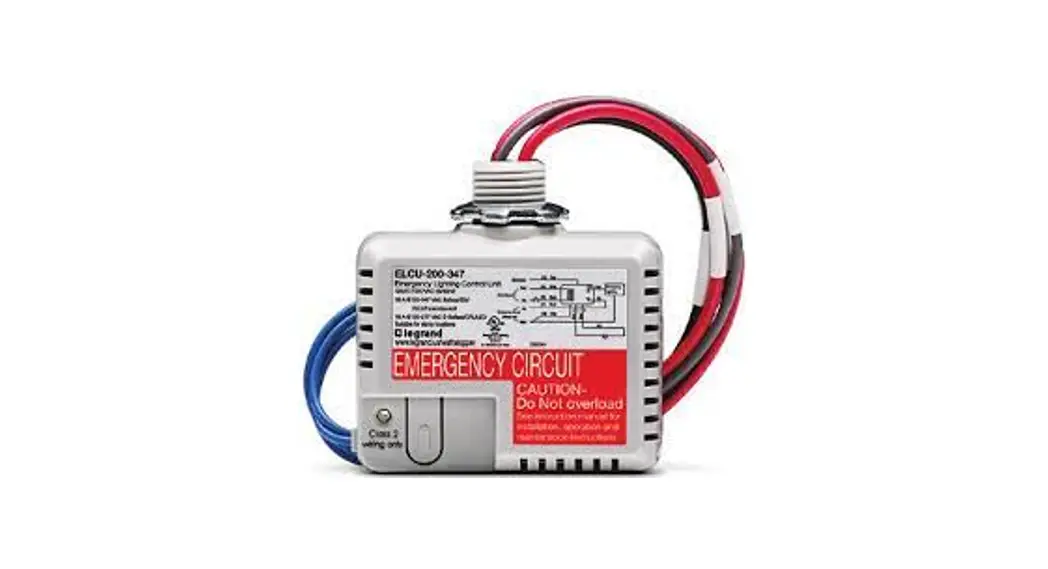
NLCEMUL924 is an Emergency Lighting Control Device which is in compliance to UL924. NLCEMUL924 needs to work together with NICOR smart lighting controllers and supporting products. Various applications and suggested configurations of NLCEMUL924 are listed in this instruction. Readers shall get familiar with the NICOR NLC APP and products by reading NICOR’s smart lighting APP instruction and the specification and installation guidance documents of these products beforehand.
Blue red dual color indicator
Reset hole.
External test switch 20AWG Blue
Normal hot AWG18 Black Normal neutral AWG18 White Emergency hot AWG18 Red Emergency neutral AWG18 Gray
Test button
Blue red dual color indicator: · Blue on: powered on · Red on: emergency mode · Red blink: emergency power is disrupted
NICORLIGHTING.COM
Installation and commission
Installation and commission Please install the NLCEMUL924 properly and place it to an appropriate place according to the specification and installation guidance documents. Do not place it in places where wireless signal transmission might be blocked, such as places close to metal plate or concrete wall or places that are very far away from other NICOR smart lighting controllers. One NLCEMUL924 is usually sufficient for one ZONE. Please place the NLCEMUL924 in a position where its wireless signal can reach all emergency lights and devices. You may also install two or more NLCEMUL924 in one ZONE if wireless coverage is a concern.
Add NLCEMUL924 to mesh network: Please add NLCEMUL924 to mesh network with APP after installing it properly and powering it on. NLCEMUL924 is to be added to a mesh network as a device. Please refer to APP instructions for details.
NICORLIGHTING.COM
Parameter configuration
You may check the NLCEMUL924 on the device page of the APP after adding it to the network. Long pressing the icon can bring out the paraemeter configuration page.
Device name, click to update it.
Select an action when normal power is disrupted.
Set the group and appropriate light level
Click to select a scene.
Set the repeat time
Action when normal power is restored, none for default. You may choose scene or group. No need to repeat the command.
Click Save to save the settings
NICORLIGHTING.COM
Parameters
Parameters when normal power is disrupted: It will enter emergency lighting mode when normal power is disrupted. Parameters include: · Action: The action for emergency lighting mode. It could be a pre-defined lighting scene, or a lights group. · Group and light level: You may choose a lights group and appropriate light level for emergency lighting when you selected group for action. Group and light level shall be decided
according to the actual lights and facility to meet the UL924 requirements for emergency lighting. · Scene: You may select a scene when you selected scene for action. Scene shall be decided according to the actual lights and facility to meet the UL924 requirements for emergency
lighting. · Repeat interval: NICOR smart lighting products use wireless communication technologies. To prevent user from mistakenly turning off or dimming the luminaires with APP or
switches in case of emergency lighting conditions, NLCEMUL924 will send emergency lighting commands repeatedly.
Parameters when normal power is restored: Luminaires need to be returned to normal lighting status when normal power is restored. Usually, NICOR smart lighting products have sensors. Luminaires will automatically resume to normal lighting status as NLCEMUL924 stops sending emergency lighting commands when normal power is restored, so no need to send command explicitly. It might be necessary that NLCEMUL924 should send command to restore lights to normal lighting status according to the actual lights and facility. You need to configure it in the APP in this case. Parameters include: · Action: The action for emergency lighting mode. It could be a pre-defined lighting scene, or a lights group. · Group and light level: You may choose a lights group and appropriate light level for normal lighting when you selected group for action. Group and light level shall be decided
according to the actual lights and facility to meet the requirements for lighting. · Scene: You may select a scene when you selected scene for action. Scene shall be decided according to the actual lights and facility to meet the requirements for lighting.
Default parameter configuration: Default factory parameter configuration: Turn “All lights” group to 100% level and repeat every 5 seconds when normal power interrupts. No action when normal power resumes.
NICORLIGHTING.COM
Emergency function test
There is an emergency function test button on NLCEMUL924. It simulates the emergency lighting function when normal power is disrupted when the button is pressed down so user may test it. The test button is on the housing of the NLCEMUL924. Press the button to simulate the emergency lighting function when normal power is disrupted. Release the button to go back to normal lighting status. There is also a pair of connector for connecting a push button. You may connect a push button to the connector so to test it remotely by press the push button.
Note: please do not connect the test button connector to any load or input voltage to avoid accidents.
NICORLIGHTING.COM
Typical applications
Generator Or
Inverter
NLCEMUL924
E1
N1
E2
N2
Legend:
Normal power supply
Emergency power supply
Normal luminaires, provide lighting under normal status
Emergency luminaires, installed at critical positions to provide lighting only under emergency status A generator or inverter to provide centralized emergency power supply
Typical application
Emergency and normal power supply are separate. All luminaires are controlled by NICOR smart lighting controllers. Emergency luminaires are installed at critical positions and powered by emergency power supply. They only provide lighting under emergency conditions. Other luminaires are powered by normal power supply and only provide lighting under normal conditions.
Suggested configuration:
Create a group as “Emergency lights” and add E1/E2 as the group members.
When normal power is disrupted:
Set the action to “group” and set the “Emergency lights” group to “50” light level. (When 50 light level is sufficient to meet emergency lighting requirement, otherwise please set the scene to desired level) Repeat every 5 seconds.
When normal power is restored:
Set the action to “group” and set the “Emergency lights” group to “0” light level.
NICORLIGHTING.COM
Typical applications
ATS
Generator Or
Inverter
NLCEMUL924
E1
N1
E2
N2
Legend:
Normal power supply Emergency power supply Luminaire power supply
Automatic Transfer Switch. It can automatically switch between normal
ATS
and emergency power supply. To provide continuous power for loads.
Normal luminaires, provide lighting under normal conditions.
Emergency luminaires. Install at critical positions to provide lighting only under emergency conditions.
A generator or inverter to provide centralized emergency power supply
Typical application
The ATS (Automatic Transfer Switch) is providing power to all luminaires which can automatically switch to emergency power when normal power is disrupted. All luminaires are controlled by NICOR smart lighting controllers. Luminaires installed at critical positions are emergency luminaires and they provide lighting under both normal and emergency conditions. Other luminaires are powered by normal power supply and only provide lighting under normal conditions.
Suggested configuration:
Create a scene as “Emergency lighting”. Set E1/E2 to 50 level in this scene. (When 50 light level is sufficient to meet emergency lighting requirement, otherwise please set the scene to desired level) Set N1/N2 to 0 level in this scene.
When normal power is disrupted: Set action to “Scene” and select “Emergency lighting”. Repeat every 5 seconds.
When normal power is restored: Set action to “group” and set the “All lights” group to “Auto” light level.
NICORLIGHTING.COM
Typical applications
UPS
NLCEMUL924
E1
N1
E2
N2
Typical application
There is only a normal power supply. All luminaires are controlled by NICOR smart lighting controllers. Emergency luminaires with interal chargable battery and provide lighting under both normal and emergency conditions. Other luminaires are powered by normal power supply and only provide lighting under normal conditions. Emergency power supply device, which has internal chargable battery and inverter to provide emergency power input to NLCEMUL924.
Legend:
Normal power supply Emergency power supply
UPS
An UPS (Uninterrupble Power Supply) to provide power supply to NLCEMUL924 when
normal power is disrupted.
Normal luminaires, provide lighting under normal conditions.
Suggested configuration:
When normal power is disrupted: Set action to “group” and set the “All lights” group to “50” light level. (When 50 light level is sufficient to meet emergency lighting requirement, otherwise please set the scene to desired level) Repeat every 5 seconds.
When normal power is restored: Set action to “group” and set the “All lights” group to “Auto” light level. Action.
Emergency luminaires with internal chargable battery providing lighting under both normal and emergency conditions.
NICORLIGHTING.COM
Typical applications
NLCPC1 R2
N1
N2
NLCPC1
R1
Generator Or
E1
Inverter
NLNCLECEMMUUL9L29424
E2
PPA109S
Legend:
Normal power supply Emergency power supply 0-10v dimming line
Normal luminaires, provide lighting under normal conditions.
Emergency luminaires. Install at critical positions to provide lighting only under emergency conditions.
A generator or inverter to provide centralized emergency power supply
Typical application
Emergency and normal power supply are separate. All luminaires are ordinary (dimmable or non-dimmable) without NICOR smart lighting controllers. Emergency luminaires are installed at critical positions and powered by emergency power supply. They only provide lighting under emergency conditions. Other luminaires are powered by normal power supply and only provide lighting under normal conditions.
Suggested configuration:
There are NICOR Zone Controllers (NLCPC1) to manage the normal power circuit, emergency power circuit and all luminaires. Create a group as “Emergency lights” and add R1 as the group members. Create a scene as “Normal lighting” and set R1 to TURN OFF and R1 TURN ON with 100 output level.
When normal power is disrupted:
NICORLIGHTING.COM Set the action to “group” and set the “Emergency lights” group to “50” light level. (When 50 light level is sufficient to meet emergency lighting requirement, otherwise please set the scene to desired level) Repeat every 5 seconds.
When normal power is restored:
Set action to “Scene” and select “Normal lighting”.
NICORLIGHTING.COM
 Home - NICOR Quality lighting solutions for every need.