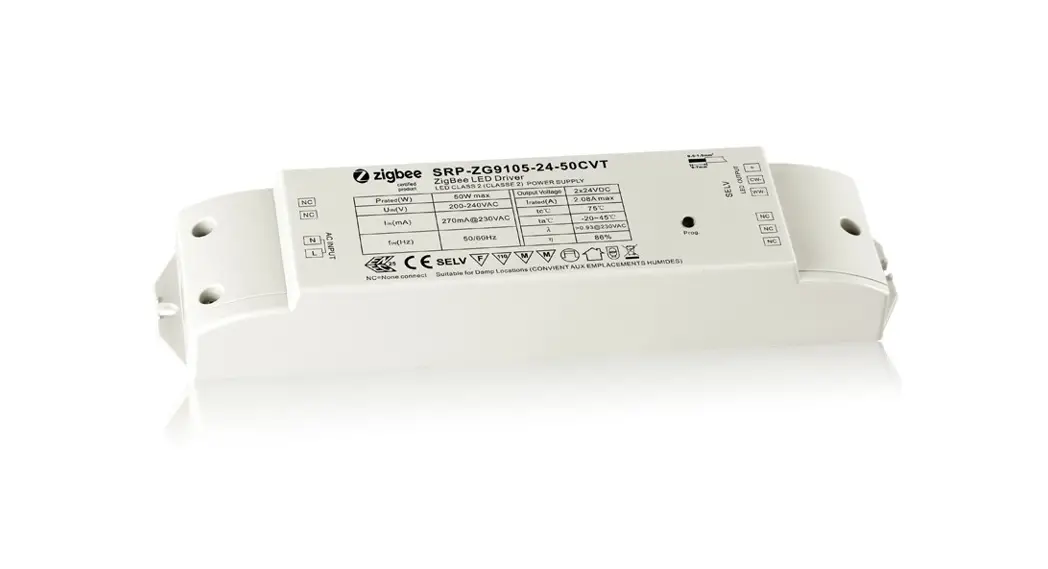
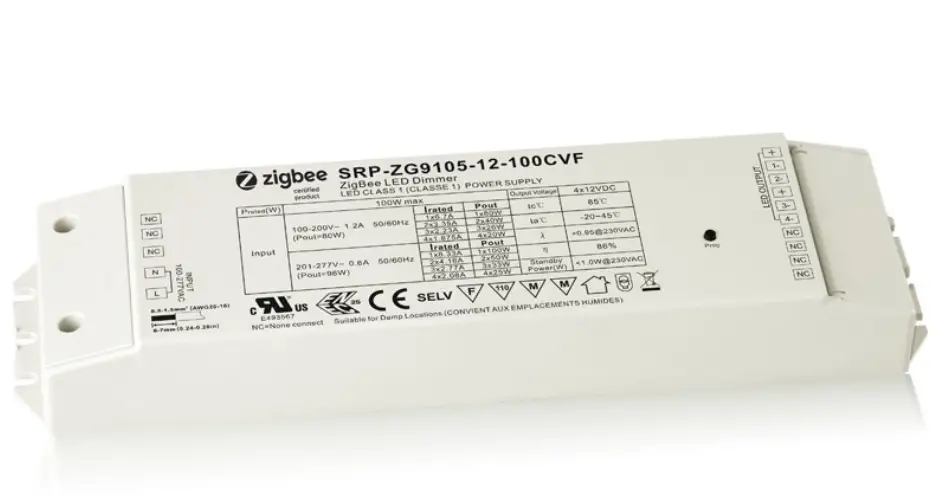
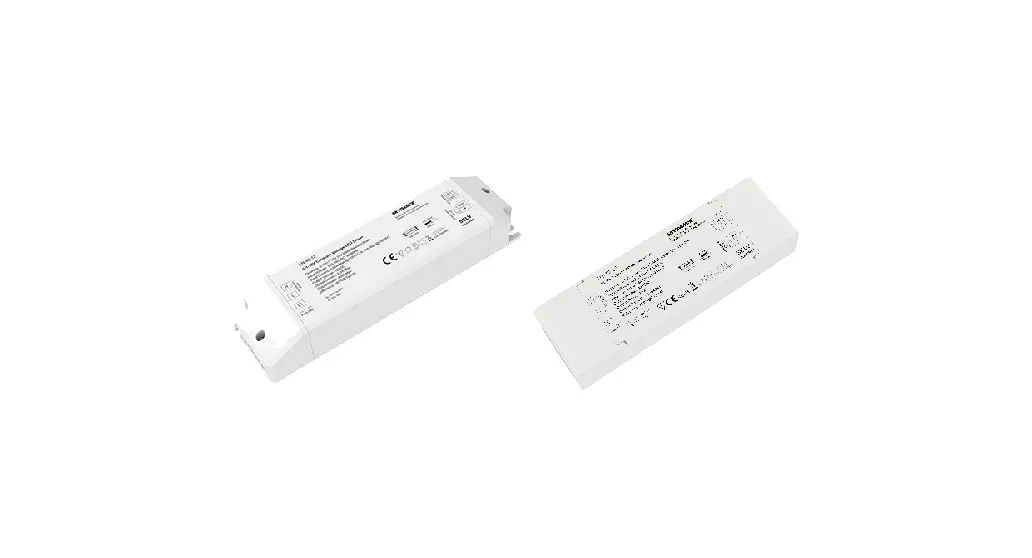
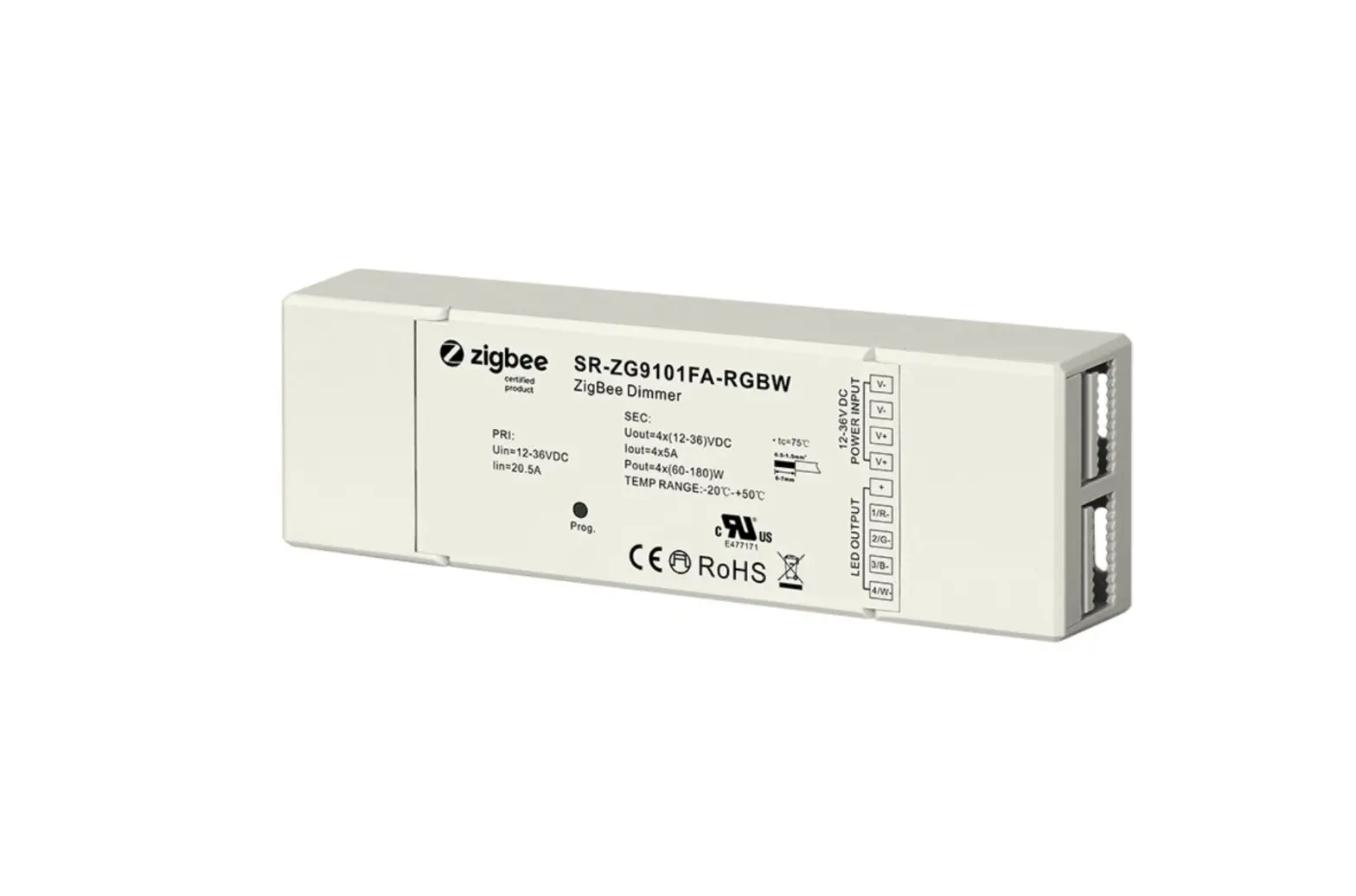
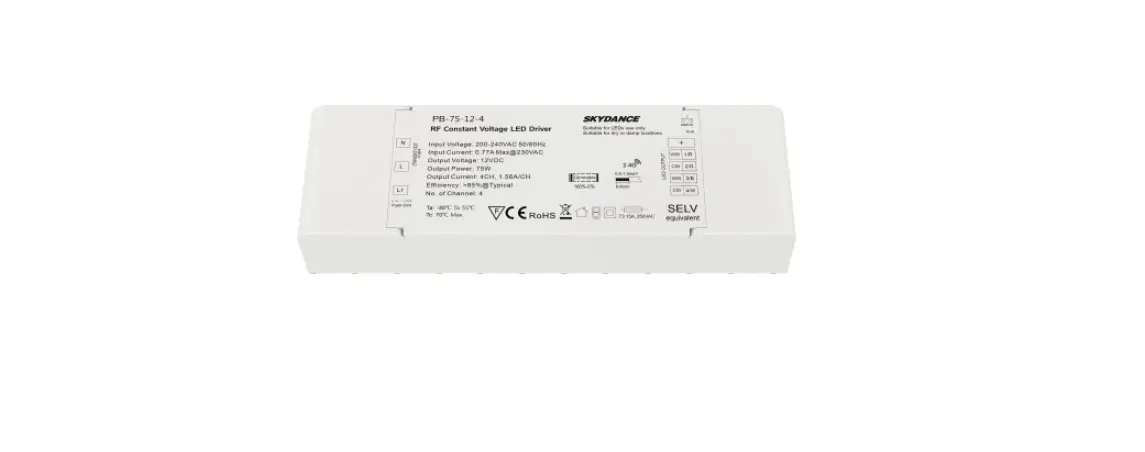
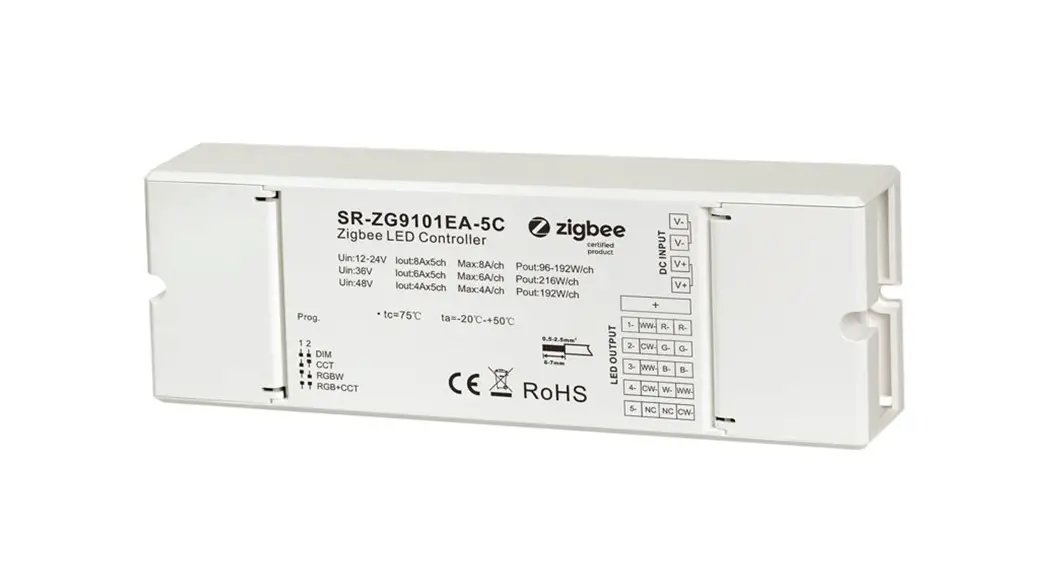
SRP-ZG9105-12-50CVT CW50W ZigBee CCT LED Driver Constant Voltage
Product Information
Function Introduction
The product is a ZigBee CCT LED Driver with a constant voltage
output of 50W. It is designed to be used with AC power input of
200-240V. The LED driver has two channels CCT output and can be
controlled using the program key.
Product Data
| Output | DC Voltage | Max. Current | Rated Power | Voltage Range | Frequency |
|---|---|---|---|---|---|
| Channel 1 + Channel 2 | 12V DC | Max. 4.16A/ch, ch1+ch2=4.16A | Max. 50W | 200-240V AC | 50/60Hz |
Safety & Warnings
Ensure correct wiring according to the provided connection
diagram. Read and follow all safety instructions and warnings
mentioned in the user manual.
Product Usage Instructions
- Installation:
- Follow the wiring diagram to connect the LED driver
correctly.
- Step 1: Remove the device from any previous Zigbee network it
was added to. - Step 2: From your Zigbee Controller or hub interface, select
the option to add a lighting device and enter Pairing mode as
instructed by the controller. - Step 3: Power on the device to set it into network pairing mode
(connected light will flash twice slowly) within a 15-second
timeout. Repeat this step if needed. - Step 4: The connected light will blink 5 times and then stay
solid on, indicating successful pairing. The device will appear in
your controller’s menu and can be controlled through the controller
or hub interface.
- Step 1: Method 1: Short press the Prog button (or re-power on
the device) 4 times to start Touchlink commissioning immediately
within a 180-second timeout. Repeat this step if needed. Method 2:
Re-power on the device, Touchlink commissioning will start after 15
seconds if it’s not added to a Zigbee network, with a 165-second
timeout. If it’s already added to a network, commissioning will
start immediately with a 180-second timeout. Repeat this step if
needed. - Step 2: Hold the Zigbee remote within 10cm of the device.
- Step 3: There shall be an indication on the remote for
successful link and the connected light will flash twice.
SELV
SELV
AC INPUT AC INPUT
50W ZigBee CCT LED Driver(constant voltage)
emc
300MHz
Important: Read All Instructions Prior to Installation Function introduction
70260010
NC NC
AC 200-240V input
Program Key: short press to switch on/off load, press and hold down to increase/decrease light intensity
ZigBee LED Driver
Prog key
LED+ CWWW-
NC NC
2 channels CCT output
Product Data
Output
DC Voltage Max. Current
12V DC
24V DC
Max. 4.16A/ch, ch1+ch2=4.16A Max. 2.08A/ch, ch1+ch2=2.08A
Rated Power
max. 50W
Voltage Range
200-240V AC
Frequency
50/60Hz
Input
Power Factor (Typ.) Efficiency (Typ.)
85% @ 230VAC
>0.9
88% @ 230VAC
Input Current
0.27A @ 230VAC
Inrush Current (Typ.)
COLD START Max. 2A @ 230VAC
Protection
Over Current Over Temperature
Yes, auto recovery after fault removed Yes, auto recovery after fault removed
Working Temp.
-20 ~ +45
Max. Case Temp. Environment
Working Humidity
Storage Temp. & Humidity
85 (Ta=”45″) 10% ~ 95% RH non-condensing
-40 ~ +80, 10% ~ 95% RH
Safety Standards
Withstand Voltage Safety&EMC
EMC Emission
EMC Immunity
ENEC EN61347-1, EN61347-2-13 approved I/P-O/P: 3.75KVAC
EN55015, EN61000-3-2, EN61000-3-3 EN61547, EN61000-4-2,3,4,5,6,8,11, surge immunity Line-Line 1KV
Others
MTBF Dimension
190600H, MIL-HDBK-217F @ 230VAC at full load and 25 ambient temperature
210*50*32mm (L*W*H)
· Dimmable LED driver for tunable white · ZigBee CCT LED light device based on ZigBee 3.0 protocol · Max. output power 50W total · 2 channels 12/24V DC constant voltage output · Class power supply, full isolated plastic case · High power factor and efficiency · Deep and smooth dimming to 0.1% · Suitable for indoor LED lighting applications · Enables to control ON/OFF, light intensity and CCT of connected CCT LED lights · ZigBee end device that supports Touchlink commissioning · Can directly pair to a compatible ZigBee remote via Touchlink · Supports find and bind mode to bind a ZigBee remote · Supports zigbee green power and can bind max. 20 zigbee green power remotes · Compatible with universal ZigBee gateway products · Compatible with universal CCT ZigBee remotes · Waterproof grade: IP20 · 5 years warranty
Safety & Warnings
· DO NOT install with power applied to device. · DO NOT expose the device to moisture.
Wiring Diagram
NC
LED+
CW-
NC
WW-
ZigBee LED Driver
NC
Prog key
NC
V+ CWWW-
V+ CWWW-
CCT color LED
AC Power 50/60Hz
Operation 1.Do wiring according to connection diagram correctly.
2.This ZigBee device is a wireless receiver that communicates with a variety of ZigBee compatible systems. This receiver receives and is controlled by wireless radio signals from the compatible ZigBee system.
3. Zigbee Network Pairing through Coordinator or Hub (Added to a Zigbee Network)
Step 1: Remove the device from previous zigbee network if it has already been added to, otherwise pairing will fail. Please refer to the part “Factory Reset Manually”. Step 2: From your ZigBee Controller or hub interface, choose to add lighting device and enter Pairing mode as instructed by the controller.
Step 3: Re-power on the device to set it into network pairing mode (connected light flashes twice slowly), 15 seconds timeout, repeat the operation.
LED+
SELV
NC
CW-
NC
ZigBee LED Driver
WW-
NC
Prog key
NC
AC INPUT
AC Power 50/60Hz
V+ CWWW-
V+ CWWW-
Step 4: Connected light will blink 5 times and then stay solid on, then the device will appear in your controller’s menu and can be controlled through controller or hub interface.
4. TouchLink to a Zigbee Remote
Step 1: Method 1: Short press “Prog” button (or re-power on the device) 4 times to start Touchlink commissioning immediately, 180S timeout, repeat the operation. Method 2: Re-power on the device, Touchlink commissioning will start after 15S if it’s not added to a zigbee network, 165S timeout. Or start immediately if it’s already added to a network, 180S timeout. Once timeout, repeat the operation.
< 10cm
Zigbee Remote
LED+
SELV
NC
CW-
NC
ZigBee LED Driver
WW-
NC
Prog key
NC
AC INPUT
AC Power 50/60Hz
V+ CWWW-
V+ CWWW-
Step 4: There shall be indication on the remote for successful link and connected light will flash twice.
Step 2: Bring the remote or touch panel within 10cm of the lighting device.
Step 3: Set the remote or touch panel into Touchlink commissioning, please refer to corresponding remote or touch panel manual to learn how.
Note: 1) Directly TouchLink (both not added to a ZigBee network), each device can link with 1 remote. 2) TouchLink after both added to a ZigBee network, each device can link with max. 30 remotes. 3) For Hue Bridge & Amazon Echo Plus, add remote and device to network first then TouchLink. 4) After TouchLink, the device can be controlled by the linked remotes.
5. Removed from a Zigbee Network through Coordinator or Hub Interface
From your ZigBee controller or hub interface, choose to delete or reset the lighting device as instructed. The connected light blinks 3 times to indicate successful reset.
6. Factory Reset Manually Step 1: Short press “Prog.” key for 5 times continuously or re-power on the device for 5 times continuously if the “Prog.” key is not accessible.
LED+
SELV
NC
CW-
NC
ZigBee LED Driver
WW-
NC
Prog key
NC
AC INPUT
AC Power 50/60Hz
V+ CWWW-
V+ CWWW-
Step 2: Connected light will blink 3 times to indicate successful reset.
Note: 1) If the device is already at factory default setting, there is no indication when factory reset again . 2) All configuration parameters will be reset after the device is reset or removed from the network.
7. Factory Reset through a Zigbee Remote (Touch Reset)
Note: Make sure the device already added to a network, the remote added to the same one or not added to any network. Step 1: Re-power on the device to start TouchLink Commissioning, 180 seconds timeout, repeat the operation.
Zigbee Remote
< 10cm
LED+
SELV
NC
CW-
NC
ZigBee LED Driver
WW-
NC
Prog key
NC
AC INPUT
AC Power 50/60Hz
V+ CWWW-
V+ CWWW-
Step 4: There shall be indication on the remote and connected light flashes 3 times for successful reset.
Step 2: Bring the remote or touch panel within 10cm of the lighting device.
Step 3: Set the remote or touch panel into Touch Reset procedure to reset the device, please refer to corresponding remote or touch panel manual to learn how.
8. Find and Bind Mode Step 1: Short press “Prog.” button 3 times (Or re-power on the device (initiator node) 3 times) to start Find and Bind mode (connected light flashes slowly) to find and bind target node, 180 seconds timeout, repeat the operation.
LED+
SELV
NC
CW-
NC
ZigBee LED Driver
WW-
NC
Prog key
NC
V+ CWWW-
V+ CWWW-
AC INPUT
Zigbee Remote
AC Power 50/60Hz
11. Setup a Zigbee Network & Add Other Devices to the Network (No Coordinator Required)
Step 1: Short press “Prog.” button 4 times (Or re-power on the device 4 times) to enable the device to setup a zigbee network (connected light flashes twice) to discover and add other devices, 180 seconds timeout, repeat the operation.
Zigbee Remote
LED+
SELV
NC
CW-
NC
ZigBee LED Driver
WW-
NC
Prog key
NC
AC INPUT
AC Power 50/60Hz
V+ CWWW-
V+ CWWW-
Step 2: Set the remote or touch panel (target node) into find and bind mode, and enable it to find and bind initiator, please refer to corresponding remote or touch panel manual.
Step 3: There shall be indication on the remote or touch panel that it bind the device successfully and can control it then.
9. Learning to a Zigbee Green Power Remote
Step 1: Short press “Prog.” button 4 times (Or re-power on the device 4 times) to start Learning mode (connected light flashes twice), 180 seconds timeout, repeat the operation.
Zigbee Green Power Remote
LED+
SELV
NC
CW-
NC
ZigBee LED Driver
WW-
NC
Prog key
NC
AC INPUT
AC Power 50/60Hz
V+ CWWW-
V+ CWWW-
Step 3: Connected light will flash twice to indicate successful learning. Then the remote can control the device.
Step 2: Set the green power remote into Learning mode,
please refer to its manual.
Note: Each device can learn to max. 20 zigbee green power remote.
10. Delete Learning to a Zigbee Green Power Remote
Step 1: Short press “Prog.” button 3 times (Or re-power on the device 3 times) to start delete Learning mode (connected light flashes slowly), 180 seconds timeout, repeat the operation.
AC INPUT
< 10cm TouchLink
LED+
SELV
NC
CW-
NC
ZigBee LED Driver
WW-
NC
Prog key
NC
Step 2: Set another device or remote or touch panel into network pairing mode and pair to the network,
refer to their manuals. Step 3: Pair more devices and remotes to the network as you would like, refer to their manuals. Step 4: Bind the added devices and remotes through Touchlink so that the devices can be controlled by the remotes, refer to their manuals.
Note: 1) Each added device can link and be controlled by max. 30 added remotes. 2) Each added remote can link and control max. 30 added devices.
12. ZigBee Clusters the device supports are as follows:
Input Clusters · 0x0000: Basic
· 0x0003: Identify
· 0x0004: Groups
· 0x0005: Scenes
· 0x0008: Level Control · 0x0300: Color Control
· 0x0b05: Diagnostics
Output Clusters · 0x0019: OTA
· 0x0006: On/off
13. OTA The device supports firmware updating through OTA, and will acquire new firmware from zigbee controller or hub every 10 minutes automatically.
Product Dimension
50.0
Zigbee Green Power Remote
LED+
SELV
NC
CW-
NC
ZigBee LED Driver
WW-
NC
Prog key
NC
AC INPUT
AC Power 50/60Hz
Step 2: Set the paired green power remote into Learning mode, please refer to its manual.
V+ CWWW-
V+ CWWW-
Step 3: Connected light will flash 4 times to indicate
successful deleting.
210.0
32.0