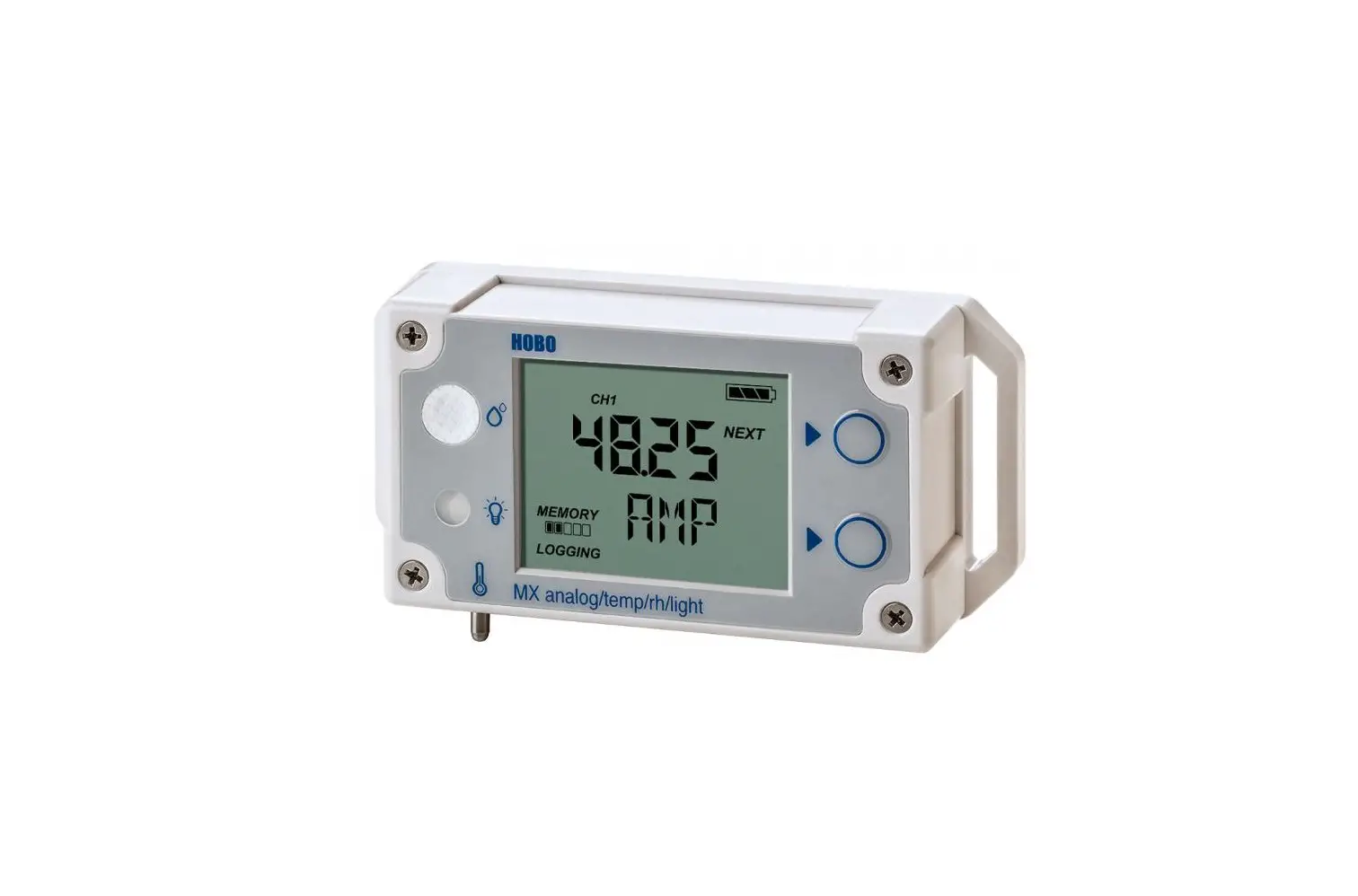
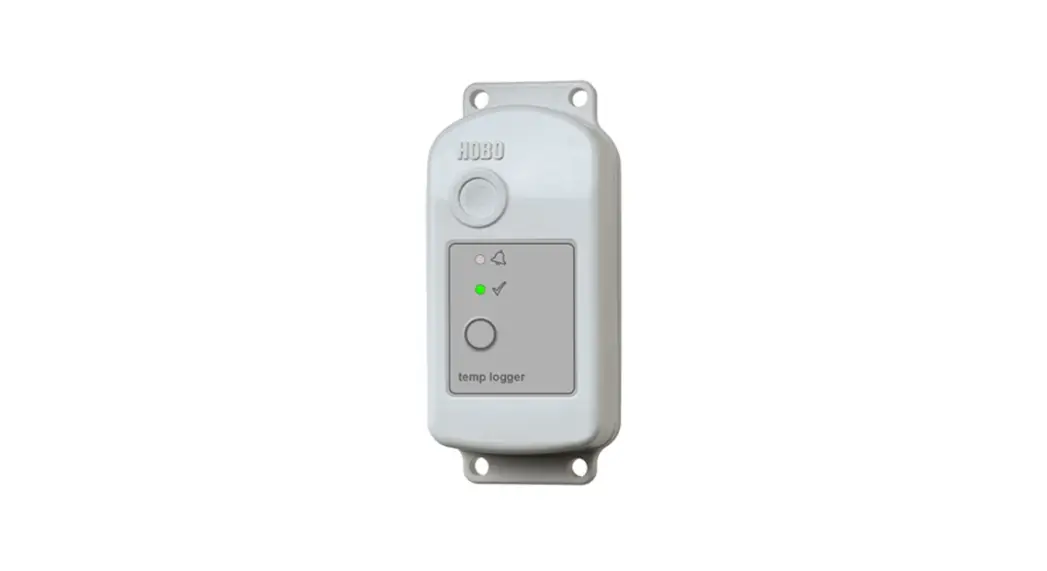
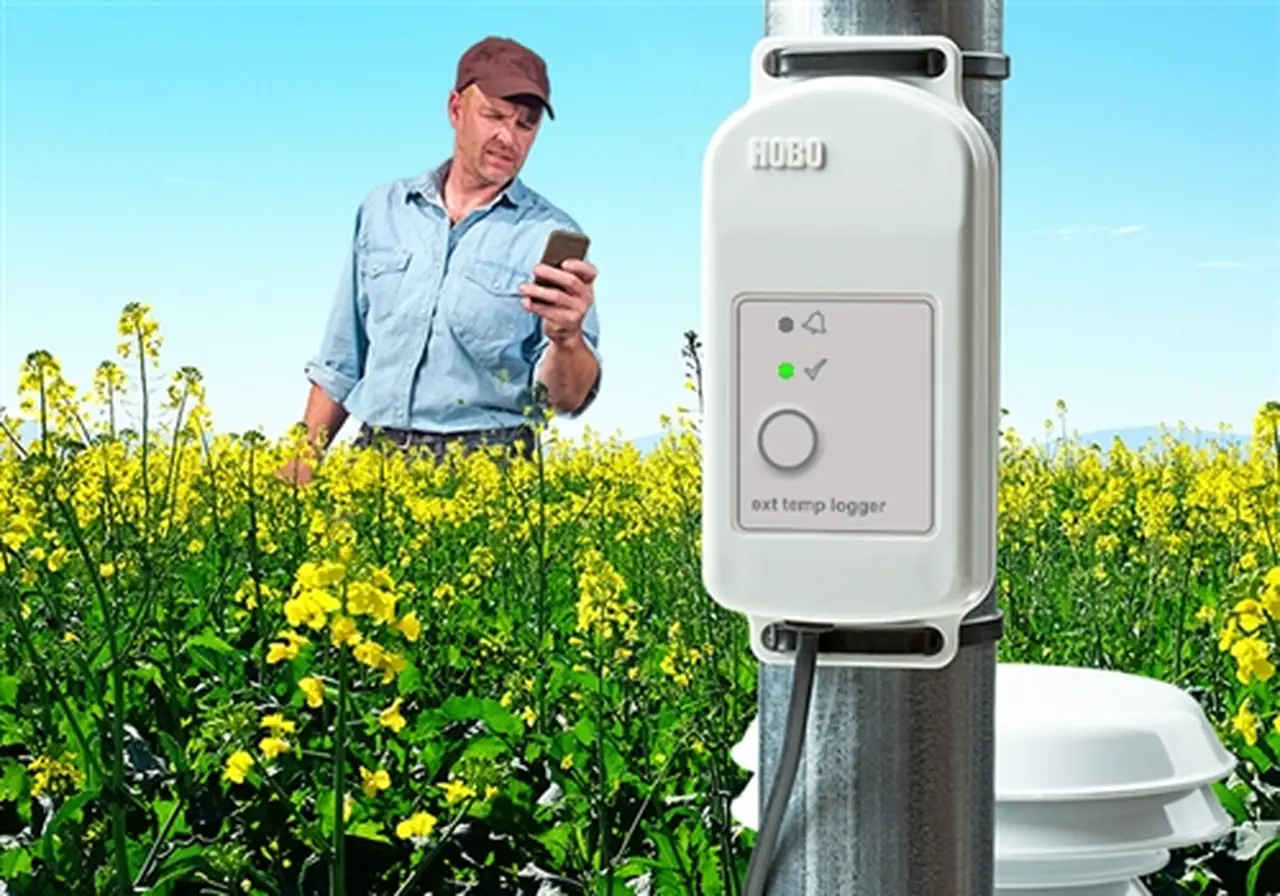
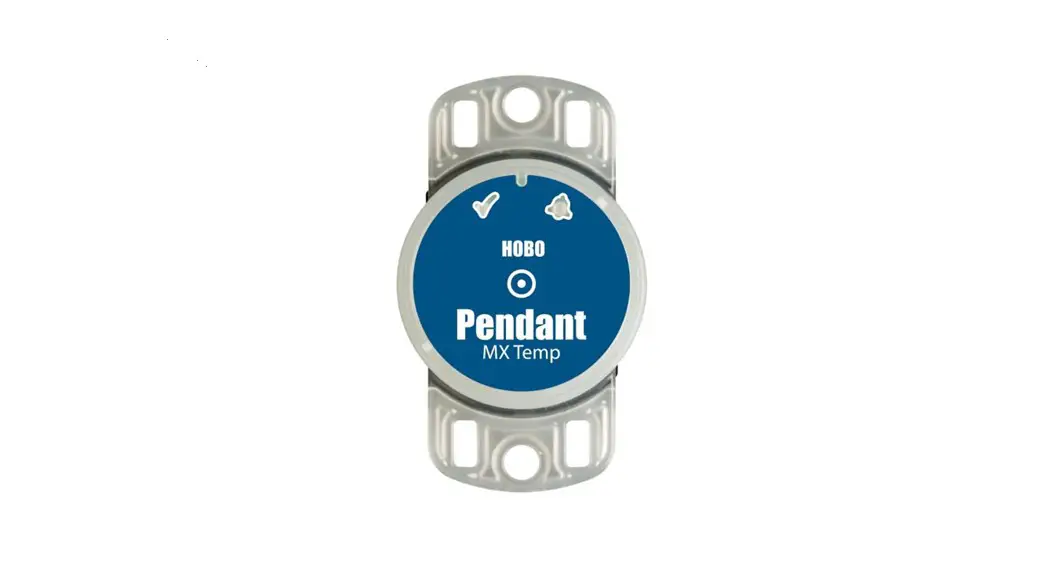
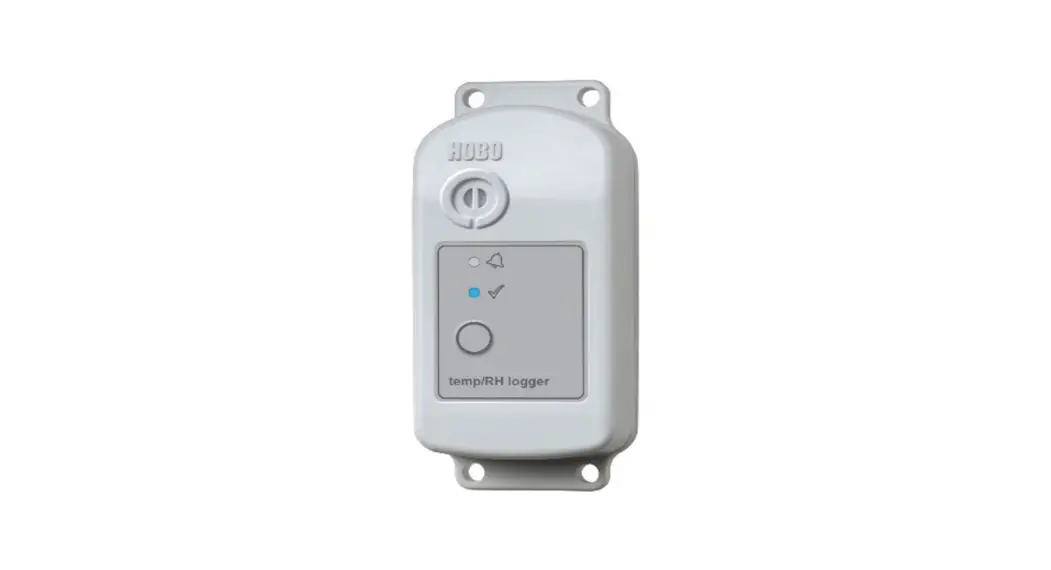
MX1104 Temperature RH Light External Data Logger Combination Meters
Product Information
The product is a logger device manufactured by Onset Computer
Corporation. It is designed to monitor and record various
conditions using external analog sensors. The logger can be
connected to a phone, tablet, or computer through an app for
configuration and data retrieval.
The device features two buttons on the housing for easy
operation and a sensor port for connecting analog sensors. It also
has a built-in alarm system and password reset functionality.
For detailed specifications and additional information, refer to
the full product manual available at www.onsetcomp.com/support/manuals/23968-mx1104-and-mx1105-manual.
Product Usage Instructions
- Using the diagram on the logger housing as reference, insert
the plug into the analog sensor port. - Turn the plug one-quarter clockwise.
- For other types of external analog sensors, insert the sensor
plug into an analog sensor port. Ensure that the flat part of the
plug is facing up when properly installed. - Press either button on the logger to wake it up.
- In the app, tap “Devices” and select the logger to connect to
it. If there are multiple loggers, press the top button on the
logger again to bring it to the top of the list. Make sure the
logger is within range of your phone, tablet, or computer. - a. Once connected, tap “Configure & Start” to set up the
logger. - b. Choose your logger settings, including settings for any
external analog sensors. Enable all channels you want to log. - c. Tap “Start” to save the settings to the logger. The logger
will begin logging based on the selected settings. Press the start
button on the logger if configured to start logging with a button
push. - Deploy the logger to the desired location for monitoring the
conditions. Insert one of the included plugs into any empty ports.
Refer to additional deployment guidelines in the full product
manual. - To download data from the logger to your device, tap “Devices”,
connect to the logger, and tap “Download Data”. To view or export
the data, tap “Data”, select the desired data (if applicable), and
tap the appropriate action.
Quick Start for HOBO® Analog/Temp/RH/Light (MX1104) & 4-Channel Analog (MX1105) Loggers
1 · Download HOBOconnect® to a phone or tablet from the App Store® or Google PlayTM. · Download HOBOconnect to a Windows® computer from www.onsetcomp.com/products/software/hoboconnect.
2 Open the app. Enable Bluetooth® in your device settings if prompted. 3 Install any external self-describing sensors as shown.
Using the diagram on the logger housing shown above as reference, insert the plug into the analog sensor port.
Turn the plug onequarter clockwise.
For other types of external analog sensors, insert the sensor plug into an analog sensor port.
The flat part of the plug will be facing up when properly installed.
4 Press either button on the logger to wake it up. 5 Tap Devices in the app. Tap the logger in the app to connect to it. (Press the top button on the logger again to bring it to the top of the list if there
are multiple loggers.) If the logger does not appear in the list, make sure it is within range of your phone, tablet, or computer.
a. Once connected, tap Configure & Start to set up the logger.
6 b. Choose your logger settings, including selecting settings for any external analog sensors. Make sure all channels you want to log are enabled.
c. Tap Start to save the settings to the logger. The logger begins logging based on the settings you selected. Press the start button on the logger if you
set it up to start logging with a button push.
7 Deploy the logger to the location where you will be monitoring the conditions. Insert one of the included plugs into any empty ports. Follow additional deployment guidelines in the full product manual at www.onsetcomp.com/support/manuals/23968-mx1104-and-mx1105-manual.
8 To download data from the logger to your device, tap Devices. Connect to the logger and tap Download Data. To view or export the data,
tap Data, tap (if applicable), and tap .
For detailed specifications and information about the logger, scan the code at left or go to www.onsetcomp.com/support/manuals/ 23968-mx1104-and-mx1105-manual.
Quick Reference Top button
Bottom button
Both buttons
Press for 1 second to:
· Cycle through each channel to view the latest sensor readings.
· Wake up the logger. · Bring the logger to the top of the
list in the app. · Silence a beeping alarm. · Turn on the LCD.
· Cycle through any statistics and alarm readings for the channel currently displayed (if applicable).
· Wake up the logger. · Silence a beeping alarm. · Turn on the LCD.
NA
Press and hold for 3 seconds to:
Start, stop, or resume logging (depending on settings chosen in the app).
Clear an alarm for the channel currently displayed (depending on the settings chosen in the app).
NA
Press and hold for 10 seconds to: NA
NA
Reset a password
U.S. and International Sales: 1-508-759-9500 www.onsetcomp.com/support/contact
© 20192022 Onset Computer Corporation. All rights reserved. Onset, HOBO, and HOBOconnect are registered trademarks of Onset Computer Corporation. App Store is a service mark of Apple Inc. Google Play is a trademark of Google LLC. Windows is a registered trademark of Microsoft Corporation. Bluetooth is a registered trademark of Bluetooth SIG, Inc. All other trademarks are the property of their respective companies.
This product has been manufactured by Onset Computer Corporation and in compliance with Onset’s ISO 9001:2015 Quality Management System.
Patent #: 8,860,569
23967-F MAN-MX1104-MX1105-QSG
References
 HOBOconnect Monitoring App | Onset's HOBO and InTemp Data Loggers
-
Technical Support | Onset's HOBO and InTemp Data Loggers
-
HOBO Resources | Onset's HOBO and InTemp Data Loggers
-
HOBO® MX Analog/Temp/RH/Light (MX1104) and MX 4‐Channel Analog (MX1105) Data Logger Manual | Onset's HOBO and InTemp Data Loggers
 HOBOconnect Monitoring App | Onset's HOBO and InTemp Data Loggers