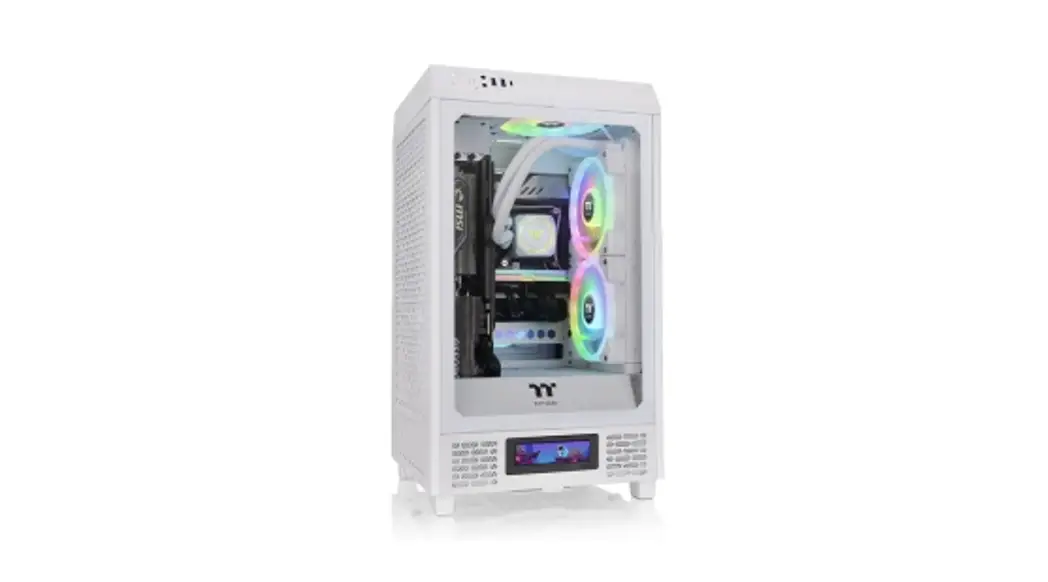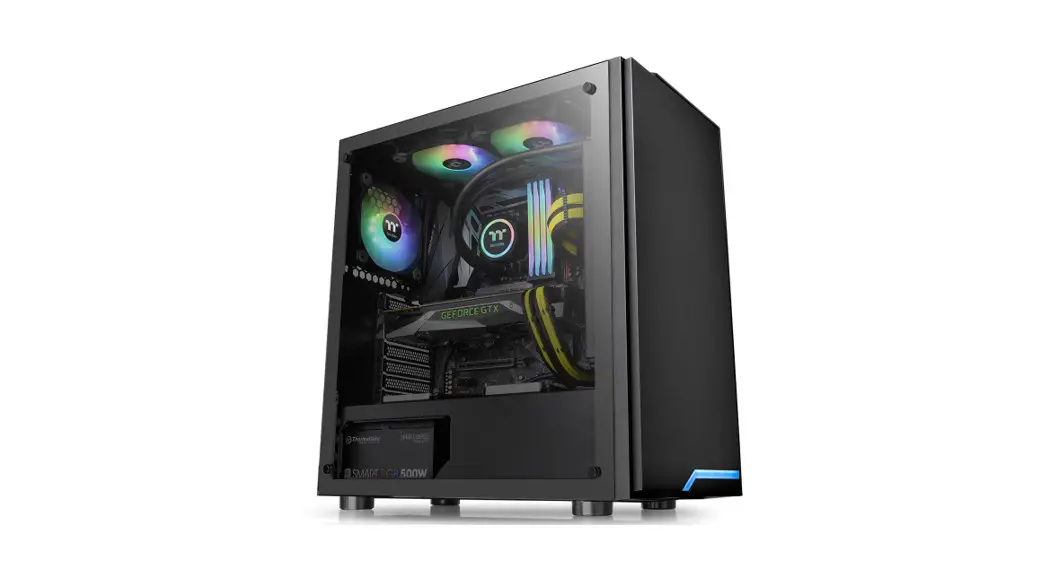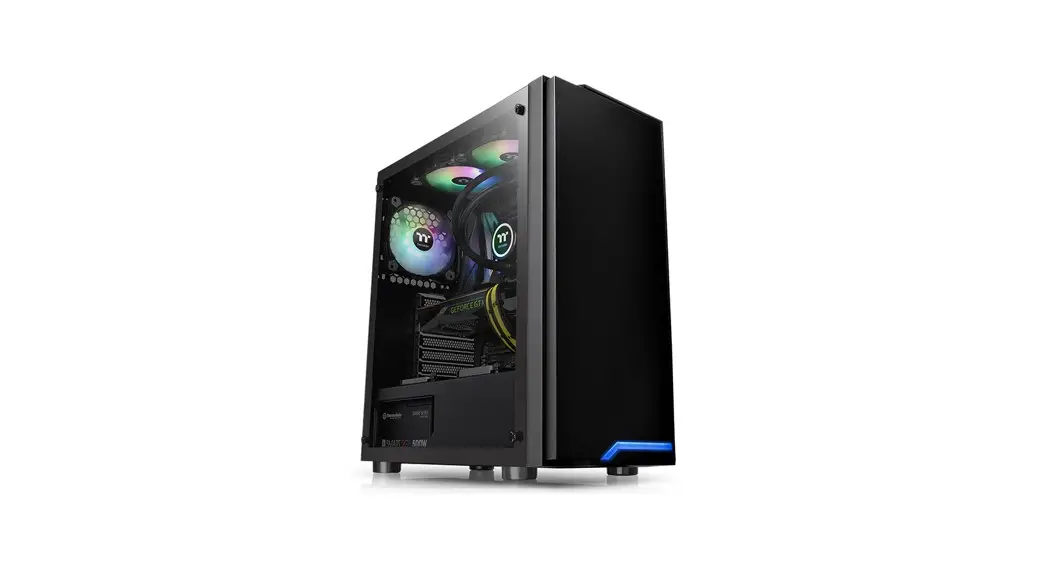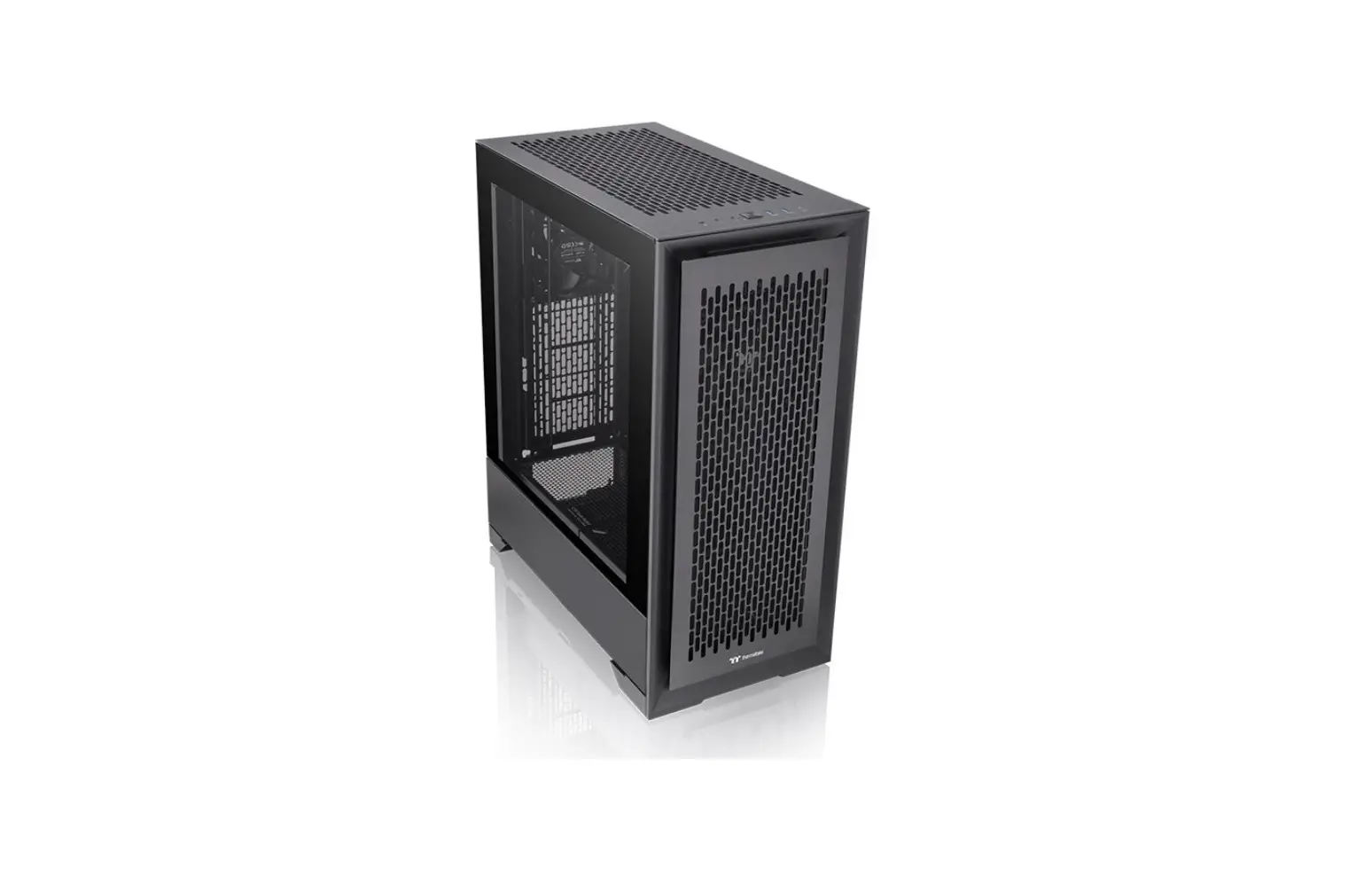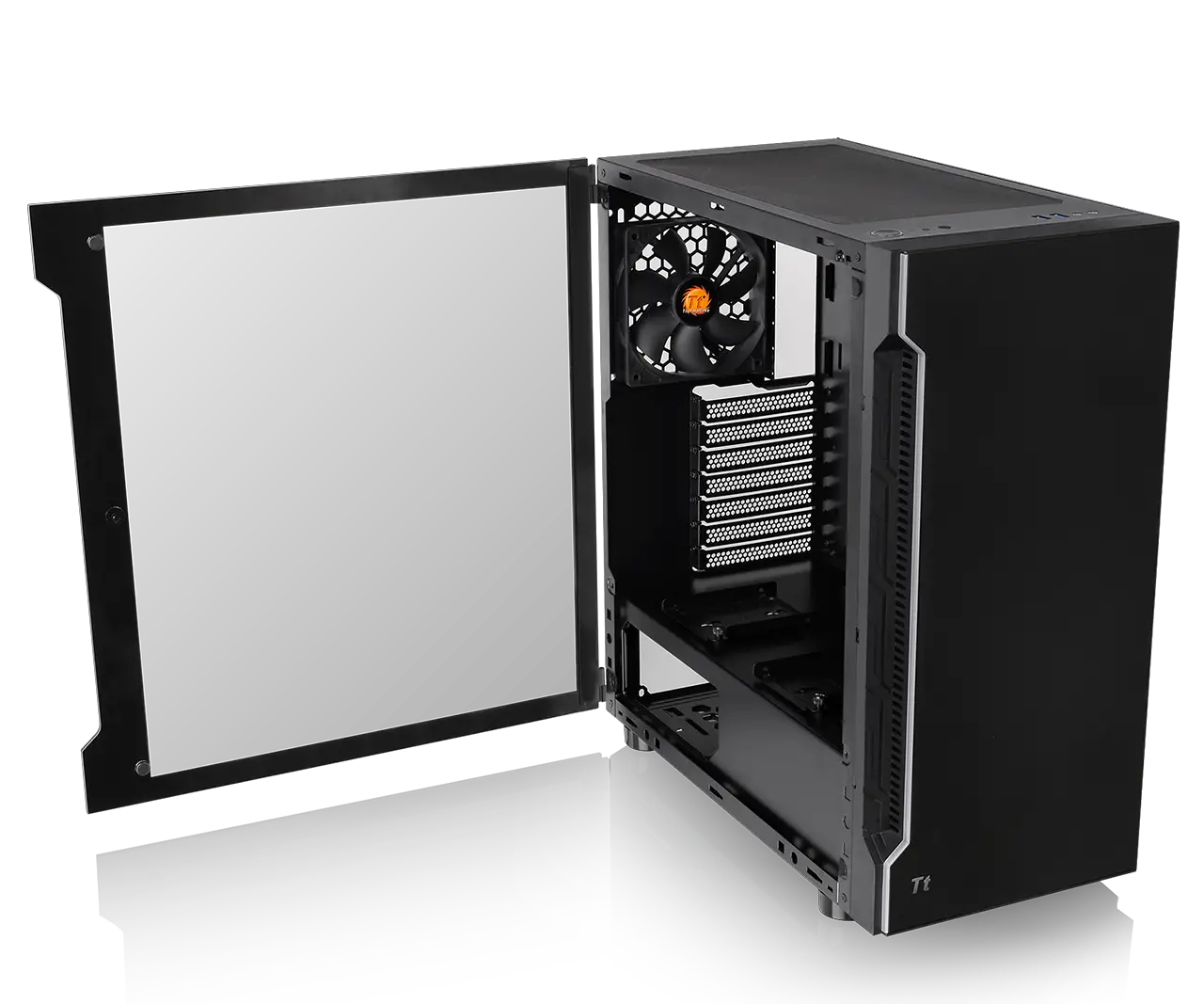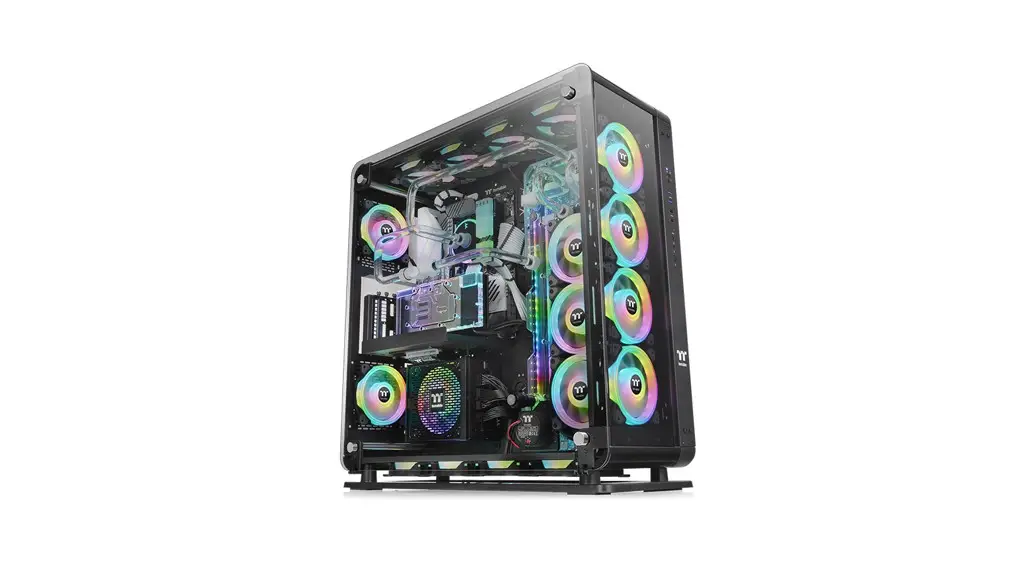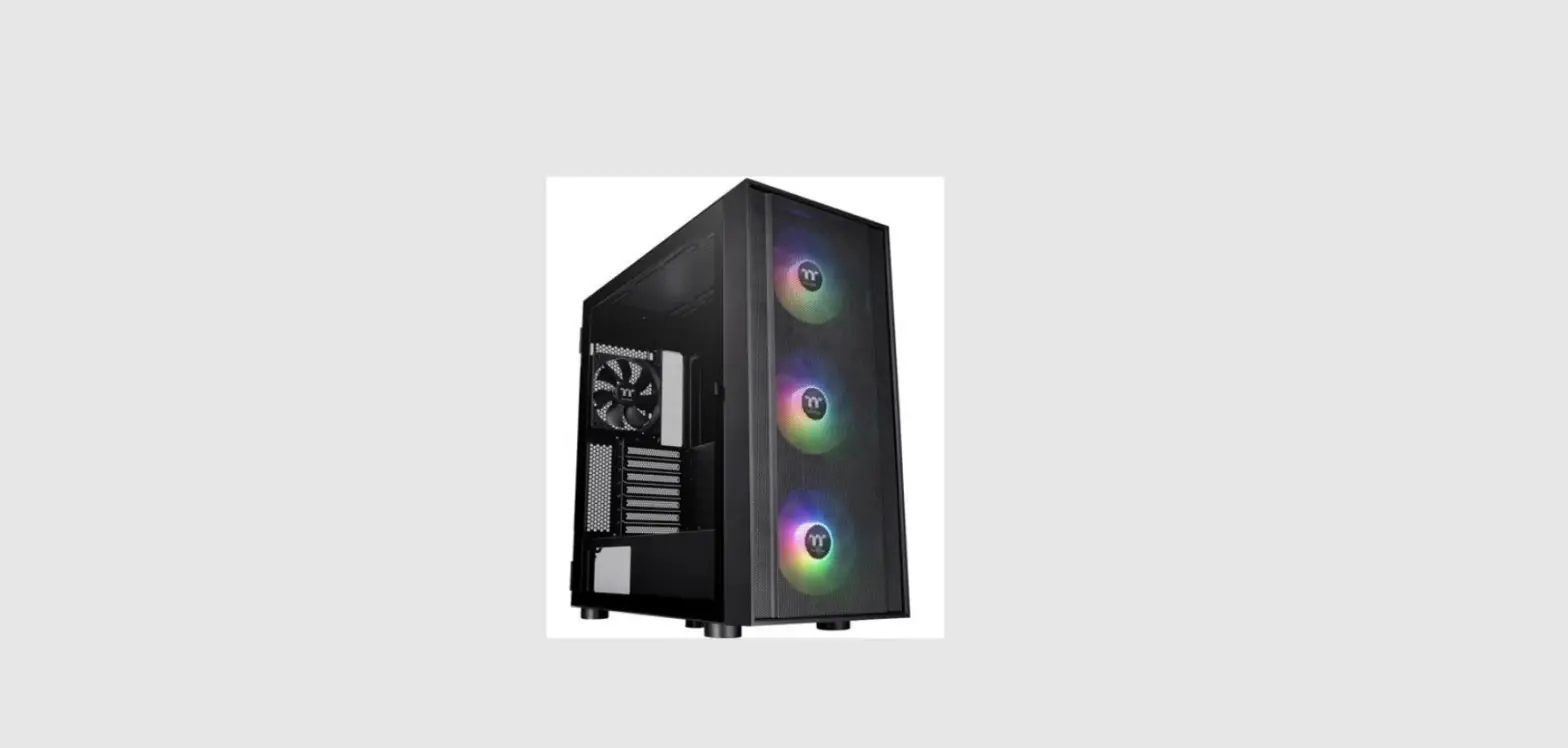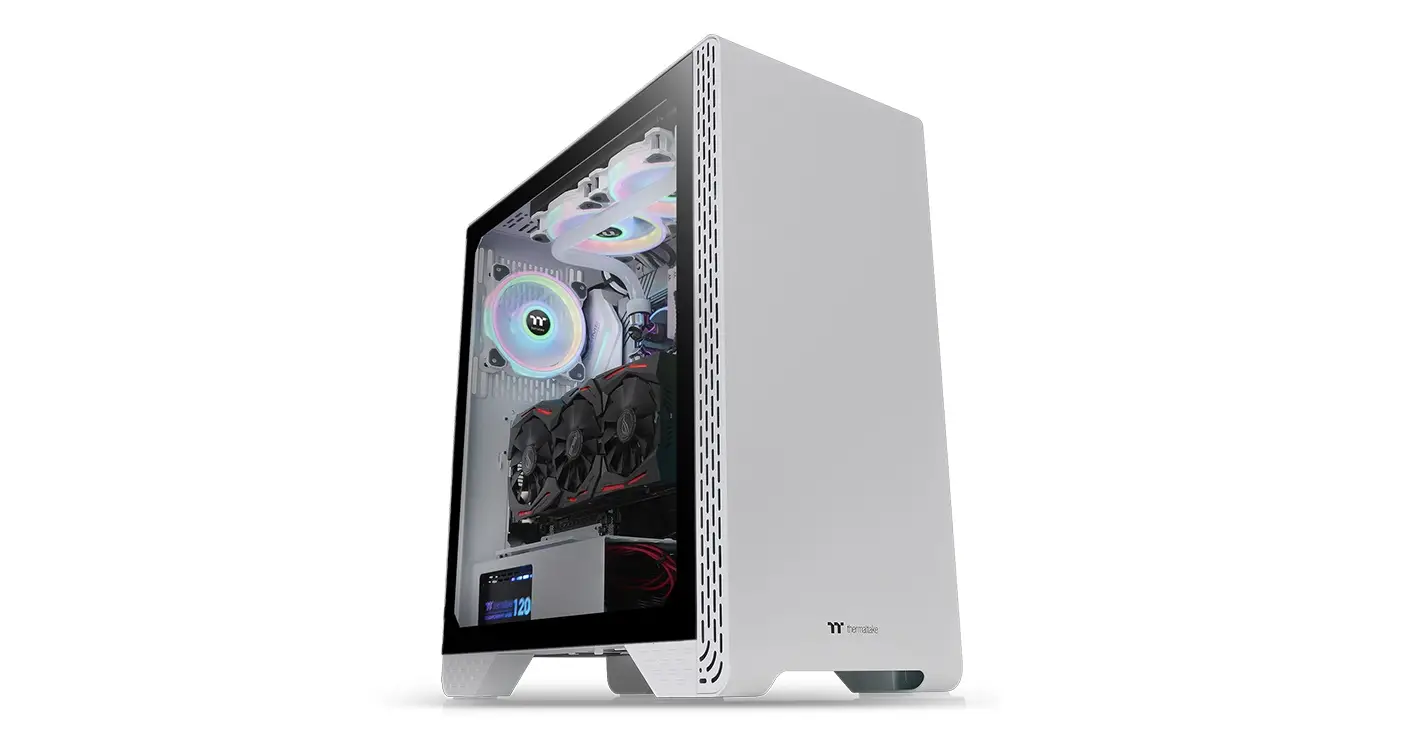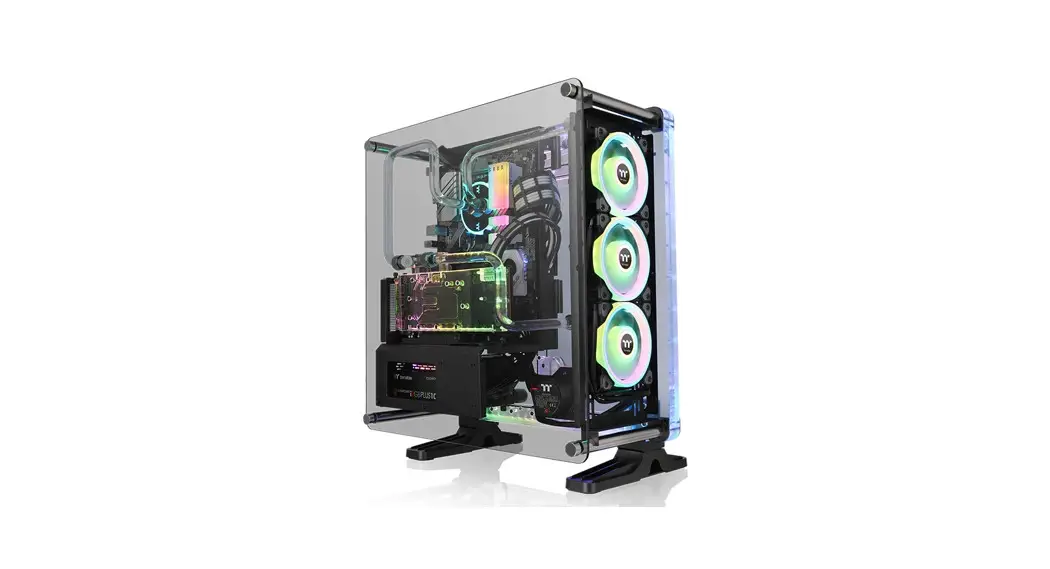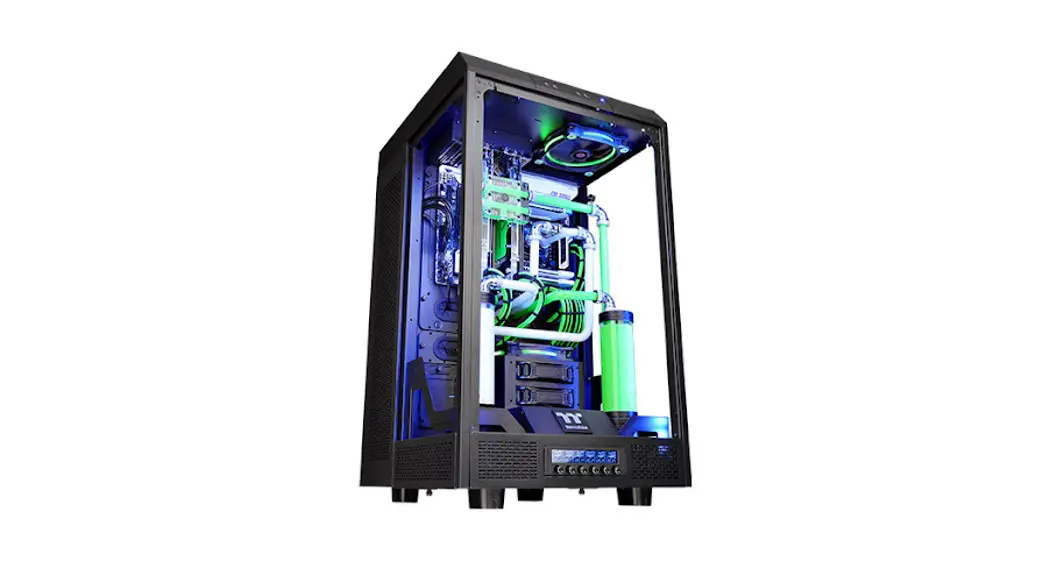

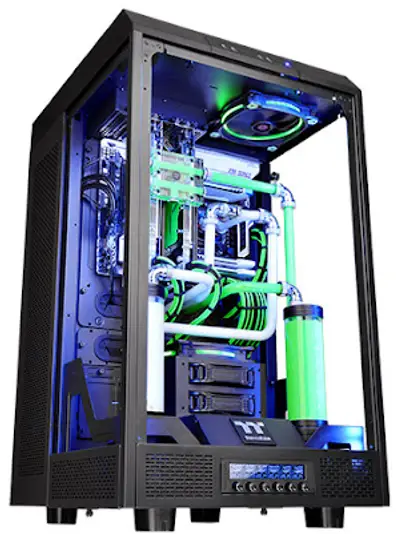
The Tower 900
Design Collaboration by Thermaltake
and Watermod France
User’s Manual
Join Tt Community To Receive Benefits
 Dear Valued Customer,
Thank you for choosing Thermaltake.
As new users, we value your thoughts and opinions and your feedback is important to us. We at Thermaltake would like to use this opportunity to invite you to join our Community Forums. Register today to start enjoying the full benefits of our community.
Benefits of being a member:
- Quick and responsive user support
- Receive help and advice with new builds
- Keep up to date with new product releases
- Share your thoughts and builds with the community Enter monthly contests and giveaways

http://community.thermaltake.com
 Tt LCS Certified is a Thermaltake exclusive certification
applied to only products that pass the design and hardcore enthusiasts standards that a true LCS chassis should be held to. The Tt LCS certification was created so that we at Thermaltake can designate to all power users which chassis have been tested to be best compatible with extreme liquid cooling configurations to ensure you get the best performance from the best features and fitment.
Brand official website
http://www.thermaltake.com/
Global Facebook
https://www.facebook.com/ThermaltakeInc
Taiwan Facebook
http://www.facebook.com/ThermaltakeTW
Global community forums
http://community.thermaltake.com
Specification
| Case Type | Super Tower |
| Dimension (1-1*W*D) | 752 x 423 x 483 mm (29.6 x 16.7 x 19 inch) |
| Cooling System Drive Bays -Accessible – Hidden | Top (exhaust) : 140 x 140 x 25 mm Turbo fan (1000rpm, 16dBA) x 2 1 x 5.25″ 6 x 3.5″ or 2.5″ (With HDD Cage) 2 x 2.5″ (With HDD tray) |
| Expansion Slots | 8 |
| Motherboards | 6.7″ x 6.7″ (Mini ITX), 9.6″ x 9.6″ (Micro ATX), 12″ x 9.6″ (ATX) , 12″ x 13″ (E-ATX) |
| I/O Port | USB 3.0 x 4, HD Audio x 1 |
| PSU | Standard PS2 PSU (optional) |
| Fan Support Top: | Left Side: 4 x 120mm , 4 x 140mm Right Side: 4 x 120mm , 4 x 140mm 2 x 120mm , 2 x 140mm Rear: 2 x 120mm , 2 x 140mm HDD Cage: 1 x 120mm , 1 x 140mm |
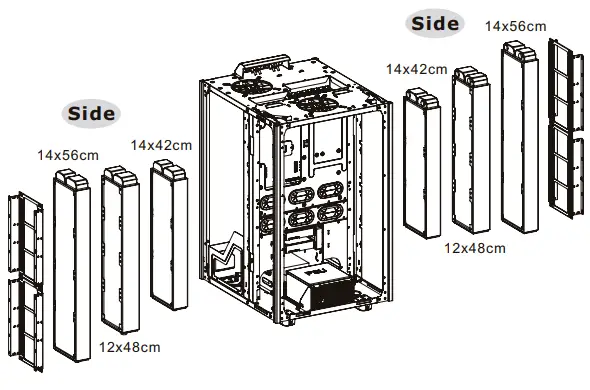
| Radiator Support | Left / Right Side: 1 x 480mm , 1 x 560mm |
| Clearance | CPU cooler height limitation: 260mm VGA length limitation: 400mm PSU length limitation: 220mm |
Accessory
| Figure | Parts Name | Q’ty | Used for |
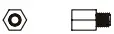 | Stand-off # 6-32 x 6.5mm | 4 | Motherboard |
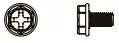 | Screw # 6-32 x 6mm | 4 | Power |
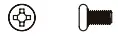 | Screw # 6-32 x 6mm | 24 | 3.5″ HDD |
 | Screw M3 x 5mm | 26 | MB, ODD, 2.5″ HDD / SSD |
 | Screw M3 x 5mm | 24 | 2.5″ HDD / SSD |
 | Nut Setter | 1 | For MB Stand-off |
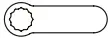 | Wrench M5 | 1 | Stand-off M5 |
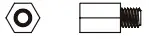 | Stand-off # M5 x 14mm | 12 | For Glass |
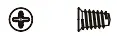 | Screw 05 x 12mm | 8 | Case Fan (rear) |
 | Screw # 6-32 x 29mm | 4 | Fan |
 | Cable Ties | 10 | Cable Management |
 | Buzzer | 1 | Motherboard Alarm |
 | Spring | 2 | Backup |
 | USB 2.0 cable(AF-AM) 1.0m | 2 | Mouse & Keyboard |
Warning and Notice
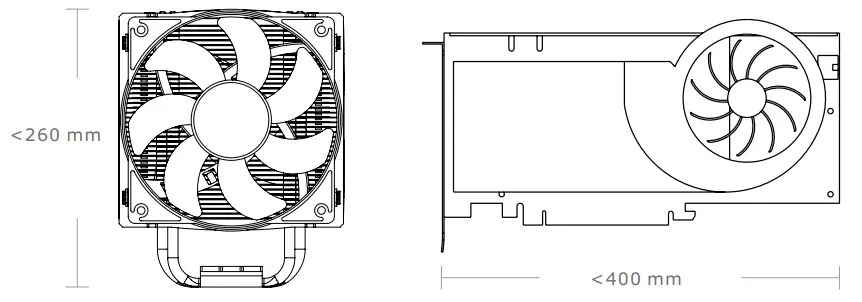
Warning!!
CPU Cooler Height Limitation:
Please ensure that your CPU cooler does NOT exceed 260mm (10.2 inches) height.
VGA (Add-on card) Length Limitation:
Please ensure that your VGA (Add-on card) does NOT exceed 400mm (15.7 inches) in length.
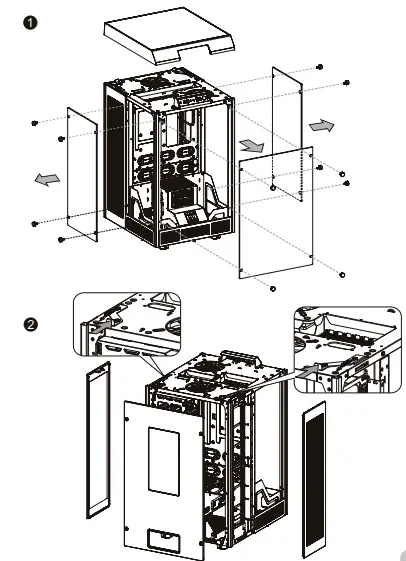
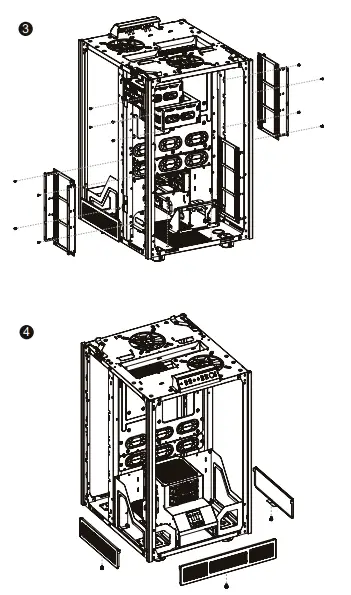
Parts Disassembly

Power Supply Unit (PSU) Installation
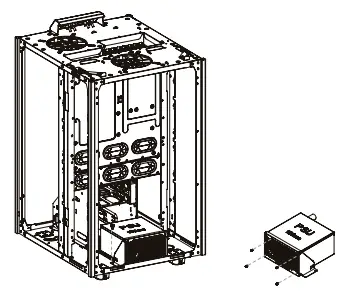
- Place the PSU in the proper location.
- Adjust the PSU supporting bridge to the proper location and secure the PSU with screws.
Motherboard Installation
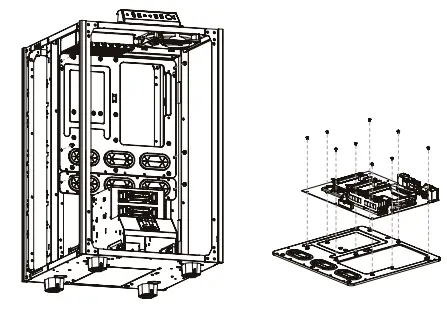
Install the motherboard in the proper location and secure it with screws.
5.25″ Device Installation
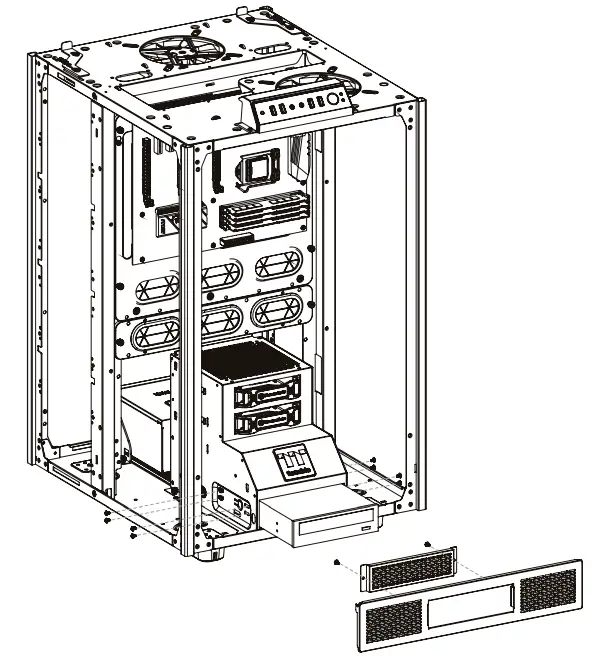
3.5″ & 2.5″ HDD Installation
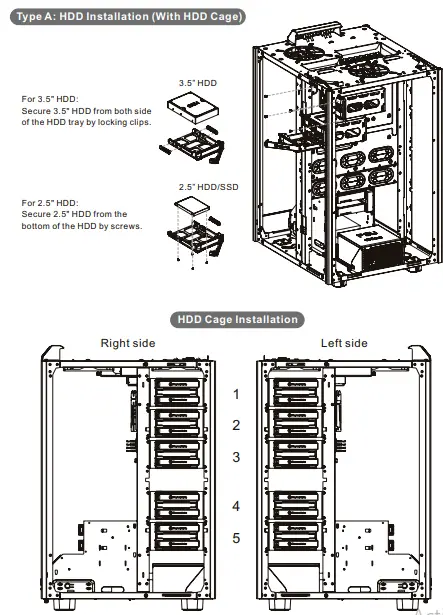
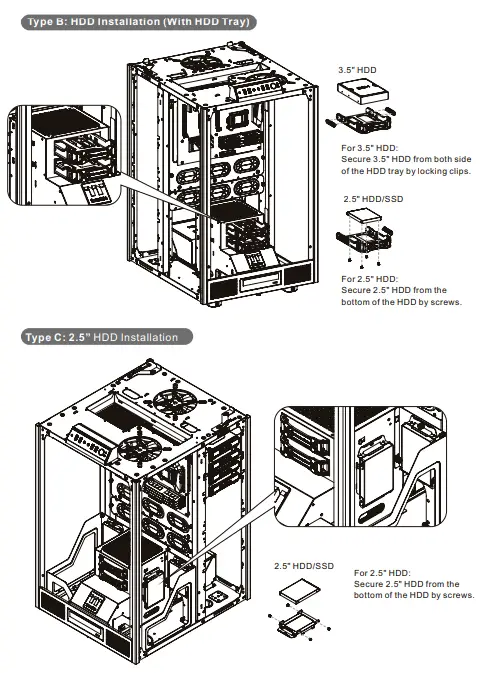
PCI Card Installation
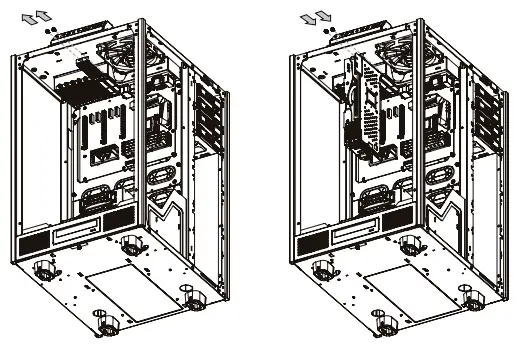
Insert the PCI card into the PCI slot, and secure it with a screw.
Air Cooling Installation
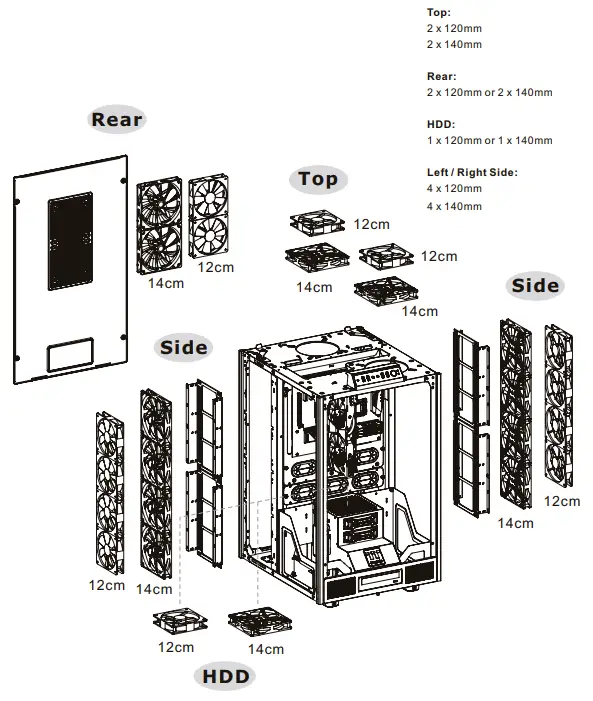
Liquid Cooling Installation
Left / Right Side:
1 x 120mm or 1 x 240mm or 1 x 360mm or 1 x 480mm
1 x 140mm or 1 x 280mm or 1 x 420mm or 1 x 560mm
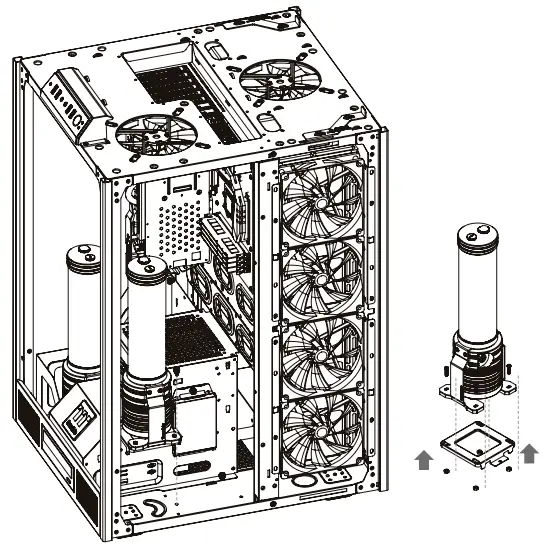
Pump Installation
Leads Installation
Leads Installation Guide
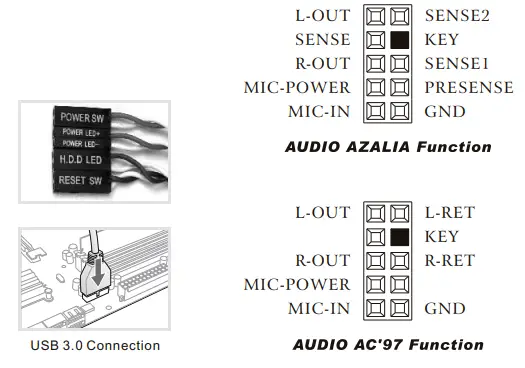
Case LED Connection / On the front of the case, you can find some LEDs and switch leads. Please consult your user manual of your motherboard manufacturer, then connect these leads to the panel header on the motherboard.
USB 3.0 connection /
- Make sure your motherboard supports a USB 3.0 connection.
- Connect the USB 3.0 cable to the available USB 3.0 port on your computer.
Audio Connection / Please refer to the following illustration of the Audio connector and your motherboard user manual.
Please select the motherboard which used AC’97 or HD Audio(Azalia),(be aware that your audio supports AC’97 or HD Audio (Azalia)) or it will damage your device(s).
Note:
———————————–
————————————
————————————
————————————-
————————————-
————————————-
————————————-

© 2021 Thermaltake Technology Co., Ltd. All Rights Reserved. A-2021.04
All other registered trademarks belong to their respective companies. www.thermaltake.com
 Tested To Comply
With FCC Standards
FOR HOME OR OFFICE USE

 Forums - Tt Community
 Thermaltake