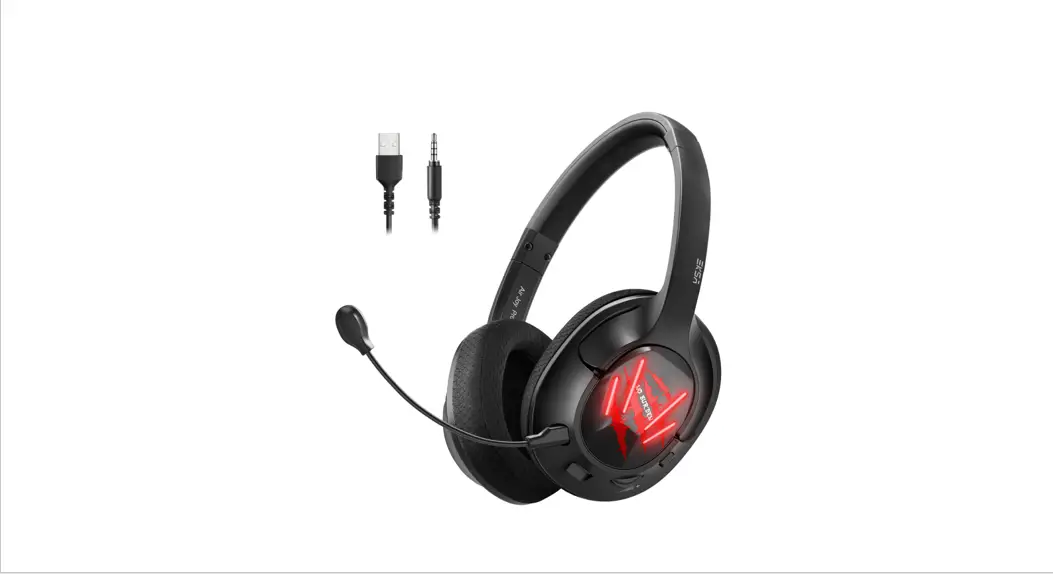
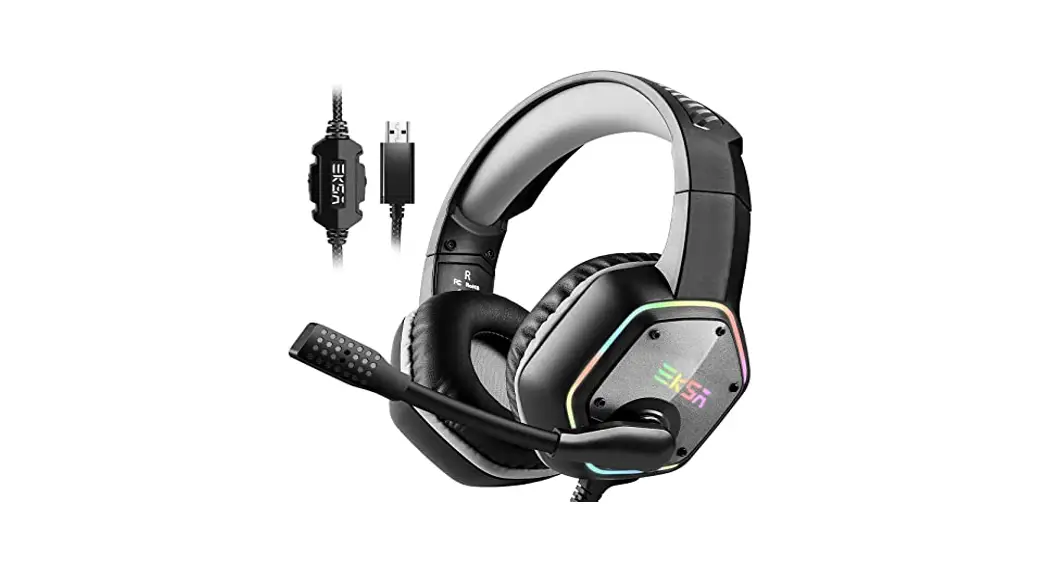
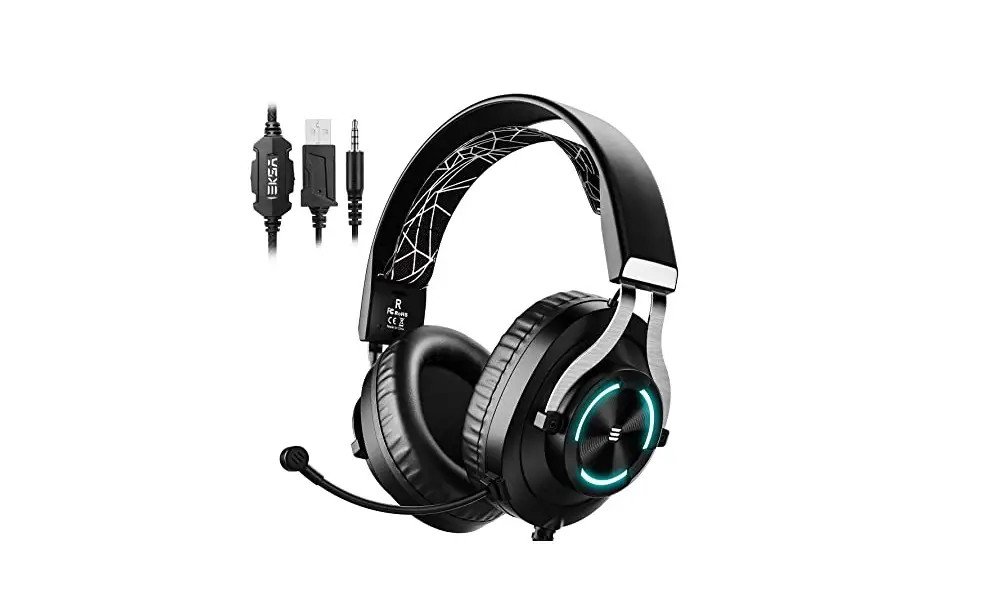
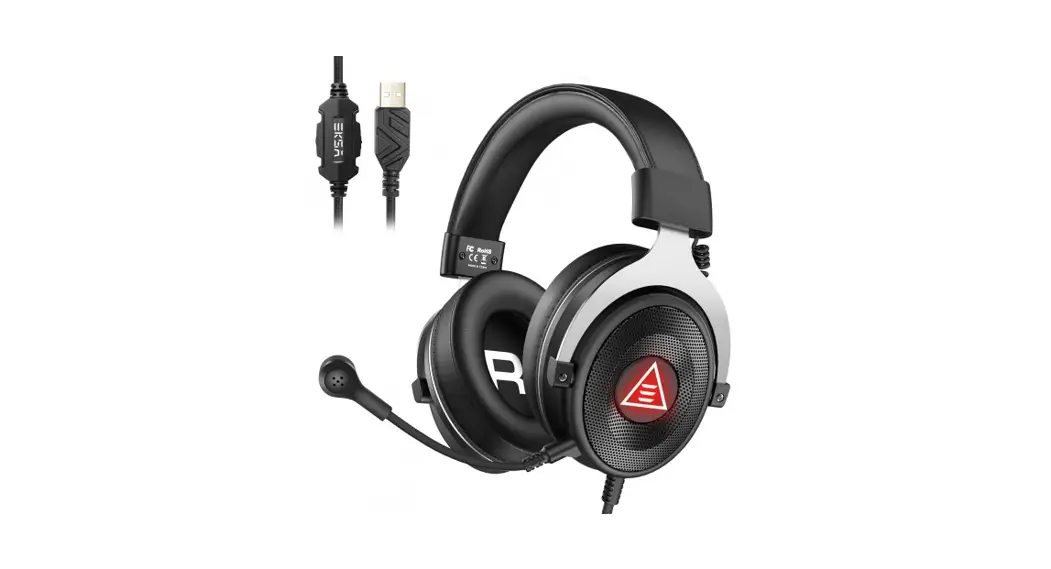
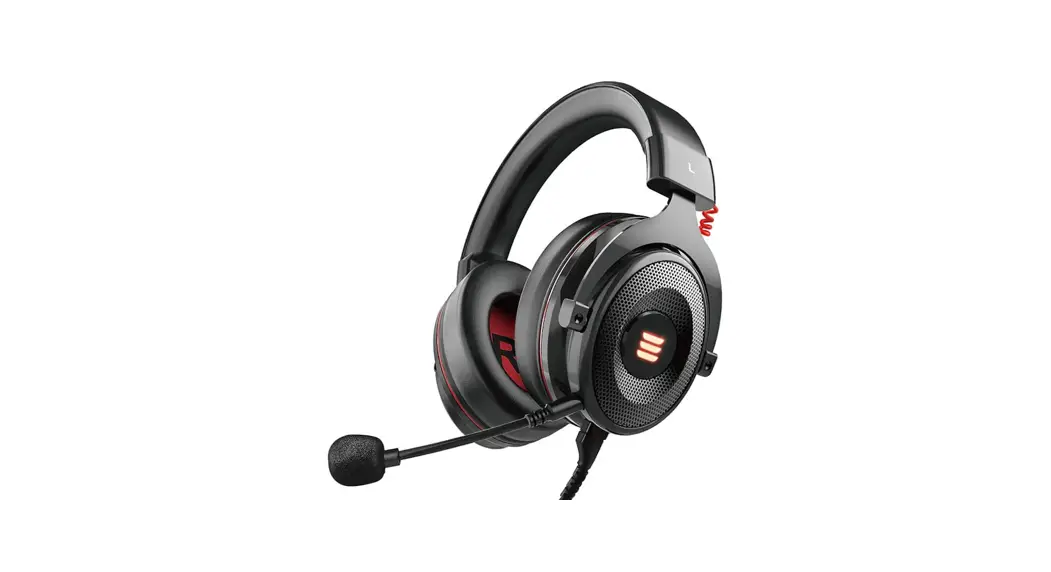
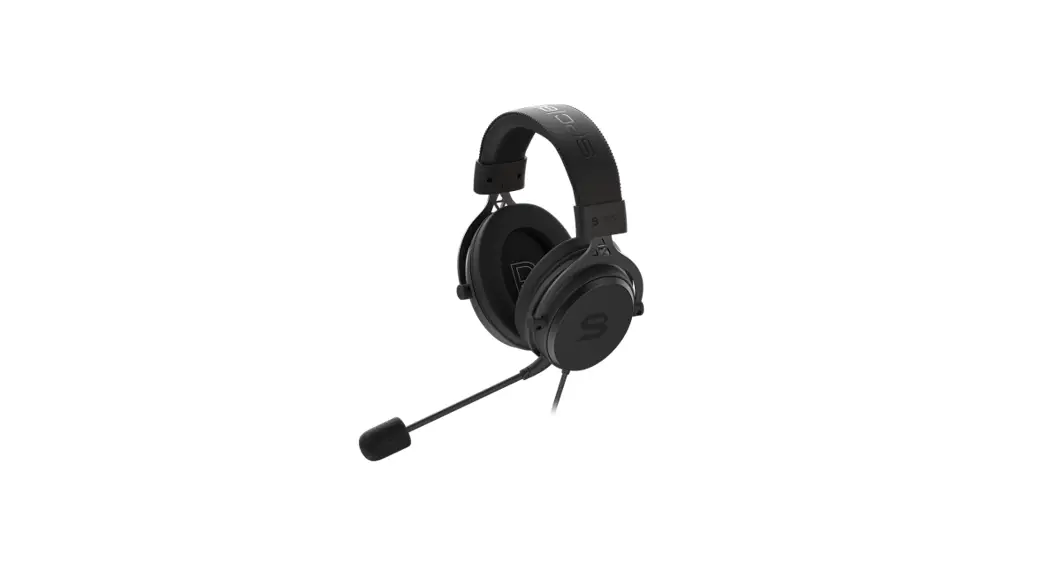
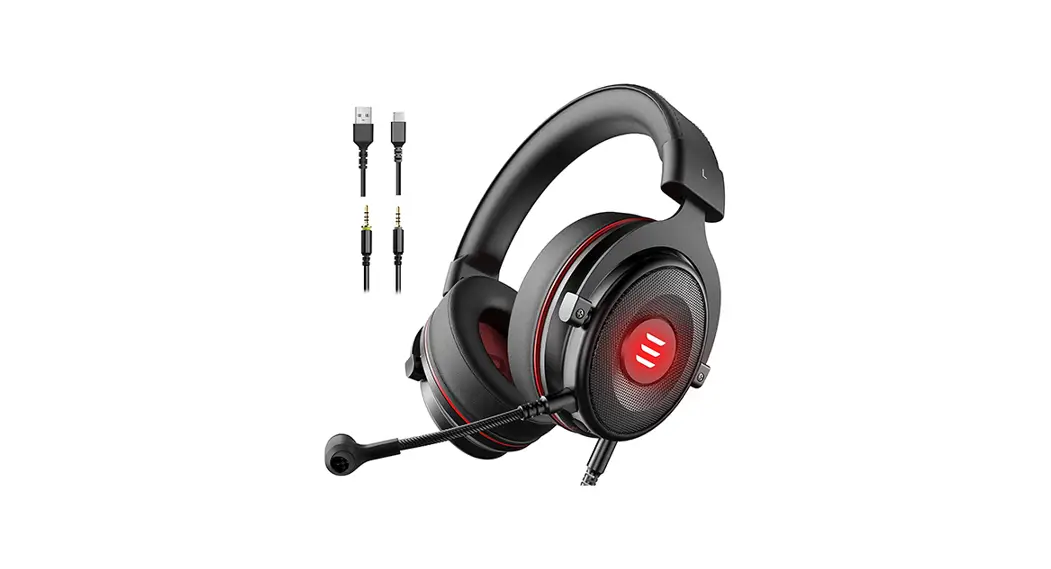
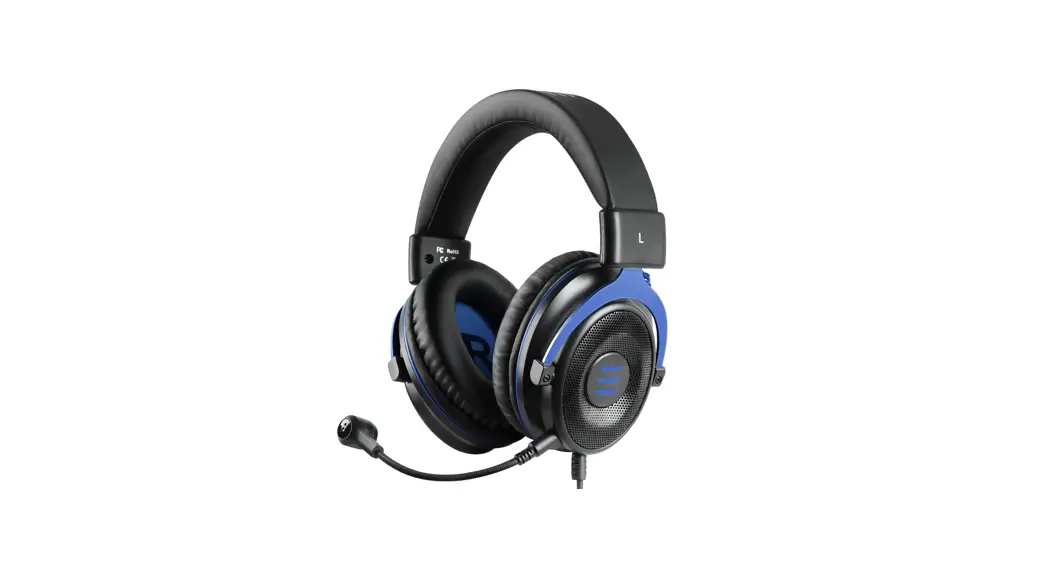
E5000 Pro 3-In-1 Gaming Headset
Product Information:
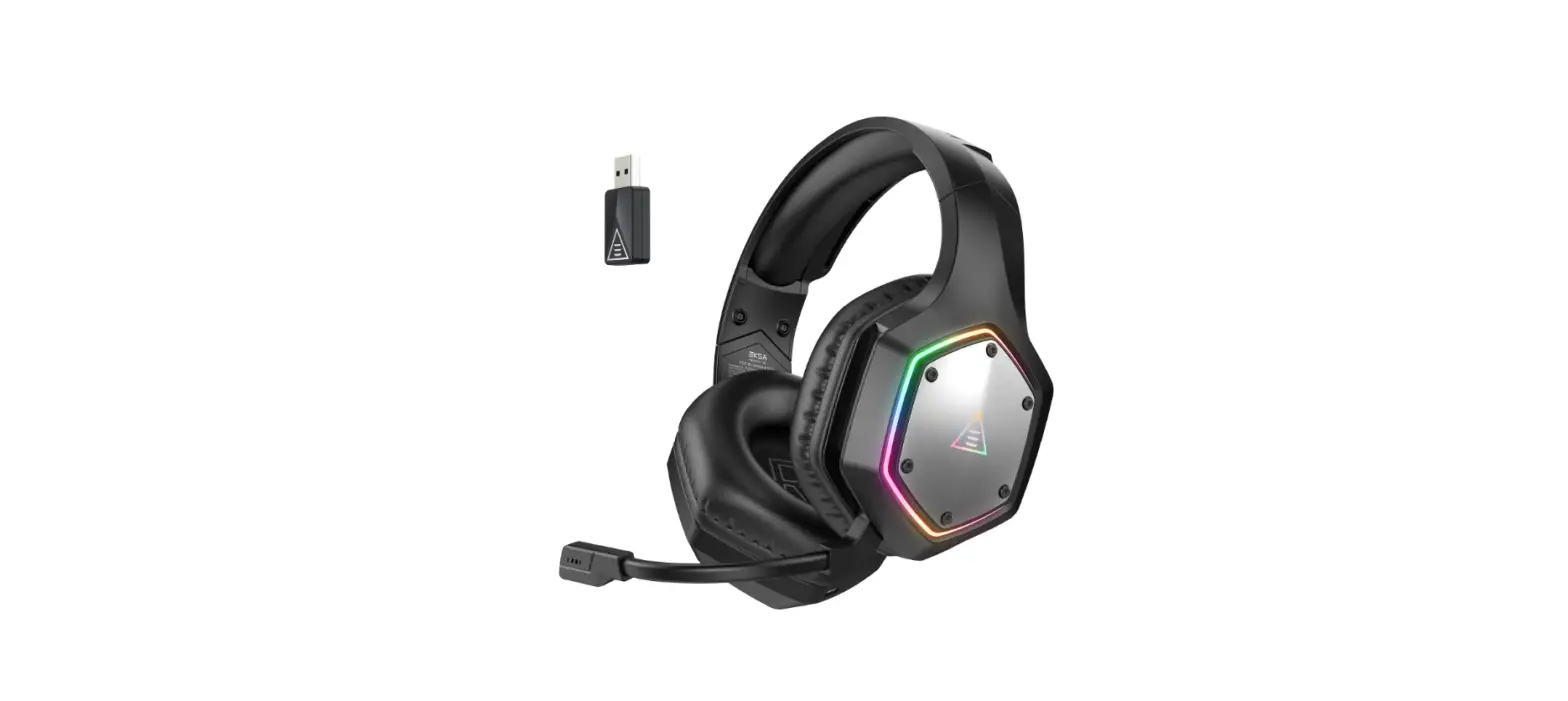
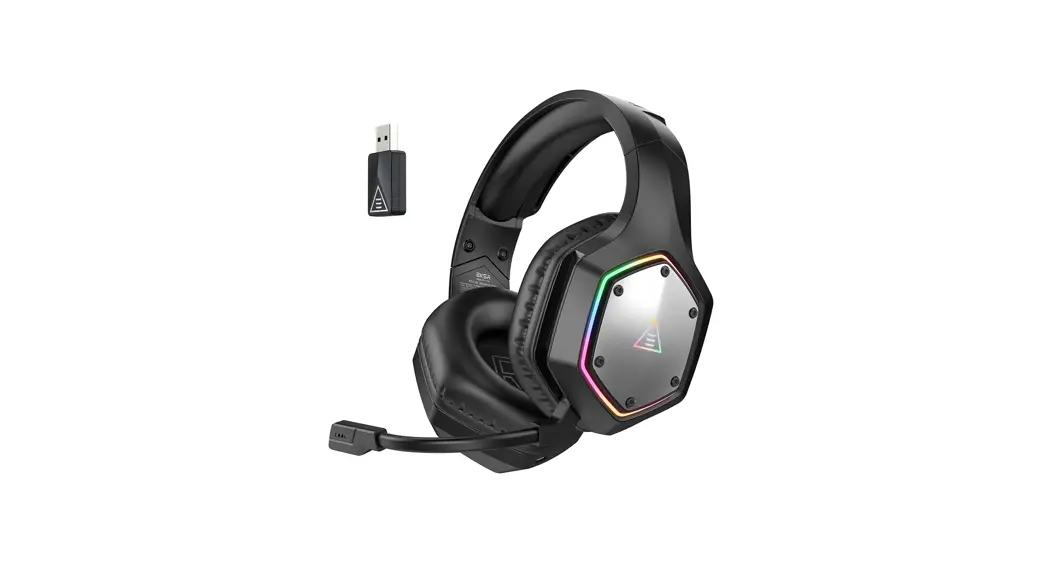
The STAR ENGINEPro 3-IN-1 Gaming Headset is a high-quality
gaming headset that provides an immersive audio experience. It
features EKSA 7.1 SoundBase technology, which delivers punchy and
immersive sound with accurate positioning and stunning clarity. The
headset also includes EKSA VoicePure ENC, which consists of a call
mic and a noise-identifying mic to accurately identify ambient
noises and enhance in-game communication. The latest AI-Powered
Environmental Noise Cancellation (ENC) technology suppresses up to
99.8% of environmental noise while enhancing voices, resulting in
crystal-clear call quality.
The headset is compatible with various platforms, including
mobile devices, Nintendo SwitchTM, and PCs with USB interfaces. It
comes with a Type-C audio cable and a Type-C to USB interface for
easy connectivity.
The STAR ENGINEPro 3-IN-1 Gaming Headset also features a
convenient one-key sound mode switch on the ear shell, allowing
users to switch between 7.1 surround sound, game mode, and stereo
music mode. The headset is equipped with a multi-function button
(MFB), volume control wheel, and mic mute button for easy
control.
Product Usage Instructions:
- To turn the LED light on/off, press the multi-function button
for 3 seconds. - To switch between sound modes, click the multi-function button:
- 1 click: Switch to 7.1 surround sound mode.
- 2 clicks: Switch to stereo sound mode.
- Use the volume control wheel to adjust the volume:
- Scroll upwards to increase the volume.
- Scroll downwards to decrease the volume.
- Click the mic mute button to control the microphone:
- Click up: Turn the microphone on.
- Click down: Turn the microphone off.
- To switch the sound mode, press the sound mode switch button on
the ear shell. You will hear a surround sound on/off voice
prompt. - To set the headset as the default audio device on Windows:
- Open Control Panel.
- Select Hardware and Sound.
- Click Sound.
- Go to the Playback tab and set “EKSA StarEngine Pro” as the
default device. - Go to the Recording tab and set “EKSA StarEngine Pro” as the
default device.
- To set the headset as the default audio device on macOS:
- Open System Preferences.
- Select Sound.
- Go to the Input tab and select “EKSA StarEngine Pro” as the
input device. - Go to the Output tab and select “EKSA StarEngine Pro” as the
output device.
- To set the headset as the default audio device on PS4:
- If your PS4 controller has a 3.5 mm jack, no adapter is
required. - If your PS4 controller doesn’t have a 3.5 mm jack, you need a
Microsoft adapter.
- If your PS4 controller has a 3.5 mm jack, no adapter is
STAR ENGINEPro
3-IN-1 Gaming Headset
User Manual
EN
Package Contents
æ EKSA StarEngine Pro Gaming Headset ç Detachable Microphone è Microphone Foam Cover é Carry Pouch ê User Manual ë 3.5 mm Audio Cable ì Type-C Audio Cable í Type-C to USB Extension Cable
STAR ENGINEPro
3-IN-1 Gaming Headset
User Manual
Specifications
Driver Diameter: 50 mm Impedance: 32 ± 15% Sensitivity: 112 ± 3 dB Frequency Response: 20 Hz 20 kHz
Sensitivity: -42 ± 3 dB Call Mic: Unidirectional Noise Identifying Mic: Omnidirectional Mic: EKSA VoicePure ENC
1
Product Overview
9 8
7
6
1 2
3
5
4
1. Leather Head Beam 2. Adjustable Headband 3. Soft Extra-Large Earmuffs 4. Detachable Microphone 5. Microphone Port 6. Type-C Audio Port 7. Multi-Function Button (MFB) 8. Mic Mute Button 9. Volume Control Wheel
2
Operation Guide
Multi-Function Button:
3
Press for 3 seconds: LED Light on/off
x1
Click: Sound Mode Switching
(1) 7.1 Surround Sound: “surround sound on” (2) Stereo Sound: “surround sound off”
Volume Control Wheel:
Scroll upwards: Volume +
Scroll downwards: Volume –
Mic Mute Button:
x1
Click
3
Up: Microphone on Down: Microphone off
Main Features
1. EKSA 7.1 SoudBase
EKSA 7.1 SoundBase provides an unrivaled audio experience with punchy and immersive sound. Every sneaky footstep and every
explosive gunshot is reproduced with accurate positioning and stunning clarity, creating a lifelike battlefield. The plug-and-play
feature means no extra hassle to get a truly immersive gaming experience across platforms – including PS®4, PS®5, SwitchTM, and PC.
Note: EKSA SoundBase Software supports Windows® only.
90º
60º
60º
30º
30º
dB
0º
0º
-30º
-30º
Hz
-60º
-60º
-90º
1.1
1.2
2. EKSA VoicePure ENC
Play distraction-free when you’re immersed in your favorite game with
EKSA VoicePure ENC. The sophisticated EKSA DUAL-MIC System includes a call mic and a noise-identifying mic, accurately identifying different ambient noises and human voices. At the same time, the latest AI-Powered Environmental Noise Cancellation [ENC] technology
dynamically suppresses up to 99.8% of environmental noise while enhancing voices during in-game communication. The end result is true-to-life quality. Environmental Noise
Noise Identifying Mic
AI
Call Mic
Call Voice + Environmental Noise
4
Crystal-Clear Call Voice
Main Features
3. All-Platform Compatibility
Three separate audio cables with different interfaces are included in the packing box. This gaming headset is widely compatible with PS®5, PS®4, Xbox® One, Nintendo SwitchTM, PC, Laptop, macOS, and mobile devices, etc.
Type-C Audio Cable
3.5 mm interface
Xbox One® S/X PS®4/PS®5
Type-C interface Type-C to USB interface
mobile devices Nintendo SwitchTM
USB interface
PS®4/PS®5 PC/Mac/Laptop
4. One Key Sound Mode Switch
This button is on the ear shell, allowing you to switch from 7.1 surround sound to game mode or stereo to music mode. It is straightforward and convenient to operate.
Note: when switching the sound mode, you will hear a “surround sound on/off” voice prompt.
Sound Mode Switch Button
5
USB Sound Settings
Follow the steps below to ensure your EKSA StarEngine Pro headset is the default audio device.
Windows®:
Audio Settings:
[Control Panel] [Hardware and Sound] [Sound] [Playback] [EKSA StarEngine Pro (Set as Default Device)]
Microphone Settings:
[Control Panel] [Hardware and Sound] [Sound] [Recording] [EKSA StarEngine Pro (Set as Default Device)]macOS:
[System Preferences] [Input] [Output] [Sound] [EKSA StarEngine Pro] [EKSA StarEngine Pro]6
How to Use
PlayStation® 4 / PlayStation® 5:
To get the best when using a PS®4/PS®5, connect one end of the Type-C cable to your headset and the other end with a USB extension cable. Then directly connect your PS®4/PS®5 console with the USB interface, and follow the steps below. PS®4
[Settings] [Devices] [Audio Devices] [Output Device – Headset (EKSA StarEngine Pro)] [Input Device – Headset (EKSA StarEngine Pro)] [Volume Control (Headphones)] [Adjust Microphone Level] [Switch Output Device Automatically]
PS®5
[Settings] [Sound]
[Microphone – Input Device – Headset (EKSA StarEngine Pro)] [Adjust Microphone Level]
[Audio Output – Output Device – Headset (EKSA StarEngine Pro)] [Switch Output Device Automatically] [Volume – Headphones]
7
How to Use
Xbox One® S/X:
To work on the NEW version of the Xbox One® S/X controller, you can directly connect your headset to the controller via the 3.5 mm audio cable.
Note: Old version of Xbox® One needs a Microsoft adapter (not included).
Guide for Xbox® Users
The controller has a 3.5 mm jack: no adapter is required
The controller doesn’t have a 3.5 mm jack: a Microsoft adapter is required
(not included)
Xbox One® S/X controller
Xbox® One controller (old version)
8