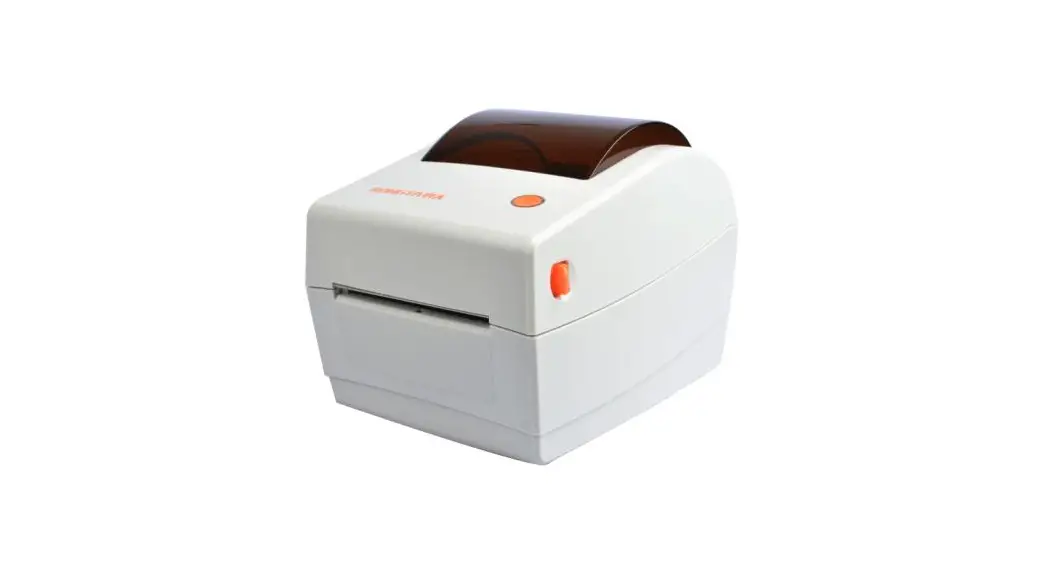
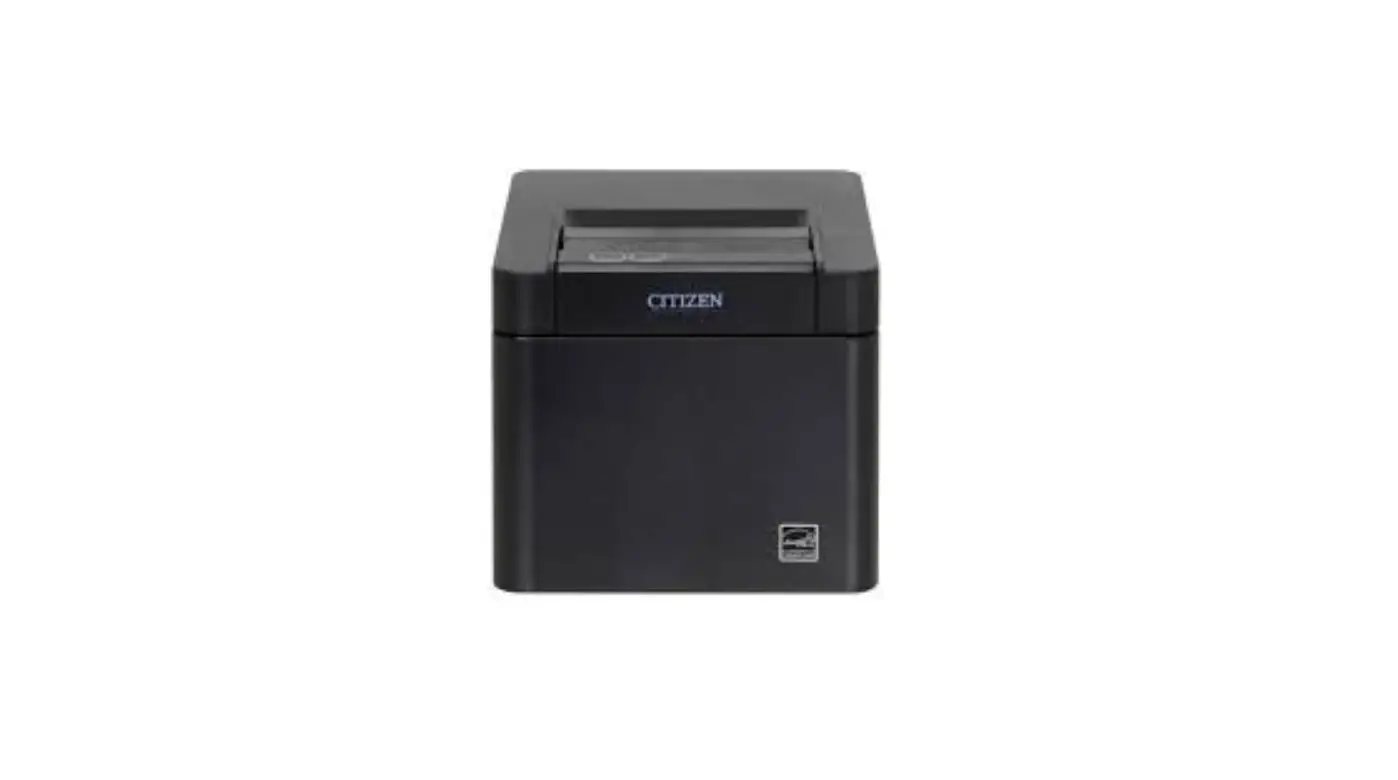
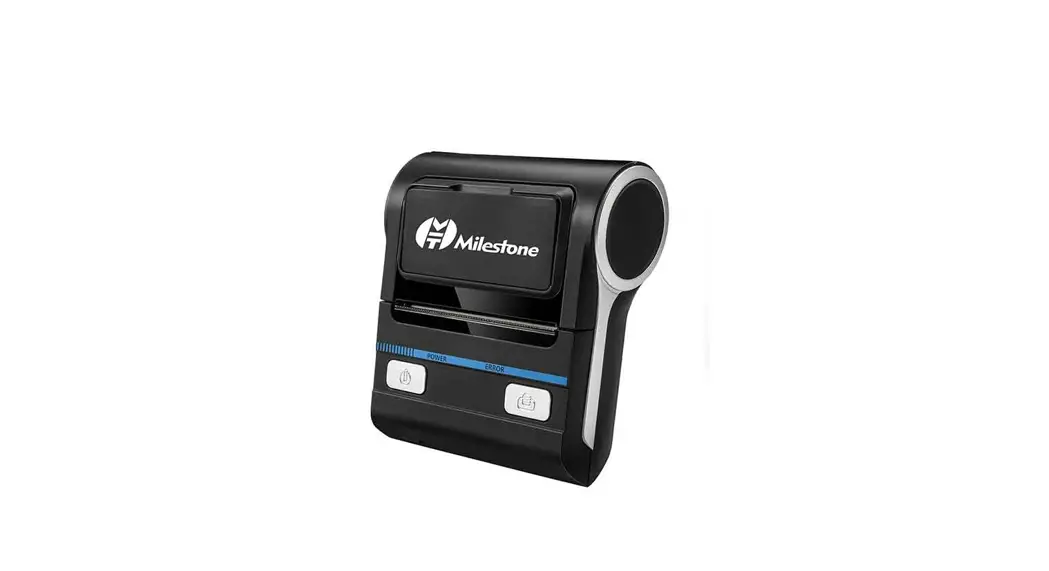
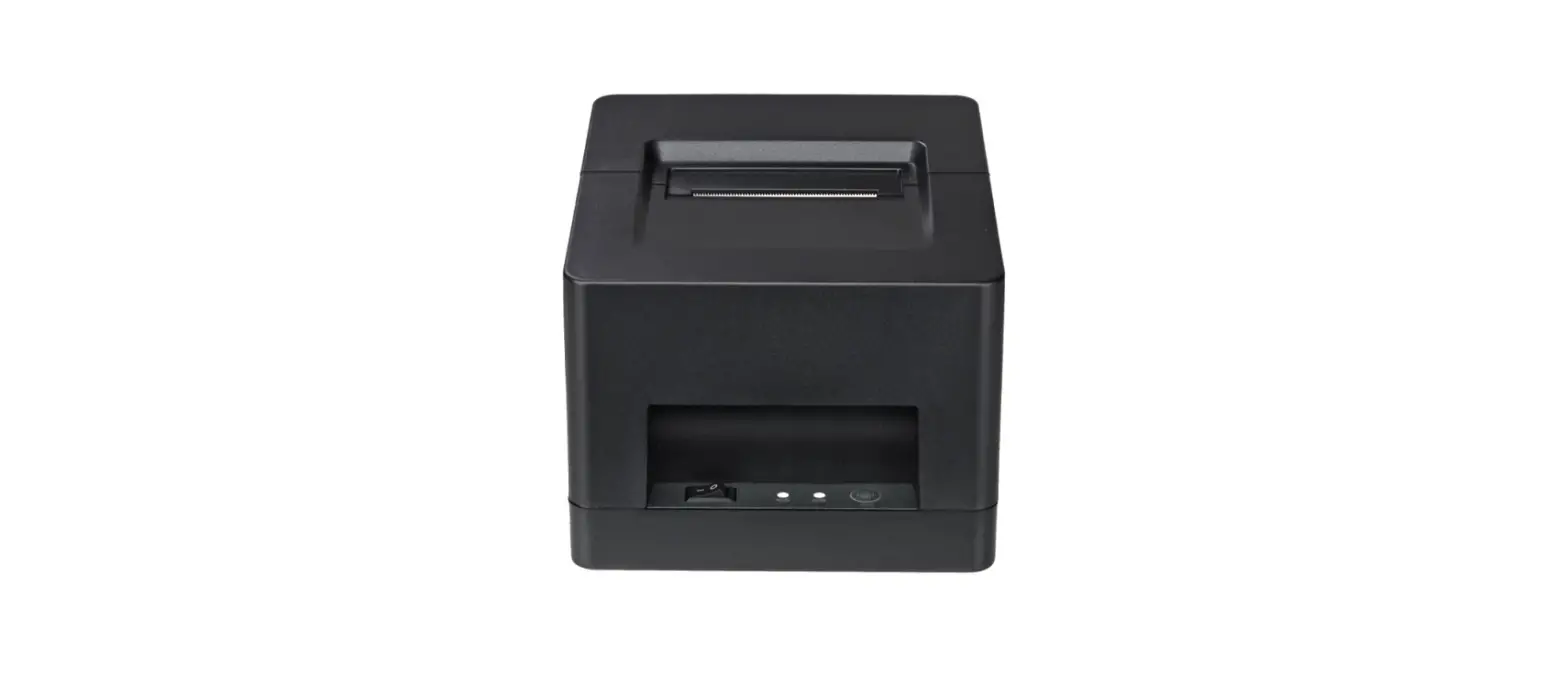
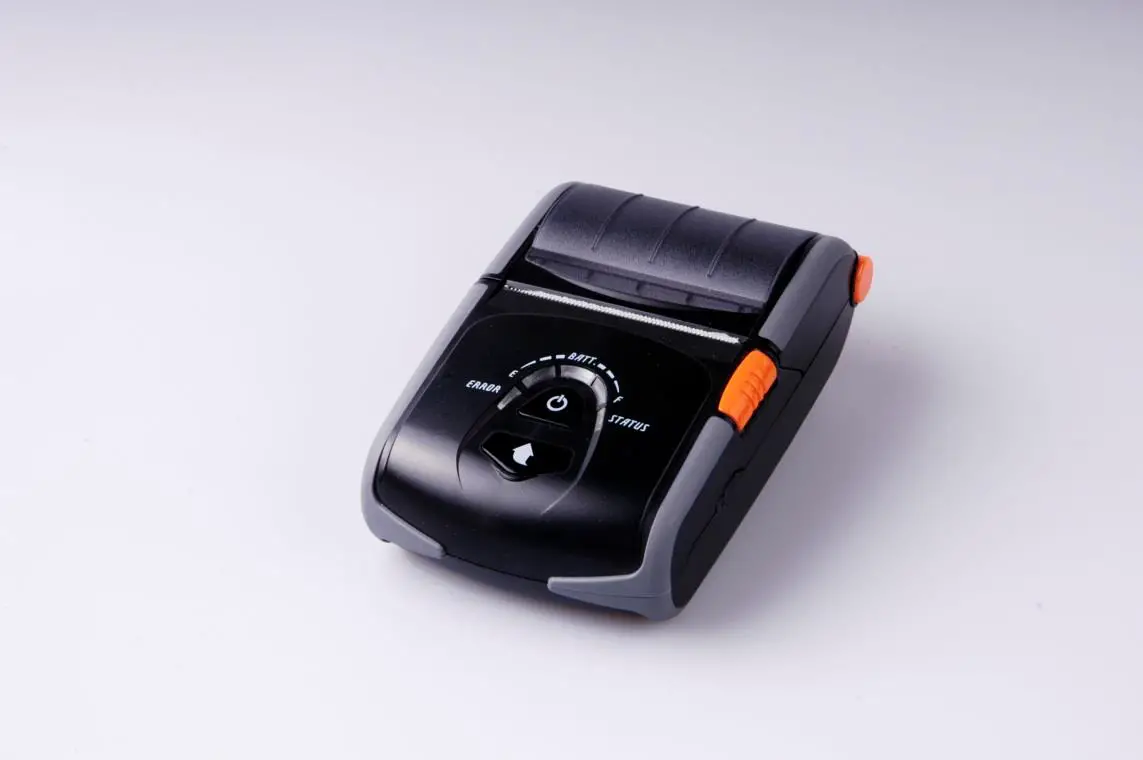
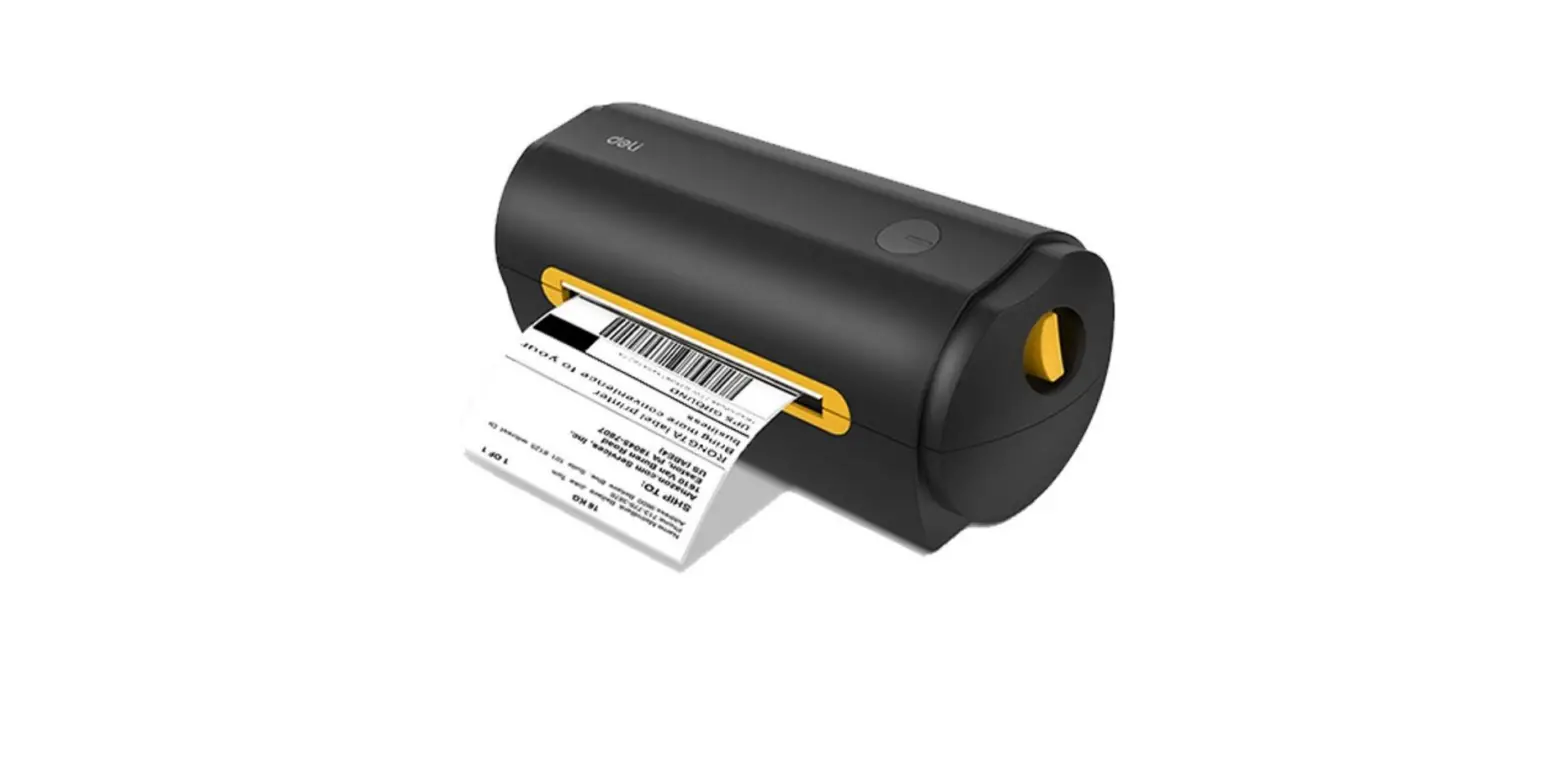
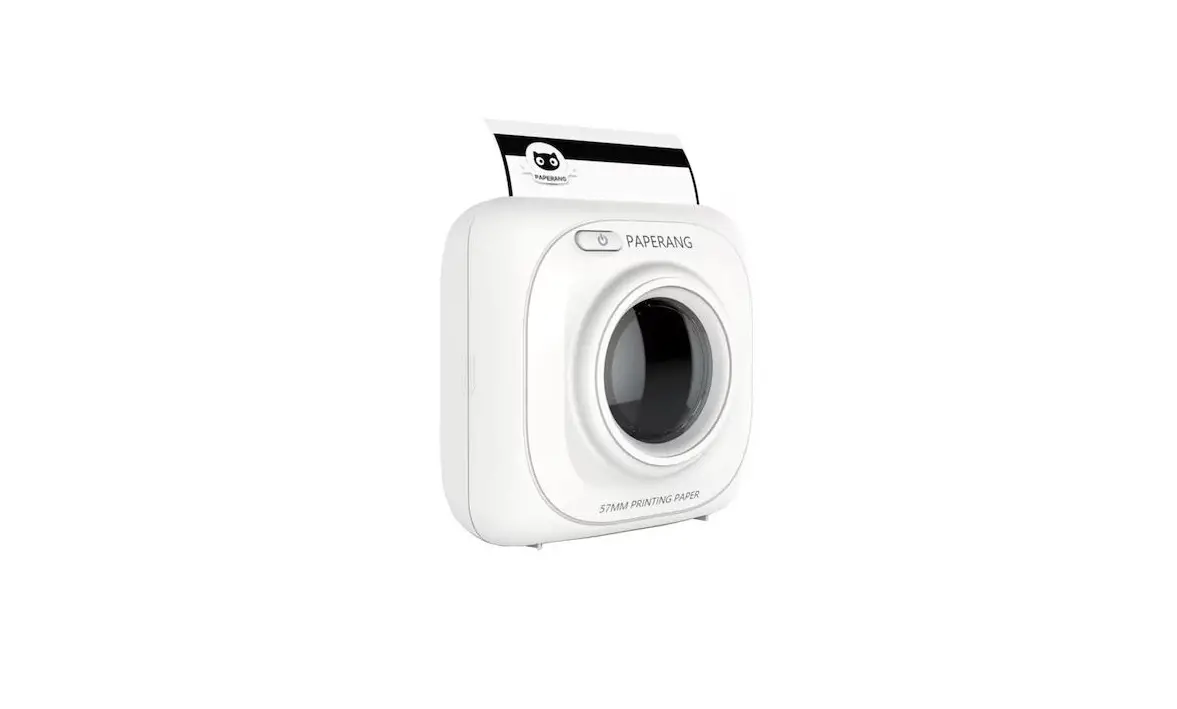
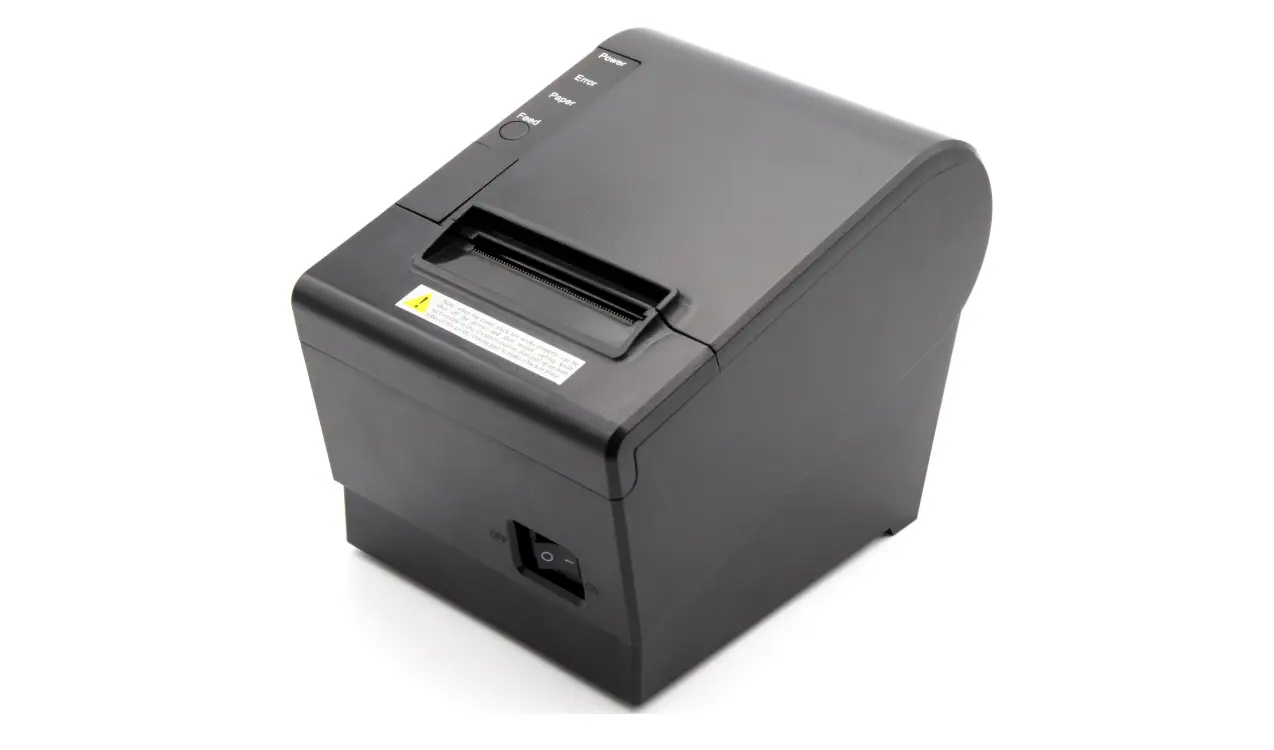
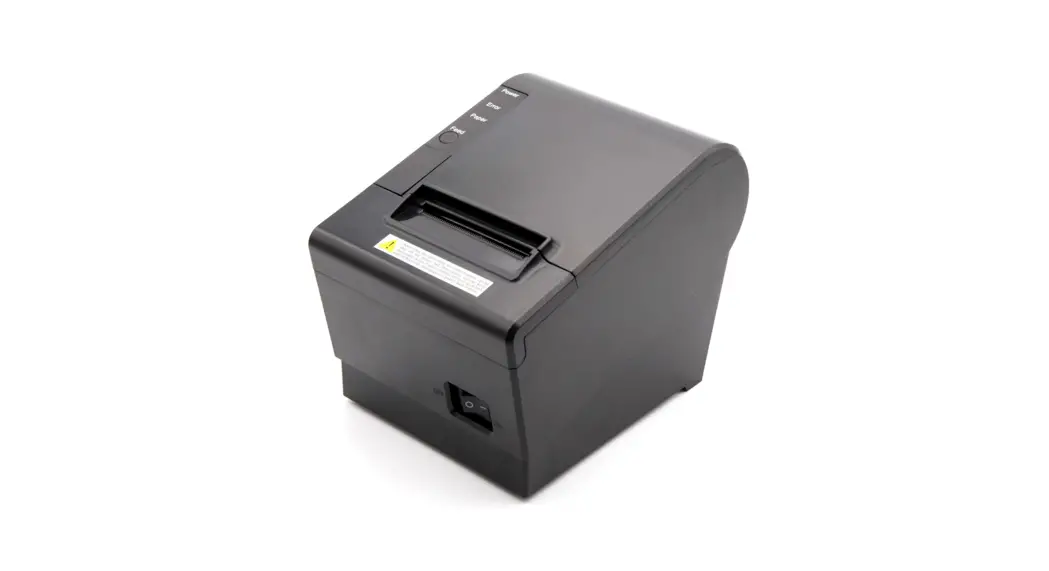
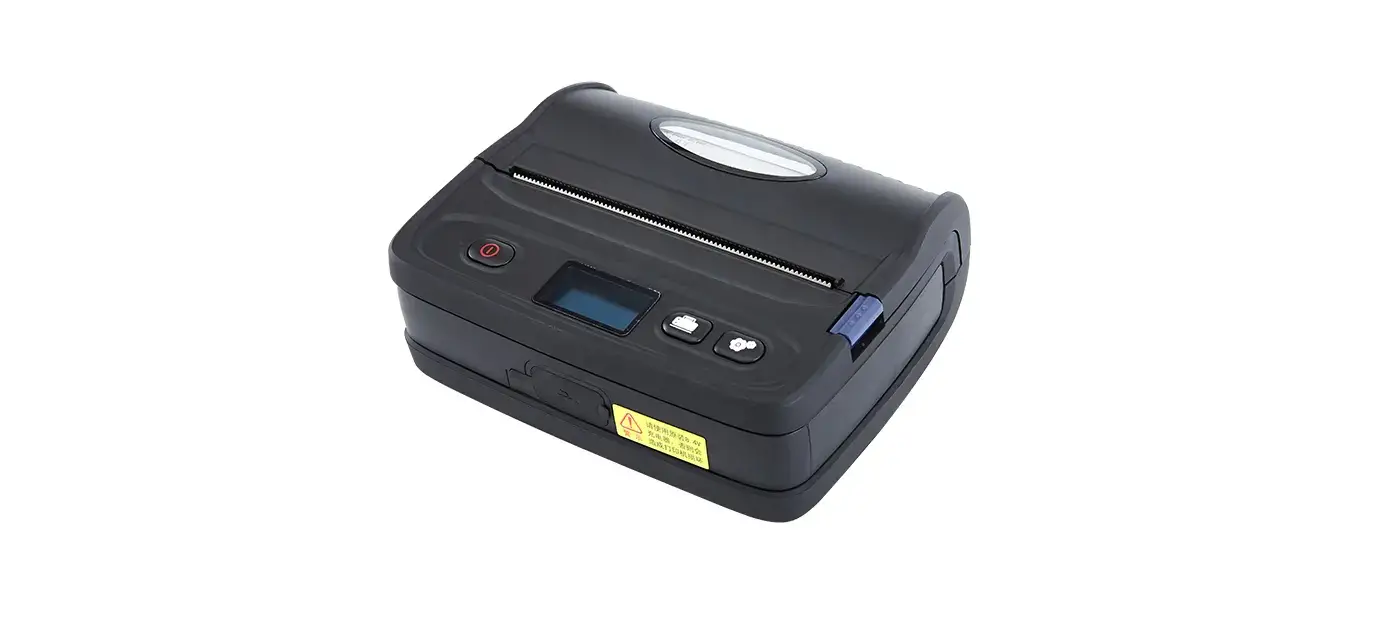
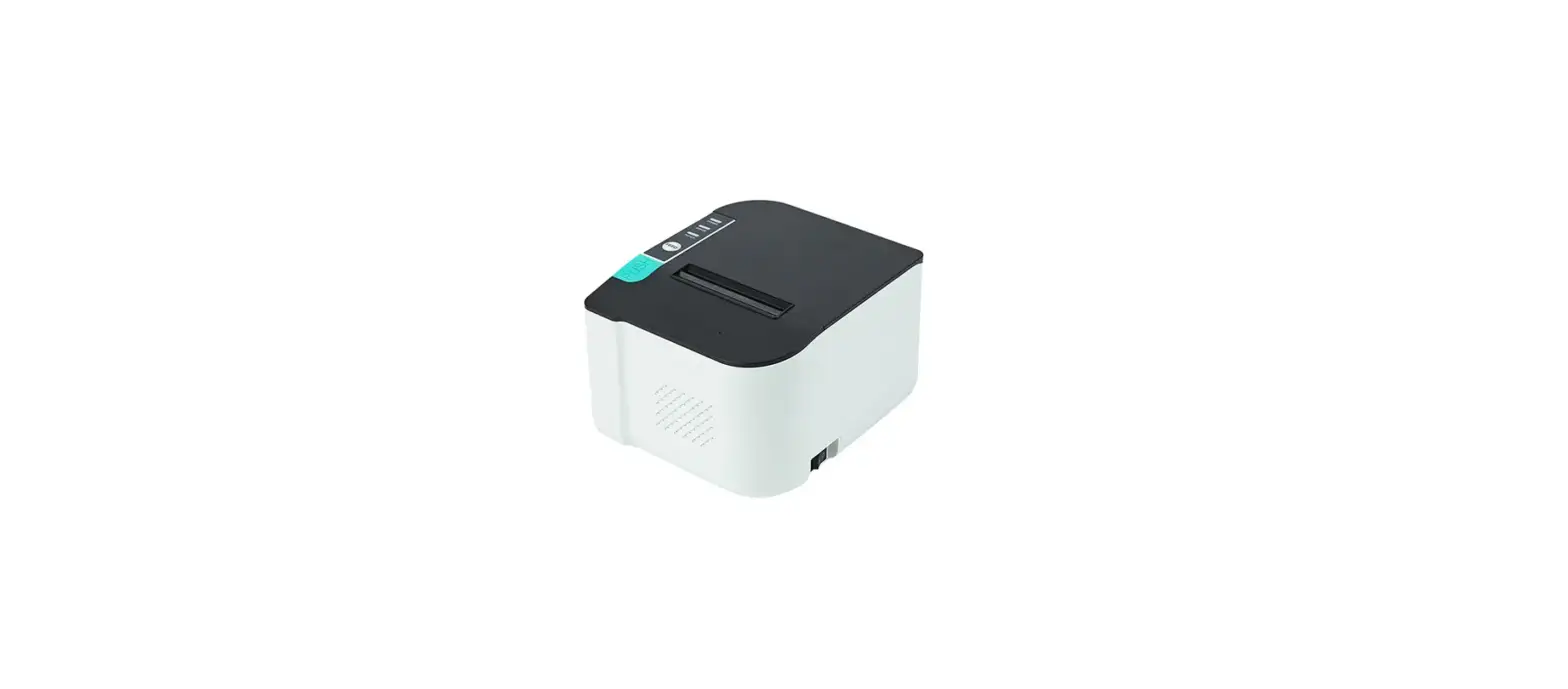
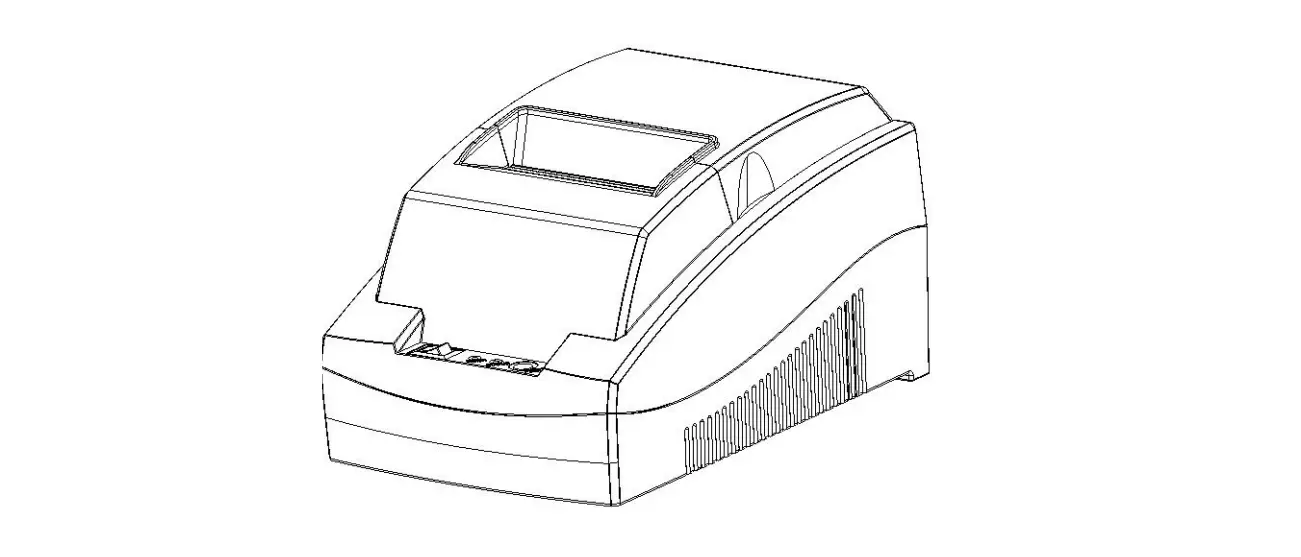
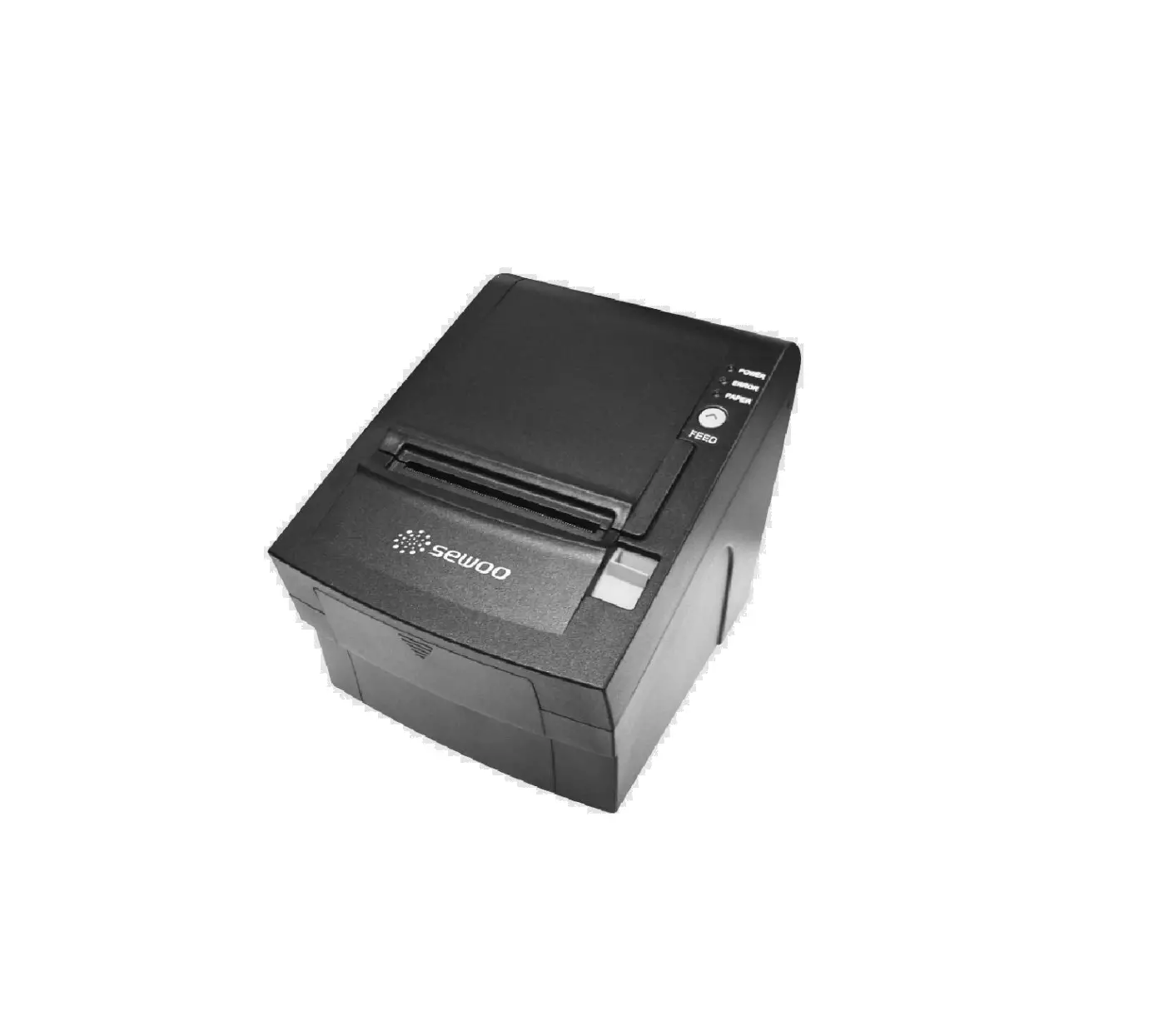
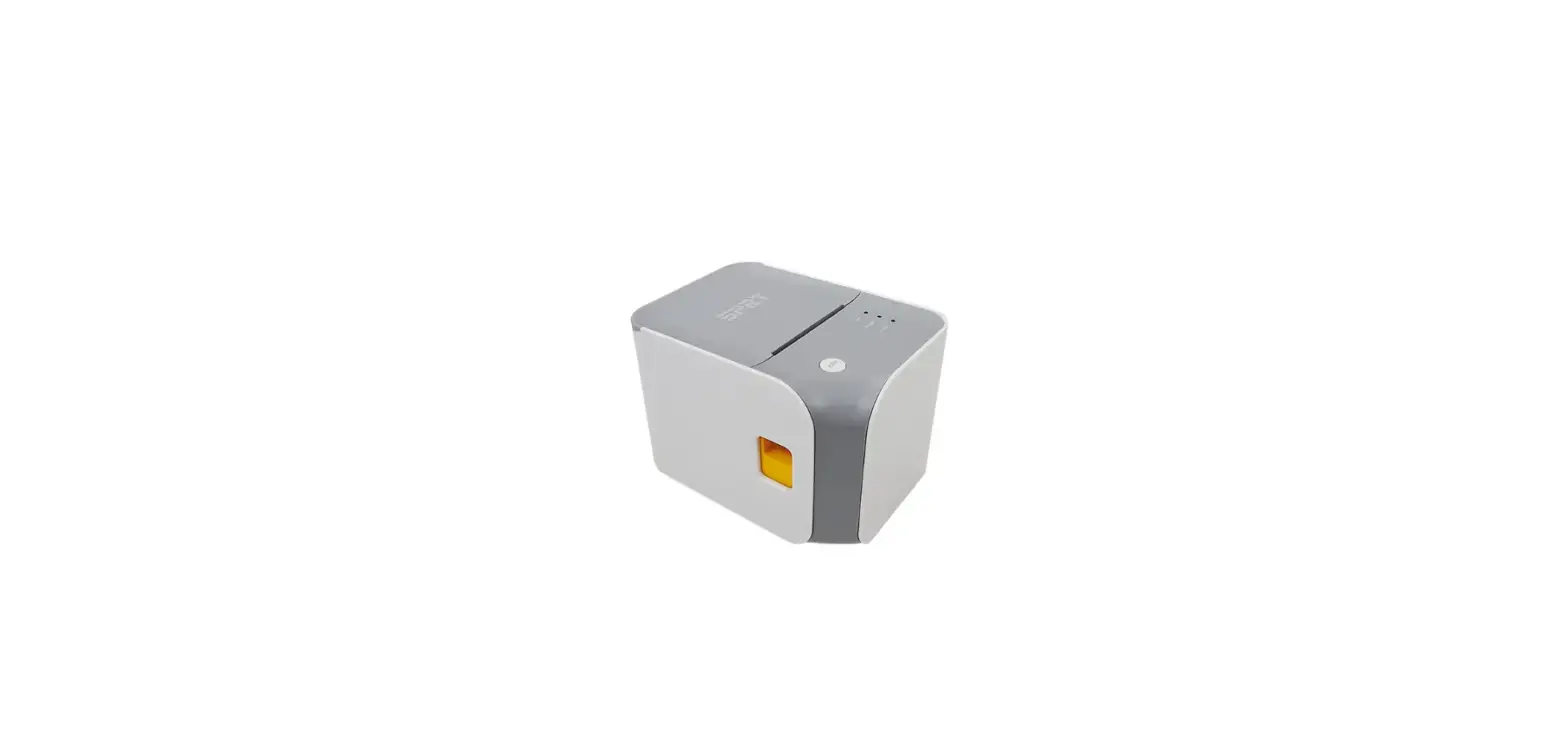
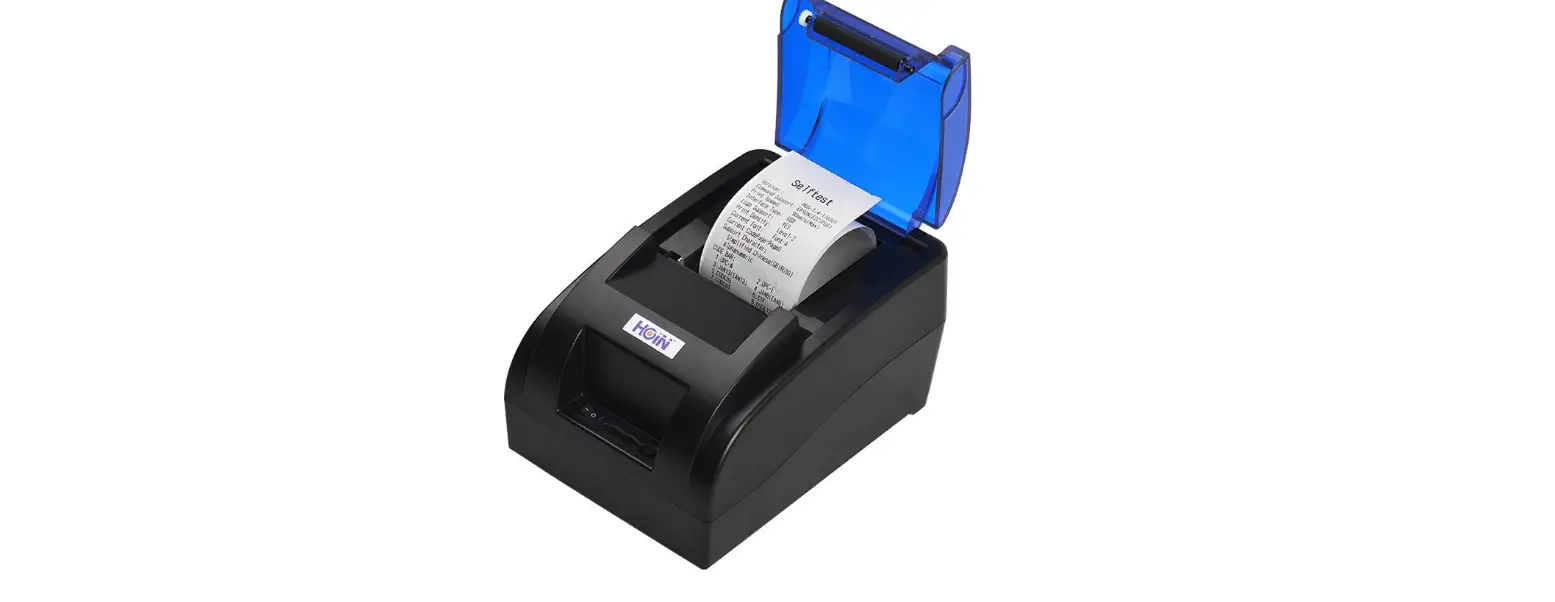
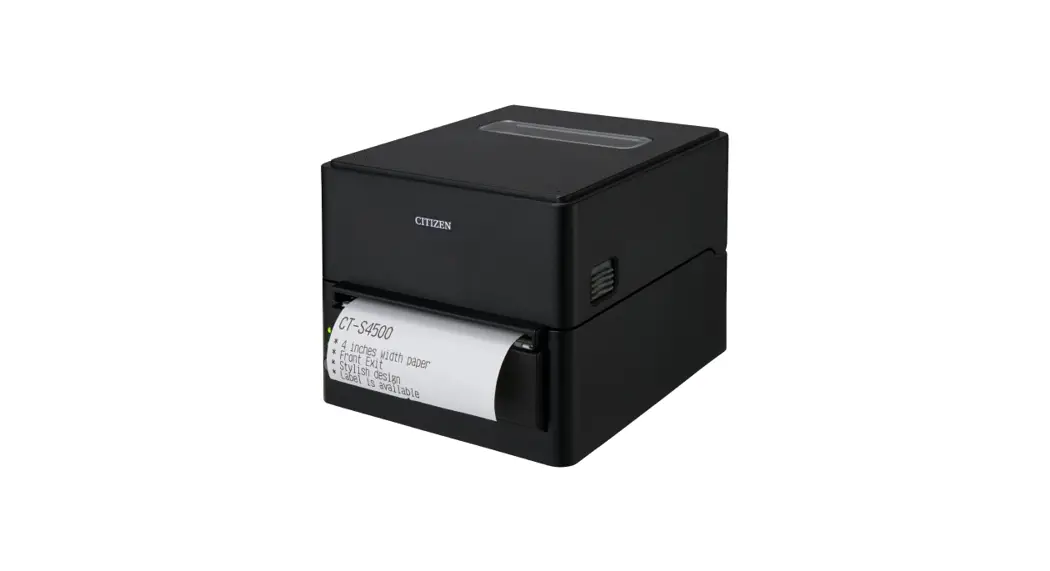
T3180 3 Inch Thermal Printer
3 Inch Thermal Printer T3180
User Manual
REVISION RECORDS
| REV. | DATE | DESCRIPTION |
|---|---|---|
| 1.0 | 2022.11.12 | First edition |
Content Statement
This manual provides information on the usage of the T3180
thermal printer.
Warnings
Please comply with the following safety instructions to avoid
any damage to the human body and the equipment:
- The print head will become very hot during printing; avoid
contact with the print head after printing has finished. - If the power cord is damaged or frayed, replace it
immediately. - To ensure print quality and reliability, use the recommended
paper or paper of the same quality. - Switch off the power supply when connecting/disconnecting all
ports to prevent damage to the printer control circuit. - Never carry out maintenance or repair work yourself. Always
contact a qualified service technician. - Keep this User Manual in a place which is easily accessible at
all times.
WEEE (Waste Electrical and Electric Equipment)
This mark shown on the product or its literature indicates that
the corresponding item should not be discarded at the end of its
working life with others household waste. To prevent possible harm
to the environment or human health from uncontrolled waste
disposal, please separate marked items from other types of waste
and recycle them responsibly to promote the sustained reuse of
material resources. Household users should contact either the
retailer where they purchased this product, or their local
government office for details of where and how they can conduct
environmentally safe recycling of such items. Commercial users
should contact their suppliers and check the terms and conditions
of purchase contracts. This product should not be combined with
other commercial waste for disposal.
1 OVERVIEW
1.1 Introductions
The T3180 is a thermal receipt printer that features high print
quality, high print speed, high stability, etc. It can be used in
commercial POS systems, food industry, and occasions that need
real-time field print receipts. The T3180 can connect with other
equipment through Serial, USB, WIFI, Blutooth, and Ethernet
interfaces. Printer drivers are available for the WINDOWS
XP/WINDOWS 7/WINDOWS 8/WINDOWS 10/Linux operating system.
1.2 The Main Features
- Low noise
- High print speed
- Easy paper loading
- Support page mode printing
- Compatible with various width paper
- Cash drawer interface
- Communication interfaces optional
2 GETTING STARTED
2.1 Packing List
After receiving your printer, please check for possible shipping
damage:
- Inspect the outside of both the box and the printer for
possible damage. - Check whether you have received the following accessories
together with the printer:
- [List of accessories]
Usage Instructions
To use the T3180 thermal printer, follow these steps:
- Connect the printer to a power source using the power
cord. - Connect the printer to your device using one of the available
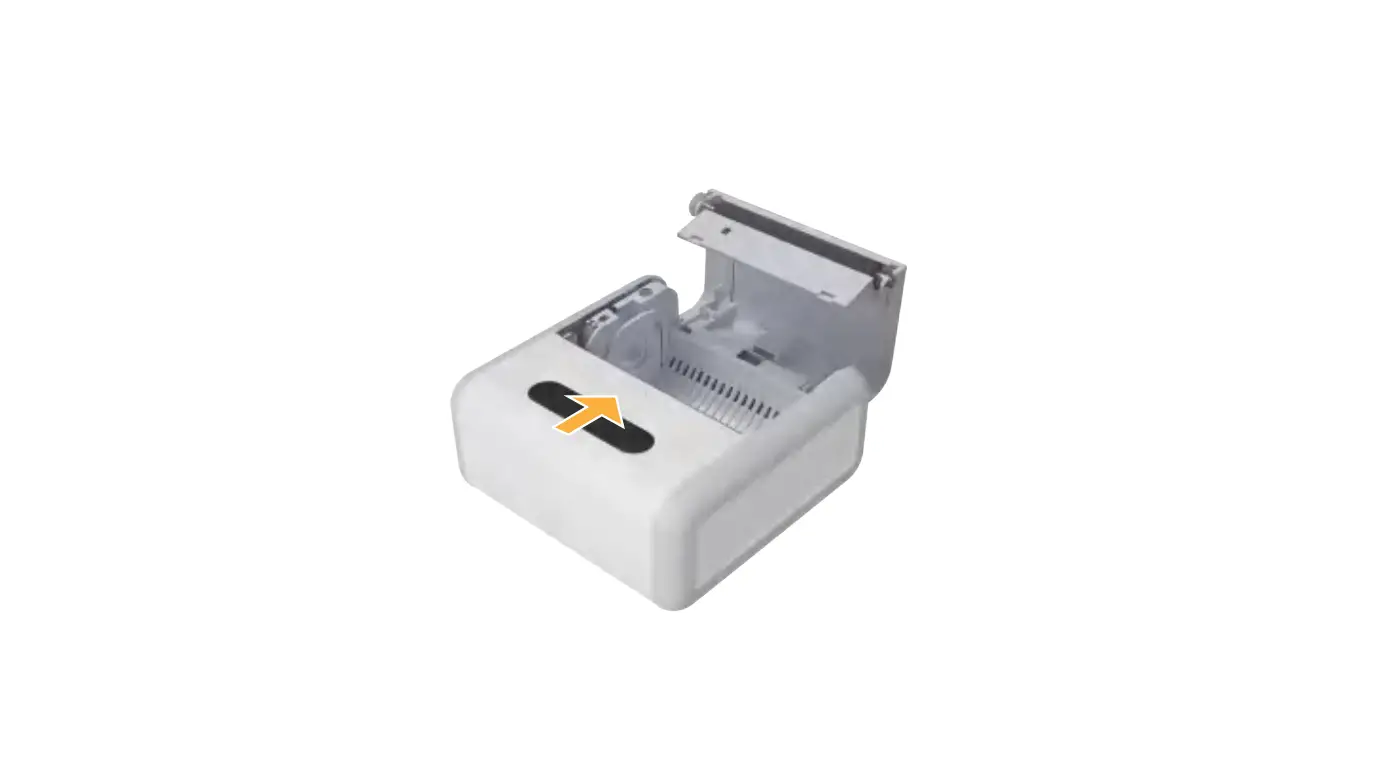
interfaces (Serial, USB, WIFI, Blutooth, or Ethernet). - Load paper into the printer by opening the paper cover and
inserting the paper roll. - Close the paper cover.
- Turn on the printer.
- Print by sending print commands from your device to the
printer. Make sure to avoid contact with the print head after
printing has finished as it will be very hot. - If the power cord is damaged or frayed, replace it
immediately. - Use the recommended paper or paper of the same quality to
ensure print quality and reliability. - Switch off the power supply when connecting/disconnecting all
ports to prevent damage to the printer control circuit. - Never carry out maintenance or repair work yourself. Always
contact a qualified service technician. - Keep this User Manual in a place which is easily accessible at
all times.
3 Inch Thermal Printer T3180
User Manual
T3180 User Manual
REVISION RECORDS
REV.
DATE
DESCRIPTION
1.0 2022.11.12 1.First edition
Drawn Will
Checked
Approved
2
T3180 User Manual
Content Statement …………………………………………………………………………………………………………………………………………………………. 4
Important Safety Instructions…………………………………………………………………………………………………………………………….4 1 OVERVIEW …………………………………………………………………………………………………………………………………………………..6 1.1 Introductions…………………………………………………………………………………………………………………………………………. 6 1.2 The Main Features ………………………………………………………………………………………………………………………………….. 6 2 GETTING STARTED ………………………………………………………………………………………………………………………………………..7 2.1 Packing List……………………………………………………………………………………………………………………………………………. 7 2.2 Appearance and Components …………………………………………………………………………………………………………………… 8 Front …………………………………………………………………………………………………………………………………………………… 8 Rear ……………………………………………………………………………………………………………………………………………………. 8 1) The printer without Bluetooth interface:………………………………………………………………………………………………………. 8 Inside ………………………………………………………………………………………………………………………………………………….. 9 3 SPECIFICATION……………………………………………………………………………………………………………………………………………10 3.1 Printer Specification………………………………………………………………………………………………………………………………..10 3.2 Printing Media Specification……………………………………………………………………………………………………………………..12 3.3 Printing and Cutting Position…………………………………………………………………………………………………………………….13 3.3.1 Printing position…………………………………………………………………………………………………………………………………….13 3.3.2 Cutting Position……………………………………………………………………………………………………………………………………..13 4 INSTALLATION AND USAGE ……………………………………………………………………………………………………………………………14 4.1 Media Loading……………………………………………………………………………………………………………………………………….14 4.2 LED Indication and Beeper ……………………………………………………………………………………………………………………….14 4.3 Power Connection ………………………………………………………………………………………………………………………………….15 4.4 Interface Cable Connection ………………………………………………………………………………………………………………………16 4.5 Cash Drawer Connection ………………………………………………………………………………………………………………………….16 4.6 Print Test………………………………………………………………………………………………………………………………………………17 5 INTERFACES ……………………………………………………………………………………………………………………………………………….17 5.1 USB ……………………………………………………………………………………………………………………………………………………..17 5.2 Serial Interface ………………………………………………………………………………………………………………………………………18 5.3 Ethernet Interface…………………………………………………………………………………………………………………………………..18 5.4 Cash Drawer Interface……………………………………………………………………………………………………………………………..19 5.5 Power Supply Interface……………………………………………………………………………………………………………………………20 6 TROUBLESHOOTING…………………………………………………………………………………………………………………………………….22 6.1 Printer Not Working ……………………………………………………………………………………………………………………………….22 6.2 LED Indicator and Beeper …………………………………………………………………………………………………………………………22 6.3 Troubles Occur During Printing………………………………………………………………………………………………………………….23 6.4 Problems Emerge During the Paper Cutting …………………………………………………………………………………………………24 6.5 Removing Jammed Paper…………………………………………………………………………………………………………………………24 7 PRINTER CLEANING AND MAINTENANCE ………………………………………………………………………………………………………..25 7.1 Cleaning Head………………………………………………………………………………………………………………………………………..25 7.2 Cleaning Sensors, Roller and/or Paper Path………………………………………………………………………………………………….25
3
T3180 User Manual
Statement
Warnings
This must be complied with in order to avoid any damage to the human body and to the equipment.
This is showing the important information and tips for the printer operating.
Note Due to continuous update of product, please take in kind of real machine, such as accessories, programs etc.
Important Safety Instructions
1. Safety Warning
Warnings: The print head will become very hot during printing; avoid contact with the print head after printing has finished.
Warnings: Do not touch the printer head and connector in case static damage the printer head. 2. Instructions Carefully read the installation and operating instructions provided with the printer before starting up your printer. 1) Place the printer on a flat and stable surface. 2) Leave enough space around printer for operation and maintenance. 3) Do not place the printer on or near a heat source. 4) Do not use the printer near water. Never spill liquid into the printer. 5) Do not expose the printer to high temperatures, direct sunlight or dust. 6) Protect the printer from shock, impact and vibration. 7) Be certain the power source is within the voltage rating and frequency listed for the printer. 8) Switch off the printer power supply when won’t use it for a long time. 9) Do not place the power cord where it can be stepped on. If the power cord becomes
4
T3180 User Manual
damaged or frayed, replace it immediately. 10) To ensure the print quality and reliability, you are suggested to use the recommended paper
or the same quality paper. 11) Please switch off the power supply when connect/disconnect all the ports or it will cause
damage to the printer control circuit. 12) Never carry out maintenance or repair work yourself. Always contact a qualified service
technician. 13) Keep this User Manual in a place which is easily accessible at all times.
3.Other Precautions The copyright for this user manual and various other manuals is property of our company. Any copying or conversion into electronic form and saving of this material without the express written permission is strictly prohibited. Use of the information contained in this manual is not subject to any patent liability. This manual has been prepared with utmost care and attention to detail but may contain certain errors and/or omissions. Our company is not legally liable for any damages resulting from the use of the information in this manual. Our company and its affiliates are not legally liable (United States excluded) for any damages, loss, costs, and/or expenses that result from the breakdown, malfunction, and/or misuse of the product due to violation or neglect of the operation and maintenance information and instructions provided by our company, as well as from the unauthorized alteration, repair, and/or modification of the product by the user and/or third party. We are not legally liable for any damages and/or issues resulting from the use of options and/or parts that are not authentic or authorized products.
4.WEEE (Waste Electrical and Electric Equipment) This mark shown on the product or its literature indicates that the corresponding item should not be discarded at the end of its working life with others household waste. To prevent possible harm to the environment or human health from uncontrolled waste
disposal, please separate marked items from other types of waste and recycle them responsibly to promote the sustained reuse of material resources. Household users should contact either the retailer where they purchased this product, or their local government office for details of where and how they can conduct environmentally safe recycling of such items. Commercial users should contact their suppliers and check the terms and conditions of purchase contracts. This product
5
should not be combined with other commercial waste for disposal.
T3180 User Manual
Caution: this is a Class A product. In a domestic environment this product may cause radio interference in which the user may be required to take adequate measures.
1 OVERVIEW
1.1 Introductions
T3180 is a thermal receipt printer, featured by high print quality, high print speed, high stability, etc. It can be used in commercial POS system, food industry and occasions which need real-time field print receipts.
T3180 can connect with other equipment through Serial, USB, WIFI, Blutooth and Ethernet interfaces. And the printer drivers are available for the WINDOWS XP/WINDOWS 7/WINDOWS 8/WINDOWS 10/Linux operating system.
1.2 The Main Features
1) Low noise 2) High print speed 3) Easy paper loading 4) Support page mode printing 5) Compatible with various width paper 6) Cash drawer interface 7) Communication interfaces optional
6
T3180 User Manual
2 GETTING STARTED
2.1 Packing List
After receiving your printer, please check for possible shipping damage: 1. Inspect the outside of both the box and the printer for possible damage. 2. Check whether you have received the following accessories together with the printer, if there are
any items missing, please contact your local dealer.
Note: The Power adapter and power cord vary by local and region. The packing materials are actually dependent on the order.
7
2.2 Appearance and Components
Front
T3180 User Manual
Rear 1) The printer without Bluetooth interface:
8
Inside
T3180 User Manual
9
T3180 User Manual
3 SPECIFICATION
3.1 Printer Specification
Table3-1 General Specification
Item
Parameter
Printing Method Direct thermal line printing
Resolution
Printing
Printing Width
Parameter Print Speed
Interface
Print density
Page Mode
Memory
RAM Flash
Chinese
203dpi8dots/mm 72mm 260mm/s USB, Serial, Ethernet, Cash drawer, Bluetooth Adjustable from level 1 to level 4 Support 2Mbyte 4Mbyte GBK 24×24
(1/2)
Fonts
Alphanumeric User-defined
Code page
ASC9×17,12×24. Support Optional international character sets: PC437(std.Europe), Katakana, PC850(Multilingual), PC860(Portuguese), PC863(Canadian), PC865(Nordic), PC857(Turkish), PC737(Greek), ISO08859-7(Greek), WPC1252, PC866(Cyrillic #2), PC852(Latin 2), PC858(Euro), KU42(Thai), TIS11(Thai), TIS18(Thai), PC720(Arabic), WPC775(Baltic Rim), PC855(Cyrillic), PC862(Hebrew), PC864(Arabic), ISO8859-2(Latin2), ISO8859-15(Latin9), WPC1250(Latin 2), WPC1251(Cyrillic), WPC1253(Greek), WPC1254(Turkish), WPC1255(Hebrew), WPC1256(Arabic), WPC1257(Baltic Rim), WPC1258(Vietnamese), MIK(Cyrillic), PC755(Latin 2), Iran, Iran II, Latvian, ISO-8859-1(WestEur), ISO-8859-3(Latin 3), ISO-8859-4(Baltic), ISO-8859-5(Cyrillic), ISO-8859-6(Arabic), ISO-8859-8(Hebrew), ISO-8859-9(Turkish), PC856, PC3848(ABICOMP), MONGOLIAN, VISCII
10
T3180 User Manual
Barcode Graphics Detection LED Indicator Power Supply
Paper
Table3-1 General Specification(Continued)
Item
1D 2D
Sensors Power LED Paper LED Error LED Input
Para met er
UPC-A, UPC-E, EAN8, EAN13, CODE39, ITF, CODEBAR, CODE128
(2/2)
PDF417, QR code, (DataMatrix, Maxicode and Aztec) for optional
Support varied density bitmap as and download bitmap printing
Max size of each bitmap is 40K, the total size of bitmap is 256k.
Paper out detection, Cover open detection
Green LED
Blue LED
Red LED
AC100V-240V
Output Paper type Paper width
24V 2.5A
Specified Thermal Paper
580 mm/ 800 mm
1
1
Paper thickness
0.0560.13mm
Roll paper diameter
Max. OD 83mm
Paper load Paper cut Operating condition
Physical Spec.
Command
Storage condition Dimensions Weight
Driver Software
SDK
Agency Approvals
Easy-loading structure of forward open cover or upward open cover Partial cut or full cut
04020%85%RH -20705%95%RH 137.3(L)*132(W)*130.5(H)mm 1.33kg ESC/POS Windows2000/XP/Vista/Win7/Win8/Win10/POSReady/Linux CUPS/OPOS/JavaPOS
WinCE, Win Mobile, Android, iOS FCC, CE
11
T3180 User Manual
3.2 Printing Media Specification
3.2.1 Continuous Thermal Paper Specification
Paper Type
: Specified Thermal Paper
Paper Width
: 5810 mm/ 8001 mm
Paper Outer Diameter : Max. 83 mm
Paper Thickness : 0.056 0.13m
Paper Type
FD210,PD150R,PD160R
Manufacturer
OJI Paper CO.,LTD.
3.2.2 Notices
Notes: Please use the recommended thermal paper or same quality paper, otherwise it will
influence the printing quality and decrease the thermal printer head life; Don’t stick the paper on the roll paper mandrill; If the thermal paper is polluted by chemical or oil, the thermal paper heat sensibility
decreases, which will influence the printing quality; Don’t use finger nail or hard articles to touch the surface of thermal paper, otherwise it
will cause color fading; When the environment temperature is higher than 70°C, the thermal paper color will
fade, so pay attention to the influence of temperature, humidity and sunlight.
12
3.3 Printing and Cutting Position
3.3.1 Printing position
800 -1
mm
Paper
T3180 User Manual
580 -1
mm
Paper
3.3.2 Cutting Position
Type T3180
Paper Cutting Position(L1) 11.6mm
13
T3180 User Manual
4 INSTALLATION AND USAGE
4.1 Media Loading
4.1.1 Paper Confirmation 1) When using 80mm(width) roll paper, take down the paper guide of both sides. 2) When using 58mm(width) roll paper, insert the paper guide to each side.
Note: Roll paper should be placed in the middle.
4.2 LED Indication and Beeper
Function specification of indicated light and beeper.
Name
POWER LED (Green)
ERROR LED (Red)
PAPER LED (Blue)
Status
ON OFF Flashing OFF ON OFF
Specification
The printer work well The printer does not work The printer in an error state The printer in a normal state The printer in paper end state The printer in a normal state
Description
Open the cover of printer
Full of paper No paper Cutter jam
POWER LED ON
ON ON ON
ERROR LED ON
OFF ON Flash
PAPER LED
Beeper
ON “Beep, Beep–, Beep”
OFF Silent ON “Beep Beep Beep”. OFF “Beep–Beep–”
Notes: The printer uses a thermistor to detect the temperature of the print head. If the temperature of print head is more than 65° C, printer will send a warning. If the temperature of print head is more
14
T3180 User Manual than 80° C, printer will stop working until the temperature is less than 60° C.
4.3 Power Connection
1) Put the cable plug of power adapter facing up at flat side, insert the rear of the printer power connector;
2) Turn the power adapter input power; 3) Pay attention about disconnecting or connect the Power adapter at right method, or likely to cause damage.
Note: The Power adapter and power cord vary by local and region.
15
T3180 User Manual
When pull out the adapter, please pinch the shell of power adapter and pull the switch up, when the switch is fully opened then pull out the power adapter. Don’t put forth your strength to pull the plug by squeeze at any of place of power adapter. Because, it is more difficult to pull it out and easy to damage the cable.
Notes Please only use the power adapter recommended by supplied or equivalent products; When disconnecting the power adapter plug, handheld plug connector housing, to avoid the
pulling on the cable in force; Avoid drag the power adapter cable, otherwise it will damage the cables, causing fire and shock; Avoid put power adapter around a heating device, otherwise the cable may melt, causing fire
and shock; If you do not use the printer in a long time, disconnect the power supply of printer power
adapter.
4.4 Interface Cable Connection
1) Make sure the printer’s power switch is turned off; 2) Put the interface cable into the matched interface and fixed with screws (or spring) on the plug; 3) Connect the other end of the interface cable to the host.
4.5 Cash Drawer Connection
1) Make sure the printer’s power switch is turned off; 2) Connect the cash drawer cable into the cash drawer interface on the rear side of the printer.
Warning: Cash drawer interface can only be connected to a voltage of 24V cash drawer device (can’t connect to the phone line, etc.)
16
T3180 User Manual
4.6 Print Test
4.6.1 Print Self-Test The self-test checks the printer’s current settings, status and whether the printer has any problem. 1.Make sure the power is connecting and paper is loading properly. 2.Make sure the printer is off and top cover closes properly. 3.Pressing the paper feed button and power button simultaneously turns the printer on. The printer
is ready to receive data as soon as it completes the self-test.
4.6.2 Printing of Windows Driver Program 1. Install the Windows Driver program. (Please refer to the Windows Driver Manual) 2. Please set the “Interface” as the type you use. 3. Use the Windows Driver Program to print out the “Print Test Page”.
5 INTERFACES
T3180 supports cash drawer interface and many other various communicate interfaces, such as Serial interface, USB interface, Ethernet interface.
5.1 USB
Figure 5-1
PIN
SIGNAL NAME
1
VBUS
2
D-
3
D+
4
GND
17
5.2 Serial Interface
T3180 User Manual
Figure 5-2
PIN
SIGNAL NAME
1
–
2
TXD
3
RXD
4
–
5
GND
6
RTS
7
CTS
8
RTS
9
–
5.3 Ethernet Interface
PIN NO. 1 2 3 4 5 6 7 8
Signal Name TX+ TXRX+ RX-
NOTE: Ethernet interface can only be connected to a has been isolated SELV such interface of end 18
device.
5.4 Cash Drawer Interface
T3180 User Manual
Figure 5-4
PIN NO. 1 2 3 4 5 6
Signal Name FG
Drawer 1 DRSW VDR
Drawer 2 GND
Electrical characteristics Driving voltageDC 24 V Driving currentMaximum 0.8 A ( In 510 ms)
Drawer check signal”L” = 00.5 V “H” = 35 V
19
5.5 Power Supply Interface
T3180 User Manual
Figure 5-5
PIN No. 1 2 3
SHELL
Signal Name +24V GND N.C F.G
Printer end-Unetop DC-002 or similar products, user end-Unetop DC-002 or similar products.
5.6 Bluetooth Interface/Wi-Fi
1) Bluetooth Settings Default name: BT Printer Default password: 0000 or 1234
Refer to PAX POS Printer Bluetooth Manual.pdf for more details.
20
T3180 User Manual
2) Wi-Fi Settings Connection method: In AP mode, the factory default IP address is 192.168.1.1 Open the browser to enter the default IP: 192.168.1.1 into the settings interface, the web
interface login password is 12345678. Refer to WIFI Operation Manual.pdf for more details.
Note: the computer must be connected to the WiFi card to enter the page Setup.
Printing the WIFI information: 1 Short press the power button for 3 times, then the printer starts printing the WIFI parameters
information.
2 Short press the power button for 5 times, then the printer will restore WIFI parameters
information (Restore to AP mode). The printer automatically restarts and the boot time is 2~3 seconds.
Status
LED
Power on-Be ready
Fast flash
Fail to be ready
Fast flash After exiting configuration mode, the printing indicates that the WIFI configuration failed and the LED is constant light.
No device connected
Constant light
Equipment connected or connected successfully means Slowly flash
it is in working status
Device disconnect or device connection unsuccessful Constant light
21
T3180 User Manual
6 TROUBLESHOOTING
Your printer is very reliable, but occasionally problems may occur. This chapter provides information on some common problems you may encounter and how to solve them. If you encounter problems that you can not resolve, contact your dealer for assistance.
6.1 Printer Not Working
Problem Description
Probable Reason
Solution
Printer no power
Connecting the power supply
LED not light, printer not working Printer not on
Turn on the printer
Circuit board broken Contact with the dealer
6.2 LED Indicator and Beeper
Problem Description
Probable Reason
Paper LED always on
Paper near end
Error LED always on and beeper alarms
Printer Cover open
Paper LED and Error LED always on Paper end
and beeper alarms
Thermal print head
overheated Error LED blinks and beeper alarms Overvoltage
Low-voltage
Solution The roll paper is near end, the printer can work normally Close the printer cover
Reload the roll paper Turn the printer off and resume when it cools Print with specified voltage Print with specified voltage
22
T3180 User Manual
6.3 Troubles Occur During Printing
Problem Description
Probable Reason
Solution
Coloured stripe in the paper
Paper near end
Reinstall the roll paper
Incorrect roll paper installation Check if the roll paper is installed
Blurred printing or spot
Unqualified roll paper
Use recommended thermal roll paper
Dirty thermal head or print Clean the thermal head or print
roller
roller
Low print density
Increase the print density level
Paper Jam
Paper strike
Open the printer cover, check the paper path and remove jammed
paper
Dirty thermal head or print Clean the thermal head or print
Vertical print words roller
roller
missing
Thermal head damaged
Contact your dealer for assistance
NOTE: The density of setting, please refer to “Utility Tool Manual”
23
T3180 User Manual
6.4 Problems Emerge During the Paper Cutting
Problem Description
Probable Reason
Cutter abrasion, insufficient cutting
Resolution Replace the cutter
Cutter jam, the movable cutter cannot back
Worm gear and worm wheel abrasion Motor burnt
Paper scraps
Cutter edge abrasion, Insufficient cutting
paper too thick
Thermal printer head
over heat
Paper jam
Driving too fast
Wrong paper feeding position
Replace the worm gear and worm wheel
Replace the motor Clean the paper scraps on the transmission system
Replace the cutter
Reduce the density of printing
Reduce the printer speed to the limit of thermal printer head Put the paper parallel with the paper mount and insert into the space between platen roller and the thermal printer head.
NOTE: The density of setting, please refer to “Utility Tool Manual”
6.5 Removing Jammed Paper
Warning: Do not touch the thermal print head because it becomes very hot after printing.
If the printer cover can be opened, operate it according to the next steps. 1) Turn off the printer and pull open cover button. 2) Remove jammed paper, reinstall the roll, and close the printer cover.
24
T3180 User Manual
7 PRINTER CLEANING AND MAINTENANCE
Print quality might be degraded by dust, foreign substance, adhesive substance, or other pollution materials stuck in the printer head or inside the printer.
When dirty, clean the print head as follows:
CAUTION Make sure to turn off the printer prior to cleaning. As the print head gets hot during printing, intending to clean the print head, turn the printer off
and wait approximately 2~3 minute before commencement. When cleaning the print head, take care not to touch the heated portion of the print head.
Print Head is susceptible to damage from static electricity, etc. Take care not to allow the print head become scratched and/or damaged in any way.
7.1 Cleaning Head
1) Open the Printer Cover and then use the cleaning pen to clean the head in the direction from the center of the head to the edges.
2) After cleaning the head, do not use the printer until the alcohol used for cleaning evaporates completely (1~2 min) and the printer has completely dried.
7.2 Cleaning Sensors, Roller and/or Paper Path
1) Open the printer cover and then remove the paper. 2) Remove any dust or foreign substance using dry cloth or cotton swab. 3) Soak the cloth or cotton swab in alcohol for medical use and use it to remove adhesive foreign
substances or other pollution materials. 4) After cleaning the parts, do not use the printer until the alcohol evaporates completely (1~2 min)
and the printer has completely dried.
Clean the parts whenever print quality or paper detection degraded.
25
T3180 User Manual
RF exposure statement
This equipment complies with the FCC RF radiation exposure limits set forth for an uncontrolled environment. This equipment should be installed and operated with a minimum distance of 20cm between the radiator and any part of your body. This equipment meets the exemption from the routine evaluation limits in section 2.5 of RSS-102. It should be installed and operated with a minimum distance of 20cm between the radiator and any part of your body.
Cet équipement est conforme à l’exemption des limites d’évaluation habituelle de la section 2.5 de la norme RSS-102. Il doit être installé et utilisé à une distance minimale de 20 cm entre le radiateur et toute partie de votre corps.
FCC Warning
This device complies with Part 15 of the FCC Rules. Operation is subject to the following two conditions: (1) This device may not cause harmful interference, and (2) this device must accept any interference received, including interference that may cause undesired operation.
NOTE 1: This equipment has been tested and found to comply with the limits for a Class B digital device, pursuant to part 15 of the FCC Rules. These limits are designed to provide reasonable protection against harmful interference in a residential installation. This equipment generates uses and can radiate radio frequency energy and, if not installed and used in accordance with the instructions, may cause harmful interference to radio communications. However, there is no guarantee that interference will not occur in a particular installation. If this equipment does cause harmful interference to radio or television reception, which can be determined by turning the equipment off and on, the user is encouraged to try to correct the interference by one or more of the following measures: – Reorient or relocate the receiving antenna. – Increase the separation between the equipment and receiver. -Connect the equipment into an outlet on a circuit different from that to which the receiver is connected. -Consult the dealer or an experienced radio/TV technician for help.
NOTE 2: Any changes or modifications to this unit not expressly approved by the party responsible for compliance could void the user’s authority to operate the equipment.
26
T3180 User Manual IC WARNING This device contains licence-exempt transmitter(s) that comply with Innovation, Science and Economic Development Canada’s licence-exempt RSS(s). Operation is subject to the following two conditions: (1) This device may not cause interference. (2) This device must accept any interference, including interference that may cause undesired operation of the device. L’émetteur/récepteur exempt de licence contenu dans le présent appareil est conforme aux CNR d’Innovation, Sciences et Développement économique Canada applicables aux appareils radio exempts de licence. L’exploitation est autorisée aux deux conditions suivantes: 1. L’appareil ne doit pas produire de brouillage; 2. L’appareil doit accepter tout brouillage radioélectrique subi, même si le brouillage est susceptible d’en compromettre le fonctionnement.
27