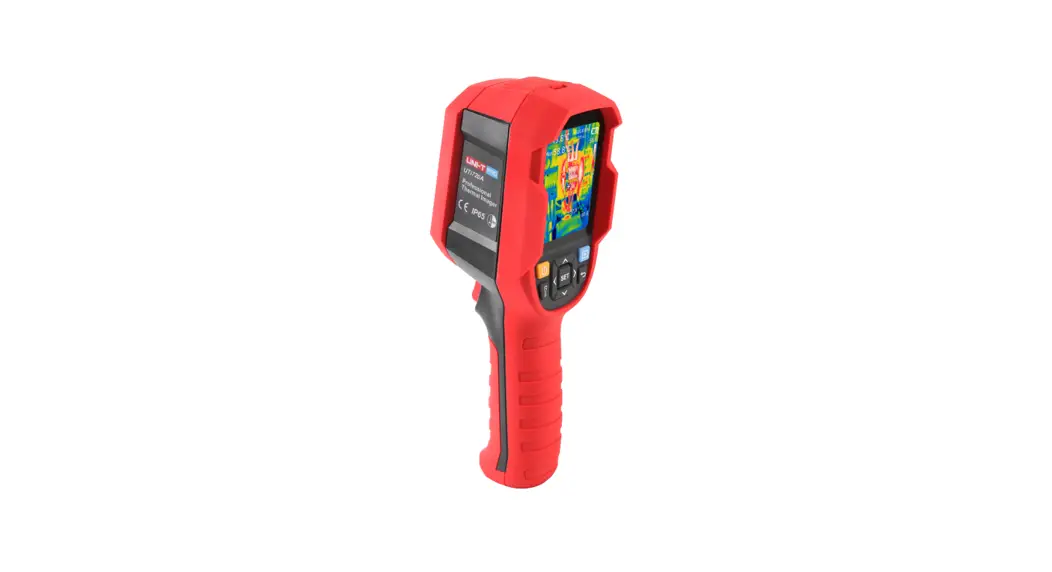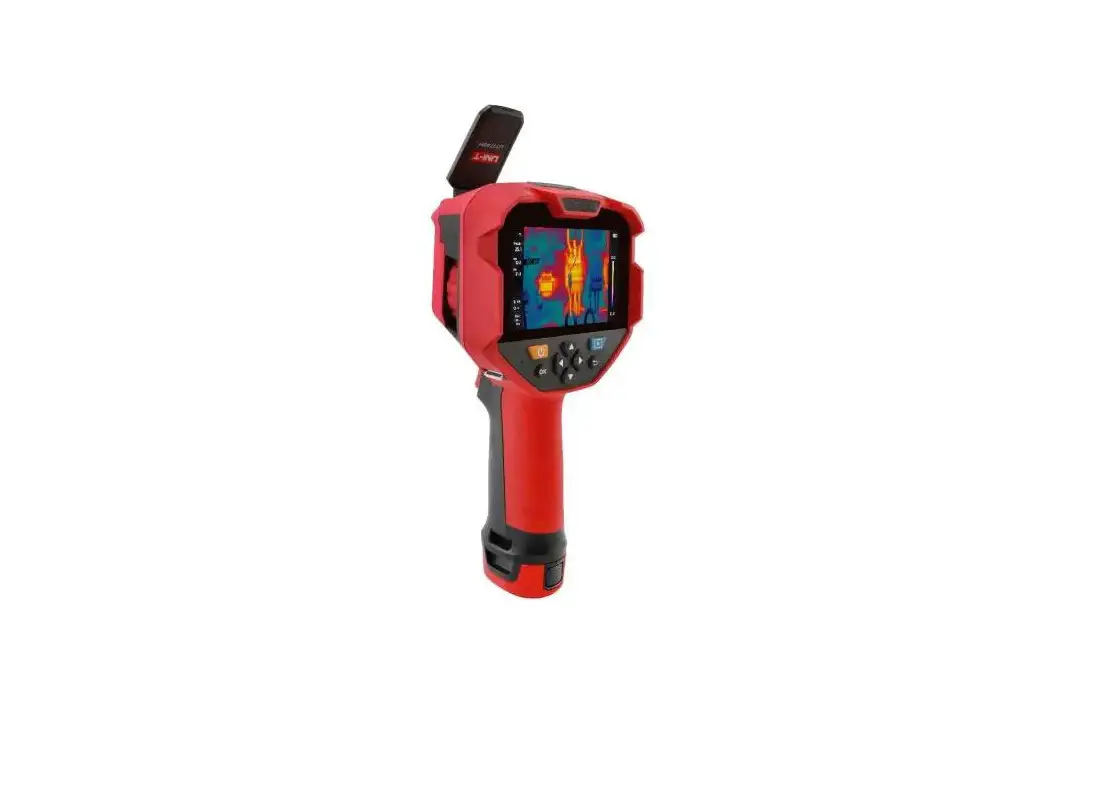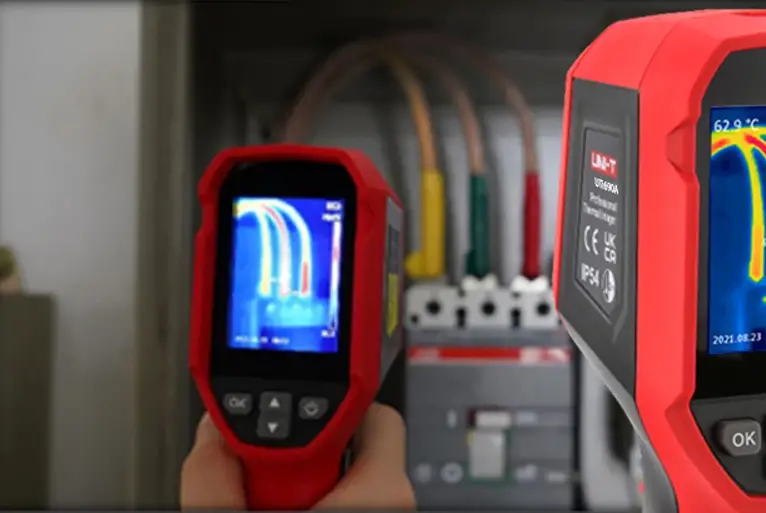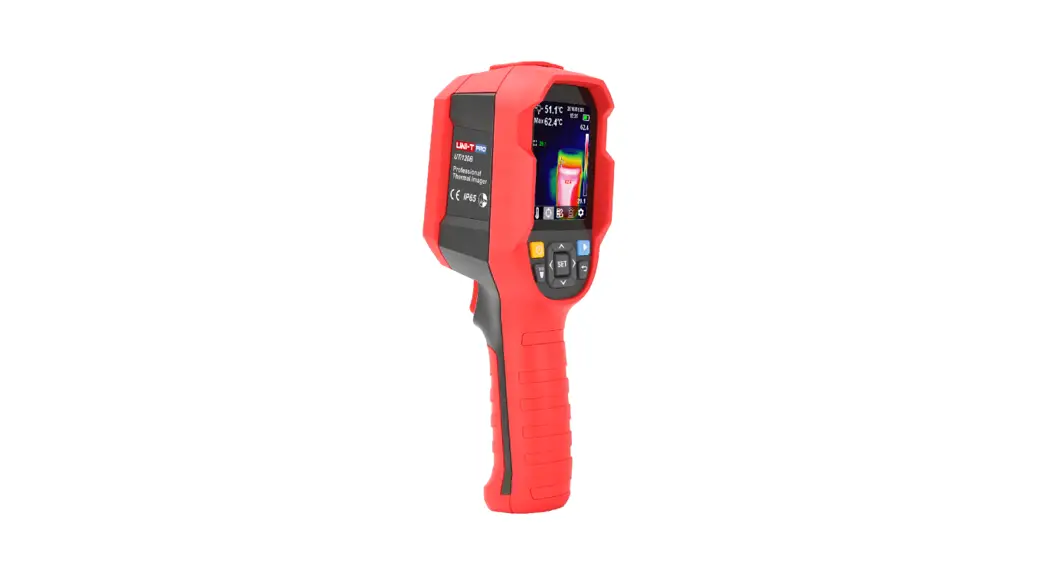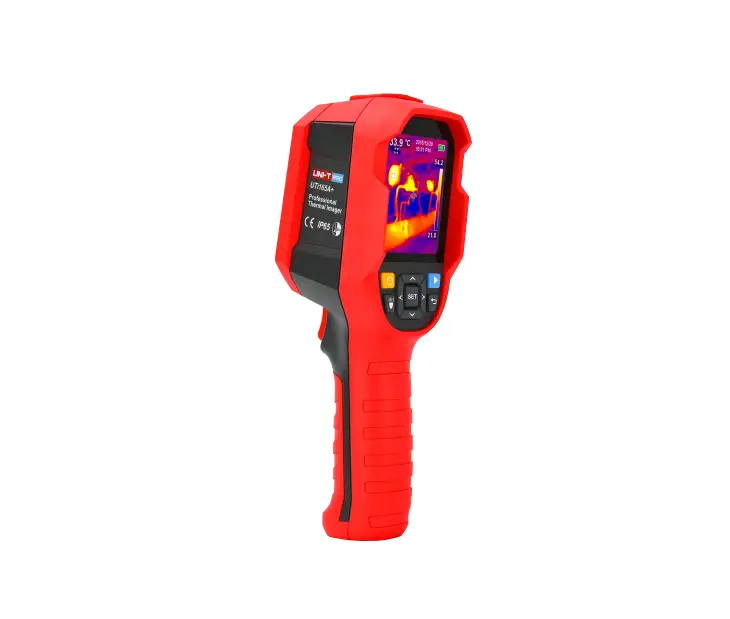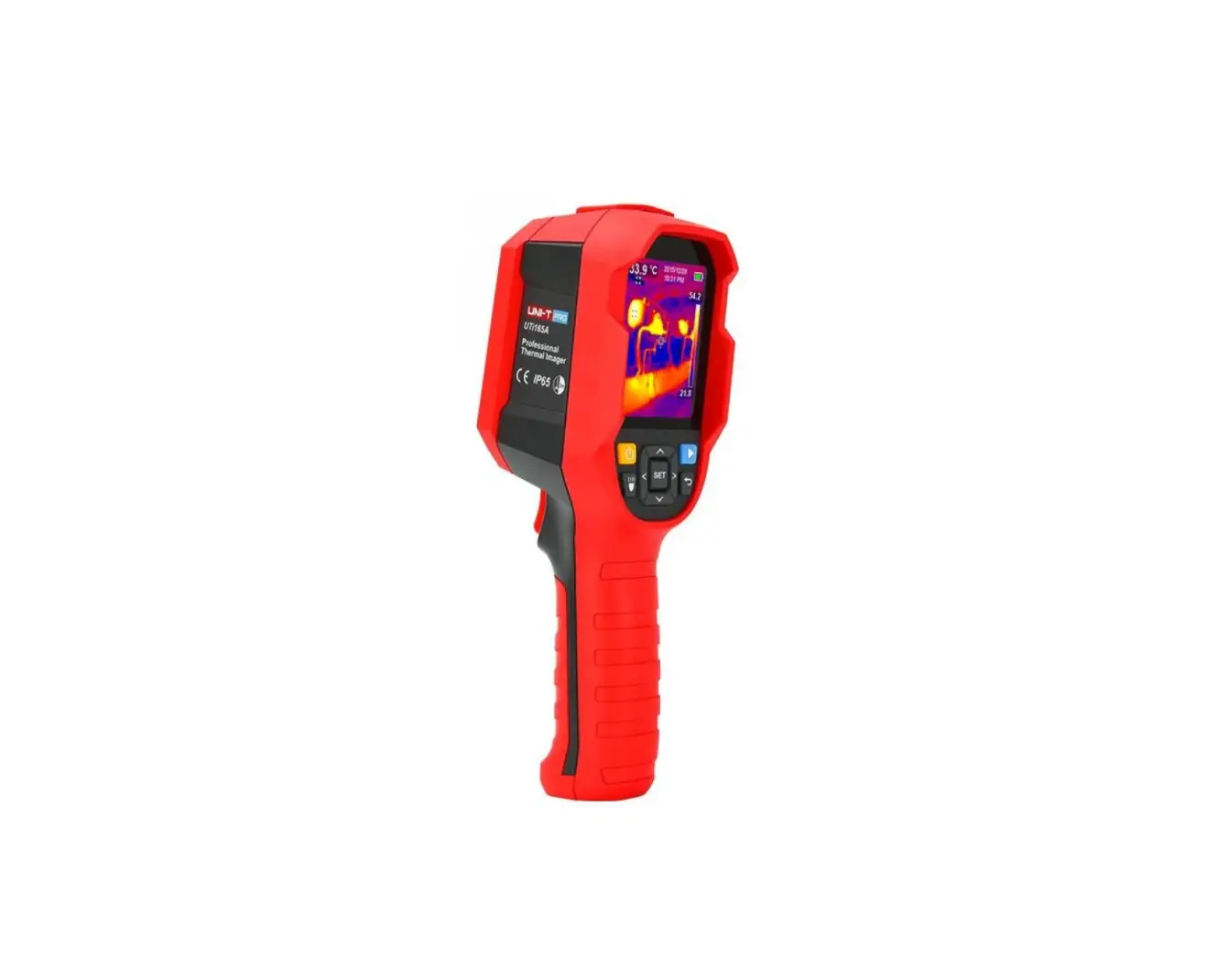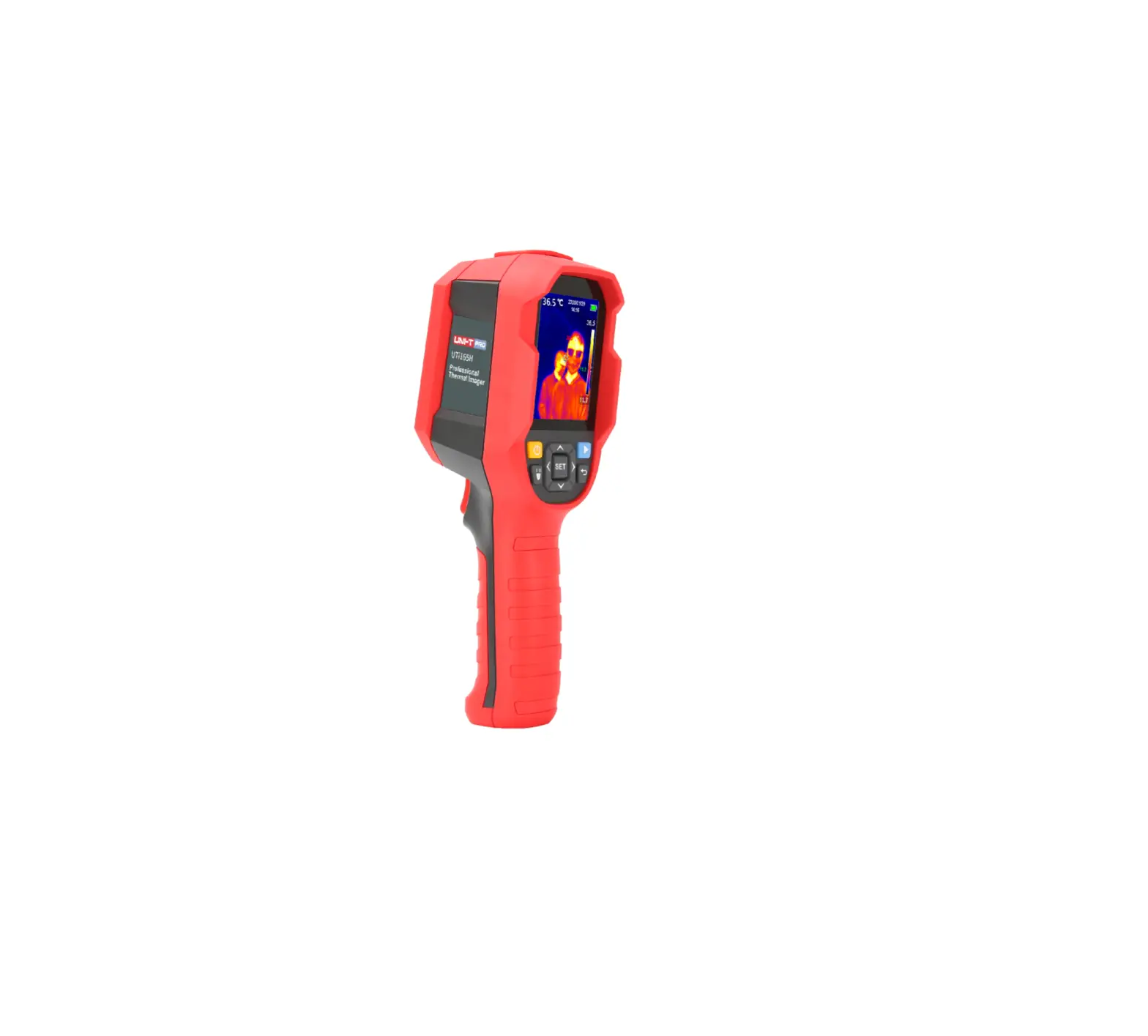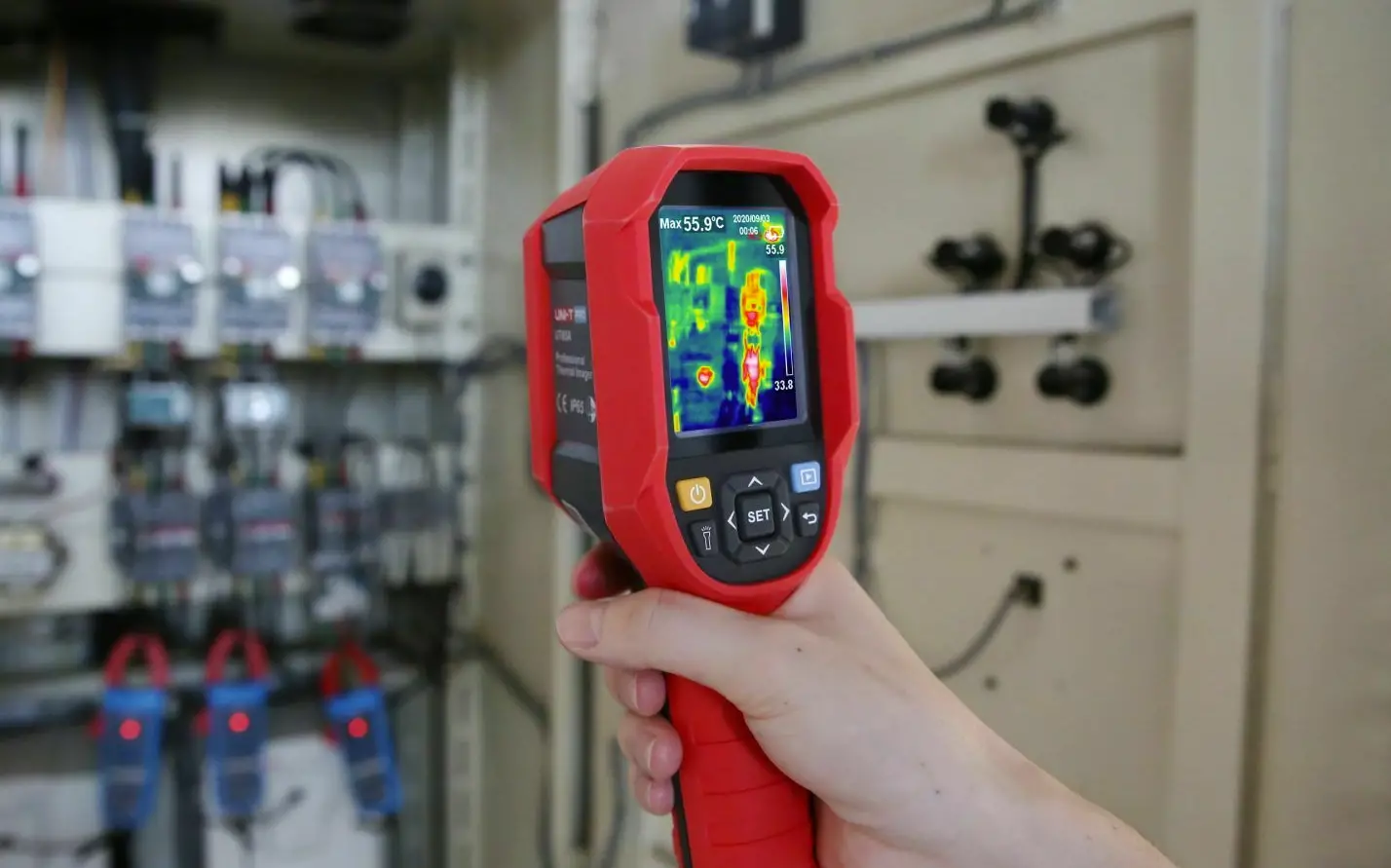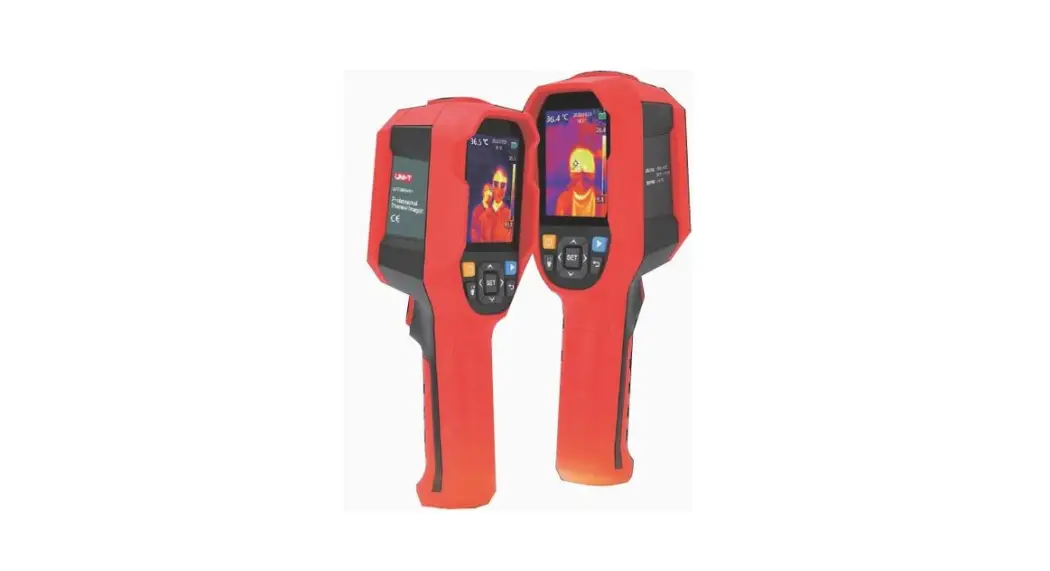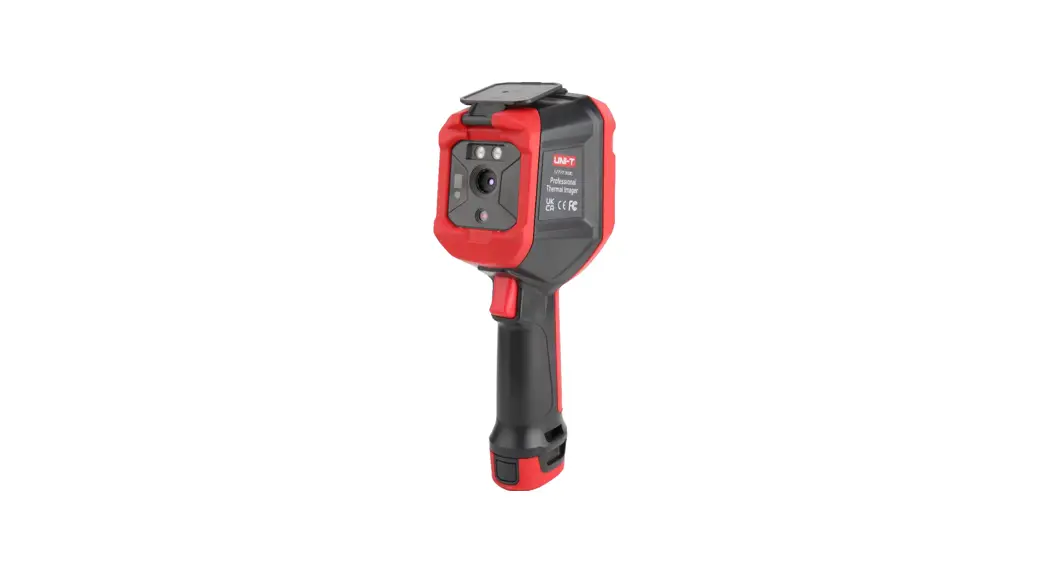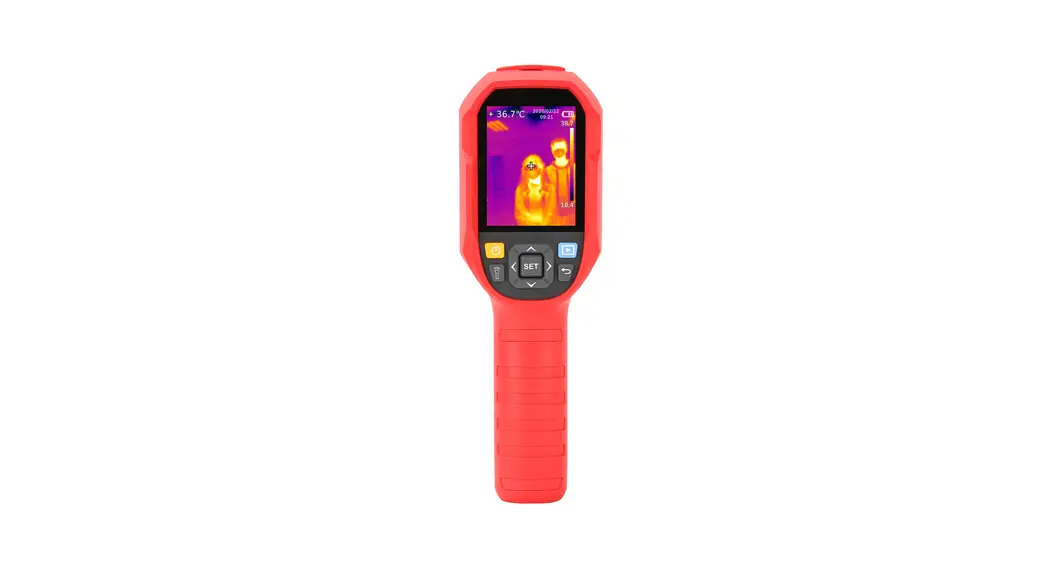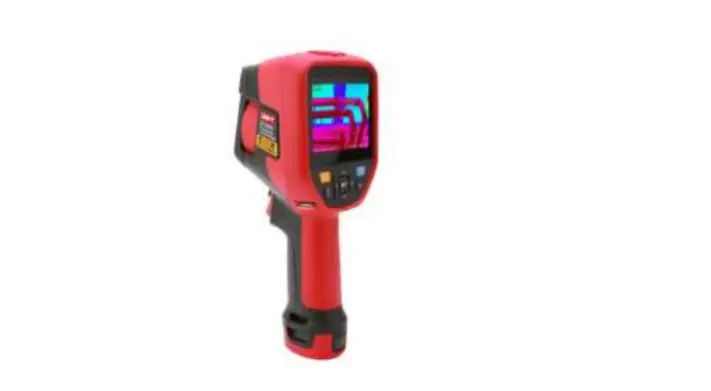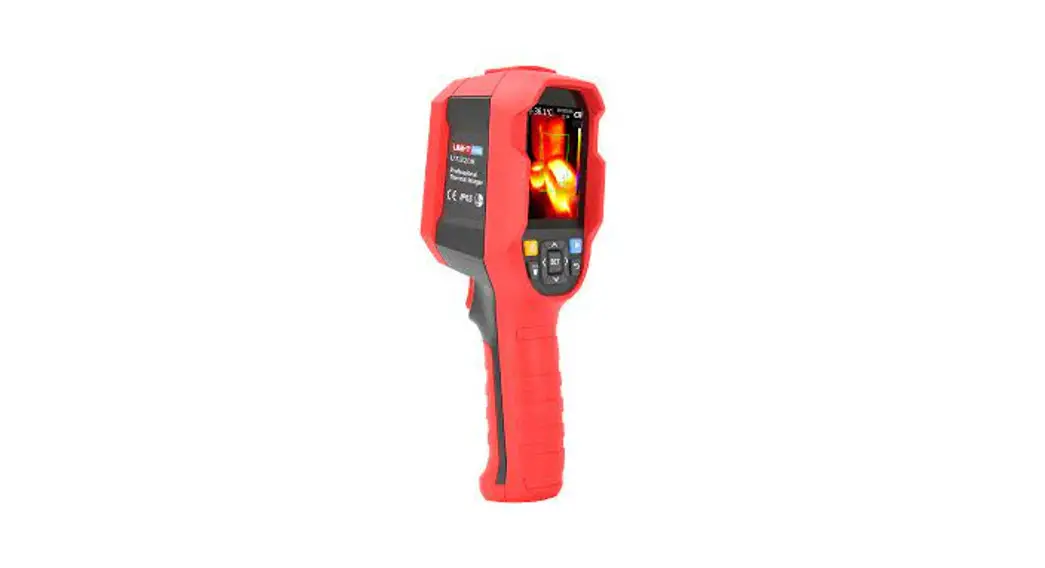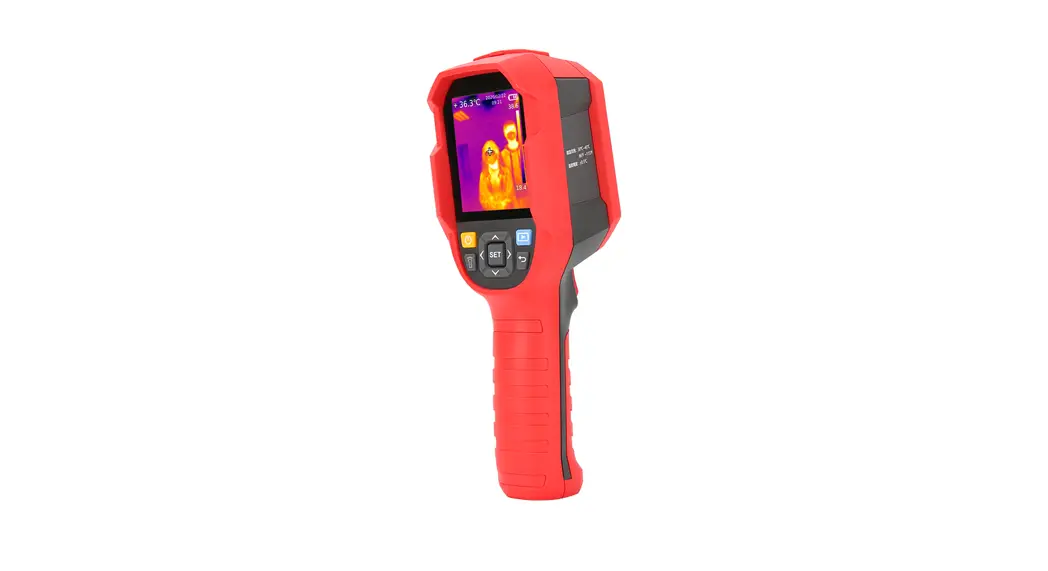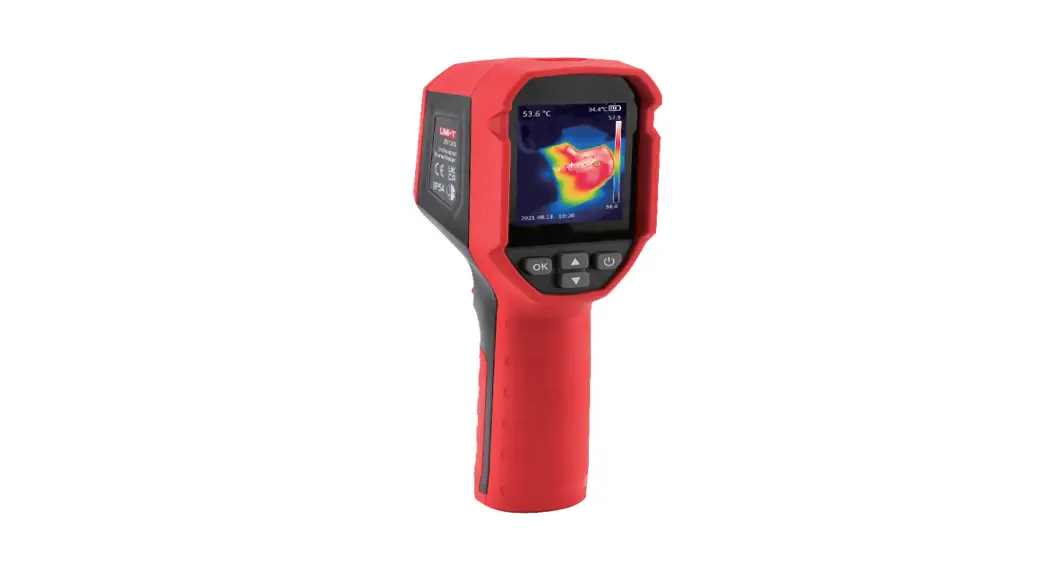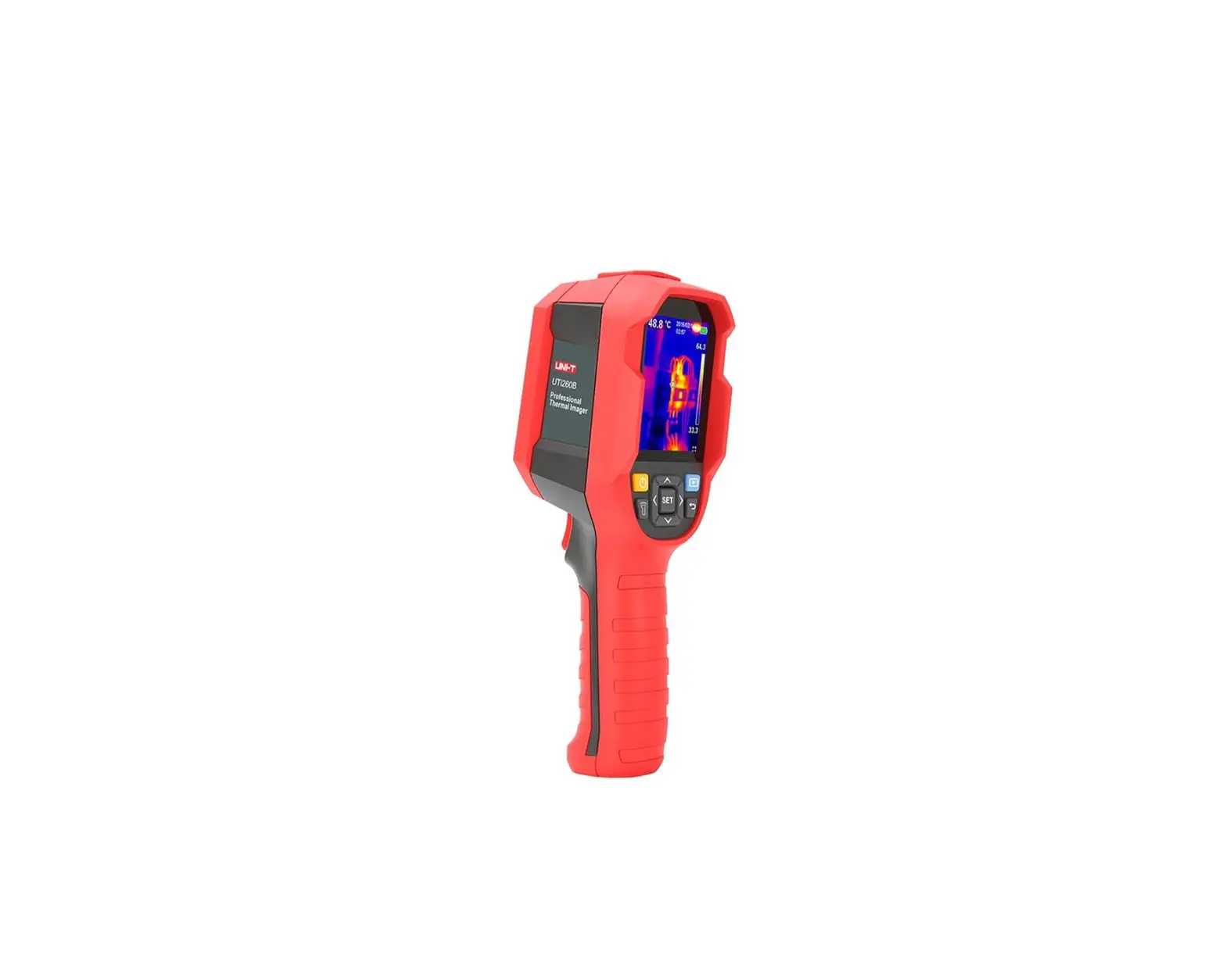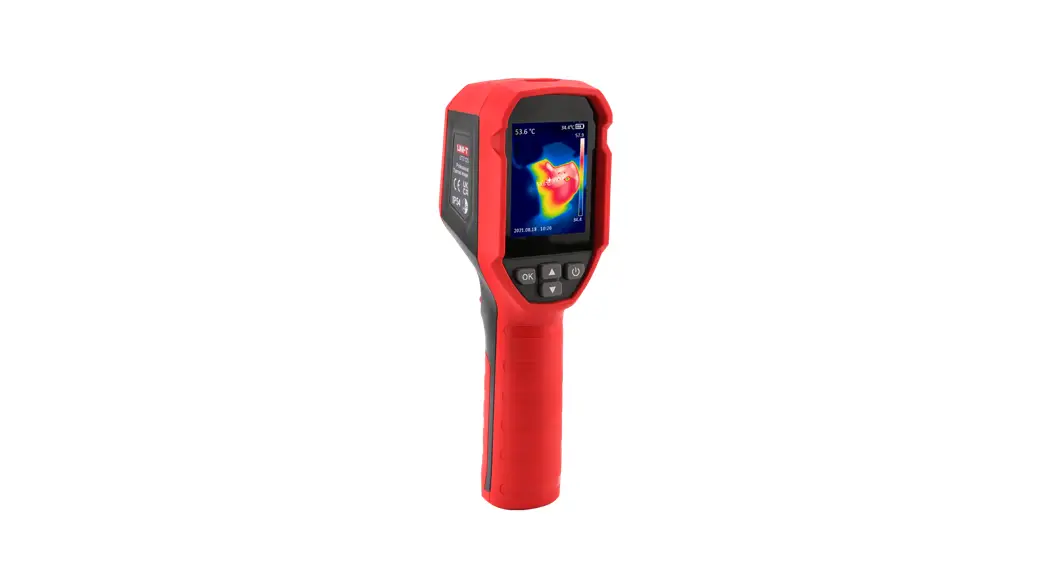

 UTi712S Professional Thermal lmager
User Manual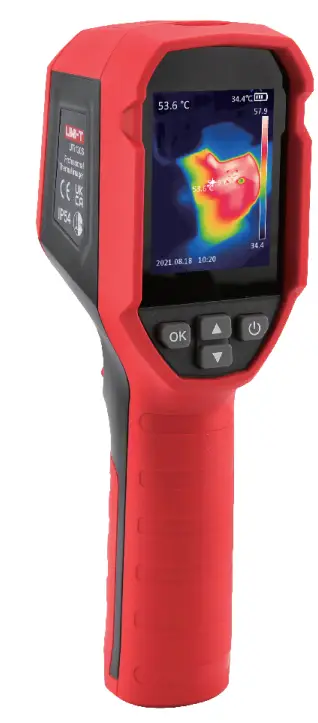
Preface
Thank you for purchasing the new U111205 thermal imager. In order to use this product safely and correctly. please read this manual thoroughly. especially the Safety Instructions part.
After reading this manual, it is recommended to keep the manual in an easily accessible place, preferably close to the device, for future reference.
Limited Warranty and Liability
Uni-Trend guarantees that the product is free from any defect in material and workmanship within one year from the purchase date. This warranty does not apply to damages caused by accident, negligence, misuse, modification, contamination, or improper handling. The dealer shall not be entitled to give any other warranty on behalf of UM-Trend. If you need warranty service within the warranty period, please contact your seller directly.
Uni-Trend will not be responsible for any special. indirect, incidental, or subsequent damage or loss caused by using this device.
Specifications
| Sensor | Uncooled infrared focal plane thermal imaging sensor |
| Pixel size | 17 µm |
| Infrared spectrum bandwidth | 8-14µm |
| Thermal imaging pixels | 10800 (120’90) |
| Thermal imaging sensitivity | <60mK |
| Field of view (FOV) | 50°(H) x 38°(V) |
| Spatial resolution (IFOV) | 7.6 mrad |
| Rate | ≤25Hz |
| Minimum imaging distance | 0.1m |
| Focus | Focus-free |
| Temperature range | -20°C – 400°C |
| Accuracy | ±2°C or ±2%, whichever is greater (-10°C -400°C room temperature 25°C) |
| Measurement units | °C/°F |
| Resolution | 0.1°C |
| Emissivity | 0.95 (default) 0.01 – 1.00 |
| Temperature display | Center point temperature, high/low-temperature tracking |
| Palettes | lava, rainbow HC, black hot, white hot, iron, Rainbow |
| Display type | 2.4″ TFT LCD |
| Display resolution | 320 x 240 |
| Buttons | 4 buttons (power, up, down, OK) 1 trigger |
| Laser | √(Class 2) |
| LED Light | √ |
| Temperature alarms | LCD, LED, buzzer |
| Image storage | Micro SD Card |
| Image format | BMP |
| PC analysis software | √ |
| USB communication | Type-C USB |
| Battery | Li-ion 3.7V/2600mAh 18650 |
| Operating time | Continuous operating time >9h |
| Charging time | s2.5h |
| Charging voltage/current | 5V 12A |
| Power on speed | Os (wake up) / 5s (power on) |
| Auto power off | 5min/10min/30min(default)/off |
| Operating temperature | 0 – 50°C ( 32 -140°F ) |
| Storage temperature | -20 – 60°C ( -4 – 140°F ) |
| Operating humidity | < 85%RH ( Operating humidity ) |
| IP rating | IP54 |
| Drop-proof | 2m |
| Product size (LxWxH) | 197 x 72 x 60 mm |
| Product weight | 310g |
| Certificates | CE, UKCA, RoHS |
| Accessories | User manual, Type-C USB cable, 32GB Micro SD card |
Structure
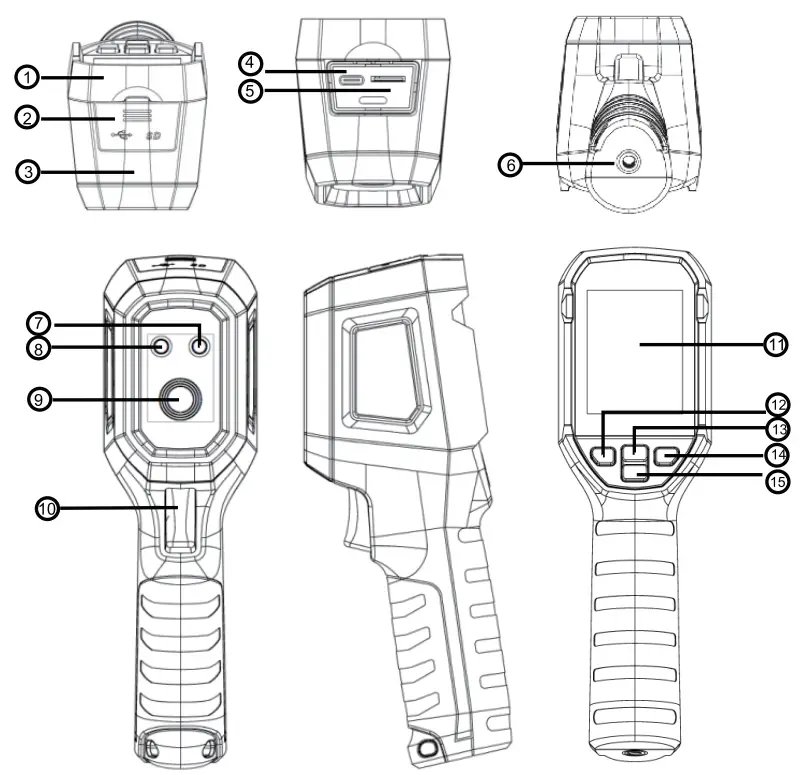
| Item | Description | Item | Description |
| 1 | Upper housing | 9 | Infrared camera lens |
| 2 | Interface protection cover | 10 | Image capture/trigger |
| 3 | Lower housing | 11 | LCD |
| 4 | USB Type-C interface | 12 | OK |
| 5 | SD card slot | 13 | Up |
| 6 | Bracket screw hole | 14 | Power / Back |
| 7 | Laser emission aperture | 15 | Down |
| 8 | LED light |
LCD Indicators/Icons
Display size: 2.4″ (495mm 377mm) Display resolution: 320 (vertical) x 240 (horizontal)
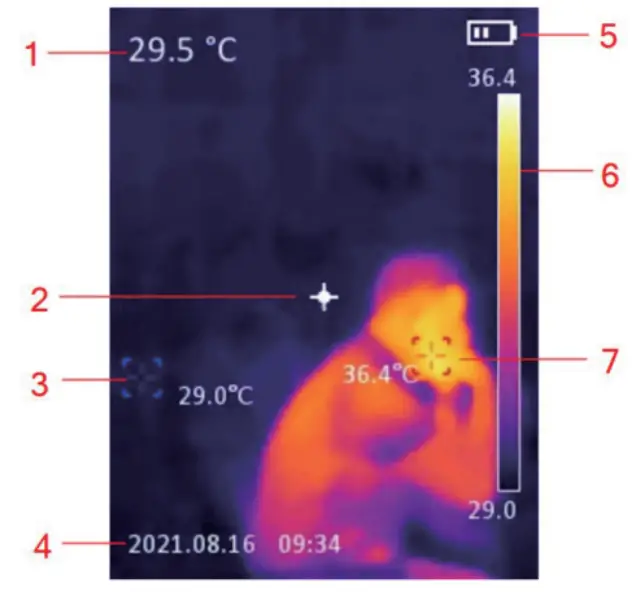
| Item | Description |
| 1 | Center point temperature |
| 2 | Center point |
| 3 | Lowest temperature spot |
| 4 | Date and time |
| 5 | Battery status |
| 6 | Temperature Bar |
| 7 | Highest temperature spot |
Power On/Off
When the thermal imager is not turned on, long press the power button for as to power on. When the thermal imager is in the suspend state, short press the power button for 1s to power on.
When the thermal imager is turned on, short press the power button for 1s to enter the suspend state. Long press the power button for 8s, “power off’ will show on the screen, and the thermal imager will be turned off.
Short press the OK button to enter the menu interface. Short press the Back button to return to the upper menu. Short press the trigger to directly return to the main interface of the thermal imager.
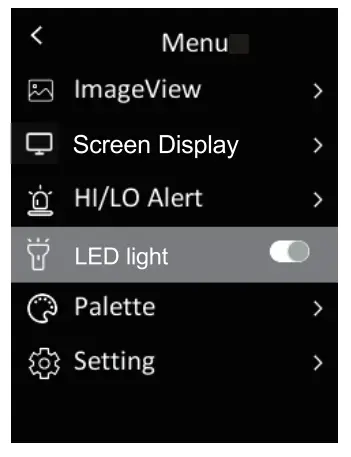
Image View
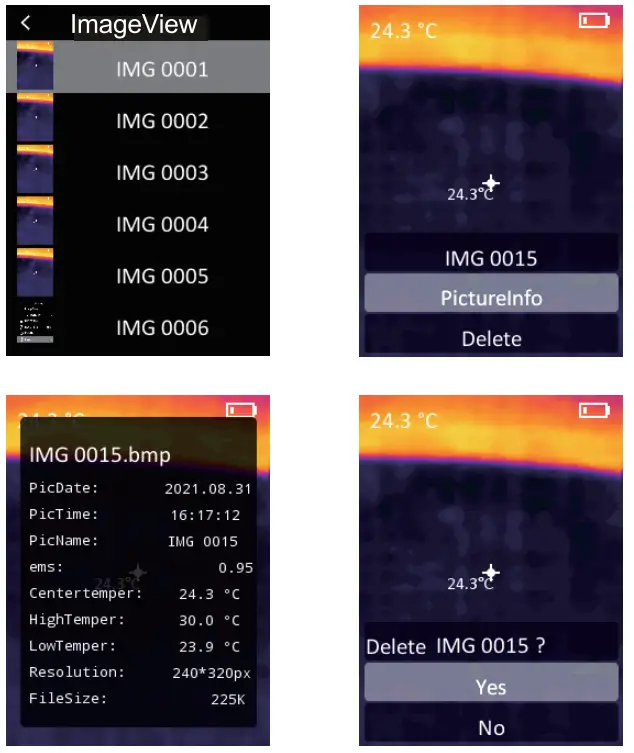
In the menu, select Image View, and then short press the OK button to enter the image viewing interface Press the Up/Down button to select an image. Press the OK button twice to view the Picture Info or Delete images.
Temperature Mark
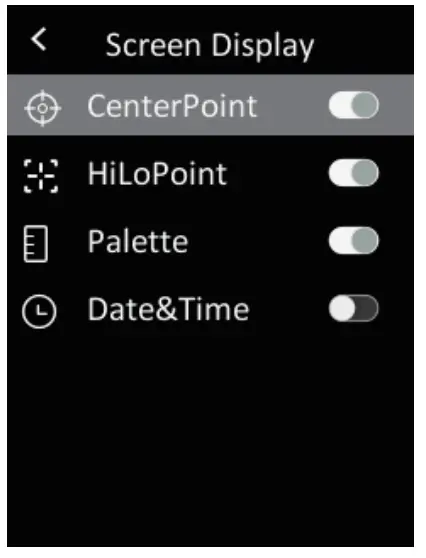
In the menu, short press the Up/Down button to select Temper Mark, and then short press the OK button to enter the temperature mark interface. Center Point/ Hi/Lo Point/Palette/Date&Time can be set in this interface. For example, select Center Point, and then press the OK button to turn on/off this function.
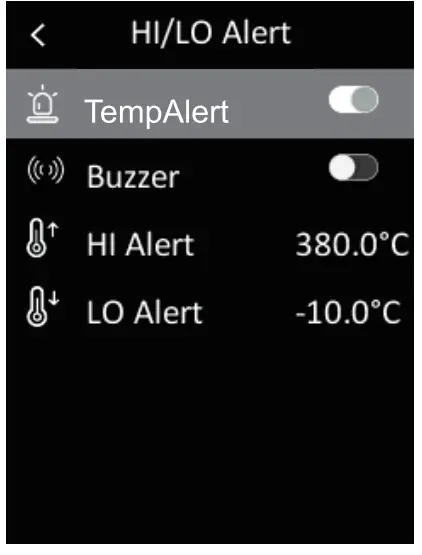
 HMO Alert
In the menu, short press the Up/Down button to select HULO Alert, and then short press the OK button to enter the alert setting interface. Temper Alert, Buzzer, HI Alert, and LO Alert can be set in this interface.
LED light
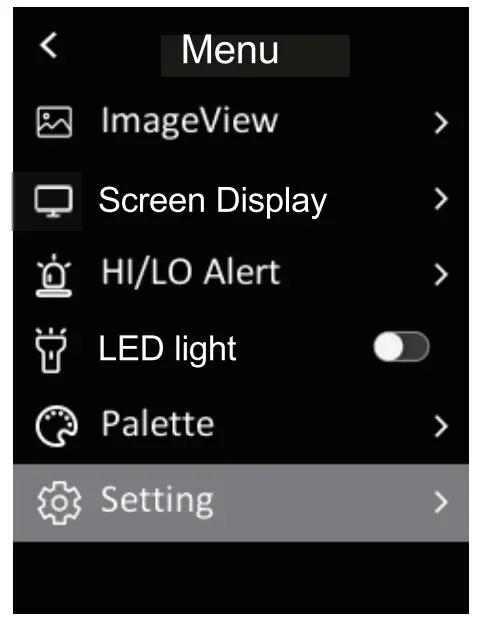
In the menu, short press the Up/Down button to select Hand Light, and then short press the OK button to turn on/off the flashlight.
Palette
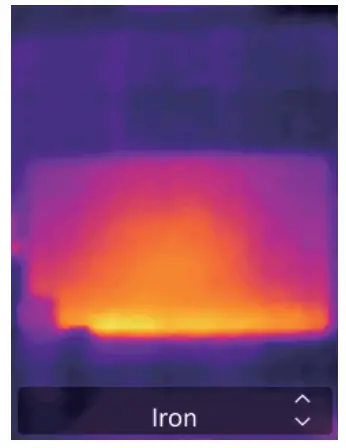
In the menu, short press the Up/Down button to select Palette, and then short press the OK button to enter the palette selection interface. Short press the Up/Down button to step through six palettes: Rainbow, Iron, White Hot, Black Hot, Rainbow HC, Lava, and short press the OK button to confirm the selected palette.
Language
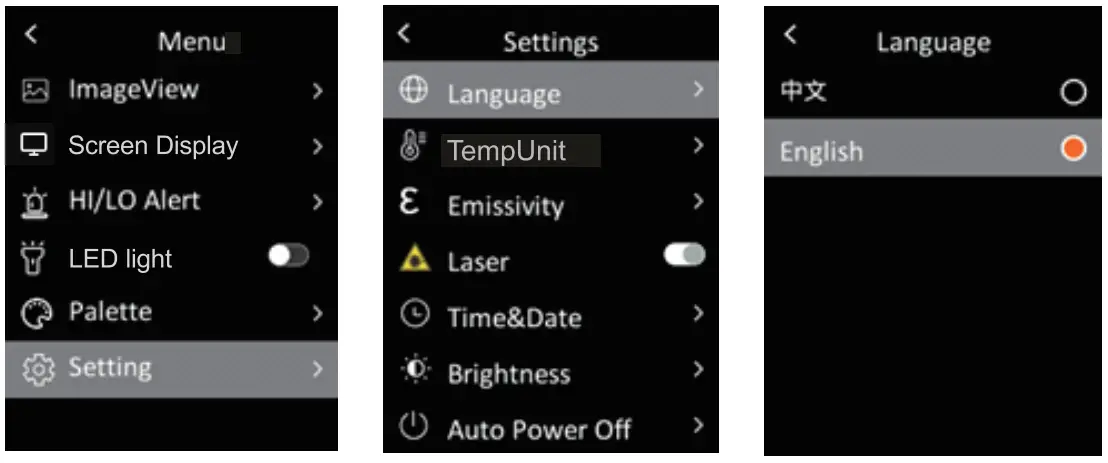
In the menu, short press the Up/Down button to select Setting, and then short press the OK button to enter the submenu. Select Language, and short press the OK button to switch between English/Chinese
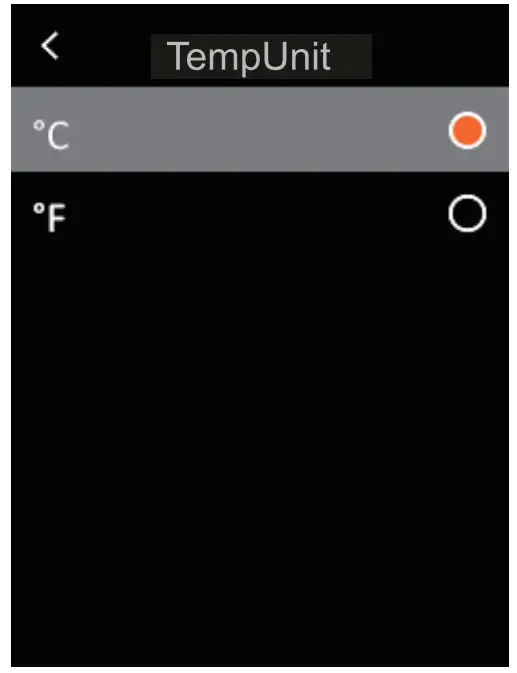
Temperature Unit
In the menu, short press the Up/Down button to select Setting, and then short press the OK button to enter the submenu. In the submenu, short press the Up/Down button to select Temper Unit, and short press the OK button to switch between`C/T.
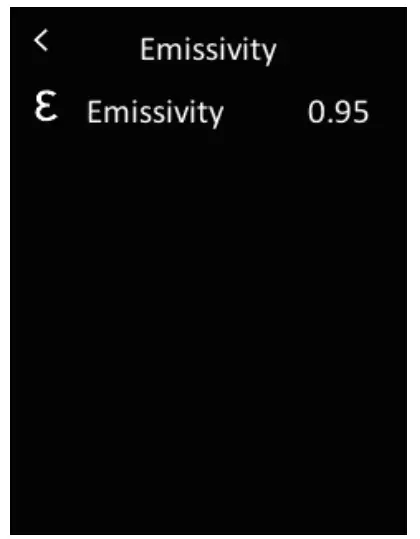
 Emissivity
In the menu, short press the Up/Down button to select Setting, and then short press the OK button to enter the submenu. In the submenu, short press the Up/ Down button to select Emissivity, and short press the OK button to set the emissivity.
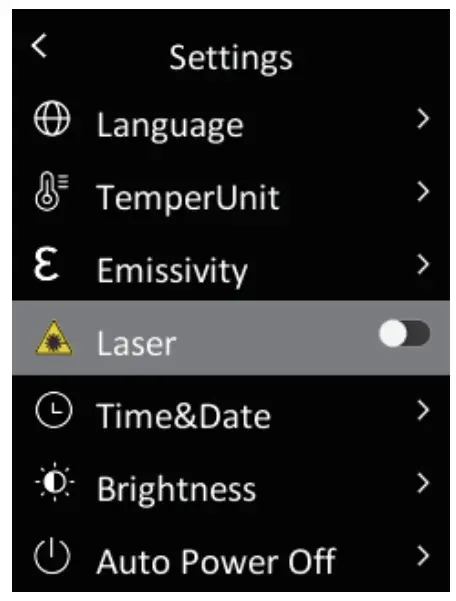
Laser
In the menu, short press the Up/Down button to select Setting, and then short press the OK button to enter the submenu. In the submenu, short press the Up/ Down button to select Laser, and short press the OK button to turn on/off the laser.
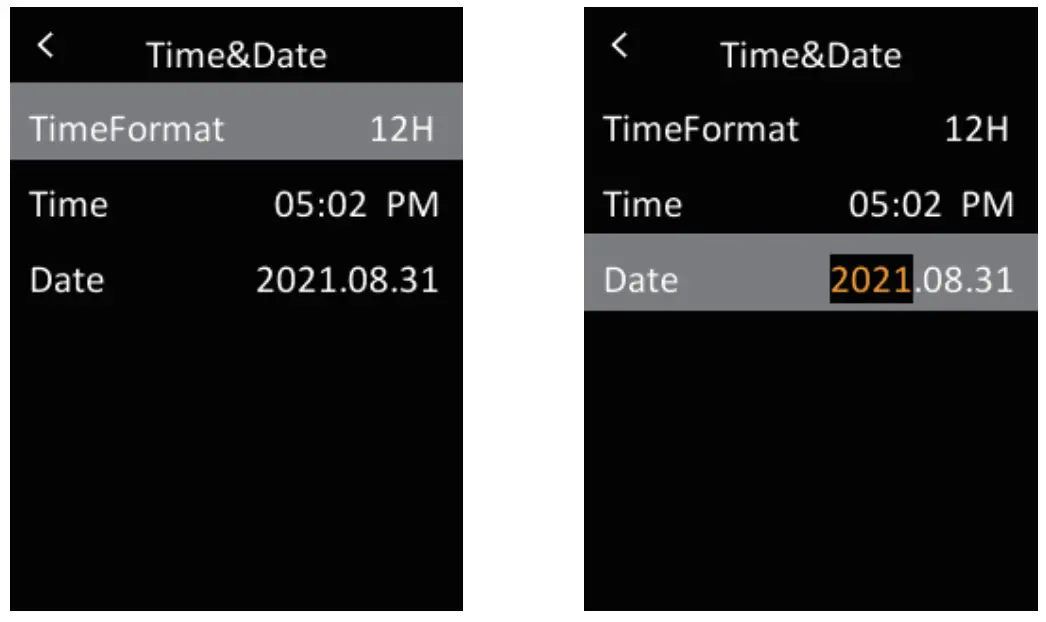
Time & Date
In the menu, short press the Up/Down button to soled Setting, and then short press the OK button to enter the submenu. In the submenu, short press the Up/ Down button o select Time&Date, and short press the OK button to enter the setting interface. The Time Format can switch between 12H and 24H. Press the Up/Down button to adjust the value of time and date, and short press the OK button to confirm.
Brightness
In the menu, short press the Up/Down button to select Betting, and then short press the OK button to enter the submenu. In the submenu, short press the Up/ Down button to Speed Brightness, and short press the OK button to enter the setting interface. The brightness can be Low, Middle, or High.
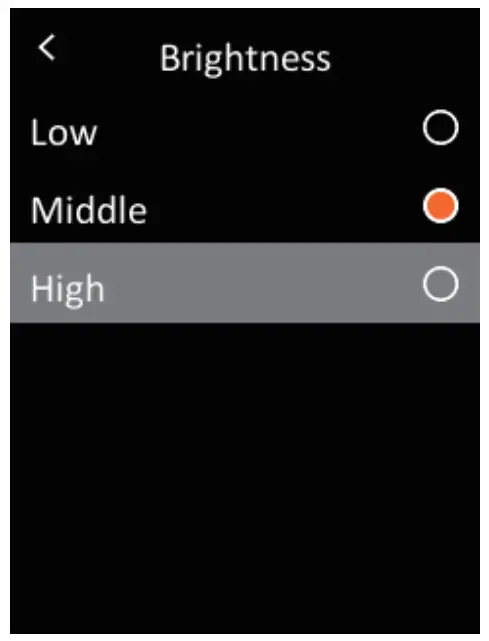
Auto Power Off
In the menu, short press the Up/Down button to soled Setting~ and then short press the OK button to enter the submenu. In the submenu~ short press the Up/ Down button to select Auto Power Off, and short press the OK button to enter the setting interface. In my interface, users can set the auto power off time (5/ 10/3Omin) or tum off the auto power-off function.
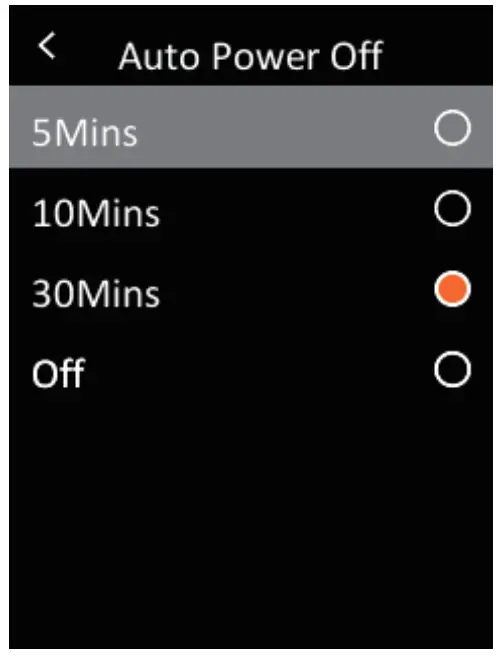
Auto Save
In the menu, short press the Up/Down button to soled Setting, and then short press the OK button to enter the submenu. In the submenu, short press the Up/ Down button to select Auto Save. Short press the OK button to tum on/off the auto-save function.
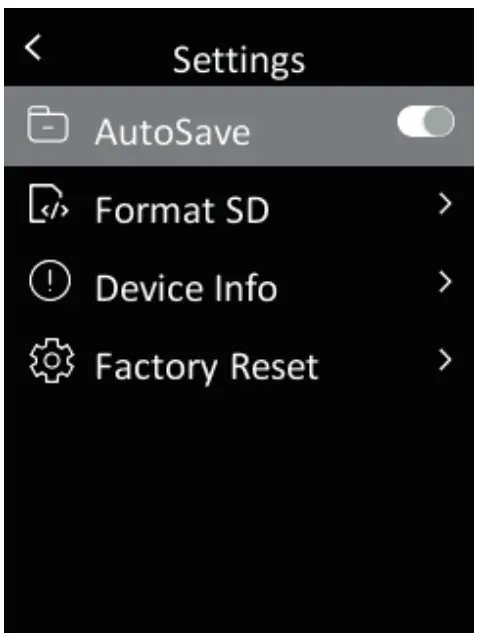
Format SD
In the menu~ short press me Up/Down button to select Sanding, and then short press the OK button to enter the submenu. In the submenu, short press the Up/ Down bunch to select Format SD and short press the OK bunch to enter the saning interface Press ma OK bunch salad Yes or No.
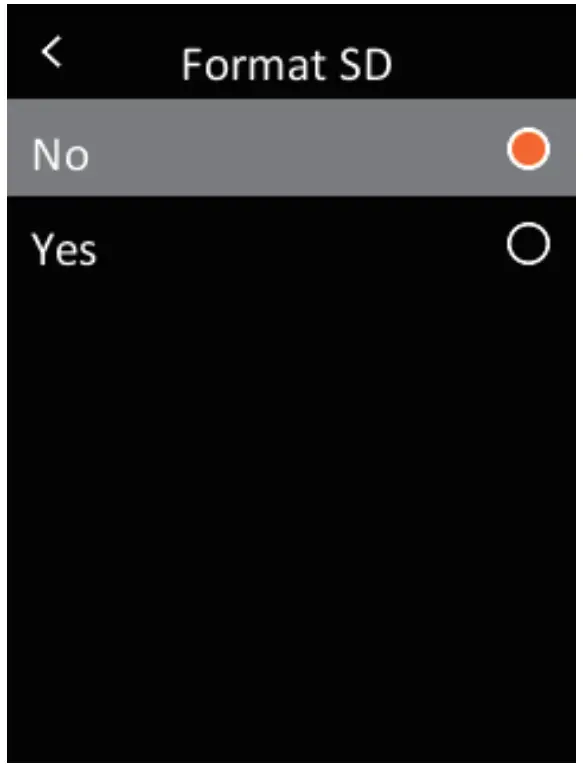
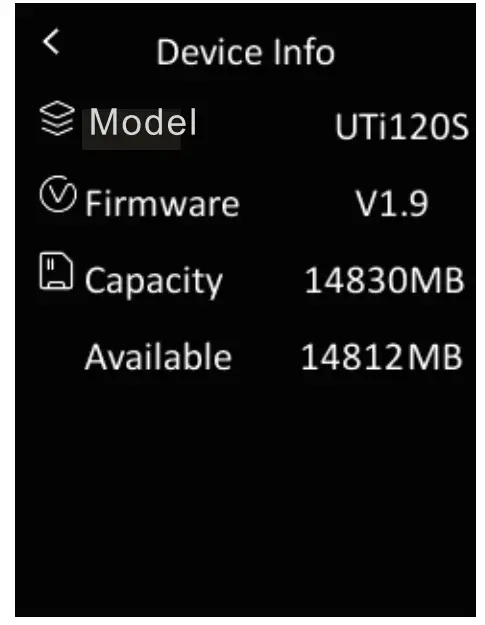
Device Info
In my menu, short press the Up/Down bunch to select Sanding, and then short press the OK button to enter the submenu. In the submenu, short press the Up/ Down bunch to select Device Info and short press the OK button to enter the info mum viewing interface. The device information including Code, Firmware, Capacity, and Available can be viewed.
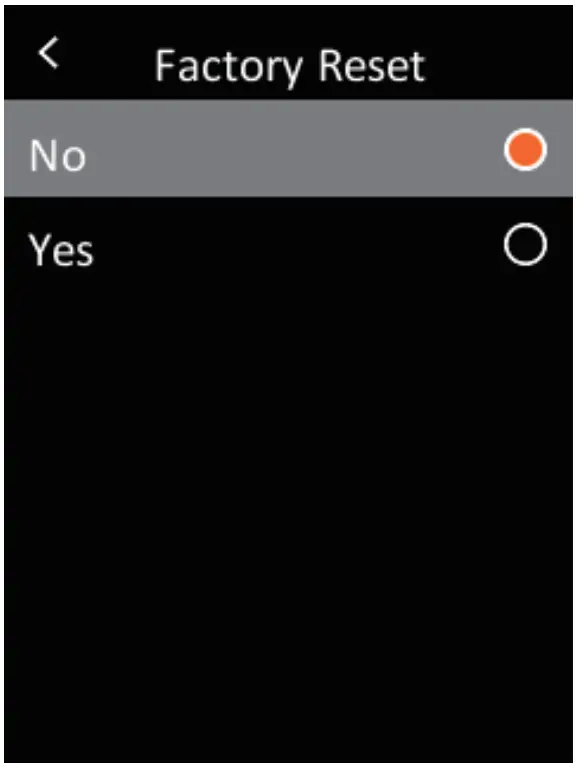
Factory Reset
In the menu, short press the Up/Down bunch to select Sanding, and then short press the OK bunch to enter the submenu. In the submenu, short press the Up/ Down bunch to select Factory Reset and short press the OK bunch to enter the setting interface. Press the OK and bunch select Yes or No.
USB Communication and PC Analysis Software
- Please refer to the instructions to download and install the PC software.
- Connect the USS data cable to the computer. Users can view images and analyze data via the PC software.
- To use the PC software correctly, please read the Software User Manual.
- During USS communication, do not directly unplug the USS cable. If users want to disconnect the device when it has been successfully connected to the computer, they can select Remove Device in the lower right corner of the
Maintenance
Use a wet cloth or weak soap solution to dean the outer shell of my device. Do not use abrasive isopyl or solvents to clean the shell. lens or window.
Safety Instructions
In order to ensure measurement accuracy, please read the instructions carefully. Please use this product in accordance with the user manual. It, otherwise the free warranty will not be carried out if the product is damaged. Please do not use this product in flammable, explosive, steamy, humid, or corrosive environments. Please do not continue to use the product when it is damaged, dropped, or corrected, so as to avoid erroneous measurement results. Please refer to the emissivity to get the actual temperature. Otherwise, the measured temperature will be inaccurate. Charging will cause the internal temperature of the machine to rise, thereby affecting the measurement accuracy. Therefore, it is recommended not to take measurements when charging the product.
Appendix
Material | Emissivity | Material | Emissivity |
| Wood | 0.85 | Black paper | 0.86 |
| Water | 0.96 | Polycarbonate | 0.8 |
| Brick | 0.75 | Concrete | 0.97 |
| Stainless steel | 0.14 | Copper oxide | 0.78 |
| Adhesive tape | 0.96 | Cast iron | 0.81 |
| Aluminum plate | 0.09 | Rust | 0.8 |
| Copperplate | 0.06 | Gypsum | 0.75 |
| Black aluminum | 0.95 | Paint | 0.9 |
| Human skin | 0.98 | Rubber | 0.95 |
| Asphalt | 0.96 | Soil | 0.93 |
| PVC plastic | 0.93 |
ONE TREND TECHNOLOGY (CHINA) CO., LTD.
Songshan Lake National High-Tech Industrial LG
Development Zone, Dongguan City,
Guangdong Province, China