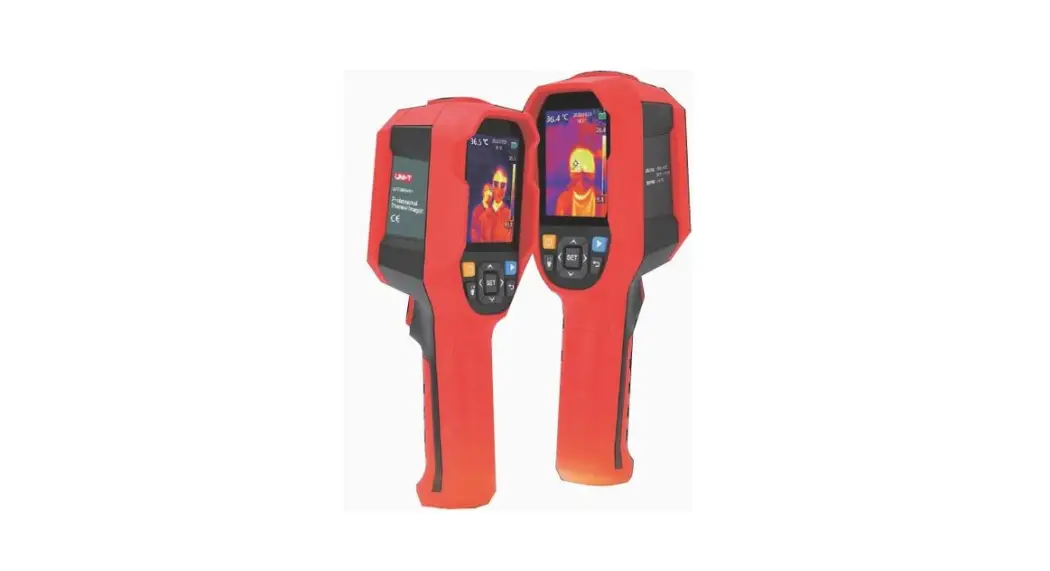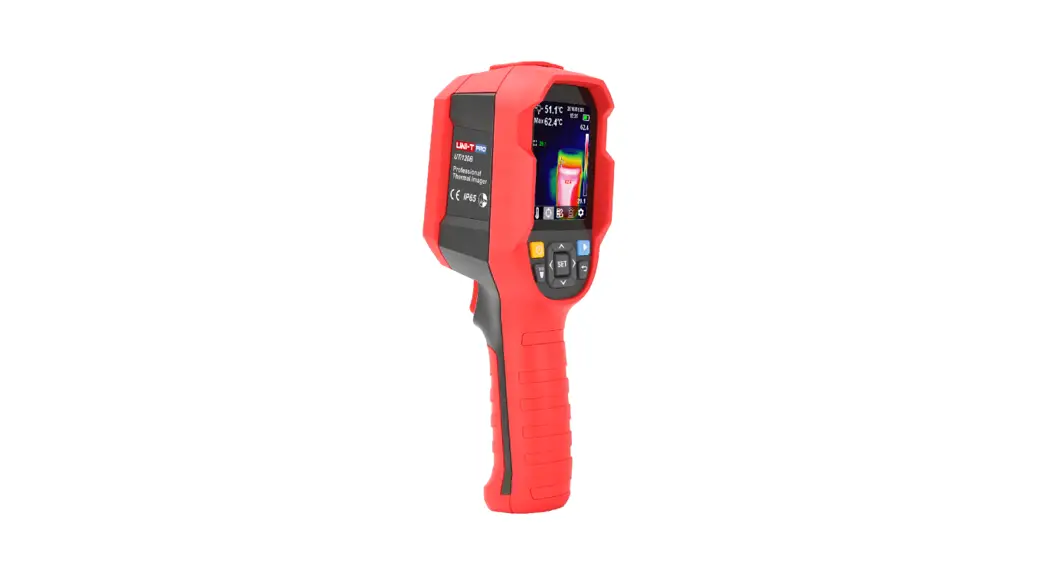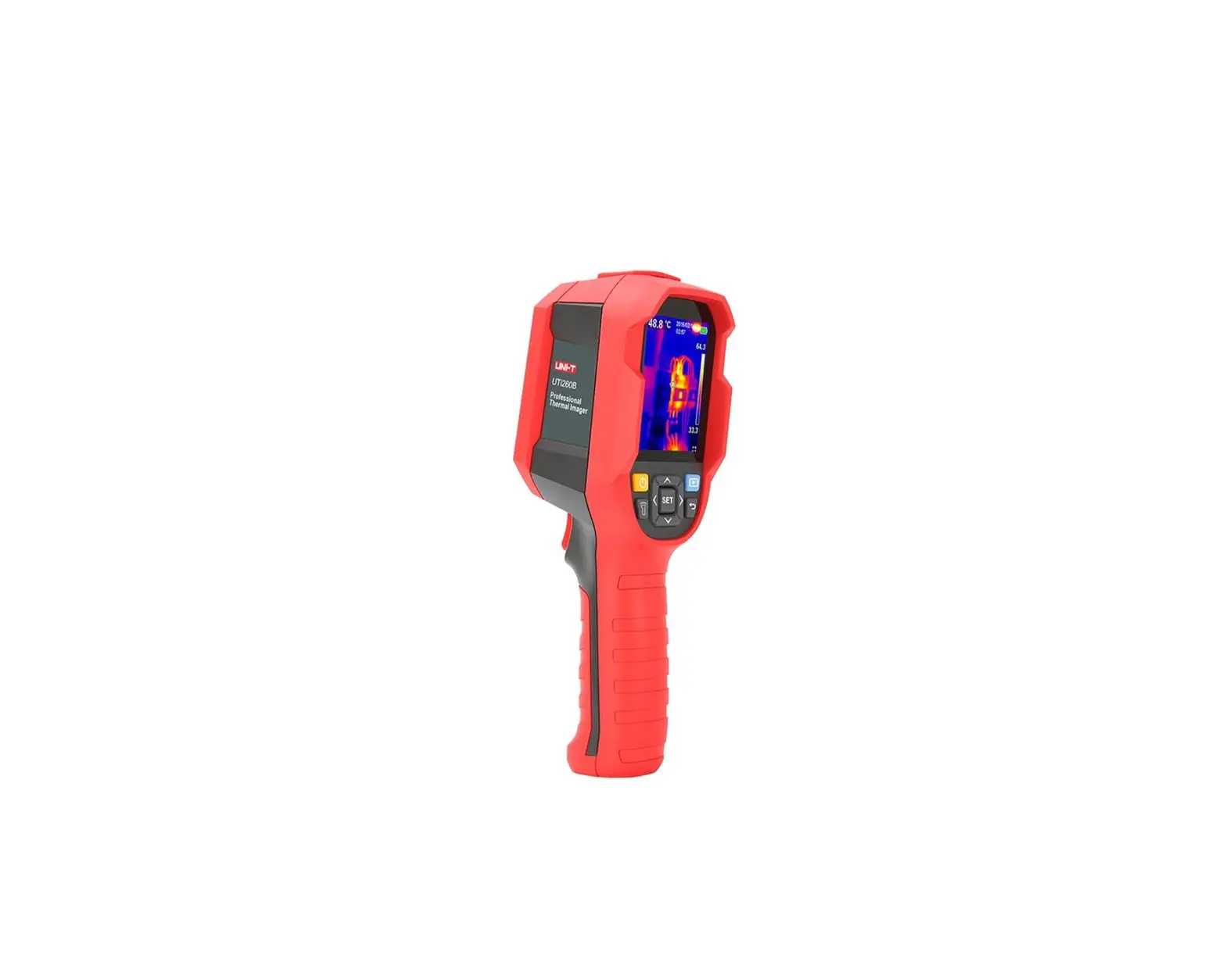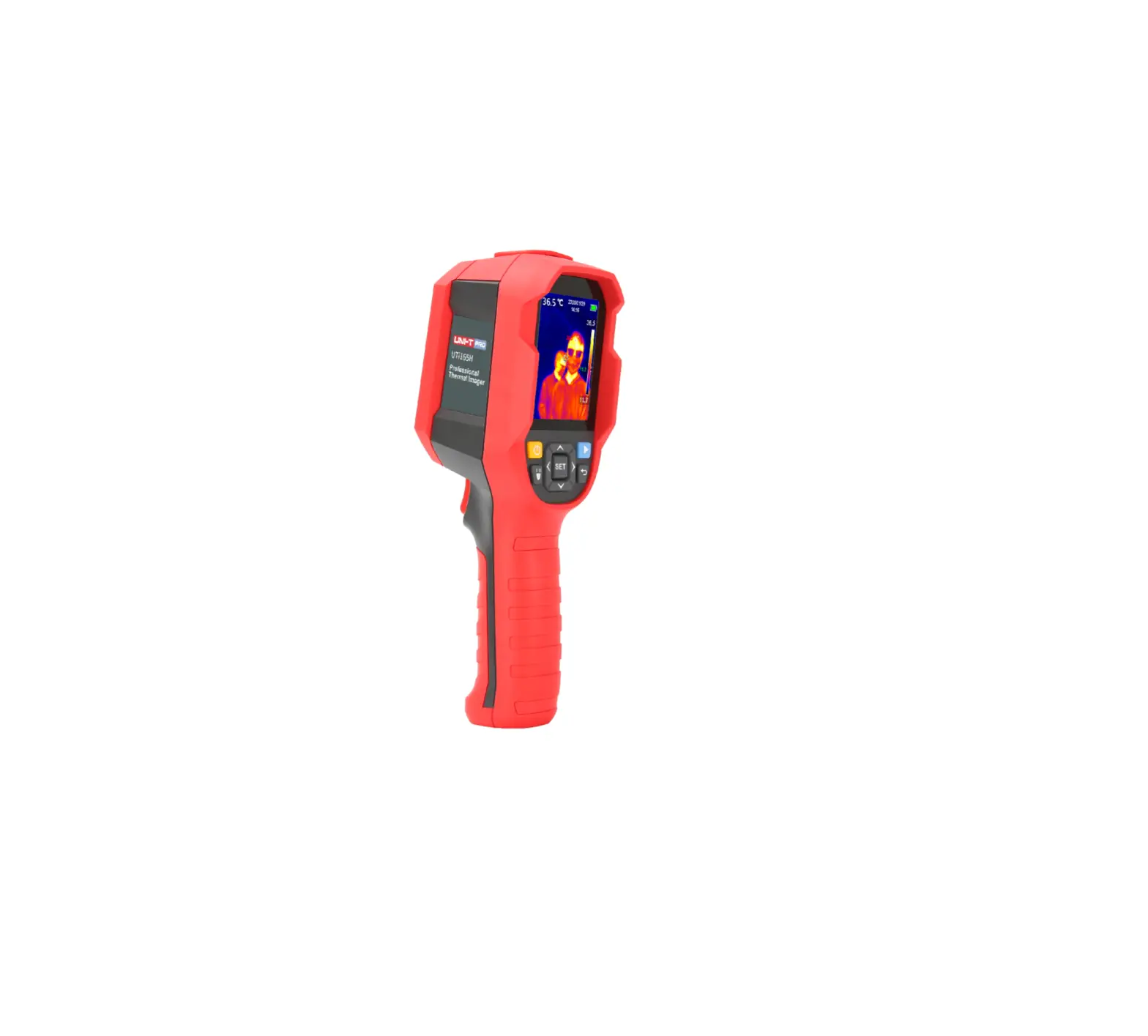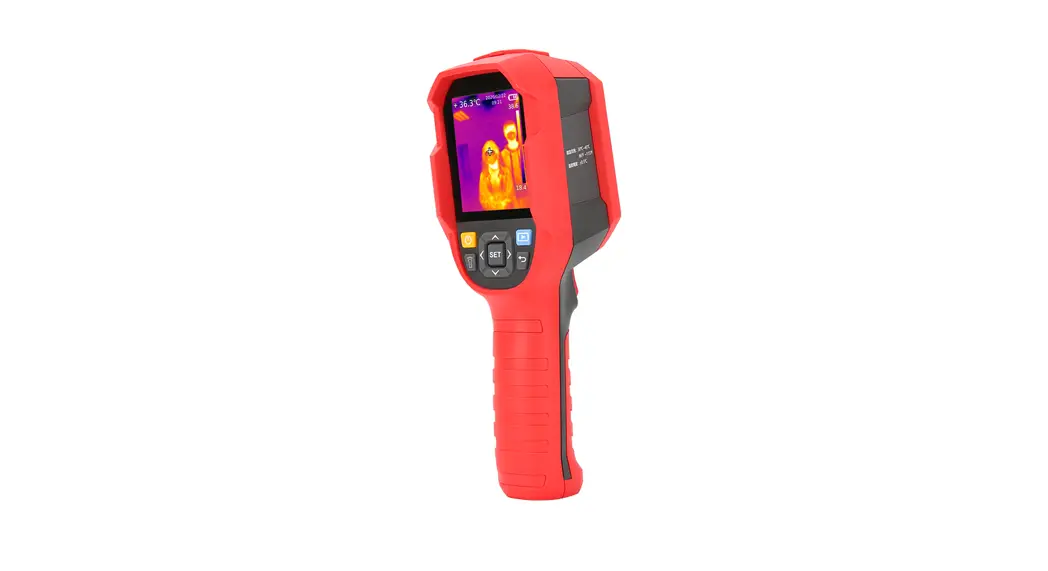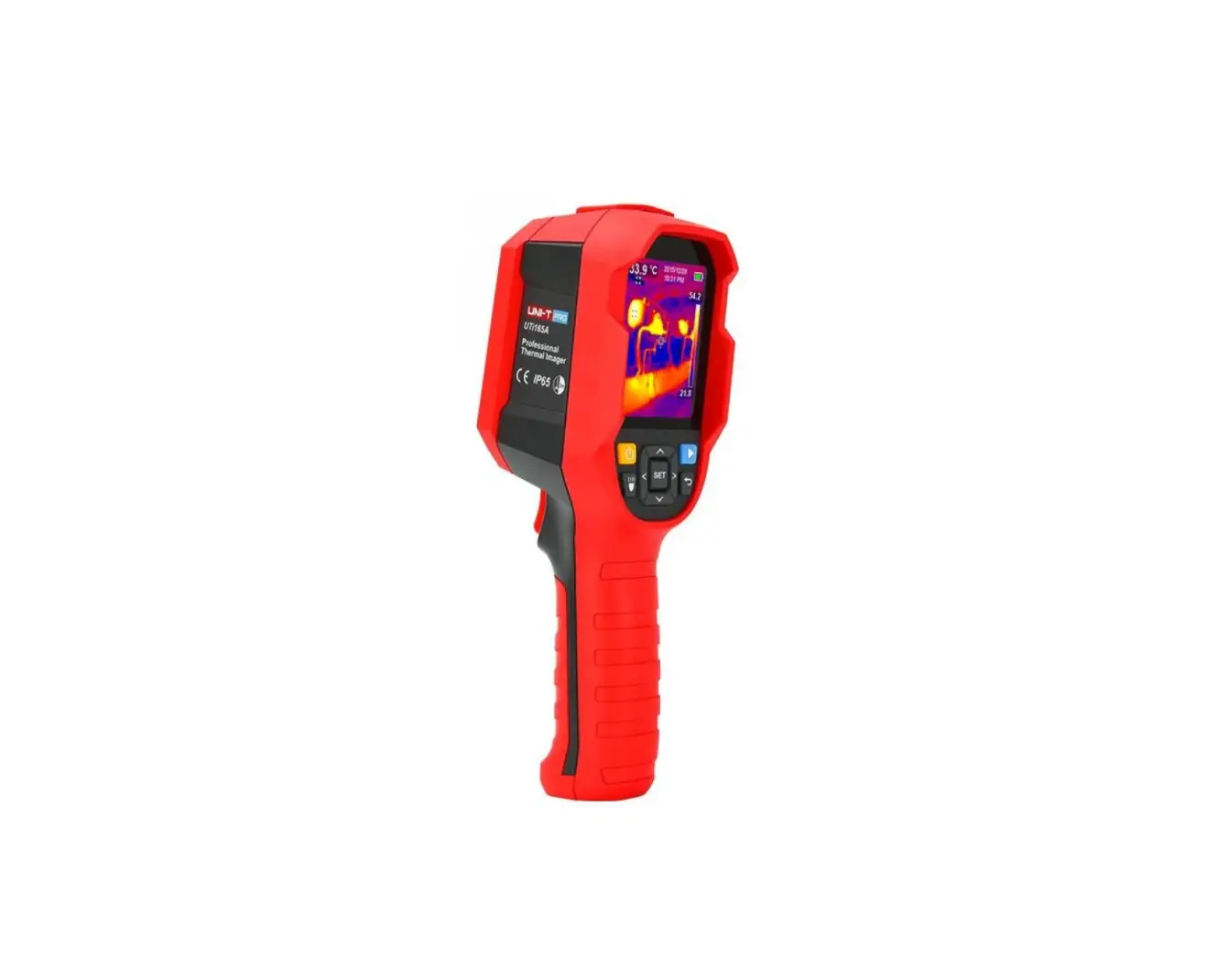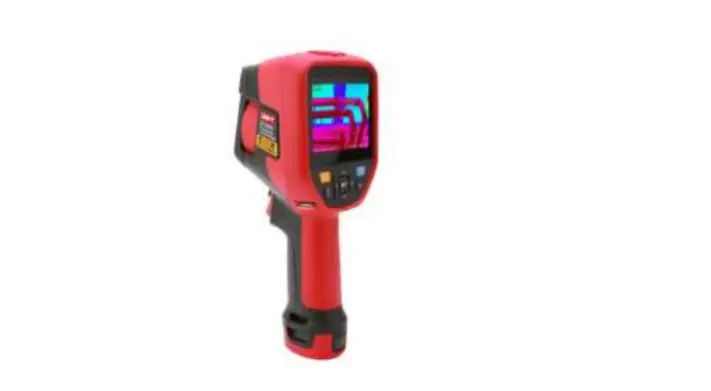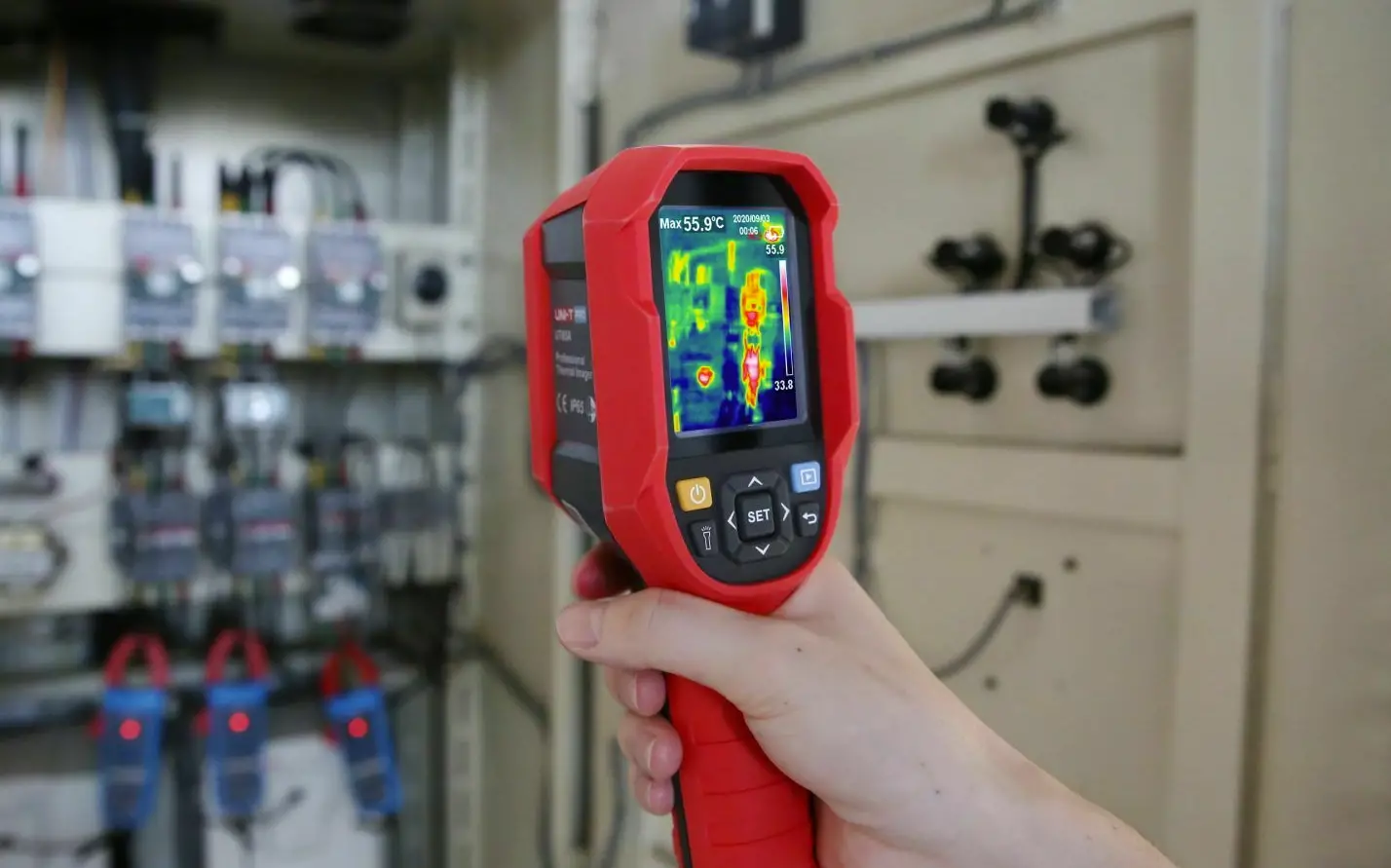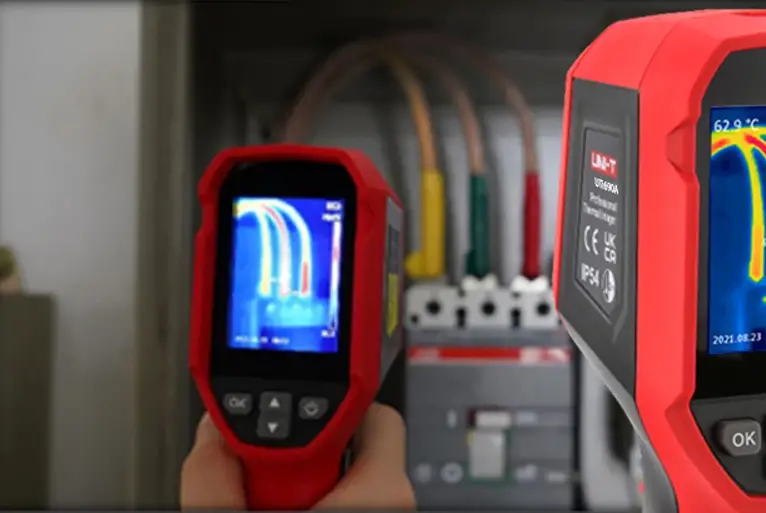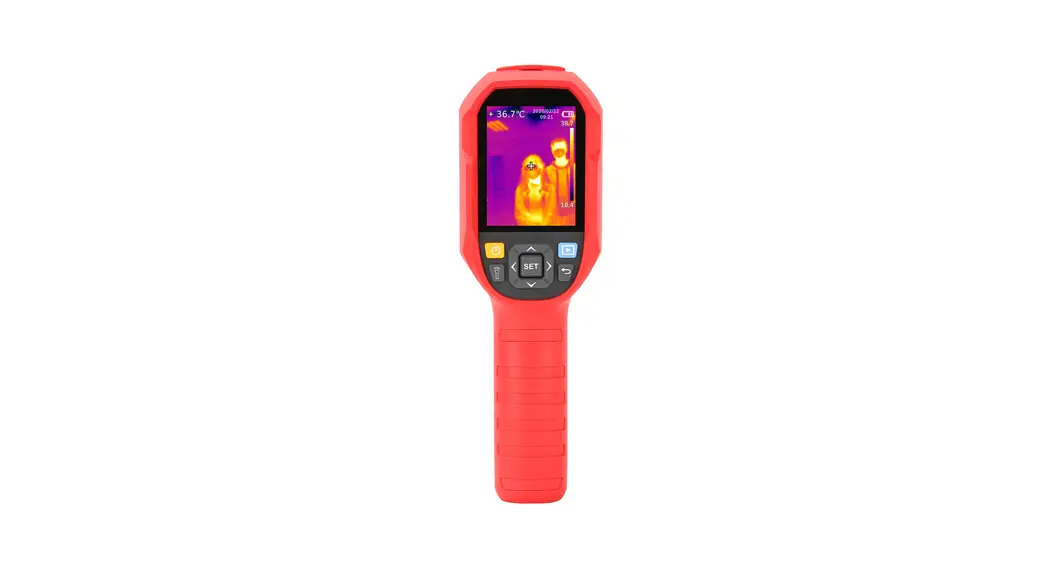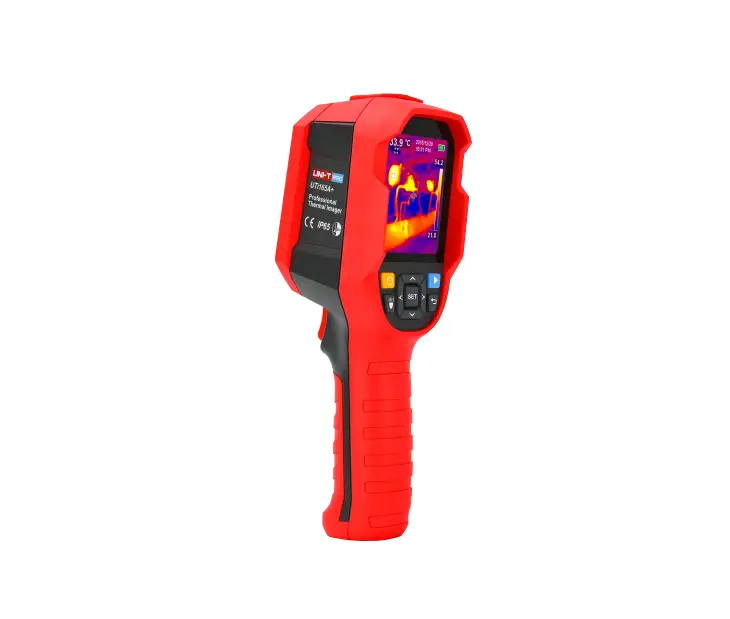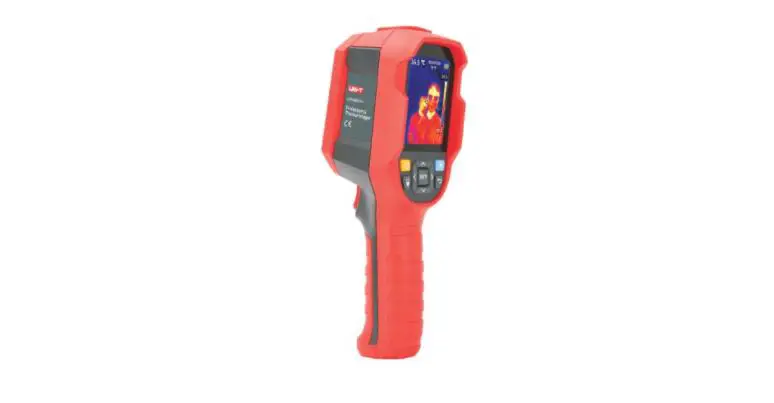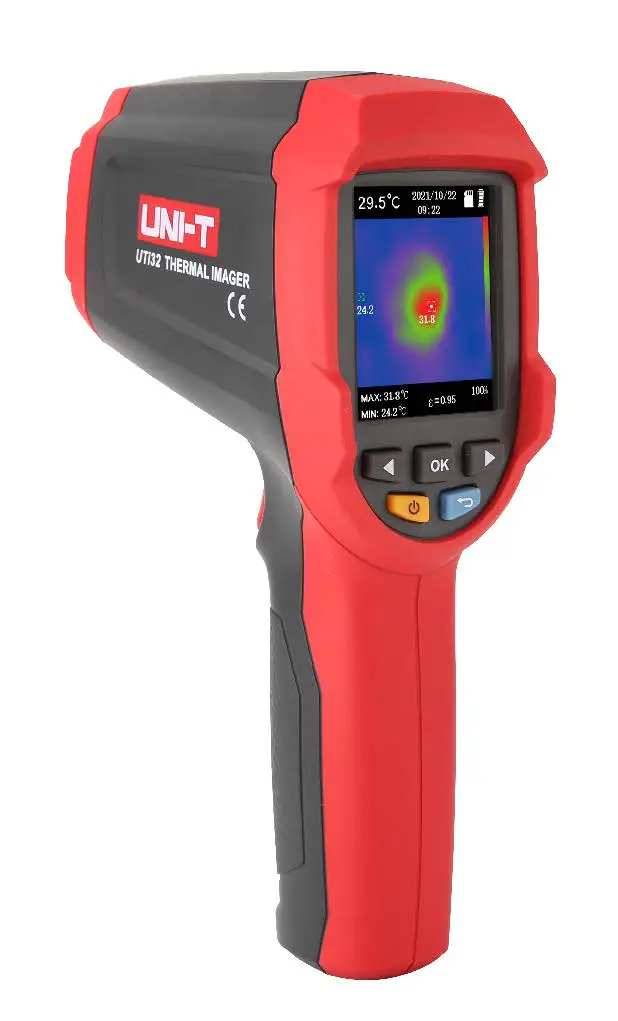

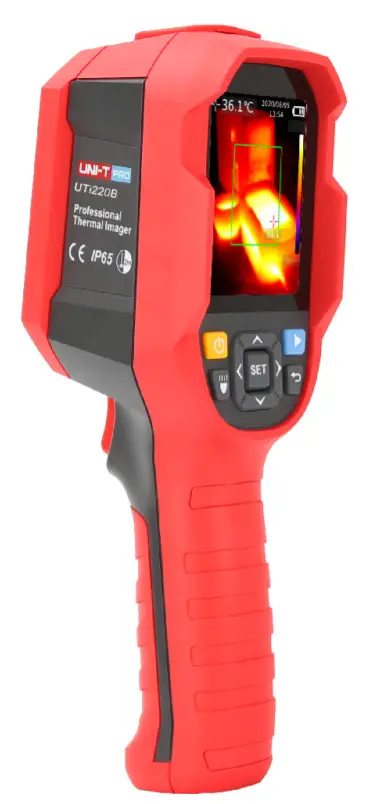
UTi220B
Professional Thermal Imager
Preface
Thank you for purchasing the new UTi220B thermal imager. In order to use this product safely and correctly, please read this manual thoroughly, especially the Safety Instructions part.
After reading this manual, it is recommended to keep the manual at an easily accessible place, preferably close to the device, for future reference.
Limited Warranty and Liability
Uni-Trend guarantees that the product is free from any defect in material and workmanship within one year from the purchase date. This warranty does not apply to damage caused by accident, negligence, misuse, modification, contamination or improper handling. The dealer shall not be entitled to give any other warranty on behalf of Uni-Trend. If you need warranty service within the warranty period, please contact your seller directly.
Uni-Trend will not be responsible for any special, indirect, incidental or subsequent damage or loss caused by using this device.
Structure
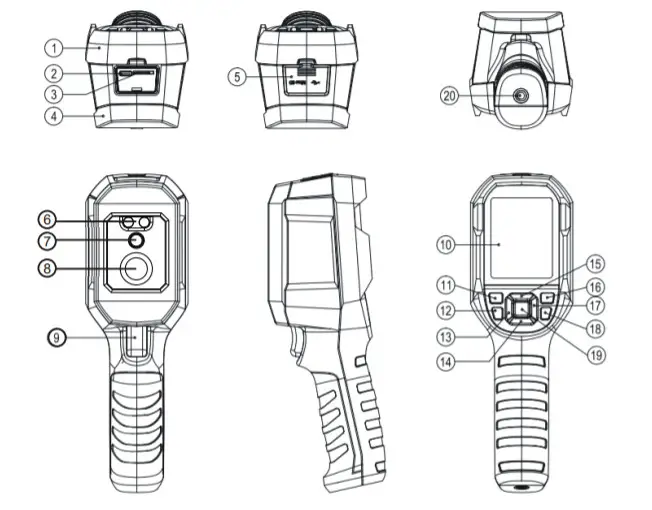
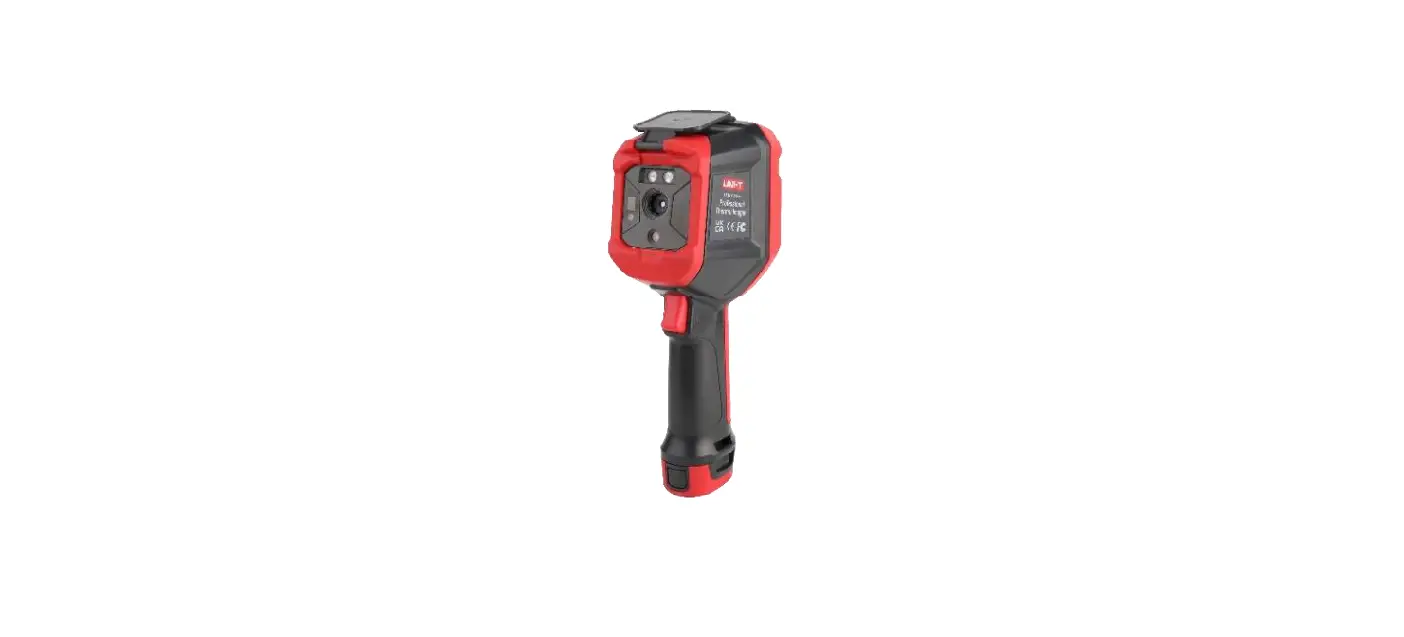
| Item | Description | Item | Description |
| 1 | Interface cover | 11 | Power button |
| 2 | USB (Type-C) interface | 12 | Flashlight button |
| 3 | SD card slot | 13 | Left button |
| 4 | Bottom cover | 14 | Down button |
| 5 | Silica cover | 15 | Up button |
| 6 | LED light | 16 | Replay button |
| 7 | Visual light camera lens | 17 | Right button |
| 8 | Infrared camera lens | 18 | Back button |
| 9 | Trigger | 19 | SET button |
| 10 | LCD display | 20 | Tripod mounting hole |
Display
Display size: 2.8”
Display resolution: 320 (vertical) x 240 (horizontal) pixels
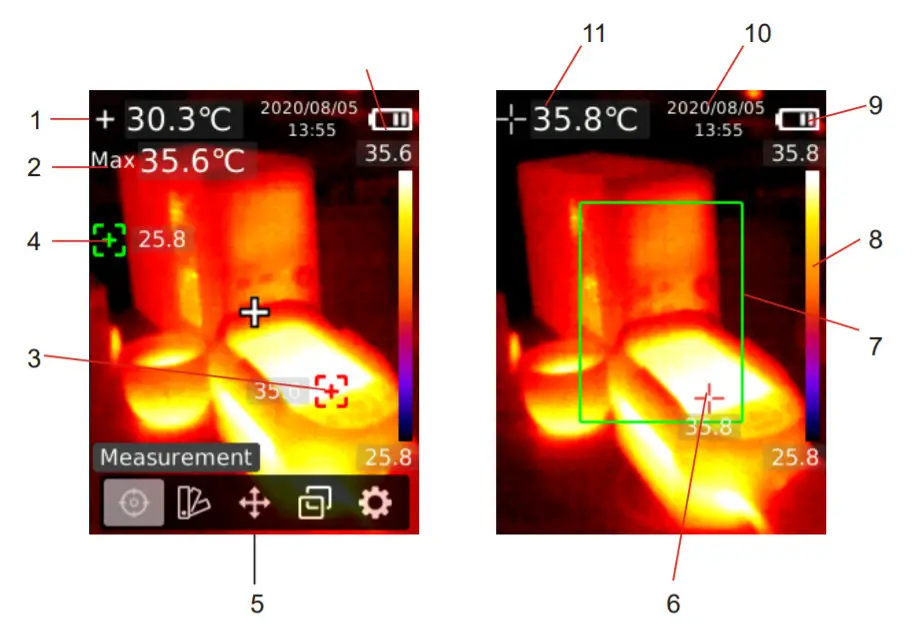
| Item | Description | Item | Description |
| 1 | Center point temperature | 7 | Region of interest (ROI) |
| 2 | Maximum temperature | 8 | Temperature bar |
| 3 | Maximum temperature point | 9 | Battery status |
| 4 | Minimum temperature point | 10 | Date and time |
| 5 | Main menu | 11 | Maximum temperature in ROI |
| 6 | Maximum temperature point in ROI |
Power On/Off
Press and hold the power button for 3 seconds to turn on/off the product.
Note: After the product starts the shutdown procedure, it takes 5 to 6 seconds.
Please try to avoid turning on and off the product continuously to avoid damage.
Measurement
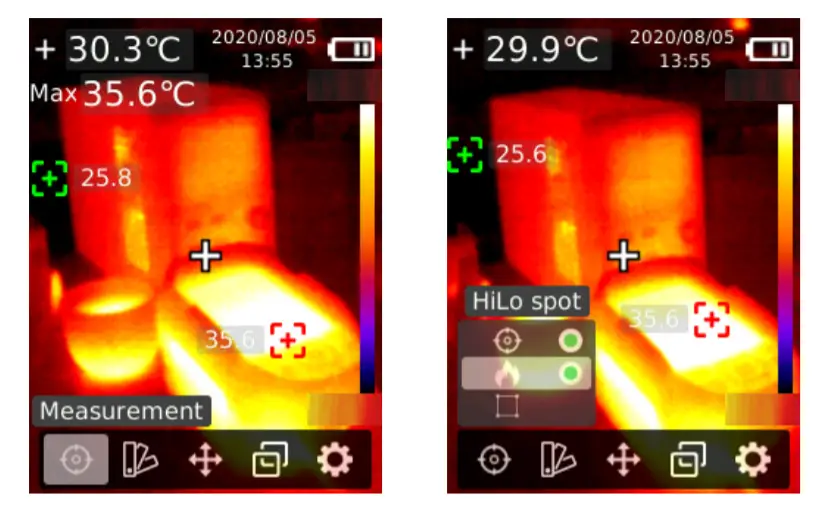
- Press the SET button to open the main menu.
- Press the left/right button to select the
 option.
 - Press the SET button to enter the Measurement menu.
- Press the up/down button to select Center Spot (center point measurement),
HiLo Spot (maximum and minimum temperature measurement) or ROI. - Press the SET button to turn on/off Center Spot, HiLo Spot, or ROI.
- Press the back button to exit.
 option.
Palette
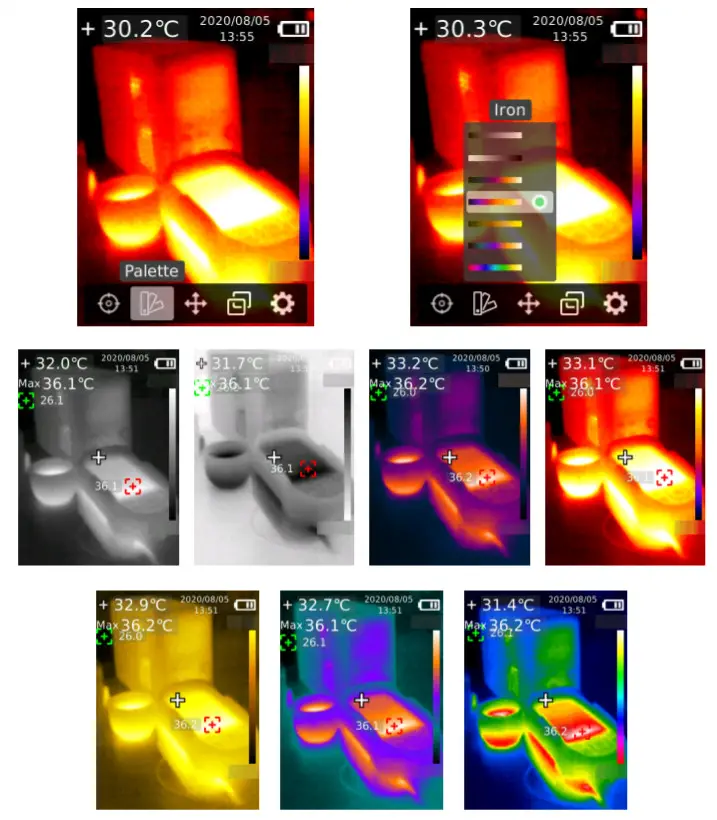
- Press the SET button to open the main menu.
- Press the left/right button to select the
 option.
 - Press the SET button to enter the Palette menu.
- Press the up/down button to select the desired palette.
- Press the SET button to apply the palette.
- Press the back button to exit.
 option.
Point Temperature
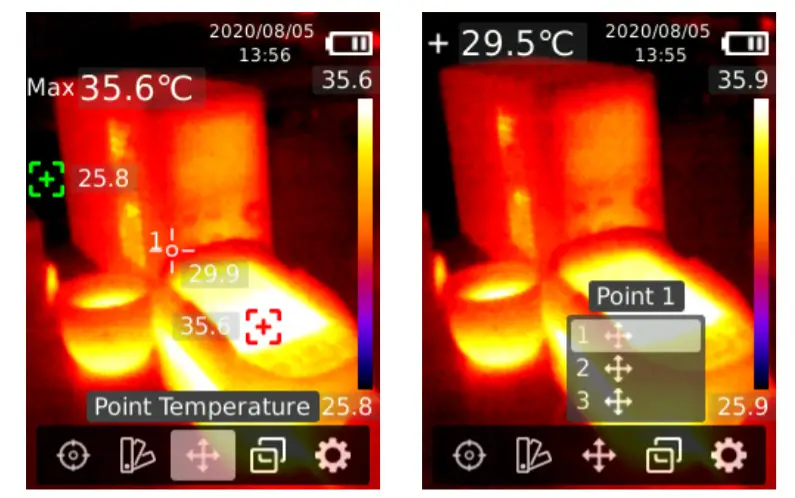
- Press the SET button to open the main menu.
- Press the left/right button to select the option.
- Press the SET button to enter the Point Temperature menu.
- Press the up/down button to select the desired point.
A. Press the SET button to turn on the point and enter the thermal imaging page.
Press the left/right/up/down button to move the point.
Press the SET button to confirm and read the temperature of the current point.
B. Press the SET button to turn off the point.
Press the back button to exit.
Image Mode
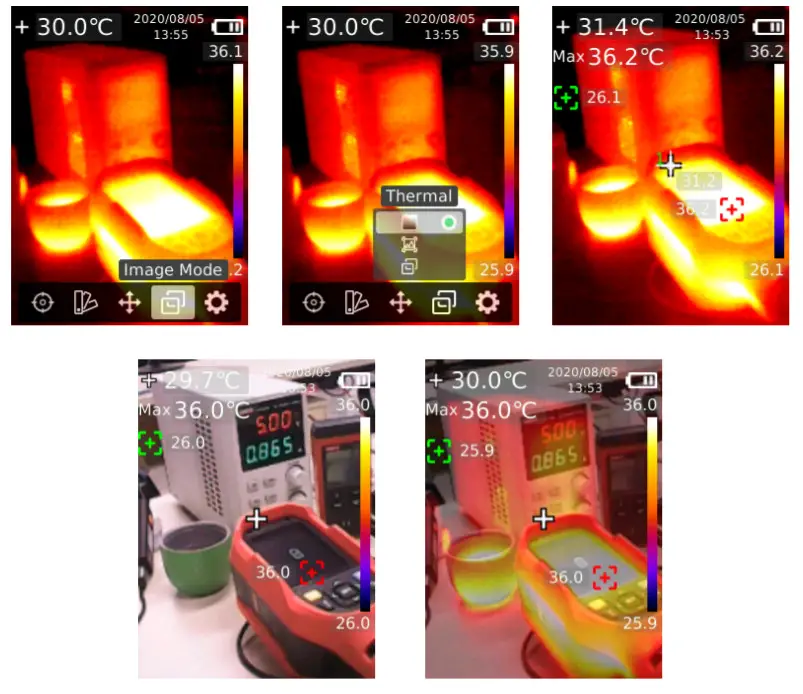
- Press the SET button to open the main menu.
- Press the left/right button to select the
 option.
 - Press the SET button to enter the Image Mode menu.
- Press the up/down button to select the desired mode from Thermal (infrared image), Digital (visual light image), and Fusion(image blending).
- Press the SET button to apply the current model.
- Press the back button to exit.
 option.
Settings
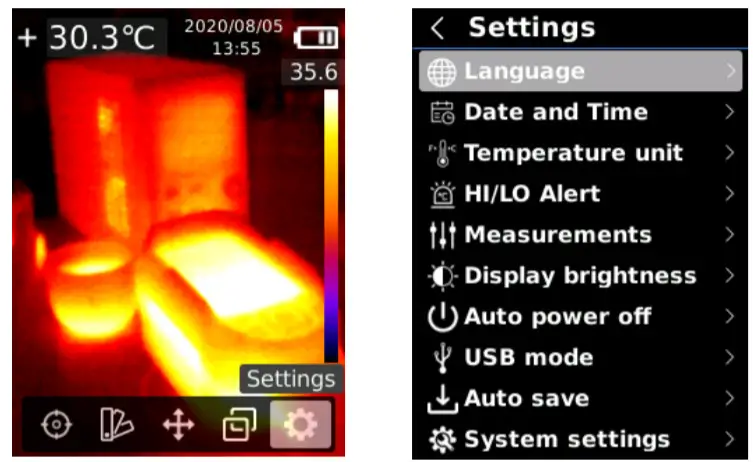
To enter Settings menu:
- Press the SET button to open the main menu.
- Press the left/right button to select the
 option.
 - Press the SET button to enter the Settings menu.
 option.
4.4.1 Language

To set language:
- Press the up/down button to select the Language option in the Settings menu.
- Press the SET button to enter the Language submenu.
- Press the up/down button to select Chinese or English.
- Press the SET button to confirm.
- Press the back button to exit.
4.4.2 Date and Time
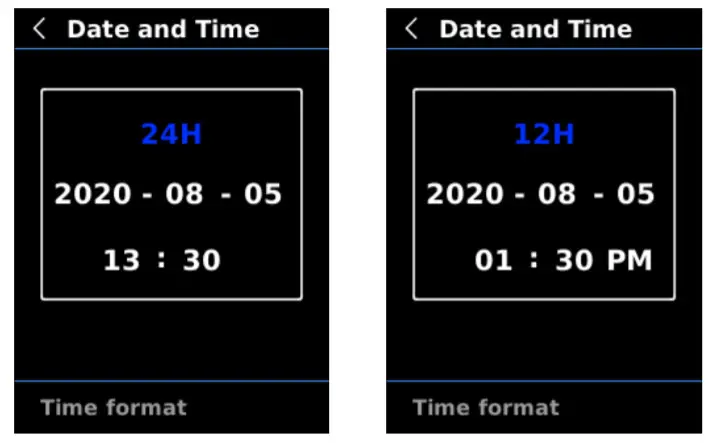
To set date and time:
- Press the up/down button to select the Date and Time option in the settings menu.
- Press the SET button to enter the Date and Time submenu.
- Press the left/right button to select the parameter to be adjusted.
- Press the SET button to enter the parameter adjustment state.
- Press the up/down button to increase or decrease the value.
- Press the SET button to save the settings and return to set other parameters.
- Press the back button to exit.
4.4.3 Temperature Unit
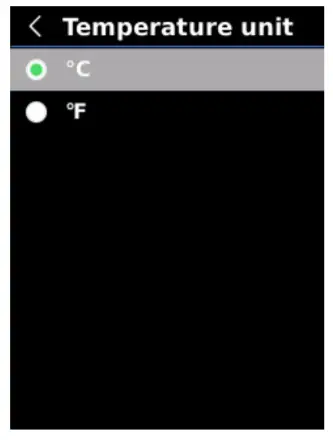
To set temperature unit:
- Press the up/down button to select the Temperature Unit option in the Settings menu.
- Press the SET button to enter the Temperature Unit submenu.
- Press the up/down button to select °C or °F.
- Press the SET button to confirm.
- Press the back button to exit.
4.4.4 HI/LO Alert
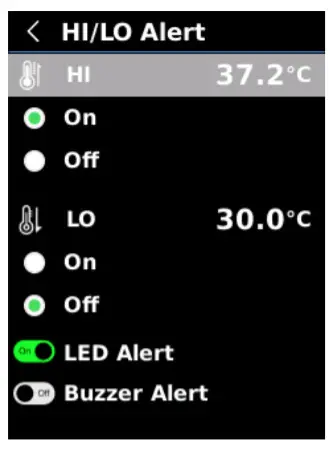
To set high/low-temperature alert:
- Press the up/down button to select the HI/LO Alert option in the Settings menu.
- Press the SET button to enter the HI/LO Alert submenu.
- Press the up/down button to select the desired option.
- Select HI or LO to adjust the temperature parameter.
- Select other options to turn the alert on or off.
- Press the back button to exit.
4.4.5 Measurements
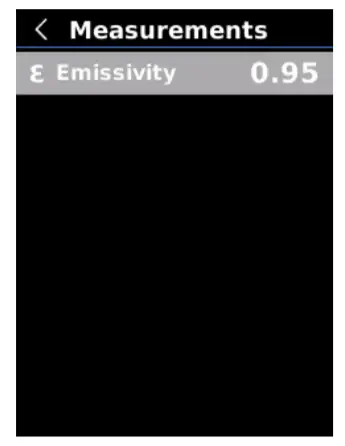
To set measurement parameters:
- Press the up/down button to select the Measurements option in the Settings menu.
- Press the SET button to enter the Measurements submenu.
- Press the up/down button to select Emissivity.
- Press the SET button to enter the parameter adjustment state.
- Press the up/down button to increase or decrease the value.
- Press the SET button to save the current setting.
- Press the back button to exit.
Note: For emissivity values of common materials, please refer to the Common Emissivity.
4.4.6 Display Brightness
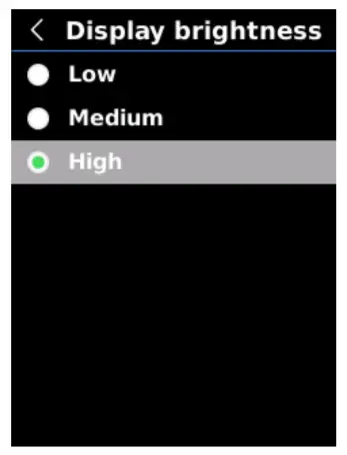
To set display brightness:
- Press the up/down button to select the Display Brightness option in the Settings menu.
- Press the SET button to enter the Display Brightness submenu.
- Press the up/down button to select the desired brightness level from Low, Medium, and High.
- Press the SET button to confirm.
- Press the back button to exit.
4.4.7 Auto Power Off
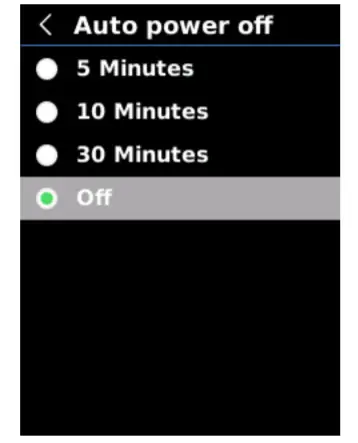
To set auto power-off:
- Press the up/down button to select the Auto Power Off option in the Settings menu.
- Press the SET button to enter the Auto Power Off submenu.
- Press the up/down button to select the desired option from 5 Minutes, 10 Minutes, 30 Minutes, and Off.
- Press the SET button to confirm.
- Press the back button to exit.
4.4.8 USB Mode
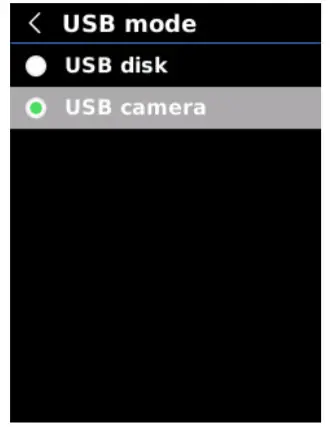
To set USB mode:
- Press the up/down button to select the USB Mode option in the Settings menu.
- Press the SET button to enter the USB Mode submenu.
- Press the up/down button to select USB Disk or USB Camera.
- Press the SET button to confirm.
- Press the back button to exit.
Note: USB disk mode allows users to browse pictures and analyze data on a PC, while USB camera mode allows users to realize real-time image projection after connecting to a PC.
4.4.9 AutoSave
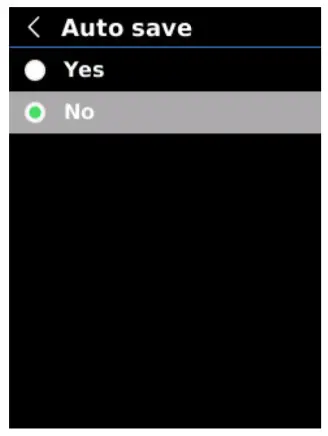
To set autosave:
- Press the up/down button to select the AutoSave option in the Settings menu.
- Press the SET button to enter the AutoSave submenu.
- Press the up/down button to select Yes or No.
- Press the SET button to confirm.
- Press the back button to exit.
Note: Do not remove or insert the SD card in saving pictures. It is recommended to save no more than 1000 pictures, so as not to affect the response speed of the product. When the number of pictures exceeds 1,000, please clean up the SD card in time.
4.4.10 System Settings
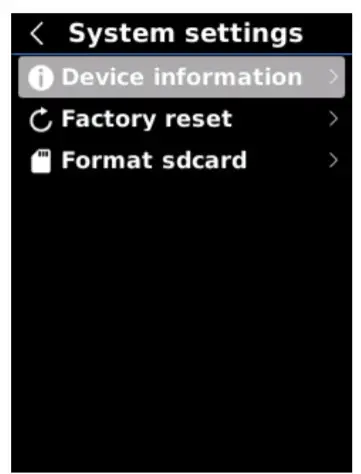
To enter the System Settings submenu:
- Press the up/down button to select the System Settings option in the Settings menu.
- Press the SET button to enter the System Settings submenu.
Device Information
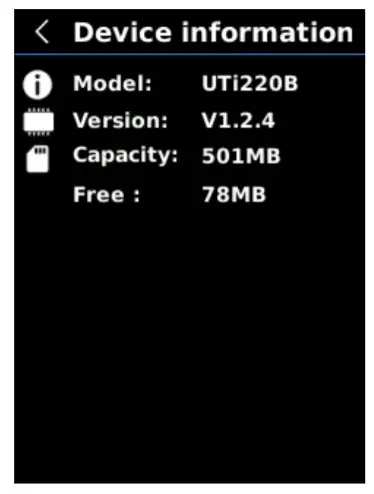
To view the device information:
- Press the up/down button to select the Device Information option in the System Settings submenu.
- Press the SET button to view the detailed information of the device.
- Press the back button to exit.
Note: Capacity is the storage capacity of the SD card in use currently.
Factory Reset
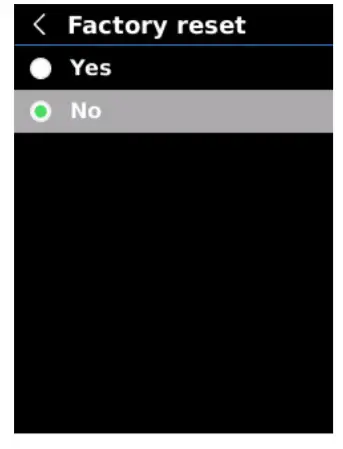
To restore factory settings:
- Press the up/down button to select the Factory Reset option in the System Settings submenu.
- Press the SET button to enter.
- Press the up/down button to select Yes.
- Press the SET button to confirm.
- Press the back button to exit.
Note: During the factory reset process, please do not force other operations to avoid program errors.
Format SD Card
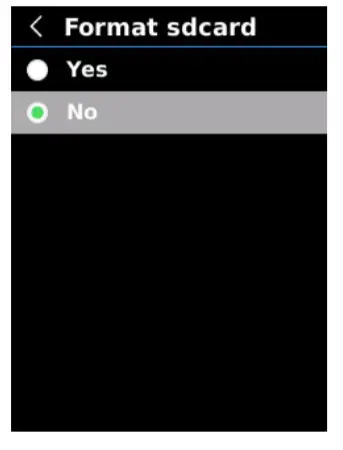
To format SD card:
- Press the up/down button to select the Format SD Card option in the System Settings submenu.
- Press the SET button to enter.
- Press the up/down button to select Yes.
- Press the SET button to confirm.
- Press the back button to exit.
Note: When formatting the SD card, please do not remove it or perform the operation to avoid program errors.
Operating Instructions
Image Capture
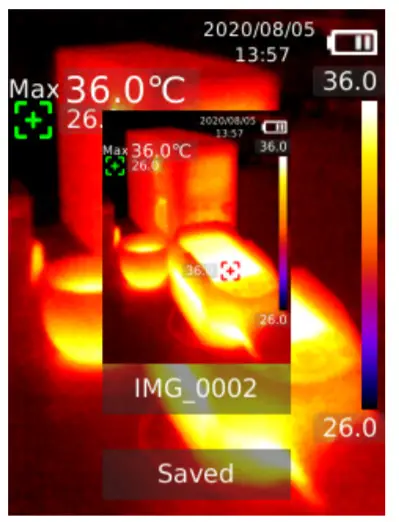
- Pull and release the trigger to capture an image.
- In the manual save mode, press the left/right button to discard or save the image and press the SET button to confirm or the back button to return.
- In autosave mode, the image will be saved automatically.
Note: Images can only be saved if an SD card is installed.
Image Viewing
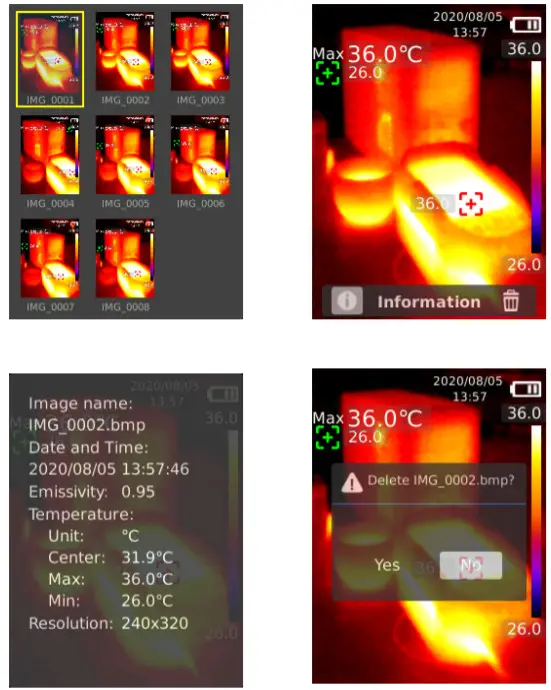
- Press the replay button to enter the gallery interface.
- Use the up/down/left/right button to select the desired image.
- Press the SET button to view the image in full-screen mode.
- Press the SET button in full-screen mode to delete the image or view its information.
Note: Do not remove or insert the SD card in viewing images.
LED Light
Press and hold the flashlight button for 3 seconds to turn on/off the LED light. When the temperature alert is on and the measured temperature exceeds the set temperature range, the LED light will flash.
Note: When the LED light is on, please do not point to the eyes of people or animals.
USB Communication and Image Projection
- Download and install the PC software (refer to UNI-T Documents Download Operation Guide).
- Connect the USB cable to the PC.
- Set the USB mode to USB Disk to browse pictures and analyze data through the PC software; set the USB mode to USB Camera to realize real-time image projection through the PC software.
SD Card
This device supports a Micro SD card (TF card) to store images. To avoid affecting the operating speed of the device, please copy the backup data regularly and clean up the SD card in time. To avoid causing abnormal data on the SD card, do not insert or remove the SD card repeatedly. Try to remove and insert the SD card when the device is turned off.
Charging
Please use a safety-certified 5V/1A or 5V/2A power adapter for charging. Do not turn off the product easily during charging. If shutdown or restart is needed, please unplug the Type-C power cord and disconnect the power supply first.
Specifications
| Sensor | UFPA |
| Temperature range | -10°C–400°C |
| Measurement resolution | 0.1°C |
| Accuracy | ±2°C/±2%(at 25°C ambient temperature) |
| Optimal measuring distance | 1 meter |
| Response time | ≤500ms |
| IR resolution | 30000 pixels (200 x 150) |
| Pixel size | 12 μm |
| Color palette | Iron, White Hot, Black Hot, Tyrian, Amber, Cool, Rainbow |
| Infrared spectral band | 8pm-14pm |
| Field of view (FOV) | 35° (H) x 26° (V) |
| Spatial resolution (IFOV) | 3.1 mrad |
| Thermal sensitivity (NETD) | <100mK |
| Frame rate | < 9Hz |
| Temperature measurement display | ROI, center point temperature, high-temperature tracking (default) |
| Image format | BMP |
| Image mode | Thermal, Digital (visual light image) Fusion(image blending) |
| Point temperature measurement | In addition to the center point, 3 points can be added. |
| Temperature Alarm | Icon alarm/LED alarm/Audio alarm |
| Visual light camera | Yes |
| Visual light resolution | 640 x 480 pixels |
| PC software | Yes |
| Real-time image transmission | Yes (real-time image projection through PC software) |
| Data transmission | Type-C USB interface |
| Product size (L x W x H) | 236mm x 75.5mm x 86mm |
| Display type | 2.8″ TFT LCD |
| Display resolution | 320 x 240 pixels |
| Battery | 3.6V/5000mAh rechargeable Li-ion battery |
| Auto power off | 5 minutes, 10 minutes, 30 minutes, off (default: 30 minutes) |
| Battery life | ≥6 hours |
| Charging time | ≤5 hours |
| Charging voltage/current | 5V/2A |
| Image storage | Micro SD card |
| IP rating | IP65 |
| Drop test | 2m |
| Transportation/Storage environment | -20°C-60°C (-4°F-140°F), <85% RH (non-condensing) |
| Operating environment | 0°C-50°C (32°F-122°F), <85% RH (non-condensing) |
| Operating altitude | ≤2000m |
| Standard accessories | User manual, USB cable, 16GB micro SD card |
Maintenance
Use a wet cloth or weak soap solution to clean the outer shell of the device. Do not use abrasives, isopropyl alcohol or solvents to clean the outer shell, lens or window.
Common Emissivity
| Material | Emissivity | Material | Emissivity |
| Wood | 0. 85 | Black paper | 0. 86 |
| Water | 0. 96 | Polycarbonate | 0. 8 |
| Brick | 0. 75 | Concrete | 0. 97 |
| Stainless steel | 0. 14 | Copper oxide | 0. 78 |
| Tape | 0. 96 | Cast iron | 0. 81 |
| Aluminum plate | 0. 09 | Rust | 0. 8 |
| Copperplate | O. 06 | Gypsum | 0. 75 |
| Black aluminum | 0. 95 | Paint | 0. 9 |
| Human skin | 0. 98 | Rubber | 0. 95 |
| Asphalt | 0.96 | Soil | 0.93 |
| PVC | 0. 93 |
Note: This manual can be downloaded from the official website of Uni-Trend (refer to UNI-T Documents Download Operation Guide).
UNI-TREND TECHNOLOGY (CHINA I CO., LTD.
No.6, Gong Ye Bei 1st Road,
Songshan Lake National High-Tech Industrial
Development Zone, Dongguan City,
Guangdong Province, China
Made in China