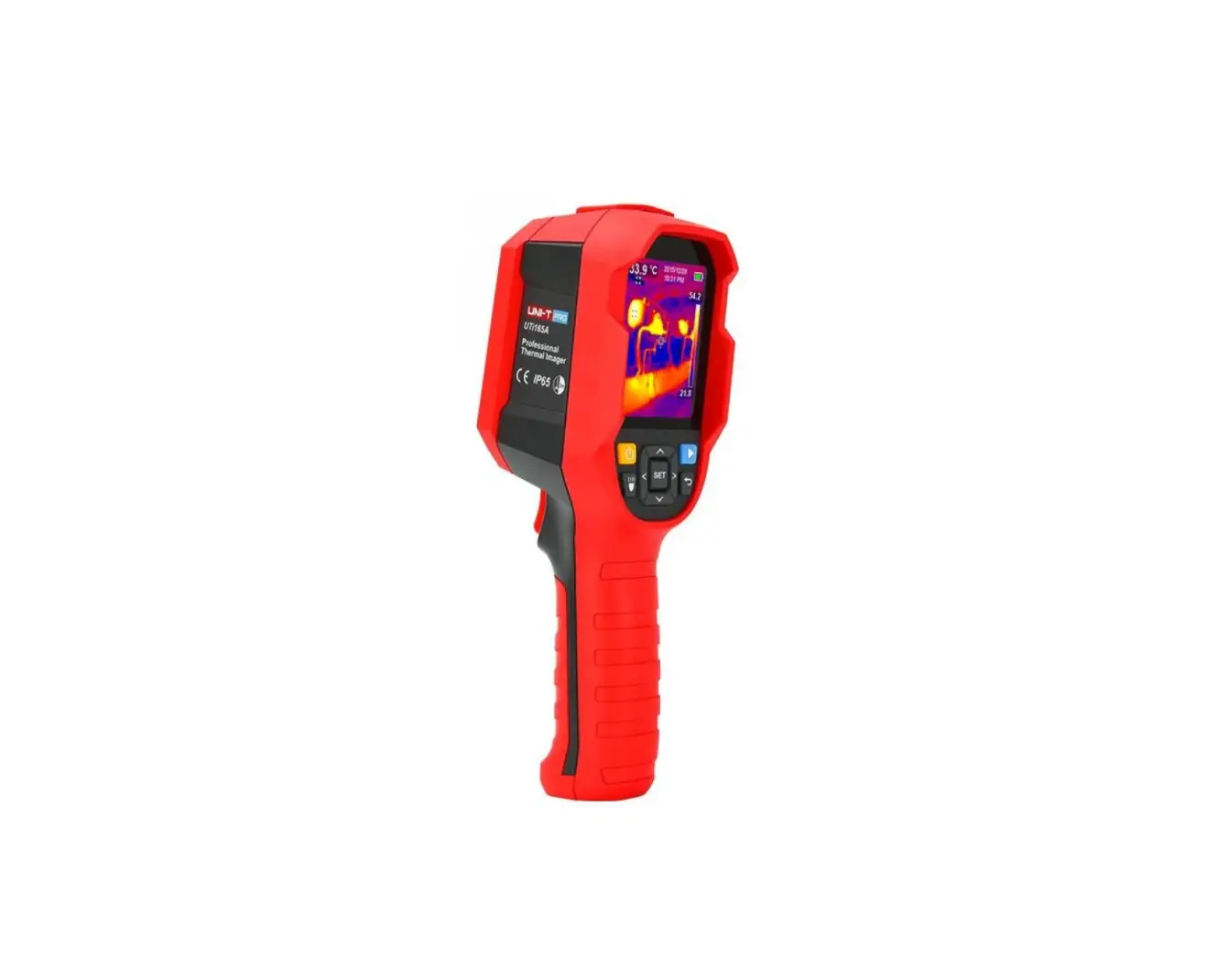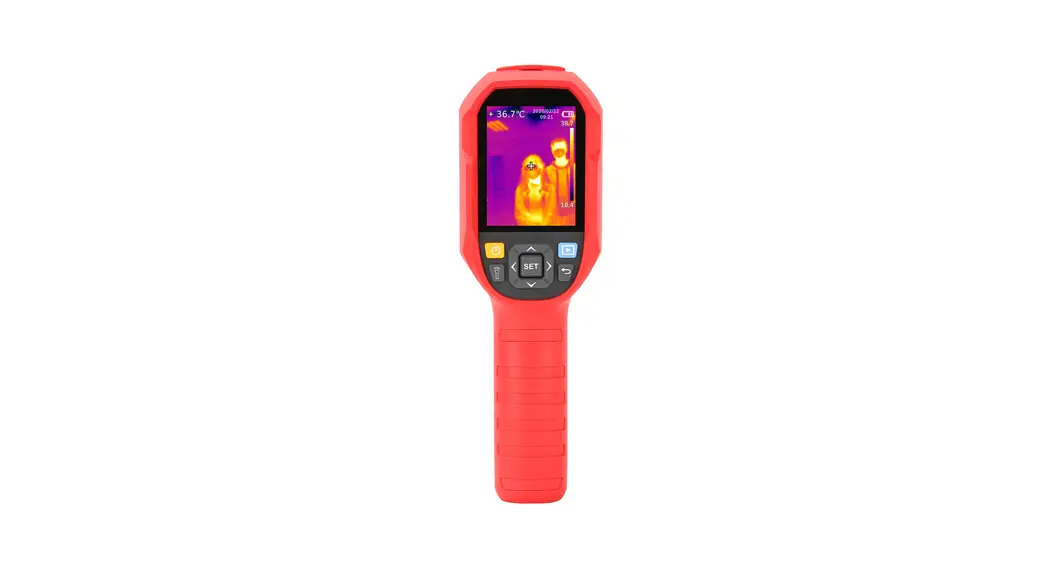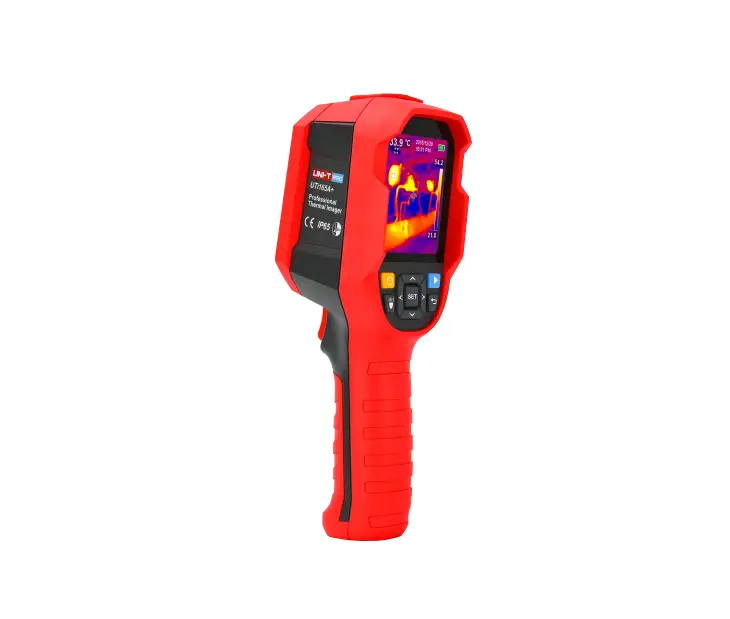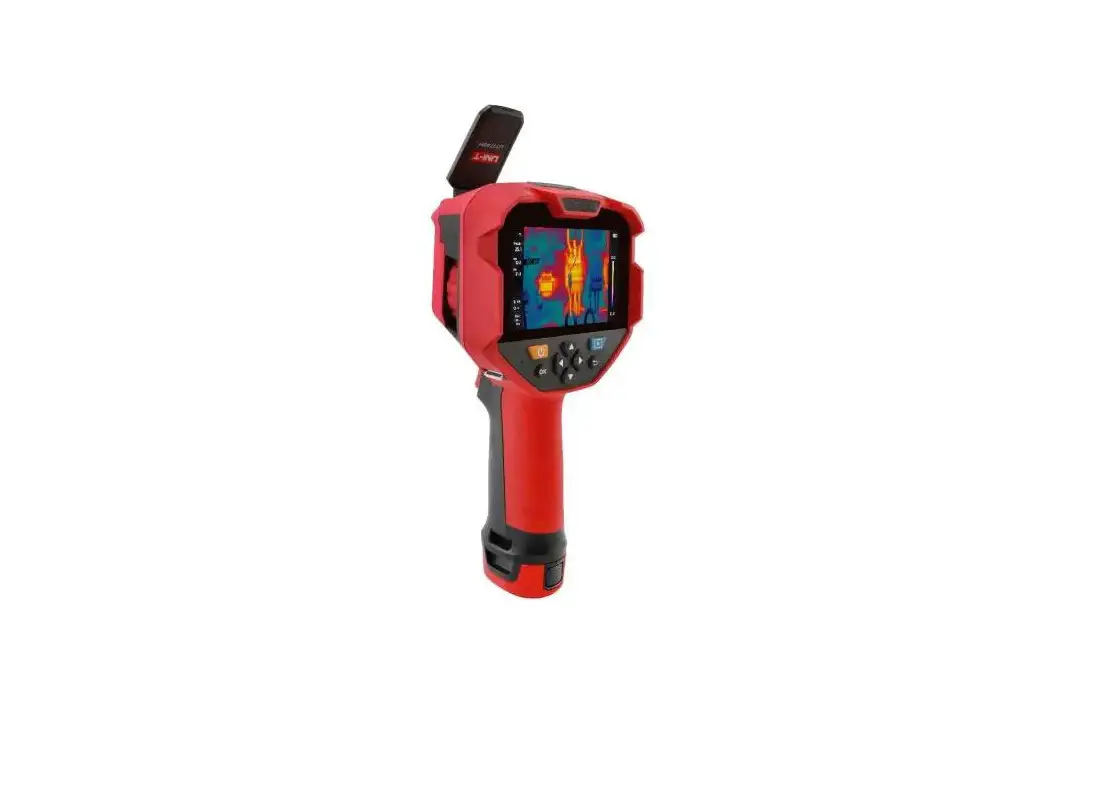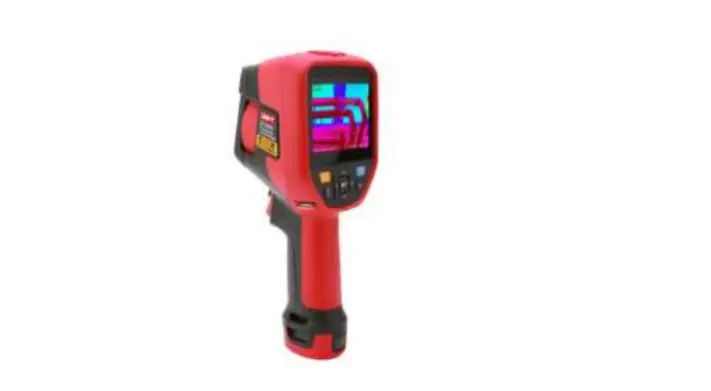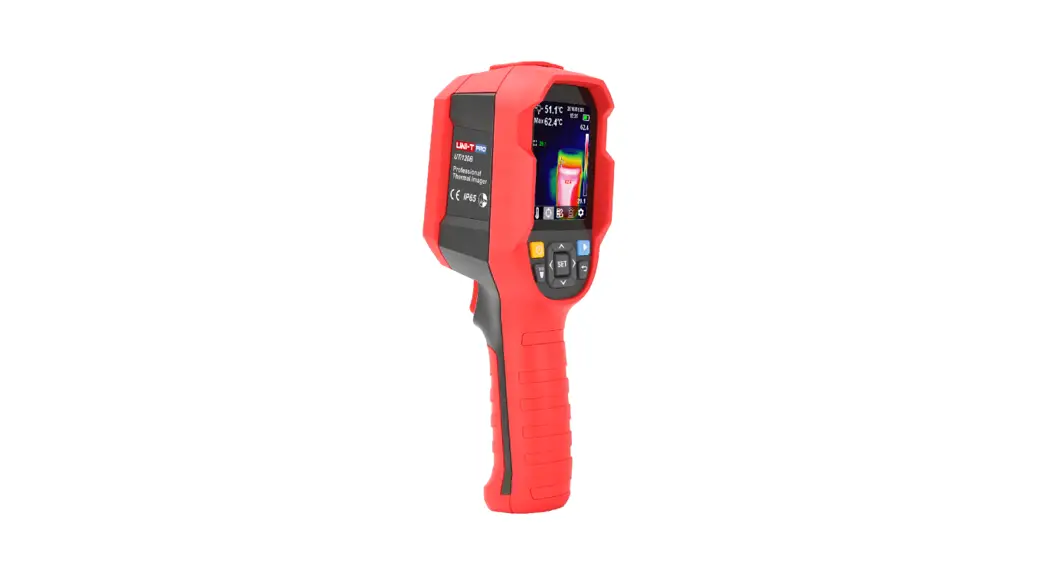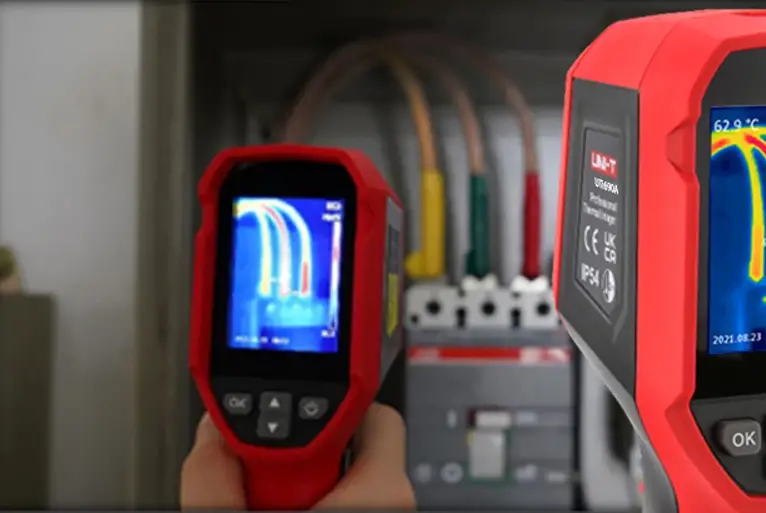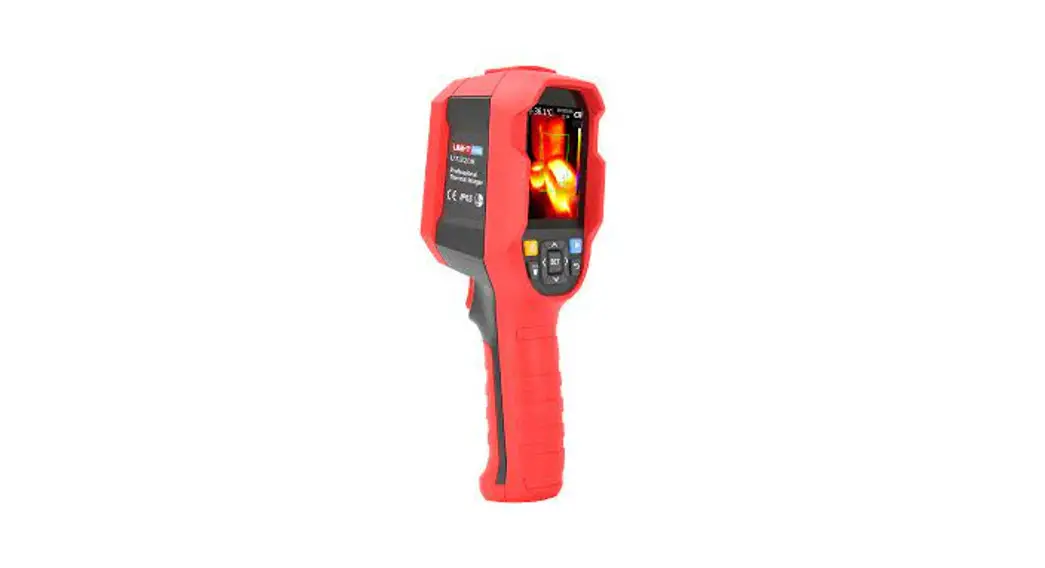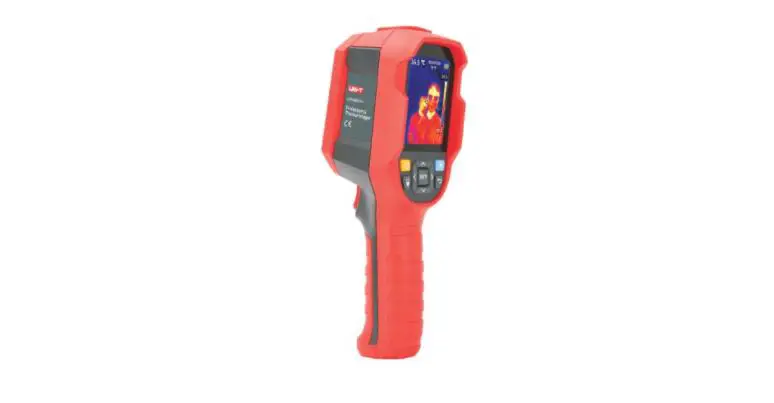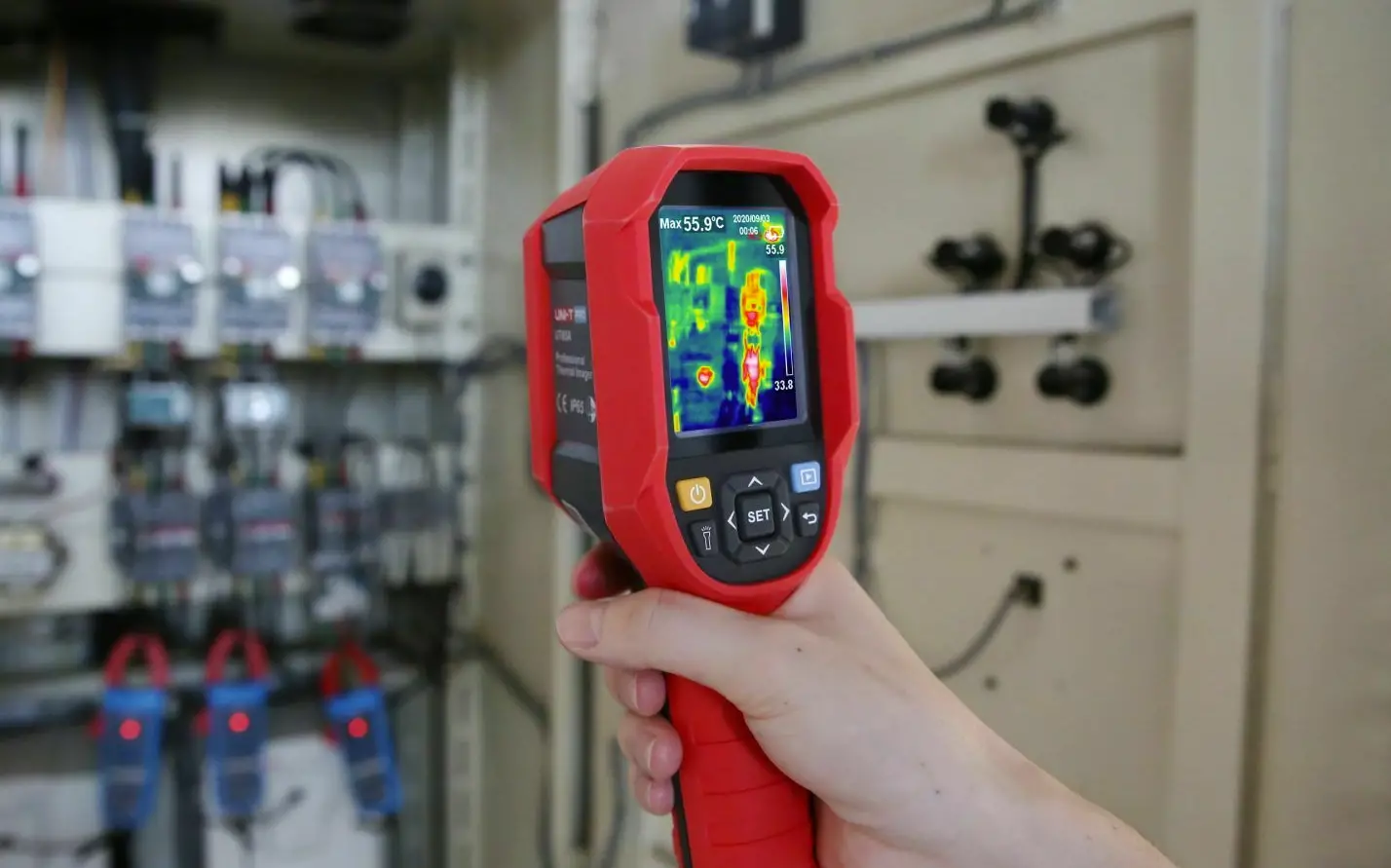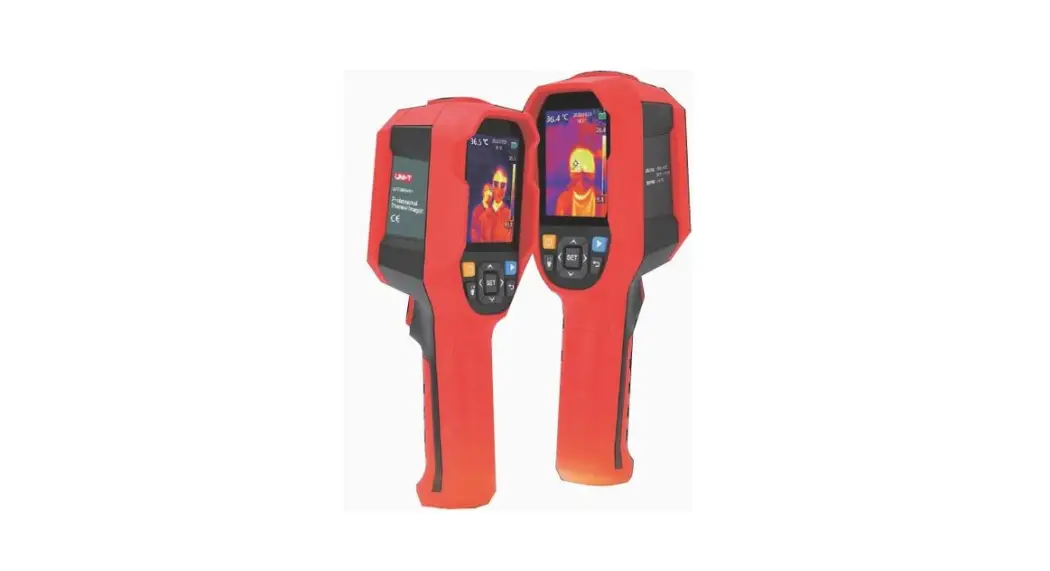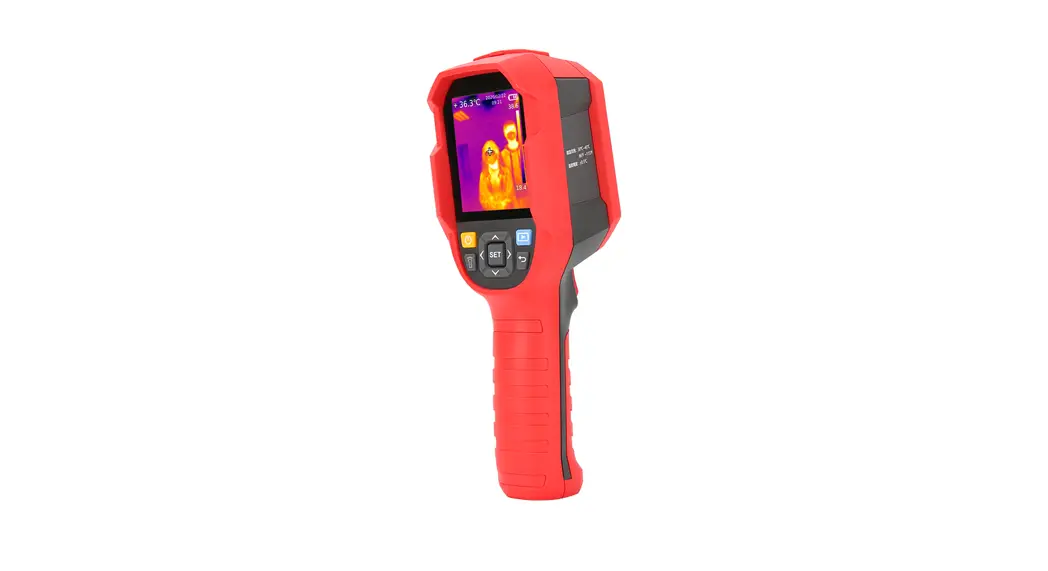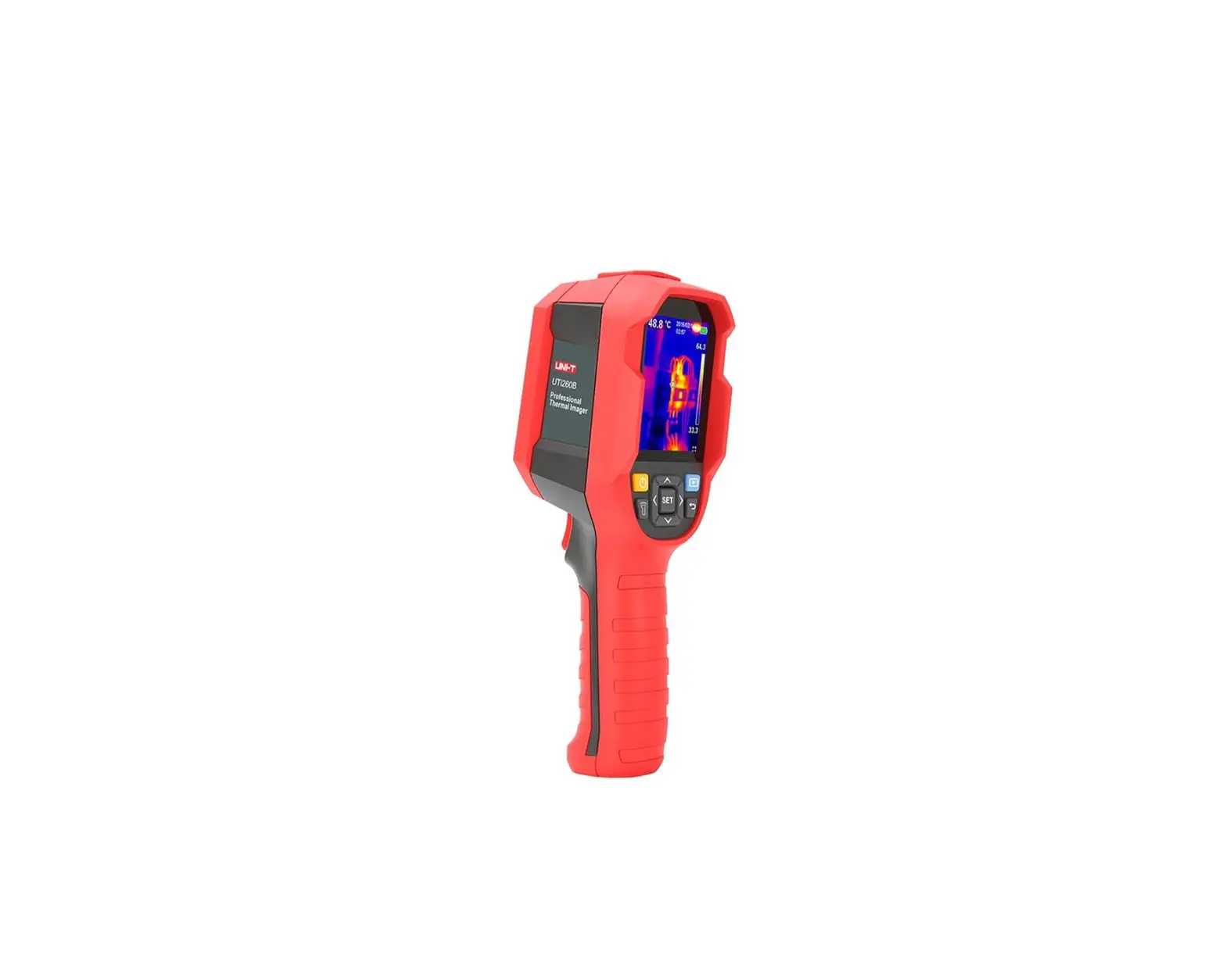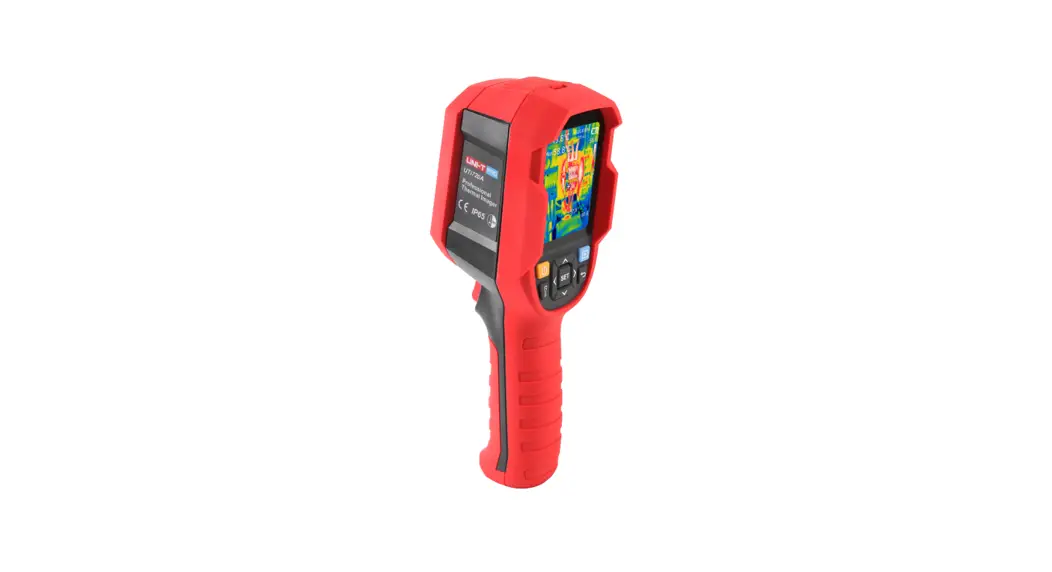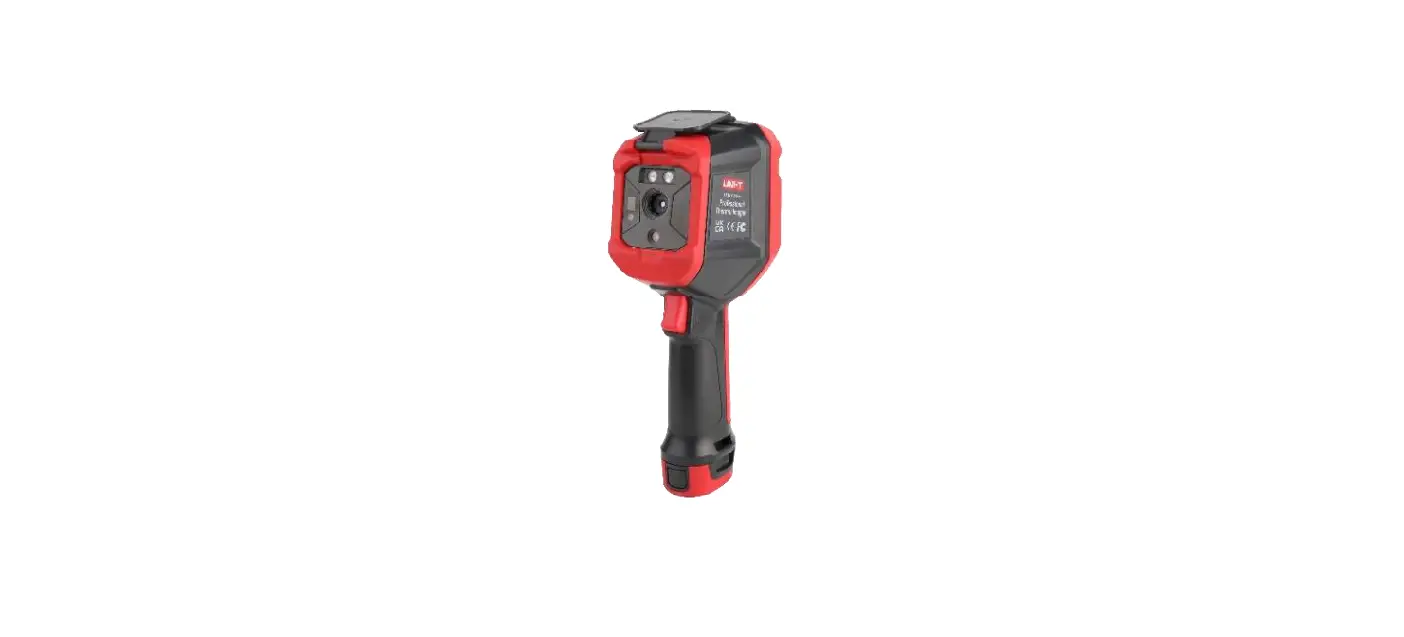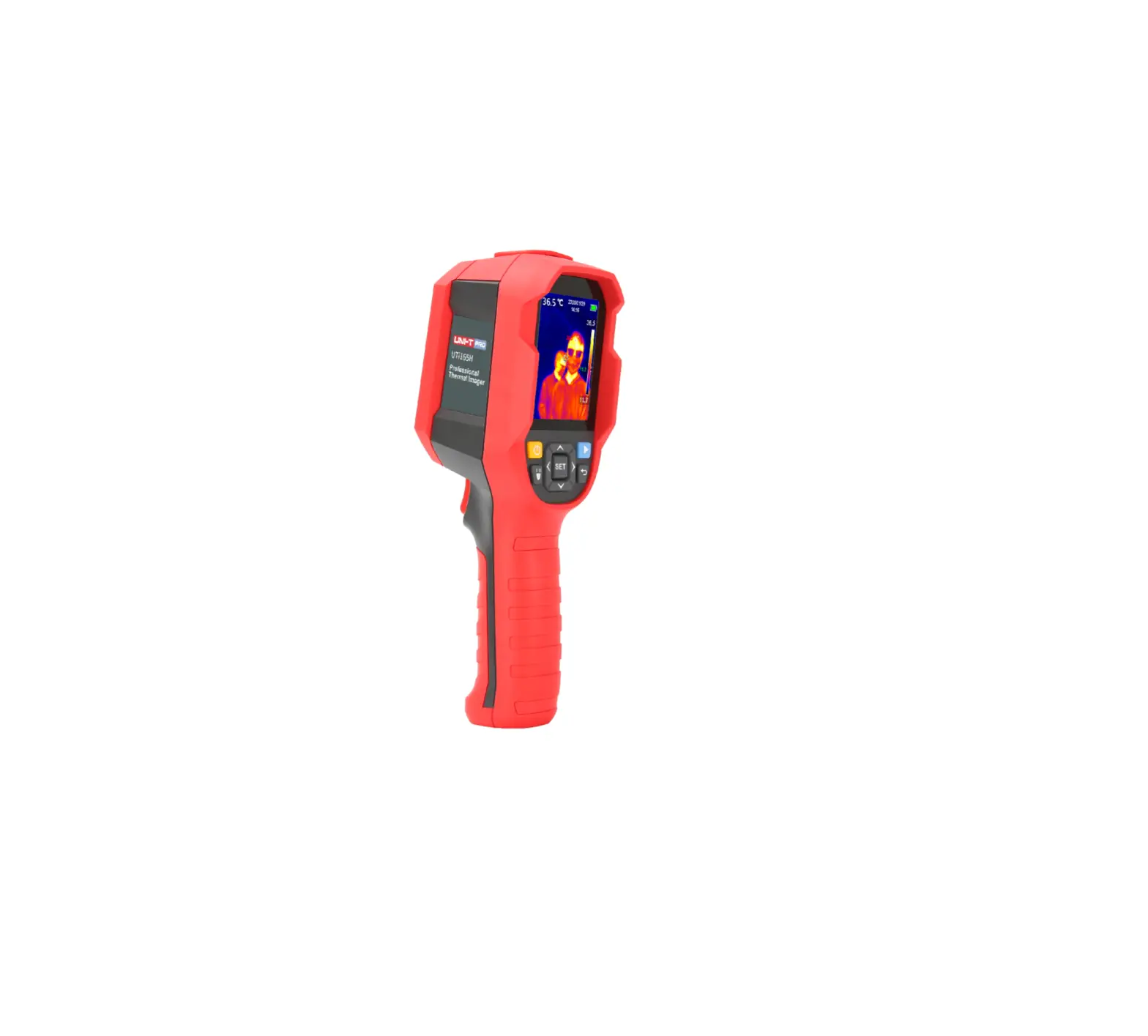
UNI-T UTi165H Professional Thermal Imager
Preface
Thank you for purchasing this brand new product. In order to use this product safely and correctly, please read this manual thoroughly, especially the safety notes.
After reading this manual, it is recommended to keep the manual at an easily accessible place, preferably close to the device, for future reference.
Limited Warranty and Liability
Uni-Trend guarantees that the product is free from any defect in material and workmanship within one year from the purchase date. This warranty does not apply to damage caused by accident, negligence, misuse, modification, contamination or improper handling. The dealer shall not be entitled to give any other warranty on behalf of Uni-Trend. If you need warranty service within the warranty period, please contact your seller directly.
Uni-Trend will not be responsible for any special, indirect, incidental or subsequent damage or loss caused by using this device.
Safety Instructions
- The optimal measuring distance for this product is 1 meter.
- To ensure measurement accuracy, please use the product in an operating environment of 15°C~30°C, <85% RH (non-condensing).
- Please use the product indoors without wind.
- When changing to a new environment, please turn on the product and leave it for 10 to 15 minutes before measuring.
- The ambient temperature for measuring must be stable. Do not measure in places with large airflow such as fans and air outlets. When the measured object comes from a place with a large temperature difference from the measurement environment, keep it in the measurement environment for 10 to 30 minutes before measuring.
- The product tests the surface temperature of the object. If temperature compensation is needed, please adjust in the Settings menu.
- The product has a self-calibration function. If the reading jumps quickly, please read the temperature after it gets steady.
- After measuring extremely high or low temperature objects, please leave the product for 10 minutes before next use.
- Do not use the product in places with strong sunlight or electromagnetic interference.
- Please do not use this product in flammable, explosive, steamy, wet or corrosive environments.
- Please stop using the product if it is damaged or modified to avoid inaccurate measurement results.
- Please use the correct emissivity to obtain accurate temperature readouts. To ensure accuracy of the product, please warm it up for 10 minutes before measuring if it has not been used for a long time.
- When being charged, the internal temperature of the product rises, which will lead to inaccurate temperature measurement. So, it is not recommended to take measurements during or right after charging the product.
- The inherent temperature drift of the sensor will occasionally cause inaccurate measurement. In this case, press the down button under the temperature measurement interface to bring out “Calibrating” and automatically calibrate the temperature.
Structure
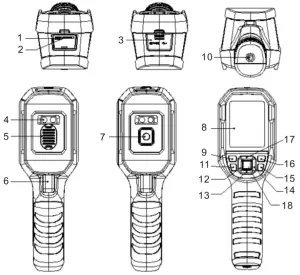
| Item | Description |
| 1 | Micro SD card slot |
| 2 | Type-C USB interface |
| 3 | Interface cover |
| 4 | LED light |
| 5 | Infrared camera lens cover |
| 6 | Trigger |
| 7 | Infrared camera lens |
| 8 | LCD |
| 9 | Power button |
| 10 | Tripod mounting hole |
| 11 | Flashlight button |
| 12 | Left button |
| 13 | Down button |
| 14 | Right button |
| 15 | Back button |
| 16 | Replay button |
| 17 | Up button |
| 18 | SET button |
Display
Display size: 2.8″
Display resolution: 320 (vertical) x 240 (horizontal) pixels
| Item | Description |
| 1 | Micro SD card slot |
| 2 | Type-C USB interface |
| 3 | Interface cover |
| 4 | LED light |
| 5 | Infrared camera lens cover |
| 6 | Trigger |
| 7 | Infrared camera lens |
| 8 | LCD |
| 9 | Power button |
| 10 | Tripod mounting hole |
| 11 | Flashlight button |
| 12 | Left button |
| 13 | Down button |
| 14 | Right button |
| 15 | Back button |
| 16 | Replay button |
| 17 | Up button |
| 18 | SET button |
Power On/Off
Press the power button for 3s to power on, and press the power button for 1s to power off.
Operating Instructions
Temperature Unit Selection
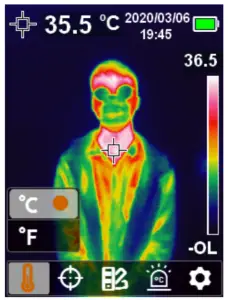
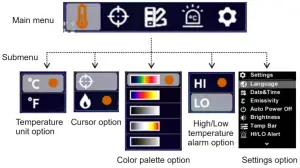
- Press the SET button to open the main menu.
- Press the left/right button to select the
 option.
 - Press the SET button to enter the temperature unit submenu.
- Press the up/down button to select °C or °F.
- Press the back button to exit the current menu.
 option.
Center Point and High Temperature Tracking
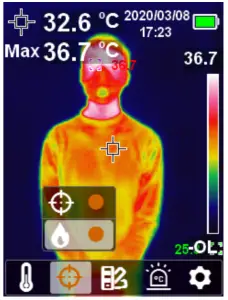
To track center point temperature:
- Press the SET button to open the main menu.
- Press the left/right button to select the option.
- Press the SET button to enter the cursor submenu.
- Press the up/down button to select the option.
- Press the SET button to confirm.
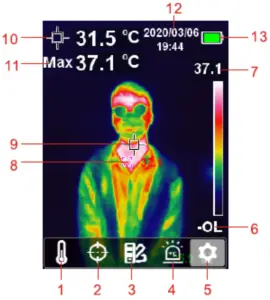
- The center point marker is turned on (the center point temperature is displayed in the upper left corner).
- Press the back button to exit the current menu.
To track high temperature:
- Press the SET button to open the main menu.
- Press the left/right button to select the
 option.
 - Press the SET button to enter the cursor submenu.
- Press the up/down button to select the
 option.
 - Press the SET button to confirm.
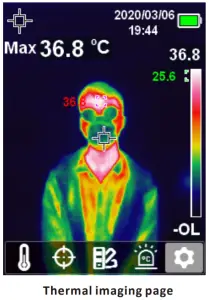
- The high temperature indicator is turned on and the corresponding temperature is displayed in the upper left corner.
- Press the back button to exit the current menu.
 option.
 option.
Color Palette Selection
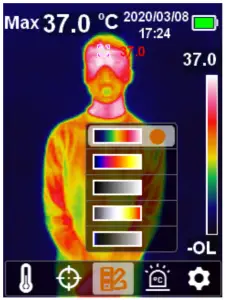
- Press the SET button to open the main menu.
- Press the left/right button to select the
 option.
 - Press the SET button to enter the color palette submenu.
- Press the up/down button to select the desired color from Iron Red, Rainbow, White Hot, Red Hot, and Ice Blue.
- Press the back button to exit the current menu.
 option.
High/Low Temperature Alarm
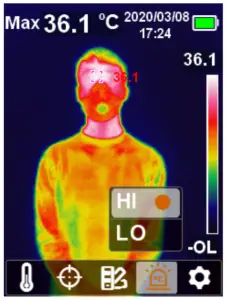
To enable high/low temperature alarm:
- Press the SET button to open the main menu.
- Press the left/right button to select the
 option.
 - Press the SET button to enter the high/low temperature alarm submenu.
- Press the up/down button to select HI (High) or LO (Low).
- Press the SET button to confirm.
- Press the back button to exit the current menu.
Note: High temperature alarm and low temperature alarm can be enabled simultaneously or separately.
 option.
Settings
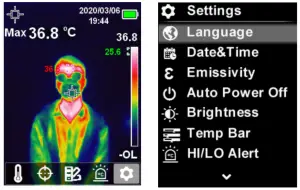
To enter Settings menu:
- Press the SET button to open the main menu.
- Press the left/right button to select the
 option.
 - Press the SET button to confirm.
 option.
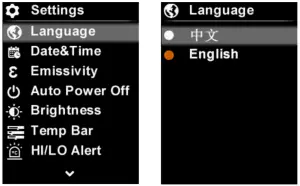
Language
Emissivity/Temperature Compensation
To set language:
- Press the up/down button to select the Language option in the Settings menu.
- Press the SET button to enter the Language submenu.
- Press the up/down button to select the desired language from Chinese and English.
- Press the SET button to confirm.
- Press the back button to exit the current menu.
Date & Time
To set date & time:
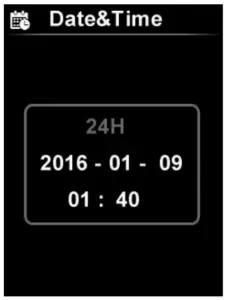
- Press the up/down button to select the Date & Time option in the settings menu.
- Press the SET button to enter the Date & Time submenu.
- Press the left/right button to select the parameter to be adjusted.
- Press the SET button to enter the parameter adjustment state.
- Press the up/down button to increase or decrease the value.
- Press the SET button to save the settings and return to set other parameters.
- Press the back button to exit the current menu.
Emissivity/Temperature Compensation
To set emissivity/temperature compensation:
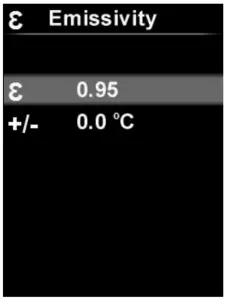
- Press the up/down button to select the Emissivity option in the Settings menu.
- Press the SET button to enter the Emissivity submenu.
- Press the up/down button to select emissivity or temperature compensation.
- Press the SET button to enter the parameter adjustment state.
- Press the up/down button to increase or decrease the value.
- Press the SET button to save the settings.
- Press the back button to exit the current menu.
Note: For emissivity values of common materials, please refer to the Common Emissivity.
Auto Power Off
To set auto power off:
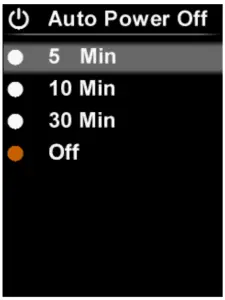
- Press the up/down button to select the Auto Power Off option in the settings menu.
- Press the SET button to enter the Auto Power Off submenu.
- Press the up/down button to select the desired option from 5 Min, 10 Min, 30 Min, and Off.
- Press the SET button to confirm.
- Press the back button to exit the current menu.
Display Brightness
To set display brightness:
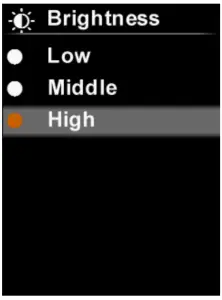
- Press the up/down button to select the Brightness option in the settings menu.
- Press the SET button to enter the Brightness submenu.
- Press the up/down button to select the desired option from Low, Middle, and High.
- Press the SET button to confirm.
- Press the back button to exit the current menu.
Temperature Bar
To turn on/off temperature bar:
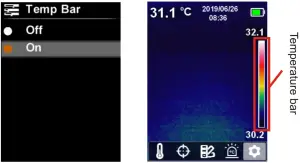
- Press the up/down button to select the Temp Bar option in the settings menu.
- Press the SET button to enter the Temp Bar submenu.
- Press the up/down button to select On or Off.
- Press the SET button to confirm.
- Press the back button to exit the current menu.
Alarm Temperatures
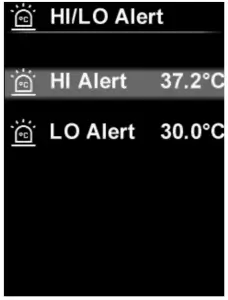
To set alarm temperatures:
- Press the up/down button to select the HI/LO Alert option in the settings menu.
- Press the SET button to enter the HI/LO Alert submenu.
- Press the up/down button to select the desired option from HI Alert and LO Alert.
- Press the SET button to enter the temperature adjustment state.
- Press the up/down button to adjust the temperature.
- Press the SET button to save the settings and return to set another temperature.
- Press the back button to exit the current menu
Device Information
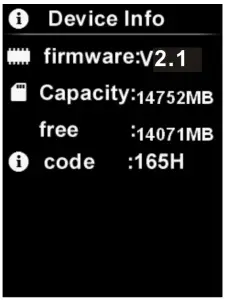
To view the device information:
- Press the up/down button to select the Device Info option in the settings menu.
- Press the SET button to view the detail information of the device.
- Press the back button to exit the current menu.
Factory Reset
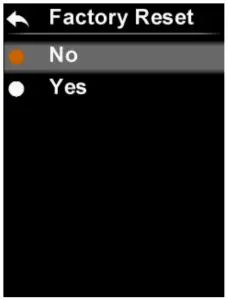
To restore settings:
- Press the up/down button to select the Factory Reset option in the settings menu.
- Press the SET button to enter the Factory Reset submenu.
- Press the up/down button to select Yes.
- Press the SET button to confirm.
- Press the back button to exit the current men
Format SD Card
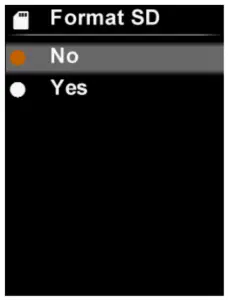
To format SD card:
- Press the up/down button to select the Format SD option in the settings menu.
- Press the SET button to enter the Format SD submenu.
- Press the up/down button to select Yes.
- Press the SET button to confirm.
- Press the back button to exit the current menu.
Auto Save
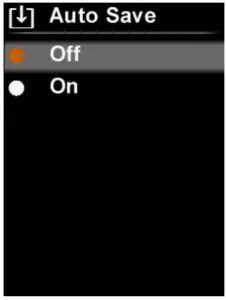
To turn on/off auto save:
- Press the up/down button to select the Auto Save option in the settings menu.
- Press the SET button to enter the Auto Save submenu.
- Press the up/down button to select On or Off.
- Press the SET button to confirm.
- Press the back button to exit the current menu.
Note: Do not remove or insert the SD card in saving or viewing pictures. If the SD card is replaced during use, restart the device after the replacement to take and save pictures.
USB Communication
- Download and install the PC software (refer to UNI-T Documents Download Operation Guide).
- Connect the USB cable to the PC.
- Users can browse pictures and analyze data through the PC software.
Regarding its usage, retrieve the Software User Manual from the Help option of the operation interface.
Note: Do not unplug the USB cable while the software is loading pictures.
Specifications
| Sensor | UFPA |
| Temperature range | 30°C~45°C |
| Measurement resolution | 0.1°C |
| Accuracy | ±0.5°C (at 25°C ambient temperature) |
| Optimal measuring distance | 1 meter |
| Minimum measuring distance | 15cm |
| Response time | ≤500ms |
| IR resolution | 19,200 pixels (160 × 120) |
| Pixel size | 12μm |
| Color palette | Iron Red, Rainbow, White Hot, Red Hot, Ice Blue |
| Infrared spectral band | 8μm~14μm |
| Field of view (FOV) | 56° (H) × 42° (V) |
| Spatial resolution (IFOV) | 11mrad |
| Thermal sensitivity (NETD) | <50mK |
| Frame rate | <9Hz |
| Image format | BMP |
| Certifications | -CE |
General parameters
| PC software | Yes |
| Data transmission | Type-C USB interface |
| Product size (L x W x H) | 236mm x 75.5mm x 86mm |
| Display type | 2.8” TFT LCD |
| Display resolution | 320 × 240 pixels |
| Battery | 3.7V/5000mAh rechargeable Li-ion battery |
| Auto power off | 5 minutes, 10 minutes, 30 minutes, off (default: 30 minutes) |
| Battery life | ≥6 hours |
| Charging time | 4 hours |
| Charging voltage/current | 5V/2A |
| Image storage | Micro SD card |
| Transportation/storage environment | -20°C~60°C (-4°F~140°F), |
| Operating environment | 15°C~30°C (59°F~86°F), |
| Operating altitude | ≤2000m |
| Standard accessories | User manual, USB cable, 16GB Micro SD card |
Maintenance
Use a wet cloth or weak soap solution to clean the outer shell of the device. Do not use abrasives, isopropyl alcohol or solvents to clean the outer shell, lens or window
Common Emissivity
| Material | Emissivity | Material | Emissivity |
| Wood | 0.85 | Black paper | 0.86 |
| Water | 0.96 | Polycarbonate | 0.8 |
| Brick | 0.75 | Concrete | 0.97 |
| Stainless steel | 0.14 | Copper oxide | 0.78 |
| Tape | 0.96 | Cast iron | 0.81 |
| Aluminum plate | 0.09 | Rust | 0.8 |
| Copper plate | 0.06 | Gypsum | 0.75 |
| Black aluminum | 0.95 | Paint | 0.9 |
| Human skin | 0.98 | Rubber | 0.95 |
| Asphalt | 0.96 | Soil | 0.93 |
| PVC | 0.93 |
Note: This manual can be downloaded from the official website of Uni-Trend (refer to UNI-T Documents Download Operation Guide).

No. 6, Gong Ye Bei 1st Road,
Songshan Lake National High-Tech Industrial
Development Zone, Dongguan City,
Guangdong Province, China
Made in China