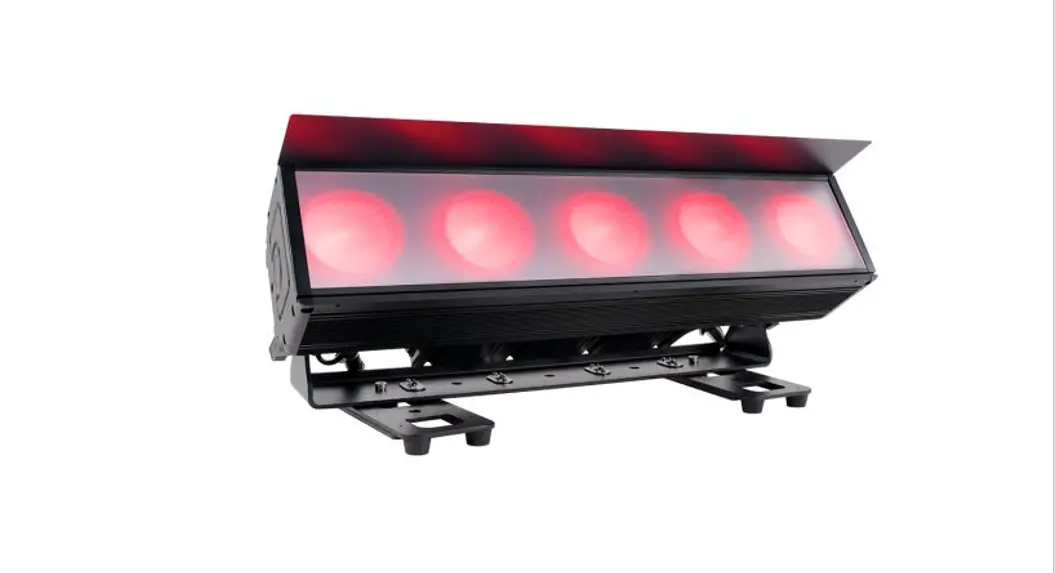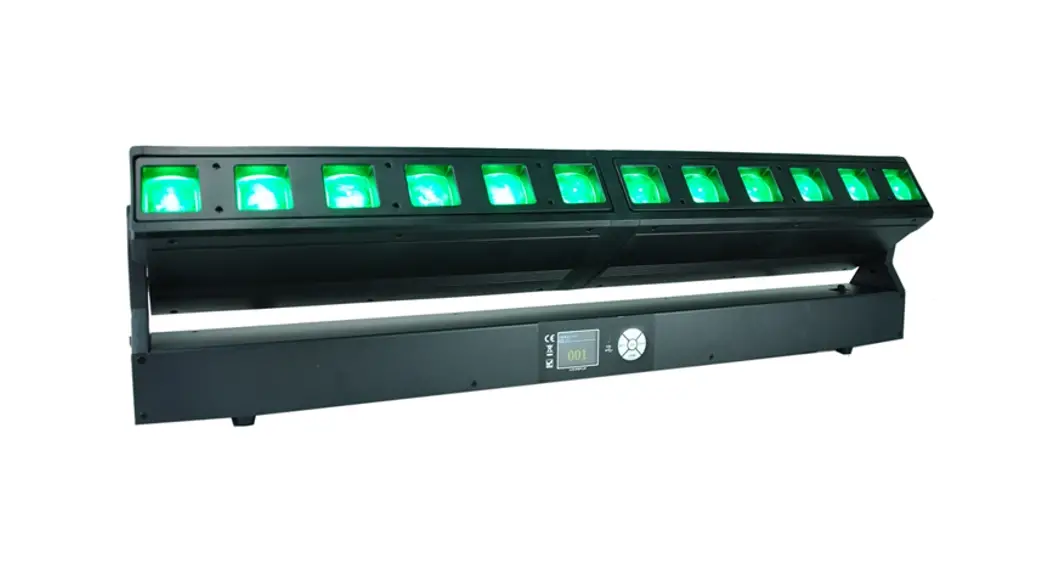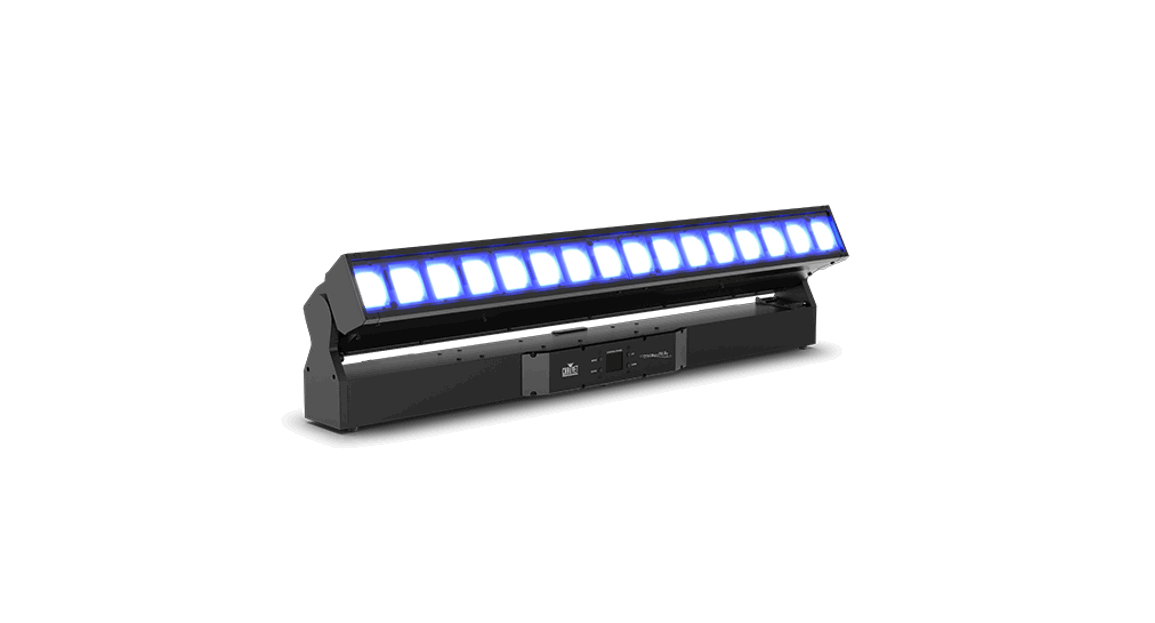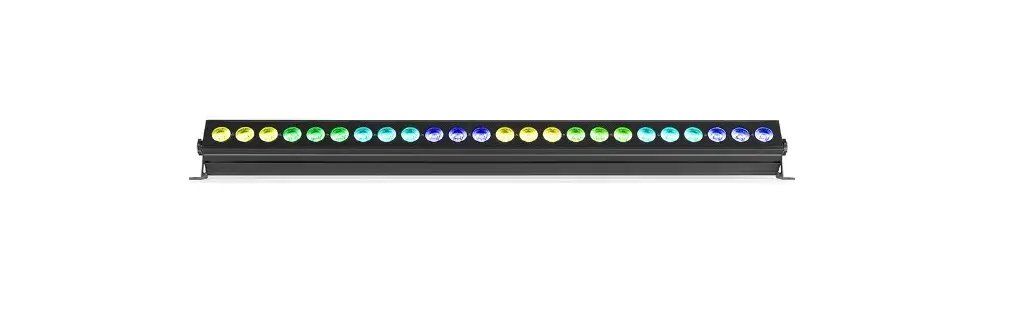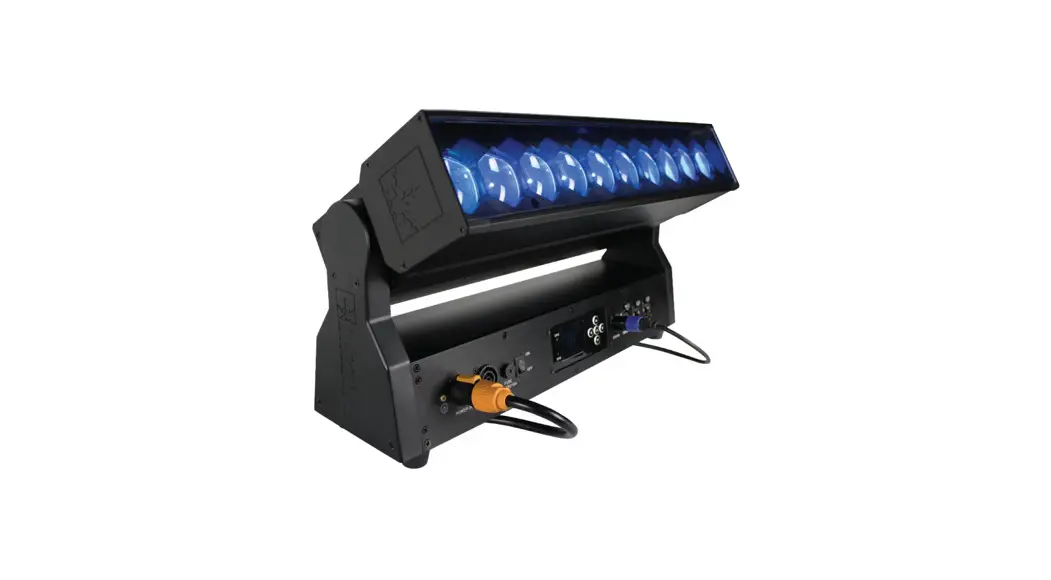
 MystACL Z 10x30W RGBW LED Zoom Bar
User Guide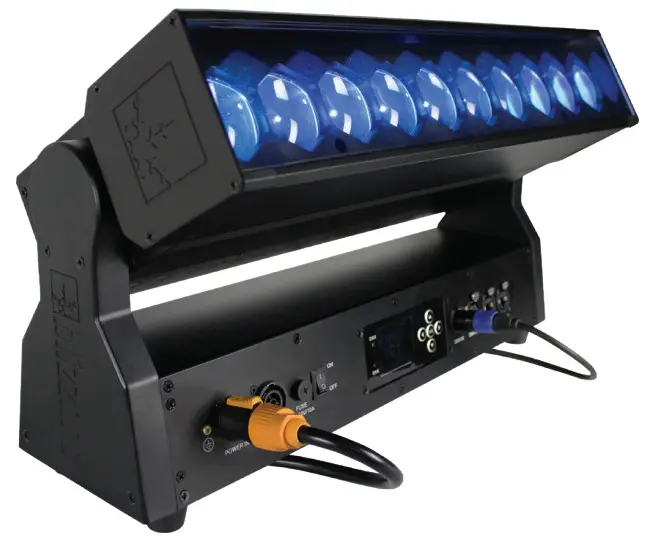
GETTING STARTED
What’s In The Box?
- 1 x MystACL™ Z
- An Ever-So-Handy Power Cord
- A Set of Mounting Brackets
- DMX Cable
- This Lovely User Manual
Getting It Out Of The Box
Congratulations on purchasing the MystACL™ Z moving LED bar fixture. Now that you’ve got your MystACL™ Z, you should carefully unpack the box and check the contents to ensure that all parts are present and in good condition. If anything looks as if it has been damaged in transit, notify the shipper immediately and keep the packing material for inspection. Again, please save the carton and all packing materials. If a fixture must be returned to the factory, it is important that the fixture be returned in the original factory box and packing.
Powering Up!
All fixtures must be powered directly off a switched circuit and cannot be run off a rheostat (variable resistor) or dimmer circuit, even if the rheostat or dimmer channel is used solely for a 0% to 100% switch.
AC Voltage Switch – Not all fixtures have a voltage select switch, so please verify that the fixture you receive is suitable for your local power supply. See the label on the fixture or refer to the fixture’s specifications chart for more information. A fixture’s listed current rating is its average current draw under normal conditions. Check the fixture or device carefully to make sure that if a voltage selection switch exists that it is set to the correct line voltage you will use.
Warning! Verify that the voltage select switch on your unit matches the line voltage applied. Damage to your fixture may result if the line voltage applied does not match the voltage indicated on the voltage selector switch. All fixtures must be connected to circuits with a suitable Ground (Earthing).
Getting A Hold Of Us
If something happens to go wrong, please visit www.blizzardpro.com/support and open a support ticket. We’ll be happy to help, honest.
Disclaimer: The information and specifications contained in this document are subject to change without notice. Blizzard Lighting™ assumes no responsibility or liability for any errors or omissions that may appear in this user manual. Blizzard Lighting™ reserves the right to update the existing document or to create a new document to correct any errors or omissions at any time. You can download the latest version of this document from www.blizzardpro.com.
| Author: | Date: | Last Edited: | Date: |
| J. Thomas | 9/21/2019 | J. Thomas | 7/20/2022 |
SAFETY INSTRUCTIONS Please read these instructions carefully. They include important information about the installation, usage and maintenance of this product.
- Please keep this User Guide for future use. If you sell the unit to someone else, be sure that they also receive this User Guide.
- ALWAYS make sure that you are connecting to the proper voltage, and that the line voltage you are connecting to is not higher than that stated on the decal or rear panel of the fixture.
- This product is intended for indoor use only.
- To prevent risk of fire or shock, do not expose fixture to rain or moisture.
- Make sure there are no flammable materials close to the unit while operating.
- The unit must be installed in a location with adequate ventilation, at least 20in (50cm) from adjacent surfaces. Be sure that no ventilation slots are blocked.
- ALWAYS disconnect from the power source before servicing or replacing fuse and be sure to replace with same fuse size and type.
- ALWAYS secure fixture using a safety chain. NEVER carry the fixture by its head. Use its carrying handles.
- DO NOT operate at ambient temperatures higher than 104°F (40°C).
- In the event of a serious operating problem, stop using the unit immediately. NEVER try to repair the unit by yourself. Repairs carried out by unskilled people can lead to damage or malfunction. Please contact the nearest authorized technical assistance center. Always use the same type spare parts.
- NEVER connect the device to a dimmer pack.
- Make sure the power cord is never crimped or damaged.
- Never disconnect the power cord by pulling or tugging on the cord.
- Avoid direct eye exposure to the light source while it is on.
Caution! There are no user serviceable parts inside the unit. Do not open the housing or attempt any repairs yourself. In the unlikely event your unit may require service, please open a support ticket at www.blizzardpro.com/support.
MEET THE MYSTACL™ Z
MAIN FEATURES
- 10* 30W Osram Ostar RGBW 4-in-1 flicker-free LEDs, 50,000 hours
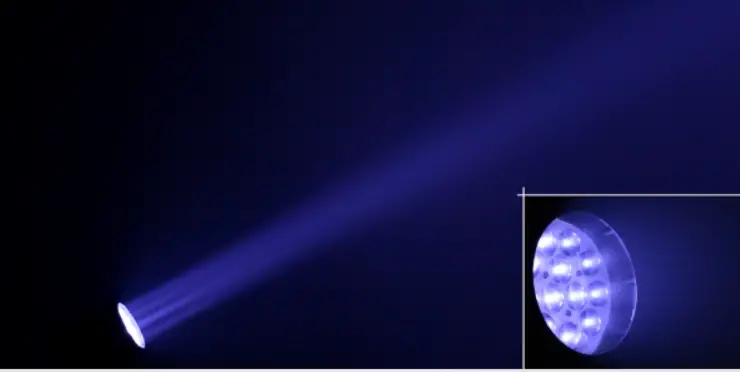
- Fast and precise 3-60° zoomable beam angle
- 8-16 bit motorized 210 degree tilt
- Single or dual pixel mapping capabilities via DMX
- 3-layer effects via DMX with configurable pixel sets & macros
- Built-in macros with patterns + multiple color presets
- Smooth electronic dimming & 1-10Hz strobe effects
- Efficient low noise fan cooling system
- 3/5-pin DMX + RJ45 input/output connections
- PowerCON® TRUE1-compatible power input/output connections
- Dual omega brackets with 1/4-turn fasteners
CONTROL:
Protocol: USITT DMX-512, Art-Net
- DMX channels: 13/26/28/46-channel modes
- Easy-to-use 5-button control panel with full color LCD display
- Operating modes: DMX512, master/slave, auto, sound active
DMX Quick Reference (13/26/28/46-Channel Modes)
| 13CH Basic | 26CH Ext. | 28CH Normal | 46CH P-Map | What It Does |
| 1 | 1 | 1 | 1 | Tilt |
| 2 | 2 | 2 | 2 | Tilt Fine |
| 3 | 3 | 3 | 3 | Zoom (wide <-> narrow) |
| 4 | — | 4 | — | Set 1 – Color Macros (overrides set 1 R/G/B/W) |
| 5 | — | 5 | — | Set 1 – Red |
| 6 | — | 6 | — | Set 1 – Green |
| 7 | — | 7 | — | Set 1 – Blue |
| 8 | — | 8 | — | Set 1 – White |
| — | — | 9 | — | Set 1 – Intensity |
| 9 | 4 | 10 | 4 | Strobe |
| 10 | — | 11 | — | Master Dimmer |
| 11 | 5 | 12 | 5 | Reset (hold 255 for 5 seconds) |
| 12 | — | — | — | Pattern Macro Select |
| 13 | — | — | — | Pattern Macro Speed (fast <-> slow) |
| — | — | 13 | — | Set 2 – Color Macros (overrides set 2 R/G/B/W) |
| — | — | 14 | — | Set 2 – Red |
| — | — | 15 | — | Set 2 – Green |
| — | — | 16 | — | Set 2 – Blue |
| — | — | 17 | — | Set 2 – White |
| — | — | 18 | — | Set 2 – Intensity |
| — | — | 19 | — | Set 3 – Color Macros (overrides set 3 R/G/B/W) |
| — | — | 20 | — | Set 3 – Red |
| — | — | 21 | — | Set 3 – Green |
| — | — | 22 | — | Set 3 – Blue |
| — | — | 23 | — | Set 3 – White |
| — | — | 24 | — | Set 3 – Intensity |
| — | — | 25 | — | Set 1 Pattern Length |
| — | — | 26 | — | Pattern Macro Select |
| — | — | 27 | — | Set 3 Pattern Length |
| — | — | 28 | — | Pattern Macro Speed (fast <-> slow) |
| — | 6 | — | 6 | Master Dimmer |
| — | 7-10 | — | — | Pixel Group 1+2 R/G/B/W Intensity |
| — | 11-14 | — | — | Pixel Group 3+4 R/G/B/W Intensity |
| — | 15-18 | — | — | Pixel Group 5+6 R/G/B/W Intensity |
| — | 19-22 | — | — | Pixel Group 7+8 R/G/B/W Intensity |
| — | 23-26 | — | — | Pixel Group 9+10 R/G/B/W Intensity |
| — | — | 7-46 | Individual Pixels 1-10 R/G/B/W Intensity |
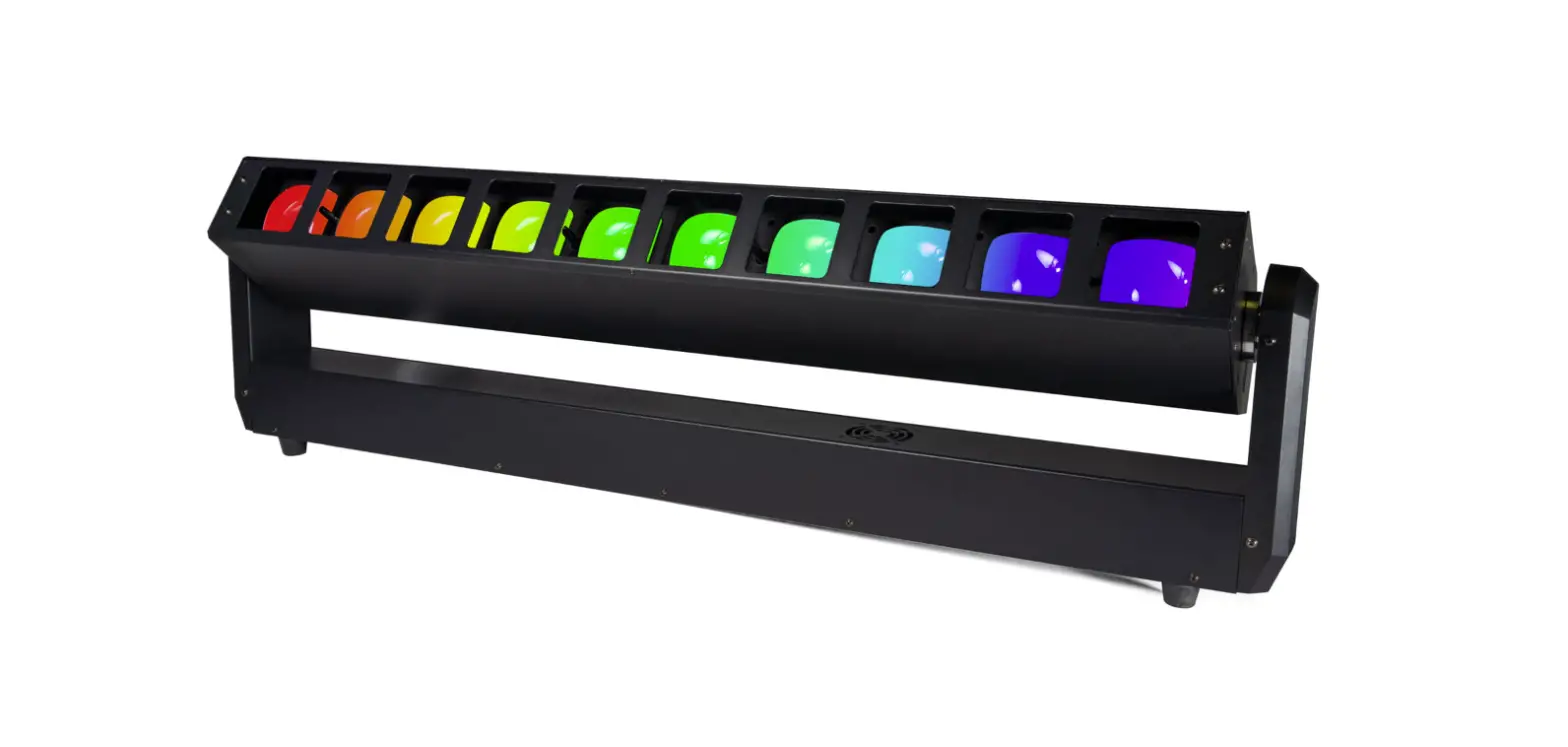
Figure 1: The MystACL™ Z Pin-Up Picture
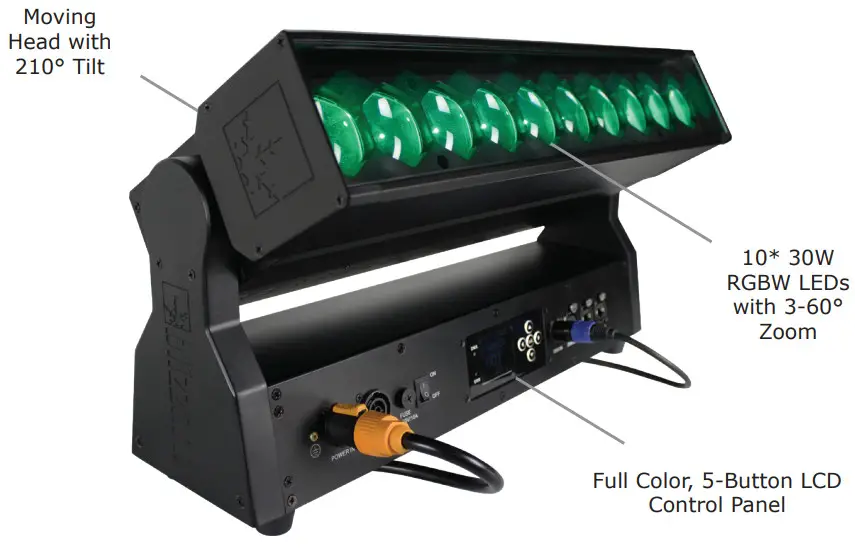 Figure 2: The Front Panel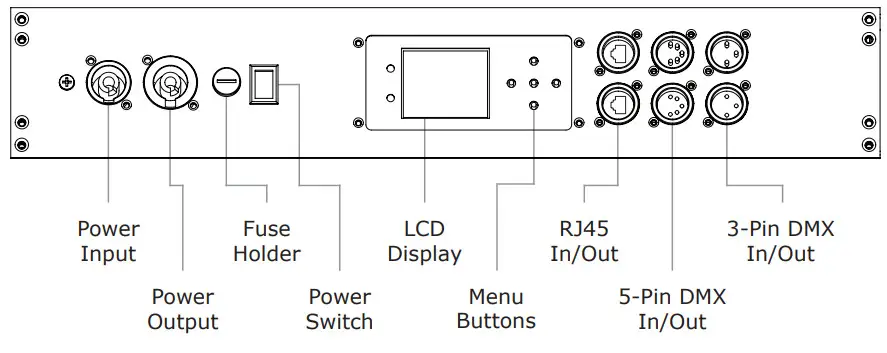
SETUP
Before replacing the fuse, disconnect the power cord. ALWAYS replace it with the same type and rating.
Fuse Replacement
Remove the fuse holder from of its housing. Then take out the damaged fuse from its holder and replace with exact same type of fuse. Reattach the fuse holder, and then reconnect power.
Connecting A Bunch of MystACL™ Z Fixtures
You will need a serial data link to run light shows using a DMX-512 controller or to run shows on two or more fixtures set to sync in master/slave operating mode. The combined number of channels required by all the fixtures on a serial data link determines the number of fixtures the data link can support.
Fixtures on a serial data link must be daisy chained in one single line. Also, connecting more than 32 fixtures on one serial data link without the use of a DMX optically-isolated splitter may result in deterioration of the digital DMX signal. The maximum recommended cable-run distance is 500 meters (1640 ft). The maximum recommended number of fixtures on a serial data link is 32 fixtures.
Data/DMX Cabling
To link fixtures together you’ll need data cables. You should use datagrade cables that can carry a high quality signal and are less prone to electromagnetic interference.
For instance, Belden© 9841 meets the specifications for EIA RS-485 applications. Standard microphone cables will “probably” be OK, but note that they cannot transmit DMX data as reliably over long distances. In any event, the cable should have the following characteristics:
- 2-conductor twisted pair plus a shield
- Maximum capacitance between conductors – 30 pF/ft.
- Maximum capacitance between conductor & shield – 55 pF/ft.
- Maximum resistance of 20 ohms / 1000 ft.
- Nominal impedance 100 – 140 ohms
Cable Connectors
Cables must have a male XLR connector on one end and a female XLR connector on the other end. (Duh!)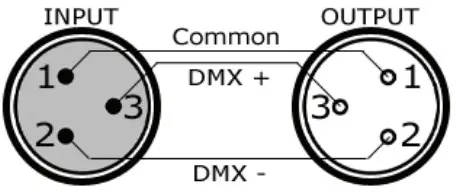 A Word on Termination; DMX is a resilient communication protocol, however errors still occasionally occur.
Termination reduces signal errors, and therefore best practices include use of a terminator in all circumstances. If you are experiencing problems with erratic fixture behavior, especially over long signal cable runs, a terminator may help improve performance.
To build your own OMX Terminator:
Obtain a 120-ohm, 1/4-watt resistor, and wire it between pins 283 of the last fixture. They are also readily available from specialty retailers.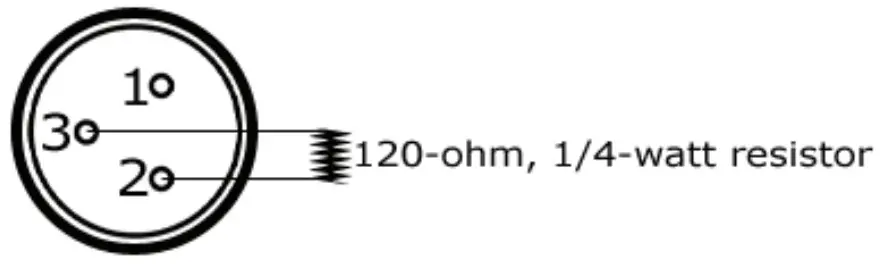 CAUTION: Do not allow contact between the common and the fixture’s chassis ground. Grounding the common can cause a ground loop, and your fixture may perform erratically. Test cables with an ohm meter to verify correct polarity and to make sure the pins are not grounded or shorted to the shield or each other.
3-Pin??? 5-Pin??? Huh?!?
If you use a controller with a 5-pin DMX output connector, it’s no problem! You can simply use the installed 5-pin DMX input and/or output connections found on the back of your fixture(s).
| Conductor | 3-Pin Female (Output) | 5-Pin Male (Input) |
| Ground/Shield | Pin 1 | Pin 1 |
| Data 1- (Primary Data Link) | Pin 2 | Pin 2 |
| Data 1+ (Primary Data Link) | Pin 3 | Pin 3 |
| Data 2- (Optional Secondary Data Link) | Pin 4 | Pin 4 |
| Data 2+ (Optional Secondary Data Link) | Pin 5 | Pin 5 |
Take It To The Next Level: Setting Up DMX Control
Step 1: Connect the male connector of the DMX cable to the female connector (output) on the controller.
Step 2: Connect the female connector of the DMX cable to the first fixture’s male connector (input).
Note: It doesn’t matter which fixture address is the first one connected. We recommend connecting the fixtures in terms of their proximity to the controller, rather than connecting the lowest fixture number first, and so on.
Step 3: Connect other fixtures in the chain from output to input as above. Place a DMX terminator on the output of the final fixture to ensure best communication.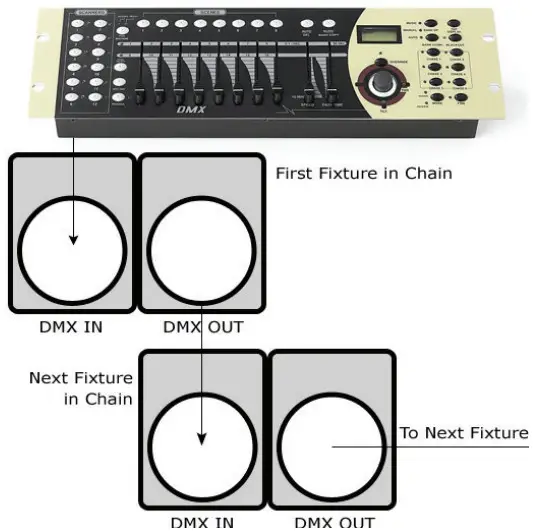
Fixture Linking (Master/Slave Mode)
- Connect the (male) 3/5-pin connector side of the DMX cable to the output (female) 3/5-pin connectorof the first fixture.
- Connect the end of the cable coming from the first fixture which will have a (female) 3/5-pin connector to the input connector of the next fixture consisting of a (male) 3/5-pin connector. Then, proceed to connect from the output as stated above to the input of the following fixture and so on.
A quick note: Often, the setup for MasterSlave and Standalone operation requires that the first fixture in the chain be initialized for this purpose via either settings in the control panel or DIP-switches. Secondarily, the fixtures that follow may also require a slave setting.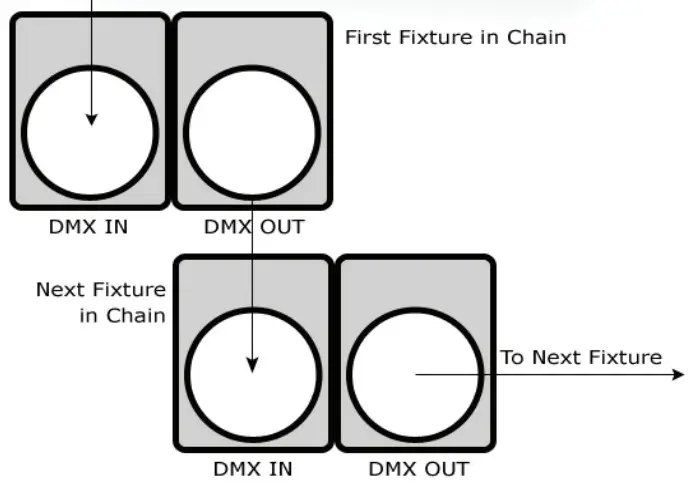
Check the “Operating Adjustments” section in this manual for complete instructions for this type of setup and configuration.
Mounting & Rigging
This fixture may be mounted in any SAFE position provided there is enough room for ventilation.
It is important never to obstruct the fan or vents pathway. Mount the fixture using a suitable “C” or “O” type clamp. The clamp should be rated to hold at least 10x the fixture’s weight to ensure structural stability. Do not mount to surfaces with unknown strength, and ensure properly “rated” rigging is used when mounting fixtures overhead.
Adjust the angle of the fixture by loosening both knobs and tilting the fixture. After finding the desired position, retighten both knobs.
- When selecting installation location, take into consideration lamp replacement access (if applicable) and routine maintenance.
- Safety cables MUST ALWAYS be used.
- Never mount in places where the fixture will be exposed to rain, high humidity, extreme temperature changes or restricted ventilation.
Mounting Points
Overhead mounting requires extensive experience, which includes calculating working load limits, knowledge of the installation material being used, and periodic safety inspection of all installation material and the fixture. If you lack these qualifications, do not attempt the installation yourself. Improper installation can result in bodily injury.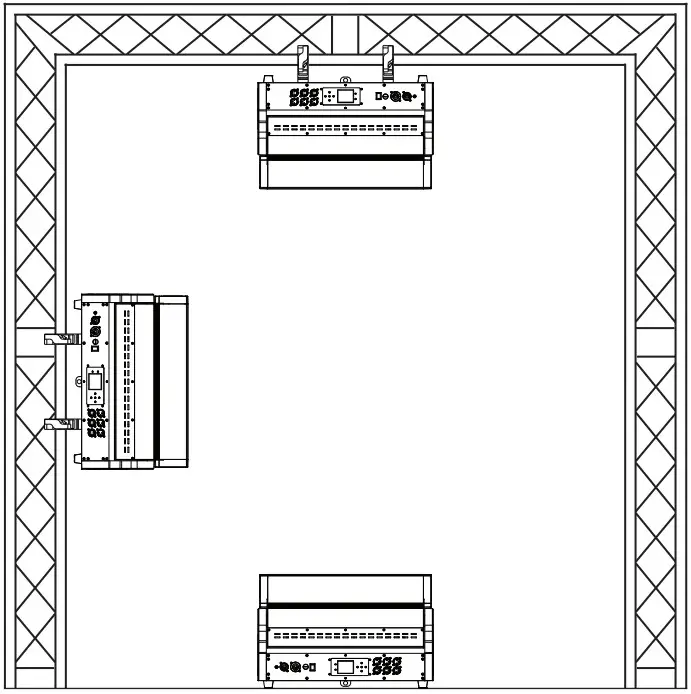 Caution!
Please be aware, you should have a qualified electrician performing all of your electrical connection needs.
Be sure to complete all rigging and installation procedures before connecting the main power cord to the appropriate wall outlet.
Clamp Mounting
This fixture provides a mounting bracket assembly that secures the bottom of the base, the “Omega Bracket,” and the safety cable rigging point together. When mounting this fixture to truss, be sure to secure an appropriately rated clamp to the omega bracket using an M10 screw fitted through the center hole of the “omega bracket”.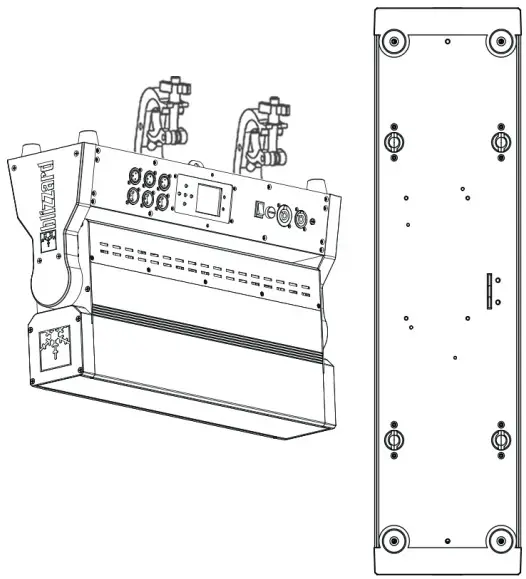
- Clamp
- Omega Bracket
- ¼ Turn Quick Lock Fasteners

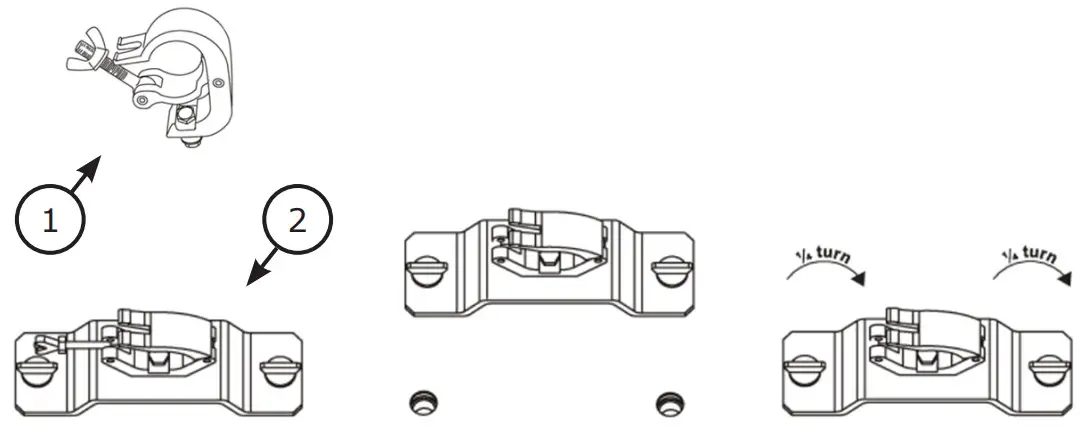
Securing the Fixture
Regardless of the rigging option you choose for your fixtures always be sure to secure your fixture with a safety cable.
OPERATING ADJUSTMENTS
The Control Panel
All the goodies and different modes possible with this fixture are accessed by using the control panel on the front of the fixture. There are 5 control buttons next to the LCD display which allow you to navigate through the various control panel menus.
<RIGHT>
Is used to navigate to a higher-level menu item.
<UP>
Scrolls through menu items and numbers in ascending order.
<DOWN>
Scrolls through menu items and numbers in descending order.
<OK>
Is used to save any changes made to a menu setting.
<LEFT>
To return to the previous option or menu without changing the value.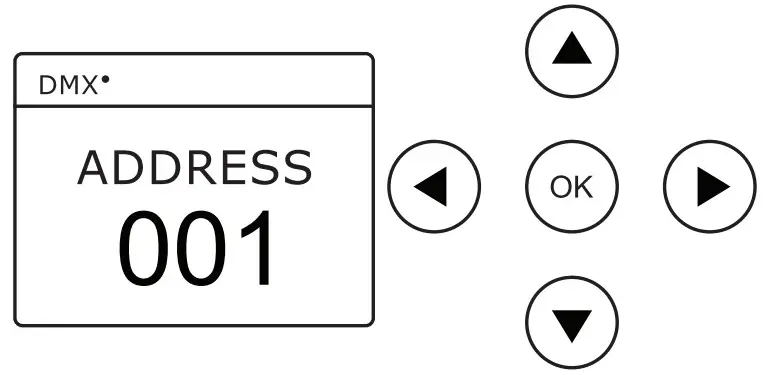 The control panel LCD display shows the menu items you select from the menu map on page #13. When a menu function is selected, the display will show im- mediately the first available option for the selected menu function. To select a menu item, press <OK>.
Use the <UP>, <DOWN>, and <RIGHT> buttons to navigate the menu options. Press the <OK> button to enable a menu option.
To return to the previous option or menu without changing the value, press the <LEFT> button.
Control Panel Menu Structure
| Address | 001-512 | To choose the DMX address | |
| Run | DMX512 | DMX Mode | |
| Artnet | Artnet Mode | ||
| Auto 1 | Auto Mode 1 | ||
| Auto 2 | Auto Mode 2 | ||
| Sound 1 | Sound Active Mode 1 | ||
| Sound 2 | Sound Active Mode 2 | ||
| DMX Mode | Normal | To run in Normal mode (28-channel) | |
| Basic | To run in Basic mode (13-channel) | ||
| Extended | To run in Extended mode (26-channel) | ||
| P-Map | To run in P-Map mode (46-channel) | ||
| Test | All | Test Tilit & LEDs | |
| Tilt | Test Tilt Movement | ||
| LED | Test LEDs | ||
| Set | Display Settings | Display | ON (constant on) |
| OFF | |||
| Flip Display | ON (rotation of the display by 180°) | ||
| OFF | |||
| Key Lock | ON (passcode: Up, Down, Up, Down, OK) | ||
| OFF | |||
| Disp. Flash | ON (flash menu display if no signal) | ||
| OFF | |||
| Backlight | 001-050 (adjust menu brightness) | ||
| Zoom Invert | ON (invert DMX values for zoom) | ||
| OFF | |||
| Tilt Invert | ON (invert DMX values for tilt) | ||
| OFF | |||
| No DMX Signal | Keep (holds last received command upon loss of DMX) | ||
| Clear (blackout) | |||
| Info | Time Info | Total Fix. Hours (total fixture running hours: 0000:00) | |
| Partial Fix. Hours (current running hours: 0000:00) | |||
| Software Ver. | Software version information | ||
| Manual | Zoom | See page 13 for in-depth DMX value functions. | 000-255 |
| Tilt | 000-255 | ||
| Function | 000-255 | ||
| Dimmer | 000-255 | ||
| Strobe | 000-255 | ||
| Macro | 000-255 | ||
| Red | 000-255 | ||
| Green | 000-255 | ||
| Blue | 000-255 | ||
| White | 000-255 | ||
| Chase | 000-255 | ||
| Chase Speed | 000-255 | ||
| Reset | All Reset | No | |
| Yes | |||
DMX Mode
Allows the unit to be controlled by any universal DMX controller.
Select the Starting DMX Address
- Navigate the main menu to reach Address, press <RIGHT>.
- Use the <UP/DOWN> buttons to choose a starting DMX address ranging from 001-512, press <OK> to confirm, or <LEFT> to exit.
Run Mode (DMX/Artnet)
- Navigate the main menu to reach Run, press <RIGHT>.
- Use the <UP/DOWN> buttons to highlight DMX512, or Artnet.
- Press <OK> to confirm, or <LEFT> to exit.
Master/Slave Mode
- Daisy chain fixtures together via DMX input/output connections.
- The first fixture in the DMX chain is the master fixture, and the following units will operate in unison with the master.
Select the Channel Mode
- Navigate the main menu to reach DMX Mode, press <RIGHT>.
- Then use the <UP/DOWN> buttons to highlight Normal (28CH mode), Basic (13CH mode), Extended (26CH mode), or P-Map (46CH mode), press <OK>.
- 13-channel Mode (Basic) – Basic functionality.
- 26-channel Mode (Extended) – Pixel mapping, with pixels in groups of 2.
- 28-channel Mode (Normal) – 3-layer sets. You can set the pixel length of the top “Set 1”, and the middle “Set 3” (right to left). “Set 2” is the background.
- 46-channel Mode (P-Map) – Full pixel mapping mode.
28-Channel Mode – Layer Set Example: Set 1: Set CH5 to 001-255 (red) + set CH25 for 3-pixels in length.
Set 2: Set CH16 to 001-255 (blue, overall background).
Set 3: Set CH21 to 001-255 (green) + set CH27 for 3-pixels in length.
 Set 1: Set CH5 to 001-255 (red) + set CH25 for 3-pixels in length.
Auto & Sound Active Modes:
Allows a single or Master/Slaved units to run factory installed programs.
- Navigate the main menu to reach Run, press <RIGHT>.
- Use the <UP/DOWN> buttons to highlight Auto 1, Auto 2, Sound 1, or Sound 2.
- Press <OK> to confirm, or <LEFT> to exit.
Manual Adjustments
Allows individual adjustments to be made via the control panel menu.
- Navigate the main menu to reach Manual, press <RIGHT>.
- Use the <UP/DOWN> buttons to highlight any function, press <RIGHT>.
- Now use the <UP/DOWN> buttons scroll through the values ranging from 000-255, press <OK>. (see DMX Values In-Depth)
DMX Values In-Depth (13/26/28/46-Channel Modes)
| 13CH Basic | 26CH Ext. | 28CH Normal | 46CH P-Map | Value | What It Does | |
| 1 | 1 | 1 | 1 | 000 <-> 255 | Tilt | |
| 2 | 2 | 2 | 2 | 000 <-> 255 | Tilt Fine | |
| 3 | 3 | 3 | 3 | 000 <-> 255 | Zoom (wide <-> narrow) | |
| 4 | — | 4 | — | Set 1 – Color Macros | 008-255 Override Set 1 Color Mixing Channels | |
| 000 <-> 007 | No Function | |||||
| 008 <-> 015 | Red | |||||
| 016 <-> 023 | Amber | |||||
| 024 <-> 031 | Warm Yellow | |||||
| 032 <-> 039 | Yellow | |||||
| 040 <-> 047 | Green | |||||
| 048 <-> 055 | Turquoise | |||||
| 056 <-> 063 | Cyan | |||||
| 064 <-> 071 | Blue | |||||
| 072 <-> 079 | Lavender | |||||
| 080 <-> 087 | Mauve | |||||
| 088 <-> 095 | Magenta | |||||
| 096 <-> 103 | Pink | |||||
| 104 <-> 111 | CTO – 3200K | |||||
| 112 <-> 119 | White 5600K | |||||
| 120 <-> 127 | CTB – 7200K | |||||
| 128 <-> 255 | Color Chase | |||||
| 5 | — | 5 | — | 000 <-> 255 | Set 1 – Red | |
| 6 | — | 6 | — | 000 <-> 255 | Set 1 – Green | |
| 7 | — | 7 | — | 000 <-> 255 | Set 1 – Blue | |
| 8 | — | 8 | — | 000 <-> 255 | Set 1 – White | |
| — | — | 9 | — | 000 <-> 255 | Set 1 – Intensity | |
| 9 | 4 | 10 | 4 | Strobe | ||
| 000 <-> 009 | Closed | |||||
| 010 <-> 109 | Random Pulse (slow <-> fast) | |||||
| 110 <-> 239 | Strobe (slow <-> fast) | |||||
| 240 <-> 255 | Open | |||||
| 10 | — | 11 | — | 000 <-> 255 | Master Dimmer | |
| 11 | 5 | 12 | 5 | 000 <-> 255 | Reset (hold 255 for 5 seconds) | |
| 12 | — | — | — | Pattern Macro Select | ||
| 000 <-> 014 | Off | |||||
| 015 <-> 030 | Pattern 1 | |||||
| 031 <-> 046 | Pattern 2 | |||||
| 047 <-> 062 | Pattern 3 | |||||
| 063 <-> 078 | Pattern 4 | |||||
| 079 <-> 094 | Pattern 5 | |||||
| 095 <-> 110 | Pattern 6 | |||||
| 111 <-> 126 | Pattern 7 | |||||
| 127 <-> 142 | Pattern 8 | |||||
| 143 <-> 158 | Pattern 9 | |||||
| 159 <-> 174 | Pattern 10 | |||||
| 175 <-> 190 | Pattern 11 | |||||
| 191 <-> 206 | Pattern 12 | |||||
| 207 <-> 222 | Pattern 13 | |||||
| 223 <-> 255 | Pattern 14 | |||||
| 13 | — | — | — | 000 <-> 255 | Pattern Macro Speed | |
| 13CH Basic | 26CH Ext. | 28CH Normal | 46CH P-Map | Value | What It Does | |
| — | — | 13 | — | Set 2 – Color Macros | 008-255 Override Set 2 Color Mixing Channels | |
| 000 <-> 007 | No Function | |||||
| 008 <-> 015 | Red | |||||
| 016 <-> 023 | Amber | |||||
| 024 <-> 031 | Warm Yellow | |||||
| 032 <-> 039 | Yellow | |||||
| 040 <-> 047 | Green | |||||
| 048 <-> 055 | Turquoise | |||||
| 056 <-> 063 | Cyan | |||||
| 064 <-> 071 | Blue | |||||
| 072 <-> 079 | Lavender | |||||
| 080 <-> 087 | Mauve | |||||
| 088 <-> 095 | Magenta | |||||
| 096 <-> 103 | Pink | |||||
| 104 <-> 111 | CTO – 3200K | |||||
| 112 <-> 119 | White 5600K | |||||
| 120 <-> 127 | CTB – 7200K | |||||
| 128 <-> 255 | Color Chase | |||||
| — | — | 14 | — | 000 <-> 255 | Set 2 – Red | |
| — | — | 15 | — | 000 <-> 255 | Set 2 – Green | |
| — | — | 16 | — | 000 <-> 255 | Set 2 – Blue | |
| — | — | 17 | — | 000 <-> 255 | Set 2 – White | |
| — | — | 18 | — | 000 <-> 255 | Set 2 – Intensity | |
| — | — | 19 | — | Set 3 – Color Macros | 008-255 Override Set 3 Color Mixing Channels | |
| 000 <-> 007 | No Function | |||||
| 008 <-> 015 | Red | |||||
| 016 <-> 023 | Amber | |||||
| 024 <-> 031 | Warm Yellow | |||||
| 032 <-> 039 | Yellow | |||||
| 040 <-> 047 | Green | |||||
| 048 <-> 055 | Turquoise | |||||
| 056 <-> 063 | Cyan | |||||
| 064 <-> 071 | Blue | |||||
| 072 <-> 079 | Lavender | |||||
| 080 <-> 087 | Mauve | |||||
| 088 <-> 095 | Magenta | |||||
| 096 <-> 103 | Pink | |||||
| 104 <-> 111 | CTO – 3200K | |||||
| 112 <-> 119 | White 5600K | |||||
| 120 <-> 127 | CTB – 7200K | |||||
| 128 <-> 255 | Color Chase | |||||
| — | — | 20 | — | 000 <-> 255 | Set 3 – Red | |
| — | — | 21 | — | 000 <-> 255 | Set 3 – Green | |
| — | — | 22 | — | 000 <-> 255 | Set 3 – Blue | |
| — | — | 23 | — | 000 <-> 255 | Set 3 – White | |
| — | — | 24 | — | 000 <-> 255 | Set 3 – Intensity | |
| — | — | 25 | — | 000 <-> 255 | Set 1 Pattern Length | |
| — | — | 26 | — | 000 <-> 255 | Pattern Macro Select | |
| — | — | 27 | — | 000 <-> 255 | Set 3 Pattern Length | |
| — | — | 28 | — | 000 <-> 255 | Pattern Speed (fast <-> slow) | |
| — | 6 | — | 6 | 000 <-> 255 | Master Dimmer | |
| — | 7 | — | — | 000 <-> 255 | Pixel Group 1 – Red | |
| 8 | 000 <-> 255 | Pixel Group 1 – Green | ||||
| 9 | 000 <-> 255 | Pixel Group 1 – Blue | ||||
| 10 | 000 <-> 255 | Pixel Group 1- White | ||||
| 13CH Basic | 26CH Ext. | 28CH Normal | 46CH P Map | Value | What It Does |
| — | 11 | — | — | 000 <-> 255 | Pixel Group 2 – Red |
| — | 12 | — | — | 000 <-> 255 | Pixel Group 2 – Green |
| — | 13 | — | — | 000 <-> 255 | Pixel Group 2 – Blue |
| — | 14 | — | — | 000 <-> 255 | Pixel Group 2 – White |
| — | 15 | — | — | 000 <-> 255 | Pixel Group 3 – Red |
| — | 16 | — | — | 000 <-> 255 | Pixel Group 3 – Green |
| — | 17 | — | — | 000 <-> 255 | Pixel Group 3 – Blue |
| — | 18 | — | — | 000 <-> 255 | Pixel Group 3 – White |
| — | 19 | — | — | 000 <-> 255 | Pixel Group 4 – Red |
| — | 20 | — | — | 000 <-> 255 | Pixel Group 4 – Green |
| — | 21 | — | — | 000 <-> 255 | Pixel Group 4 – Blue |
| — | 22 | — | — | 000 <-> 255 | Pixel Group 4 – White |
| — | 23 | — | — | 000 <-> 255 | Pixel Group 5 – Red |
| — | 24 | — | — | 000 <-> 255 | Pixel Group 5 – Green |
| — | 25 | — | — | 000 <-> 255 | Pixel Group 5 – Blue |
| — | 26 | — | — | 000 <-> 255 | Pixel Group 5 – White |
| — | — | — | 7 | 000 <-> 255 | Pixel 1 – Red |
| — | — | — | 8 | 000 <-> 255 | Pixel 1 – Green |
| — | — | — | 9 | 000 <-> 255 | Pixel 1 – Blue |
| — | — | — | 10 | 000 <-> 255 | Pixel 1 – White |
| — | — | — | 11 | 000 <-> 255 | Pixel 2 – Red |
| — | — | — | 12 | 000 <-> 255 | Pixel 2 – Green |
| — | — | — | 13 | 000 <-> 255 | Pixel 2 – Blue |
| — | — | — | 14 | 000 <-> 255 | Pixel 2 – White |
| — | — | — | 15 | 000 <-> 255 | Pixel 3 – Red |
| — | — | — | 16 | 000 <-> 255 | Pixel 3 – Green |
| — | — | — | 17 | 000 <-> 255 | Pixel 3 – Blue |
| — | — | — | 18 | 000 <-> 255 | Pixel 3 – White |
| — | — | — | 19 | 000 <-> 255 | Pixel 4 – Red |
| — | — | — | 20 | 000 <-> 255 | Pixel 4 – Green |
| — | — | — | 21 | 000 <-> 255 | Pixel 4 – Blue |
| — | — | — | 22 | 000 <-> 255 | Pixel 4 – White |
| — | — | — | 23 | 000 <-> 255 | Pixel 5 – Red |
| — | — | — | 24 | 000 <-> 255 | Pixel 5 – Green |
| — | — | — | 25 | 000 <-> 255 | Pixel 5 – Blue |
| — | — | — | 26 | 000 <-> 255 | Pixel 5 – White |
| — | — | — | 27 | 000 <-> 255 | Pixel 6 – Red |
| — | — | — | 28 | 000 <-> 255 | Pixel 6 – Green |
| — | — | — | 29 | 000 <-> 255 | Pixel 6 – Blue |
| — | — | — | 30 | 000 <-> 255 | Pixel 6 – White |
| — | — | — | 31 | 000 <-> 255 | Pixel 7 – Red |
| — | — | — | 32 | 000 <-> 255 | Pixel 7 – Green |
| — | — | — | 33 | 000 <-> 255 | Pixel 7 – Blue |
| — | — | — | 34 | 000 <-> 255 | Pixel 7 – White |
| — | — | — | 35 | 000 <-> 255 | Pixel 8 – Red |
| — | — | — | 36 | 000 <-> 255 | Pixel 8 – Green |
| — | — | — | 37 | 000 <-> 255 | Pixel 8 – Blue |
| — | — | — | 38 | 000 <-> 255 | Pixel 8 – White |
| — | — | — | 39 | 000 <-> 255 | Pixel 9 – Red |
| — | — | — | 40 | 000 <-> 255 | Pixel 9 – Green |
| — | — | — | 41 | 000 <-> 255 | Pixel 9 – Blue |
| — | — | — | 42 | 000 <-> 255 | Pixel 9 – White |
| — | — | — | 43 | 000 <-> 255 | Pixel 10 – Red |
| — | — | — | 44 | 000 <-> 255 | Pixel 10 – Green |
| — | — | — | 45 | 000 <-> 255 | Pixel 10 – Blue |
| 46 | 000 <-> 255 | Pixel 10 – White |
APPENDIX
Keeping Your MystACL™ Z As Good As New
The fixture you’ve received is a rugged, tough piece of pro lighting equipment, and as long as you take care of it, it will take care of you. That said, like any- thing, you’ll need to take care of it if you want it to operate as designed. You should absolutely keep the fixture clean, especially if you are using it in an environment with a lot of dust, fog, haze, wild animals, wild teenagers or spilled drinks.
Cleaning the optics routinely with a suitable glass cleaner will greatly improve the quality of light output. Keeping the fans free of dust and debris will keep the fixture running cool and prevent damage from overheating.
In transit, keep the fixtures in cases. You wouldn’t throw a prized guitar, drumset, or other piece of expensive gear into a gear trailer without a case, and similarly, you shouldn’t even think about doing it with your shiny new light fixtures.
Common sense and taking care of your fixtures will be the single biggest thing you can do to keep them running at peak performance and let you worry about designing a great light show, putting on a great concert, or maximizing your client’s satisfaction and “wow factor.” That’s what it’s all about, after all!
Returns (Gasp!)
We’ve taken a lot of precautions to make sure you never even have to worry about sending a defective unit back, or sending a unit in for service. But, like any complex piece of equipment designed and built by humans, once in a while, something doesn’t go as planned. If you find yourself with a fixture that isn’t behaving like a good little fixture should, you’ll need to obtain a Return Authorization (RA).
Don’t worry, this is easy. Just visit www.blizzardpro.com/support and open a support ticket, and we’ll issue you an RA. Then, you’ll need to send the unit to us using a trackable, pre-paid freight method. We suggest using USPS Priority or UPS. Make sure you carefully pack the fixture for transit, and whenever possible, use the original box & packing for shipping.
When returning your fixture for service, be sure to include the following:
- Your contact information (Name, Address, Phone Number, Email address).
- The RA# issued to you
- A brief description of the problem/symptoms.
We will, at our discretion, repair or replace the fixture. Please remember that any shipping damage which occurs in transit to us is the customer’s responsibility, so pack it well!
Shipping Issues
Damage incurred in shipping is the responsibility of the shipper, and must be reported to the carrier immediately upon receipt of the items. Claims must be made within seven (7) days of receipt.
Tech Specs!
| Weight & Dimensions | |
| Width | 20.3 inches (513.9 mm) |
| Depth | 5.5 inches (137.8 mm) |
| Height | 13.2 inches (333.1 mm) |
| Weight | 20.1 lbs (9.5 kg) |
| Power | |
| Operating Voltage | 100-240VAC, 50-60 Hertz |
| Power Consumption | 261W, 2.26A, PF: .99 |
| Light Source | |
| LED | 10* 30W Osram Ostar RGBW 4-in-1 LEDs, 50,000 hours |
| Optical | |
| Luminous Intensity | 10,524 Lux @ 2.5M (narrow), 1,015 Lux @ 2.5M (wide) 6,105 Lux @ 5M (narrow), 241 Lux @ 5M (wide) 3,068 Lux @ 7.5M (narrow), 159 Lux @ 7.5M (wide) 1,636 Lux @ 10M (narrow), 113 Lux @ 10M (wide) |
| Beam Angle | 3-60° zoom |
| Thermal | |
| Max. Operating Temp. | 104 degrees F (40 degrees C) ambient |
| Control | |
| Protocol | USITT DMX-512 |
| DMX Channels | 13/26/28/46-channel modes |
| Input/Output | 3/5-pin DMX + RJ45 input/output connections |
| Other Operating Modes | DMX512, master/slave, auto, sound active |
| Warranty | 2-year limited warranty, does not cover malfunction caused by damage to LEDs. |
DISCLAIMER:
The power connector fitted to the fixture and fixture cord are designed for compatibility with products manufactured by Neutrik AG, Neutrik USA and their related entities, however they are not manufactured by, affiliated with or endorsed by Neutrik AG, Neutrik USA, or any related entity. Neutrik® and powerCON® are registered trademarks of Neutrik AG.
Dimensional Drawings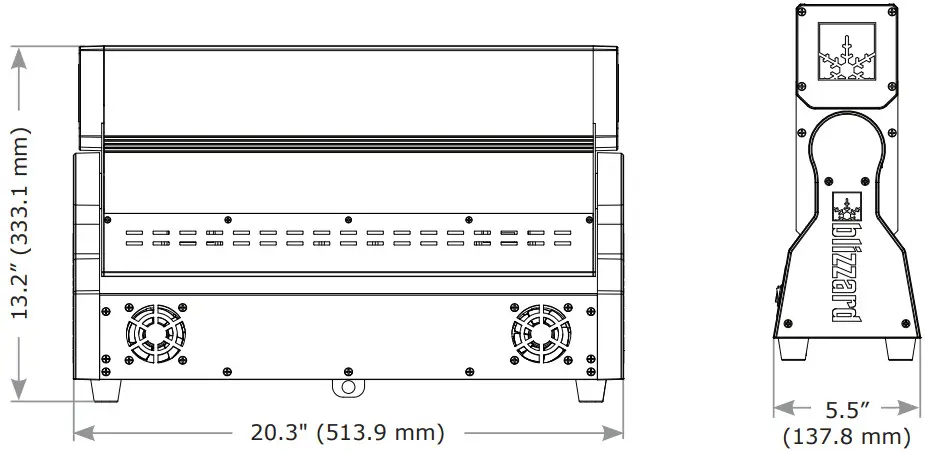
Enjoy your product!
Our sincerest thanks for your purchase!
–The team @ Blizzard Lighting
Blizzard Lighting, LLC
http://www.blizzardpro.com
Waukesha, WI USA
Copyright (c) 2022
MystACL™ Z Manual Rev. B
© 2022 Blizzard Lighting, LLC
 Blizzard | LED Lighting Products + IRiS LED Video – Blizzard Lighting
 Blizzard | LED Lighting Products + IRiS LED Video – Blizzard Lighting