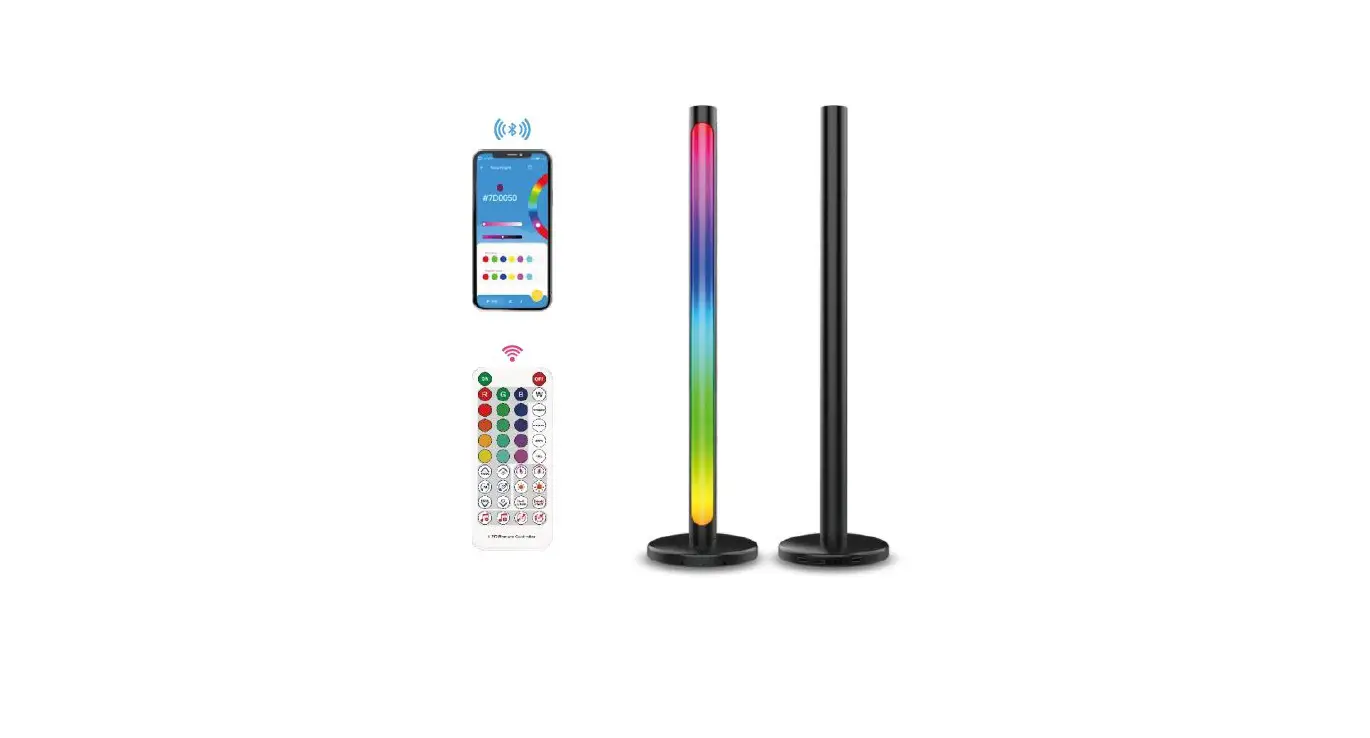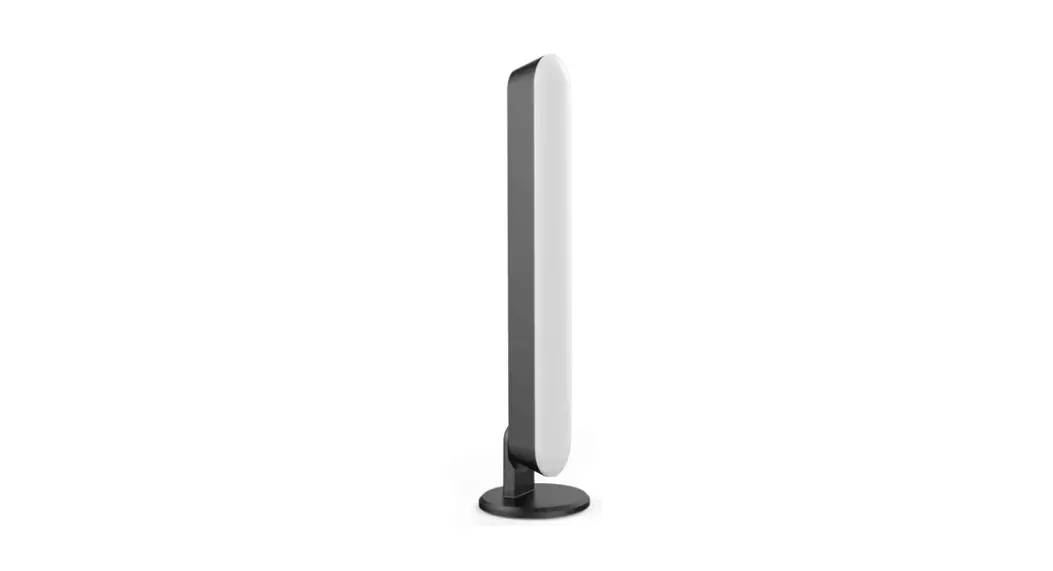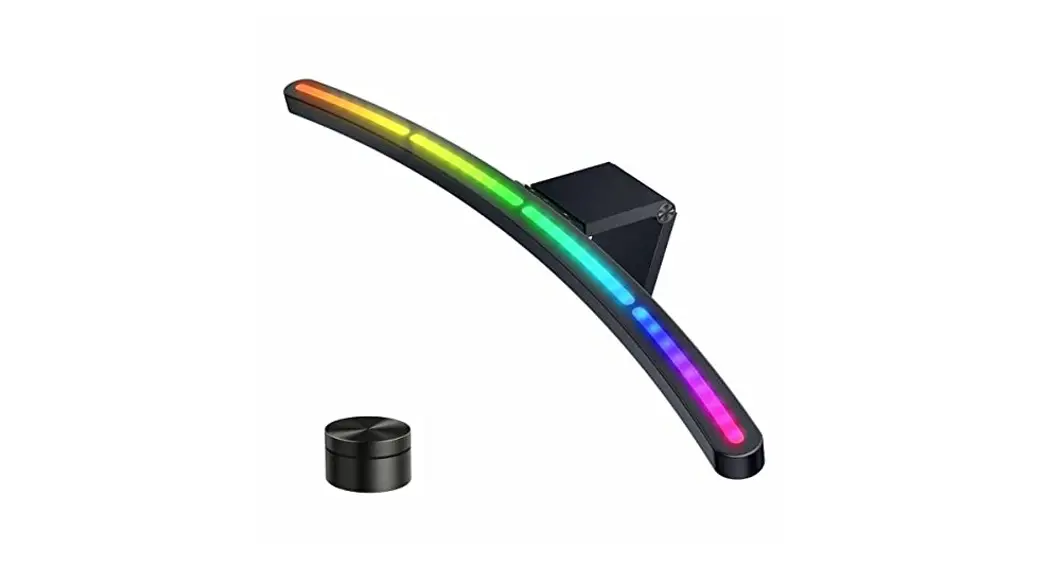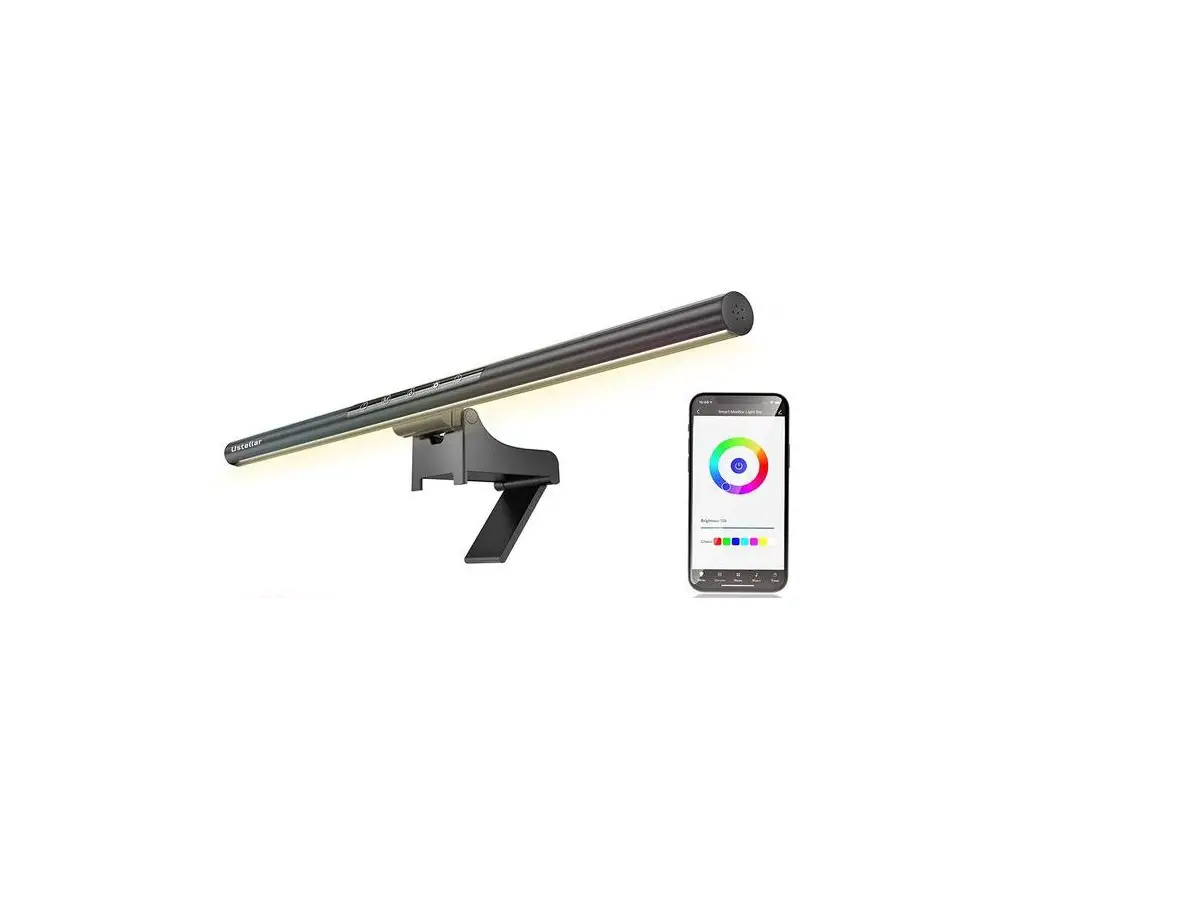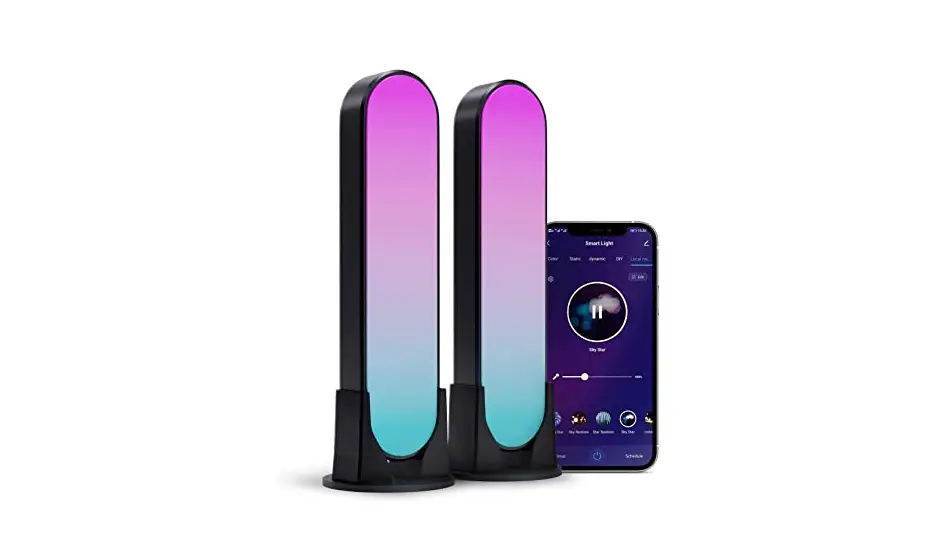
Smart
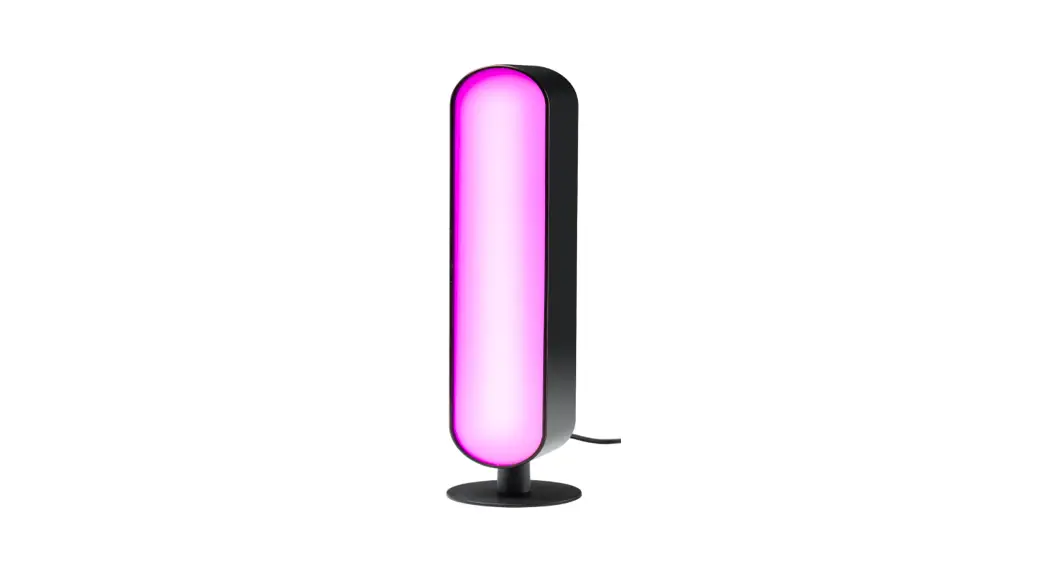
LED Light Bars
GH-LA-B006RGBIC
USER GUIDE
Product specifications
| Model | GH-LA-B006RGBIC | ||
| Power | 8W | Material | PC |
| Input voltage | AC100-240V | Waterproof Rate | IP43 |
| Output Voltage | DC5V/2A | Bulb Type | LED 5050 SMD |
| LED Life | 50000H | Bulb Quantity | 2PCS 56LEDS |
| LED Amount | 28*2 | 28LED/Lights | |
| Colour | RGBIC | Certification | CE, RoHS |
Product functions diagram
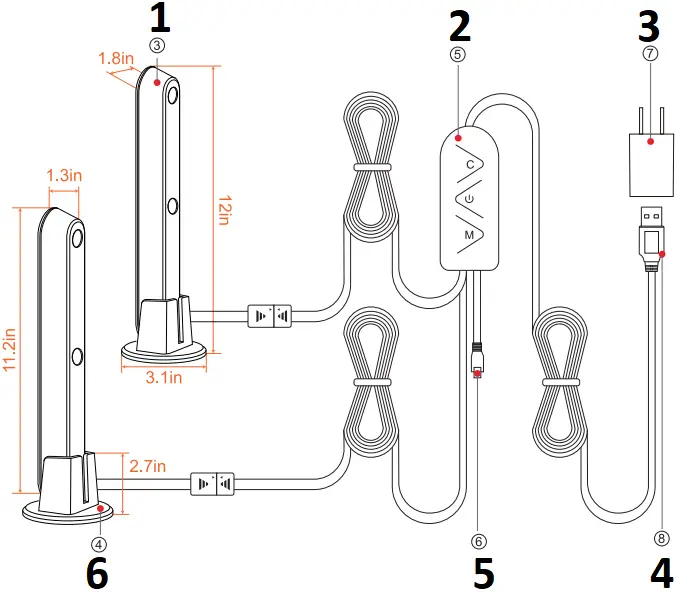
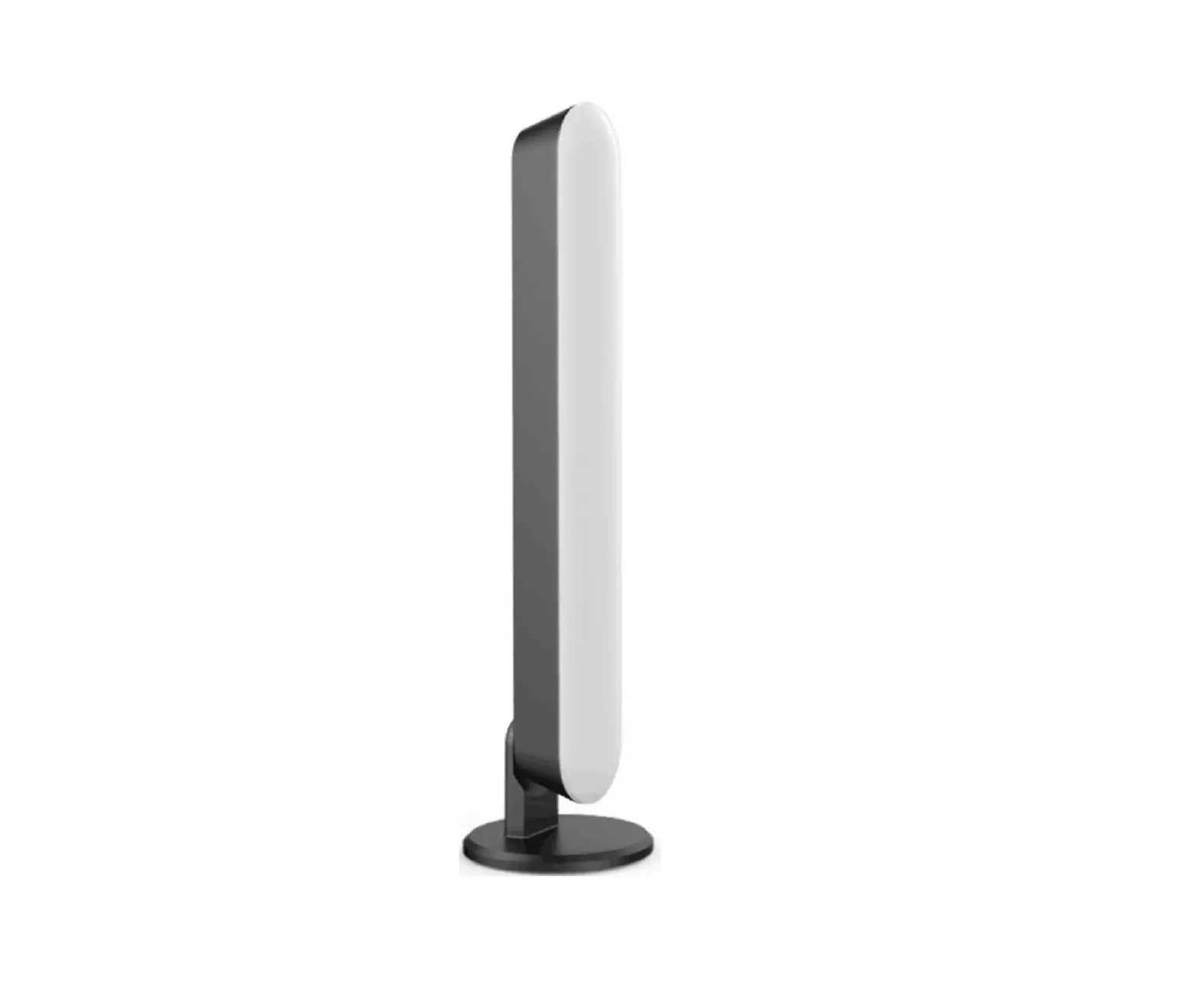
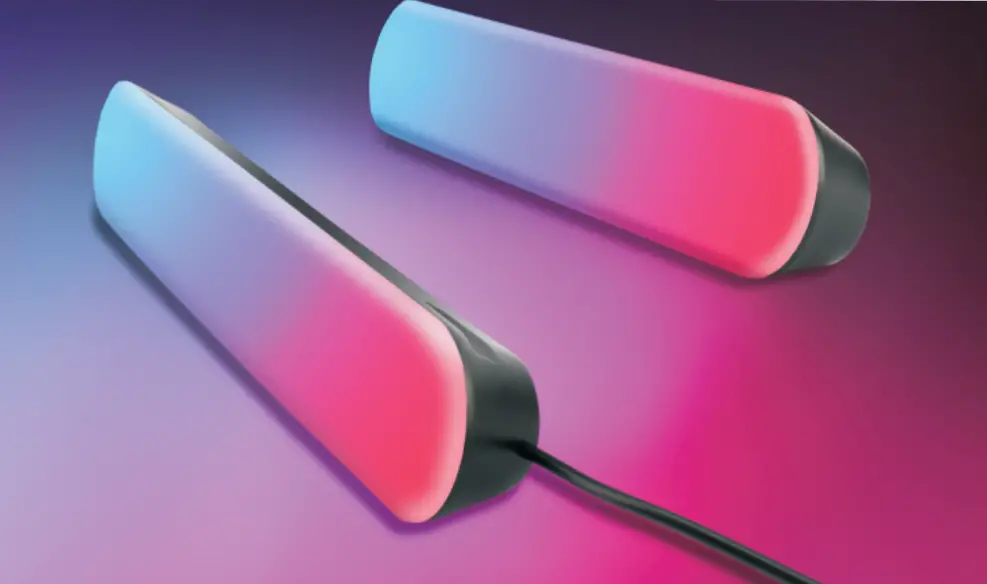
- Lamp body
- Function button
- Power Adapter
- DC 5V input connection port
- IR receiver
- Base
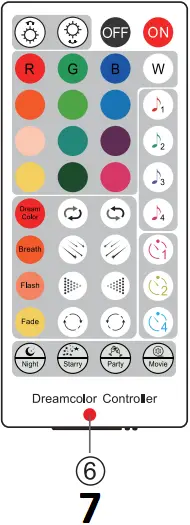
- Remote Control
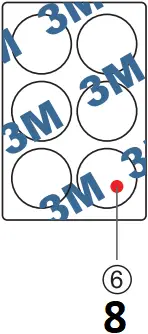
- 3M Stickers
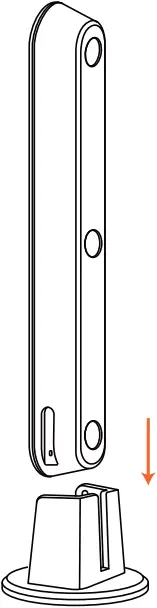
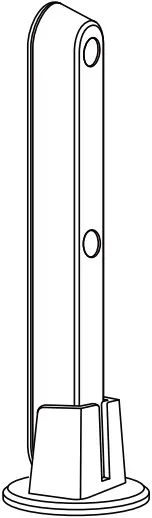
Three types of installation
1. Align the free end with the mounting clips on the base and press firmly, check if the bottom of the lamp body close with the mounting surface of the bracket. After the lamp body is locked to the base, the swing angle cannot be left or right.
2. Place the lamp horizontally anywhere you like.
a. b.


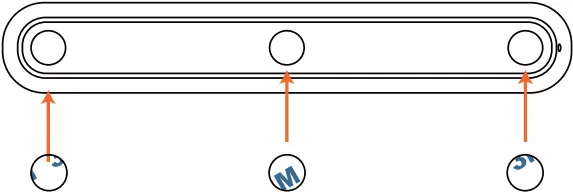
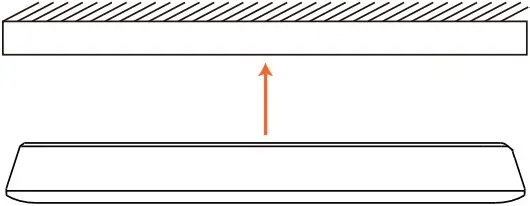
3. Peel off the self-adhesive paper stuck in the 3 circles on the back of the bottom shell, Wipe the surface to be attached, then tear off the other side of the centrifugal paper and stick it on.
APP connection
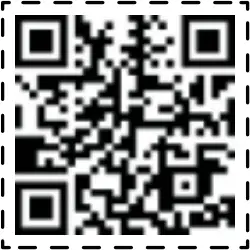
1. Scan the QR code from the label or user manual.
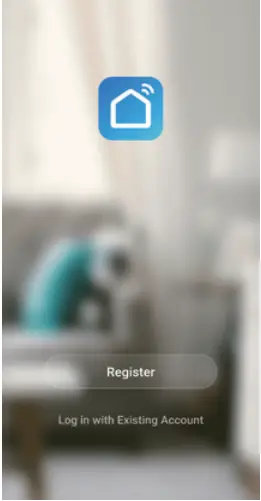
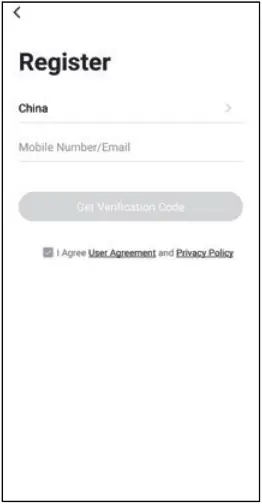
2. Open the APP – “Smart Life”, sign up for a new account or log in with an existing account.
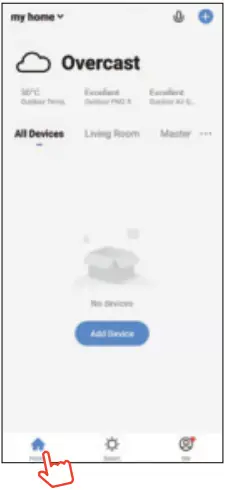
3. Preparation jobs: Power on the LED strip and enter the home of APP, please make sure your mobile and the smart kits are connected to the same WIFI.
4. Connect the APP:
a) Find the “+” Symbols in APP.
b) Allow Smart Life to enable Bluetooth.
c) Select Category-Lighting, Choose Product Type Strip Lights (BLE+WIFI)
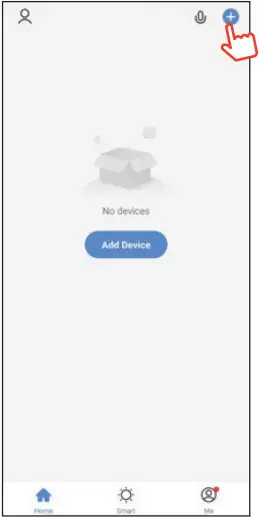
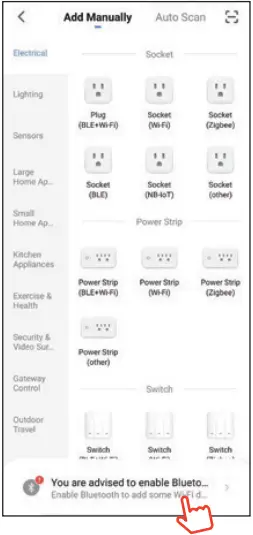
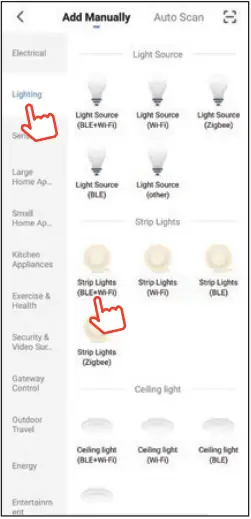
d) Confirm the Led strip light is on and blinking repaidly, If it is not blinking, Long press the controller switch button again for over 5 seconds to reset or network pairing.
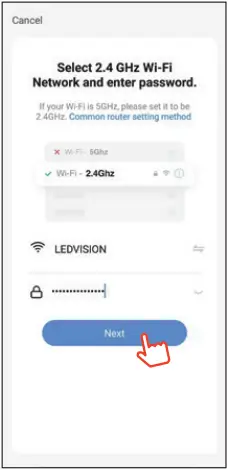
e) Enter your WIFI account and password.
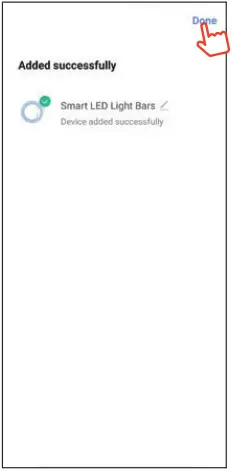
f) Select the right product and connect.
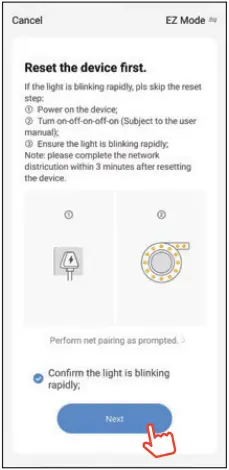
APP Function
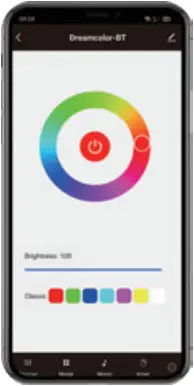
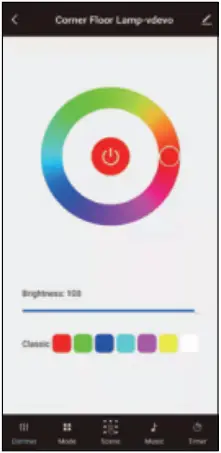
1. Over 16 million colors can be selected,Brightness setting 1%-100%
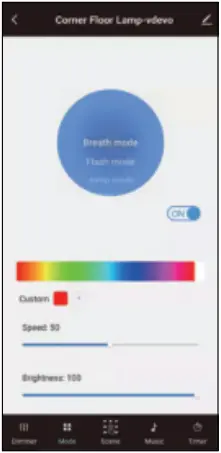
2. Custom mode for choose
3. Scene mode: according to your own needs, choose the right scene, such as party, movie, etc
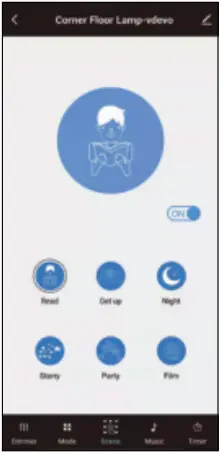
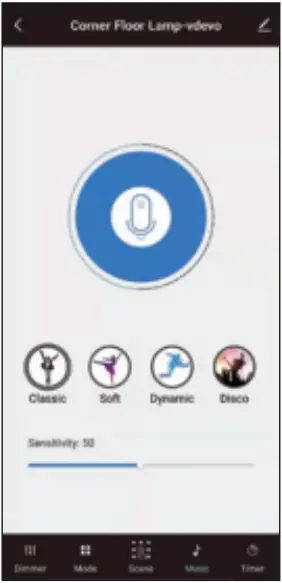
4. Music Sensor&Micro-phone, spectrum with lights and colors adjusting automatically base on the ambient sound
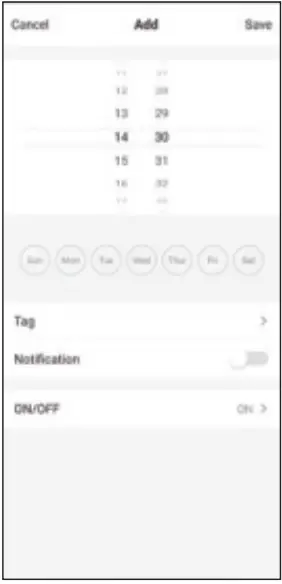
5. Timing function With the function of timing, you won’t miss any important appointments
Third party control
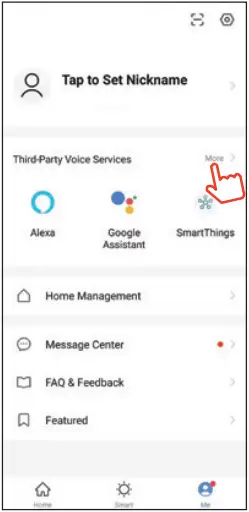
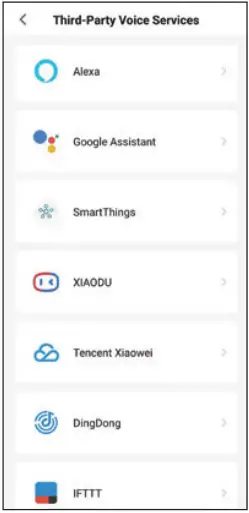
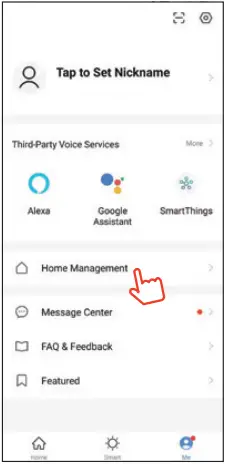
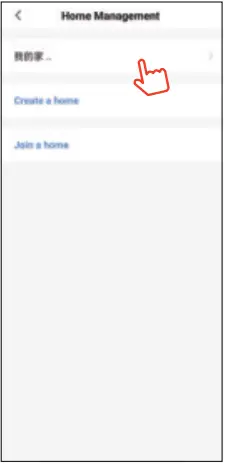
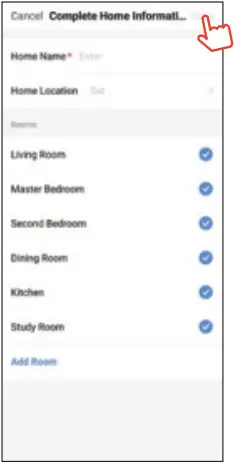
In the Smart Life APP: Find more service in “Me” menu, and find “More service”, you’ll find the third-party access service (Alexa/Google Assistant/Tecent Xiaowei/ DuerOS/Dingdong etc), select the service you need. Connect to the third-party service device according to the operation guide.
Please contact customer service for any update of product or APP.
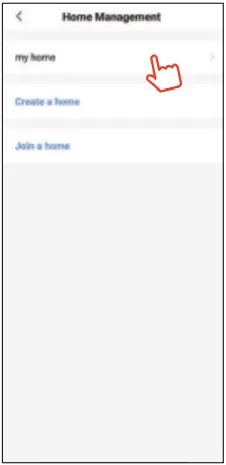
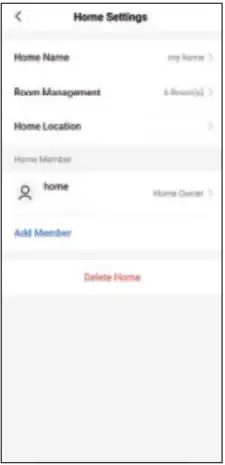
How to create/dismiss device groups?
1. Tap a device in the device list to enter the device’s control panel.
2. Tap the button in the upper right corner to enter the device editing page.
3. Tap Create Group. On the Select Device page, all devices that have been added to the account and have the same model as the device are displayed.
4. On the device group page, click the button in the upper right corner to enter the settings page, and click the “Dismiss Group” button at the bottom of the page to dismiss this device group.
5. If you want to manage different types of devices or devices that don’t support groups, you can add these devices to one “Tap-To-Run/Automation” to meet your needs.
Product introduction:
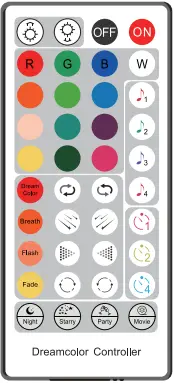
The 40-button IR remote control allows for a variety of fantastic color modes, including music and Scene mode, Timing, Brightness etc.
Parameters:
Power supply: 3V button cell
Control distance: 5-8 meters in open area
Instructions of remote control:
Please remove the PVC insulation sheet from the end of the remote control before using. Please set the APP internet connection as priority when the light is blinking.
Features | action | Remote control buttons |
| ON / OFF | Short Press |
|
Music mode | Short Press |  |
| Timing | Short Press |  |
Scene mode | Short Press |  |
| Brightness+/- | Short Press |  |
Static color | Short Press | 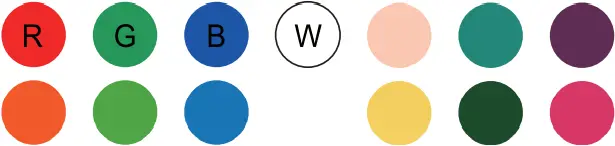 |
| Dream color, Breath Mode, Flash Mode, Fade Mode | Short Press |  |
Follow light, Meteor, Accumulation, Accompanying | Short Press | 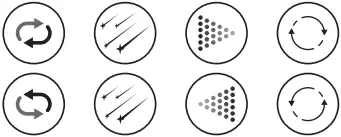 |

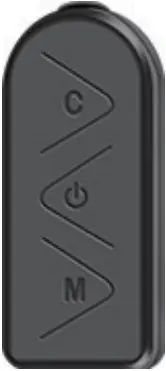
C Button: Switch Lighting Mode
M Button: Enter and Exit the music mode, the red light is always on
ON/OFF Button: Turn ON/ Turn OFF (Long press the button for over 5 seconds to reset or network pairing.)

MADE IN CHINA
FCC WARNING
This device complies with part 15 of the FCC Rules. Operation is subject to the following two conditions: (1) this device may not cause harmful interference, and (2) this device must accept any interference received, including interference that may cause undesired operation.
Any changes or modifications not expressly approved by the party responsible for compliance could void the user’s authority to operate the equipment.
NOTE: This equipment has been tested and found to comply with the limits for a Class B digital device, pursuant to Part 15 of the FCC Rules. These limits are designed to provide reasonable protection against harmful interference in a residential installation. This equipment generates, uses and can radiate radio frequency energy and, if not installed and used in accordance with the instructions, may cause harmful interference to radio communications. However, there is no guarantee that interference will not occur in a particular installation. If this equipment does cause harmful interference to radio or television reception, which can be determined by turning the equipment off and on, the user is encouraged to try to correct the interference by one or more of the following measures:
— Reorient or relocate the receiving antenna.
— Increase the separation between the equipment and receiver.
— Connect the equipment into an outlet on a circuit different from that to which the receiver is connected.
— Consult the dealer or an experienced radio/TV technician for help.
To maintain compliance with FCC’s RF Exposure guidelines, This equipment should be installed and operated with minimum 20cm distance between the radiator and your body: Use only the supplied antenna.