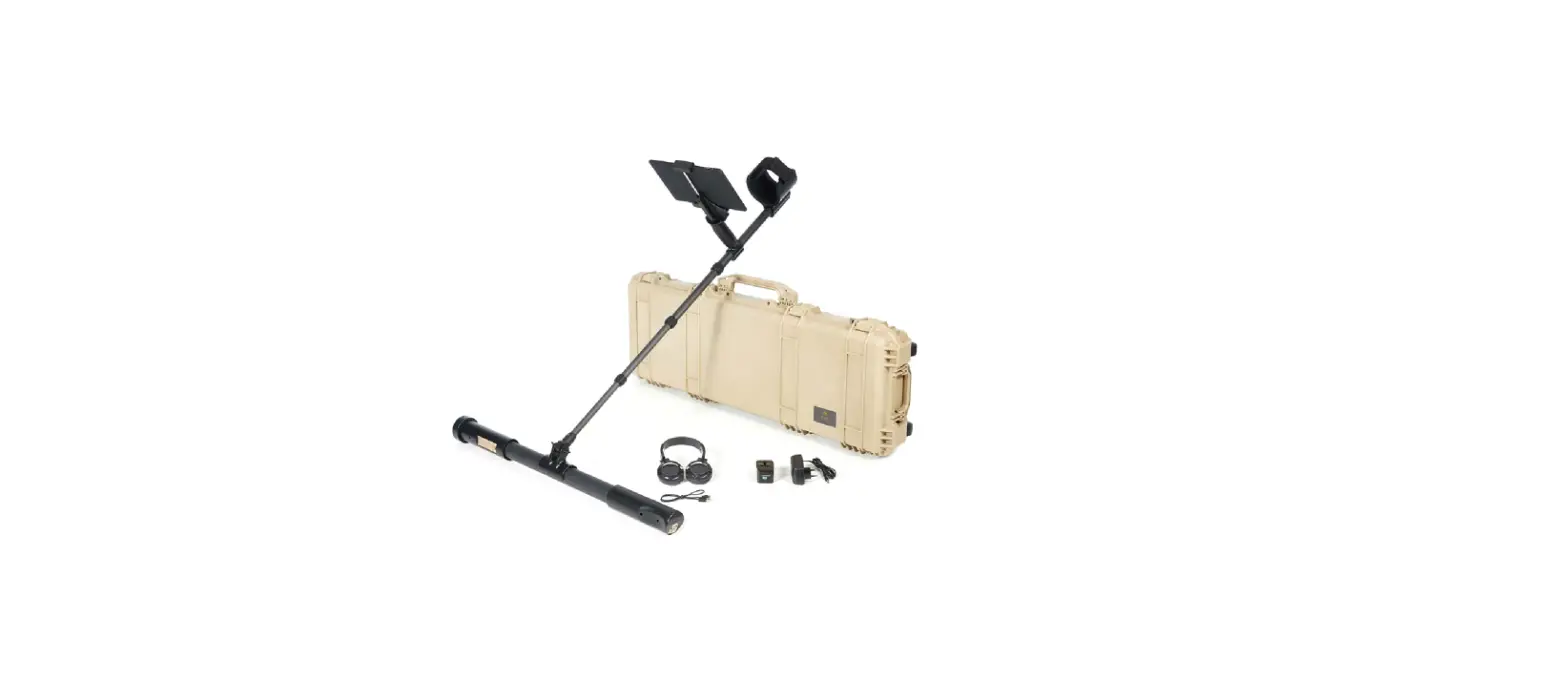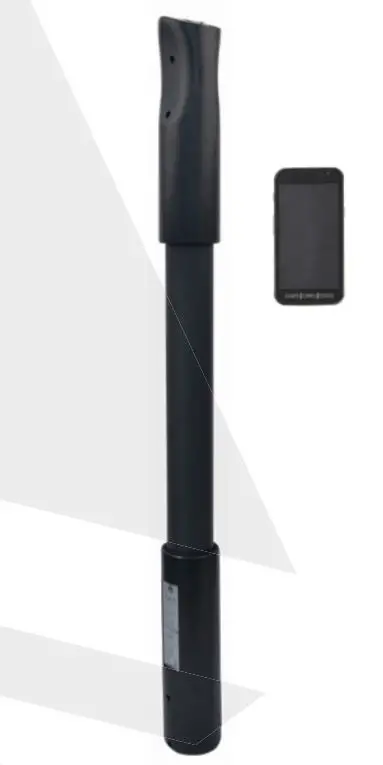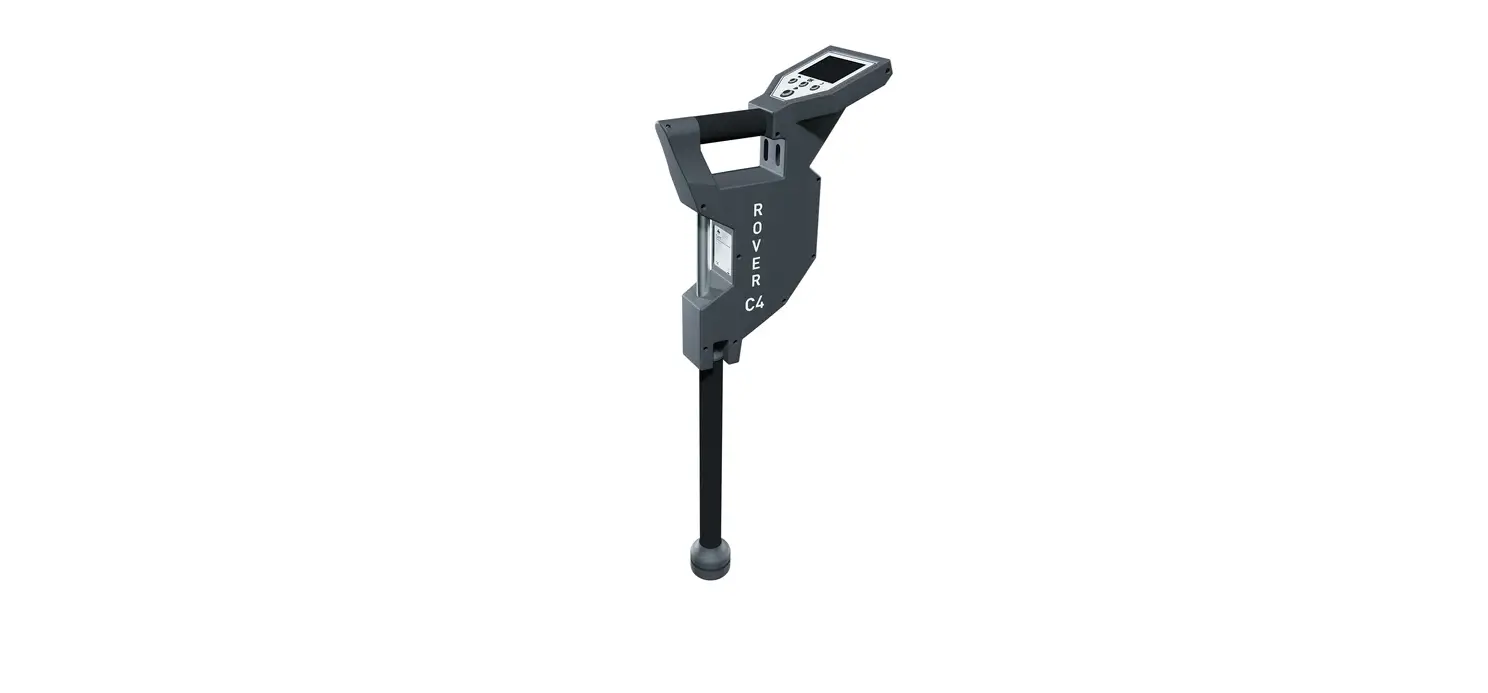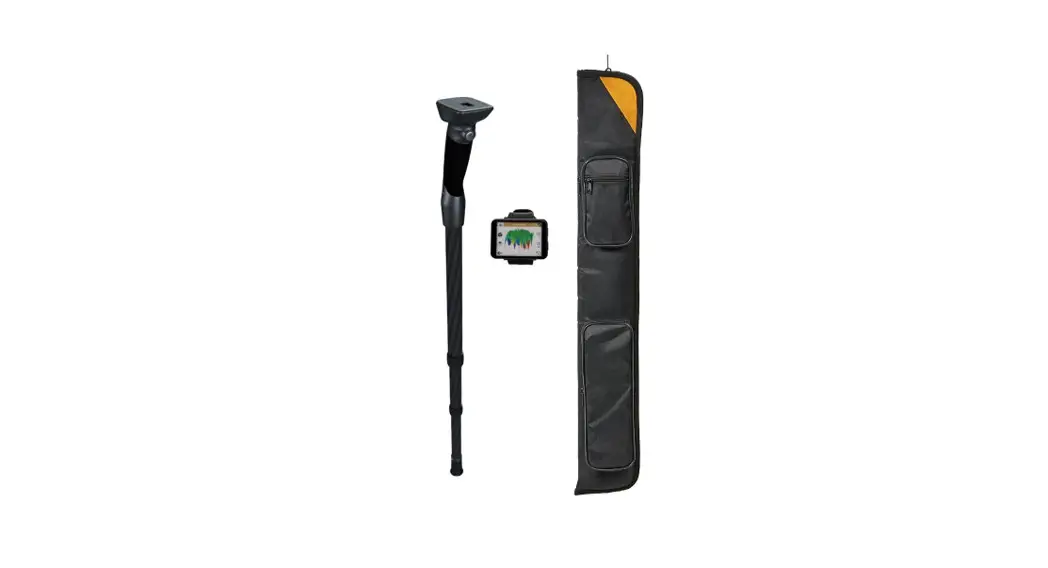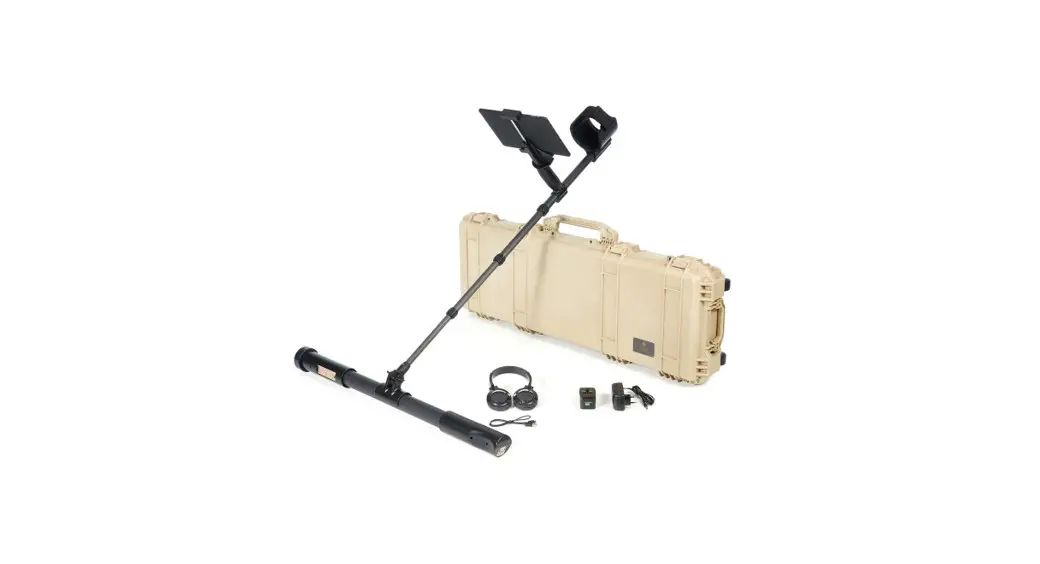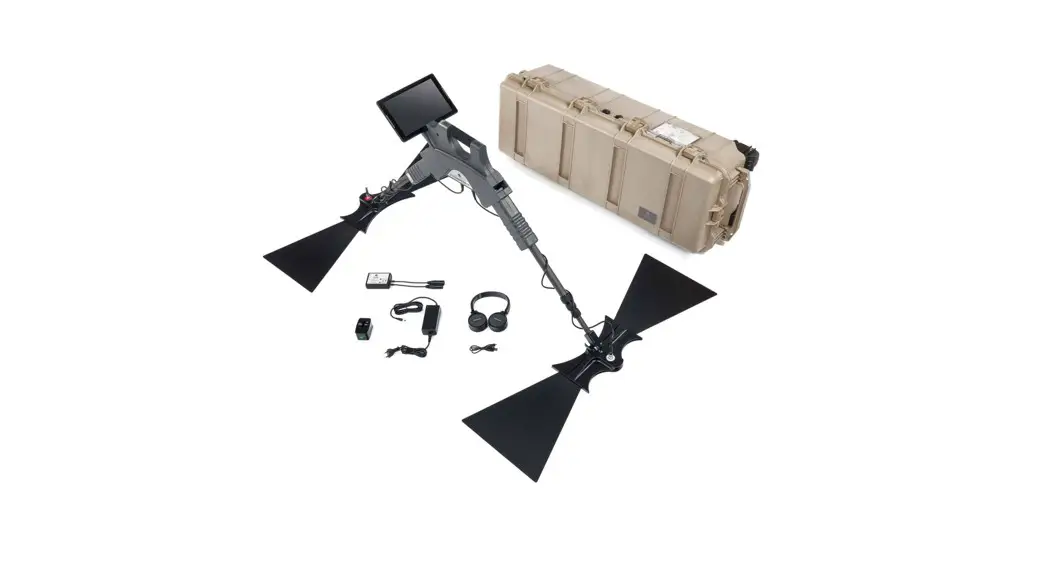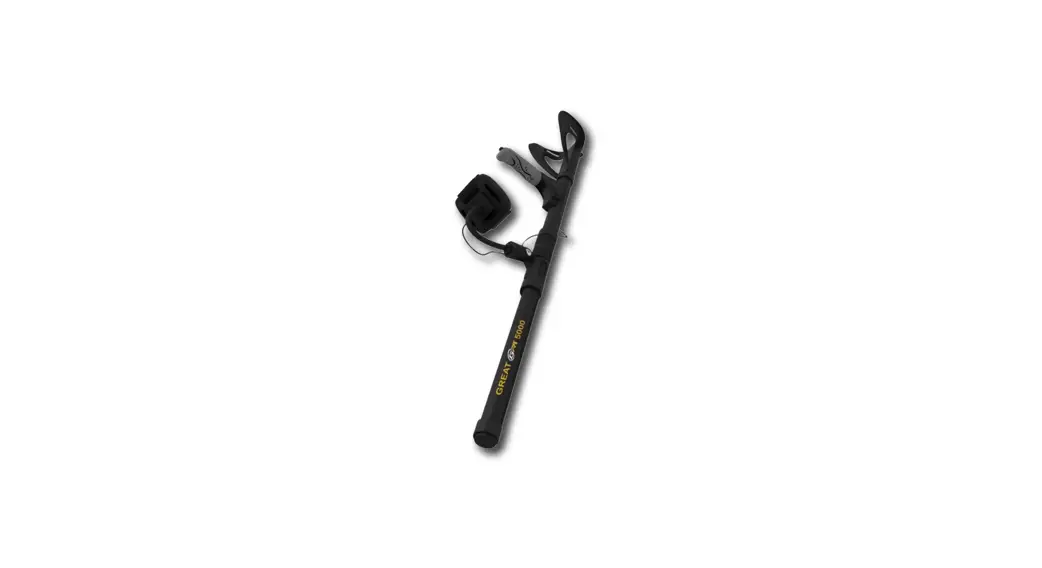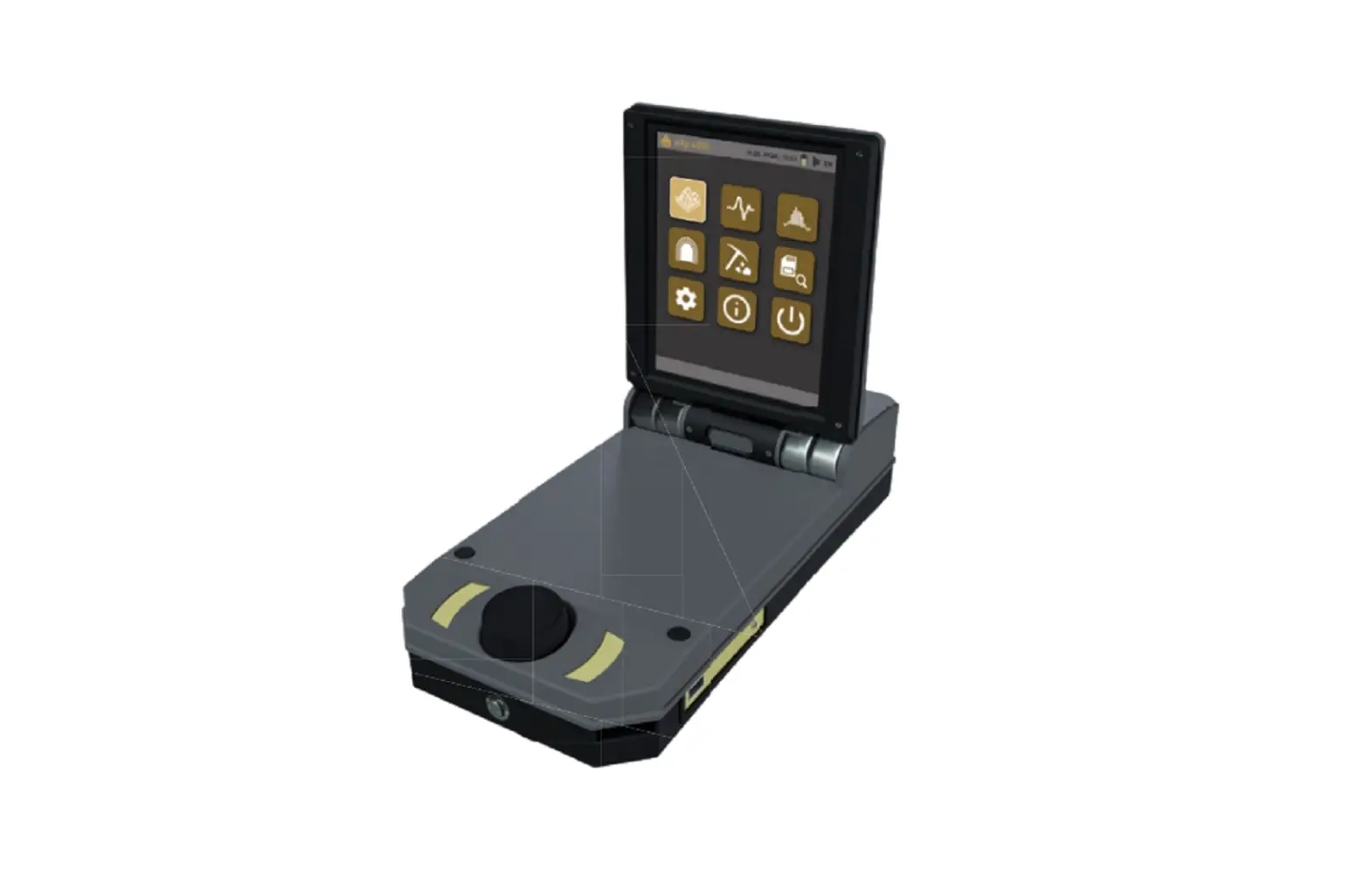
OKM eXp 4500 Professional Detector User Guide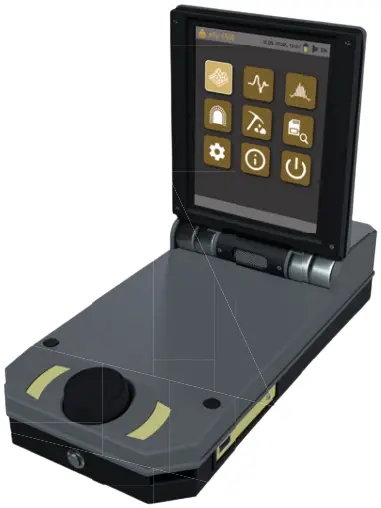
ASSEMBLY
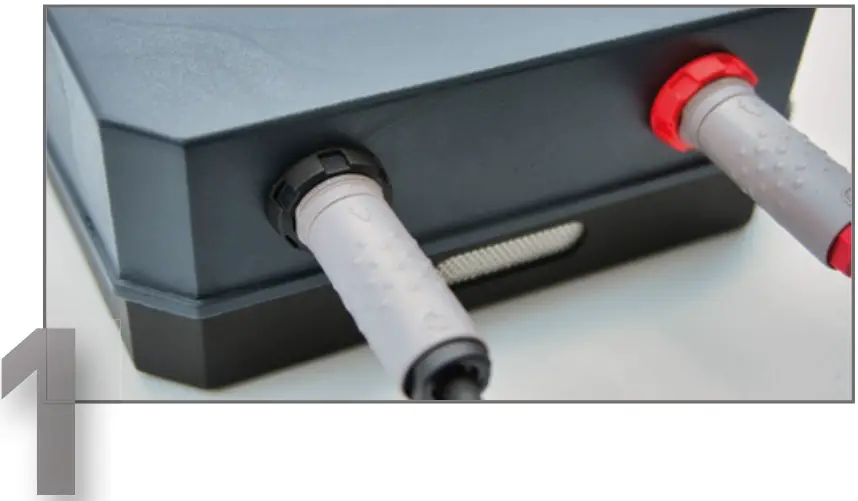
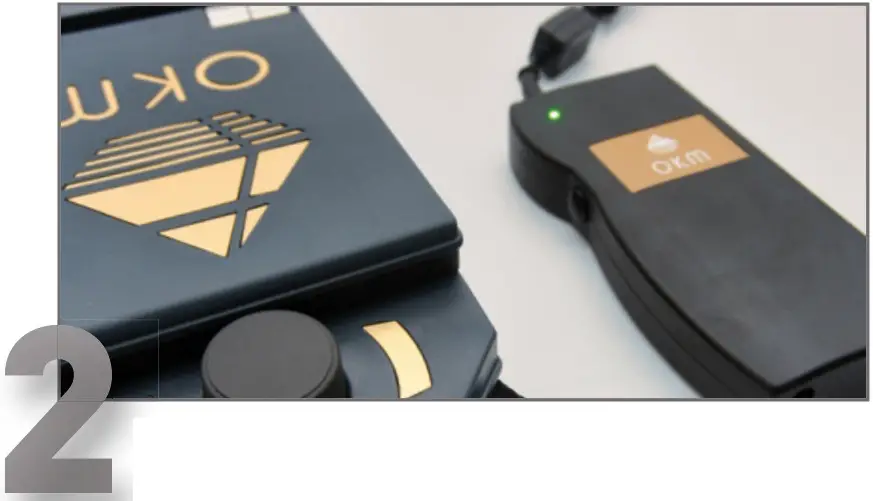
- Plug Sensor and Power Pack into Control Unit.

- Switch on Power Pack.

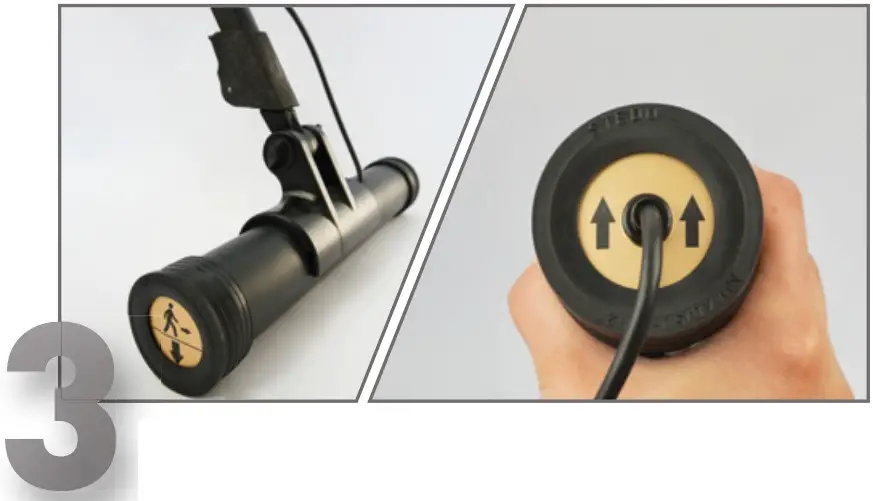
- Clamp horizontal sensor to telescopic rod assembly OR Hold vertical sensor in your hand.
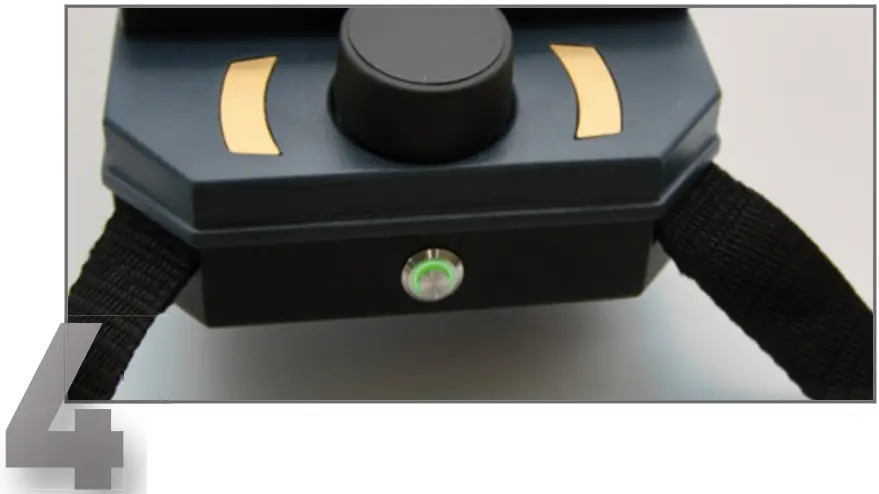
- Press the power button for min. 3 seconds to switch on the Control Unit.

OPERATING MODES
 3D GROUND SCAN
- Visualization of artifacts and cavities in 3D representations.
Works with: Super Sensor, GPR Antennas, Tunnel Sensor
 PINPOINTER
- Identification and localization of detected anomalies.
Works with: Super Sensor
 MAGNETOMETER
- Localization of ferromagnetic objects.
Works with: Super Sensor, GPR Antennas
 TUNNEL SCAN
- Detection of tunnels and cavities, color coded graph.
Works with: Tunnel Sensor
 MINERAL SCAN
- Detection of natural mineralization, color coded graph.
Works with: Super Sensor
 BROWSE SCANS
- Review your stored scan data.
Available for: Ground Scan, Tunnel Scan, Mineral Scan
FIRST MEASUREMENT
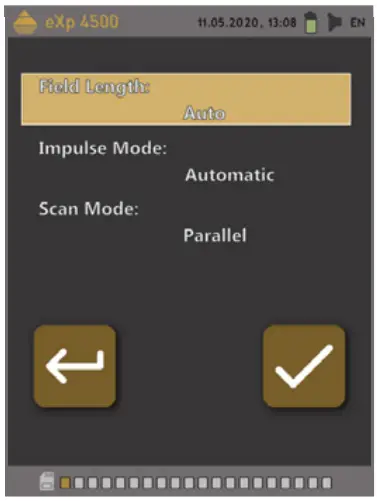
- Open 3D Ground Scan and configure:
- Field Length: Auto
- Impulse Mode: Automatic
- Scan Mode: Parallel

- Start at the bottom right corner of the measuring field.
- Press the multifunctional knob to start the measurement.
- Walk the first scan line.
- Press again to finish the first line.

- Follow the instructions on the screen to add further scan lines.

- Finish the measurement and save the scan.

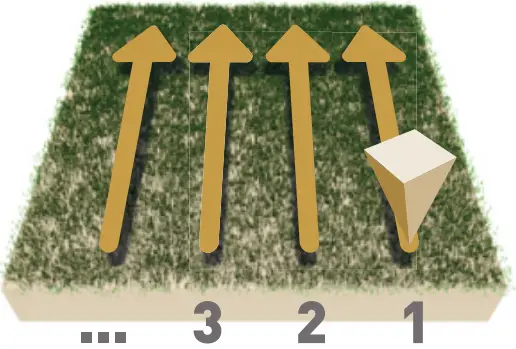
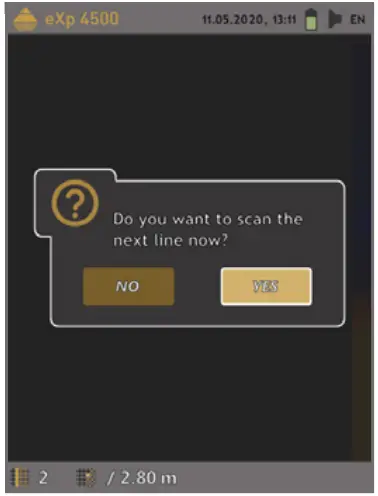
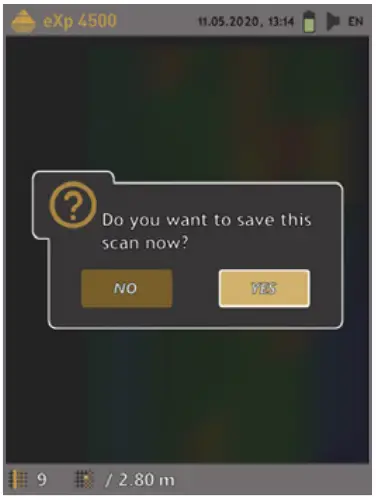
Note: Walk all scan lines at the same speed. Hold the probe perpendicular to the ground and avoid swinging.
DATA TRANSFER
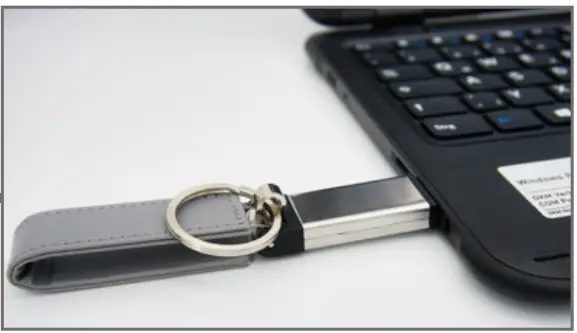
- Plug USB flash drive into computer.
- Start Setup.exe (Installation).

- Follow the installation instructions on the screen.
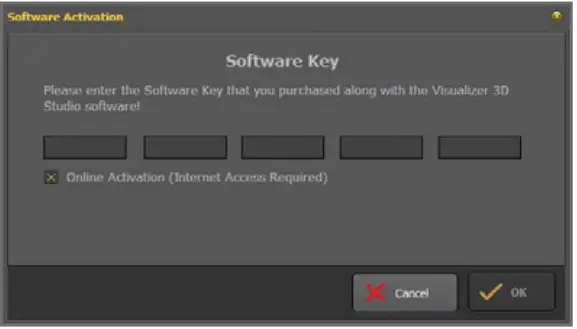
- Open the installed program Visualizer 3D Studio.
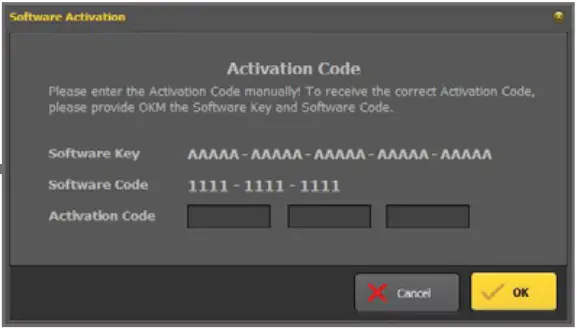
- Get Activation Code (valid Software Key required).

- Enter Activation Code.
- Connect USB cable and power on Control Unit.
- Install USB drivers on your computer via Windows Device Manager.
- Transfer (import) and open scan data in Visualizer 3D Studio.
- Find more information in Visualizer 3D Studio QUICK START GUIDE.
FURTHER INFORMATION & SUPPORT
 USER MANUAL
 3D GROUND SCAN GUIDE
 VIDEOS & TUTORIALS
 SUPPORT
For further questions please contact your dealer or directly OKM GmbH in Germany.
OKM GmbH | Julius-Zinkeisen-Str. 7 | 04600 Altenburg | Germany
+49 3447 499 300 0 | [email protected]
http://www.okmdetectors.com/
GET ACTIVATION CODE:
 Web: www.okmdetectors.com/software-activation
 Tell: +49 3447 499 300 0
 Downloads – OKM Detectors