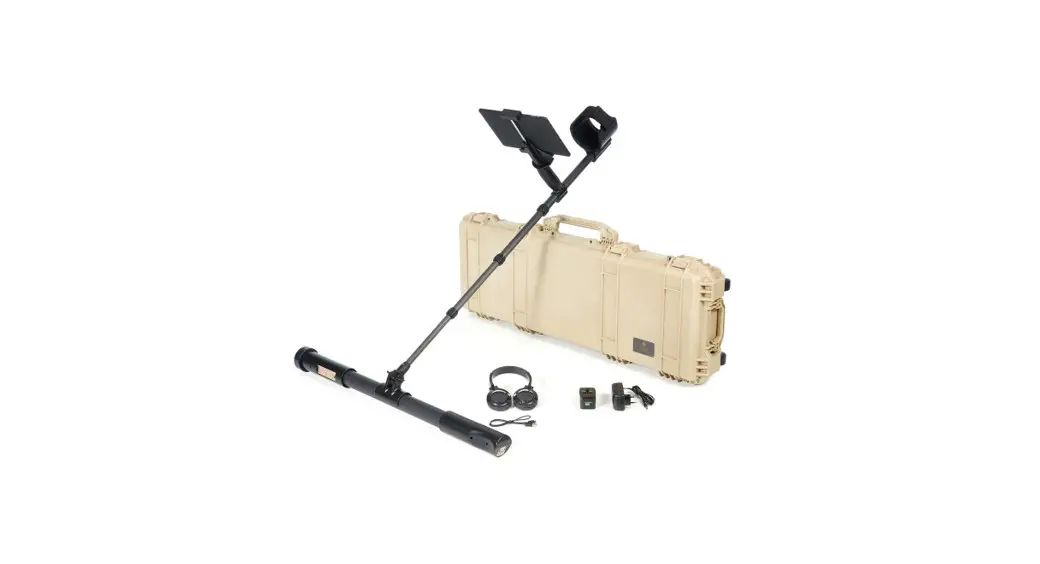
 Fusion Professional Ground Scanner
User Guide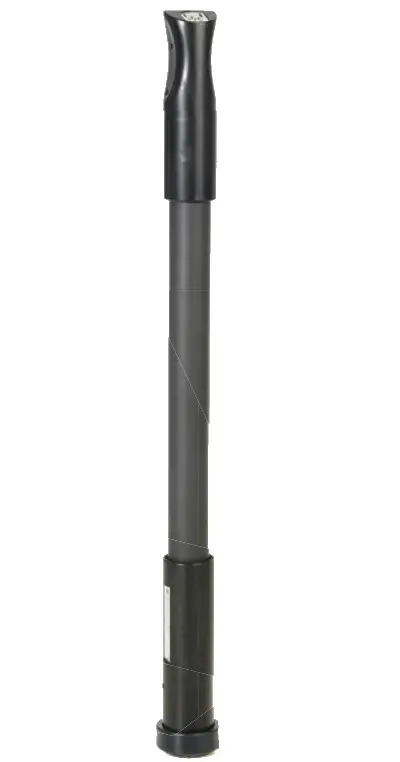
ASSEMBLY
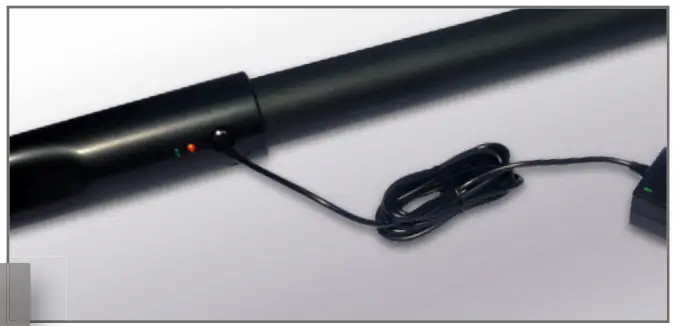
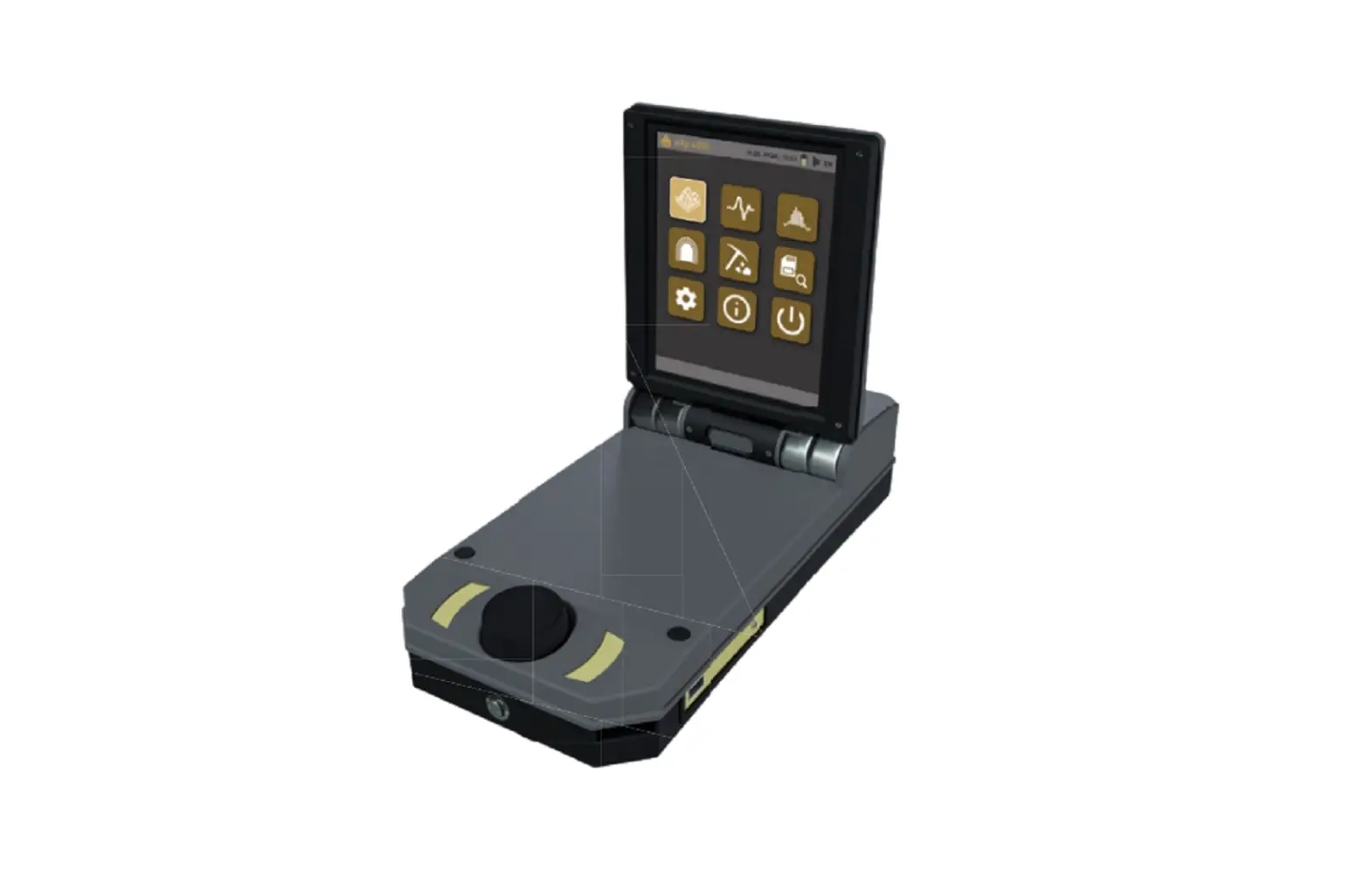
Plug Charger into Control Unit to check charge status (fully charged = LED off) and recharge batteries (LED on).
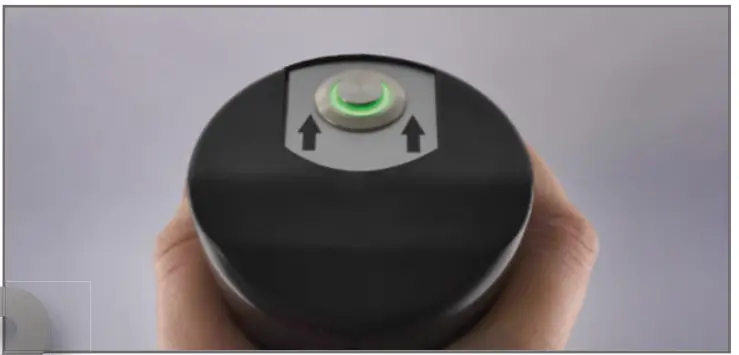
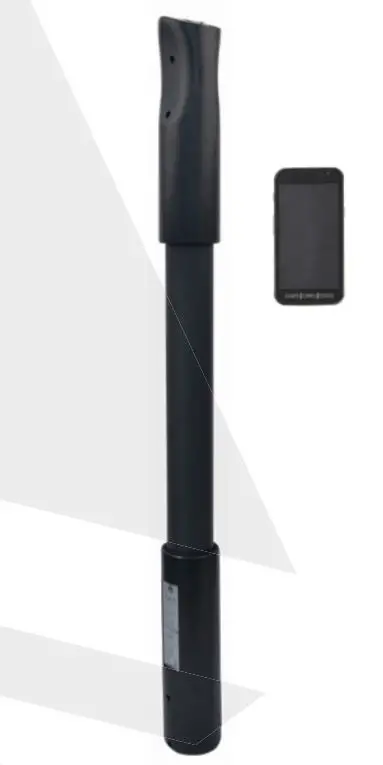
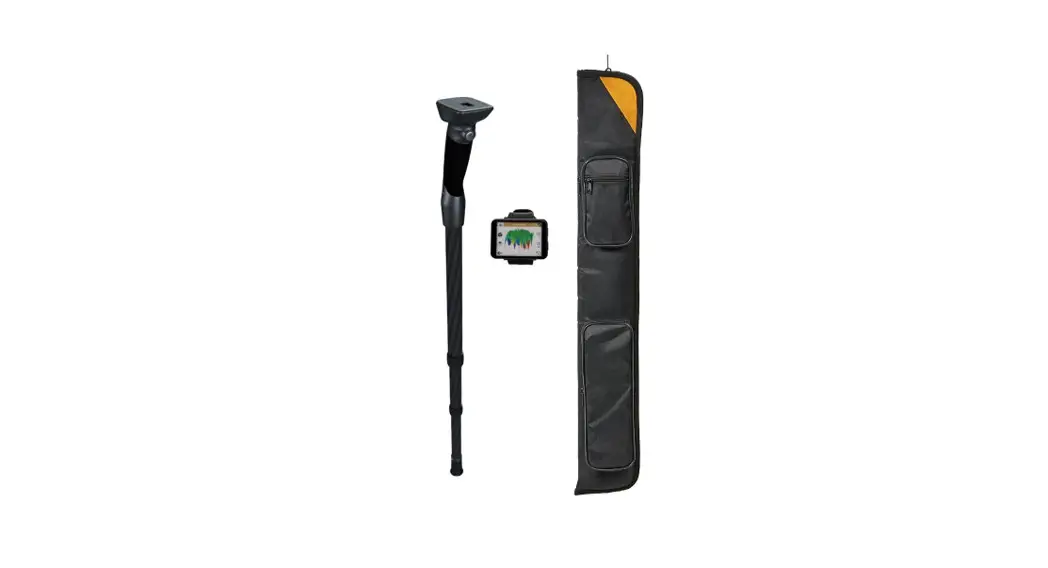
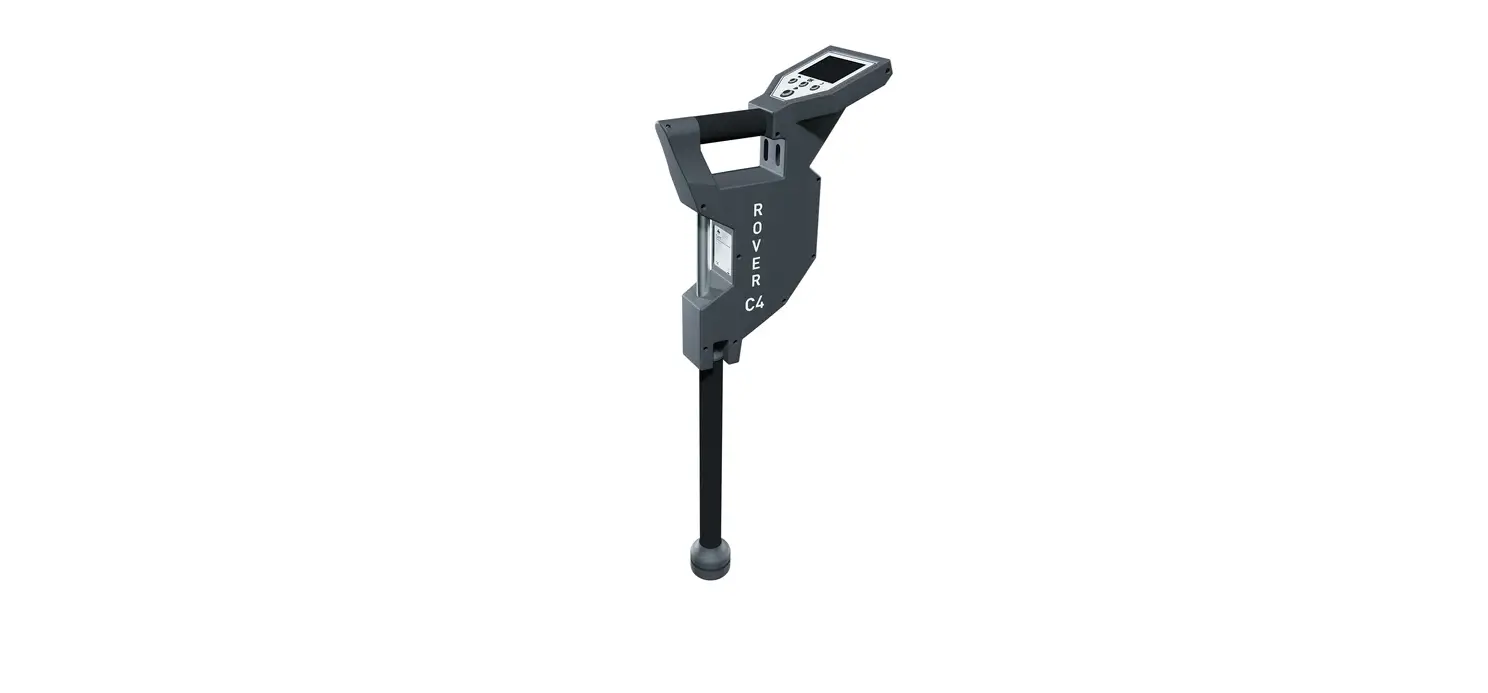
Hold Probe in your hand and power it on.
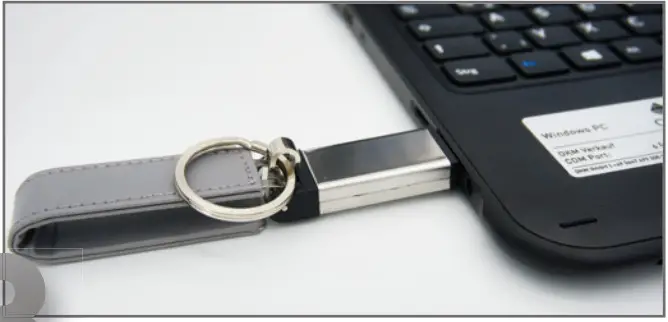 Install software, setup Bluetooth and connect notebook with Probe (see DATA TRANSFER).
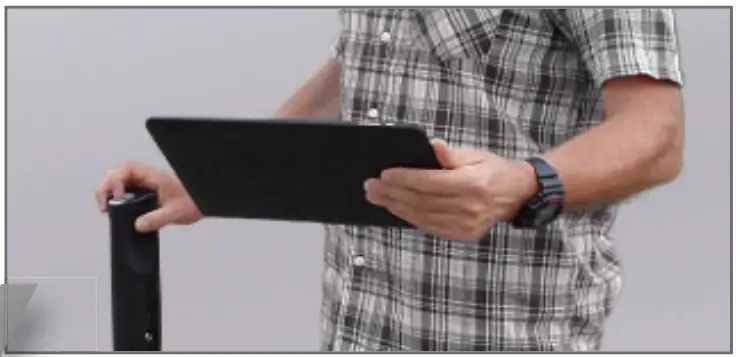
Operation via Trigger on the Probe or in the software Visualizer 3D Studio on the notebook.
OPERATING MODES
LIVE SOUND
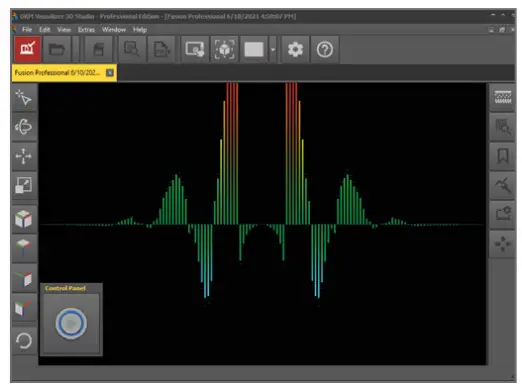
Acoustic and visual magnetic field measurement to detect metal objects near the surface.
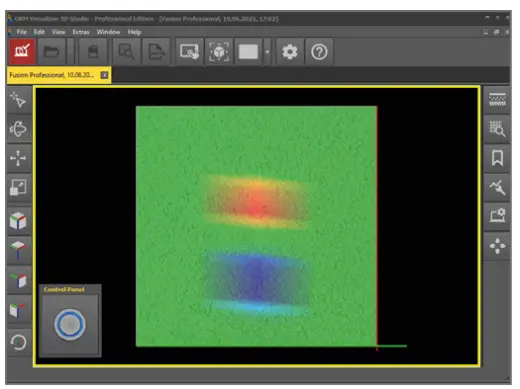
3D GROUND SCAN
BETRIEBSAR
Graphical ground measurement with visualization in 3D for detailed analysis on the notebook.
FIRST MEASUREMENT
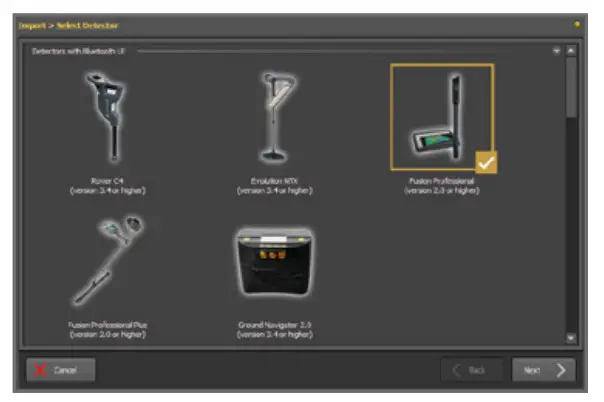
- Open Visualizer 3D Studio,
 start import and configure 3D Ground Scan:
 - Field Length: 20 m
- Scan Mode: Parallel
- Probe Orientation: Vertical
 start import and configure 3D Ground Scan: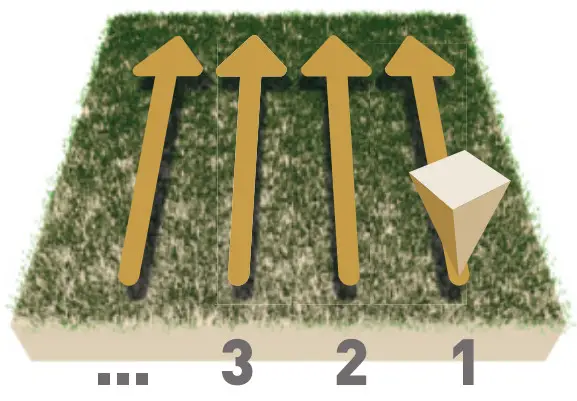
Start at bottom right of the scan field.
- Press the Trigger Button at the probe or in Visualizer 3D Studio to start scanning.
- Scan the line. The measurement of the line will end automatically.
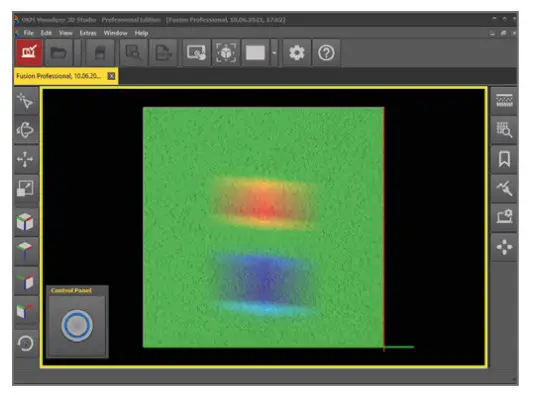
Repeat this procedure to measure further scan lines.
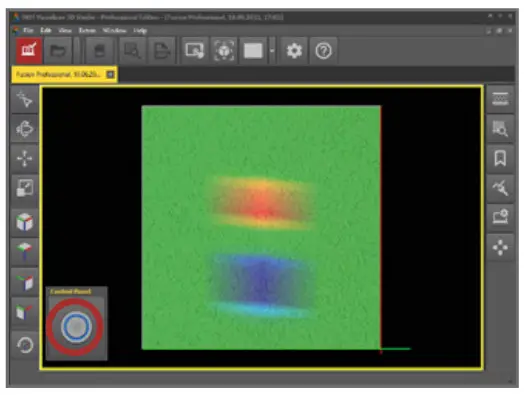
Finish the scan by pressing and save the scan on the notebook
 .
. Walk all scan lines at the same speed. Keep the probe straight and avoid pivoting or swinging.
DATA TRANSFER
- Download Visualizer 3D Studio or plug USB flash drive into notebook.
- Start Setup.exe (Installation).
- Follow the installation instructions on the screen.
- Open the installed software Visualizer 3D Studio.
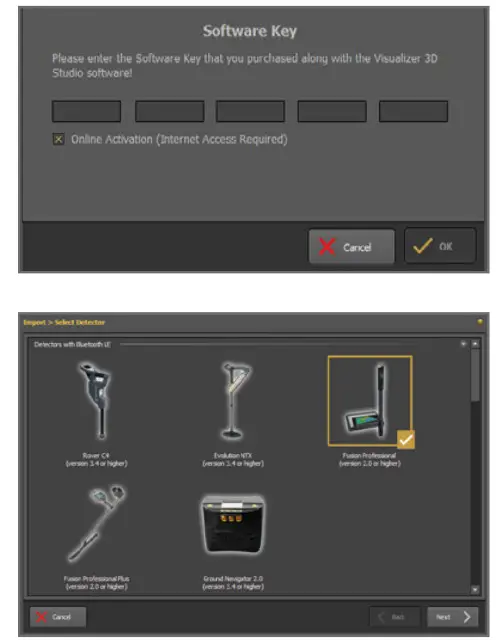
- Get Activation Code (valid Software Key required) and enter it.
- Pair Bluetooth: Settings
 Devices
 Add Bluetooth …
  … select Bluetooth and pair device (OKM Fusion Professional).
- Open Visualizer 3D Studio and start Import:

- Select Fusion Professional (version 2.0 or higher) and enter scan parameters in the dialog windows.
- Perform measurement with Fusion Professional. After finishing, save file on notebook

 Devices
 Add Bluetooth …
 … select Bluetooth and pair device (OKM Fusion Professional).

SOFTWARE INSTALLATION
AKTIVIERUNGSCODE HIER:
GET ACTIVATION CODE:
www.okmdetectors.com/software-activation
+49 3447 499 300 0
SOFTWARE ACTIVATION
WEITERE INFOS & SUPPORT
FURTHER INFORMATION & SUPPORT
 | USER MANUAL WWW.OKMDETECTORS.COM/DOWNLOADS |
 | 3D GROUND SCAN GUIDE WWW.OKMDETECTORS.COM/GROUND-SCAN-GUIDE |
 | VIDEOS & TUTORIALS WWW.OKMDETECTORS.COM/TUTORIALS |
 | SUPPORT For further questions please contact your dealer or directly OKM GmbH in Germany. |
OKM GmbH | Julius-Zinkeisen-Str. 7 | 04600 Altenburg | Germany
+49 3447 499 300 0 | [email protected]
WWW.OKMDETECTORS.COM
 Downloads – OKM Detectors