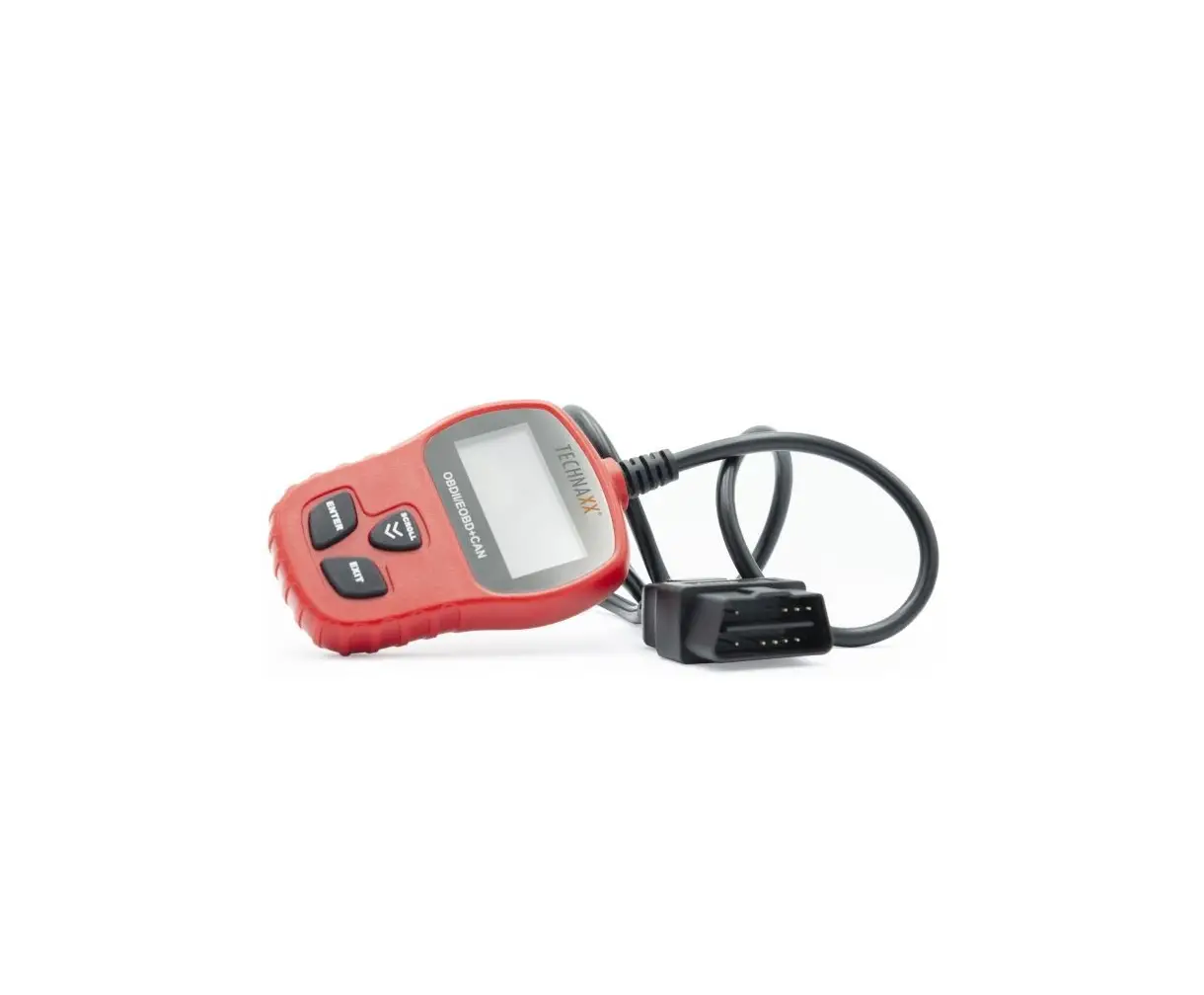
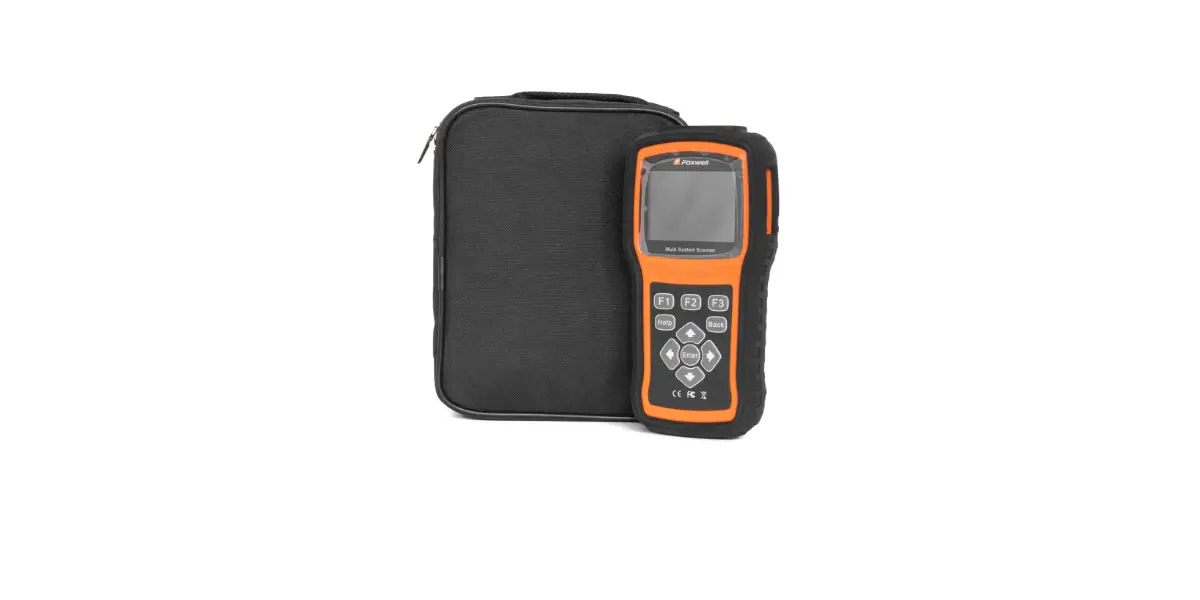
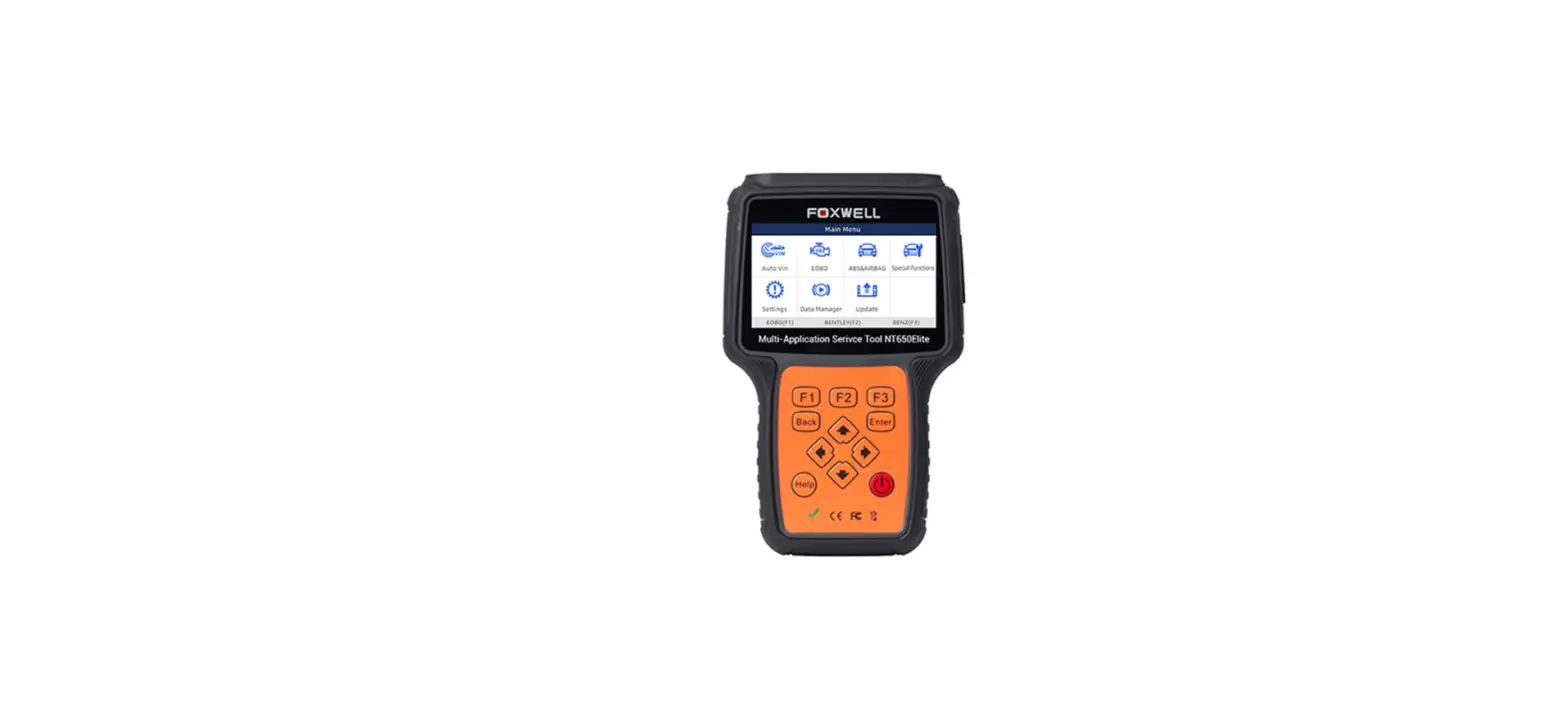
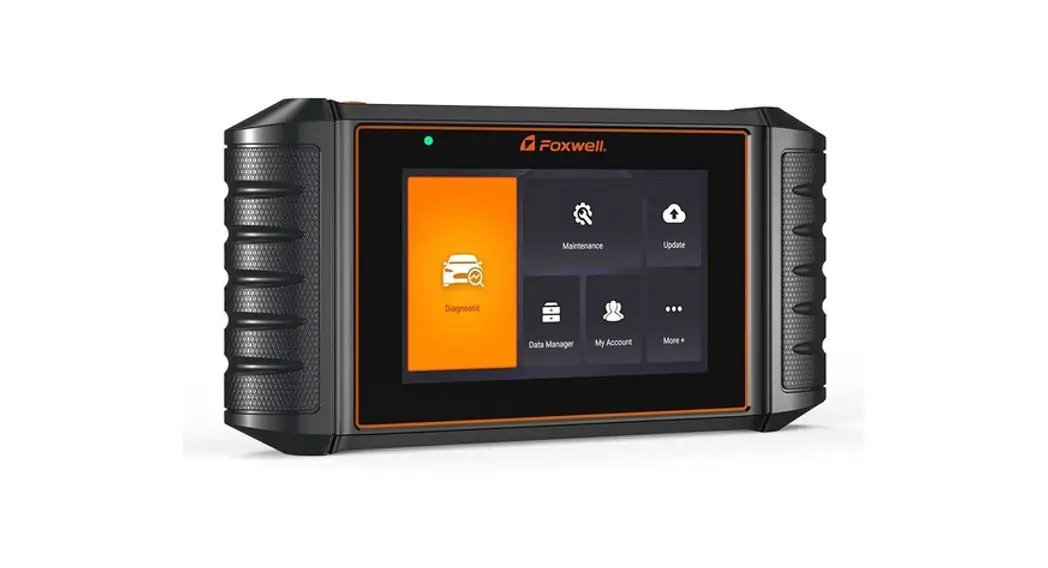
NT301 OBD2 Scanner
NTWonder Introduction
NTWonder is an extremely easy-to-use tool that is used to update
the NT301 code reader. It allows you to upload recorded test
results to your PC or laptop for analysis and printing.
Additionally, it enables you to search for Diagnostic Trouble Codes
(DTC), read the manuals, and set up the language and style of the
application.
Updating the NT301 Code Reader
To update the NT301 code reader, follow these steps:
- Visit the FOXWELL website foxwelltech.com
and go to the Product page of NT301. - Select the Download tab to download the update tool NTWonder
and update files from the website. Save the applications and files
on your computer. - Unzip the update tool file and follow the instructions on the
computer screen to install the tool and driver. - Double click the desktop icon to launch the NTWonder
application. - Click on “Setting” and select the language you want to
update. - Connect the NT301 code reader to your computer using the
provided USB cable. Press and hold the HELP key while connecting
the USB cable. - When the NT301 enters the Update Mode, the NTWonder application
will detect it automatically.
Note: After successfully entering the update mode, there are
two different ways to update the device:
- Update online: With an internet connection,
NTWonder will automatically detect the software version of the code
reader and read the latest software version from the server. If any
new diagnosis software is found, it will automatically upgrade your
NT301. Otherwise, a prompt of “new version not detected” will be
displayed. - Update offline: Update files will be
automatically stored in your computer’s hard drive with every
successful online update. When selecting “Update offline” in
NTWonder, it will detect these local files automatically and
display them in a list. Selecting one of them will initiate the
update process without the need to download any files.
After selecting the desired update method, click on the
appropriate button to start updating according to the software
version conditions.
A “Update Finished” message will be displayed when the update is
completed.
If you have any questions or issues with the scanner, please
feel free to contact us at [email protected]. We will
try our best to assist you.
NTWonder Introduction
NTWonder is an extremely easy-to-use that is used to update NT301 code reader. Also, it allows you to upload recorded test results to your PC or laptop for analysis and printing. Besides, it enables you to search DTC, read the manuals as well as set up the language and style of the application. This section illustrates how to use NTWonder to perform its functions:
Updating the Code Reader Printing Searching DTC Read the manuals Update tool settings
Updating the NT301 Code Reader
NT301 is able to be updated to keep you stay current with the latest development of diagnosis. To update the code reader, you need following tools:
NT301 OBDII/EOBD Code Reader Update Tool NTWonder PC or laptop with USB Ports and Internet explorer USB cable To be able to use update tool, PC or laptop must meet the following minimum requirements: Operation System: Win98/NT, Win ME, Win2000, Win XP, VISTA, Windows 7, Windows 10. CPU: Intel PIII or better RAM: 64MB or better Hard Disk Space: 30MB or better Display: 800*600 pixel, 16 byte true color display or better Internet Explorer 4.0 or newer Runtime Library: Net Framework 3.0 and up IMPORTANT Do not disconnect the code reader from computer, or power off the computer during the process of updating. To update the code reader:
1. Visit FOXWELL website foxwelltech.com and then visit the Product pageof NT301( https://foxwelltech.us/product-detail-528.html) select the Download tab to download the update tool NTWonder and update files from our website and save the applications and files in computer disk.
2. Unzip the update tool file. Follow instructions on computer screen to install the tool and driver. 3. Double click the desktop icon to launch the application. 4. Click Setting and select the language you want to update. 5. Connect NT301 to computer with the USB cable provided. Please press and hold the HELP
key while connecting the USD cable. 6. When NT301 enters the Update Mode, the application would detect itautomatically.
Sample Update Mode Screen NOTE After entering update mode successfully, there are two different ways for you to update the device.
Update online: With internet connection, the tool NTWonder automatically detects the software version of the code reader and read the latest software version from the server. If any new diagnosis software found, it will automatically upgrade your NT301. Otherwise a prompt of new version not detected displays.
Update offline: Update files will be automatically stored in your computer hard drive with every successful online update. When picking Update offline, the update tool NTWonder will detect these local files automatically and display them in a list. Ticking one of them will lead to an update process, which eliminates the need to download any file. 7. Click <Update online> or <Update offline>to start updating according to the software version Conditions.
Sample Update Process Screen
8. A Update Finished Message displays when the update is completed.
Sample Update Done Screen 9. If you have any question with the scanner, please contact us freely, we will try our best to help you. Email address: [email protected]
 Foxwell Technology Co., Ltd.
 foxwelltech.us/product-detail-528.html