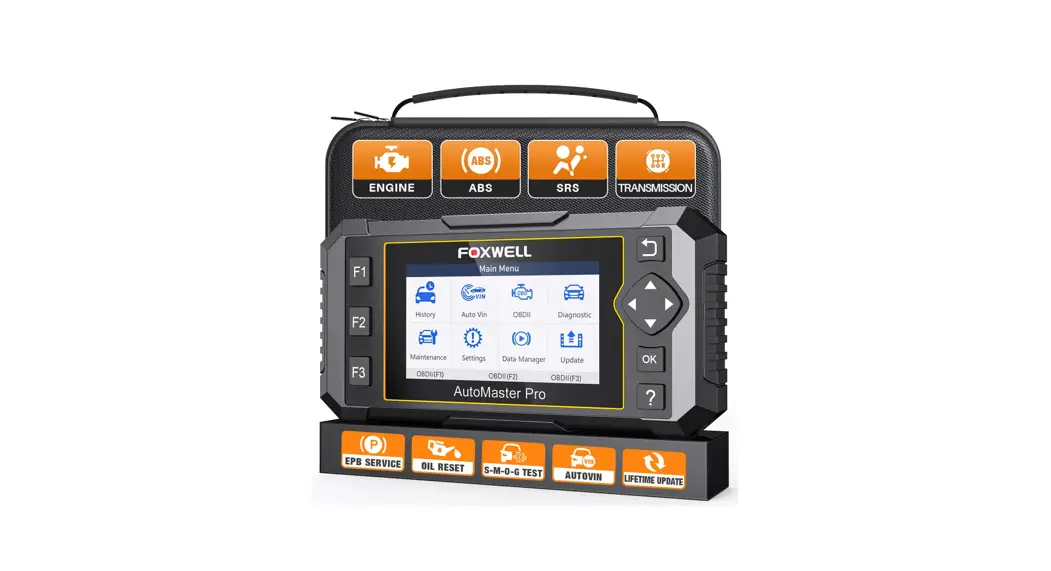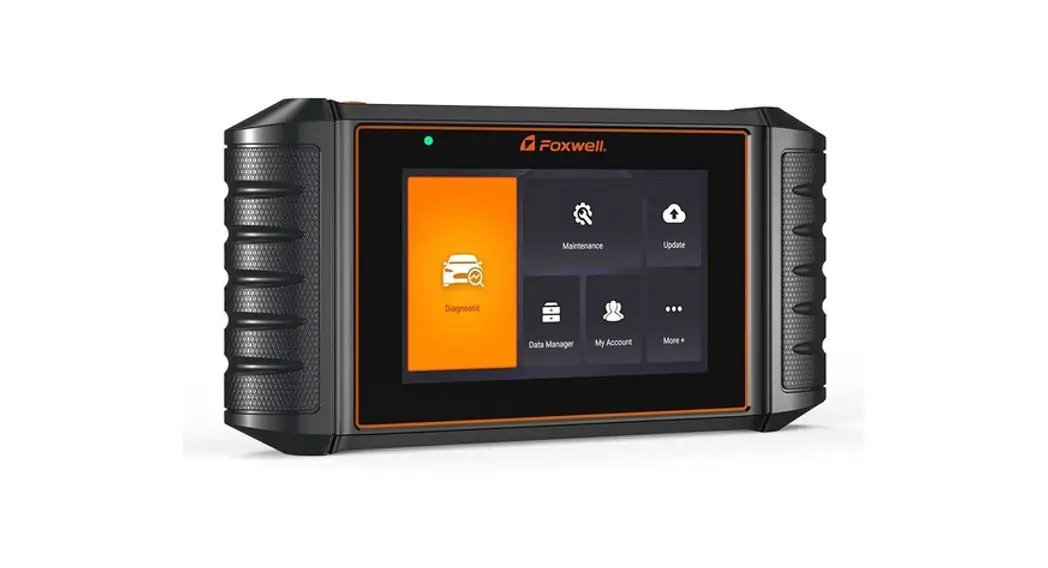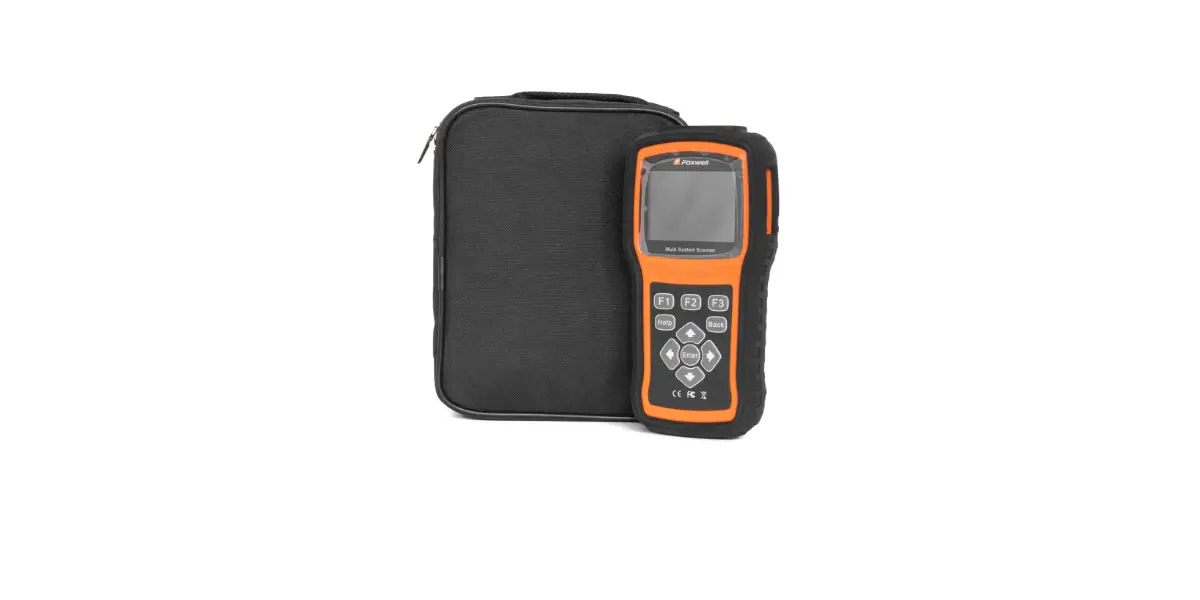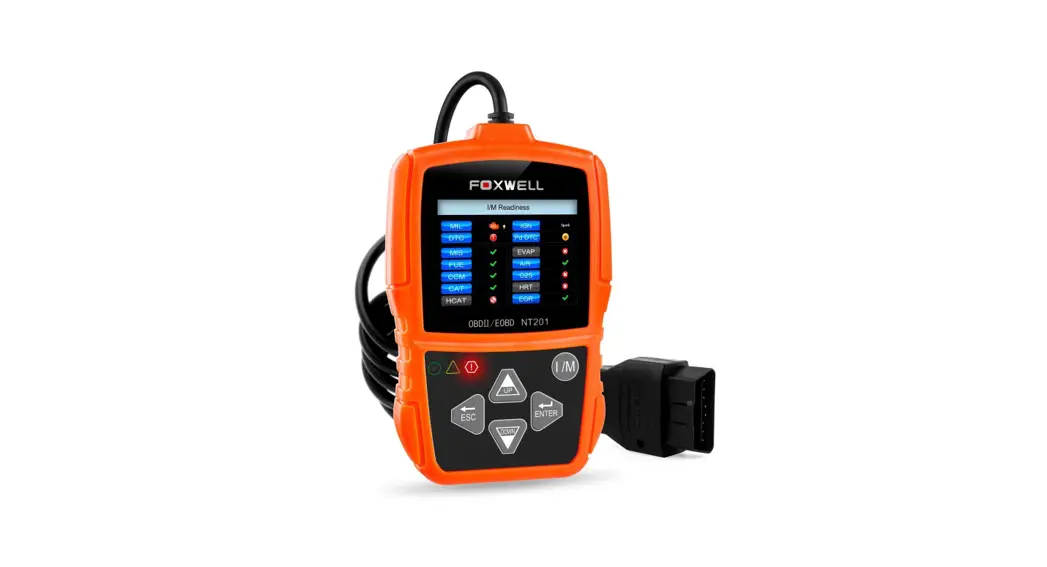
 NT301 OBD2 Handheld Scanners
User Guide
To Register Through Website
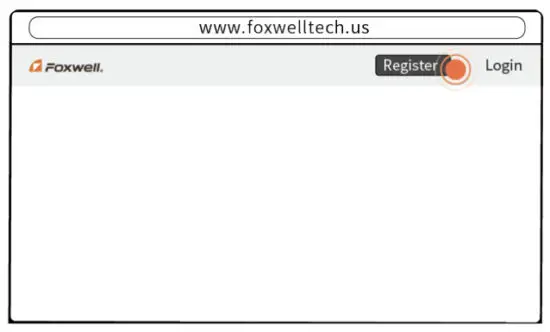 | 1. Visit Foxwell’s website www.foxwelltech.us and press the Register icon, or go to the registration page by selecting Support from home page and then click Register. |
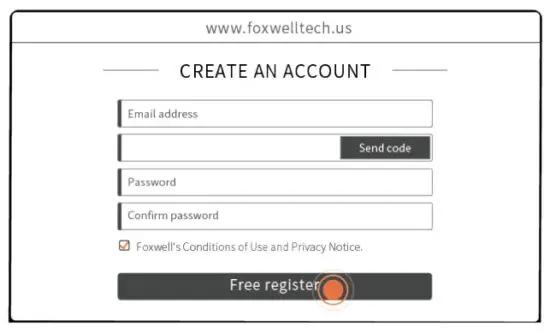 | 2. Enter one of your email addresses as your user ID and click the Send Code button. We will send a 4-digit verification code to the email you just entered. Find the security code in your mailbox, input the code, create a password and click Free Registration to complete. |
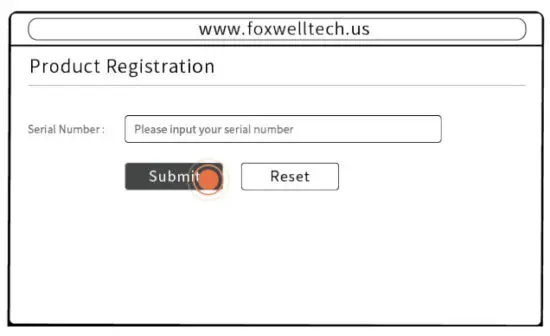 | 3. Sign in to the Member Center, click New Registration, input the right serial number and click Submit to activate the product. |
To Register Via Update Client
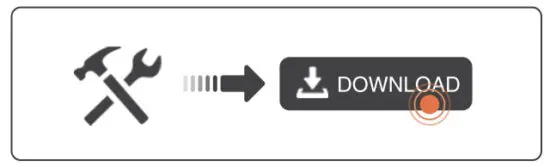 | 1. Visit our site www.foxwelltech.us and then click Support at the home page. Click Tools at the support page and find the product you have to download the update client. |
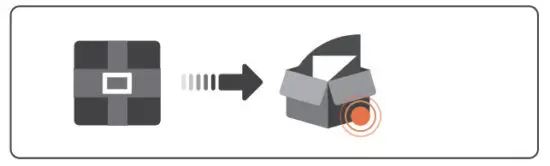 | 2. Unzip the file and find the installer to install the updated client to your computer. |
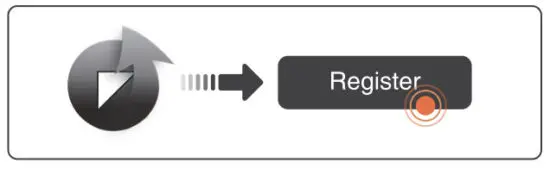 | 3. Click the desktop icon to launch the update client and click the Register icon to create a Foxwell ID. |
 | 4. Enter one of your email addresses as your user ID and click the Send Code button. We will send a 4- digit verification code to the email you just entered. |
 | 5. Find the security code in your mailbox, input the code, create a password and click Free Registration to complete. |
 | 6. Sign in to your Foxwell account and select Activation. Input a serial number or click the Read con to read the SN from the scanner. Click Activate button to activate. |
Vehicle Connection
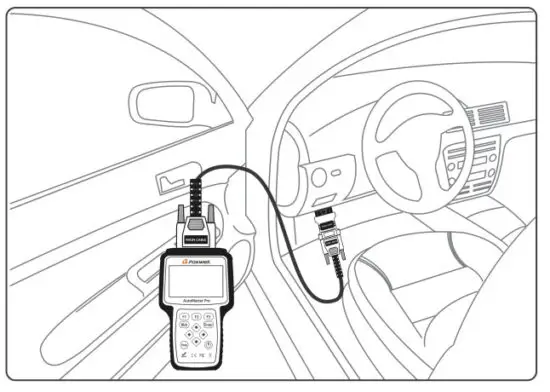
| 1. Locate the data link connector(DLC) under the dash on the driver’s side of the vehicle. | 3. Switch the ignition key to the ON position. |
| 2. Connect the diagnostic cable to the scanner and plug it into the vehicle DLC. | 4. Go to the Main menu to choose diagnostic software to start the test. |
Serial Number
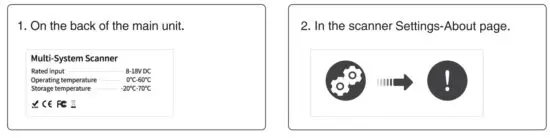
To find the serial number:
Diagnostic Operation
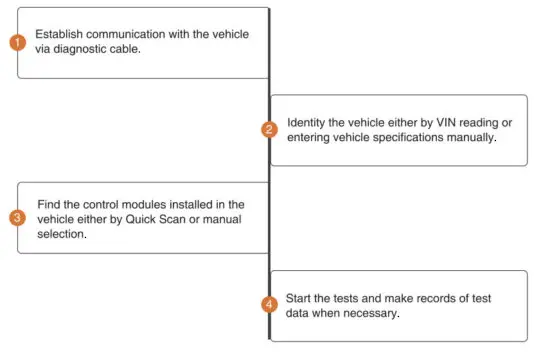
- Before starting diagnosis, please make sure:
1. The ignition switch is turned to ON position.
2. The engine is off.
3. The vehicle battery voltage is between 10-14 volts.
4. The scanner is correctly connected to the vehicle. - Don’t connect or disconnect the equipment while the ignition is on or the engine is running.
Update
Before updating, please make sure you have created a Foxwell ID and your network works correctly.
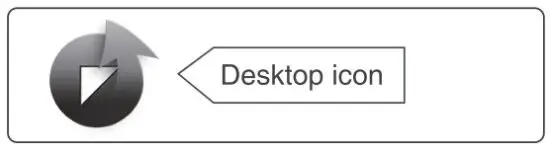 | 1. Launch the update tool FoxAssist by double-clicking the desktop icon and logging in with your Foxwell ID and password. |
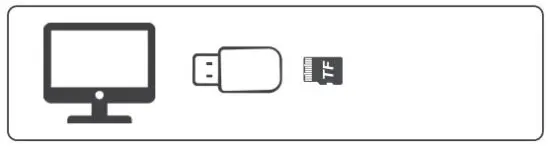 | 2. Connect the TF card to the computer with the TF card reader provided. |
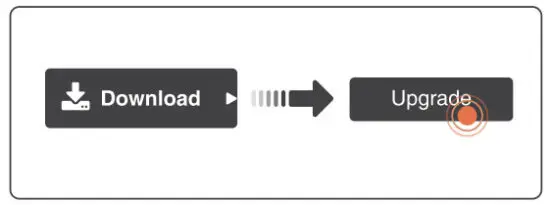 | 3. Select Download then all the updates applicable to your tool display. Click the check box(s) in front of the software you wish to update and then click the Upgrade button to start updating. |
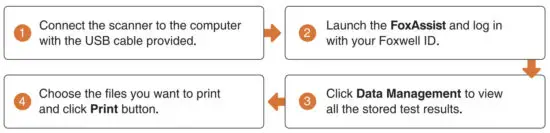
To Print Test Results
Vehicle test results stored on the SD card can be printed through the computer.
Powering up the scanner
Before using the scanner, make sure to provide power to the scanner.
The unit operates on any of the following sources:

Contact Us
For service and support, please contact us.
 WebSite: www.foxwelltech.us
 E-mail: [email protected]
 Service Number : + 86 – 755 – 26697229
 Fax: + 86 – 755 – 26897226
 REGISTER YOUR PRODUCT AT
http://www.foxwelltech.us/register.html