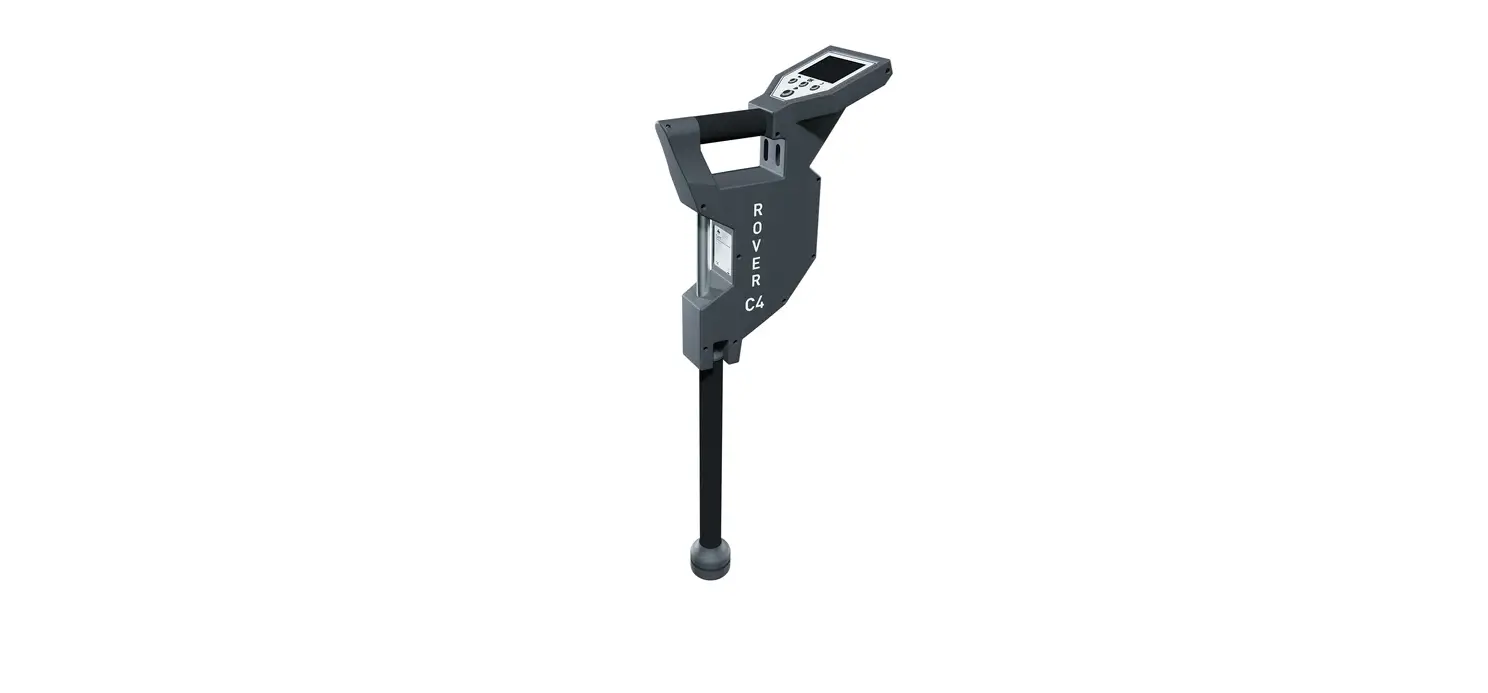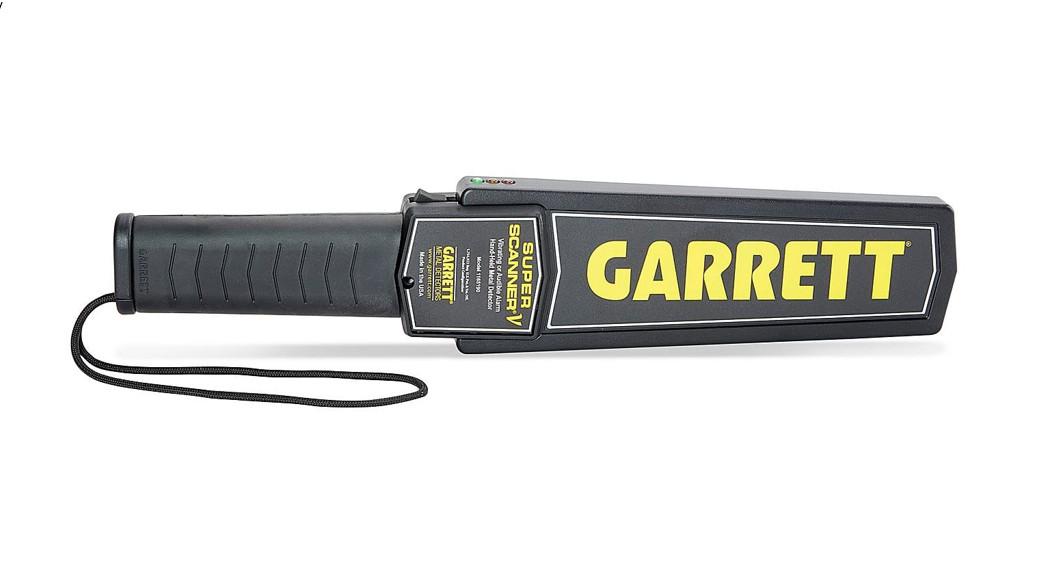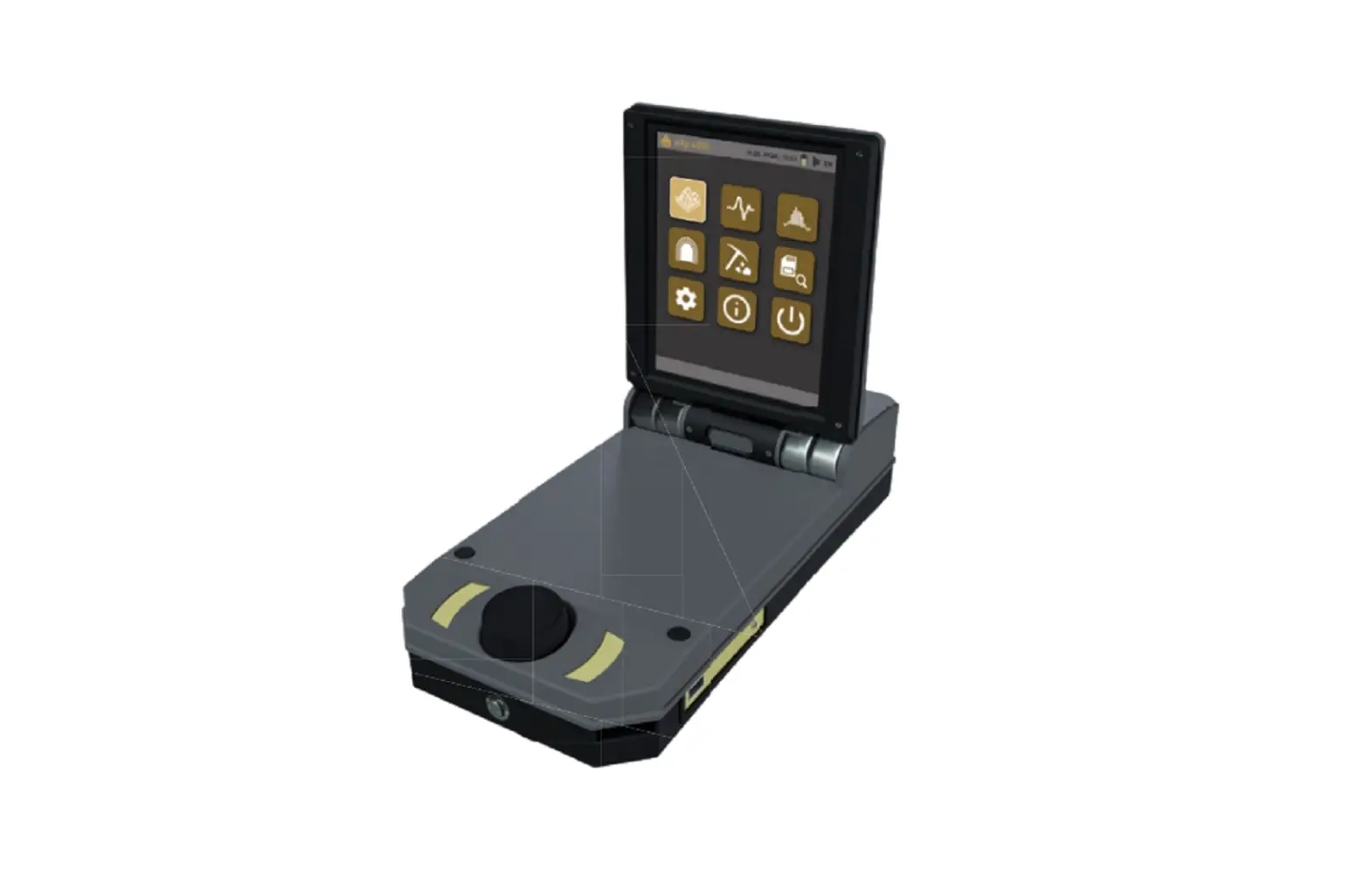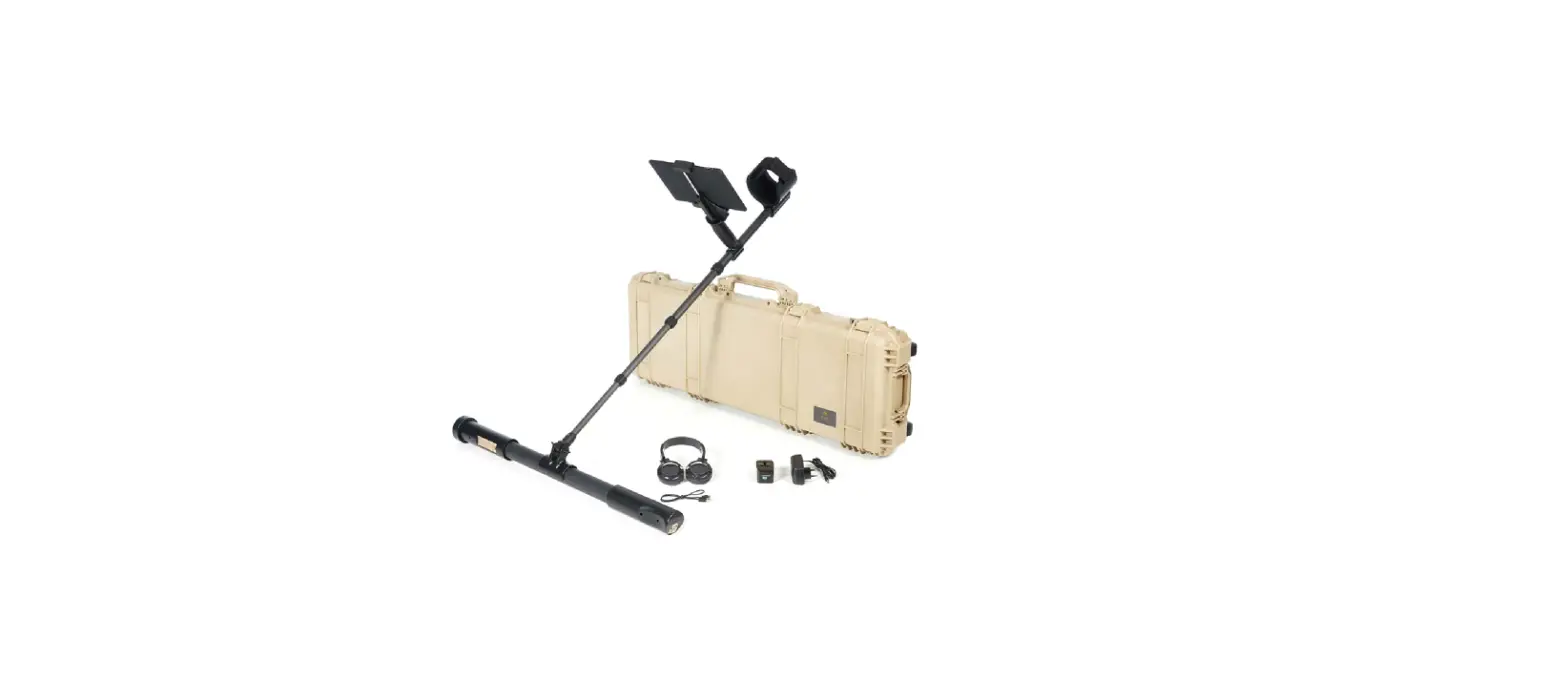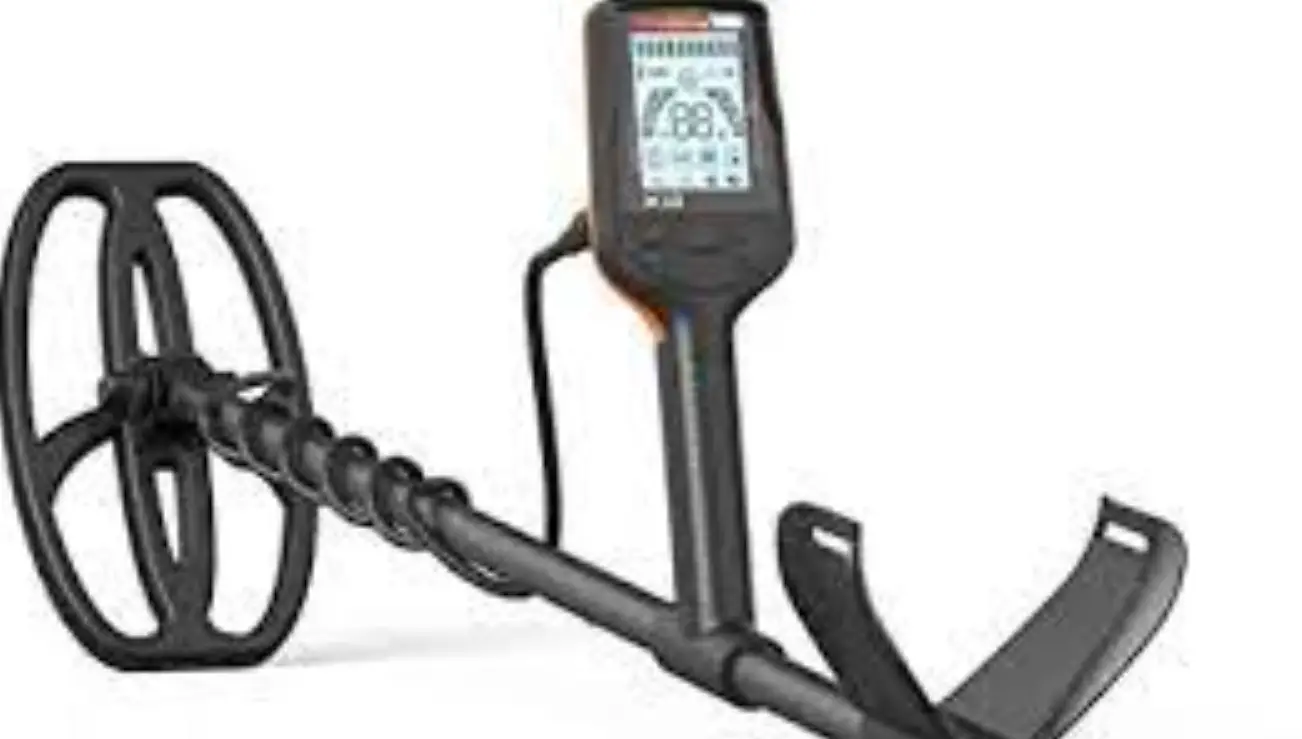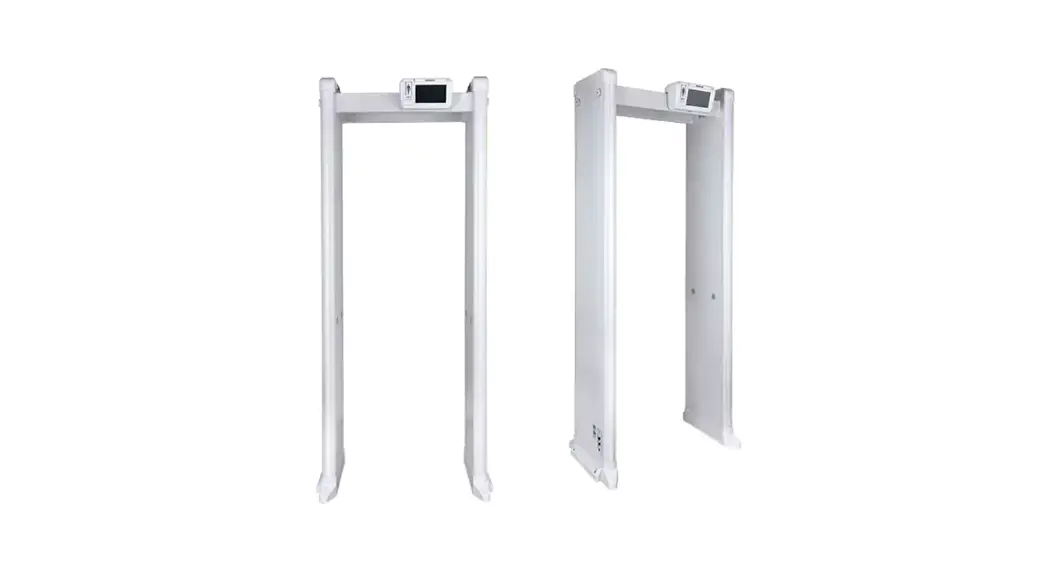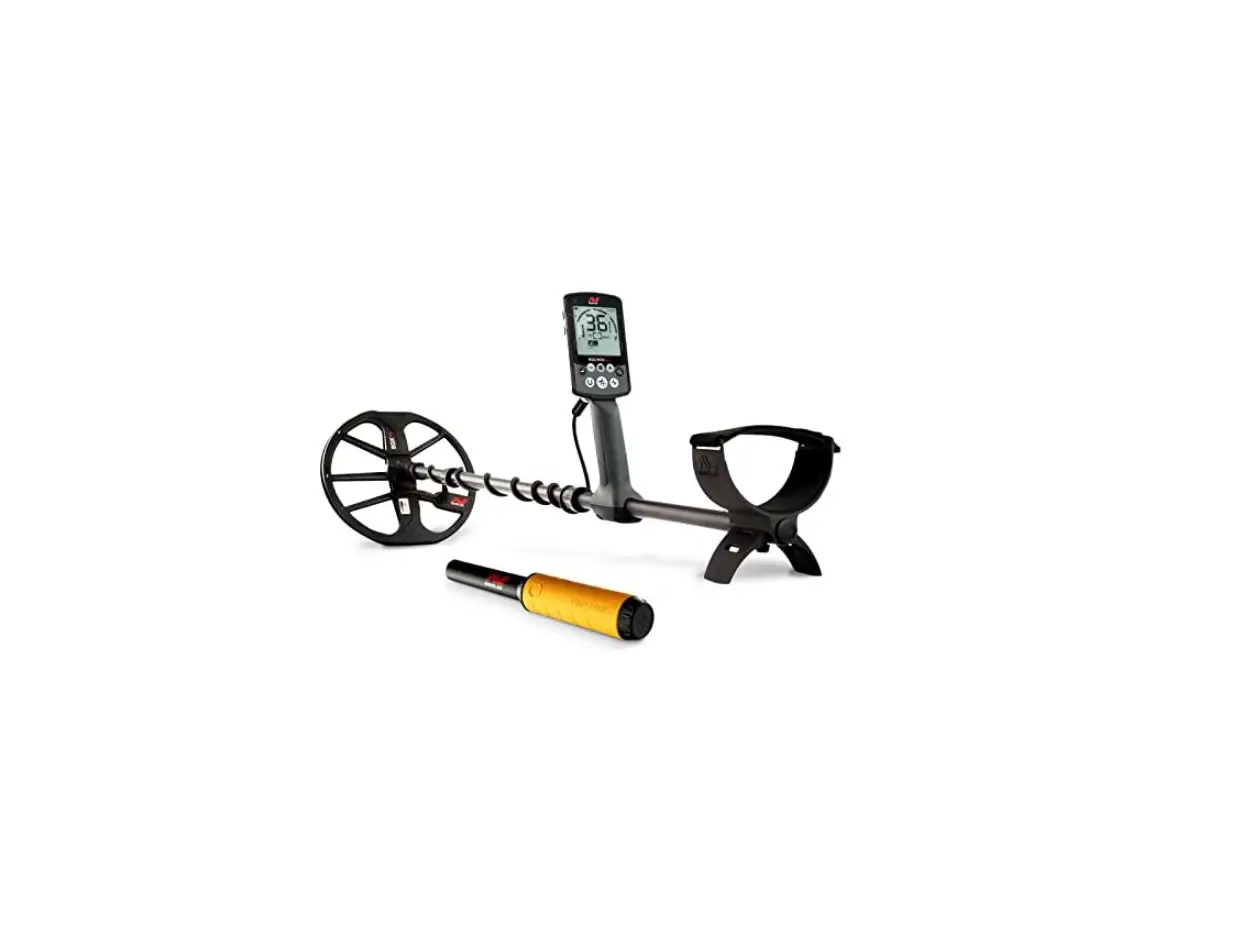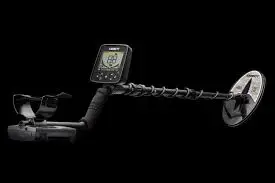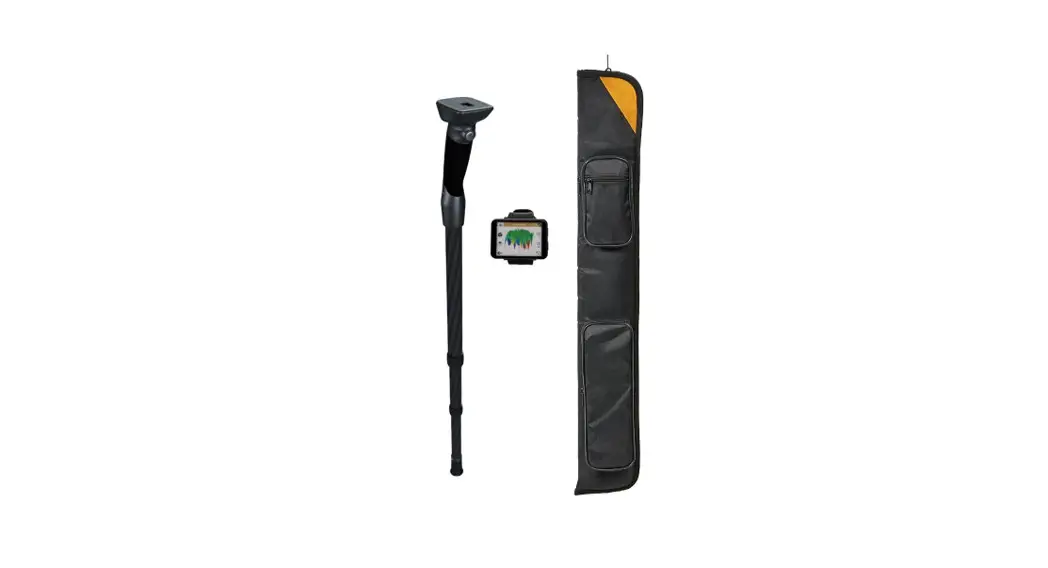

ROVER UC Metal Detector
User Guide 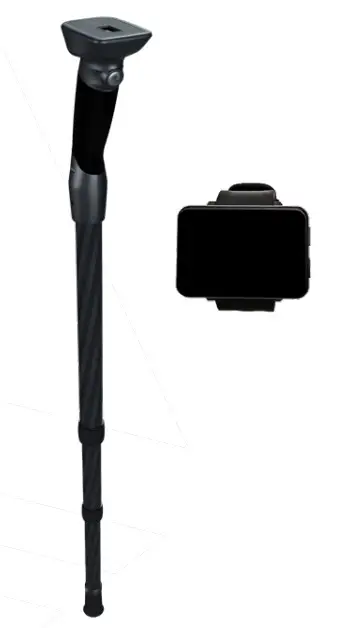
ASSEMBLY
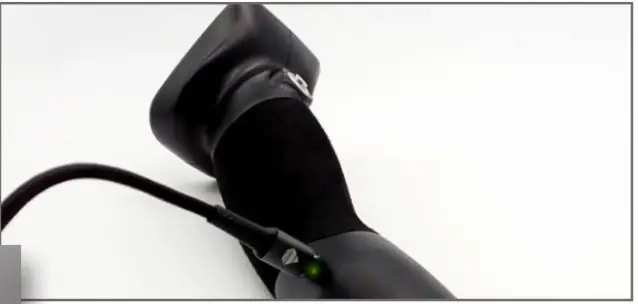
Plug charger into the detector to check charge status (fully charged = LED green) and to charge (LED red). 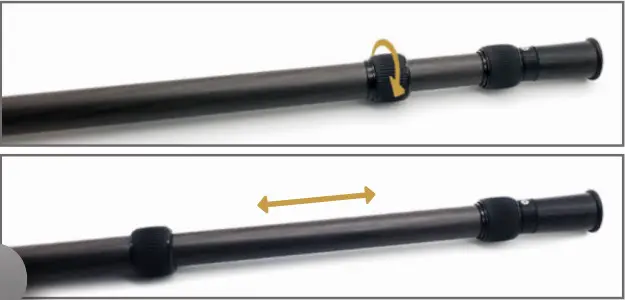
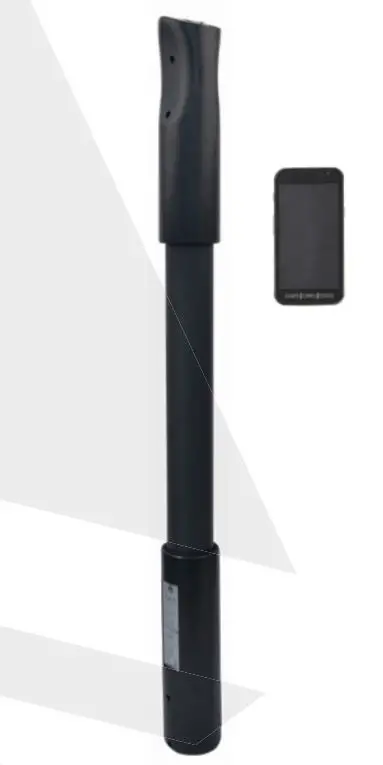
Release the lock, adjust the length of the detector and lock it again.
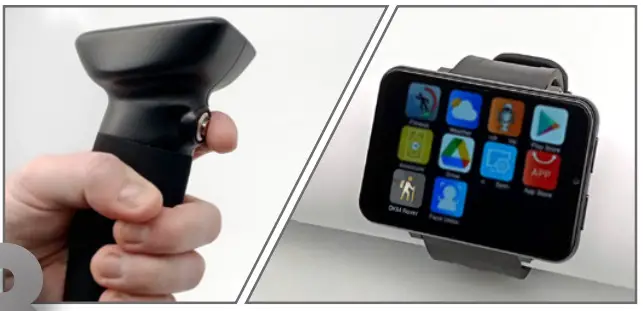
Power on detector: The Trigger LED turns green. Start the OKM App on the Smartwatch.
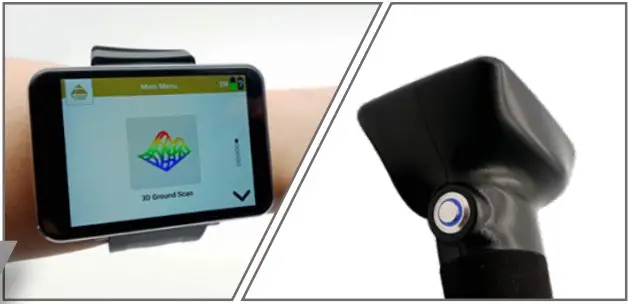
Select the operating mode. As soon as the Bluetooth connection is established, the Trigger LED turns blue.
OPERATING MODES
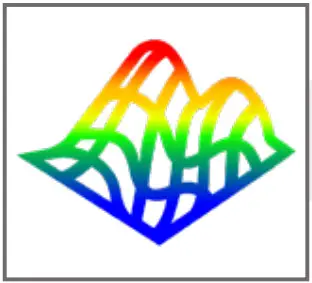 | 3D GROUND SCAN Graphical ground measurement with visualization in 3D for detailed analysis on the notebook. |
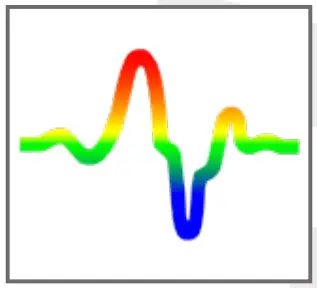 | PINPOINTER Visual measurement with material discrimination to locate objects and cavities in the underground. |
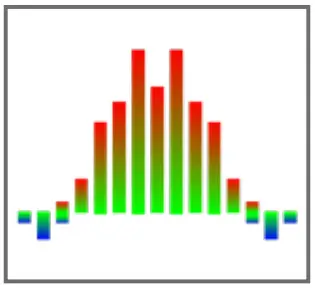 | MAGNETOMETER Acoustic and visual magnetic field measurement to detect metal objects near the surface. |
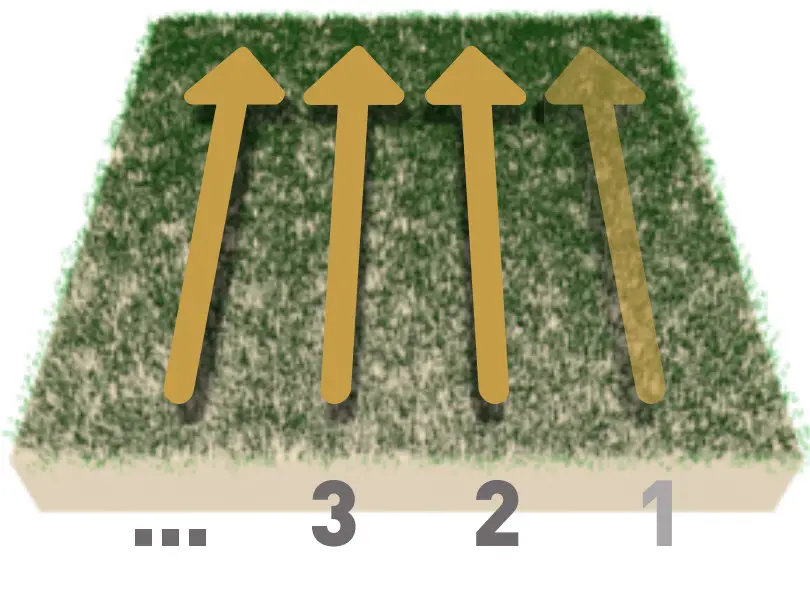
 Walk all scan lines at the same speed. Keep the probe vertical and avoid pivoting and swinging.
FIRST MEASUREMENT
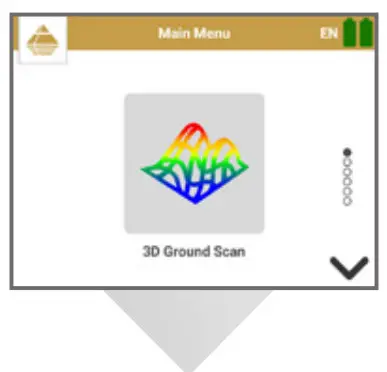 | Select 3D Ground Scan |
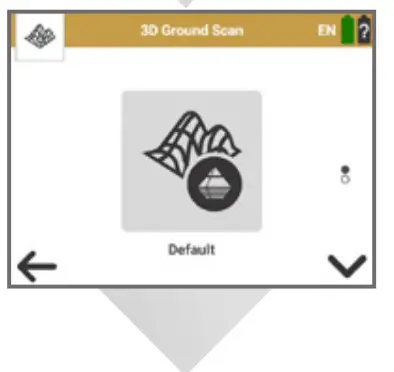 | Select configuration Default |
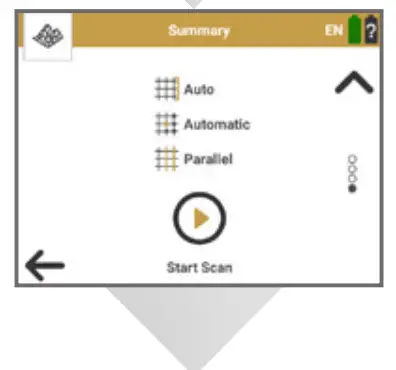 | Confirm settings with Start Scan |
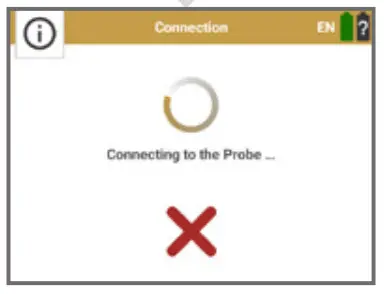 | Wait until the Bluetooth connection is established |
Start at bottom right of the scan field.
- Press the Trigger Button on the detector to start scanning the first scan line.
- Scan the first line.
- Press the Trigger Button to finish the first scan line.
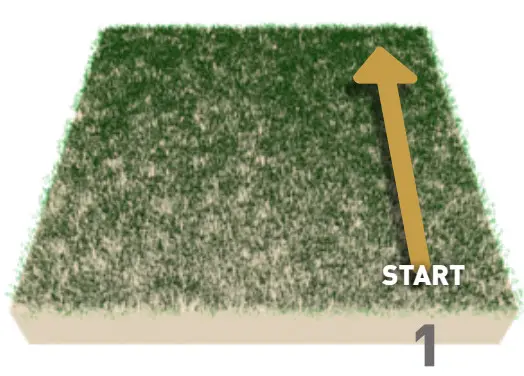
Go to the starting point of the next
scan line and press the Trigger Buttonto start. The measurement of the scan line will finish automatically.
Repeat this procedure to measure further scan lines.
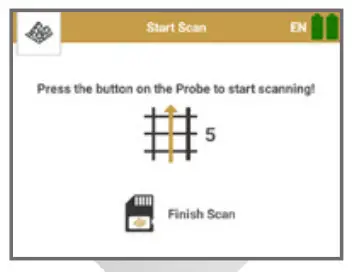 | Press Finish Scan after completing the last scan line |
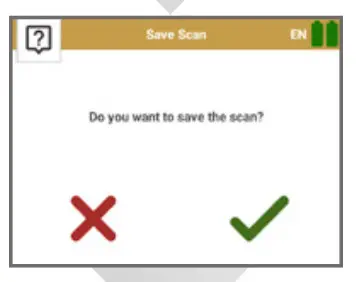 | Press✓ to save the scan |
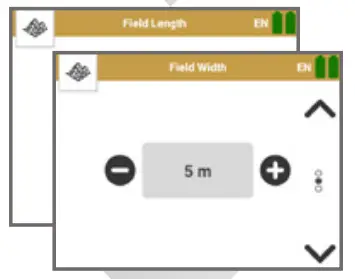 | Enter Field Length and Width |
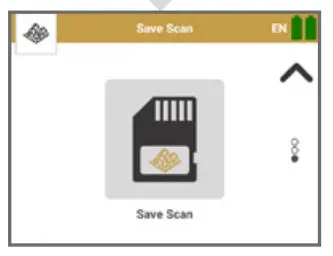 | Press Save Scan |
DATA TRANSFER
- Download Visualizer 3D Studio or plug a USB flash drive into the notebook.
- Run Setup.exe and follow the installation instructions on the screen. Then launch Visualizer 3D Studio.
- Get Activation Code (valid Software Key required) and enter it.
 Start Android App>
 File Explorer>
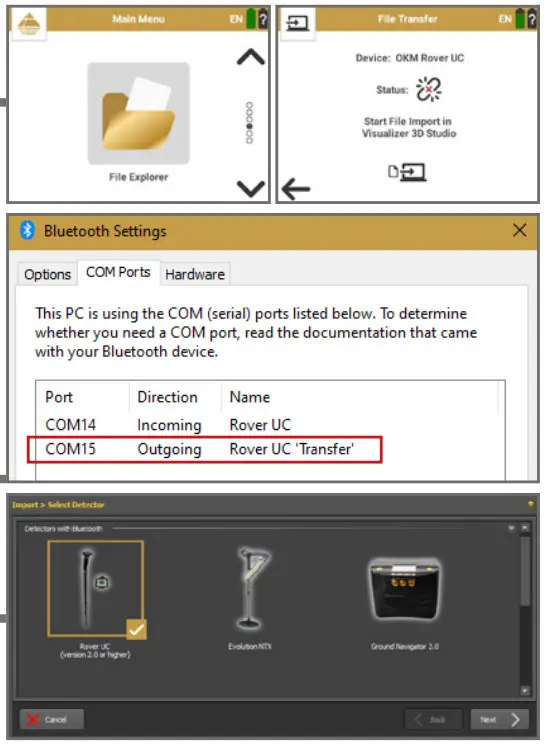
  Data Transfer
5A Pair Bluetooth: Settings >
 Devices +Add Bluetooth device …
5B . select Bluetooth and pair device (OKM Rover UC).
5C Scroll down in the dialog window (Devices) and select More Bluetooth options.
5D Select tab COM Ports and note your port for OKM Rover UC ‘Transfer’ (required for Step 6).
6 Start Import in Visualizer 3D Studio > Select Rover UC > Select Interface (COM Port)
7 Transfer measurements from the Smartwatch and save files on your computer.
 Start Android App>
 File Explorer>
  Data Transfer
 Settings >
 Devices +Add Bluetooth device …
 select Bluetooth and pair device (OKM Rover UC).
 Start Import in Visualizer 3D Studio > Select Rover UC > Select Interface (COM Port)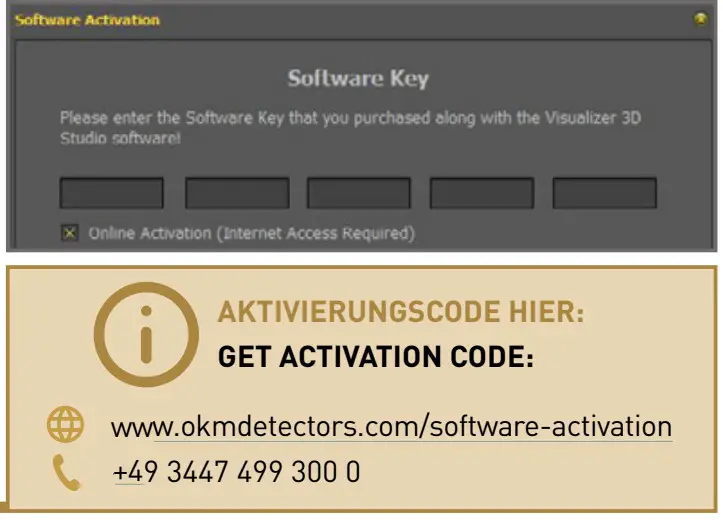
FURTHER INFORMATION & SUPPORT
 | USER MANUAL WWW.OKMDETECTORS.COM/DOWNLOADS |
 | WWW.OKMDETECTORS.COM/GROUND-SCAN-GUIDE |
 | WWW.OKMDETECTORS.COM/TUTORIALS |
 | SUPPORT For further questions please contact your dealer or directly OKM GmbH in Germany. |
OKM GmbH | Julius-Zinkeisen-Str. 7 | 04600 Altenburg | Germany
+49 3447 499 300 0 | [email protected]
WWW.OKMDETECTORS.COM
 Downloads – OKM Detectors