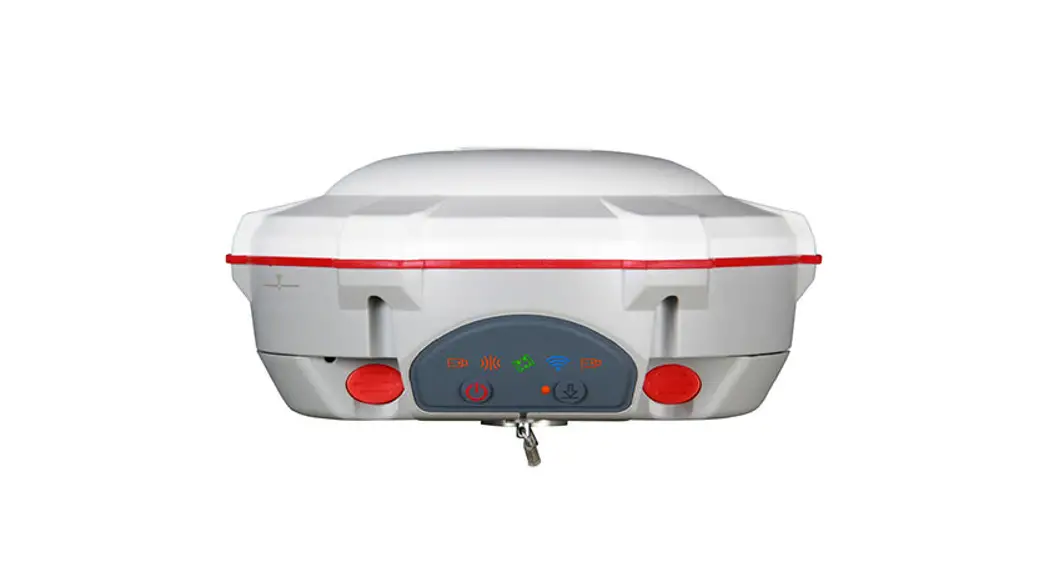
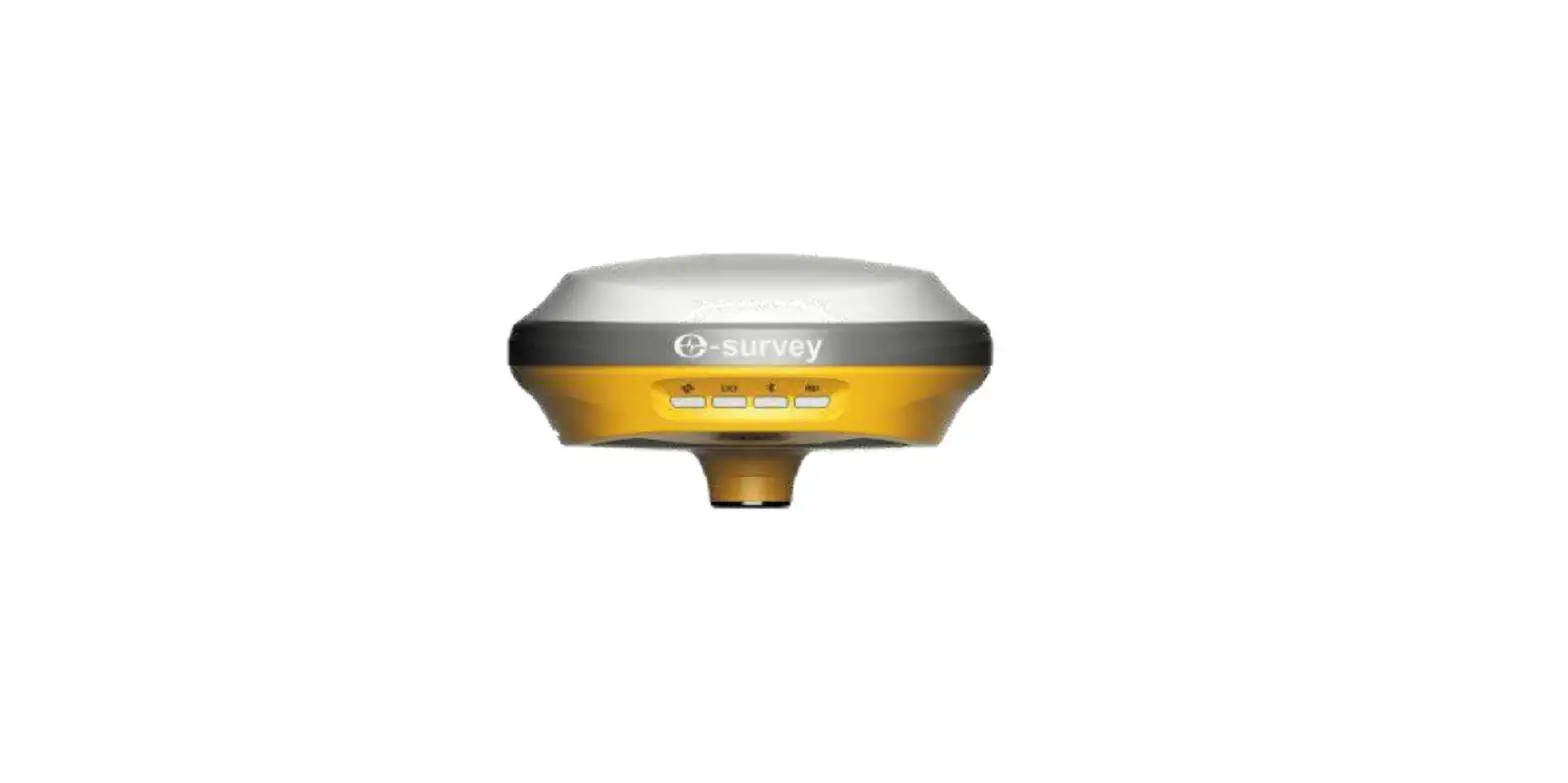
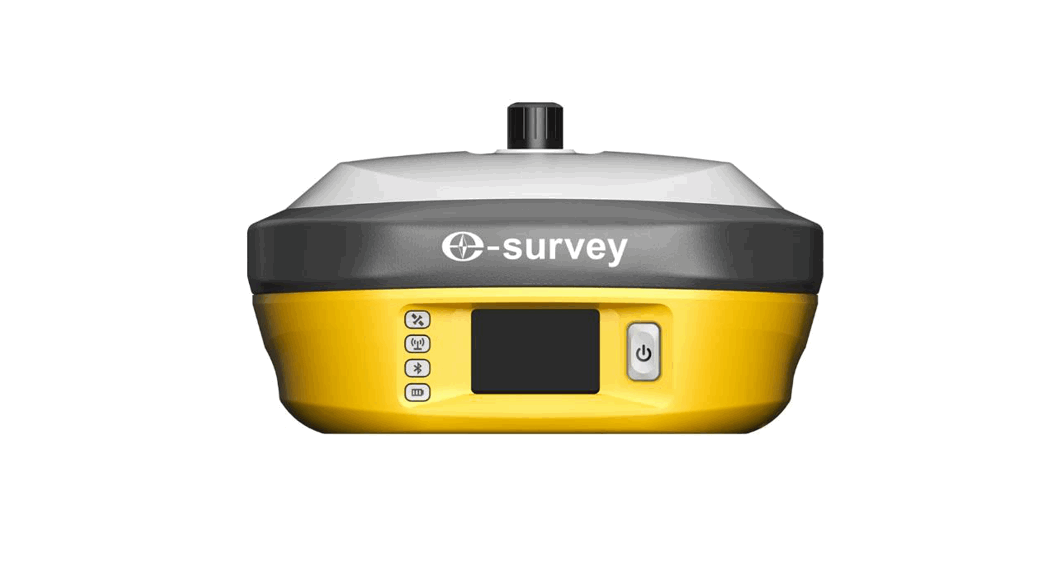
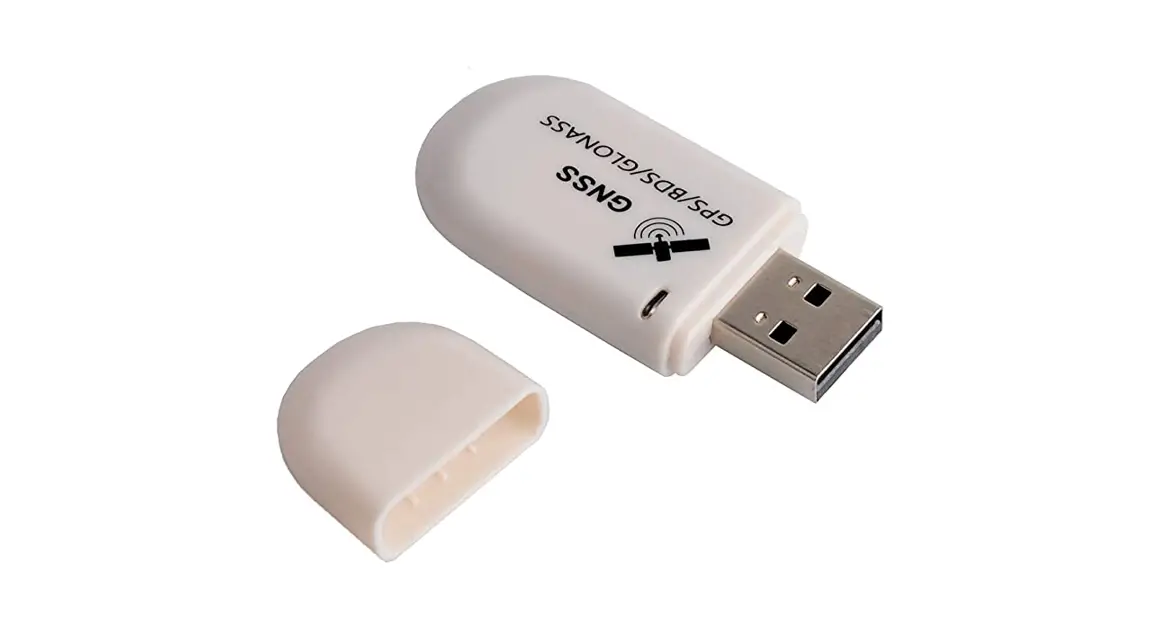
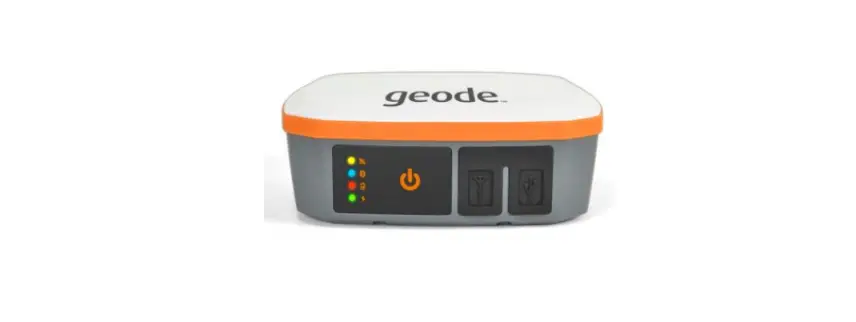
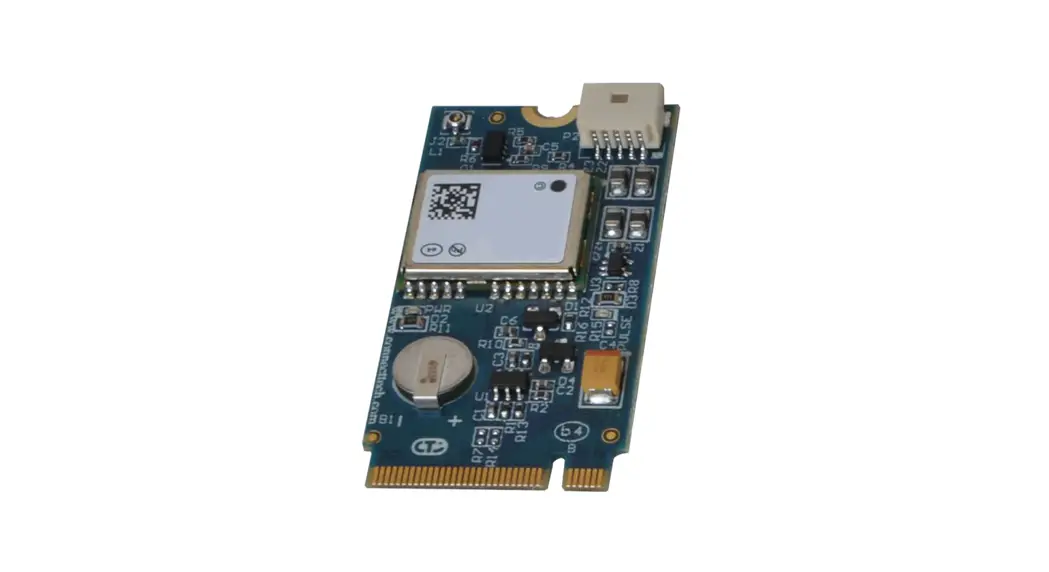
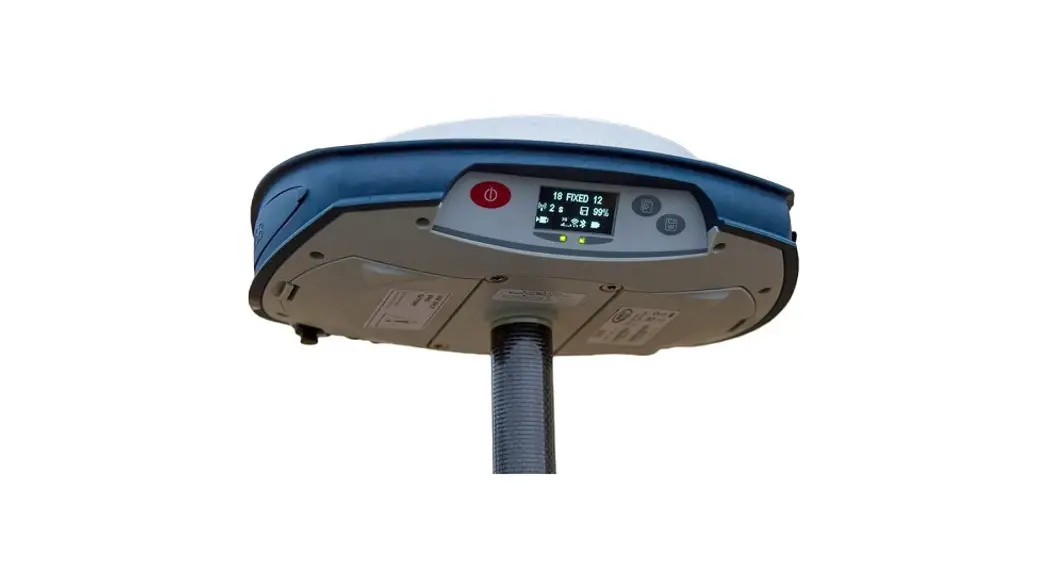
Z30 GNSS Receiver
SinoGNSSR Z30 User Guide
Z30 GNSS Receiver
The SinoGNSSR Z30 is a high-precision GNSS receiver designed for
various applications. It provides accurate positioning and
navigation data for users in fields such as surveying, mapping, and
construction. The receiver is manufactured by ComNav Technology
Ltd. and is built with advanced technology to ensure reliable
performance.
Product Information
- Product Name: SinoGNSSR Z30 GNSS Receiver
- Version: 1.0 (March 2023)
- Manufacturer: ComNav Technology Ltd.
- Corporate Address: Building 2, No.618 Chengliu Middle Road,
201801 Shanghai, China - Contact Information:
- Tel: +86 21 64056796
- Fax: +86 21 54309582
- Website: www.comnavtech.com
- Email: [email protected]
Safety Information
Before using the receiver, it is important to read and
understand the user guide and follow the safety requirements
provided. To ensure safe usage, please adhere to the following
guidelines:
- Connect your devices strictly based on this User guide.
- Install the GNSS receiver in a location that minimizes
vibration and moisture. - Avoid dropping the receiver or colliding with other items.
- Keep the receiver at least 2 meters away from radio stations to
reduce radiation. - Replace damaged cables promptly.
Warning and Caution
It is important to note the following warnings and cautions to
minimize the risk of personal injury, equipment damage, and data
loss:
- WARNING: A Warning alerts you to a potential
risk of serious injury to your person and/or damage to the
equipment due to improper operations or wrong settings. - CAUTION: A Caution alerts you to a possible
risk of damage to the equipment and/or data loss.
Warranty Notice
ComNav Technology does not provide warranty coverage for devices
damaged due to force majeure events such as lightning, high
voltage, or collision. The warranty does not cover devices that
have been disassembled or tampered with.
Product Usage Instructions
To operate the SinoGNSSR Z30 GNSS Receiver, please refer to the
following sections of the user guide:
- INTRODUCTION: This section provides an
overview of the receiver and includes a packing list. - GENERAL OPERATION: This section explains the
functions of the buttons on the receiver and describes the behavior
of the LED indicators.
For detailed instructions on using specific features and
settings of the receiver, please consult the relevant sections in
the user guide.
SinoGNSSR Z30 User Guide
Z30 GNSS Receiver
User Guide
Version 1.0 March 2023
SinoGNSSR Z30 User Guide
Corporate office
ComNav Technology Ltd. Building 2, No.618 Chengliu Middle Road, 201801 Shanghai, China Tel: +86 21 64056796 Fax: +86 21 54309582 Website: http://www.comnavtech.com E-mail: [email protected]
Trademark notice
© 2023 ComNav Technology Ltd. All rights reserved. SinoGNSS is the official trademark of ComNav Technology Ltd., registered in People’s Republic of China, EU, USA and Canada.
Copyright Notice
This is the V1.0(March, 2023) revision of the Z30 GNSS Receiver User Guide. It cannot be copied or translated into any language without the written permission of ComNav Technology.
Technical Assistance
If you have any question and can’t find the answer in this manual, please contact your local dealer from which you purchased the T300 receiver. Alternatively, request technical support from ComNav Technology Website: www.comnavtech.com or technical support email: [email protected]. Your feedback about this Guide will help us to improve it with future revisions. Please email your comments to: [email protected].
Safety Information
Before using the receiver, please make sure that you have read and understood this user Guide, as well as the safety requirements.
Connect your devices strictly based on this User guide Install the GNSS receiver in a location that minimizes vibration and moisture Avoid falling to ground, or colliding with other items To reduce radiation, please keep above 2 meters away from the radio station Change the cable if damaged
Related Regulations
The receiver contains integral Bluetooth® wireless technology and 4G. Regulations regarding the use of the datalink vary greatly from country to country. In some countries, the unit can be used without obtaining an end-user license. But in some countries the administrative
SinoGNSSR Z30 User Guide
permissions are required. For license information, please consult your local dealer.
Use and Care
The receiver can withstand the rough treatment that typically occurs in the field. However, the receiver is high-precision electronic equipment and should be treated with reasonable care.
Warning and Caution
An absence of specific alerts does not mean that there are no safety risks involved. A Warning or Caution information is intended to minimize the risk of personal injury and/or damage to the equipment.
WARNING-A Warning alerts you to a potential risk of serious injury to your person and/or damage to the equipment, because of improper operations or wrong settings of the equipment. CAUTION- A Caution alerts you to a possible risk of damage to the equipment and/or data loss.
Warranty Notice
ComNav Technology does not warranty devices damage because of force majeure (lighting, high voltage or collision). ComNav Technology does not warranty the disassembled devices.
SinoGNSSR Z30 User Guide
CONTENTS
1 INTRODUCTION …………………………………………………………………………………………………………. 5 1.1 PACKING LIST……………………………………………………………………………………………………………………..5
2 SETTING UP THE RECEIVER……………………………………………………………………………………………5 2.1 FRONT PANEL ……………………………………………………………………………………………………………………. 6 2.2 LOWER HOUSING…………………………………………………………………………………………………………………6 2.3 POWER SUPPLY ………………………………………………………………………………………………………………….. 7
3 GENERAL OPERATION …………………………………………………………………………………………………. 7 3.1 BUTTON FUNCTIONS ……………………………………………………………………………………………………………. 7 3.2 LED BEHAVIOR ………………………………………………………………………………………………………………….. 8
4 PERSONNEL TRACKING ON NAVICLOUD/TCP SERVER …………………………………………………….. 10 4.1 PREPARATION ………………………………………………………………………………………………………………….. 10 4.2 Z30 INSTALLATION…………………………………………………………………………………………………………….. 10 4.3 CONFIGURATION BY NAVIGATE MASTER …………………………………………………………………………………… 11 4.3.1 Bluetooth Connection ……………………………………………………………………………………………..11 4.3.2 Setup for 4G ………………………………………………………………………………………………………….. 12 4.3.2 Upload tracking to Navicloud ………………………………………………………………………………….. 13 4.4 MANAGEMENT IN NAVICLOUD PLATFORM ………………………………………………………………………………… 14 4.4.1 Register and Login …………………………………………………………………………………………………. 14 4.4.2 Create or join a Company ……………………………………………………………………………………….. 15 4.4.3 Personnel Security module ………………………………………………………………………………………. 16
APPENDIX ………………………………………………………………………………………………………………………. 20
SinoGNSSR Z30 User Guide
1 Introduction
Z30 GNSS receiver is a new generation of portable high-precision GNSS receiver independently developed by ComNav Technology Ltd. With a multi-frequency OEM board that tracks full GNSS constellations, it can obtain accuracy positioning from sub-meter to centimeter.
1.1 Packing list
This section provides Z30 parts list, including basic supplies and customized kits based on your requirements.
Item
1* Z30 1*USB cable and charger
Picture
2 Setting up the receiver
This chapter provides general information on appearance and power supply of Z30
SinoGNSSR Z30 User Guide
2.1 Front panel
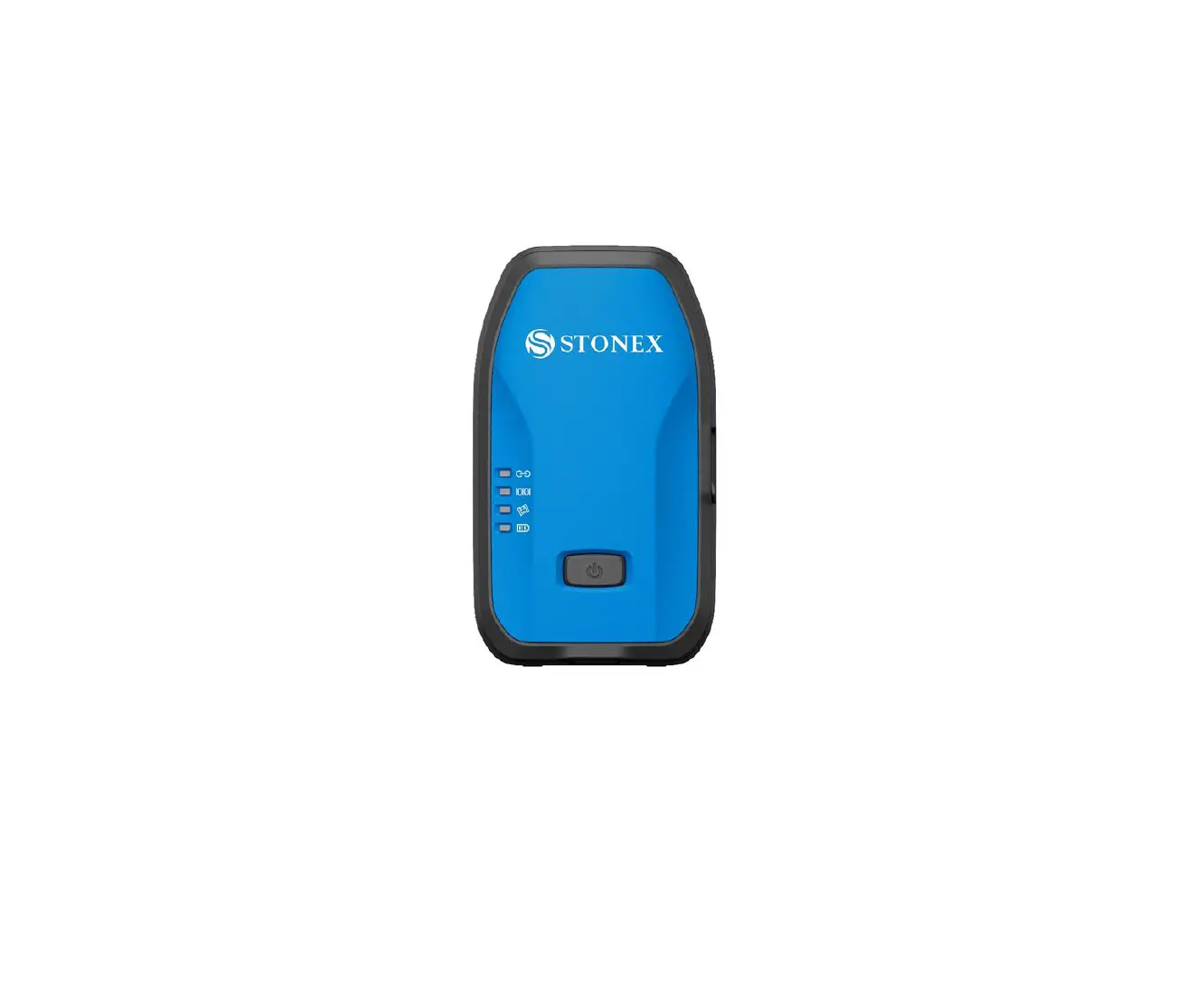
Receiver front panel contains three indicator light emitting diodes (LEDs). The indicator LEDs show the status of power, satellite tracking, and Internal GSM/ differential indicator.
Z30
2.2 Lower housing
SinoGNSSR Z30 User Guide
Z30 Receiver lower housing contains a pole slot, and a Type-C port for charge/power supply with power bank.
Z10
2.3 Power supply
Z30 GNSS receiver supports internal batteries and supply with power bank.
3 General Operation
This chapter introduces all controls for the general operation, including button functions and all LED behaviors on the front panel.
3.1 Button functions
SinoGNSSR Z30 User Guide
There are two buttons on the front panel, power button and SOS button. Power button: Press the power button for about 1 second to turn on the receiver; To turn off the receiver, long press the button for 3-4 seconds until all LEDs off. SOS button (Z30): long press the button for 5 seconds to ask help for remote server. To cancel the warning, long press the button for 5 seconds until warning off
3.2 LED behavior
The LEDs on the front panel indicate receiver working status. Generally, a lit or slowly flashing indicates normal operation, and an unlit LED indicates that no operation is occurring. The following figure and table define each possible LED state:
SinoGNSSR Z30 User Guide
Power LED
Satellite LED GPRS/differential LED
Z30
LEDs Power Differential Data
Satellite Tracking
States Lit Flashing
Flashes once per second
Description Enough power Low power Receiving differential data /transmit tracking to server
Flash once per second
No satellite received
Flashes N times every 5 seconds Received N satellite signals
SinoGNSSR Z30 User Guide
4 Personnel tracking on NaviCloud/TCP server
This chapter will introduce the procedure of upload tracking to ComNav NaviCloud platform or third-party TCP server.
4.1 Preparation
There will need put a SIM card to Z30/M10/M10 mini, and configure by Navigate Master software to get correction service, and setup address of NaviCloud platform or third-party TCP server. After that, you can manage your device by the platform.
Z30
Navigate Master Software (based on Android)
NaviCloud Platform (http://cloud.sinognss.com)
SIM card (nano)
4.2 Z30 Mini installation
Insert SIM card to Z30, then power on receiver.
SinoGNSSR Z30 User Guide
Z30 Tip: For Z30, it integrated with internal antenna, so there is no need to connect to external antenna.
4.3 Configuration by Navigate Master
4.3.1 Bluetooth Connection Search the target receiver SN, and tap to connect.
SinoGNSSR Z30 User Guide
4.3.2 Setup for 4G Enable mobile network, input APN account, and check the 4G status.
SinoGNSSR Z30 User Guide
4.3.2 Upload tracking to Navicloud After Bluetooth connected, go DataTransfer, you can manage the data stream:
NaviCloud: here you need input the address of NaviCloud platform, so that you can manage this device. The address is: iot.sinognss.com:9036 TCP/IP: this option allows you transfer real time positioning to your own TCP server/service. Ntrip Client: you can get correction service by connect to local cors or a single Base station. Tip: after you setup tracking address or connected to correction service, the GPRS/differential led on front panel will flash once per second.
SinoGNSSR Z30 User Guide
NaviCloud/TCP setup: Input IP and port for NaviCloud/TCP server. Ntrip Client setup:
Device Network: use SIM card internet to get correction service, and tracking upload; Input CORS account: IP, port, username, and password; Click to get source list of mountpoints, and select the right one.
The Z30 will auto upload tracking by GPYBM, GPGGA and GPZDA message to NaviCloud.
4.4 Management in NaviCloud platform
This chapter will introduce the personnel security module in NaviCloud. 4.4.1 Register and Login Enter NaviCloud address to browser: http://cloud.sinognss.com Register an account of NaviCloud.
SinoGNSSR Z30 User Guide
4.4.2 Create or join a Company After register and login, go to User center to check the user information. You will need join a company to get more access for different functions in NaviCloud.
SinoGNSSR Z30 User Guide
Before you join a company, you need Register your own company, so that you can manage all your devices. Fill in contents as below, and submit. After review by NaviCloud platform, you can manage your company.
4.4.3 Personnel Security module On the main page, our products–personnel security.
There are three main functions, positioning, device and rescue.
SinoGNSSR Z30 User Guide
Add device In Device–Device list, add your Z30 information (the SN must be same with your device)
After you add the device succeed, you can check the device status. Monitoring Go monitoring, you can monitor all devices on map. And on bottom of right interface, it shows real time status for devices.
SinoGNSSR Z30 User Guide
Tracking NaviCloud support check tracking for 3 days. Select the device and date you want to check the tracking, you can also download the tracking as KML format, so that you can open with google map.
Electronic fence With electronic fence, Z30 can remind the workers in real time with beep sound. The manager build the electronic fence and active it in NaviCloud, once the workers outside of the area, the Z30 will warning, and NaviCloud also will receive message. Here shows how to build an electronic fence. Click New, add the electronic by click on map. Note to click the first point on map again to complete the fence.
SinoGNSSR Z30 User Guide
It will prompt below interface, give a name of the fence, and select a manager, active the device which need work in the fence.
SinoGNSSR Z30 User Guide
Appendix
4.3.1.2.15 GPYBM Description
Position, Velocity, Heading, Pitch and PJK information
This message is a non-standard message, which includes position, velocity, PJK information, and also heading and pitch angles output as dual antennas are used.
Reply (ASCII)
Message ID Recommended Input Supported Format
87 log gpybm ontime 1 ASCII
$GPYBM,SN00520429,070326.00,+31.170243388,+121.398934274,15.286,346.84 0,1.290,0.000,-0.002,0.003,0.002,3449917.897,538032.213,-451.861,1088. 741,4,4,12,1,,,,*4B
Field# Structure
1
$GPYBM
2
Serial NO.
Description Log header Serial Number of OEM board
Format SNxxxxxxxx, x = 0 ~ 9
SinoGNSSR Z30 User Guide
Field# Structure Description
Format
3
utc
UTC time
HHMMSS.SS
4
Lat
Latitude, in degrees
+: north, -: south; ddd.mmmmmmmmmmm
5
Lon
Longitude, in degrees
+: east, -: west; ddd.mmmmmmmmmmm
Ellipsoidal height of fix (antenna height above
6
ElpHeight
ellipsoid)
.xxx (m)
Heading, The angle between true North and Heading 0~360 degree
7
Heading
(from true north to heading clockwise)
.xxx (deg)
8
Pitch
Pitch, positive from horizontal surface to zenith, negative from horizontal surface to downword
-90~90 degree .xxx (deg)
9
Vel N
Velocity North
.xxx (m/s)
10
Vel E
Velocity East
.xxx (m/s)
11
Vel D
Velocity down
.xxx (m/s)
12
Vel G
Velocity Ground
.xxx (m/s)
Coordinate
13
refer to PTNL,PJK
Northing
.xxx (m)
Coordinate
14
refer to PTNL,PJK
Easting
.xxx (m)
North
Distance to Ref station in North direction, refer to +: north, -: south;
15 Distance GPNTR
.xxx (m)
East
Distance to Ref station in East direction, refer to
16 Distance GPNTR
+: east, -: west; .xxx (m)
receiver RTK positioning quality indicator:
0 = fix not available or invalid 1 = GNSS fix
2 = C/A differential
4 = RTK fixed ambiguity solution
Position
5 = RTK floating ambiguity solution
17
Indicator
x
6 = Dead reckoning mode
7 = Manual input mode (fixed position)
8 =Super wide-lane mode
SinoGNSSR Z30 User Guide
Field# Structure Description
Attitude receiver RTK heading and pitch quality indicator, 18
Indicator refer to GPTRA, PTNL,AVR
Sat NO
19 Used
satellite number used in solution
20
Diff Age differential age
21
Station ID reference station id
Baseline distance between master station and slave station
22 length
(baseline length between two antennas)
number of satellites that anticipate in calculation of
23
solution sv
slave station
24
rolling
Only supported by board and overall units which contain inertial module
25
*xx
Checksum
[CR][LF]Sentence terminator
Format x xx xx 0000 .xxx (m)
.xxx (deg) *hh
FCC Statement This equipment has been tested and found to comply with the limits for a Class B digital device, pursuant to part 15 of the FCC Rules. These limits are designed to provide reasonable protection against harmful interference in a residential installation. This equipment generates, uses and can radiate radio frequency energy and, if not installed and used in accordance with the instructions, may cause harmful interference to radio communications. However, there is no guarantee that interference will not occur in a particular installation. If this equipment does cause harmful interference to radio or television reception, which can be determined by turning the equipment off and on, the user is encouraged to try to correct the interference by one or more of the following measures: · Reorient or relocate the receiving antenna. · Increase the separation between the equipment and receiver. · Connect the equipment into an outlet on a circuit different from that to which the receiver is connected. · Consult the dealer or an experienced radio/TV technician for help. Caution: Any changes or modifications to this device not explicitly approved by manufacturer could void your authority to operate this equipment. This device complies with part 15 of the FCC Rules. Operation is subject to the following two conditions: (1) This device may not cause harmful interference, and (2) this device must accept any interference received, including interference that may cause undesired operation.
Specific Absorption Rate (SAR) information: This GNSS Receiver meets the government’s requirements for exposure to radio waves. The guidelines are based on standards that were developed by independent scientific organizations through periodic and thorough evaluation of scientific studies. The standards include a substantial safety margin designed to assure the safety of all persons regardless of age or health. FCC RF Exposure Information and Statement the SAR limit of USA (FCC) is 1.6 W/kg averaged over one gram of tissue. Device types: GNSS Receiver has also been tested against this SAR limit. This device was tested for typical body-worn operations with the back of the GNSS Receiver kept 0mm from the body. To maintain GNSS Receiver with FCC RF exposure requirements, use accessories that maintain an 0mm separation distance between the user’s body and the back of the GNSS Receiver . The use of belt clips, holsters and similar accessories should not contain metallic components in its assembly. The use of accessories that do not satisfy these requirements may not comply with FCC RF exposure requirements, and should be avoided.
 ????????????
 ComNav Technology Ltd_ComNav,GNSS OEM Board,GNSS Receiver,GNSS Antenna,Wireless Data Link,Software,Collector