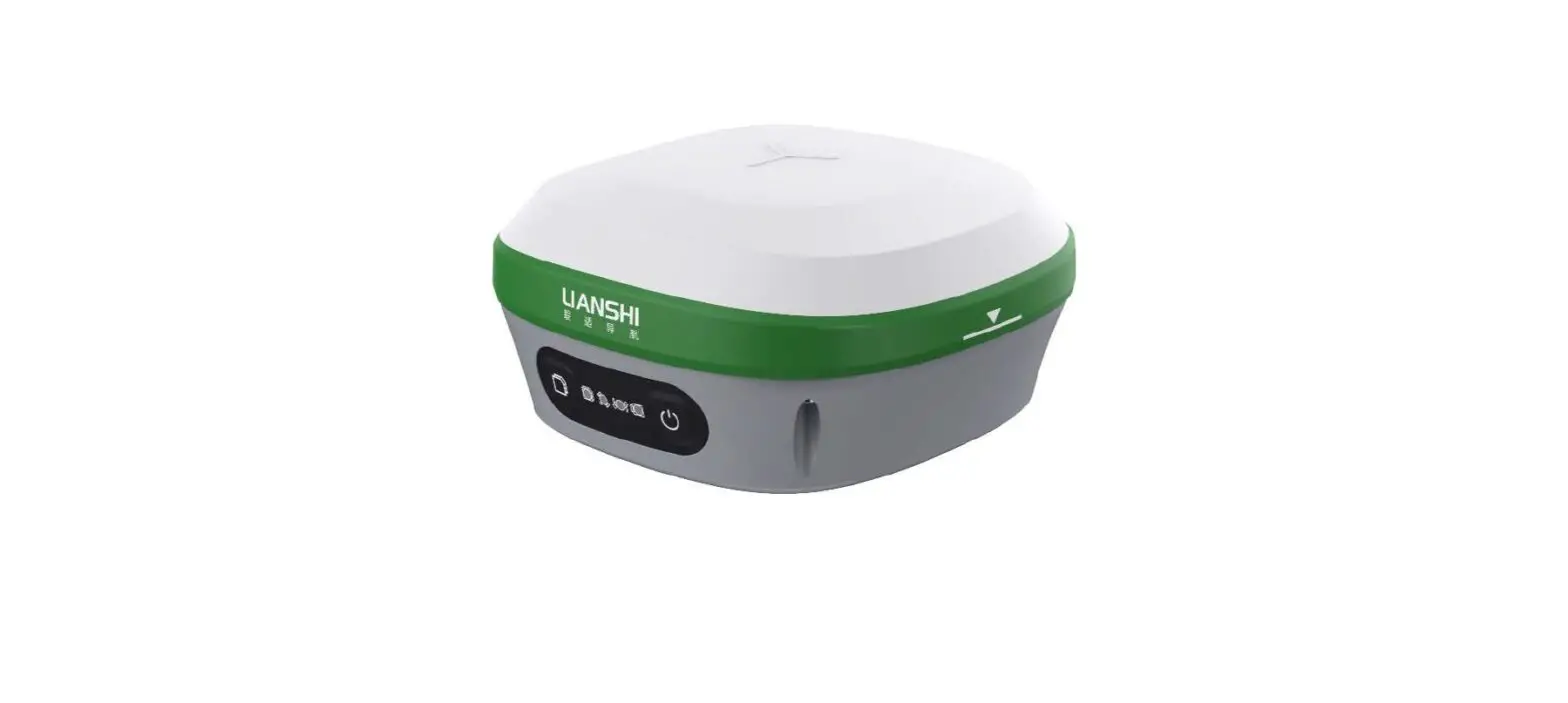
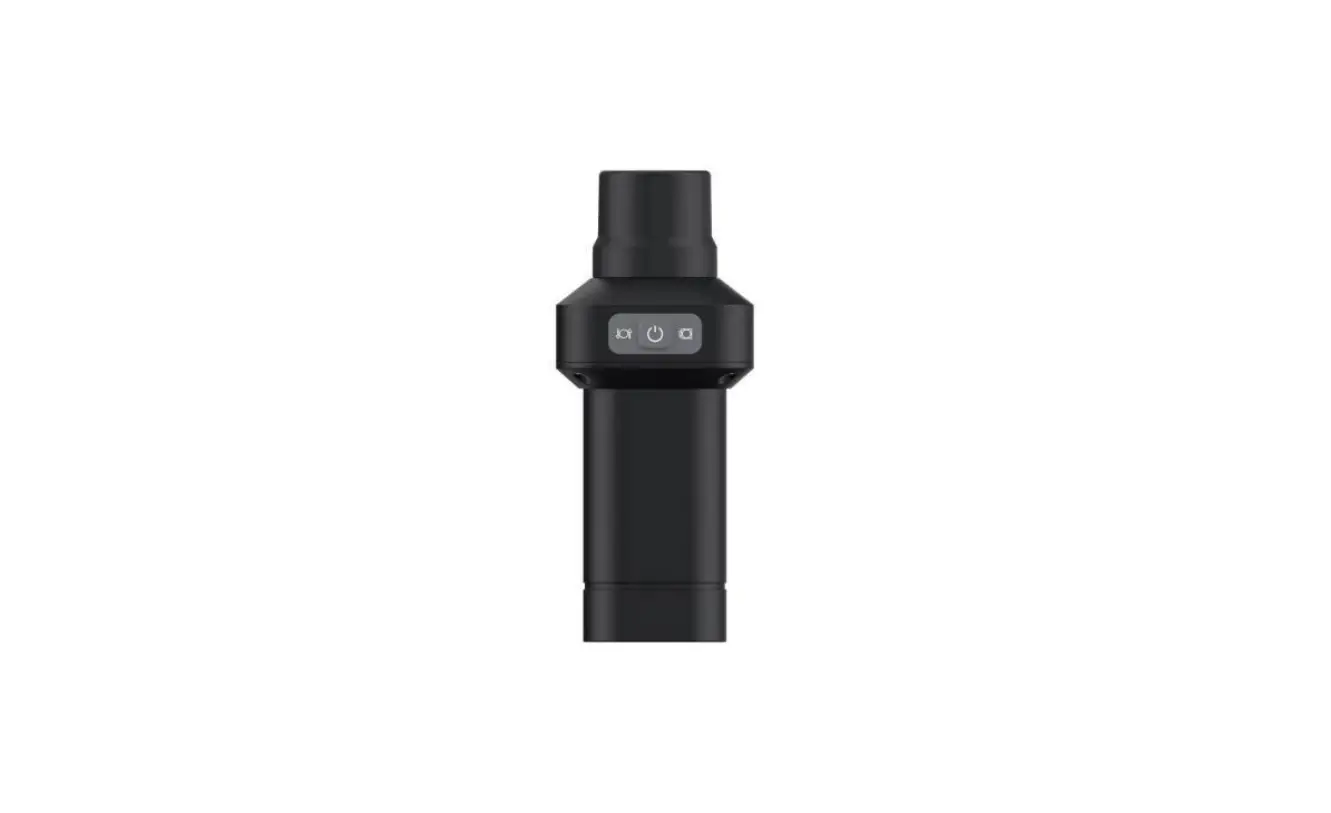
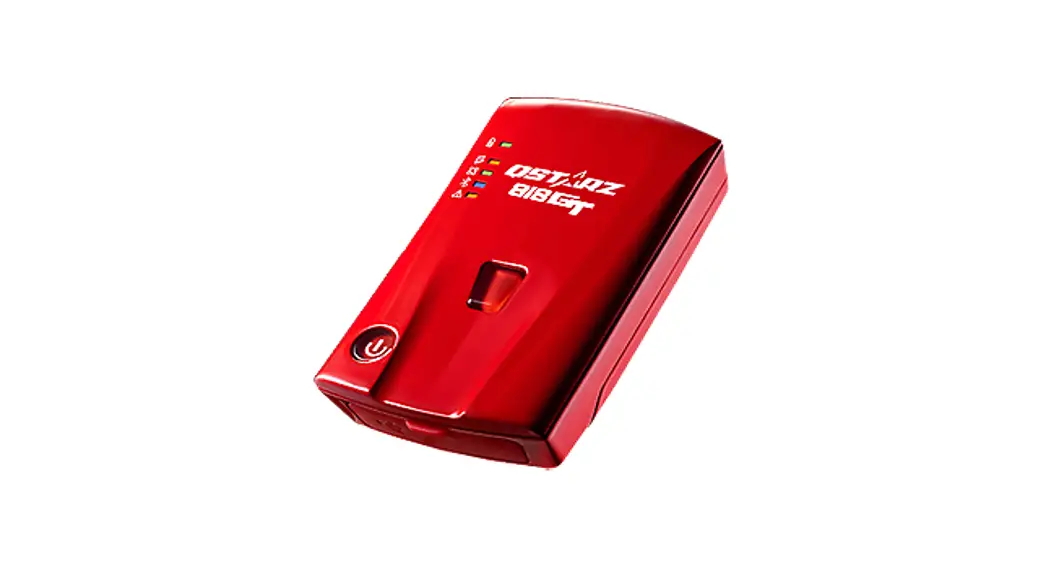
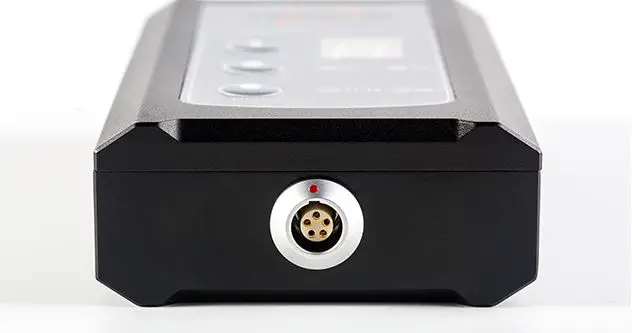
Oscar GNSS Receiver
Product Information
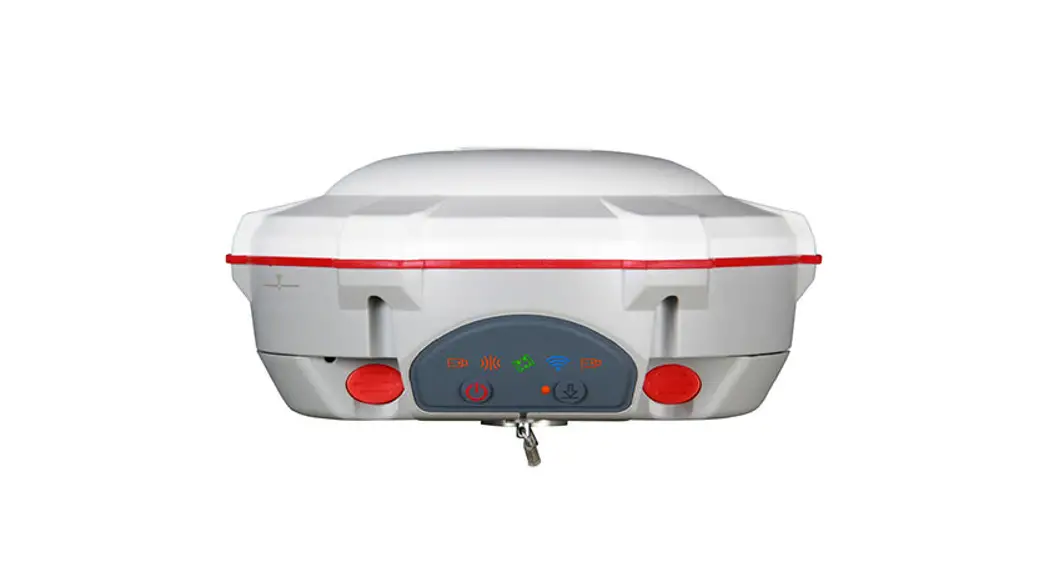
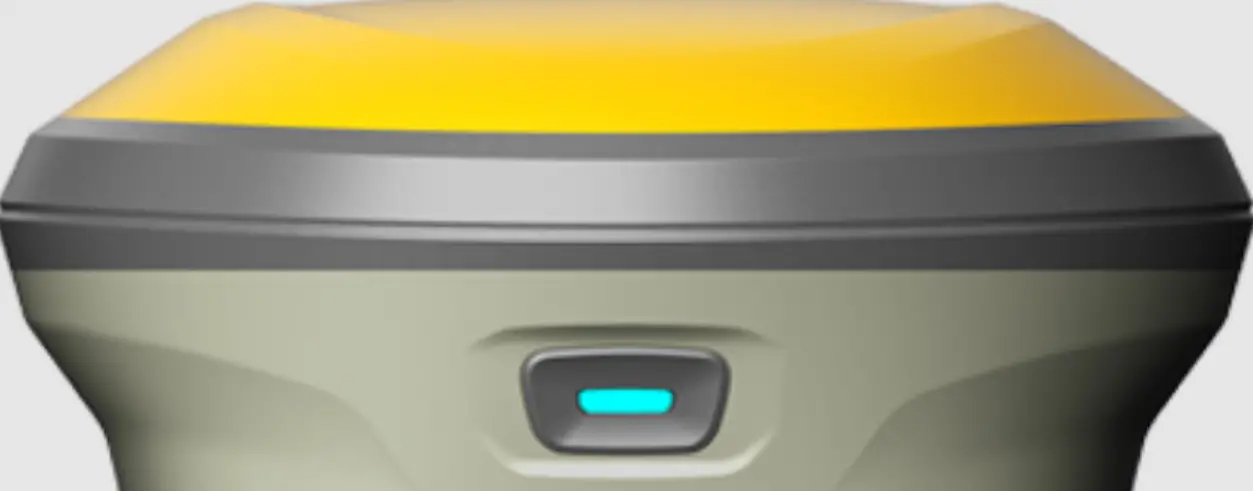
The Oscar GNSS Receiver is a versatile device that can be used
as a Base or a Rover for surveying and collecting GNSS data in the
field. It comes with various accessories and options to meet
different customer requirements.
Key Features:
- Quick and easy to set up
- Supports Receiver Network (4G/3G/2G)
- Works with Tersus Caster Service for enhanced
functionality - NFC function for easy configuration
- Compatible with Nuwa App for project management
Included Accessories:
The Oscar GNSS Receiver kit includes the following items:
- Oscar GNSS Receiver
- Height measure accessory
- GNSS antenna connector
- Tribrach
- Tripod
- 410-470MHz radio whip antenna (optional)
- Extension pole 30cm (optional)
- Serial-5pin to Ext-Radio-DC-5pin & Bullet-DC
(optional) - External Radio RS400H2 (optional)
- High Gain Radio Antenna (optional)
- Telescopic pole for radio antenna (optional)
- Metal plate for radio antenna (optional)
- Ranging pole (optional)
- Bracket for TC50 (optional)
- TC50 Controller (optional)
Product Usage Instructions
Step 1: Check Battery Power Level
Before starting, make sure the battery power level is
sufficient. If necessary, charge the battery.
Step 2: Load Battery and Insert SIM Card (optional)
Follow these steps to load the battery into the Oscar GNSS
Receiver:
- Align the metal contact position of the battery.
- Ensure that the button end is close to the battery
compartment. - Push the battery in the direction of the arrow on the top until
you hear a ‘click’ sound. - Close the cover and lock it.
If you require Receiver Network (4G/3G/2G) functionality, insert
a SIM card into the receiver.
Step 3: Set up as Base or Rover
Depending on your requirements, set up the Oscar GNSS Receiver
as a Base or a Rover. Refer to the User Manual for detailed
instructions and diagrams.
Step 4: Power On and Configure
Power on the receiver and make the necessary configurations.
Follow the instructions below based on your setup:
- Base Setup:
- Long press the power button to turn on Oscar.
- Press the FN button to select [Mode Config].
- Press the power button to enter the work mode options.
- Select [Base Mode] and press the power button.
- If using Tersus Caster Service, select [TCS] and press the
power button.
- Follow steps 1 and 2 above.
- Select [Rover Mode] and press the power button.
- If using Tersus Caster Service, select [TCS] and press the
power button.
Step 5: Survey and Collect GNSS Data
Once the Oscar GNSS Receiver is powered on and configured, you
can start surveying and collecting GNSS data in the field.
Additional Configuration Options
If you prefer to configure the Oscar GNSS Receiver using the
Nuwa App, follow these steps:
- NFC Function:
- Ensure Oscar is powered on and TC50 Controller screen is
unlocked. - Put TC50 Controller close to the Oscar NFC logo.
- The Bluetooth will pair automatically after a beep, and the
Nuwa App will launch. - Follow the instructions in section 3.4 of the User Manual to
configure Oscar.
- If your Android device does not have NFC function, ensure Oscar
is powered on. - Launch the Nuwa App on your Android device.
- Click [Project] in the main interface to create a new project
or open an existing project. - Follow the instructions in section 3.3 of the User Manual to
manually connect Oscar.
Quick Start Guide
Oscar GNSS Receiver
Oscar as a Base Oscar as a Rover
Version 1.4
Oscar Quick Start Guide System Setup
Note: Please check each item according to the item list first to confirm that all the accessories are
! correct for the purchased kit.
Install the radio antenna before switching the radio transceiver to transmit mode, or the radio transceiver may be damaged due to overheating. The energy to be transmitted cannot be emitted out without the antenna, which may cause the temperature rise and overheat of the radio module. The installation of the 410-470MHz radio whip antenna refers to Figure 1.2 Oscar as a Base Internal Radio and Figure 1.5 Oscar as a Rover Internal Radio. The installation of the high gain radio antenna refers to Figure 1.3 Oscar as a Base External Radio RS400H2.
This Quick Start Guide introduces how to start using Oscar GNSS Receiver quickly, the detailed introduction and operations of Oscar refer to User Manual for Oscar GNSS Receiver.
The five simple steps to get started are as follows: 1.Check battery power level, charge the battery if necessary; 2.Load one battery into Oscar, and insert one SIM card if Receiver Network (4G/3G/2G) is needed; 3.Set up Oscar as a Base or Rover; 4.Power on the receiver and make configurations; 5.Start survey and collect GNSS data in the field.
1
Oscar Quick Start Guide System Setup Note: the battery loading method is as below. a) Open the battery cover, notice the metal contact on the bottom,
put one battery align the metal contact position, and make sure the button end is close to the battery compartment. b) Push the battery in the direction of the arrow on the top, the battery is properly installed after a `click’, then close the cover and lock it.
1.System Setup
Oscar GNSS Receiver can work as a Base or a Rover. Oscar as a Base Oscar as a Rover According to the customer requirements, set up the system as per the following pictures.
2
Oscar Quick Start Guide System Setup
1.1 Base Setup
1
2
3
4
5
Figure 1.1 Oscar as a Base Network Mode Table 1.1 Devices in Figure 1.1
NO. Device Name
1
Oscar GNSS Receiver
2
Height measure accessory
3
GNSS antenna connector
4
Tribrach
5
Tripod
3
Oscar Quick Start Guide System Setup
1 2 3
4 5
6
Figure 1.2 Oscar as a Base Internal Radio Table 1.2 Devices in Figure 1.2
NO. Device Name
1
Oscar GNSS Receiver
2
Height measure accessory
3
410-470MHz radio whip antenna
4
Extension pole 30cm
5
Tribrach
6
Tripod
4
Oscar Quick Start Guide System Setup
1
2
5
9
3
6
4
7
10
8
Figure 1.3 Oscar as a Base External Radio RS400H2 Table 1.3 Devices in Figure 1.3
NO. Device Name
1
Oscar GNSS Receiver
2
Height measure accessory
3
Serial-5pin to Ext-Radio-DC-5pin & Bullet-DC
4
External Radio RS400H2
5
GNSS antenna connector
6
Tribrach
7
Tripod
8
High Gain Radio Antenna
9
Telescopic pole for radio antenna
10
Metal plate for radio antenna
5
Oscar Quick Start Guide System Setup
1.2 Rover Setup 1 2
3
4
Figure 1.4 Oscar as a Rover Network Mode Table 1.4 Devices in Figure 1.4
NO. Device Name 1 Oscar GNSS Receiver 2 Ranging pole 3 Bracket for TC50 4 TC50 Controller
6
Oscar Quick Start Guide System Setup
1 2
4
3
5
Figure 1.5 Oscar as a Rover Internal Radio Table 1.5 Devices in Figure 1.5
NO. Device Name 1 Oscar GNSS Receiver 2 410-470MHz radio whip antenna 3 Bracket for TC50 4 Ranging pole 5 TC50 Controller
7
Oscar Quick Start Guide Configure via Buttons
2.Configure via Buttons
2.1 Configure Oscar as a Base
Steps of button configuration: 1.Long press the power button to power on Oscar; 2.Press FN button to select [Mode Config], press the power button
to enter the work mode options; 3.Select [Base Mode] and press the power button; 4.If using Tersus Caster Service, select [TCS] and press the power
button to enter TCS network settings; Set the format, server and press the power button to confirm. 5.If using internal radio, select [Internal Radio] and press the power button to enter radio setting; Set protocol, format, power, channel, frequency and press the power button to confirm. 6.If using external radio, select [External Radio] and press the power button to configure; Set Baud rate as 115200, format and press the power button to confirm. 7.Above all, setting Oscar as a base is completed.
2.2 Configure Oscar as a Rover
Same steps with step 1 & 2 above, then: 3.Select [Rover Mode] and press the power button; 4.If using Tersus Caster Service, select [TCS] and press the power
button to enter TCS network settings; Set the Base ID, server and press the power button to confirm. 5.If using internal radio, select [Internal Radio] and press the power button to enter radio setting; Set protocol, channel and frequency same as Base, press the power button to confirm. 6.If using NTRIP Client, select [NTRIP Client] and press the power button to enter NTRIP setting; Set IP address with correct port and press the power button to confirm. 7.Above all, setting Oscar as a rover is completed.
8
Oscar Quick Start Guide Configure via Nuwa App
3.Configure via Nuwa App
3.1 NFC Function
While Oscar is powered on and the screen of TC50 Controller is unlocked, put TC50 Controller close to the Oscar NFC logo. The Bluetooth pairs automatically after a beep and Nuwa is launched requesting to open the latest project. Click [OK] and start configuring Oscar as stated in section 3.4. Also you can click [Cancel] to create a new project or open an existing project, and then start configuring Oscar.
3.2 Create project / open existing project
If using an android device without NFC function, ensure Oscar is powered on, and launch Nuwa application on the android device. Click [Project] in the main interface to create a new project or open an existing project as shown in Figure 3.1 and connect Oscar manually which is stated in section 3.3 below.
3.3 Connect Oscar
Back to the main interface of Nuwa, click [Device] -> [Connect], select device Oscar and target Bluetooth address to pair, the antenna is selected by default. Then click [Connect] to complete the device connection, refer to Figure 3.2 below.
Figure 3.1 Project
Figure 3.2 Connect Oscar
9
Oscar Quick Start Guide Configure via Nuwa App
3.4 Configure Base or Rover
Back to the Device interface, click [Base] to enter the Work Mode List, create a new Base or edit an existing base as shown in Figure 3.3; Select [Rover] to enter the Work Mode list, create a new Rover or edit an existing rover as shown in Figure 3.4;
Figure 3.3 Base Config
Figure 3.4 Rover Config
Choose [External Radio] (Base only) or [Internal Radio] or [Receiver Network] or [PDA Network] for Data Link, after the detailed configuration of a base or rover is filled in, then click [OK] and back to the work mode list, select this configuration to start data transmission for base or rover which are shown in Figure 3.5 and Figure 3.6 below.
Figure 3.5 Link status of Base
Figure 3.6 Link status of Rover
10
Tersus GNSS Inc. Right to the Point
Get More
This Quick Start Guide briefly introduces the setup and operation for Oscar GNSS Receiver and the operation of Nuwa app. More details please refer to User Manual of Oscar and User Manual of Nuwa app which can be downloaded from Tersus official website: https://www.tersus-gnss.com/product/oscar-gnss-receiver.
Exemption of Liability
Before using this product, please be sure to read the product manual carefully, which helps you to better use the product. Tersus is not liable for damages caused by failure to follow the instructions in the manual. Tersus is committed to continually improving product features and performance, and the contents of subsequent product manuals are subject to change without notice. If the pictures and icons in the manual are different with actual product, please refer to the actual product.
Technical Support
Thank you for using Tersus products. If you have any technical questions for the products, please contact us at [email protected] or log a ticket in our tracking system: https://tersus.supportsystem.com/ and we will serve you promptly.
Copyright ©2021 Tersus GNSS Inc. All rights reserved.