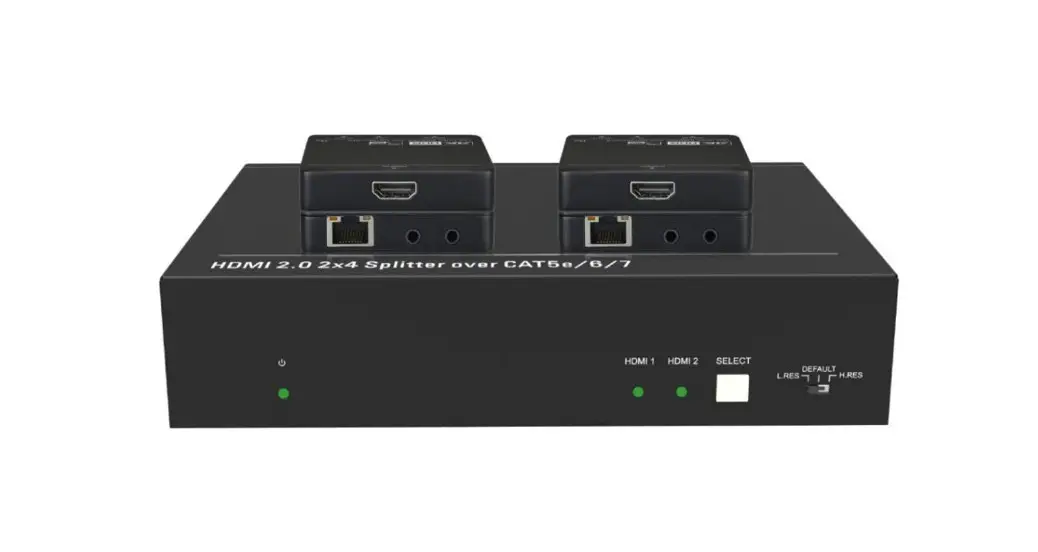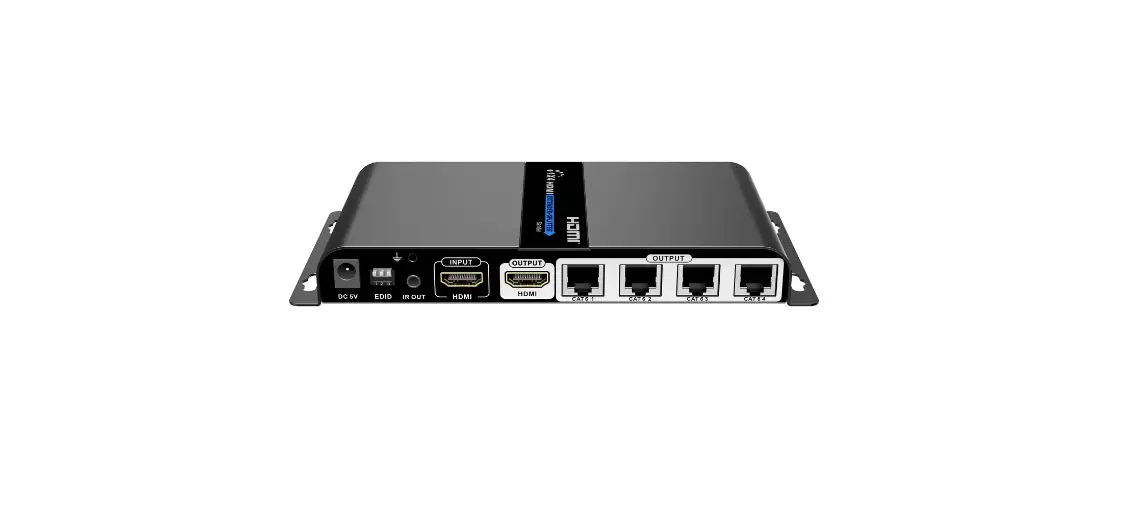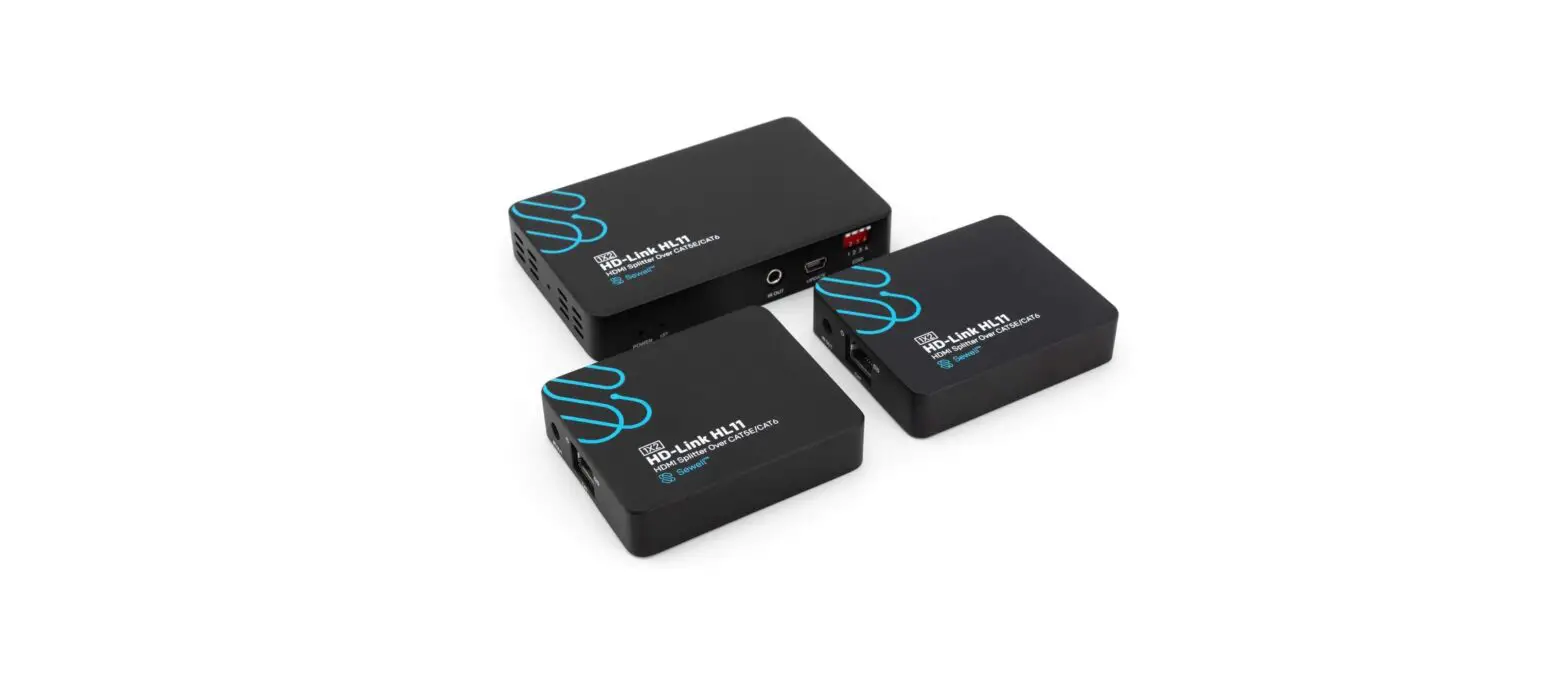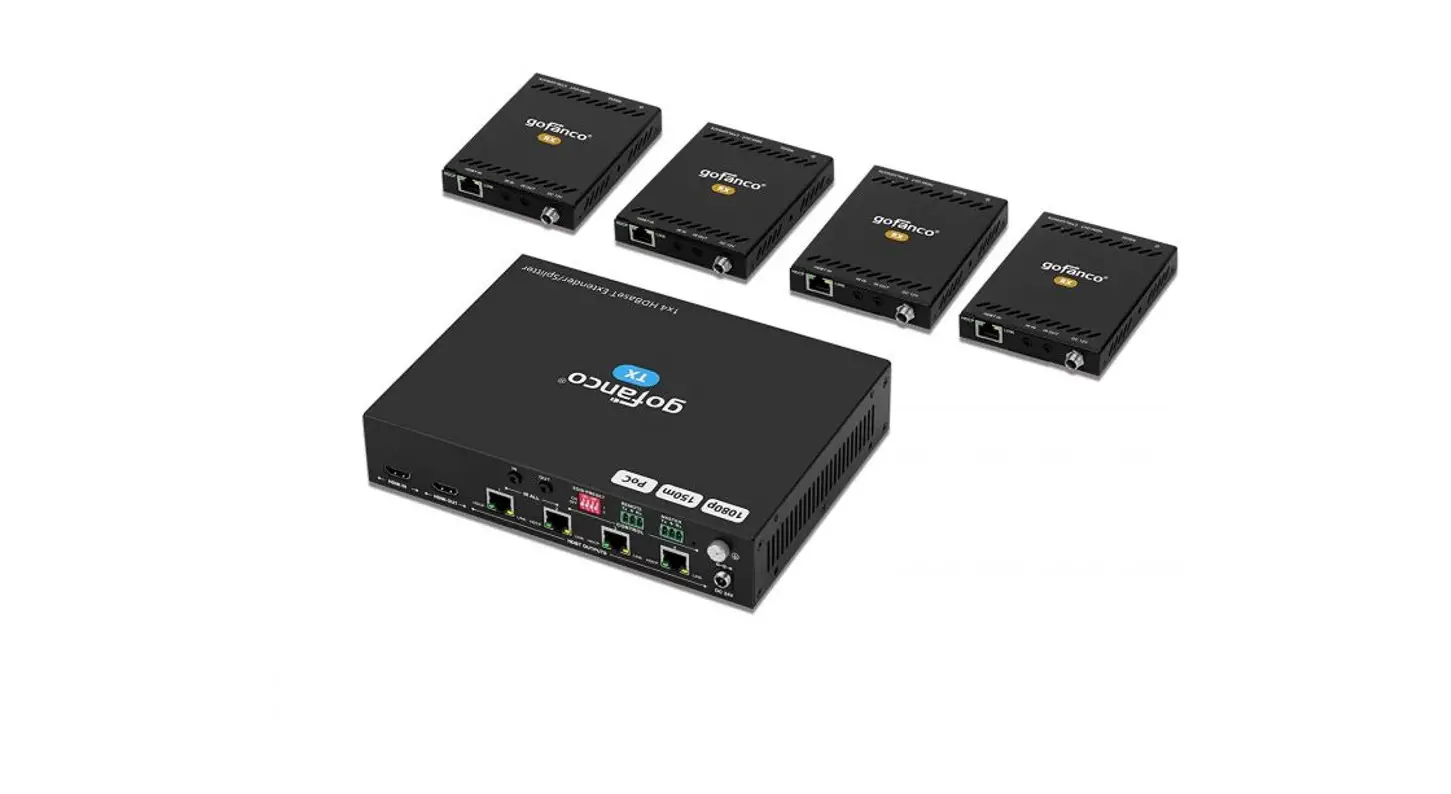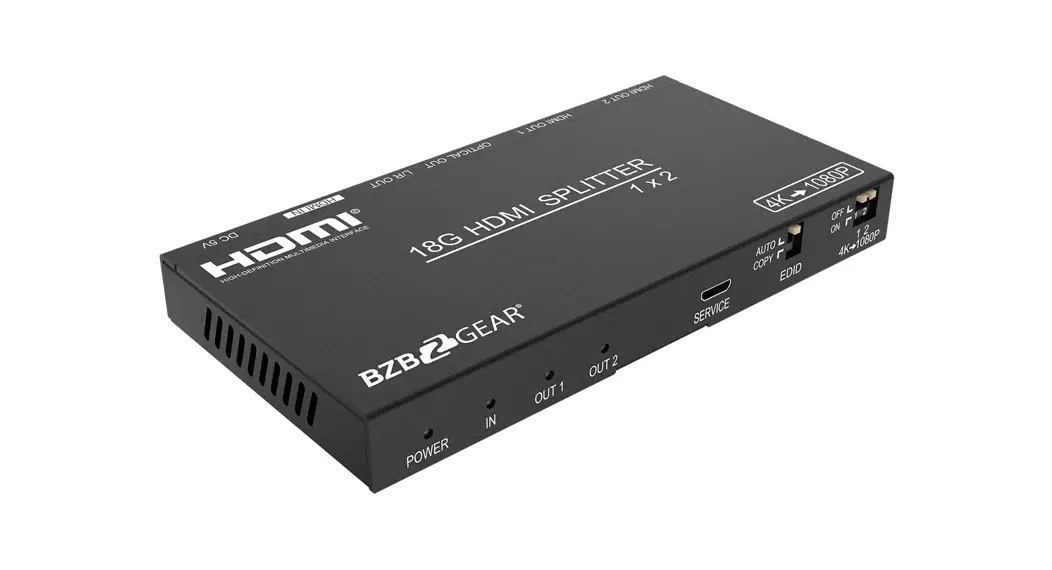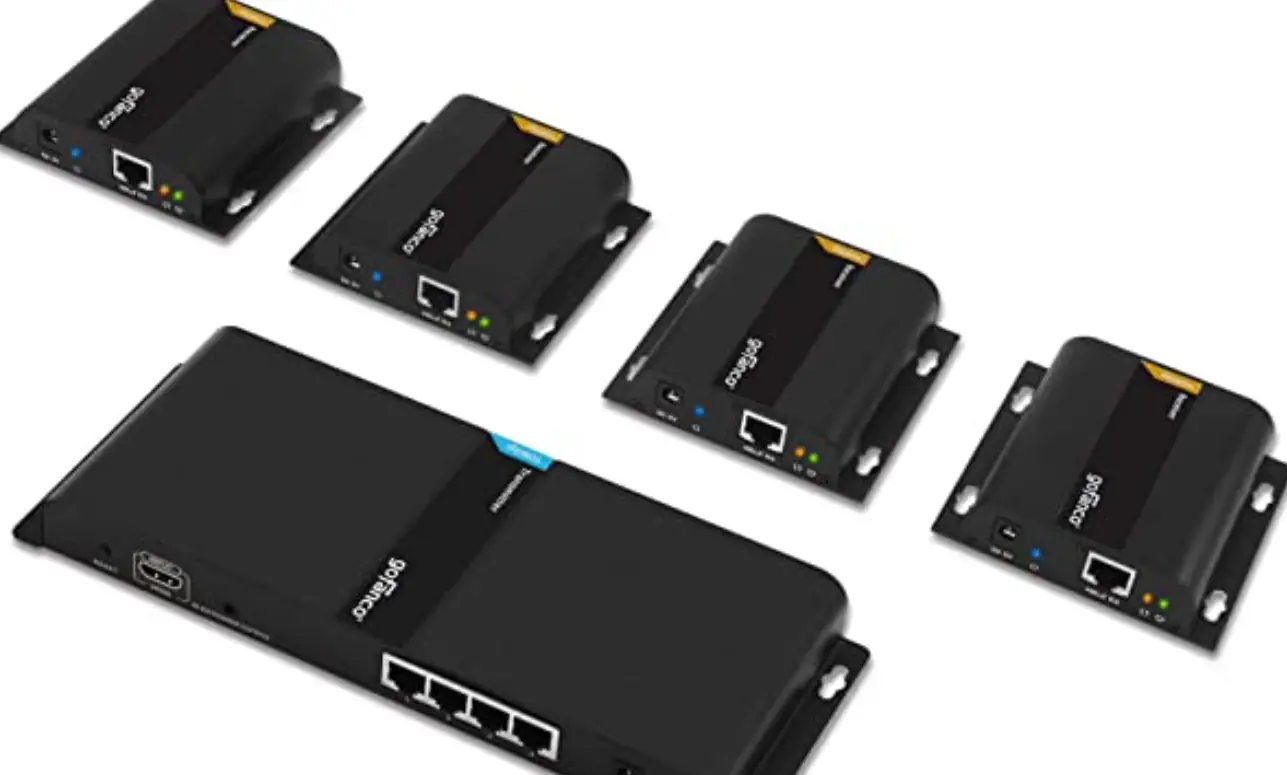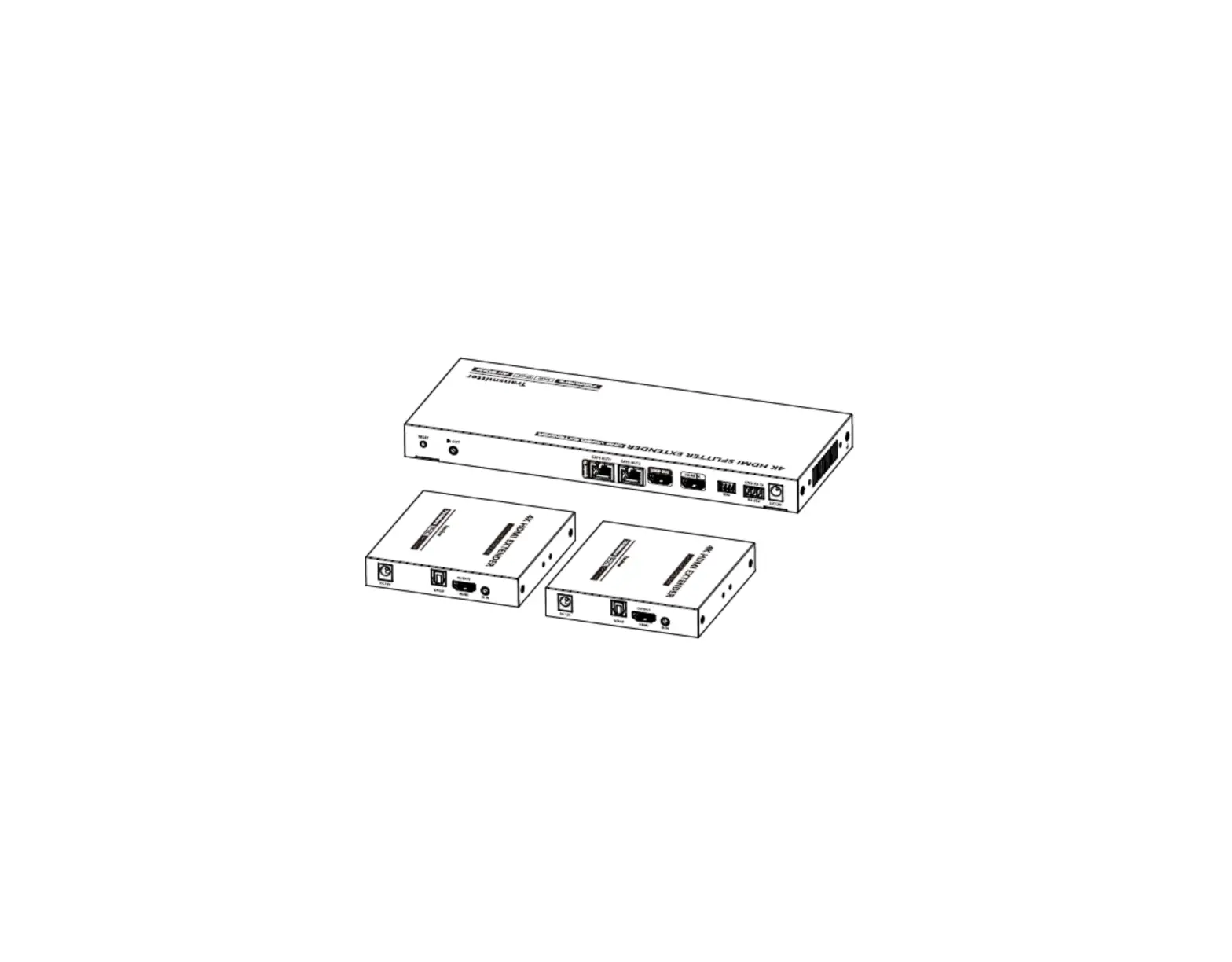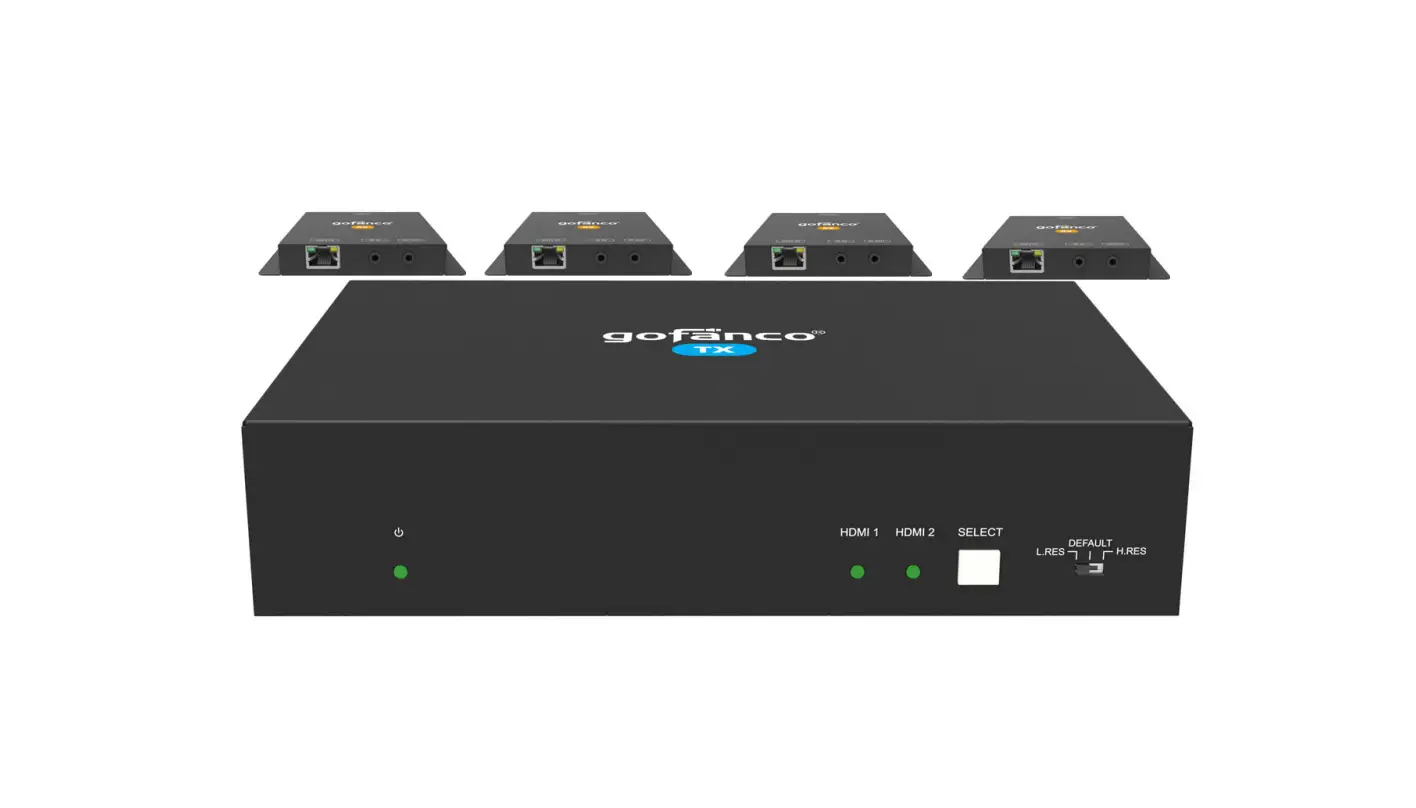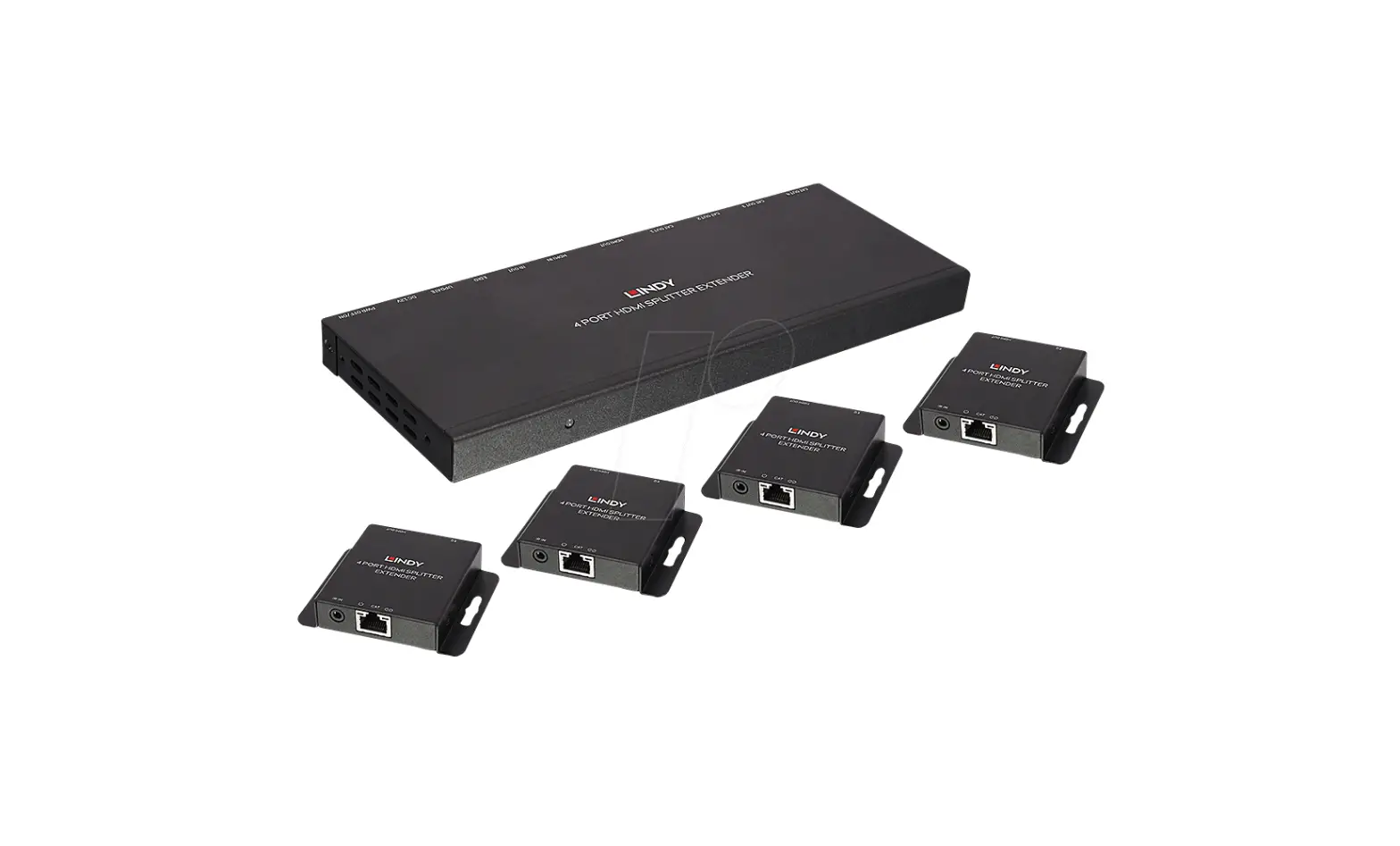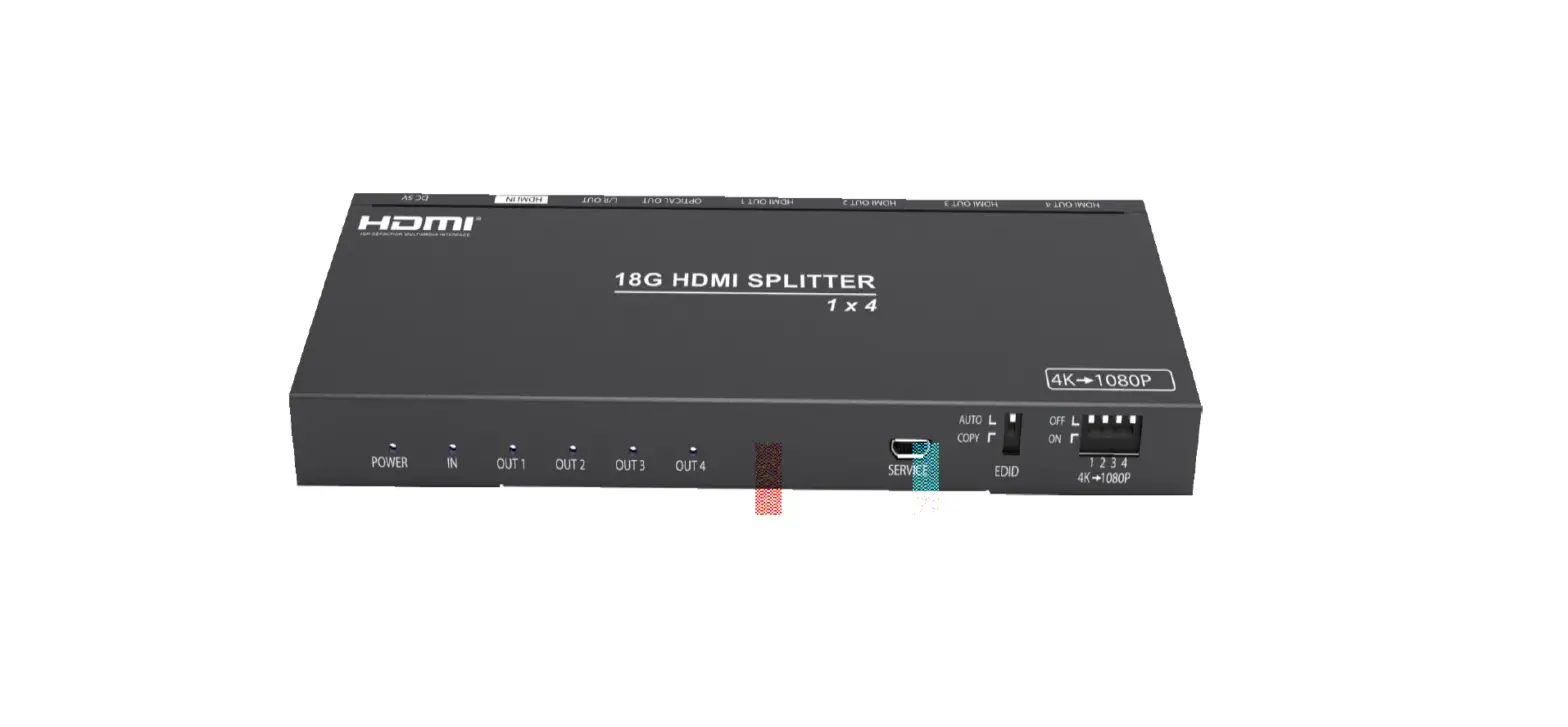

BZBGEAR BG-UDAIC-E14 1×4 HDMI Splitter with Extender
Important safety notice
- Do not expose this device to rain, moisture, or liquid.
- Do not place foreign items inside the device.
- Do not disassemble or repair this device without a qualified service technician.
- When using third party DC adapters, ensure they match the specifications outlined in this manual.
Introduction
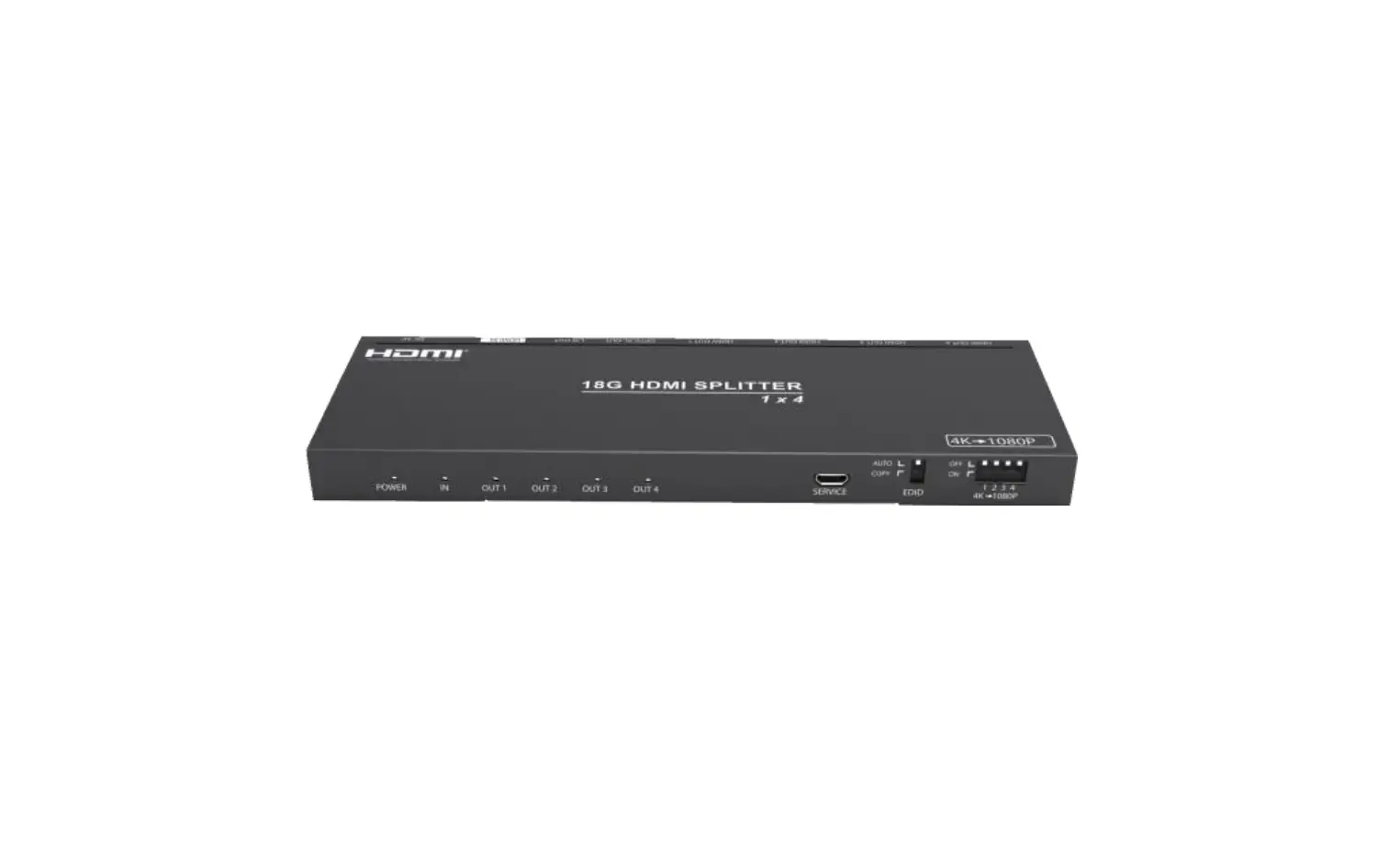
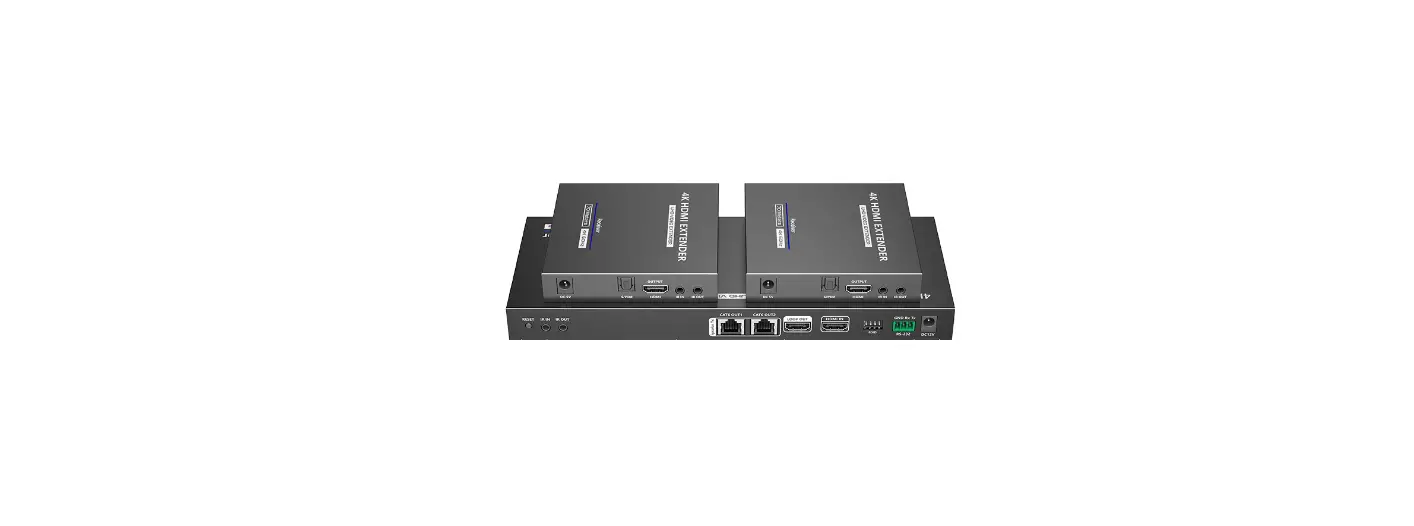
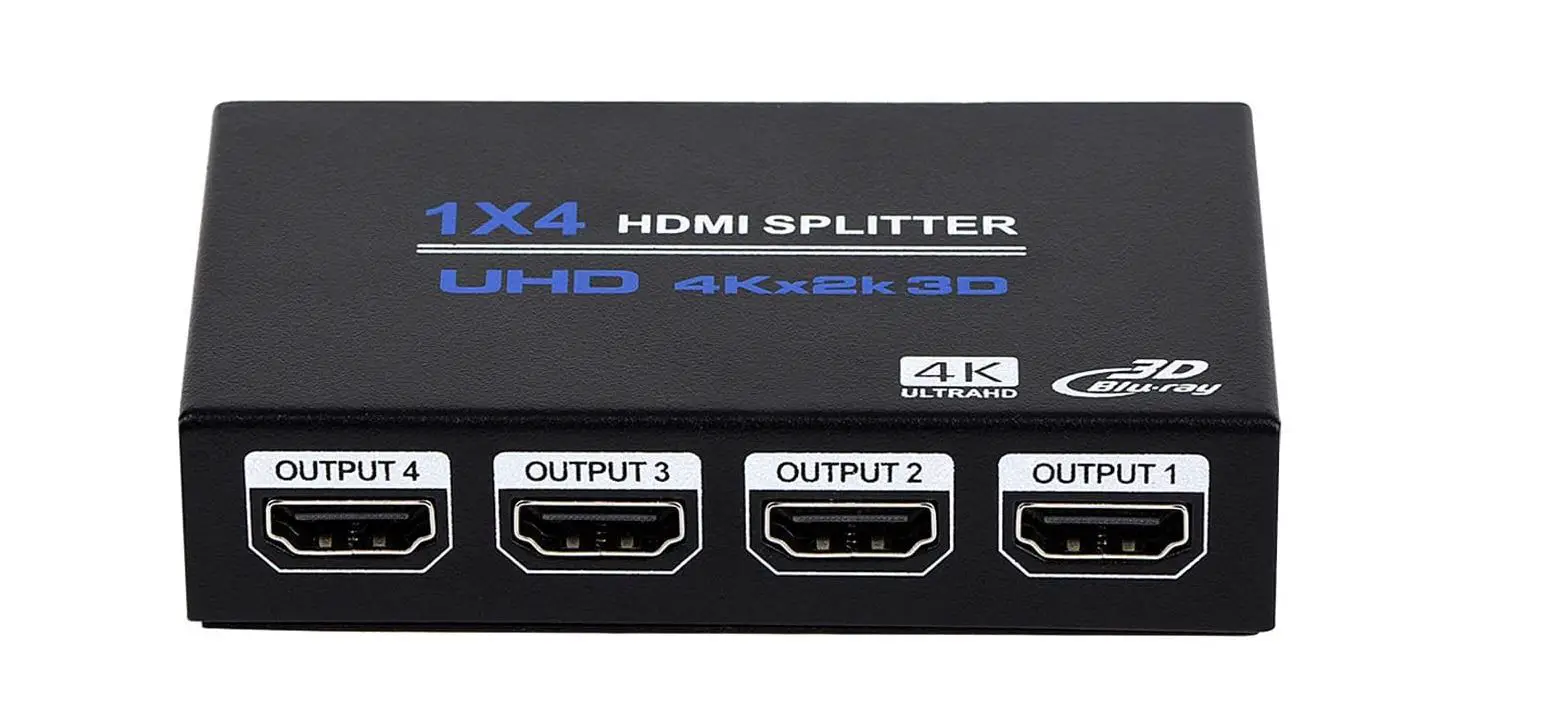
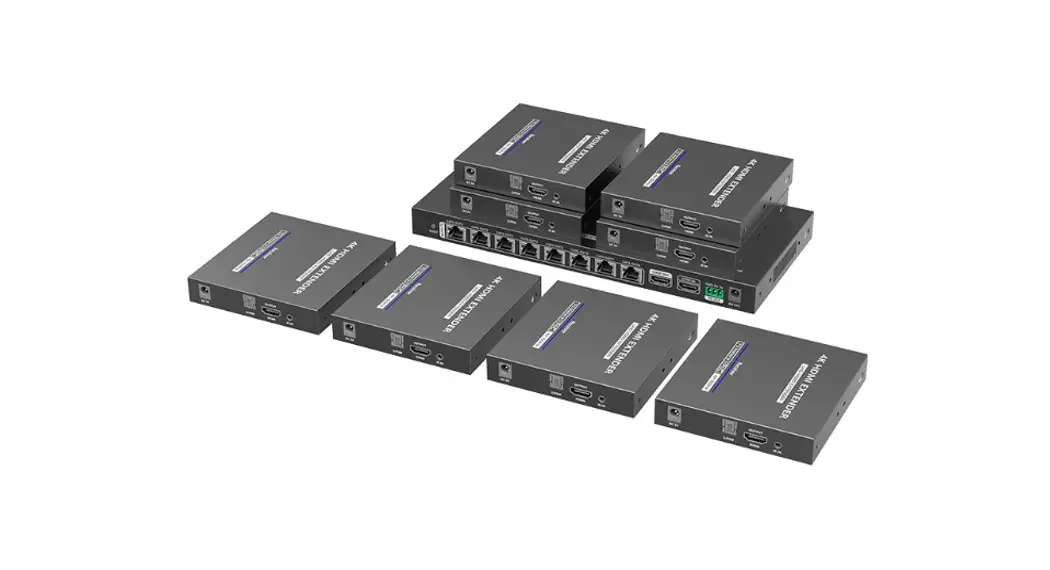
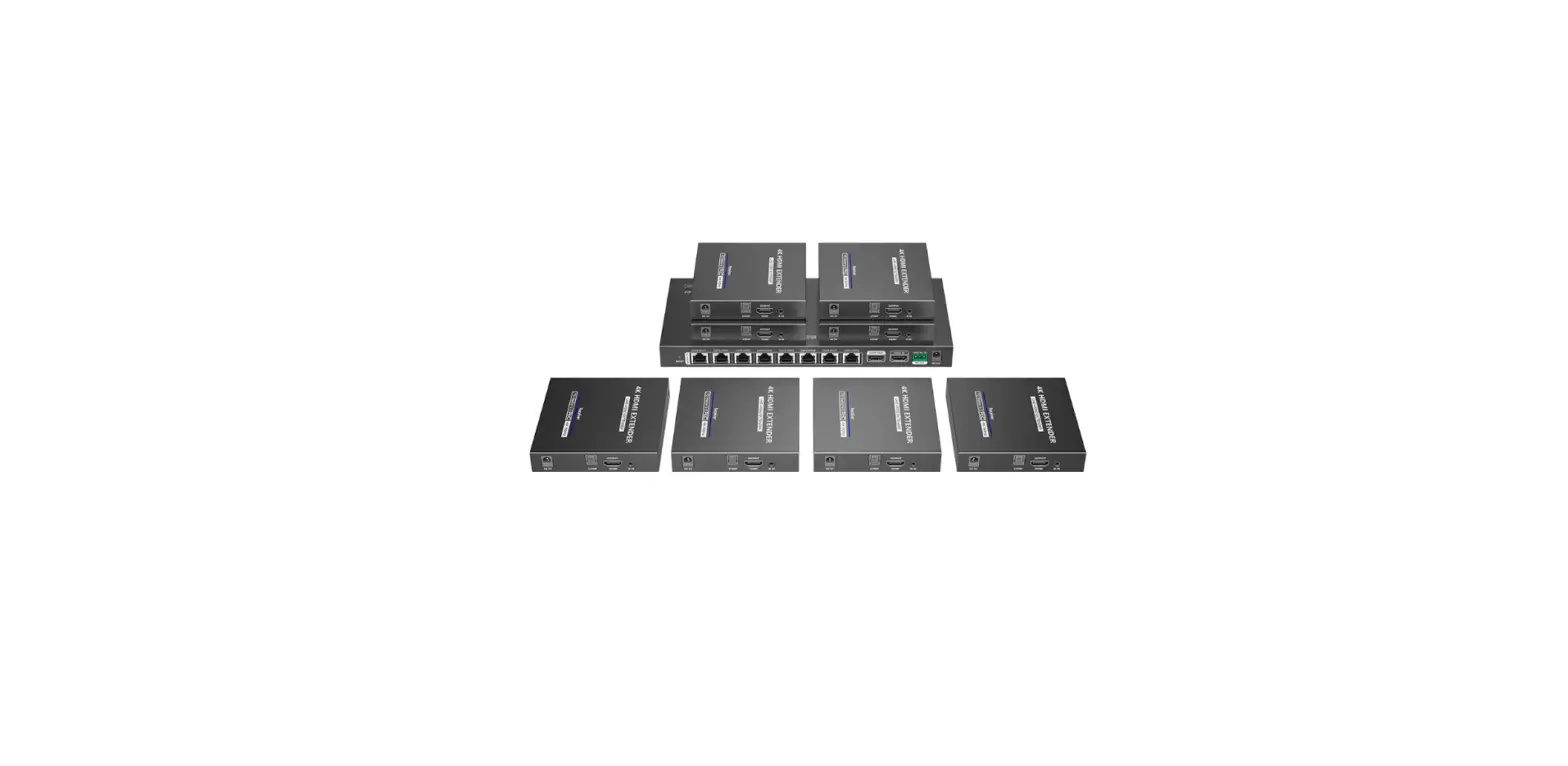
The BG-UDAIC-E14 is an extender splitter kit that distributes 1 HDMI input to 4 HDMI outputs and extends these signals up to 70 meters. The kit features resolution up to 4K60Hz, bi-directional IR passback, and RS232 control.
Features
- Zero latency transmission.
- Split and extend 1 HDMI input signal to 4 HDMI outputs.
- Resolution up to 4K@60Hz.
- HDMI signal extension up to 70 meters using Cat6/6A/7 cables.
- Bi-directional IR passback.
- 1 HDMI loop out for local displays.
- 1 S/PDIF port on the receiver for digital audio output from a TV or source device.
- EDID passthrough or manual configuration of EDID.
- RS-232 command control.
- Surge, lightning, and ESD protection.
- Rack mount ears.
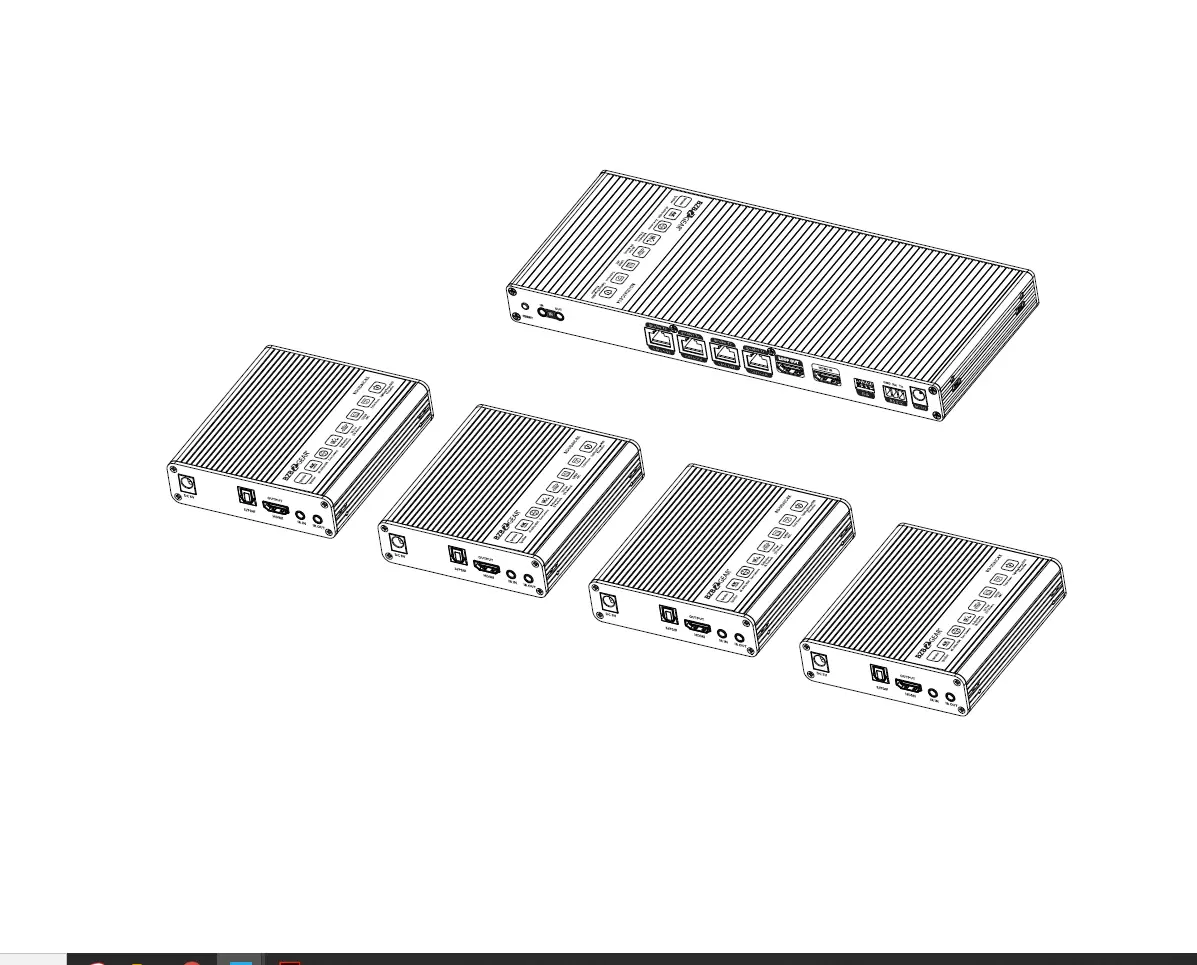
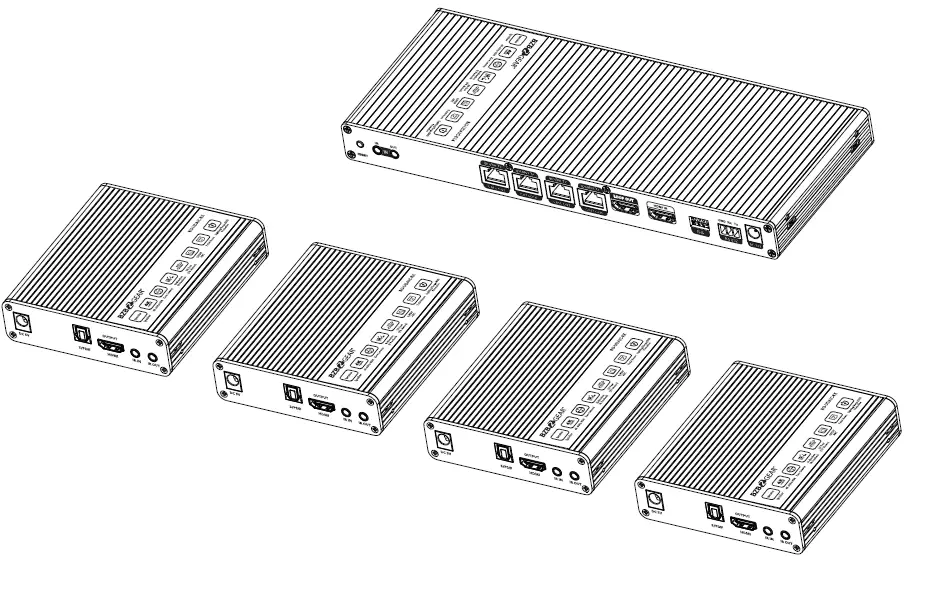
Package Contents
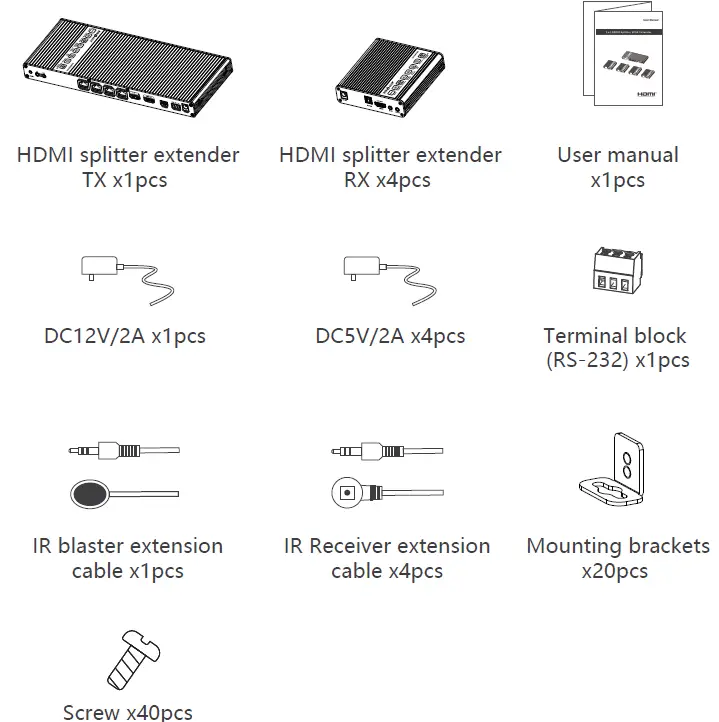
Installation Requirements
- HDMI source devices (e.g., PC, DVD, game console)
- HDMI display devices (e.g., TV, monitor, projector)
- UTP/STP CAT6/CAT6A/CAT7 cable. Follow the standard IEEE-568B. High-quality network cables are recommended.
Panel Description
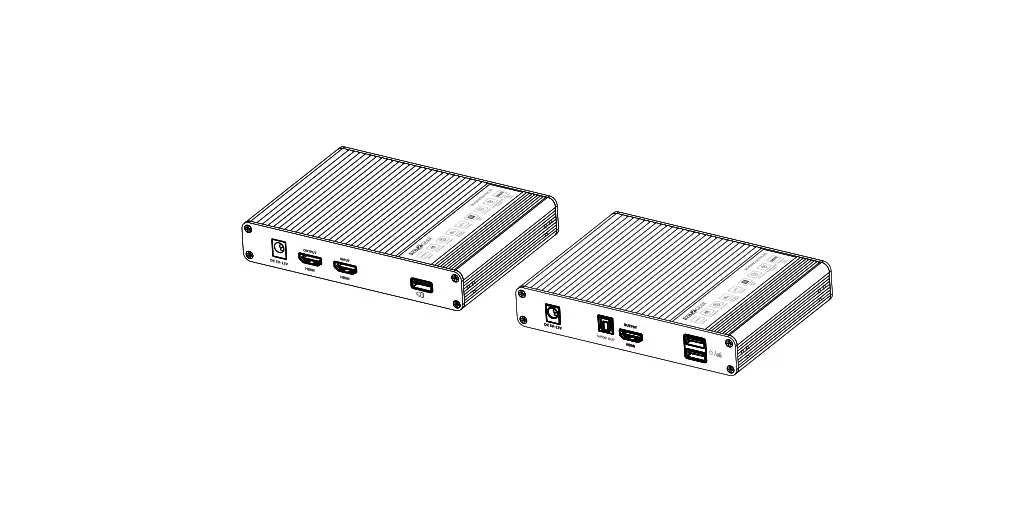
Transmitter (TX)
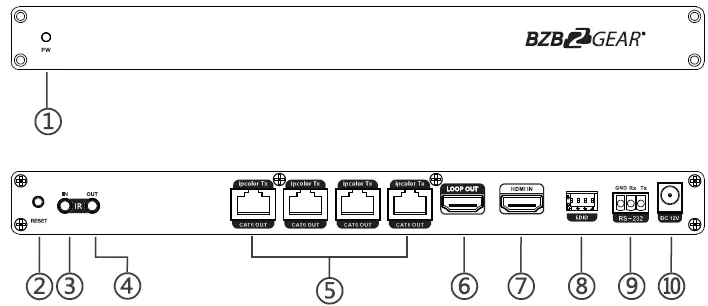
- Power indicator The blue light will illuminate when powered on
- Reset button Restarts the device
- IR in Connects using an IR receiver extension cable
- IR out Connects using an IR blaster extension cable
- RJ45 output port Connect using Cat6/6A/7 network cables
- HDMI output port Connects to a local HDMI display device using an HDMI cable
- HDMI input port Connects to an HDMI source device using an HDMI cable
- EDID DIP switch. Configure output resolution using the EDID DIP switch
- RS-232 Port Connects to an external device to control the transmitter
- Power Connects to the DC 12V/2A power adapter
Receiver (RX)
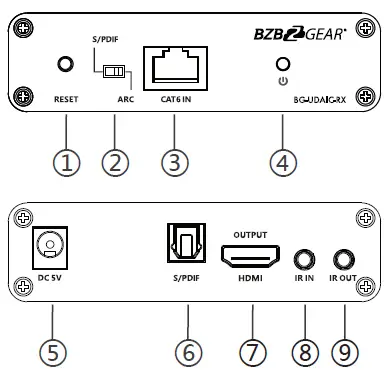
- Reset button Restarts the device
- Audio switch Choose the audio source (output from the S/PDIF port) S/PDIF: From the source device ARC: From the TV (receiver end)
- RJ45 signal input Connect using Cat6/6A/7 network cables
- Power/Signal indicator When the device is powered on, the blue indicator light will be solid if the HDMI signal is detected. If the HDMI signal is not detected, the light will flash.
- Power Connects to the DC5V/2A power adapter
- S/PDIF output Connect to a speaker or amplifier
- HDMI output Connects to an HDMI display device
- IR in Connect using an IR receiver extension cable
- IR out Connect using an IR blaster extension cable
Installation Procedures
Network cable
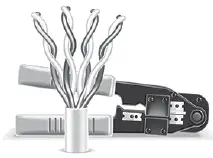
- Orange/white
- Orange
- Green/white
- Blue
- Blue/white
- Green
- Brown/white
- Brown
Connection
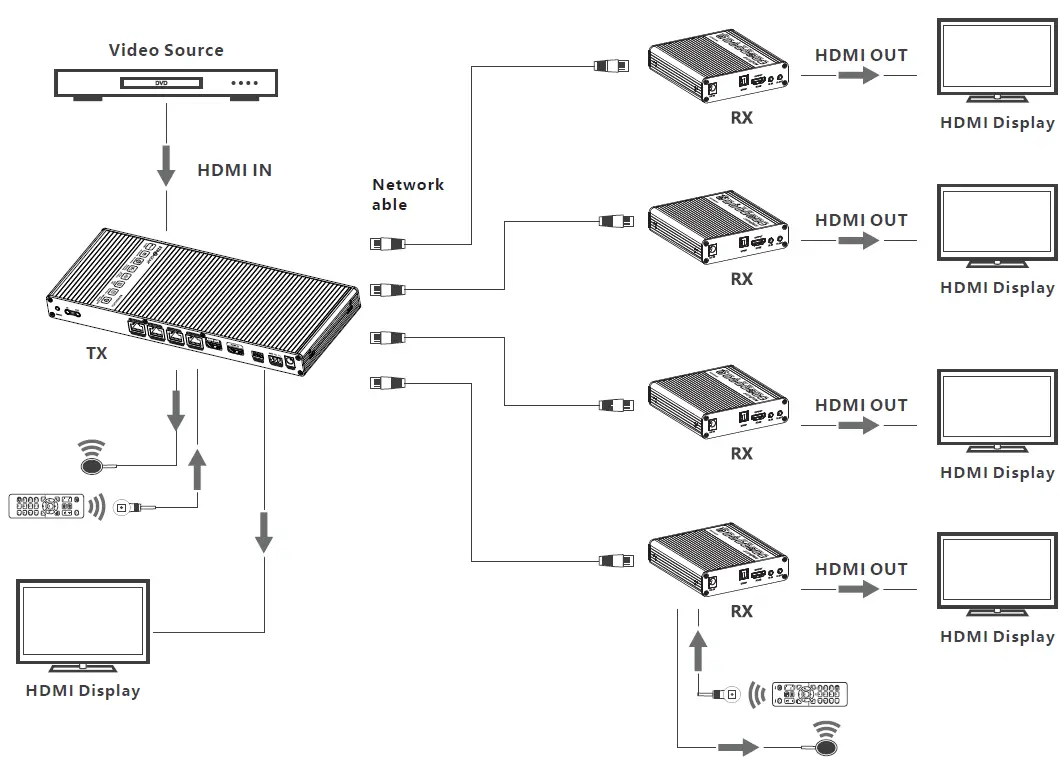
Connection instructions
- Connect the source device to the transmitter’s HDMI IN port using an HDMI cable.
- Connect the transmitter’s CAT6 OUT port to the receiver’s CAT6 IN port using network cables.
- Connect the receiver’s HDMI OUTPUT port to the display devices using HDMI cables.
- If using an HDMI loop out, connect the transmitter’s LOOP OUT port to the display using an HDMI cable.
- If using the RS-232 control, connect the transmitter’s RS-232 port to an external device.
- Plug the power into the devices to get started.
IR User Guide
- The IR blaster extension cable connects to the IR OUT port of the transmitter or receiver. The IR receiver extension cable connects to the IR IN port of the transmitter or receivers.
- The emitter of the IR blaster extension cable is recommended to be as close as possible to the IR receiving window of the source device.
- Point the remote control at the receiving head of the IR receiver extension cable to operate.
Function setting
RS232 settings
- The default configuration is as follows: Baud rate: 9600
- Data bits: 8
- Stop bits: 1
- Parity: 0
| Control Commands | Function Descriptions | ||
| ES XX On/n | Turn on the network signal output port(s), choose from “01” to “04” (the network ports from right to left are: 01, 02, 03, 04.); “All” means all four ports | ||
| ES XX Off/n | Turn off the network signal output port(s), choose from “01” to “04” (the network ports from right to left are: 01, 02, 03, 04.); “All” means all four ports | ||
| Reset/n | Restart the device | ||
| Recover/n | Restore device to factory settings | ||
| Baud XX /n | Set the baud rate value: 9600 (default), 19200, 38400, 57600, 115200 | ||
| Examples of control commands are shown below: | |||
| Control Command | ES 04 On/n | ||
| Function Description | Turn on network signal output port 04 | ||
| Return Values | Received successfully | ES 04 On OK | |
| Receive failed | ES 04 On FAIL | ||
| Control Command | ES All Off/n | ||
| Function Description | Turn off all the network signal output ports | ||
| Return Values | Received successfully | ES All Off OK | |
| Receive failed | ES All Off FAIL | ||
| Control Command | Reset/n | ||
| Function Description | Restart the device | ||
| Return Values | Received successfully | Reset OK | |
| Receive failed | Reset FAIL | ||
| Control Command | Baud 19200/n | ||
| Function Description | Set the baud rate value: 9600 | ||
| Return Values | Received successfully | Baud 19200 OK | |
| Receive failed | Baud 19200 FAIL | ||
EDID settings:
The transmitter has 16 built-in EDID settings that can be configured using the DIP switch. Flipping the DIP switch upward indicates a “1” and flipping downward indicates a “0.”

| Switch Status | EDID Information | |||
| 1 | 2 | 3 | 4 | |
| 0 | 0 | 0 | 0 | 4K@60Hz 2CH |
| 1 | 0 | 0 | 0 | 4K@60Hz 5.1CH |
| 0 | 1 | 0 | 0 | 4K@60Hz 7.1CH |
| 0 | 0 | 1 | 0 | 4K@60Hz HDR 7.1CH |
| 0 | 0 | 0 | 1 | 4K@30Hz 2CH |
| 1 | 1 | 0 | 0 | 4K@30Hz 5.1CH |
| 1 | 0 | 1 | 0 | 4K@30Hz 7.1CH |
| 1 | 0 | 0 | 1 | 4K@30Hz HDR 7.1CH |
| 0 | 1 | 1 | 0 | 1080p@60Hz 2CH |
| 0 | 1 | 0 | 1 | 1080p@60Hz 5.1CH |
| 0 | 0 | 1 | 1 | 1080p@60Hz 7.1CH |
| 1 | 1 | 1 | 0 | 1080i@60Hz 2CH |
| 1 | 1 | 0 | 1 | 1080i@60Hz 5.1CH |
| 1 | 0 | 1 | 1 | 1080i@60Hz 7.1CH |
| 0 | 1 | 1 | 1 | 1080p@60Hz HDR 7.1CH |
| 1 | 1 | 1 | 1 | Auto |
Auto: Auto output at a resolution compatible with all displays.
FAQ
Q: Why does my display device not have an image?
A:
- Check the power supply and all cables and ensure they are properly connected.
- Check if the HDMI signal input is detected.
- Check the corresponding network output and ensure it has not been turned off by the RS-232 command.
Q: Why is the output image unstable?
A:
- Check the length of the network cable and ensure it is within the 70- meter limit.
- Press the “reset” button on TX and RX panels to restart and reconnect.
Q: Why does the TV have a snowy/fuzzy screen?
A:
- The HDMI cable may be defective or exceeds the recommended cable length and needs replacing.
- The recommended length of the HDMI cable connected to the transmitter is ≤3 meters, and the recommended length of the HDMI cable connected to the receiver is ≤5 meters.
Technical Parameters
| Item | Specification |
| Transport protocol | ipcolor |
| Split mode | 1 IN 4 OUT |
| Transmission Distance | CAT6/6A/7≤70m |
| HDMI signal | HDMI 2.0, HDCP2.2 |
| 480i@60Hz,480p@60Hz,576i@50Hz,576p@50Hz, | |
| 720p@50/60Hz,1080i@50/60Hz,1080p@50/60Hz, | |
| Resolution | 1280×960,1280×800,1280×768,1680×1050, |
| 1360×768,1366×768,1600×900,1024×768,800×600, | |
| 3840×2160@24/25/30/50/60Hz,4096×2160@24/25Hz | |
| Audio formats | LPCM/DTS-HD/DTS-Audio/Dolby Digital 5.1 |
| IR | Bi-directional IR passback (20-60khz) |
| RS-232 | 3-pin: TxD-RxD-GND, follows RS-232 levels |
| Working Temperature | -20~60℃ |
| Storage Temperature | -30~70℃ |
| Humidity (no condensation) | 0~90% |
|
Protection | ESD protection 1a Contact discharge level 3 1b Air discharge level 3 Implementation of the standard: IEC61000-4-2 |
| Lightning protection | |
| Surge protection | |
| Power supply | TX: DC 12V/2A RX: DC 5V/2A |
| Power consumption | TX<13W RX<4W |
| Material | Aluminum alloy material + crystal panel |
| Color | Black |
| Weight | TX: 640g RX: 210g |
| Dimension | TX: 264.00(L) x 104.00(W) x 23.50(H)mm RX: 106.0(L) x 99.0(W) x 26.2(H)mm |
Tech Support
Before contacting tech support, we may have answered your question already! Visit our BZBGEAR support page at bzbgear.com/support for valuable information on our products. Here you will find our Knowledge Base (bzbgear.com/knowledge-base) consisting of tutorials, quick start guides, and step-by-step troubleshooting instructions. Also visit our YouTube channel BZB TV at youtube.com/c/BZBTVchannel for help setting up, connecting, and other how-to videos regarding our products. If you still need answers, please call 1.888.499.9906, email [email protected], or chat at bzbgear.com.
Warranty
BZBGEAR Pro AV products and Cameras come with a three-year warranty. An extended two-year warranty is available for our Cameras upon registration for a total of five years. For an extended two-year warranty on our Cameras, follow these steps:
- Register your Camera within 90 days of purchase by visiting bzbgear.com/warranty.
- Complete the registration form. Provide all necessary proof of purchase details, including serial number and a copy of your sales receipt. For complete warranty information, please visit bzbgear.com/warranty or scan the QR code below.
Mission Statement
BZBGEAR manifests from the competitive nature of the audiovisual and live streaming industry to innovate while keeping the customer in mind. AV s olutions can cost a pretty penny, and new technology only adds to it. We believe everyone deserves to see, hear, and feel the advancements made in today’s AV world without having to break the bank. BZBGEAR is your answer for applications requiring the latest pro AV and live streaming solutions. You’ll notice comparably lower prices with BZBGEAR while the performance and quality are on par with the top brands in the industry. Our team offers system design consultation and expert tech support seven days a week for all BZBGEAR products. Our unparalleled support is our way of showing we care for every one of our customers. Whether you’re an integrator, home theater enthusiast, or a do-it-yourselfer, BZBGEAR offers solutions allowing you to focus on your project and not your budget.
 BZBGEAR - Award-Winning Audio/Video & Live Streaming Solutions