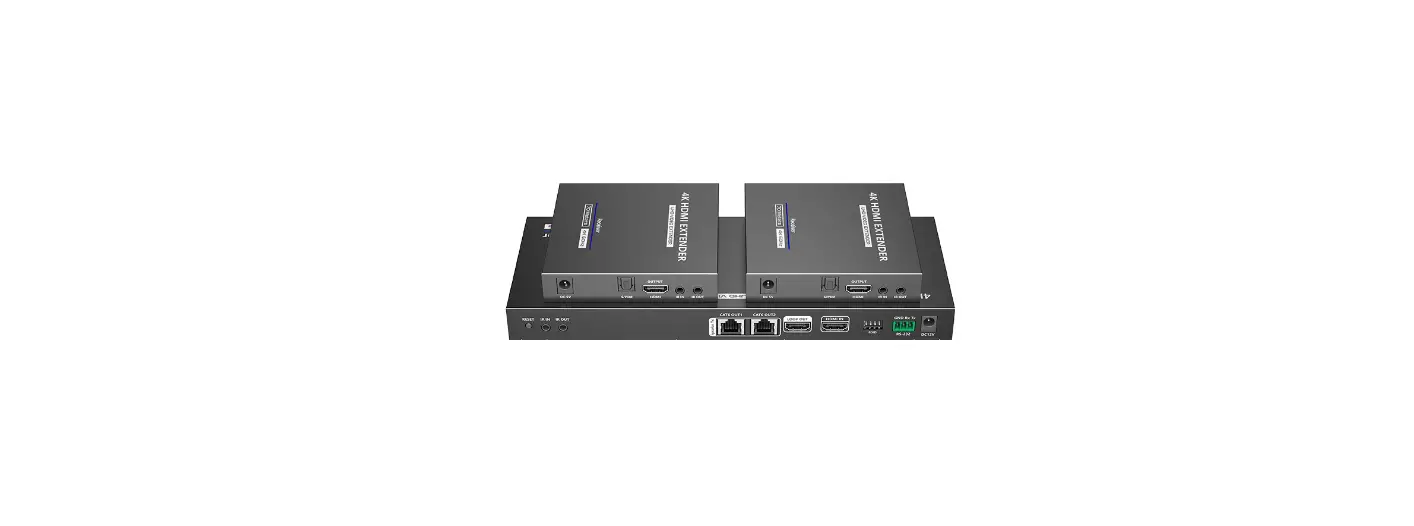
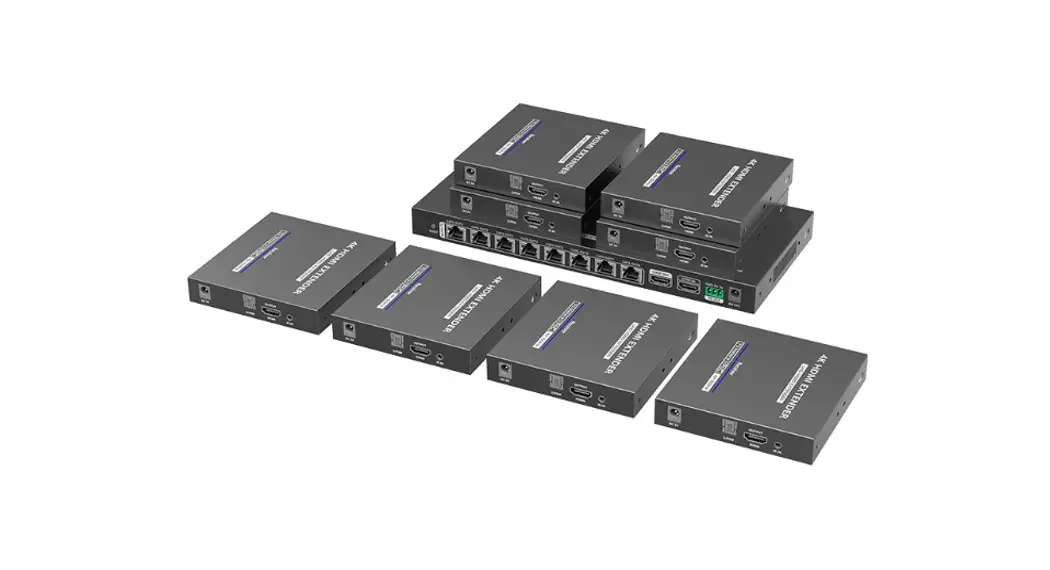
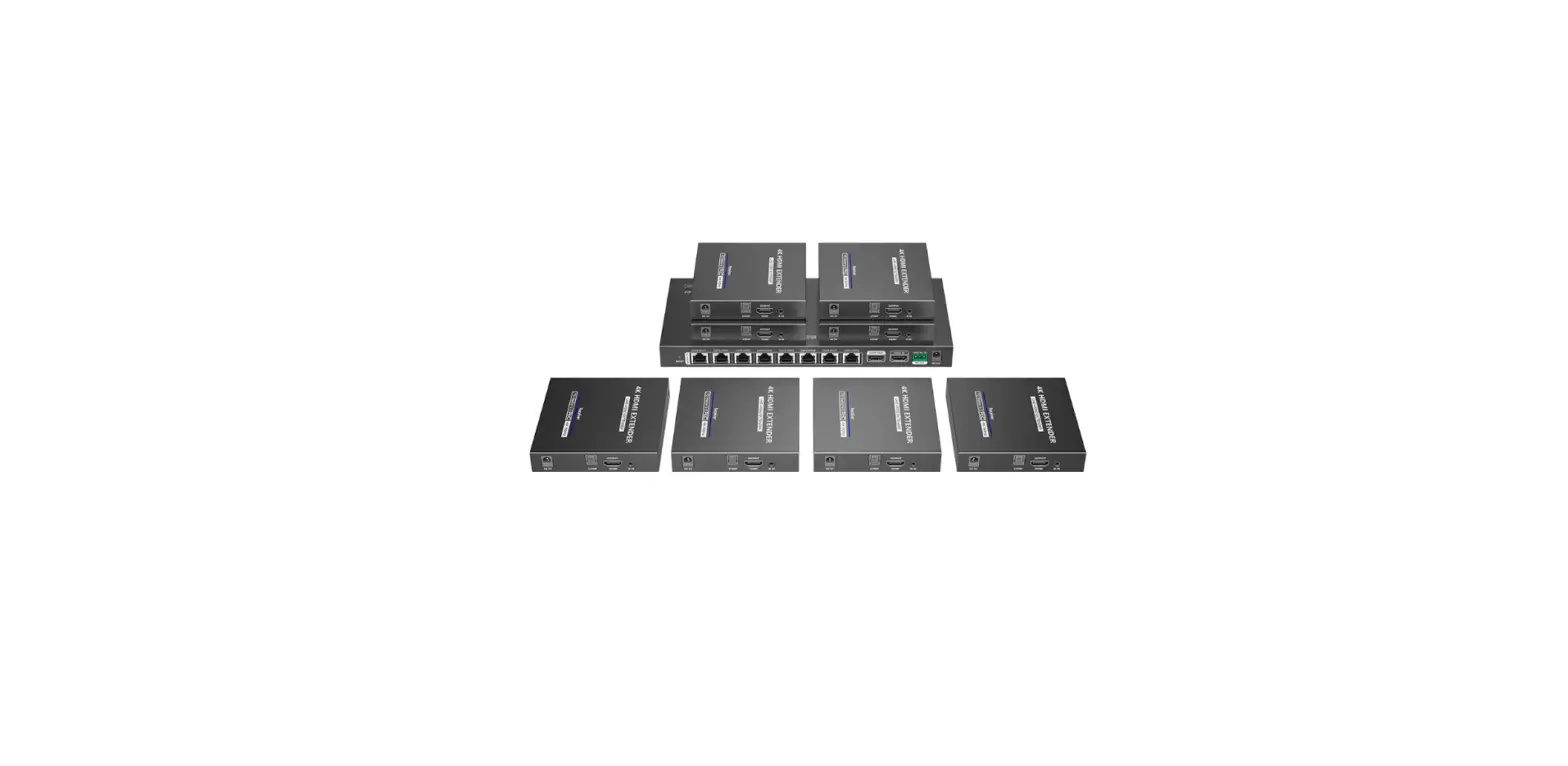
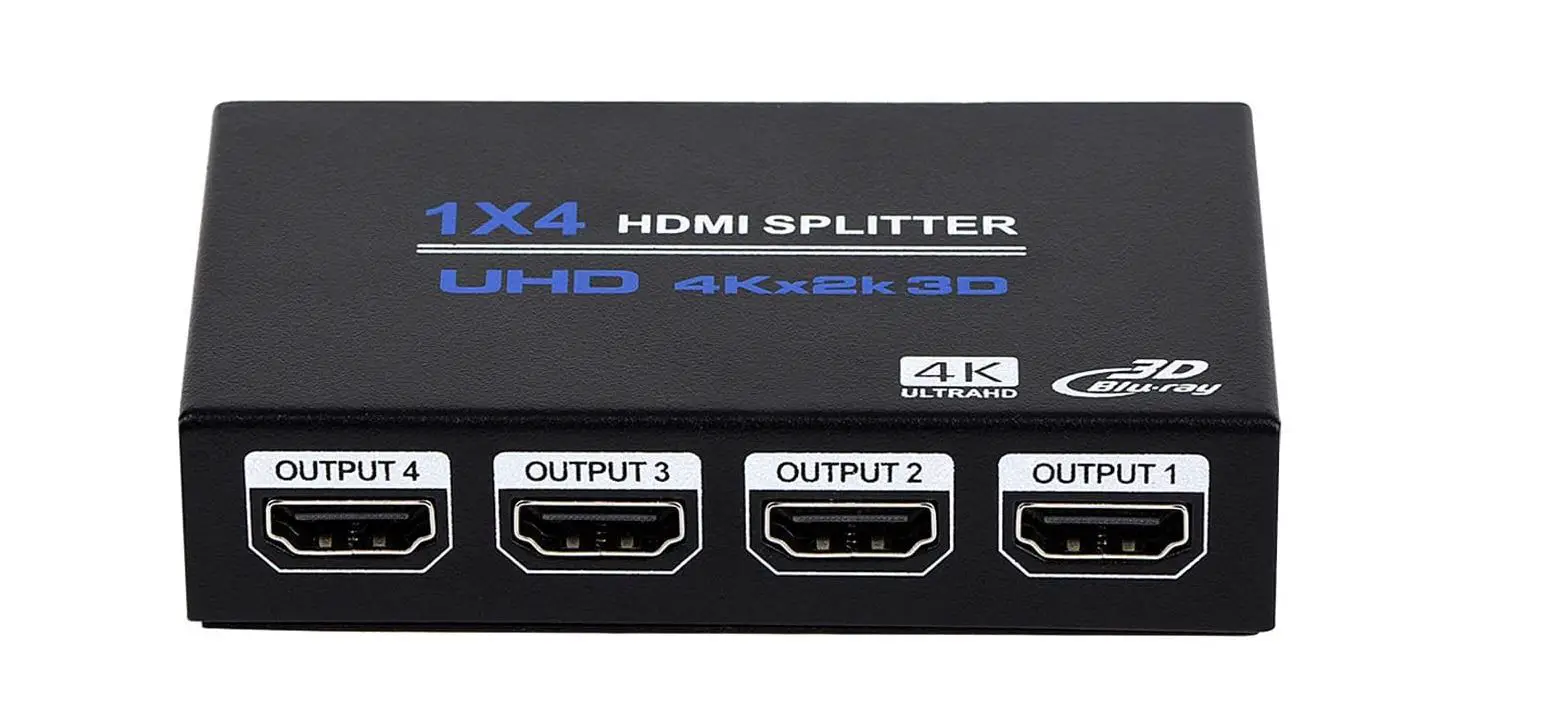
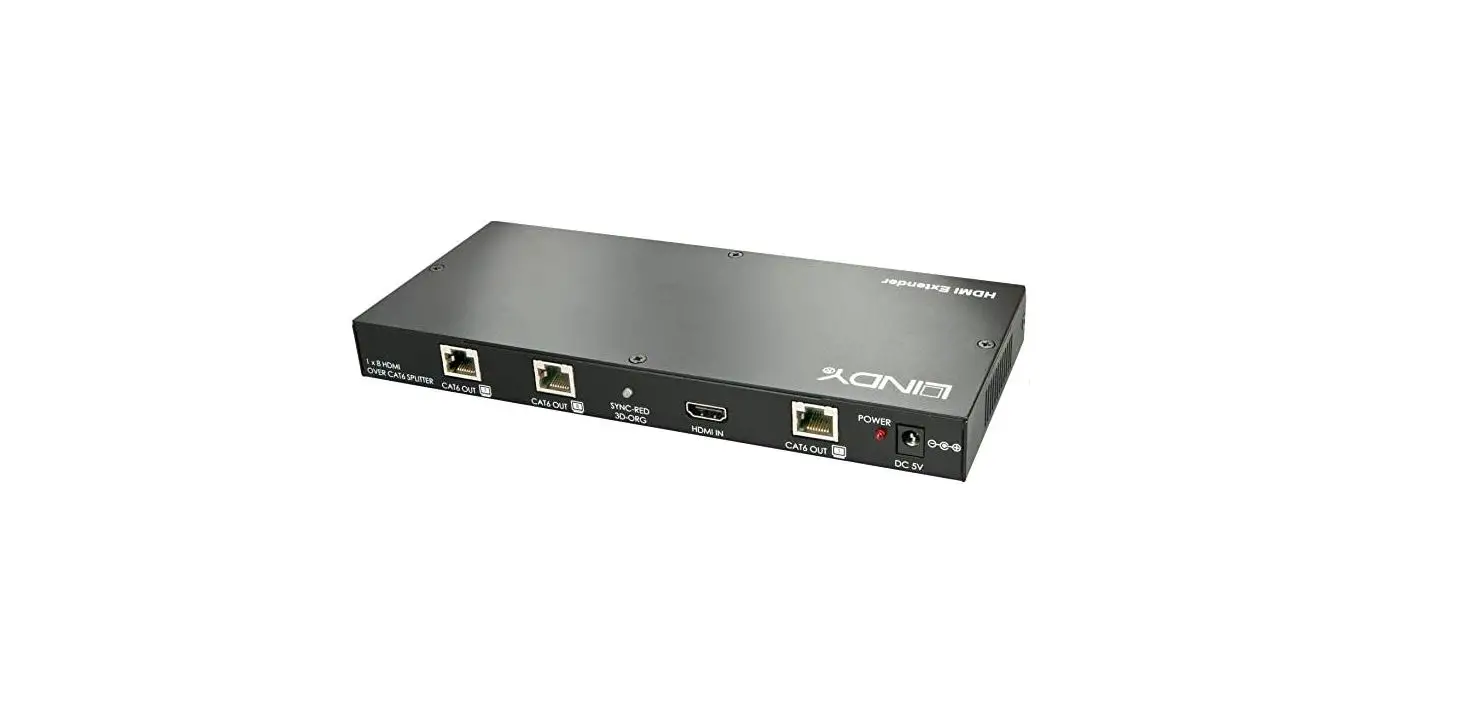
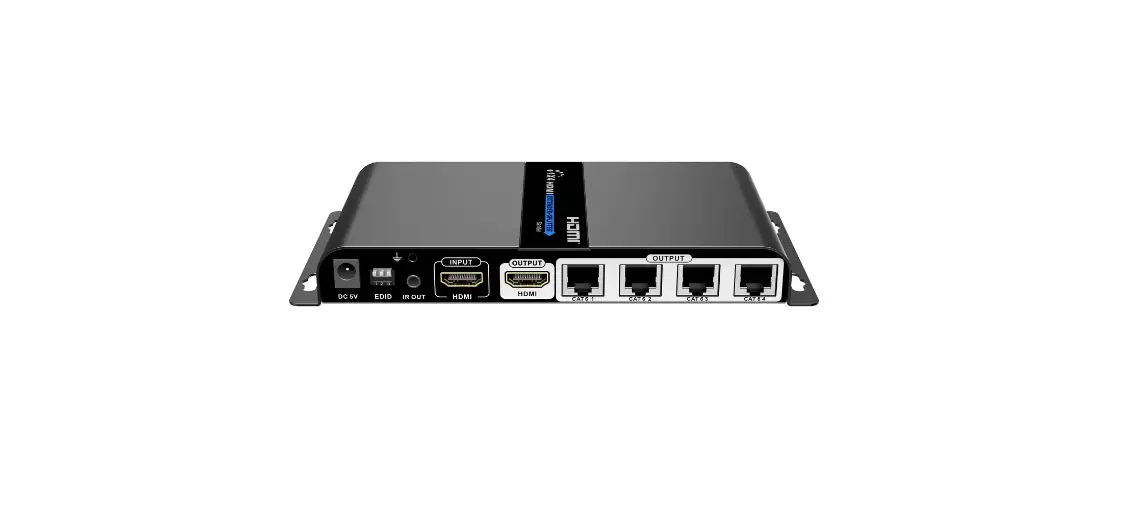
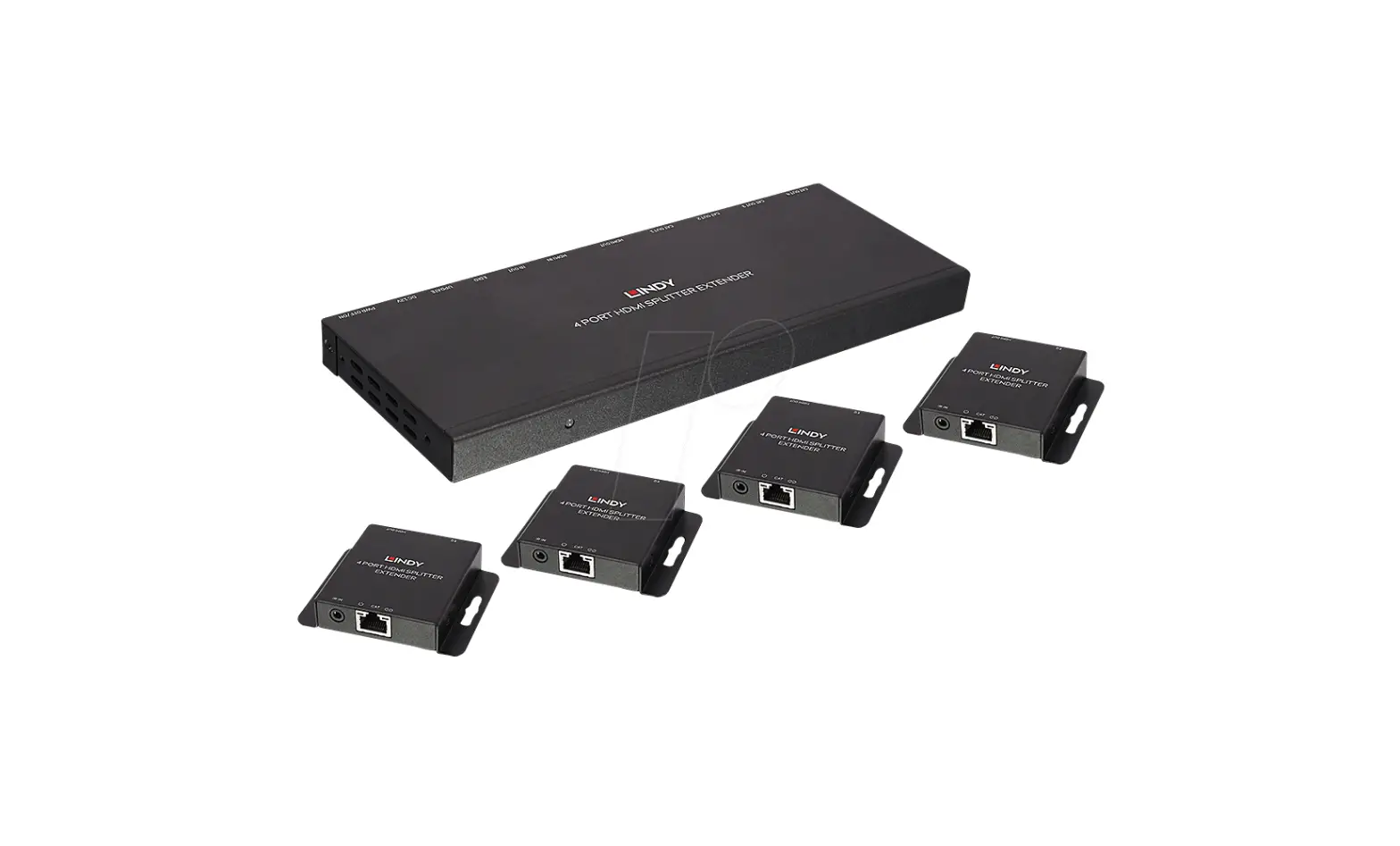
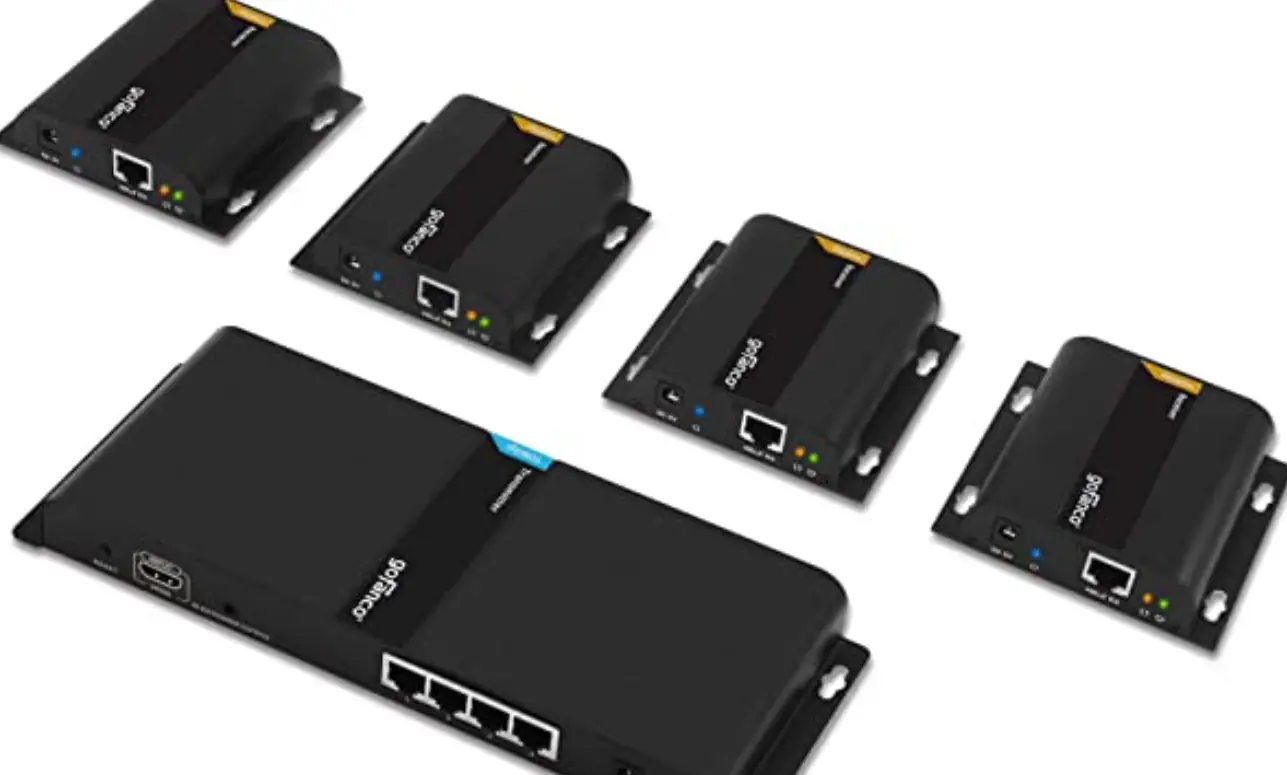
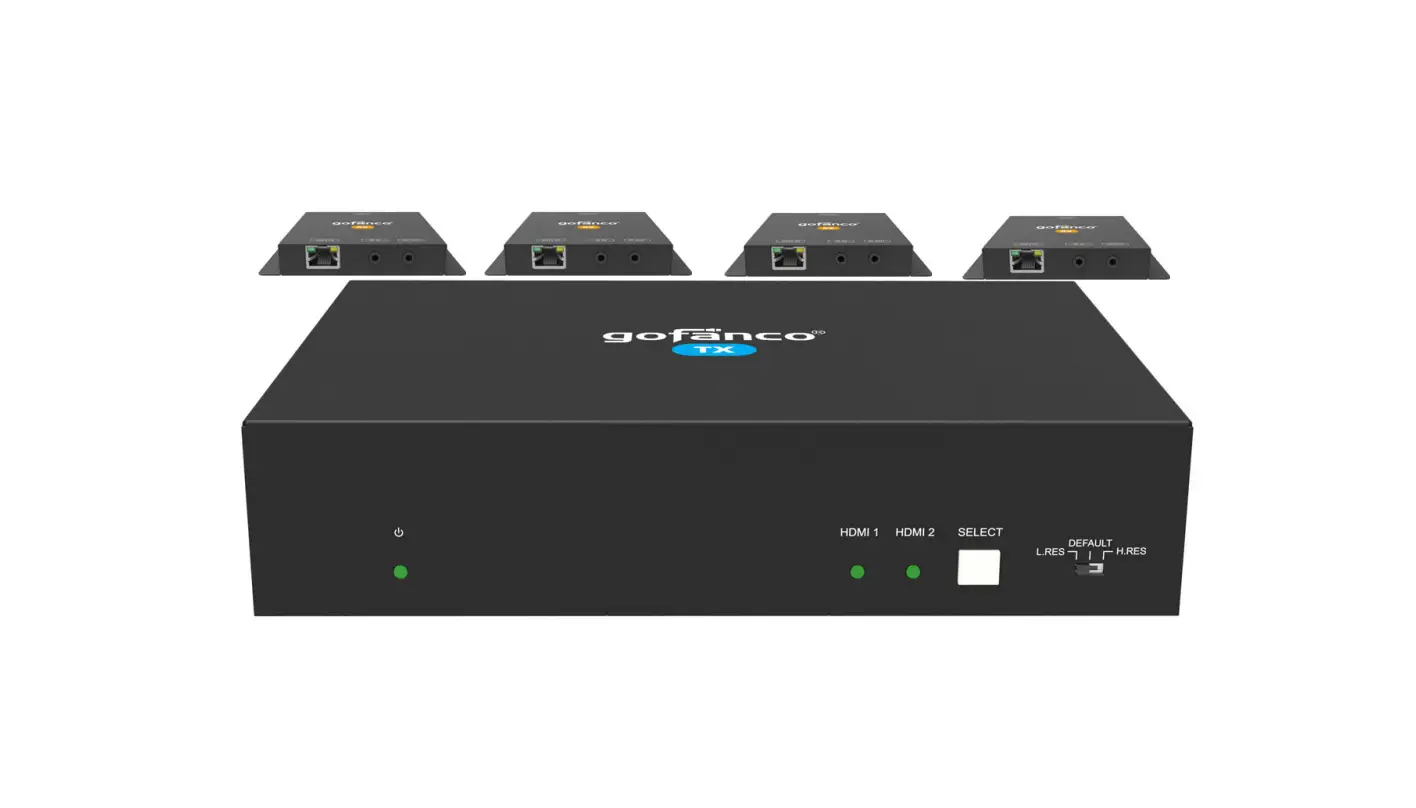
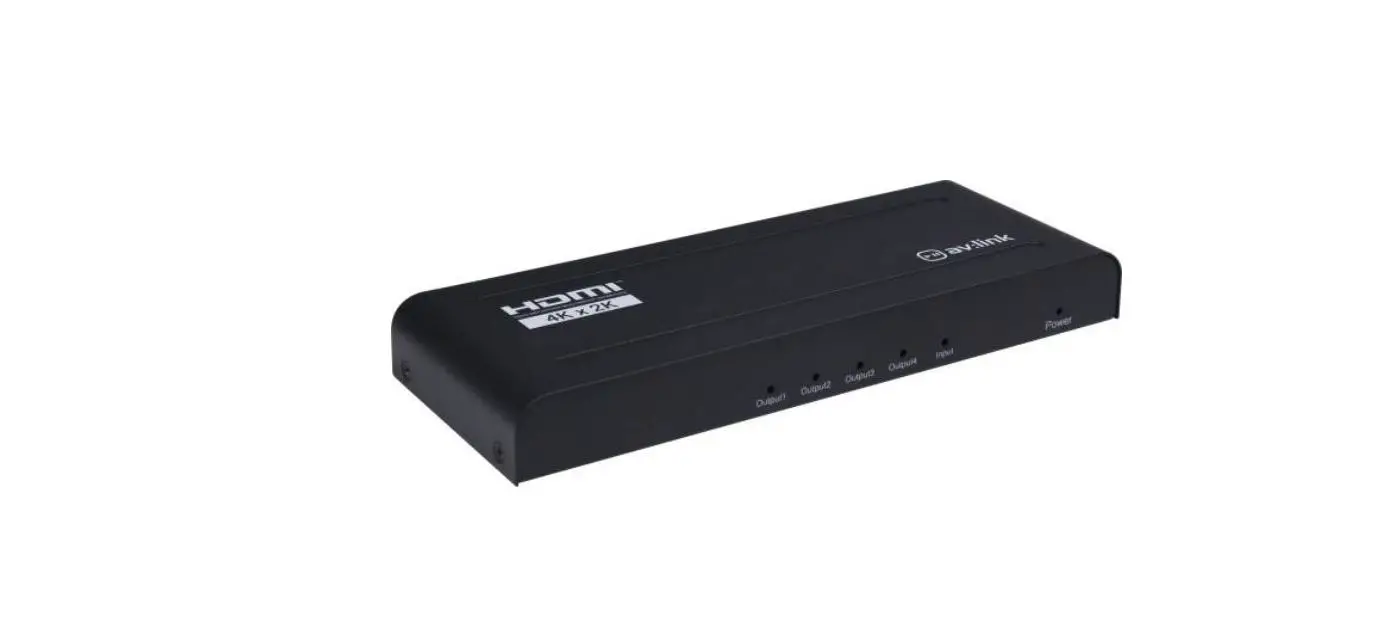
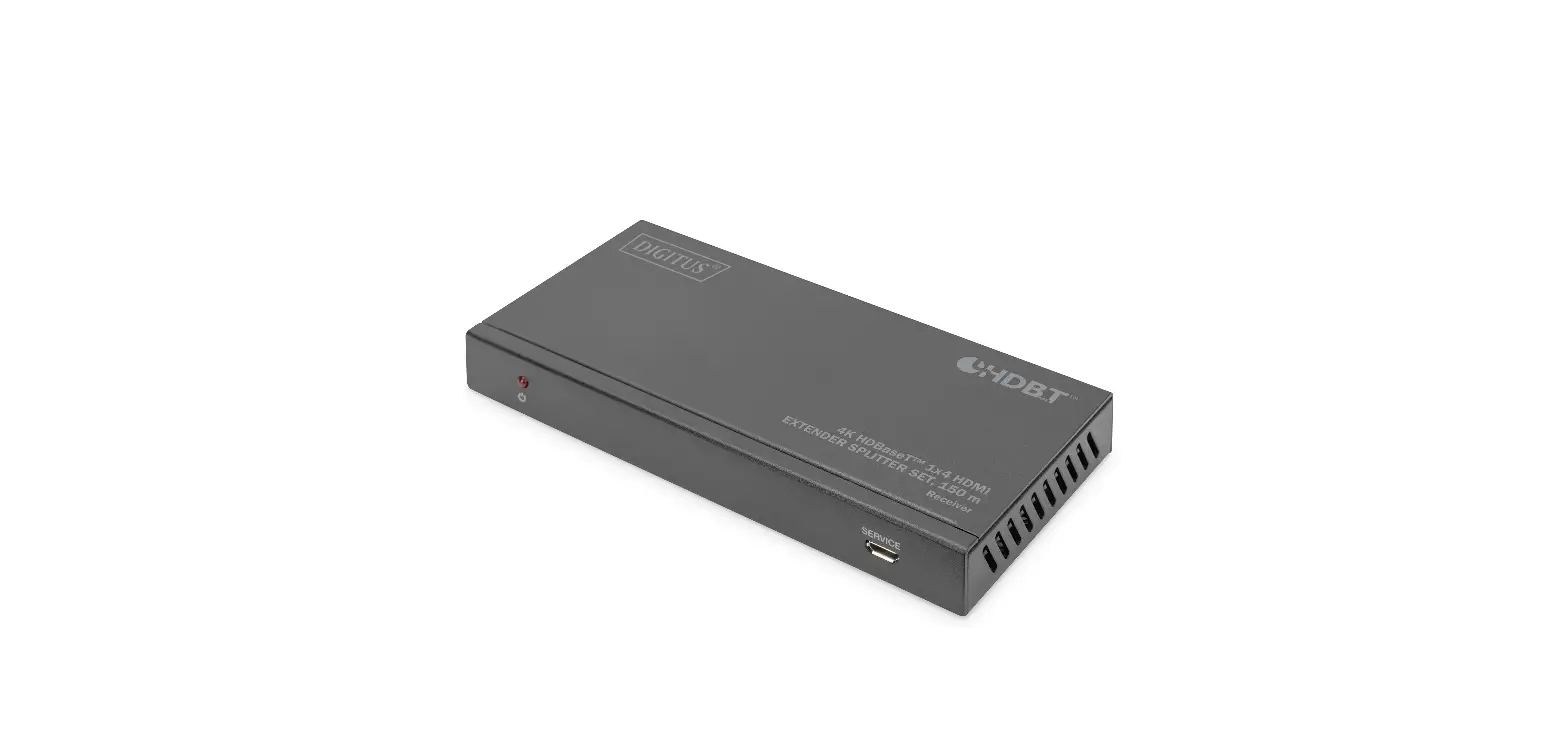
LENKENG LKV724P 1×4 HDMI Splitter With Extender
Important Safety Instructions
- Do not place this apparatus near or over a radiator or heat register, or where it is exposed to direct sunlight.
- Place the device in a well-ventilated area, do not block any ventilation openings.
- Do not expose this apparatus to rain or place it near water. Any liquid that goes into the apparatus may cause a failure, fire, or electric shock.
- Do not place the device on an uneven or unstable surface. The device may fall resulting in a malfunction.
- Never insert anything metallic into the open parts of this apparatus.
This may cause a danger of electric shock. - If a three-party power supply is used, please ensure that the power supply specifications meet the product requirements.
Introduction
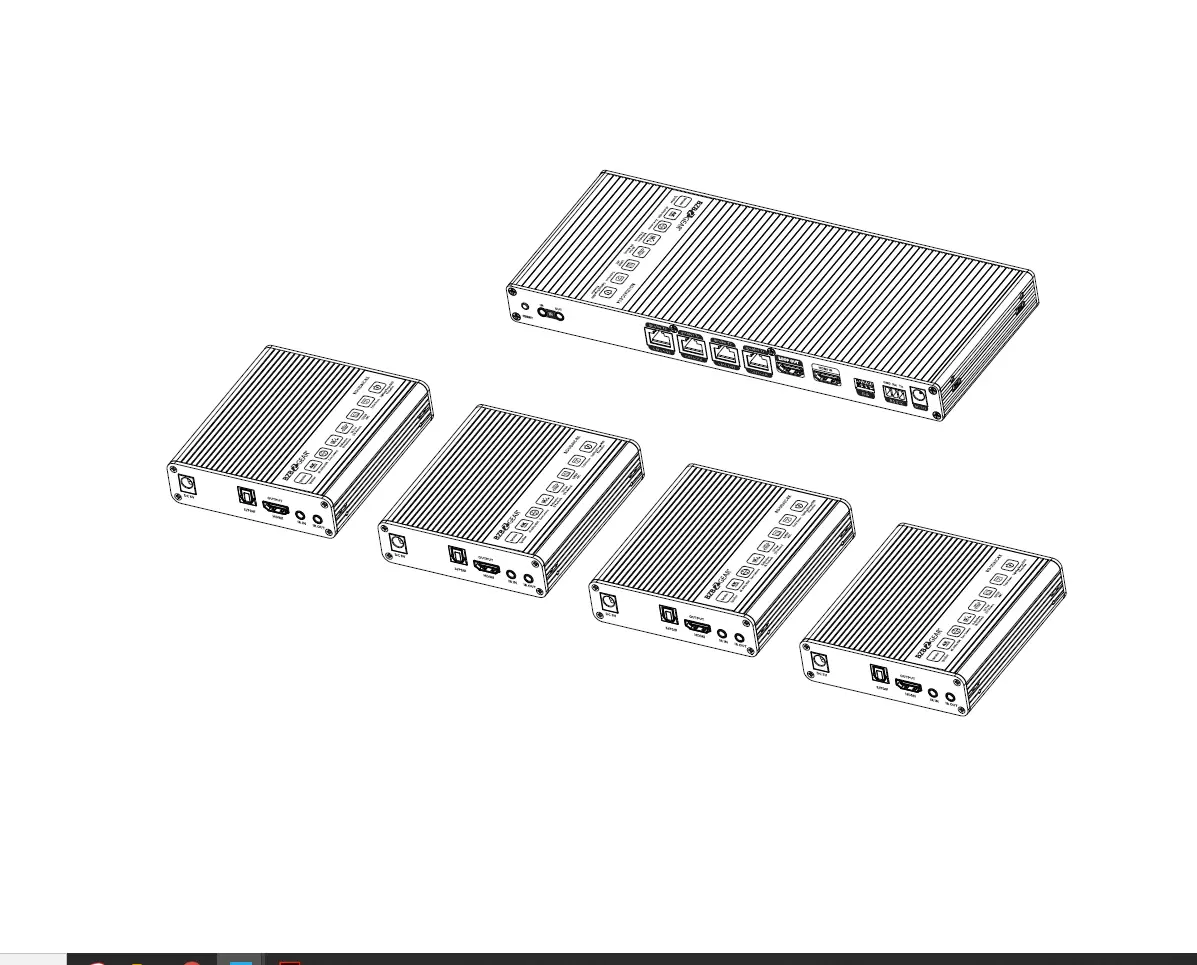
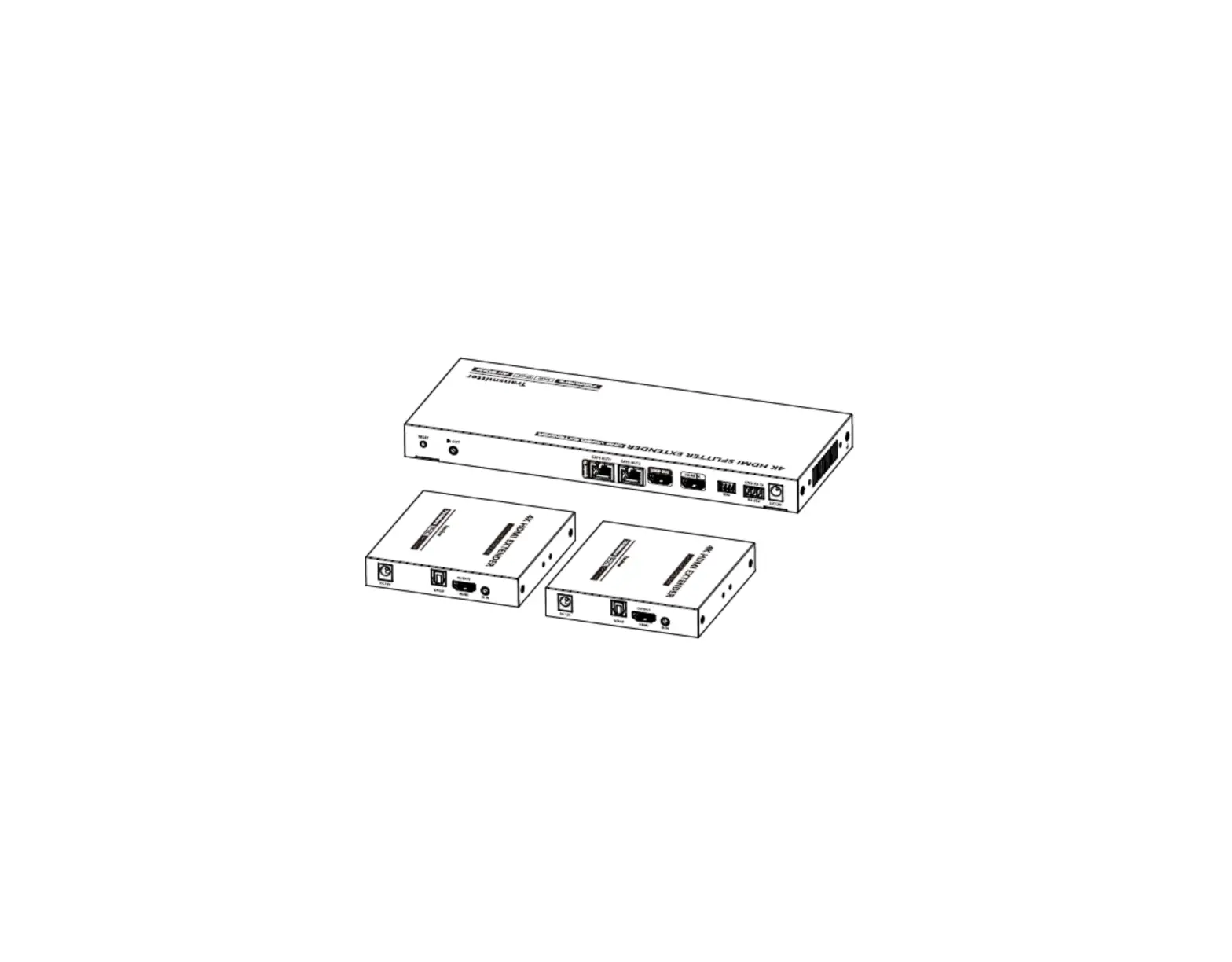
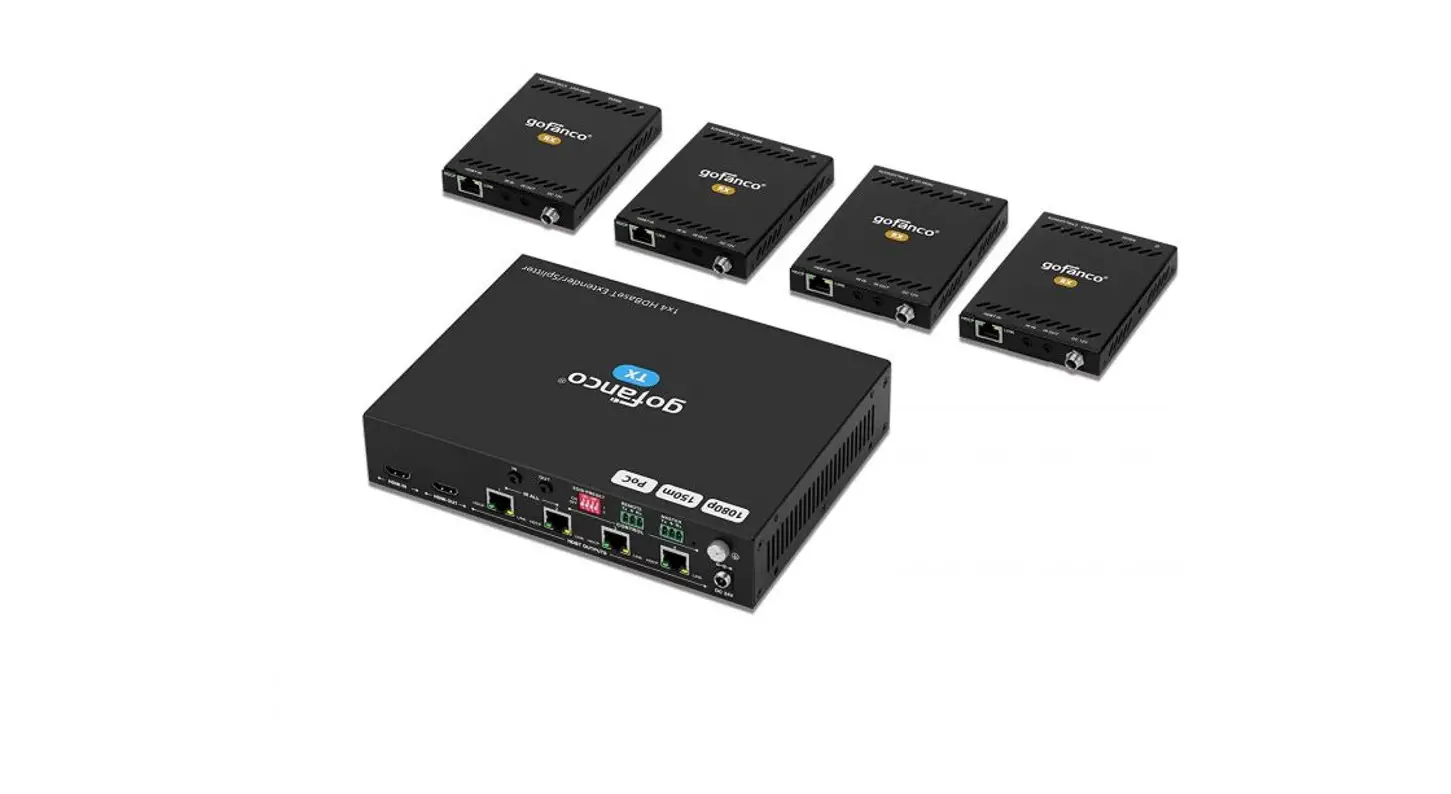
This product is a 1 input 4 outputs splitter extender kit, It distributes 1 HDMI input signal to 4 identical signal outputs, extends these signals up to 70 meters. support 4K30Hz resolution, bi-directional IR passthrough, RS-232 control and 3.5mm L/R audio output functions.
It is suitable for outdoor advertising, studios, multimedia classrooms, etc.
Features
- Zero-latency transmission.
- Support up to 4K@30Hz resolution, downward compatible.
- Support HDR10.
- Distribute 1 HDMI source to 4 HDMI displays.
- Support CAT6/6A/7 network cable, which can transmit 1080p signal up to 70 meters and 4K30Hz signal up to 40 meters.
- Support power over network cable, only the transmitter needs to be powered.
- The transmitter support HDMI loop out.
- Support bi-directional IR passthrough(20~60KHz).
- Support RS-232 command control.
- Surge Protection, Lightning Protection, ESD Protection.
Package Contents
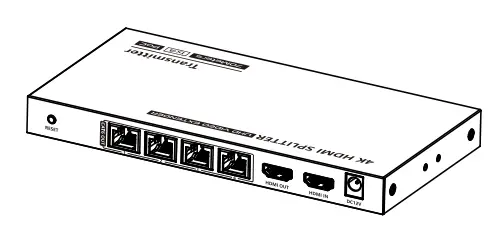
- Transmitter x1

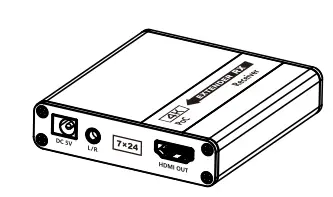
- Receiver x4

- User manual x1

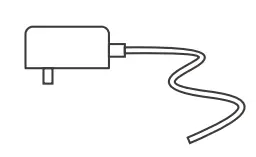
- DC12V/2A x 1

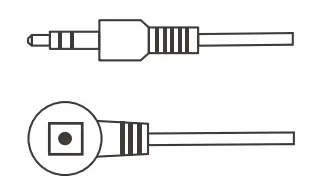
- IR receiver extension cable x 4

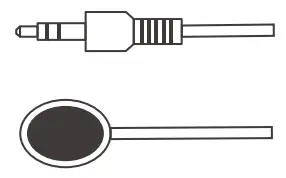
- IR blaster extension cable x 1

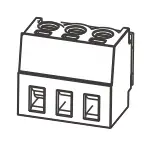
- Terminal block (RS-232) x 1

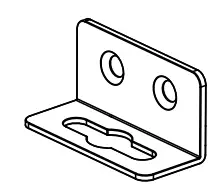
- Mounting ear x 2

- Screw x8


Installation Requirements
| Item | Description | Requirement |
| Signal source | Devices with HDMI port (PC, DVD, NVR, etc.) | HDMI cable ≤5m |
| Cable | CAT6/6A/7,following standard IEEE-568B | CAT6/6A/7≤70m |
| Display device | TV, projector, etc. with HDMI port | HDMI cable ≤5m |
Panel Description
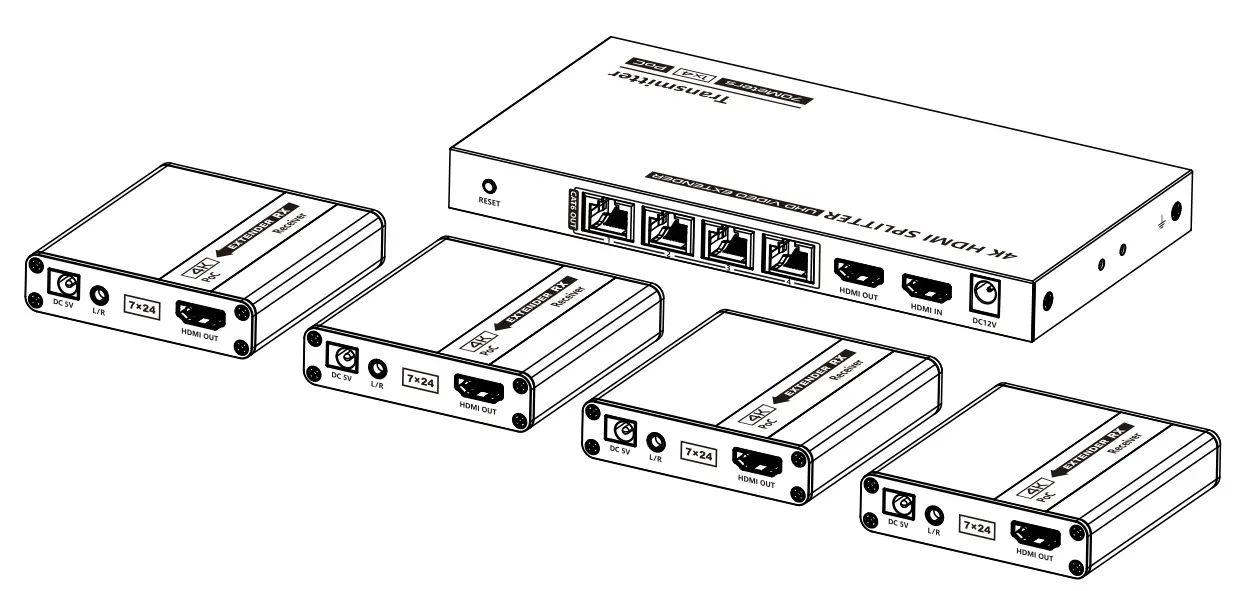
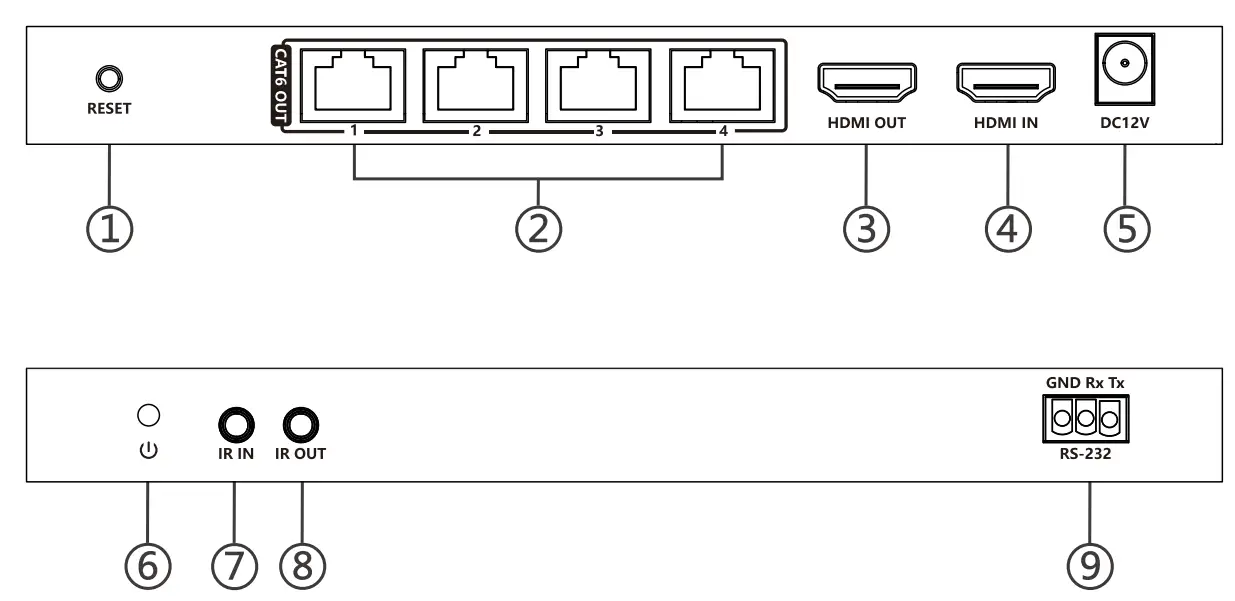
Transmitter (TX)
| ① | Reset button | Press to restart the device |
| ② ③ | RJ45 signal output HDMI signal output | Connect with CAT6/6A/7 network cable Connect with HDMI display device |
| ④ | HDMI signal input | Connect with HDMI source |
| ⑤ | Power input | Connect with DC12V/2A power adapter |
| ⑥ | Power indicator | a. When power is on and no HDMI signal is transmitted, the indicator flashes b. When power is on and HDMI signal is transmitted, the indicator is always on |
| ⑦ | IR in | Connect with IR receiver extension cable |
| ⑧ | IR out | Connect with IR blaster extension cable |
| ⑨ | RS-232 | Connected to a control device (like computer), input control commands for management |
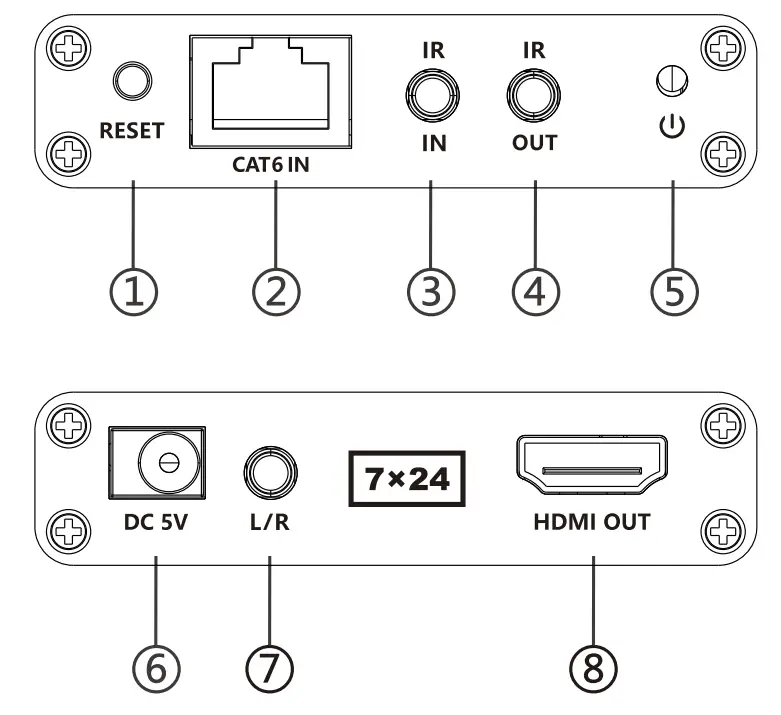
Receiver (RX)
| ① | Reset button | Press to restart the device |
| ② | RJ45 signal input | Connect with CAT6/6A/7 network cable |
| ③ | IR in | Connect with IR receiver extension cable |
| ④ | IR out | Connect with IR blaster extension cable |
| ⑤ | Power indicator | a. When power is on and no HDMI signal is transmitted, the indicator flashes b. When power is on and HDMI signal is transmitted, the indicator is always on |
| ⑥ | Power input | Connect with DC5V/1A power adapter (No need to connect to power when the transmitter is powered) |
| ⑦ | 3.5mm L/R out | Connect headphones or power amplifiers to output stereo audio |
| ⑧ | HDMI signal output | Connect with HDMI display device |
Installation Procedures
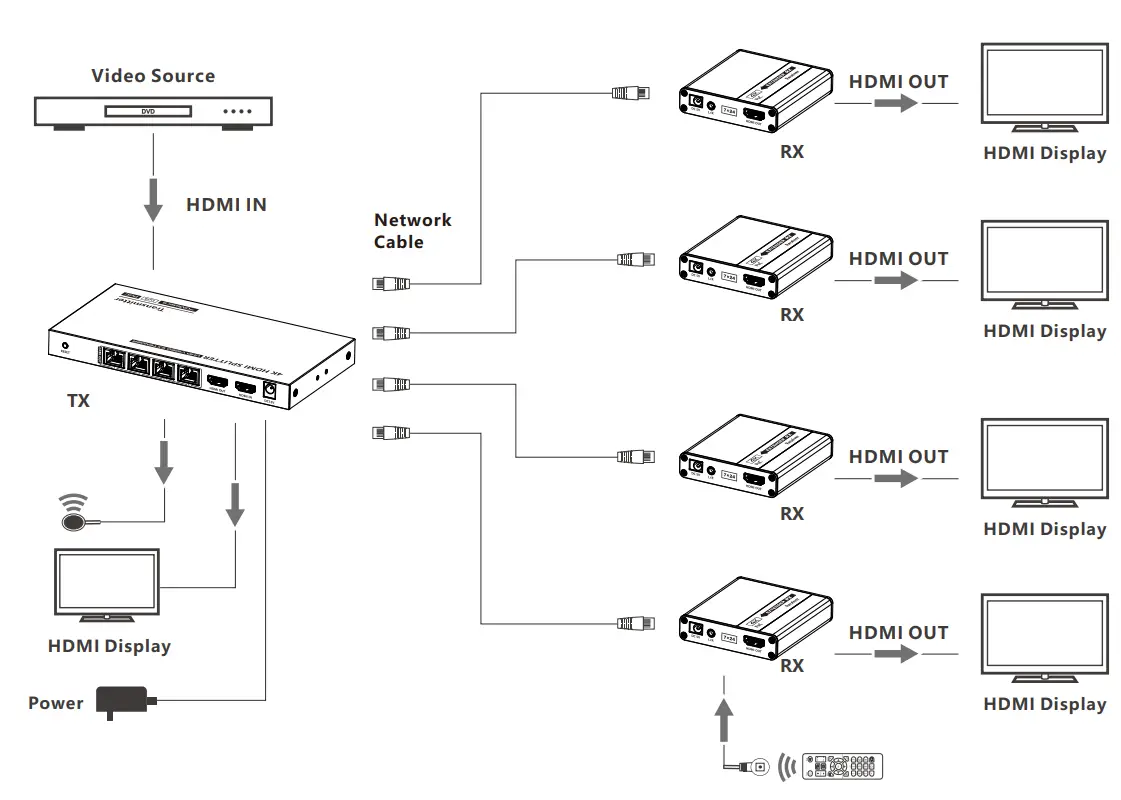
Connection Diagrams
Connection Instructions
- Connect the source device to the HDMI IN port of the transmitter with an HDMI cable, and connect the HDMI OUT port of the receiver to the display device with another HDMI cable.
- Use a Cat6/6A/7 cable to connect the RJ45 port of the transmitter and receiver.
- If using HDMI loop out, connect the display device to the HDMI OUT port of the transmitter.
- If using IR passthrough, the IR blaster extension cable should plug in the IR OUT port, the IR receiver extension cable should plug in the IR IN port.
- If you need to output audio additionally, connect the speaker to the L/R port of the receiver with a 3.5mm stereo audio cable.
- If you need to use RS-232 command control, connect the RS-232 port to the control device.
- Plug the power supply into the devices to get started.
IR User Guide
- Power
- IR Signal
- Null

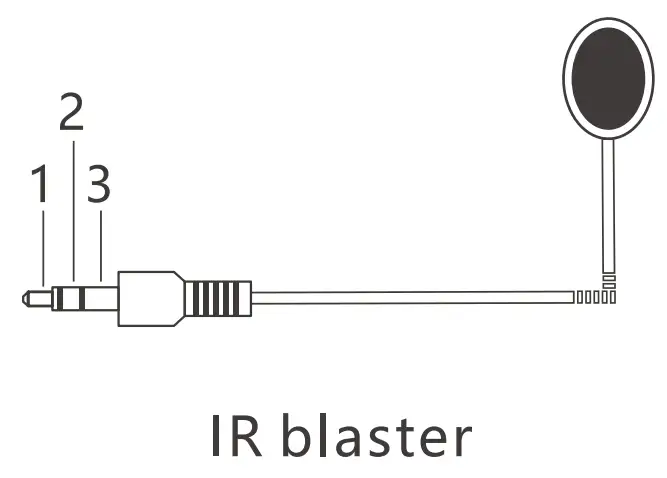
- Power
- IR Signal
- Grounding
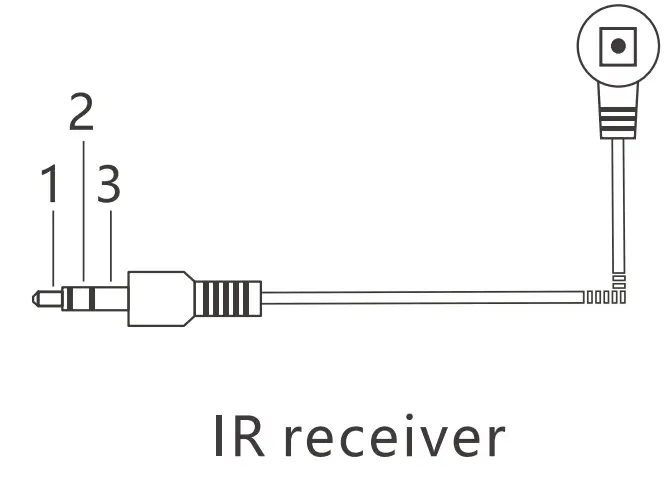
- IR blaster extension cable should plug in the IR OUT port of the transmitter or receiver, IR receiver extension cable should plug in the IR IN port of the transmitter or receiver.
- The emitter of the IR blaster extension cable should be as close as possible to the IR receiving window of the source device.
- Point the remote control at the receiving head of the IR receiver extension cable to operate.
RS-232 SETTING
Baud rate: 9600
Data bits: 8
Stop bits: 1
Parity: none
| Control Commands | Function Descriptions | |
| ES XX On【Enter】 |
| |
| ES XX Off【Enter】 |
| |
| Reset【Enter】 | Restart the device | |
| Recover【Enter】 | Restore device factory settings | |
| Baud XX 【Enter】 | Set the baud rate value: 9600 (default), 19200, 38400, 57600, 115200 | |
| Examples of control commands are shown below: | ||
| Control Command 1 | ES 04 On【Enter】 | |
| Function Description | Turn on network signal output port 04 | |
| Return Values | Received successfully | ES 04 On OK |
| Receive failed | ES 04 On FAIL | |
| Control Command 2 | ES All Off【Enter】 | |
| Function Description | Turn off all the network signal output ports | |
| Return Values | Received successfully | ES All Off OK |
| Receive failed | ES All Off FAIL | |
| Control Command 3 | Reset【Enter】 | |
| Function Description | Restart the device | |
| Return Values | Received successfully | Reset OK |
| Receive failed | Reset FAIL | |
| Control Command 4 | Baud 19200【Enter】 | |
| Function Description | Set the baud rate value:19200 | |
| Return Values | Received successfully | Baud 19200 OK |
| Receive failed | Baud 19200 FAIL | |
Note that you need to press the ‘Enter’ key to send the control command.
FAQ
Q: Why there is no image output on the display device?
A: 1) Please check the power supply and all the cables are well-connected.
2) Please check whether there is an HDMI signal input.
3) Please make sure that the corresponding network port output is not turned off by the RS-232 command.
Q: Why is the output image unstable?
A: 1) Please check whether the length of the network cable is within the specified range.
2) Press the “reset” button on TX or RX to restart and reconnect.
Q: Why does the TV have a snowy/fuzzy screen?
A: 1) Change to a better quality or shorter HDMI cable, the recommended length of HDMI cable is less than or equal to 5 meters.
2) Try another network cable and make sure that the length is within the specified range.
Technical Parameters
| Item | Specification | |
| Mode | 1 input, 4 output | |
| HDMI Performance | Compatibility | HDMI 1.4,HDCP1.4 |
| Resolution | 800×600、1024×768、1280×720、1280×960、 1366×768、 1440×900、1680×1050、1920×1080 480i@60Hz、 480p@60Hz、576i@50Hz、 576p@50Hz、720p@50/60Hz、1080i@50/60Hz 1080p@24/25/30/50/60Hz、4K@24/25/30Hz | |
| Audio Formats | PCM、LPCM、DTS-HD、DTS-Audio | |
| Transmission distance | CAT6/6A/7 | 1080p@60Hz≤70 meters 4K@30Hz≤40 meters |
| IR Passback | Bi-directional IR passback (20-60khz) | |
| RS-232 | 3Pin:GND-RxD-TxD,follows RS-232 levels Default baud rate:9600 | |
| Operating Environment | Working temperature | -20~60℃ |
| Storage temperature | -30~70℃ | |
| Humidity | 0~90% RH | |
| Protection | ESD protection 1a Contact discharge level 2 (±4KV) 1b Air discharge level 3 (±8KV) Implementation of the standard: IEC61000-4-2 | |
| Lightning protection | ||
| Surge protection | ||
| Power | Supply | TX: DC12V/2A RX: DC5V/1A |
| Consumption | TX<10W RX<2.5W | |
| Physical Properties | Housing | Iron |
| Color | Black | |
| Weight | TX: 435g RX: 160g x4 | |
| Dimensions | TX: 191.5(L) x 96.5(W) x 19.0(H)mm RX: 75.0(L) x 80.0(W) x 18.0(H)mm | |
Disclaimer
The product name and brand name may be registered trademark of related manufactures. ™ and ® may be omitted on the user manual.The pictures in this user manual are just for reference. The terms HDMI, HDMI High-Definition Multimedia Interface, and the HDMI Logo are trademarks or registered trademarks of HDMI Licensing Administrator, Inc.We reserve the rights to make changes without further notice to a productor system described herein to improve reliability, function or design.