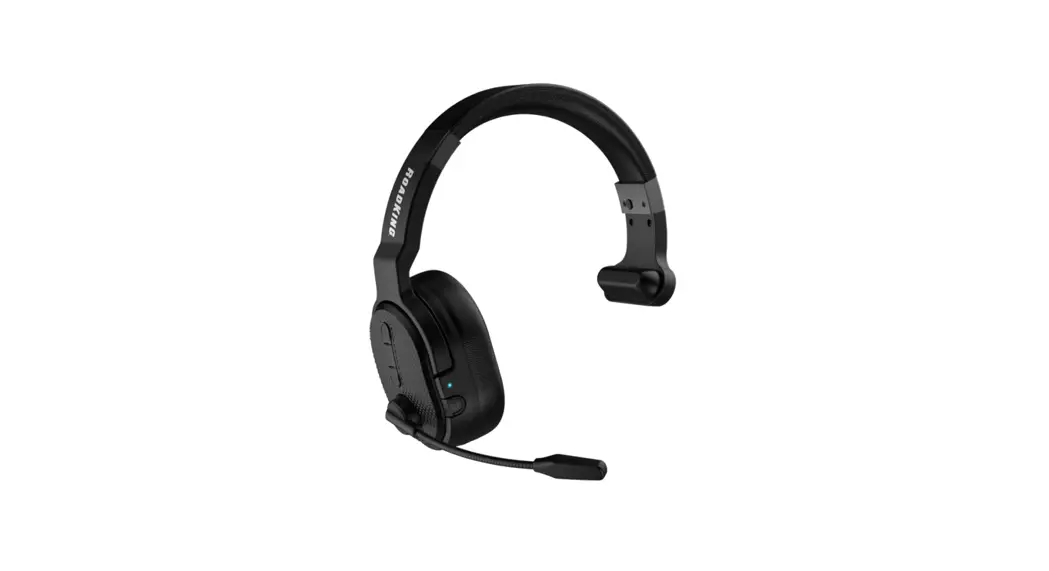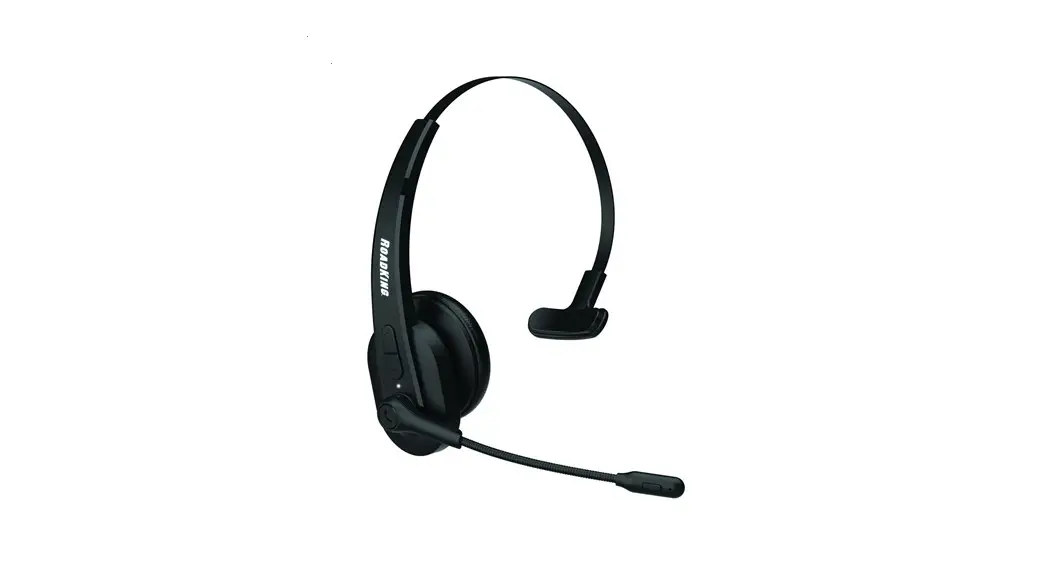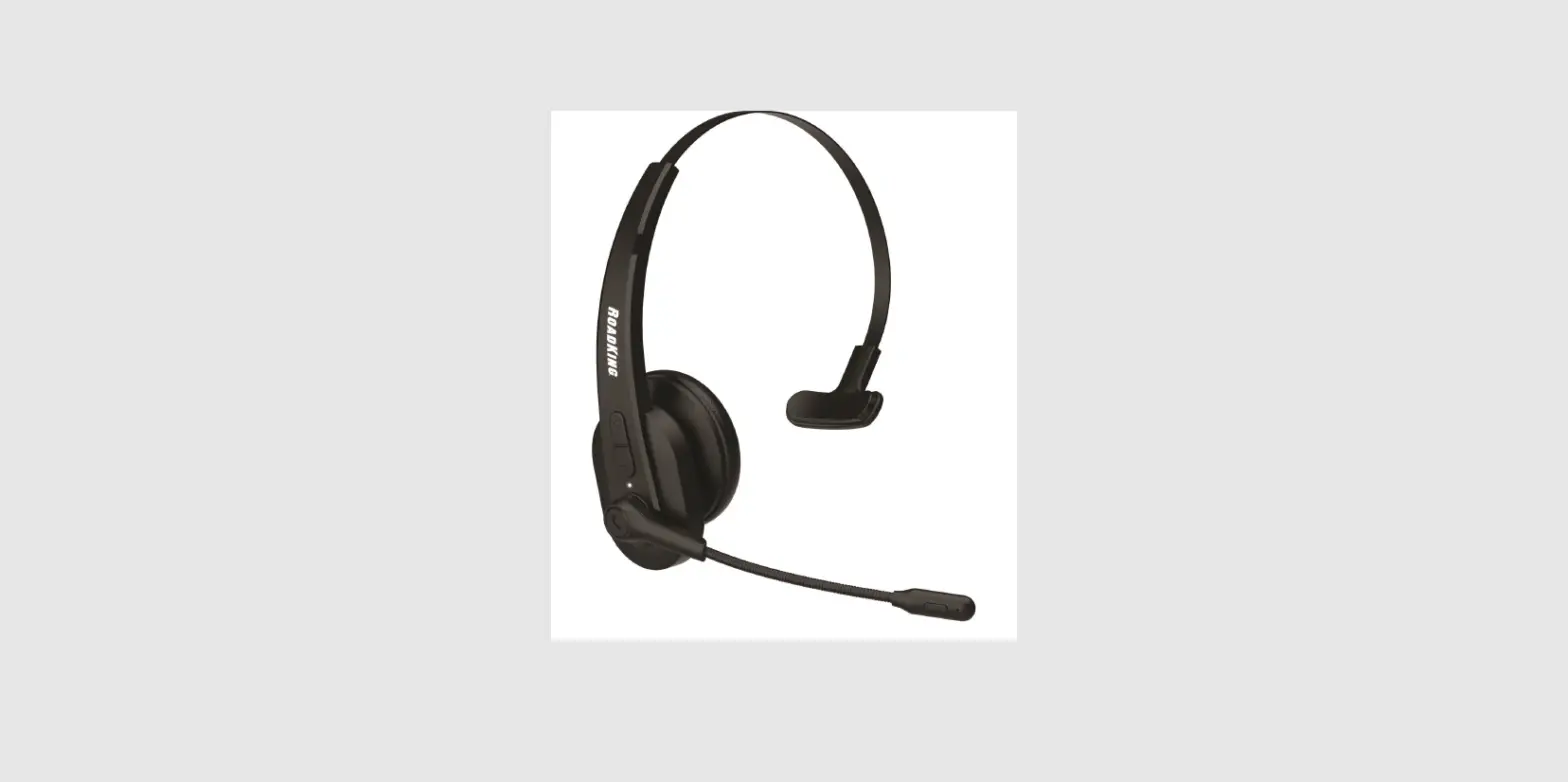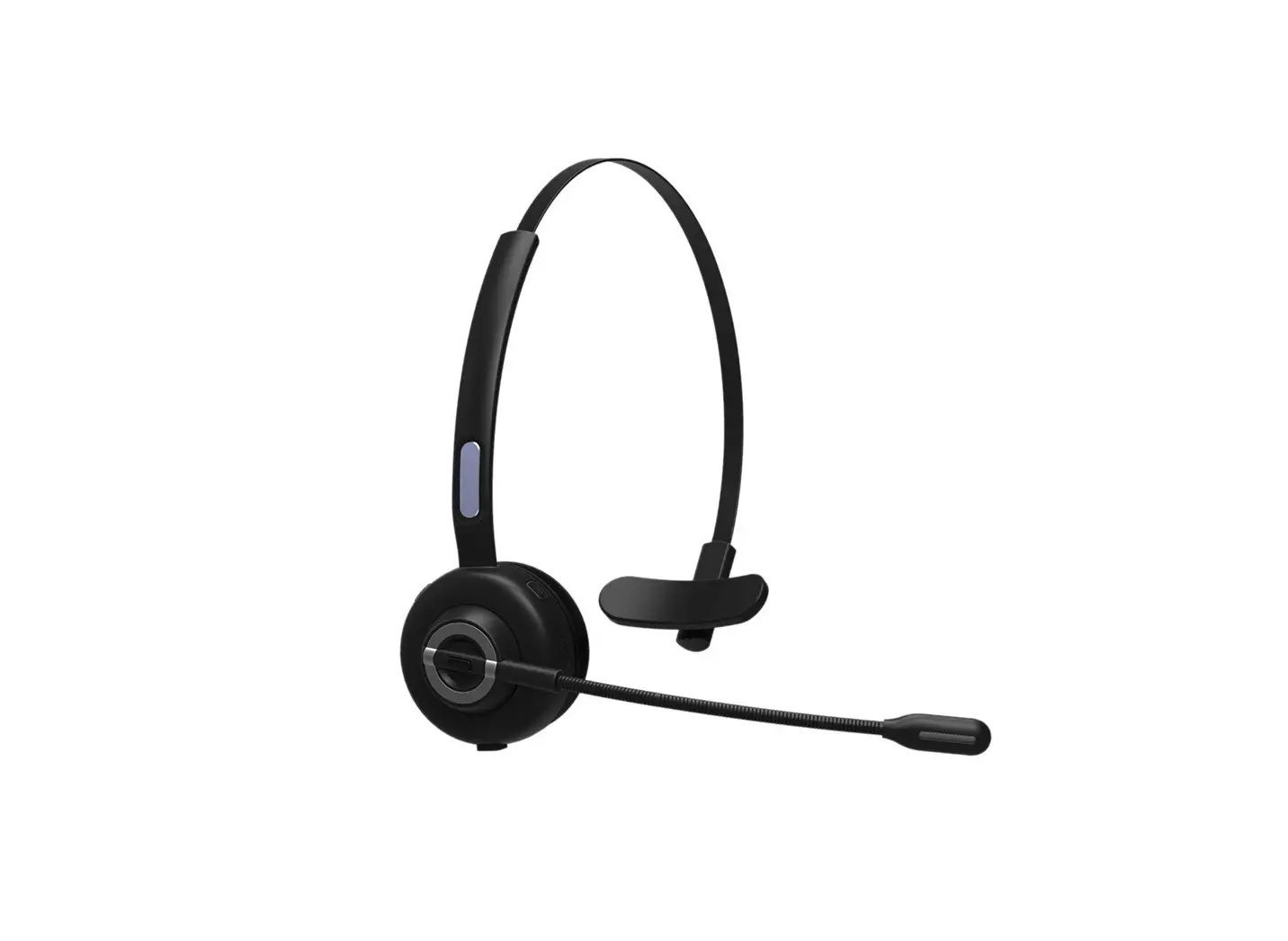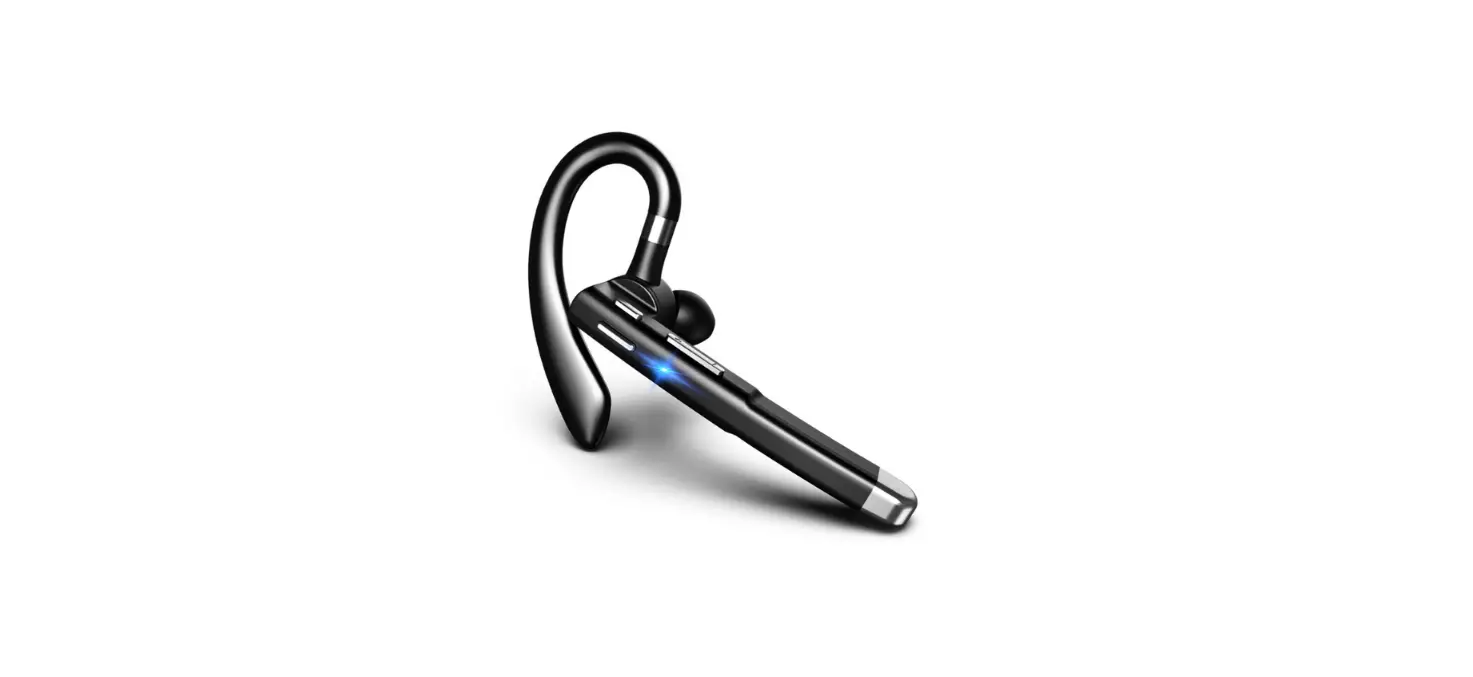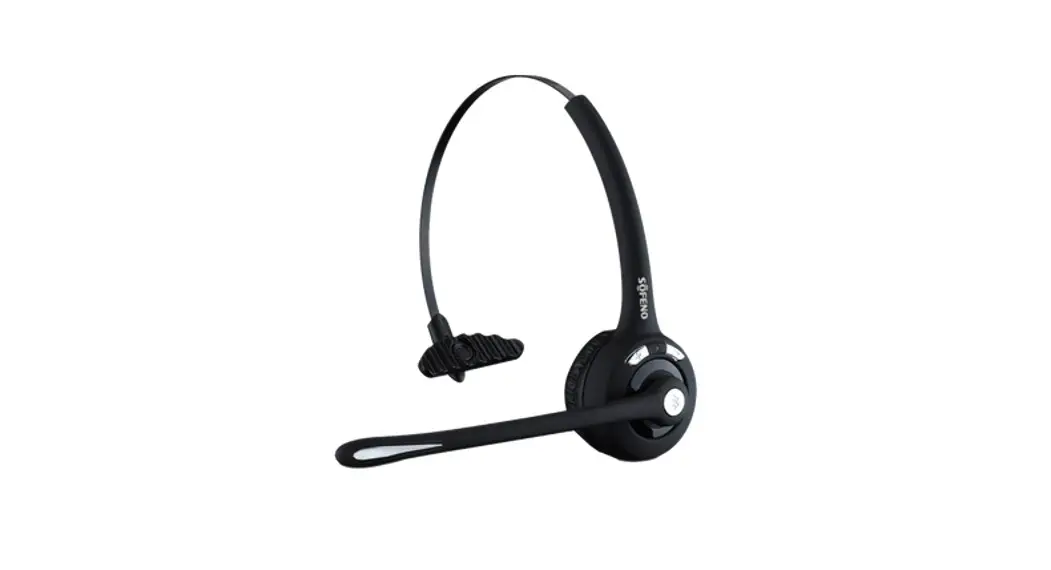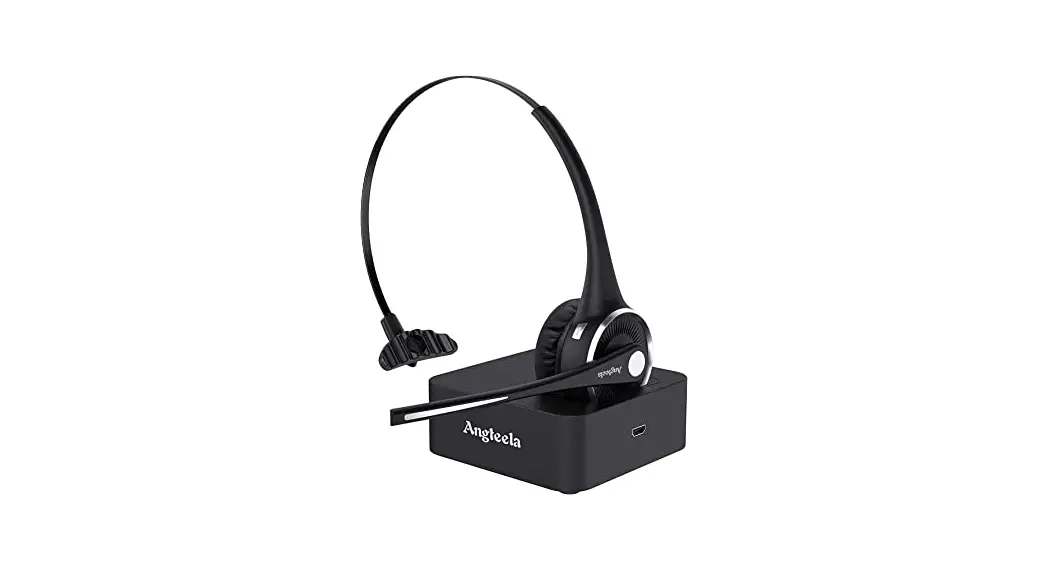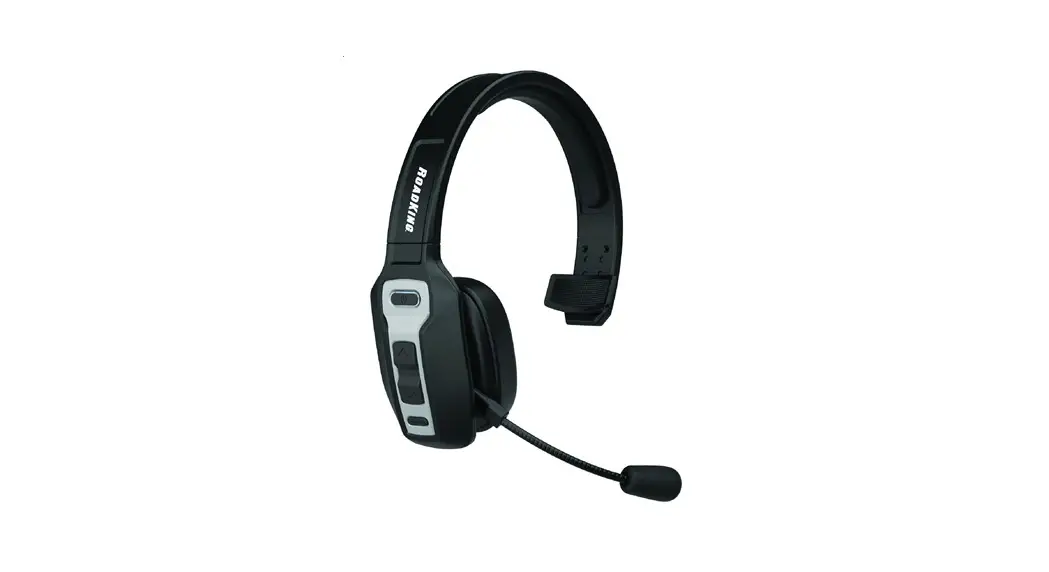

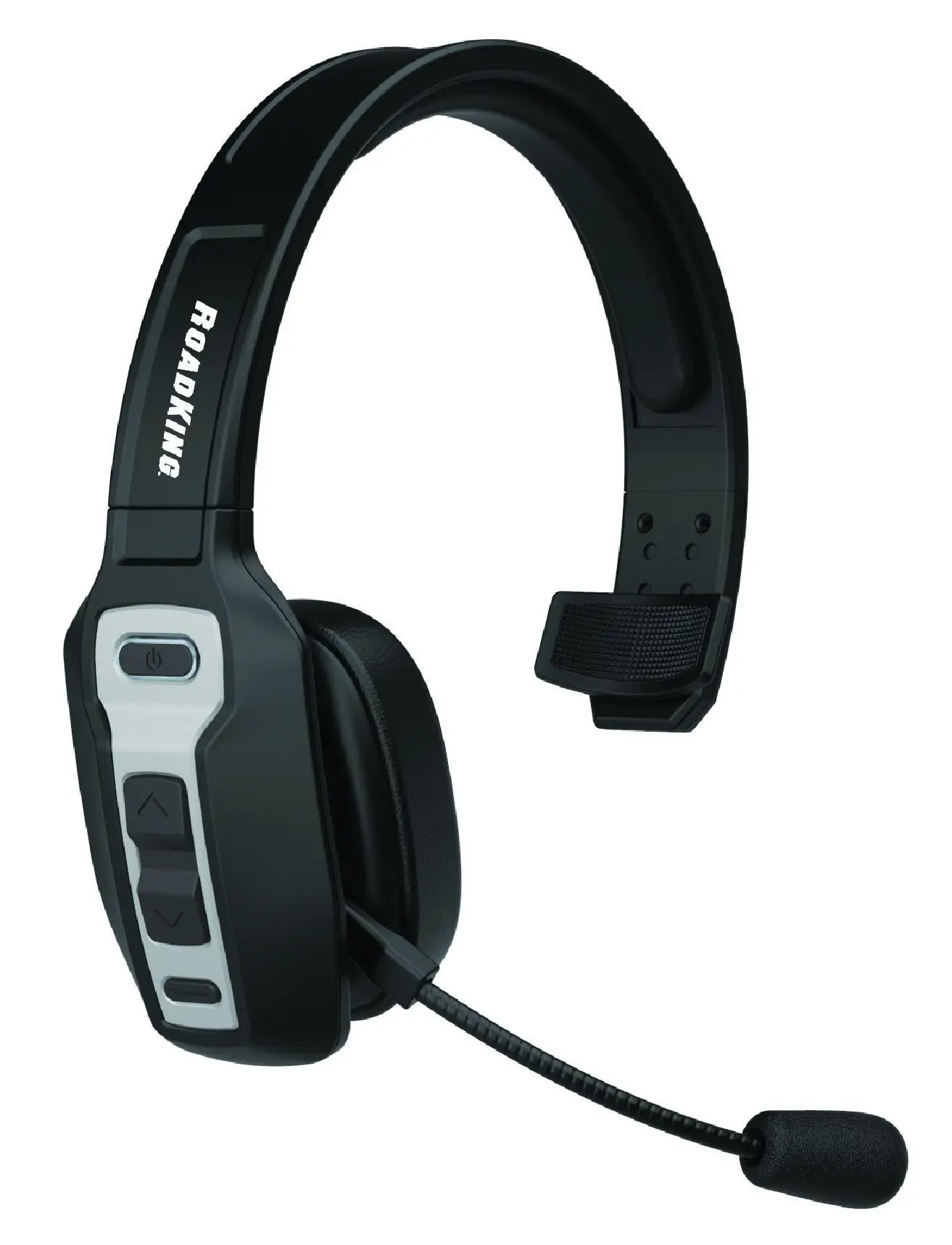
RKING3000 Premium Mono Bluetooth® Headset
User Manual
Product Overview
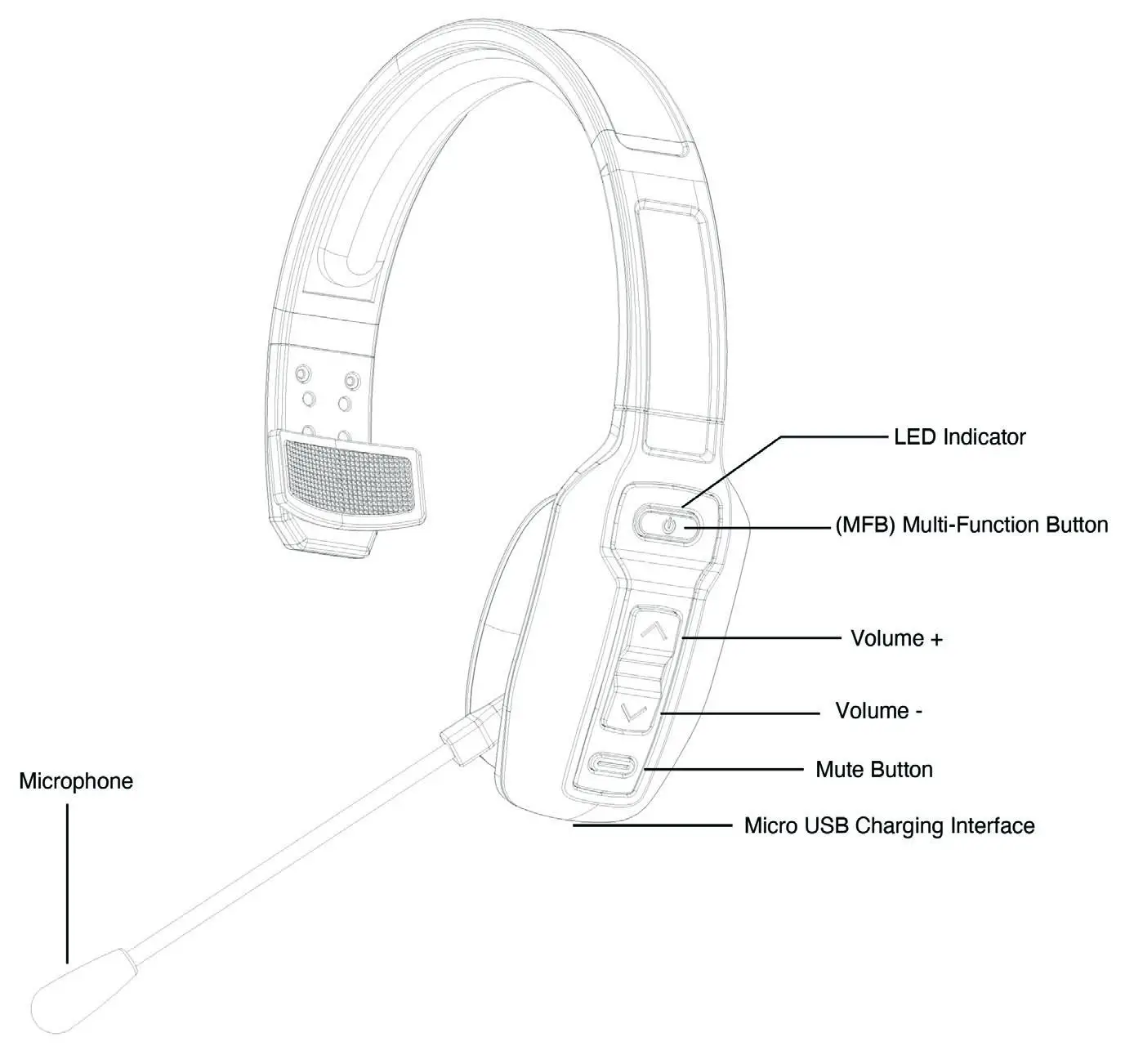
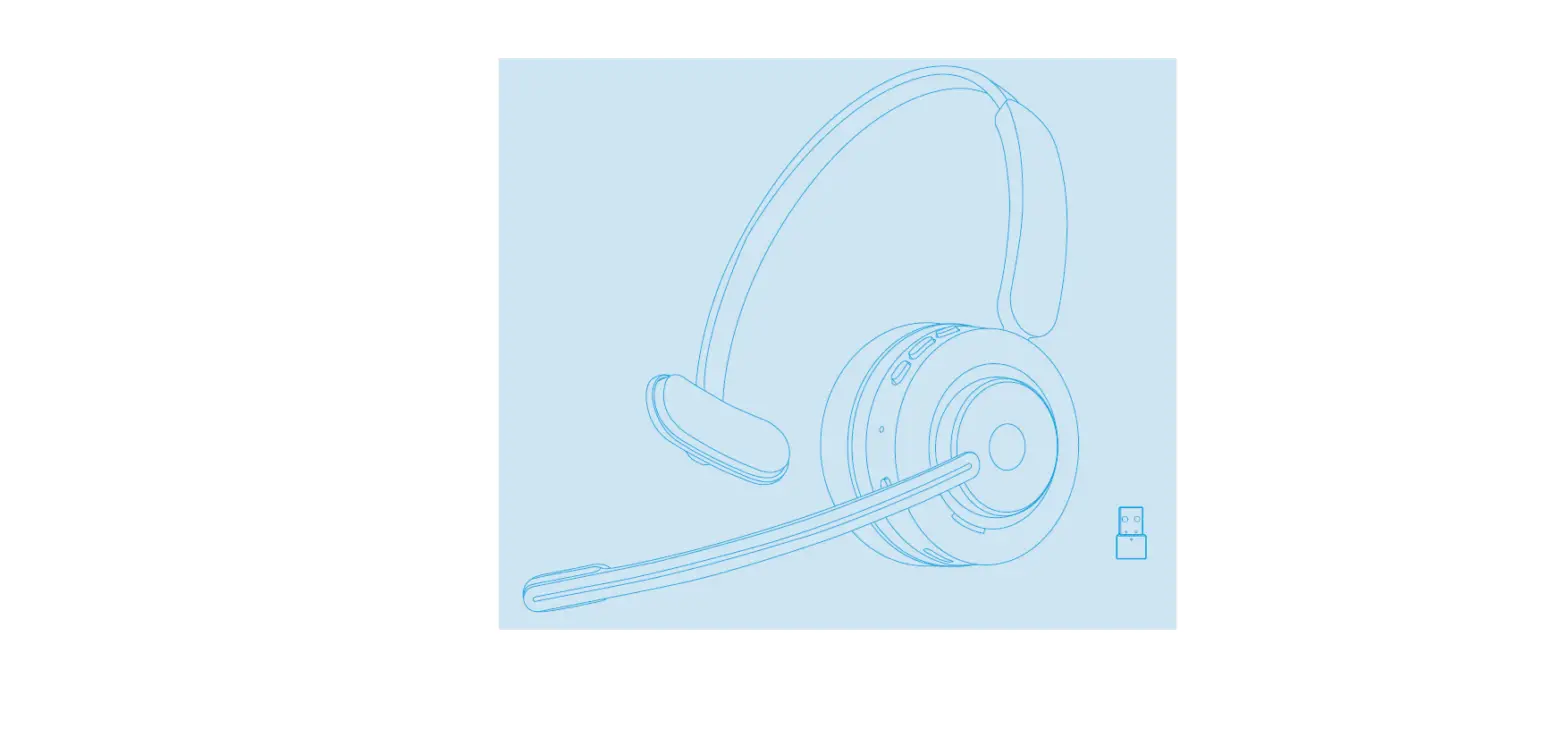
Package Contents:
A. Bluetooth headset RKING3000 x 1
B. Micro USB charging cable x 1
C. User manual x 1
D. Car charger x 1
E. Sponge microphone cover x 1
F. Drawstring bag x 1
Basic Operation
| Button | Function | Operation Instructions |
| MFB | Power on | When device is off, press and hold the MFB for 3 seconds to power on. The RKING3000 will automatically enter into the pairing state and reconnect to previously paired phone. |
| Power off | When device is on. press and hold the MFB for 5 seconds to power off. | |
| Pairing | When device is off, press and hold the MFB for 5-7 seconds or double-click the MFB to pair to your phone. | |
| Play / Pause | When playing music, click the MFB to play/pause the music. | |
| Last number redial | Double-click the MFB to dial the last number called. | |
| Voice dial | Hold down the MFB for 2 seconds, then release to start the phones voice dial function. | |
| Audio switch | When on a call, hold down the MFB for 1 second to switch the audio between phone and the Bluetooth headset. | |
| Answer a call | When receiving a call, click the MFB to answer. | |
| End a call | To end a call, click the MFB. | |
| Reject a call | To decline an incoming call hold down the MFB for | |
| 1 second. | ||
| Volume + | Volume up | When talking or playing music, click the Volume + button to increase volume. |
| Next song | When playing music, hold down the Volume + button to skip to the next song. | |
| Volume – | Volume down | When talking or playing music, click the Volume – button to decrease volume. |
| Previous song | When playing music, hold down the Volume – button to go back to the previous song. | |
| Mute button | Mute microphone | During a call click the Mute button to mute your microphone. |
| Click the Mute button again to turn off mute. |
Bluetooth Pairing and Connection
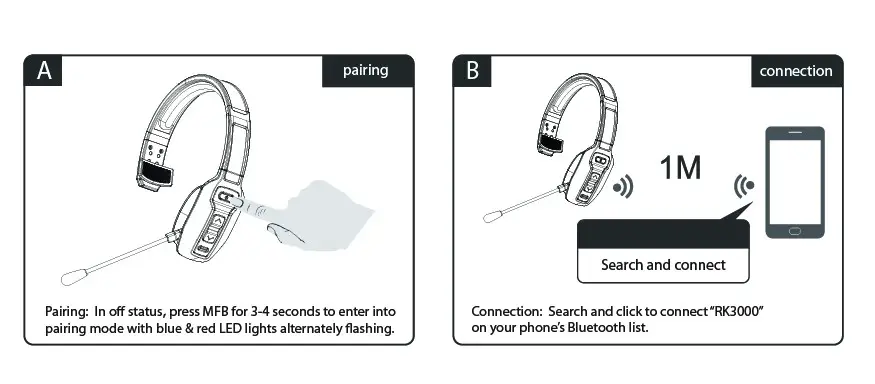
A. Press and hold the MFB for 5-7 seconds to power on and automatically enter into pairing mode. The red and blue lights will flash alternately.
B. Search and click “RK3000” to connect the headset to your phone’s Bluetooth. Once connected, the blue LED light will flash slowly.
C. All functions such as answering calls, playing music, skipping songs, increasing/decreasing volume, etc. can be controlled through the Multi Function Button (MFB), Volume + button, Volume – button and the Mute button, located on the headset.
Connection with Two Devices
A. Connect the first phone to the headset, then turn off the Bluetooth function on the first phone.
B. Double-click the MFB on RKING3000 to enter into pairing mode again, you’ll see the red & blue LED lights flash alternately.
C. Turn on the Bluetooth function on the second device. Search and click “RK3000” on the second phone’s Bluetooth list. The LED will slowly flash blue once connected.
D. Turn the first phone’s Bluetooth back on and reconnect to “RK3000”. The headset will now be connected to two phones.
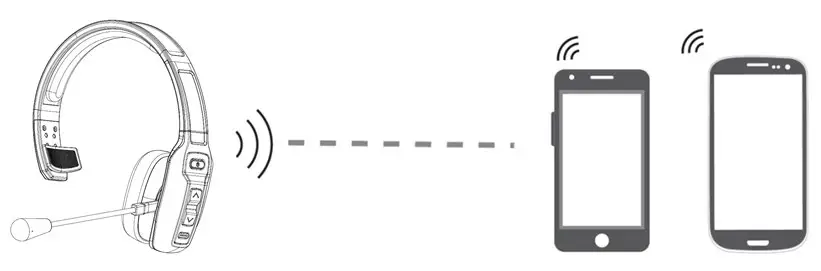
Note: Music can only be played from one phone at a time. When you want to play music from the other phone, you will need to pause or close the music of the previous phone. The same applies during talking status.
LED Indicator
| Mode | LED Indicator |
| Power on | The blue LED light flashes 3 times |
| Power off | The red LED light flashes for 1 second |
| Pairing mode | The red & blue LED flash alternately |
| Clearing pairing records | The purple LED light flashes 1 time |
| Reconnection state | The blue LED light flashes twice every 5 seconds |
| Disconnected standby mode | The blue LED light flashes twice every 5 seconds |
| Connected standby mode | The blue LED light flashes once every 10 seconds |
| Playing music | The blue LED light flashes twice every 10 seconds |
| Talking | The blue LED light flashes twice every 10 seconds |
| Charging | The red LED light is normally on |
| Full charge | The blue LED light is normally on |
| Low battery | The red LED light flashes |
Charging
Red light flashes when RKING3000 has low battery. Please charge immediately for about 1.5 hours. When the red light is off and the solid blue light is on, the battery is fully charged.
- When the RKING3000 is not in use, please charge at least once every two months.
- If headset is on during charging, it will automatically shut down and reset.
Product Specifications
| Bluetooth Version | V5.0 |
| Bluetooth Chip | CSR BC8615 |
| Operation Range | 32 feet |
| Bluetooth Protocols | HSP,HFP,A2DP,AVRCP |
| Decoding Mode | SBC |
| Built-in Battery | 420mAh/3.7V |
| Stand by Time | 400 hours |
| Headset Net Weight | .31 lbs |
| Charging Time | About 1.5 hours |
| Play Time | About 30 hours (70% volume) |
| Talk Time | About 30 hours (70% volume) |
| Headset Dimension | 7.59″ x 6.18″ x 2.12″ |
Actual use time will differ from environment and music.
Notes and Q & A
A. How to reconnect and operate when connection fails?
When RKING3000 connects to your phone successfully the first time, it will search and reconnect to the paired device automatically going forward. If it fails to connect, repair the phone to reconnect.
B. How to delete paired records?
When powered on, press and hold the Volume + and the MFB button at the same time to clear the pairing record. The purple indicator light will flash once indicating the record has been cleared. When various connection exceptions occur, try clearing the pairing record.
C. When will it be automatically powered off?
In the pairing mode, it will be powered off if there is no connection for more than 5 minutes or the battery is low.
D. When will the low battery alarm be given, and what prompts will be given?
When the headset battery is low, a prompt will sound every 3 minutes until it is charged.
E. What is the password for pairing?
Some devices require a password for pairing. Please try 0000, 8888, 1111, or 1234.
F. What devices can you use to charge?
Car charger, travel charger, or computer USB with DC voltage of 5V and current of more than 1A can be used to charge the RKING3000.
G. What should you do if there are some exceptions, such as connection exceptions, etc.?
Plug in the charging cable and the headset can be turned off and reset.
Notes:
This equipment has been tested and found to comply with the limits for a Class B digital device, pursuant to part 15 of the FCC Rules. These limits are designed to provide reasonable protection against harmful interference in a residential installation. This equipment generates uses and can radiate radio frequency energy. If it is not installed and used in accordance with the instructions, it may cause harmful interference to radio communications. However, there is no guarantee that interference will not occur in a particular installation. If this equipment does cause harmful interference to radio or television reception, which can be determined by turning the equipment off and on, the user is encouraged to try to correct the interference by one or more of the following measures:
- Reorient or relocate the receiving antenna.
- Increase the separation between the equipment and the receiver.
- Connect the equipment into an outlet on a circuit different from that to which the receiver is connected.
- Consult the dealer or an experienced radio/TV technician for help.
Changes or modifications not expressly approved by the party responsible for compliance could void the user’s authority to operate the equipment. This device complies with Part 15 of the FCC Rules. Operation is subject to the following two conditions:
- This device may not cause harmful interference, and
- This device must accept any interference received, including interference that may cause undesired operation.
ONE-YEAR LIMITED WARRANTY For support, product and warranty information, please visit www.roadprobrands.com RoadKing® and RoadPro® are registered trademarks owned by DAS Brands, LLC and its affiliated companies. The BLUETOOTH® word mark and logos are registered trademarks owned by Bluetooth SIG, Inc. and any use of such marks by DAS Companies, Inc. is under license. All other trademarks, registered trademarks, copyrights and logos are the property of their respective owners. ©2022 DAS Companies, Inc. and/or affiliates.
 RoadPro Family of Brands