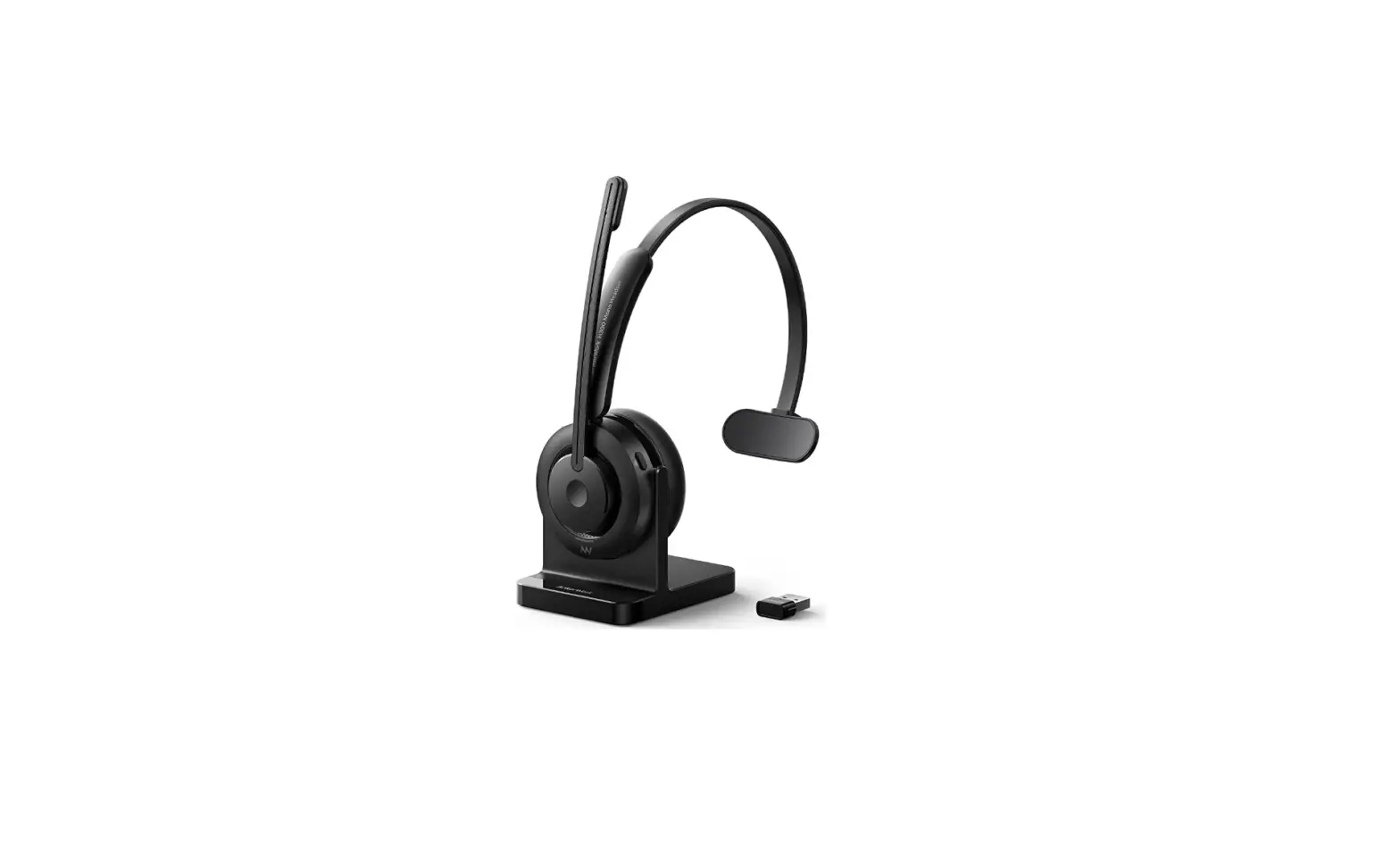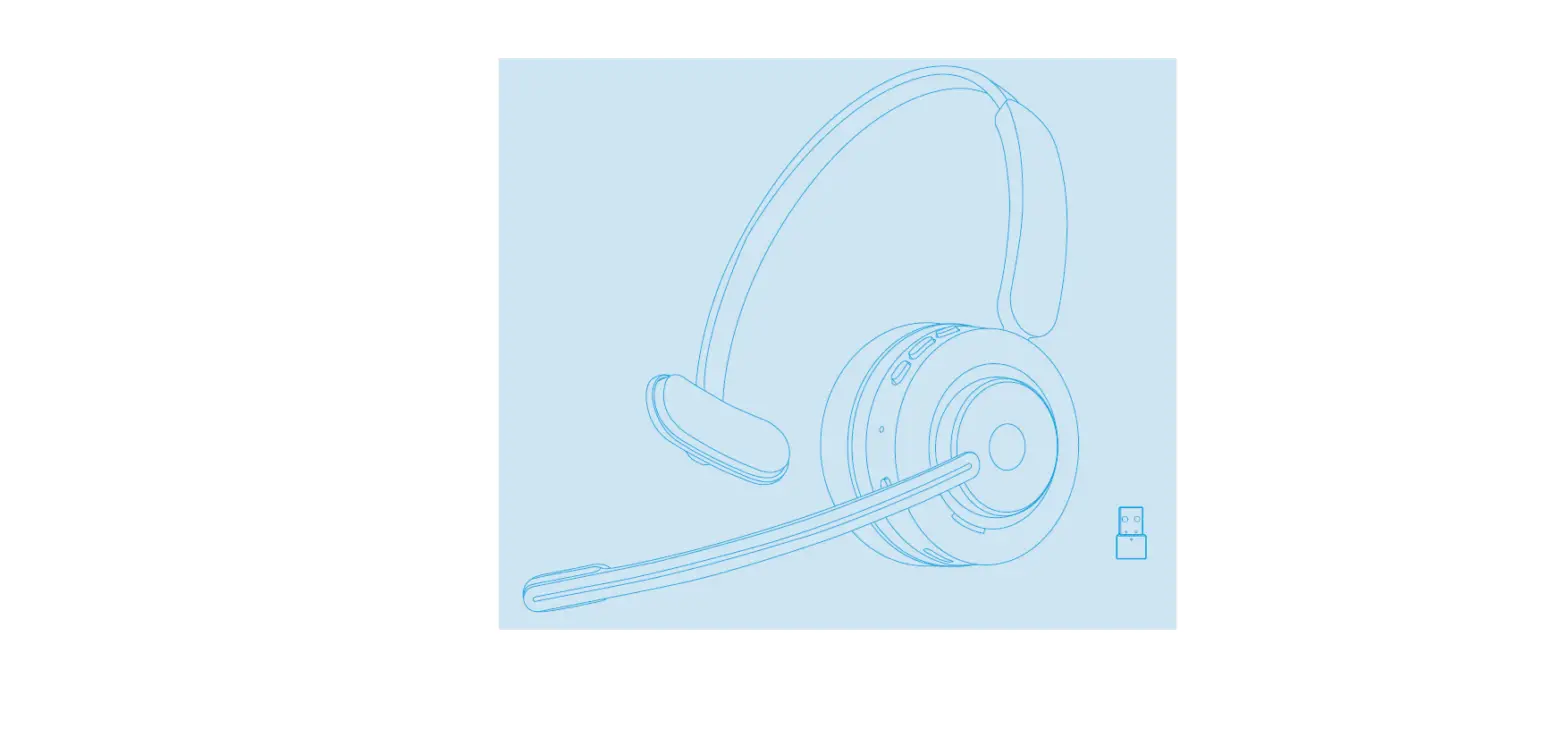

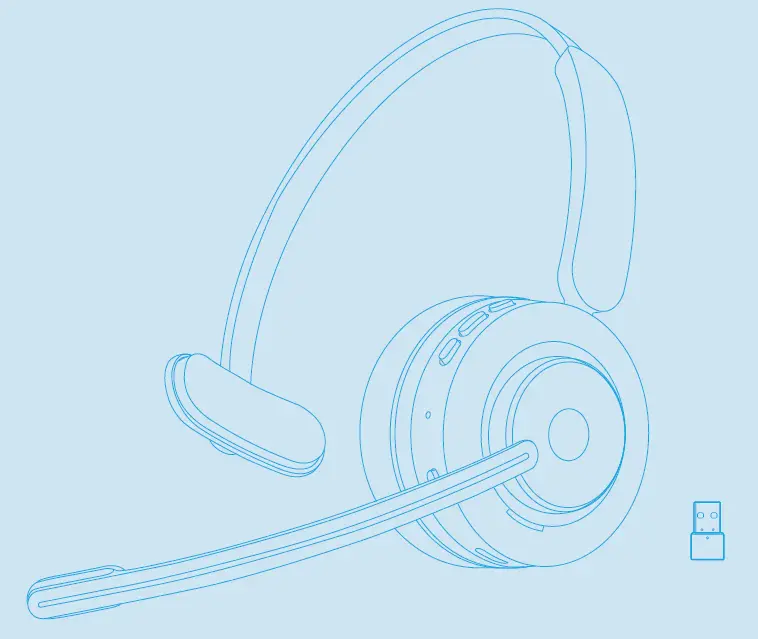
AnkerWork H300 Mono Headset User
APP / SOFTWARE
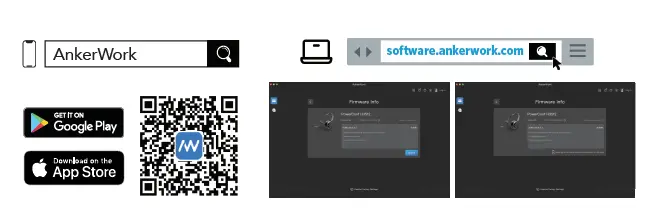
Download the AnkerWork app or PC software to adjust settings and upgrade firmware. The PC software is only supported when you use the dongle for pairing. You may log on to only one device at a time.
WEARING
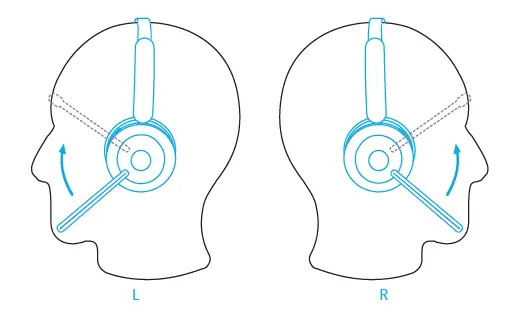
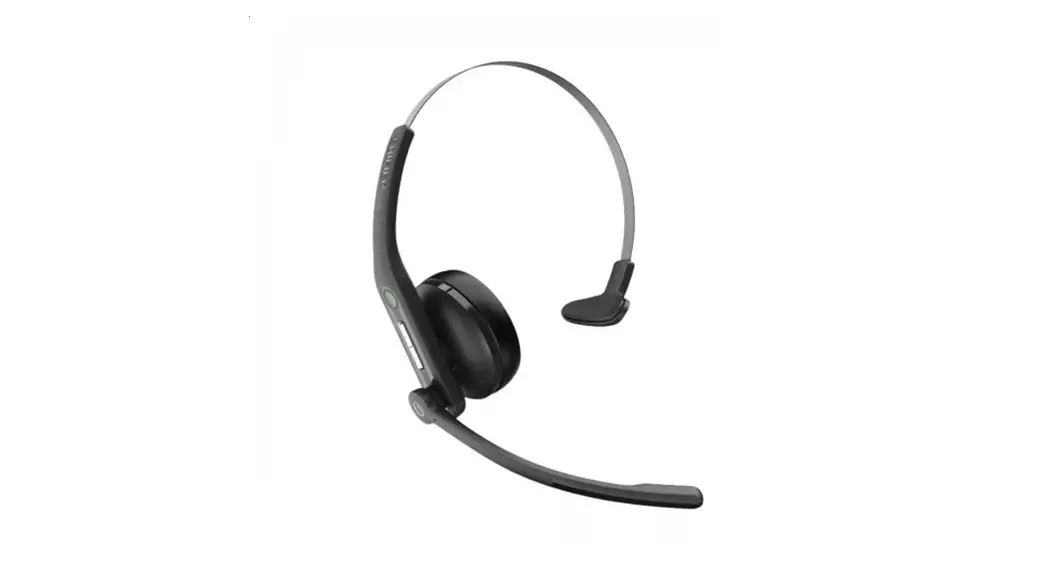
The headset can be worn with the mic boom on either side. Adjust the mic boom close to your mouth.
CHARGING
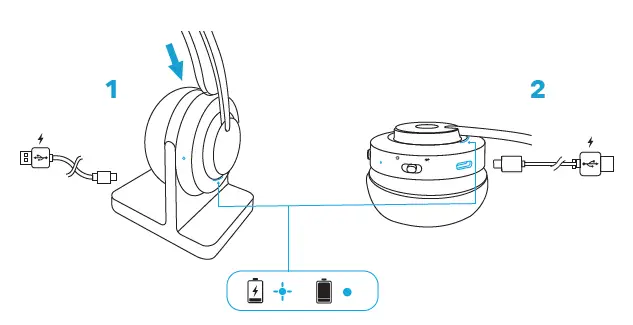
Fully dry off the USB-C charging port before charging. Charge the headset using the charging stand or plug the USB cable directly into the headset.
POWERING ON / OFF
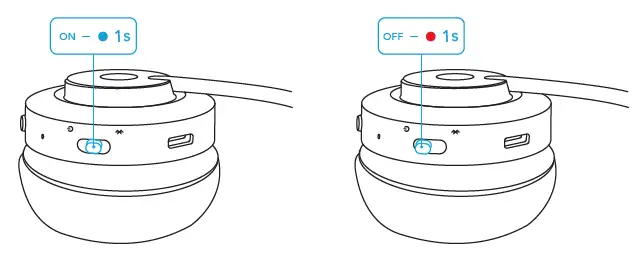
Slide to the ON or OFF position to power on or off. The headset will turn off automatically after 4 hours of disconnection. The duration can be set in the AnkerWork app.
PAIRING WITH A COMPUTER
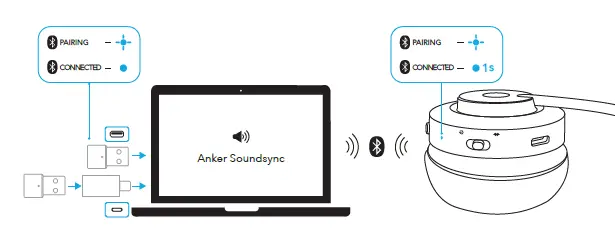
Plug the dongle (with the USB adapter, if necessary) into your PC or laptop’s USB port. The headset will automatically connect to your computer when powered on.
Select “Anker Soundsync” as the audio input and output device for your conferencing software and computer.
PAIRING WITH A PHONE
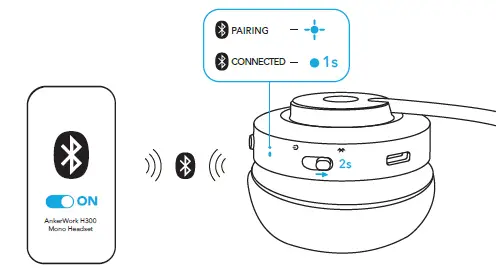
Slide to the Bluetooth position and hold for 2 seconds until the LED indicator flashes blue. Select “AnkerWork H300 Mono Headset” on your device’s Bluetooth list to connect.
MULTIPOINT CONNECTION
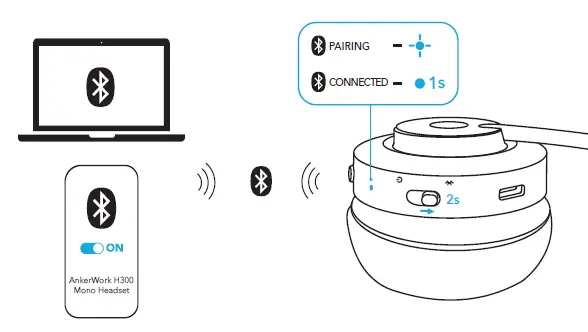
The headset can connect to two devices at the same time. To pair with a second device, slide the power switch to the Bluetooth position and hold for 2 seconds until the LED indicator flashes blue.
Note
- When available to both connected devices, the headset will automatically switch to the device that is playing music or taking a call.
- When listening to music on one device, you have to stop the current playback first to play music on another device.
- When playing music or during a call on one device, you can answer or reject an incoming call from another device.
WIRED MODE
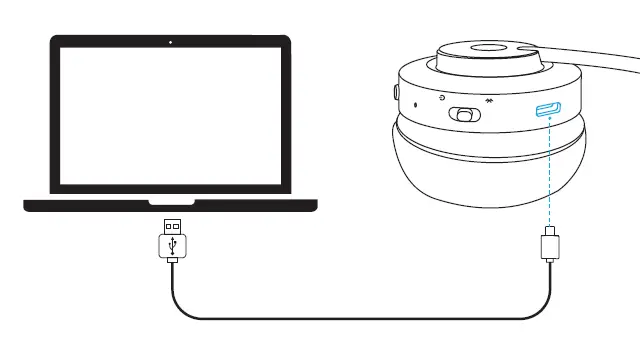
Use the headset by plugging in the USB cable. Wired mode will automatically turn off Bluetooth mode.
MUTE
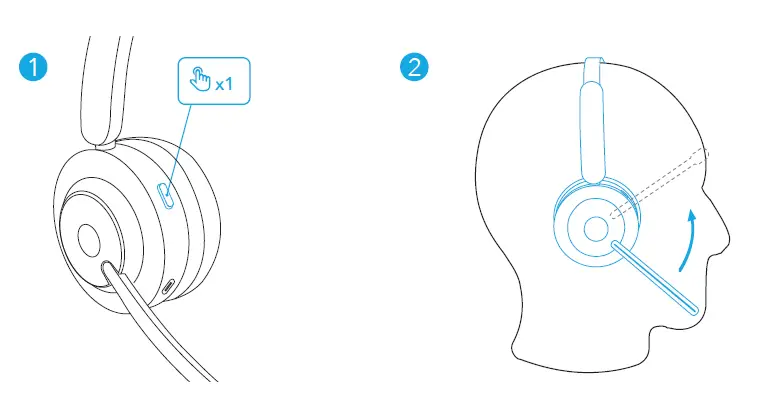
There are two ways to mute your headset: by pressing the mute button or by lifting the mic boom. Lowering the mic boom all the way down can unmute your headset or answer an incoming call.
CONTROLS
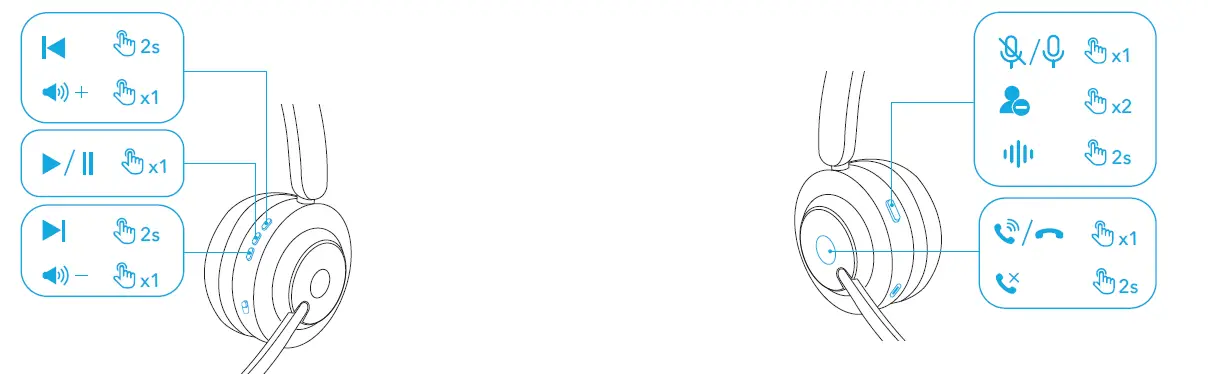
| Volume up | Press once | |
| Previous track | Press and hold for 2 seconds | |
| Play / pause | Press once | |
| Volume down | Press once | |
| Next track | Press and hold for 2 seconds |
| Mute / unmute microphone | Press once | |
| Busy light on / off | Press twice | |
| Activate voice assistant software | Press and hold for 2 seconds | |
| Answer / end a call | Press once | |
| Reject a call | Press and hold for 2 seconds |
VOICE PROMPT
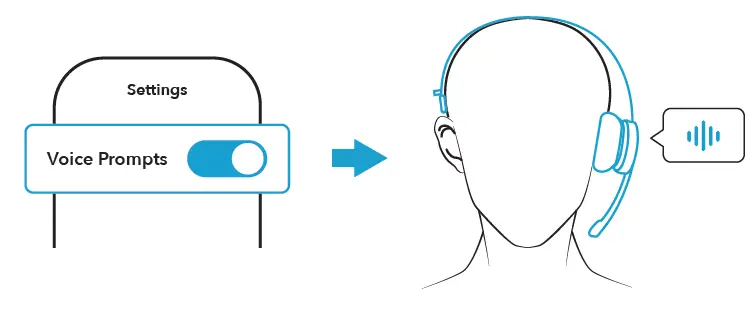
You can hear notifications when you mute or unmute the microphone. For the battery and connection status, press the volume up button*. *This feature does not work while playing audio/video or during calls. You can enable or disable voice prompts in the AnkerWork app.
RESET
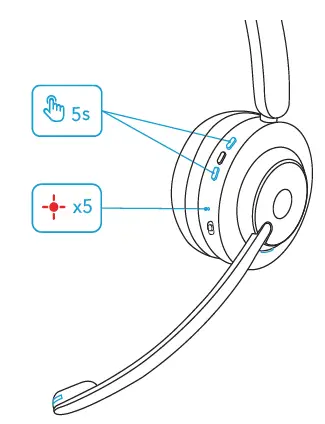
You might need to reset the headset if you experience any connectivity problems or function issues. Delete the pairing history from your Bluetooth device first. Press the volume up button and the volume down button simultaneously for 5 seconds until the power light flashes red five times.
LED LIGHT GUIDE
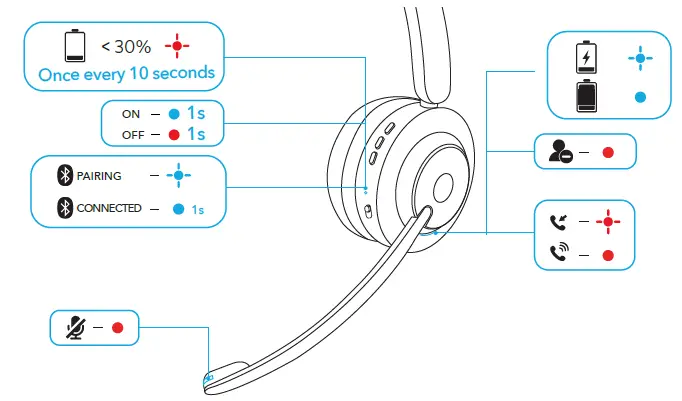
- Steady blue
- Flashing blue
- Steady red
- Flashing red
FIRMWARE UPDATE
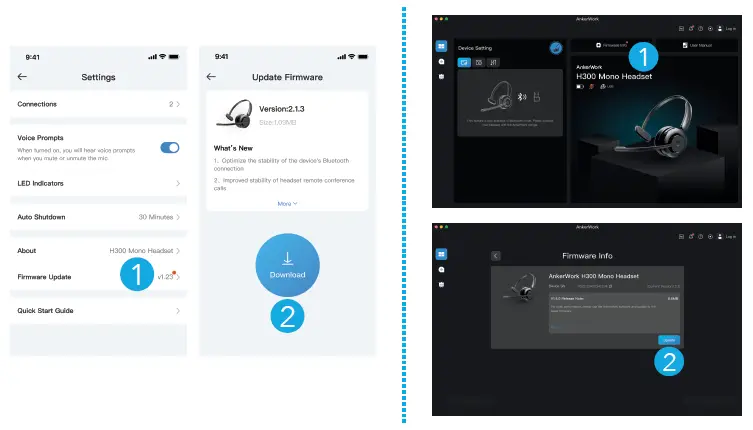
Check for firmware updates by connecting your headset to the AnkerWork app or PC software. Ensure the headset is powered on and connected to a device until the firmware update is completed. During the update, avoid using the headset and stay connected to the Internet.
Note:
- macOS devices do not support headset firmware update. Please use the mobile app to update.
- When updating on a Windows device, the headset has to connect to the device with a USB-C cable.
- You can update the dongle firmware on both Windows and macOS devices.
SPECS
Specifications are subject to change without notice.
| Input | 5 V 0.75 A |
| Rated output power | 2.5 mW |
| Battery capacity | 770 mAh |
| Charging time | Up to 2 hours |
| Talk time | Up to 60 hours |
| Playtime (varies by volume level and content) | Up to 100 hours |
| Driver size | 32 mm |
| Frequency response | 20 Hz – 20 kHz |
| Impedance | 16 Ω |
| Bluetooth version | 5.1 |
| Bluetooth range | 10 m / 30 ft |
 AnkerWork Software Download Center