 roadprobrands
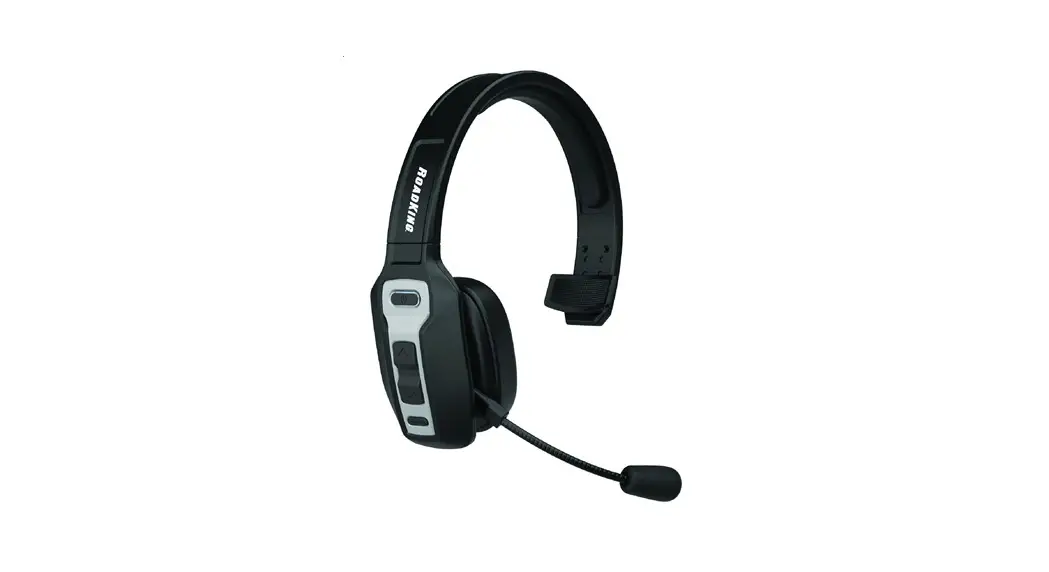
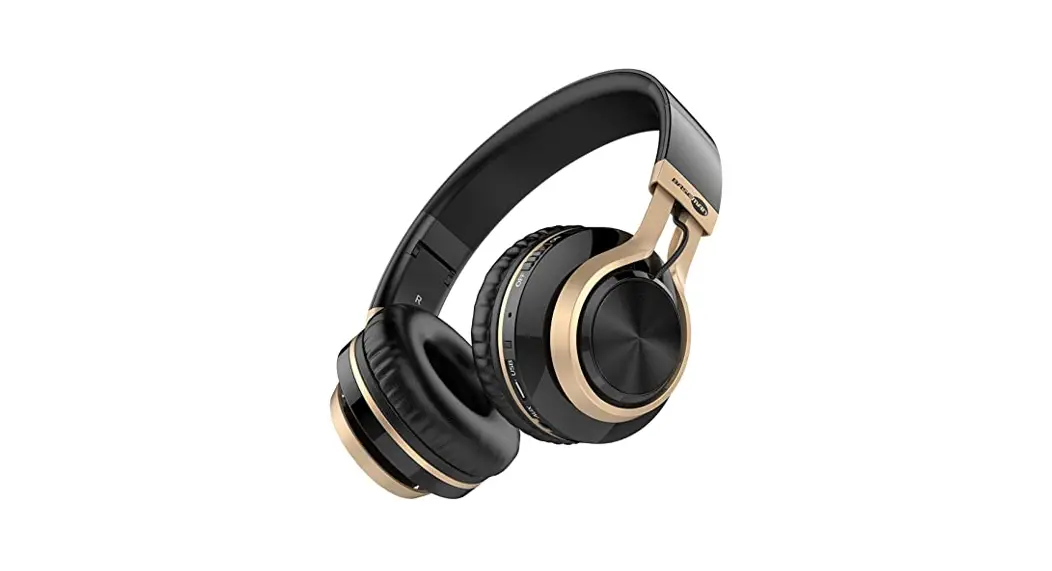
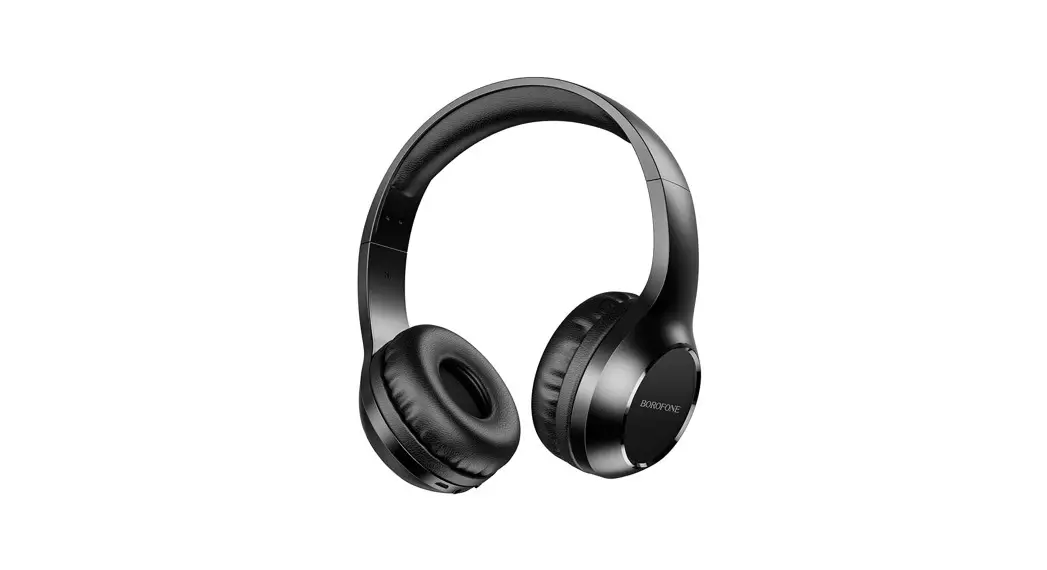
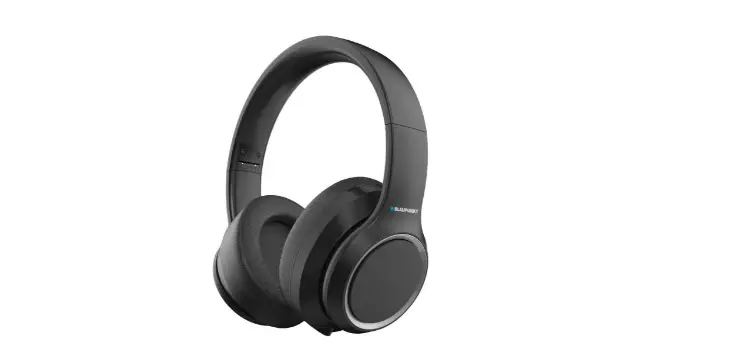
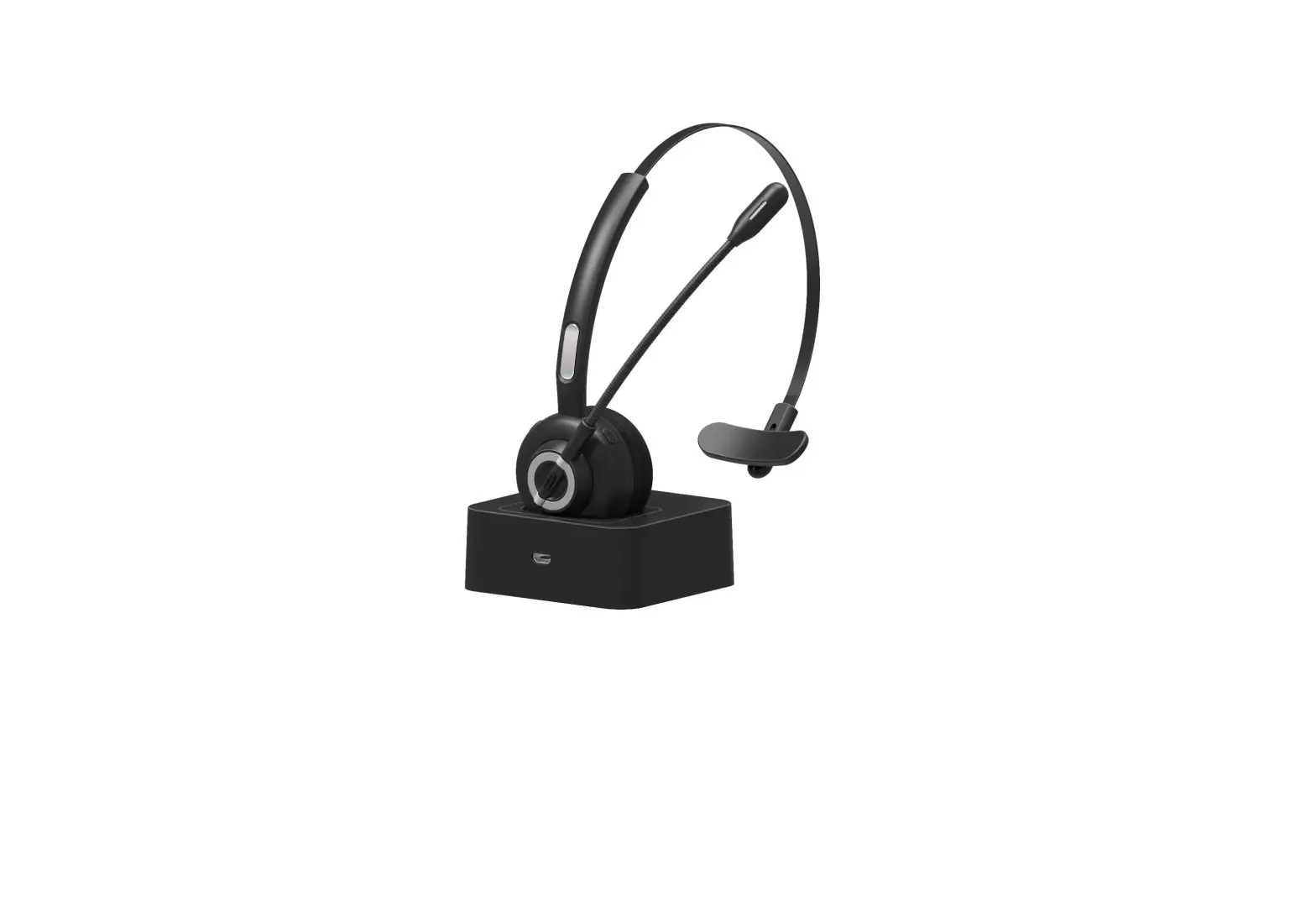
RKING4000 Bluetooth Headset
User Manual 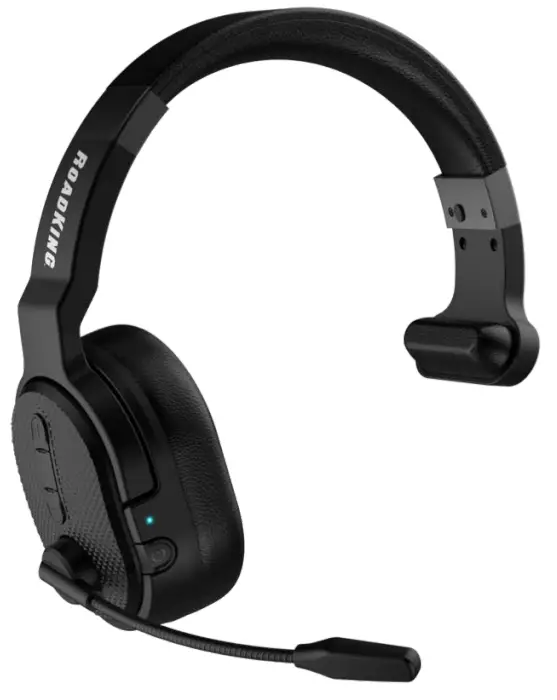
RKING4000
Premium Convertible
Bluetooth® Headset
Product Overview
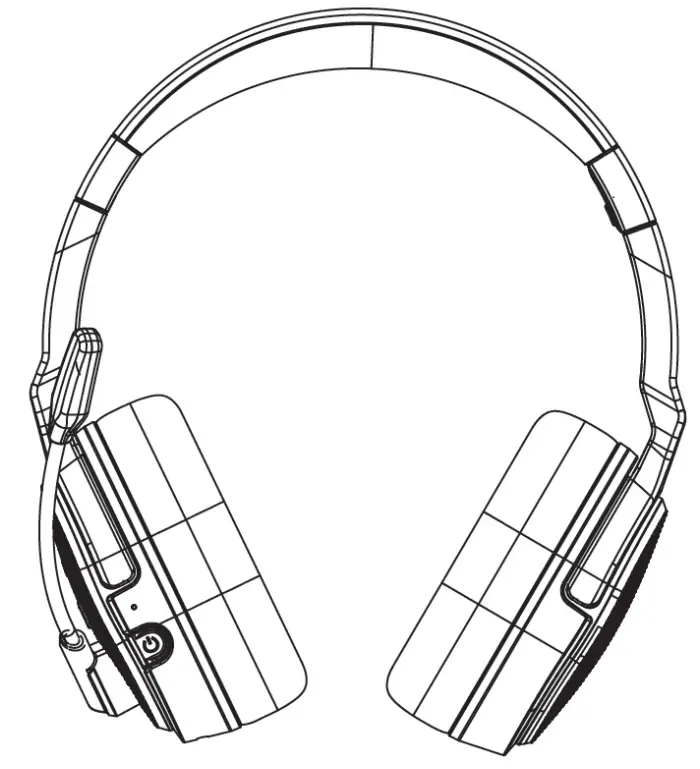
Package Contents:
A. Bluetooth headset RKING4000 x 1
B. Type-C® charging cable x 1
C. User manual x 1
D. Car charger x 1
E. Sponge microphone cover x 1
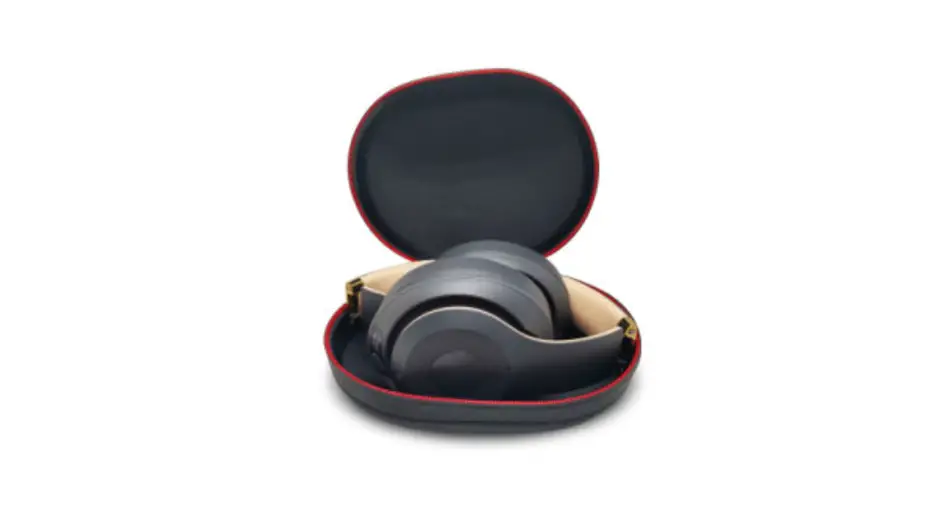
F. Drawstring bag x 1
Basic Operation
Button | Function | Operation Instructions |
| MFB | Power on | When the device is off, press and hold the Multi-Function Button (MFB) for 2 seconds to power on. The power-on prompt tone is “Power on”. |
| Power off | When the device is on, press and hold the MFB for 3 seconds to power off. The power-off prompt tone is “Power off”. | |
| Enter pairing mode | Turn on your phone’s Bluetooth and click “RK4000” to pair to the headset. After a few seconds, a tone will indicate that the pairing was successful. The LED turns to blue and blinks slowly (the blue light blinks once for 10 seconds). | |
| Play / Pause | When playing music, press the MFB to pause/play music. | |
| Redial a call | Double-click the MFB to dial the last call. | |
| Voice dial | Press and hold the MFB for 1 second, then release. | |
| Audio switch | When on a call, hold down the MFB for 2 seconds to switch the audio between the phone and Bluetooth headset. | |
| Three-way calling | A. When an incoming call occurs during a call, press the MFB to answer the new call and hang up the current call. B. Double-click the MFB to answer an incoming call and put the current call on hold. C. Press and hold the MFB for 2 seconds to keep the current call and reject the new call. D. In a three-way call, double-click the multi-function key to switch between the current call and the call on hold. | |
| Answer a call | Click the MFB when a call is coming in. | |
| End a call | To end a call, click the MFB. | |
| Reject a call | To reject an incoming call, press and hold down the MFB for 1 second to reject the call. | |
| Volume + | Volume up | When talking or playing music, click the Volume + button to increase volume. |
| Next song | When playing music, press and hold the Volume + button for 1 second to skip to the next song. | |
| Volume – | Volume down | When talking or playing music, click the Volume – button to decrease the volume. |
| Previous song | When playing music, press and hold the Volume – button for 1 second to skip to the previous song. | |
| Mute | Microphone mute | During a call, click the Mute button to mute your microphone. Click the Mute button again to turn off the mute. |
Bluetooth Pairing and Connection
A. In off status, press and hold the Multi-Function Button (MFB) for two seconds. After the headset is powered on, the red and blue lights will flash alternately.
B. Turn on the Bluetooth of your mobile phone and look for “RK4000”. Once it appears, click to pair with the headset. After the connection is successful, the LED light will turn blue and blink slowly.
C. You can use the Multi-Function Button (MFB), Volume + button, and Volume – button on the Bluetooth headset to control phone calls, music, volume, and more.
Connection with Two Devices
A. The mobile phones connected to “RK4000” are divided into A and B;
B. To connect phone A, hold down the MFB for 2 seconds to power on the headset, light will flash red and blue alternately. Enter pairing mode, by turning on the Bluetooth function of phone A. Search for “RK4000” and click to connect. After the connection is successful, turn off the Bluetooth function of phone A, and the headset will enter the pairing state again.
C. Use phone B to pair with the headset by following the same method as phone A. After the pairing is successful, turn on the Bluetooth function of phone A and click “RK4000” to connect. (Some mobile phones may have an automatic connection function.)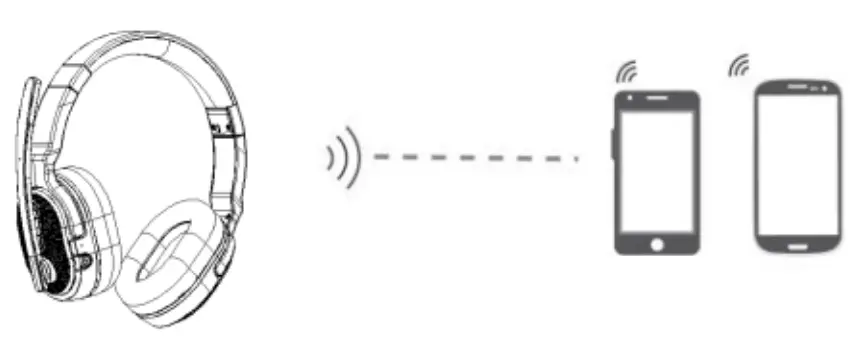 Note: Music can only be played from one phone at a time. When you want to play music from the other phone, you will need to pause or close the music of the previous phone. The same applies during talking status.
LED Indicator
Mode | LED Indicator |
| Power on | The blue LED light flashes for 2 seconds |
| Power off | The red LED light flashes for 2 seconds |
| Pairing mode | The red & blue LED lights flash alternately |
| Connected standby mode | The blue LED light flashes once every 10 seconds |
| Playing music | The blue LED light flashes once every 10 seconds |
| Talking | The blue LED light flashes once every 10 seconds |
| Delete paired record | The red & blue LED light lights up for 1 second |
| Charging | The red LED light will turn on |
| Full charge | The red LED light turns off, and blue LED light turns on |
| Low battery | The red LED light will flash |
Charging
When the headset is low, the red light will blink. Please charge it immediately. About 2 hours after charging, when the red light is off and the blue light is on, the battery is fully charged.
Charge Connections
Connect to the headset through the Type-C connector of the Type-C charging cable.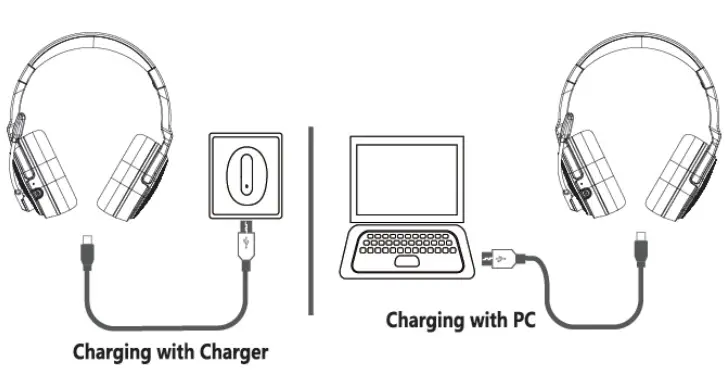 Plug the charging cable into a USB charging port, with a USB head connected to USB charger (car charger, travel charger, computer USB, etc.)
Note: Charge the RKING4000 at least once every two months when not in use.
Headset Voice Confirmation
Your headset will verbally confirm these conditions:
Power on……………………….
Pairing………………………………..
Paired……………………………………
Your headset is connected……………..
Your headset is disconnected…………….
Power off…………………………………………….
Mute on……………………………………………………
Mute off………………………………………………………..
Product Specifications
| Bluetooth Version | V5.0 |
| Bluetooth Chipset | QCC3024 |
| Operation Range | 32.8 feet |
| Bluetooth Protocols | HSPv1.2, HFP v1.6, A2DP v1.3, AVRCPv1.5 |
| Charging Time | About 2 hours |
| Talking Time | About 33 hours (70% volume) |
| Working Time | About 35 hours (70% volume) |
| Headset Net Weight | .49 lbs |
| Headset Dimension | 7.77″ x 6.63″ x 2.69″ |
Actual use time will differ depending on the environment and music.
Notes and Q & A
Does a How-to reconnect when the connection fails?
Once the headset is connected to your mobile phone successfully, it will automatically connect to your phone every time you turn on the headset. If the connection fails, please connect to “RK4000” on your phone’s Bluetooth again.
B. How to delete paired records?
Press the MFB and Volume button at the same time for 5 seconds to clear the pairing record in the headset. If the pairing record is cleared, the connection cannot be called back, and you will need to repair the device.
C. What’s the password for the pairing?
Some connection devices require a password for pairing. Please try 0000, 8888, 1111, or 1234.
D. What devices can you use to charge the headset?
As long as the DC voltage meets a 5V current above 500mA, any car charger, travel charger, computer USB, etc., can be used to charge the RKING4000.
E. What if you can’t power on or connect?
You can try the charging reset method by plugging in the charging cable to charge the headset. To complete the reset, shutdown and restart the headset. If it still cannot be used normally, contact customer service or the manufacturer for technical support.
F. Why does the headset power off automatically?
The headset will turn off if there is no connection for over 10 minutes or the battery voltage is less than 3.1V.
G. How does a three-way call work?
- Press the Multi-Function Button (MFB) to answer a new call and hang up the current call.
- Double-click the MFB to answer the new call and put the current call on hold.
- Press and hold the MFB for 2 seconds to keep the current call and reject the new call.
- In a three-way call, double-click the MFB to switch between the current call and the call on hold.
ONE-YEAR LIMITED WARRANTY
For support, product, and warranty information, please visit www.roadprobrands.com
RoadKing® and RoadPro® have registered trademarks owned by DAS Brands, LLC, and its affiliated companies. The BLUETOOTH® word mark and logos are registered trademarks owned by Bluetooth SIG, Inc. and any use of such marks by DAS Companies, Inc. is under license. All other trademarks, registered trademarks, copyrights, and logos are the property of their respective owners. ©2022 DAS Companies, Inc. and/or affiliates.
 RoadPro Family of Brands