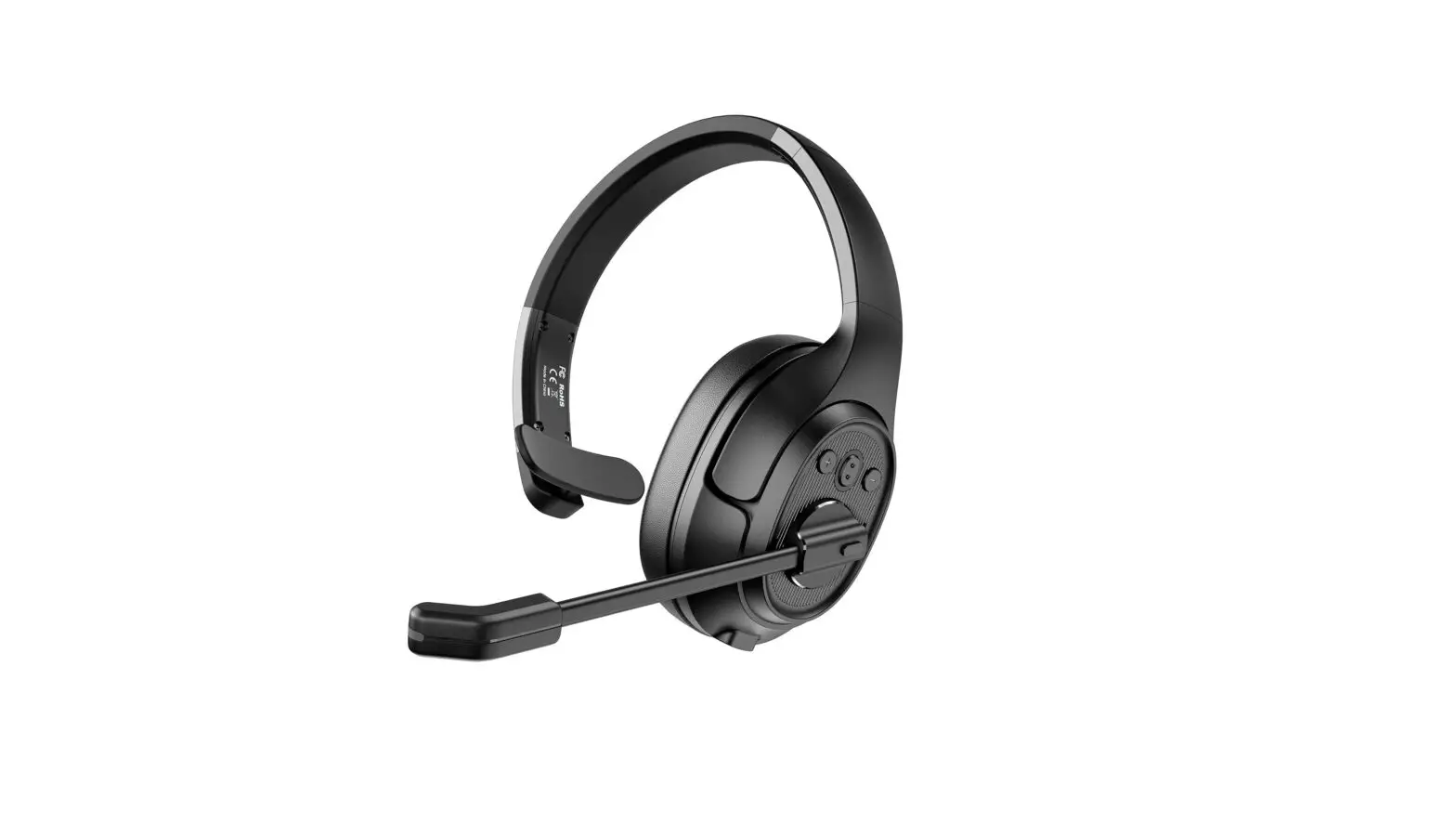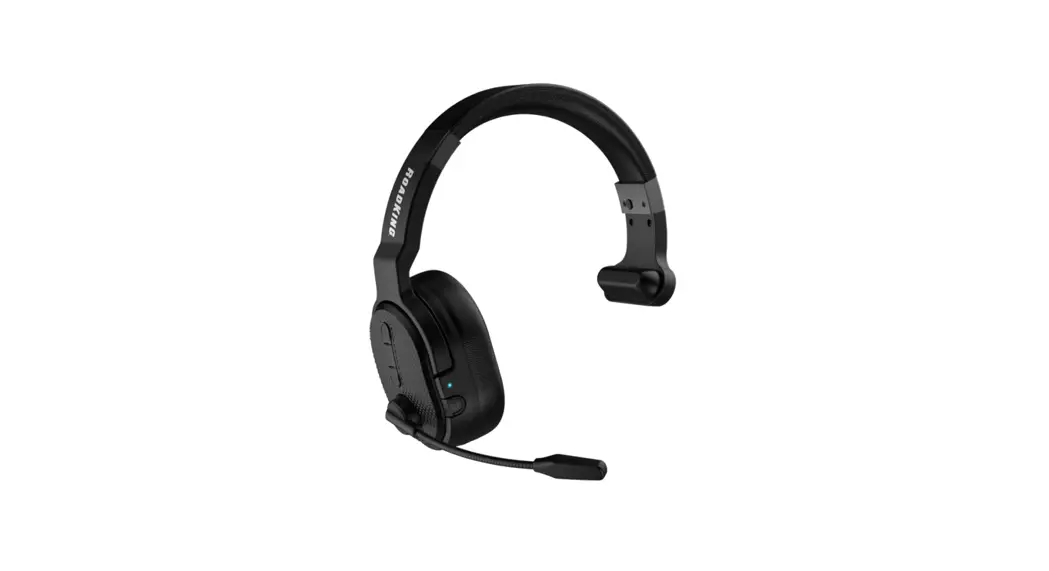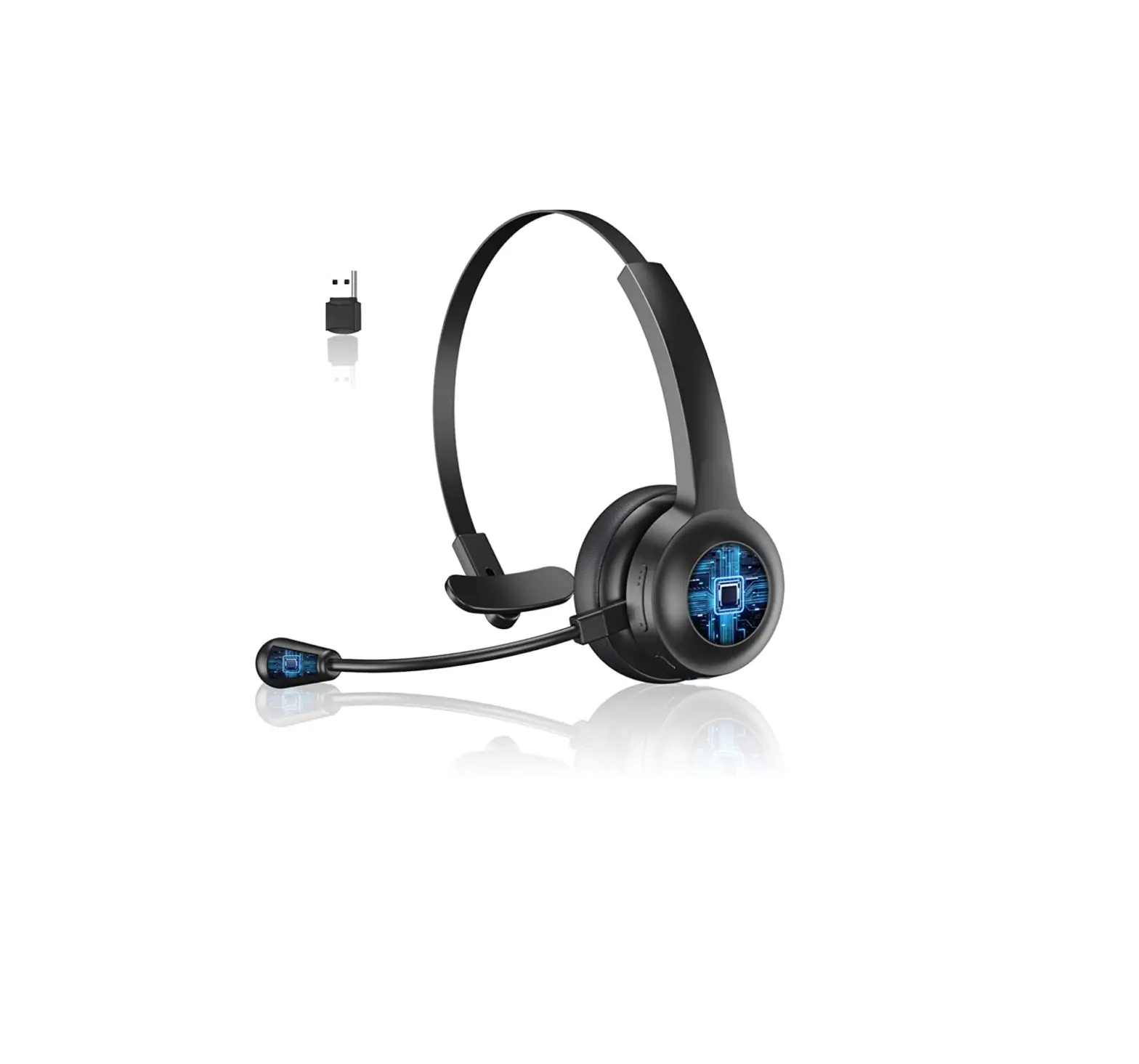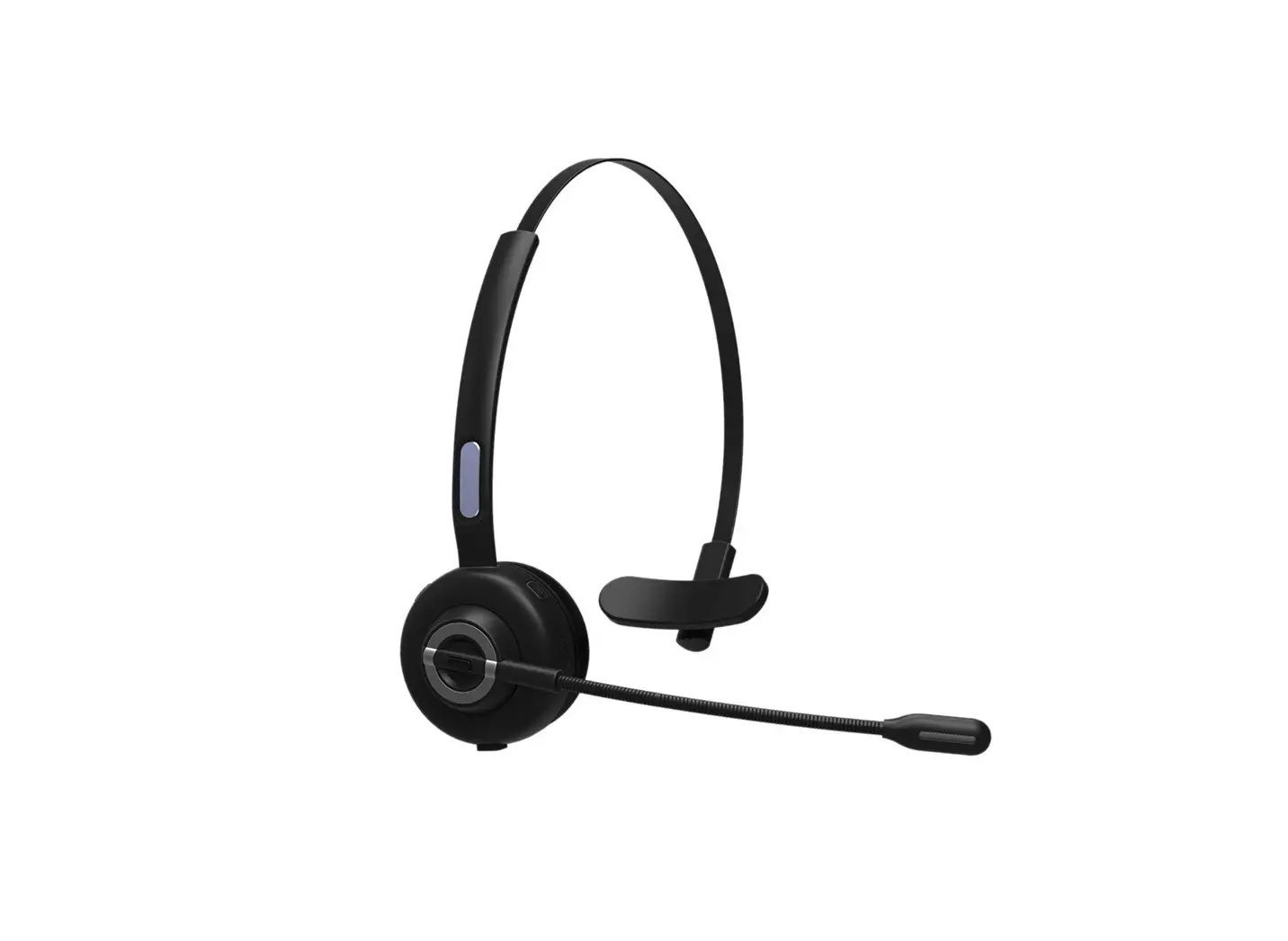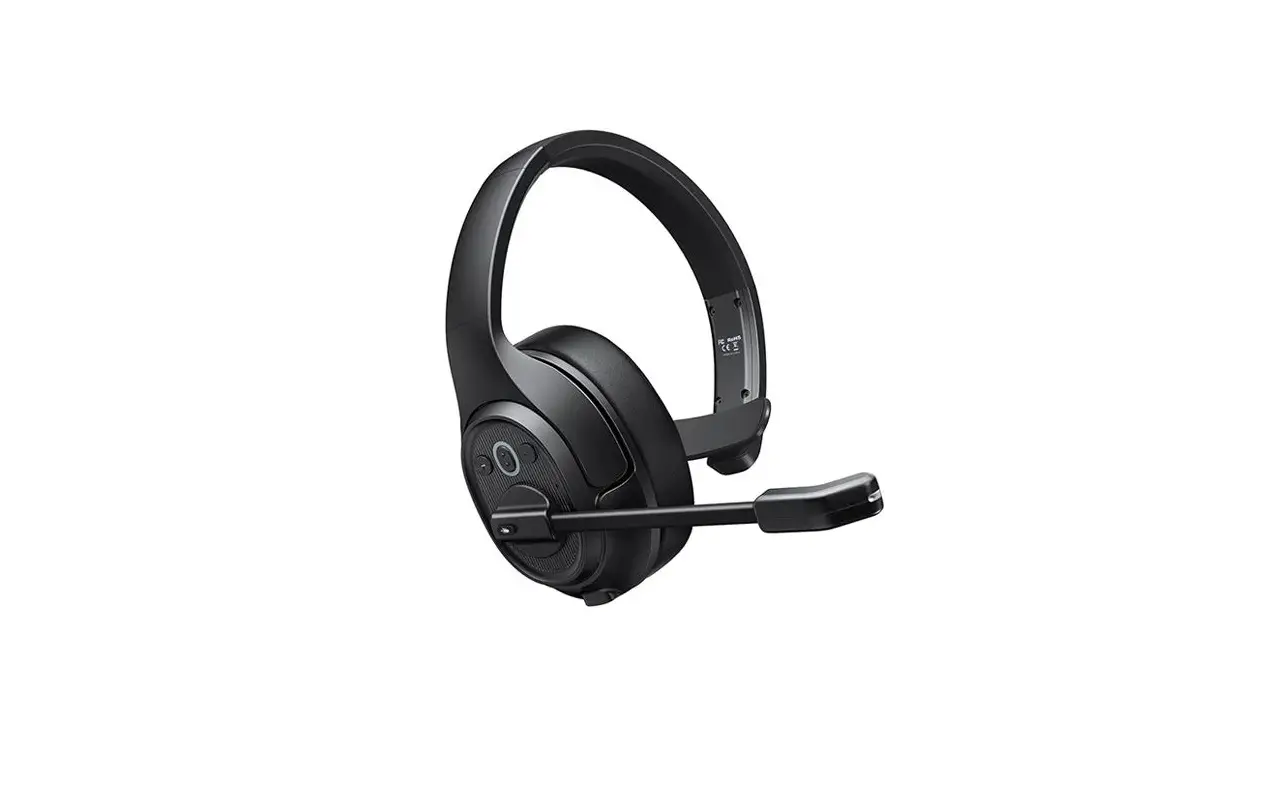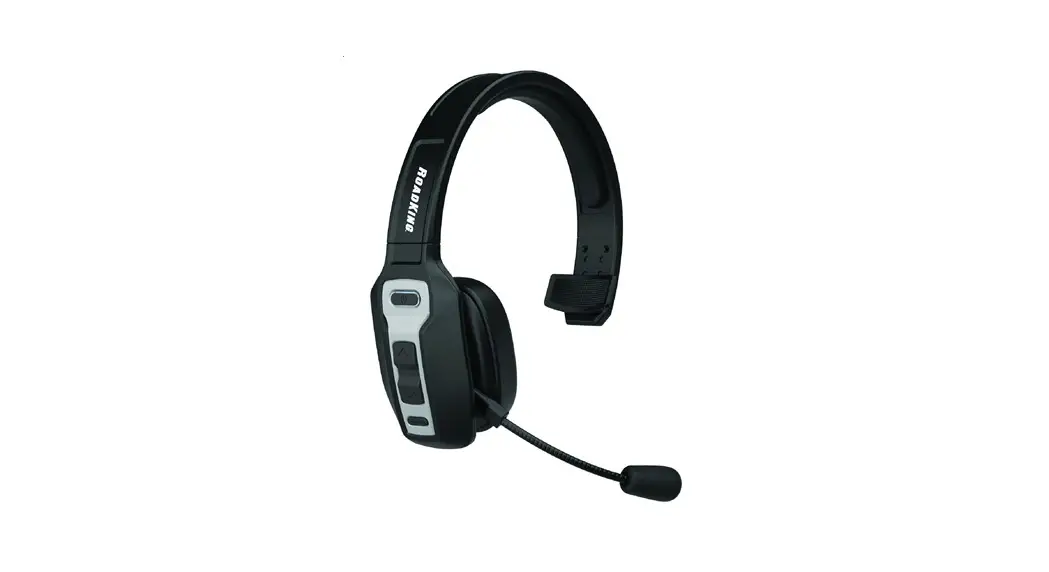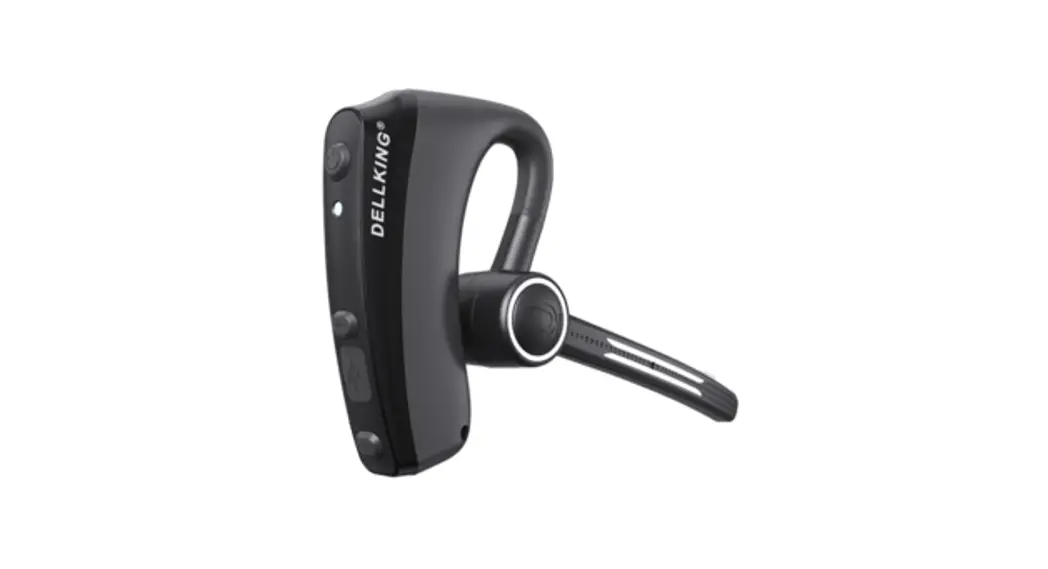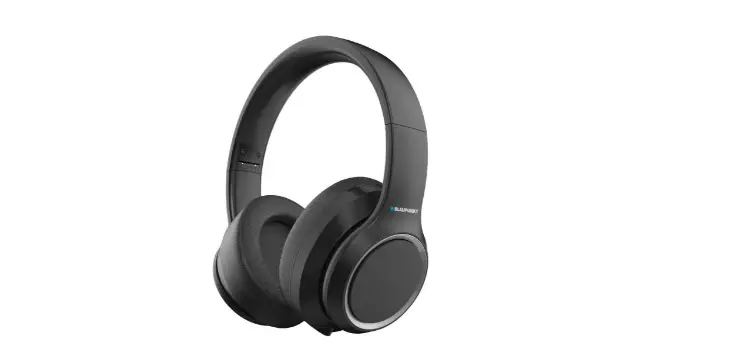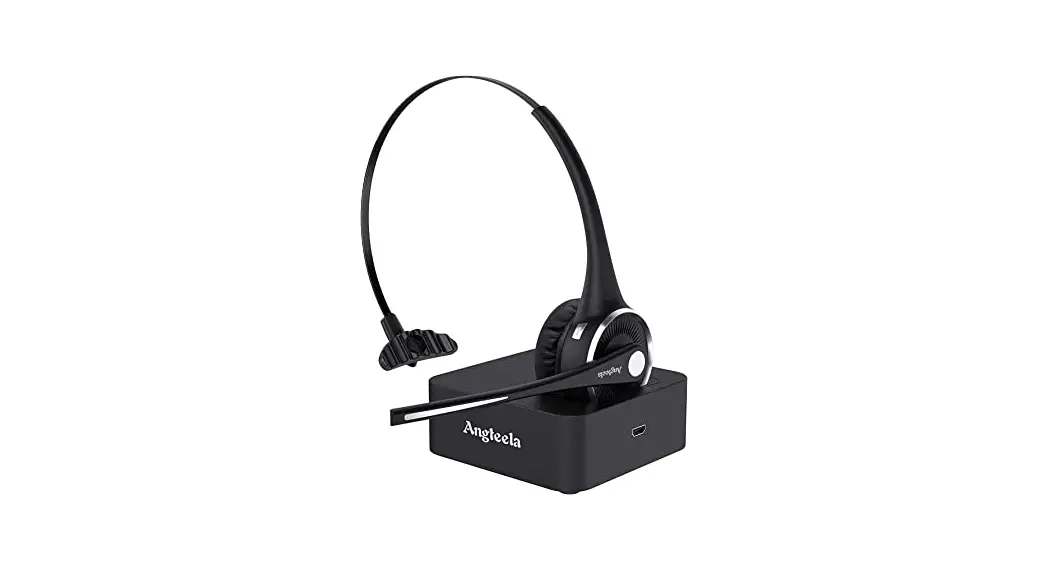

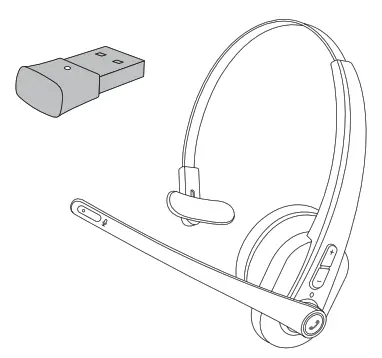
EP-BH100 & PC Adapter
Pairing Instruction
When using EP-BH100 Wireless Mono Headset on PC, it is recommended to connect via the included USB Wireless Dongle.
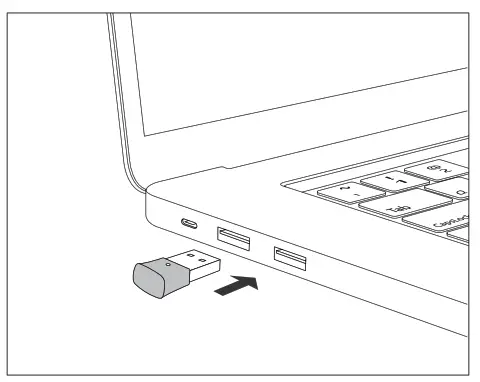
Activate USB Wireless Dongle
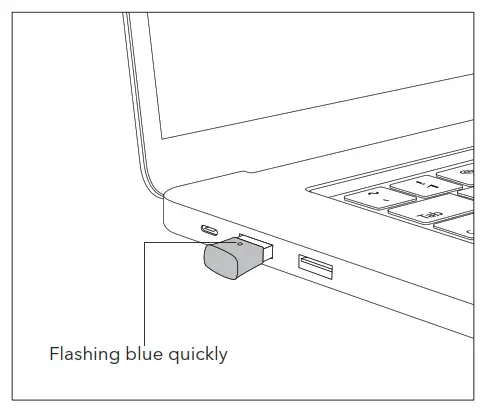
- Plug the Wireless Dongle into a USB port on your computer, it will be turned on automatically.

- Once turned on, the indicator on the Dongle will flash quickly in blue indicating it is in pairing mode now.

Initial Pairing EP-BH100 with Wireless Dongle
Before pairing, please disable the Bluetooth function on your phone/computer previously connected with EP-BH100.
- Press and hold the Multifunction Button on EP-BH100 for 3 seconds to bring the headset into Auto Re-pairing mode with the LED indicator flashing blue.
- Dongle will connect with the headset automatically.
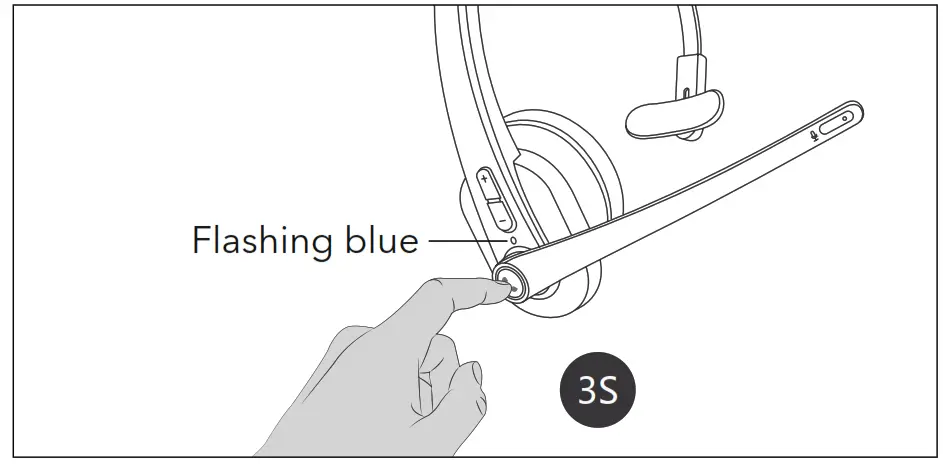
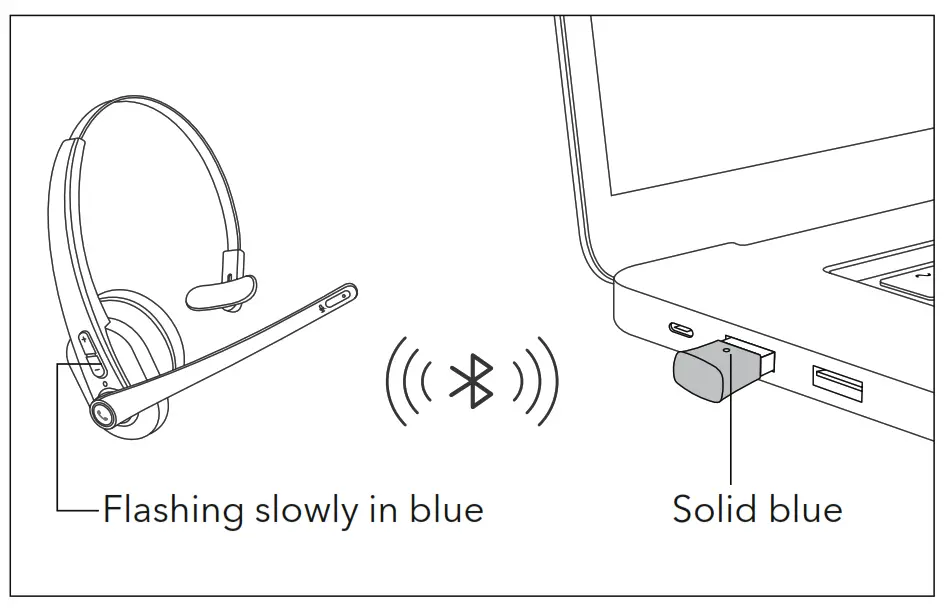
Once connected, the indicator on the Dongle will stay solid blue. The indicator on the headset will flash blue.
Automatic Re-pairing
EP-BH100 can remember the Dongle paired previously. After being paired successfully for the first time, make sure the Wireless Dongle is plugged in the computer first and then turn on EP-BH100.
Using Headset with Dongle and Phone/Computer for Calls
Your EP-BH100 headset can be used with Dongle and your phone/computer at a time.
- Make sure the Dongle is plugged in and the Bluetooth function on your phone/ computer is enabled before turning on EP-BH100.
- Music will be played via the Dongle. Your phone/ computer is for calls.
Troubleshooting
– A :Try another USB port. After being plugged in, the Dongle will power on automatically and the indicator flashes blue quickly.
– A :Please make sure the Wireless Dongle is in pairing mode and EP-BH100 is in auto re-pairing mode, and wait them to pair automatically.
– A :Please make sure you plug in the Dongle first and then turn on EP-BH100.
– A: Check if your headset is used with Dongle and your phone/computer at the same time. If yes, music can be played via the Dongle only.