
Quick Start Guide – Friends of Hue
Indoor Switch
You can now invest in our company with a little as 250$
Get Started
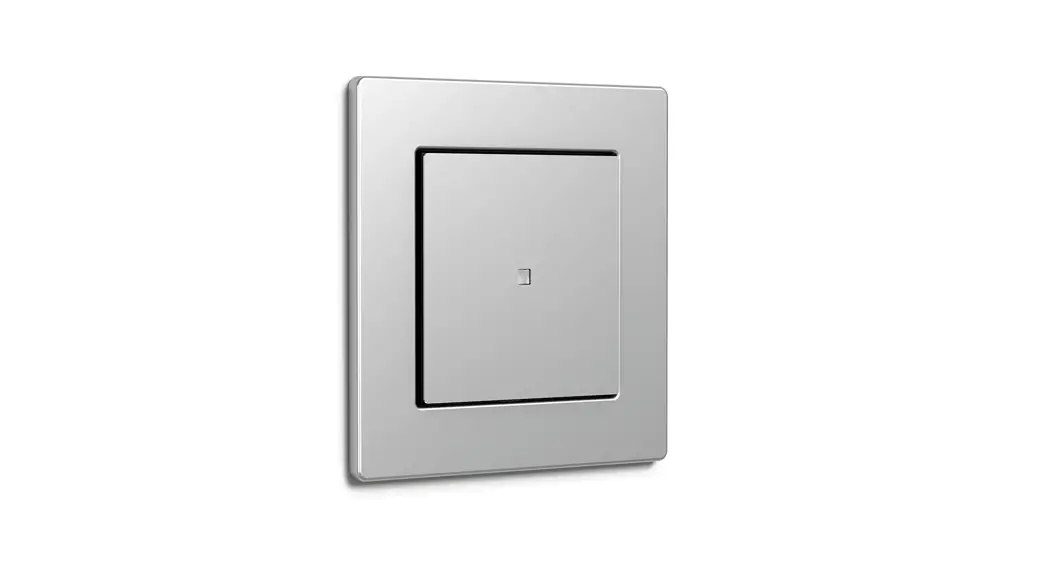
Hey there! Thank you for choosing our smart switch. In order to set up the Friends of Hue Smart Switch by Senic and Gira, please open the Philips Hue App and follow these steps:
- Click on Settings in the bottom menu
- Select Accessory Setup
- Select Add Accessory
- Select Friends of Hue Switch
- Select Senic Friends of Hue Switch
After doing this, please follow the instructions in the app to pair your switch with Philips Hue System.


Mounting
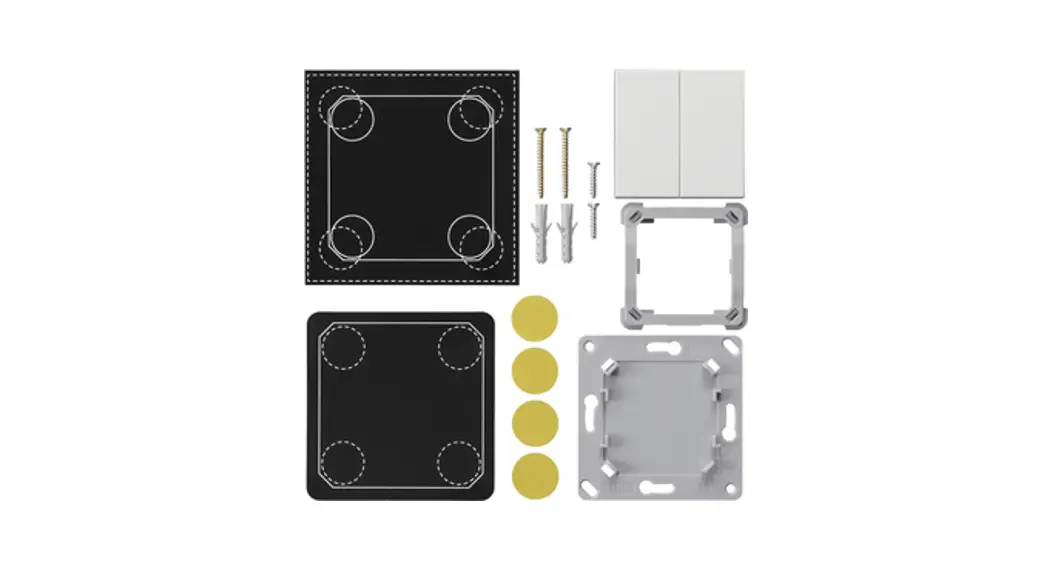
Mounting using sticky dots
- Choose a location
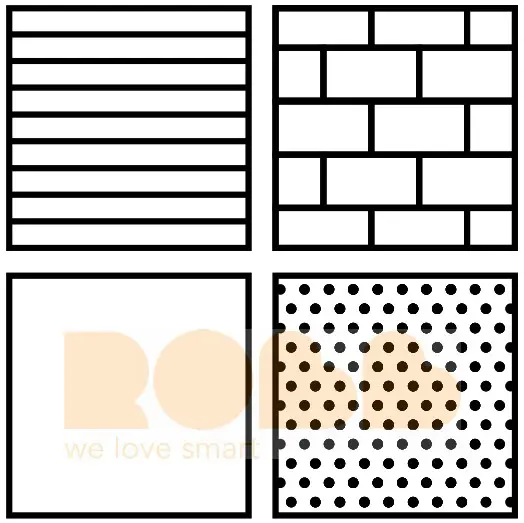
You can mount the switch on most indoor wall surfaces (e.g. glass, wood, tiles, flat paper wall). To do so, first choose a clean and dry location.
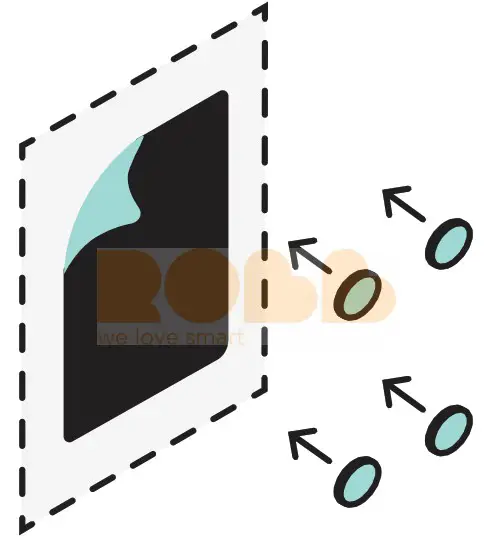
- Place black foil onto the wall
Peel off the white backside and place the foil exactly where you want your Friends of Hue Switch. This foil is made from a special material so it doesn’t damage your wall. - Place sticky dots on black foil
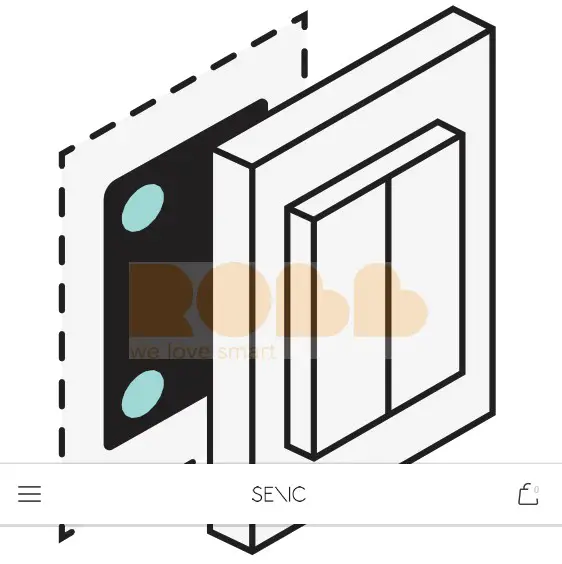
Apply an adhesive dot to each of the designated corners of the black foil.

- Place switch on top of sticky dots
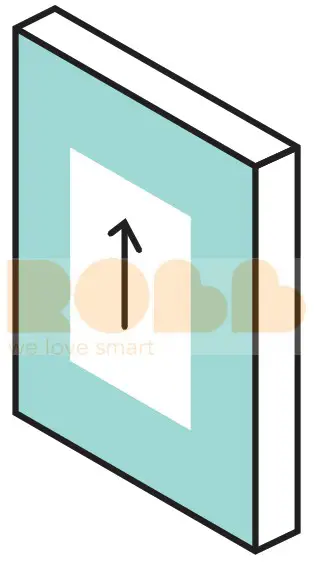
Important: Before placing the switch onto the sticky dots, make sure that the arrow on the back is facing upwards.
Line up your Friends of Hue Switch with the foil, making sure your Friends of Hue Switch is facing the right direction and is leveled out.
Single Rocker Installation*
* YOU MUST PAIR THE SMART SWITCH WITH THE PHILIPS HUE APP USING THE DOUBLE ROCKERS BEFORE REPLACING THEM WITH THE SINGLE ROCKER
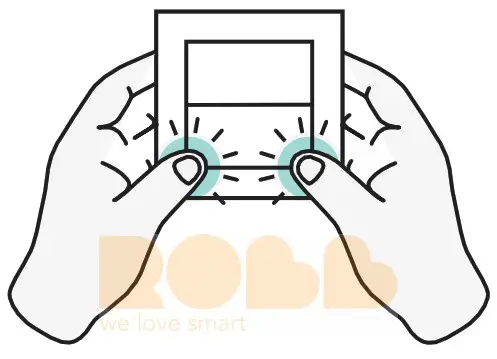
- Remove double rockers
Firmly press on the outer edge of both single rockers so the rockers pop out.
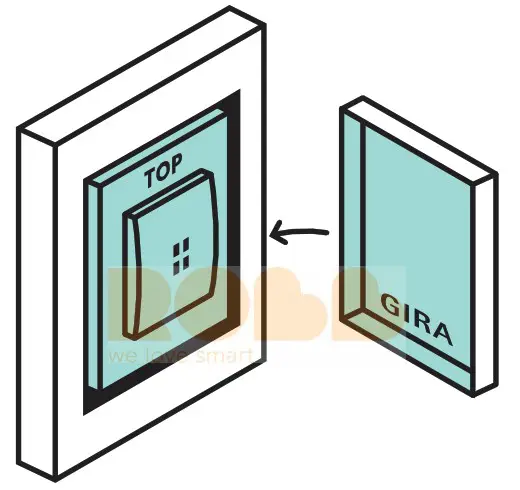
- Align switch & single rocker
Make sure to align the switch so you can read Top on the inside of the switch and Gira on the inside of the single rocker.
- Install single rocker
Firmly press on the center of the switch with both thumbs until the rocker pops into position.
- Setup in Hue App
Inside the Philips Hue App, you will still see the double rocker setup as before. Only the right side of the switch will now trigger actions like On/Off or Dimming.

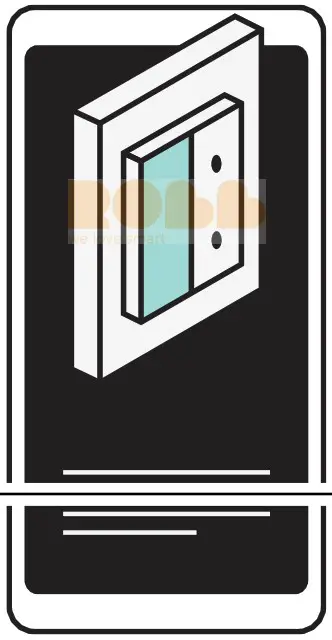
PLEASE KEEP THE DOUBLE ROCKERS IN A SAFE PLACE IN CASE YOU MAKE CHANGES TO YOUR SYSTEM.WITH THE SINGLE
ROCKER SETUP, YOU CAN ONLY USE ‘ON/OFF’ AND DIMMING FOR ONE ROOM.
Using the switch with Homekit
Via the Philips Hue Bridge (v2), you can also use the switch with any homekit compatible scene or device, including speakers like Sonos or Homepod, outdoor plugs or sprinklers.
You can follow the instructions in this video or take a look at our extensive tutorial including the video here.
Support & FAQ
Have thoughts, feedback or questions? You can always reach the Senic team directly at [email protected].
You can find our FAQ here.
Newsletter
Links
Languages
Currency
Copyright © 2022, Senic.