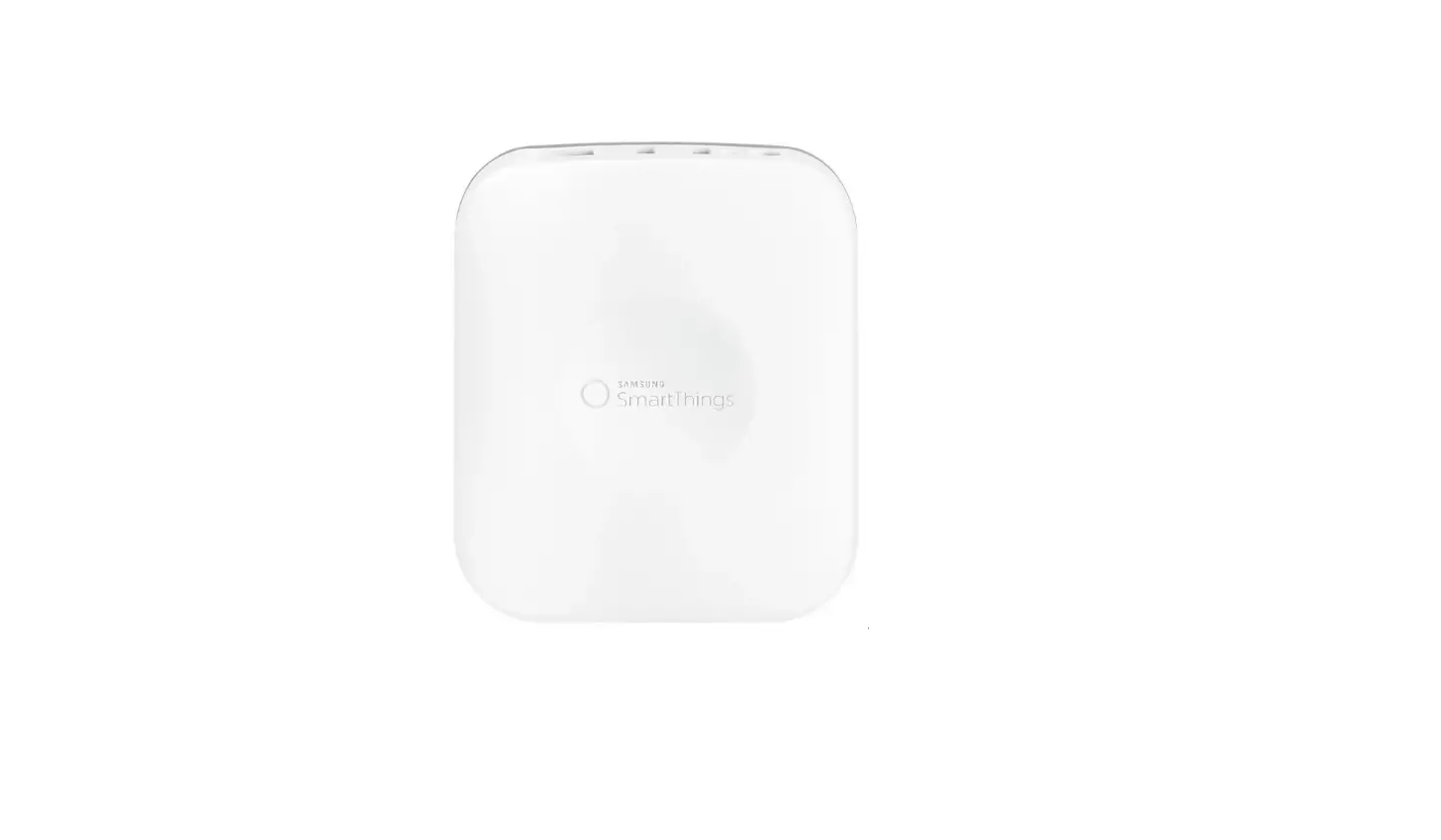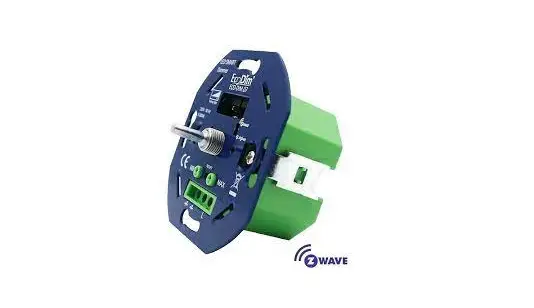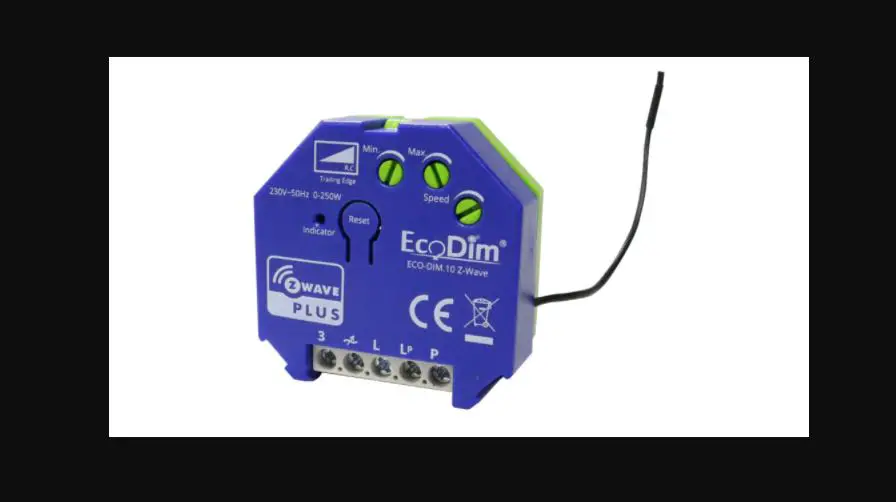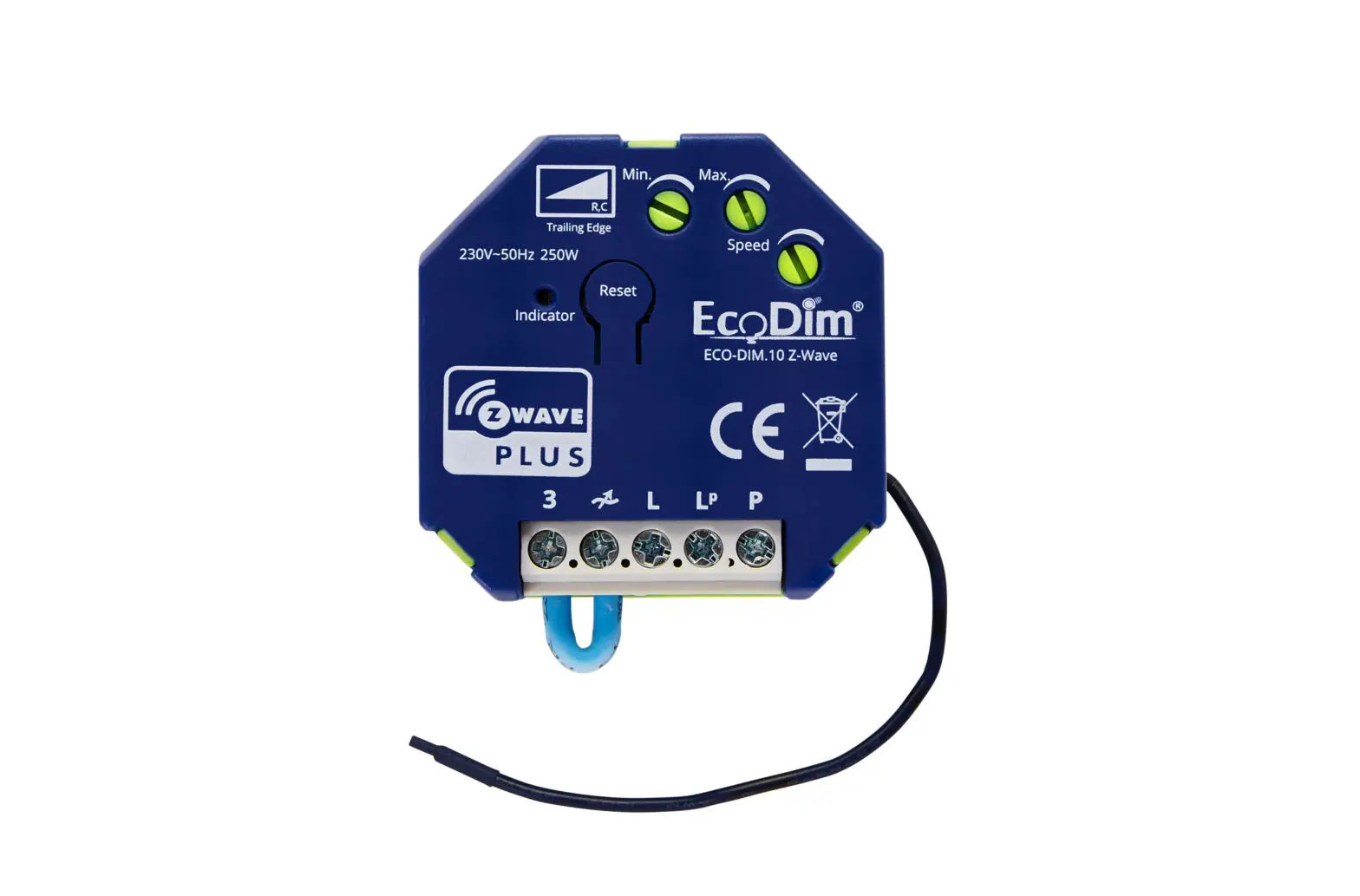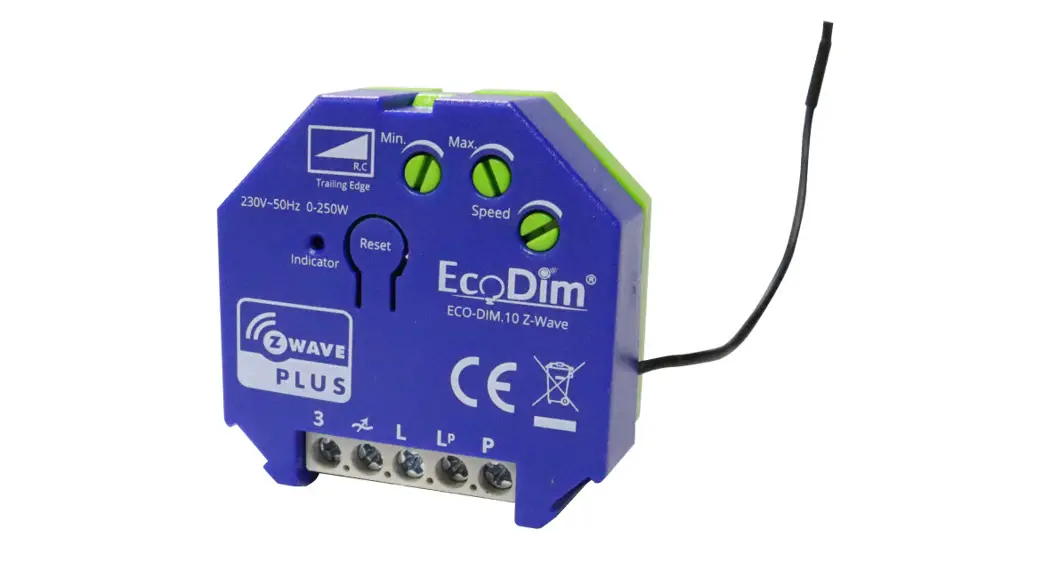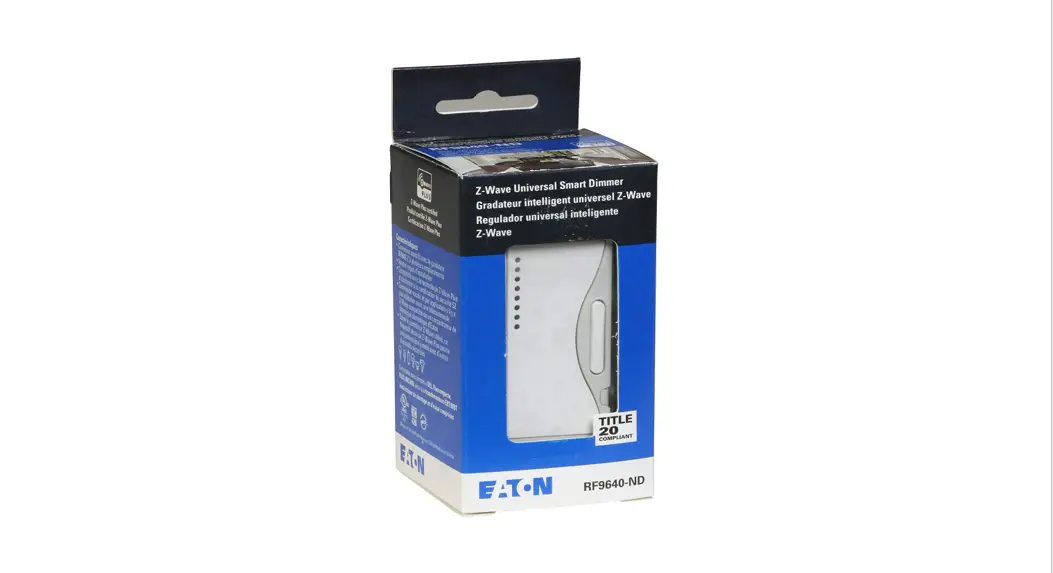
ECO-DIM.10 Z-Wave to Samsung Smartthings HUB

Connecting the ECO-DIM.10 Z-Wave to a Samsung Smartthings HUB
- Make sure you have a Samsung smarting’s hub and that you installed it correctly
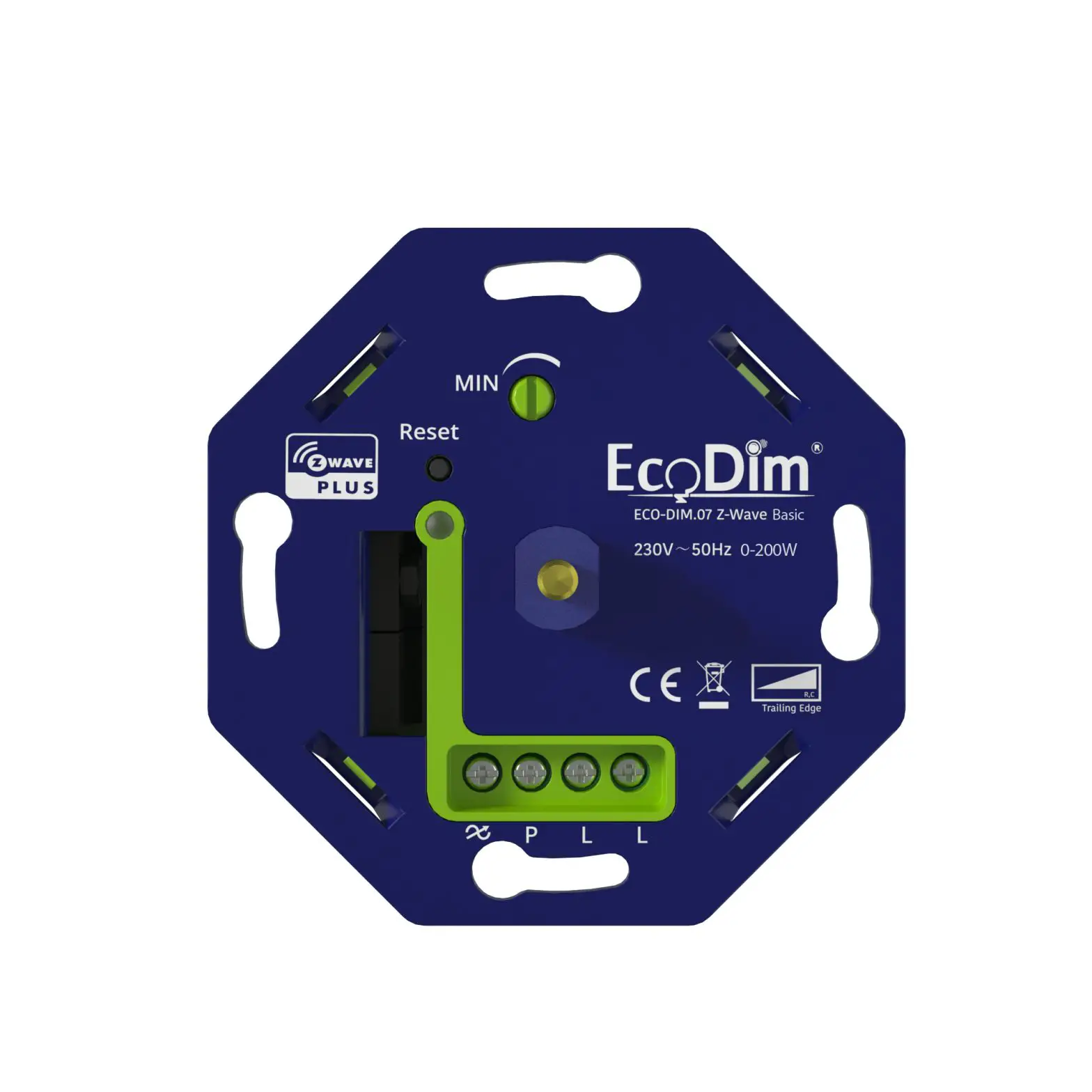
- Make sure that the ECO-DIM.10 Z-Wave is built-in and connected as described in the dimmer installation manual (included in the dimmer box)
- Make sure the dimmer is turned on (lights are on)
- If you have not yet installed the Samsung Smarting’s app, do so. You can download it for free in the Google Play Store or in the Apple App Store
- Create an account and link it to your Samsung Smarting’s Bridge
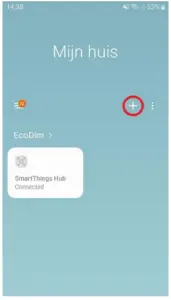
- Open the Samsung Smarting’s app and click on the “+” sign

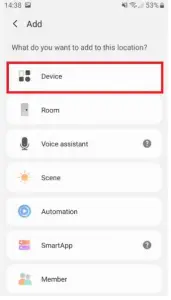
- Then click on “Device”
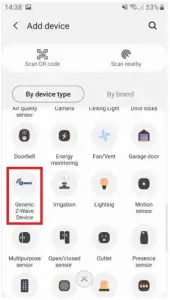
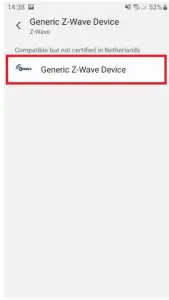
- Then click on “Generic Z-Wave Device” in the Samsung Smarting’s app

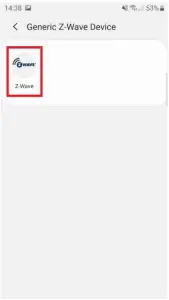
- Then click on “Z-Wave”

- Now click on “Generic Z-Wave Device”
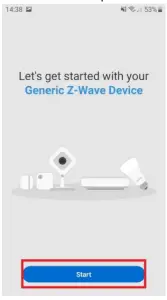
- In the next screen press “Start”

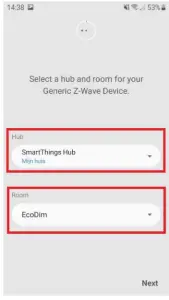
- Then choose on which Samsung Smarting’s HUB you want to install the ECO-DIM.10 Z-Wave and in which room it should be placed. Then click on “Next” at the bottom right
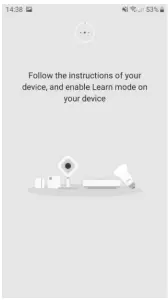
- Put the ECO-DIM.10 Z-Wave in pairing mode (refer to the supplied manual)

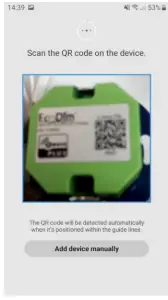
- The app will then ask you to scan the QR code on the device. You will find this on the back of the ECO-DIM.10 Z-Wave.
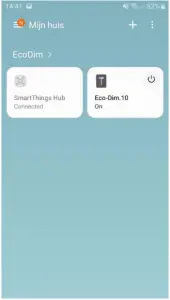
- After this you can give the device a name of your choice. When you return to the home page of the Samsung Smarting’s app you will see that the ECO-DIM.10 Z-Wave has been added directly to the chosen room.
- You have now completed the installation of the ECO-DIM.10 Z-Wave in the Samsung Smarting’s HUB!