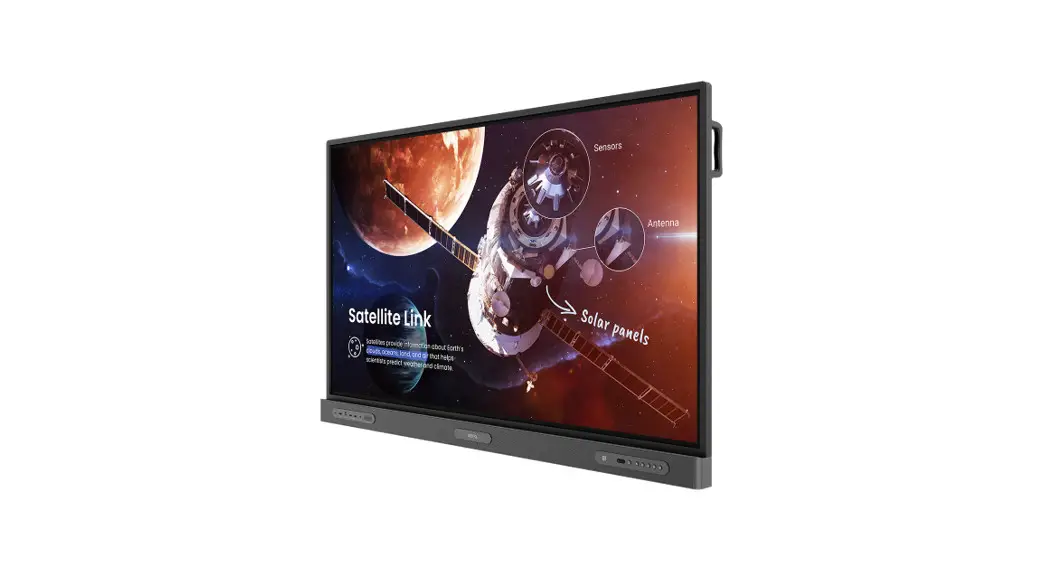
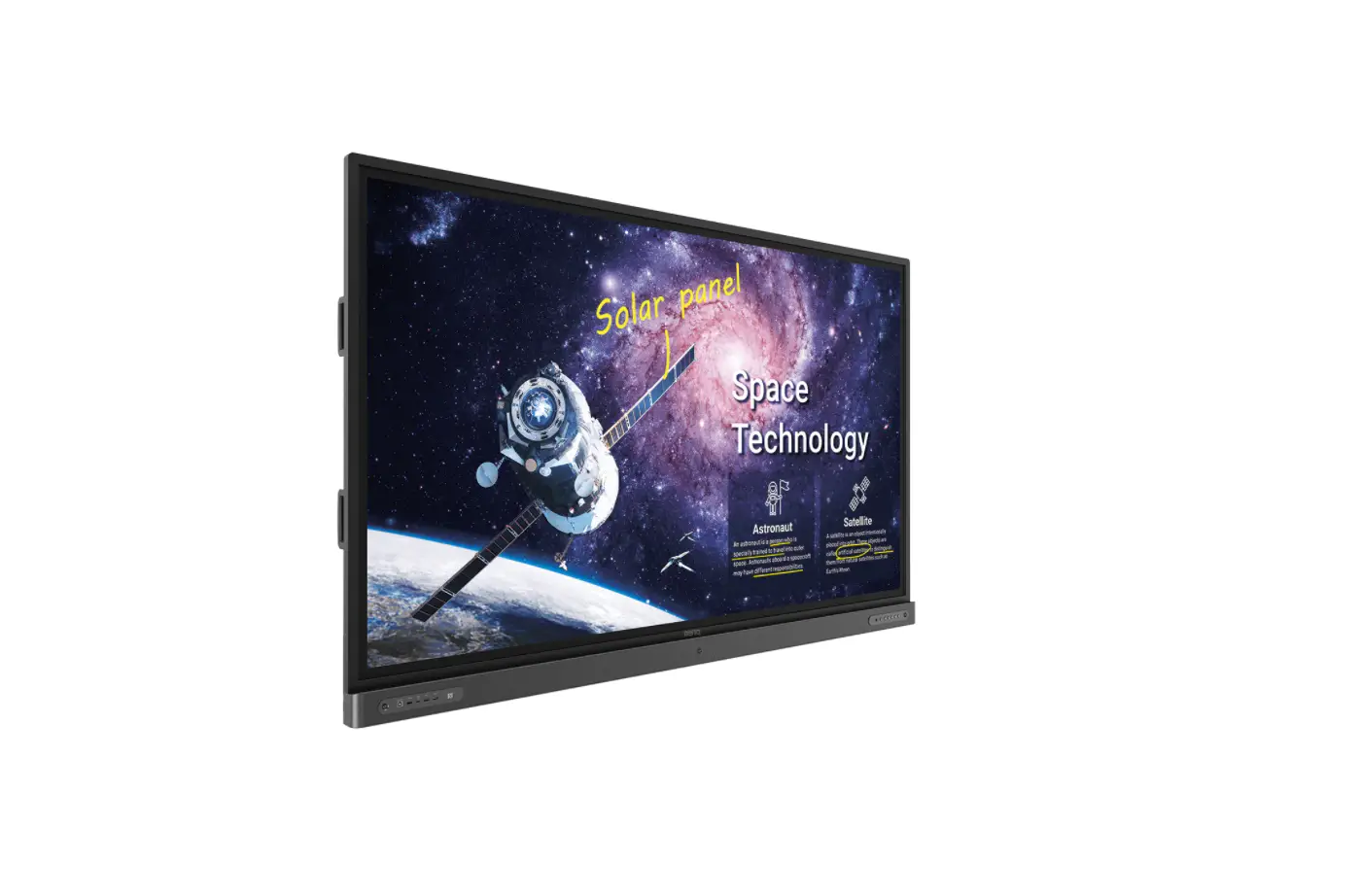
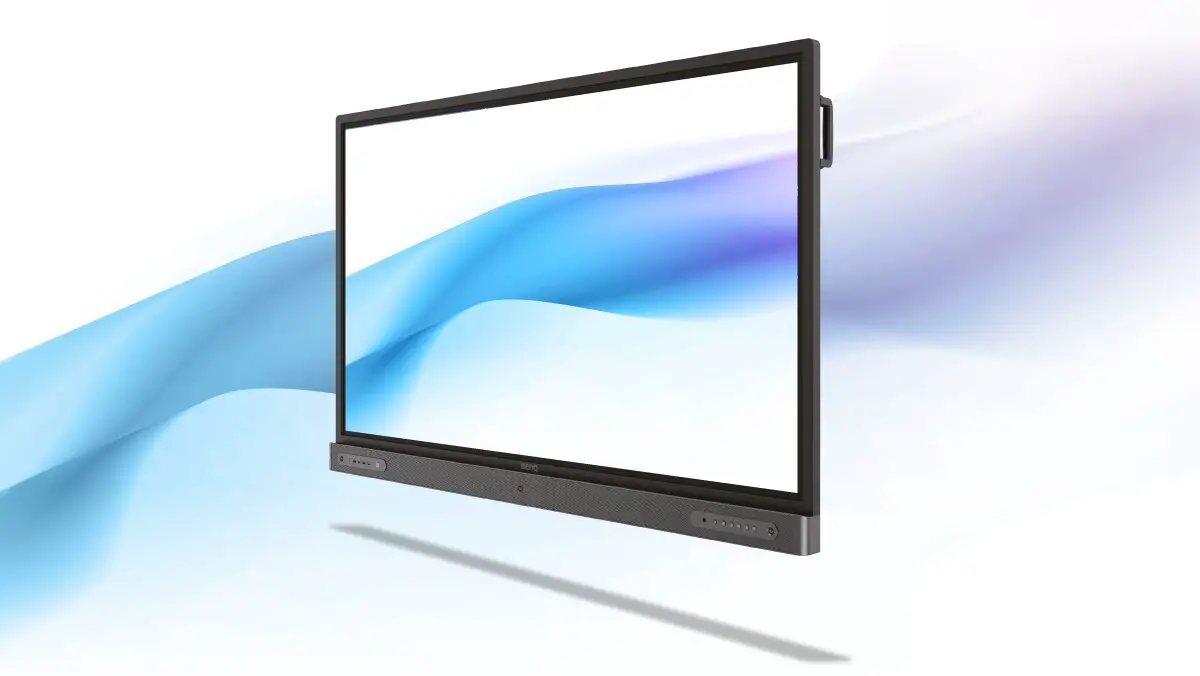
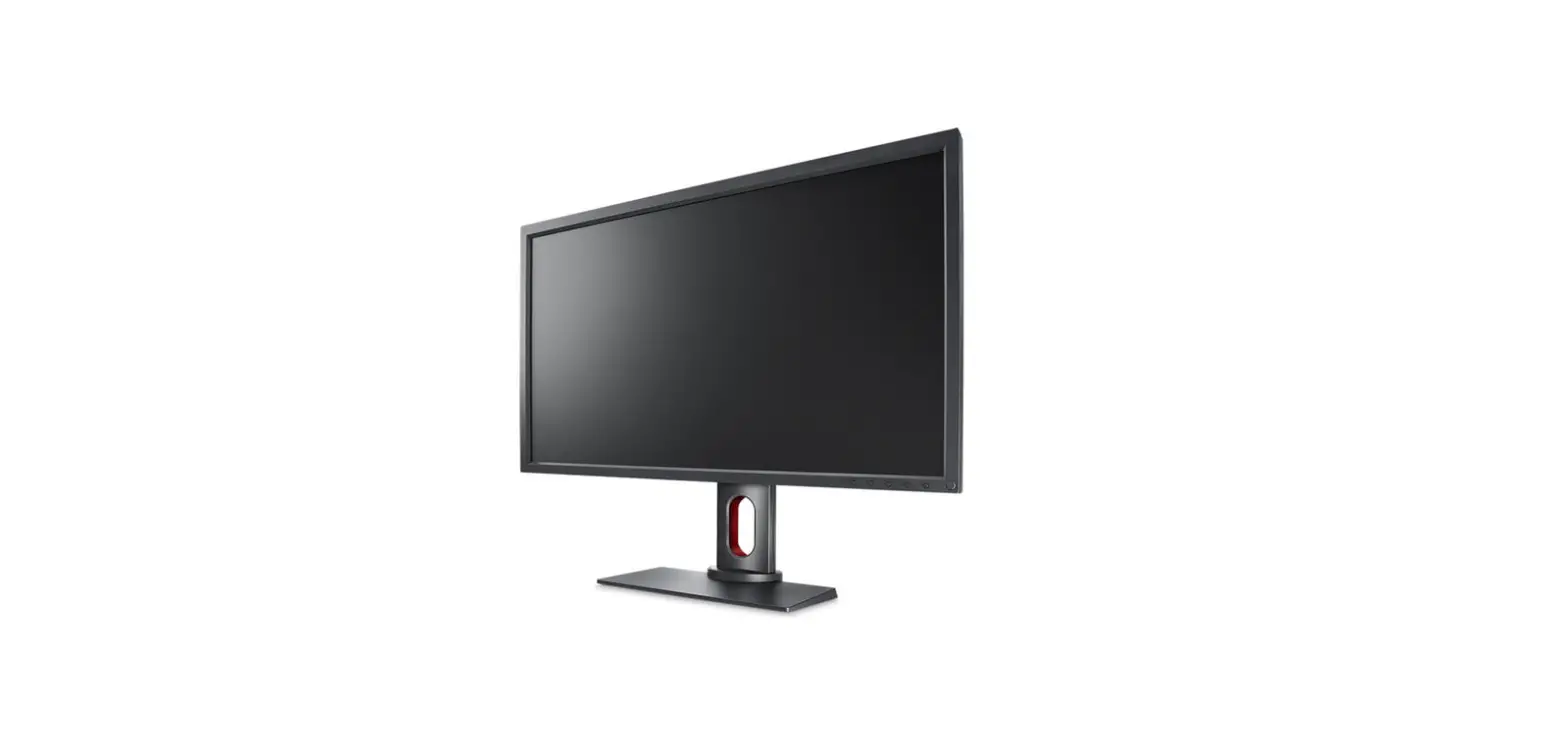
RP6503 Interactive Display
Product Information
| Model | Part Number | SKU | FW Version |
|---|---|---|---|
| RP6503 | 9H.F82TK.xxx | DE1, DP1, DA1, DN1, DC1, DT1, DE2, DP2, DA2, DN2, DC2, DT2 | v1.0.0.xx, v1.0.1.xx |
| RP7503 | 9H.F83TK.xxx | DE1, DP1, DA1, DN1, DC1, DT1, DE2, DP2, DA2, DN2, DC2, DT2 | v1.0.0.xx, v1.0.1.xx |
| RP8603 | 9H.F84TK.xxx | DE1, DP1, DA1, DN1, DC1, DT1, DE2, DP2, DA2, DN2, DC2, DT2 | v1.0.0.xx, v1.0.1.xx |
Product Usage Instructions
- Identify the Part Number of your display:
- If you cannot find the Part Number, provide the Serial Number
to local BenQ Support for assistance. - Check the last 3 digits of the Part Number based on the table
above to determine the corresponding firmware.
- If you cannot find the Part Number, provide the Serial Number
- Download the appropriate firmware based on the Part Number and
firmware version. - Select the type of firmware upgrade:
- OTA_FW: Upgrade the system firmware and keep
all user settings. - Image_FW: Upgrade the system firmware and
reset everything.
- OTA_FW: Upgrade the system firmware and keep
- Refer to the firmware upgrade SOP (Standard Operating
Procedure) found in the downloaded zip file for further
instructions.
Note: The last 2 digits of the firmware version will depend on
the current latest firmware.
Software/Firmware Version Information
| Model | Software Version 1 | Software Version 2 |
|---|---|---|
| RP6503 | v1.0.0.xx | v1.0.1.xx |
| RP7503 | v1.0.0.xx | v1.0.1.xx |
| RP8603 | v1.0.0.xx | v1.0.1.xx |
Refer to the 3rd digit of the software/firmware version to
download the corresponding firmware.
Instruction
Read me before downloading the firmware Apply BenQ Model: RP6503, RP7503, RP8603
Please read carefully for the below instruction: There are two ways to identify which firmware should be downloaded for your display:
Method 1 from the Part Number 1. BenQ Part Number can be found on the spec label at rear side of the unit.
If you are having trouble finding the Part Number, please provide the Serial Number to local BenQ Support and we can check it for you.
2. Check the last 3 digits of the Part Number: BenQ part number
Model RP6503 RP7503 RP8603
Part Number 9H.F82TK.xxx 9H.F83TK.xxx 9H.F84TK.xxx
3. Kindly refer to the last 3 digits of the part number and download the corresponding firmware.
Model
SKU
FW version
DE1, DP1, DA1, DN1, DC1, DT1, DE2, DP2, DA2, DN2, DC2, DT2 RP6503
DE5, DP5, DA5, DN5, DC5, DT5, DE6, DP6, DA6, DN6, DC6, DT6
v1.0.0.xx v1.0.1.xx
DE1, DP1, DA1, DN1, DC1, DT1, DE2, DP2, DA2, DN2, DC2, DT2 RP7503
DE5, DP5, DA5, DN5, DC5, DT5, DE6, DP6, DA6, DN6, DC6, DT6
v1.0.0.xx v1.0.1.xx
DE1, DP1, DA1, DN1, DC1, DT1, DE2, DP2, DA2, DN2, DC2, DT2 RP8603
DE5, DP5, DA5, DN5, DC5, DT5, DE6, DP6, DA6, DN6, DC6, DT6
v1.0.0.xx v1.0.1.xx
Note: Last 2 digits of firmware version will depend on the current latest firmware.
4. There are 2 types of firmware available for download. Kindly select the one that is
suitable for you.
OTA_FW
Upgrade the system firmware and keep all the user setting
Image_FW Upgrade the system firmware and reset everything
You can find the firmware upgrade SOP from the zip file that you downloaded.
1
BenQ Corporation
Instruction
Method 2 from the software/firmware version on the display 1. Check the software version currently on your display.
It can be checked under the OSD menu > About
Or through the DMS cloud
2. Refer to the 3rd digit of the software/firmware version and download the corresponding firmware.
Model RP6503 RP7503
Software version 1 v1.0.0.xx v1.0.0.xx
Software version 2 v1.0.1.xx v1.0.1.xx
RP8603
v1.0.0.xx
v1.0.1.xx
3. Kindly refer to the 3rd digit of the firmware version and download the corresponding firmware.
Model
Software version
Firmware version to be downloaded
RP6503
v1.0.0.xx v1.0.1.xx
v1.0.0.xx v1.0.1.xx
2
BenQ Corporation
Instruction
RP7503
v1.0.0.xx v1.0.1.xx
v1.0.0.xx v1.0.1.xx
RP8603
v1.0.0.xx v1.0.1.xx
v1.0.0.xx v1.0.1.xx
Note: Last 2 digits of firmware version will depend on the current latest firmware.
4. There are 2 types of firmware available for download. Kindly select the one that is
suitable for you.
OTA_FW
Upgrade the system firmware and keep all the user setting
Image_FW Upgrade the system firmware and reset everything
You can find the firmware upgrade SOP from the zip file that you downloaded.
3
BenQ Corporation