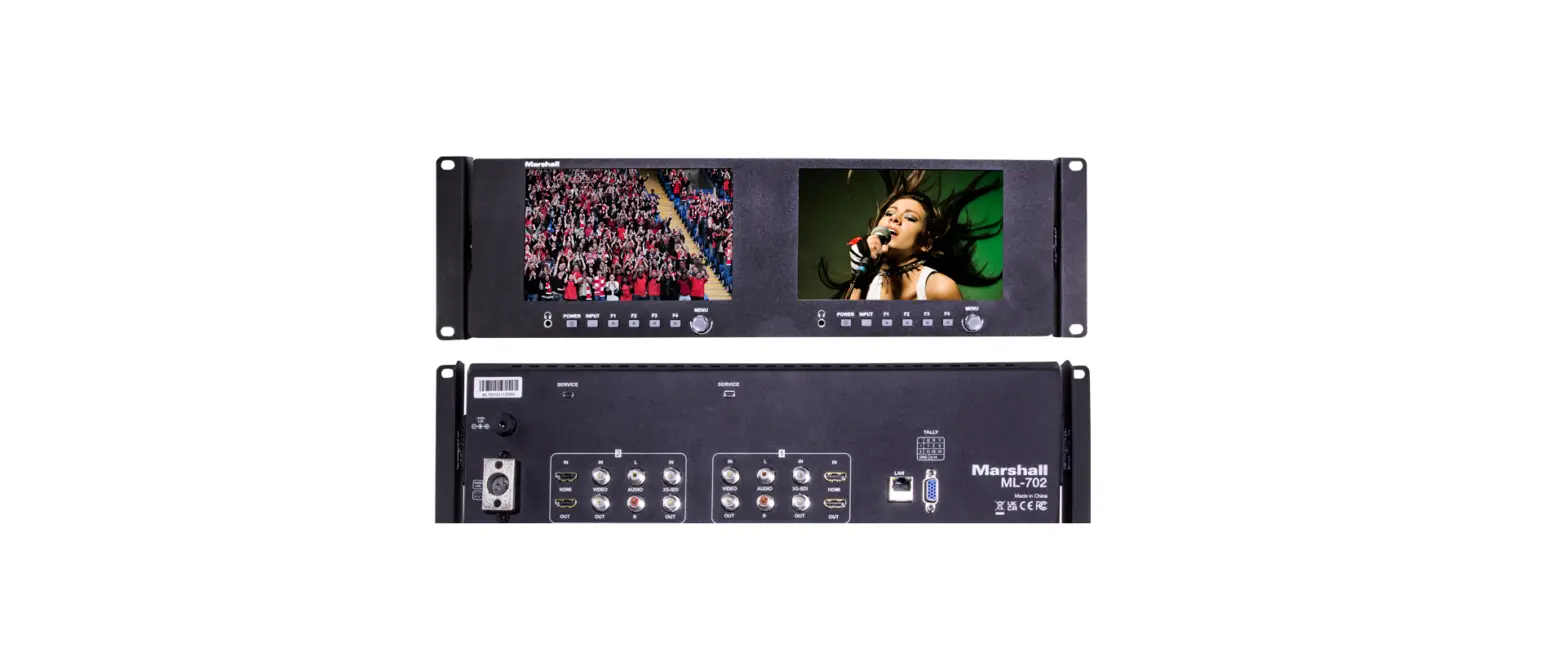
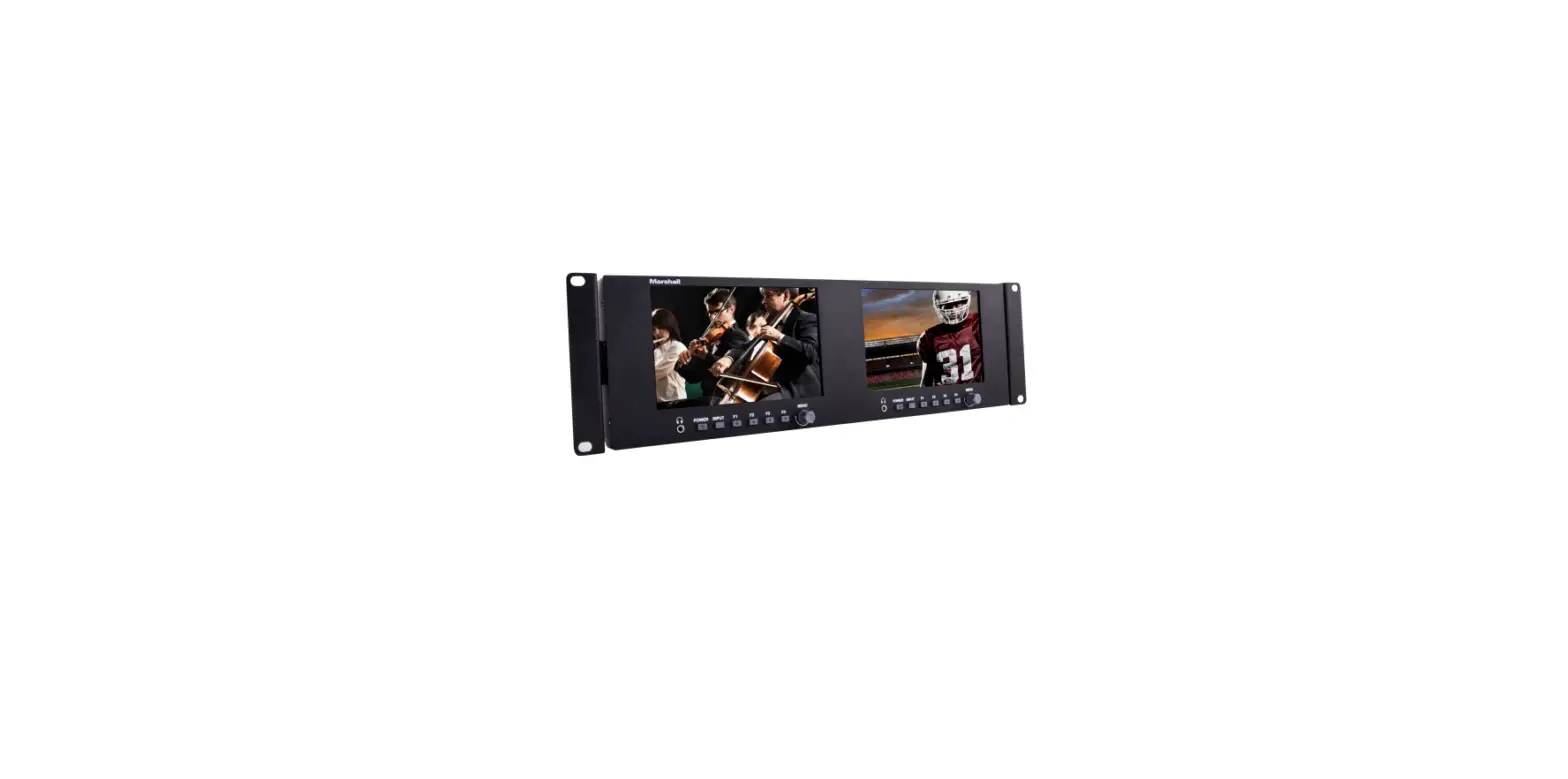
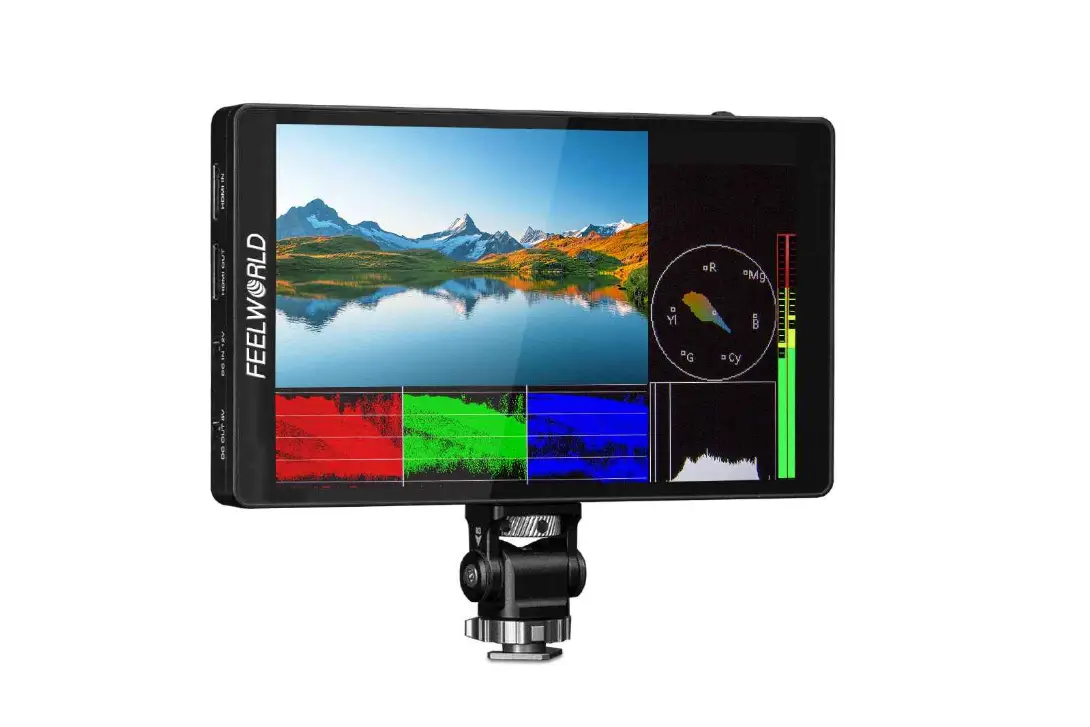
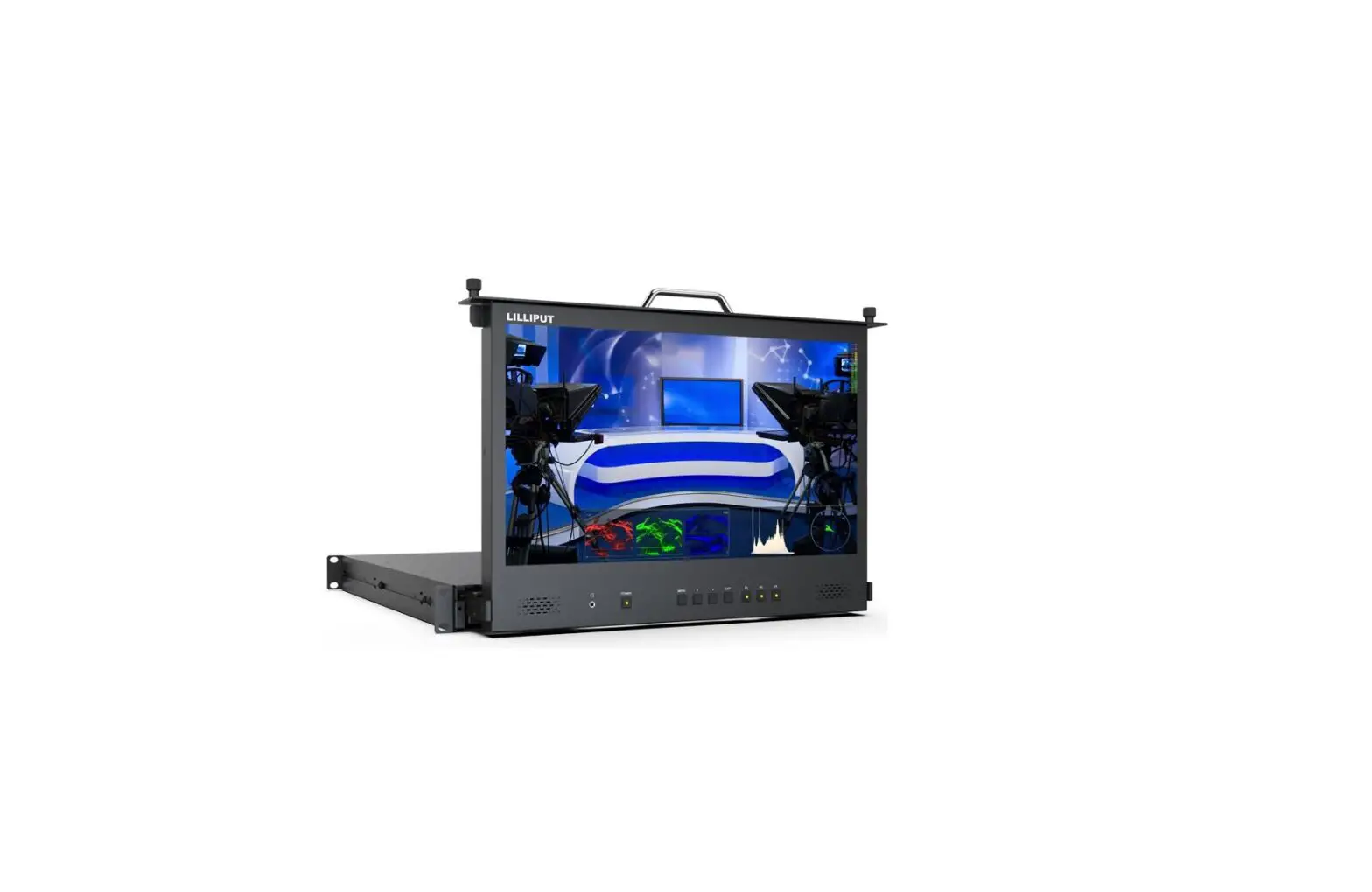
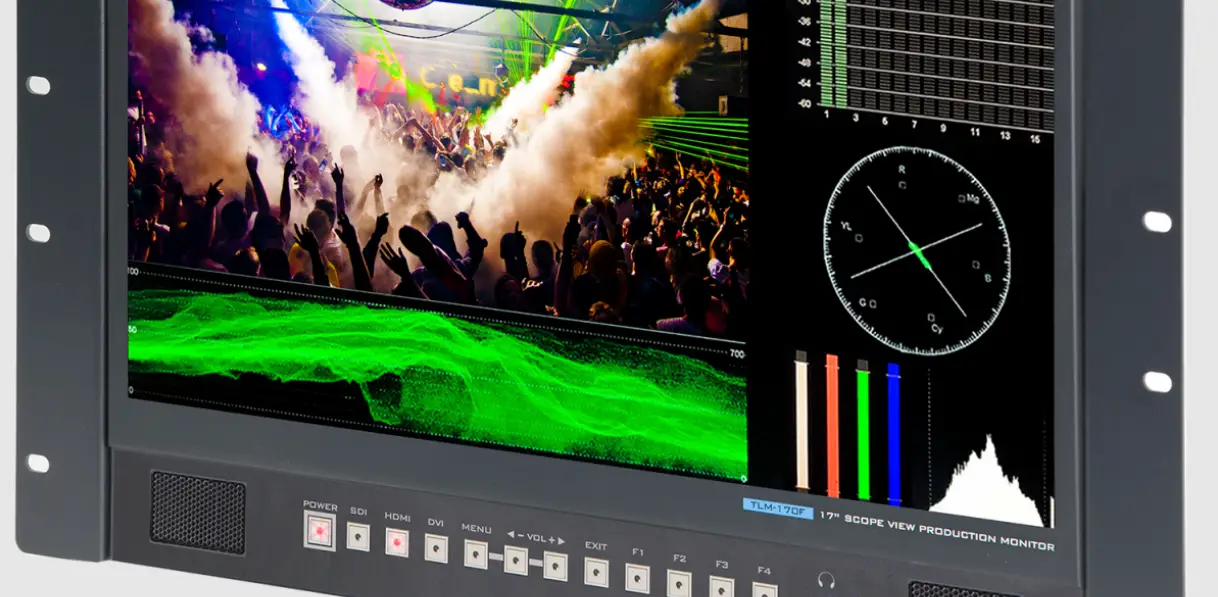
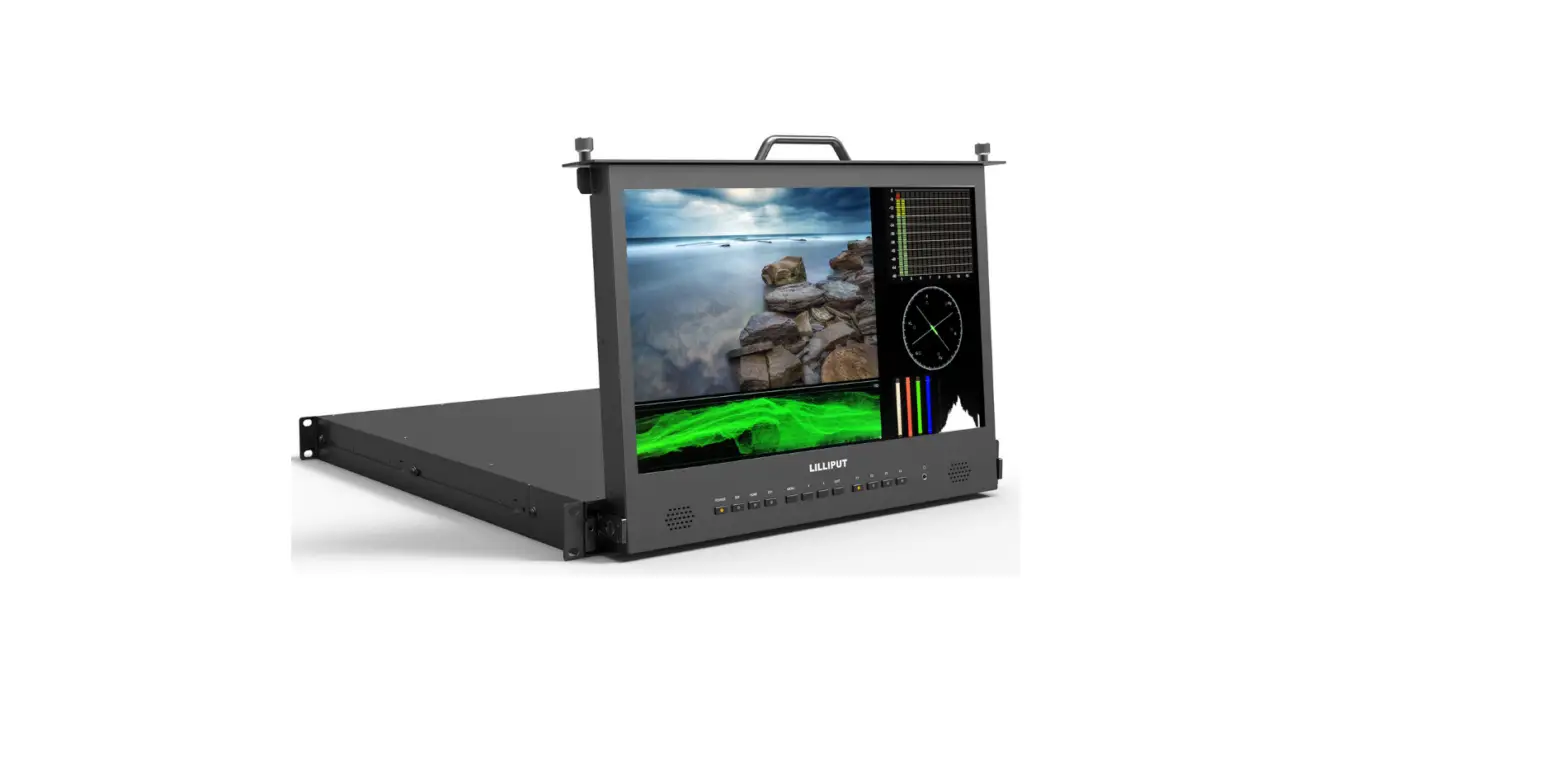
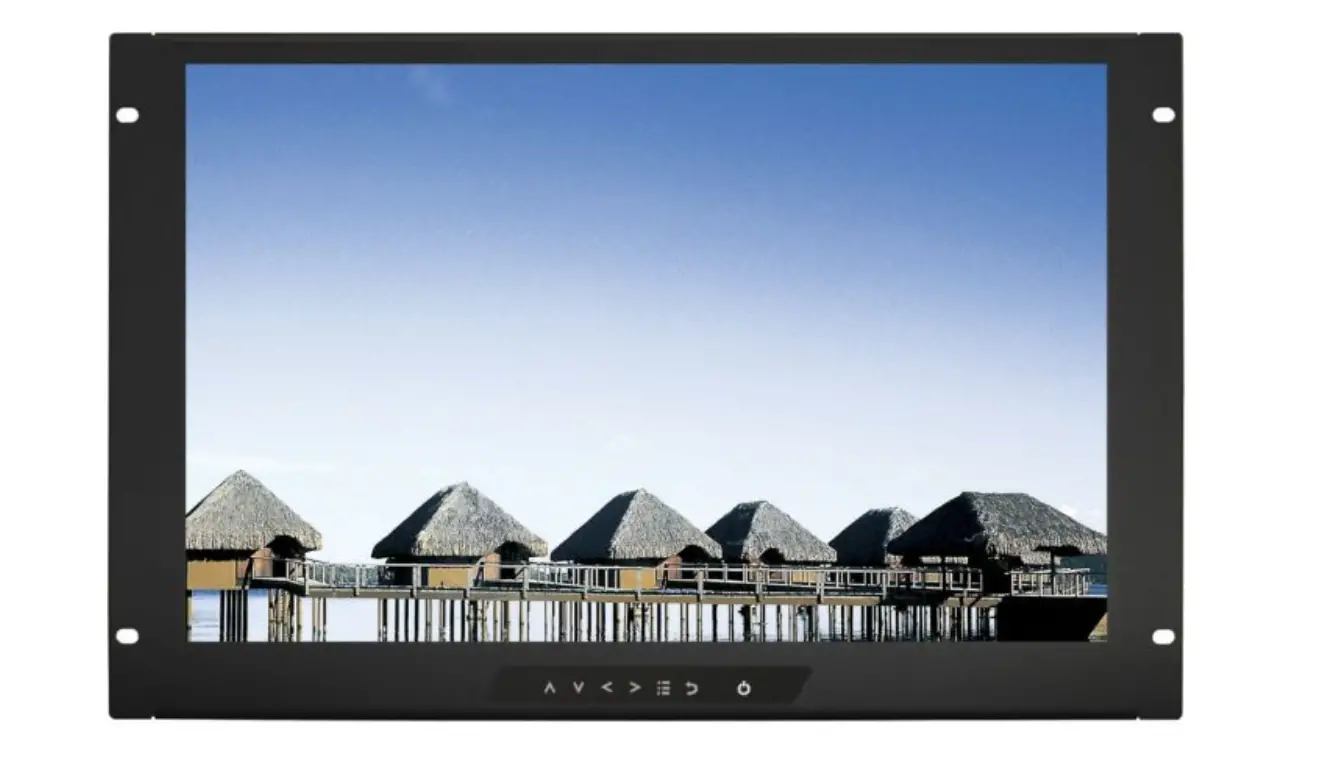
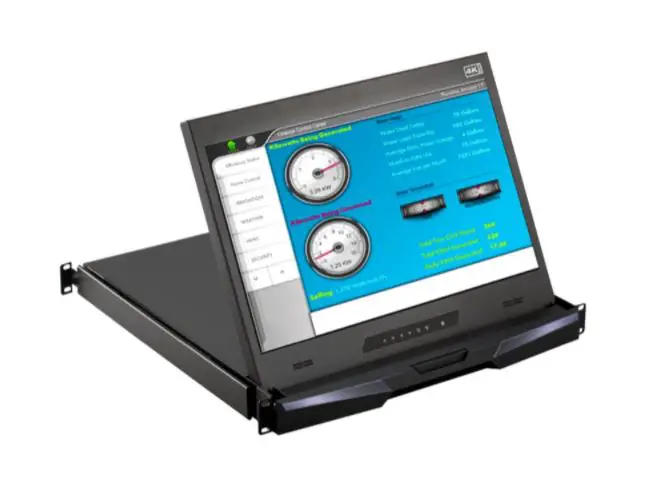
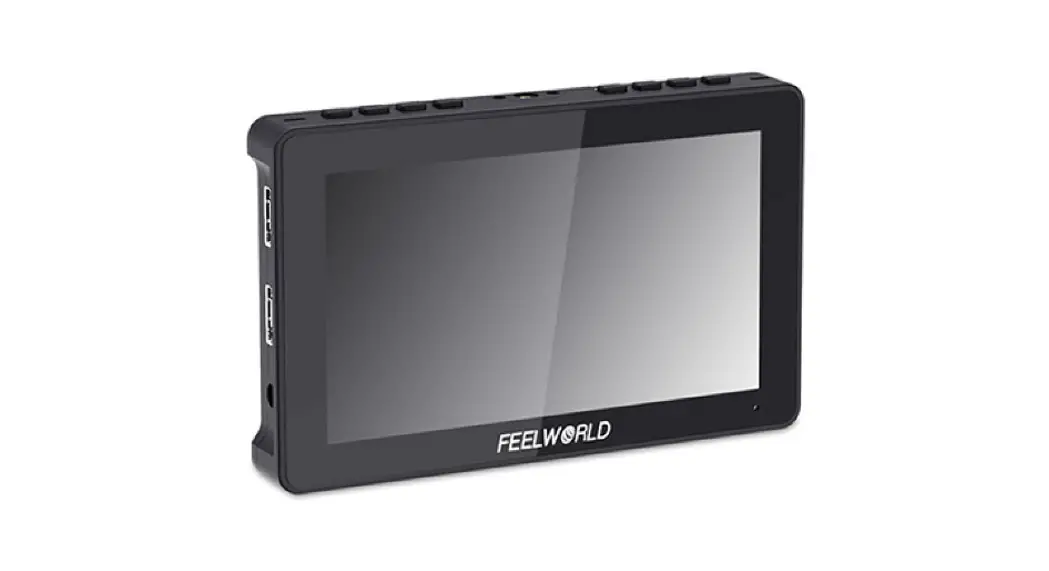
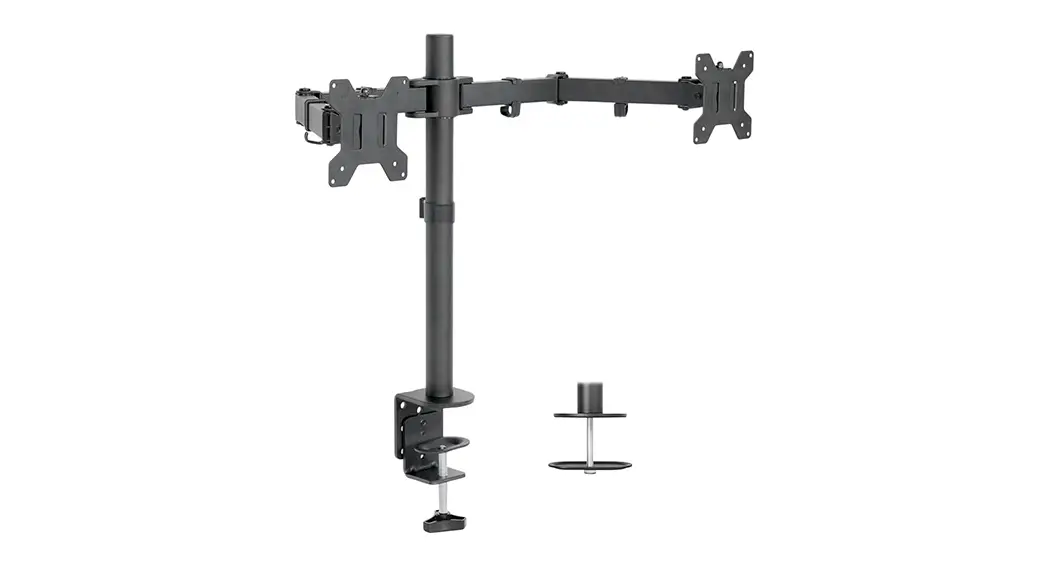
D71 Plus Dual Rack Mount Monitor
Product Information
The 7Dual Rack Mount Monitor is a versatile monitor designed for
optimal use. Please read the user manual carefully to ensure the
best performance and longevity of the product.
CAUTION:
- Please use the adapter attached in the accessory. If necessary,
use a qualified adapter. - Avoid storing or using the monitor in extremely cold, hot, or
humid places. - Keep the monitor away from strong light sources to ensure image
quality and long-term use. - Avoid heavy impacts or dropping the monitor onto the
ground. - Do not use chemical solutions to clean the product. Instead,
wipe it with a clean soft cloth to maintain brightness. - The monitor does not have adjustable components. Do not take it
apart or repair it yourself to prevent damage.
Product Usage Instructions
Function Features:
- WaveformRGBYUVY Histogram: Focus Assist Function
- Screen Marker, Center Marker (cross mark) display setting
- Screen Marker: 80%, 85%, 90%, 93%, 96%, 2.35:1
- Image Freeze: Capture function to still the current
picture - Image Flip: H/V Flip, H Flip, V Flip of the image around
flip - Check Field: Switch among Mono, Red, Green, Blue
- P2P: Display mode that makes the resolution of the image
consistent with display of the physical resolution - Aspect Ratio: Change the display to ratio Panorama (Auto, 16:9,
16:10, 4:3, 5:4, 1.85:1, 2.35:1, Full Screen) - Image zoom function can set Zoom All, U/D Zoom, L/R Zoom
- Panel buttons (F1, F2) function custom settings
- LED backlight for brighter image display without
flickering - Front panel stereo earphone output
- Multiple signal output ports for flexible use
- Monitor menu and functions can be set through Ethernet
connection
Product Description:
1.1 Front Panel Features
- Tally indicator
- MENU: Menu button for entering/confirming
- Volume adjustment when menu is not displayed
- F1 and F2: Custom function shortcut buttons
- MODE: Input signal selection and confirmation
- Power Switch
- Earphone jack port
1.2 Rear Panel Features
- DC 12V Power Input: 4-pin XLR DC12V power input
- 3G/SDI IN (SDI serial data input) (optional OUT(SDI serial data
output)) - CVBS IN (Composite video broadcast signal input) (OUT(Composite
video broadcast signal output)) - AUDIO L/R (Audio signal left/right stereo input)
- HDMI IN/OUT (High definition multimedia interface
input/output) - USB Firmware update and LUT file importing port
- UPGRADE LAN IN: Ethernet LAN Connector
- TALLY indicator input port
1.3 Power Input Way
There are two ways to power the monitor:
A. Direct Plug-in DC Power Input Port
Supply:
- Use DC5.5*2.1mm DC power plug
- Power input polarity must be observed as shown in the
manual - Use a qualified power supply with output power no less than 21W
DC 9-24V
B. 4 Pin XLR Interface Power Supply:
Polarity of the 4-pin XLR power input must be observed as shown
in the manual to avoid damaging the monitor.
7″Dual Rack Mount Monitor
User Manual
1. Product Overview Thank you for using our photography, broadcast kits Dual Rack Mount Multi-Functional Color LCD Monitor. This monitor adopts advanced integrated circuits, high-quality IPS LCD panel, which makes it low power consumption, stable performance, no radiation, strong compatibility, and adjustable color temperature control etc. To meet different customers’ needs, our monitor has the serial digital interface signals SDI (optional), high-definition multimedia interface HDMI, composite video signals CVBS input & output port.
To ensure best use of the unit, please read the user’s manual carefully.
CAUTION
1. Please use the adapter attached in the accessory, if necessary, please use qualified adapter.
2. Please do not store or use in too cold, too hot or humid place. 3. Please keep the monitor away from the strong light while using
this product to ensure the image effect and long-term use. 4. Please avoid heavy impact or drop onto the ground. 5. Please do NOT use chemical solutions to clean this product.
Please wipe the monitor with a clean soft cloth to maintain the brightness of the surface. 6. No adjustable components in the monitor. Please do not take apart or repair the unit by yourself, to avoid the damage of the product.
1
Function Feature
WaveformRGBYUVY Histogram: Focus Assist Function Screen Marker, Center Marker (cross mark) display setting Screen Marker: 80%85%90%93%96%2.35:1 Image Freeze: The current picture still (capture function) Image Flip: H/V Flip, H Flip, V Flip of the image around flip Check Field: To switch among Mono, Red, Green, Blue P2P: The display mode that makes the resolution of the
image is consistent with display of the physical resolution. Aspect Ratio: To change the display to ratio Panorama,
(Auto, 16:9, 16:10, 4:3, 5:4, 1.85:1, 2.35:1, Full Screen) Image zoom function can set Zoom All, U/D Zoom, L/R
Zoom. Panel buttons (F1,F2) function custom settings LED backlight, Image display more brighter, screen does
not flicker. Front panel stereo earphone output. Multiple signal output port, flexible use. Can set the monitor menu and functions through Ethernet
connection.
2
CONTENTS
1. Product Description —————————— 4 1.1 Front Panel Features —————————- 4 1.2 Rear Panel Features —————————– 5 1.3 Power Input Way ———————————- 6 1.4 TALLY Indicator Connection —————– 7 2. Ethernet Connection —————————— 7 3. Menu Function Introduction ——————- 13 4. Support Signal Formats ————————- 17 5. Parameters ——————————————- 18 6. Trouble Shooting ———————————– 19
3
1. Product Description 1.1 Front Panel Features
/
Tally indicator
MENU Menu button, enter/confirm
Next item selection/parameters increasing after
enter the menu;
Volume decrease adjustment when menu without
display
Previous item selection/parameters decreasing
after enter the menu;
4
Volume increasing adjustment when menu without
display
EXIT
Exit the menu
F1
Custom function shortcut button
F2
Custom function shortcut button
MODE Input signal selection and confirm
Power Switch
Earphone jack port
1.2 Rear Panel Features
/ /
DC 12V Power Input 4-pin XLR DC12V power input
5
3G/SDI
IN (SDI serial data input)
(optional OUT(SDI serial data output)
CVBS
IN(Composite video broadcast signal input)
OUT(Composite video broadcast signal
AUDIO HDMI
output) L(Audio signal left stereo input) R(Audio signal right stereo input IN(High definition multimedia interface input) OUT(High definition multimedia interface
USB
output) Firmware update,LUT file importing port
UPGRADE
LAN IN
Ethernet LAN Connector
TALLY
TALLY indicator input port
1.3 Power Input Way There are two ways of power supply to our monitor:
A. The direct plug-in DC power input port supply. Please use DC5.5*2.1m DC power plug, power input polarity as shown
below: Please use the qualified power supply with output power no less than 21W DC 9-24V. B. Via 4 pin XLR interface power supply.
6
Polarity of the 4-pin XLR power input as shown below, please note the polarity of the power input, otherwise it may damage monitor.
1.4 TALLY Indicator Connection
GND port 5 and 8 is sharing 2. Ethernet Connection
Our monitor is equipped with Ethernet interface, and users can connect the PC with our monitor through the Ethernet port. Users can use the software to control the monitor and send their control and command to the specific monitor, as follows:
7
Connect the LAN port on the back of the monitor to the network. After connection, the monitor will display the same IP address with that device.
Get the control software: Download from the details page of D71PLUS or D71PLUS-H from website www.feelworld.cn
After downloaded open file
, Double Click
8
Then, Input: Username: admin Password:123456, Click Login In
After login in, Click: Add monitor
Input IP address (The same as the IP address displayed on the monitor.)
9
Select the controlled monitor (number 0 control left monitor, number 1 control right monitor)
10
Check: Connection Status, If connected, the IP address will be displayed. e.g: Then users can click the corresponding control bar to control and command the parameters: Control:
Function1:
11
Function2:
12
3. Menu Function Instruction
Functional Assist
On, Off
All Waves
After turning on, waveform, vector, histogram and
embedded audio will be shown.
On, Off ModeRGBYUVY
Waveform
This essential feature assists with the calibration of professional video cameras. It shows the overall brightness
of the image assisting the video professional in correcting
exposure. The waveform feature also checks the evenness
of the lighting when lighting a chromakey or background.
Waves Trans.Off, 25%, 50%, 75%
On, Off
Vector
shows how saturated the image is and where the pixels in
the image land on the color spectrum.
Histogram
On, Off ModeRGB1RGB2Y
On, Off
Focus Assist
ColorRed, Green, Blue
Peaking Levelyou can adjust the peaking level after
turning on110
Embedded Audio
On, Off The Audio Level Meters provide numerical indicators and headroom levels. The audio meter is green, and will turn yellow when exceeds -20dB, and turn red when exceeds
13
Over Exposure
Check Field False Colors Time Code
(Only under SDI signal)
-9dB. On, Off Exposure Levelyou can adjust the exposure level after turning on10~100 On, Off ModeRed, Green, Blue, Mono On, Off
On, Off Mode: LTC, VITC
Mark
Nine Grid
On, Off Color: Red, Green, Blue, Black, White, Gray
Safe Frames
On, Off Mode: 80%, 85%, 90%, 93%, 96%, 2.35:1
Center Marker
Color: Red, Green, Blue, Black, White, Gray On, Off ColorRed, Green, Blue, Black, White, Gray
Ratio Marker
On, Off Mode: 4:313:914:915:916:91.85:12.35:1
Color: Red, Green, Blue, Black, White, Gray
Modified Mark0~5
14
Display
Scan Mode Aspect Ratio
Under Scan, Over Scan Auto, 16:9, 16:10, 4:3, 5:4, 1.85:1, 2.35:1, Full Screen
Anamorphic Image Flip
On, Off Mode1.33X, 1.6X, 2.0X, 2.0X MAG, User Under the User, can be customized1.20X2.00X On, Off
Mode: H Flip, V Flip, H_V Flip On, Off Zoom Mode Mode2X4X9X16XUser Under the User, can be customized100%~200% Image Freeze On, Off
P2P
On, Off
User
LUT
On, Off After the LUT Switch is turned on, you can use the Lut (SLOG2, SLOG3, LOGC, VLOG). Lut ImportConfirm
After copying the 3D LUT file to the USB flash drive and inserting it into USB adapter cable (USB-female to mini-USB) press MENU button
15
Confirm to import the 3D LUT file.
Lut Table
Show the 4 built-in Lut and the custom load Lut (up to 32
Display Adjustment Backlight0~100
Brightness0~100
Contrast0~100
Saturation0~100
Color Adjustment
Tint0~100 Color Temp.5600K, 6500K, 9300K, User Under the User, the red, green and blue of the image can be adjusted (0~255)
Shortcut Key
All Waves, Waveform, Vector, Histogram, Embedded
Audio, Center Marker, Safe Frames, Nine Grid, Focus
Assist, False Colors, Over Exposure, Anamorphic, Image
Freeze, Check Field, Zoom, Image Flip, Aspect Ratio
To set the 2 shortcut custom button F1, F2 on the
panel
e.g.: Press MENU button enter menu ,
, button select User and press MENU
to confirm. Then
Shortcut Key and press
MENU to confirm, select F1 and confirm to pop-up function itemsthen select one of them
and press to confirm, the cursor will be changed
to gray color after confirmed.Same setting for F2
16
System
Language
English Español Português Français NederlandsDeutsch
OSD Option
OSD TimeOff, 15Sec, 30Sec, 45Sec OSD Trans: Off, 25%, 50%, 75%
Volume
No Signal: Red, Green, Blue, Black, White, Gray On, Off 0~100
Reset
Scroll the wheel to select Reset and press Confirm, the system back to original setting.
After copying the upgrade file to the USB flash drive and Firmware Update inserting it into USB adapter cable (USB-female to
mini-USB), press “MENU” wheel button Confirm to update. After the upgrade, monitor will automatically restart. Note: USB adapter cable not include, need to prepare by user
4. Support Signal Formats
Signals Video
HDMI
Support signal formats PAL/NTSC auto recognize
480i /480p /576i /576p 720p(60/59.94/50/30/29/25/24/23.98
1080i(60/59.94/50 1080p(60/59.94/50/30/29.97/25/24/24sF/23.98/23.98sF)
4K UHD 3840×2160p (30/29.97/25/24/23.98 Hz)
17
DCI 4K 4096×2160p (24Hz)
720p (60/59.94/50/30/29/25/24/23.98)
SDI
1080i (60/59.94/50)
1080p(60/59.94/50/30/29.97/25/24/24sF/23.98/23.98sF)
5. Parameters
Panel Size Resolution Dot Pitch Aspect Ratio Brightness Contrast Viewing Angle Backlight Input Voltage Input Signal
Output Signal
Power Consumption Special Function
Working Temperature Storage Temperature
7 IPS LCD×2 1920 × 1200 pixels 0.078758(W) x 0.07875 (H)mm
16:10 450 cd/m²
1100:1 80°/80°(L/R) 80°/80°(U/D)
LED DC 924V 3G-SDI (optional), HDMI, Video, Audio(L/R) 3G-SDI (optional), HDMI, Video, Stereo Headphone
21 W TALLY indicator
– 1060 – 3070
18
Unit Size Unit Weight
482.6 L × 130.0 H × 30.5 D mm 1890g
6. Trouble Shooting If there is any problem when using the unit, please try following ways to inspect and solve. Please contact us if you still can not solve it or have other problems.
Without image display Video cable off or connect
incorrectly
Trouble shooting Check the quality of the cable, make sure the correct input interface
Without video signal input
Check the signal source and output interface connect is correct or not
Monitor is not be powered Check whether the power is connected,
on
Supply voltage instability self-contained power
supply, polarity connect inversely
click ” ” button to confirm. The power adapter plug is poor connected with the socket
Reference “Power Input Way” and reconnect
19
Image/color display abnormal
Trouble shooting
Video cable poor contact Change the video cable, try again
Video signal interfered by Move to another environment to try
external environment
again
Video input signal
Check signal source video output, or
amplitude too low
change signal source and have a try.
Menu color saturation
Enter menu to check color, or reset to
adjustment closing
factory settings
Check Field set in mono or
black & white Image deformation
Reset Check Field, back to the color Reset the image ratio
Earphone without sound
Trouble shooting
Audio cable off or
Confirm connected with the
connection properly
corresponding input port
Volume adjustment was Reset the volume control and adjust to a
closed HDMI cable poor
proper position. Check the quality of cable, or change
Connected
cable and have a try
No sound after switch video signal
Check whether there is an AUDIO signal input in AV Mode.
20
Remark: If there are still other problems, please contact with our related technical persons. If there are changes without prior notice.
21
 Zhangzhou SEETEC Optoelectronics TechnologyCo.,Lt【Phone】