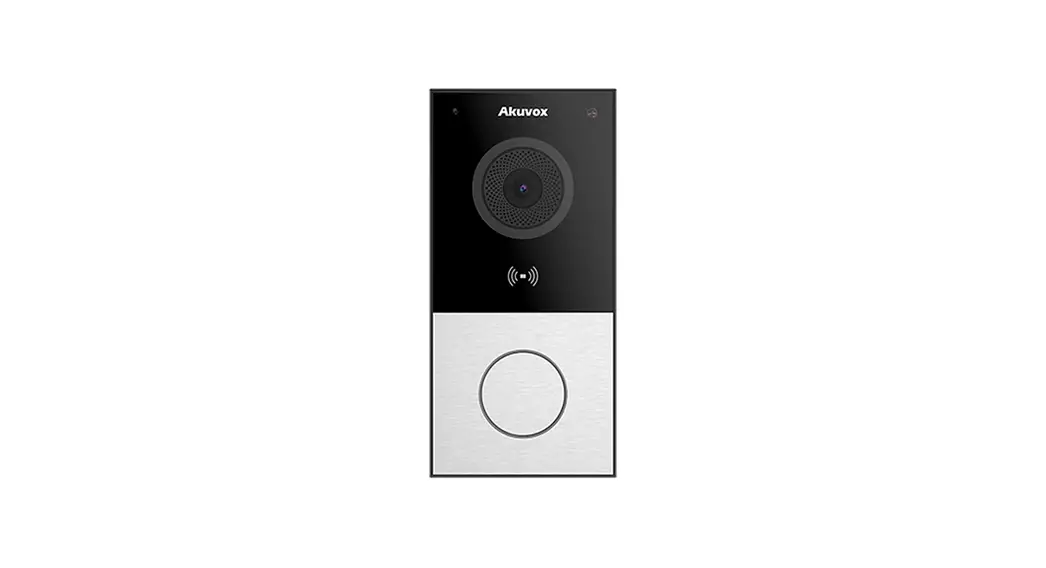
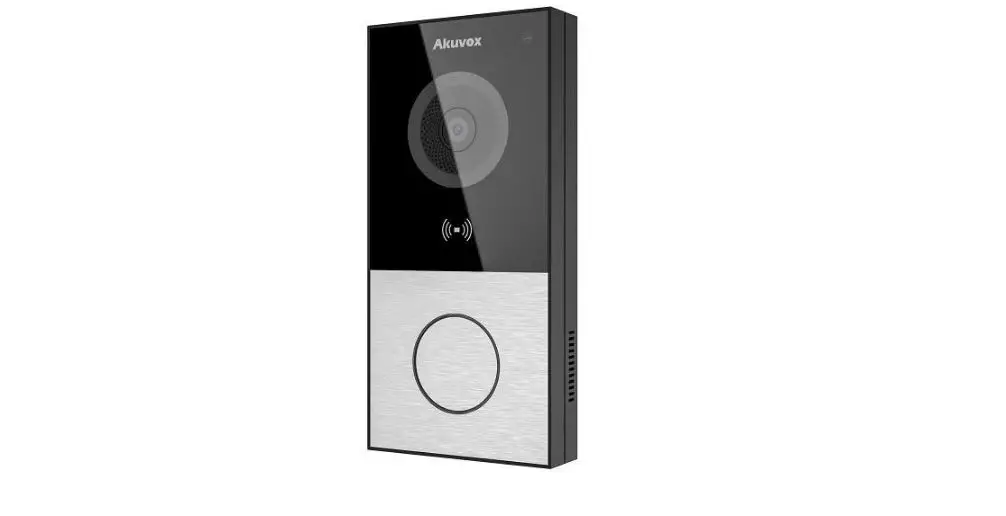
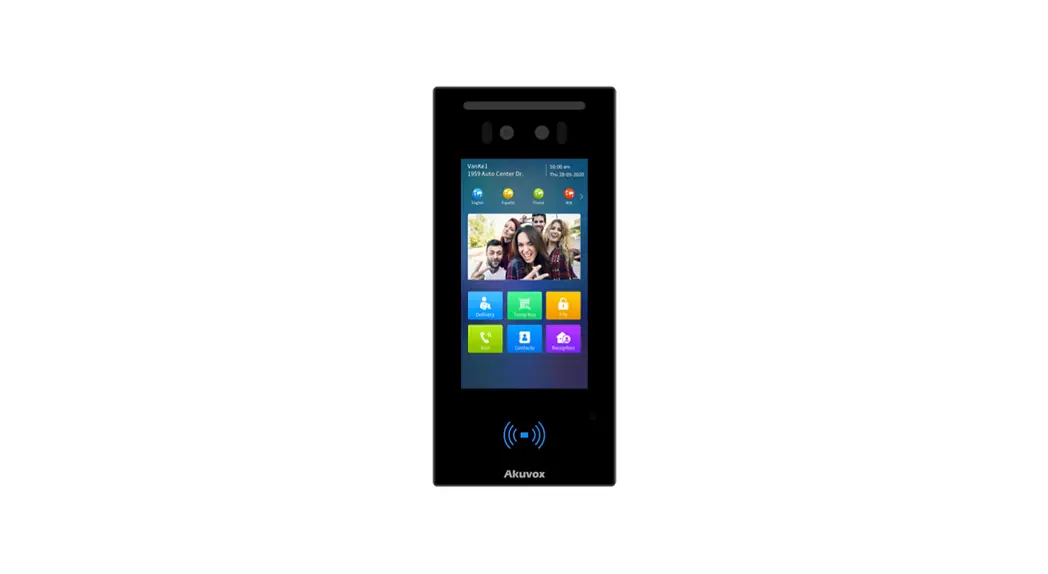
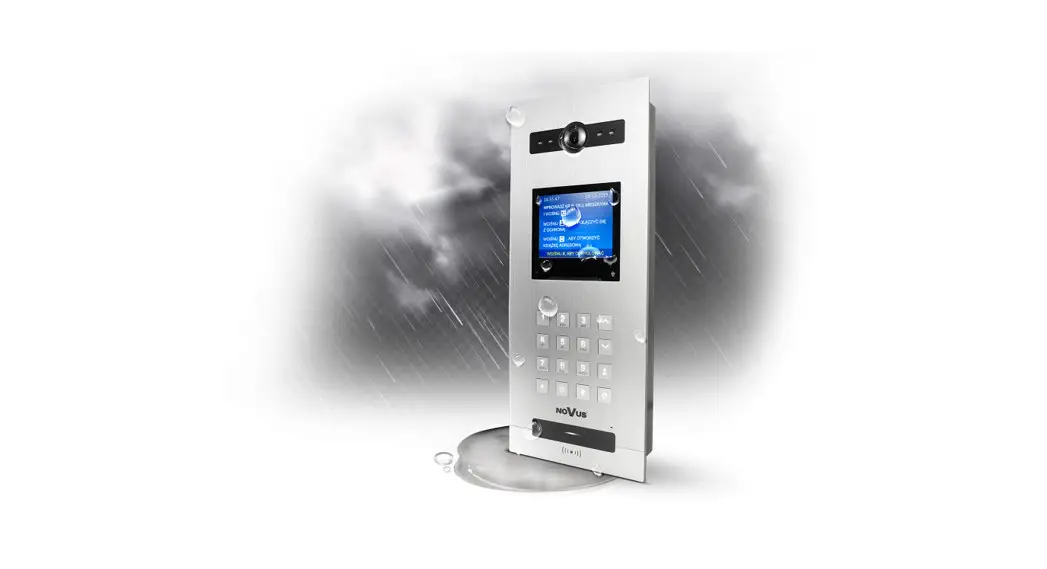
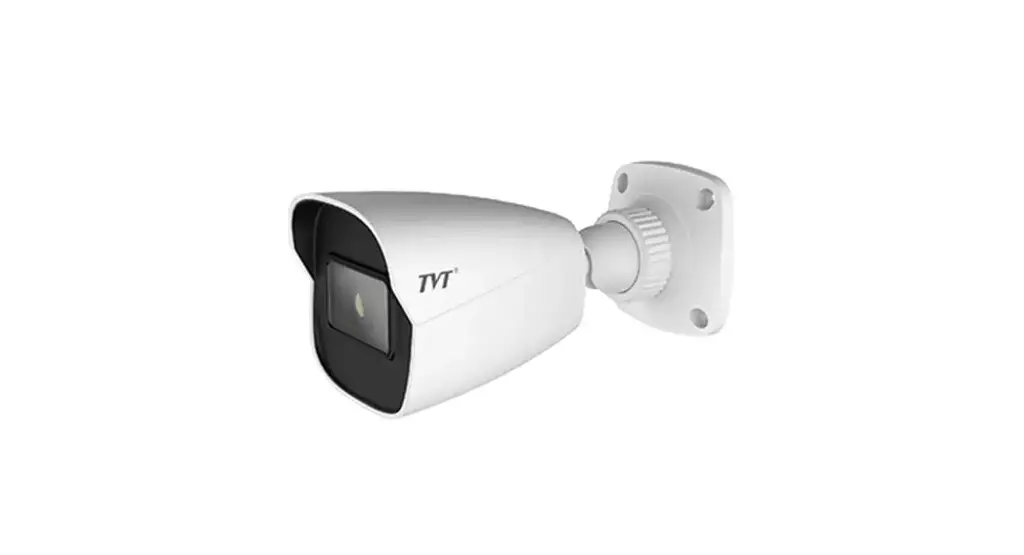
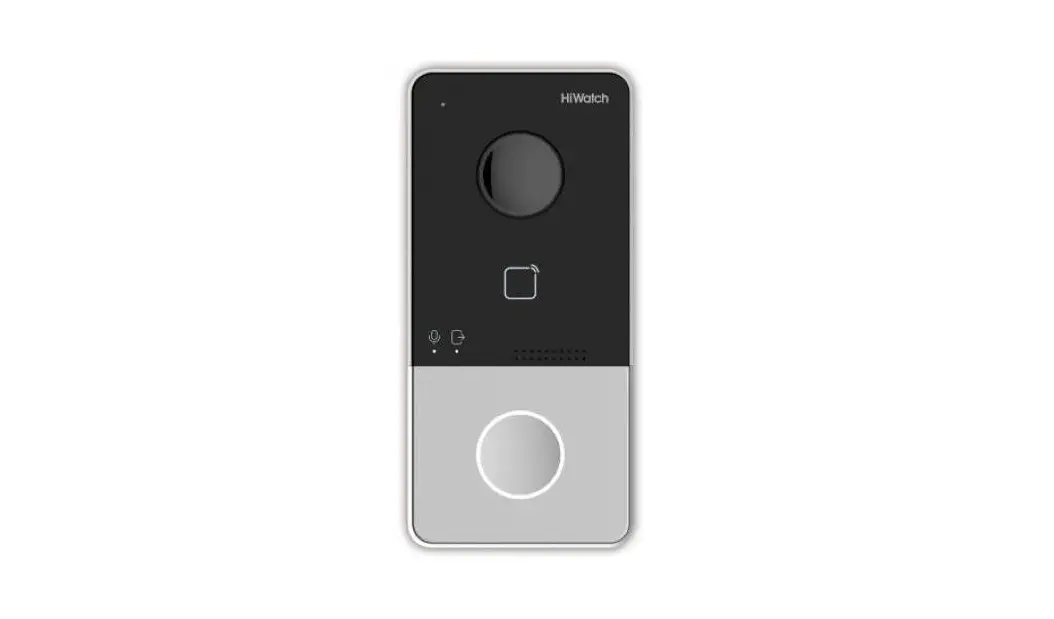
TD-E2223 Video Intercom Door Station
Product Information
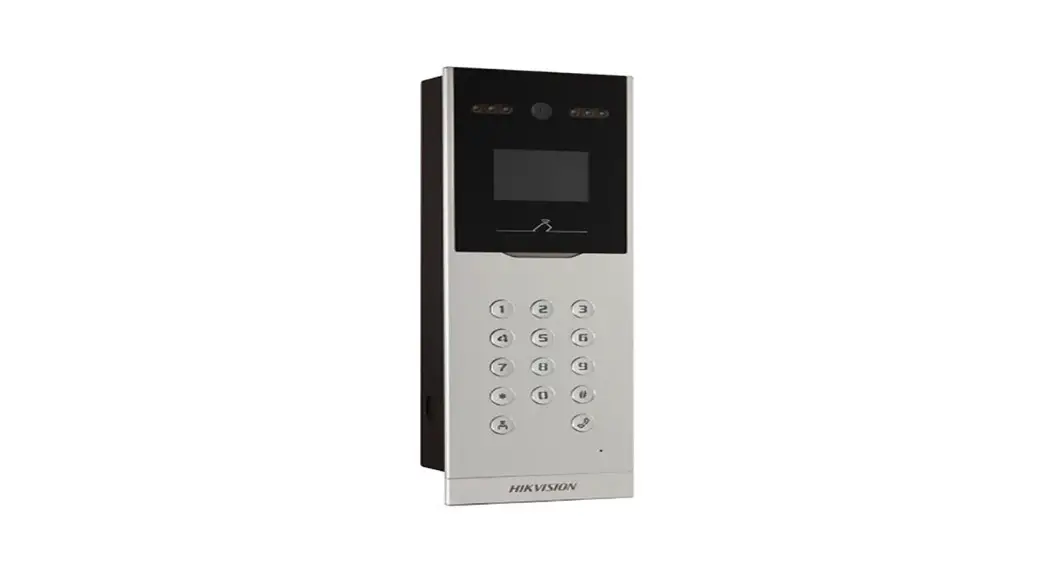
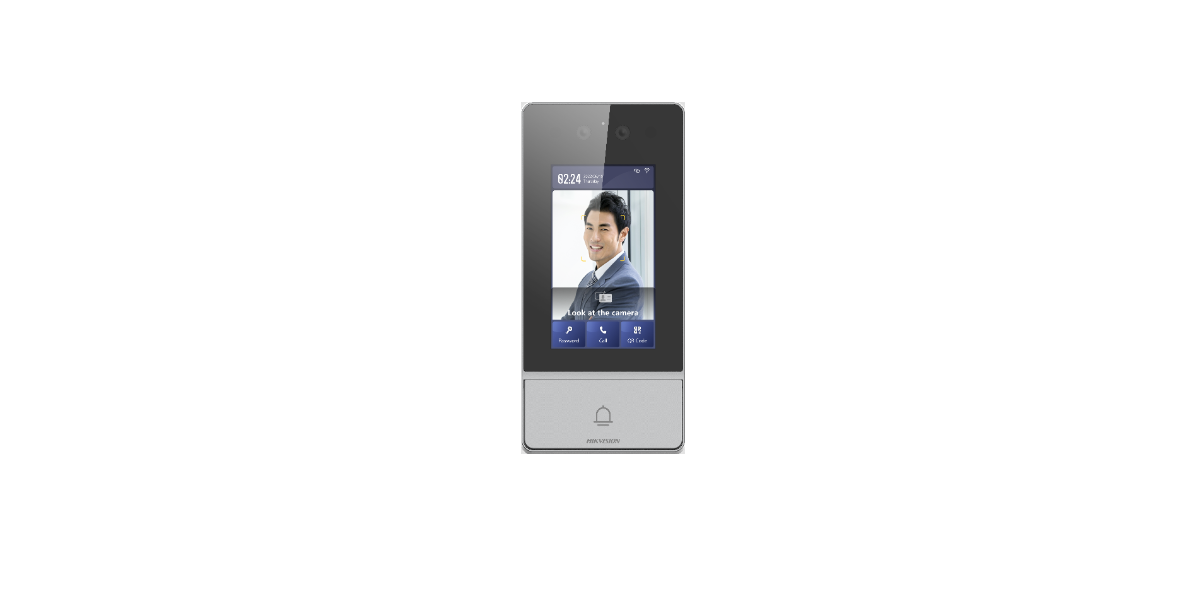
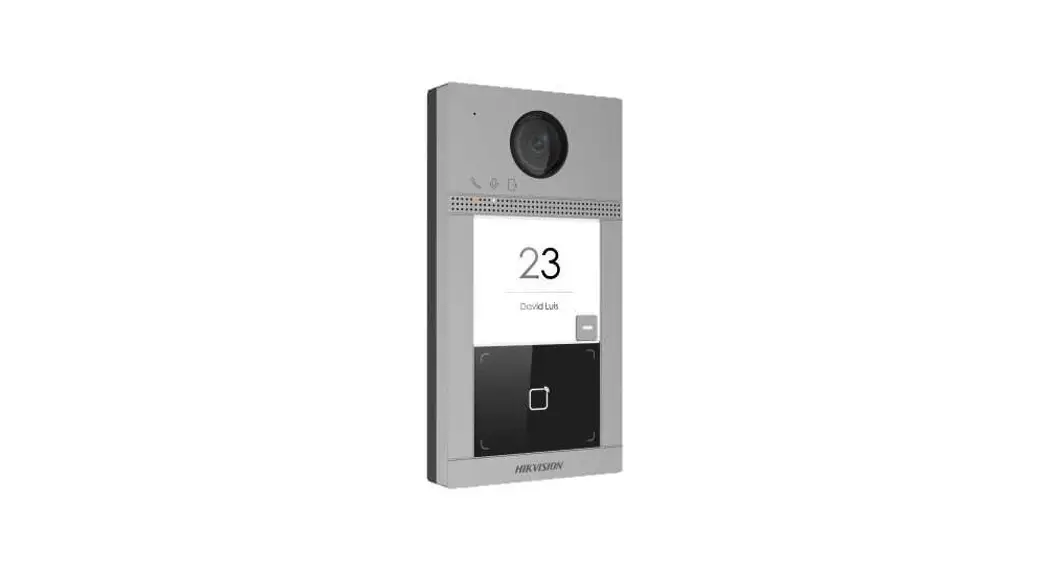
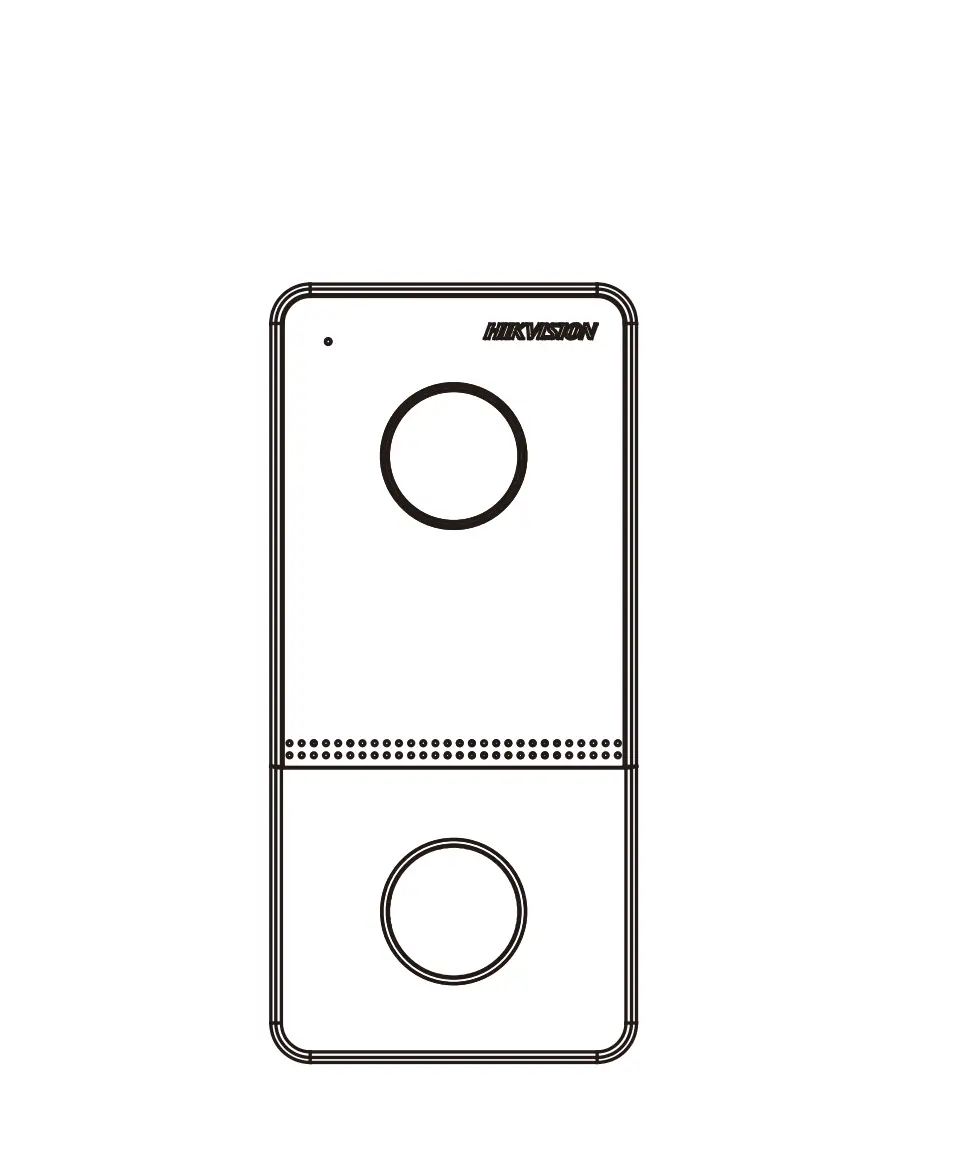
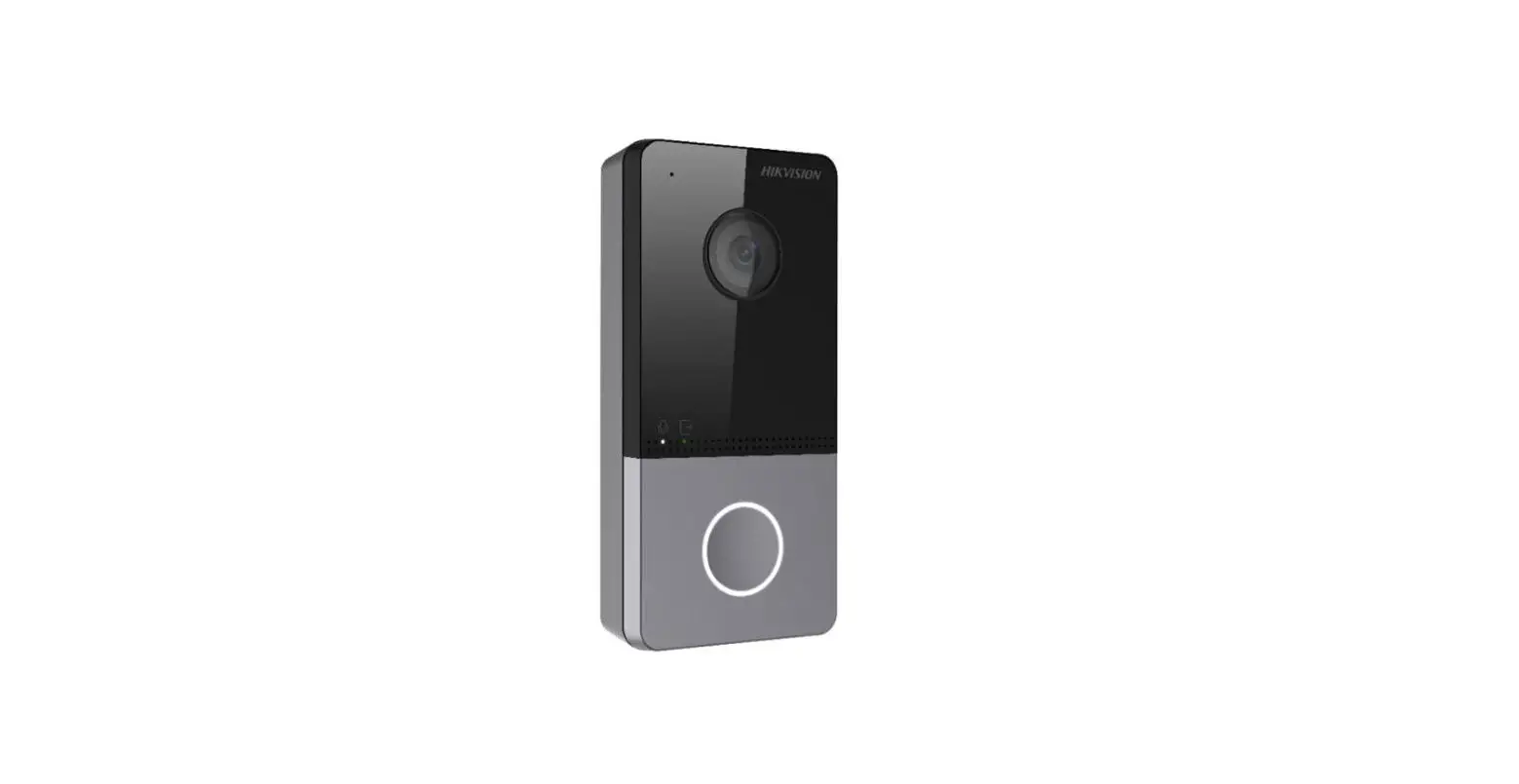
The Video Intercom Door Station is a device that allows for
two-way communication and video monitoring at the entrance of a
building or property. It features a display screen, cameras,
microphone, speaker, card swiping area, alarm input/output, door
lock interface, power connection, and various other terminals for
connectivity.
Package Contents:
- Video Intercom Door Station
- Quick Start Guide
- CD
- Tapping Machine
- Plastic screw
- Drill Template
- Bracket
- Cable
- L-wrench
- Cover
- Gasket for Cover
Key Features:
- Infrared Light for clear video capture
- MIC and Speaker for two-way audio communication
- Card Swiping Area for access control
- Alarm Input/Output for integration with security systems
- Door Lock Interface for controlling door access
- RS485 and Wiegand Interfaces for additional connectivity
- Door Contact Interface for monitoring door status
- Exit Button Connector for easy exit access
- Power Connection for device operation
Product Usage Instructions
Installation Requirements:
Before installing the Video Intercom Door Station, please ensure
the following:
- Avoid direct sunlight and backlight to ensure clear video
capture - Keep the device at least 2 meters away from any light
source - Keep the device at least 3 meters away from windows or
doors
Installation Steps:
- Place the drill template onto the wall and drill the holes
according to it. - Insert four plastic screw anchors into the screw holes.
- Fasten the bracket with the provided tapping screws.
- Route and connect the relevant cables.
- Install the cover and gasket as needed.
- Hook the device with the bracket and secure it with the
provided screw.
Device Activation and Setup:
- Read the privacy statement and activate the device.
- Default username: admin. Set a self-defined password.
- Set security questions and answers for password reset.
- If prompted, download and install the plugin for your web
browser (IE, Google Chrome, Firefox, Safari, or Edge).
Wi-Fi Connection:
- Use a network cable to connect the device and wireless router
or AP. - Connect your PC to the same wireless network.
- Install and run the IP-Tool on your PC to find the IP address
of the device (default: 192.168.226.201). - Double click the IP address to access the device’s login
interface. - Enter the username and password to log in.
- Configure the network settings, including Wi-Fi connection,
using the provided interface.
Height Requirement:
The recommended installation height (H) is 1.45m. Adjust the
height according to the actual scene. The ideal face recognition
distance ranges from 0.3m to 1m.
Video Intercom Door Station Quick Start Guide
1 Package
Device
Quick Start
CD
Tapping Machine Plastic screw
Guide
(optional) Screw×4 Screw×5 anchor × 4
Drill Template
Bracket Cable
L-wrench
Cover Gasket for Cover
3 CableConnection
2 Overview
Unit: mm Front
104.5±0.2
Infrared Light
MIC Display Screen
Side
26.3±0.2
Cameras
Button
210.5±0.2
Speaker
CARD
Card Swiping Area
Back
Anti-tamper 2×15PIN Interface Ethernet port
Reset Memory Card Slot
About This Manual All pictures, images, icons and snapshots in this manual are for reference only. If there is inconsistency between the manual and the actual product, the actual product shall prevail. The manual will be updated according to the product improvement and are subject to change without prior written notice. Legal Disclaimer To the maximum extent permitted by applicable law, the product described, with its hardware, software, software and firmware, is provided “as is”, with all faults and errors, and our company makes no warranties, express or implied, including particular purpose, and non-infringement of third party. In no event will our company, offices, or agents be liable to you for any special, consequential, incidental, or indirect damages, including, among others, damages for loss of business profits, business interruption, or loss of data or documentation, in connection with the use of this product, even if our company has been advised of the possibility of such damages. With regard to the product with internet access, the use of product shall be wholly at your own risks. Our company shall be irresponsible for abnormal operation, privacy leakage or other damages resulting from cyber attack, hacker attack, virus inspection, or other internet security risks; however, our company will provide timely technical support if necessary. During the use of the device, pleas strictly abide by applicable law. In the event of any conflicts between this manual and the applicable law, the later prevails. Installation and Use Please use our product according to the following safety instructions and warnings. Do not place the camera in extremely hot, cold, dusty or damp location. Do not expose it to high electromagnetic radiation. If the product does not work properly, please contact your dealer or the nearest service center. Never attempt to disassemble the camera yourself. (We shall not be responsible for any problems caused by unauthorized repair or maintenance.) Do not drop the camera or subject it to physical shock. Keep away from liquid while in use. Do not touch the screen with sharp objects. If cleaning is necessary, please use clean cloth to wipe it gently, avoiding water or alcohol.
2×15-pin Interface
AlarmInput
AlarmOutput
Door Lock Interface
Power(+)
1
2
IN 2 GND
16
17
D-
D+
3 IN 1 18 GND
4 GND
19 D1
5 COM 20 D0
6 NO 21 GND
7 NC 2
22 SEN2
8 COM2
23 GND
9 NO 2
24 SEN1
10 NC 1 25 GND
11 COM1
26 BUT2
12 NO 1 27 GND
13
28 BUT1
14
15
12V
29
30
GND
RS 485
Wiegand Interface
Door Contact Interface
Exit Button Connector
Power(-)
AlarmInput AlarmOutput
Door Lock
RS 485 Wiegand Interface Door Contact
Exit Button
Power(+) Power(-)
IN 2 GND IN 1 GND COM NO NC 2 COM2 NO2 NC1 COM1 NO1 DD+
GND D1 D0 GND SEN2 GND SEN1 GND BUT2 GND BUT1 12V 12V GND GND
AlarmInput Device
AlarmInput Device
Anode/
+ Magnetic
–
Power + AlarmOutput Device
RS485+ RS485-
– Power +
–
lock
– Cathode + lock
– Power +
Power –
GND
D1 Wiegand
D0 Card Reader
+
+
Anode/ Magnetic
lock
–
– Cathode + lock
Exit Button
Door Contact
Network cable
Note: *The wiegand terminal here is a wiegand input terminal. If you want to connect to an access controller, you shall set the wiegand direction to “Output”.
4 Installation
Ambient Illumination Requirement Make sure faces can be captured clearly. Avoid direct sunlight and backlight . The device should be at least 2 meters away from the light, and at least 3 meters away from the window or door.
Installation
1
2
B1
B2
A1
A2
A3 B3
A4 B4
30° 30°
3m
Place the drill template onto the wall and then drill the holes according to it.
Insert four plastic screw anchors into the screw holes.
Direct/indirect sunlight through window
2m 30°
30°
3
Fasten the bracket with the provided tapping screws.
Backlight Direct sunlight
Read the privacy statement and then activate the device. The default username is admin. You need to self-define the password. Then set the security questions and answers. It is important for you to remember these answers, or you will not be able to reset your password. Follow directions to download and install the plugin if prompted. Available Web Browser: IE(plug-in required) /Google Chrome/ Firefox/Safari/Edge It is recommended to use the latest version of the above browsers.
4
Cover
Gasket for cover Route and connect the relevant cables. Then install the cover and gasket as needed.
Wi-FiConnection
Use the network cable to connect the device and wireless router or AP. Connect to the above wireless network with your PC. Then install and run the IP-Tool on your PC and then find the IP address of the device. The default IP address of this device is 192.168.226.201. Double click it. This will bring you to the login interface of the camera. Enter the username and password to log in. Click “Config” “Network” “WIFI” to go to the following
interface.
5
6
5 Network Connection
Hook the device with the bracket as shown above.
Secure the device with the screw provided.
Height Requirement
The recommended installation height (H) is 1.45m. It can be adjusted according to the actual scene. The ideal face recognition distance ranges from 0.3m to 1m.
H=1.45m
0.3m 1m D
The human height range at different distance
D 0.3m 0.5m 1m
Human Height Range 1.4~1.65m 1.25~1.80m 0.9~2.10m
Wired NetworkConnection
Make sure that the device and the PC are well connected via LAN.
Get the IP-Tool from the supplier and then install it in the computer. After that, run the IP-Tool as shown below.
Device Network Search
Immediate Refresh
Device Name Device Type Product Model IP Address Http Port
name
IPC
unknown 192.168.226.201
80
name
IPC
unknown 192.168.1.2
80
name
IPC
unknown 192.168.1.3
80
About
Data Port Subnet Modify Network Parameter
9008 9008 9008
255.255. Mac Address CE :98 :23 :75 :35 :22 255.255. IP Address 192 .168 . 226 . 201
255.255. Subnet Mask 255 . 255 . 255 . 0
Gateway
192 .168 . 226 . 1
Modify i Tip: Enter the administrator password, and
then modify the network parameters.
Restore IPC Default Configuration
Total Device: 3
Local IP Address:192.168.1.4 Subnet Mask:255.255.255.0 Gateway: 192.168.1.1 DNS210.21.196.6
Double-click the camera listed in the IP-Tool to connect IP camera. The default IP address of this camera is 192.168.226.201.
Note: Please make sure the camera and the computer are in the same local network.
-Enable
Wi Fi Networks
Index
SSID
Working Mode
1
HUAWEI-WLAN
Manage
Security Mode WPA2-personal
Channel 2
Signal 50
Mbps 150
Search Connection
Unconnected
WI-FI SSID Security Mode Key 1 Encryption Type
HUAWEI-WLAN WPA2-personal
AES
Check “Enable” to enable Wi-Fi. Then click “Search” to refresh the wireless device list. Select the desired router, enter the key number and select encryption type. After that, select “Obtain an IP address automatically” or manually enter the IP address by clicking “Use the following IP address”. Then click “Save” to save the settings. Pull the network cable out of the device. Then you will see the network connection icon ( ). This means WI-FI is connected.
Run the IP-Tool and find the device through IP address or MAC address. Then double click it listed in the IP-Tool or enter the IP address of the device in the address bar of the web browser to access the device.
FCC Warnning: This equipment has been tested and found to comply with the limits for a Class B digital device, pursuant to part 15 of the FCC Rules. These limits are designed to provide reasonable protection againstharmful interference in a residential installation. This equipment generates, uses and can radiateradio frequency energy and, if not installed and used in accordance with the instructions, maycause harmful interference to radio communications. However, there is no guarantee thatinterference will not occur in a particular installation. If this equipment does cause harmfulinterference to radio or television reception, which can be determined by turning the equipmentoff and on, the user is encouraged to try to correct the interference by one or more of thefollowing measures: · Reorient or relocate the receiving antenna. · Increase the separation between the equipment and receiver. · Connect the equipment into an outlet on a circuit different from that to which the receiver is connected. · Consult the dealer or an experienced radio/TV technician for help.
Caution: Any changes or modifications to this device not explicitly approved by manufacturer could void your authority to operate this equipment.
This device complies with part 15 of the FCC Rules. Operation is subject to the following two conditions: (1)This device may not cause harmful interference, and (2) this device must accept any interference received, including interference that may cause undesired operation.
This equipment complies with FCC radiation exposure limits set forth for an uncontrolled environment. This equipment should be installed and operated with minimum distance 20cm between the radiator and your body.

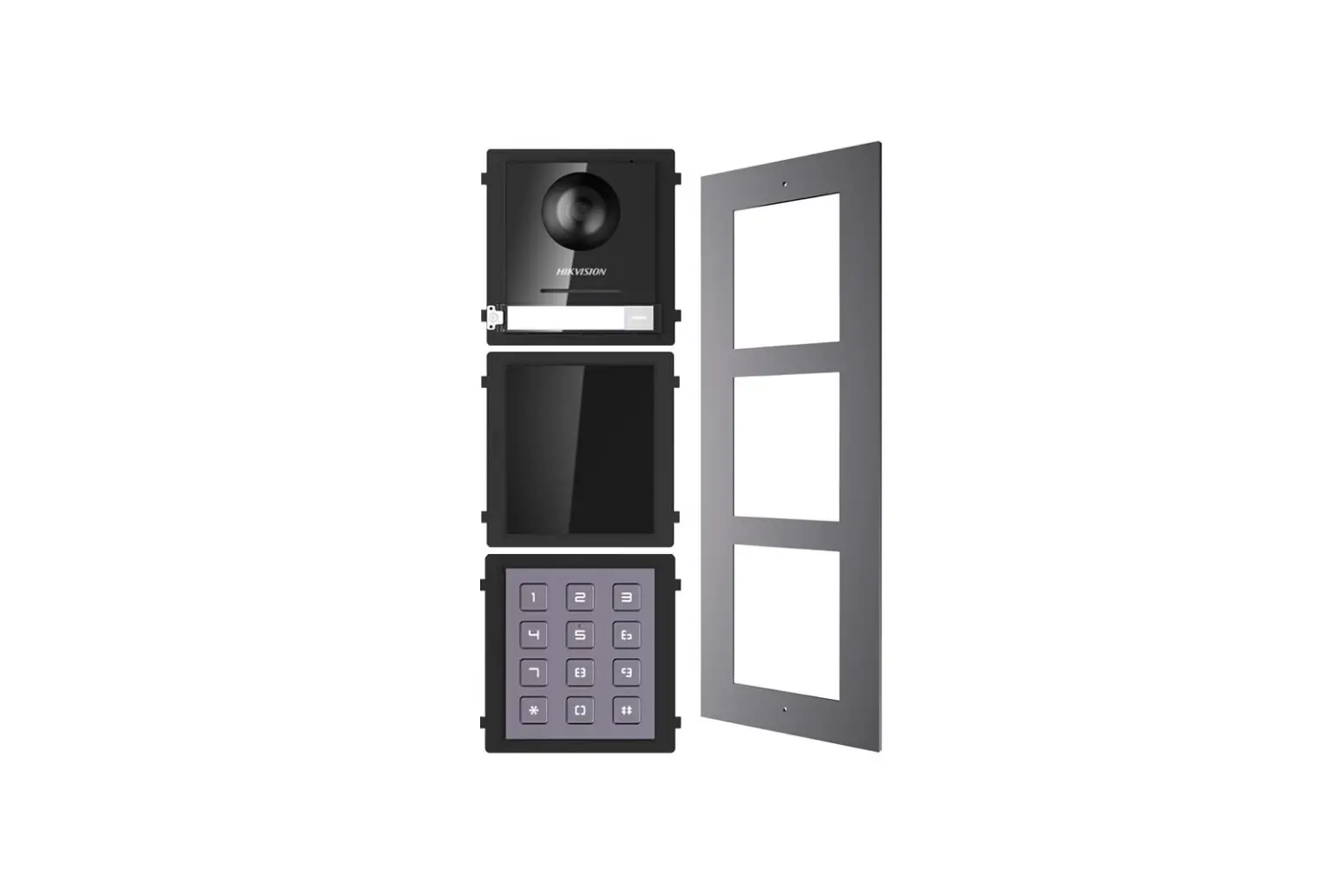
![Hikvision Video Intercom Villa Door Station [ads-24s-12 1224gpcn] User Manual](https://static-data1.manualsee.com/1/img/266/17650/2020/12/Video-Intercom-Villa-Door-Station.png "Hikvision Video Intercom Villa Door Station [ads-24s-12 1224gpcn] User Manual")