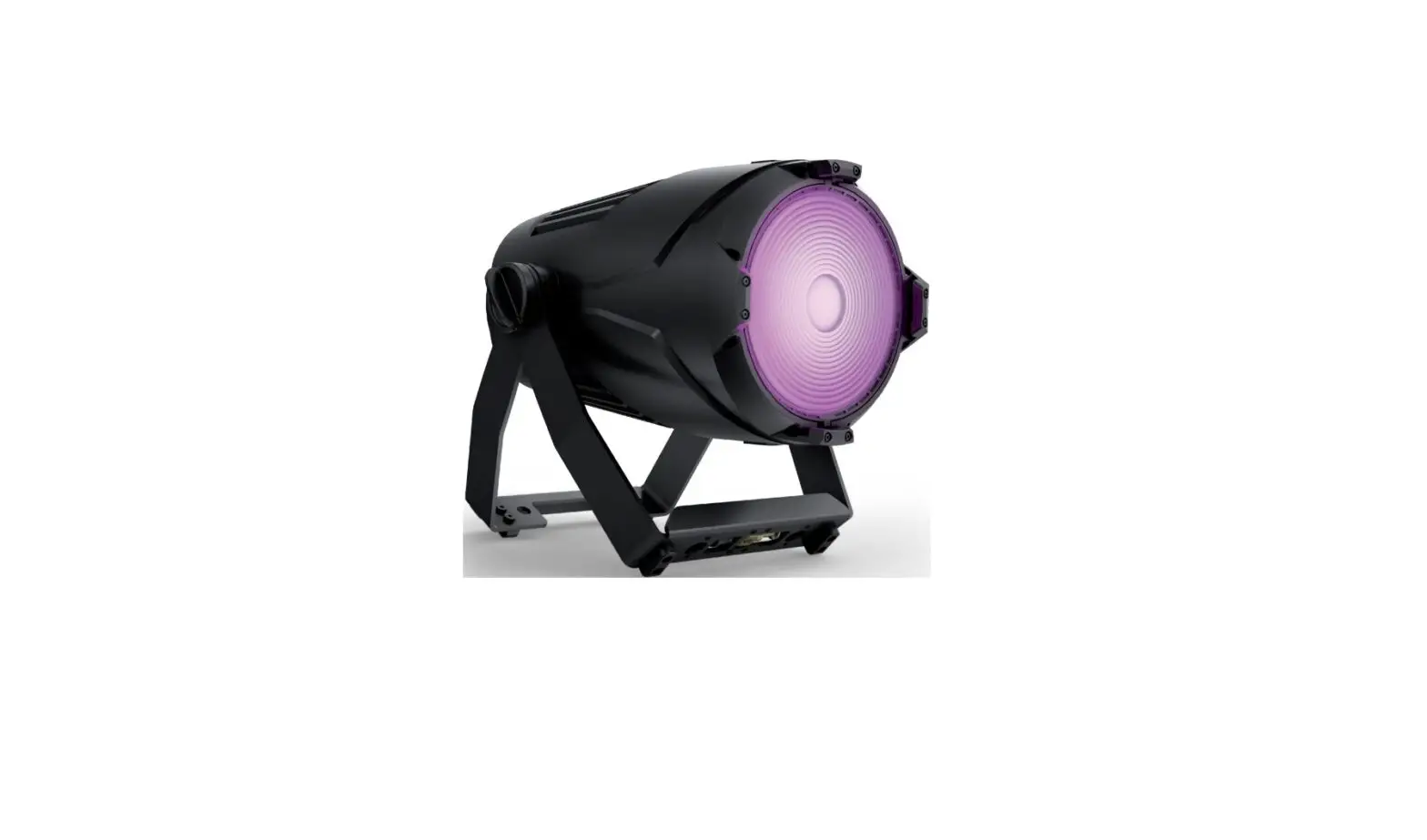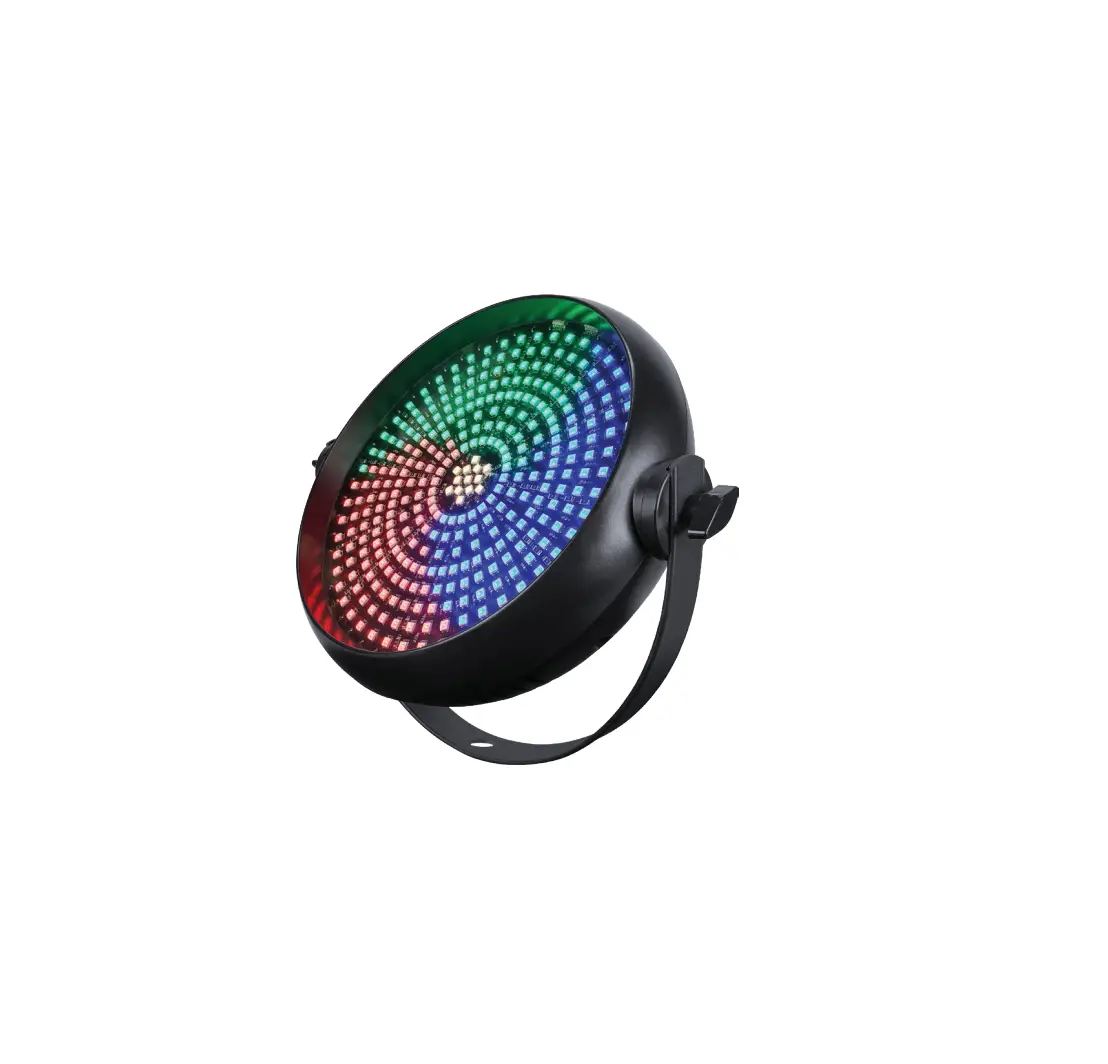
blizzard InfiniPix Cyclone LED Pixel FX RGB Color Mixing DJ Club Light
GETTING STARTED
What’s In The Box?
- InfiniPix™ Cyclone Fixture
- Power Cable
- This Lovely User Manual
Getting It Out Of the Box
Congratulations on purchasing the InfiniPix™ Cyclone. Now that you’ve got your fixture, you should carefully unpack the box and check the contents to ensurethat all parts are present and in good condition. If anything looks as if it has been damaged in transit, notify the shipper immediately and keep the packing material for inspection. Again, please save the carton and all packing materials. If a fixture must be returned to the factory, it is important that the fixture be returned in the original factory box and packing.
Powering Up!
All fixtures must be powered directly off a switched circuit and cannot be run off a rheostat (variable resistor) or dimmer circuit, even if the rheostat or dimmer channel is used solely for a 0% to 100% switch.
Warning! All fixtures must be connected to circuits with a suitable Ground (Earthing).
Getting A Hold Of Us
If something happens to go wrong, visit blizzardpro.com/support and open a support ticket. We’ll be happy to help, honest.
Disclaimer: The information contained in this document are subject to change without notice. Blizzard Lighting™ assumes no responsibility or liability for any errors or omissions that may appear in this user manual. We reserve the right to update the existing, or create a new document to correct any errors or omissions at any time. You can download the latest version of this document from www.blizzardpro.com.
| Author: | Date: | Last Edited: | Date: |
| J. Thomas | 2/23/2022 | J. Thomas | 9/13/2022 |
Safety Instructions
 Please read these instructions carefully. They include important information about the installation, usage and maintenance of this product.
- Please keep this User Guide for future use. If you sell the unit to someone else, be sure that they also receive this User Guide.
- ALWAYS make sure that you are connecting to the proper voltage, and that the line voltage you are connecting to is not higher than that stated on the decal or rear panel of the fixture.
- This product is intended for indoor use only.
- To prevent risk of fire or shock, do not expose fixture to rain or moisture.
- Make sure there are no flammable materials close to the unit while operating.
- The unit must be installed in a location with adequate ventilation, at least 20in (50cm) from adjacent surfaces. Be sure that no ventilation slots are blocked.
- ALWAYS disconnect from the power source before servicing or replacing fuse and be sure to replace with same fuse size and type.
- ALWAYS secure fixture using a safety chain. NEVER carry the fixture by its head. Use its carrying handles.
- DO NOT operate at ambient temperatures higher than 104°F (40°C).
- In the event of a serious operating problem, stop using the unit immediately.
NEVER try to repair the unit by yourself. Repairs carried out by unskilled people can lead to damage or malfunction. Please contact the nearest authorized technical assistance center. Always use the same type spare parts. - NEVER connect the device to a dimmer pack.
- Make sure the power cord is never crimped or damaged.
- Never disconnect the power cord by pulling or tugging on the cord.
- Avoid direct eye exposure to the light source while it is on.
Caution! There are no user serviceable parts inside the unit. Do not open the housing or attempt any repairs yourself. In the unlikely event your unit may require service, please open a support ticket at www.blizzardpro.com/support.
MEET THE INFINIPIX™ CYCLONE
Main Features
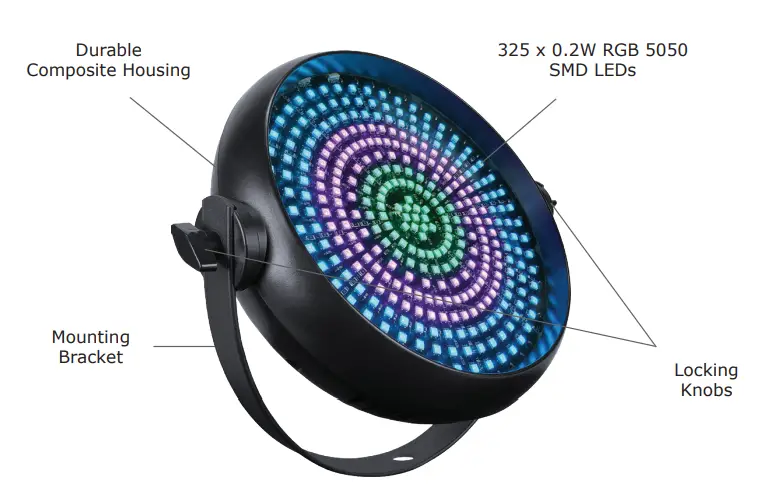
- 325 X 0.2W RGB 5050 SMD LEDs, 50,000 hours
- 85 effects patterns + 20 background colors
- Precise 256-step LED dimming
- Flicker free, constant current LED driver
- 120° beam angle
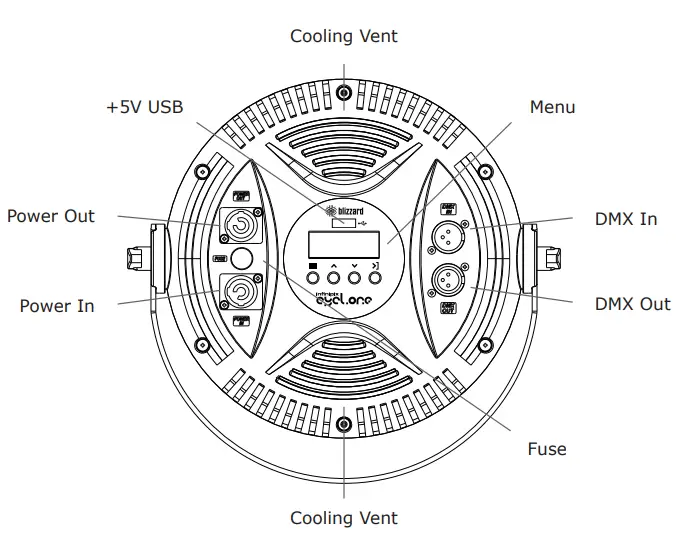
- +5V USB port to power SoC-It™ wireless DMX (sold separately)
- 1-25Hz strobe + pulse and random effects
- Equipped with RDM (remote device management)
- Durable composite housing
- Easy-to-use 4-button LED control panel
- powerCON-compatible power in/out
- 3-pin DMX in/out connections
Control
- Protocol: USITT DMX-512, RDM
- DMX channels: 4/5/8-channels
- Easy-to-use 4-button control panel with LED display
- Operating modes: DMX-512, M/S, Auto, and Sound Active
DMX Values In-Depth (4/5/8-Channel Modes)
| 4CH | 5CH | 8CH | What it does |
| 1 | 1 | 1 | Dimmer (0% – 100%) |
| — | 2 | 2 | Strobe |
| 2 | 3 | 3 | Red Intensity (0% <–> 100%) |
| 3 | 4 | 4 | Green Intensity (0% <–> 100%) |
| 4 | 5 | 5 | Blue Intensity (0% <–> 100%) |
| — | — | 6 | Pattern Effects |
| — | — | 7 | Color Macros |
| — | — | 8 | Effect Speed |
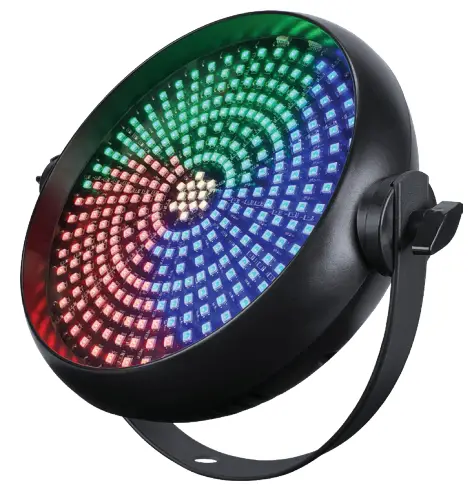
InfiniPix™ Cyclone Pin-Up Picture
The Rear Connections
SETUP
Before replacing the fuse, disconnect the power cord. ALWAYS replace it with the same type and rating.
Fuse Replacement
Remove the fuse holder from of its housing. Then take out the damaged fuse from its holder and replace with exact same type of fuse. Reattach the fuse holder, and then reconnect power.
Connecting A Bunch of InfiniPix™ Cyclone Fixtures
You will need a serial data link to run light shows using a DMX-512 controller or to run shows on two or more fixtures set to sync in master/slave operating mode. The combined number of channels required by all the fixtures on a serial data link determines the number of fixtures the data link can support.
Fixtures on a serial data link must be daisy chained in one single line. Also, connecting more than 32 fixtures on one serial data link without the use of a DMX optically-isolated splitter may result in deterioration of the digital DMX signal. The maximum recommended cable-run distance is 500 meters (1640 ft). The maximum recommended number of fixtures on a serial data link is 32 fixtures.
Data/DMX Cabling
To link fixtures together you’ll need data cables. You should use data-grade cables that can carry a high quality signal and are less prone to electromagnetic interference.
For instance, Belden© 9841 meets the specifications for EIA RS-485 applications. Standard microphone cables will “probably” be OK, but note that they cannot transmit DMX data as reliably over long distances. The cable should have the following characteristics
- 2-conductor twisted pair plus a shield
- Maximum capacitance between conductors – 30 pF/ft.
- Maximum capacitance between conductor & shield – 55 pF/ft.
- Maximum resistance of 20 ohms / 1000 ft.
- Nominal impedance 100 – 140 ohms
Cable Connectors
Cables must have a male XLR connector on one end and a female XLR connector on the other end. (Duh!)
A Word on Termination:
DMX is a resilient communication protocol, however errors still occasionally occur. Termination reduces signal errors, and therefore best practices include use of a terminator in all circumstances. If you are experiencing problems with erratic fixture behavior, especially over long signal cable runs, a terminator may help improve performance.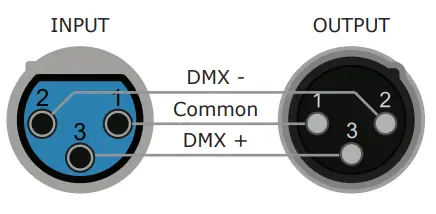
To build your own DMX Terminator:
Obtain a 120-ohm, 1/4-watt resistor, and wire it between pins 2 & 3 of the last fixture. They are also readily available from specialty retailers.
CAUTION: Do not allow contact between the common and the fixture’s chassis ground. Grounding the common can cause a ground loop, and your fixture may perform erratically. Test cables with an ohm meter to verify correct polarity and to make sure the pins are not grounded or shorted to the shield or each other.
3-Pin??? 5-Pin??? Huh?!?
If you use a controller with a 5-pin DMX output connector, you will need to use a 5-pin to 3-pin adapter. If you’d like to build your own, the chart below details a proper cable conversion:
| Conductor | 3-Pin Female (Output) | 5-Pin Male (Input) |
| Ground/Shield | Pin 1 | Pin 1 |
| Data 1- (Primary Data Link) | Pin 2 | Pin 2 |
| Data 1+ (Primary Data Link) | Pin 3 | Pin 3 |
| Data 2- (Optional Secondary Data Link) | — | Pin 4 – Do Not Use |
| Data 2+ (Optional Secondary Data Link) | — | Pin 5 – Do Not Use |
Take It To The Next Level: Setting Up DMX Control
Step 1: Connect the male connector of the DMX cable to the female connector (output) on the controller.
Step 2: Connect the female connector of the DMX cable to the first fixture’s male connector (input).
Note: It doesn’t matter which fixture address is the first one connected. We recommend connecting the fixtures in terms of their proximity to the controller, rather than connecting the lowest fixture number first, and so on.
Step 3: Connect other fixtures in the chain from output to input as above. Place a DMX terminator on the output of the final fixture to ensure best communication.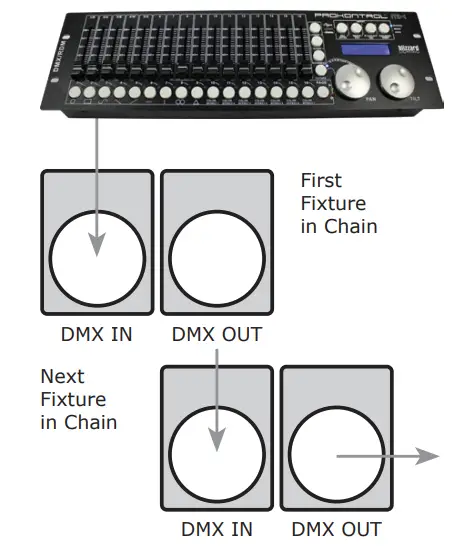
Fixture Linking (M/S Mode)
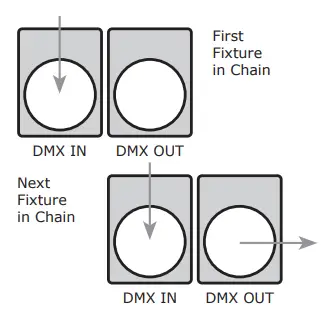
- Connect the male connector side of the DMX cable to the output female connector of the first fixture.
- Connect the end of the cable coming from the first fixture which will have a female connector to the input connector of the next fixture consisting of a male connector. Then, proceed to connect from the output as stated above to the input of the following fixture and so on.
A quick note: Often, the setup for Master-Slave and Standalone operation requires that the first fixture in the chain be initialized for this purpose via either settings in the control panel or DIP-switches. Secondarily, the fixtures that follow may also require a slave setting.
Check the “Operating Adjustments” section in this manual for complete instructions for this type of setup and configuration.
Mounting & Rigging
This fixture may be mounted in any SAFE position provided there is enough room for ventilation. The fan or vent pathway must never be obstructed.
IMPORTANT: Regardless of the rigging option you choose for your fixtures, always be sure to secure your fixture with a safety cable.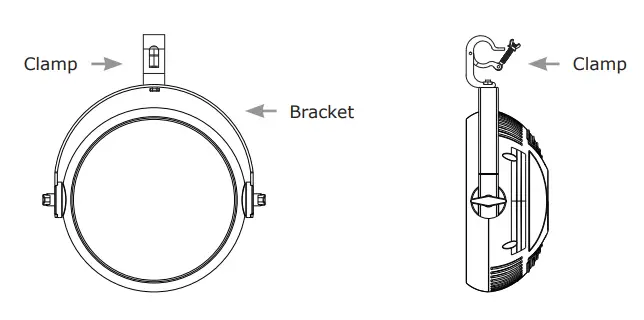
Mount the fixture using a suitable “C” or “O” type clamp. The clamp should be rated to hold at least 10x the fixture’s weight to ensure structural stability. Do not mount to surfaces of unknown strength, and ensure properly rated rigging is used when mounting fixtures overhead.
Overhead mounting requires extensive experience, which includes calculating working load limits, knowledge of the installation material being used, and periodic safety inspections. If you lack these qualifications, do not attempt the installation yourself.
OPERATING ADJUSTMENTS
The Control Panel
All the features and different modes possible with the InfiniPix™ Cyclone are accessed by using the control panel on the rear of the fixture. There are 4 control buttons under to the LED display which allow you to navigate through the various control panel menus.
 <MENU>
Is used to navigate to the previous higher-level menu item. <UP>
<UP>
Scrolls through menu items and numbers in ascending order. <DOWN>
Scrolls through menu items and numbers in descending order <ENTER>
Is used to select and confirm/store the current selection.
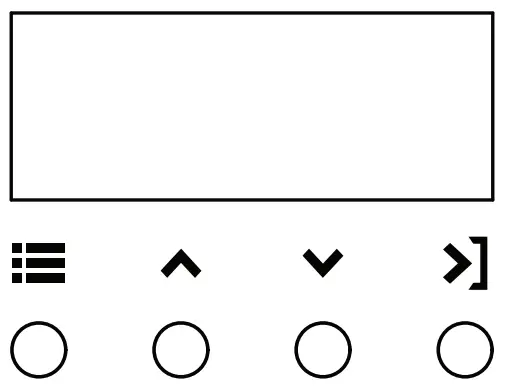
The control panel LED display shows the menu items you select from the menu map on page #11. When a menu function is selected, the display will show immediately the first available option for the selected menu function. To select a menu item, press <ENTER>.
Use the <UP> and <DOWN> buttons to navigate the menu options. Press the <ENTER> button to select the menu function currently displayed, or to enable a menu option. To return to the previous option or menu without changing the value, press the <MENU> button.
| Addr | 001-512 | Set the starting address from 001-512 |
| Chnd | 4Ch | 4-channel DMX mode |
| 5Ch | 5-channel DMX mode | |
| 8Ch | 8-channel DMX mode | |
| Shnd (show mode) | Shou (show) | Sh01-Sh85 (see Pattern Effects on p. 12) |
| Clor (pattern color) | CL01-CL21 (see Color Macros on p. 13) | |
| Clbk (not available with some full-pixel preset shows) | Red (red background intensity) 0-255 | |
| Gren (green background intensity) 0-255 | ||
| Blue (blue background intensity) 0-255 | ||
| Lost (lost DMX signal default modes) | <ENTER> | Hold (holds last recieved DMX signal) |
| Auto (uses the pattern set in Shou) | ||
| Soun (uses the pattern set in Shou) | ||
| Blac (blackout) | ||
| Sens | 000-099 | Mic sensitivity level |
| Sped | 000-099 | Auto Speed (slow <-> fast) |
| Naun (manual mode) | <ENTER> | Red (red intensity) 0-255 |
| Green (green intensity) 0-255 | ||
| Blue (blue intensity) 0-255 | ||
| Dinn (master dimmer) 0-255 | ||
| Stro (strobe, see DMX values on p. 12) | ||
| Tenp | <ENTER> | Displays the internal temperature (C) |
| Led | <ENTER> | LED backlight always on, or turns off after 30s |
| Disp | Norn/Flip | Rotate the menu display by 180° |
| Ver | <ENTER> | Software version |
| defa | <ENTER> | Reset to factory default settings |
Auto Mode & Sound Active Modes
Note: To use Auto or Sound Active mode via the LED menu, you must make sure that a DMX signal is not connected to the fixture, and then set the Lost DMX setting to either Auto or Soun.
- Navigate to Lost, press <ENTER> and choose Auto or Soun, and press <ENTER>.
- Now navigate the menu to reach Shnd, and press <ENTER>.
- Use the <UP/DOWN> buttons to highlight Shou (show), and select a show ranging from Sh01-Sh85, and press <ENTER>.
- Now navigate the menu to reach Clor (pattern color), and select a pattern ranging from CL01-CL21, and press <ENTER>.
- Then to change the background color, navigate to Clbk (color background). From here you can adjust the Red, Green, and Blue intensity levels.
Note: This function is not available with all show patterns. - To change the pattern speed used with auto mode, navigate the main menu to reach Sped, and adjust the setting anywhere from 000-099.
Manual Mode
Note: To use Manual mode via the LED menu, make sure that the Lost DMX setting is set to Blac.
- Navigate the menu to reach Naun (manual mode), and press <ENTER>.
- Use the <UP/DOWN> buttons highlight red (red), gren (green), blue (blue), dinn (master dimmer), or Stro (strobe) and press <ENTER>.
- Adjust the values for each selection as needed from 000-255.
DMX Values In-Depth (4/5/8-Channel Modes)
| 4CH | 5CH | 8CH | Value | What it does | |
| 1 | 1 | 1 | 000 <-> 255 | Dimmer (0% <-> 100%) | |
| — | 2 | 2 | 000 <-> 030 031 <-> 090 091 <-> 105 106 <-> 165 166 <-> 180 181 <-> 240 241 <-> 255 | Strobe Open Variable strobe (slow <-> fast) Open Pulse effect (slow <-> fast) Open Random strobe (slow <-> fast) Open | |
| 2 | 3 | 3 | 000 <-> 255 | Red (0% <-> 100%) | *Also controls the CH6 back- ground color (if available in the selected pattern). |
| 3 | 4 | 4 | 000 <-> 255 | Green (0% <-> 100%) | |
| 4 | 5 | 5 | 000 <-> 255 | Blue (0% <-> 100%) | |
| — | — | 6 | 000 <-> 002 003 <-> 005 006 <-> 008 009 <-> 011 012 <-> 014 015 <-> 017 018 <-> 020 021 <-> 023 024 <-> 026 027 <-> 029 030 <-> 032 033 <-> 035 036 <-> 038 039 <-> 041 042 <-> 044 045 <-> 047 048 <-> 050 051 <-> 053 054 <-> 056 057 <-> 059 060 <-> 062 063 <-> 065 066 <-> 068 069 <-> 071 072 <-> 074 075 <-> 077 078 <-> 080 081 <-> 083 084 <-> 086 087 <-> 089 090 <-> 092 093 <-> 095 096 <-> 098 099 <-> 101 102 <-> 104 105 <-> 107 108 <-> 110 111 <-> 113 114 <-> 116 117 <-> 119 120 <-> 122 123 <-> 125 126 <-> 128 129 <-> 131 132 <-> 134 135 <-> 137 138 <-> 140 141 <-> 143 144 <-> 146 147 <-> 149 150 <-> 152 153 <-> 155 156 <-> 158 159 <-> 161 162 <-> 164 165 <-> 167 168 <-> 170 171 <-> 173 174 <-> 176 177 <-> 179 180 <-> 182 183 <-> 185 186 <-> 188 189 <-> 191 192 <-> 194 195 <-> 197 198 <-> 200 201 <-> 203 204 <-> 206 207 <-> 209 210 <-> 212 213 <-> 215 216 <-> 218 219 <-> 221 222 <-> 224 225 <-> 227 228 <-> 230 231 <-> 233 234 <-> 236 237 <-> 239 240 <-> 242 243 <-> 245 246 <-> 248 249 <-> 251 252 <-> 254 255 | Pattern Effects No function Effect 1 – Color jump Effect 2 – Color fade Effect 3 – Color fade up Effect 4 – Color fade down Effect 5 – Color fade up/down Effect 6 – Spiral (half) CW Effect 7 – Spiral (half) CCW Effect 8 – Spiral (thirds) spin CW Effect 9 – Spiral (thirds) spin CCW Effect 10 – Spiral 2 segment spin CW Effect 11 – Spiral 2 segment spin CCW Effect 12 – Spiral 3 segment spin CW Effect 13 – Spiral 3 segment spin CCW Effect 14 – Spiral 4 segment spin CW Effect 15 – Spiral 4 segment spin CCW Effect 16 – Spiral 6 segment spin CW Effect 17 – Spiral 6 segment spin CCW Effect 18 – Spiral 2 segment overlap CW Effect 19 – Spiral 2 segment overlap CCW Effect 20 – Spiral 3 segment overlap CW Effect 21 – Spiral 3 segment overlap CCW Effect 22 – Spiral 4 segment overlap CW Effect 23 – Spiral 4 segment overlap CCW Effect 24 – Spiral 6 segment overlap CW Effect 25 – Spiral 6 segment overlap CCW Effect 26 – Spiral 2 segment overlap CW Effect 27 – Spiral 2 segment overlap CCW Effect 28 – Spiral 3 segment overlap CW Effect 29 – Spiral 3 segment overlap CCW Effect 30 – Spiral 4 segment overlap CW Effect 31 – Spiral 4 segment overlap CCW Effect 32 – Spiral 6 segment overlap CW Effect 33 – Spiral 6 segment overlap CCW Effect 34 – Spiral gradient spin CW Effect 35 – Spiral gradient spin CCW Effect 36 – Spiral 3 segment CW Effect 37 – Spiral 3 segment CCW Effect 38 – Swipe on CW, off CW Effect 39 – Swipe on CCW, off CCW Effect 40 – Swipe 2 segment on CW, off CW Effect 41 – Swipe 2 segment on CCW, off CCW Effect 42 – Swipe 4 segment on CW, off CW Effect 43 – Swipe 4 segment on CCW, off CCW Effect 44 – Swipe 6 segment on CW, off CW Effect 45 – Swipe 6 segment on CCW, off CCW Effect 46 – Swipe 2 segment overlap CW Effect 47 – Swipe 2 segment overlap CCW Effect 48 – Swipe 3 segment overlap CW Effect 49 – Swipe 3 segment overlap CCW Effect 50 – Swipe 4 segment overlap CW Effect 51 – Swipe 4 segment overlap CCW Effect 52 – Swipe 6 segment overlap CW Effect 53 – Swipe 6 segment overlap CCW Effect 54 – Swipe on CW, off CCW Effect 55 – Swipe on CCW, off CW Effect 56 – Swipe 2 segment on/off CW Effect 57 – Swipe 2 segment on/off CCW Effect 58 – Swipe 3 segment on/off CW Effect 59 – Swipe 3 segment on/off CCW Effect 60 – Swipe 4 segment on/off CW Effect 61 – Swipe 4 segment on/off CCW Effect 62 – Swipe 6 segment on/off CW Effect 63 – Swipe 6 segment on/off CCW Effect 64 – 2 segment spin CW Effect 65 – 2 segment spin CCW Effect 66 – 3 segment spin CW Effect 67 – 3 segment spin CCW Effect 68 – 4 segment spin CW Effect 69 – 4 segment spin CCW Effect 70 – 6 segment spin CW Effect 71 – 6 segment spin CCW Effect 72 – 3 segment spin CW Effect 73 – 3 segment spin CCW Effect 74 – Tunnel effect 1, center to perimeter Effect 75 – Tunnel effect 1, perimeter to center Effect 76 – Tunnel effect 2, center to perimeter Effect 77 – Tunnel effect 2, perimeter to center Effect 78 – Tunnel effect 3, center to perimeter Effect 79 – Tunnel effect 3, perimeter to center Effect 80 – Narrow spiral CW Effect 81 – Narrow spiral CCW Effect 82 – Narrow burst, center to perimeter Effect 83 – Narrow burst, perimeter to center Effect 84 – Fireworks full, center to perimeter Effect 85 – Fireworks narrow, center to perimeter | |
| — | — | 7 | 144 <-> 146 147 <-> 149 150 <-> 152 153 <-> 155 156 <-> 158 159 <-> 161 162 <-> 164 165 <-> 167 168 <-> 170 171 <-> 173 174 <-> 176 177 <-> 179 180 <-> 182 183 <-> 185 186 <-> 188 189 <-> 191 192 <-> 194 195 <-> 197 198 <-> 200 201 <-> 203 204 <-> 206 207 <-> 209 210 <-> 212 213 <-> 215 216 <-> 218 219 <-> 221 222 <-> 224 225 <-> 227 228 <-> 230 231 <-> 233 234 <-> 236 237 <-> 239 240 <-> 242 243 <-> 245 246 <-> 248 249 <-> 251 252 <-> 254 255 | Effect 48 – Swipe 3 segment overlap CW Effect 49 – Swipe 3 segment overlap CCW Effect 50 – Swipe 4 segment overlap CW Effect 51 – Swipe 4 segment overlap CCW Effect 52 – Swipe 6 segment overlap CW Effect 53 – Swipe 6 segment overlap CCW Effect 54 – Swipe on CW, off CCW Effect 55 – Swipe on CCW, off CW Effect 56 – Swipe 2 segment on/off CW Effect 57 – Swipe 2 segment on/off CCW Effect 58 – Swipe 3 segment on/off CW Effect 59 – Swipe 3 segment on/off CCW Effect 60 – Swipe 4 segment on/off CW Effect 61 – Swipe 4 segment on/off CCW Effect 62 – Swipe 6 segment on/off CW Effect 63 – Swipe 6 segment on/off CCW Effect 64 – 2 segment spin CW Effect 65 – 2 segment spin CCW Effect 66 – 3 segment spin CW Effect 67 – 3 segment spin CCW Effect 68 – 4 segment spin CW Effect 69 – 4 segment spin CCW Effect 70 – 6 segment spin CW Effect 71 – 6 segment spin CCW Effect 72 – 3 segment spin CW Effect 73 – 3 segment spin CCW Effect 74 – Tunnel effect 1, center to perimeter Effect 75 – Tunnel effect 1, perimeter to center Effect 76 – Tunnel effect 2, center to perimeter Effect 77 – Tunnel effect 2, perimeter to center Effect 78 – Tunnel effect 3, center to perimeter Effect 79 – Tunnel effect 3, perimeter to center Effect 80 – Narrow spiral CW Effect 81 – Narrow spiral CCW Effect 82 – Narrow burst, center to perimeter Effect 83 – Narrow burst, perimeter to center Effect 84 – Fireworks full, center to perimeter Effect 85 – Fireworks narrow, center to perimeter | |
| — | — | 8 | 000 <-> 255 | Effect Speed Speed (slow <–> fast) | |
APPENDIX
Keeping Your InfiniPix™ Cyclone As Good As New
The fixture you’ve received is a rugged, tough piece of pro lighting equipment, and as long as you take care of it, it will take care of you. That said, you’ll need to take care of it if you want it to operate as designed. You should keep the fixture clean, especially if you are using it in an environment with a lot of dust, fog, haze, wild animals, wild teenagers or spilled drinks.
Cleaning the optics routinely with a suitable glass cleaner will greatly improve the quality of light output. Keeping the fans free of dust and debris will keep the fixture running cool and prevent damage from overheating.
In transit, keep the fixtures in cases. You wouldn’t throw a prized guitar, drumset, or other piece of expensive gear into a gear trailer without a case, and similarly, you shouldn’t even think about doing it with your shiny new light fixtures.
Common sense and taking care of your fixtures will be the single biggest thing you can do to keep them running at peak performance and let you worry about designing a great light show, putting on a great concert, or maximizing your client’s satisfaction and “wow factor.” That’s what it’s all about, after all!
Returns (Gasp!)
We’ve taken a lot of precautions to make sure you never even have to worry about sending a defective unit back, or sending a unit in for service. But, like any complex piece of equipment designed and built by humans, once in a while, something doesn’t go as planned. If you find yourself with a fixture that isn’t behaving like a good little fixture should, you’ll need to obtain a Return Authorization (RA).
Don’t worry, this is easy. Just visit www.blizzardpro.com/support and open a support ticket, and we’ll issue you an RA. Then, you’ll need to send the unit to us using a trackable, pre-paid freight method. We suggest using USPS Priority or UPS. Make sure you carefully pack the fixture for transit, and whenever possible, use the original box & packing for shipping.
When returning your fixture for service, be sure to include the following:
- Your contact information (Name, Address, Phone Number, Email address).
- The RA# issued to you
- A brief description of the problem/symptoms.
We will, at our discretion, repair or replace the fixture. Please remember that any shipping damage which occurs in transit to us is the customer’s responsibility, so pack it well!
Shipping Issues
Damage incurred in shipping is the responsibility of the shipper, and must be reported to the carrier immediately upon receipt of the items. Claims must be made within seven (7) days of receipt.
Tech Specs!
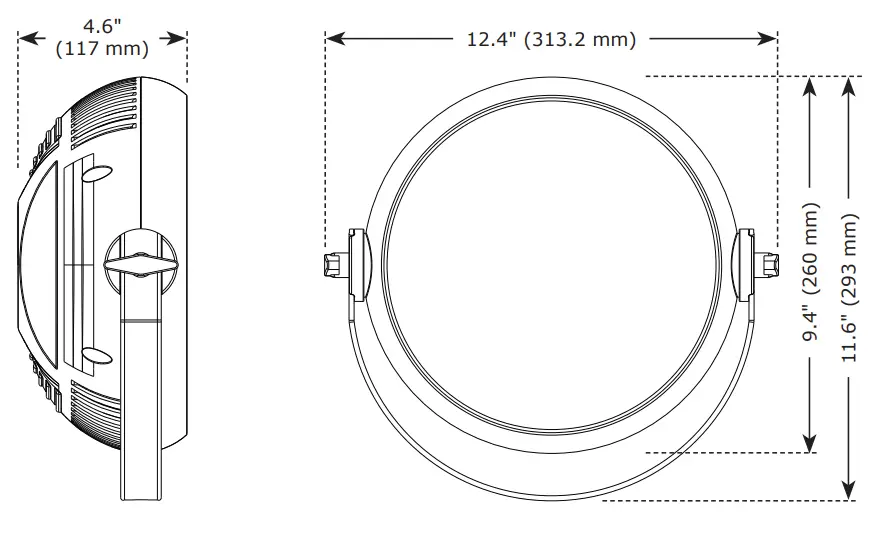
| Weight & Dimensions | |
| Width | 12.4 inches (313.2 mm) |
| Depth | 4.6 inches (116.8 mm) |
| Height | 9.4 inches (260 mm) |
| Weight | 4.1 lbs. (1.9 kg) |
| Power | |
| Operating Voltage | 100-240VAC, 50-60 Hz |
| Power Consumption | 67W, 0.9A, PF: .65 |
| Fuse | 2A 250V |
| Light Source | |
| LED | 325 x 0.2W RGB LEDs |
| Optical | |
| Beam Angle | 120° beam angle |
| Thermal | |
| Max. Operating Temp. | 104° F (40 degrees C) ambient |
| Control | |
| Protocol | USITT DMX-512 |
| DMX Channels | 4/5/8-channel |
| Input/Output | 3-pin XLR male/female |
| Other Operating Modes | DMX-512, M/S, and Standalone |
| Warranty | 2-year limited warranty, does not cover malfunction caused by damage to LEDs. |
Dimensional Drawings
Enjoy your product!
Our sincerest thanks for your purchase!
–The team @ Blizzard Lighting

 Support – Blizzard Lighting
 Blizzard | LED Lighting Products + IRiS LED Video – Blizzard Lighting