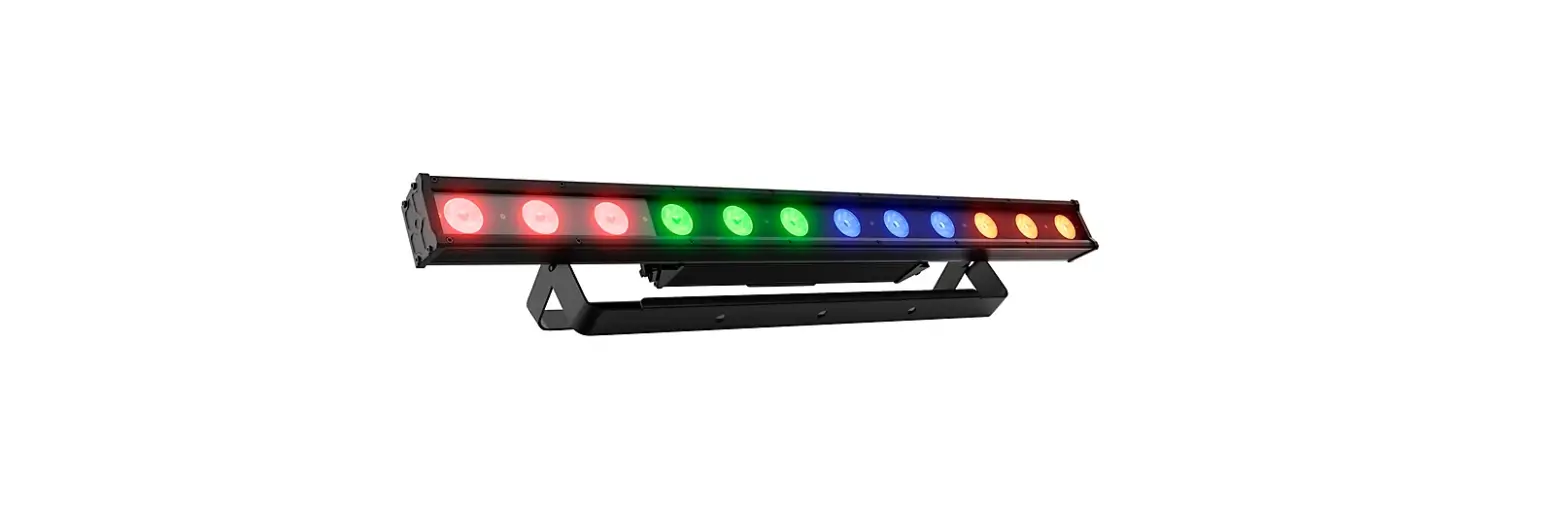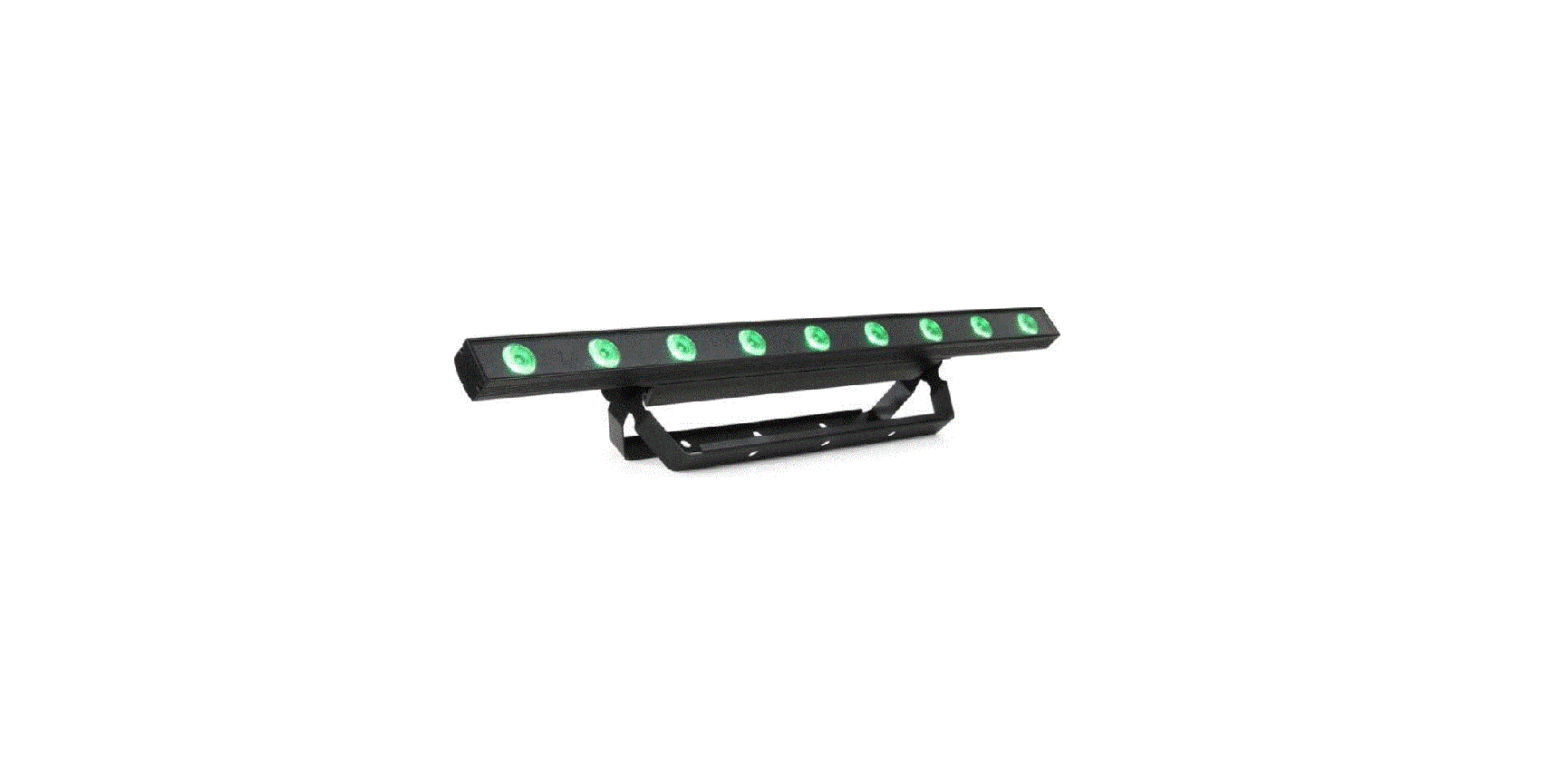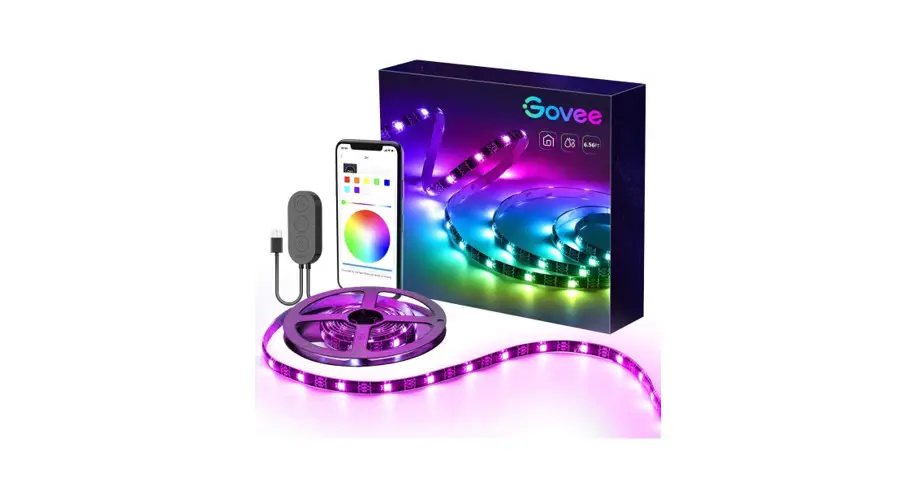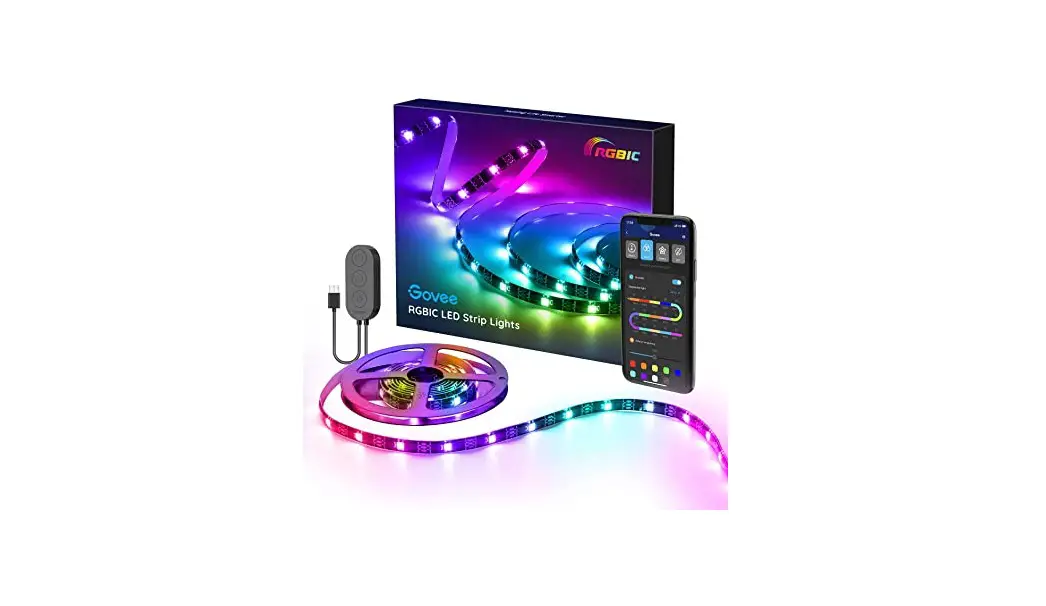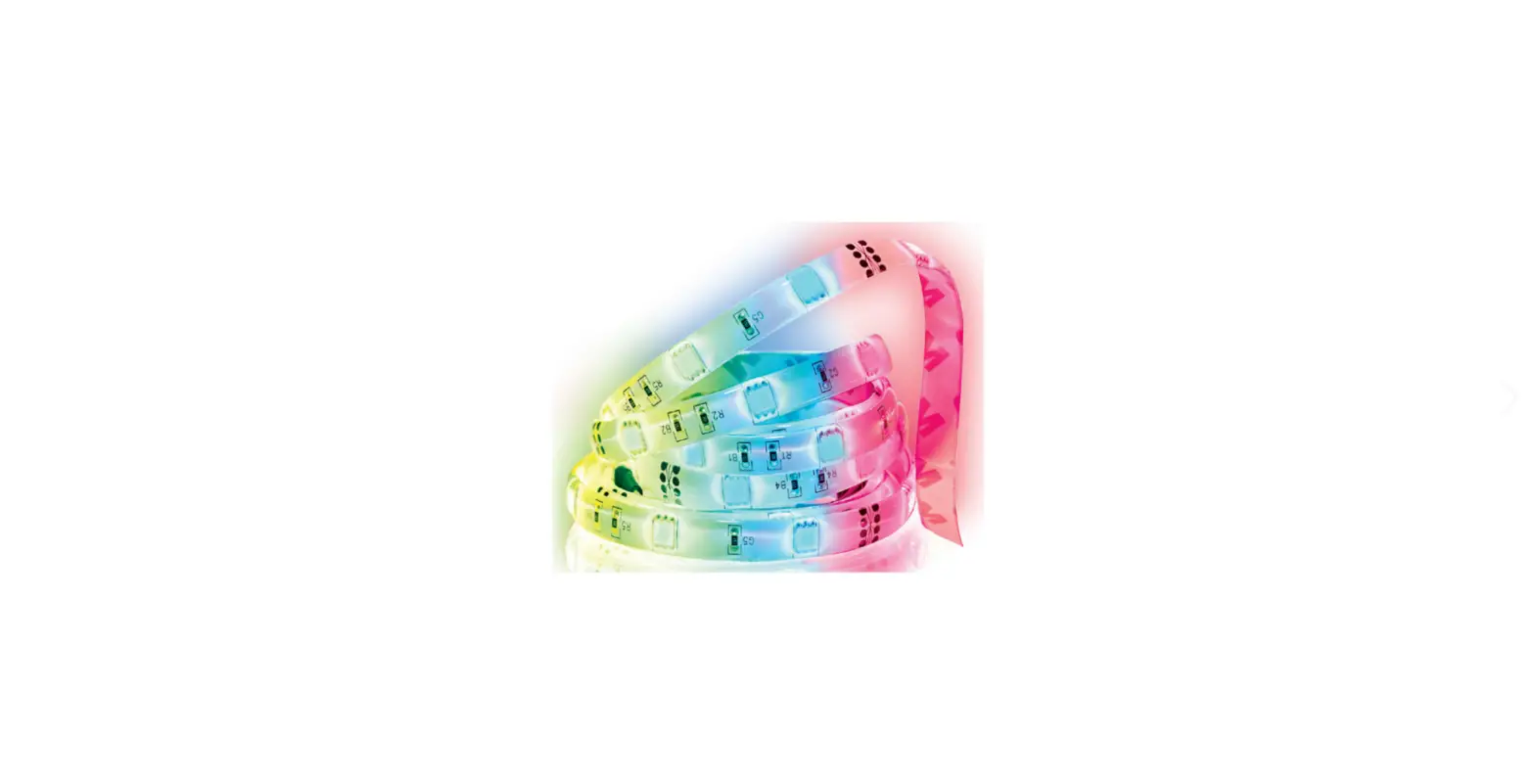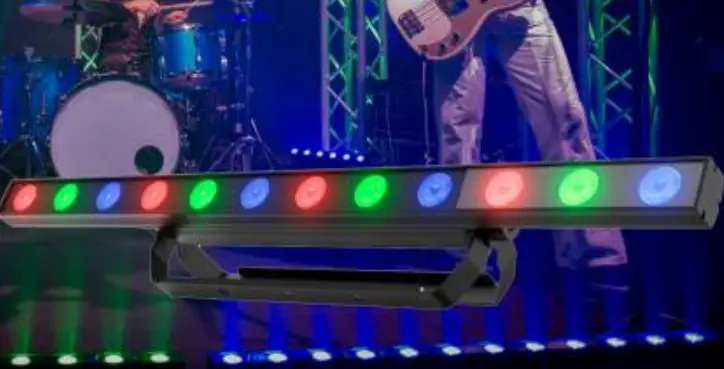

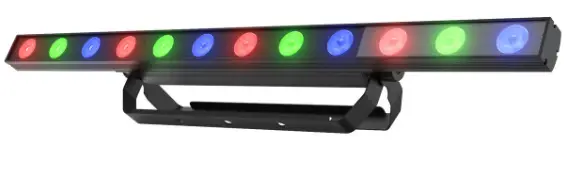
CHAUVET DJ PiX ILS Colorband LED Strip Light
Warranty
Limited Warranty
FOR WARRANTY REGISTRATION AND COMPLETE TERMS AND CONDITIONS PLEASE VISIT OUR WEBSITE.
For Customers in the United States and Mexico: www.chauvetlighting.com/warranty-registration. For Customers in the United Kingdom, Republic of Ireland, Belgium, the Netherlands, Luxembourg, France, and Germany: www.chauvetlighting.eu/warranty-registration.
Chauvet warrants that this product shall be free from defects in material and workmanship under normal use, for the period specified in, and subject to the exclusions and limitations set forth in the full limited warranty on our website. This warranty extends only to the original purchaser of the product and is not transferable. To exercise rights under this warranty, you must provide proof of purchase in the form of an original sales receipt from an authorized dealer that shows the product name and date of purchase. THERE ARE NO OTHER EXPRESS OR IMPLIED WARRANTIES. This warranty gives you specific legal rights. You may also have other rights that vary from state to state and country to country. This warranty is valid only in the United States, United Kingdom, Republic of Ireland, Belgium, the Netherlands, Luxembourg, France, Germany and Mexico. For warranty terms in other countries, please consult your local distributor.
Before You Begin
What Is Included
- COLORband PiX ILS
- Power cable
- Quick Reference Guide
Unpacking Instructions
Carefully unpack the product immediately and check the container to make sure all the parts are in the package and are in good condition.
Claims
If the box or the contents (the product and included accessories) appear damaged from shipping, or show signs of mishandling, notify the carrier immediately, not Chauvet. Failure to report damage to the carrier immediately may invalidate your claim. In addition, keep the box and contents for inspection.
For other issues, such as missing components or parts, damage not related to shipping, or concealed damage, file a claim with Chauvet within 7 days of delivery.
Text Conventions
| Convention | Meaning |
| 1–512 | A range of values |
| 50/60 | A set of values of which only one can be chosen |
| Settings | A menu option not to be modified |
| <ENTER> | A key to be pressed on the product’s control panel |
| ON | A value to be entered or selected |
Symbols
| Symbol | Meaning |
 | Critical installation, configuration, or operation information. Not following these instructions may make the product not work, cause damage to the product, or cause harm to the operator. |
 | Important installation or configuration information. The product may not function correctly if this information is not used. |
 | Useful information. |
Disclaimer
Chauvet believes that the information contained in this manual is accurate in all respects. However, Chauvet assumes no responsibility and specifically disclaims any and all liability to any party for any loss, damage or disruption caused by any errors or omissions in this document, whether such errors or omissions result from negligence, accident or any other cause. Chauvet reserves the right to revise the content of this document without any obligation to notify any person or company of such revision, however, Chauvet has no obligation to make, and does not commit to make, any such revisions. Download the latest version from www.chauvetdj.com.
Intellectual Property
The works of authorship contained in this manual, including, but not limited to, all design, text and images are owned by Chauvet.
© Copyright 2022 Chauvet & Sons, LLC. All rights reserved.
Electronically published by Chauvet in the United States of America.
CHAUVET, the Chauvet logo, and COLORband PiX ILS are registered trademarks or trademarks of Chauvet & Sons LLC (d/b/a Chauvet and Chauvet Lighting) in the United States and other countries. Other company and product names and logos referred to herein may be trademarks of their respective companies.
Safety Notes
- In the event of a serious operating problem, stop using immediately.
- DO NOT:
- Open this product or attempt any repairs. It contains no user-serviceable parts.
- Look at the light source when the product is on.
- Use if the power cord is crimped or damaged.
- Disconnect by pulling on the power cord.
- Allow flammable materials close to the product when it is operating.
- Touch the housing when it is on.
- Block any ventilation holes/slots in the housing.
- Connect to a dimmer or rheostat.
- Carry the product by its power cord.
- Operate in temperatures higher than 104°F (40°C).
- Expose to environments that exceed the Ingress Protection (IP) rating.
- Expose to rain or moisture.
- Use outdoors.
- Submerge.
- Leave outdoors for extended periods of time.
- Expose to corrosive environmental conditions such as temperature, humidity, salinity, pressure, radiation, or shock.
- Set this product on a flammable surface.
- ALWAYS:
- Connect to a grounded circuit.
- Connect to operating voltages as specified on the product’s spec sticker.
- Disconnect from power before replacing the fuse.
- Disconnect from its power source during periods of inactivity.
- Use a safety cable when suspending overhead.
- Heed all restrictions and warnings on the spec sticker.
- Mount in a location with at least 20 in (50 cm) of ventilation.
- Replace the fuse with the same type and rating.
- Use a clamp with a captive bolt when a single hanging bracket is used.
Keep this User Manual for future use. If the product is sold to someone else, be sure that they also receive this document.
Introduction
Product Overview
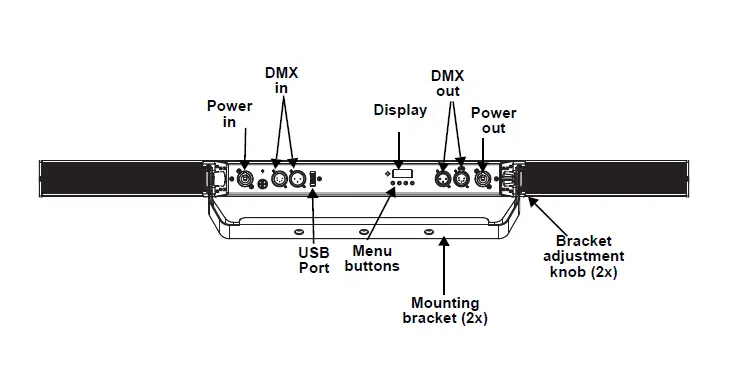
WARNING! DO NOT plug anything other than a D-Fi USB into the USB port. Doing so may cause damage to the product.
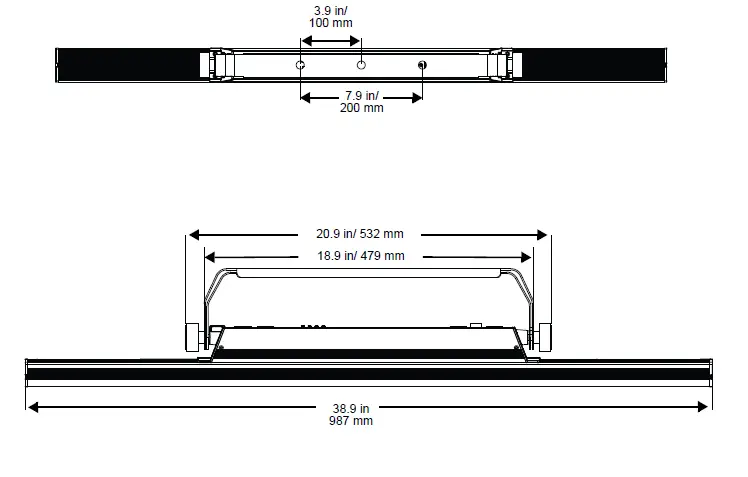
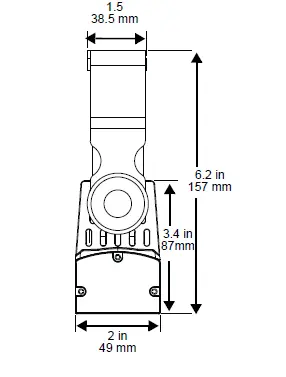
Product Dimensions
Setup
AC Power
The COLORband PiX ILS has an auto-ranging power supply, and it can work with an input voltage range of 100 to 240 VAC, 50/60 Hz.
To determine the product’s power requirements (circuit breaker, power outlet, and wiring), use the current value listed on the label affixed to the product’s back panel, or refer to the product’s specifications chart. The listed current rating indicates the product’s average current draw under normal conditions.
- Always connect the product to a protected circuit (a circuit breaker or fuse). Make sure the product has an appropriate electrical ground to avoid the risk of electrocution or fire.
- To eliminate unnecessary wear and improve its lifespan, during periods of non-use completely disconnect the product from power via breaker or by unplugging it.
Never connect the product to a rheostat (variable resistor) or dimmer circuit, even if the rheostat or dimmer channel serves only as a 0 to 100% switch.
Fuse Replacement
- Disconnect the product from power.
- Using a Phillips-head screwdriver, unscrew the fuse holder and pull it straight out.
- Remove the blown fuse from the holder and replace with a fuse of the exact same type and rating.
Re-insert the fuse holder and reconnect power.
Power Linking
The product provides power linking via the outlet located in the back of the product. See the diagram below for further explanation.
Power Linking Diagram
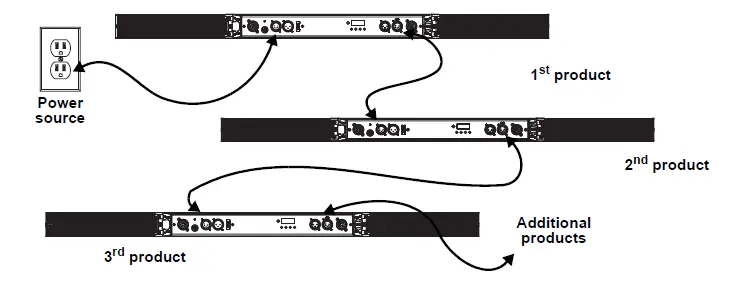
It is possible to link up to 19 COLORband PiX ILS products on 120 VAC or up to 35 products on 230 VAC.
Mounting
Before mounting the product, read and follow the safety recommendations indicated in the Safety Notes.
Orientation
The COLORband PiX ILS may be mounted in any position; however, make sure adequate ventilation is provided around the product.
Rigging
- Before deciding on a location, always make sure there is easy access to the product for maintenance and programming.
- Make sure adequate ventilation is provided around the product.
- Make sure that the structure or surface onto which you are mounting the product can support the product’s weight (see the Technical Specifications).
- When mounting the product overhead, always use a safety cable. Mount the product securely to a rigging point, whether an elevated platform or a truss.
- When rigging the product onto a truss, use a mounting clamp of appropriate weight capacity.
- When power linking multiple products, mount the products close enough for power-linking cables to reach.
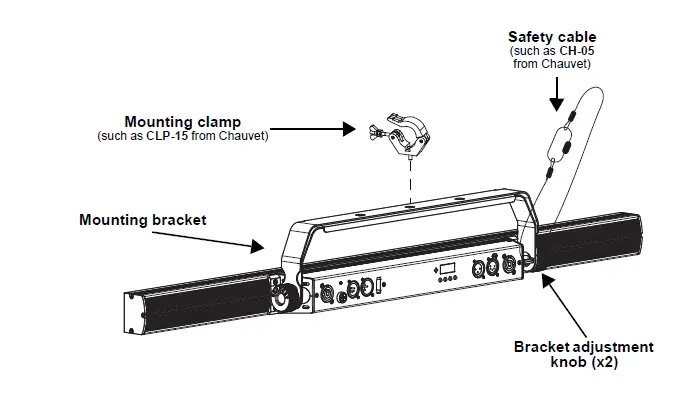
- The bracket adjustment knobs allow for directional adjustment when aiming the product to the desired angle. Only loosen or tighten the bracket knobs manually. Using tools could damage the knobs.
Mounting Diagram
Operation
Control Panel Operation
To access the control panel functions, use the four buttons located underneath the display. Refer to the Product Overview to see the button locations on the control panel.
| Button | Function |
| <MENU> | Exits from the current menu or function |
| <UP> | Navigates upwards through the menu list or increases a selected numeric value |
| <DOWN> | Navigates downwards through the menu list or decreases a selected numeric value |
| <ENTER> | Enables the currently displayed menu or sets a selected value into the selected function |
Menu Map
Refer to the COLORband PiX ILS product page on www.chauvetdj.com for the latest menu map.
| Mode | Programming Levels | Description | ||
|
DMX Mode | 3-Ch | d 1–510 | 3-channel, 1-zone DMX mode | |
| 4-Ch | d 1–509 | 4-channel, 1-zone DMX mode | ||
| 6-Ch | d 1–507 | 6-channel, 2-zone DMX mode | ||
| 7-Ch | d 1–506 | 7-channel, 1-zone DMX mode | ||
| 8-Ch | d 1–505 | 8-channel, 1-zone DMX mode | ||
| 9-Ch | d 1–504 | 9-channel, 3-zone DMX mode | ||
| 12Ch | d 1–501 | 12-channel, 4-zone DMX mode | ||
| 18Ch | d 1–495 | 18-channel, 6-zone DMX mode | ||
| 36Ch | d 1–477 | 36-channel, 12-zone DMX mode | ||
| 41Ch | d 1–472 | 41-channel, 12-zone DMX mode | ||
| ILS Mode | iLS | iLS1–4 | Sets ILS mode | |
| Static Color | C-– | C 1–7 | Static colors | |
| Programs | P-– | P 1–23 | Automatic programs | |
| Speed | S-– | S. 1–100 | Automatic program speed | |
| Sound Mode | Snd | Snd | Sound-active program | |
| Sensitivity | SenS | u 0–100 | Sound sensitivity | |
| Manual Mode | U-– | r. 0–255 | Combine red, green, and blue for a custom static color | |
| G. 0–255 | ||||
| b. 0–255 | ||||
| Dimmer Speed | dIM | oFF | Sets the dimmer speed | |
| dIM1–3 | ||||
|
RF Control |
SEt |
RF | oFF | Disables RFC remote control |
| Link | Link to a single remote by pressing and holding <freeze>, (RFC) or <BLACK OUT> (RFC-XL) until the display shows PASS (success) or ErrO (failure) | |||
| PubL | Public mode, control with any RFC or RFC-XL remote | |||
| GP1–4 | Sets to an RFC-XL remote receiving group | |||
| REST | Reset to factory default settings | |||
Configuration (DMX)
The COLORband PiX ILS works with a DMX controller. Information about DMX is in the CHAUVET DMX Primer, which is available from the Chauvet website http://www.chauvetlighting.com/downloads/
DMX_Primer_rev05_WO.pdf.
Starting Address
When selecting a starting DMX address, always consider the number of DMX channels the selected DMX mode uses. If you choose a starting address that is too high, you could restrict the access to some of the product’s channels.
The COLORband PiX ILS uses up to 41 DMX channels, which defines the highest configurable address as 472.
Download the DMX Primer from www.chauvetdj.com to know more about the DMX protocol.
To select the starting address, do the following:
- Press <MENU> repeatedly until 3Ch, 4Ch, 6Ch, 7Ch, 8Ch, 9Ch, 12Ch, 18Ch, 36Ch, or 41Ch shows on the display.
- Press <ENTER>.
- Use <UP> or <DOWN> to select the starting address, from d. 1–472.
- Press <ENTER>.
D-Fi USB Connectivity
The COLORband PiX ILS is able to become a D-Fi wireless receiver/transmitter with the use of the D-Fi USB from Chauvet DJ. Simply set the product’s DMX Personality and DMX Address, set the DIP switch D-Fi receiving/transmitting channel, then plug it into the D-Fi USB port.
WARNING! DO NOT plug anything other than a D-Fi USB into the USB port. Doing so may cause damage to the product.
Once plugged in, the D-Fi USB will take over the product. Wired DMX and manual display control / menu buttons will be unavailable until you unplug the D-Fi USB. The priority levels are:
- D-Fi USB
- Wired DMX
- Manual Digital Display/Menu Buttons
D-Fi USB Compatibility
The D-Fi USB can receive a DMX signal from the D-Fi Hub and the FlareCON Air 2 as well as other D-Fi USB products.
Configuration (D-Fi USB)
- Set the DMX Personality and DMX address on the COLORband PiX ILS.
- Use the Chart provided to set BOTH:
- the Channel, and then
- The Receiving or Transmitting option
NOTE: DIP Switch 5 is for Transmitting OR Receiving, please choose carefully. D-Fi USB DIP Switch Channels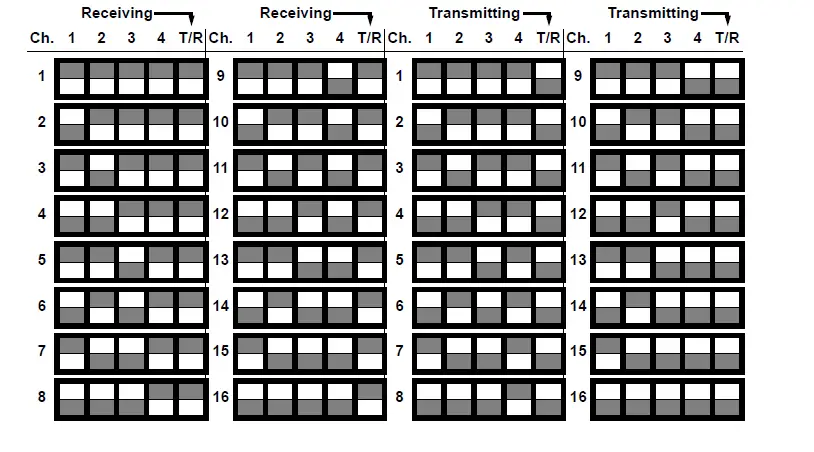
DMX Channel Assignments and Values
| 3-Ch | 4-Ch | 6-Ch | 7-Ch | 8-Ch | 9-Ch | 12Ch | 18Ch | 36Ch | 41Ch | |
| Control | Pixel | Full | Pixel | Full | Full | Pixel | Pixel | Pixel | Pixel | Full |
| Zones | 1 | 1 | 2 | 1 | 1 | 3 | 4 | 6 | 12 | 12 |
Full Control Modes
| 4-Ch | 7-Ch | 8-Ch | 41Ch | Function | Value | Percent/Setting | |
| 1 | 1 | 1 | 1 | Red 1 | Zone 1 | 000 ó 255 | 0–100% |
| 2 | 2 | 2 | 2 | Green 1 | 000 ó 255 | 0–100% | |
| 3 | 3 | 3 | 3 | Blue 1 | 000 ó 255 | 0–100% | |
|
– | 4 | Red 2 | Zone 2 | 000 ó 255 | 0–100% | ||
| 5 | Green 2 | 000 ó 255 | 0–100% | ||||
| 6 | Blue 2 | 000 ó 255 | 0–100% | ||||
| 7 | Red 3 | Zone 3 | 000 ó 255 | 0–100% | |||
| 8 | Green 3 | 000 ó 255 | 0–100% | ||||
| 9 | Blue 3 | 000 ó 255 | 0–100% | ||||
| 10 | Red 4 | Zone 4 | 000 ó 255 | 0–100% | |||
| 11 | Green 4 | 000 ó 255 | 0–100% | ||||
| 12 | Blue 4 | 000 ó 255 | 0–100% | ||||
| 13 | Red 5 | Zone 5 | 000 ó 255 | 0–100% | |||
| 14 | Green 5 | 000 ó 255 | 0–100% | ||||
| 15 | Blue 5 | 000 ó 255 | 0–100% | ||||
| 16 | Red 6 | Zone 6 | 000 ó 255 | 0–100% | |||
| 17 | Green 6 | 000 ó 255 | 0–100% | ||||
| 18 | Blue 6 | 000 ó 255 | 0–100% | ||||
| 19 | Red 7 | Zone 7 | 000 ó 255 | 0–100% | |||
| 20 | Green 7 | 000 ó 255 | 0–100% | ||||
| 21 | Blue 7 | 000 ó 255 | 0–100% | ||||
| 22 | Red 8 | Zone 8 | 000 ó 255 | 0–100% | |||
| 23 | Green 8 | 000 ó 255 | 0–100% | ||||
| 24 | Blue 8 | 000 ó 255 | 0–100% | ||||
| 25 | Red 9 | Zone 9 | 000 ó 255 | 0–100% | |||
| 26 | Green 9 | 000 ó 255 | 0–100% | ||||
| 27 | Blue 9 | 000 ó 255 | 0–100% | ||||
| 28 | Red 10 | Zone 10 | 000 ó 255 | 0–100% | |||
| 29 | Green 10 | 000 ó 255 | 0–100% | ||||
| 30 | Blue 10 | 000 ó 255 | 0–100% | ||||
|
– | 31 | Red 11 | Zone 11 | 000 ó 255 | 0–100% | ||
| 32 | Green 11 | 000 ó 255 | 0–100% | ||||
| 33 | Blue 11 | 000 ó 255 | 0–100% | ||||
| 34 | Red 12 | Zone 12 | 000 ó 255 | 0–100% | |||
| 35 | Green 12 | 000 ó 255 | 0–100% | ||||
| 36 | Blue 12 | 000 ó 255 | 0–100% | ||||
| – | 4 | 4 | 37 | Color macros | 000 ó 014 | No function | |
| 015 ó 255 | Color macros | ||||||
| 4-Ch | 7-Ch | 8-Ch | 41Ch | Function | Value | Percent/Setting |
|
– |
5 |
5 |
38 | Strobe (when Ch. 6/39 is 000ó 031) | 000 ó 015 | No function |
| 016 ó 255 | Strobe, slow to fast | |||||
| Program speed (when Ch. 6/39 is 032ó 223/229) | 000 ó 255 | Program speed, slow to fast | ||||
| Sound sensitivity (when Ch. 6/39 is 224/230ó 255) | 000 ó 010 | Sound sensitivity off | ||||
| 011 ó 255 | Sound sensitivity, low to high | |||||
|
– |
– |
6 |
39 |
Program | 000 ó 031 | No function |
| 032 ó 063 | Pulse effect, 0-100% | |||||
| 064 ó 095 | Pulse effect, 100-0% | |||||
| 096 ó 114 | Pulse effect, 100-0-100% | |||||
| 115 ó 119 | Automatic program 1 | |||||
| 120 ó 124 | Automatic program 2 | |||||
| 125 ó 129 | Automatic program 3 | |||||
| 130 ó 134 | Automatic program 4 | |||||
| 135 ó 139 | Automatic program 5 | |||||
| 140 ó 144 | Automatic program 6 | |||||
| 145 ó 149 | Automatic program 7 | |||||
| 150 ó 154 | Automatic program 8 | |||||
| 155 ó 159 | Automatic program 9 | |||||
| 160 ó 164 | Automatic program 10 | |||||
| 165 ó 169 | Automatic program 11 | |||||
| 170 ó 174 | Automatic program 12 | |||||
| 175 ó 179 | Automatic program 13 | |||||
| 180 ó 184 | Automatic program 14 | |||||
| 185 ó 189 | Automatic program 15 | |||||
| 190 ó 194 | Automatic program 16 | |||||
| 195 ó 199 | Automatic program 17 | |||||
| 200 ó 204 | Automatic program 18 | |||||
| 205 ó 209 | Automatic program 19 | |||||
| 210 ó 214 | Automatic program 20 | |||||
| 215 ó 219 | Automatic program 21 | |||||
| 220 ó 224 | Automatic program 22 | |||||
| 225 ó 229 | Automatic program 23 | |||||
| 230 ó 255 | Sound-active program | |||||
|
– |
6 |
– |
– |
Program | 000 ó 031 | No function |
| 032 ó 063 | Pulse effect, 0-100% | |||||
| 064 ó 095 | Pulse effect, 100-0% | |||||
| 096 ó 114 | Pulse effect, 100-0-100% | |||||
| 115 ó 127 | Automatic chase | |||||
| 128 ó 159 | Automatic fade | |||||
| 160 ó 191 | Automatic 3-color snap | |||||
| 192 ó 223 | Automatic 7-color snap | |||||
| 224 ó 255 | Sound-active program | |||||
| 4 | 7 | 7 | 40 | Dimmer | 000 ó 255 | 0–100% |
| 4-Ch | 7-Ch | 8-Ch | 41Ch | Function | Value | Percent/Setting |
|
– |
– |
8 |
41 |
Dimmer speed | 000 ó 051 | Dimmer speed set from display menu |
| 052 ó 101 | Dimmer speed mode off | |||||
| 102 ó 152 | Dimmer speed mode 1 (fast) | |||||
| 153 ó 203 | Dimmer speed mode 2 (medium) | |||||
| 204 ó 255 | Dimmer speed mode 3 (slow) |
Pixel Control Modes
| 3-Ch | 6-Ch | 9-Ch | 12Ch | 18Ch | 36Ch | Function | Value | Percent/Setting | |
| 1 | 1 | 1 | 1 | 1 | 1 | Red 1 | 000 ó 255 | 0–100% | |
| 2 | 2 | 2 | 2 | 2 | 2 | Green 1 | Zone 1 | 000 ó 255 | 0–100% |
| 3 | 3 | 3 | 3 | 3 | 3 | Blue 1 | 000 ó 255 | 0–100% | |
| 4 | 4 | 4 | 4 | 4 | Red 2 | 000 ó 255 | 0–100% | ||
| 5 | 5 | 5 | 5 | 5 | Green 2 | Zone 2 | 000 ó 255 | 0–100% | |
| 6 | 6 | 6 | 6 | 6 | Blue 2 | 000 ó 255 | 0–100% | ||
| 7 | 7 | 7 | 7 | Red 3 | 000 ó 255 | 0–100% | |||
| 8 | 8 | 8 | 8 | Green 3 | Zone 3 | 000 ó 255 | 0–100% | ||
| 9 | 9 | 9 | 9 | Blue 3 | 000 ó 255 | 0–100% | |||
| 10 | 10 | 10 | Red 4 | 000 ó 255 | 0–100% | ||||
| 11 | 11 | 11 | Green 4 | Zone 4 | 000 ó 255 | 0–100% | |||
| 12 | 12 | 12 | Blue 4 | 000 ó 255 | 0–100% | ||||
| 13 | 13 | Red 5 | 000 ó 255 | 0–100% | |||||
| 14 | 14 | Green 5 | Zone 5 | 000 ó 255 | 0–100% | ||||
| 15 | 15 | Blue 5 | 000 ó 255 | 0–100% | |||||
| 16 | 16 | Red 6 | 000 ó 255 | 0–100% | |||||
| 17 | 17 | Green 6 | Zone 6 | 000 ó 255 | 0–100% | ||||
| 18 | 18 | Blue 6 | 000 ó 255 | 0–100% | |||||
| 19 | Red 7 | 000 ó 255 | 0–100% | ||||||
| 20 | Green 7 | Zone 7 | 000 ó 255 | 0–100% | |||||
| 21 | Blue 7 | 000 ó 255 | 0–100% | ||||||
| 22 | Red 8 | 000 ó 255 | 0–100% | ||||||
| 23 | Green 8 | Zone 8 | 000 ó 255 | 0–100% | |||||
| 24 | Blue 8 | 000 ó 255 | 0–100% | ||||||
| 25 | Red 9 | 000 ó 255 | 0–100% | ||||||
| 26 | Green 9 | Zone 9 | 000 ó 255 | 0–100% | |||||
| 27 | Blue 9 | 000 ó 255 | 0–100% | ||||||
| 28 | Red 10 | 000 ó 255 | 0–100% | ||||||
| 29 | Green 10 | Zone 10 | 000 ó 255 | 0–100% | |||||
| 30 | Blue 10 | 000 ó 255 | 0–100% | ||||||
| 31 | Red 11 | 000 ó 255 | 0–100% | ||||||
| 32 | Green 11 | Zone 11 | 000 ó 255 | 0–100% | |||||
| 33 | Blue 11 | 000 ó 255 | 0–100% | ||||||
| 34 | Red 12 | 000 ó 255 | 0–100% | ||||||
| 35 | Green 12 | Zone 12 | 000 ó 255 | 0–100% | |||||
| 36 | Blue 12 | 000 ó 255 | 0–100% | ||||||
Zones for DMX Control
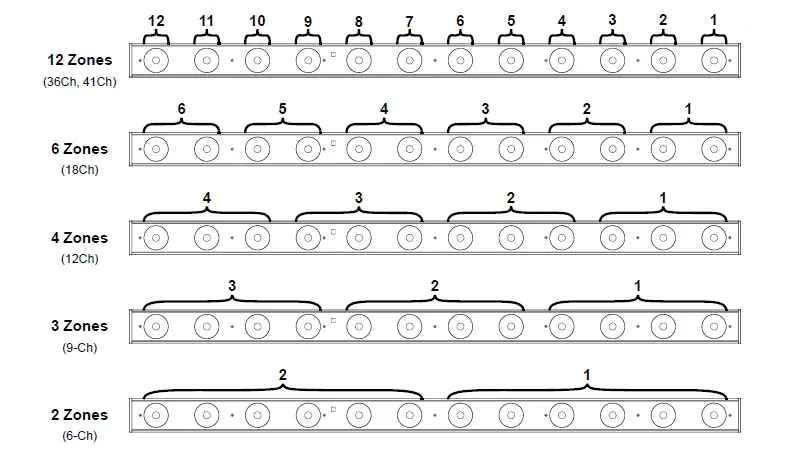
Configuration (Standalone)
Set the product in the standalone mode to control without a DMX controller.
Never connect a product that is operating in any standalone mode to a DMX string connected to a DMX controller. Products in standalone mode may transmit DMX signals that could interfere with the DMX signals from the controller.
Static Color Mode
To run the COLORband PiX ILS on a static color, follow the instructions below.
- Press <MENU> repeatedly until C– shows on the display.
- Press <ENTER>.
- Use <UP> or <DOWN> to select a static color, from C 1–7.
- Press <ENTER>.
Automatic Program
To run a program on the COLORband PiX ILS, follow the instructions below.
- Press <MENU> repeatedly until P– shows on the display.
- Press <ENTER>.
- Use <UP> or <DOWN> to select an automatic program, from P 1–23.
- Press <ENTER>.
Auto Program Speed
To adjust the auto program speed on the COLORband PiX ILS, do the following:
- Press <MENU> repeatedly until S– shows on the display.
- Use <UP> or <DOWN> to increase or decrease the program speed, from S. 1–100.
- Press <ENTER>.
Sound-Active Programs
To run the COLORband PiX ILS with a sound-active program, follow the instructions below.
- Press <MENU> repeatedly until Snd shows on the display.
- Press <ENTER>.
Sound Sensitivity
To set the sound sensitivity on the COLORband PiX ILS, do the following:
- Press <MENU> repeatedly until SenS shows on the display.
- Use <UP> or <DOWN> to increase or decrease the sound sensitivity, from u 0–100.
Press <ENTER>.
Custom Color Mixing
To mix a custom color on the COLORband PiX ILS, do the following:
- Press <MENU> repeatedly until u– shows on the display.
- Press <ENTER> and one of the following will show on the display:
- r. _ _ _ (red)
- G. _ _ _ (green)
- b. _ _ _ (blue)
- Press <ENTER> to cycle through the options.
- Use <UP> or <DOWN> to increase or decrease the selected value, from 0–255.
- Repeat steps 3 and 4 until the color is set as desired.
Dimmer
To set the dimmer speed/value on the COLORband PiX ILS, follow the instructions below.
- Press <MENU> repeatedly until dIM shows on the display.
- Press <ENTER>.
- Use <UP> or <DOWN> to set the dimmer, from dIM1 (fast) to dIM3 (slow) or oFF.
- Press <ENTER>.
RF Control
To lock/unlock the touchscreen on the COLORband PiX ILS, do the following:
- Press <MENU> repeatedly until SEt shows on the display. Press <ENTER>.
- Use <UP> or <DOWN> to select RF. Press <ENTER>.
- Use <UP> or <DOWN> to select Link (Link to a single remote), PubL (Public mode), GP1–4 (remote receiving group), or oFF (deactivates RFC remote control).
- Press <ENTER>.
Password: <UP>, <DOWN>, <UP>, <DOWN>, <ENTER>
Factory Reset
To reset the COLORband PiX ILS to default factory settings, follow the instructions below:
- Press <MENU> repeatedly until SEt shows on the display. Press <ENTER>.
- Use <UP> or <DOWN> to select RESt. Press <ENTER>.
Master/Slave Mode (Wired)
The Master/Slave mode allows a single COLORband PiX ILS product (the “master”) to control the actions of one or more COLORband PiX ILS products (the “slaves”) without the need of a DMX controller. The master product will be set to operate in Stand-Alone, while the slave products will be set to operate in Slave mode. Once set and connected, the slave products will operate in unison with the master product. Configure the products as indicated below.
Slave products:
- Press <MENU> repeatedly until 3Ch, 4Ch, 6Ch, 7Ch, 8Ch, 9Ch, 12Ch, 18Ch, 36Ch or 41Ch shows on the display.
- Press <ENTER> to accept.
- Set the DMX address to d 1.
- Connect the DMX input of the first slave product to the DMX output of the master product.
- Connect the DMX input of the subsequent slave products to the DMX output of the previous slave product.
- Finish setting and connecting all the slave products.
Master product:
- Set the master product to operate in Stand-Alone mode.
- Make the master product the first product in the DMX daisy chain.
- Configure all the slave products before connecting the master to the daisy chain.
- Never connect a DMX controller to a DMX string configured for Master/Slave operation because the controller may interfere with the signals from the master.
- Do not connect more than 31 slaves to the master.
Master/Slave Mode (D-Fi USB)
The D-Fi USB allows a single COLORband PiX ILS product (the “master”) to control the actions of one or more COLORband PiX ILS products (the “slaves”) without the need of a DMX controller or DMX cables. The master (transmitter) product will be set to operate in standalone mode, while the slave (receiver) products will be set to operate in DMX mode. Once set and connected, the slave products will operate in unison with the master product.
Configure the products as indicated below.
Slave products:
- Press <MENU> repeatedly until 3-Ch shows on the display.
- Press <ENTER>.
- Use <UP> or <DOWN> to set the starting address to d 1.
- Press <ENTER>.
- Set the D-Fi USB to receive on a specific channel, 1–16.
- Plug in the D-Fi USB.
- Finish setting and connecting all the slave products.
Master product:
- Set the master product to operate in standalone mode.
- Set the D-Fi USB to transmit on the D-Fi channel the slaves are receiving on.
- Plug in the D-Fi USB.
- All products must be set to the same DMX personality, DMX address, and D-Fi channel.
- Configure all the slave products before configuring the master to transmit.
- Never connect a DMX controller to a D-Fi channel configured for Master/Slave operation because the controller may interfere with the signals from the master.
ILS Mode
ILS (Integrated Lighting System) provides 4 modes that synchronize with the GigBAR MOVE+ILS: Modes 1 and 3 synchronize with side 1 of the GigBAR MOVE+ILS, whereas modes 2 and 4 synchronize with side 2 of the GigBAR MOVE+ILS. When linked, effects will sync with the most similar effect on the selected side of the GigBAR MOVE+ILS: Kinta effects will sync with one of the kintas, moving heads will sync with one of the moving heads, and wash effects will sync with one of the pars. Laser effects will sync with the laser, and strobe effects will sync with the strobe effects regardless of ILS mode.
This product will synchronize with the par effect on the selected side of the GigBAR MOVE+ILS.
To set the COLORband PiX ILS to respond to an ILS signal:
- Press <MENU> repeatedly until iLS_ shows on the display.
- Use <UP> or <DOWN> to select from iLS1 (side 1), iLS2 (side 2), iLS3 (side 1), or iLS4 (side 2).
- Press <ENTER>.
Maintenance
Product Maintenance
Dust build-up reduces light output performance and can cause overheating. This can lead to reduction of the light source’s life and/or mechanical wear. To maintain optimum performance and minimize wear, clean your lighting products at least twice a month. However, be aware that usage and environmental conditions could be contributing factors to increase the cleaning frequency.
To clean the product, follow the instructions below:
- Unplug the product from power.
- Wait until the product is at room temperature.
- Use a vacuum (or dry compressed air) and a soft brush to remove dust collected on the external surface/vents.
- Clean all transparent surfaces with a mild soap solution, ammonia-free glass cleaner, or isopropyl alcohol.
- Apply the solution directly to a soft, lint-free cotton cloth or a lens-cleaning tissue.
- Softly drag any dirt or grime to the outside of the transparent surface.
- Gently polish the transparent surfaces until they are free of haze and lint.
Always dry the transparent surfaces carefully after cleaning them.
Technical Specifications
| Dimensions and Weight | ||||||
| Length | Width | Height | Weight | |||
| 38.9 in (987 mm) | 2 in (49 mm) | 6.2 in (157 mm) | 7 lb (3.2 kg) | |||
| Note: Dimensions in inches are rounded. Power | ||||||
| Power Supply Type | Range | Voltage Selection | ||||
| Switching (internal) | 100 to 240 VAC, 50/60 Hz | Auto-ranging | ||||
| Parameter | 120 V, 60 Hz | 230 V, 50 Hz | ||||
| Consumption | 49 W | 48 W | ||||
| Operating current | 0.7 A | 0.4 A | ||||
| Power-linking current (products) | 13 A (19 products) | 13 A (35 products) | ||||
| Fuse | T 1.6 A, 250 V | T 1.6 A, 250 V | ||||
| Power I/O | U.S./Worldwide | UK/Europe | ||||
| Power input connector | powerCON® compatible | powerCON® compatible | ||||
| Power output connector | powerCON® compatible | powerCON® compatible | ||||
| Power cord plug | Edison | Bare wire | ||||
| Light Source | ||||||
| Type | Color | Quantity | Power | Current | Lifespan | |
| LED | Tri-color RGB | 12 | 3 W | 1 A | 50,000 hours | |
| Photometrics | ||||||
| Beam Angle | Field Angle | Illuminance @ 2 m | Illuminance @ 5 m | |||
| 14° | 27° | 4,142 lux | 663 lux | |||
| Thermal | ||||||
| Maximum External Temperature Cooling System | ||||||
Returns
In case you need to get support or return a product:
- If you are located in the U.S., contact Chauvet World Headquarters.
- If you are located in the U.K. or Ireland, contact Chauvet U.K..
- If you are located in Benelux, contact Chauvet Benelux
- If you are located in France, contact Chauvet France.
- If you are located in Germany, contact Chauvet Germany.
- If you are located in Mexico, contact Chauvet Mexico.
- If you are located in any other country, DO NOT contact Chauvet. Instead, contact your local distributor. See www.chauvetdj.com for distributors outside the U.S., U.K., Ireland, Benelux, France, Germany, or Mexico.
If you are located outside the U.S., U.K., Ireland, Benelux, France, Germany, or Mexico, contact your distributor of record and follow their instructions on how to return Chauvet products to them. Visit our website www.chauvetdj.com for contact details.
Call the corresponding Chauvet Technical Support office and request a Return Merchandise Authorization (RMA) number before shipping the product. Be prepared to provide the model number, serial number, and a brief description of the cause for the return.
To submit a service request online, go to www.chauvetdj.com/service-request.
Send the merchandise prepaid, in its original box, and with its original packing and accessories. Chauvet will not issue call tags.
Clearly label the package with the RMA number. Chauvet will refuse any product returned without an RMA number.
Write the RMA number on a properly affixed label. DO NOT write the RMA number directly on the box.
Before sending the product, clearly write the following information on a piece of paper and place it inside the box:
- Your name
- Your address
- Your phone number
- RMA number
- A brief description of the problem
Be sure to pack the product properly. Any shipping damage resulting from inadequate packaging will be your responsibility. FedEx packing or double-boxing are recommended.
Chauvet reserves the right to use its own discretion to repair or replace returned product(s).
Contact Us
General Information: Technical Support
Chauvet World Headquarters
Address: 3360 Davie Rd. Davie, FL 33314
Voice: (954) 577-4455 Fax: (954) 929-5560 Toll Free: (800) 762-1084
Voice: (844) 393-7575
Fax: (954) 756-8015
Email: [email protected]
Chauvet U.K.
Address: Unit 1C
Brookhill Road Industrial Estate Pinxton, Nottingham, UK NG16 6NT
Voice: +44 (0) 1773 511115 Fax: +44 (0) 1773 511110
Email: [email protected]
Website: www.chauvetdj.eu
Chauvet France
Address: 3, Rue Ampère 91380 Chilly-Mazarin
France
Voice: +33 1 78 85 33 59
Email: [email protected] Website: www.chauvetdj.eu
Chauvet Germany
Address: Bruno-Bürgel-Str. 11 28759 Bremen
Germany
Voice: +49 421 62 60 20
Email: [email protected]
Website: www.chauvetdj.eu
Chauvet Mexico
Address: Av. de las Partidas 34 – 3B (Entrance by Calle 2)
Zona Industrial Lerma
Lerma, Edo. de México, CP 52000 Voice: +52 (728) 690-2010
Email: [email protected] Website: www.chauvetdj.mx
Visit the applicable website above to verify our contact information and instructions to request support. Outside the U.S., U.K., Ireland, Mexico, France, Germany, or Benelux, contact the dealer of record.
References
 CHAUVET DJ lighting, controllers and accessories
-
Service Request for Your CHAUVET DJ Product | CHAUVET DJ
-
CHAUVET DJ lighting, controllers and accessories
-
CHAUVET DJ lighting, controllers and accessories
 chauvetlighting.com/downloads/
-
Warranty Registration | CHAUVET Lighting
-
CHAUVET Lighting, leading the entertainment lighting market.
 CHAUVET DJ lighting, controllers and accessories
 CHAUVET DJ lighting, controllers and accessories
 CHAUVET DJ lighting, controllers and accessories
 chauvetlighting.com/downloads/
 CHAUVET Lighting, leading the entertainment lighting market.