iO-GRIDm and SIEMENS PLC Modbus RTU Connection
Product Information
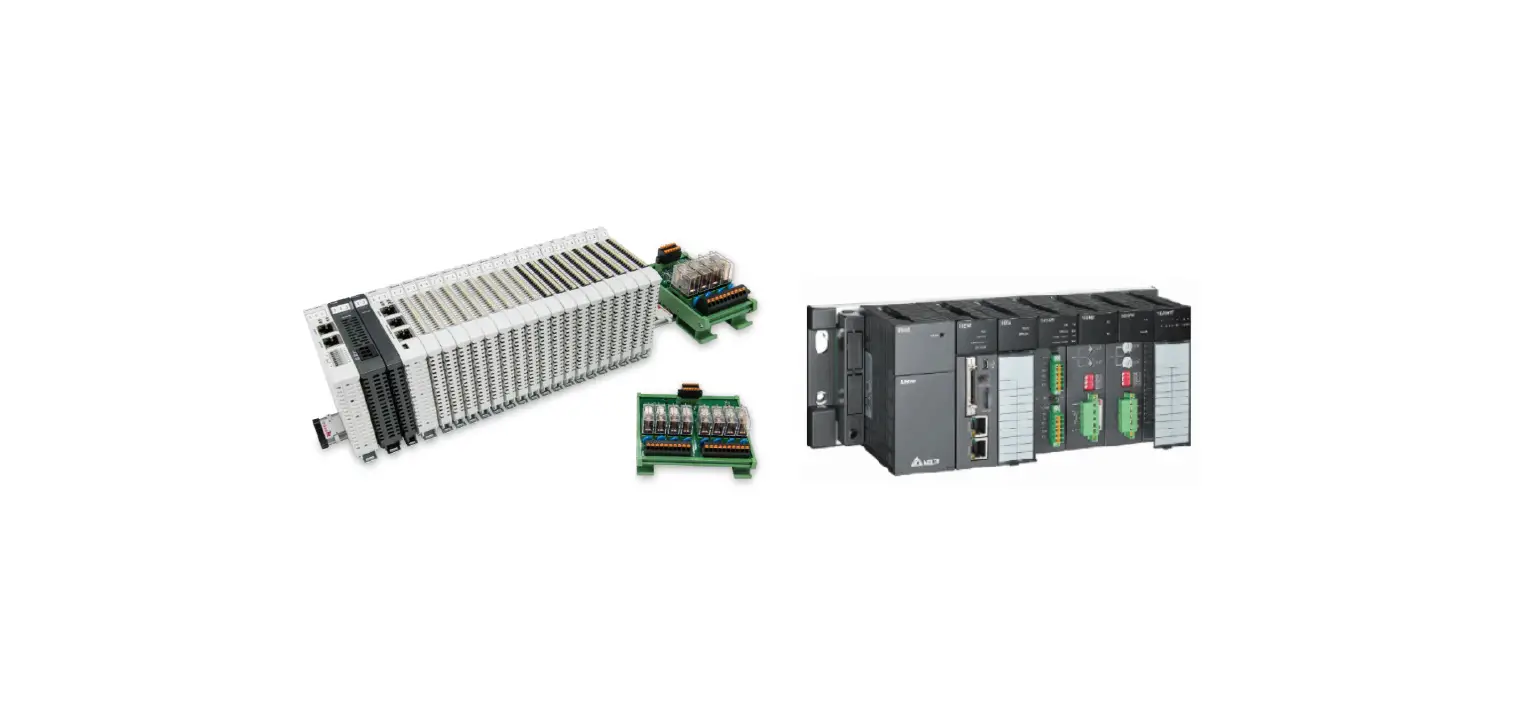
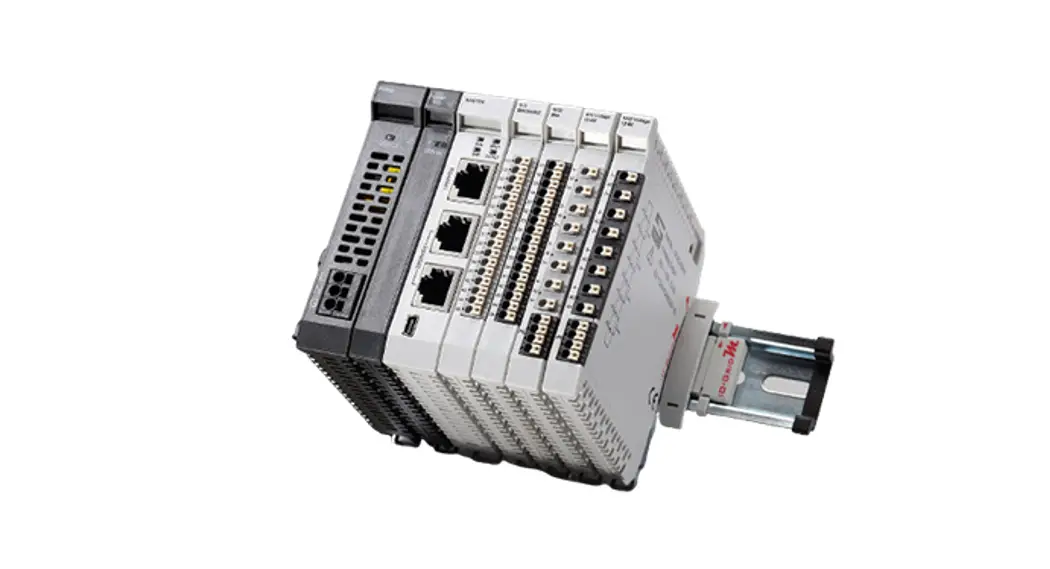
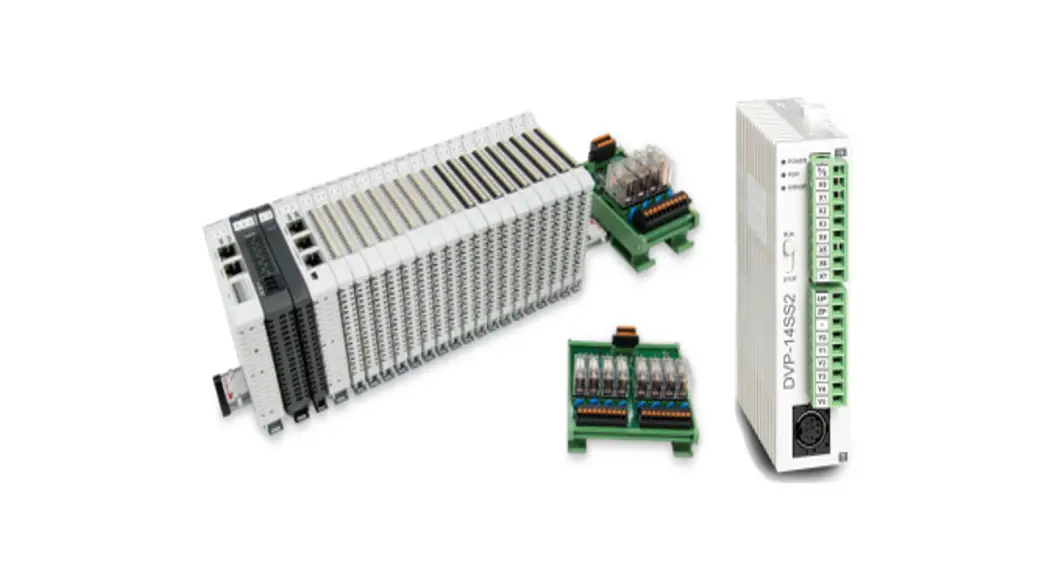
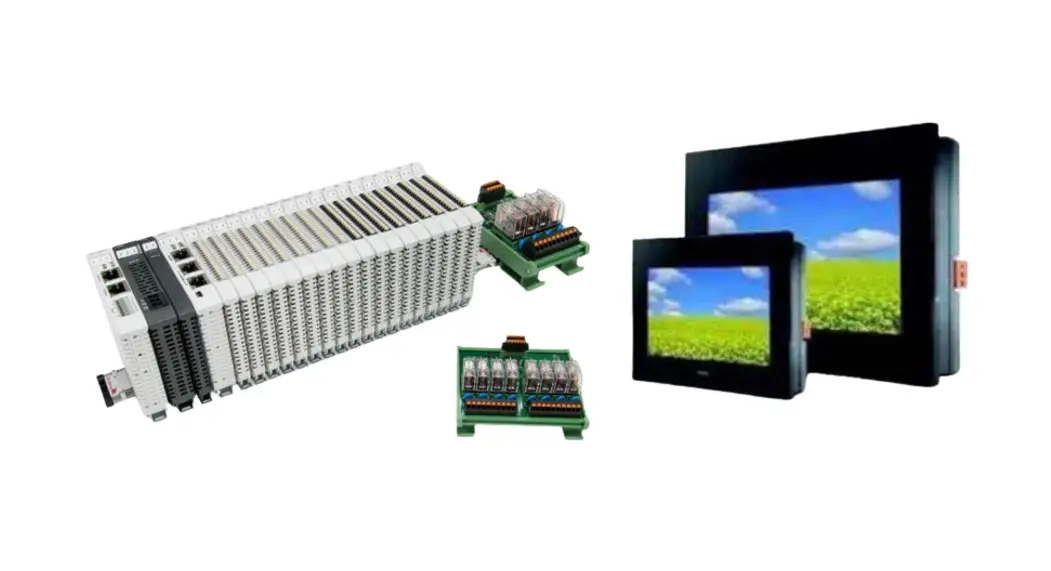
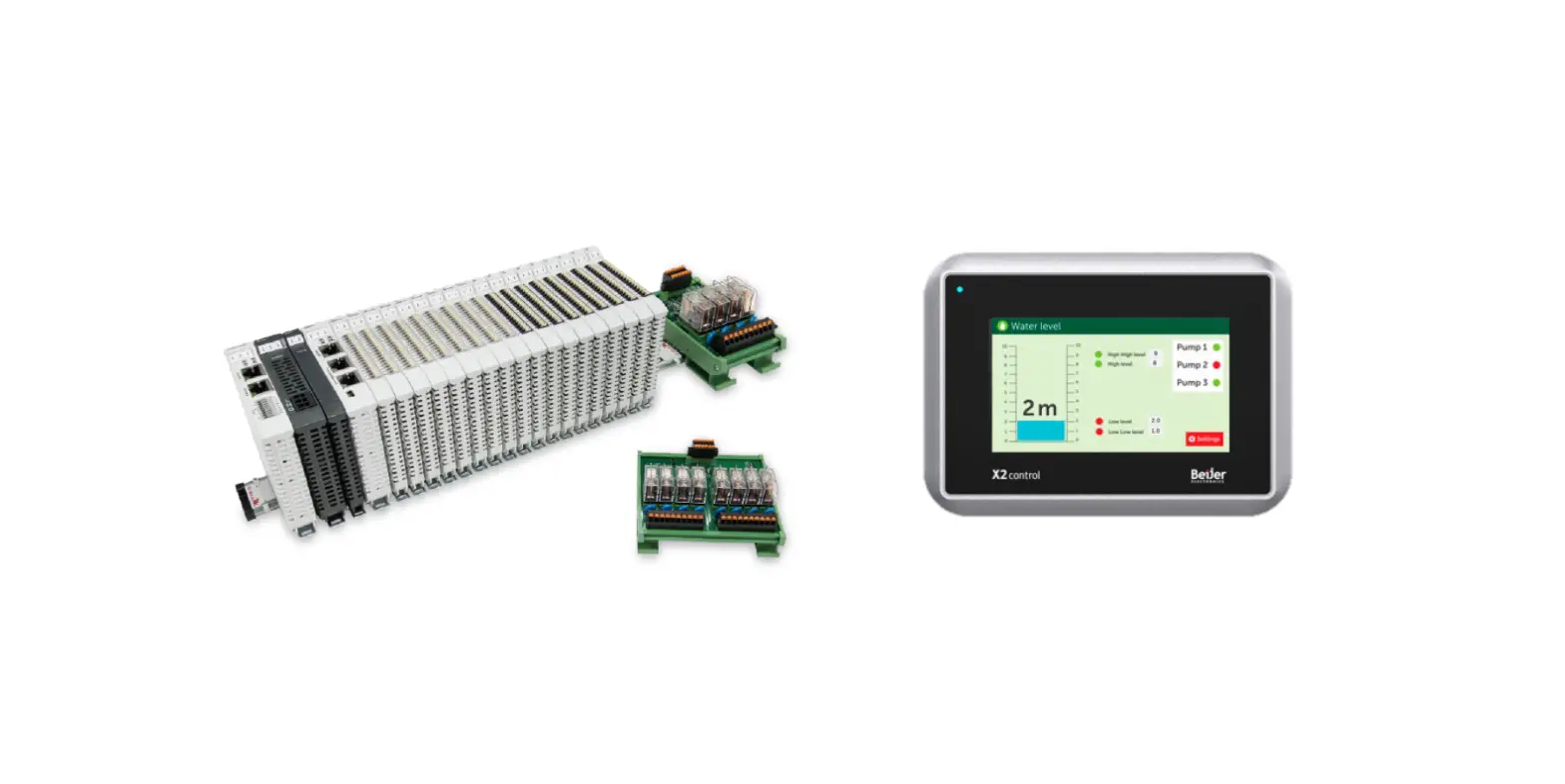
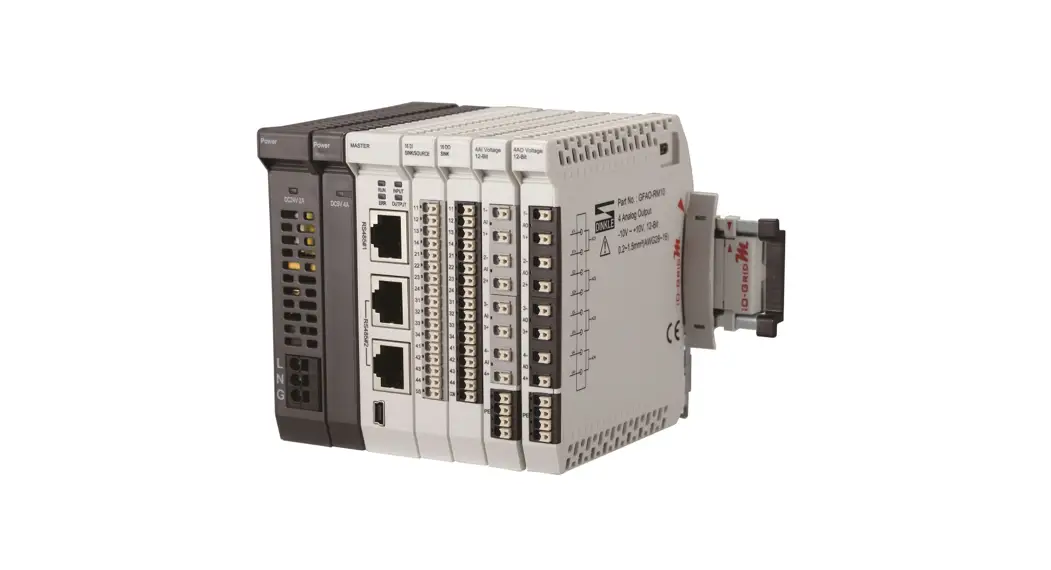
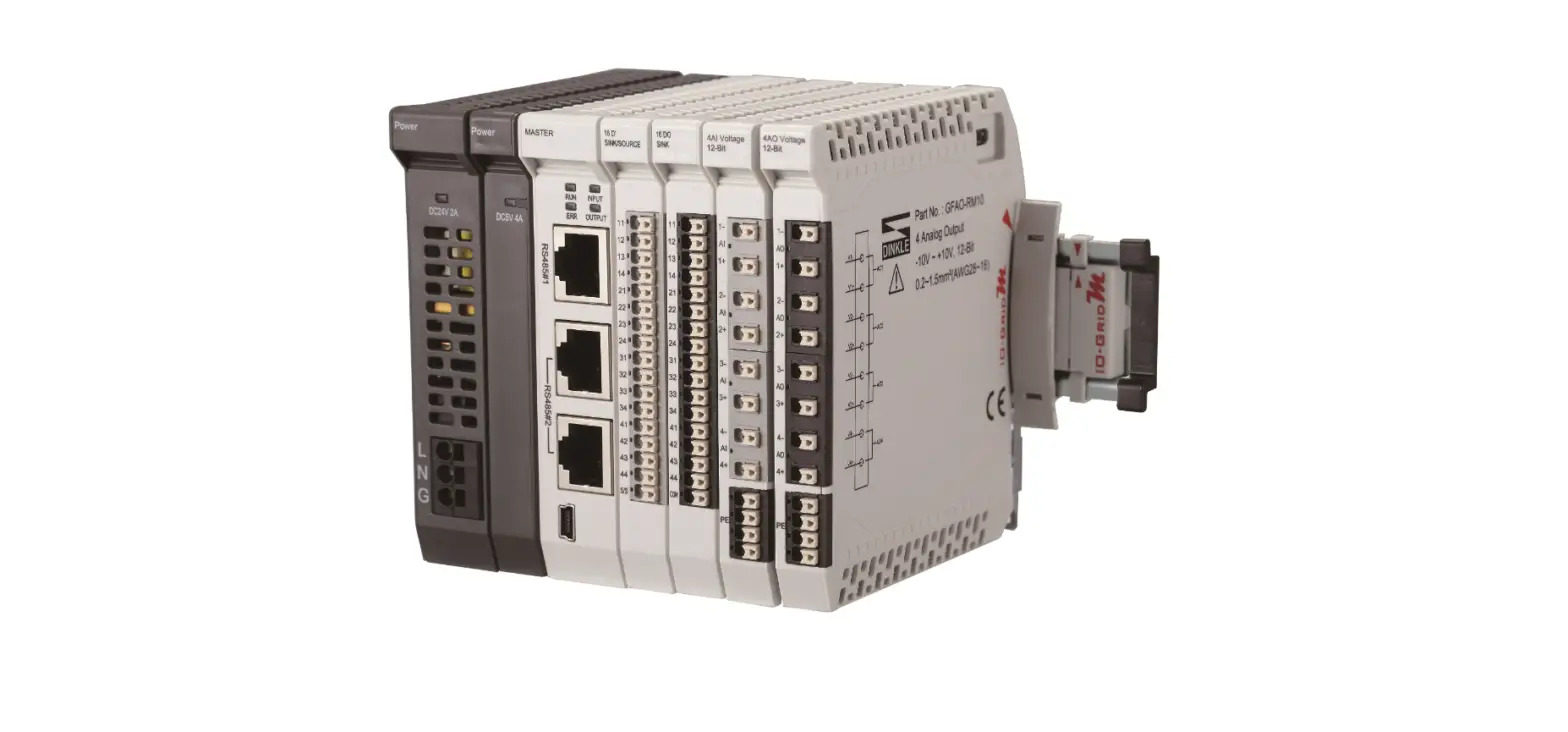
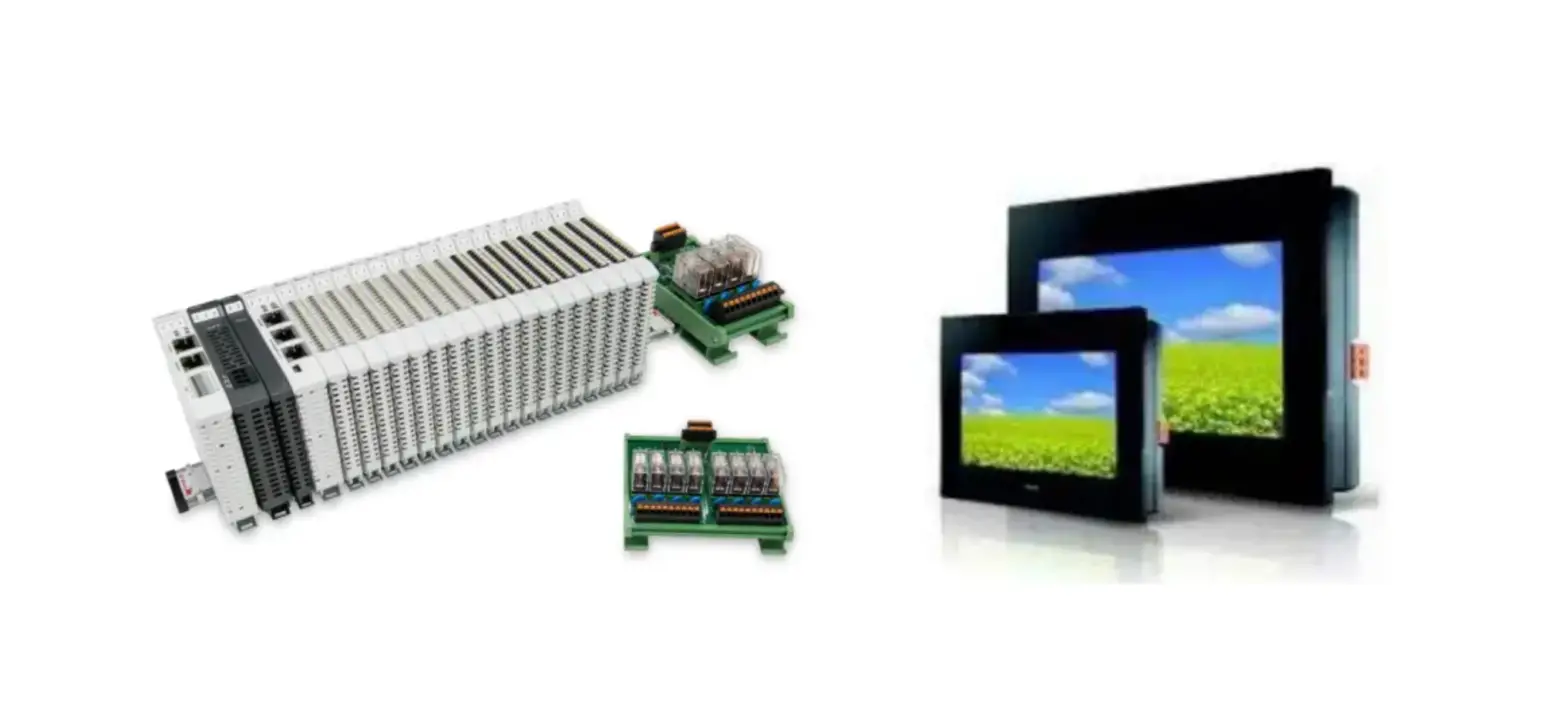
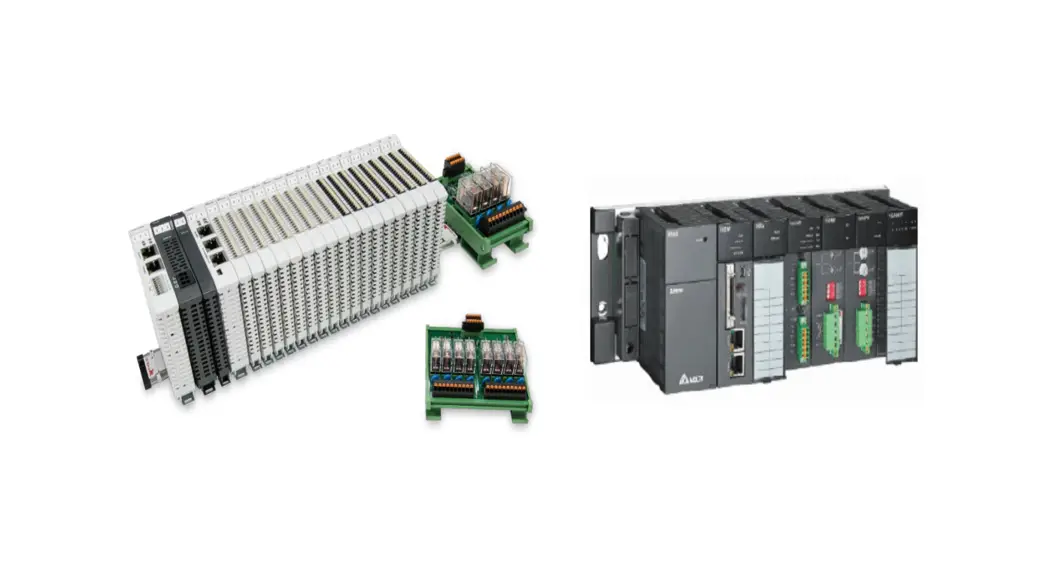
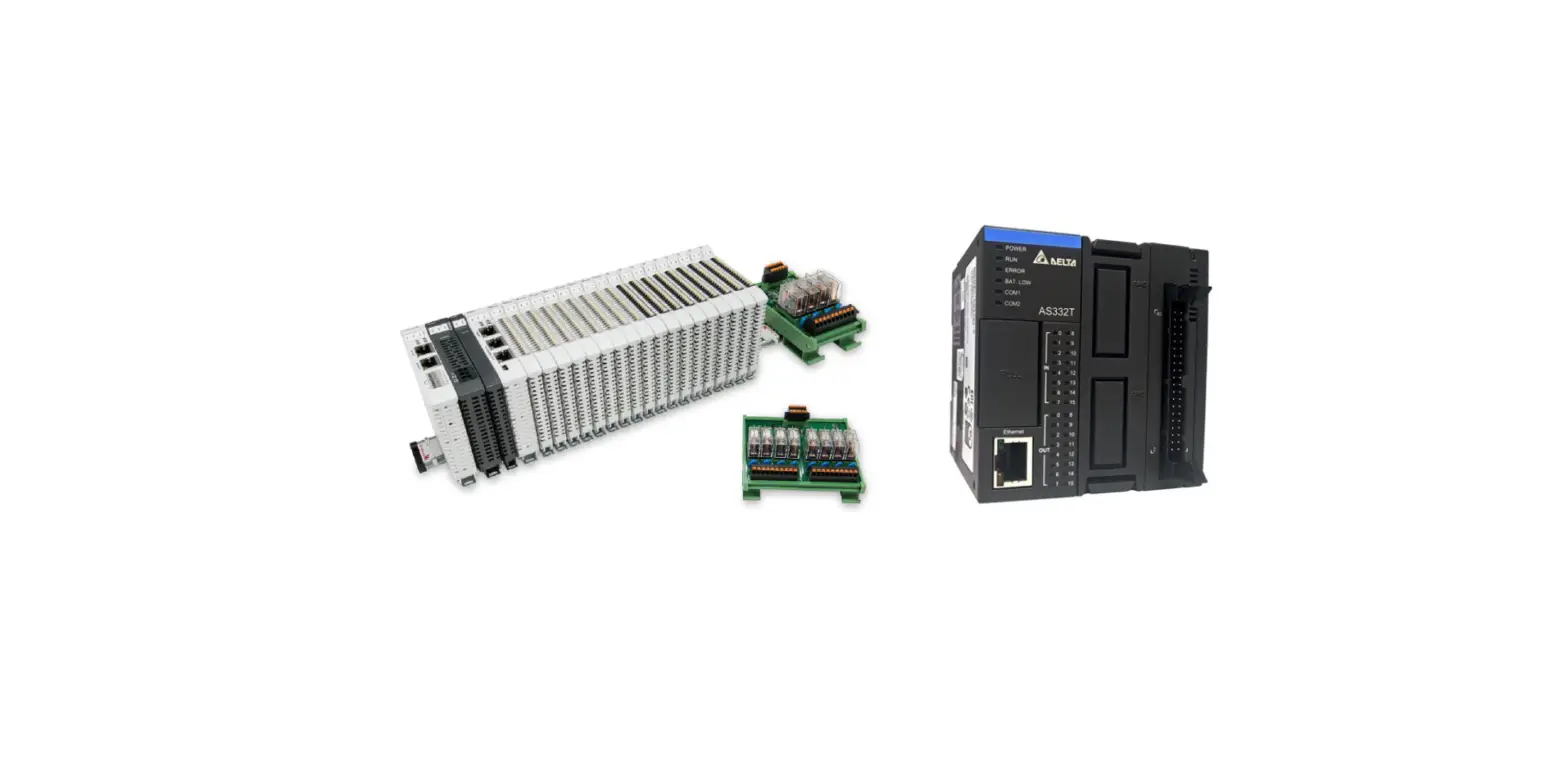
The product is a remote I/O module system with Siemens PLC
Modbus RTU connection. It includes various components such as a
master Modbus RTU controller, digital input and output modules,
power supplies, and interface modules. The main controller is
responsible for managing and configuring I/O parameters. The power
module and interface module are standard components that can be
chosen based on user preference.
Remote I/O Module System Configuration List
| Part No. | Specification | Description |
|---|---|---|
| GFMS-RM01S | Master Modbus RTU, 1 Port | Main Controller |
| GFDI-RM01N | Digital Input 16 Channel | Digital Input |
| GFDO-RM01N | Digital Output 16 Channel / 0.5A | Digital Output |
| GFPS-0202 | Power 24V / 48W | Power Supply |
| GFPS-0303 | Power 5V / 20W | Power Supply |
| DM09-AP02CL | D-SUB adapter connected to the terminal block | Interface Module |
| 0170-0101 | 8 pin RJ45 female connector/RS-485 Interface | Interface Module |
Product Usage Instructions
Siemens S7-200 Smart Connection Setup
To connect the Siemens S7-200 Smart to the remote I/O module
system, follow these steps:
Siemens S7-200 Smart Hardware Connections
- The connector is located at Port 0 of the CPU module and uses
RS485 connections. - Connect the RS485 (Signal B) pin (Pin No.3) of the S7-200 Smart
to the RS485 (Signal B) pin (Pin No.2) of the interface
module. - Connect the RS485 (Signal A) pin (Pin No.8) of the S7-200 Smart
to the RS485 (Signal A) pin (Pin No.1) of the interface
module. - Connect the RTS (TTL) pin (Pin No.4) of the S7-200 Smart to the
Selects 10 bit communication protocol pin (Pin No.9) of the
interface module. - Connect the Logic common port pins (Pin No.2 and Pin No.5) of
the S7-200 Smart to the Connect or shell and Case grounding
respectively. - Connect the D-Sub cable from the interface module (DM09-AP02CL)
to the serial port 0 on the S7-200 Smart. - Connect the interface module (0170-0101) to the terminal block
using a twisted pair cable. - Connect an Ethernet cable to the interface module to establish
communication with the S7-200 Smart.
Siemens S7-200 Smart Connection Setup
- Launch Step7-MicroWINSMART program.
- Click on Commands > Bases > Modbus RTU Master menu.
- Click to add a new MBUS_CTRL.
- Configure the communication protocol settings including enable
bits, Modbus mode, baud settings, and parity check. - Select the appropriate port (Port 0 for CPU’s RS485 port or
Port 1 for communication module port).
2302EN V2.0.0
and SIEMENS PLC Modbus RTU Connection
Operating Manual
Table of Contents
1.
Remote I/O Module System Configuration List ………………………………………………………… 3
1.1 Product Description……………………………………………………………………………………………….. 3
2.
Siemens S7-200 Smart Connection Setup ………………………………………………………………… 4
2.1 Siemens S7-200 Smart Hardware Connections …………………………………………………………. 4
2.2 Siemens S7-200 Smart Connection Setup ………………………………………………………………… 6
2
1. Remote I/O Module System Configuration List
Part No.
Specification
Description
GFMS-RM01S Master Modbus RTU, 1 Port
Main Controller
GFDI-RM01N Digital Input 16 Channel
Digital Input
GFDO-RM01N Digital Output 16 Channel / 0.5A
Digital Output
GFPS-0202
Power 24V / 48W
Power Supply
GFPS-0303
Power 5V / 20W
Power Supply
DM09-AP02CL D-SUB adapter connected to the terminal block
Interface Module
0170-0101
8 pin RJ45 female connector/RS-485 Interface
Interface Module
1.1 Product Description
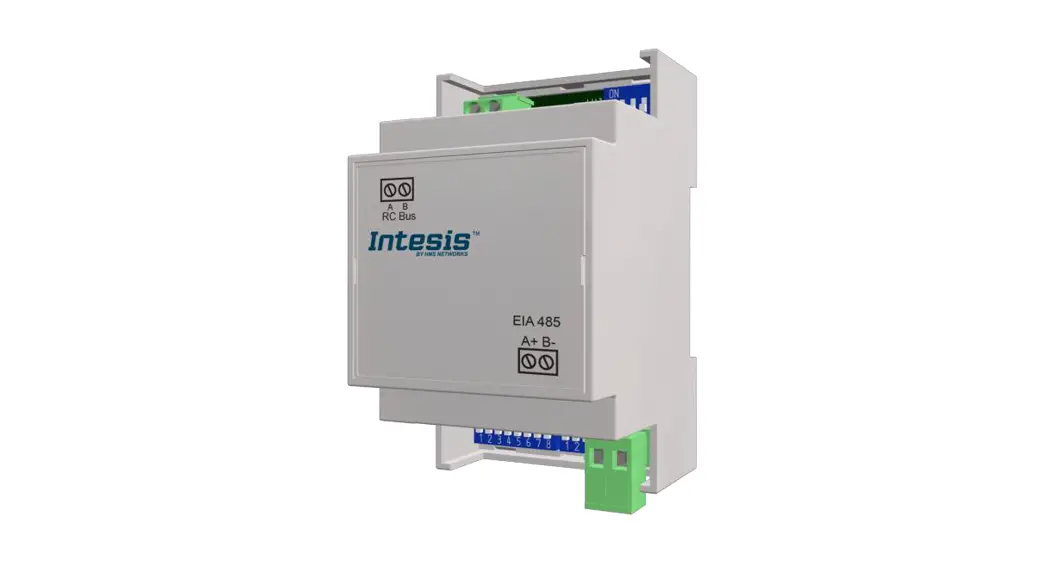
I. The interface module can convert the S7-200 Smart’s RS485 port into a RJ45 connector. II. The main controller is in charge of the management and dynamic configuration of I/O
parameters and so on. III. The power module and interface module are standard for remote I/Os and users can
choose the model or brand they prefer.
3
2. Siemens S7-200 Smart Connection Setup
This chapter explains how to use the Step7-MicroWINSMART progam to connect S7-200 Smart
to
.For detailed information, please refer to the S7-200 Smart Series Manual
2.1 Siemens S7-200 Smart Hardware Connections
I. The connector is at Port 0 of the CPU module. and uses RS485 connections
Pin
Description
Connector Pin
Description
1 Case ground wire
6
+5 V, 100 serial resistor
2 Logic common port
7
+24V
3 RS485 (Signal B)
8
RS485 (Signal A)
4 RTS (TTL)
9
Selects 10 bit communication protocol
5 Logic common port
Connect or shell
Case grounding
Notes: RS485 connection: Pin No.3–RS485 (Signal B) (+); Pin No.8–RS485 (Signal A) (-)
4
II. Connect the seriail port 0 on S7-200 Smart to the interface module (DM09-AP02CL)
via a D-Sub cable. Connect the terminal block on the interface module to interface module
(0170-0101) via a twisted pair cable with an Ethernet cable connecting it
to
‘s port
S7-200 Smart
iO-GRID
D-SUB9P()
RS485 B(Pin3) RS485 A(Pin8)
485A(Pin1) 485B(Pin2)
5
2.2 Siemens S7-200 Smart Connection Setup
I. Launch Step7-MicroWINSMART and click on “Commands” on the right side of the program A. Click on the “Commands” menu B. Click on the “Bases” menu C. Click on the “Modbus RTU Master” menu D. Click to add a new “MBUS_CTRL”
II. Communication protocol settings Names & Definitions
Names
Function
A EN Enable Bits
With the mode set to “1”, B Mode
it is set to the Modbus protocol
C Baud Baud Settings
Check =0 (No check) D Parity =1 (odd parity check) =2 (even parity check)
Serial Port Settings:
E Port “0” represent CPU’s RS485 port “1” representsthe communication module port
F Time Timeout settings (ms)
G Done Completed bits H Error Error Code
6
III. Command Memory Configurations A. B.
Click on the “Memory” menu
Set up a command’s starting address and once finished, click on “Confirm”
IV. Reading of the communication register
Names & Definitions
A
Names
Function
B
C D E F G
A EN Enable Bits
H I
B
First
Every command must be triggered with a pulse
C Slave Control modules’ station numbers
D
RW
Read/Write setting, with “0” representing “Read”
Slave Station Number
E Addr The input module is set to “44097”,
and Modbus 0X03 command
F Count Data count
G Data Address where the data is stored
H Done Completed bits
I Error Error Code
7
V. Writing of the communication register
Names & Definitions
A
Names
Function
B
C D E F G
A HB
I
C D
EN First Slave RW
Enable Bits
Every command must be triggered with a pulse Control modules’ station numbers
Read/Write setting, with “1” representing “Write”
Slave Station Number,
E Addr the input module is set to “48193”,
Modbus 0X06 and 0X10 commands
F Count Data count
G Data Address where the data is stored
H Done Completed bits
I Error Error Code
Notes:
‘s first GFDI-RM01N has the register address at 1000(HEX) converted to 4096(DEC)+1
and the starting address at 44097
‘s first GFDO-RM01N has the register address at 2000(HEX) converted to 8192(DEC)+1
and the starting address at 48193
8
VI. Sample Program Control with one GFDI-RM01N and one GFDO-RM01N When the first point of DI has received a signal and is triggered, the first point of DO will output a signal as it is connected
Modbus
9