iO-GRID m and KV-Nano Series Modbus RTU Connection
2302EN V2.0.0 and KV-Nano Series Modbus RTU Connection
Operating Manual
1. Remote I/O Module System Configuration List
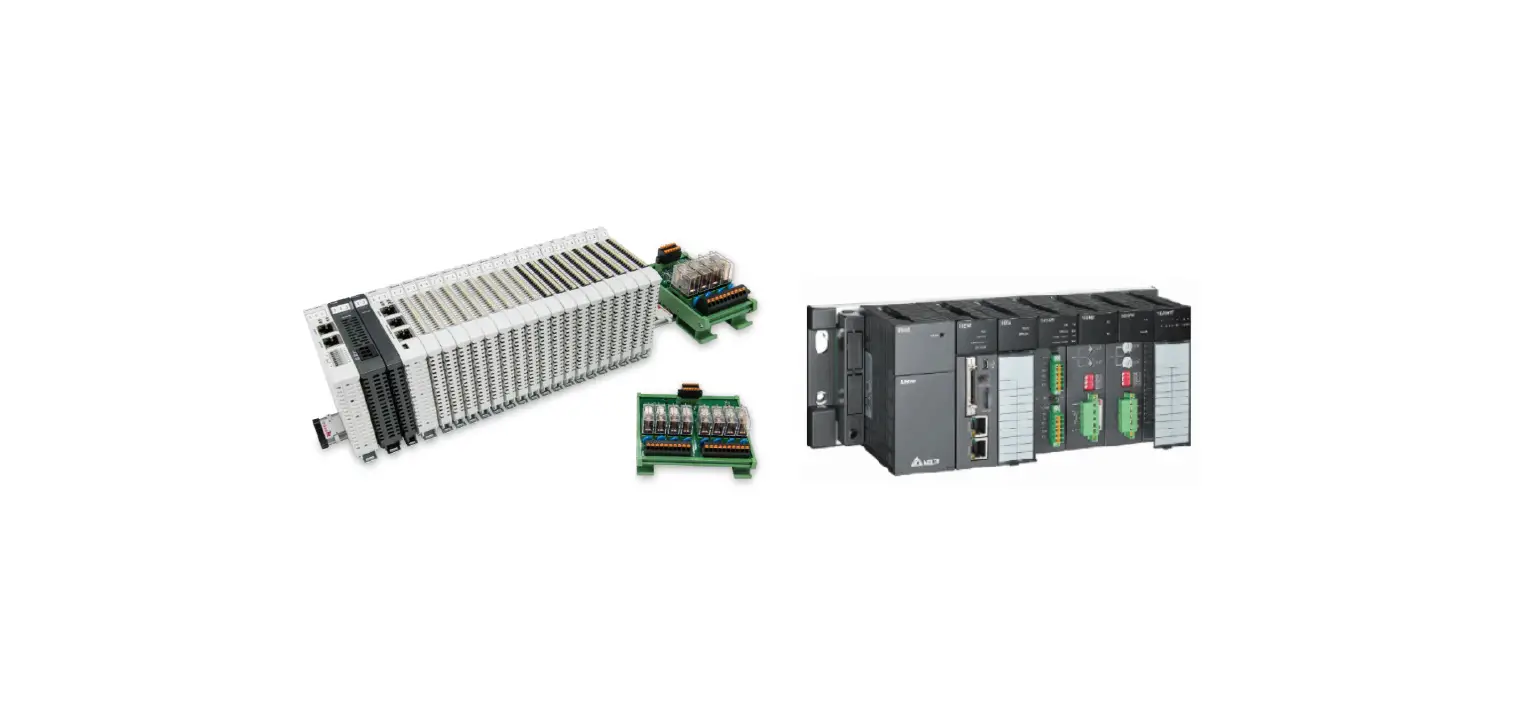
The following table shows the specifications and descriptions of
the remote I/O module system components:
| Part No. | Specification | Description |
|---|---|---|
| GFMS-RM01S | Master Modbus RTU, 1 Port | Main Controller |
| GFDI-RM01N | Digital Input 16 Channel | Digital Input |
| GFDO-RM01N | Digital Output 16 Channel / 0.5A | Digital Output |
| GFPS-0202 | Power 24V / 48W | Power Supply |
| GFPS-0303 | Power 5V / 20W | Power Supply |
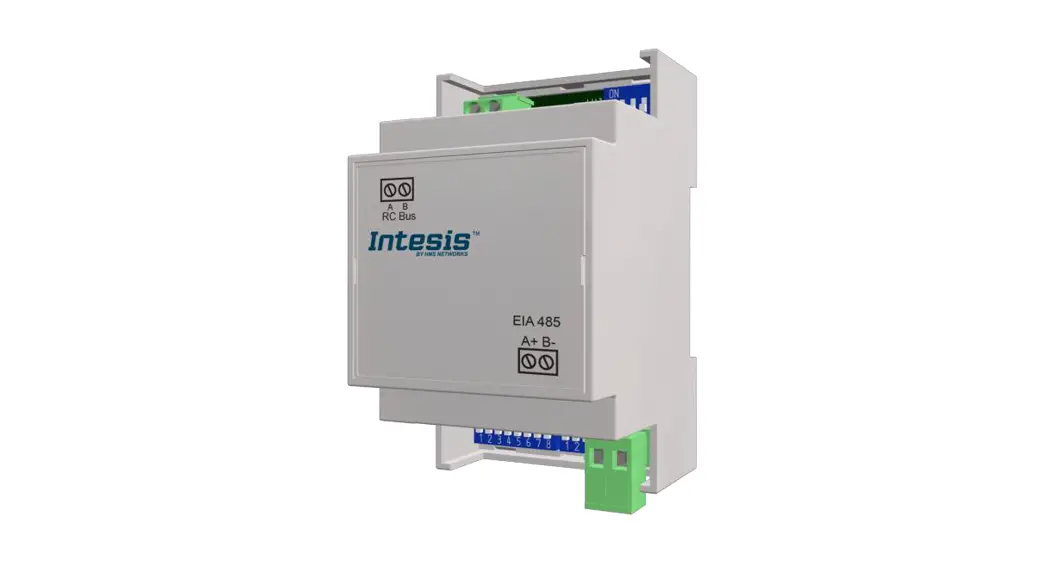
| 0170-0101 | 8 pin RJ45 female connector/RS-485 Interface | Interface Module |
1.1 Product Description
The remote I/O system consists of a main controller
(GFMS-RM01S), digital input module (GFDI-RM01N), digital output
module (GFDO-RM01N), power supply modules (GFPS-0202 and
GFPS-0303), and an interface module (0170-0101). The interface
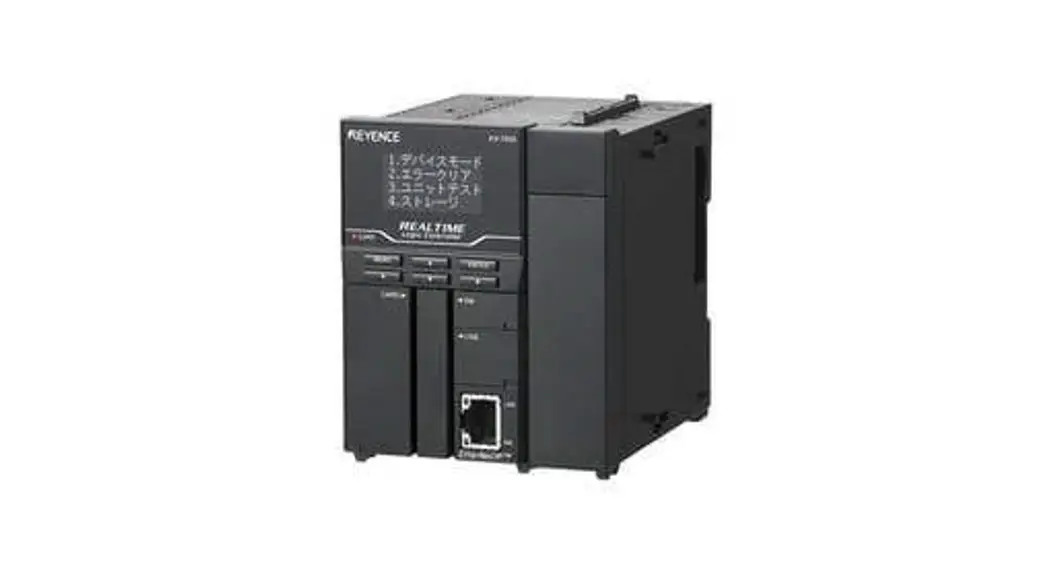
module is used externally to convert KV-NC20L’s communication
module (Modbus RTU) to a RJ45 connector. The main controller
manages and dynamically configures I/O parameters. Users can choose
the model or brand of power module and interface module they
prefer.
2. KV-NC32T Connection Setup
This section explains how to connect the KV-NC32T using KV
STUDIO software. For more details, refer to the KV Nano Series
Communication Functions Manual.
2.1 KV-NC32T Hardware Connection
To connect the KV-NC32T, follow these steps:
- The connector is at the bottom of the KV-NC20L communication
module and uses RS485 connections. - Connect the COM (RS485 A/B) on the left of the FX5U to the
interface module (1/2) to convert them to RJ45 connectors before
connecting them to the main controller.
2.2 KV-NC32T Connection Setup
To set up the KV-NC32T connection:
- Launch KV STUDIO and click on Unit Configuration on the left.
Select KV-NC32. - Under Communication Settings, select KV-NC20L.
- Use Port 2.
- For Action Mode, select Modbus Master Interface: RS-485
(2-wire) Baud: Select 115200bps Stop Bit: 1 Parity Bit: None. Note
that the communication format setting must be consistent with the
connected device. - Program your communication.
2.3 Programming Example: Control with one GFDI-RM01N and one
GFDO-RM01N
When DM0.0 receives a signal and is triggered, DM1000.0 outputs
a signal as it is connected.
2302EN V2.0.0
and KV-Nano Series Modbus RTU Connection
Operating Manual
Table of Contents
1.
Remote I/O Module System Configuration List ………………………………………………………… 3
1.1 Product Description……………………………………………………………………………………………….. 3
2.
KV-NC32T Connection Setup ………………………………………………………………………………… 4
2.1 KV-NC32T Hardware Connection ………………………………………………………………………….. 4
2.2 KV-NC32T Connection Setup ………………………………………………………………………………… 6
2
1. Remote I/O Module System Configuration List
Part No.
Specification
Description
GFMS-RM01S Master Modbus RTU, 1 Port
Main Controller
GFDI-RM01N Digital Input 16 Channel
Digital Input
GFDO-RM01N Digital Output 16 Channel / 0.5A
Digital Output
GFPS-0202 Power 24V / 48W
Power Supply
GFPS-0303 Power 5V / 20W
Power Supply
0170-0101
8 pin RJ45 female connector/RS-485 Interface
Interface Module
1.1 Product Description
I. The interface module is used externally to convert KV-NC20L’s communication module (Modbus RTU) to a RJ45 connector
II. The main controller is in charge of the management and dynamic configuration of I/O parameters and so on.
III. The power module and interface module are standard for remote I/Os and users can choose the model or brand they prefer.
3
2. KV-NC32T Connection Setup
This section details how to use the KV STUDIO software to connect KV-NC32T and
.
For more details, please refer to the KV Nano Series Communication Functions Manual
2.1 KV-NC32T Hardware Connection
I. The connector is at the bottom of the KV-NC20L communication module and uses RS485 connections
4
II. Connect the COM (RS485 A/B) on the left of the FX5U to the interface module (1/2) to convert them to RJ45 connectors before connecting them to the main controller
5
2.2 KV-NC32T Connection Setup
I. Launch KV STUDIO, click on “Unit Configuration” on the left and select “KV-NC32” II. Under “”, select “KV-NC20L”
6
III. Use Port 2 here
For “Action Mode”, select “Modbus Master” Interface: RS-485 (2-wire) Baud: Select 115200bps Stop Bit: 1 Parity Bit: None Notes: The communication format setting must be consistent with
7
IV. Program Your Communication
8
9
V. Programming Example: Control with one GFDI-RM01N and one GFDO-RM01N When DM0.0 has received a signal and is triggered, DM1000.0 will output a signal as it is connected
10
11