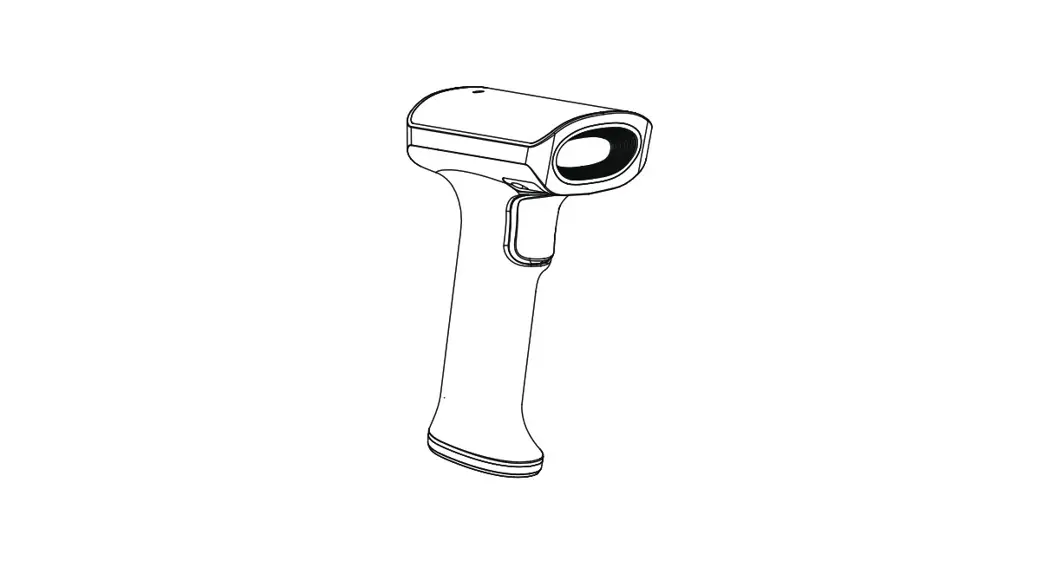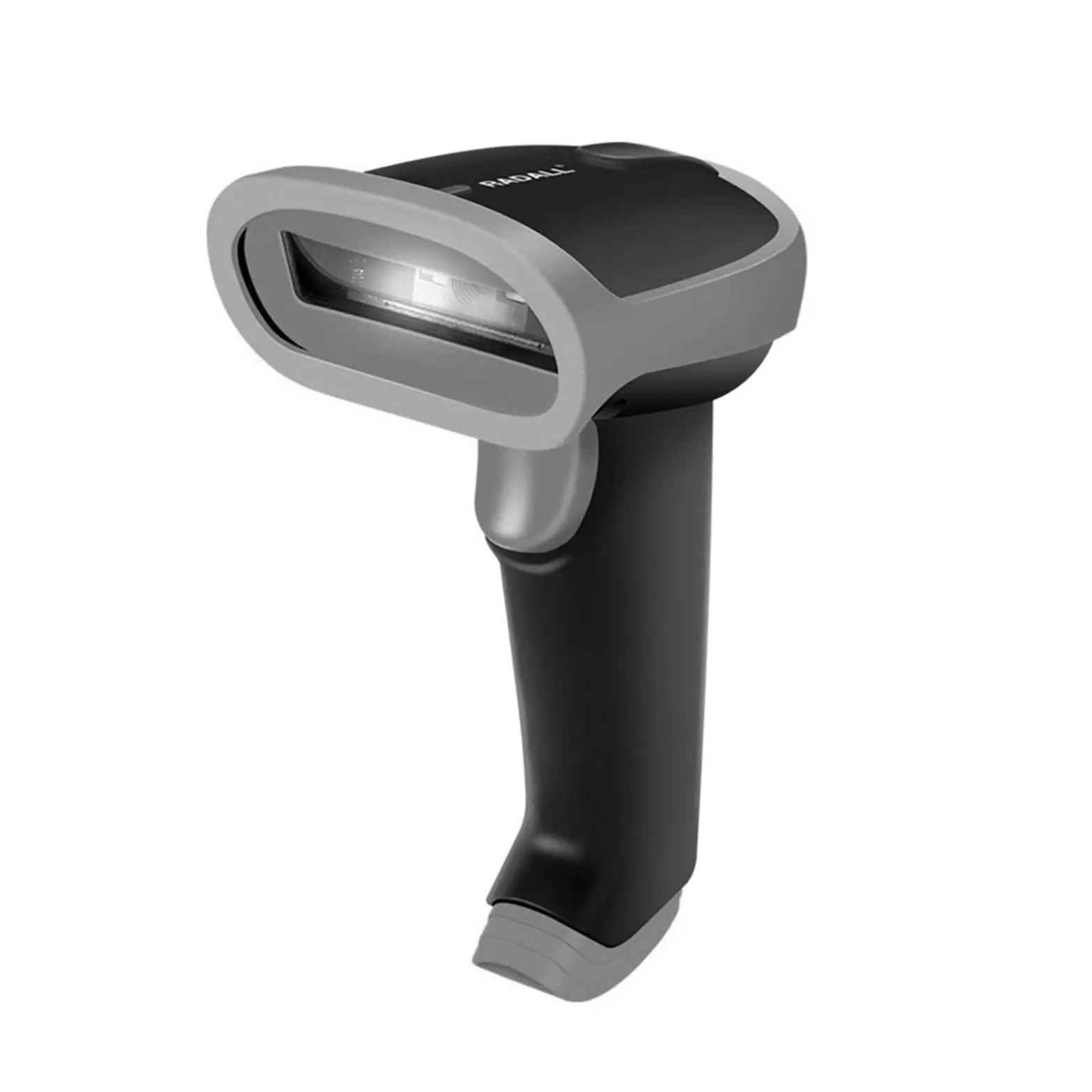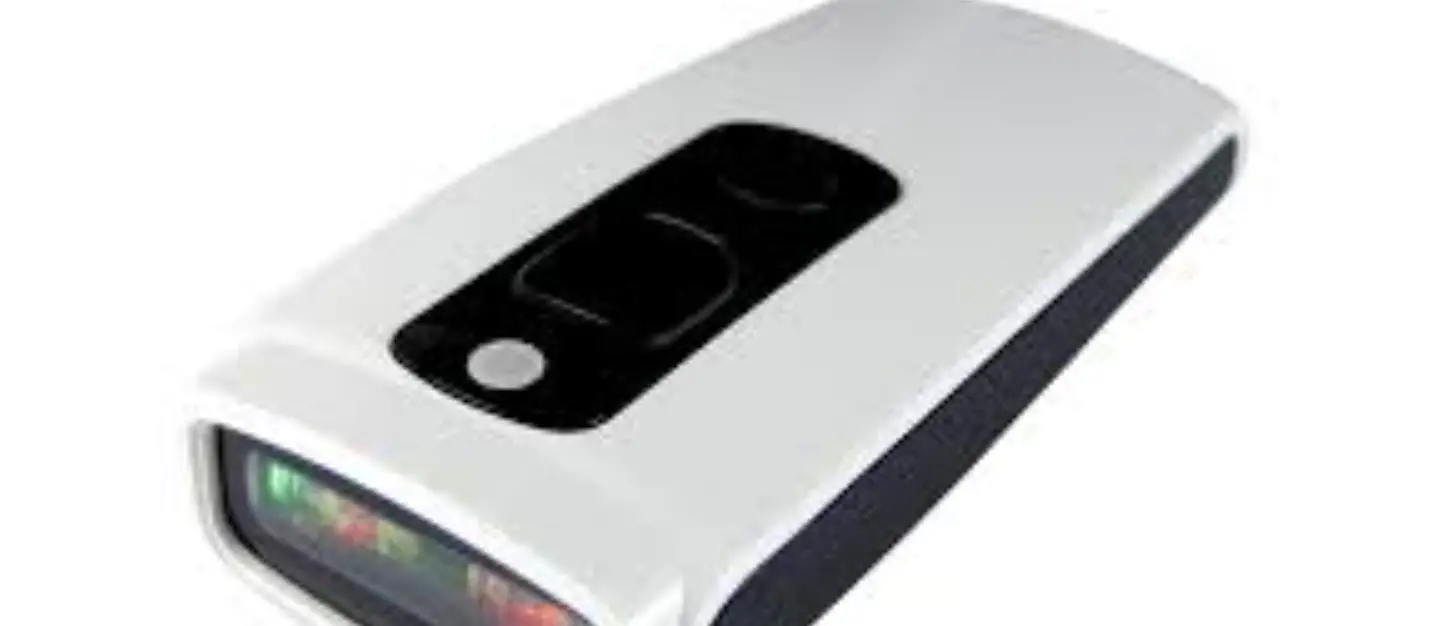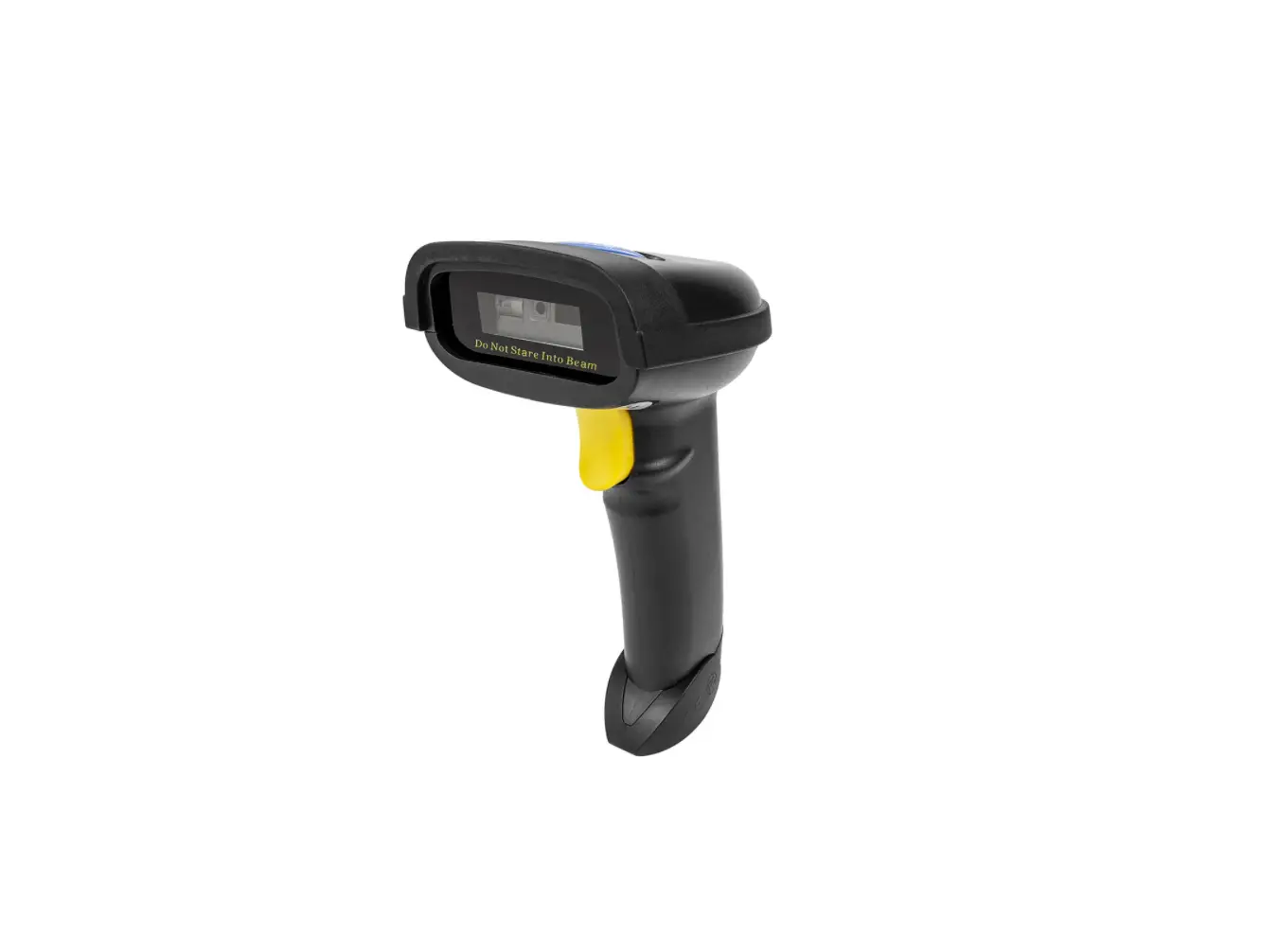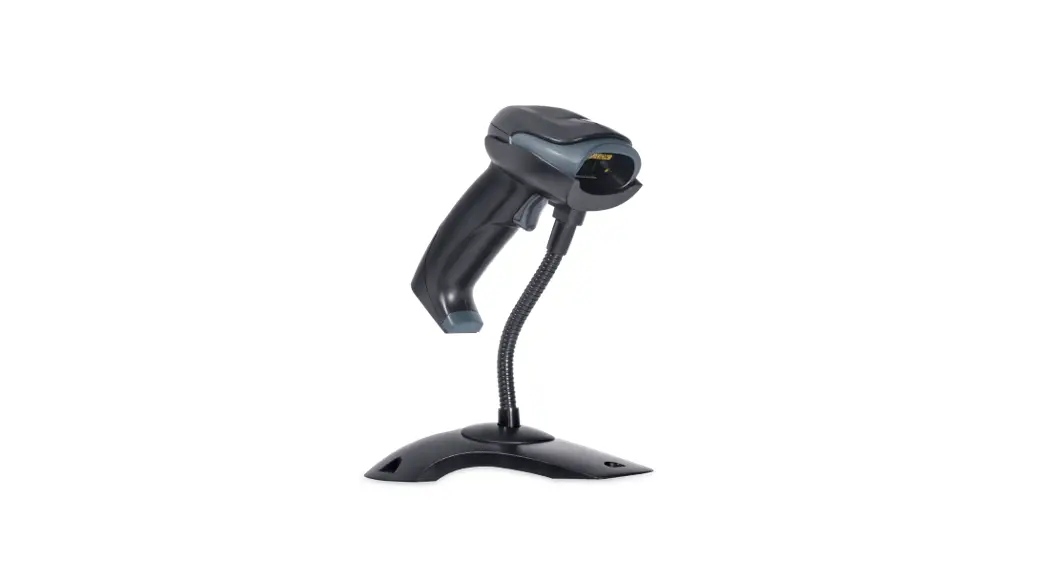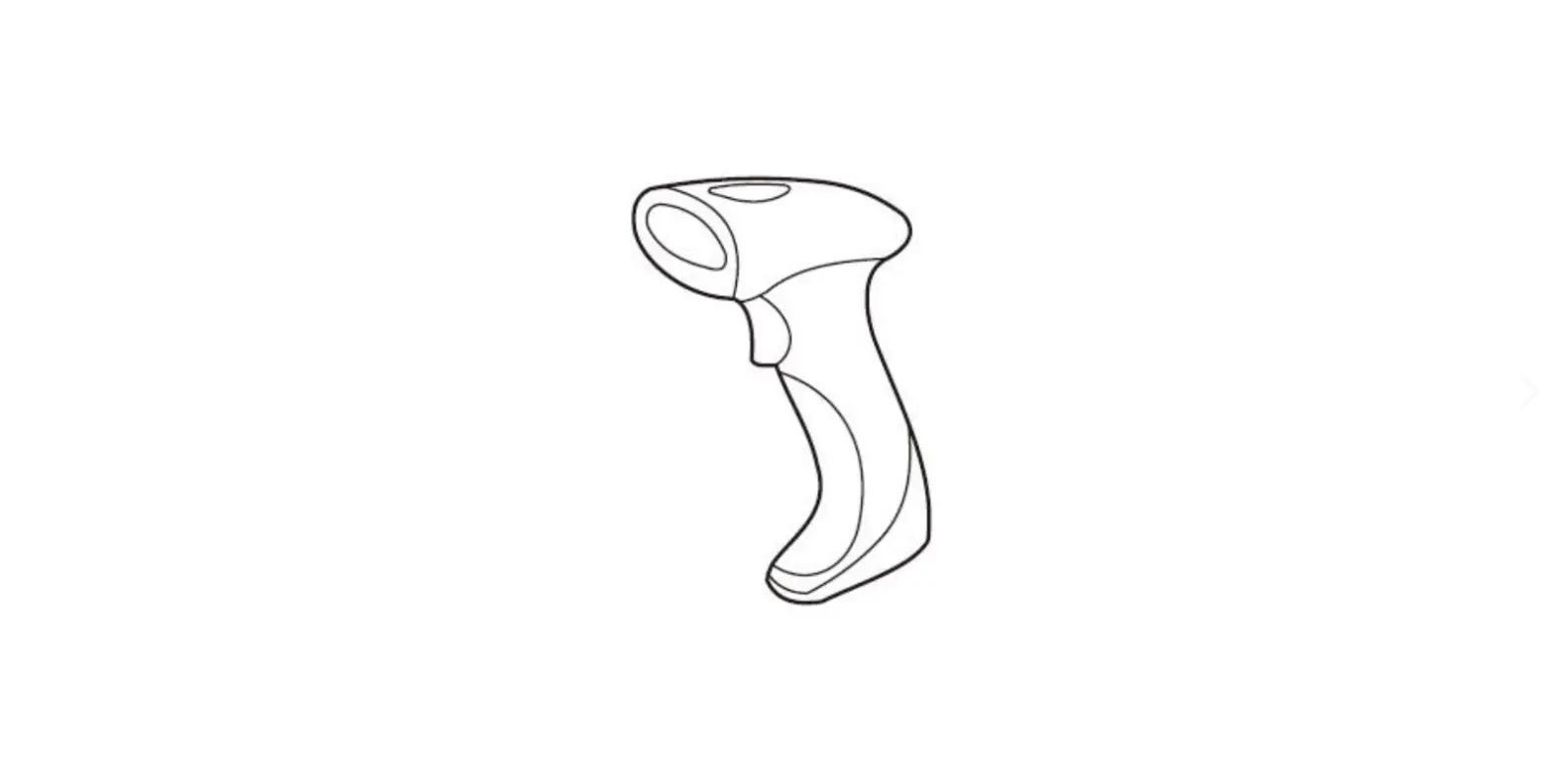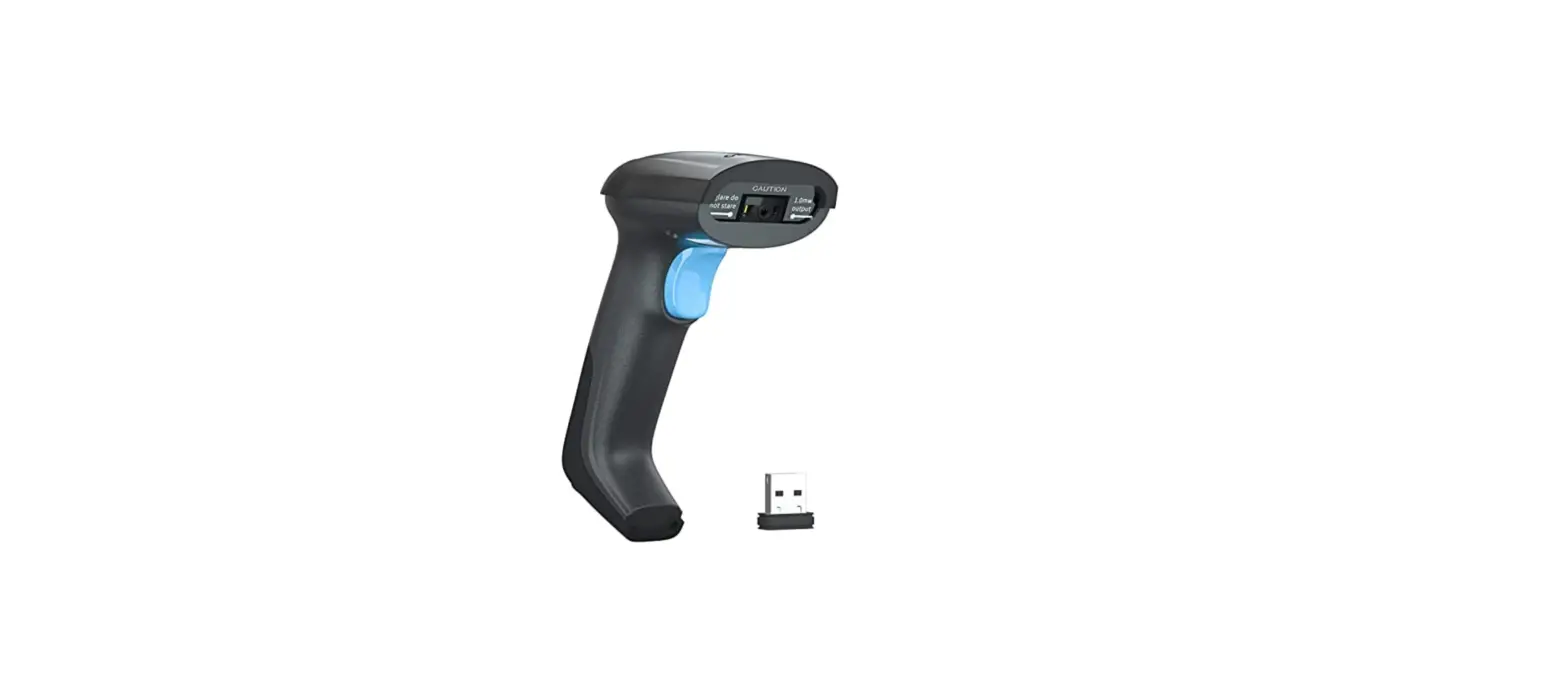
Dongguan Vancode Electronics Technology WKDZ36781 Wireless Barcode Scanner User Guide
System Settings
Restore Wireless Defaults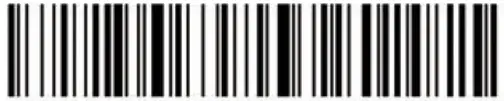
Version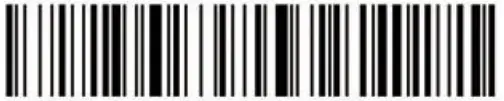
Data Format
GB2312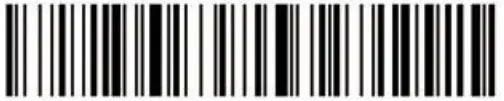
Unicode(UTF-8)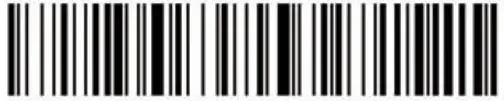
Note: This product supports wireless 2.4G receiver and wired USB interface to directly output GB2312 or Unicode encoding.
Data Transfer Mode
Synchronous Mode*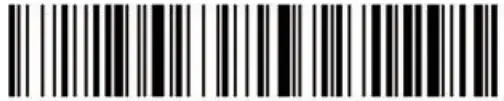
Storage Mode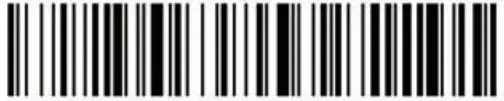
Data Control
Upload All Data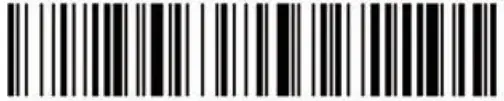
Total Data Uploaded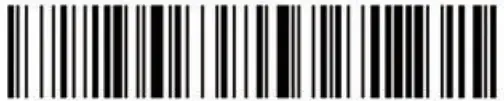
Clear All Data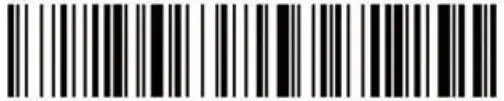
Wireless 2.4G Pairing
Wireless 2.4G mode supports Windows, Mac OS, Linux, Unix, Android and other systems.
Step 1: Scan the *Wireless 2.4G Mode’ set-ting code; After the setting is completed, the receiver that has been paired last time will be priori-tized by default.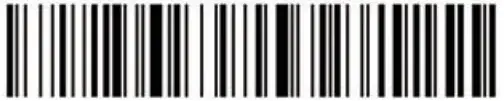
Wireless 2.4G Mode
Step 2: Scan the ‘One-click Pairing’ setting code; The blue light of the bar code flashes quickly and enters the 2.4G pairing state.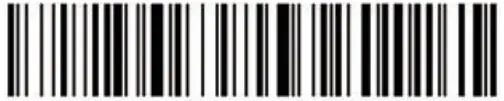
One-click Pairing
Step 3: Plug the receiver into the host (within 1 minute),hear a “Di”, and the blue LED2 stays on. The connection is paired successfully.
Bluetooth HID Pairing
Wireless Bluetooth HID supports Windows, Mac OS, 10S, Android and other systems.
Step 1: Scan the “Bluetooth HID Mode” . After the setting is completed, the Bluetooth device that was paired last time is prioritized by default.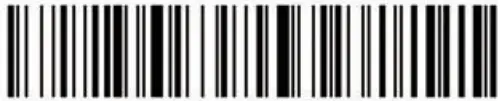
Step 2: Scan the ‘One-click pairing” setting code; The blue LED1 and blue LED2 of the scanner flash alternately and quickly, and enter the Bluetooth HID pairing state.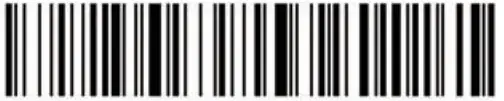
One click pairing
Step 3: Turn on Bluetoo h in he host device and search for the “BarCode Scanner HID” device, and then click on the device. Until you hear a “Dr , the Blue LED2 stays on. The connection is successfully paired.
Note: After pressing the key for 8 seconds, you can quickly enter the Bluetooth hid pairing status.
Bluetooth SPP/BLE Pairing
Wireless Bluetooth spp / ble supports using Bluetooth serial port to connect windows, Mac OS, 10S, Android and other systems.
Step 1: After scanning “Bluetooth SPP Mode” , the blue LED2 flashes quickly. (Or after scanning “Bluetooth BLE Mode” , the blue LED1 and LED2 flash quickly and synchronously.)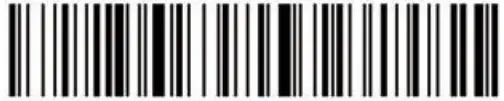
Bluetooth SPP Mode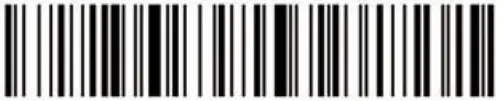
Bluetooth BLE Mode
Step 2: Use the serial port transparent trans-mission tool on the host device, search for the device “BarCode Scanner SPP” or “BarCode Scanner BLE”, and then click the device until you hear a ‘Di” and the blue LED2 is on. The connection is paired successfully.
Long press for 8 seconds
Press and Hold for 8 seconds to enter the Bluetooth pairing status setting.
Enable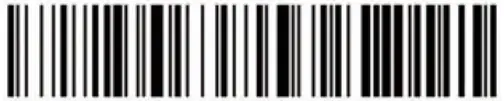
Disable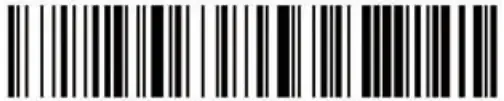
IOS HID virtual keyboard
When using Bluetooth HID mode to connect to the 105, You can set a quick double-click to show or hide the IOS virtual keyboad.
Enable*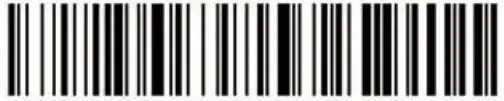
Disable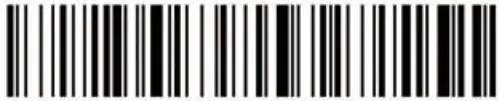
Bluetooth HID Transfer Rate
Fast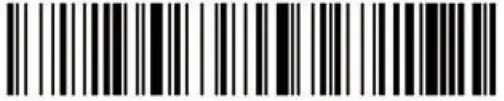
Medium*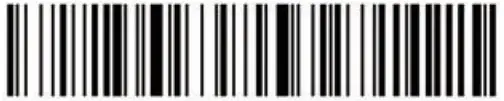
LOW
Ultra Low
Suffix Setting
Add CR*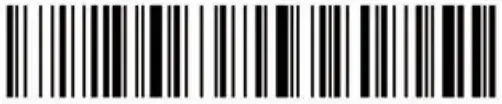
Add LF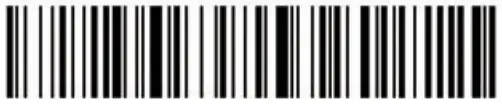
Add CR+LF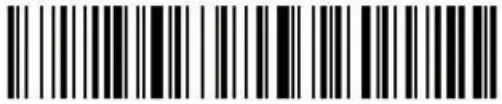
Add Tab (HT)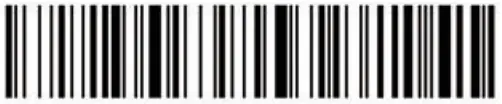
NONE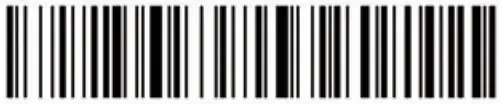
Vibration Setting (optional)
Enable*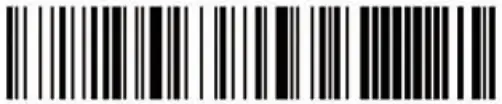
Disable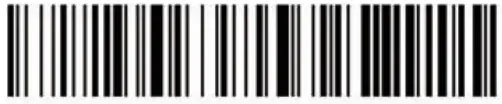
Sound Setting
High*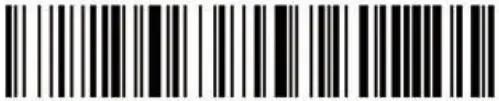
Low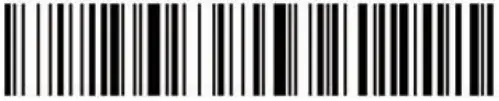
Disable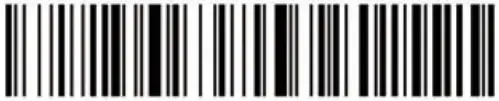
Sleep Time Settings
1 Minute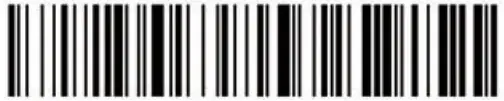
5 Minute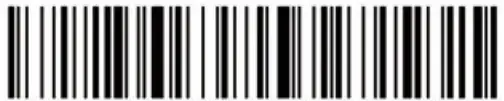
30 Minute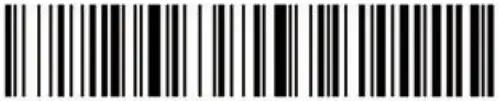
Never Sleep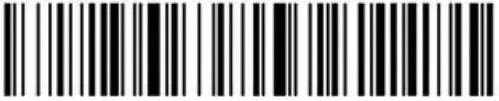
Sleep Now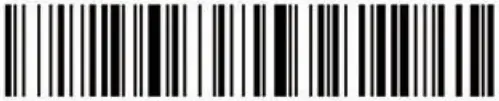
Keyboard Language Setting
American English*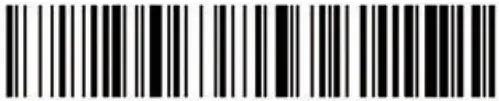
German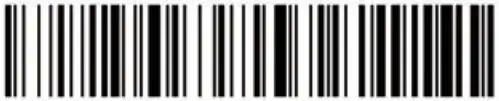
French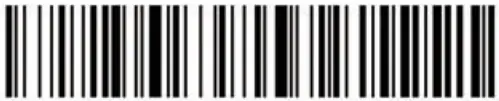
Spanish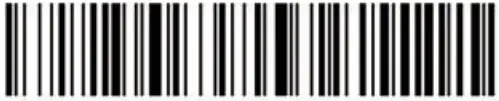
Italian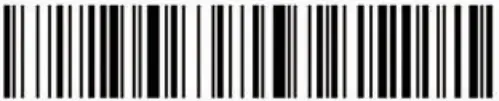
Japanese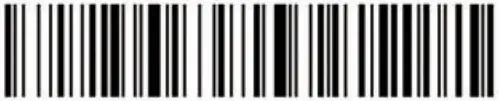
Portuguese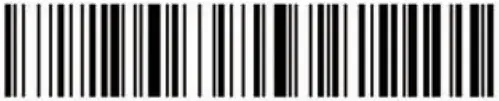
British English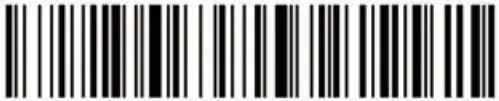
Brazilian Portuguese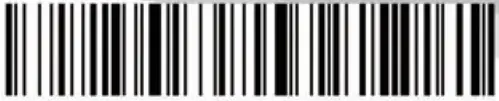
Russian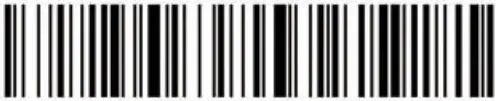
International Keyboard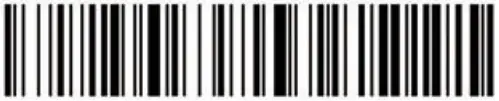
LED Indicator Description
Blue LED1 flashes once:
- The scanner decoded successfully. Blue LED2 is on:
- Connection succeeded. Red LED3 is on:
- Battery is being charged, full off. Blue LED1 flashes quickly:
- The scanner is in the 2.4G pairing state. Blue LED2 flashes quickly:
- The scanner is in Bluetooth SPP mode pairing state. Blue LED1 and blue LED2 blink rapidly alter-nately:
- The scanner is in Bluetooth HID mode pairing state. Blue LED1 and blue LED2 flash quickly and synchronously:
- The scanner is in the Bluetooth BLE mode pairing state. Blue LED1 and blue LED2 flash slowly at the same time:
- The scanner is in an upgraded state.
Warranty Card
User Name:
Telephone Number:
Address:
Product Name:
Model NO.:
Product Serial Number:
Purchase Date:
Problem Description:
Certificate
Product Name:
Model NO.:
Product Serial Number:
Date of Production:
Inspector:
The products meet the company’s quality standards and industry standards, and the products are qualified.
FCC WARNING
This device complies with part 15 of the FCC Rules. Operation is subject to the following two conditions: (1) This device may not cause harmful interference, and (2) this device must accept any interference received, including interference that may cause undesired operation.
Note: This equipment has been tested and found to comply with the limits for a Class B digital device, pursuant to part 15 of the FCC Rules. These limits are designed to provide reasonable protection against harmful interference in a residential installation. This equipment generates, uses and can radiate radio frequency energy and, if not installed and used in accordance with the instructions, may cause harmful interference to radio communications. However, there is no guarantee that interference will not occur in a particular installation. If this equipment does cause harmful interference to radio or television reception, which can be determined by turning the equipment off and on, the user is encouraged to try to correct the interference by one or more of the following measures:
- Reorient or relocate the receiving antenna.
- Increase the separation between the equipment and receiver.
- Connect the equipment into an outlet on a circuit different from that to which the receiver is connected.
- Consult the dealer or an experienced radio/TV technician for help.
Note: The Grantee is not responsible for any changes or modifications not expressly approved by the party responsible for compliance. such modifications could void the users authority to operate the equipment.
The device has been evaluated to meet general RF exposure requirement. This equipment complies with FCC’s RF radiation exposure limits set forth for an uncontrolled environment. This device and its antenna(s) must not be co-located or conjunction with any other antenna or transmitter.