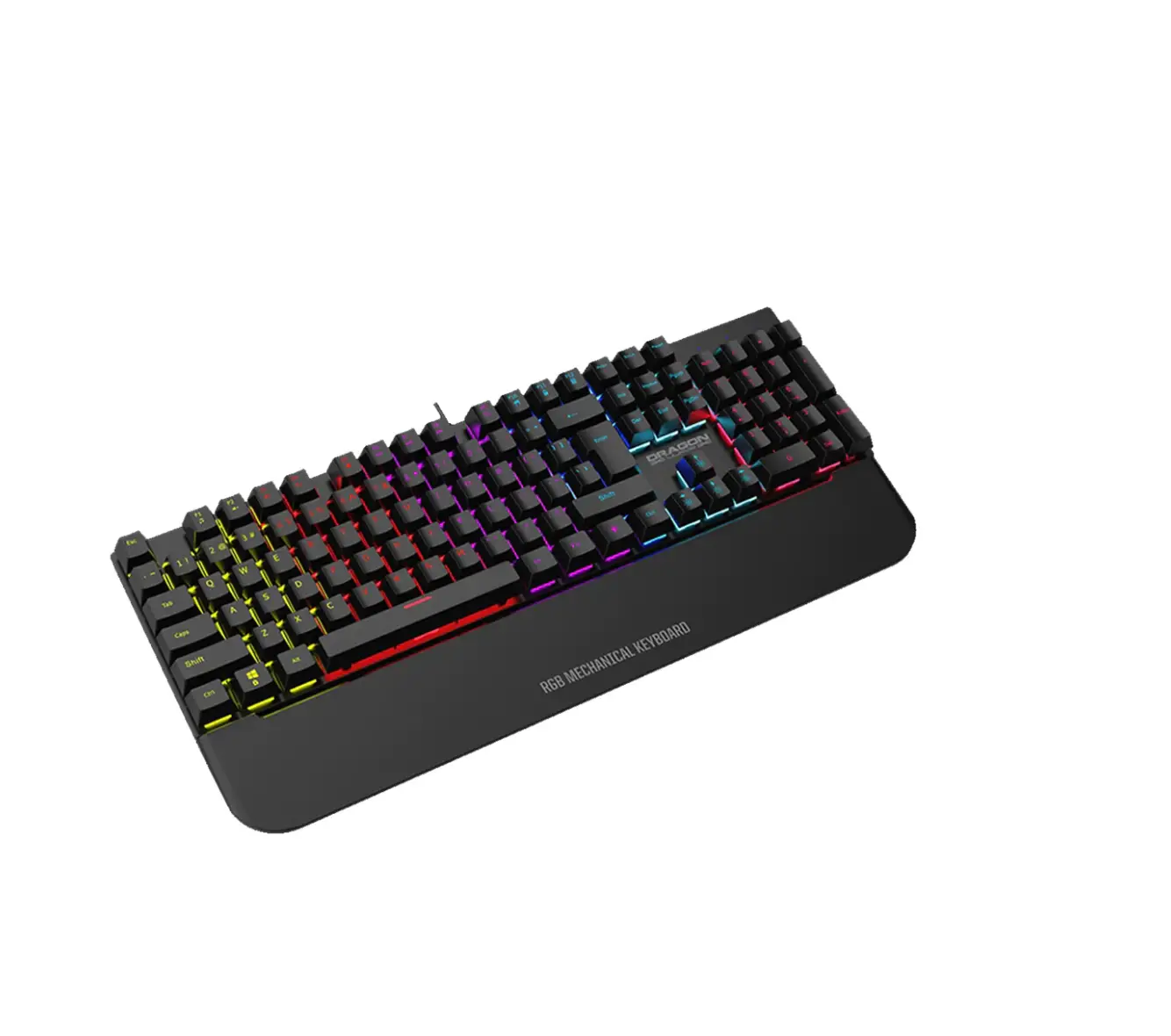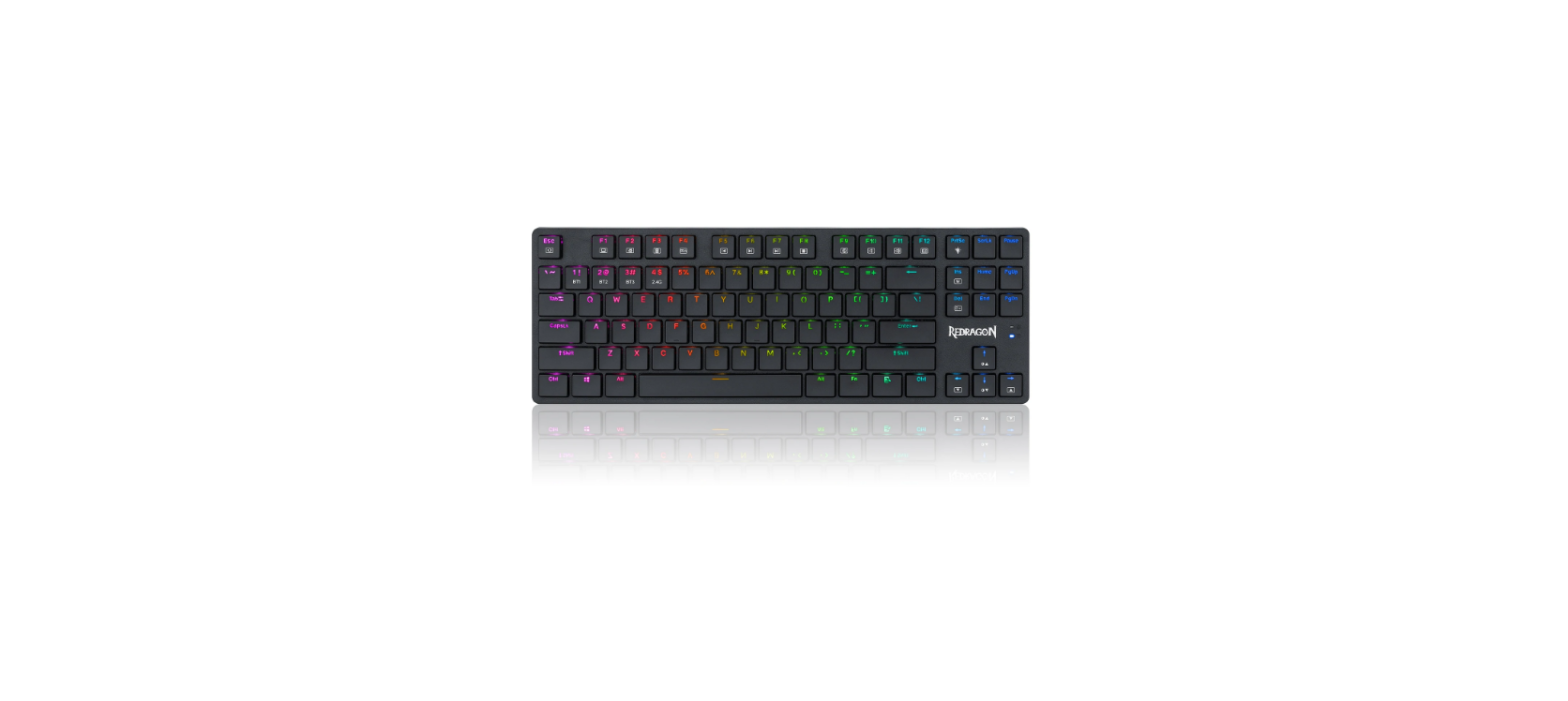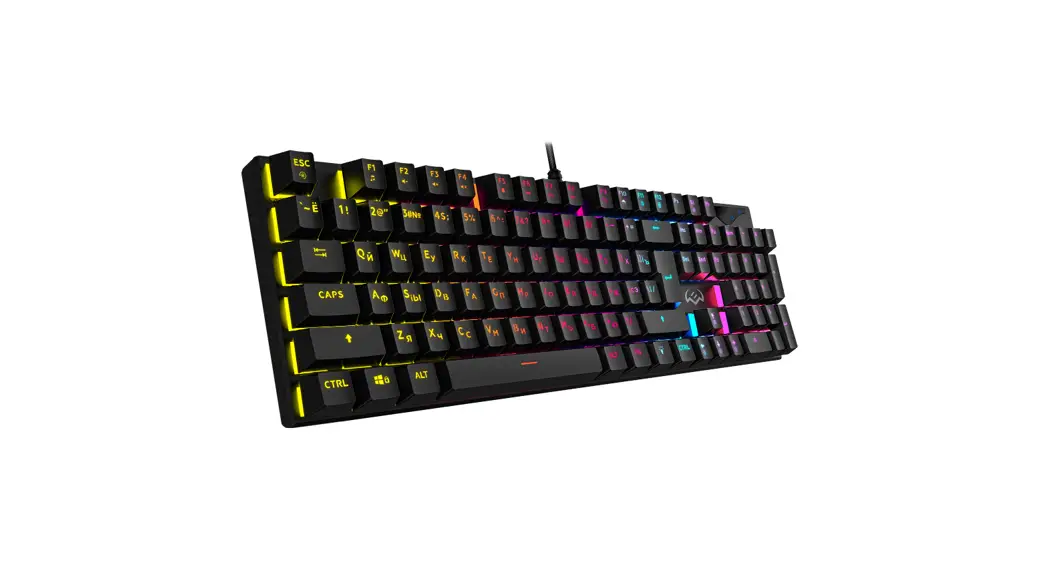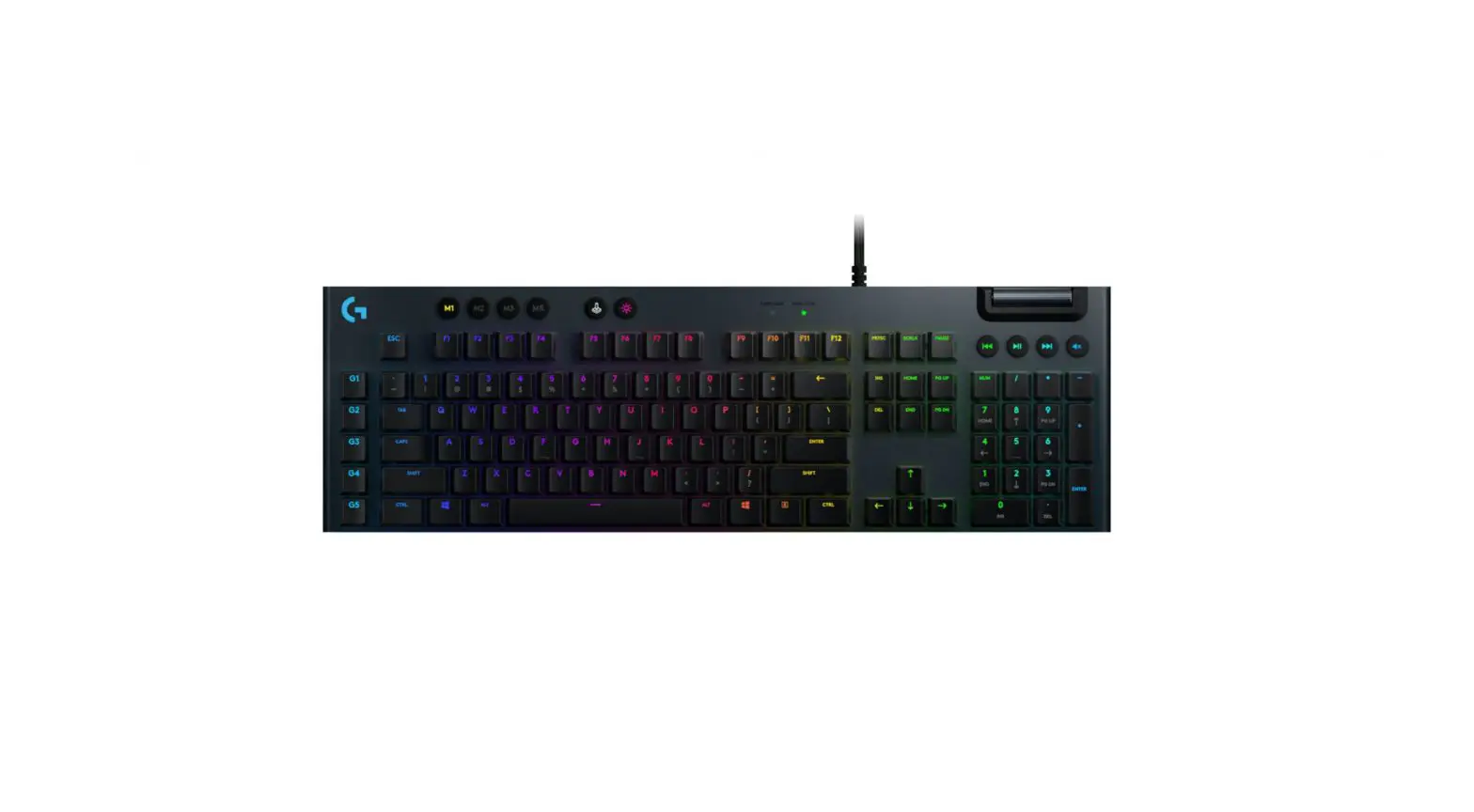


MANUAL
Specifications
| General: | Red | Blue |
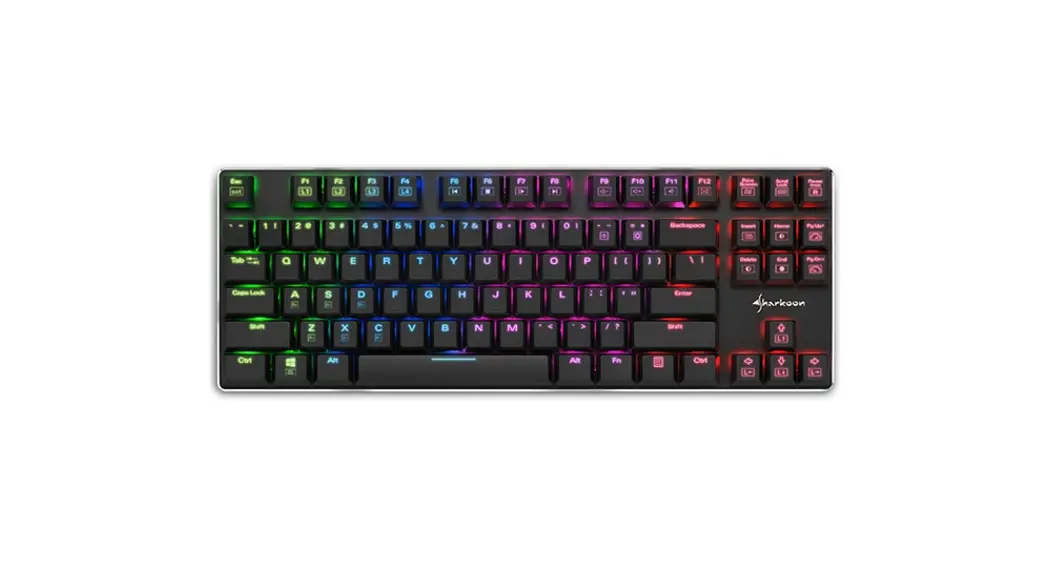
| • Type | Office (Low Profile Keyboard) | Office (Low Profile Keyboard) |
| • Switch Technology | Mechanical (Kailh Red) | Mechanical (Kailh Blue) |
| • Illumination | RGB | RGB |
| • Adjustable Illumination | √ | √ |
| • Lighting Effect | √ | √ |
| • Max. Polling Rate | 1,000 Hz | 1,000 Hz |
| • Gaming Mode | √ | √ |
| • Block | 2-Block Layout | 2-Block Layout |
| • Weight without Cable | 503 g | 503 g |
| • Dimensions (L x W x H) | 355 x 127 x 35 mm | 355 x 127 x 35 mm |
| • Supported Operating Systems | Windows 7/8/10, Android* | Windows 7/8/10, Android* |
| Key Properties: | ||
| • Function Keys with Preset Multimedia Actions | √ | √ |
| • Anti-Ghosting Keys | √ | √ |
| • N-Key Rollover Support | √ | √ |
| • Operating Force | 45 g | 55 g |
| • Switch | Linear | Tactile |
| • Switching Point | Undetectable | Detectable |
| • Click Point | Undetectable | Precisely Detectable |
| • Distance to Actuation Point | 1.5 mm | 1.5 mm |
| • Operating Life Cycles of Keys | Min. 50 Million Keystrokes | Min. 50 Million Keystrokes |
| Cable and Connectors: | ||
| • Connector | USB | USB |
| • Cable Length | 150 cm | 50 cm | 150 cm | 50 cm |
| • Gold-Plated USB Plug | √ | √ |
Connect
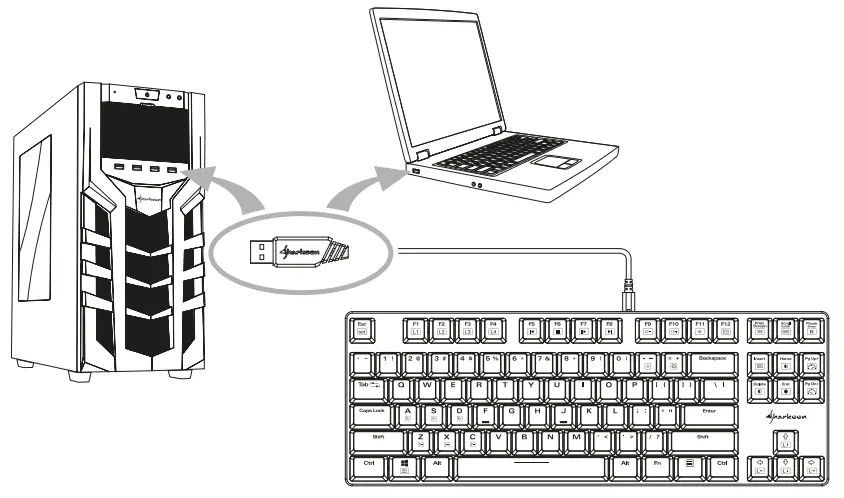
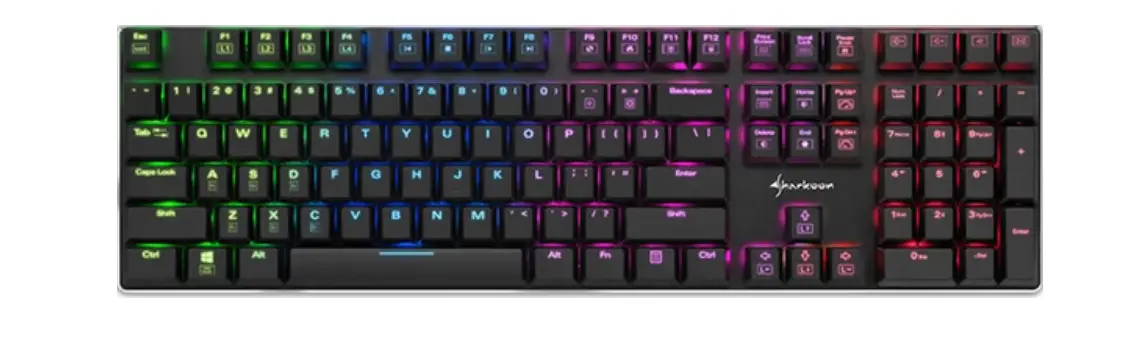
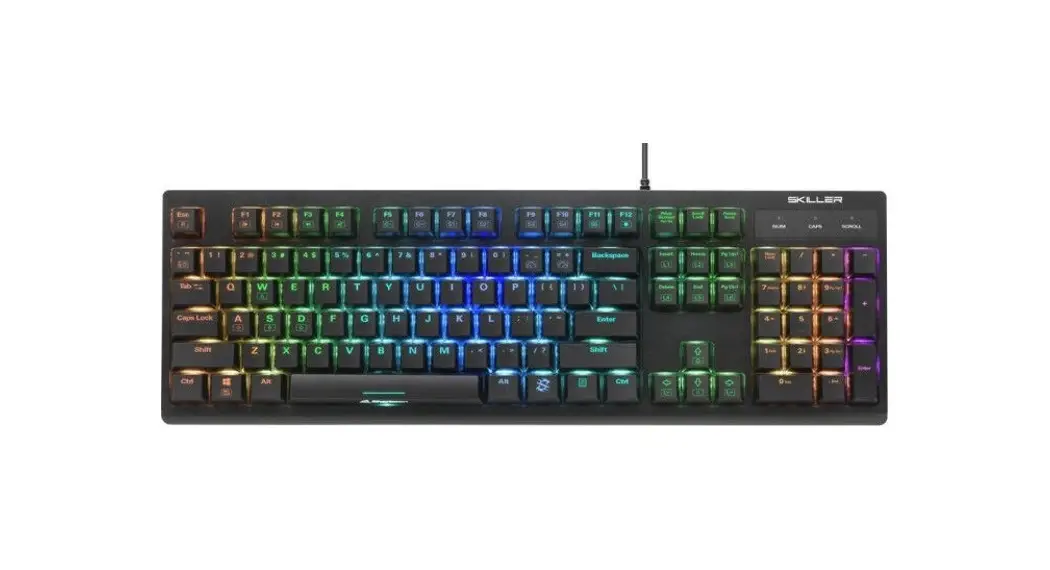
US Layout
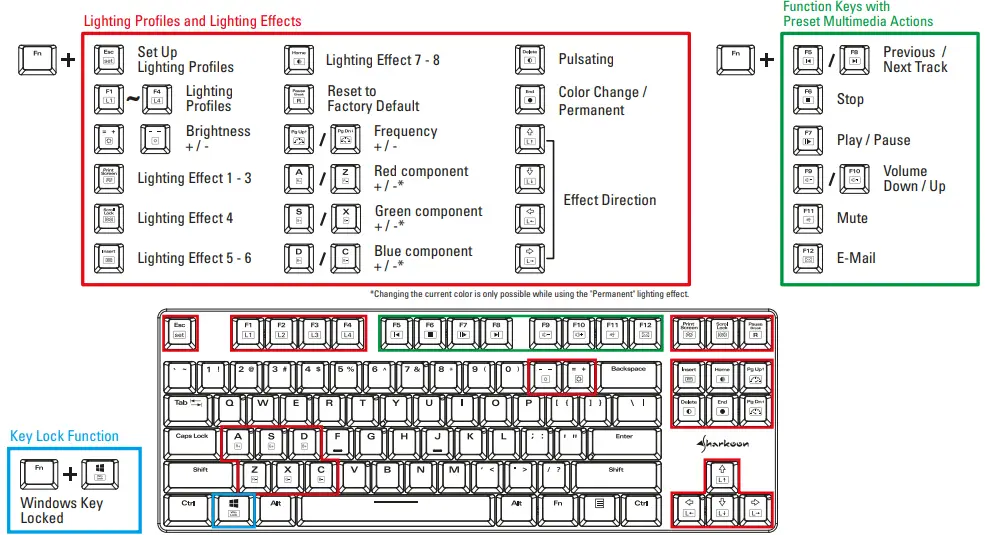
Overview Lighting Effects
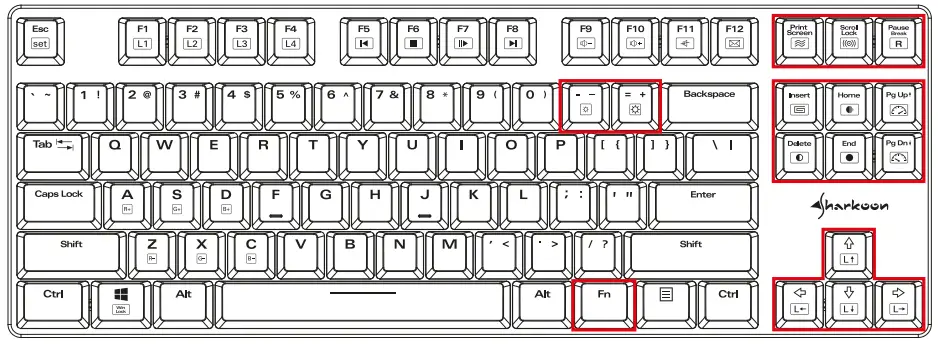
| Lighting Effect | Effect Direction | Change of Color | Frequency Change |
| Lighting Effect 1 | left, right, up, down | Automatically | √ |
| Lighting Effect 2 | N/A | Automatically | √ |
| Lighting Effect 3 | left, right | Automatically | √ |
| Lighting Effect 4 | N/A | Fn + Scroll Lock | √ |
| Lighting Effect 5 | N/A | Automatically | √ |
| Lighting Effect 6 | N/A | Automatically | √ |
| Lighting Effect 7 | N/A | N/A | √ |
| Lighting Effect 8 | N/A | Fn + Home | √ |
| Pulsating | N/A | Fn + Delete | √ |
| Color Change | N/A | N/A | √ |
| Permanent | N/A | Fn + End | N/A |
Individual Color Settings
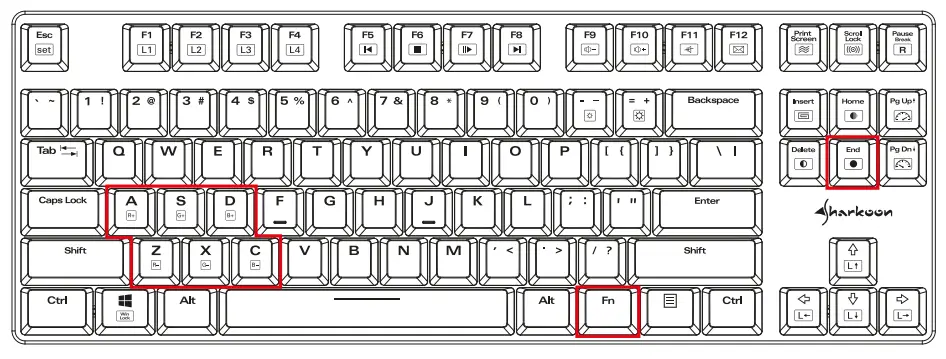
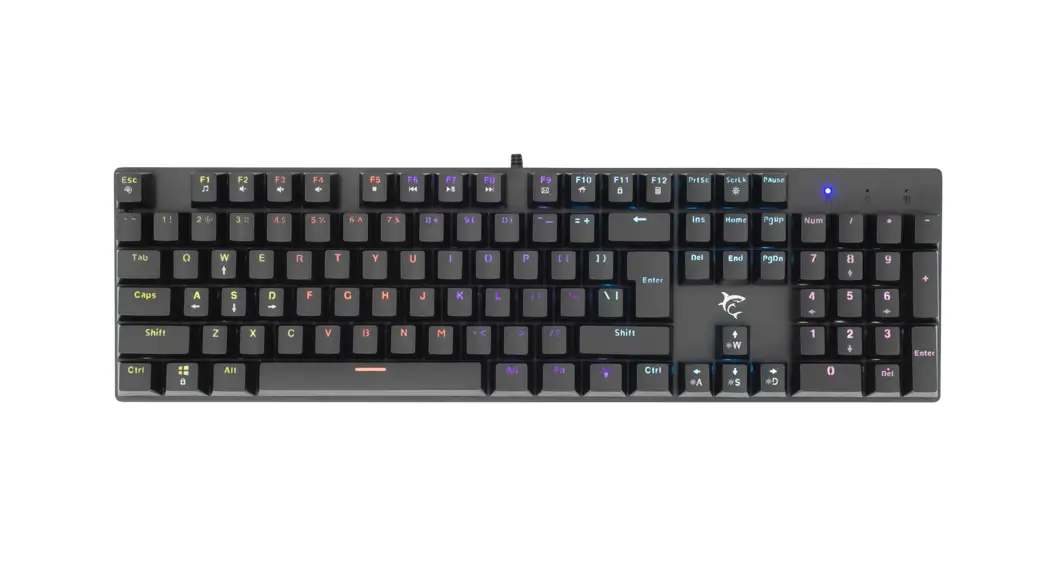
The settings of an individual color from the RGB spectrum only works with the “Permanent” lighting effect. Therefore, first select “Permanent” lighting effect. Press and hold the Fn key and then press twice the End key.
The “Permanent” lighting effect has seven preset colors (red, green, yellow, blue, turquoise, pink and white), which can be access and cycled through by repeatedly pressing the Fn + End key combination. The original color is overridden.
To increase the red component of a color, press Fn + A and to reduce press Fn + Z. Increase the green component with Fn + S, and reduce with Fn + X.
The blue component increases with Fn + D, and reduces with Fn + C. If the color components can no further increase or decrease, the corresponding keys light up in the respective color they control.
Lighting Profiles
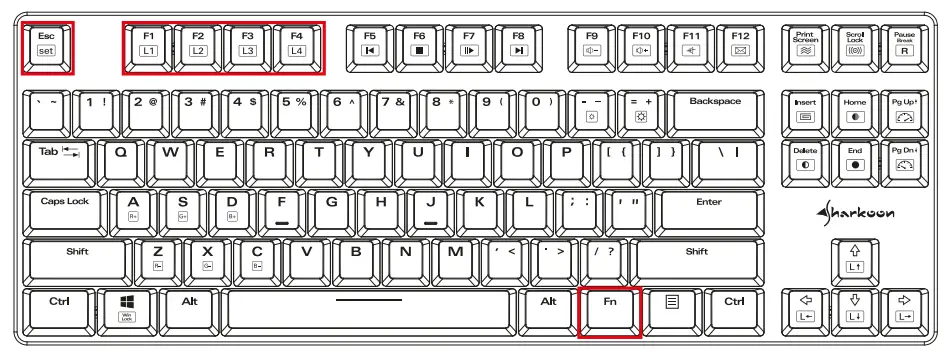
To set up lighting profiles, press and hold the Fn key, and then press ESC. The lighting profile keys F1 to F4 will start blinking. Now select a profile by pressing the corresponding F-key; then press all the keys that should be permanently illuminated. Press a key several times to change its illumination color. Choose from red, green, yellow, blue, turquoise, pink and white. To turn off the illumination on a particular key, cycle through all the colors until the lighting goes out. While pressing and holding the Fn key, press the ESC key to save the selected key illumination in the previously selected lighting profile key.
Note
Legal Disclaimer
For potential loss of data, especially due to inappropriate handling, SHARKOON assumes no liability.
All named products and descriptions are trademarks and/or registered trademarks of the respective manufacturers and are accepted as protected. As a continuing policy of product improvement at SHARKOON, the design and specifications are subject to change without prior notice. National product specifications may vary.
All rights reserved especially (also in extracts) for translation, reprinting, reproduction by copying or other technical means. Infringements will lead to compensation. All rights reserved especially in case of assignation of patent or utility patent. Means of delivery and technical modifications reserved.
 Disposal of your old products
Your product is designed and manufactured with high quality materials and components, which can be recycled and reused.
When this crossed-out wheeled bin symbol is attached to a product, it means the product is covered by the European Directive 2012/19/EU.
Please be informed about the local separate collection system for electrical and electronic products. Please act according to your local rules and do not dispose of your old products with your normal household waste. The correct disposal of your old product will help prevent potential negative consequences to the environment and human health.
Sharkoon Technologies GmbH
Grüninger Weg 48
35415 Pohlheim
Germany
© Sharkoon Technologies 2020