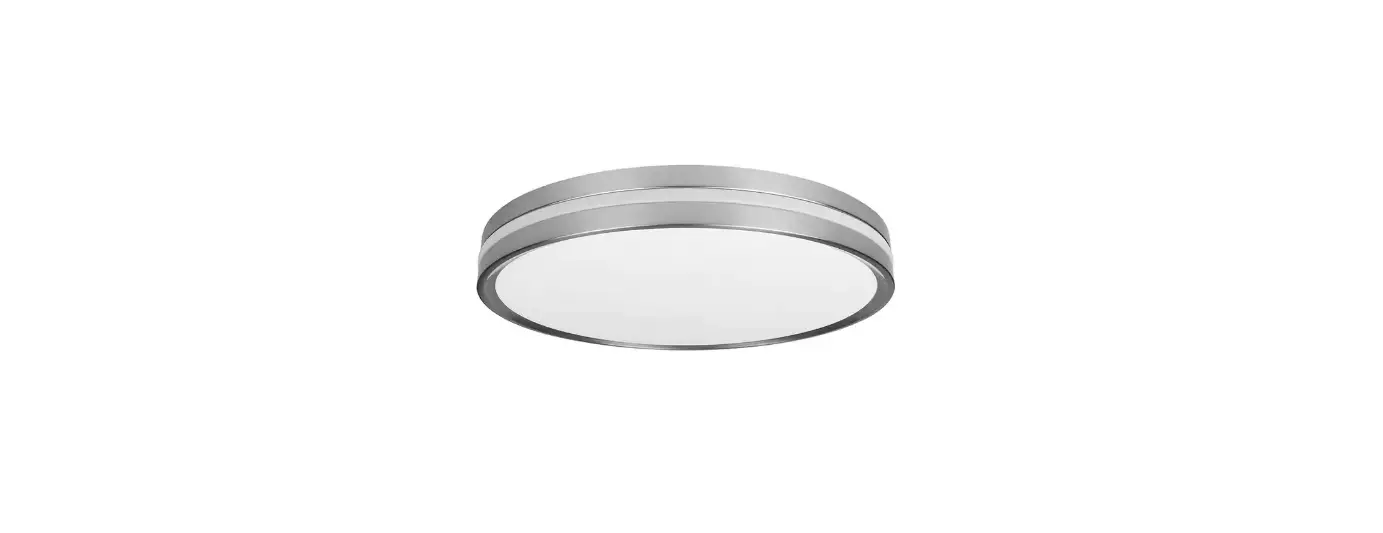
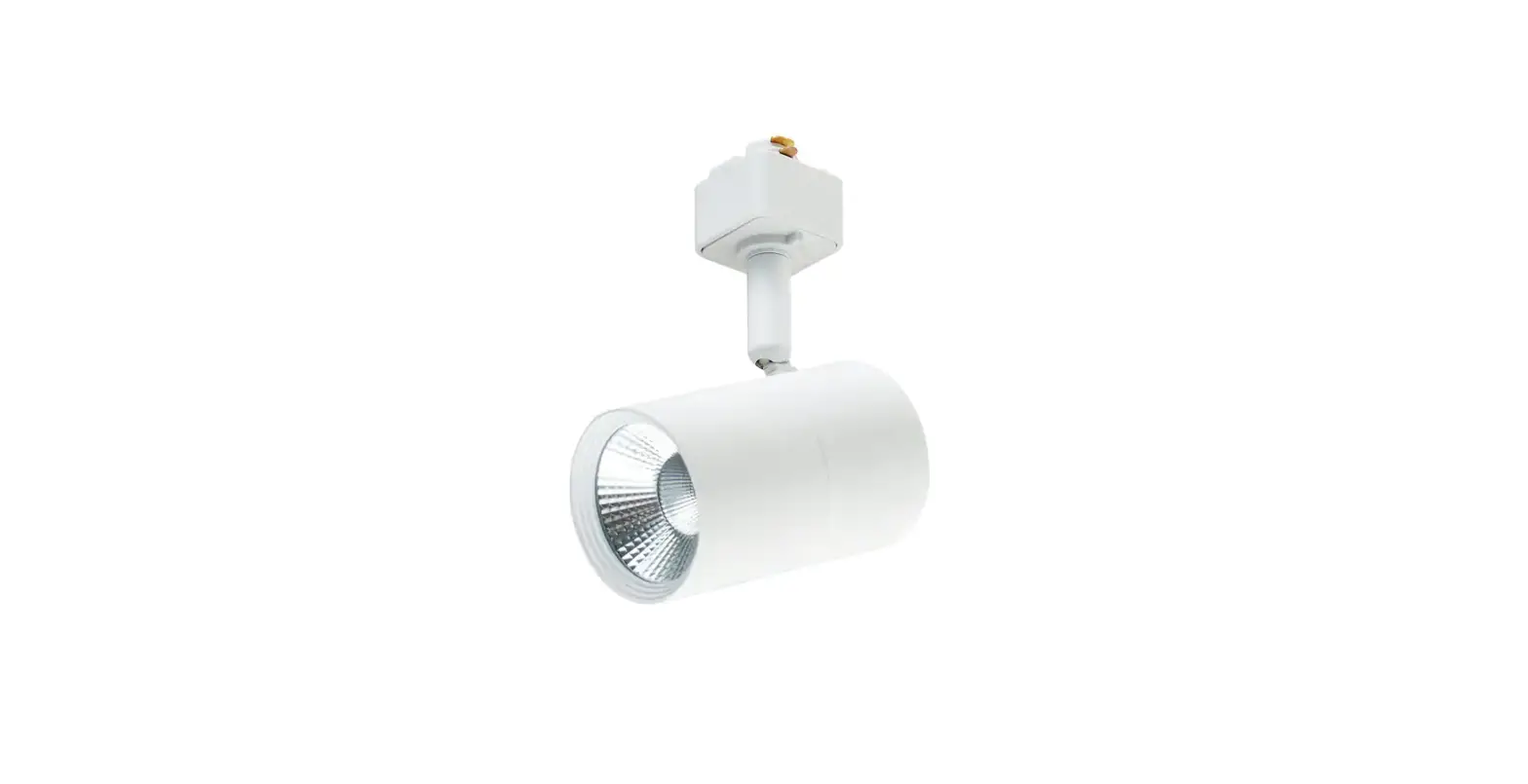
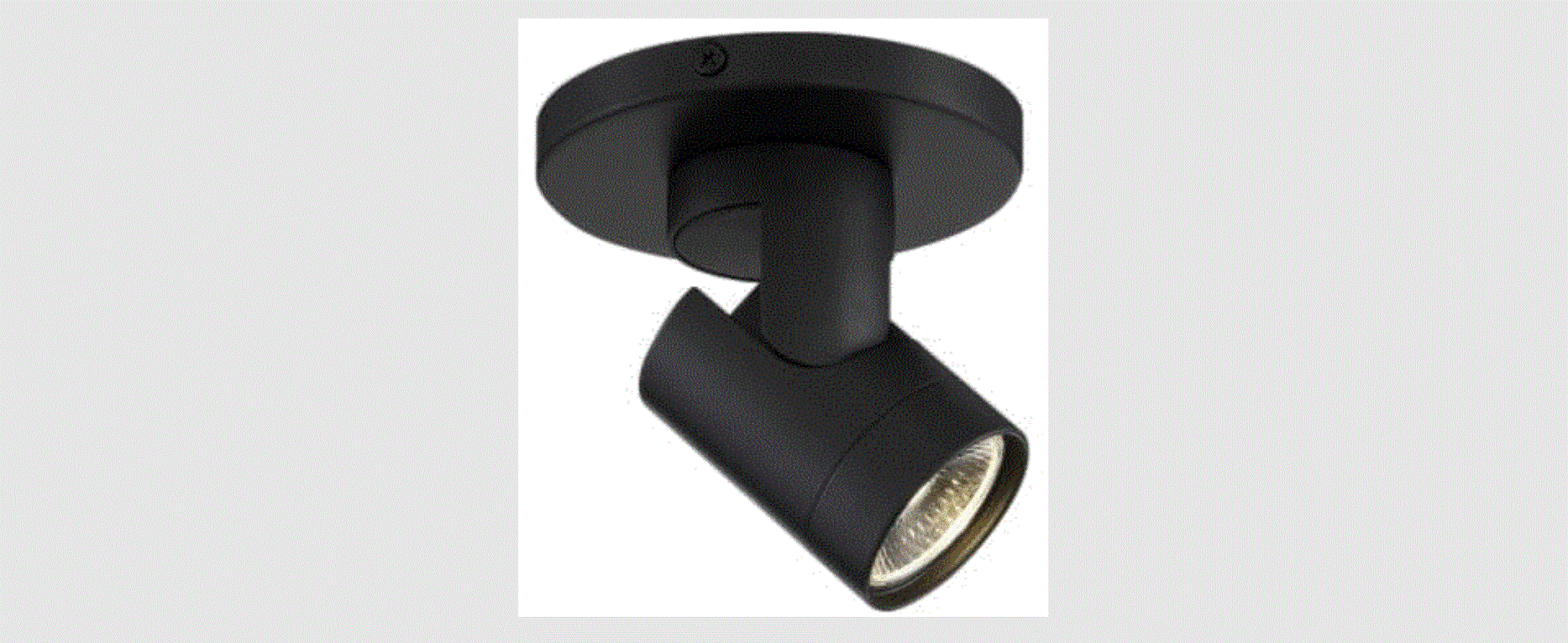
TE10c150018WBG Interior Smart LED Track Light with Nightlight Feature
Product Information
The product is an Interior Smart LED Track Light with Nightlight
Feature. It comes in four different models with SKU# SKU# SKU#
SKU#: Model#TE10c150018WBG, Model#TE10c150018WBBN,
Model#TE10c150018WWG, Model#TE10c150018WWB. The product is designed
to enhance the lighting in your home and comes with a warranty.
Product Usage Instructions
Before installing the track light, please read the safety
information carefully. If you are not qualified to install the
lighting fixture, contact a qualified electrician.
Pre-Installation
Plan the installation of the track light properly to ensure that
it is installed correctly. Do not make or alter any open holes in
an enclosure of wiring or electrical components during
installation.
Installation
Follow the installation instructions provided with the product
carefully. Use only the control provided with or specified by the
instructions to control the track light. This flush mount will not
operate properly when connected to a standard (incandescent) dimmer
or dimming control.
Operation
Once the track light is installed, use it according to the
instructions provided.
Care & Cleaning
Clean the track light regularly to maintain its appearance and
performance. Use a soft cloth to clean the light. Do not use harsh
chemicals or abrasive materials to clean it as it may damage the
product.
Troubleshooting
If you experience any issues with the product, refer to the
troubleshooting guide provided in the user manual. If you are
unable to resolve the issue, contact Hampton Bay Customer Service
for assistance.
Compatibility
The product is compatible with wireless protocols such as Apple
and Google Play.
SKU# SKU# SKU# SKU#
Model#TE10c150018WBG Model#TE10c150018WBBN Model#TE10c150018WWG Model#TE10c150018WWB
USE AND CARE GUIDE
INTERIOR SMART LED TRACK LIGHT WITH NIGHTLIGHT FEATURE
Questions, problems, missing parts? Before returning to the store, call Hampton Bay Customer Service
8 a.m. – 7 p.m., EST, Monday Friday, 9 a.m. 6 p.m., EST, Saturday
1-855-HD-HAMPTON
HAMPTONBAY.COM
THANK YOU lighting fixture.
We strive to continually create quality products designed to enhance your home. Visit us online to see our full line of products available for your home improvement needs. Thank you for choosing Hampton Bay!
Table of Contents
Table of Contents……………………………………………….2 Safety Information……………………………………………..2 FCC Regulation………………………………………………….. 2 Wireless Protocol ………………………………………………. 3 Warranty……………………………………………………………3
What is covered ……………………………………………..3 What is not covered ………………………………………..3
Safety Information
Pre-Installation …………………………………………………. 4 Planning Installation ……………………………………….4
Installation ………………………………………………………. 5 Operation …………………………………………………………. 6 Care & Cleaning …………………………………………………7 Troubleshooting …………………………………………………7 Compatibility…………………………………………………….8
WARNING: Risk of fire or electric shock. Lighting fixture installation requires knowledge of luminaire electrical systems. If not qualified, do not attempt installation. Contact a qualified electrician.
WARNING: To prevent wiring damage or abrasion, do not expose wiring to edges of sheet metal or other sharp objects.
WARNING: Only use the control provided with or specified by these instructions to control this track light. This flush mount will not operate properly when connected to a standard (incandescent) dimmer or dimming control.
NOTICE: Do not make or alter any open holes in an enclosure of wiring or electrical components during installation.
NOTICE: Any changes or modifications to this unit not expressly approved by the party responsible for compliance could void the user’s authority to operate the equipment.
FCC Regulation
Supplier’s Declaration of Conformity
47 CFR § 2.1077 Compliance Information
Responsible Party
Leedarson America, Inc. 300 Technology Court SE Suite 100; Smyrna, GA 30082 1-678-293-8382
Unique Identifier: TE10c150018WBG TE10c150018WBBN TE10c150018WWG TE10c150018WWB
Contains FCC ID: 2AB2Q-LA02301 This equipment complies with FCC radiation exposure limits set forth for an uncontrolled environment. This equipment should be installed and operated with a minimum distance of 20 cm between the radiator and any part of your body. This device complies with Part 15 of the FCC Rules. Operation is subject to the following two conditions: (1) this device may not cause harmful interference, and (2) this device must accept any interference received, including interference that may cause undesired operation.
Caution: The user is cautioned that changes or modifications not expressly approved by the party responsible for compliance could void the user’s authority to operate the equipment. Note: This equipment has been tested and found to comply with the limits for a Class B digital device, pursuant to part 15 of the FCC Rules. These limits are designed to provide reasonable protection against harmful interference in a residential installation. This equipment generates, uses, and can radiate radio frequency energy and, if not installed and used in accordance with the instructions, may cause harmful interference to radio communications. However, there is no guarantee that interference will not occur in a particular installation. If this equipment does cause harmful interference to radio or television reception, which can be determined by turning the equipment off and on, the user is encouraged to try to correct the interference by one or more of the following measures: –Reorient or relocate the receiving antenna. –Increase the separation between the equipment and receiver. –Connect the equipment into an outlet on a circuit different from that to which the receiver is connected. –Consult the dealer or an experienced radio/TV technician for help.
2
Wireless Protocol
Apple and the Apple logos are trademarks of Apple, Inc., registered in the U.S., and other countries. App Store is a service mark of Apple Inc. Google, Google Play and the Google Play logo are trademarks of Google LLC.
Warranty
Contact the Customer Service Team at 1-855-HD-HAMPTON or visit www.HAMPTONBAY.com.
3
HAMPTONBAY.COM
Please contact 1-855-HD-HAMPTON for further assistance.
Pre-Installation
PLANNING INSTALLATION
NOTE: Keep your receipt and these instructions for proof of purchase.
TOOLS REQUIRED
HARDWARE INCLUDED
NOTE: Hardware not shown to actual size.
PACKAGE CONTENTS
CC
A B C D
Part Description AA Wire nut
Quantity 3
BB Junction box screw
2
CC Decorative ring
3
Part Description
Quantity
A Mounting Plate
1
B Mounting Screw
2
C Lighting Fixture
1
D Locking Nut
2
4
Interchangeable Decorative Ring
If you desire to replace the decorative rings on the light fixture with rings of another color included in the accessories, please follow the steps below. – Counterclockwise unscrew the front cap. Figure 1. – Press the clip on the connector to separate the connectors. Figure 2. – Replace another color ring which you desire. Figure 3. – Press the clip on the connector to reattach the connectors. Figure 4. – Keep the front cap parallel to the fixture and screw it clockwise. Figure 5. – Follow the same steps to replace the decorative rings for the rest of lamp heads.
1
2
3
4
5
5
HAMPTONBAY.COM
Please contact 1-855-HD-HAMPTON for further assistance.
Installation
1 Removing the Mounting Plate
Turn off the power Counterclockwise unlock the locking nut(D),
taking out the mounting plate(A) with mounting
screws(B).
A
B
2 Install Mounting Plate Put the mounting plate(A) onto the junction box (not included) fix with the junction box screws(BB)
A D
BB
3 Connect the Wires Connect the black and white wires of the fixture with two wires of the same colors from the junction box. Secure together using wire nuts (AA).
Connect the grounding wire of the mounting plate with the one from the junction box. Secure together using a wire nut (AA).
4 Mounting the Fixture Body Align the keyholes on the back of mounting deck (C) with the mounting screws (B). Clockwise screw locking nuts (D) onto the mounting screws (B) to secure the fixture body. Adjust the lighting head to your desirable direction.
B C
AA
D
5 Turn on the Light Restore power to the junction box. Turn the light switch on to activate the fixture.
6
Light Mode Operation
Selecting Main Light or Night Light Mode · To turn on the main light mode, switch on the wall switch or turn it on via the Hubspace app. · To change to night light mode, turn on the main light, then switch the wall switch off then back on again within 2 seconds. Or you can select the night light mode via the Hubspace app. · To return to main light mode after using night light mode, switch the wall switch off then back on again within 2 seconds. Or you can select the main light mode via the Hubspace app.
NOTE: The Main light will not provide light output while in night light mode.
Smart Setup Operation
1 2 Download the HubspaceTM app from the App Store or the
Create an account to sign in or log in if you already have an
Google Play Store.
account.
For more information on the Hubspace app, visit hubspace.com/Hubspace.
3 Connect your track light to power and follow the
4 Tap the `+’ button in the upper right corner to add your track
instructions on the app screen.
light.
NOTE: This Hubspace device requires a 2.4GHz Wi-Fi channel.
Hubspace only shows Wi-Fi networks that your device can use.
If you do not see your Wi-Fi network name when you attempt to connect your devices, please check your router settings or move your product closer to your Wi-Fi router.
5 Scan the QR Code Scan the QR code in the quick start guide or on the track light. To scan the QR code on the track light, or the quick start guide.
My Home
NOTE: Bluetooth access is required for device setup.
HUBSPACE APP QUICK START GUIDE
OR
NOTE: If the QR code cannot be scanned, you can enter the code manually. Tap Enter Code and follow the instructions.
6 Using Your Smart Track Light Turn your smart track light on or off from the Home page on the Hubspace app. To set a schedule or timer, tap the name of the smart track light on the Home page. You will see options for setting Schedules and Auto-Off Timers.
7 Set up your Voice Assistant You can connect your smart track light to Google Home and Alexa from the Hubspace app. Or, you can sign in to Alexa app or Google Home and connect to your Hubspace devices from there.
7
HAMPTONBAY.COM
Please contact 1-855-HD-HAMPTON for further assistance.
WARNING: Shut off power at the circuit breaker or fuse panel before cleaning the fixture.
A wire is not properly connected.
The switch is defective.
Check to ensure proper wire connections are made. Contact a qualified electrician.
Test the switch or contact a qualified electrician to replace switch.
1-855-HD-HAMPTON.
Problem
Solution
My Hubspace device is not connecting to Wi-Fi.
Make sure your device is connected to a power source. Your Internet connection or Wi-Fi network may be down.
My device cannot find any Wi-Fi networks.
Make sure you have a 2.4GHz capable Wi-Fi network within range of the device you are trying to add.
My device is in a location that does not have Wi-Fi. Can I still use it with the Hubspace app?
Yes. Use the app on a phone with an Internet connection like LTE. The phone must be within Bluetooth range of your Hubspace device and have Bluetooth enabled.
I cannot find the QR code.
It is on the track light housing. A copy of the QR code is also included in your device’s documentation.
The QR code has become damaged. How do I add the device?
Under the QR code are numbers. You can enter those in manually instead of scanning the code.
I lost my QR code. How do I add a device?
The device is on another account. How do I transfer it? My device is offline for long periods of time.
1. Make sure the device is connected to power. 2. In the Hubspace app, tap +, then Add Device. 3. On the Scan Device screen, tap the Search button in the lower right corner. 4. Follow the onscreen instructions. Scan the QR code and it will transfer to your account.
Make sure your Wi-Fi signal strength is sufficient. You may need to move your router, use mesh Wi-Fi, or Wi-Fi extenders.
The device is on and I scanned Turn off Bluetooth on your phone and turn it back on. Then, scan the QR
the QR code, but the app
code. If the problem persists, turn your phone off and on, then try again.
cannot connect to it.
Can I scan the same QR code to add multiple products?
No. Each product has a unique QR code.
8
Compatibility
This lighting fixture is designed to be surface-mounted onto a 3 in./4 in. junction box. Junction box types, sizes, and site conditions vary. Ensure compatibility with the fit, wiring, and mounting. Refer to the information below.
Recommended junction box type Recommended distance between two keyholes
3 in.
2.75 in. /3.5 in.
4 in.
2.75 in. /3.5 in.
9
HAMPTONBAY.COM
Please contact 1-855-HD-HAMPTON for further assistance.
Questions, problems, missing parts? Before returning to the store, call Hampton Bay Customer Service
8 a.m. 7 p.m., EST, Monday Friday, 9 a.m. 6 p.m., EST, Saturday
1-855-HD-HAMPTON
HAMPTONBAY.COM
Retain this manual for future use.
 Hampton Bay - The Home Depot
 Hampton Bay - The Home Depot