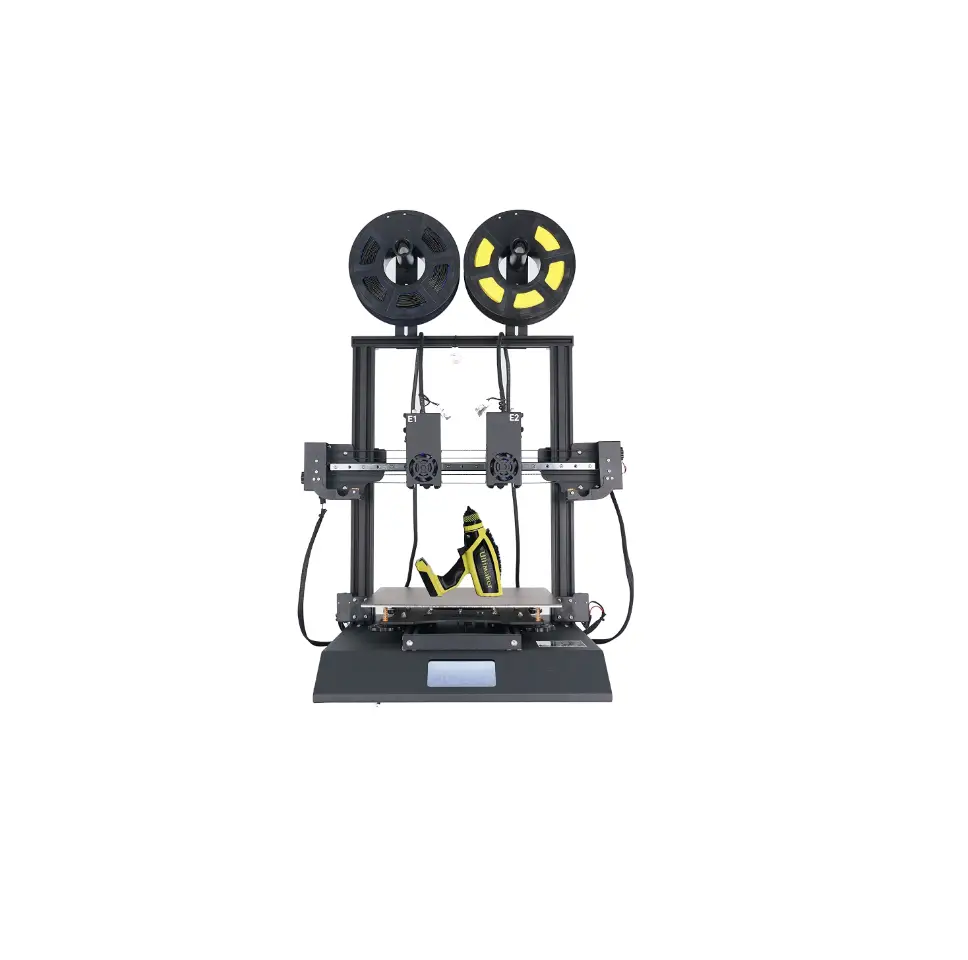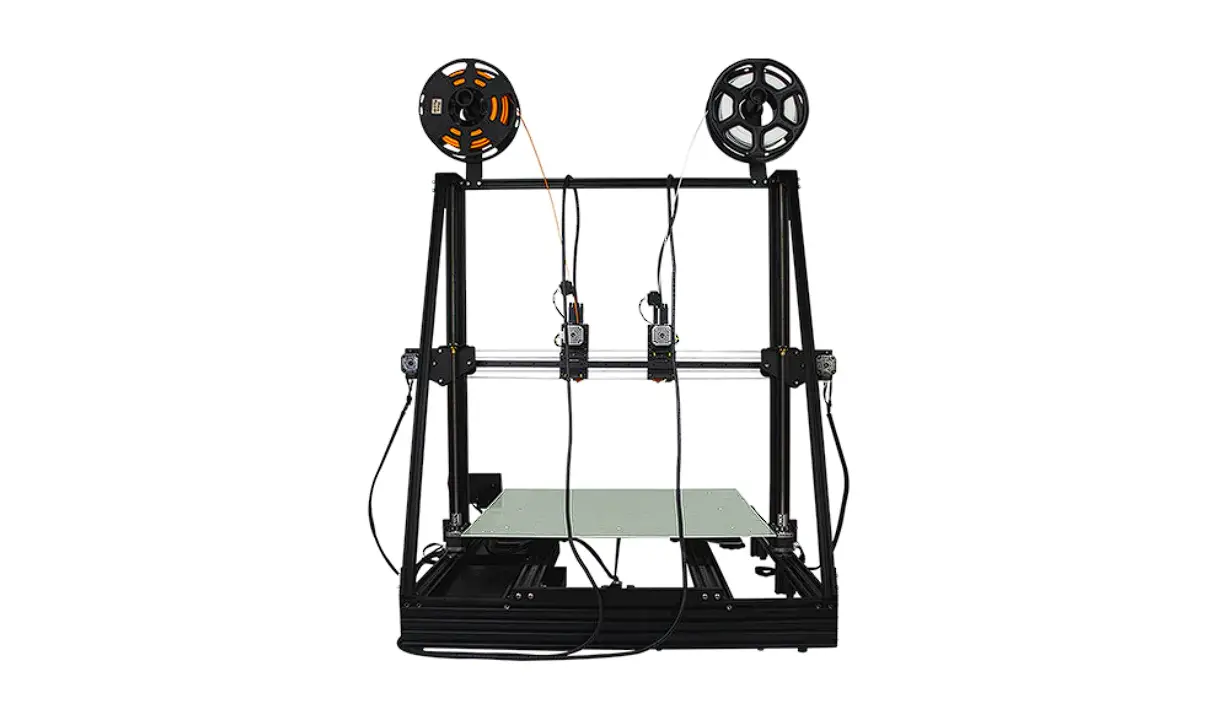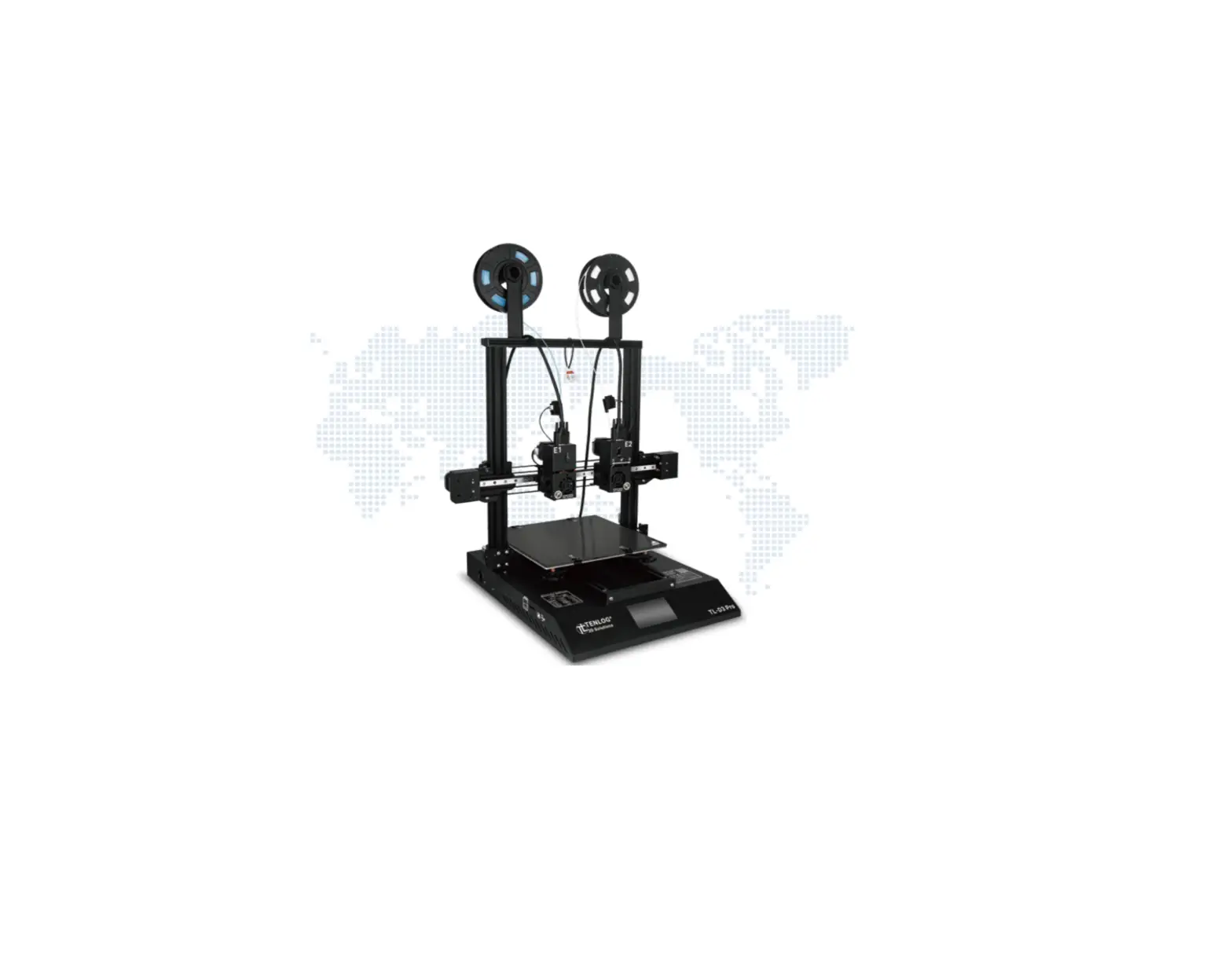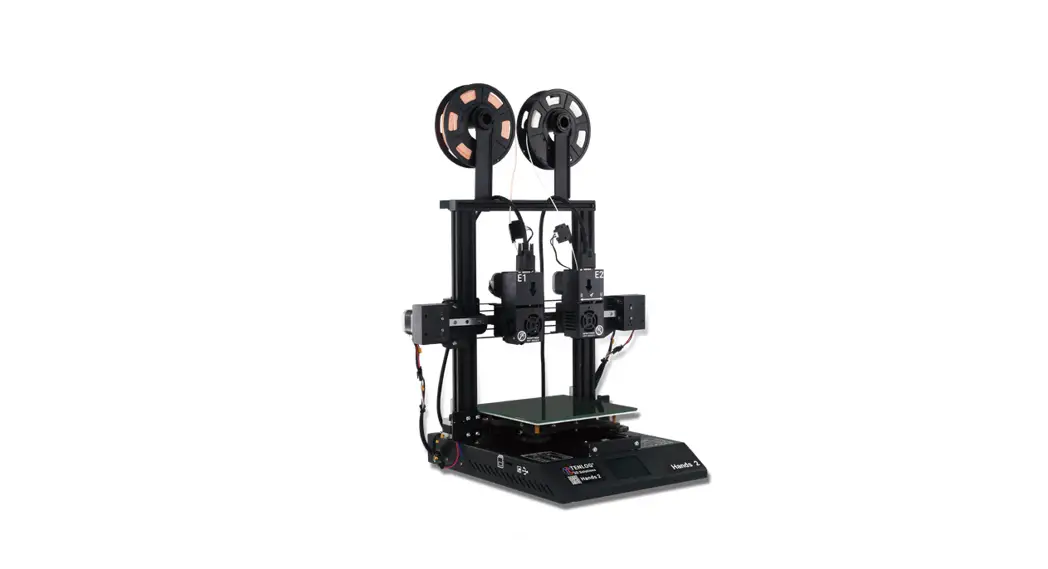

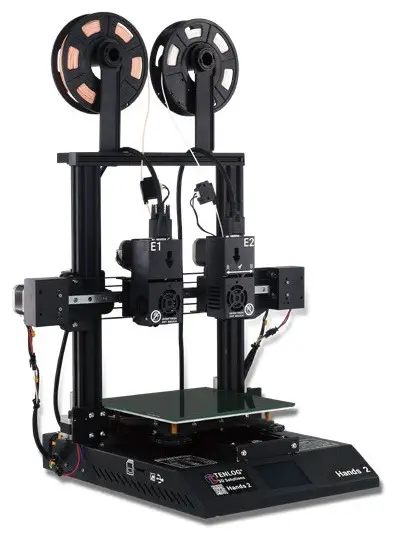
TENLOG Hands 2
DMP 3D Printer Manual
 | |
 |  https://www.tenlog3d.com/amazon-tenlog3d-official-store_d19 https://www.tenlog3d.com/amazon-tenlog3d-official-store_d19 |


Shenzhen Tenlog 3D Technology Co., Ltd.
This manual is for reference only.
The structure and parts list of the Tenlog DMP 3D printer are subject to the actual product in the carton, and subject to change without notice.
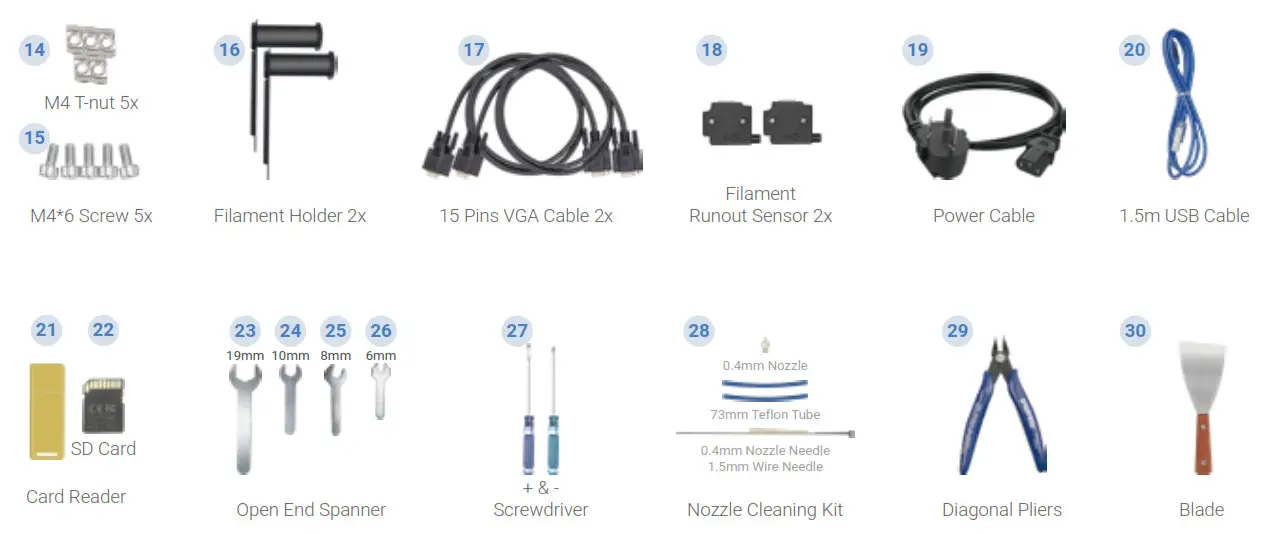
Parts List
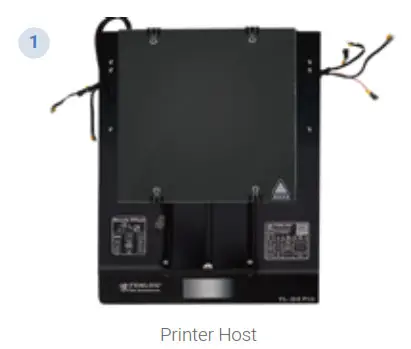 | 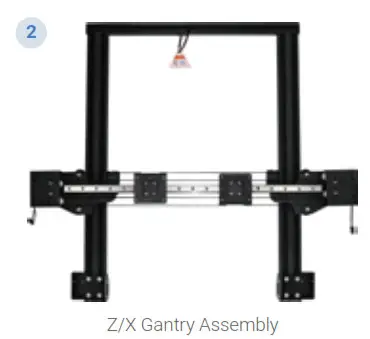 | 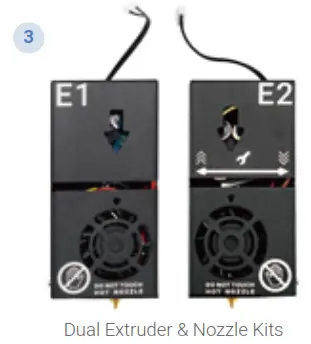 |
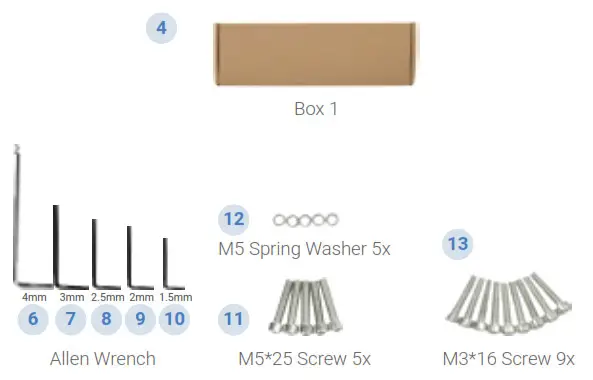 | 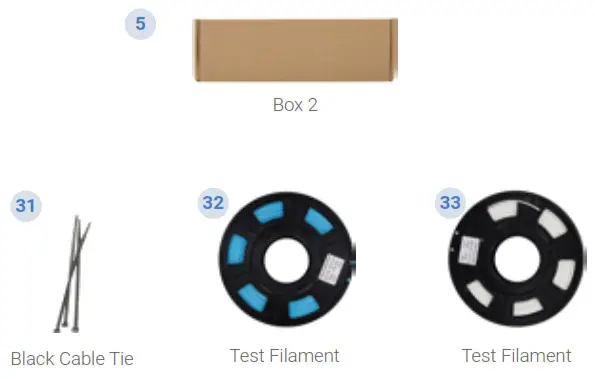 |
Safety Alert
 | Minors are not allowed to use alone | 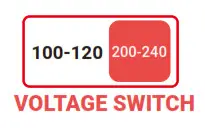 | Do not plug or unplug under power |  | Do not touch hot nozzle and hot bed |
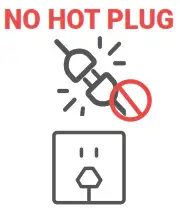 | Do not plug or unplug under power | 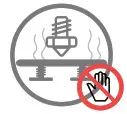 | Do not touch hot nozzle and hot bed | 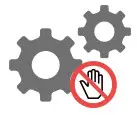 | Do not touch any moving part |
How to Assemble
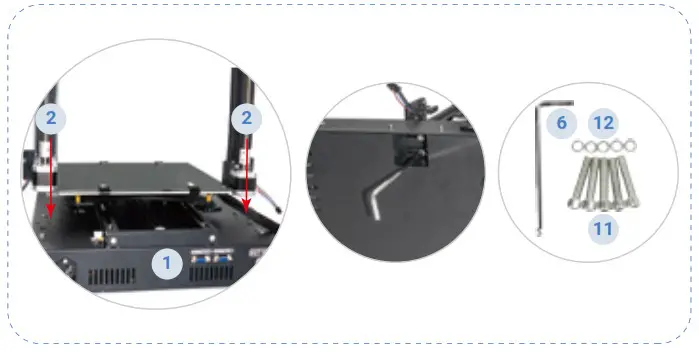
- Assemble Z/X Gantry Assembly to the Printer Host

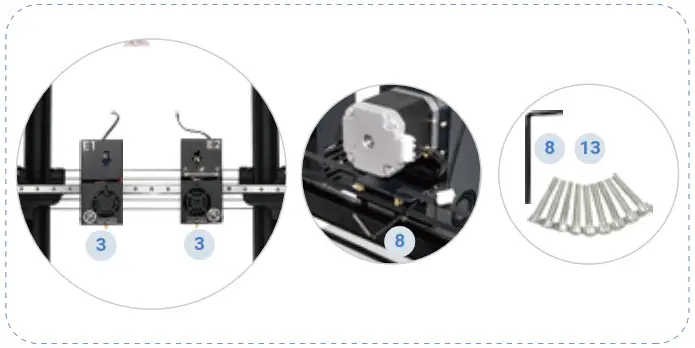
- Assemble Dual Extruder & Nozzle Kits

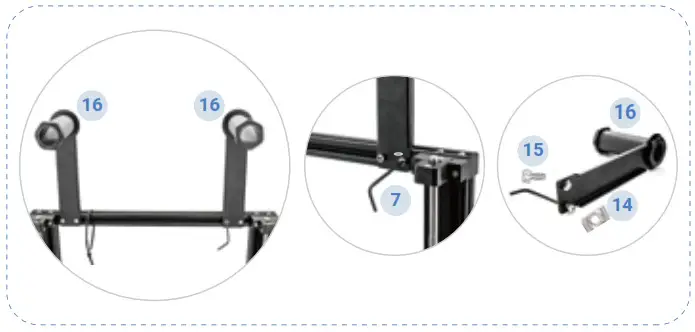
- Assemble the Filament Holder

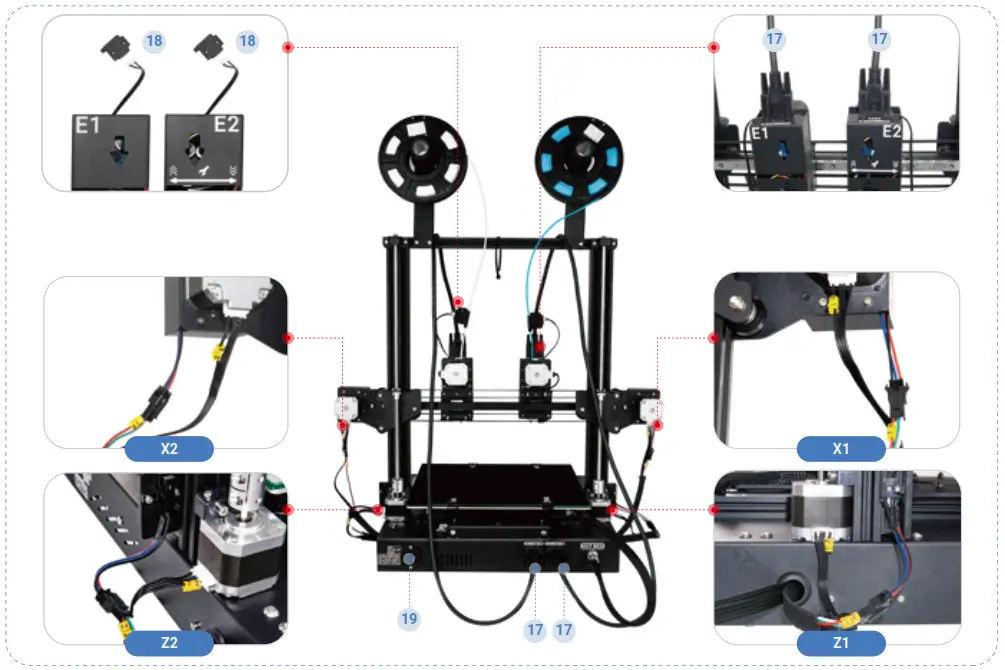
- Wiring

- Enable Filament Runout Detection
How to Use Touch Screen
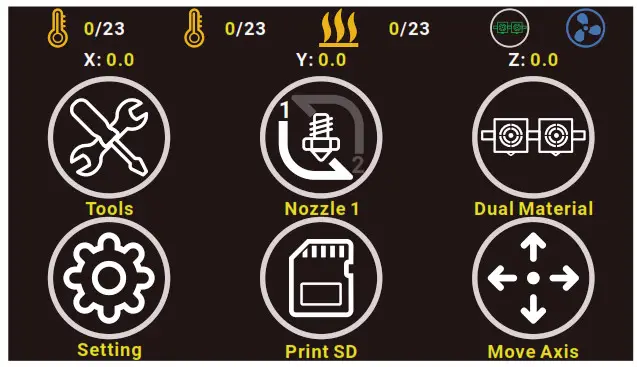
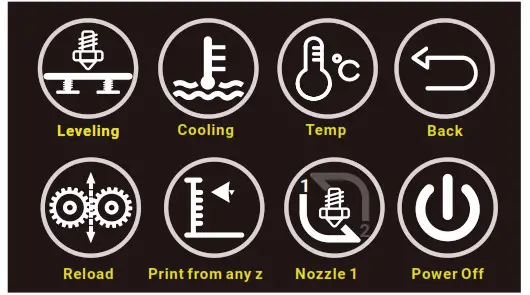
 Click on Tool button, you can get:
Semi-automatic Leveling
Preheat PLA ABS
Filaments Reload
Printing from any Height etc.
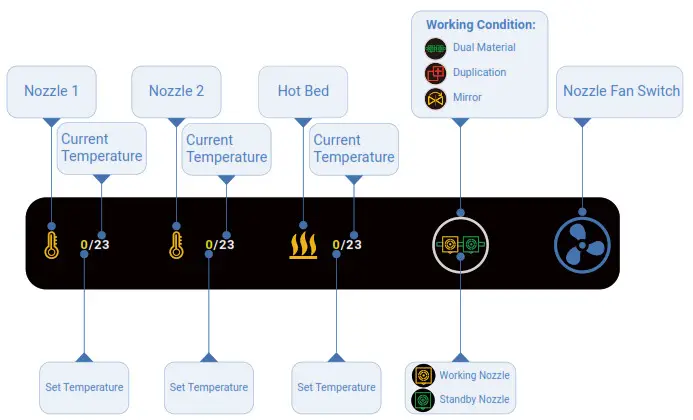
 Click on Dual Material button, you can switch the print mode:
 Dual Material
  Duplication
  Mirror
Dual Material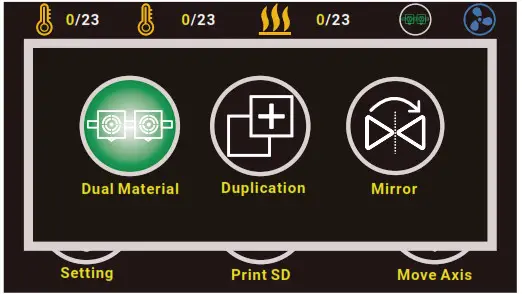

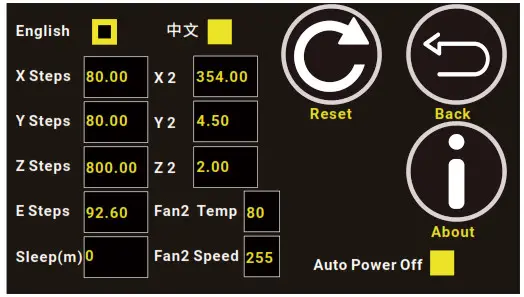
Click on Setting button, you can configure the printer:
X Y Z E Steps : The values of Steps per millimeter of each axis
X2 Y2 Z2 : Nozzle Offset of Nozzle 2 Relative to Nozzle 1
Fan2 Temp : Set the startup temperature of Nozzle Cooling Fan
Fan2 Speed : Speed of Nozzle Cooling Fan
How to Use
| 1. How to Level
| 2. How to Set Nozzle Offset |
3. How to Use | 4. How to Use Borosilicate Glass Bed https://www.tenlog3d.com/blog/How-to-Use-Borosilicate-Glass-Bed_b24 https://www.tenlog3d.com/blog/How-to-Use-Borosilicate-Glass-Bed_b24 |
Cura Interface Overview
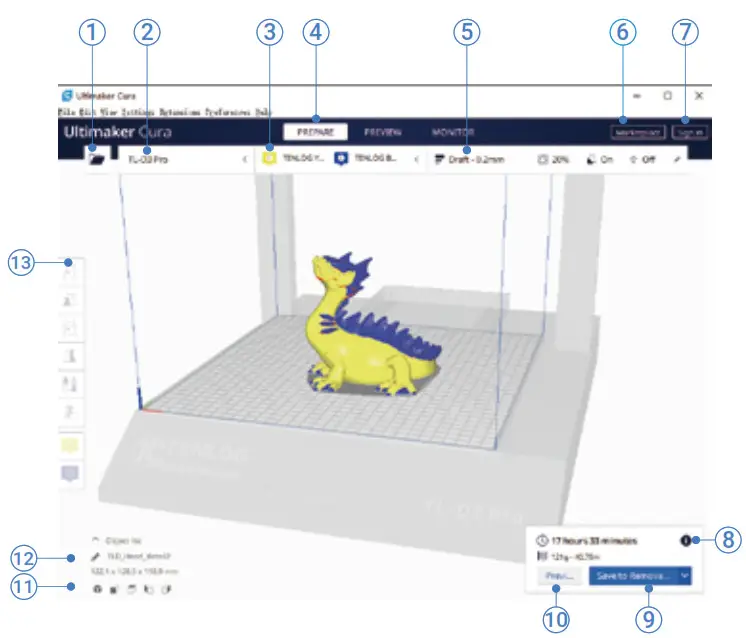
- Open file. Opens a 3D file.
- Printer selection panel. Displays the selected printer.
- Configuration panel. Contains the material and print core setup.
- Stages. The prepare. Preview and monitor stage. Each stage is arranged to efficiently go through each 3D printing step.
- Print settings panel. Contains all slice strategy parameters.
- Marketplace. Contains plugins and material packages.
- Ultimaker account. Allows access to cloud functionality, Marketplace plugins and print profiles, backups and more.
- Action panel. Contains an action button dependent on the current stage.
- Print over network. Save to removable disk or save to file.
- Preview. Proceeds to the next stage, the preview stage.
- Camera position tool. Easily positions the camera to default show default viewing angles.
- Model information. Contains the 3D model name and dimensions of all printable models on the build plate.
- Adjustment Tools. This allows you to easily position, scale, and rotate models on the build plate in the most efficient way.