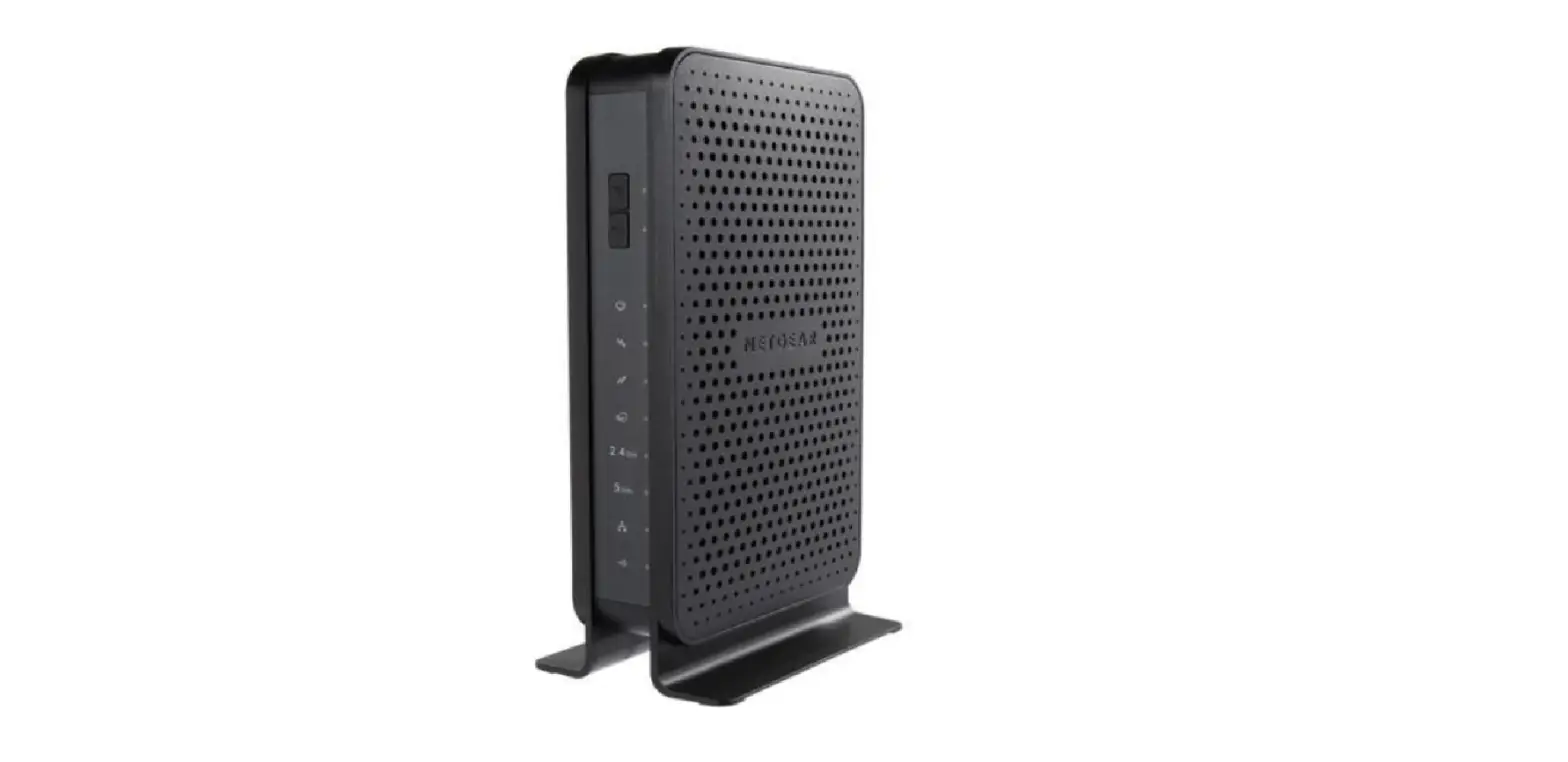
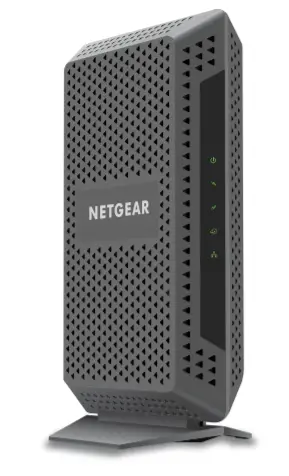
CGA437T Cable Modem Gateway
Product Information:
The product is a cable modem or gateway that allows you to
connect to the internet and use other networked devices. It comes
with a Quick Start Guide and a Safety Instructions and Regulatory
Notices document. Before starting the installation, it is important
to establish an Internet service account with your preferred
Internet service provider. The device label contains information
such as the device serial number (S/N) or MAC address, which may be
required during the account setup process.
Product Usage Instructions:
- CABLE ( ): Connect the RF coaxial cable from
the wall outlet to the CABLE connector on the back of the
device. - ETHERNET ( ): Connect your computer to the
Ethernet port on the back of the device. If there are multiple
Ethernet ports, you can connect additional computers or other
networking devices to the extra ports. - TELEPHONE ( ) (optional): If your device
supports digital telephone service (VoIP), connect one end of a
telephone cable to a telephone outlet in your home or to a
telephone or fax machine. Connect the other end of the cable to the
first TELEPHONE port on the back of the device. The first port is
labeled 1 or 1/2 depending on the device model. - POWER ( / ): Connect the barrel end ( ) of the
power adapter (included) to the POWER input on the back of the
device. Then, plug the adapter into a wall outlet. If your device
has a power switch ( / ) on the back, ensure it is in the ON
position. - Wait for the POWER ( / ) and (if applicable) WIRELESS ( ), DS (
/ ), US ( / ), ONLINE ( / ) LEDs on the front panel to stop
blinking and remain on continuously. This process may take up to 10
minutes. Once all LEDs are solid, you are ready to surf the
Internet and use other networked devices.
If you encounter any problems, make sure all connections are
secure. If further assistance is needed, please contact your
service provider.
EN: Quick Start Guide
Follow the instructions in this Quick Start Guide to connect your cable modem or gateway.
Before you start: Carefully read the Safety Instructions and Regulatory Notices document included in your package before continuing with the installation of your cable modem or gateway.
Important: Before you connect your device, establish an Internet service account with your preferred Internet service provider. When establishing an account, your Internet service provider may ask you to provide information listed on the device label, such as the device serial number (S/N) or MAC address.
1 CABLE ( ): Connect the RF coaxial cable from the wall outlet to the CABLE connector on the back of the device.
2 ETHERNET ( ): Connect your computer to the Ethernet port on the back of the device. If your device has more than one Ethernet port, you may connect additional computers or other networking devices to the extra Ethernet ports.
3 TELEPHONE ( ) (optional): If your device supports digital telephone service (VoIP), connect one end of a telephone cable to a telephone outlet in your home or to a telephone or fax machine. Connect the other end of the cable to the first TELEPHONE port on the back of the device. The first port is labeled 1 or 1/2 depending on the device model.
4 POWER (
/
): Connect the barrel end (
) of the power
adapter (included) to the POWER input on the back of the device. Then, plug the
adapter into a wall outlet. If your device has a power switch ( / ) on the back of the device, make sure that the switch is in the ON position.
5 Wait for the POWER ( / ) and (if applicable) WIRELESS ( ), DS ( / ),
US ( / ), ONLINE ( / ) LEDs on the front panel to stop blinking and remain on continuously. It may take up to 10 minutes for all LEDs to stop blinking. You are now ready to surf the Internet and use other networked devices. Problems? If you encounter problems, make sure that all connections are secure. For further assistance, contact your service provider.
1