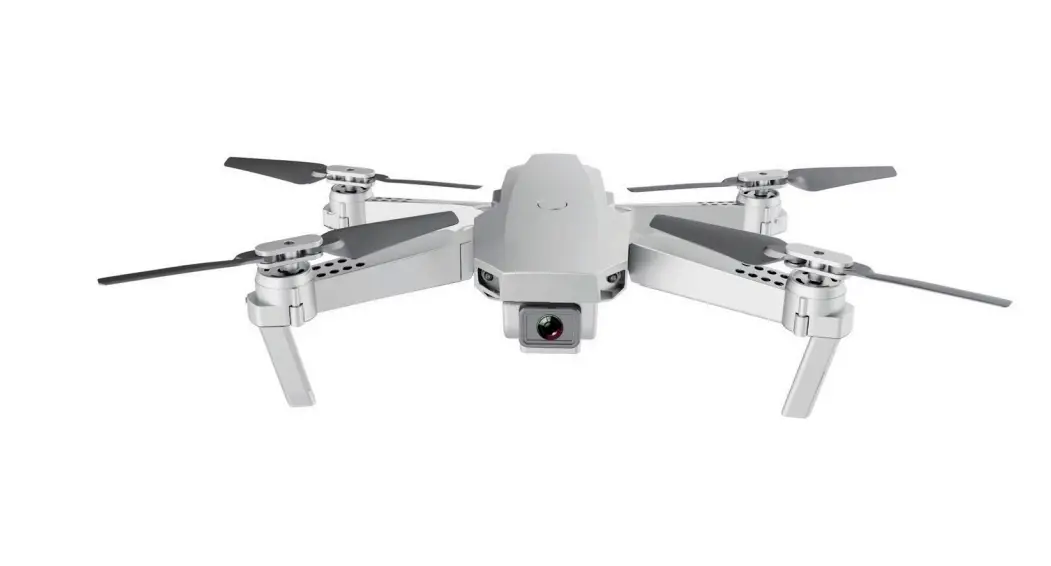
KAHRZNDRONA Horizon 4k Drone
HORIZON 4K DRONE
Product Information:
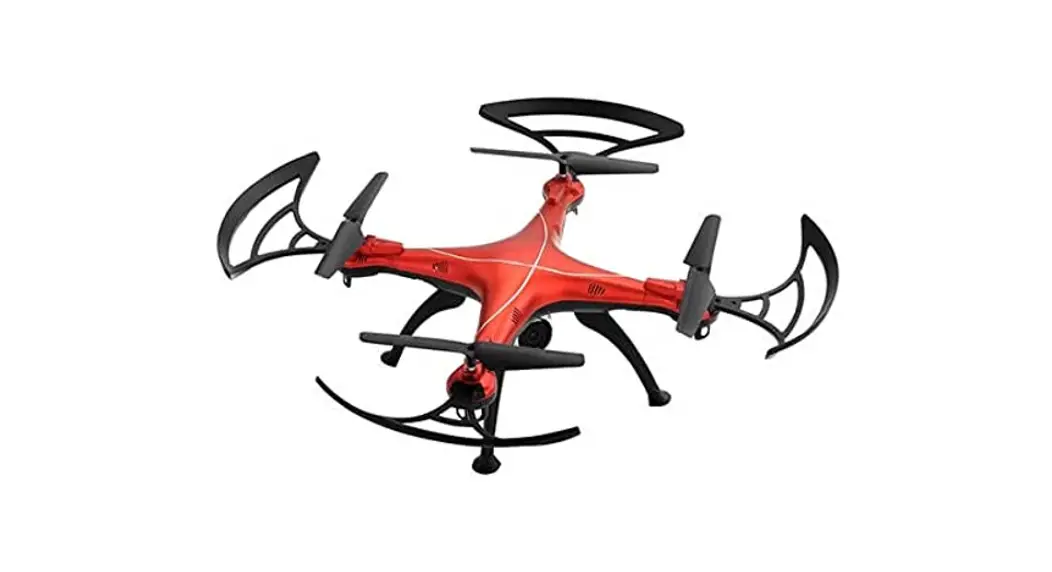
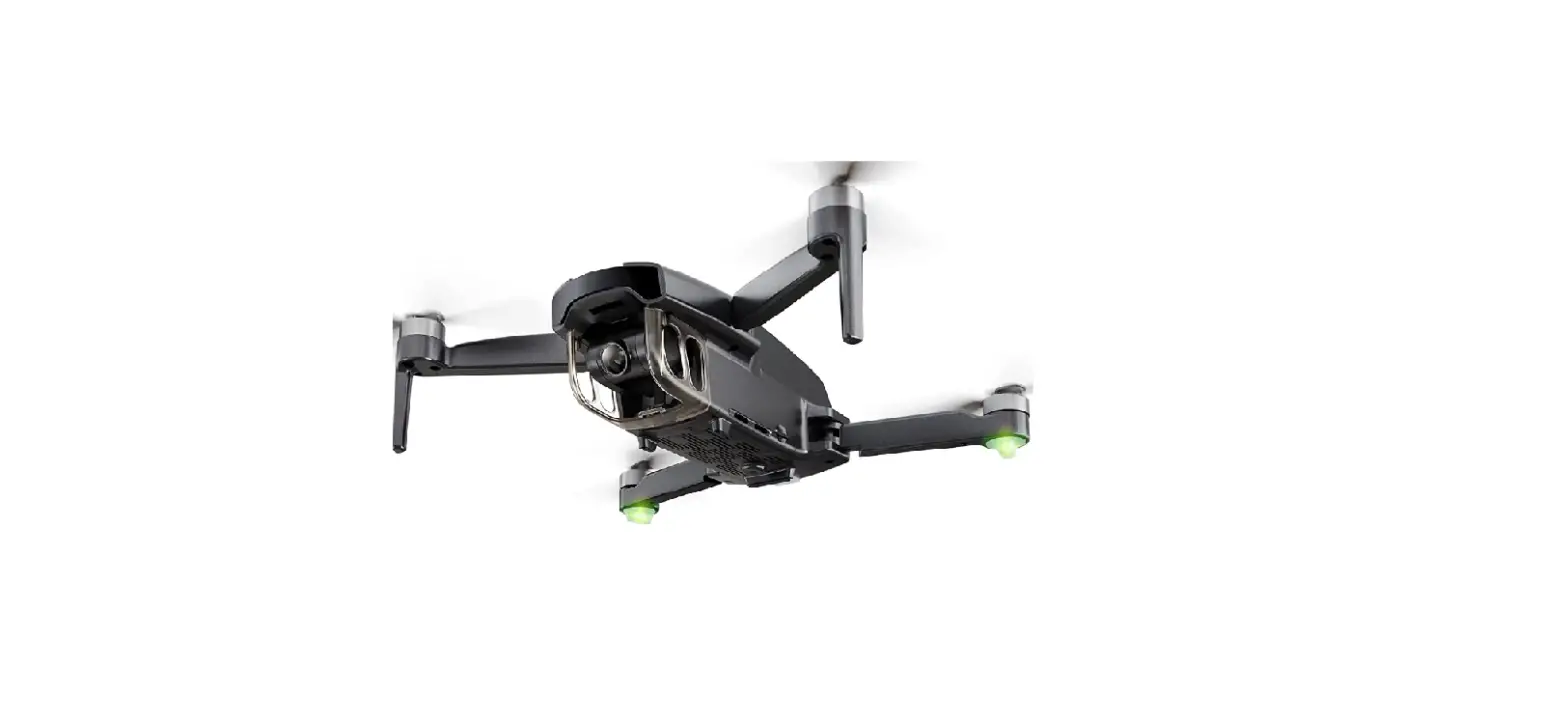
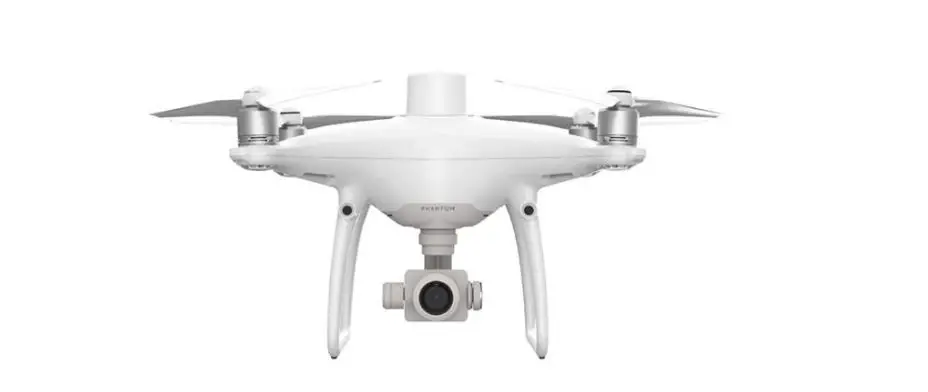
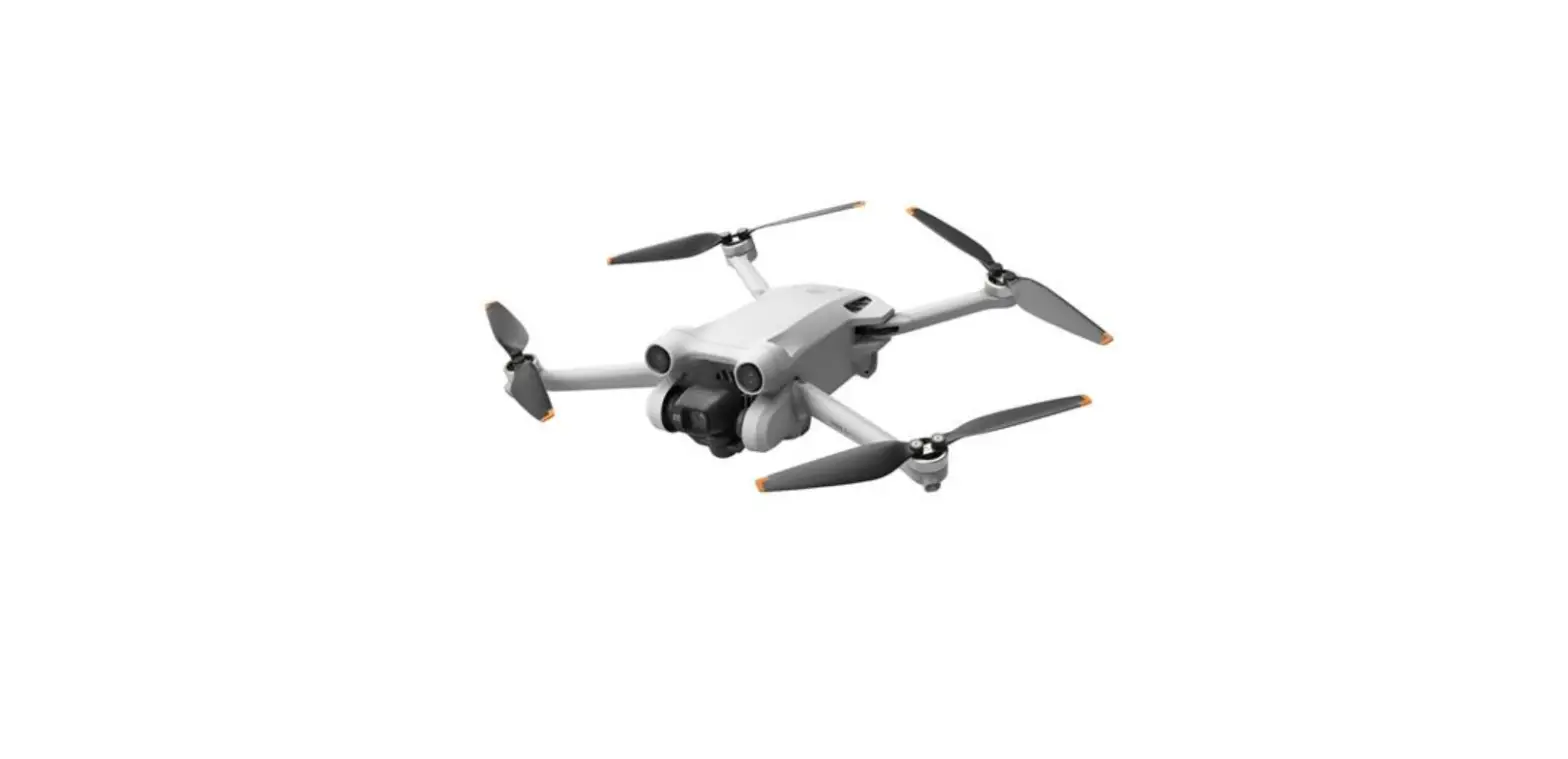
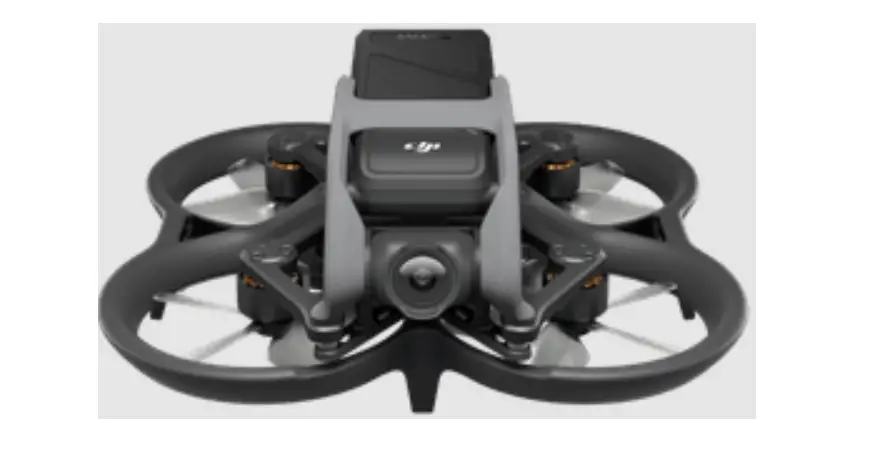
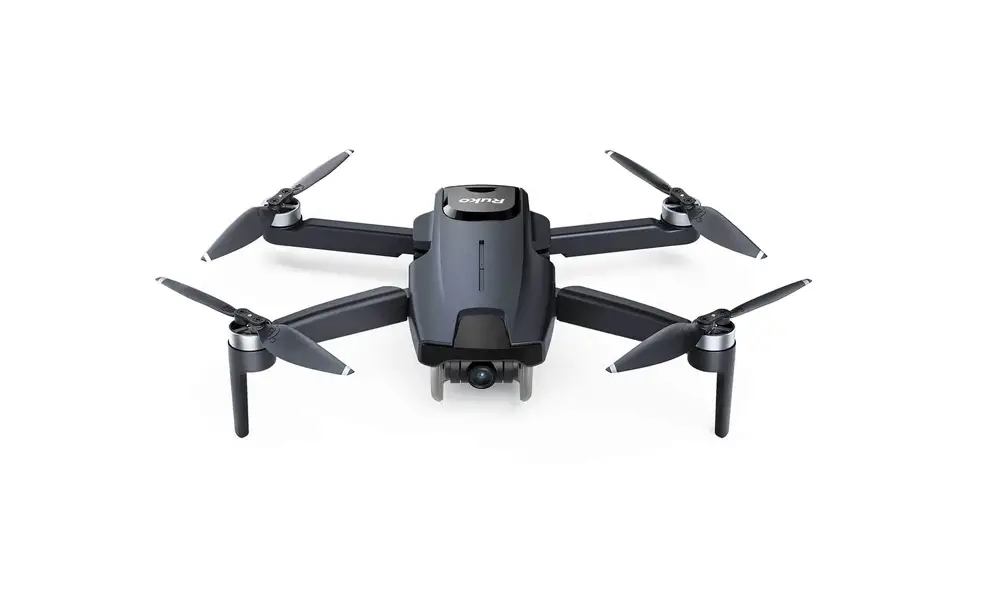
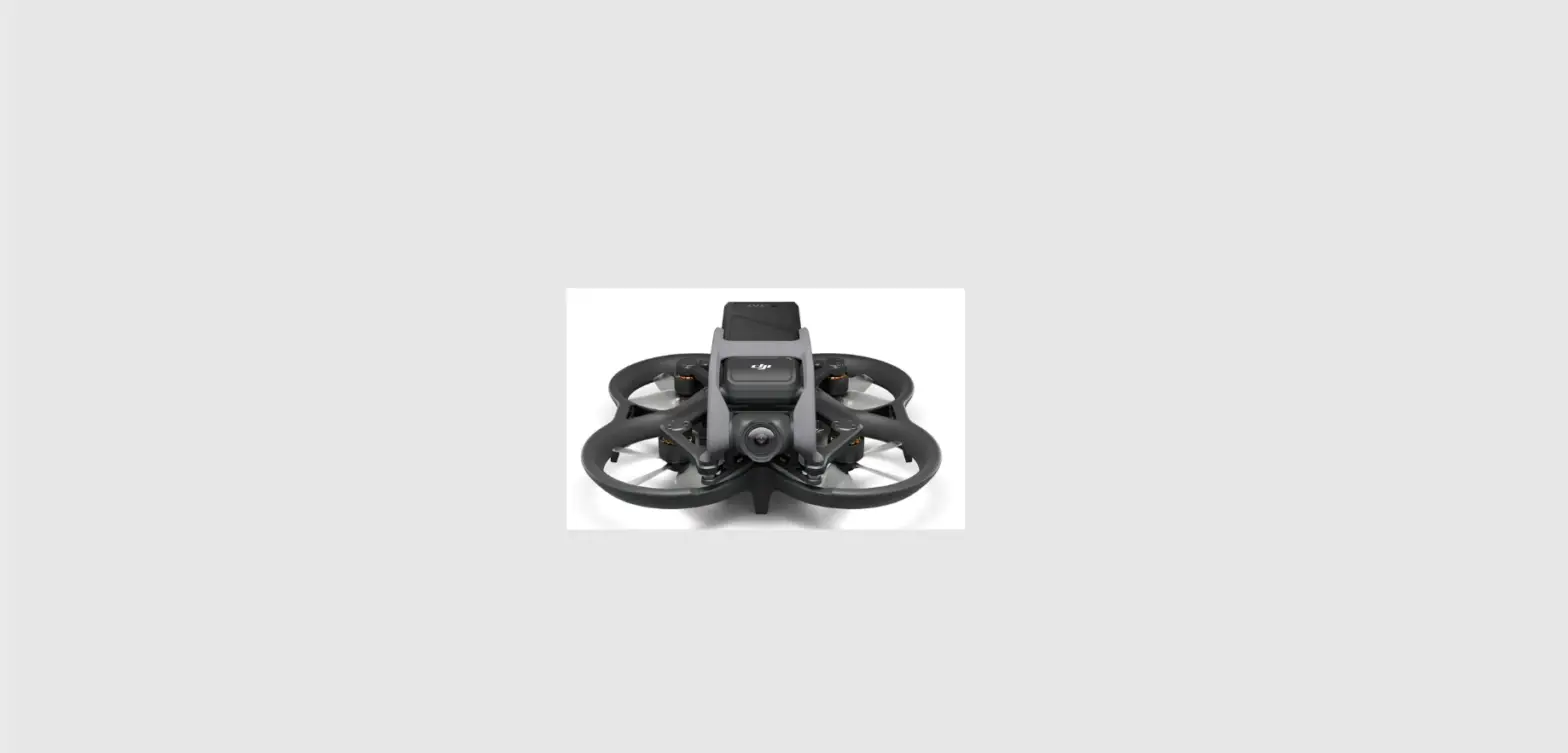
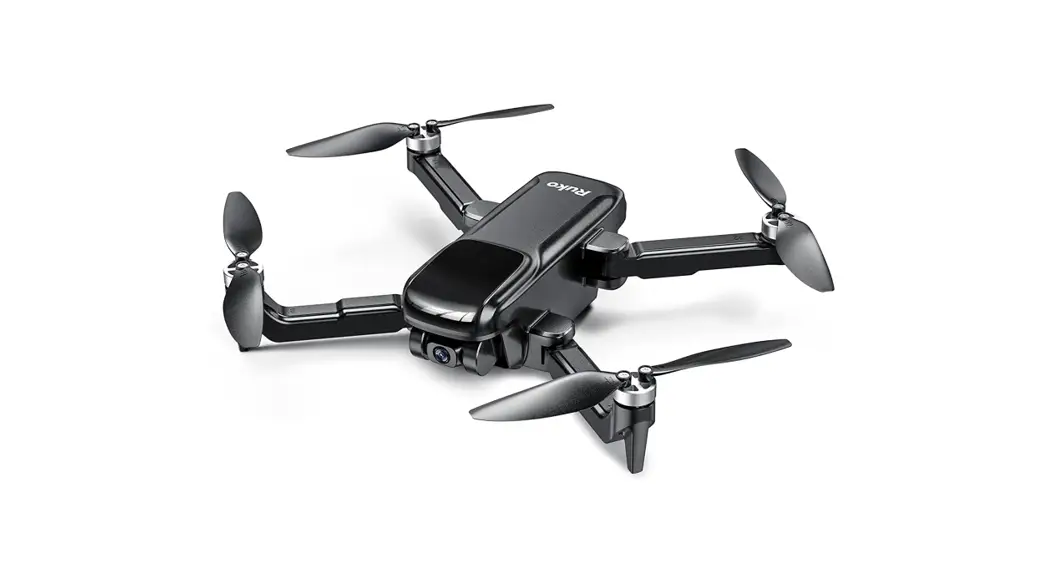
The Horizon 4K Drone is a remote-controlled quadcopter with a
camera that can capture high-quality aerial footage. The drone
comes with a rechargeable battery, propellers, motors, and an
indicator light. It also has a power button, gyro calibration
button, joystick, take-off/land button, return button, power
switch, speed switch, capture/record button, camera angle
adjustment switch, headless mode/GPS button, and battery
indicators. The drone can be paired with a remote control and a
mobile app for easy operation.
Product Usage Instructions:
Safety & Warnings
Before using the Horizon 4K Drone, it is important to read all
instructions and warnings in the user guide. Make sure to follow
all safety guidelines to avoid accidents or damage to the
drone.
Components List
The components of the Horizon 4K Drone include propellers,
motors, an indicator light, an arm, a camera, a rechargeable
battery, a power button, a gyro calibration button, joysticks,
take-off/land button, return button, power switch, speed switch,
capture/record button, camera angle adjustment switch, headless
mode/GPS button, and battery indicators.
Before Use
Before using the Horizon 4K Drone, follow these steps:
- Charge the battery by pressing on the battery at the back of
the drone and pulling it out. Connect one end of the USB to 3-pin
connector cable into the 3-pin connector on the bottom of the
drone. Connect the other end of the cable to a USB power adapter
(not included). Plug the power adapter into a wall socket and turn
it on to start charging. The battery has different lights that
indicate the battery percentage. A full charge takes approximately
four hours. - Make sure to check with your local authority on the rules for
registration as this drone may need to be registered.
Pairing with the Remote Control
To pair the Horizon 4K Drone with the remote control, follow
these steps:
- Turn on the drone and the remote control.
- Press the gyro calibration button on the drone and then the
power button twice. The indicator light will flash rapidly. - Move the left joystick up and down to pair the drone with the
remote control. The indicator light will stop flashing and remain
lit when paired successfully.
Pairing with the App
To pair the Horizon 4K Drone with the mobile app, follow these
steps:
- Download and install the CSJ GPS app on your mobile
device. - Turn on the drone and connect your mobile device to the drone’s
Wi-Fi network. - Open the app and click on “Connect” to pair the drone with the
app. The indicator light on the drone will turn solid blue when
paired successfully.
Operation
To operate the Horizon 4K Drone, follow these steps:
- Turn on the drone and the remote control or mobile app.
- Press the take-off/land button to launch or land the
drone. - Use the joysticks to control the movement of the drone. The
left joystick controls the altitude and direction, while the right
joystick controls the rotation. - Use the capture/record button to take photos or start/stop
recording videos. - Use the camera angle adjustment switch to adjust the camera
angle. - Use the headless mode/GPS button to enable or disable the
headless mode or GPS mode.
Cleaning & Care
After using the Horizon 4K Drone, it is important to clean and
maintain it properly. Use a soft cloth to wipe down the drone and
remove any dirt or debris. Store the drone in a dry and cool place
to prevent damage from moisture or heat.
Troubleshooting
If you encounter any issues with the Horizon 4K Drone, refer to
the troubleshooting section in the user guide for solutions.
Contact customer support if the problem persists.
Notes
Keep the user guide for future reference. Follow all local laws
and regulations when using the Horizon 4K Drone. Register the drone
if required by your local authority.
HORIZON 4K DRONE
KAHRZNDRONA
Safety & Warnings
3
Components List
5
Overview
5
Before Use
9
Pairing with the Remote Control
11
Pairing with the App
13
Operation
14
Cleaning & Care
20
Troubleshooting
21
Notes
22
2
SAFETY & WARNINGS
Ensure to read all instructions and warnings in this user guide prior to first use. Retain this user guide for future reference.
WARNING: This drone may need to be registered. Check with your local authority on the rules for registration.
· Do not attempt to touch the drone whilst it is operating under any circumstances. · This drone is not a toy and can be dangerous when used incorrectly. Follow all
instructions while operating. Disassembling or modifying the drone arbitrarily, operating improperly, or being unfamiliar with this product may lead to an accident and possible injuries. · This drone is intended for use by persons aged 14 years or older. It is recommended that people between 1418 years operate the drone under adult supervision. · Ensure the drone is operated in a safe environment. · It is recommended that you seek the assistance of an experienced drone pilot before attempting to fly the drone for the first time. Asking a local expert is the best way to properly assemble, set up, and fly your drone for the first time. It requires a certain degree of skill to operate and is subject to normal wear and tear. · Do not fly this drone higher than 120 metres above ground level. · Do not fly multiple drones simultaneously. Only one drone can be flown at any given time. · Do not allow the drone to fly out of visible range. · Ensure the drone is flown at least 30 metres away from any people. · Do not fly the drone over populated areas (for example, beaches, parks, and event venues). · Do not fly drones within 5.5km of airports. Many locations are considered no-fly zones and you must ensure that you fly in areas that align with local laws and ordinances. · Do not record or photograph people without consent. · Drones are prone to accidents and failures when piloted incorrectly. Operators are responsible for their actions as well as any damage or injury caused by pilot error and radio interference. · This drone is suitable for indoor and outdoor use. Always fly in a place clear of obstacles and do not fly the drone in a way that would cause hazards to nearby people and property. · Do not operate the drone in unsafe conditions and keep clear of heat sources, wires, or electric power sources.
3
· Do not fly the drone over areas affecting public safety or where there are emergency operations taking place.
· This drone contains electrical components. Always keep this drone away from water and other liquids. Exposure to water or moisture in any form can cause this drone to malfunction resulting in a crash.
· To avoid a potential fire hazard, do not short, reverse the polarity, or puncture batteries. Battery charging must be done under supervision and in a location out of reach of children.
· Remove the batteries if they will not be used on the drone for an extended period. Always dispose of old batteries according to the laws of local environmental authorities.
· Li-Polymer batteries pose higher operational risks compared to other battery types; thus it is imperative to follow its usage instructions.
· Avoid contact between the battery and metallic objects. · If there is an increase in battery temperature after operation, cease use immediately
and allow it to cool down. Continuous use of this battery may cause it to expand, deform, explode, or result in potential fire hazards. · Do not place heavy objects directly onto the drone or any of its components. · Images used in this user guide are for reference only.
Battery warnings · There is a certain risk when using a lithium battery. It may cause fire, bodily injuries, or property loss. Users must be aware of the risks and take full of responsibility if using the battery improperly. · If battery leakage occurs, avoid contact with your eyes or skin. If there is contact, wash your eyes with water and seek medical care immediately.
· Remove the plug immediately if there is any peculiar smell, noise, or smog. · Do not put the battery into a fire or place it near other heat sources. · Do not use other cables to charge the lithium battery to avoid the danger of explosions. · Do not charge a diluted or outworn battery. · Do not overcharge the battery. Unplug the charger once fully charged. · Do not charge the battery next to inflammables (for example, carpet, timber floors,
wood furniture, or on the surface of electro-conductive objects). · Always keep an eye on the battery when charging. · Do not charge the battery if it has not had sufficient time to cool after use. · Do not short-circuit the positive and negative terminals of the battery. Do not put the
battery together with small metal parts.
· The ambient temperature when charging is between 040°C. · Do not dispose of the battery as rubbish. Familiarise yourself with the local disposal
laws and follow them accordingly.
4
COMPONENTS LIST
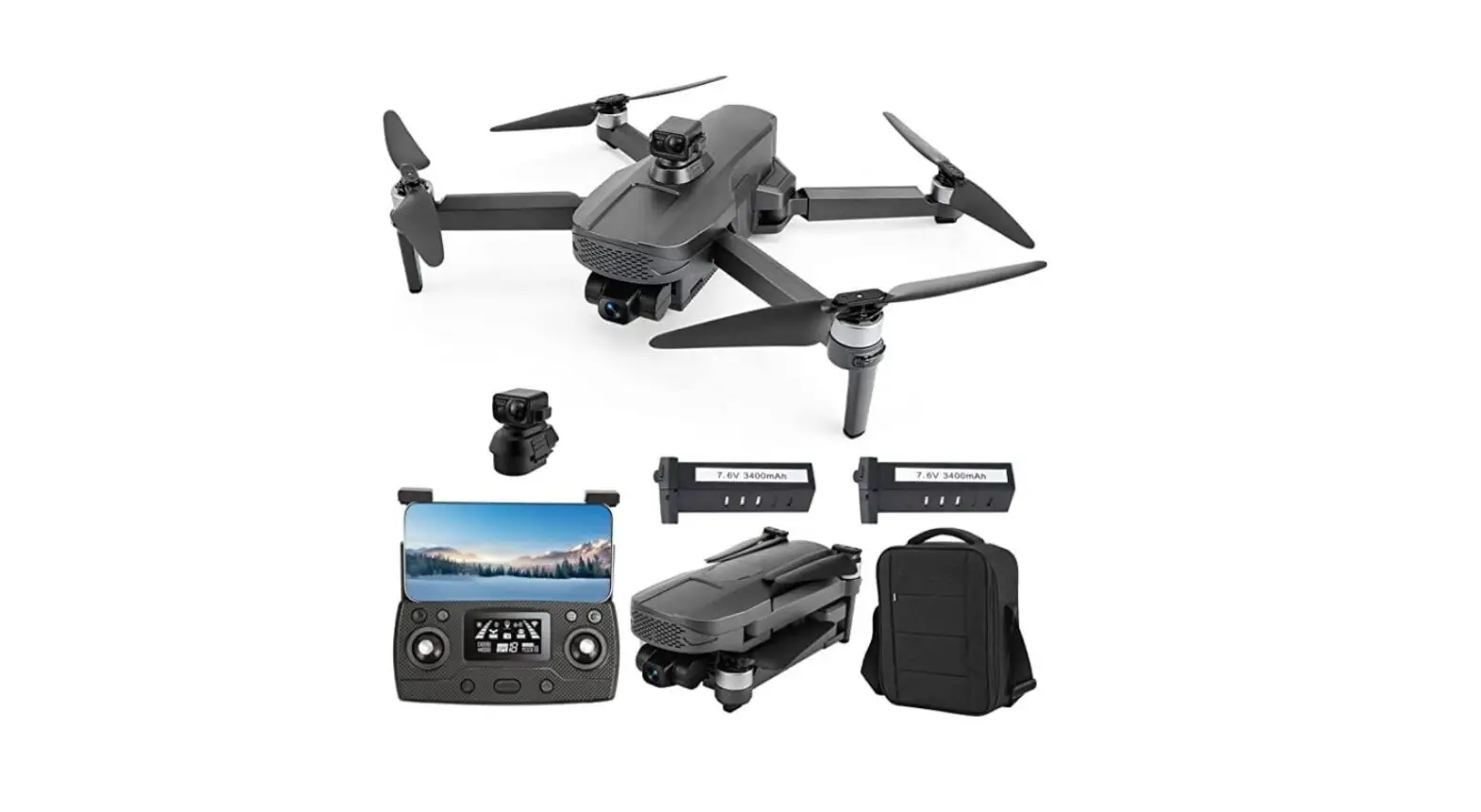
· Horizon 4K Drone · Remote control · Battery · Spare propeller (x4) · Propeller protection (x4)
· Screwdriver · USB charging cable · User guide · Storage bag
OVERVIEW
Drone Front view
1 2 3
Drone Top view
4
5
1 Propeller 2 Motor 3 Indicator light
4 Arm 5 Camera
7 6
6 Battery 7 Power button
5
Remote control Front view
8
11
9 10
8 Gyro calibration button 9 Left joystick 10 Take-off/land button 11 Geomagnetic calibration button
12 13 14
12 Right joystick 13 Return button 14 Power switch
Remote control Back view
15
17
16
18
19
15 Speed switch 16 Capture/record button 17 Camera angle adjustment switch
18 Headless mode/GPS button 19 Battery indicators
6
CSJ GPS app interface
21 22 23 24 25 26 27 28 29
20
20 Back 21 Show/hide movement controls 22 Waypoint flying 23 Flying zone 24 Gallery 25 Flying records
30
31
26 VR split screen mode 27 Reverse camera 28 GPS signal indicator 29 Settings 30 Distance information 31 Battery remaining on the drone
7
App interface with movement controls
37
39
32
40
33
41
34
42
35
43
36
32 Device tracking 33 Return 34 Take-off 35 Land 36 Orientation control 37 Altitude control 38 Unlock
38
44
39 Flying forwards/backwards 40 Gesture photo/video 41 Photo 42 Video 43 Add music 44 Flying left/right
8
BEFORE USE
Charging the battery of the drone
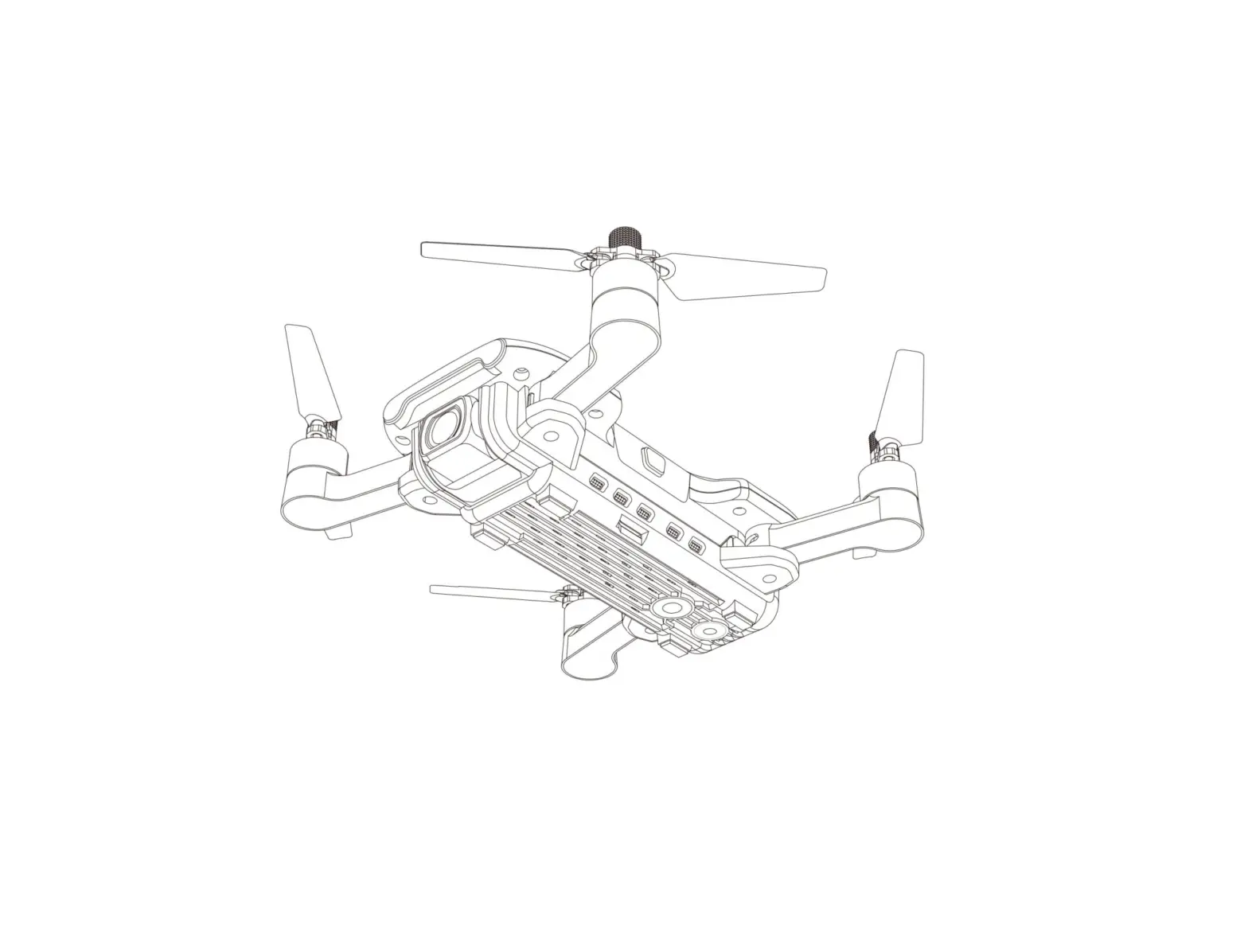
1. Press on the battery at the back of the drone, then pull the battery out.
2. Connect one end of the USB to 3-pin connector cable into the 3-pin connector on the bottom of the drone. Connect the other end of the cable to a USB power adapter (not included).
3. Plug the power adapter into a wall socket and turn it on to start charging. The table below reflects the battery percentage and corresponding lights on the battery. A full charge takes approximately four hours.
Lights Red light is illuminated, and blue light is flashing Red and blue lights are illuminated; white light is flashing Red, blue, and white lights are illuminated; green light is flashing All four lights illuminated
Battery percentage <30% 3080% 8099% 100%
4. After being fully charged, unplug the battery from the adapter and reinsert the battery into the compartment at the back of the drone. There is a lip on the battery, so ensure to firmly insert the battery and you hear a click to confirm it is secure.
Notes: · Ensure that the adapter’s voltage and plug meet local standards. · If the adapter is overheating when charging, the drone has been charged excessively. This may cause damage and charging must be ceased immediately. · When flying, the indicator lights will be slowly flashing if the drone is running on low battery and will emit a beep. The drone must be landed and charged immediately. · After flying and landing, allow the battery to cool for 30 minutes before attempting to remove the battery to charge.
9
Charging the remote control 1. Connect one end of the USB to Micro-USB cable into the Micro-USB port on the remote control. Connect the other end of the cable to a USB power adapter.
2. Plug the power adapter into a wall socket and turn it on to start charging. The number of battery indicators illuminated will increase as the remote control is charged. When the battery is fully charged, all four lights will begin flashing. A full charge takes approximately one hour.
3. Once charged, turn off the socket and unplug the remote control.
Note: When in use, the relevant battery indicators will turn off as the battery depletes.
10
PAIRING WITH THE REMOTE CONTROL
1. Drone pairing Place the drone on a flat surface. Press the power button on the drone, followed by sliding the power switch on the remote control to the right. You will hear two beeps to confirm the drone has paired to the remote control.
2. Gyro calibration After drone pairing, the gyroscope must be calibrated. Ensure the drone remains on a flat surface. Press and hold the gyro calibration button for three seconds, then the remote control will make a beep sound. The indicator lights will then flash quickly for three seconds to confirm calibration success.
Note: When taking off, if it leans towards to one side, it can also be corrected by recalibrating the gyroscope.
11
3. Geomagnetic calibration Next, the drone will need to be horizontally and vertically calibrated. Press and hold the geomagnetic calibration button for three seconds, The remote control will make a beep sound and the indicator lights will turn off. Slightly lift and rotate the drone in a horizontal direction 360° on the ground or until you hear a beep. The front indicator light will illuminate, confirming horizontal calibration is successful. Pick up and hold the drone upright. Whilst holding the drone upright, spin around until you hear two beeps. The back indicator light will illuminate, confirming vertical calibration is successful.
4. GPS calibration After gyro and geomagnetic calibration, the indicator lights will be flashing quickly. Place the drone on a flat surface and when the indicator lights solidly illuminate and the remote control emits a beep, GPS calibration is complete.
Notes: · If flying indoors, the GPS must be turned off. Long press the GPS button to turn off the GPS switch. The indicator lights will then turn off. · If flying outdoors, keep the GPS turned on.
12
PAIRING WITH THE APP
App installation Apart from the remote control, the drone can also be controlled by using the `CSJ GPS’ app.
1. Scan the below QR code to download the `CSJ GPS’ app according to your phone’s operating system.
iOS
Android
2. Place the drone on a flat surface. Press the power button on the drone. On your phone, go to the Wi-Fi settings and select the Wi-Fi network, `CSJ-XXXXXX’.
3. Return to the `CSJ GPS’ app and select `S189 GPS’ from the dropdown menu. Tap `Enter the Operation Interface’ to enter the app interface. The camera’s live image should show on the display.
4. The drone must then be calibrated. This is only possible with the remote control. 13
OPERATION
Unlocking Before the drone is flown, it needs to be unlocked. This is a protection measure to prevent the drone from flying without warning.
1. Place the drone on a flat surface. 2. Push the left and right joysticks diagonally downwards on the remote control or press
the unlock button. Alternatively, if using the app, touch the unlock icon. 3. After unlocking, the propellers will start spinning. Wait for 15-20 seconds whilst the
propellers are spinning before taking off. On the app, a `ready to fly’ prompt will appear on the bottom left corner of the display.
Take-off and landing After unlocking, press the take-off button and the drone will start flying at a height of two metres. Press the land button and the drone will slowly descend to the ground and land. If using the app: Tap on the take-off icon for the drone to start flying, and the land icon to have the drone land back on the ground.
14
Flight controls · Use the left joystick to control the flight altitude and to turn the drone’s orientation left and right · Use the right joystick to control the forward, backward, left, and right-pan movements · If the left joystick is released, the drone will hover at the given height
Left joystick
Increase altitude (ascent)
Decrease altitude (descent)
Turn orientation left
Turn orientation right
Right joystick
Forward
Backward Left pan
Right pan
If using the app: Tap on the show/hide movement controls icon. Use the altitude, orientation, flying forwards/backwards/left/right controls to direct the drone.
Notes: · The drone must only be flown during the day in suitable weather conditions. Do not fly the drone through cloud or fog. · When the drone is flying within one metre from the ground, it will have reduced drag which may lead to the drone being unstable. The lower the drone flies, the more unstable it will become.
15
Changing the speed This drone features low-speed, and high-speed modes. By default, the drone flies under low-speed mode.
· To change to high-speed mode, push the speed switch on the remote control to the right. After hearing two beeps, the drone will enter high-speed mode.
· To return to low-speed mode, push the speed switch to the left. After hearing one beep, the drone will enter low-speed mode.
Headless mode By default, the flight controls of the drone are based on the position of the nose of the drone at any given time. For beginners, this may make the drone difficult to control if the drone changes its orientation. Activating headless mode allows easier control of the drone as it will move according to the joystick controls regardless of where the nose is facing. To activate headless mode:
1. Ensure the drone is aligned straight on a flat surface to allow the gyroscope to detect the direction of the nose to fly straight.
2. Press the headless mode button. To exit headless mode, long press the headless mode button again.
Return The return function allows the drone to land at its original start point. When flying, press the return button on the remote control. If you wish to cancel whilst it is flying back, press the return button again. If using the app: Tap on the return icon. If you wish to cancel whilst it is flying back, tap on the return icon again.
16
Waypoint flying mode This mode allows users to set different points on a map for the drone to fly to when outdoors. All points must be within 100 metres of the drone’s current position. Using the app:
1. Tap on the waypoint flying icon. A map will appear with the drone’s current location. 2. Tap on the location on the map of where you wish the drone to fly to. If you wish the
drone to fly to multiple locations, continue tapping on the various locations. The map will create a path linking all waypoints. If you wish to delete certain waypoints, tap `Delete single’. If you wish to delete all waypoints, tap `Delete all’.
3. After setting the desired waypoint/s, tap `Send’. 4. Swipe right on the slider that appears, and the drone will then save the waypoints
and begin flying according to the waypoint/s.
Note: The orientation of the drone can be controlled whilst flying to waypoints.
Setting a flying zone Users can set a radius between 51000 metres from the current point that permits the drone to fly within the selected radius. The drone will not fly outside of this flying zone. Using the app:
1. Tap the flying zone icon and enter the radius in the pop-up window. 2. Tap `OK’, and then the flying zone has been successfully set.
Note: When the drone is on low battery, users will be unable to set a fly zone.
17
Device tracking mode This mode allows the drone to follow the connected mobile device. When the device moves its position, the drone will follow the location of the device. Using the app, tap the device tracking icon to activate this mode. Tap the device tracking icon again to deactivate this mode.
Note: If you receive a phone call on the device, or if the drone is on low battery, the drone will automatically exit device tracking mode.
Taking photos and recording videos To take photos, press the capture button on the remote control. If using the app: Tap on the photo icon. To record videos, press and hold the record button for three seconds. Press and hold the record button for three seconds again to end the recording. If using the app: Tap on the video icon to start recording. The recording indicator will start flashing on the connected device’s display and the recording will begin. Tap the video icon again to end the recording. All photos and videos can be viewed in the gallery.
Note: If using the remote control buttons, the app must still be turned on.
Viewing the current location of the drone and connected device Tap on the GPS signal icon three times in the top right corner of the app. A map will then appear showing the current locations.
18
Gesture control Gesture control allows users hands-free operation to take photos and record videos. Tap the gesture photo/video icon on the app, then press and hold the slider to the right to activate the mode. To take a photo, make a V sign with your right hand towards the camera. Your connected device’s display will show a three-second countdown before it takes a photo. To record a video, face your palm towards the camera and the drone will start a video recording after a three-second countdown. Face your palm towards the camera again to stop recording. All photos and videos can be viewed in the gallery.
Notes: · When doing gestures, place the gesture at the centre of the image. · Recognition of gestures may decrease under low light conditions, when facing direct sunlight, when there is a weak Wi-Fi connection, or other signal interference.
Adding music This drone features preloaded music files that can be layered over video recordings.
1. Tap the add music icon in the app, then tap the upper left corner of the app. 2. Browse and select a music track. The selected track will be highlighted at the bottom
of the screen. 3. Once selected, tap the tick icon. Tap the red circle to start recording. After the
recording has finished, two videos will be saved to the gallery (one with, and one without the selected music).
19
CLEANING & CARE
Once cooled, wipe the drone with a dry cloth to clean any dust or debris. Propeller replacement If the propellers are damaged or otherwise need replacing, follow the steps below:
1. Use the screwdriver to remove the screws that are attached to the current propellers. Remove the propellers.
2. Noting the `A1′ and `B1′ lettering on the spare propellers, insert the spare propellers onto the matching `A’ and `B’ motors.
3. Use the screwdriver to tighten the screws onto the propellers to secure them into place.
Storage When not in use, the battery needs to be taken out of the drone. To extend the life of the battery, ensure it has at least 80% charge before storing. Place the drone and battery in a cool, dry area, away from sunlight.
20
TROUBLESHOOTING
Problem
Possible cause/s
Solution/s
The drone does not respond to the remote control or app and the indicator lights are flashing.
· GPS calibration has failed
· The drone is on low battery
· Ensure the drone is outdoors, and retry calibrating the GPS
· Charge the drone’s battery
When using the app after calibration, it shows there an issue with the compass.
The compass has not been calibrated correctly.
Turn off then restart the drone. Restart the calibration process.
The propellers are spinning but the drone is not taking off.
· The drone is on low battery
· The propellers are deformed
The drone is shaking unstably.
The propellers are deformed.
The drone does not fly smoothly.
· The propellers are deformed
· The motor has failed
After crashing, the drone was restarted but it is flying uncontrollably.
The triaxial acceleration sensor has lost its balance due to the crash.
· Charge the drone’s battery · Replace the propellers · Wait for 1520 seconds or for the
`ready to fly’ prompt on the app
Replace the propellers.
· Replace the propellers · Contact help.Kogan.com for
assistance
· Place the drone on a flat surface for 510 seconds.
· Perform gyro calibration
After crashing, the drone will not turn on.
Battery dislodged
Remove and re-insert the battery.
21
NOTES
22
23
Need more information? We hope that this user guide has given you the assistance needed for a simple set-up. For the most up-to-date guide for your product, as well as any additional assistance you may require,
head online to help.kogan.com
24