 14+age
Quick Guide
(Please keep and read this manual carefully before using this product)PRO www.aovotoys.com
Customer Service Email: [email protected]
OPERATION GUIDE
Download APP
 |  |
| https://apps.apple.com/cn/app/w-gps/id1514763409 | https://play.google.com/store/apps/details?id=com.vison.macrochip.w.gps |
Scan the QR code, corresponding to either App Store™ or Google™ Play Store and download the “ W – GPS ” application for free.
Required Operating Systems: iOS v8.0 and later / Android v4.3 and later Tips: Please use a smartphone that can support receiving 2.4G and 5G WiFi signals.
Connect to Wi-Fi
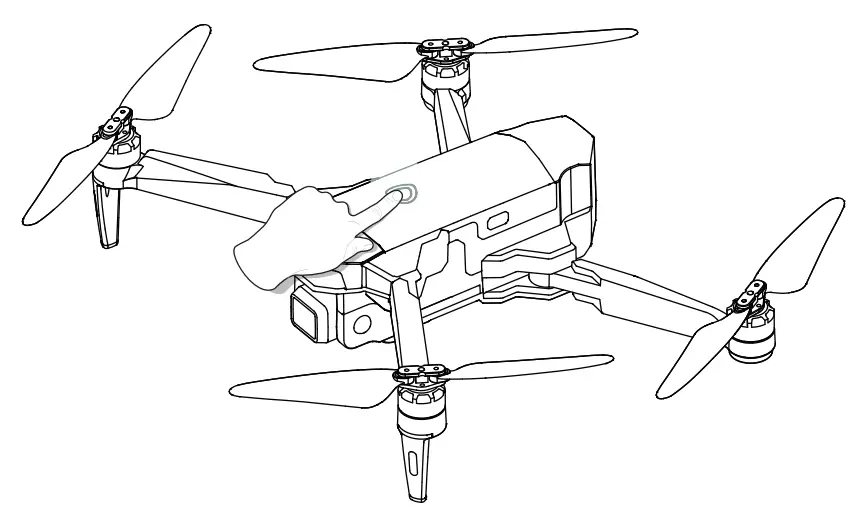
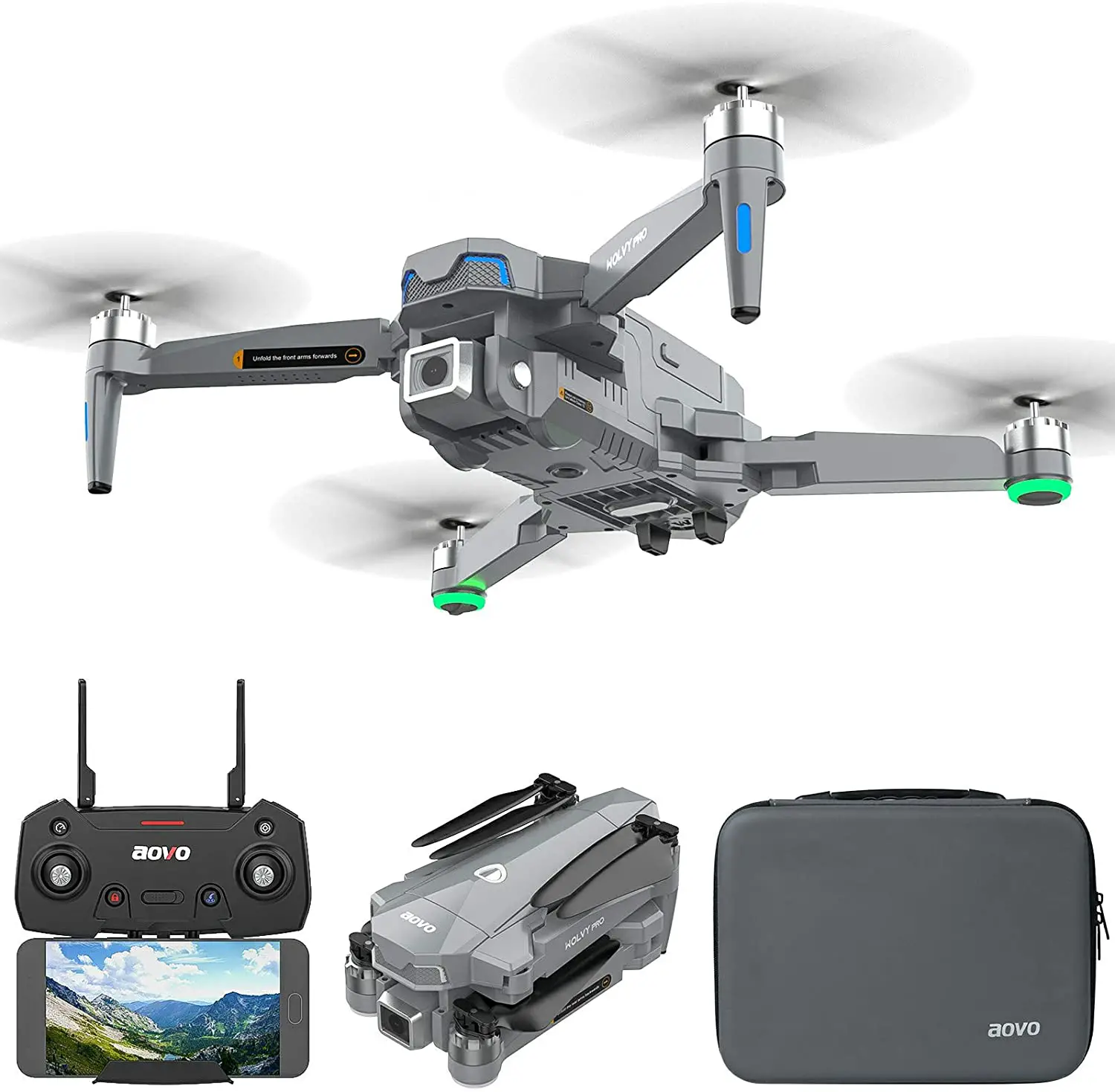
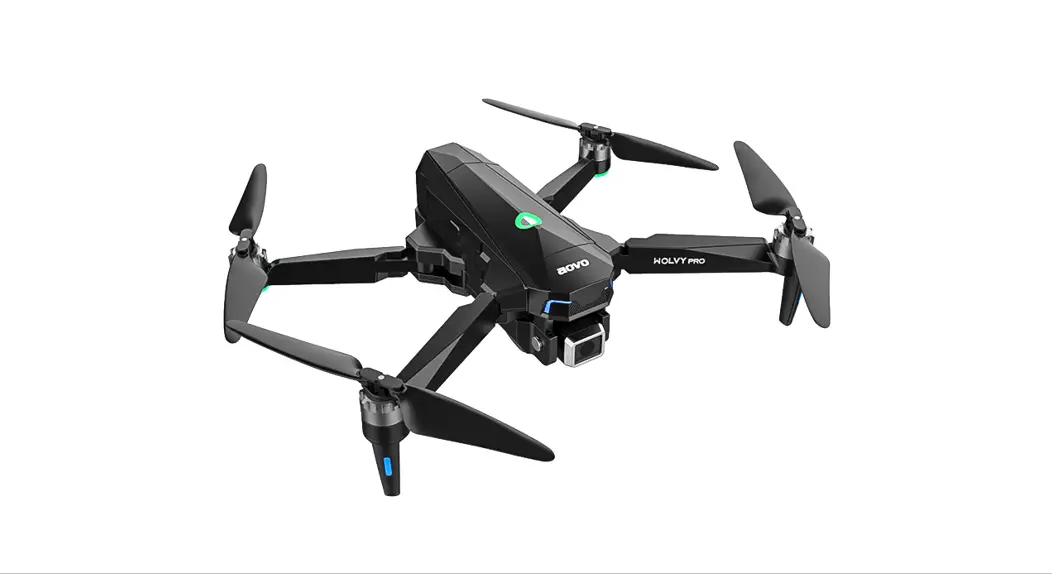
- Short press and then long press the Power Switch for approx 2 seconds, and the LEDs on the battery are fully bright and the drone makes a sound, which means the drone power on, and place it on a level surface with the head forward.
Connect your smartphone to the Wi-Fi network created by the drone.
Check the drone’s status in the ”W – GPS” App. - Your smartphone will launch a search of the available Wi-Fi networks:

- Select the Wi-Fi network: W PRO-4K-******.
- Wait for several seconds until your smartphone connects to the Wi-Fi network of the drone.
This connection is generally represented by the Wi-Fi logo appearing on your smartphone’s screen. - Launch the W – GPS application. > The connection between your smartphone and the drone will be established automatically.

Pairing
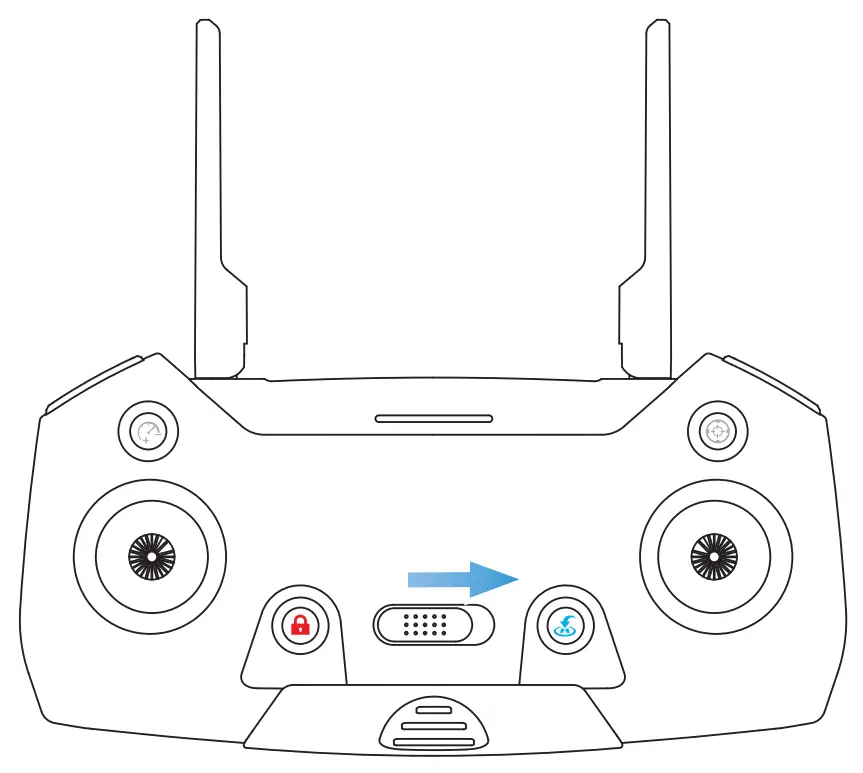
After connecting the WiFi signal between smart phone and the drone. Turn on the switch on the transmitter. Once the transmitter sends out a “Beep” sound, it means that the drone has been successfully paired with the transmitter.
Calibrating the Compass
After the pairing operation, the LED lights of the drone are sharp-flashing, which means is begin compass calibration.
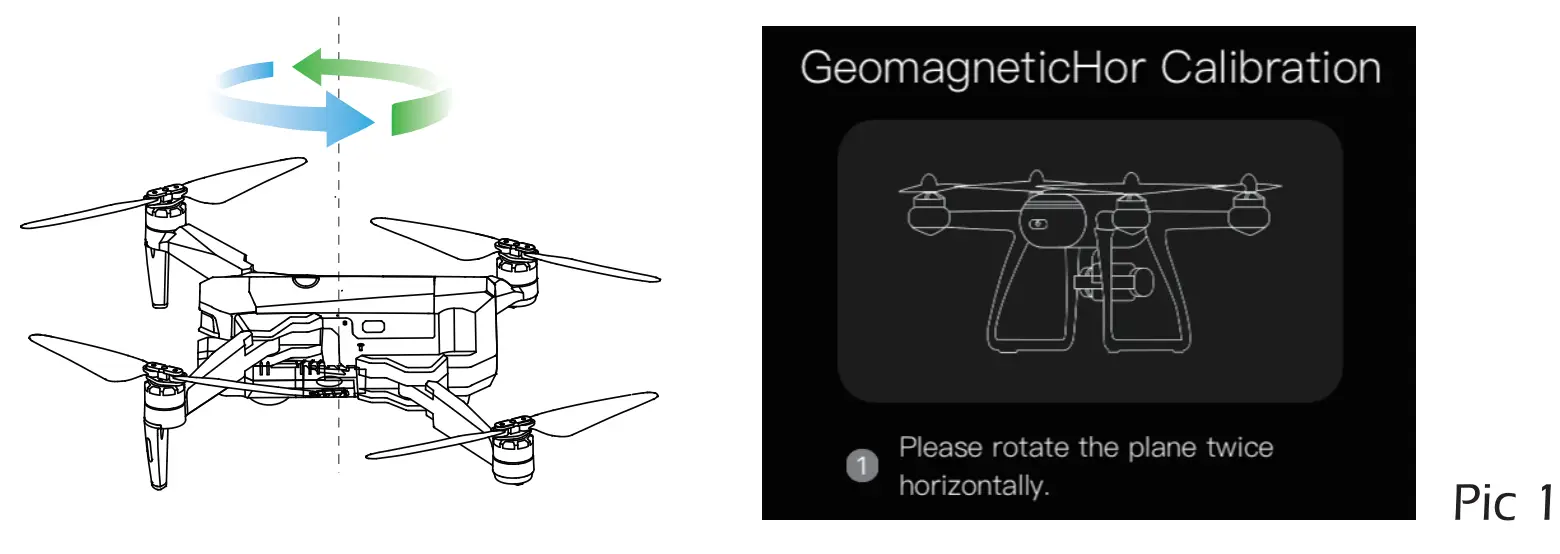
Step 1:
Now, the APP interface displays the diagram (Pic 1). Hold the drone horizontally and rotate the drone in approx 3 complete circles.
When completed the the transmitter sends out “Beep” sound and LED lights of drone flash slowly.
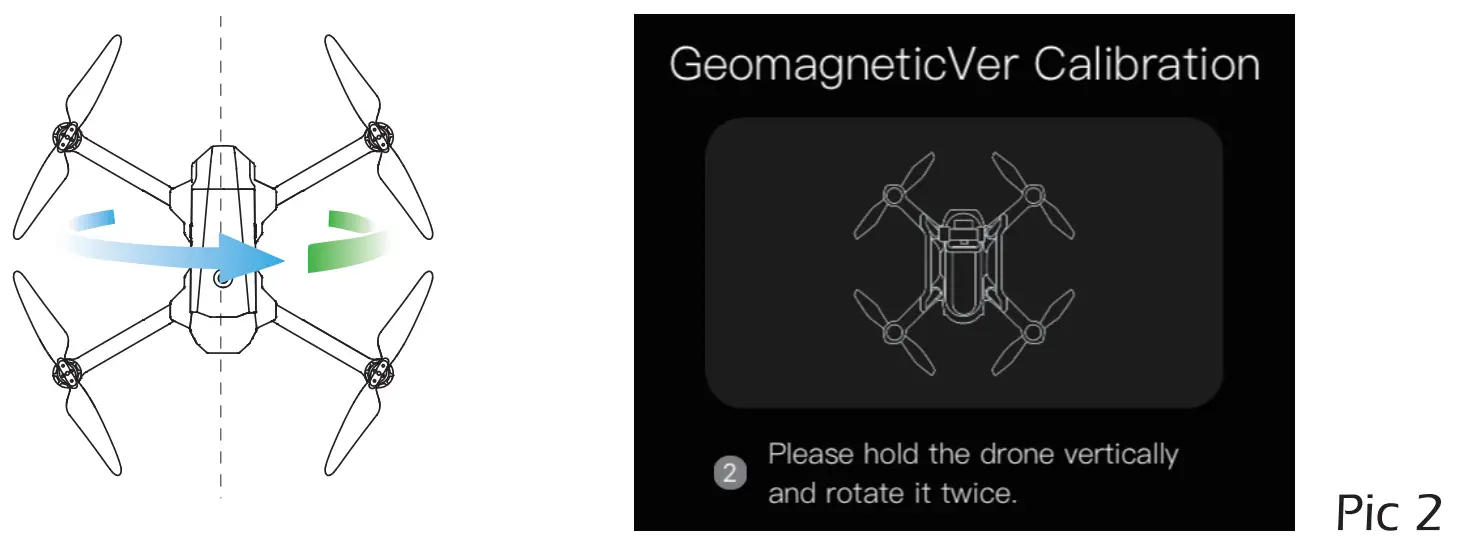
Step 2:
Now, the APP interface displays the diagram (Pic 2). Hold the drone vertically and rotate the drone in 3 complete circles. When completed the transmitter sends out “Beep” sound and the LEDs lights of the drone turn solid.
Attention:
·If the indicate “Equipment connected (GPS Model)” in the APP interface.
Now, the rear LEDs of the drone will flash twice per second.
·Every time the drone is powered on the compass calibration should be performed.
Gyroscope calibration
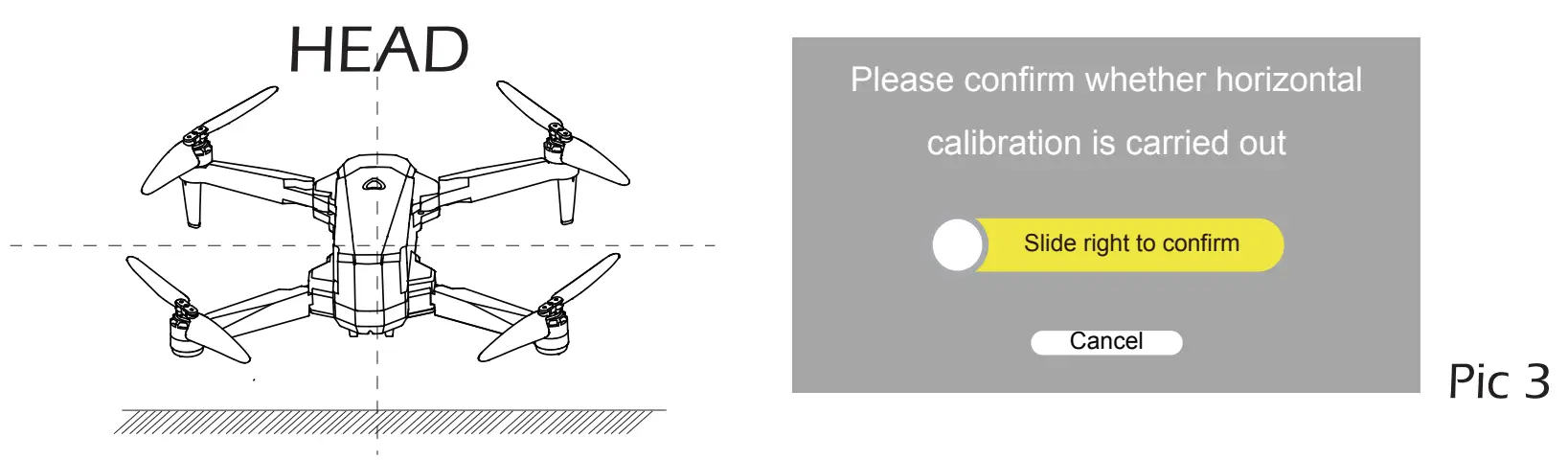
Slide right to confirm Now, the APP interface displays the diagram (Pic 3). Place the drone on a level surface . The LED lights of the drone will flash rapidly for about 3 seconds. When completed, the front and rear lights turn solid. Or press the Gyroscope calibration switch “
 ” on the remote control. The LED lights of the drone will flash rapidly for about 3 seconds. When completed, the front and rear lights turn solid.
Unlocking the Motor
Please unlock the motor before take-off.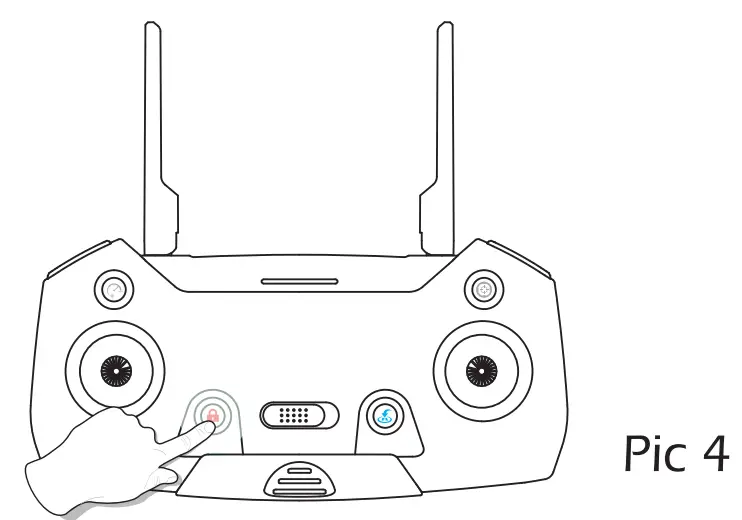
Press the red button “  ” (Pic 4) , the motors rotate.
- Unlock the motor function will be activated, when the indicate “Equipment connected (GPS Model)” in the APP interface OR Indoor mode.
- If you do not do any operation approx 10 seconds after unlocking the drone, the motors will stop rotating.
One Key Takeoff/ Landing
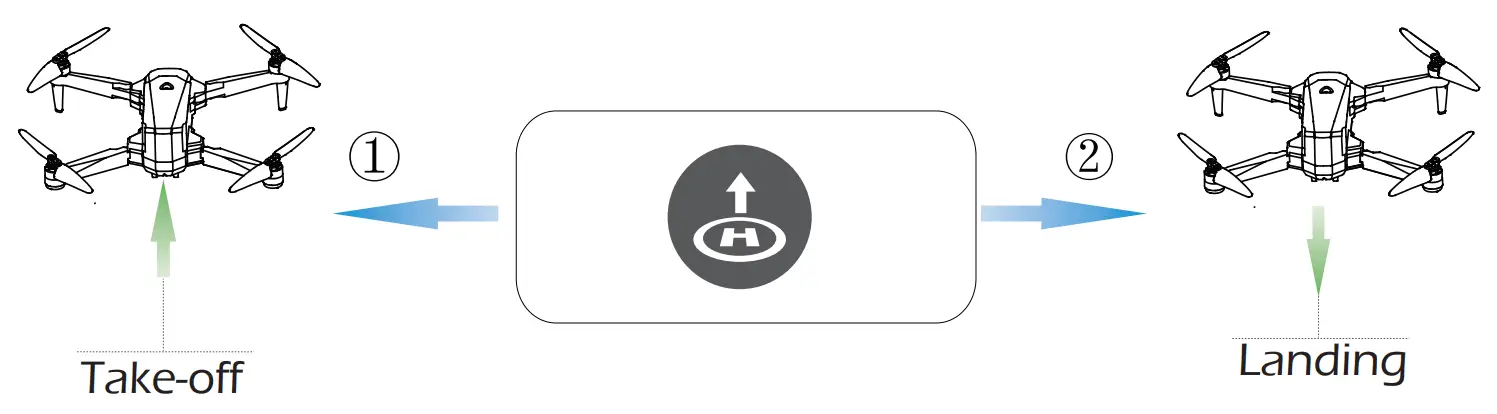
- After unlocking the drone, press the “
 ” button in the APP interface, then “
 ” and the drone will automatically take off and hover at 1.5m altitudes. Or press the button “
 ” again for take-off after unlocking the motors.
 - When the drone is flying, press the “
 ” button, and the drone will flight back to the Home point and automatically land on the ground. Slide right to confirm
 ” button in the APP interface, then “
 ” button, and the drone will flight back to the Home point and automatically land on the ground. Slide right to confirm
Tips:
Before flying, make sure the GPS Mode is turned on in case the drone gets lost!
CONTACT US
Please do not hesitate to contact us if you need further support.
Customer Service Email: [email protected]
 Made in China
 Aovotoys