 14+ for age
Quick Start Guide v3.0
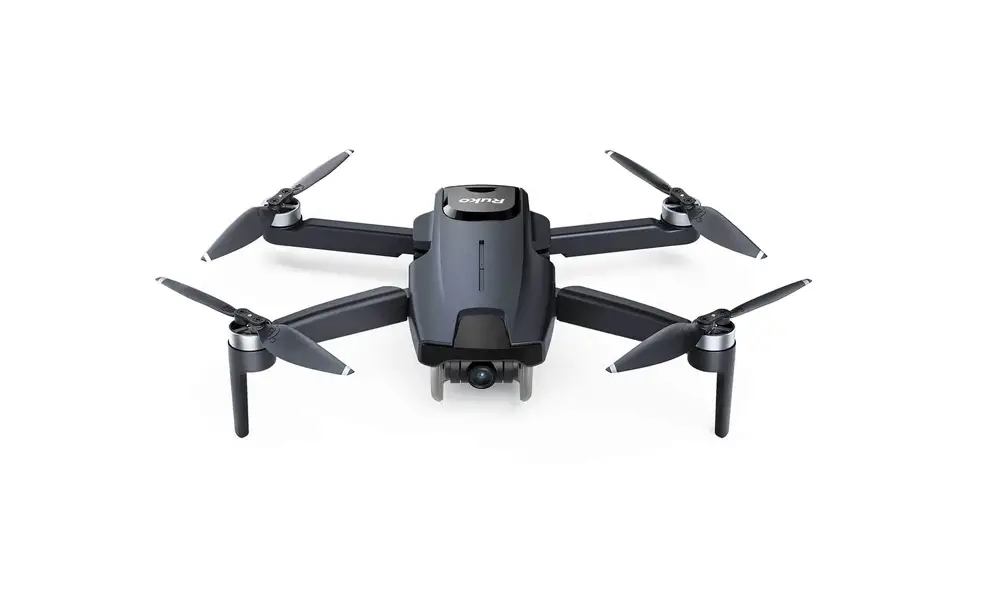
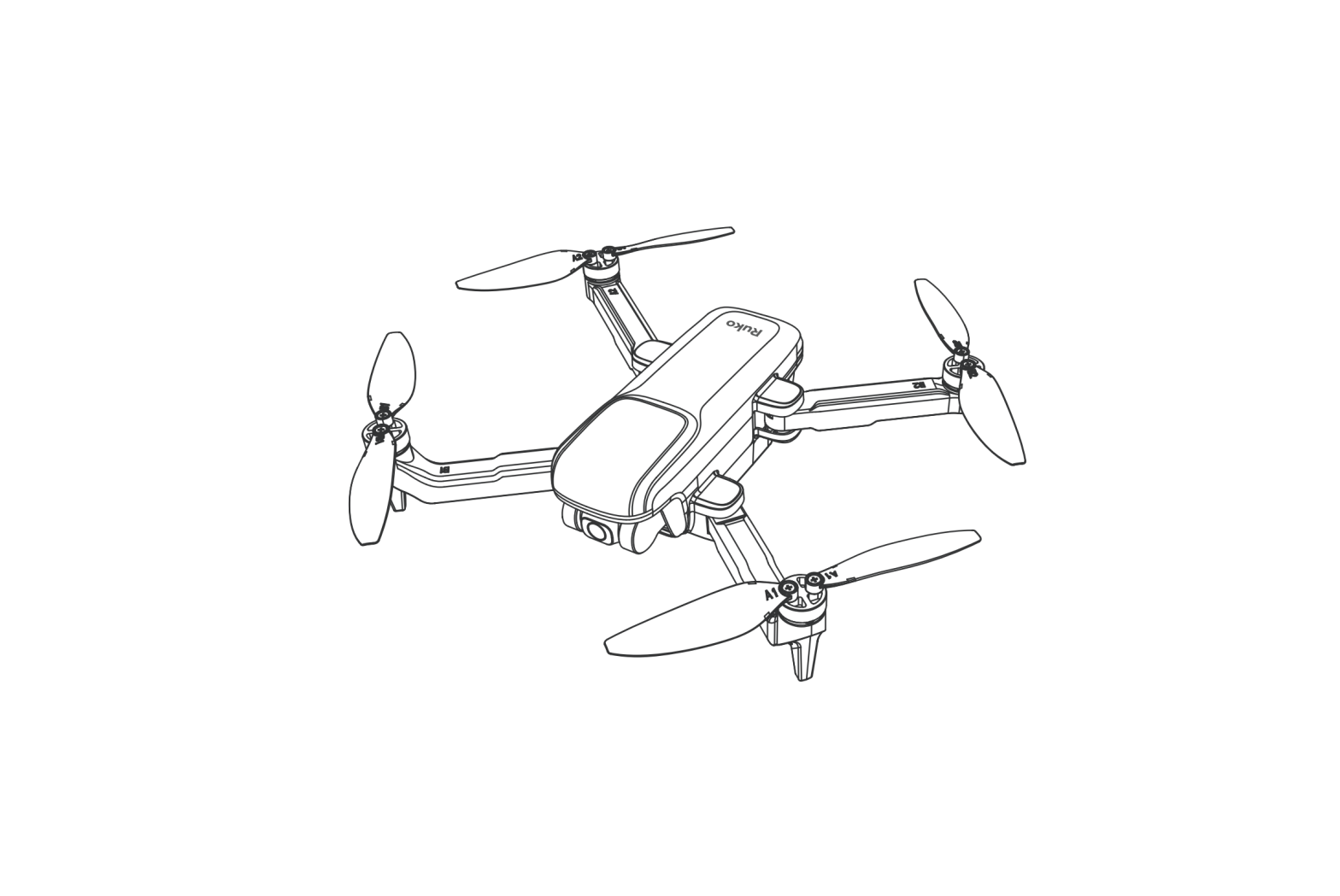
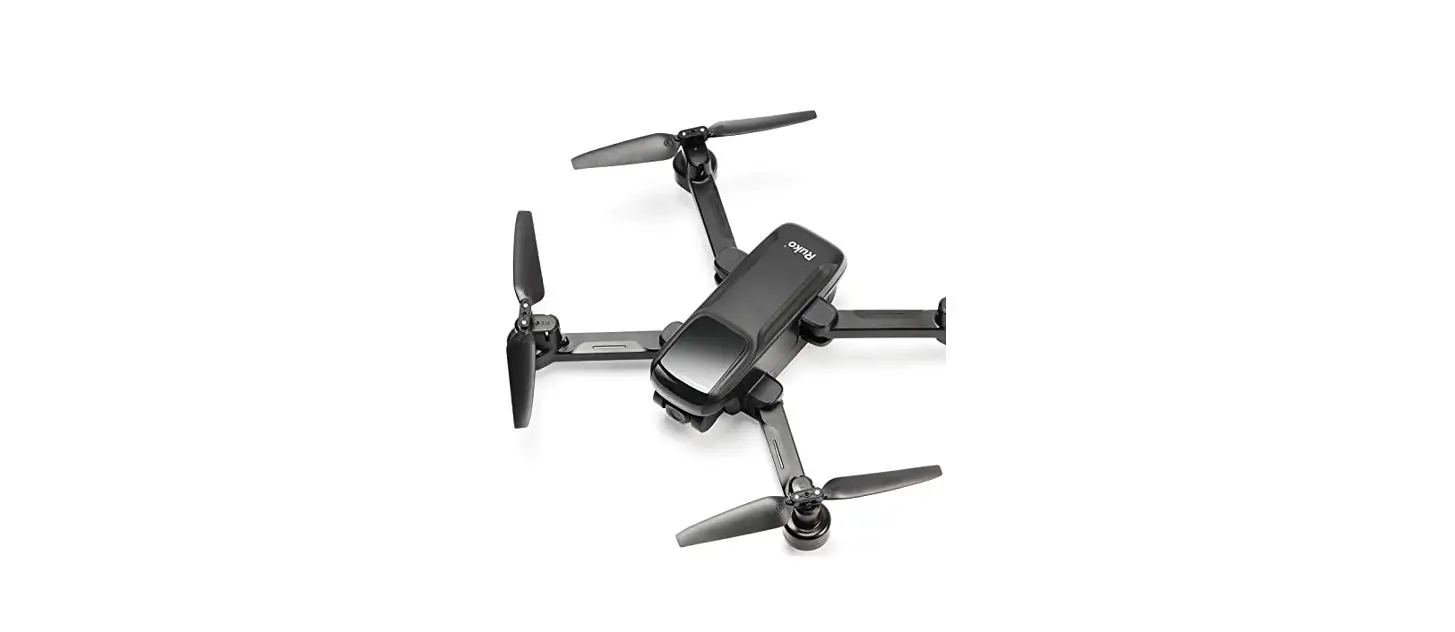
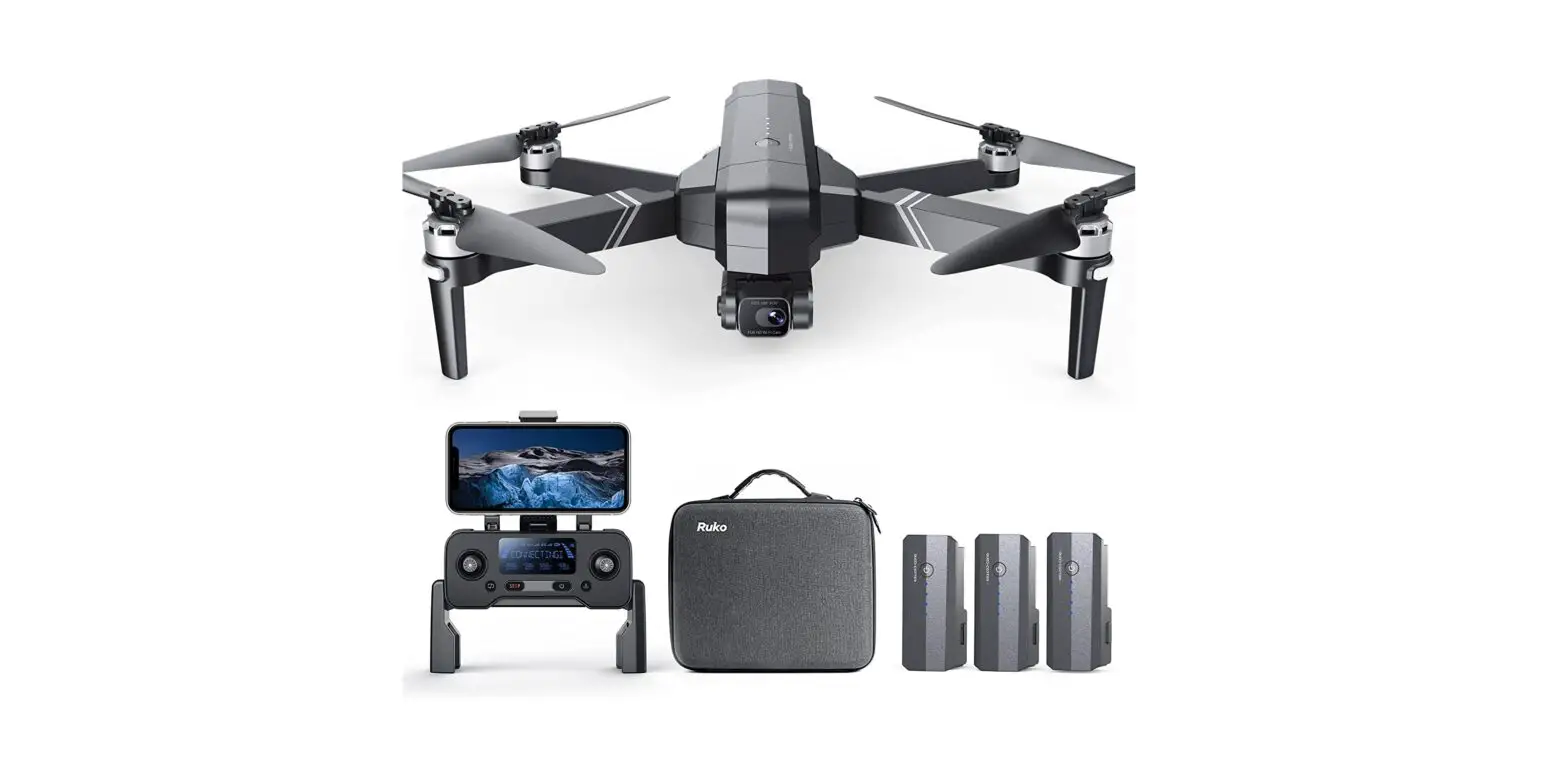
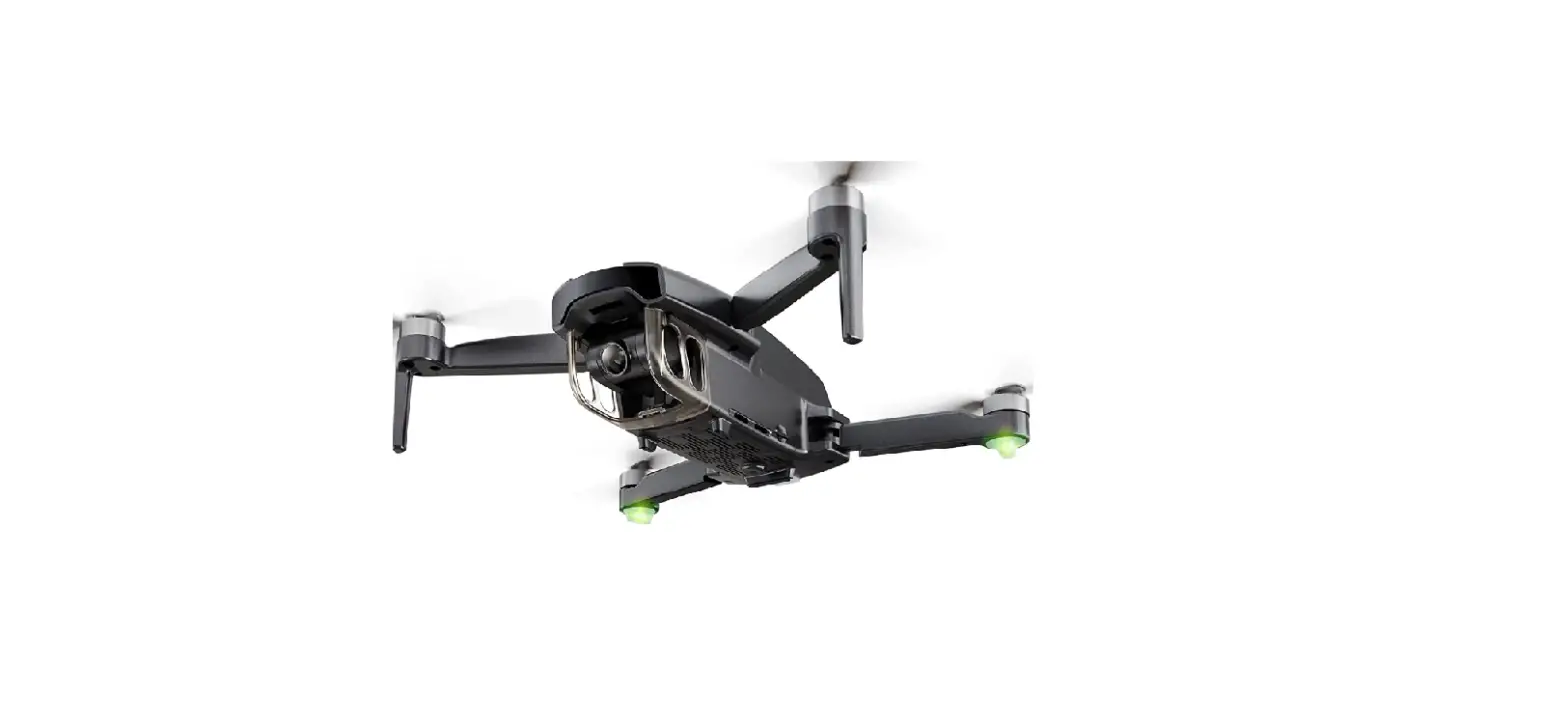
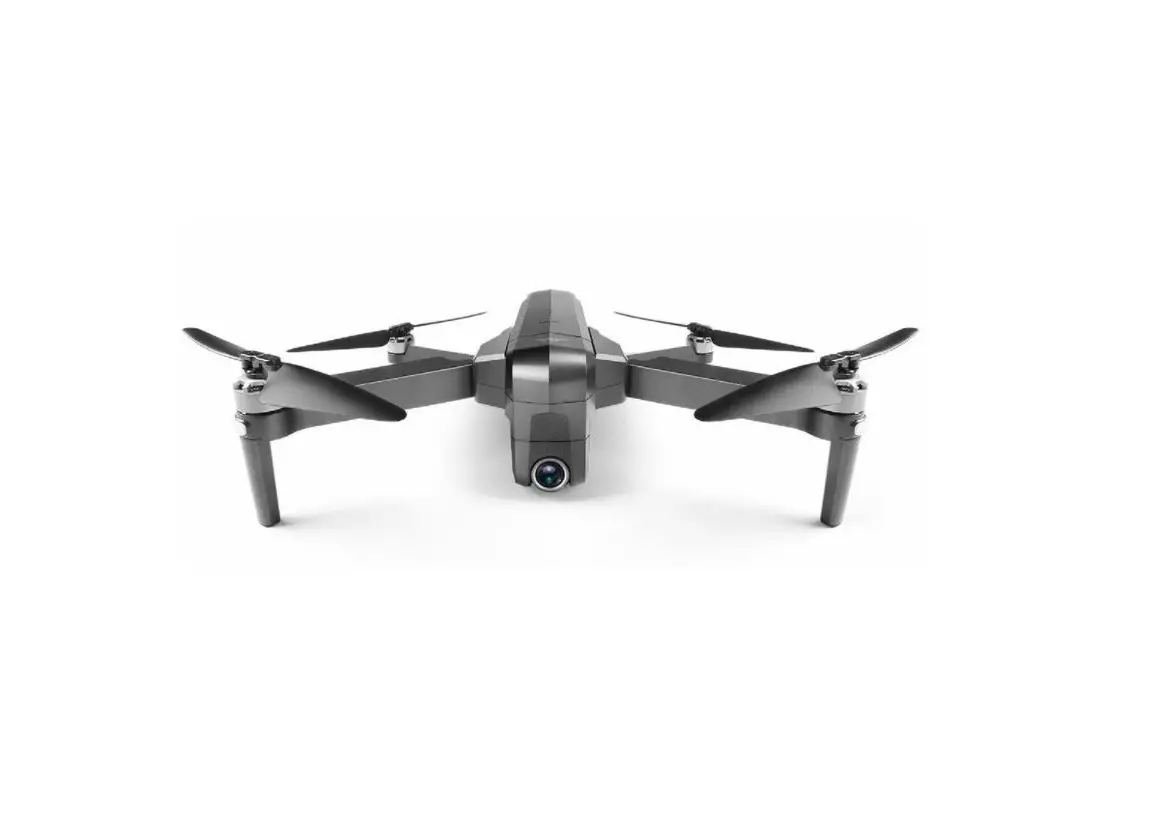
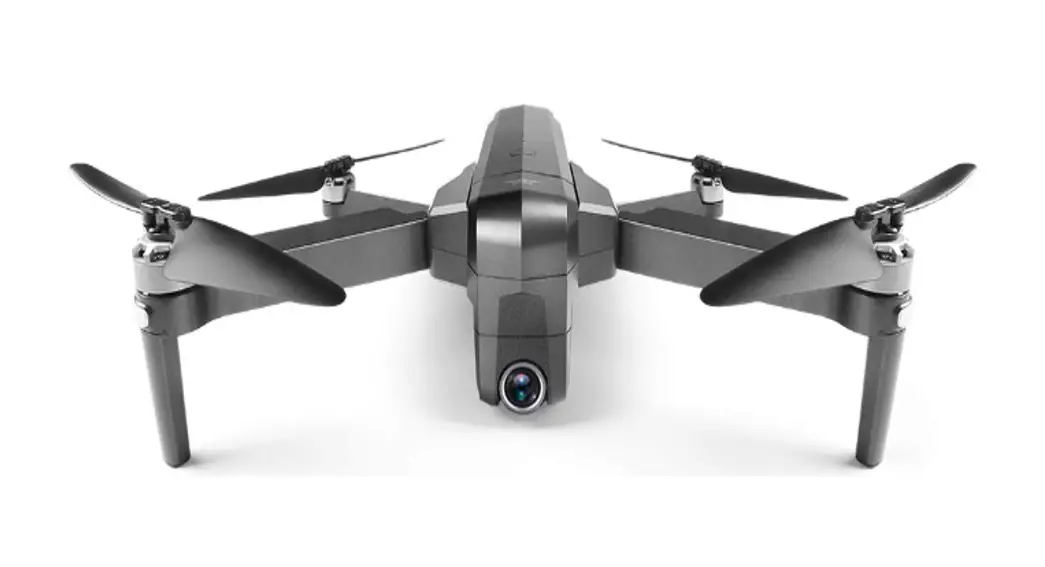
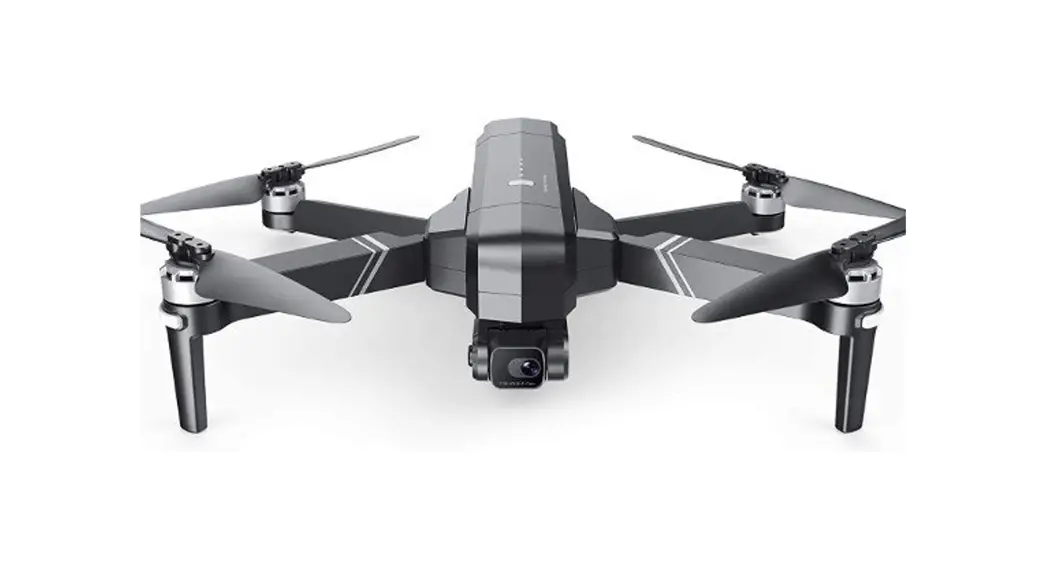
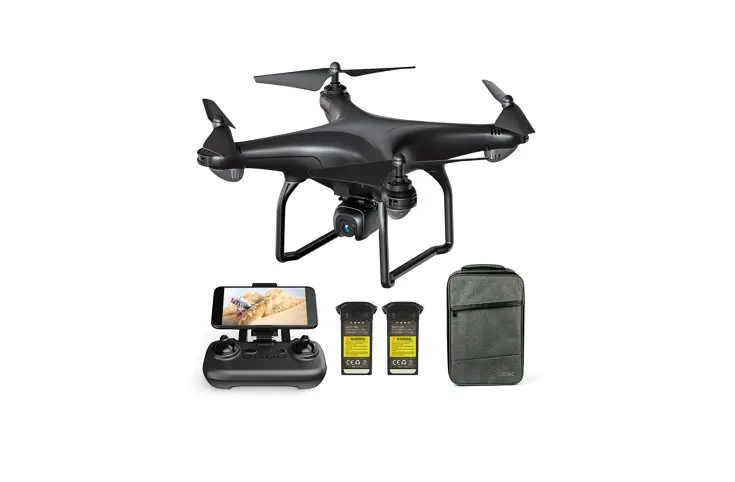
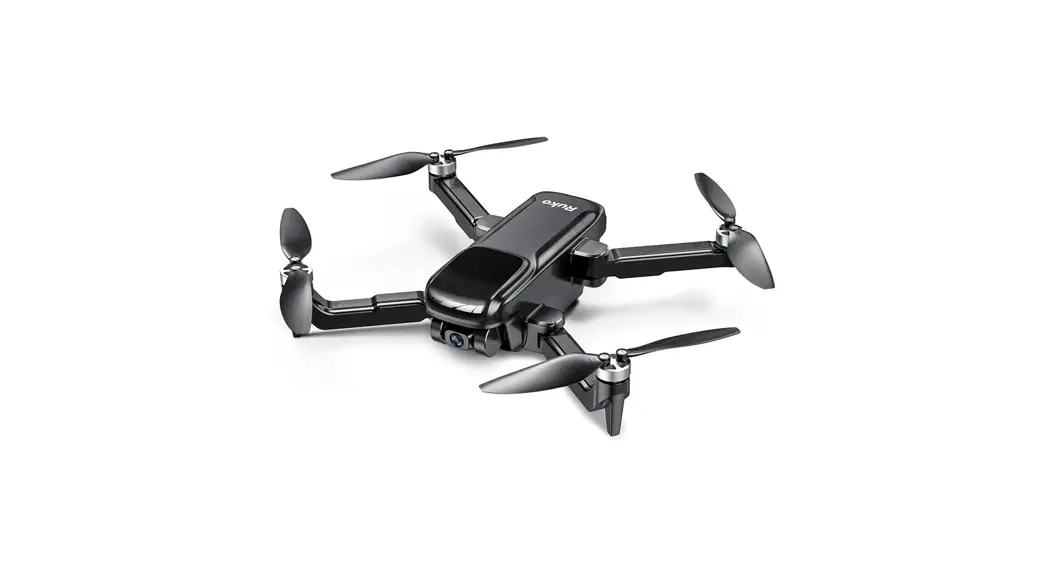
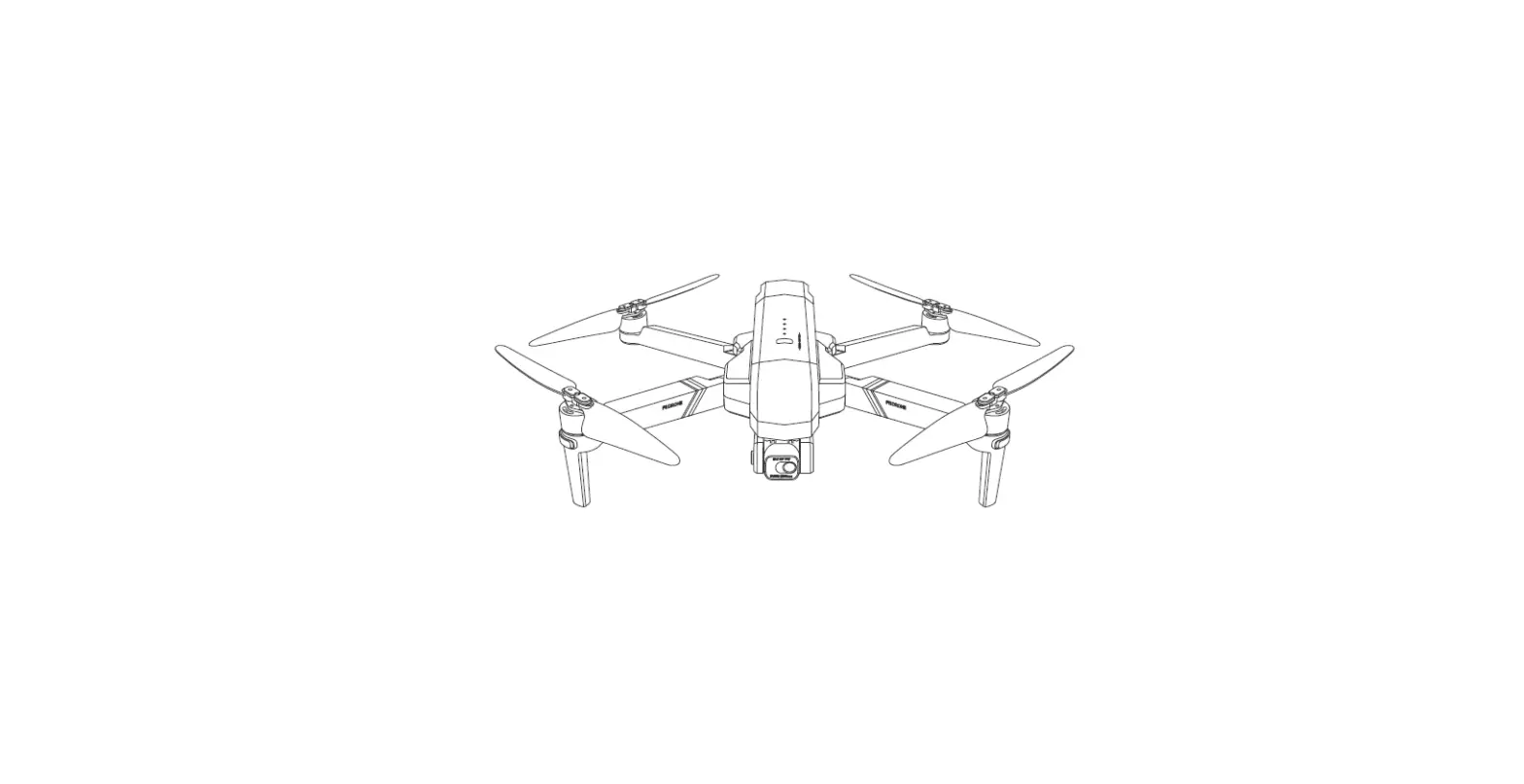
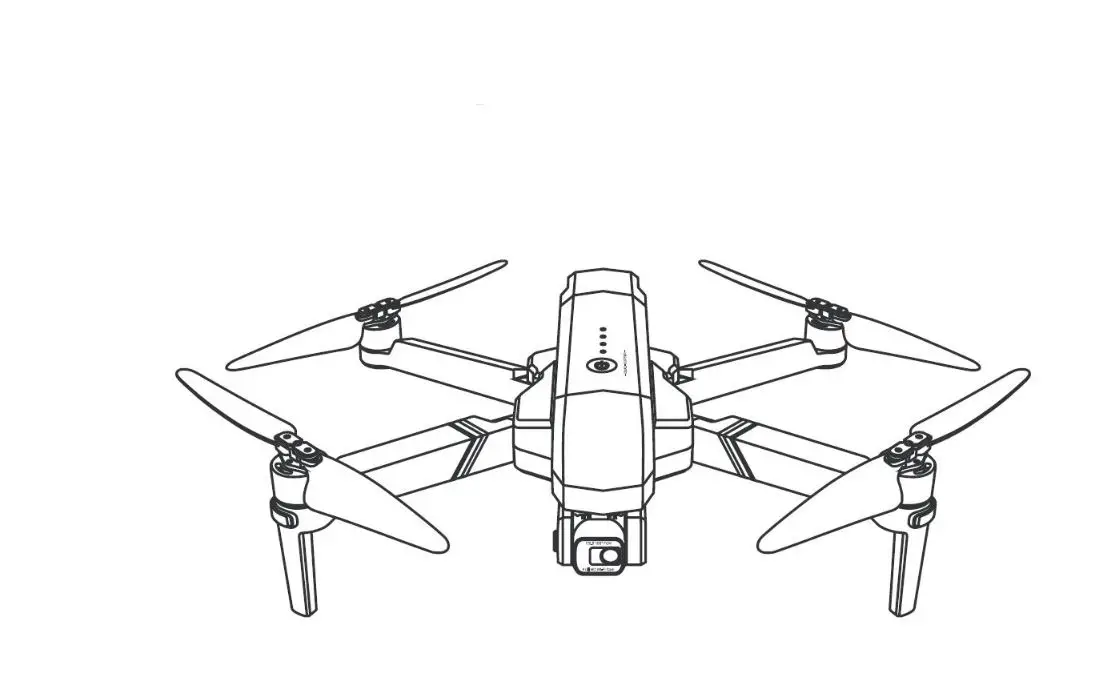
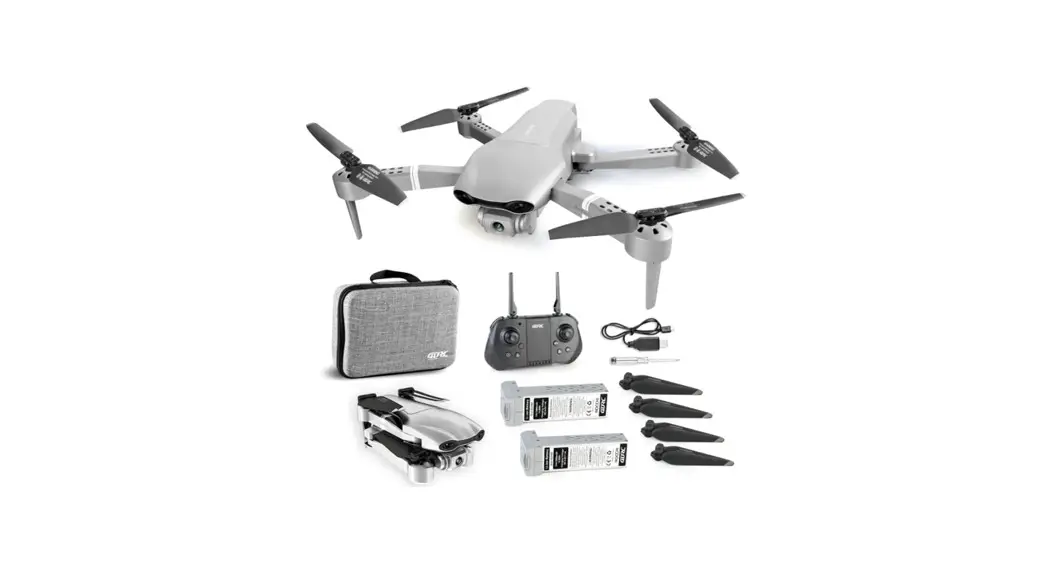
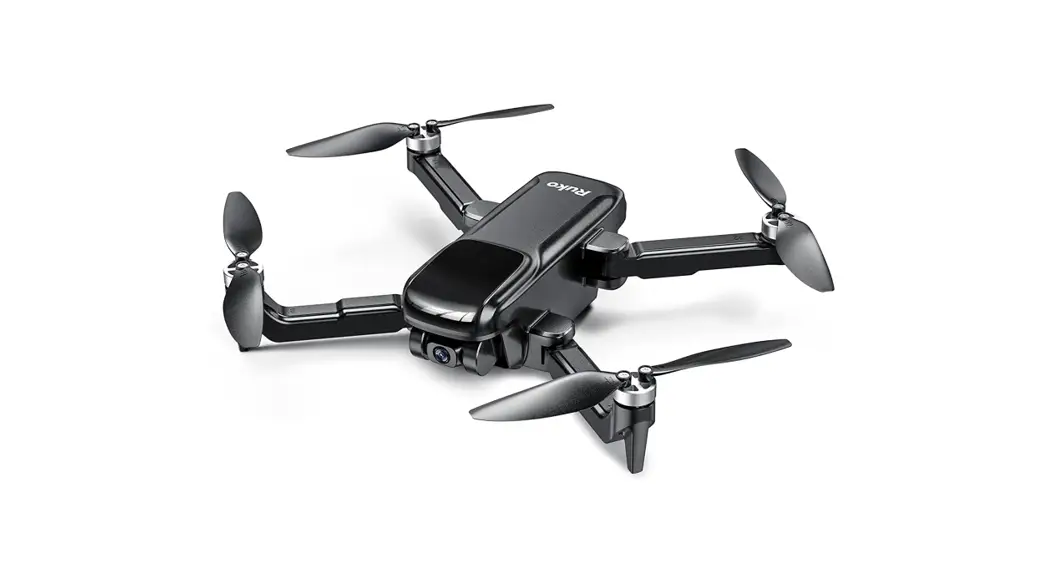
U11 PRO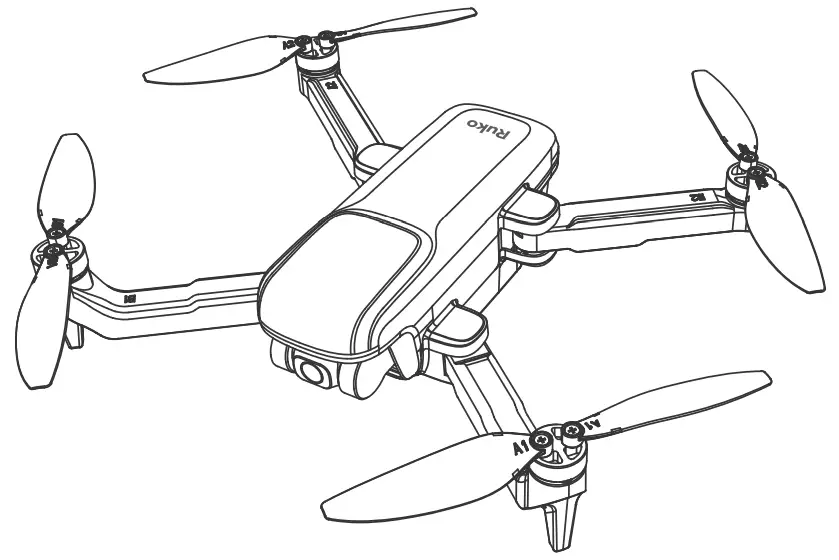
Downlode APP
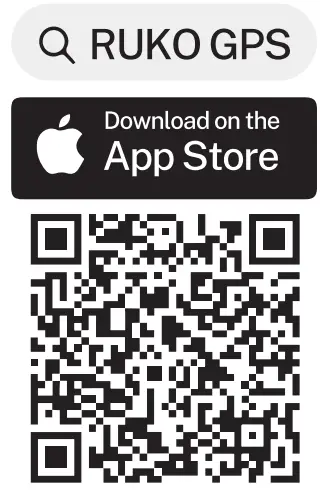 | 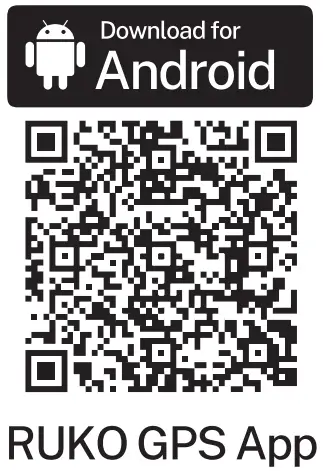 |
| https://apps.apple.com/app/id1530148430 | https://play.google.com/store/apps/details?id=com.ruko.gps |
Change the Batteries
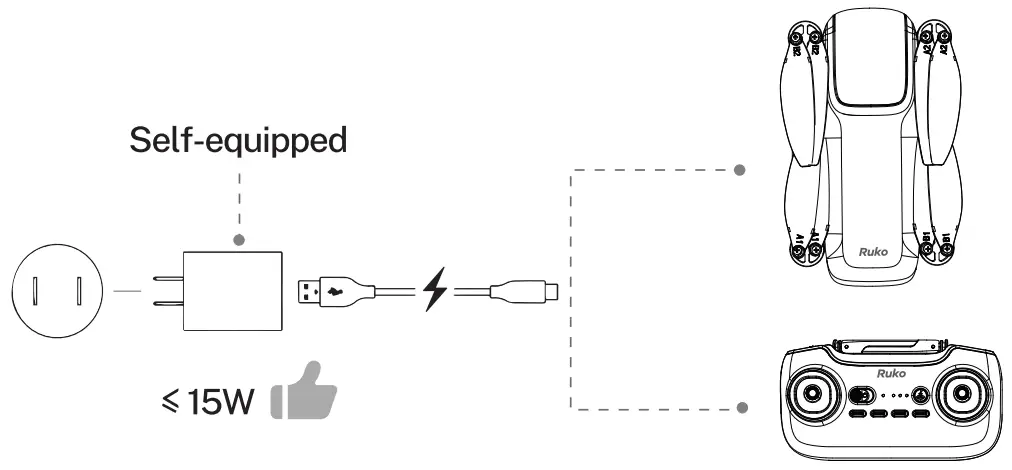
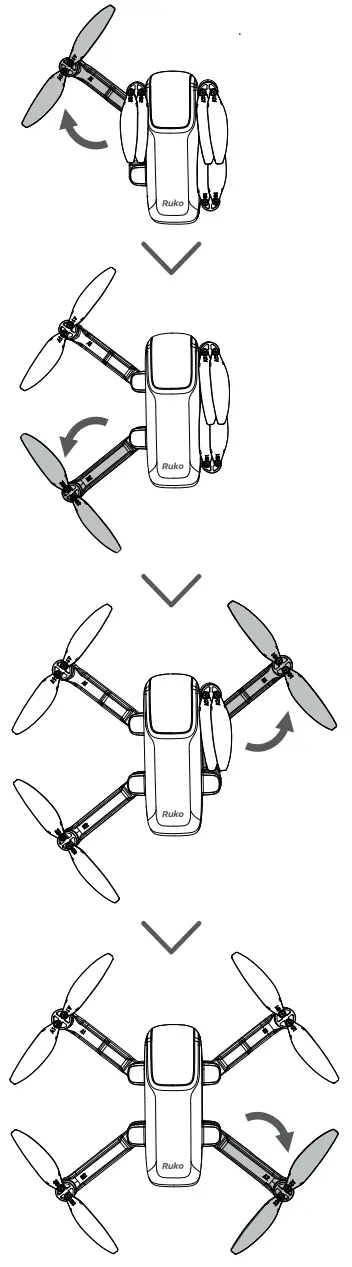
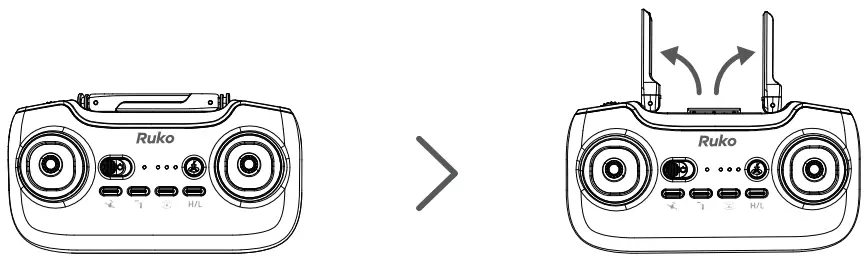
Unfold the antenna
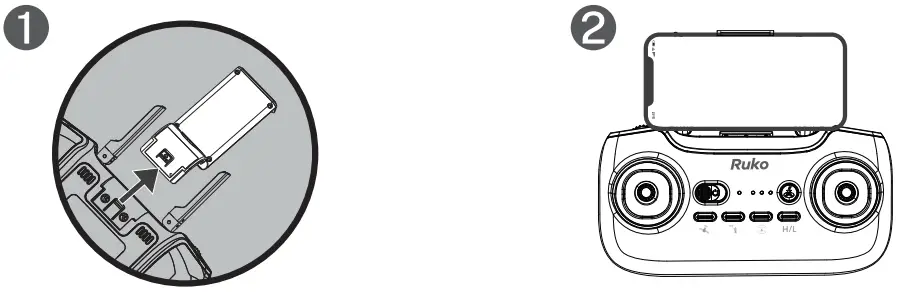
Install the phone holder
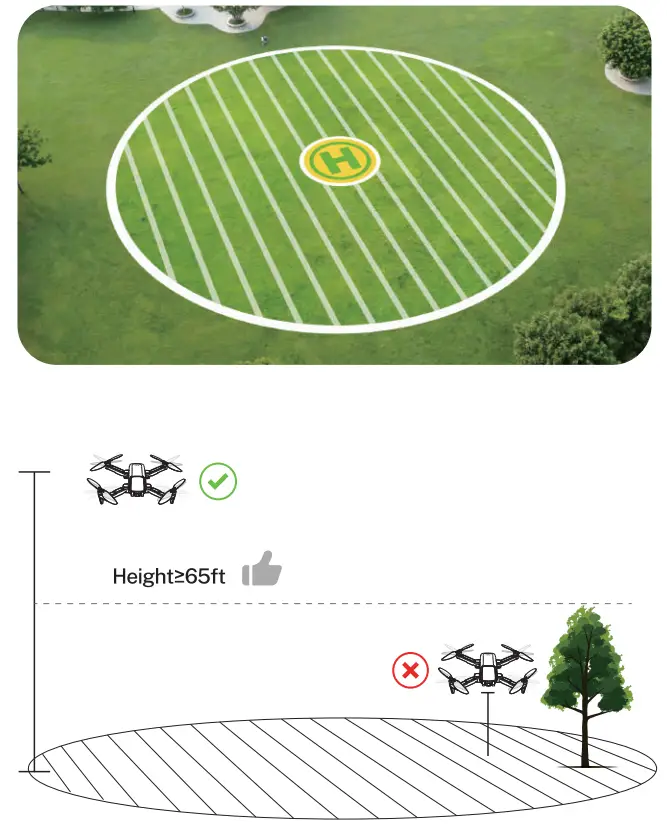
Select an Opera Area
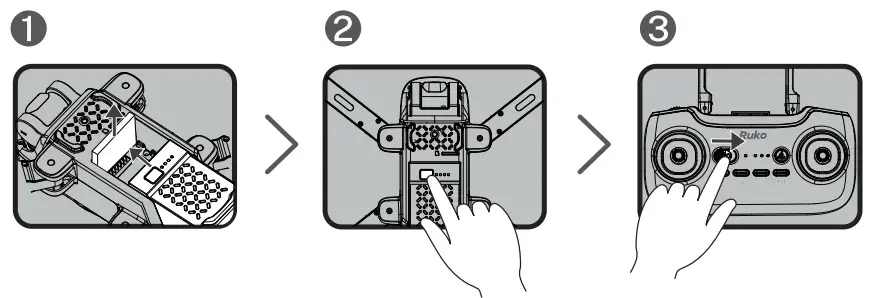 | ||
| • Remove the sponge sheet, then install the battery. | • Press and hold the button until the Aircraft plays startup sound. | • Push the button to power on the Transmitter. |
Pair the Transmitter with the Aircraft
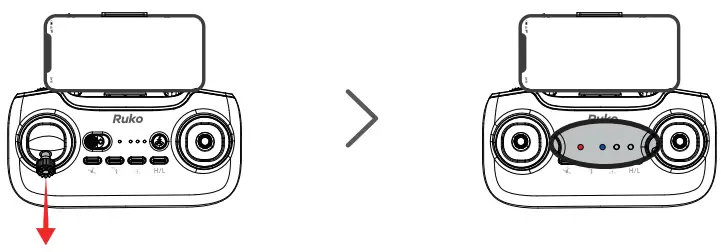 | |
| • Push down the left stick and the remote controller plays a “beep” sound. | • Once successfully paired, only red light will stay on and blue light is flashing. |
Connect to Wi-Fi
- Connect the mobile device to the Aircraft’s Wi-Fi and enter the App operation page. Please refer to User Manual (page 25) for more details.
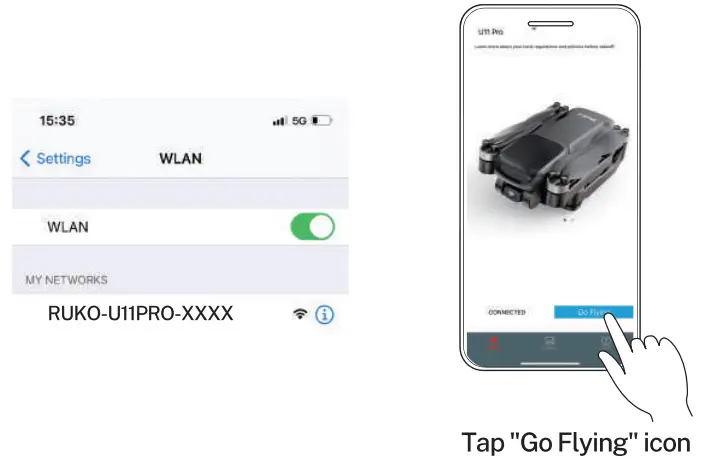
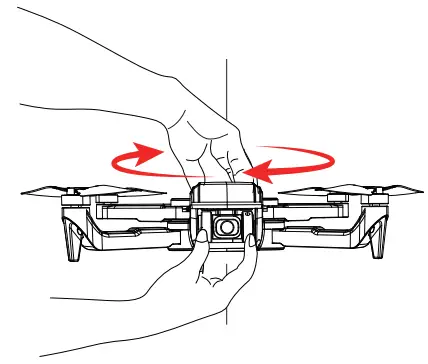
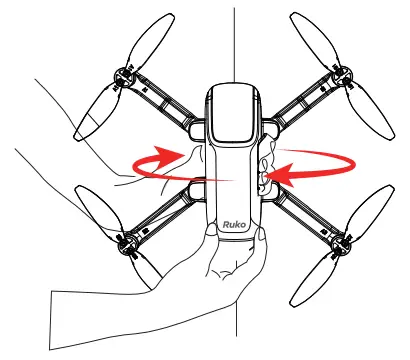
Calibrate the Compass
- Rotate the aircraft horizontally 360° until the controller plays a “beep” sound. ( About 3 turns)

- Rotate the aircraft vertically 360° the controller plays a “beep” sound . ( About 3 turns)
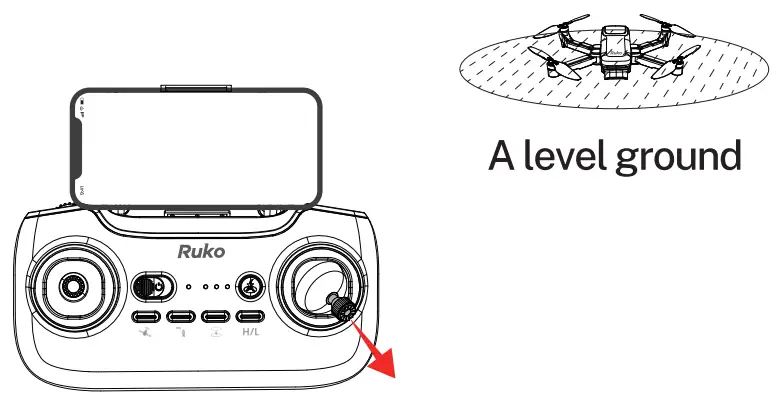
 Calibrate the Gyroscope
 - Push the right stick to 5 o’clock position until the controller plays a “beep” sound. ( About 2 seconds )
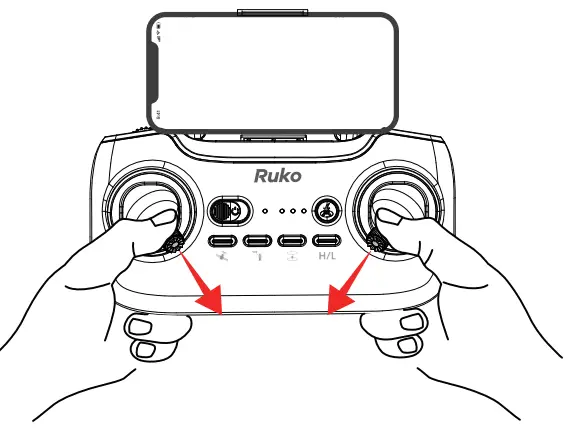
 Start the Motors
 - Push joysticks to 5 & 7 o’clock position. ( About 2 seconds )
 Take off
 - Push up the left joysticks.

 Calibrate the Gyroscope
 Start the Motors
 Take off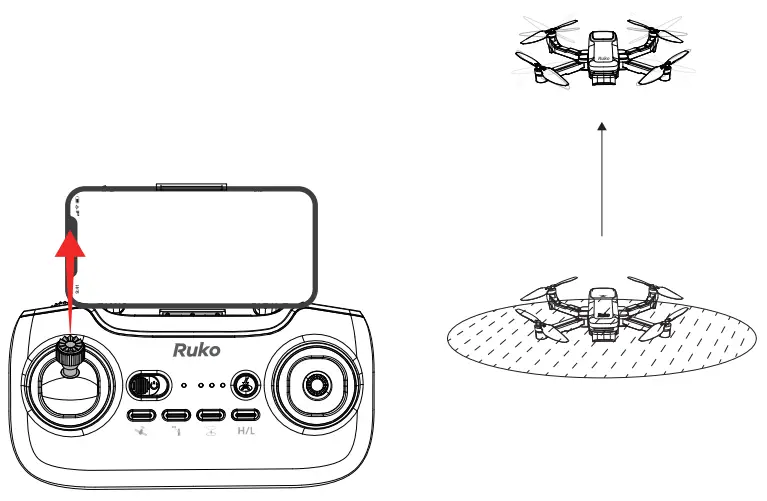
? NEW TO FLYING DRONES?
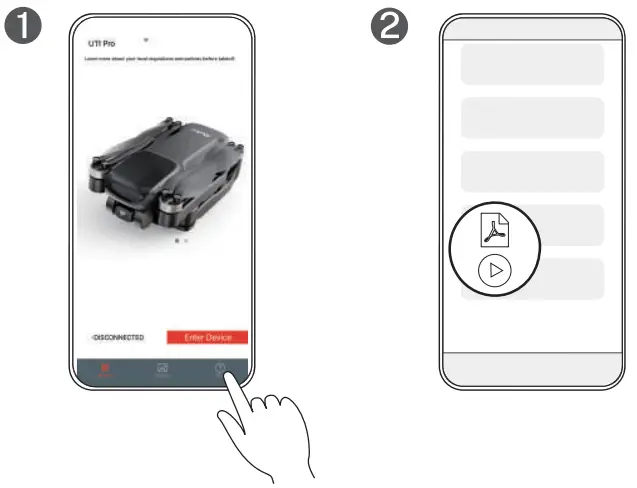
Check the Flight Guide in the App
| Search “Ruko Ull Pro First Flight” on YouTube for First Flight | Scan QR Code for More Tech and Video Support |
 |  https://www.youtube.com/playlist?list=PLsLJtCKSBnE5vQDuzEOjI2Uvz2JThjzWn https://www.youtube.com/playlist?list=PLsLJtCKSBnE5vQDuzEOjI2Uvz2JThjzWn |
CONTACT US FOR MORE TECH SUPPORT
 [email protected]
 (+1) 626-215-4337 ( Available from 6pm to 3am PST)
Common Problems and Solutions
| Question | Reason | Solutions |
| Wi-Fi can’t be found or connected | Your phone doesn’t support dual-band Wi-Fi | Change to another phone which supports dual-band Wi-Fi |
| Your phone has a high-security system and treats it as unsafe Wi-Fi, refuse to connect | For android phones, please wait for seconds after connecting with the drone’ s .. Wi-Fi,if there is any, make sure your phone treats it as safe Wi-Fi to connect it. | |
| Wi-Fi still can’t find after turn on the power | The Wi-Fi connect speed depends on reaction speed of the phone, please try to refresh the page | |
| GPS signal can not be searched | The drone flies indoors (not recommended) | Recommend to fly the drone outdoors |
| There is signal interference around, such as tall buildings and trees | Go to the another open-air area to fly the drone | |
| Pictures and videos can not be saved in SD card | The card memory is full | Delete the contents of the SD card |
| Use other formats and unsuitable SD card | Format the memory card and select FAT32 as the file system at the same time | |
| Choose the SD card memory is 32G or less. and the speed is over Class 10 | ||
| The drone cannot return to home or drift | The GPS mode was turned off | Please check the GPS lights on remote control whether is off |
| Please check it whether has GPS signal notification of closing on APP | ||
| Turn on GPS mode when flying outdoors. Smart RTH and low battery RTH can be used | ||
| The drone can’t take off after unlocking | The compass is not calibrated correctly | Please operate compass calibrate again |
| Do not search GPS signals successfully | Please go to an open area to fly it | |
| Search GPS signal again | ||
| It does not switch to the indoor mode if you are indoor | Turn off GPS mode and switch to indoor mode(not recommended) | |
| Can’t take off after replacing propeller or flip over when taking off | The propellers are installed incorrectly | Please install the propellers according to the marks in the drone arm |
| The drone will rise automatically | The default altitude settings of Smart RTH and Low RTH is 20 meters | Notice: The drone will automatically rise to 20 meters to return and then land When below the default altitude |
| The drone flies unstablely | Fly the drone in a windy weather | Adjust to high-speed mode to fly the drone |
| Do not fly the drone under windy weather | ||
| The drone does not do a right calibration | Put the drone horizontally on the ground first | |
| Follow the steps of the User Manual to do the calibration | ||
| Turned off GPS mode, Flying altitude was lower | Flight altitude greater than than 9 ft, less than 9 ft affected by air currents, It is ecommended to fly outdoors in GPS mode with good GPS signal | |
| There is no picture on the APP | It does not connect to the Wi-Fi successfully | Connect to Wi-Fi Successfully, complete network settings (Refer to page 3 of DISCLAIMER & SAFETY GUIDELINES) |
| Image transmission got stuck | There has signal interference in the flight environment | It is recommended to fly in an open area with little wireless signal interference |
| The device runs too many programs to reduce the performance of the mobile device Signal direction is not aligned | Close other running program of the mobile device to get the best performance of the mobile device | |
| Please keep the remote control and phone pointing in the same direction as the drone during flight | ||
| Transmitter and phone signals need to be aligned with the drone |