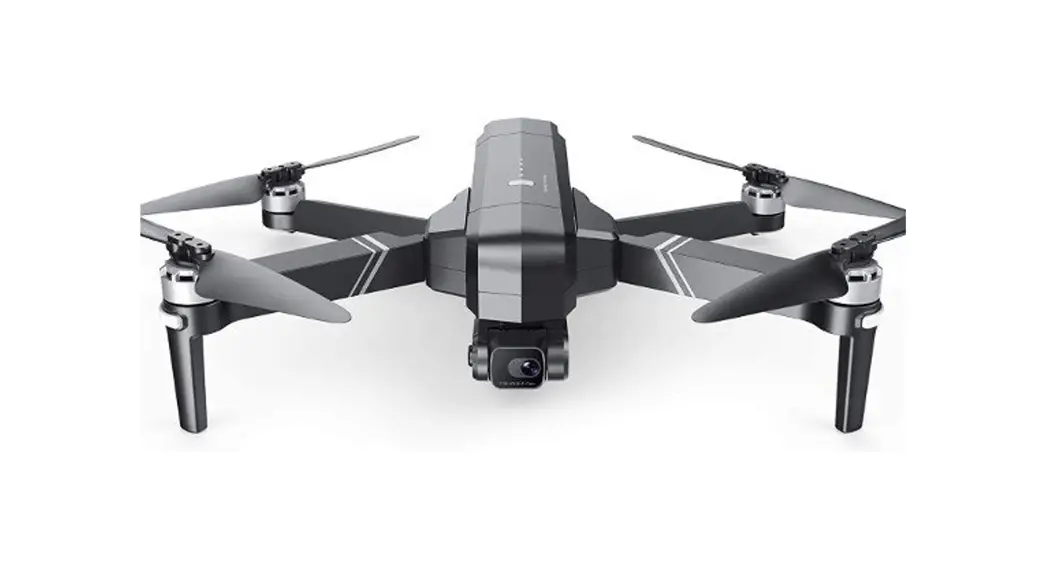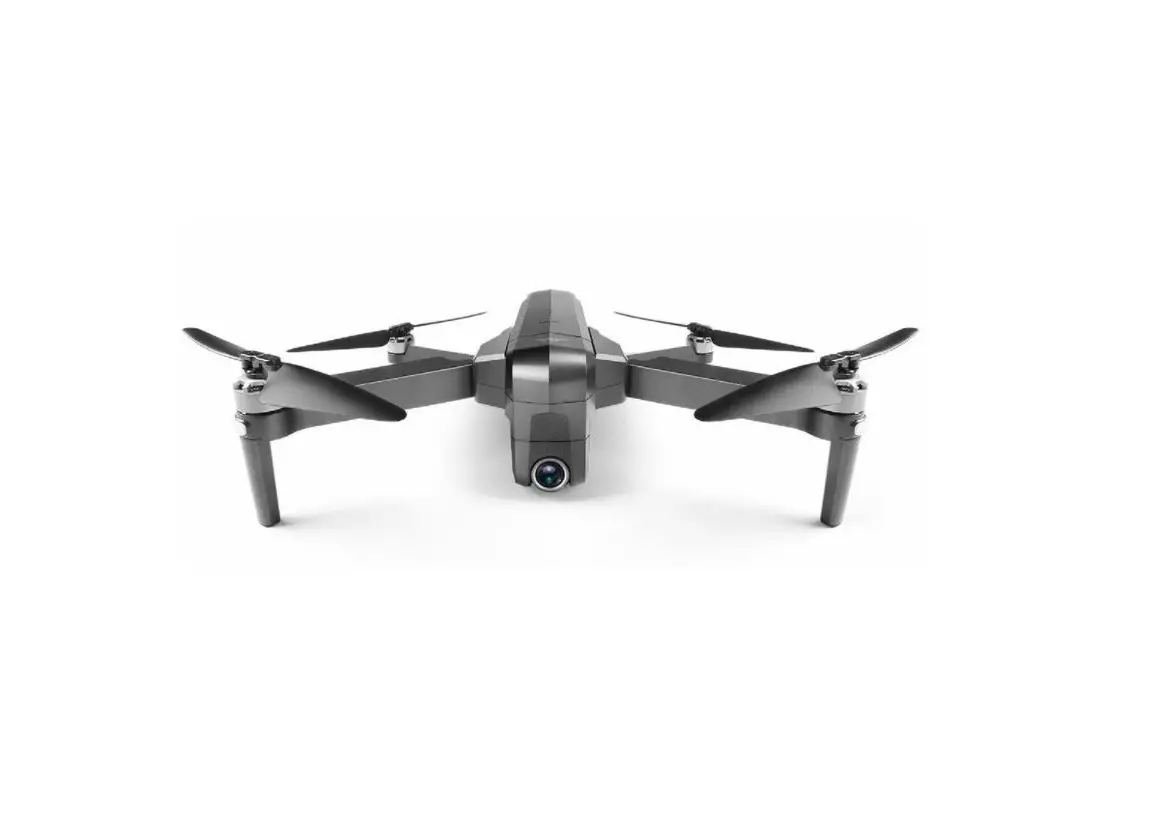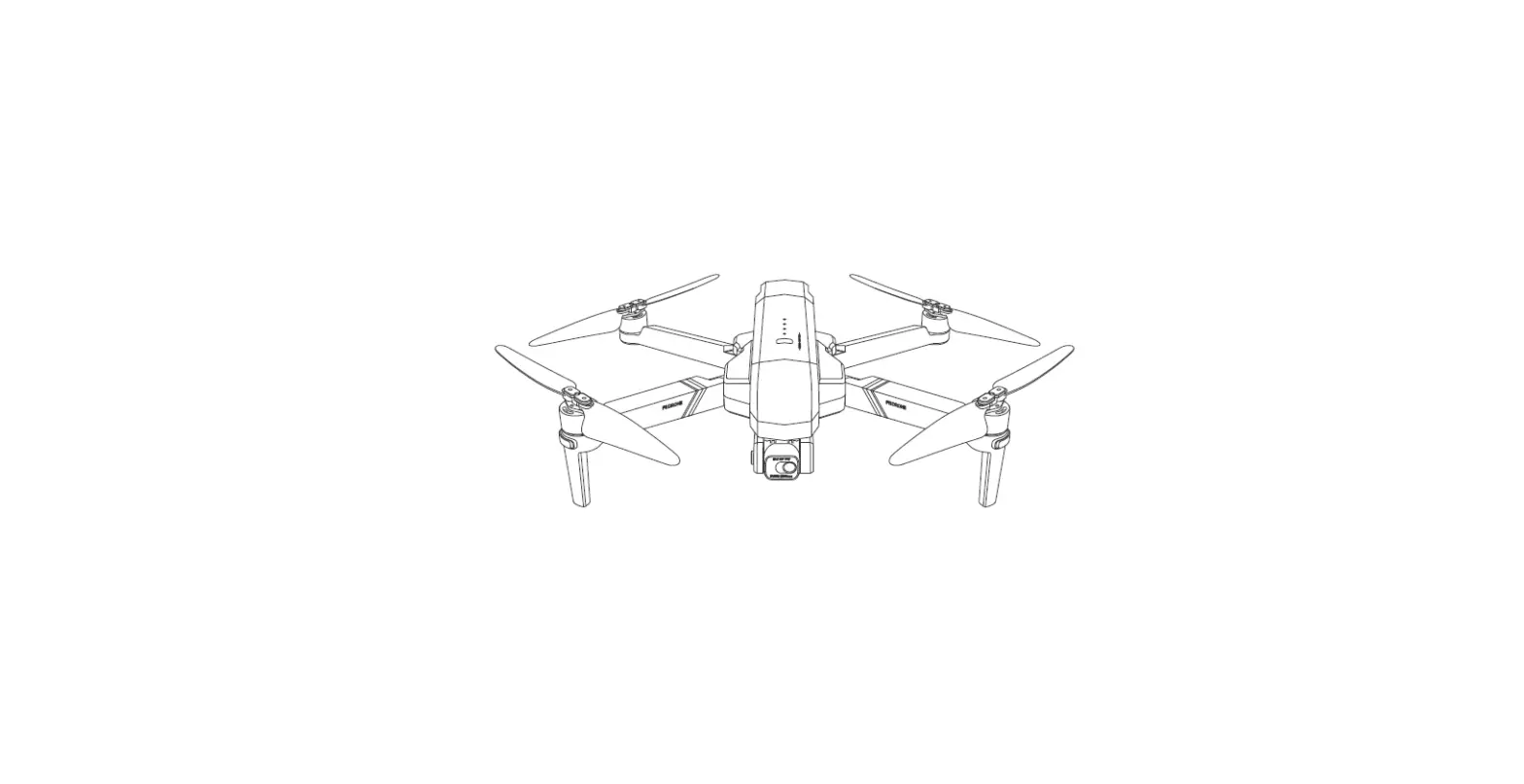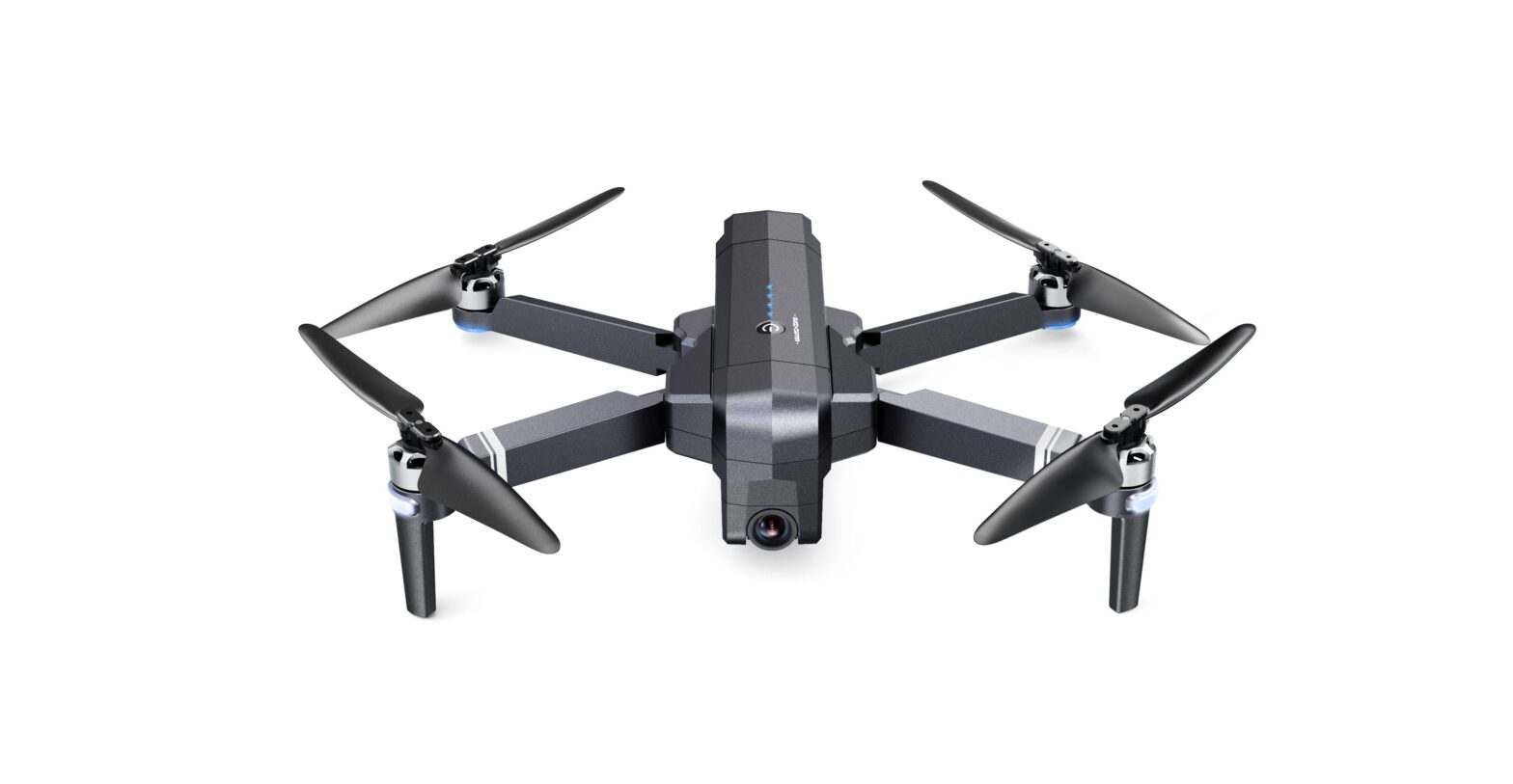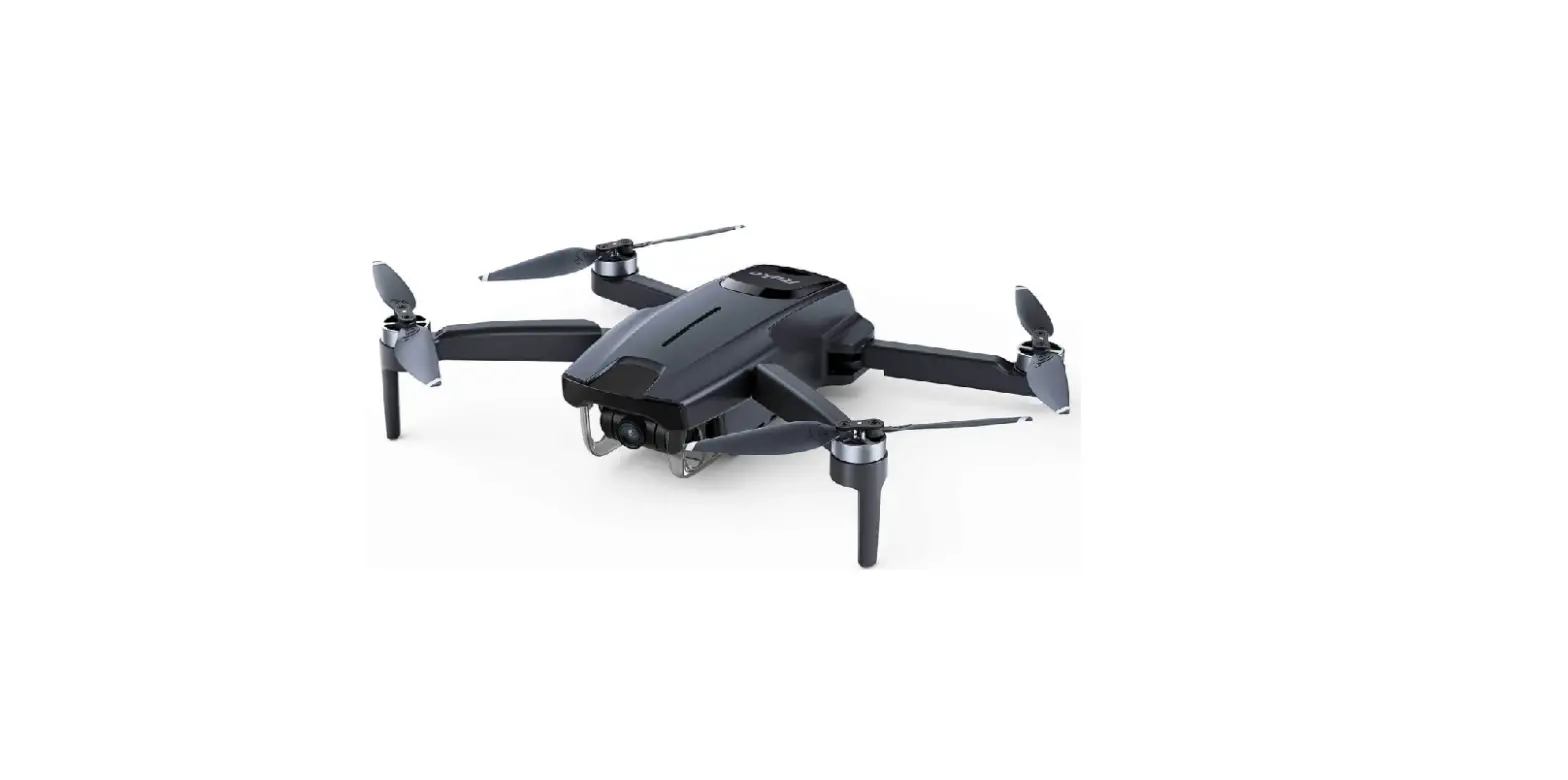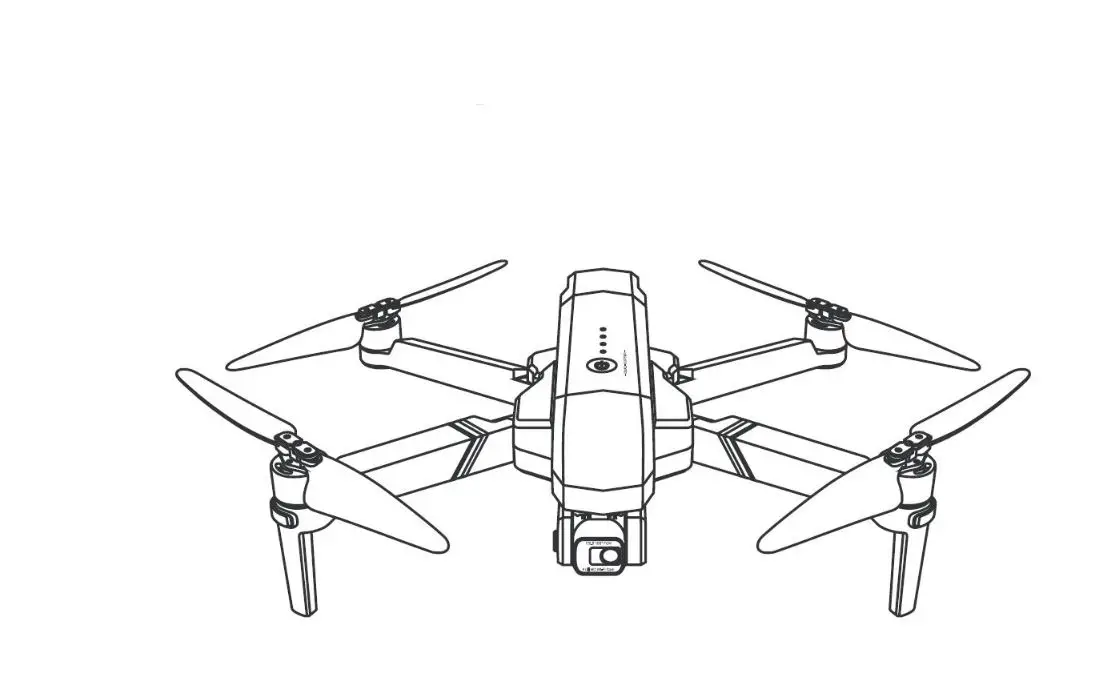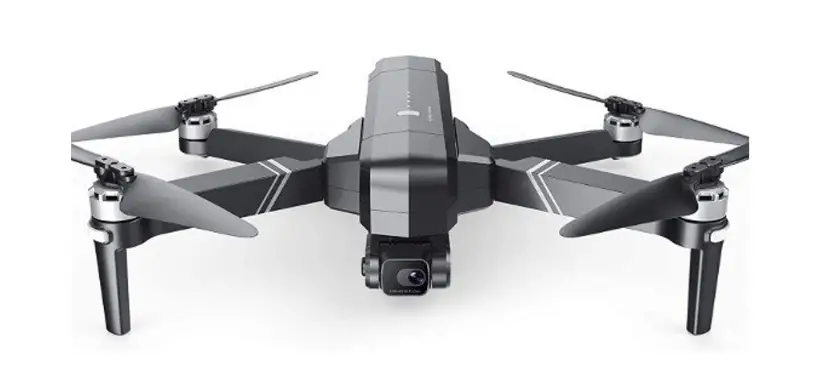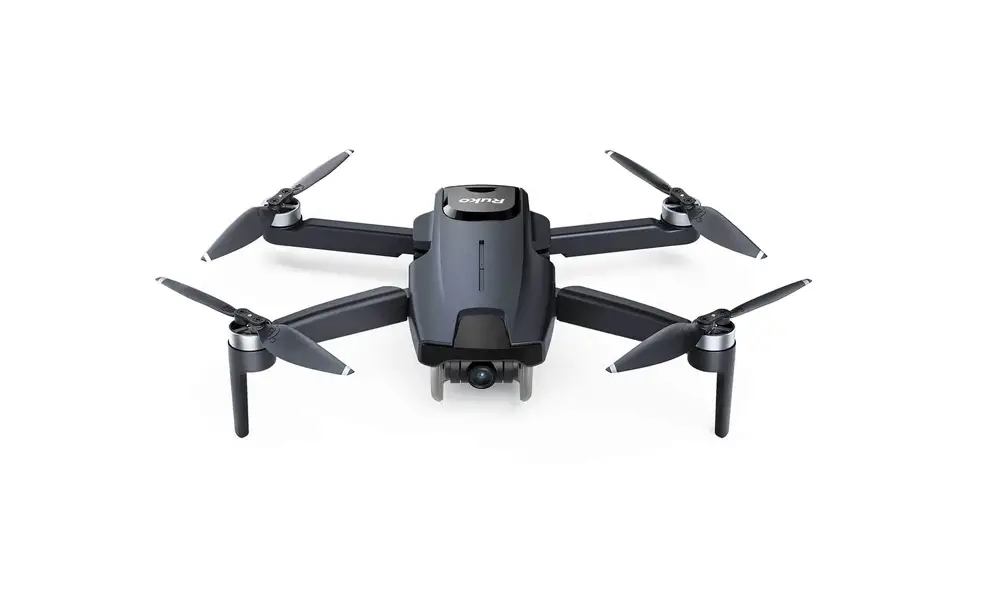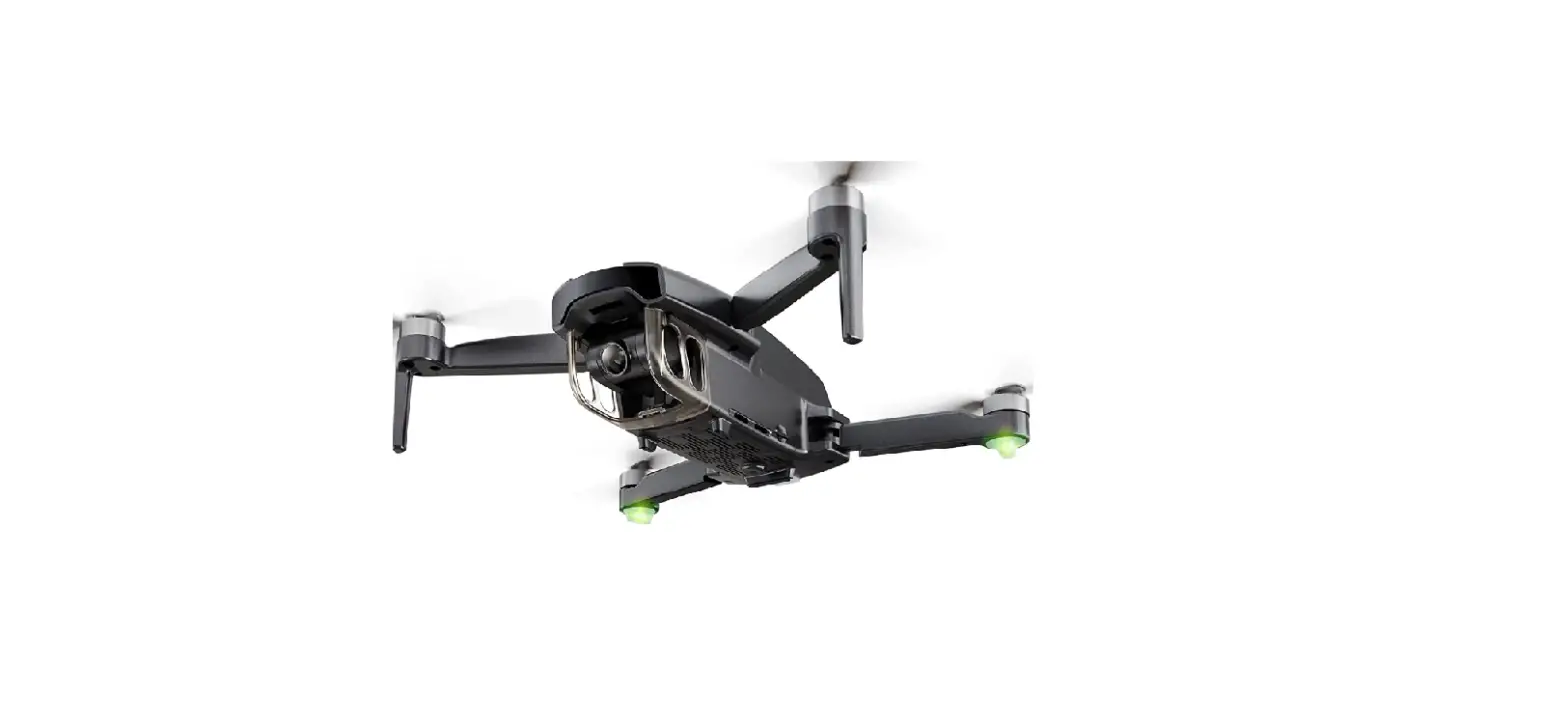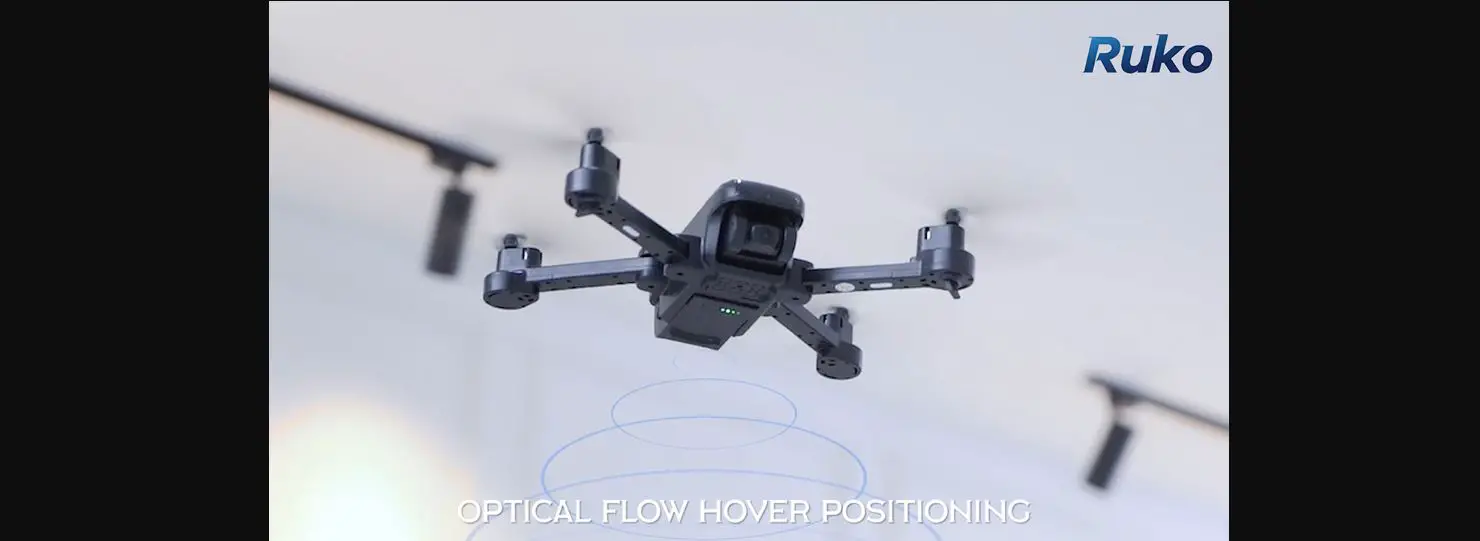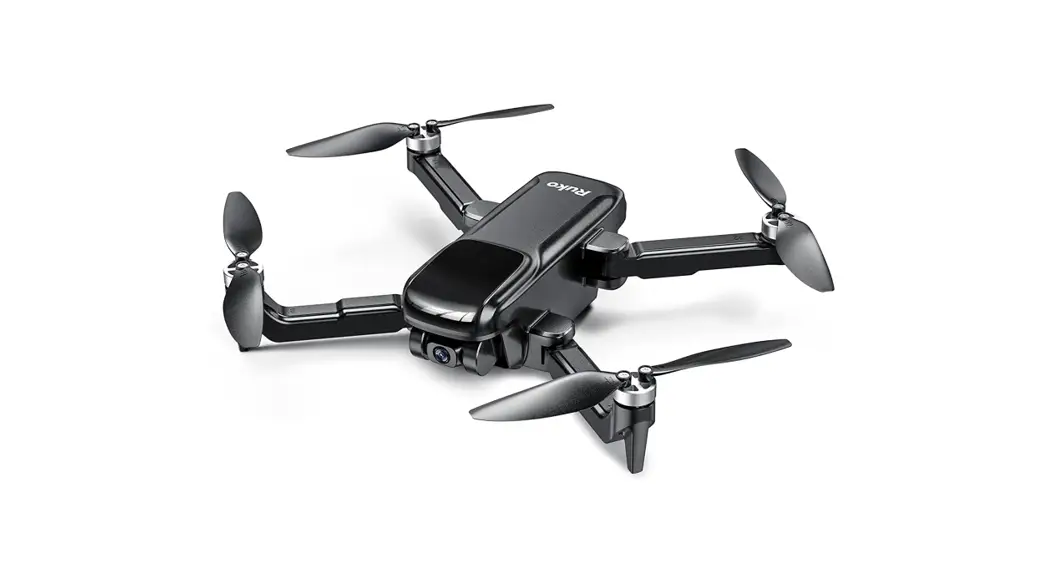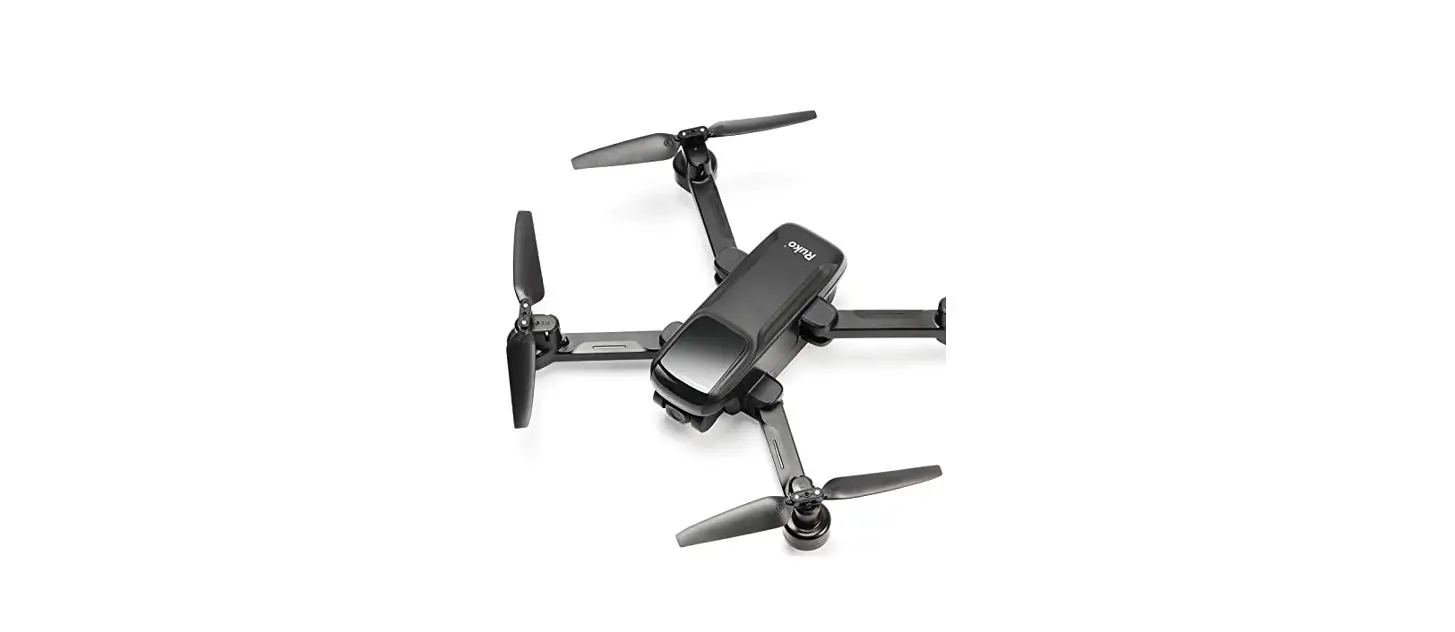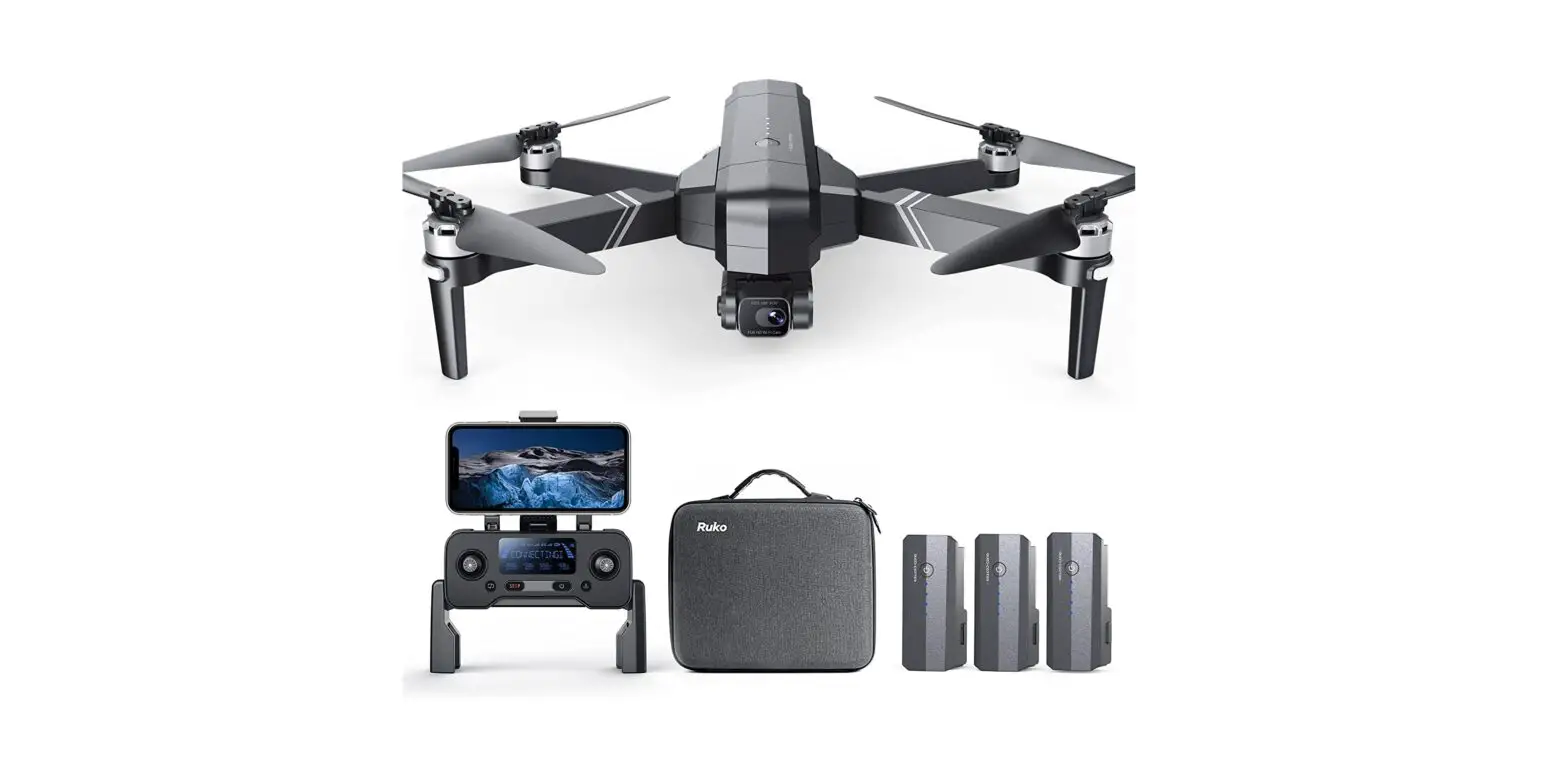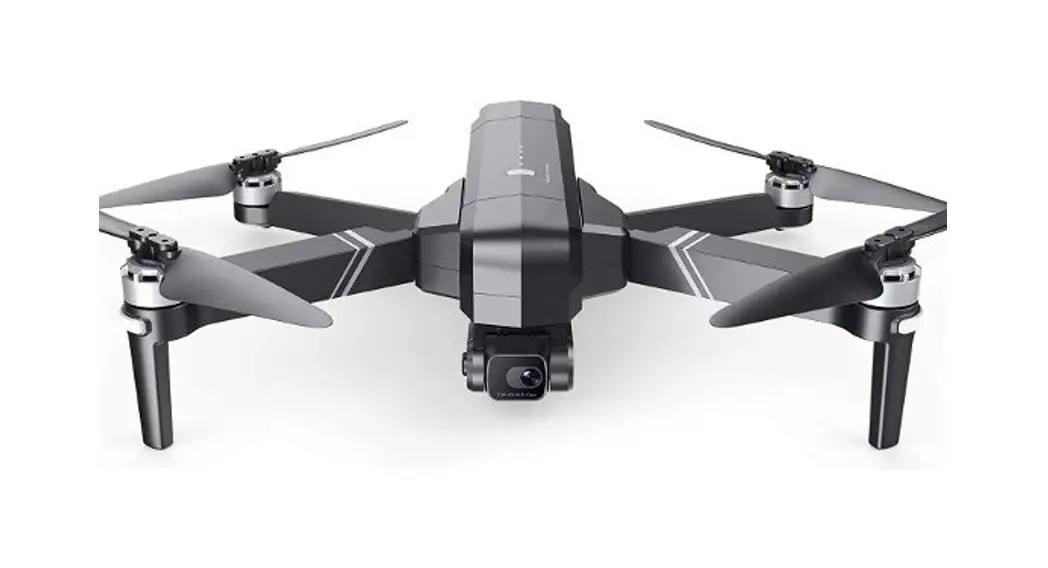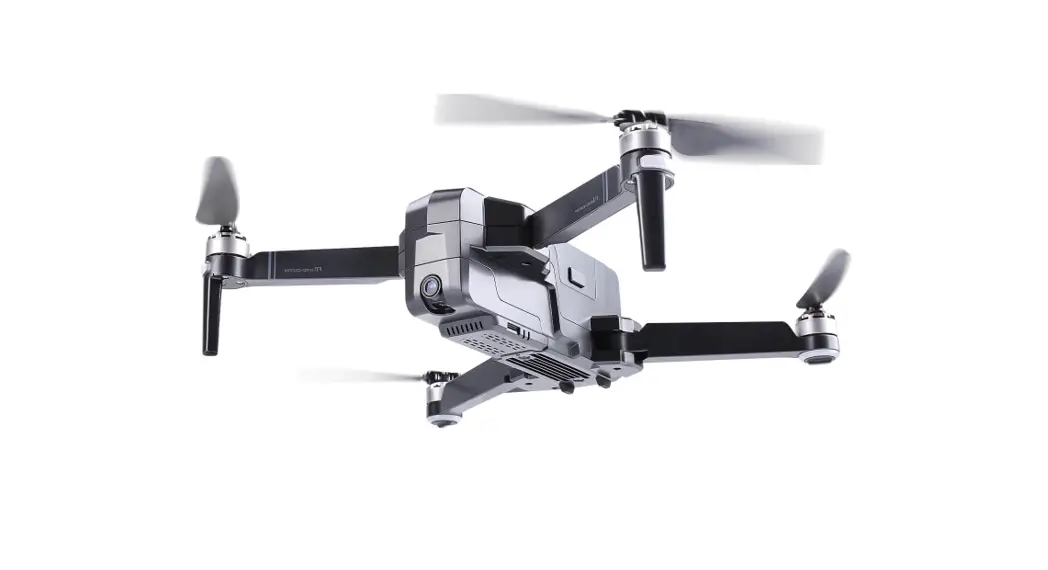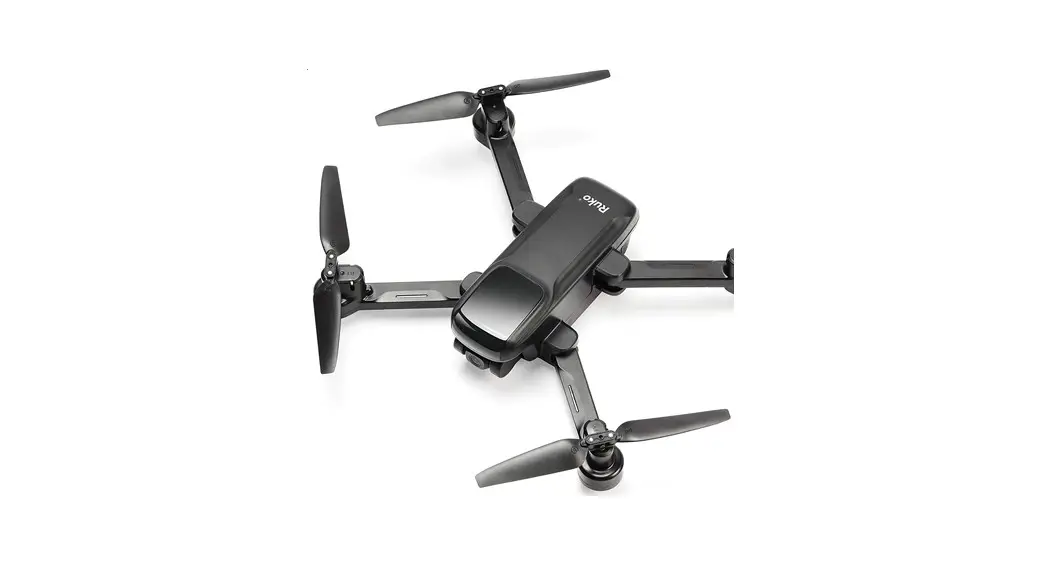

F11 Pro Drones with Camera
User Guide
Quick Start Guide
v3.0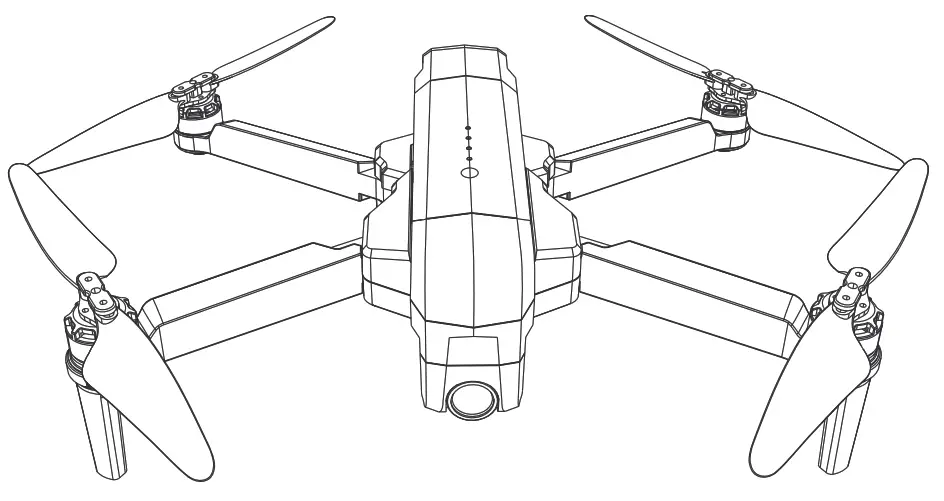
F11PROO
CONTACT US FOR MORE TECH SUPPORT
Download App
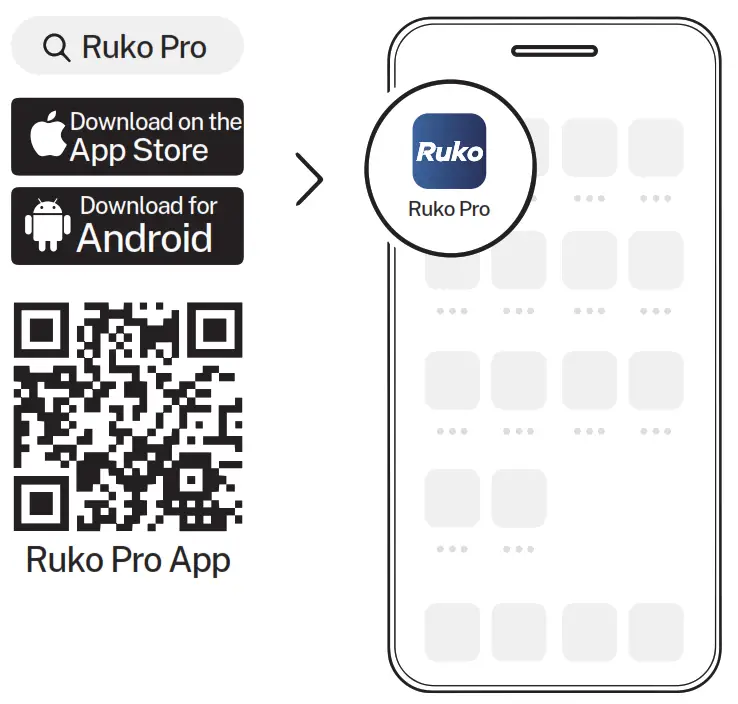
http://www.vison-st.com/app/download/ruko_pro
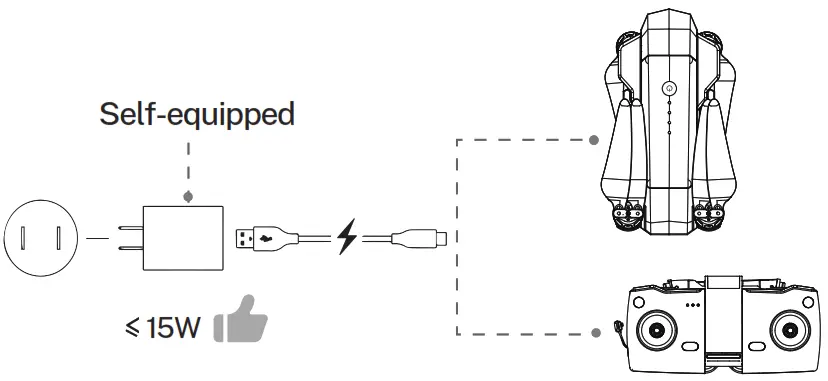
Charge the Batteries
Unfold the Arms
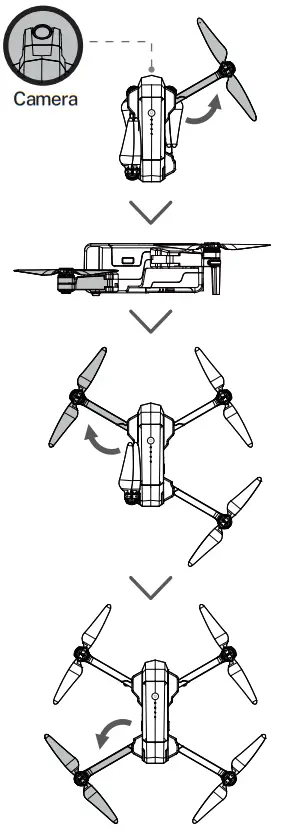
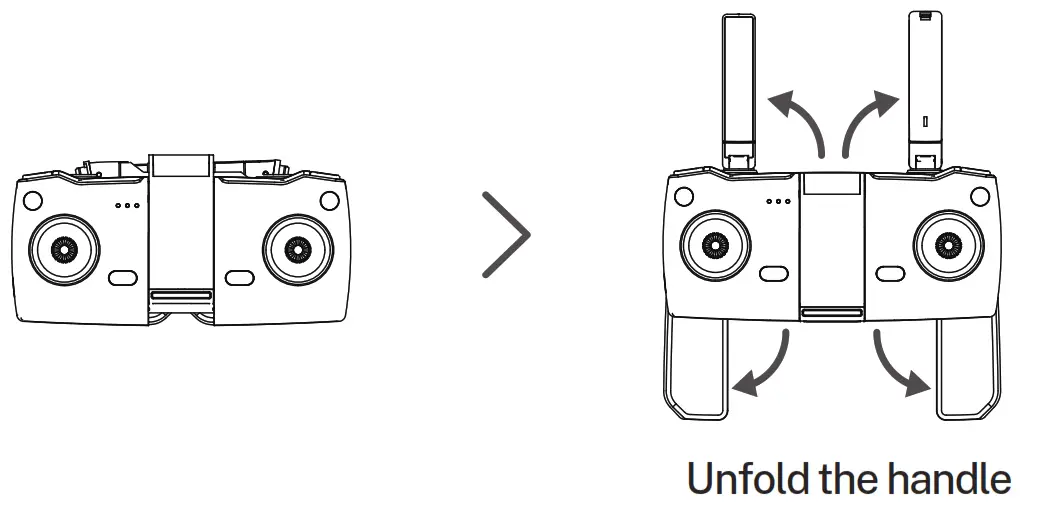
Unfold the antenna
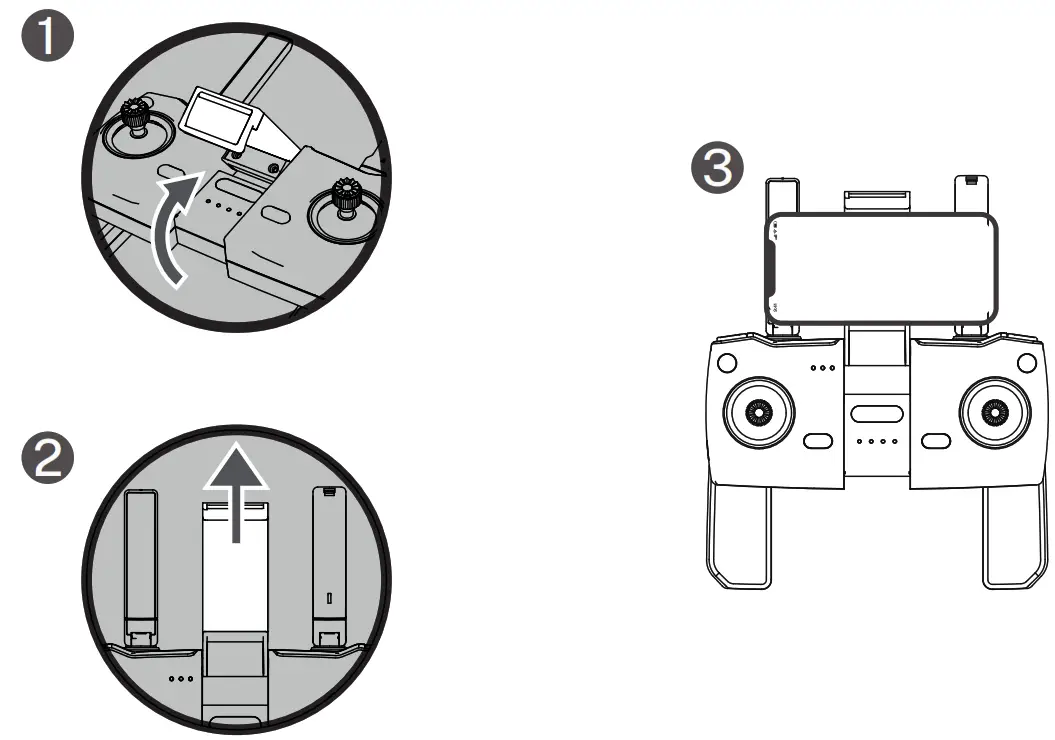
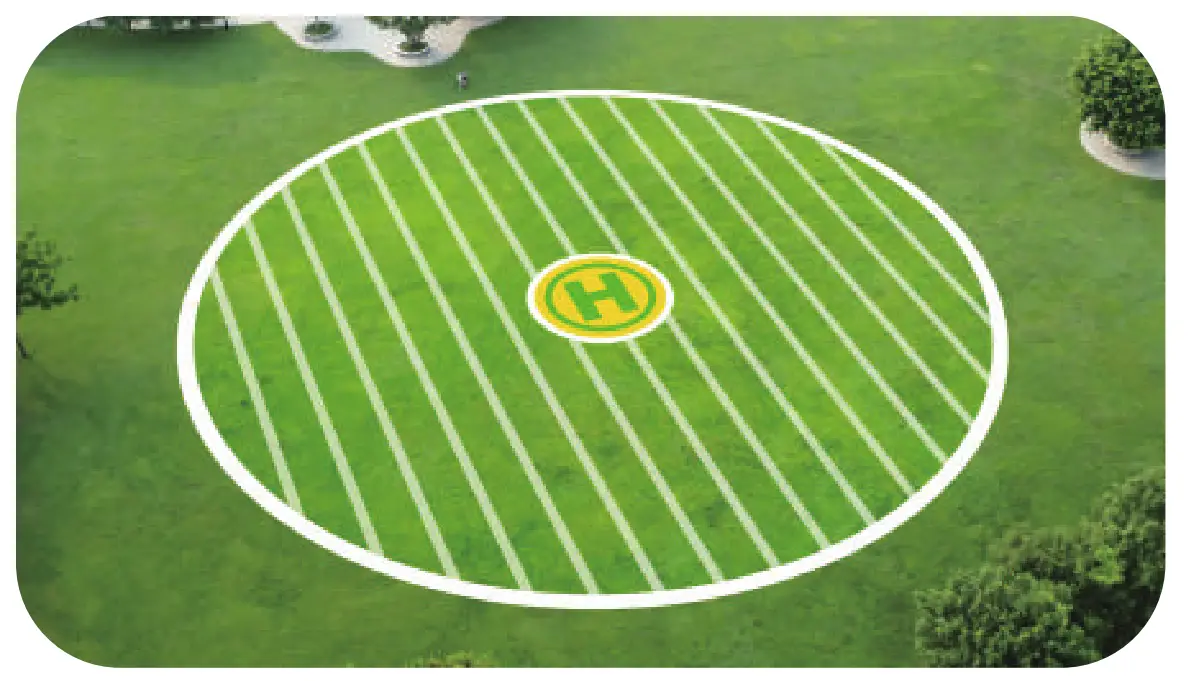
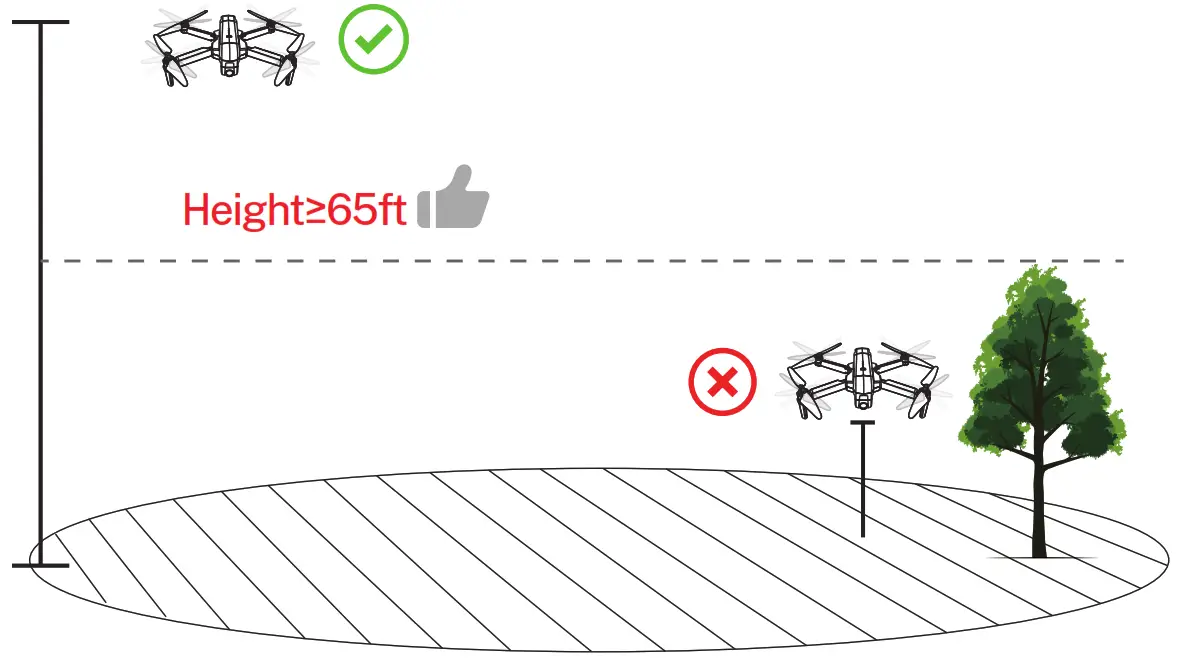
Select an Open Flight
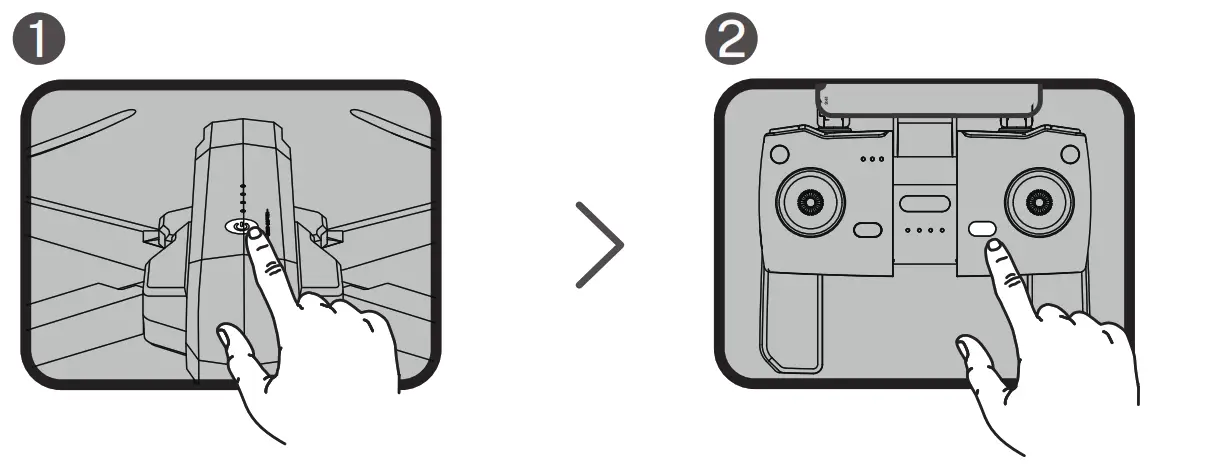
- Press and hold the button until the Aircraft plays startup sound.
- Short-press to power on the Transmitter.
Pair the Transmitter with the Aircraft
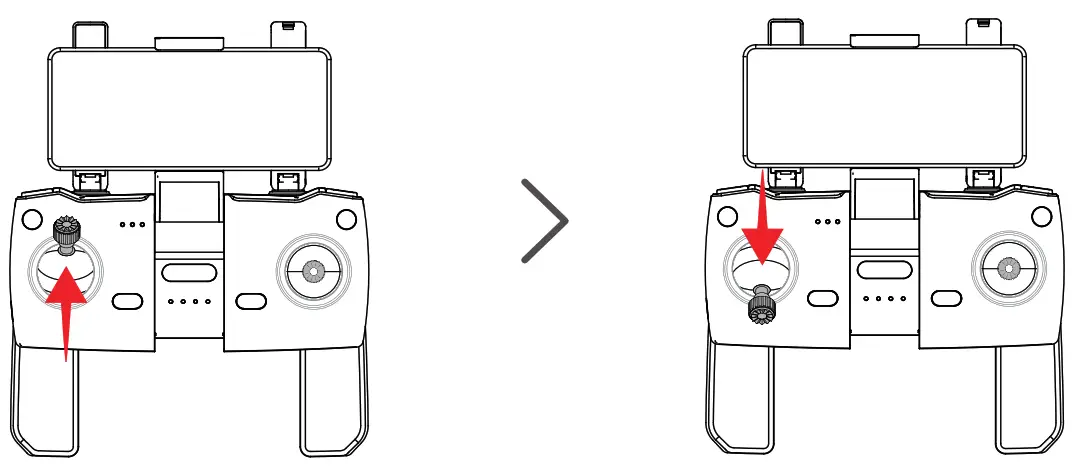
- Push up the left stick and the Transmitter plays a sound “di”.
- Push down the left stick and the Transmitter plays another sound “di”.
 Once successfully paired, white light will stay on.
Connect to Wi-Fi
Connect the mobile device to the Aircraft’s Wi-Fi and enter the App operation page. Please refer to User Manual (page 36) for more details.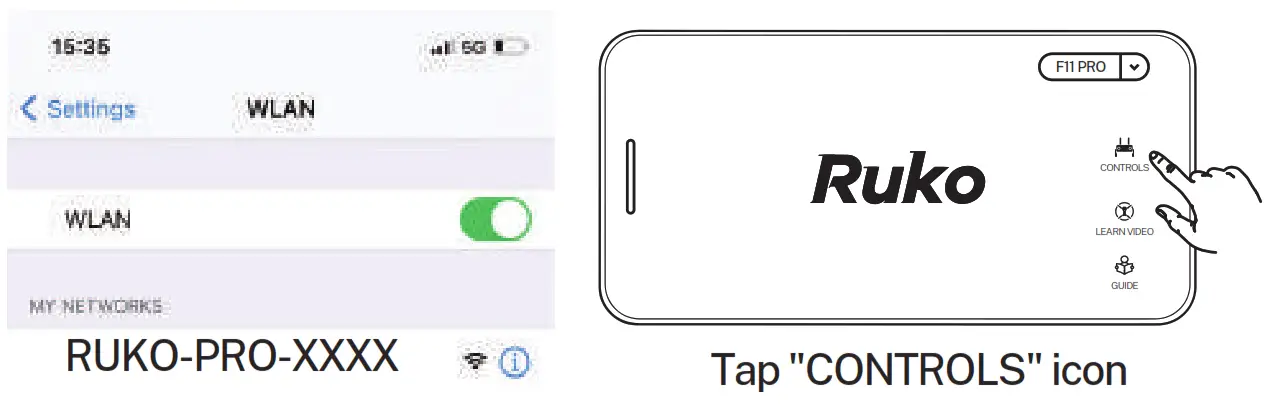
Calibrate the Compass
 Rotate the aircraft horizontally 360°. ( About 1-2 turns )
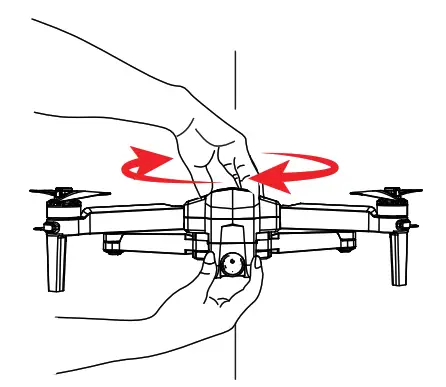 Rotate the aircraft horizontally 360°. ( About 1-2 turns )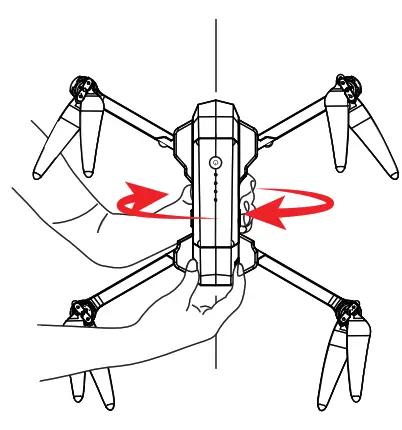
- Rotate the aircraft vertically 360°. ( About 1-2 turns )
Calibrate the Gyroscope
Push joysticks to 11 & 1 o’clock position. ( About 2 seconds )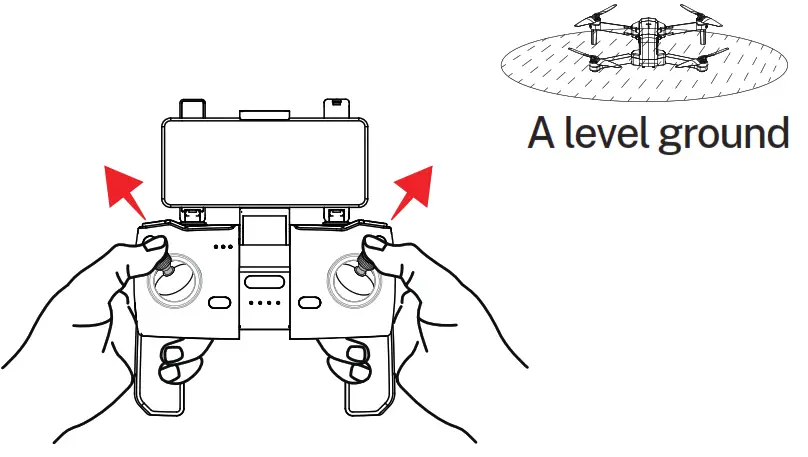
Start the Motors
Push joysticks to 5 & 7 o’clock position. ( About 2 seconds )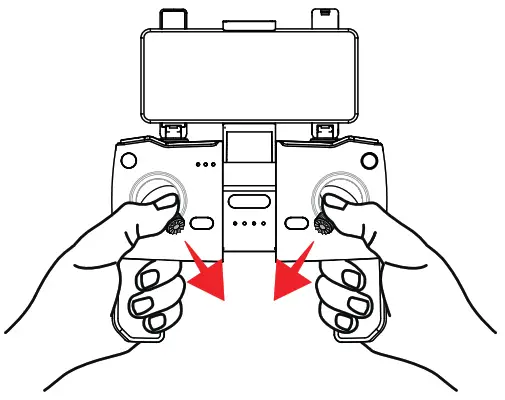
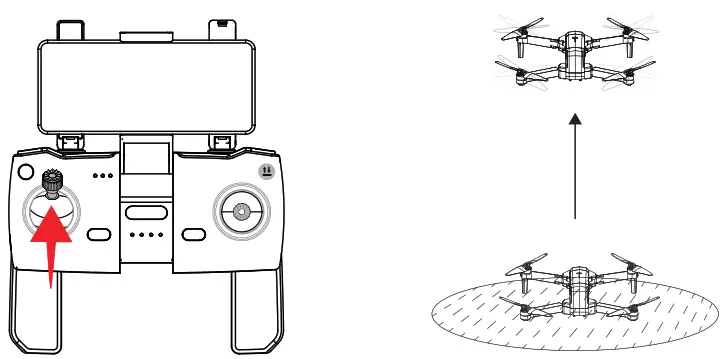
Take off
- Push up the left stick or press the ”Auto Takeoff” button.
 NEW TO FLYING DRONES?
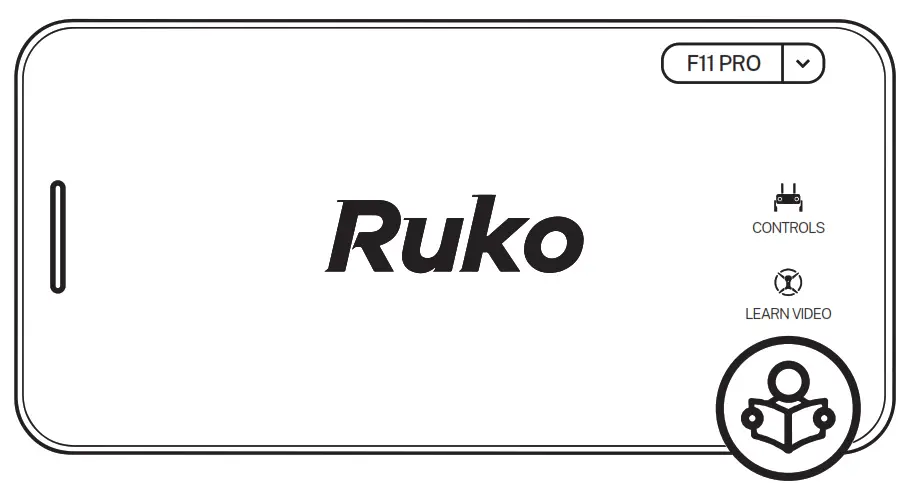
Check the Flight Guide in the App
https://rukotoy.com/eng-drone-qr
Search “Ruko F11 Pro Quick Start” on YouTube for First Flight
Scan QR Code for More Tech and Video Support
CONTACT US FOR MORE TECH SUPPORT
Printed in China.
Common Problems and Solutions
| Question | Reason | Solutions |
| The motors cannot be started | Weak GPS signal | Turn on the Aircraft in an open area with strong GPS signal |
| The red light stays on | The Aircraft has low battery. Please charge the battery in time | |
| The pink light stays on | The compass is not calibrated. Please refer to the “Calibration Before Flight” section of the user manual | |
| The left and right joysticks are not in place | Push the left and right joysticks simultaneously to 5 o’clock and 7 o’clock for 2 seconds | |
|
Unstable flight | Flying too low, affected by Aircraft airflow | Please fly the Aircraft above 9.84ft(3 meters) |
| The gyroscope is not calibrated | Place the Aircraft on a horizontal surface and conduct gyroscope/horizon- tal calibration. Please refer to the “Calibration Before Flight” section of the user manual | |
| The propellers become deformed and incomplete | Replace the propellers with new ones | |
| GPS signal is unstable. Flying near buildings and in obstructed places | Please fly the Aircraft in an open area free of obstacles within the circle of radius 32.81 ft(10 meters) | |
| The product has slight marks | We tested all Aircraft before shipping | In order to give you the best experience, we tested functions of all Aircraft before shipping. Therefore, it is inevitable that there will be slight traces. However, it can be guaranteed that all Aircraft are 100% brand new |
| Question | Reason | Solutions |
| Out of control, spinning around on its own, abnormal sound | The Transmitter signal is interfered or the Aircraft exceeds the range of remote control | Please fly the Aircraft outdoors without interfer- ence, and ensure that it is within a controllable range |
| Compass interfer- ence | Please manually land the drone in time and calibrate the compass. Please make sure to fly away from the buildings, trees, power lines, and signal towers | |
| The propellers become deformed and incomplete | Replace the propellers with new ones | |
| The camera is tilted/Gimbal is not working/ Can’t adjust the camera angle | The drone was placed on an unlevel surface such as grass and sand and so on | Place the drone on landing pad or cardboard horizontally, and ensure a gap between the camera and the surface |
| The drone was placed on the surface which transfer samll vibration, such as hollow wooden floor, desk and so on | Place the drone on a solid level ground | |
| Keep touching the camera and gimbal or holding the drone before all set | Never touch the camera when the power is on, place the drone on a level ground until the gimbal complete self-check | |
| The compass is in calibrating | After complete the compass calibration, place the drone on a level ground | |
| Short battery life | Flying in windy weather | Flying in windy weather will accelerate power loss |
| Flying in cold weather | In low temperatures, the chemical reaction of the lithium battery is slowed down and the energy cannot be fully released | |
| The battery is not fully charged | Fully charged with the correct USB charger before flying |
| Question | Reason | Solutions |
| Video freezes, image transmission distance is short | The Aircraft is out of Wi-Fi range | Fly the Aircraft within the range of the Wi-Fi |
| WiFi image transmission signal interference | Fly the Aircraft in an unobstructed open area free of buildings, high-voltage wires and signal towers | |
| The transmitter and the mobile phone are not pointed at the direction of the drone | Point the Transmitter and the mobile device at the flying direction of the Aircraft to maintain the strongest signal connection | |
| Phone performance freezes | Close unused apps running in the background to maintain the best performance of the phone | |
| Video is not clear | if use APP storage, the pixels are 1920×720P | Insert the memory card and storage the video on the memory card |
| App does not show what the drone’s camera is taking | The phone is not connected to the drone’s Wi-Fi | Connect the drone’s Wi-Fi : Ruko-GIM-****** on the phone |
| The phone operating system version is too low | The required device operating system to work with the app is Android 6.0 and above, IOS 10.02 and above | |
| Certain phones’ setting preventing the app working normally | Set the phone to airplane mode | |
| The VPN app block the connection of the phone and the drone | Turn off the VPN | |
| Didn’t keep the drone’s network when trying to connect the drone’s WiFi | Please do keep the drone’s WiFi connectted when the phone pop up reminder that “This network has no internet access” |
| Question | Reason | Solutions |
| APP crashes or functions abnormally | Wrong app downloaded | Download the correct App |
| A few mobile phone versions are old and incompatible with APP | Provide mobile phone version and model, we will adapt and solve it | |
| Phone cannot connect to the drone’s Wi-Fi | It will take longer time for certain phone to connect with the drone’s Wi-Fi for the first time | Try several times or restart the phone |
| The drone’s WiFi name is not displayed in the list | WiFi has not been activated | The WiFi will be available when the drone and the transmitter connected, which take around 40 seconds |
| GPS signal is weak | Turning on the drone indoors | GPS signals cannot be found indoors. Please search for GPS signals in an open place outdoors |
| Under the tree, next to the building, in an obstructed place | Please stay away from obstacles for more than 32.81 feet(10 meters), and search for GPS signals in an open area | |
| Unable to return home, drifting and flying away | GPS signal was turned off during the flight | Please don’t turn off GPS suddenly during outdoor flight. Switch back to GPS mode in time |
| Cannot charge battery/Cannot fully charge battery | Using inferior charger or charging on the computer with unstable voltage output | Use a mobile USB charger that ensures constant stable voltage output(5V) and amperage output(2-3A) |
| Using inferior charging cables | Please use the original factory charging cable to charge |
Ruko Tech Support
https://rukotoy.com/support-drones
This User Manual is subject to change without notice.
You can check the recently updated version of “User Manual”
on Ruko’s official website
https://rukotoy.com/support-drones
If you have any questions or suggestions about the User Manual,
please contact us via the following email:
[email protected]
Ruko is a trademark of Shenzhen Ruike Innovation Technology Co.,Ltd
Copyright 2022 Ruko All Rights Reserved.
rukotoy.com
CONTACT US FOR MORE TECH SUPPORT + 1 949-394-4635 Mon-Sun 6PM-4AM(PST)
 +86 19129317359
 [email protected]
 Support Drones » Ruko