 Quick Start Guide
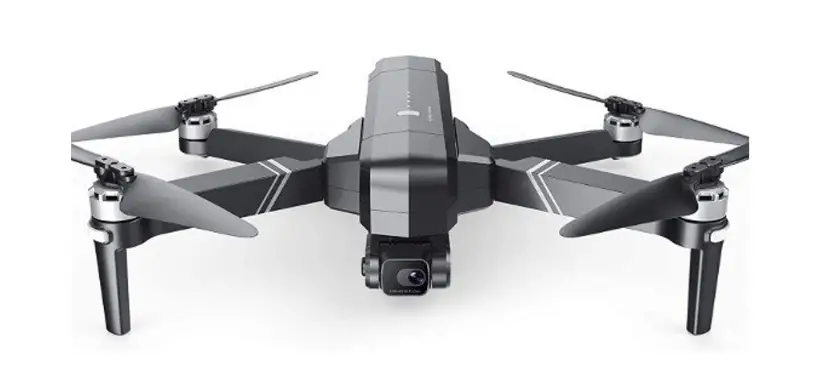
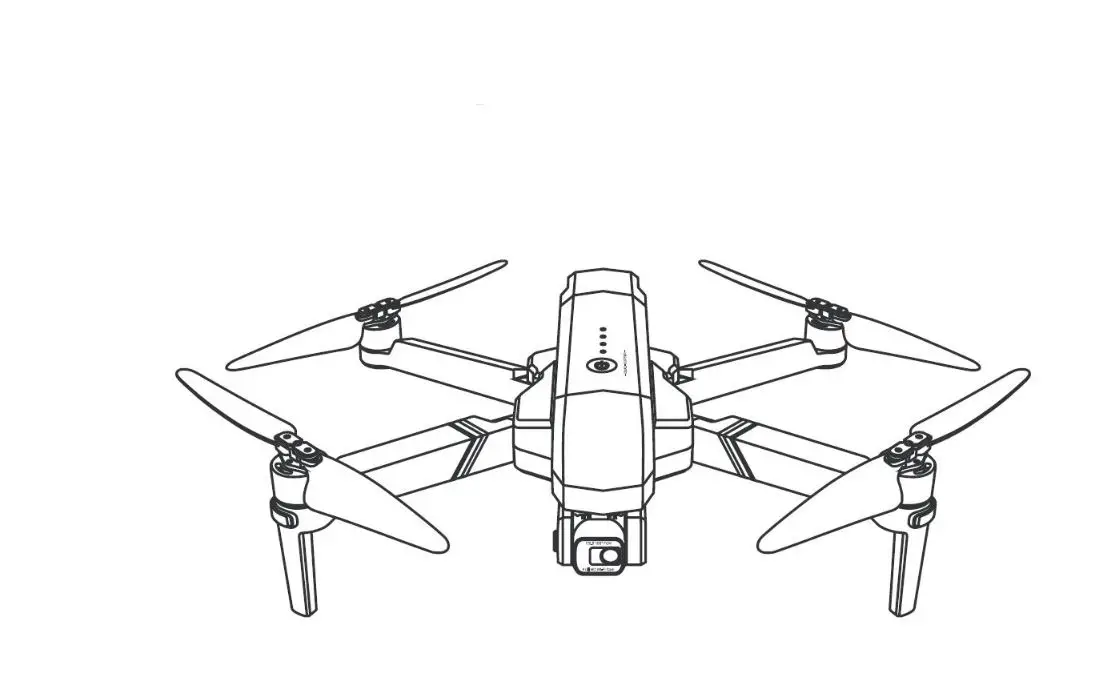
Please read the instructions before flying, please refer to the user manual for details. Before flying, make sure the GPS mode is turned on in case the drone gets lost! (In the GPS mode by default when turning on the controller)Place the drone in a wide-open space with its head forward.
FLIGHT
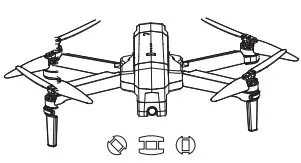
Step 1: Turn on the drone and set it down on a level surface
- The drone will auto-trim to this level surface.
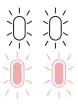
- All lights blinking red.
Step 2: Turn on the remote control
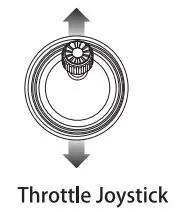
- Power on the remote control, push the left joystick up then down to pair with the drone.
- Lights flashing white (front) and blue (back). Paring successfully.

- NOTE. You connect to the WIFI at this time to view the current drone on the S1 GPS PRO App or wait until after GPS is calibrated.

Step 3: Connect APP
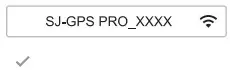
- Connect your smartphone to the WIFI of Drone and check the drone’s status on the “S.1-GPS PRO” APP.
Step 4: Compass Calibration
- Compass Calibration Part 1
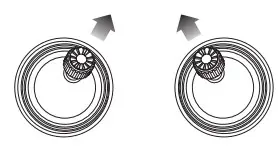
• Push the joysticks into the 1 & 11 o’clock position.
• Lights rapid-blinking white(front)and pink(back)
• App drone status: “Compass calibration”. Always pay attention to the tips of the APP!
- Compass Calibration Part 2
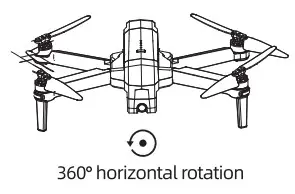
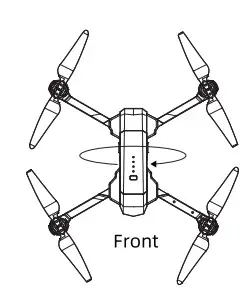
• Keeping the drone level, pick up the drone, and rotate the drone in one full circle (360″).
• Backlights will turn to a solid pink.

- Compass Calibration Part 3
Hold the drone vertically and the camera is facing the ground, rotating the drone in one full circle(360 ).
Lights return to rapid-blinking white (front) and blue (back) Which means the drone is searching the GPS signal.
After a while, the front lights will turn to solid white and the backlights solid blue
App drone status: “Compass calibration I okay”.



Step 5: Reset to factory Setting/Calibrate Gyroscope
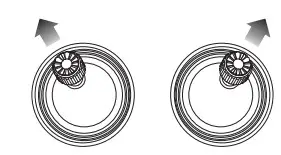
- Push the joysticks into the 11 & 1 o’clock position.
- Lights rapid-blinking white (front) and blue * * (back)
- App Drone Status: “Gyroscope is being calibrated” “Gyroscope okay”.
- After a while, front lights will turn to solid white and backlights solid blue 0 0
- App Drone Status: “Ready to fly”
Once the lights have switched to all solid, you are ready to fly
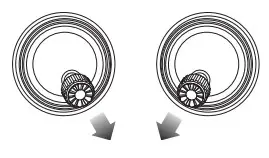
Step 6: Starting/Stopping motors (Not available when the drone is flying)
- Push the joysticks into 5 & 7 o’clock position
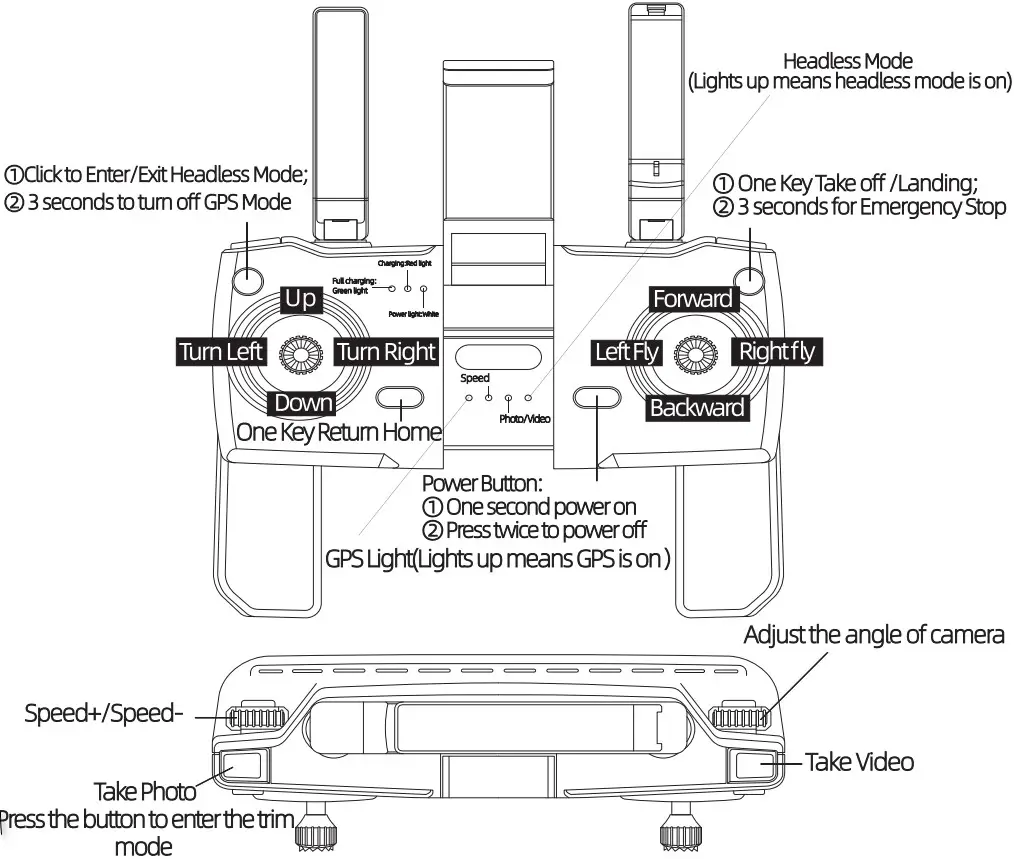
- Motors are starting automatically, push the t left joystick up to take-off; or short pressing
 to take off.
 to take off.
NOTE: Please staring the motor before the drone takes off.
Step 7: 3 Ways to land the drone
- Press the RTH home
 (will return to the take-off point)
 - Press the button on the front right of the controller (will land directly)
- Keep Pushing the left joystick down until the motor stop
 (will return to the take-off point)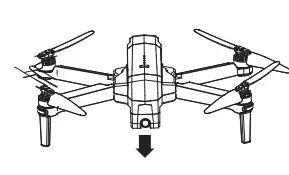
Stopping the Motor
Pushing the joysticks into 5 & 7 o’clock position again, motors stop working. The motors will stop working if the motors starting are not operated after 20 seconds.Set the connection in the right order to avoid signal concept on error. ..)
Common Problems & Solutions
| Num | Problem | Reason | Solve |
| 1 | The motors don’t turn on | Weak GPS signal | Turn on the drone in the open OUTDOOR |
| The red light always turn on | Turn off the drone, pause for about 10 minutes, restart, and calibrate your drone | ||
| All 4 lights are flashing | Refer to step 4 on page 10 of the manual for a compass calibration. | ||
| 2 | The camera was stuck can not be adjusted | There were obstacles under the camera when the drone turned on | Please turn off the drone and adjust the camera with your hand, or restart the drone without obstacles below. |
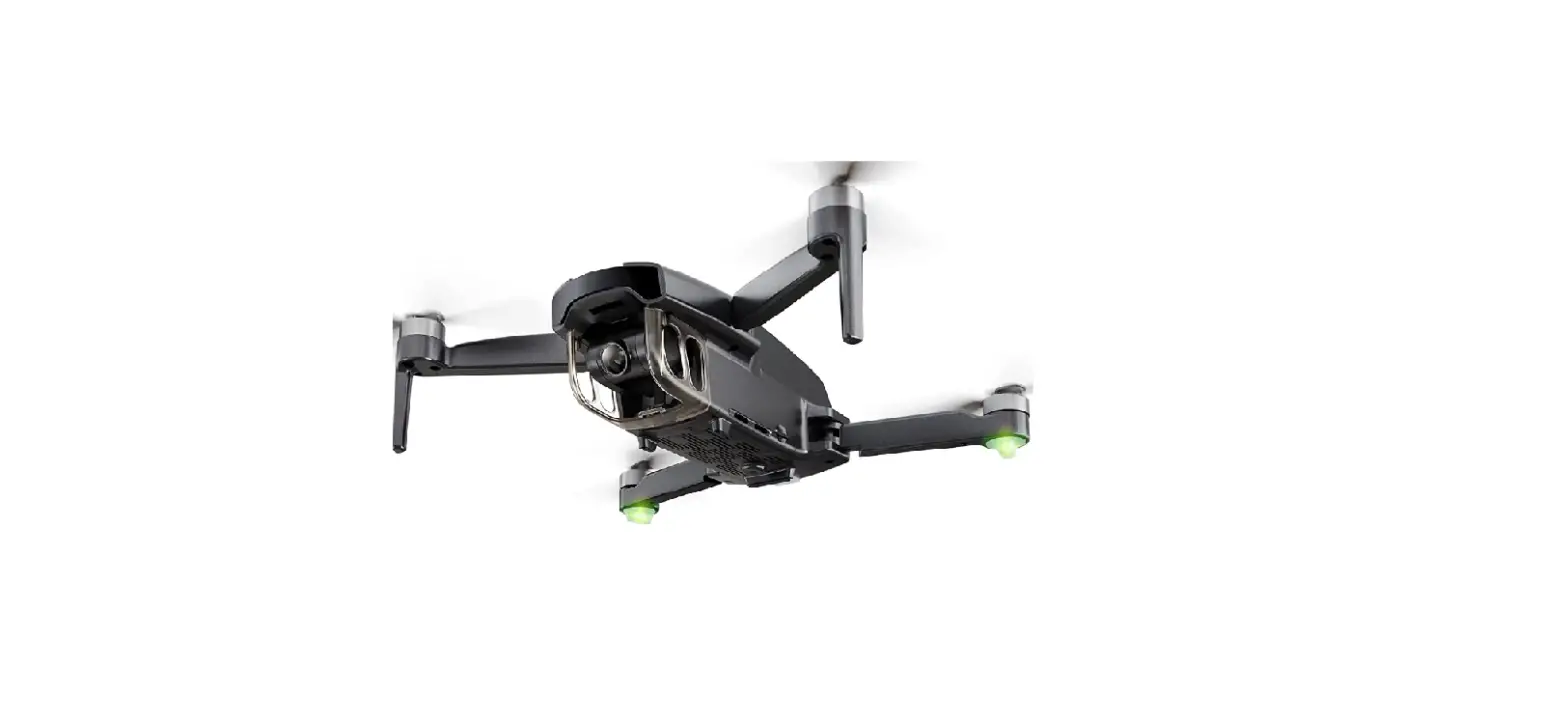
| 3 | The camera would not point straight ahead after turn on the drone | This is the camera’s unique design, not an I malfunction | To prevents the blades from affecting photography. If the camera point straight ahead, which will affect the photography experience. |
| 4 | The product has a slight trace | We tested all the drones before shipping | For the best experience for you, we tested all the drones before shipping. So, it has slight. table traces, but it can be guaranteed that all drones are 100% brand new. inevitable |
| S | Video freezes | The drone is out of range of the WIFI | Flying the drone within the range of the WiFi |
| The WiFi didn’t stay connected | Set the phone to connect to the wifi Siam*** automatically. Disable the data after connecting, and disconnect your phone from any wireless networks which it may auto-joining. | ||
| 6 | APP can’t display the image | The phone is not connected to WIFI | Open the phone wifi, search name: Si, connect this wifi |
| The phone does not support 5G WIFI | Android 4.44 and above, 10S-8.0 and above, support dual-band WiFi (2.4G and SG) | ||
| APP update | Delete this APP, try to download and install it again | ||
| 7 | The phone can’t connect to WIFI | The drone’s WiFi has no internet connection then some phones refuse to connect. | Pay attention to your phone and make the phone stay connected. |
| 8 | The controller does not charge/APP always shows the controller low battery | Poor contact due to transportation | Try tapping gently to restore good contact. If it still doesn’t work, please contact customer service. |
| The phone doesn’t connect to the remote control since the wrong opening order | The right order is power on the drone first, second the controller and pushed the left. jo stick to the 12 o’clock position then to the 6 o’clock position to pair with the drone, finally the WLAN connection. | ||
| 9 | Video is laggy | Signal interference | Please fly outdoors without interference. |
| 10 | Drone always move or right | Haven’t calibrated the drone | Place the drone on a level surface and retry to calibrate. |
| 11 | Show weak signal | Surround signal interference | To an open outdoor to fly |
| 12 | Wobbly in flight | Blade deformation | Replace the blade |
| 13 | Lose control | Signal interference or Beyond the remote control distance | Please fly outdoors without interference. Make sure to fly within the control distance |
| 14 | Suddenly fell | The battery is loose and loses power | Make the battery tight to ensure good contact |
| 15 | The motor is not working properly | The indicator light continues to flash rapidly | Being compass calibration, Please place the drone on a stationary ground |
If it still can’t solve your problem, please contact us: [email protected].We will help you as soon as possible.
Whatsapp:+86 13760395206 +1 (909) 494-2127 (Available from 9 pm to 6 am)
Email: [email protected] https://youtu.be/oau-oXaZbCE
Scan the QR code and watch the video guide
www.rukotoy.com
 Home » Ruko