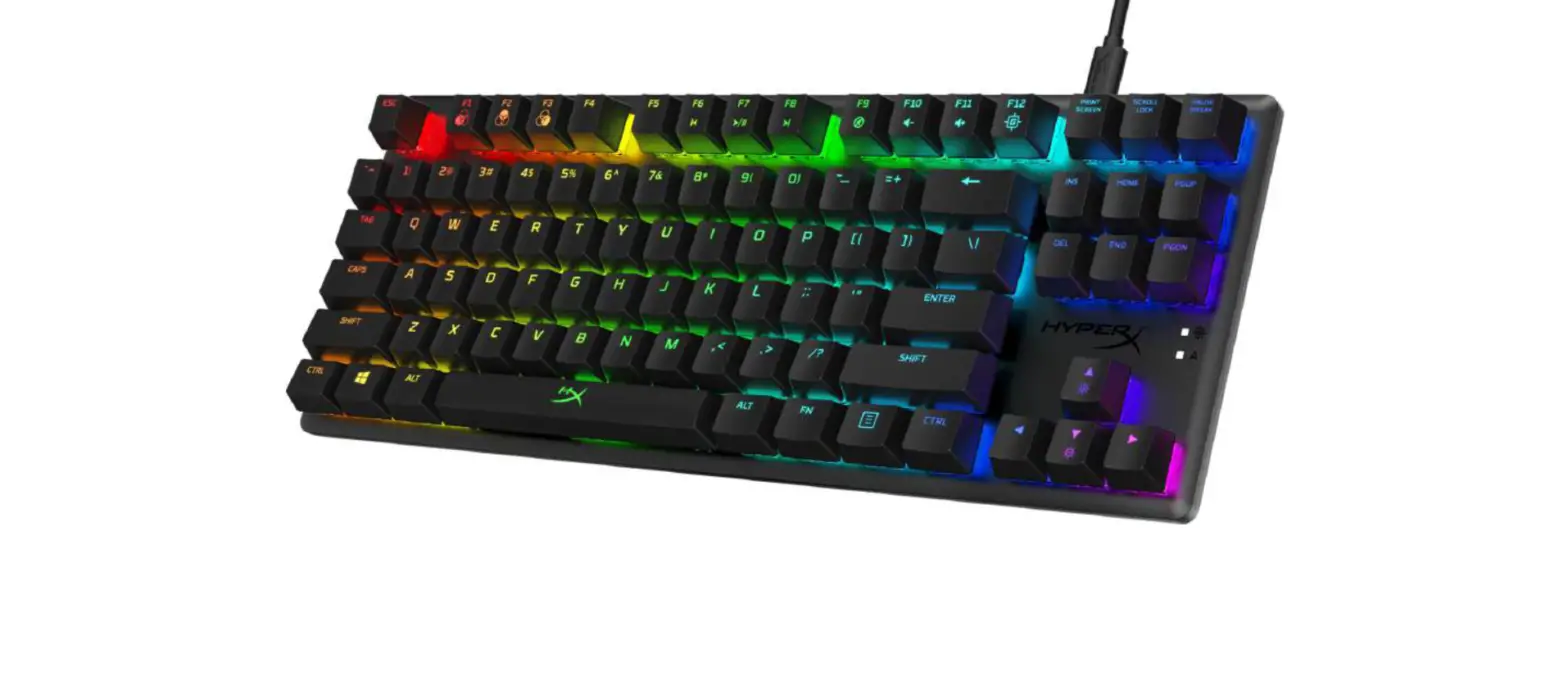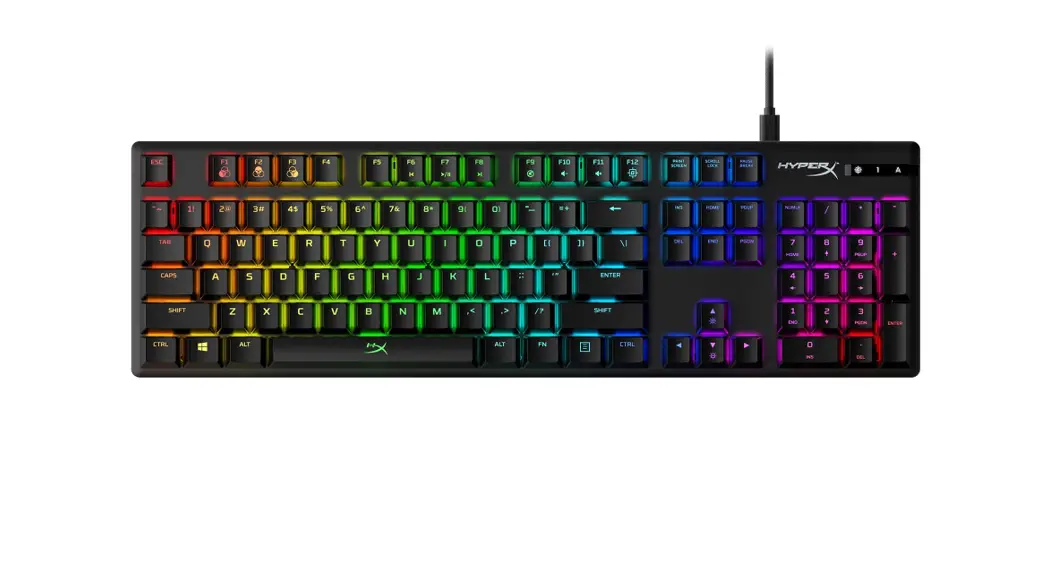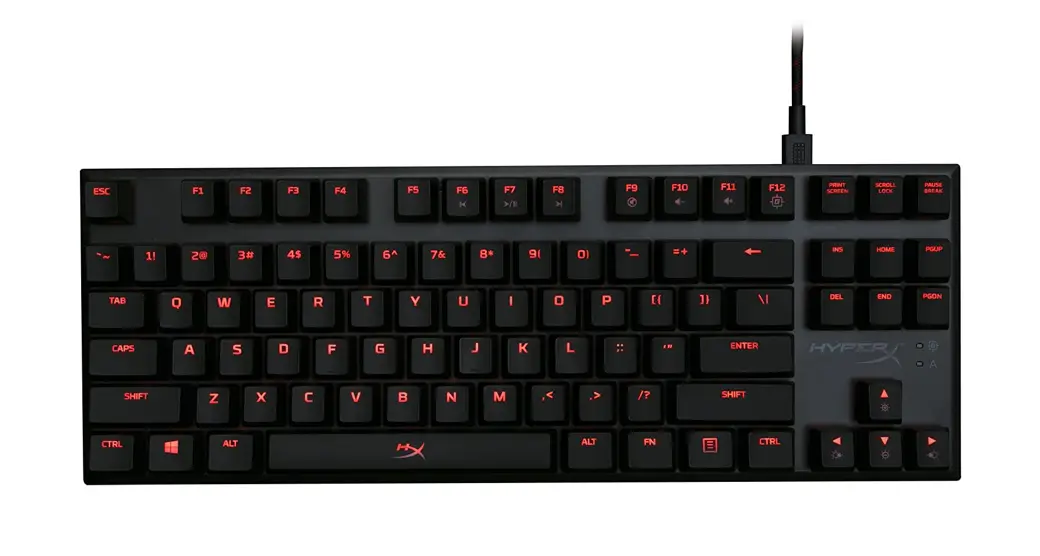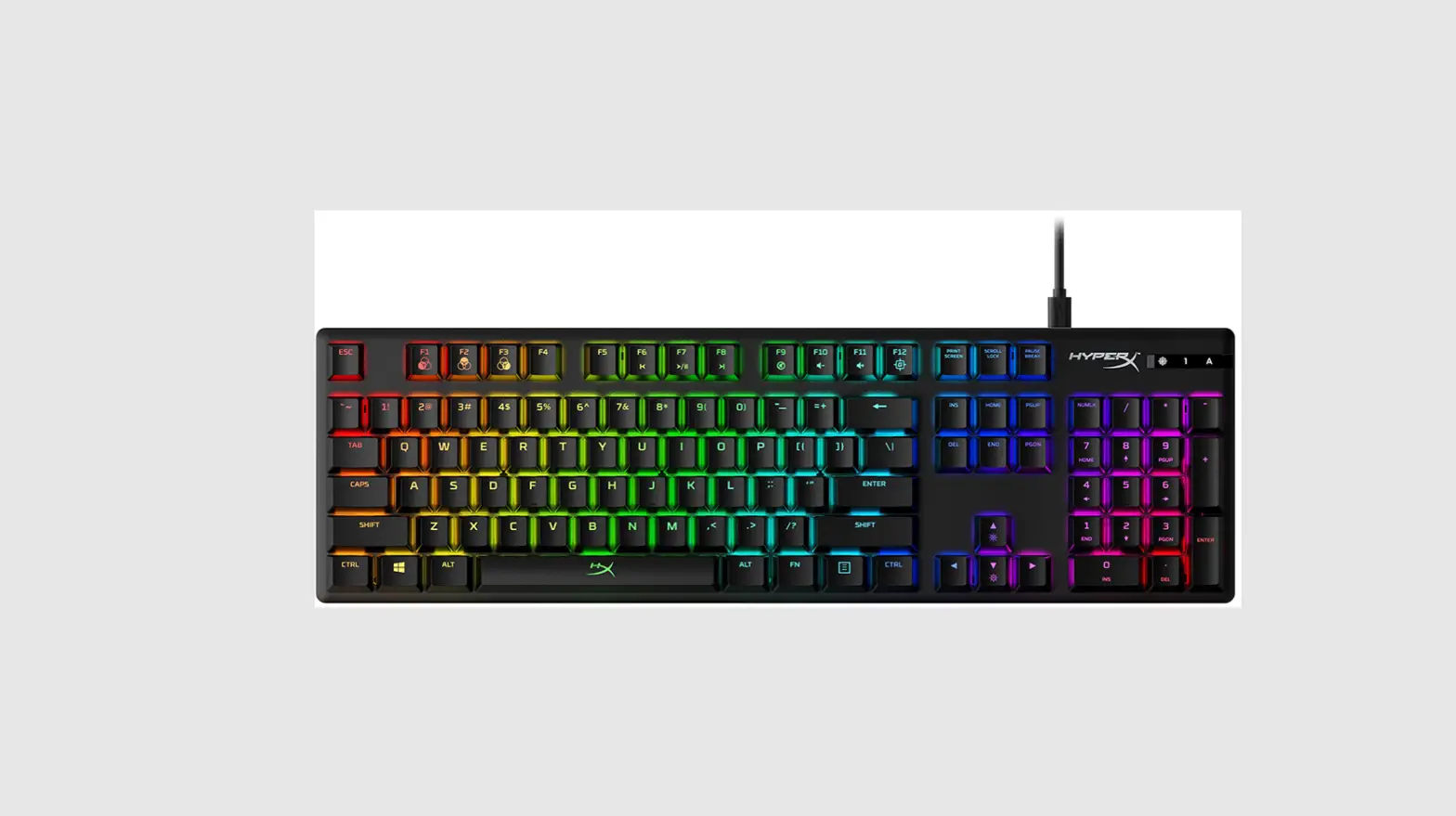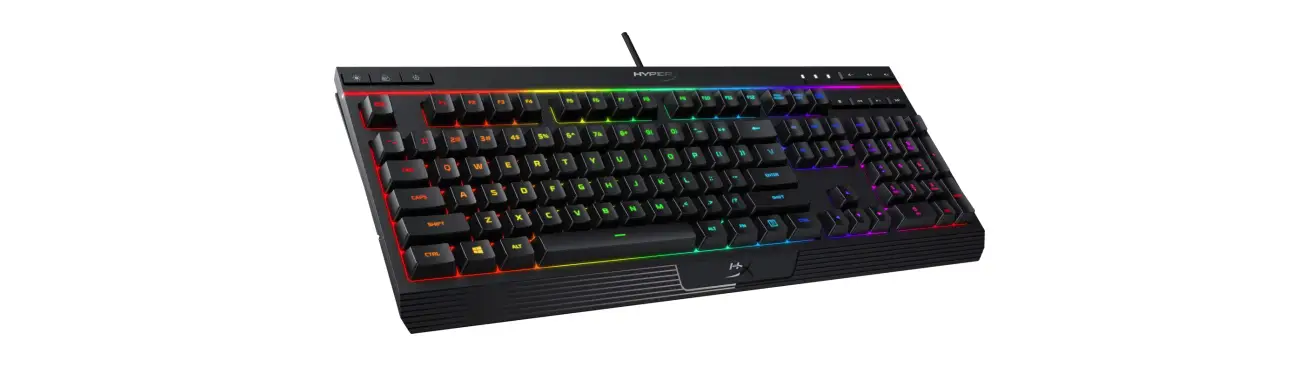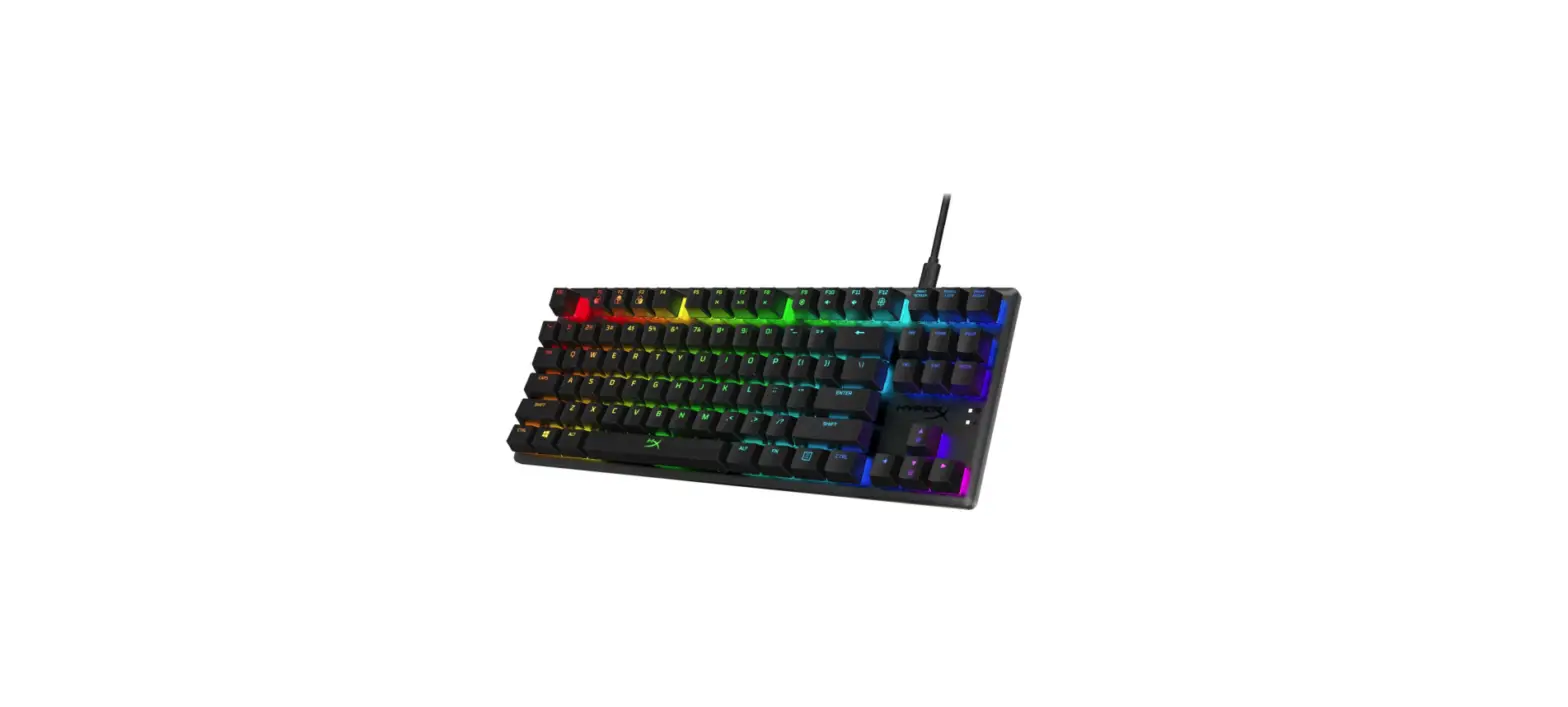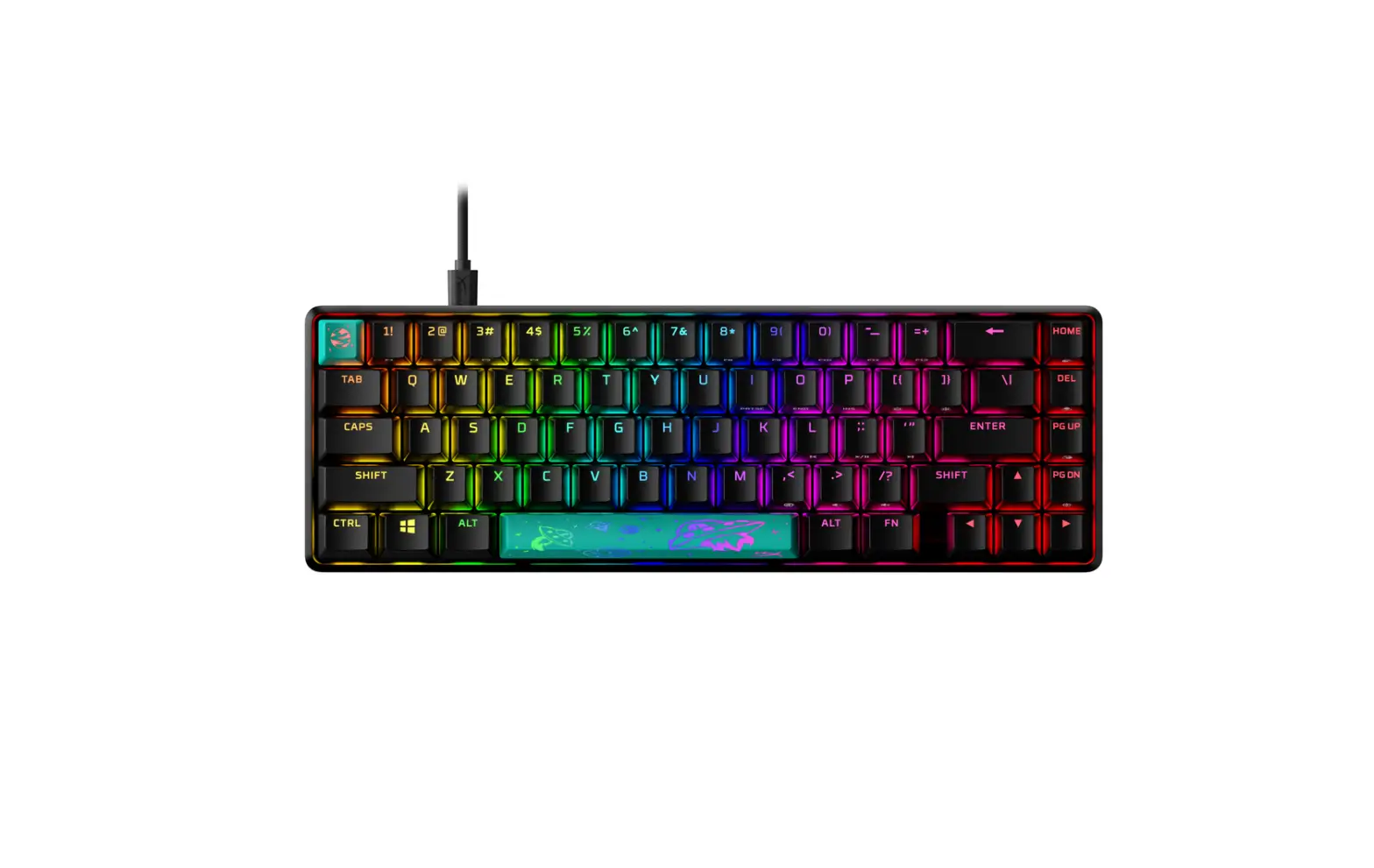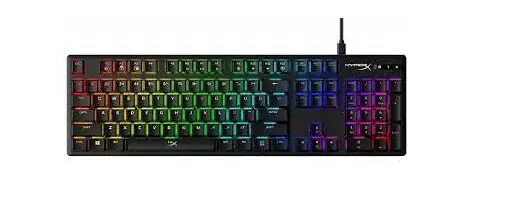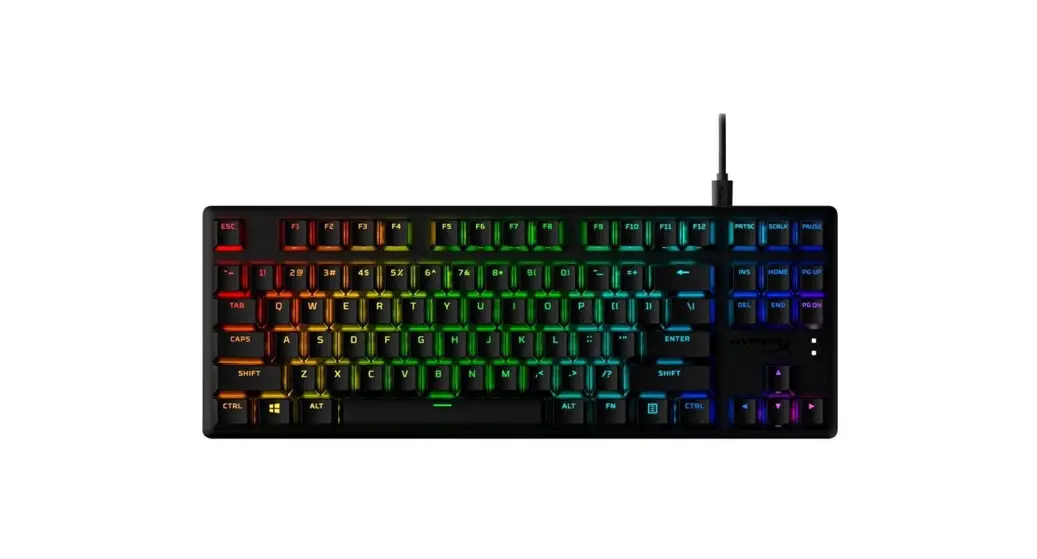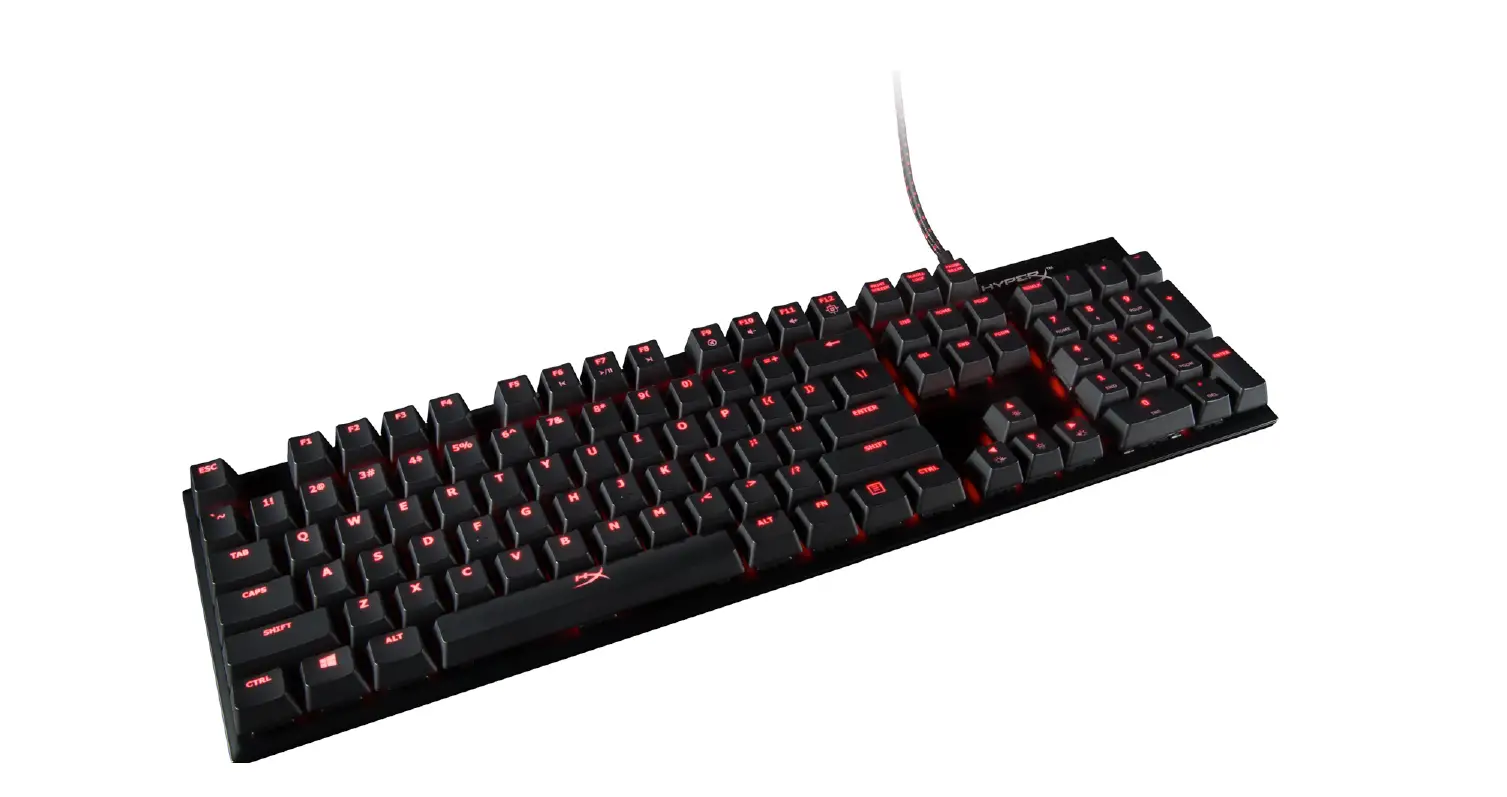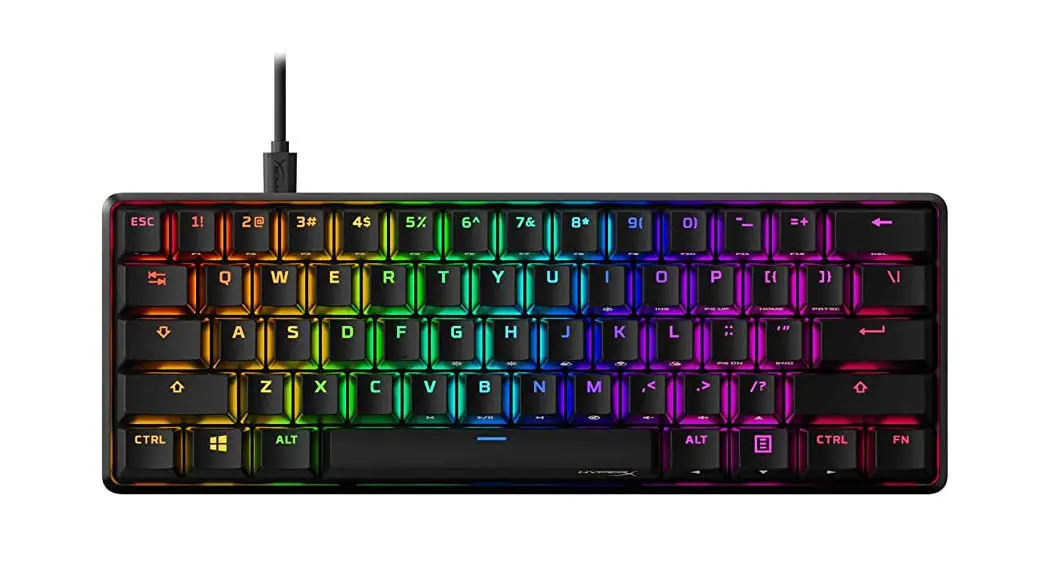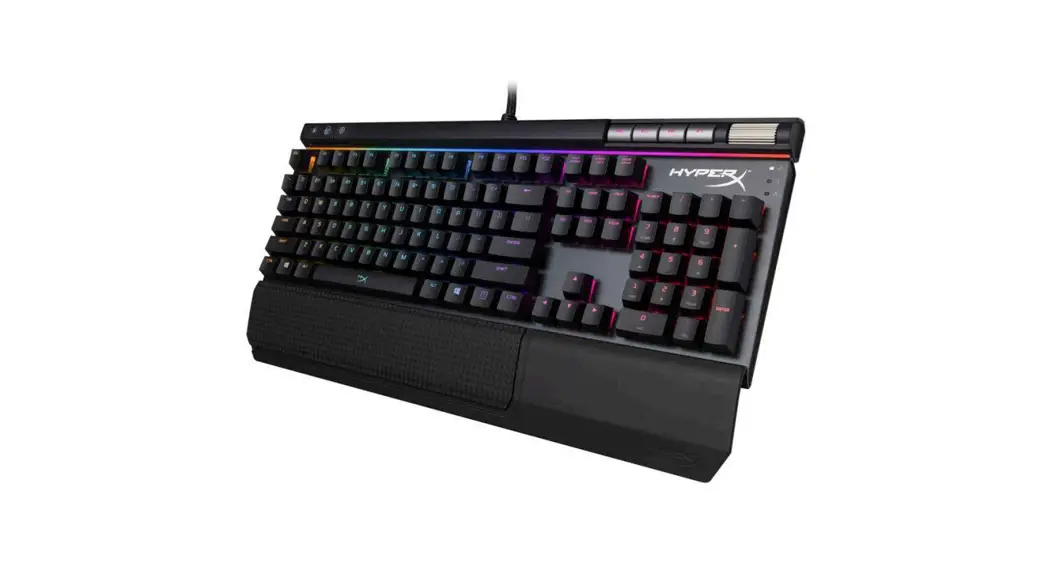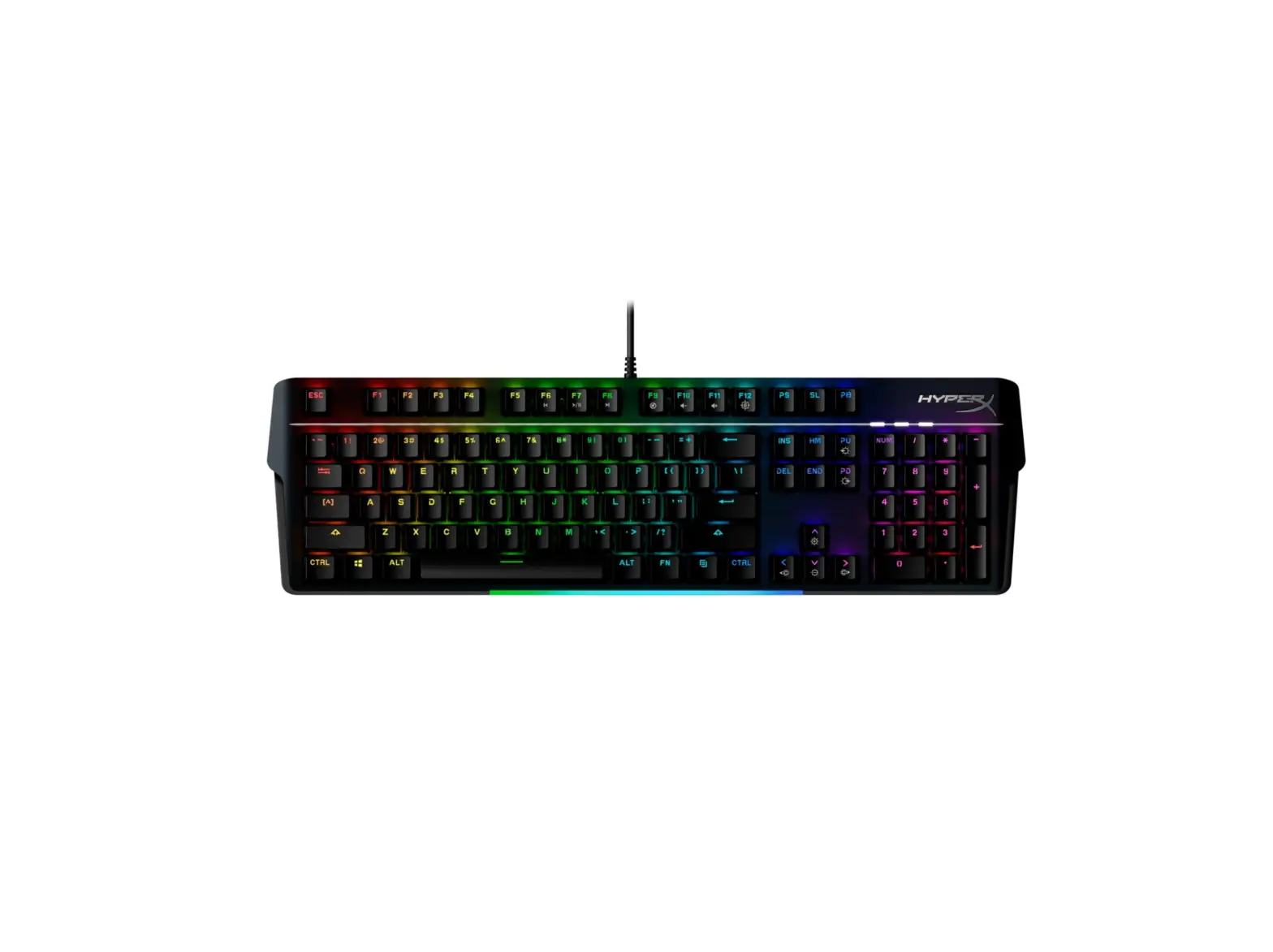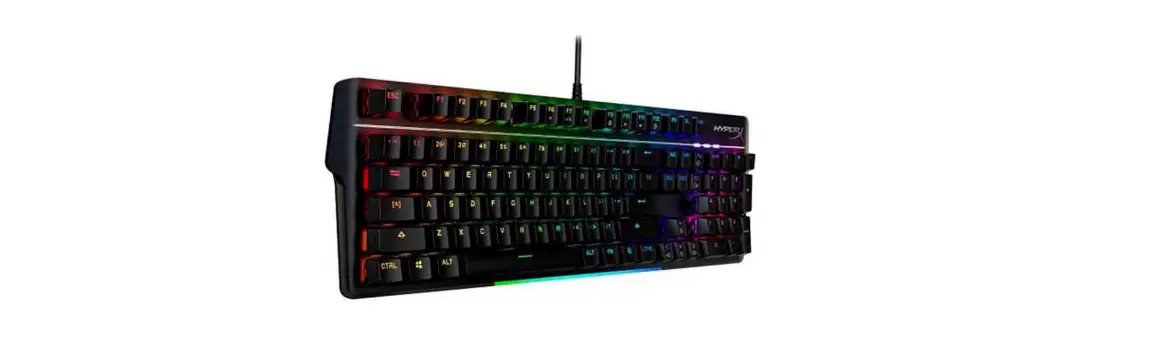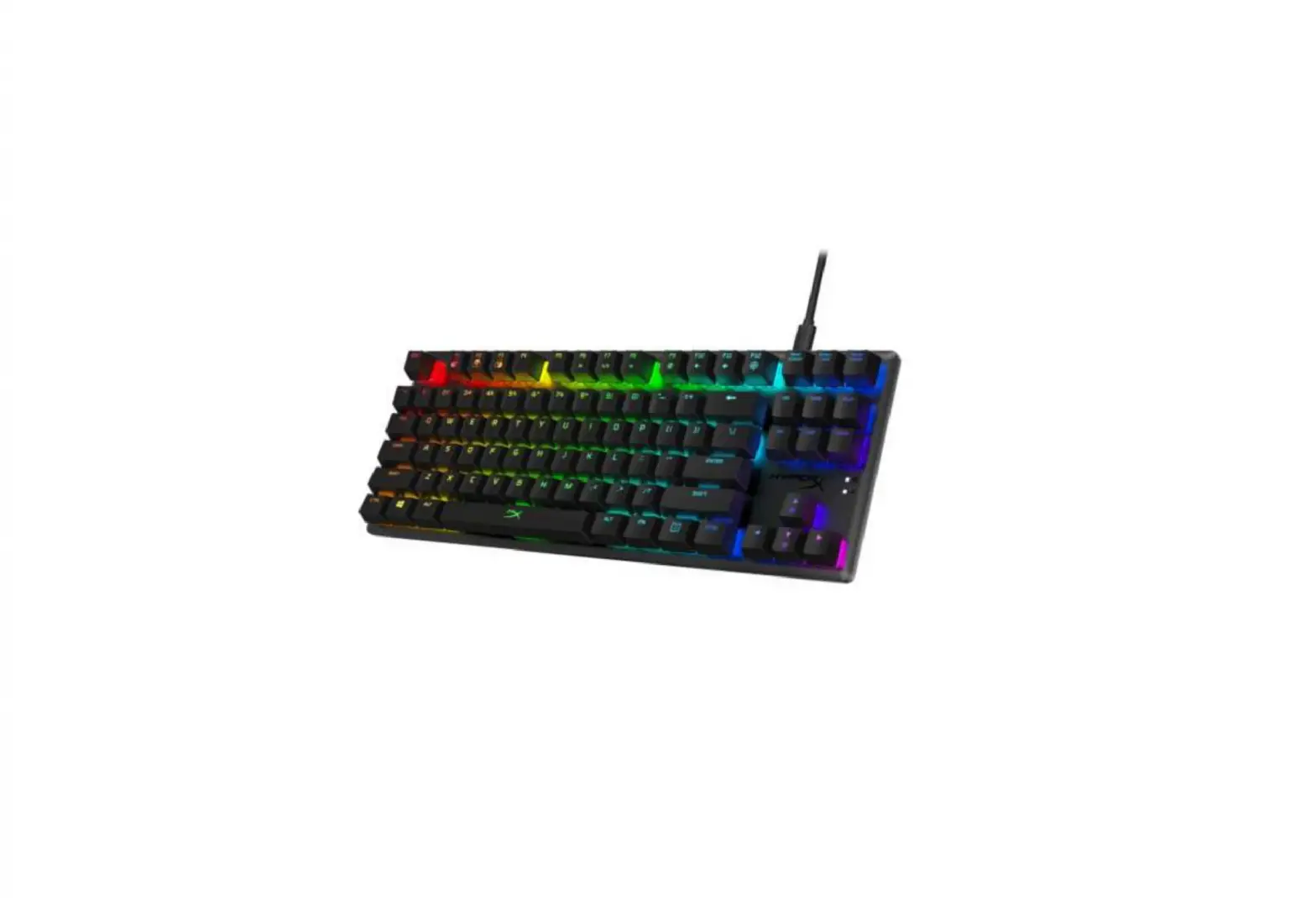
HyperX HX-KB7RDX-KO Alloy Origins Core Gaming Keyboard
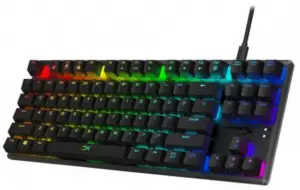
Overview
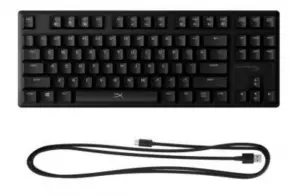
What’s Included
- HyperX Alloy Origins Core Mechanical Gaming Keyboard
- Detachable USB Type-C cable
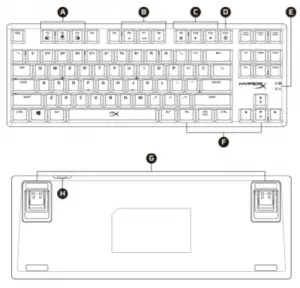
| A | FN + F1, F2, F3 = Onboard memory profile selection |  |
| B | FN + F6, F7, F8 = Media control keys |  |
| C | FN + F9, F10, F11 = Volume control keys |  |
| D | FN + F12 Game Mode key | 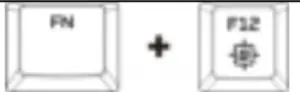 |
| E | Game Mode / Num Lock / Caps Lock indicators | |
| F | FN + Up & Down = LED brightness control keys | 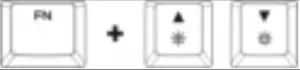 |
| G | Keyboard feet with three adjustable angles (3°, 7°, 11°) | |
| H | Keyboard USB-C port |
Specifications
Keyboard
Switch: HyperX Switch
Type: Mechanical
Backlight: RGB (16,777,216 colors)
Light effects: Per key RGB lighting** and 5 brightness levels
Onboard memory: 3 profiles
Connection type: USB Type-C to USB Type-A
Adjustable keyboard feet: 3°, 7°, 11°
Anti-ghosting: 100% anti-ghosting
Key rollover: N-key mode
LED indicator: Yes
Media control: Yes
Game Mode: Yes
OS compatibility: Windows® 10, 8.1, 8, 7
Console compatibility: PS4, Xbox One
Key Switches
Switch: HyperX Red Switch
Operation style: Linear
Operating force: 45 g
Actuation point: 1.8 mm
Total travel distance: 3.8 mm
Life span (keystrokes): 80 million
Cable
Type: Detachable, Braided
Length: 1.8 m
Dimensions
Width: 360.0 mm
Depth: 132.5 mm
Height: 34.5 mm
Weight (keyboard and cable): 900 g
**Per key RGB lighting customizable with HyperX NGENUITY Software
Installation
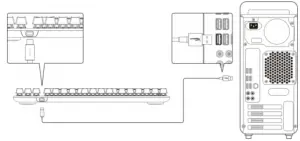
- Connect the USB-C connector to the keyboard.
- Connect the USB connector to the computer.
Function Keys
Press  and a function key at the same time to activate its secondary feature
| Function Keys | Secondary Feature |
 | Switch between the profiles on the onboard memory. |
 | Play/pause, skip backward, or skip forward through your media. |
 | Mute, decrease, or increase your volume level. |
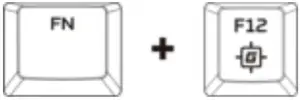 | Toggle Game Mode on/off. Game Mode will disable the Windows key. |
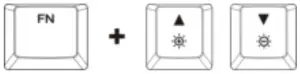 | Increase or decrease the LED backlight brightness. There are 5 levels of brightness: Off, 25%, 50%, 75%, 100%. |
HyperX NGENUITY Software
To customize Lighting, Game Mode and Macro Settings, download the HyperX NGENUITY Software here: hyperxgaming.com/ngenuity.
Using with Console
Connect to PS4 or Xbox One using the included USB cable.
Factory Reset
If you are experiencing any issue with the keyboard, you can perform a factory reset. Onboard memory will be cleared, and all settings will revert back to default.
Function Keys | Secondary Feature |
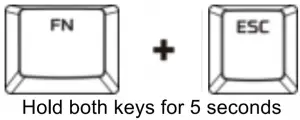 | Perform a factory reset on the keyboard |
Questions or Setup Issues?
Contact the HyperX support team at: www.hyperxgaming.com/support/

 HyperX | High Quality Gaming Gear
 HyperX | High Quality Gaming Gear