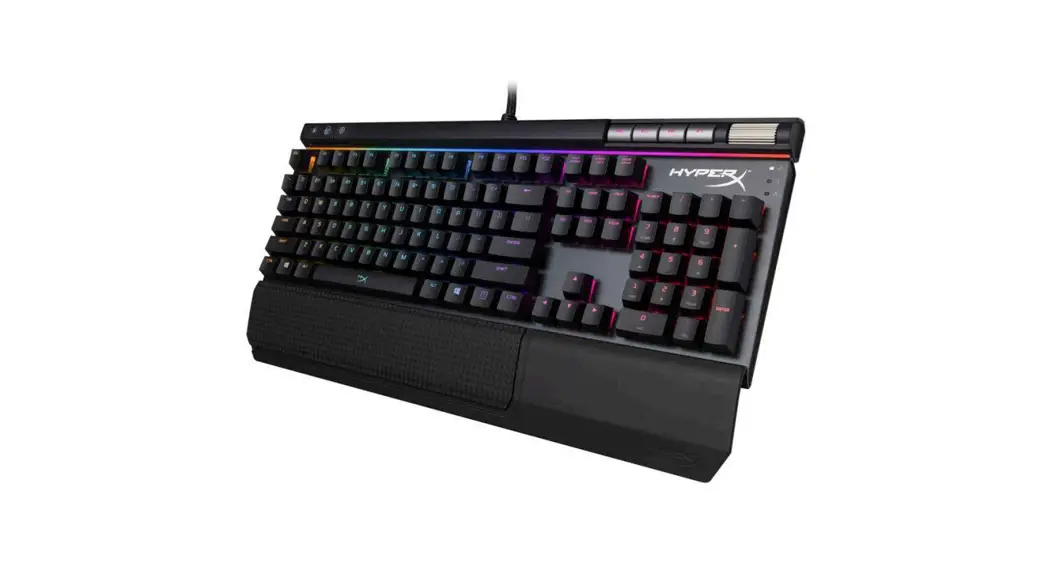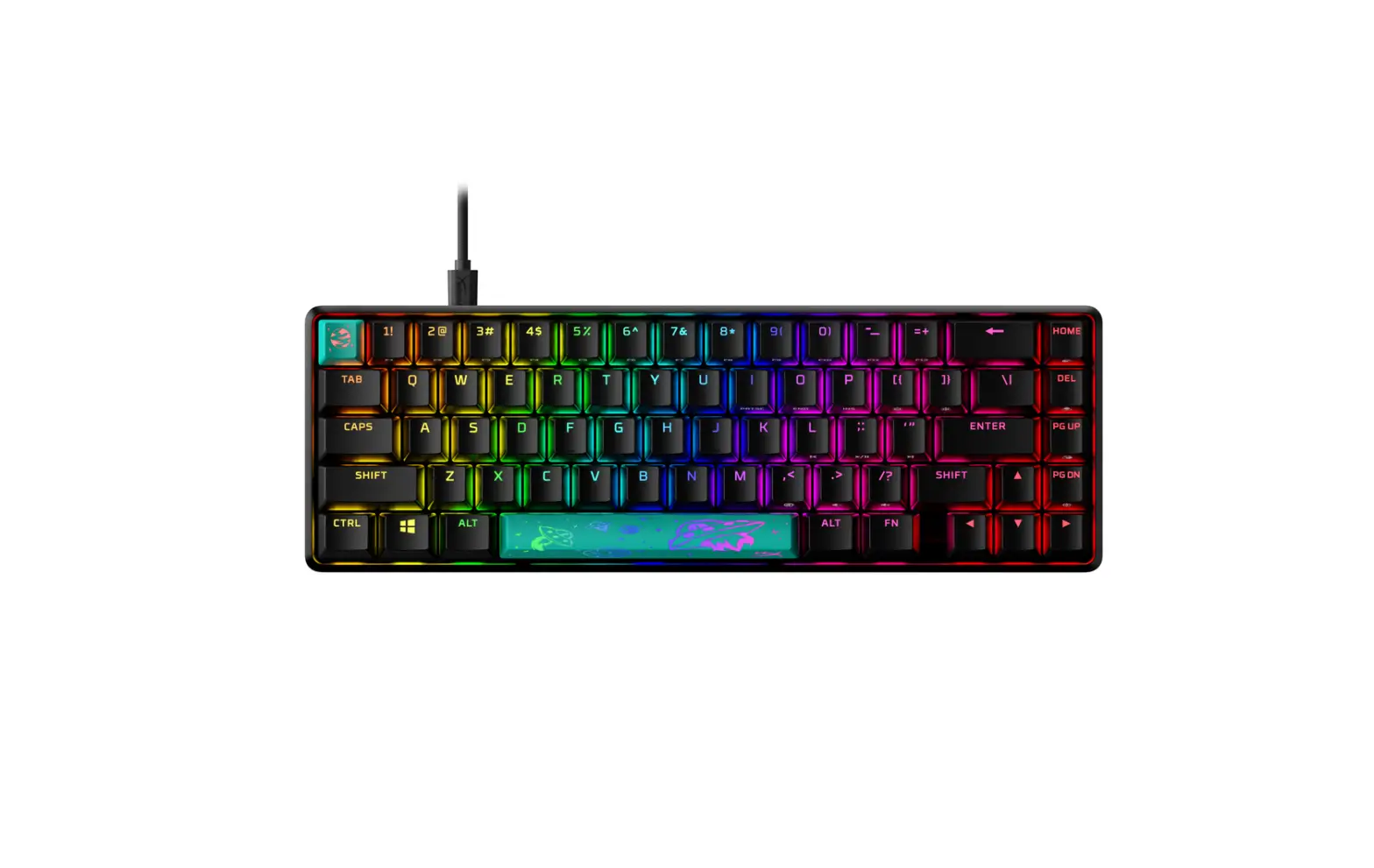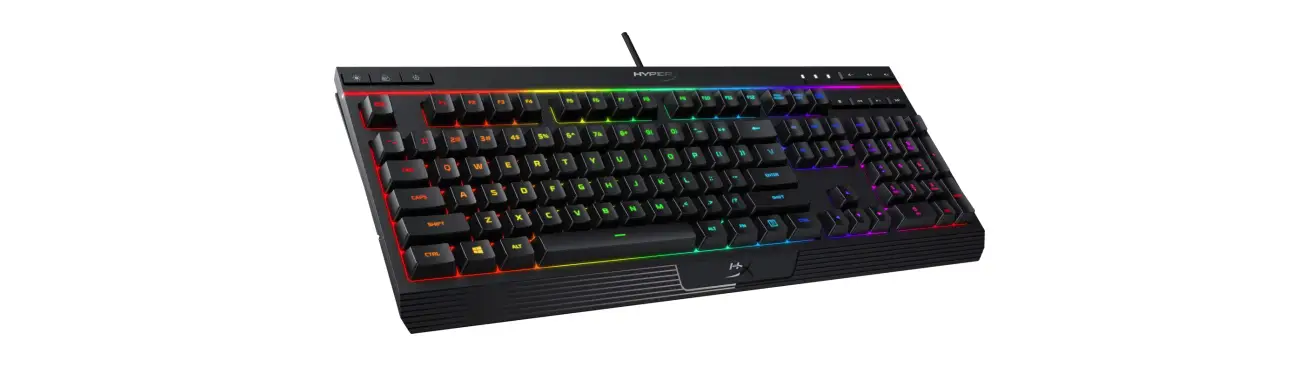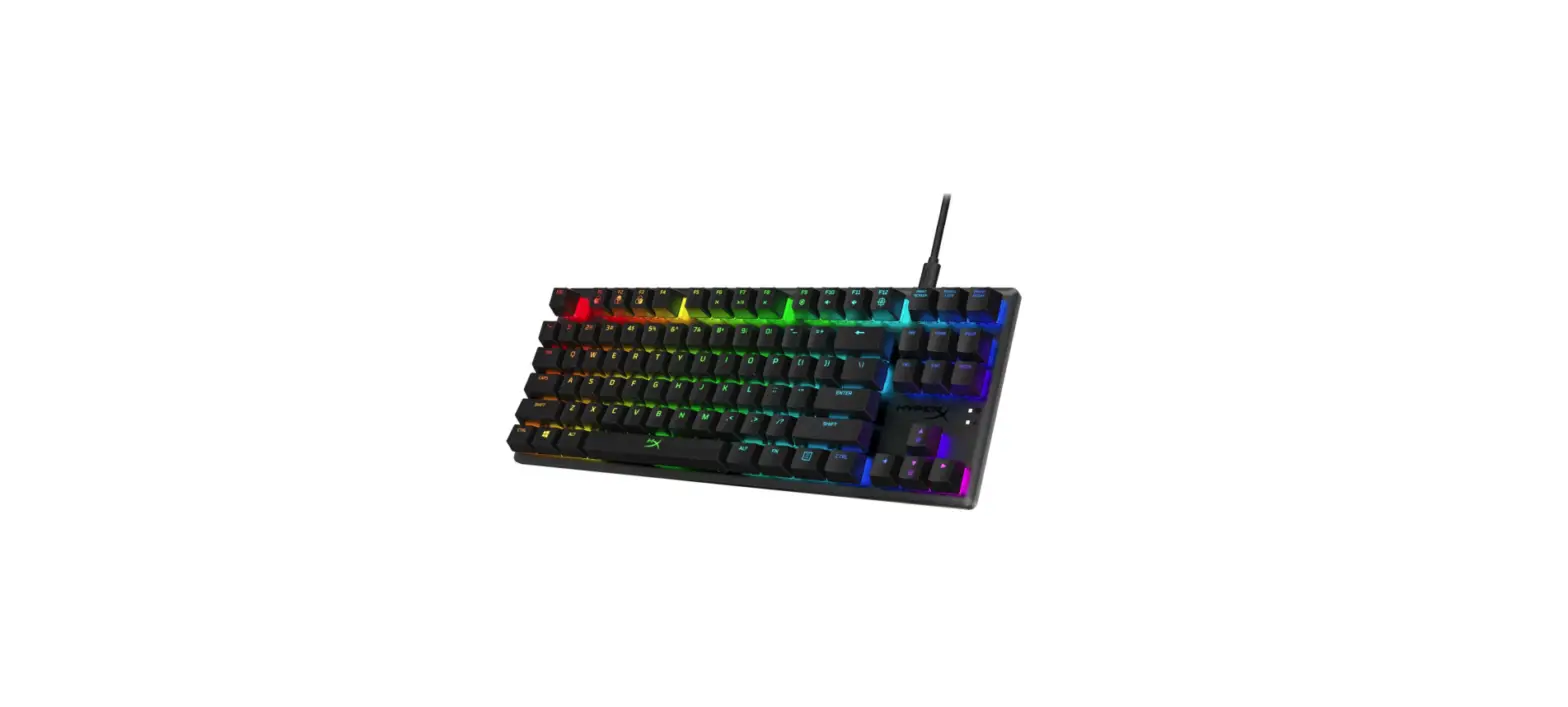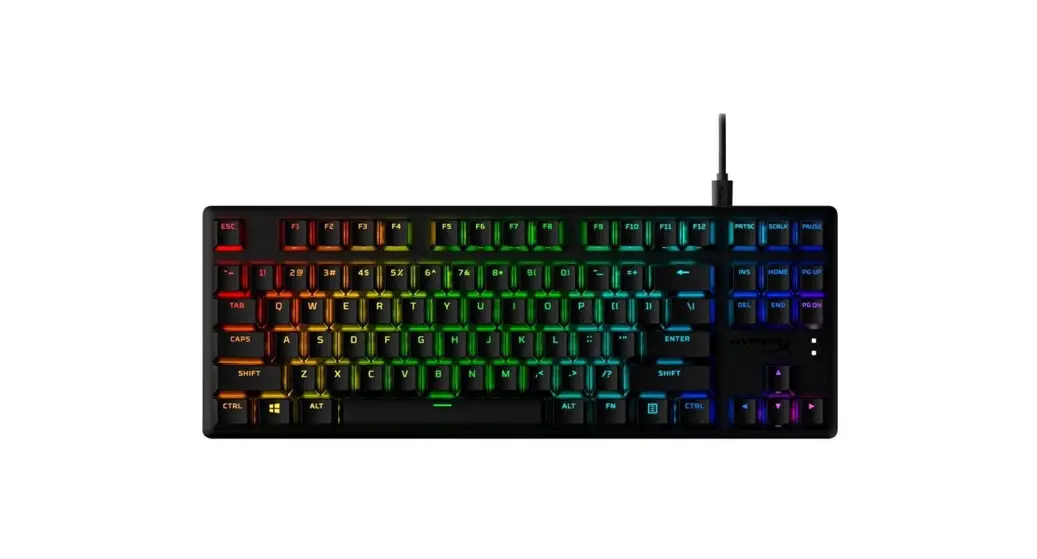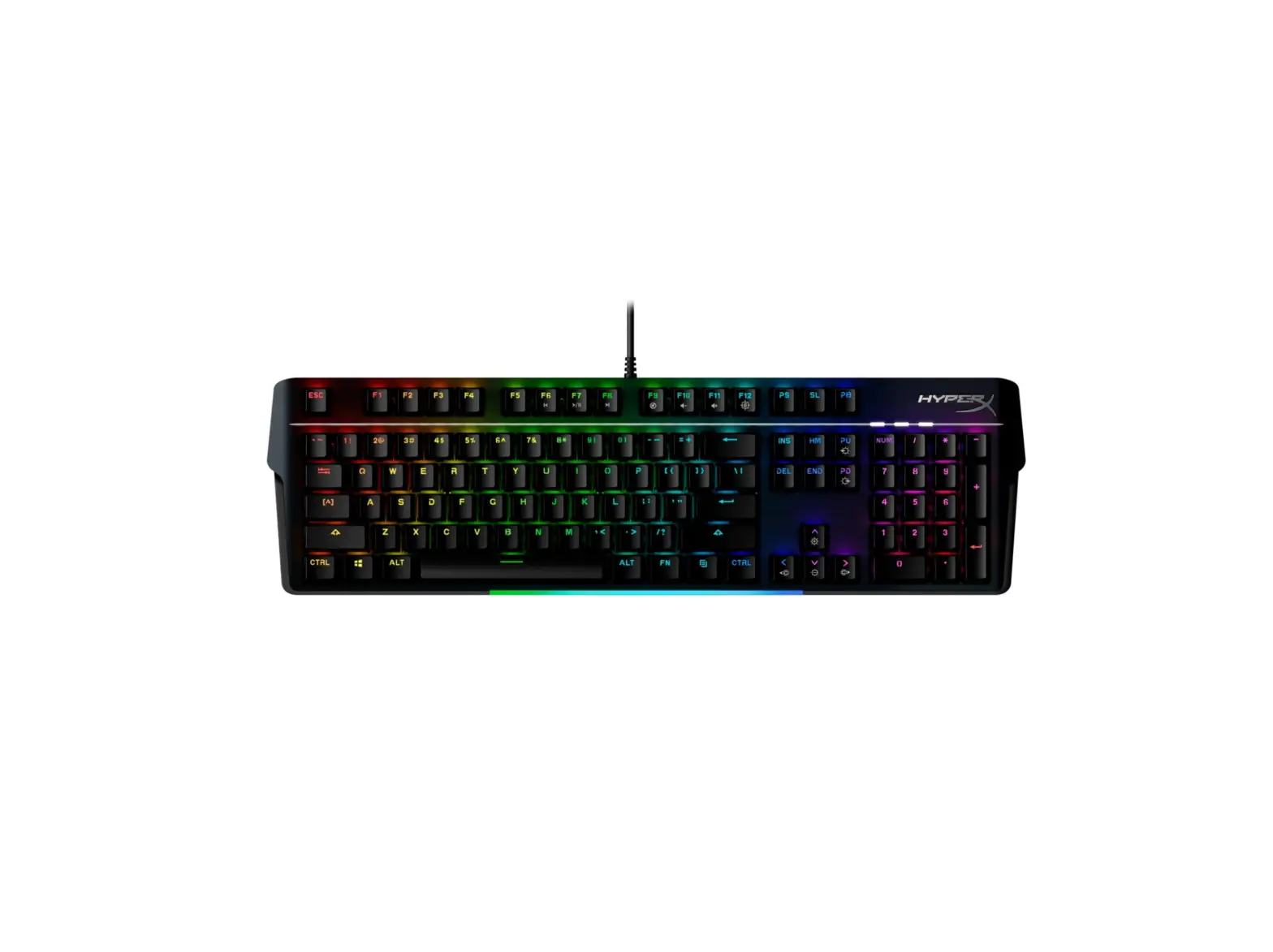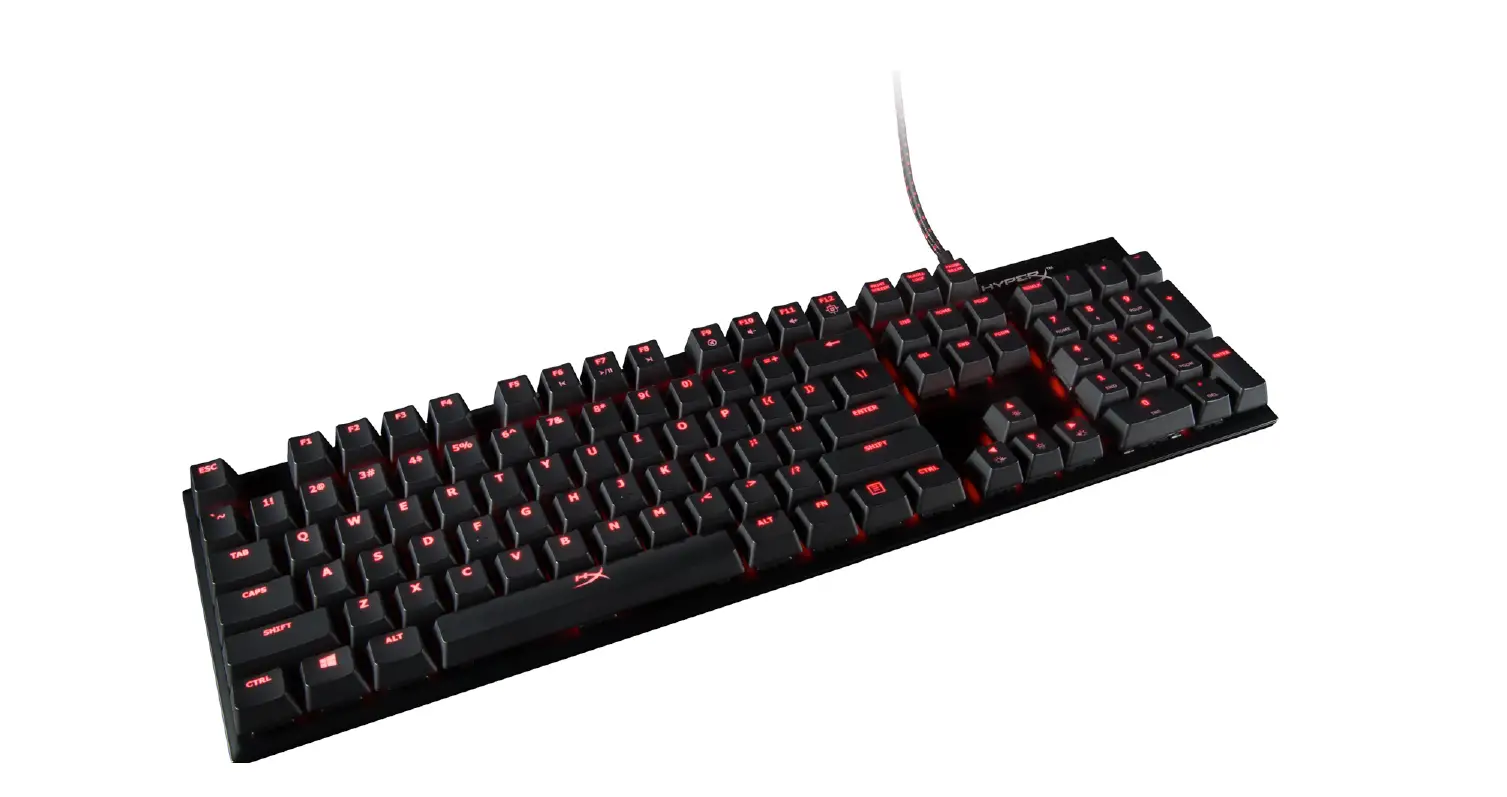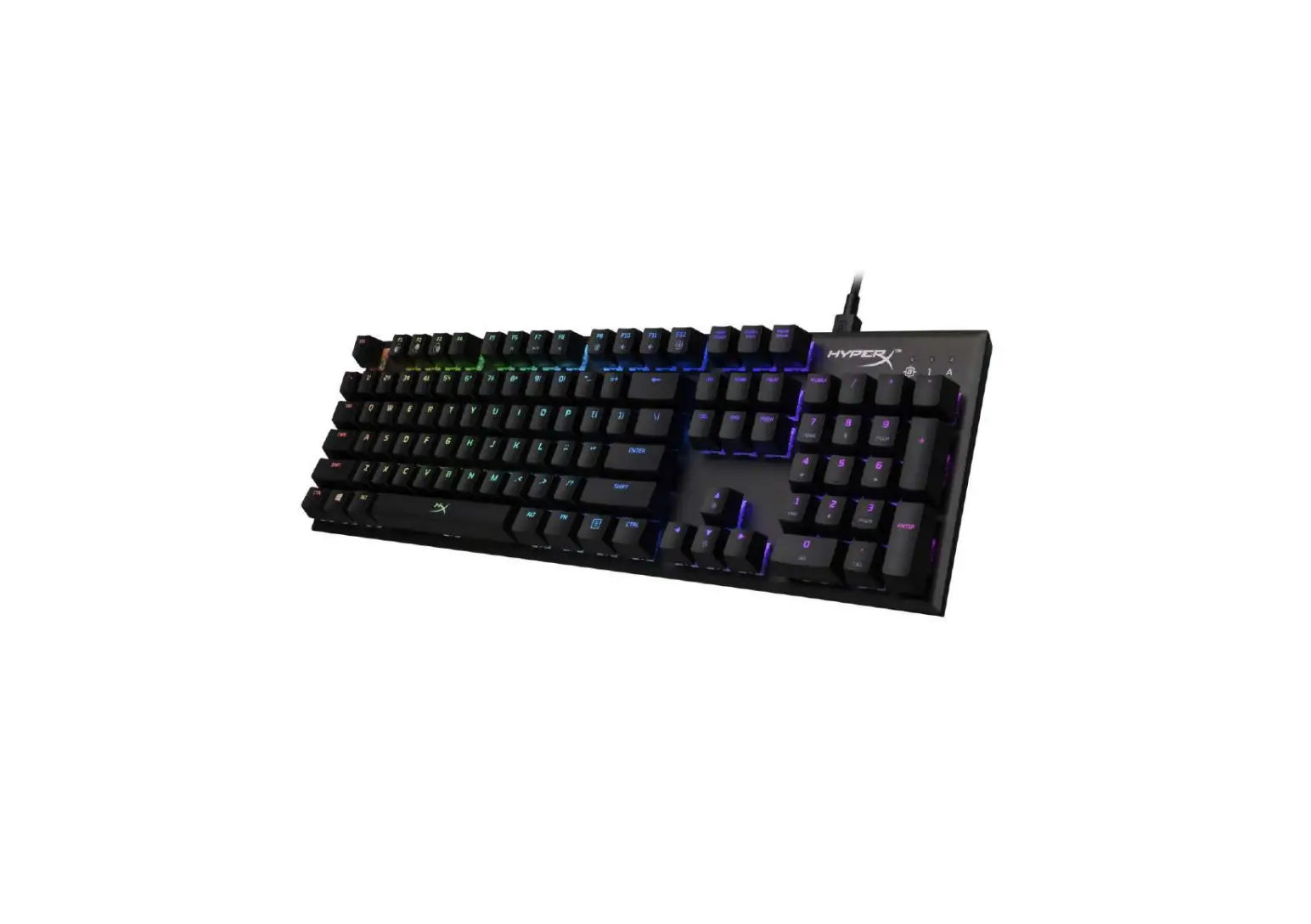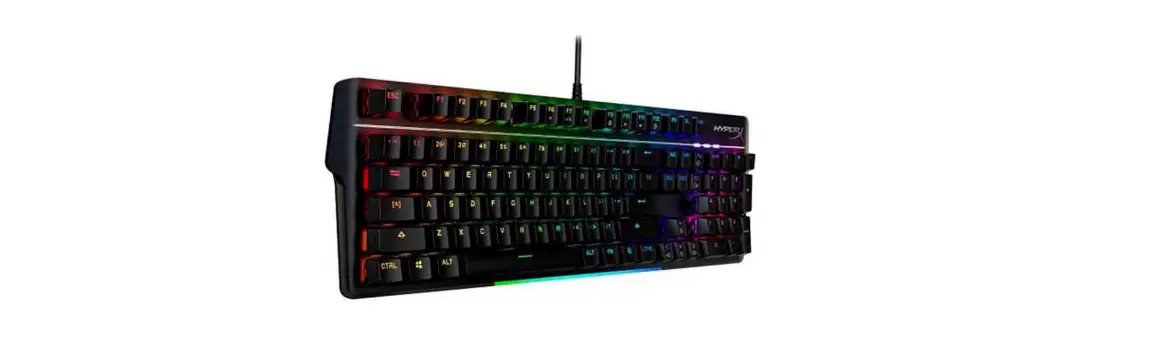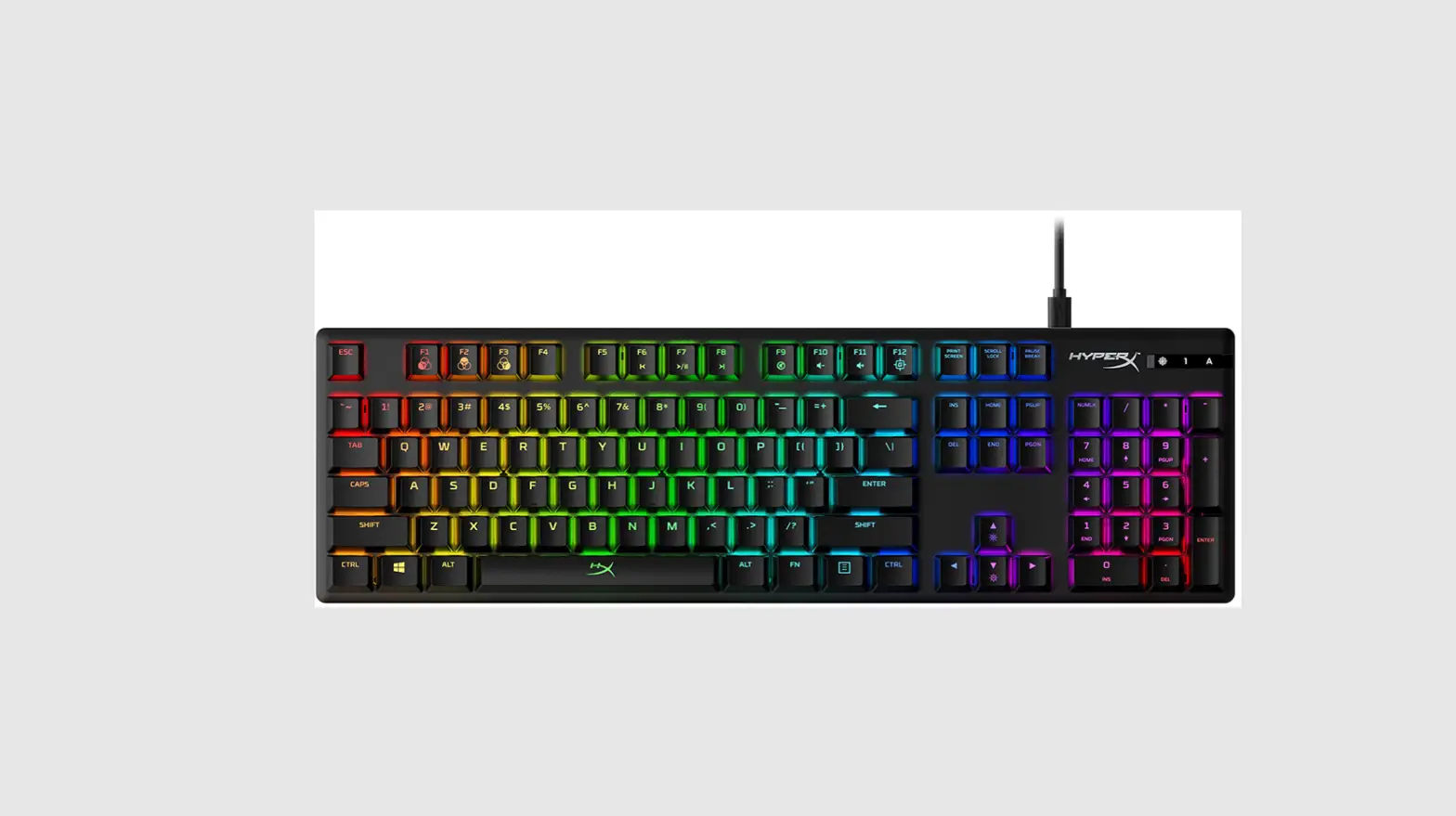

HX-KB6AQX-US HyperX Alloy Origins Mechanical Gaming Keyboard
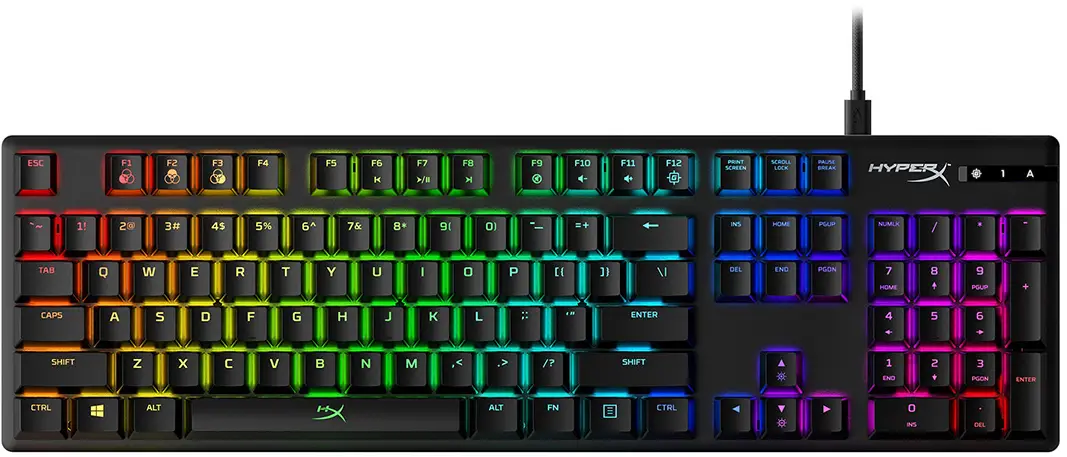
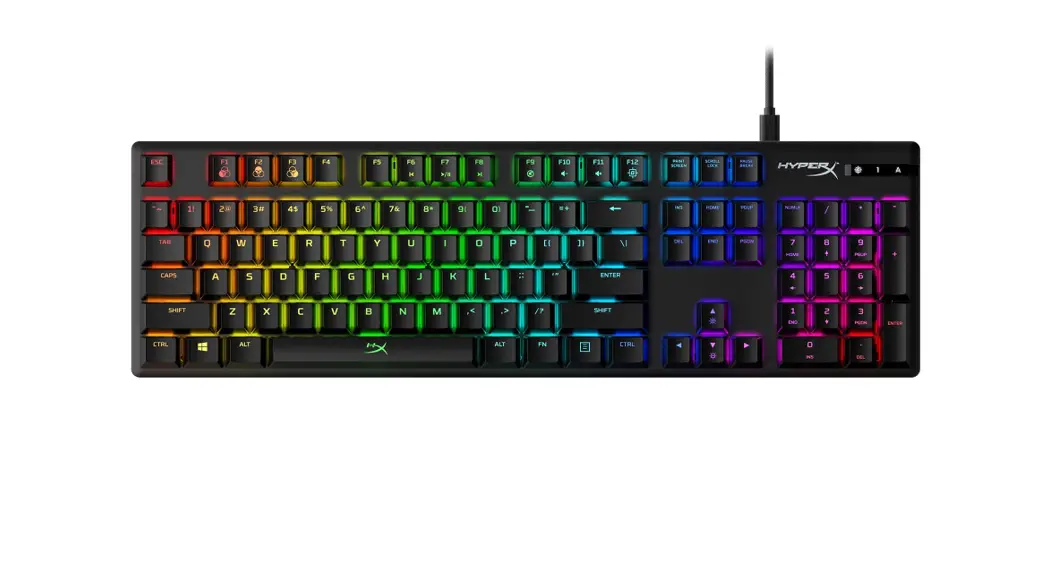
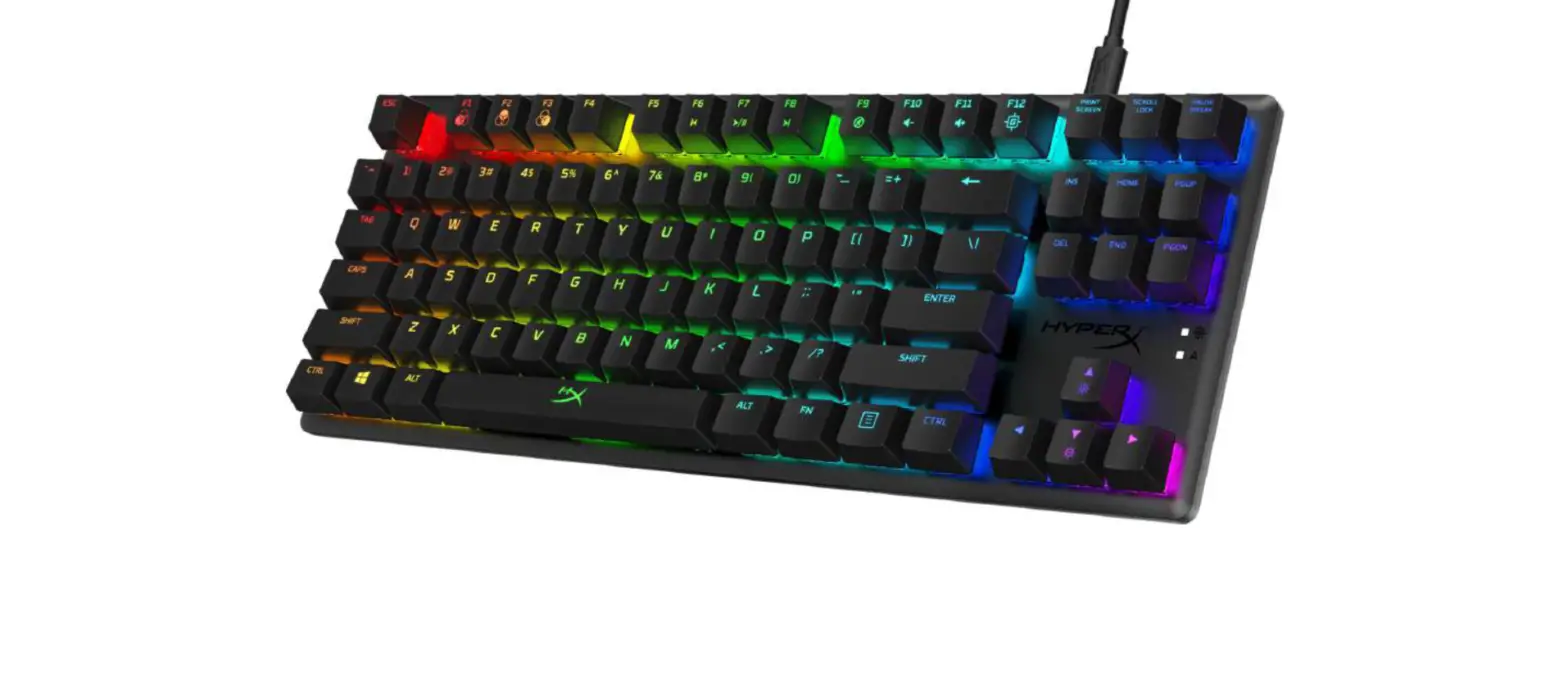
Keyboard Overview
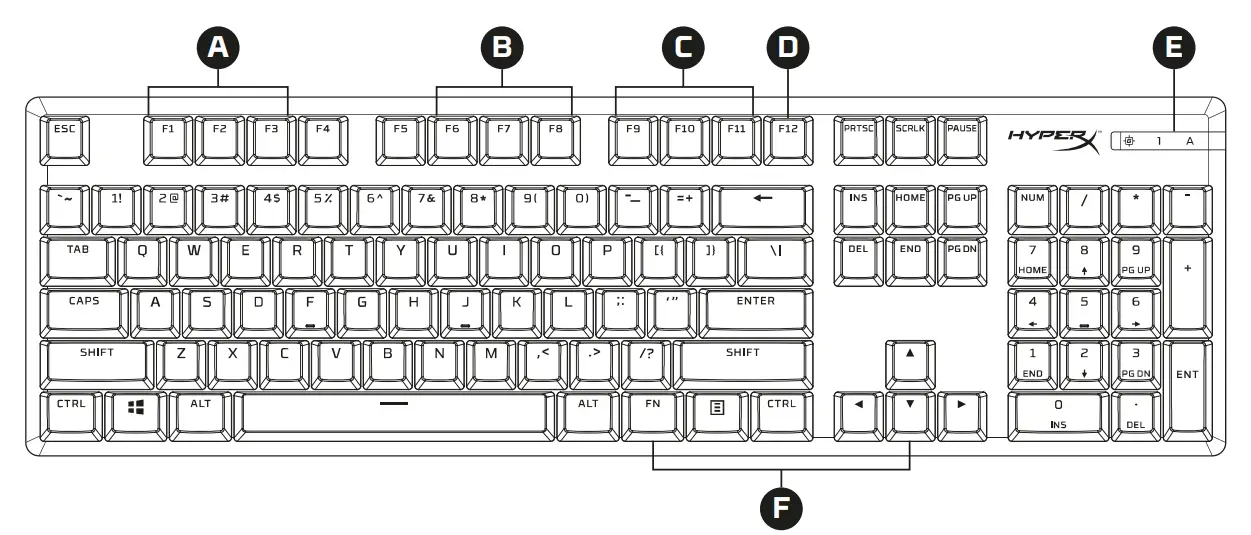
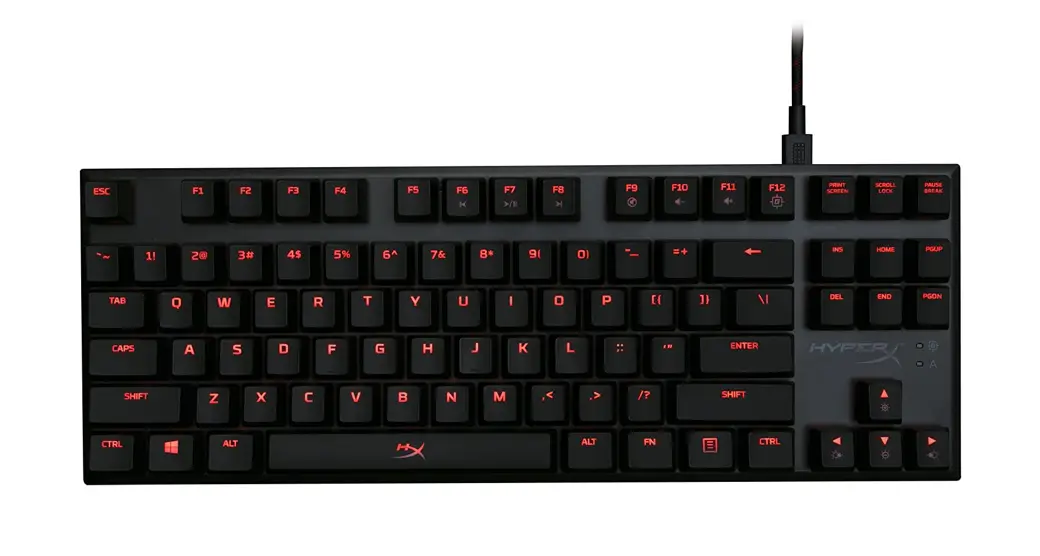
- F1, F2, F3 = Onboard memory problems selection
- F6, F7, F8 = Media keys
- F9, F10, F11 = Volume control key
- D F12 = Game Mode key
- Game Mode / Num Lock / Caps Lock indicators
- Up & Down = LED brightness control keys
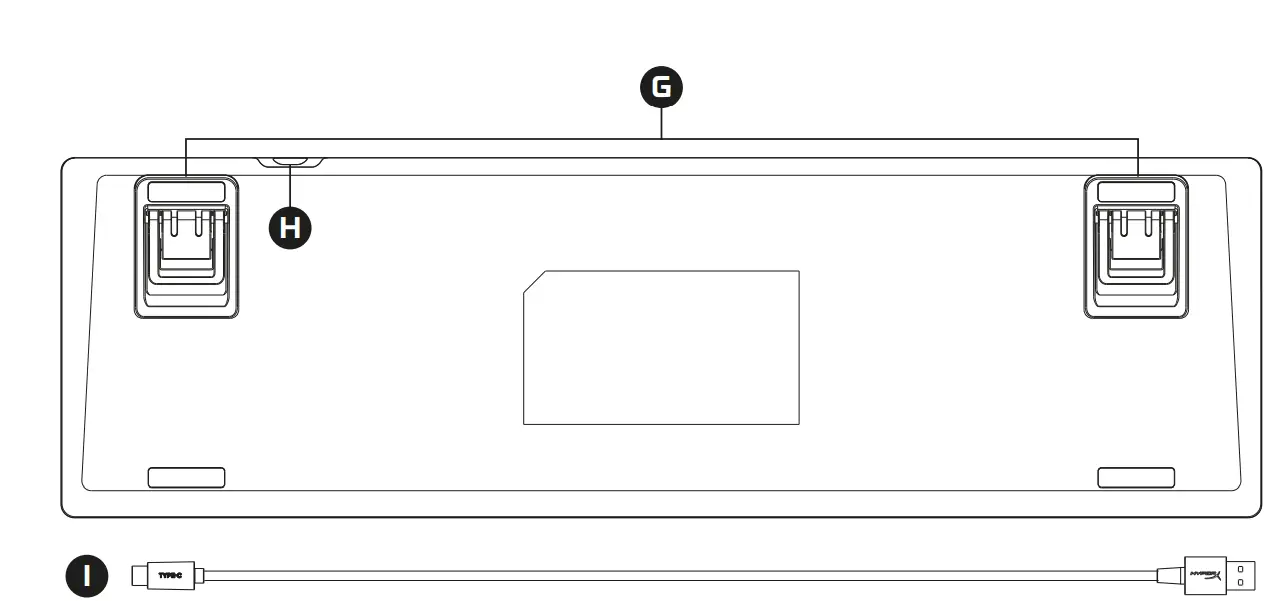
- Adjustable Keyboard Feet
- USB-C to USB-A Cable
- Keyboard USB-C Port
Installation
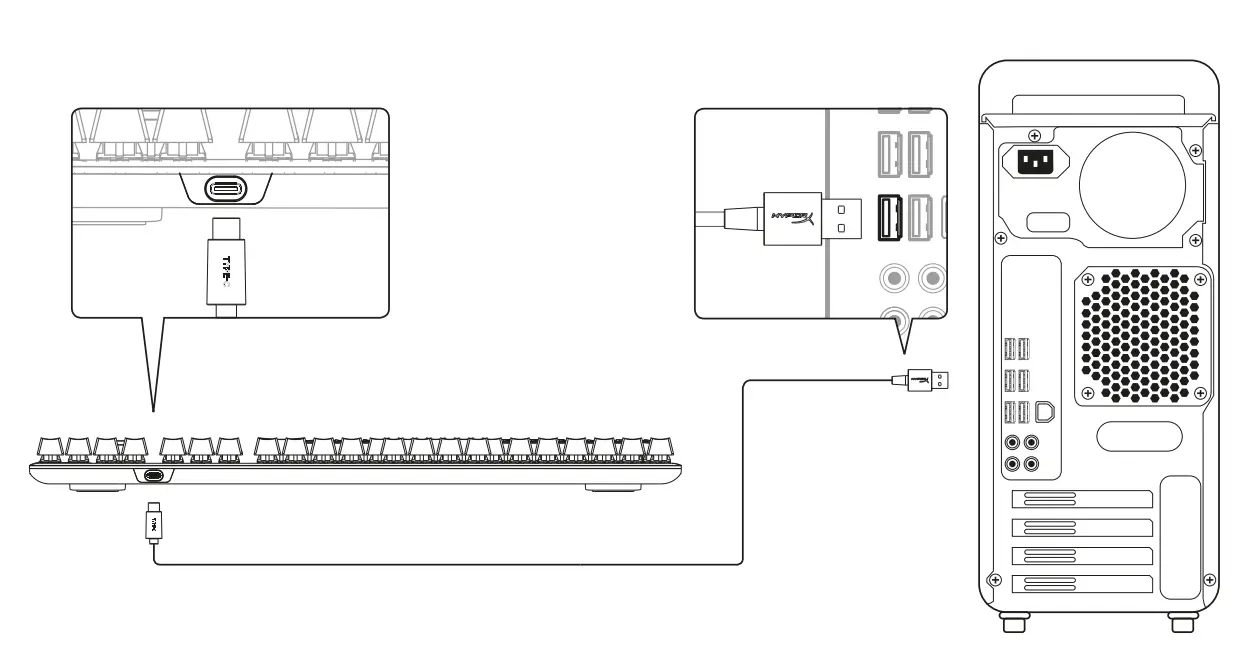
- Connect the USB-C connector to the keyboard
- Connect the USB connector to the computer
Function keys
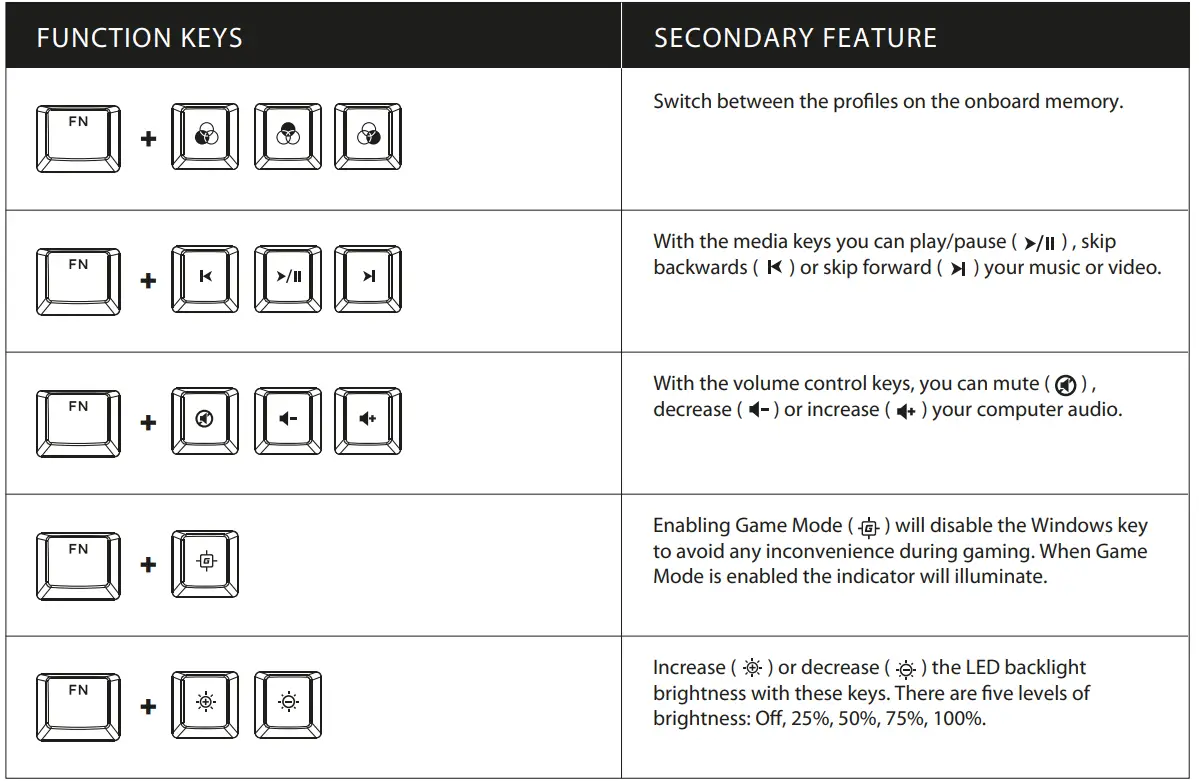
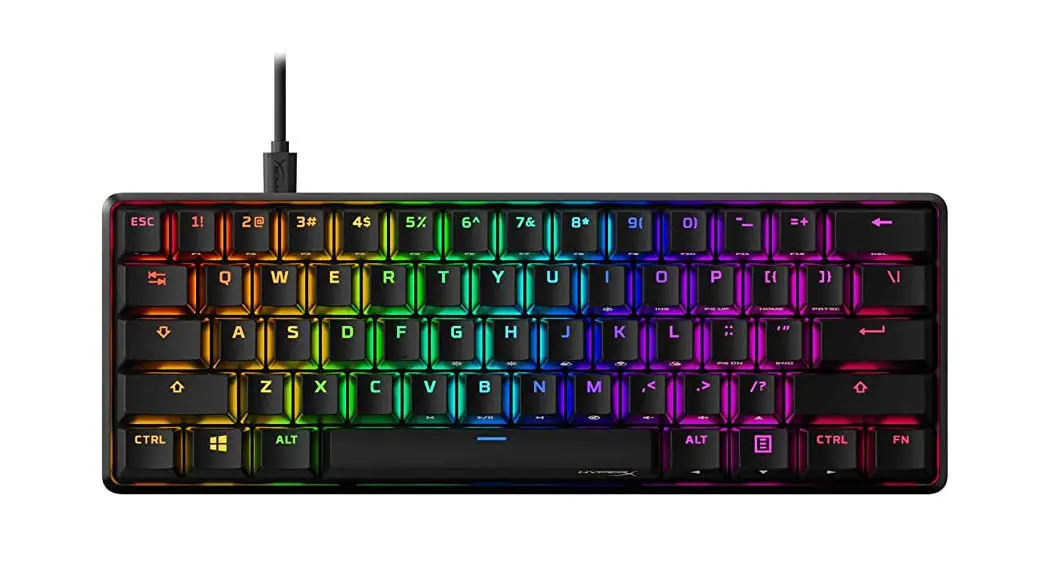
Press “FN” and a function key at the same time to activate its secondary feature.
HyperX NGENUITY Software
To customize Lighting, Game Mode, and Macro Settings, download the HyperX NGENUITY software at hyperxgaming.com/ngenuity
Questions or Setup Issues?
Contact the HyperX support team or see user manual at hyperxgaming.com/support/keyboards
 HyperX | High Quality Gaming Gear