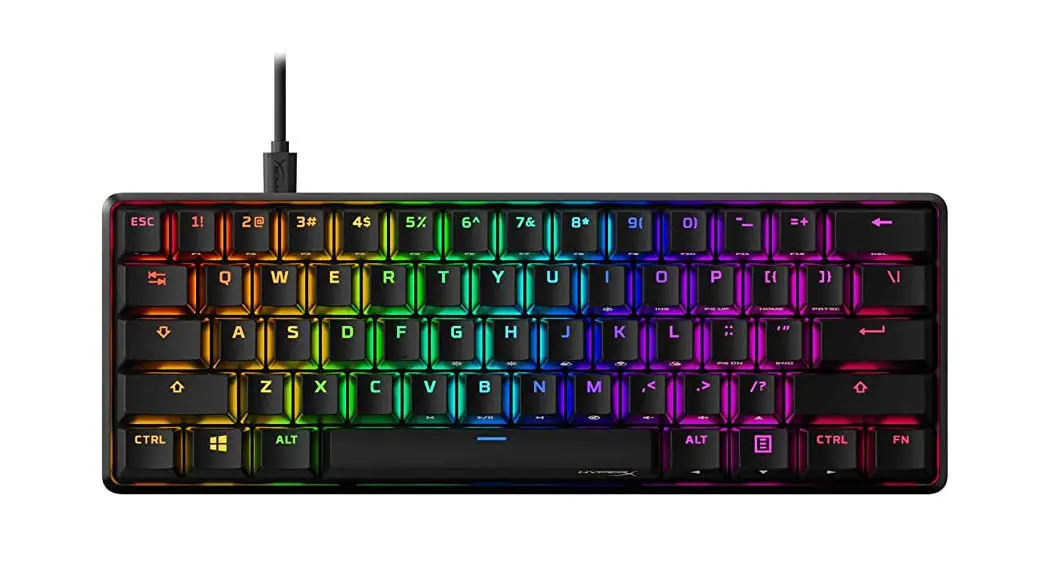
 Quick Start Guide
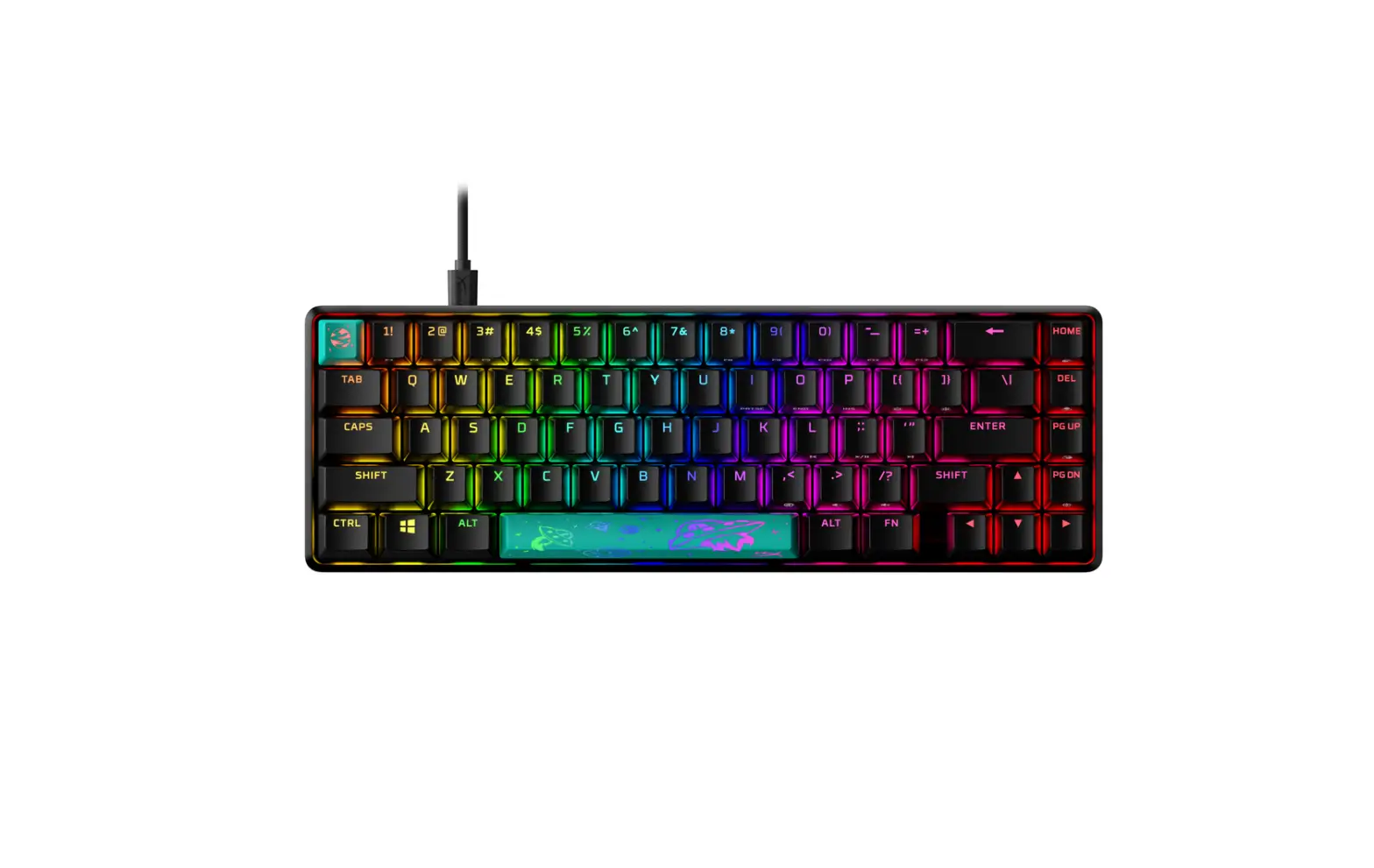
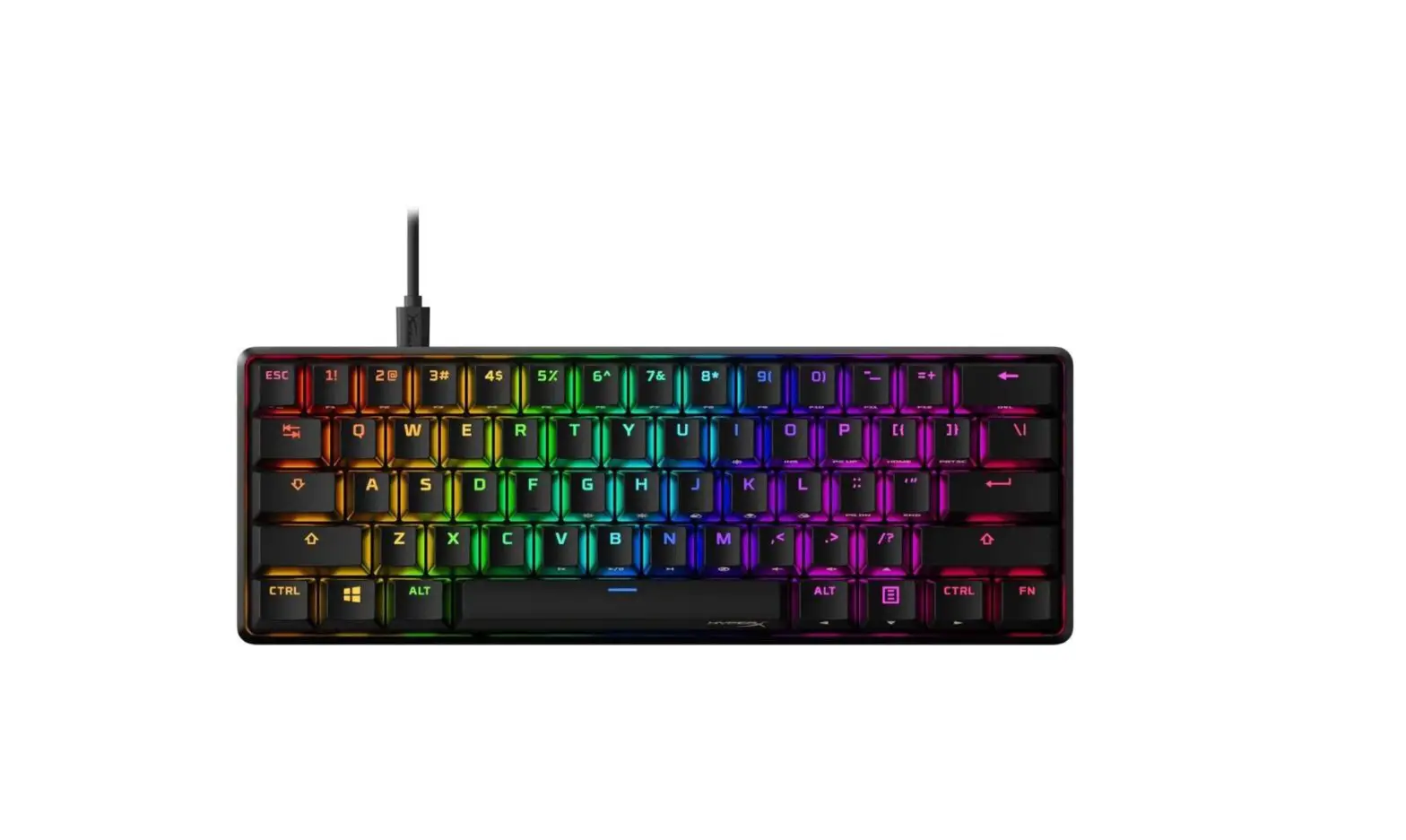
HyperX Alloy Origins 60
Keyboard Overview
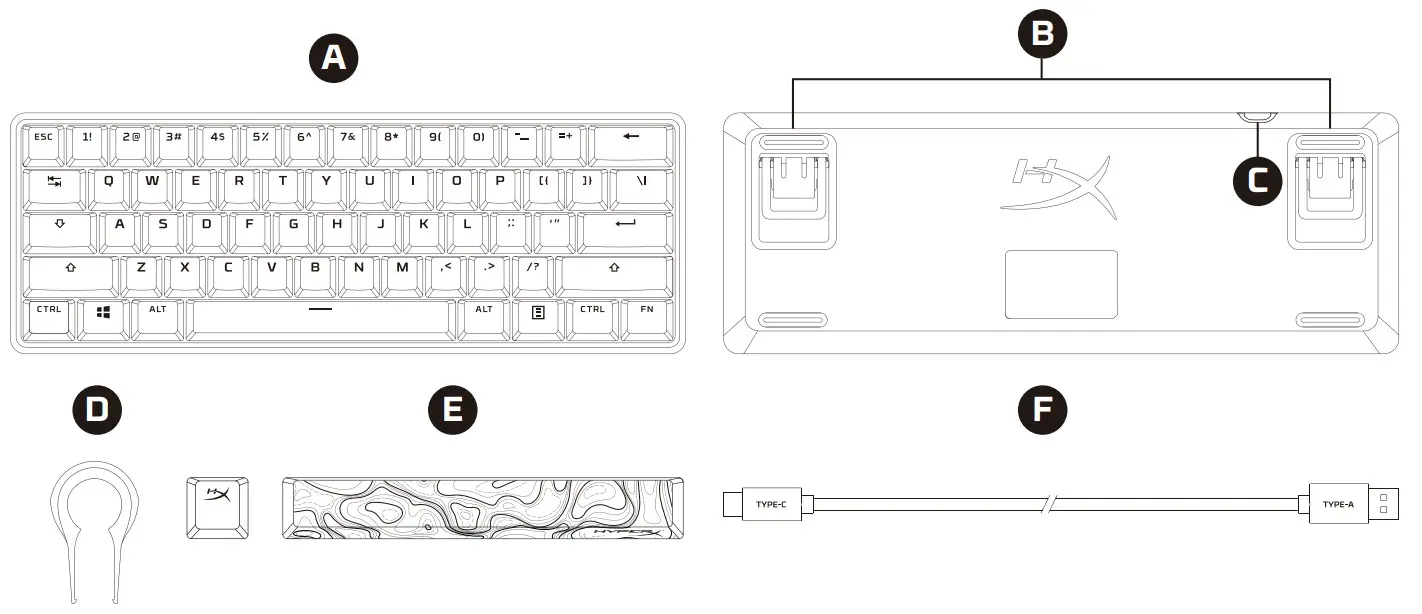
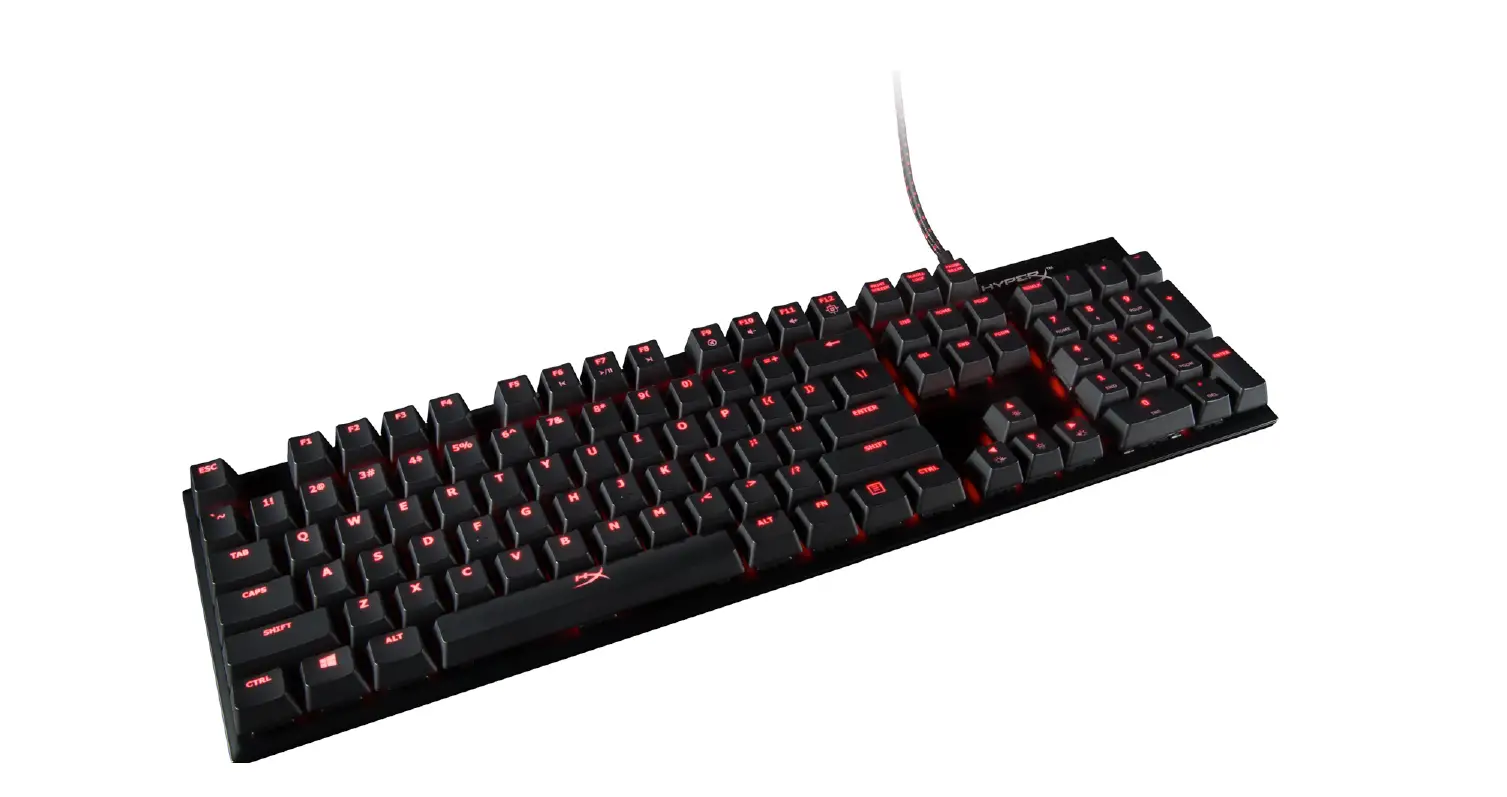
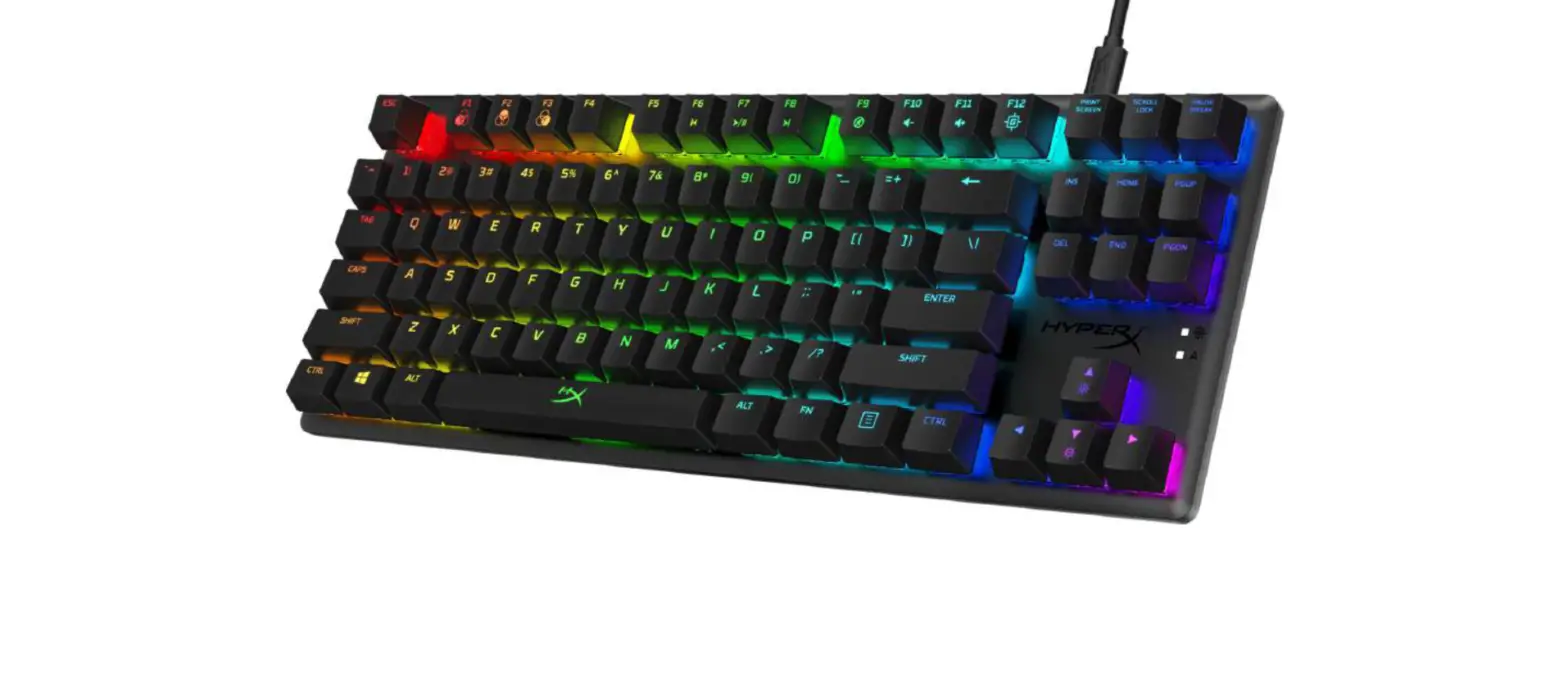
A. HyperX Alloy Origins 60 keyboard
B. Adjustable keyboard feet
C. USB-C port
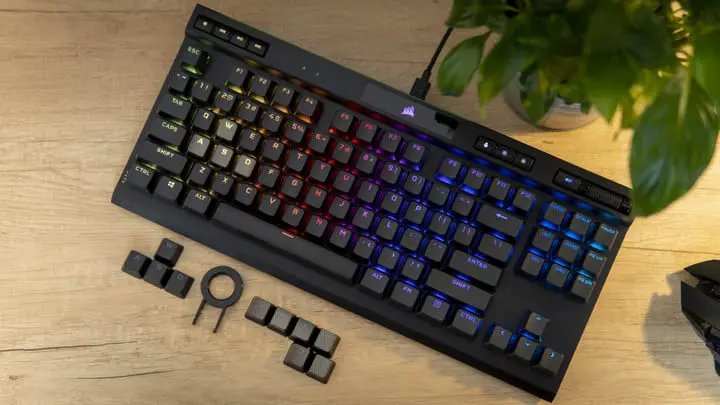
D. Keycap puller
E. Accessory keycaps
F. USB cable
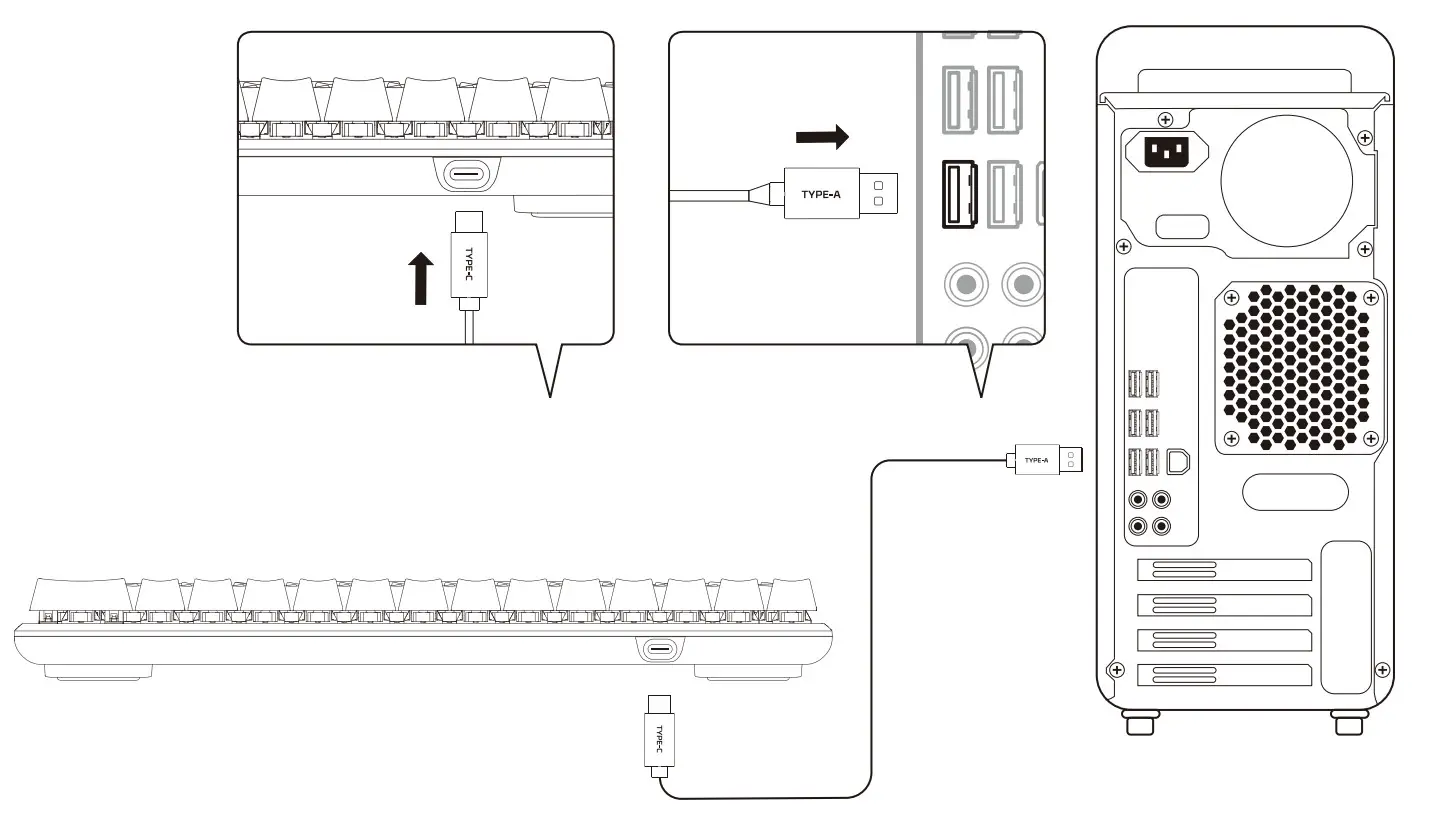
Installation
Function keys
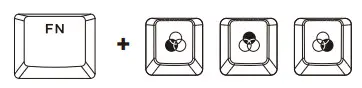
Press “FN” and a function key at the same time to activate its secondary feature as indicated on the keycap side-print.
| FUNCTION KEYS | SECONDARY FEATURE |
 | Switch between the profiles saved to the onboard memory. |
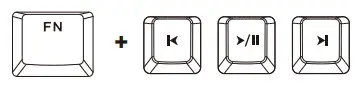 | Play/pause ( ) , skip backwards ( ) , skip backwards (  ) or skip forward ( ) or skip forward (  ) while listening to music or watching videos. ) while listening to music or watching videos. |
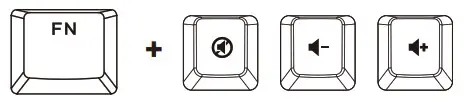 | Mute (  ), decrease ( ), decrease ( ), or increase ( ), or increase (  ) computer audio. ) computer audio. |
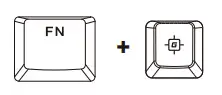 | Enable Game Mode ( ) to disable the Windows key and prevent accidental interruption during gaming. The Windows key will illuminate when Game Mode is enabled. ) to disable the Windows key and prevent accidental interruption during gaming. The Windows key will illuminate when Game Mode is enabled. |
 | Increase ( ) or decrease ( ) or decrease (  ) the LED backlight brightness. There are 5 levels of brightness. ) the LED backlight brightness. There are 5 levels of brightness. |
HyperX NGENUITY Software
To customize lighting, Game Mode, and macro settings, download the HyperX NGENUITY Software at hyperxgaming.com/ngenuity

Questions or Setup Issues?
Contact the HyperX support team at hyperxgaming.com/support/keyboards
 HyperX | High Quality Gaming Gear